

Divi 5 is the biggest evolution in the history of Divi. It is a complete rebuild focused on performance, modern accessibility, and a powerful no-code design system. The result is a platform that lets anyone create consistent, scalable websites faster and more efficiently.
Divi 5’s new modular framework provides a faster, more feature-rich Visual Builder. With tools like Design Variables, Element and Option Group Presets, Loop Builder, Flexbox, CSS Grid, and Divi 5 Canvases, you can create professional, complex websites more easily than ever before. Simply define global systems once, apply them everywhere, and update site-wide with a single change.
In this post, we will break down Divi 5’s core design system, explain how to set up a rock-solid framework, and share a step-by-step approach for new projects. This post builds on our free Divi 5 Design System freebie, which gives you a complete, production-ready starting point you can import into a new Divi 5 site.
Let’s get started.
Understanding Divi 5
Divi 5 introduces a modern design system built for consistency, speed, and scalability. It allows you to create a complete design system based on core features that let you define styles once and apply them everywhere. These features work together to speed up the design process while generating clean, class-based frontend code behind the scenes.
In the examples throughout this section, we will reference elements from the free Divi 5 Design System to illustrate how Design Variables, Presets, Layout Style settings, and other tools integrate in a complete, ready-to-customize Divi 5 design system.
Design Variables
Design Variables serve as reusable building blocks for colors, fonts, numbers, images, text, and URLs. They act as a no-code equivalent to CSS custom properties. Define them in the Variable Manager once, and use them anywhere on your site.
The Variable Manager has a dedicated panel in the Visual Builder’s left sidebar.
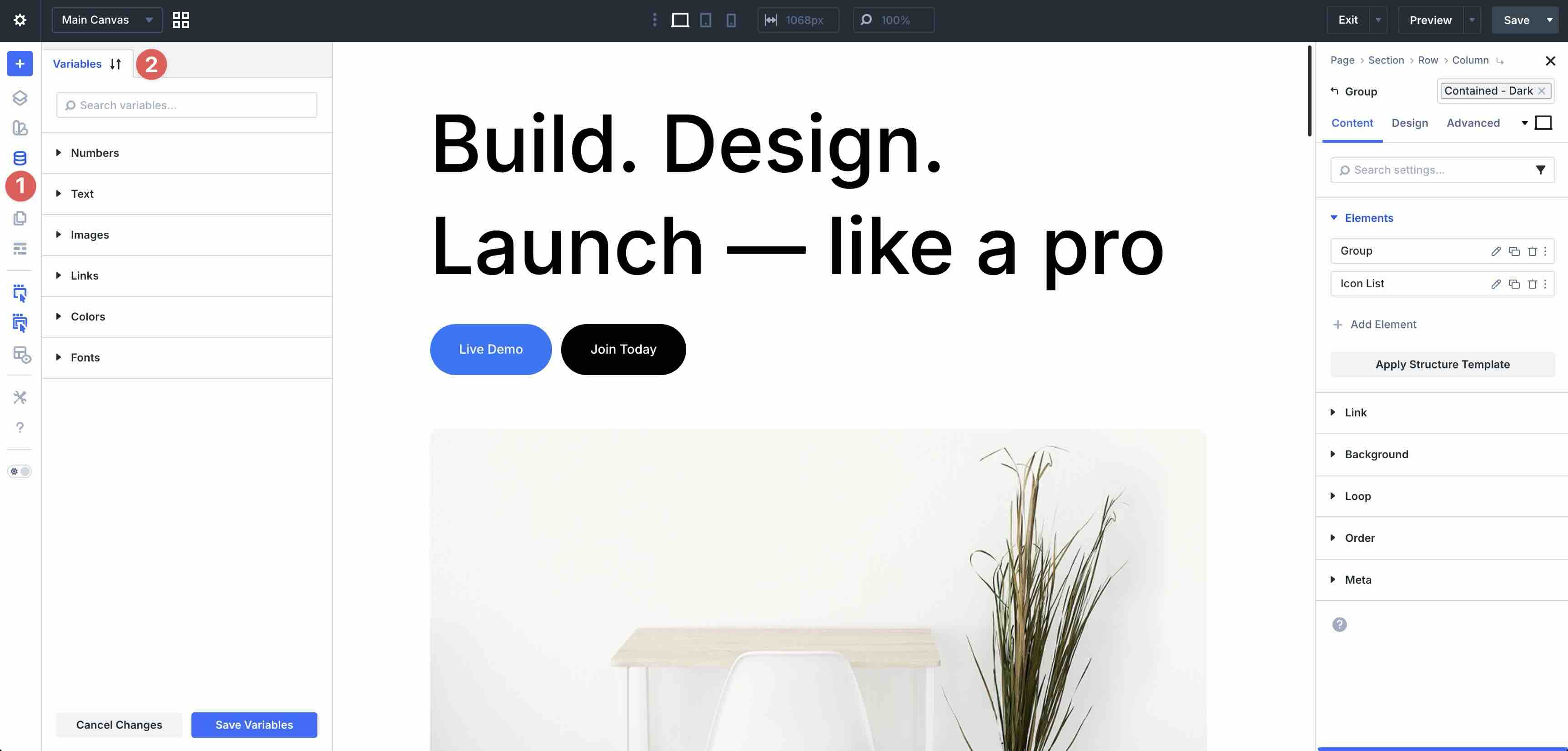
When you plug a variable into modules, Presets, or other elements, any change made in the Variable Manager propagates instantly site-wide, eliminating the need to sift through individual styles or pages.
Advanced features include Relative Colors, which use hue, saturation, and lightness (HSL) controls. These create parent-child relationships, so you can make lighter or darker shades or tints from a base color variable. If the base updates, all relative colors adjust automatically for harmonious palettes.
You can also use Advanced Units like min() or clamp() directly in number variables to create responsive values, such as fluid typography that scales smoothly without breakpoints.
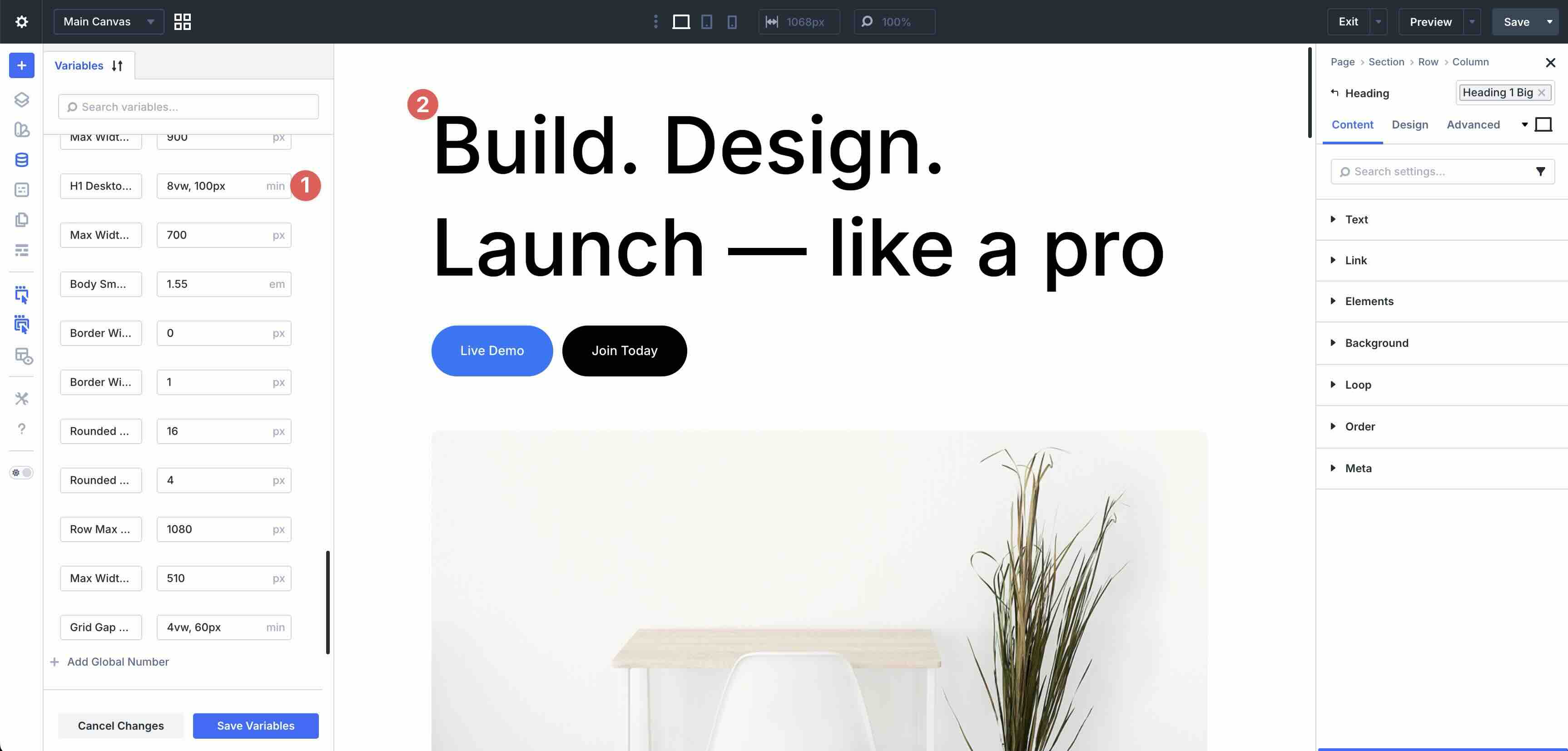
Design Variables keep your designs consistent. Define a primary color once, use it across your site, and apply it to buttons, headings, links, and more. With global settings in place, you only need to make changes once in the Variable Manager, and they auto-apply site-wide. You can also save recurring content, like company addresses as text variables, social links as URL variables, or logos as image variables, for one-click insertion anywhere.
Presets
Presets let you save and reuse styles across your entire site, enabling a true preset-based design framework. As you style elements, Divi 5 translates those choices into clean, optimized CSS classes in the background. The result is minimal code bloat and improved performance.
Element Presets capture full module designs, including text, spacing, colors, icons, hovers, and more. By setting a default preset, you ensure that every new module you add automatically inherits those styles. This keeps your design consistent site-wide without repetitive manual tweaks.
While Element Presets handle the entire module, Option Group Presets focus on specific categories such as typography, borders, or spacing. This modular approach allows you to apply a border or heading style to any module on your site that supports those settings.
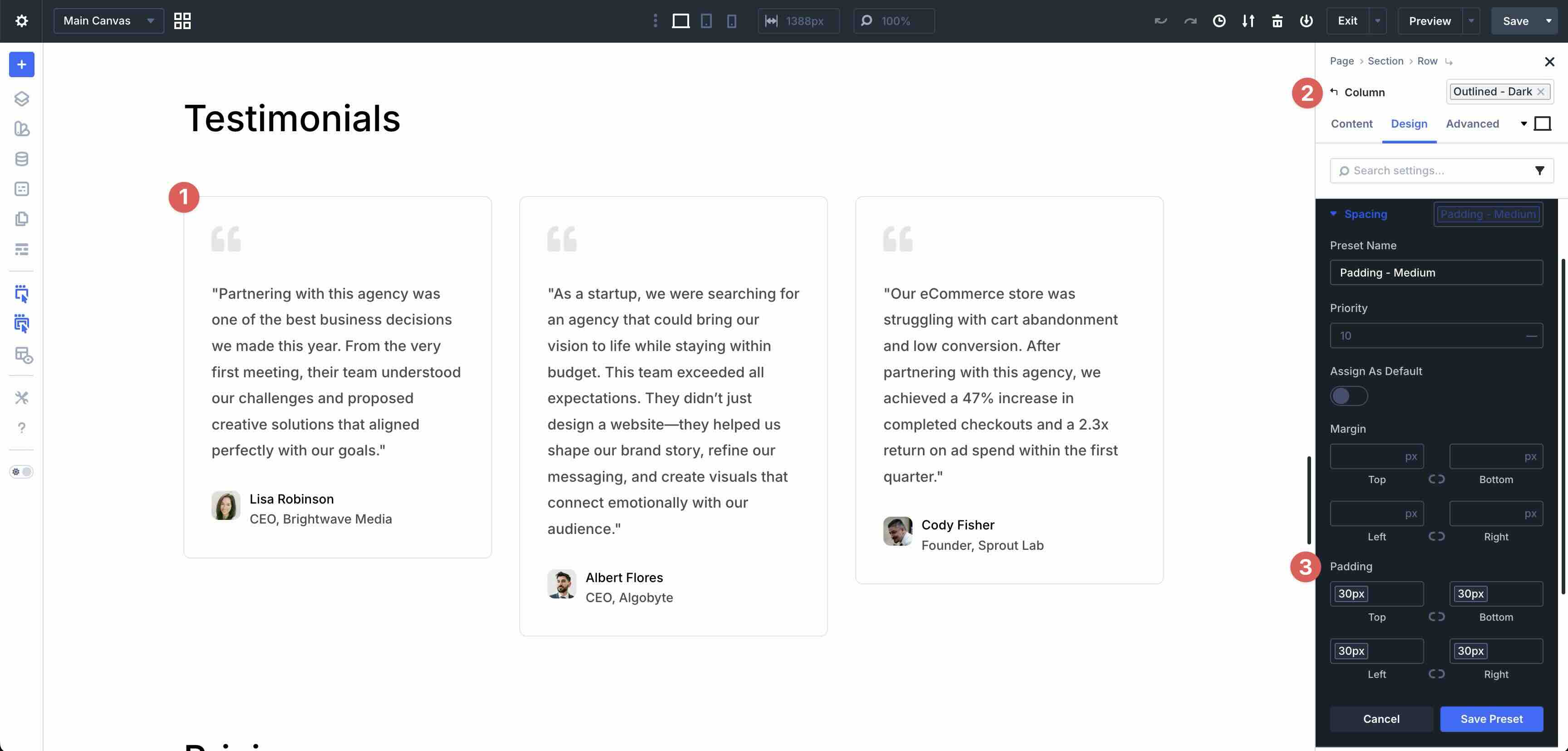
For the best results, combine Option Group Presets with Design Variables so color changes, spacing, or borders cascade throughout your design automatically.
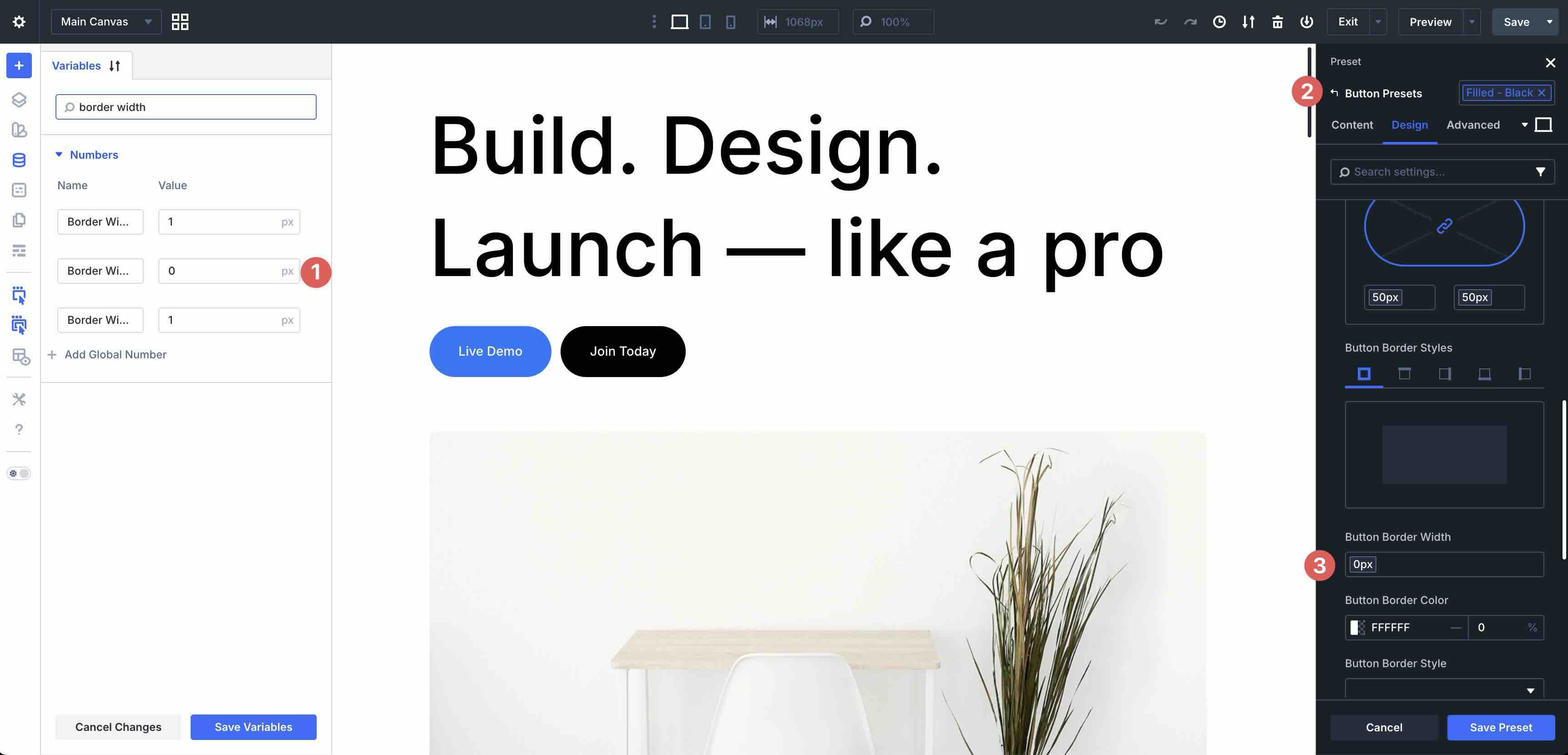
Stacked and Nested Presets add even more flexibility to this workflow. Nesting allows you to save an Option Group Preset inside an Element Preset, so that a single change to the OGP updates every element that uses it. Stacking lets you layer variations, like two differently styled buttons, without overwriting them.
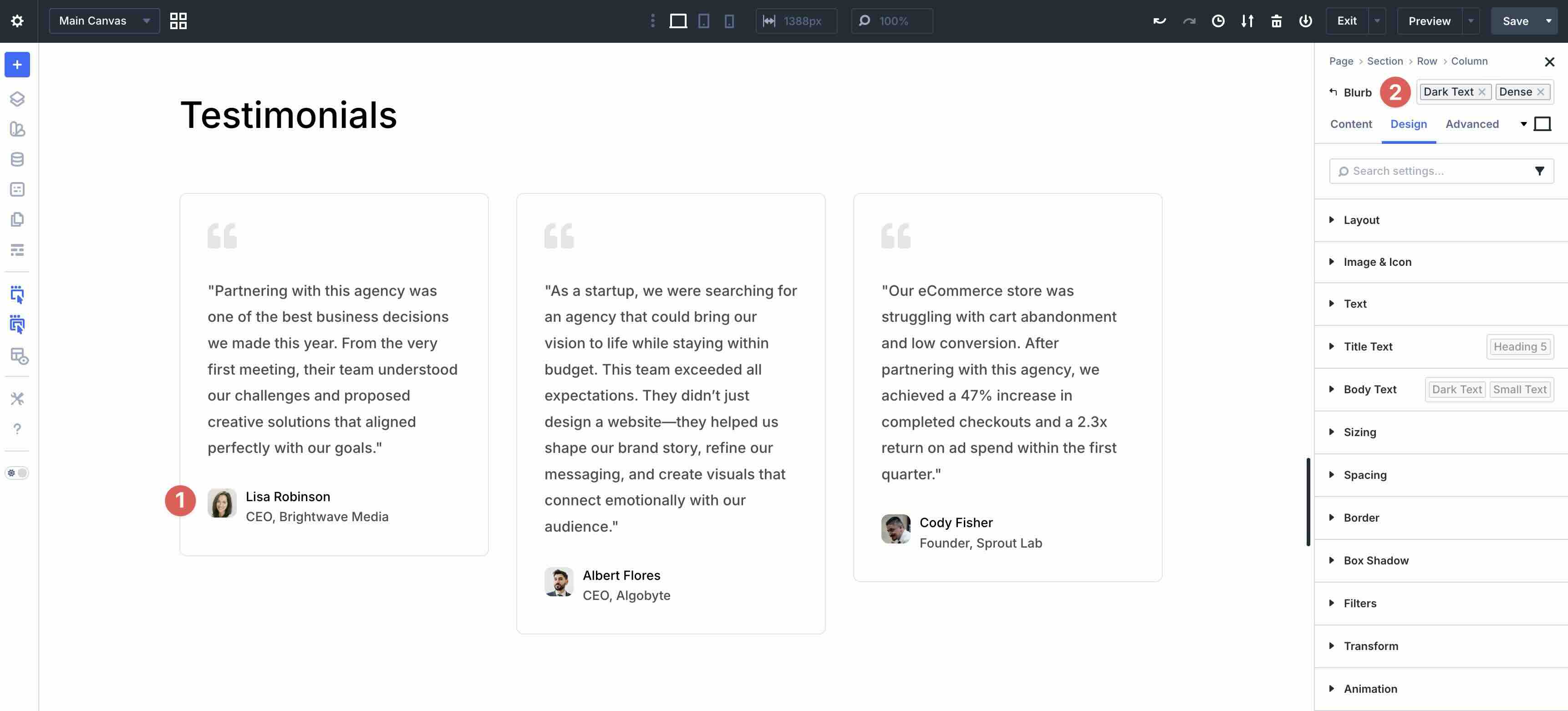
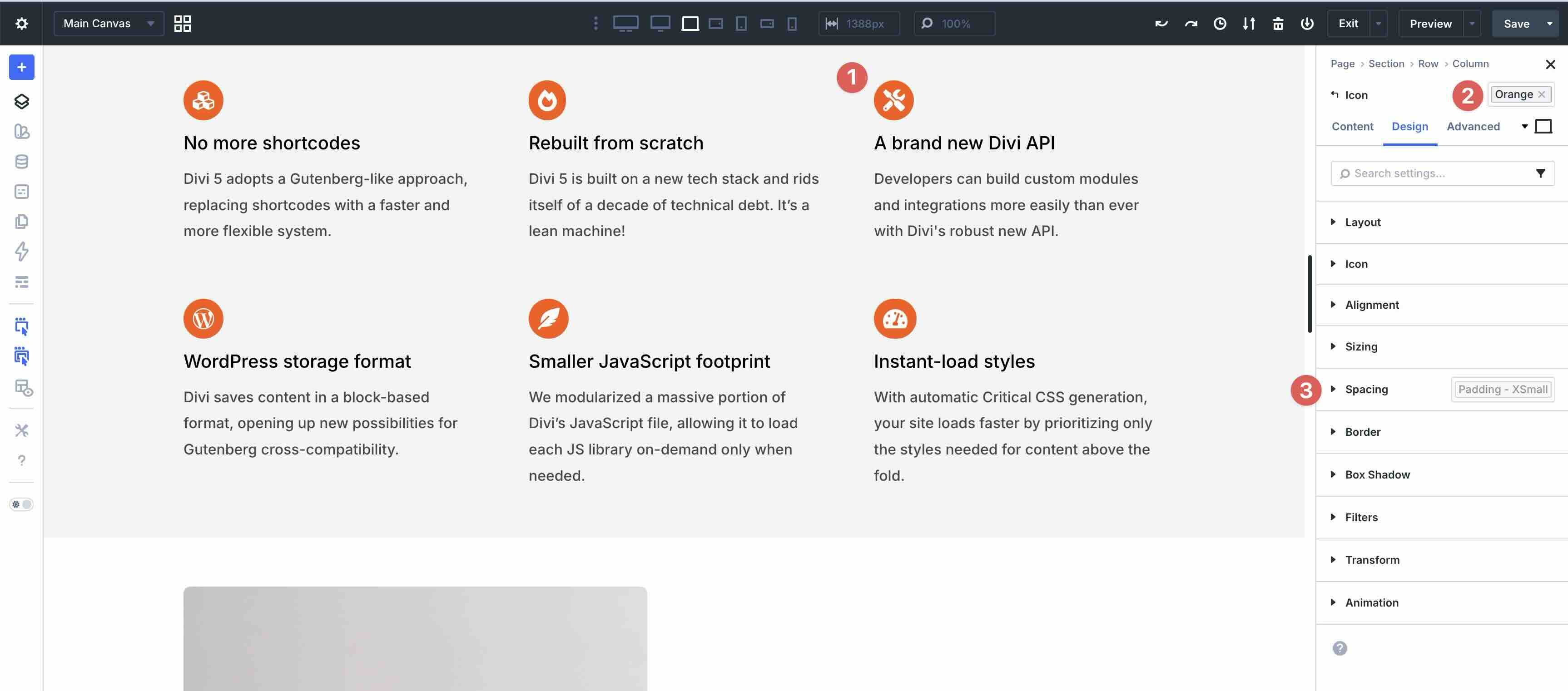
Nesting Option Group Presets inside an Element Preset creates a modular, highly updatable system. For example, if you nest a spacing OGP inside a Button Element Preset, the button will adopt the spacing styles from the OGP. Should you decide to change the spacing later, you only need to update the OGP once in the Preset Manager. Every element that uses that spacing setting will update across your entire site instantly.
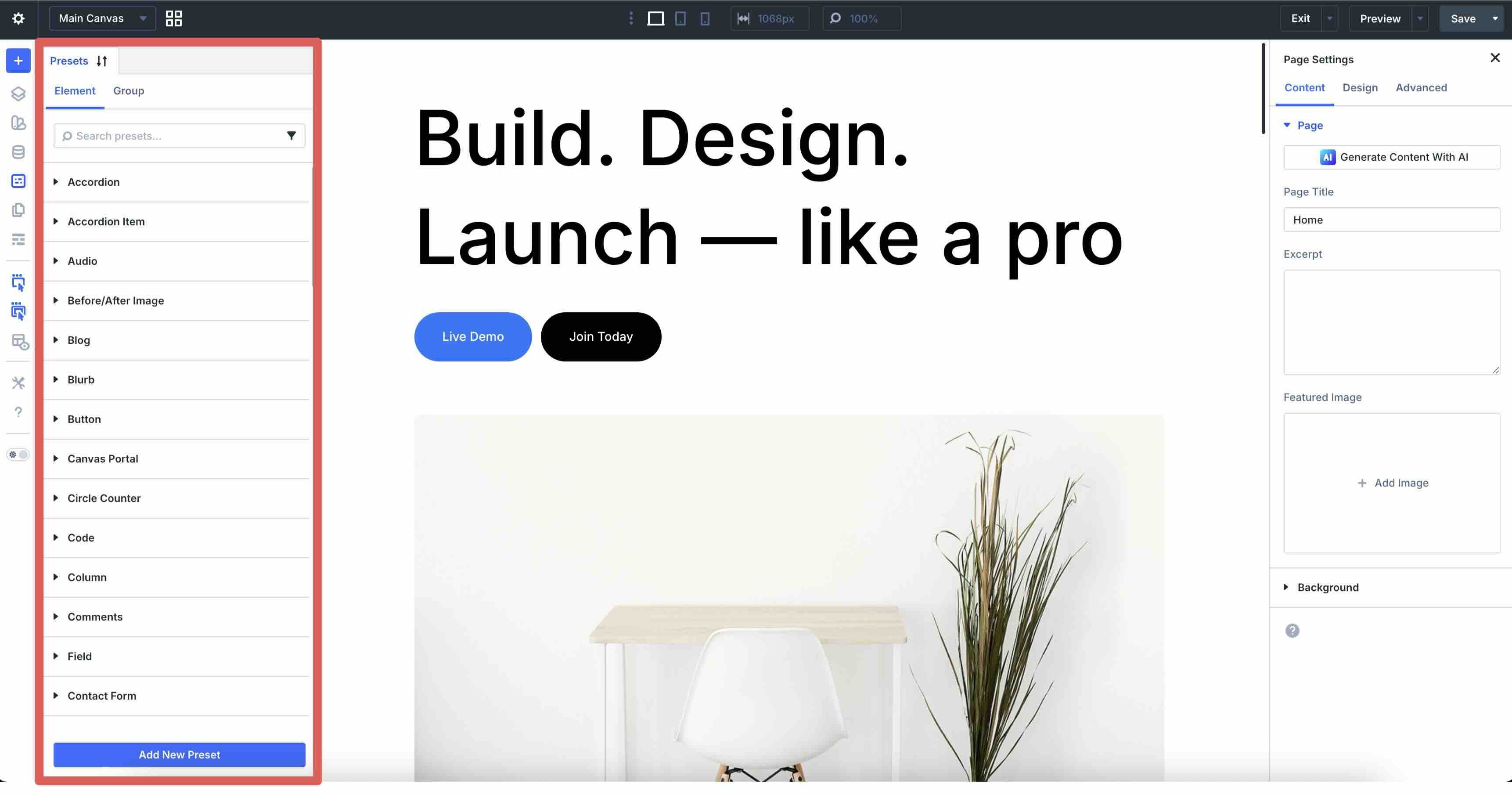
The Preset Manager organizes everything. You can browse, create, edit, and preview presets with visual previews, then copy, delete, import, and export them. Preview changes safely before applying them site-wide, and export presets for consistency across other projects.
Multiple Layout Systems
Divi 5 gives every module flexible layout options via the Layout Style setting in the Design tab. This allows you to choose between three modes directly on sections, rows, columns, or individual modules.
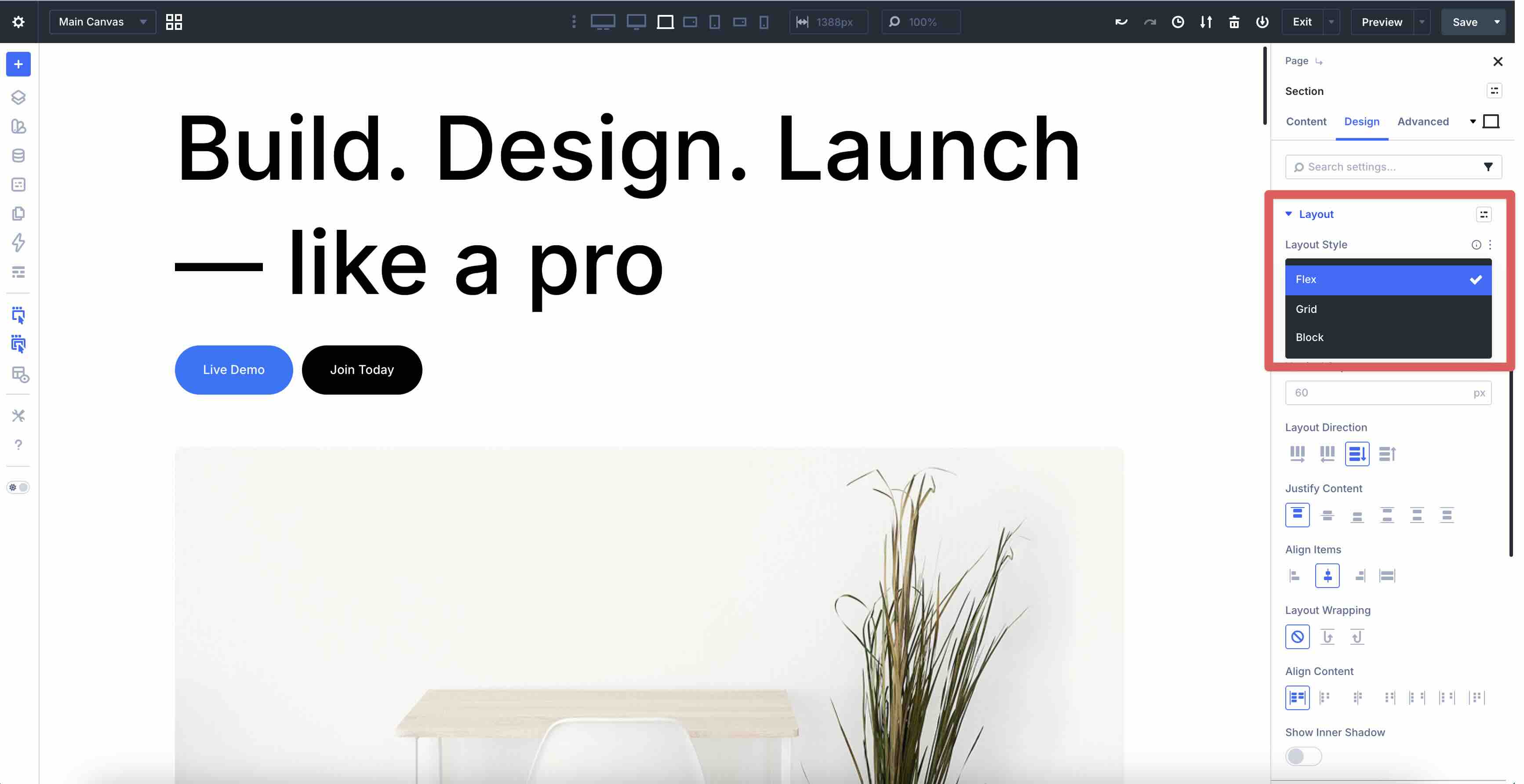
Block
This is the traditional flow layout familiar from earlier Divi versions. Elements stack vertically in a fixed, predictable order, following the natural document flow. When using a Layout Pack or Divi Quick Site, this is the default setting. It’s ideal for simple, linear content that requires minimal positioning adjustments, such as spacing or margins.
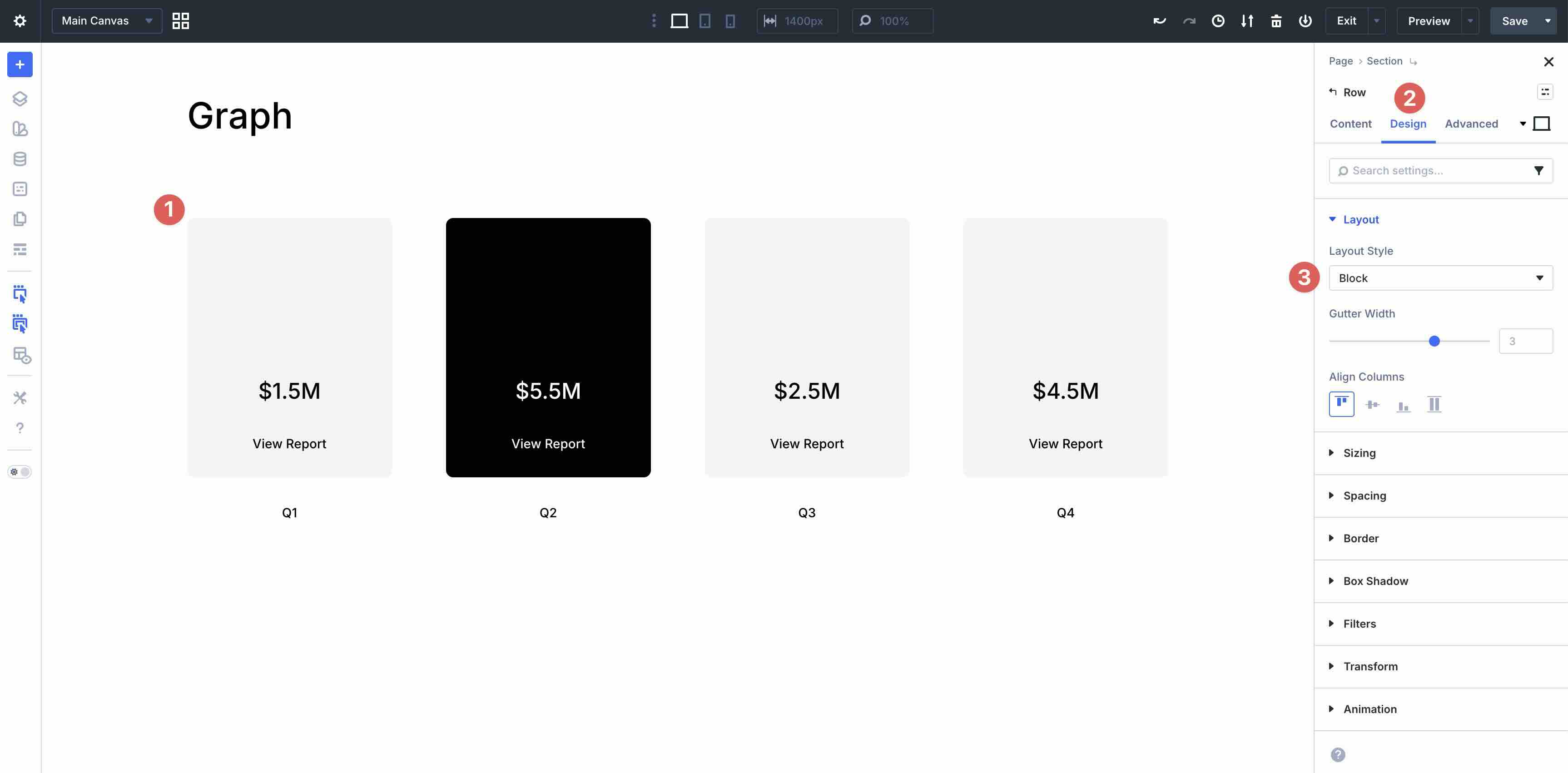
Flexbox
This is the most commonly used mode for Divi 5. Flexbox turns the container into a flexible box that arranges child elements (modules and columns) along a single main axis (horizontal or vertical). It offers intuitive visual controls for alignment, justification, and horizontal/vertical gaps, layout wrapping to extend content to new lines, and easy reordering, which is perfect for responsive design. You can align content perfectly in a hero section, create card grids that wrap naturally, or reorder columns on mobile without custom CSS.
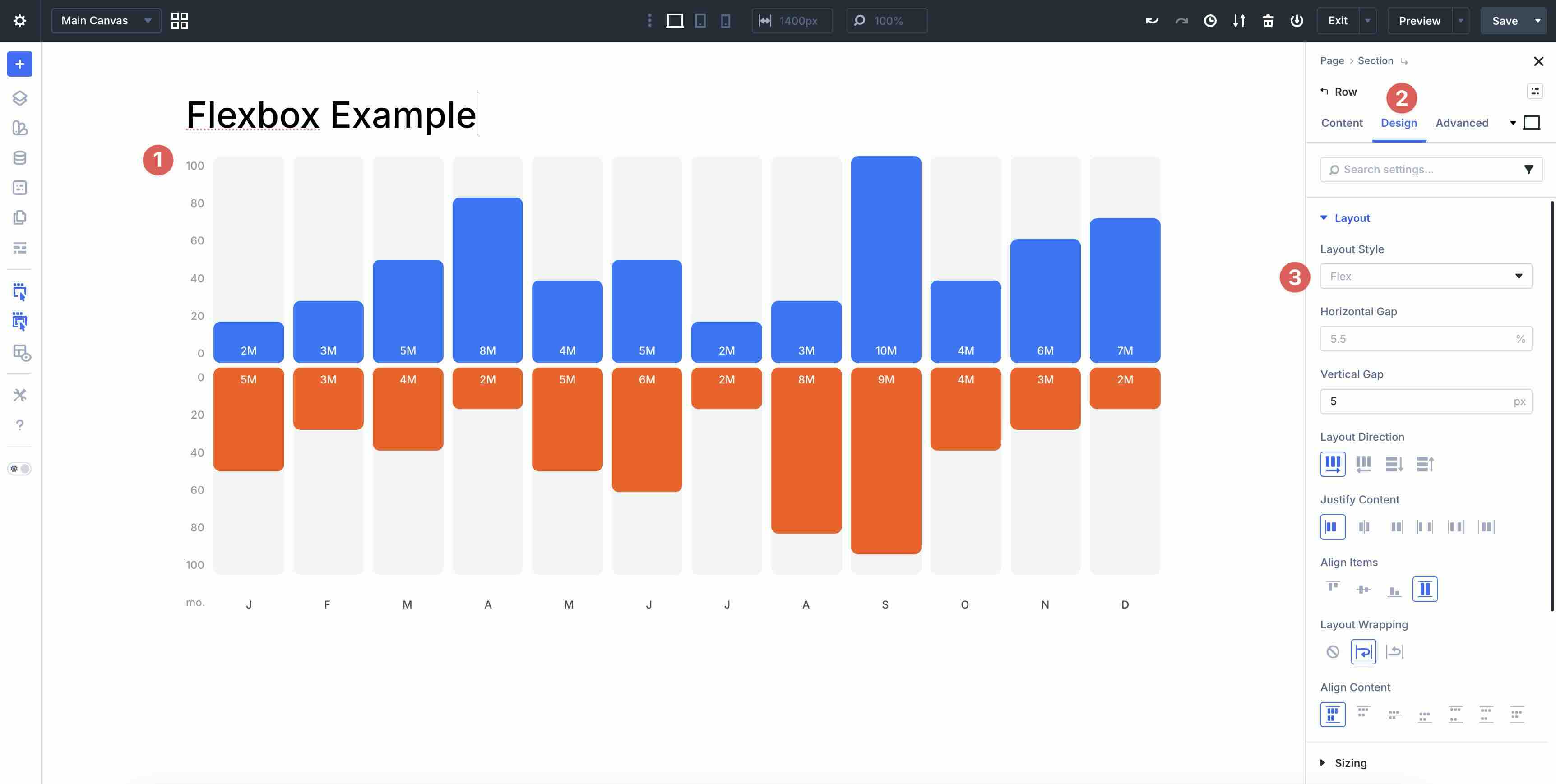
CSS Grid
For more complex arrangements, switch to CSS Grid to control both rows and columns simultaneously. Define explicit tracks, use auto-fit or auto-fill for responsive grids, set precise item placement, and manage overlaps or spans. It’s perfect for magazine-style layouts, galleries, product showcases, or any design that requires structured row and column control beyond what Flexbox provides.
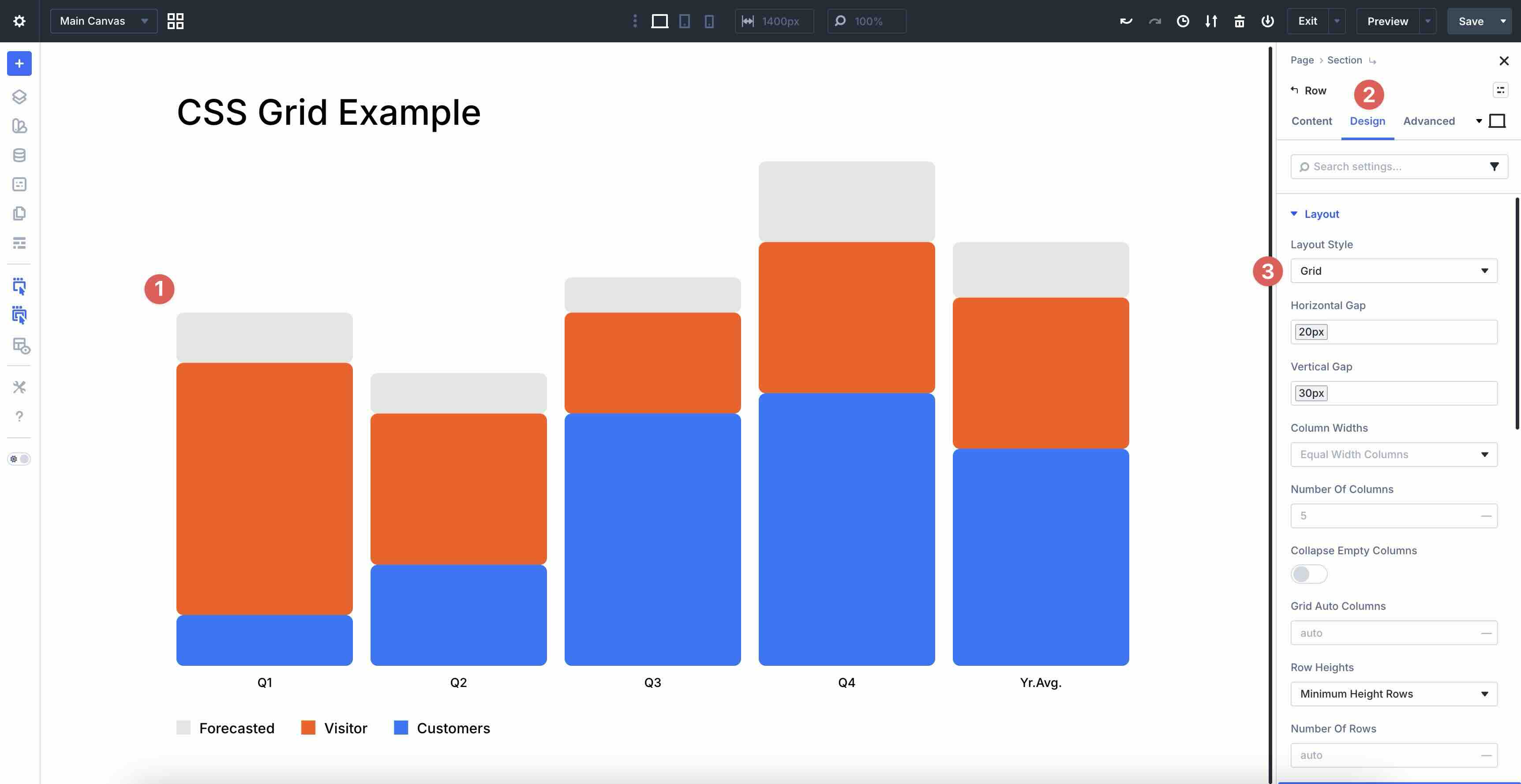
These layout systems make Divi 5 highly adaptable. Start with Flexbox for most everyday layouts, fall back to Block for basic stacking, or switch to CSS Grid when you need full grid precision. This flexibility streamlines the creation of modern, responsive pages while keeping your workflow visual and efficient.
Additional Features
Divi 5 includes several powerful tools that speed up the design process, ensure design consistency and responsiveness, and create advanced layouts. These features complement the core design system, making complex sites easier to build and maintain.
Module Groups
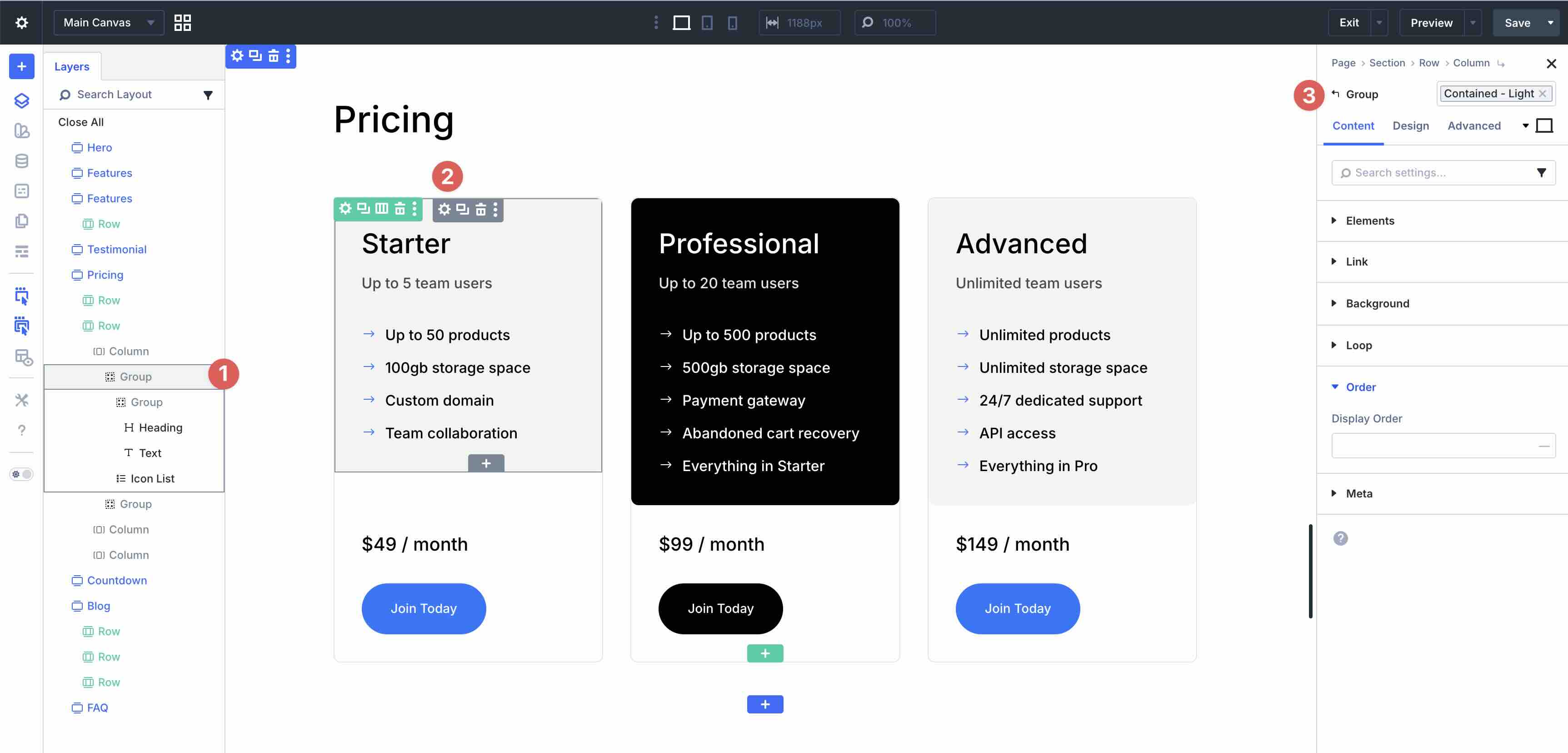
Module Groups act as new div containers. You can group multiple modules inside a column into a single unit. Apply backgrounds, borders, shadows, spacing, or any other design settings to the entire group at once. Once styled, save the Module Group to your Divi Library or Divi Cloud for reuse across pages or projects, treating it like a custom reusable component.
Layers View
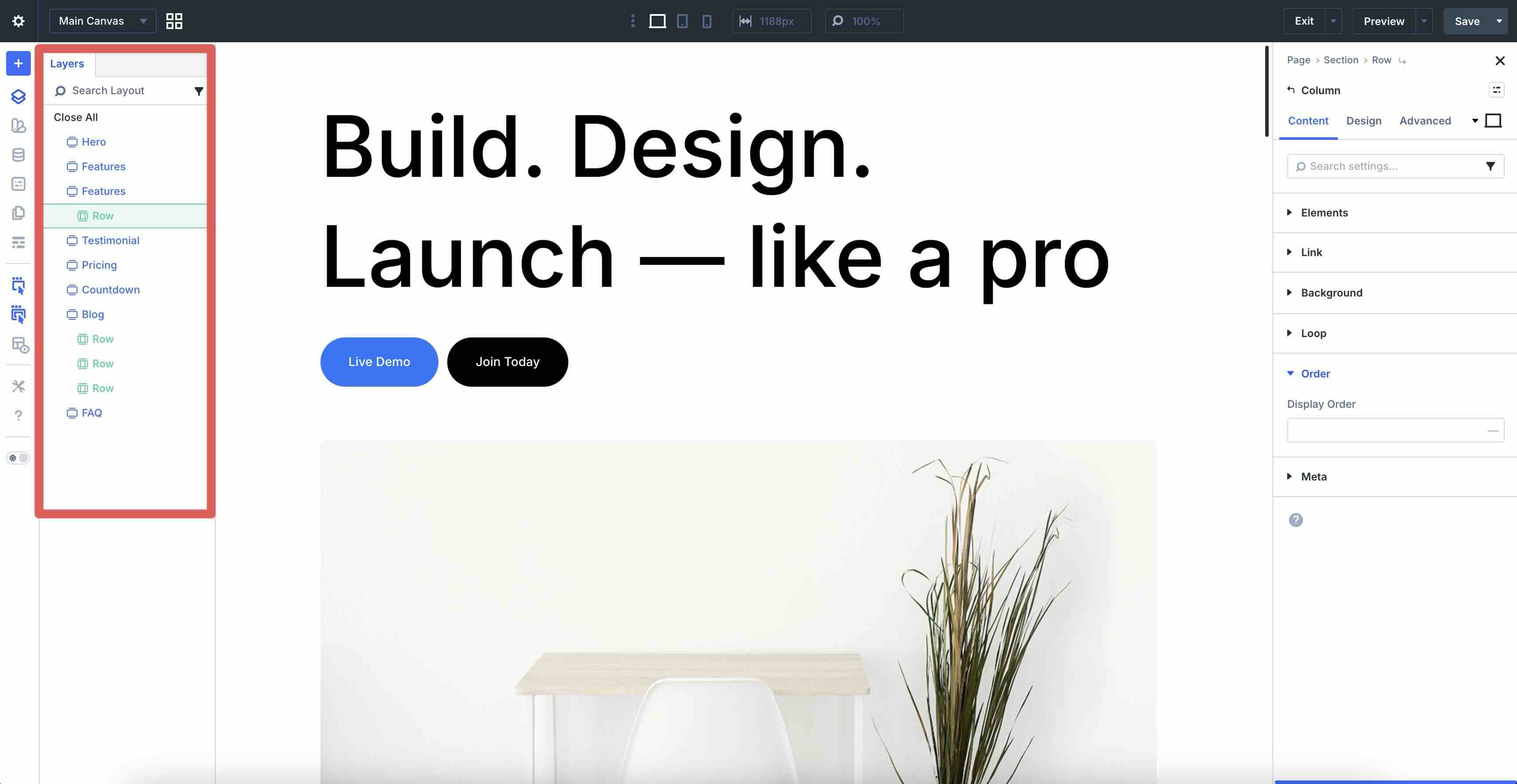
The Layers View serves as the redesigned command center for your page structure. It displays the complete hierarchy of sections, rows, columns, modules, and groups in a collapsible tree view. This makes complex nesting easy to manage, helps you quickly locate and select any element (even deeply nested ones), and provides drag-and-drop reordering right in the sidebar. Labeling your layers here is a great way to stay organized during a complex build.
Display Order
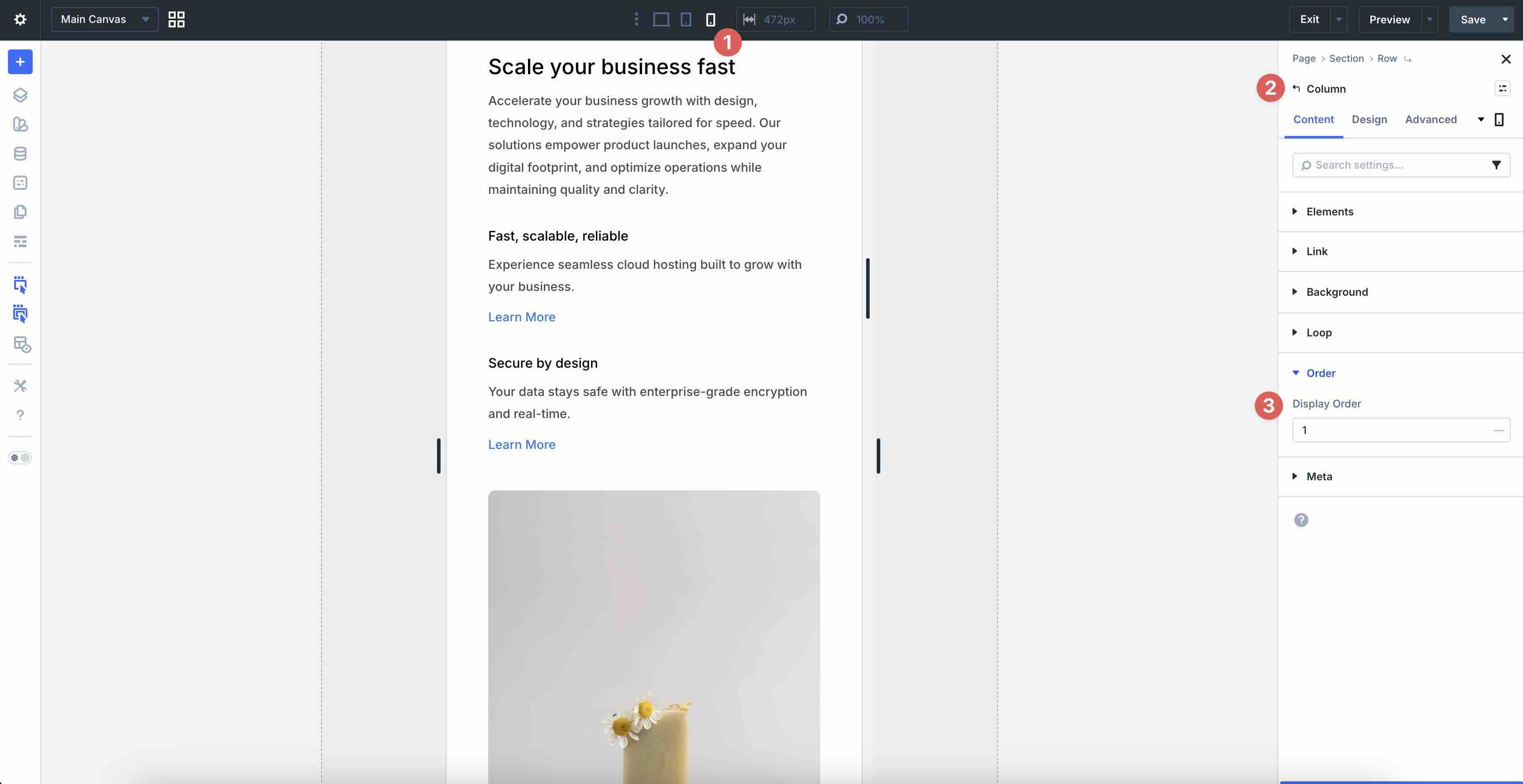
The Display Order field gives you precise control over visual order. You can reorder columns, groups, or individual modules on smaller screens without affecting the desktop layout. This is especially useful for responsive designs where you want important content to appear first on mobile or tablet.
Loop Builder
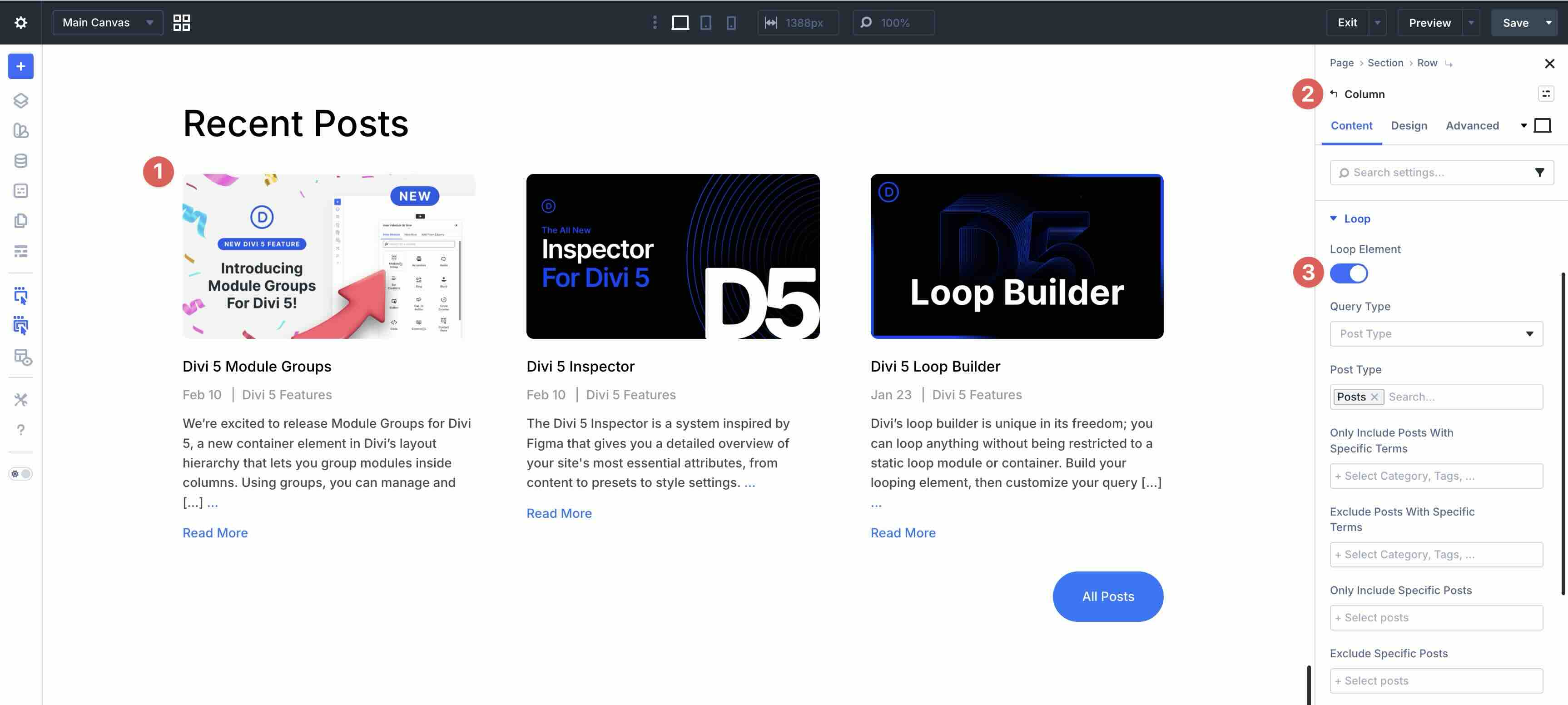
The Loop Builder brings dynamic content to life. Design a single-item layout once (using any combination of modules, groups, Flexbox, Grid, or Block layouts), then apply it dynamically to blog posts, WooCommerce products, portfolios, custom post types, or any queryable content. Set filters, queries, limits, ordering, pagination, and even conditional visibility, all in the Visual Builder.
Inspector
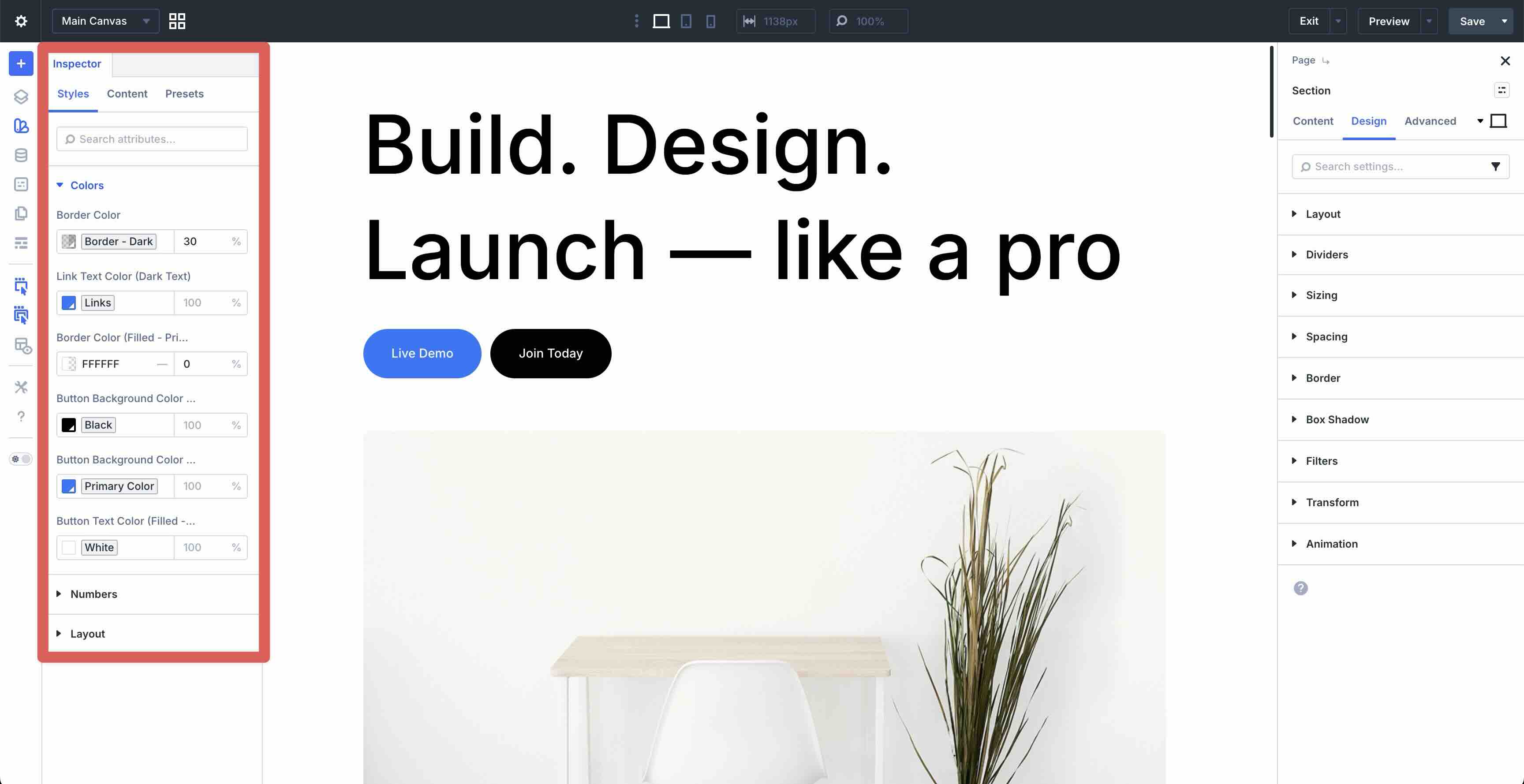
The Inspector is a centralized panel that gives you a quick overview of all settings used in a selected element (like a section) and its children (rows, columns, and modules). It lets you manage style, content, and preset settings in one place. Instead of digging through multiple tabs, you can edit settings directly in the Inspector panel. You can easily change colors, fonts, text, images, and more with a couple of clicks.
Find And Replace
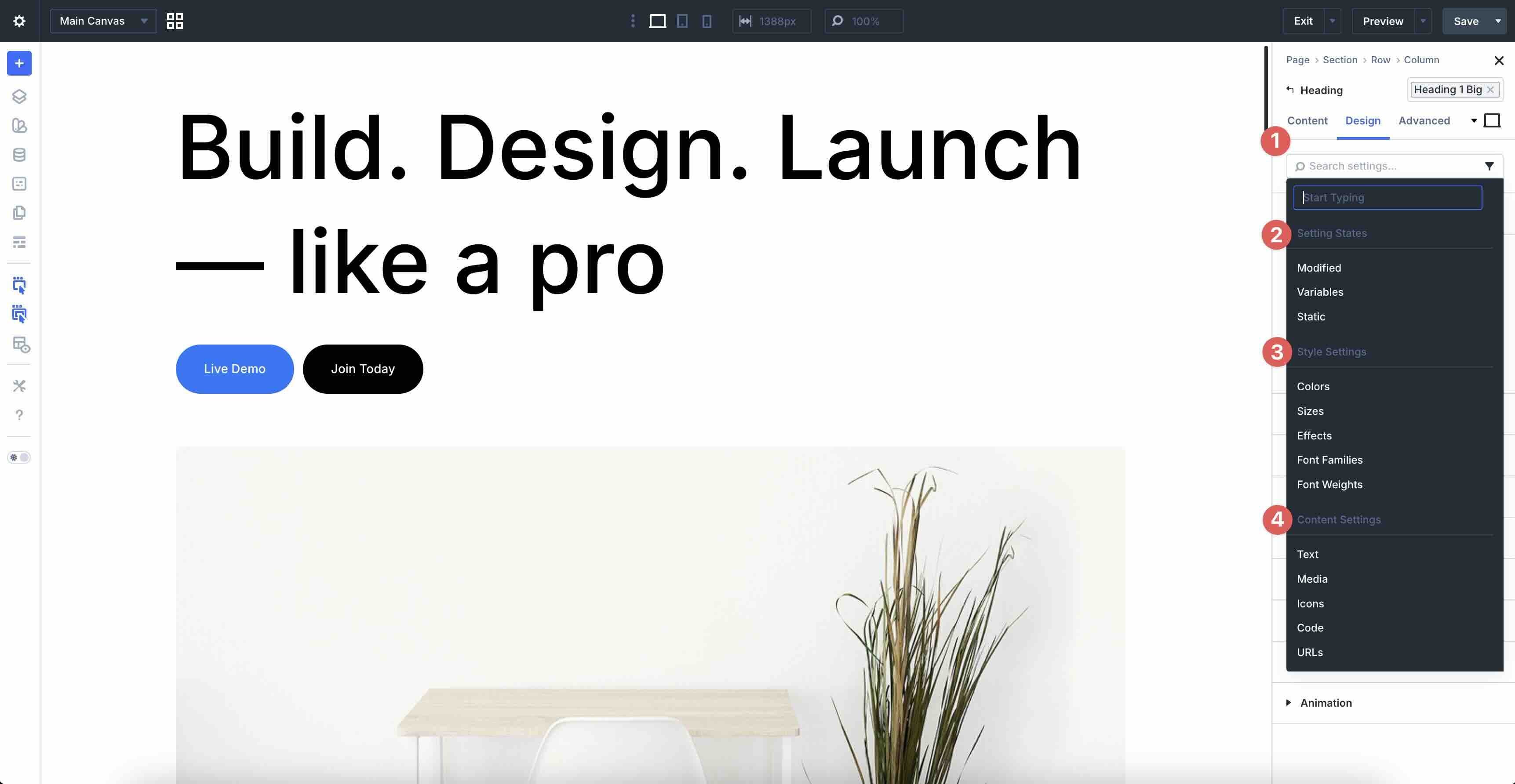
The Find and Replace feature lets you instantly update values across your page or site. Click a module’s settings to open the tool, then swap static values, variables, styles, spacing, or content within a targeted scope. This is especially handy for adopting Design Variables across older layouts or making bulk changes without manual repetition.
Customizable Responsive Breakpoints
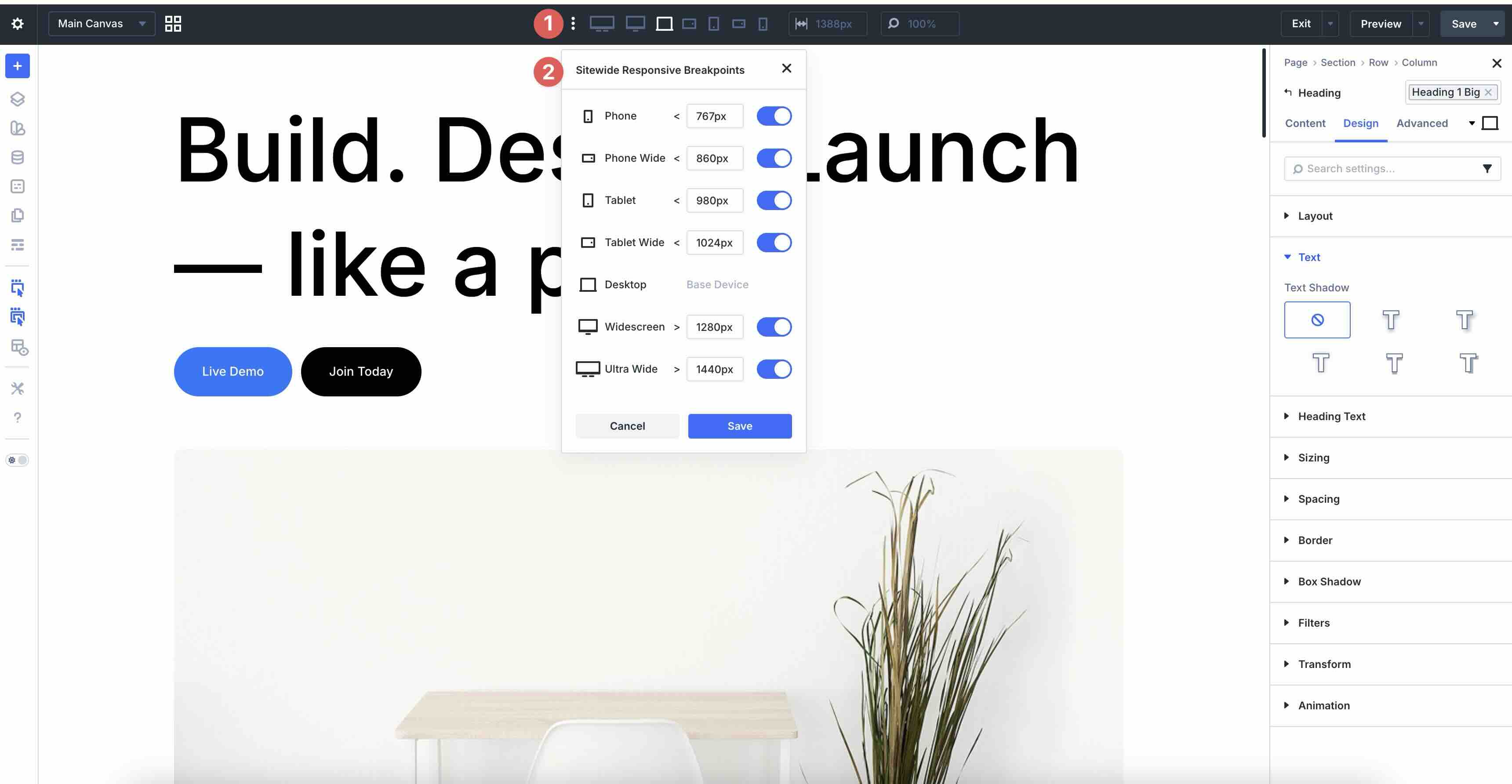
Customizable Responsive Breakpoints expand beyond the traditional three (desktop, tablet, phone) to seven editable points: Phone, Phone Wide, Tablet, Tablet Wide, Desktop, Widescreen, and Ultra Wide. You can adjust each breakpoint’s width globally in the Sitewide Responsive Breakpoints modal and enable or disable them as needed (Desktop is always active).
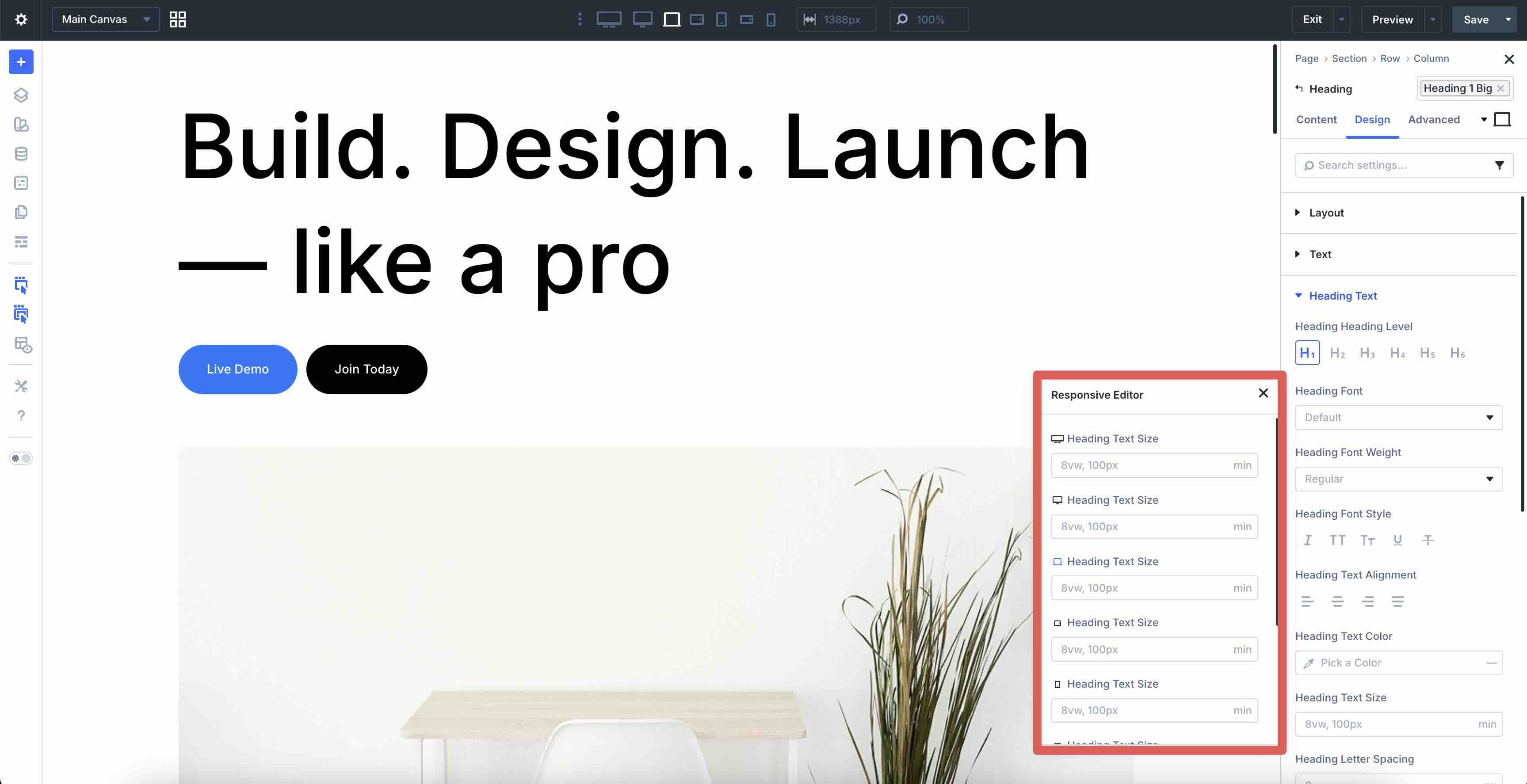
The new Responsive Editor panel provides side-by-side previews and adjustments across every device size at the module level. Adjust any design or content field in one go without having to toggle through each breakpoint individually.
Divi 5 Canvases
The Divi 5 Canvases feature provides detached workspaces for creating off-canvas elements like pop-ups, slide-in menus, mega menus, or staging layouts without cluttering your main page.
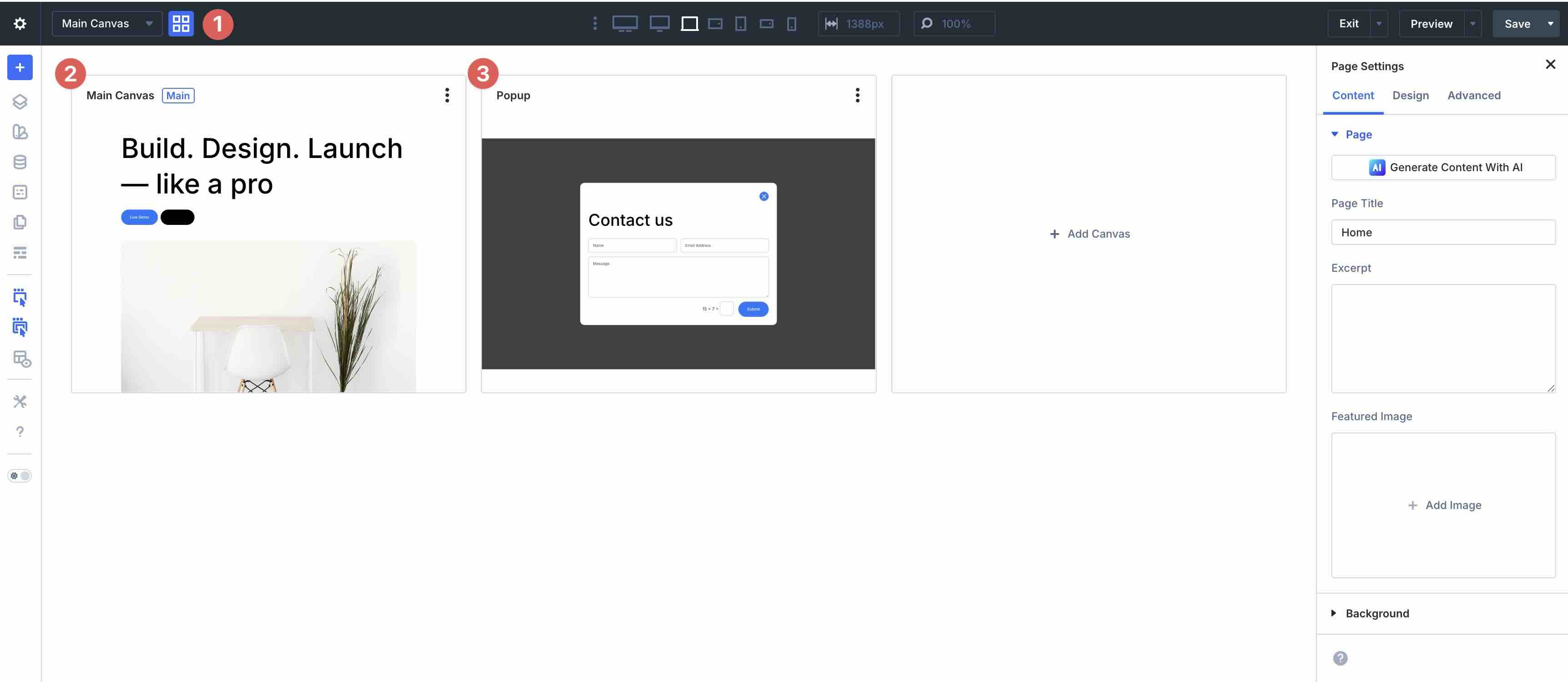
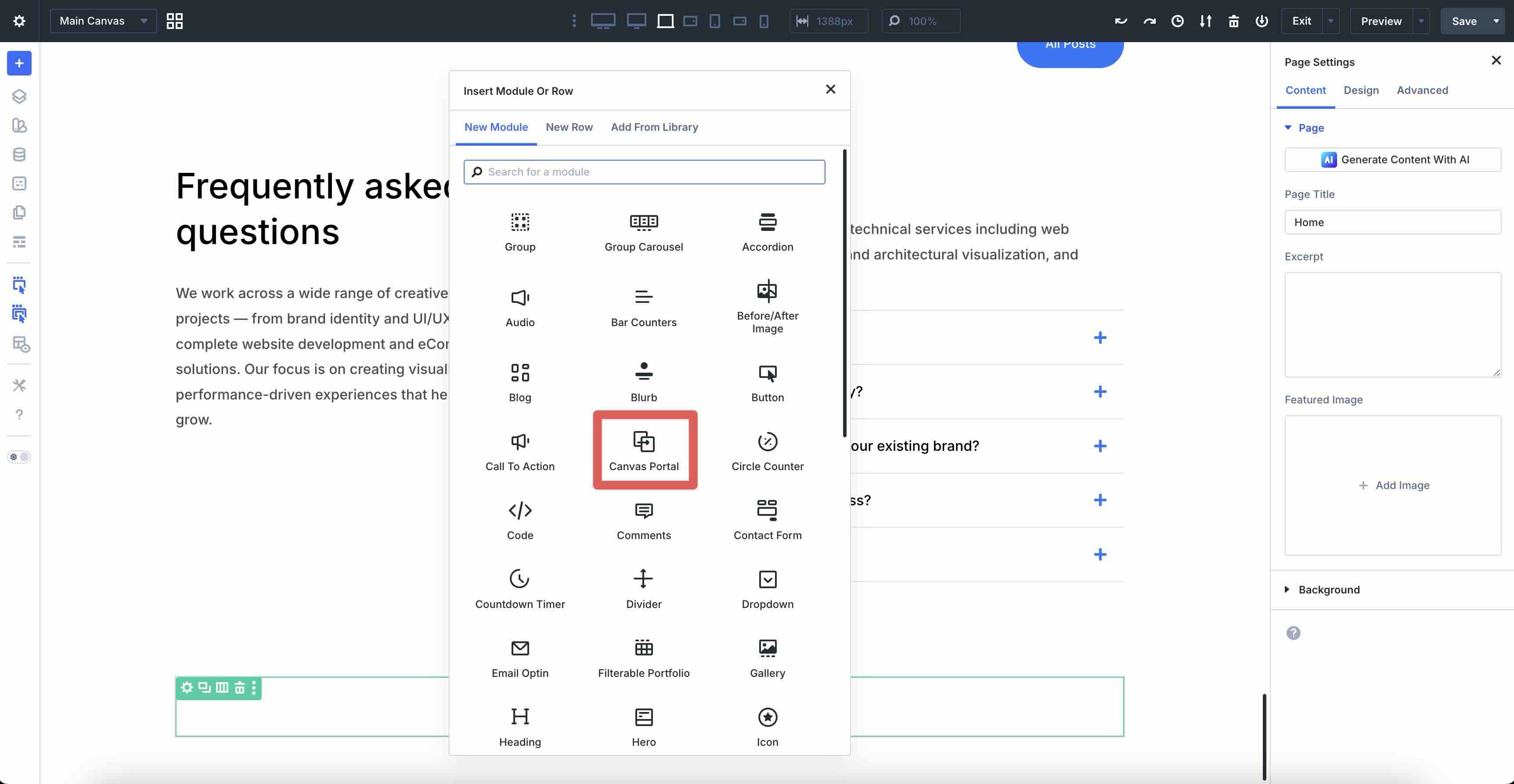
Design them separately, then use the Canvas Portal Module to inject the canvas content precisely where needed on your frontend layout. This keeps your main builder clean while enabling dynamic, position-relative off-canvas features.
These tools make advanced design feel simple and keep everything easy to manage. Together with Design Variables, Presets, and flexible layouts, they help you create professional sites faster and with less effort.
Setting Up The Divi 5 Design System
The Divi 5 Design System freebie is a comprehensive starter kit that gives you a fully pre-configured foundation right away. It bundles multiple JSON files covering every layer of Divi 5’s design system, including Divi Theme Customizer settings, Design Variables, hundreds of Element and Option Group Presets, Theme Builder templates, and a Divi Library collection with 350+ individual sections and layouts, plus 24 page layouts.
If you have not downloaded it yet, grab the freebie here first: Divi 5 Launch Gift: Design System.
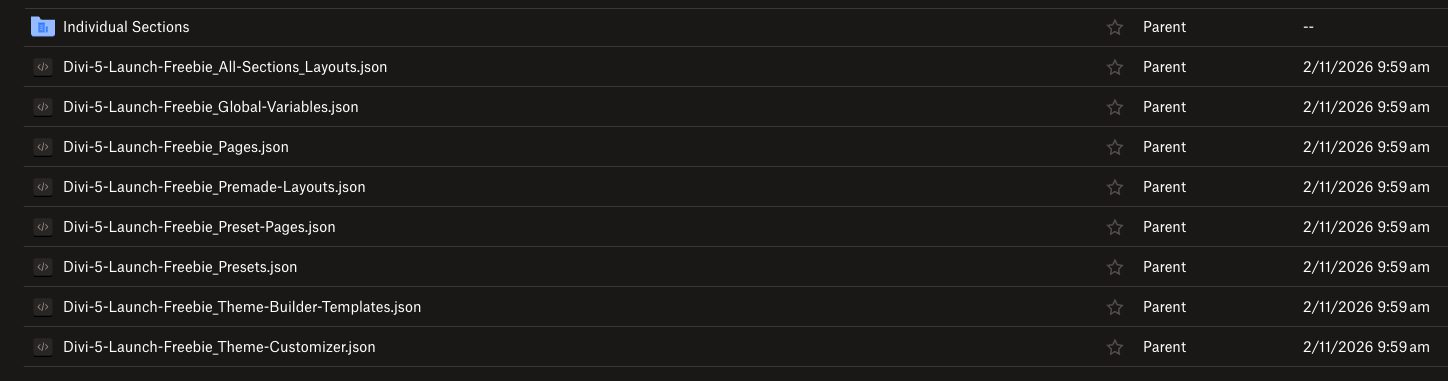
Import these files in the recommended order below to avoid conflicts and build scalable sites instantly:
Import Divi Theme Customizer Settings
With Divi 5 downloaded and installed, head to your WordPress dashboard and click Divi > Theme Customizer.
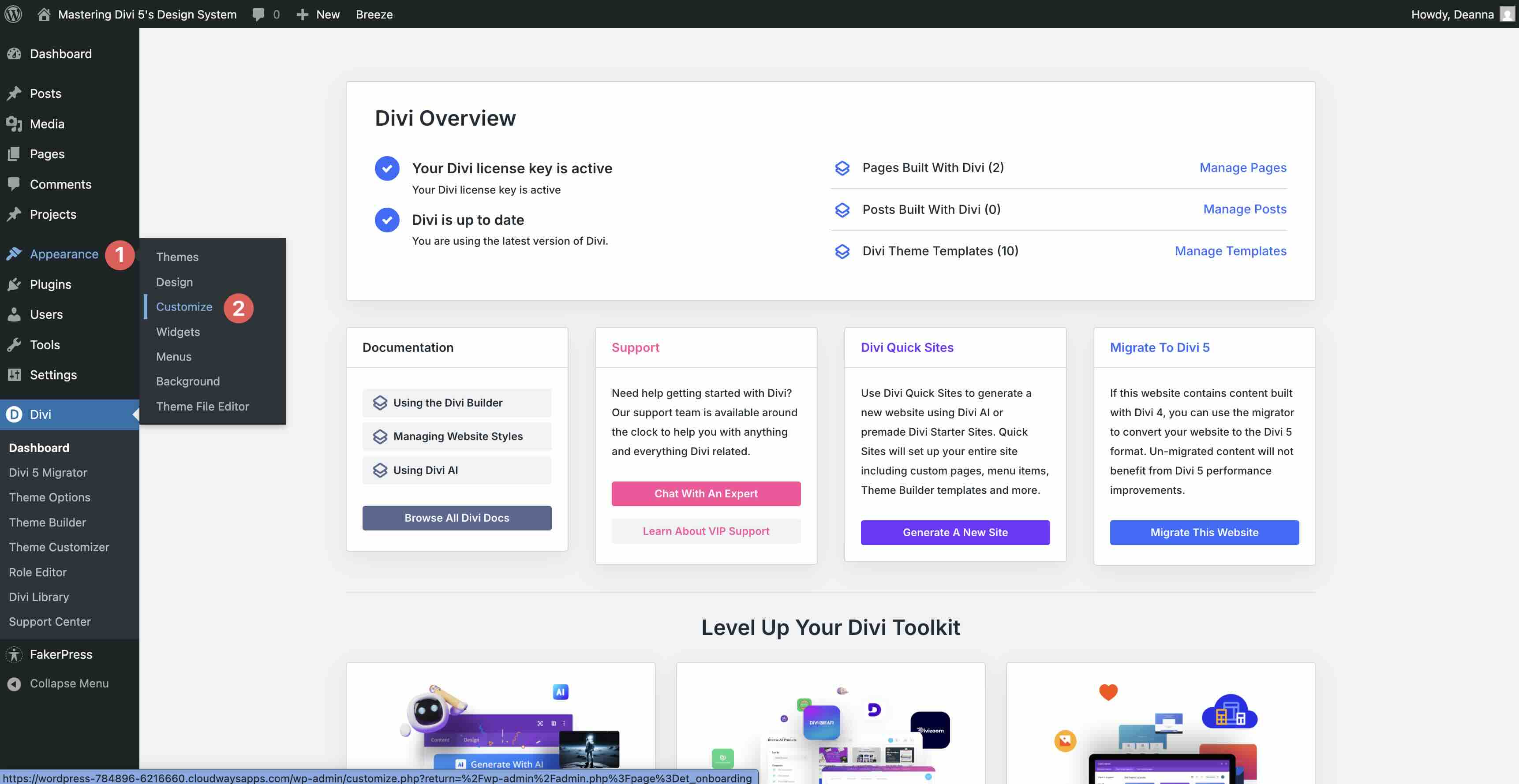
When the Customizer loads, click the import/export button in the top-left corner.
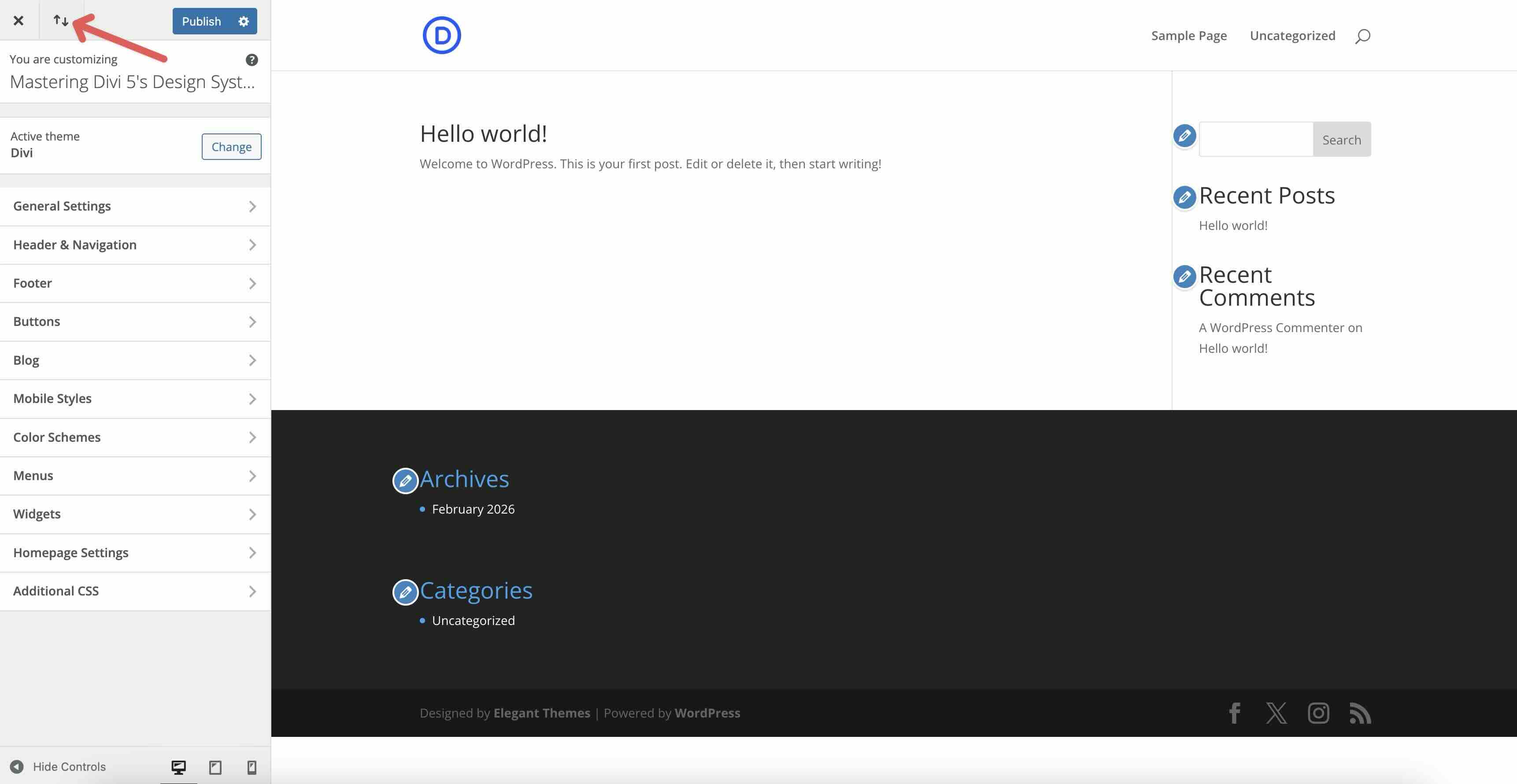
Load the Divi-5-Launch-Freebie_Theme-Customizer.json file and click the Import Divi Customizer Settings button.
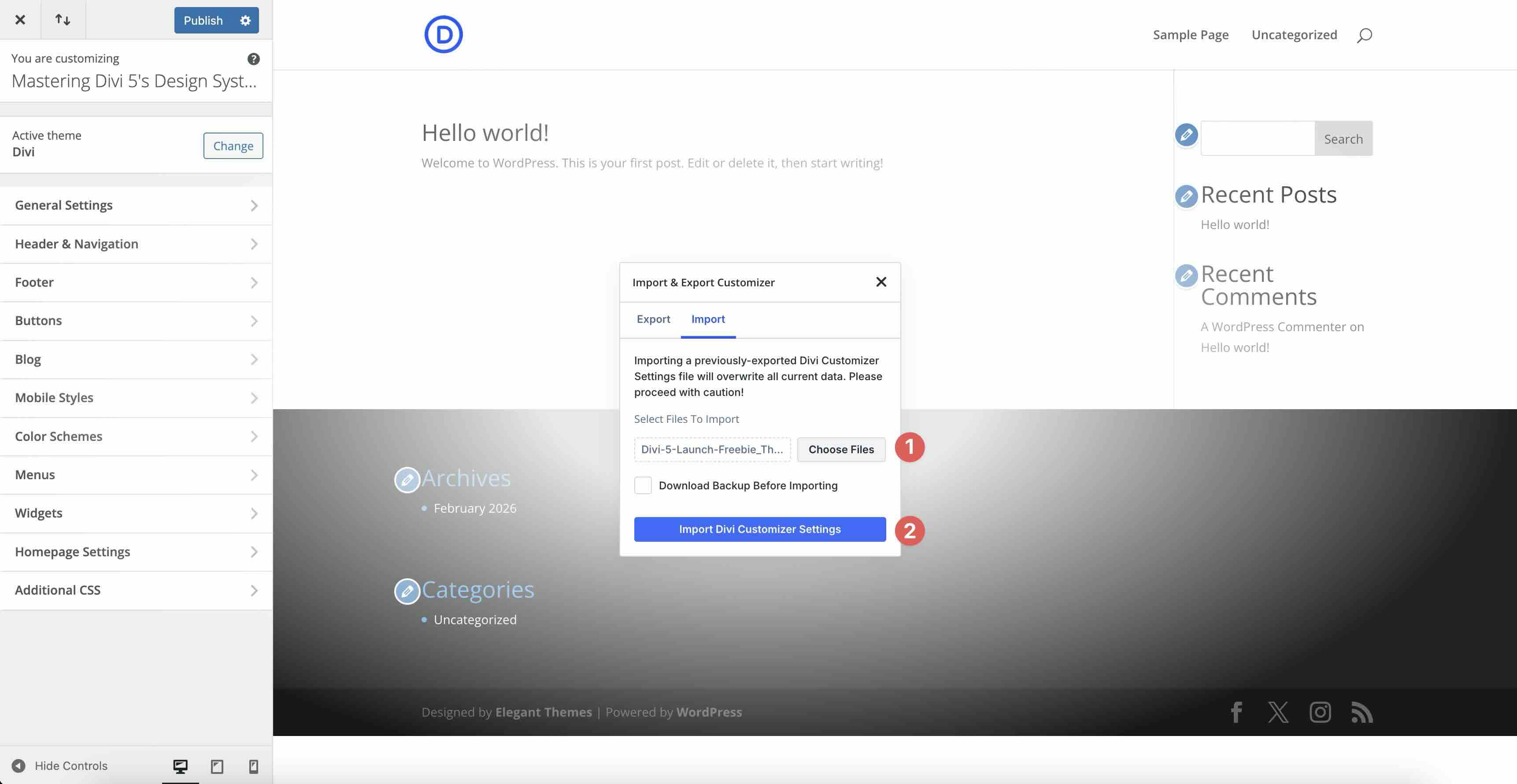
This imports global typography, colors, and other site-wide defaults from the freebie, establishing a consistent base layer.
Import Design Variables
Next, you’ll import the Design Variables associated with the Divi 5 Design System. The freebie includes a full set of brand colors with relative colors, typography variables with min() and clamp(), plus text, image, and URL variables. These form the foundation of your design system and can be changed with a couple of clicks.
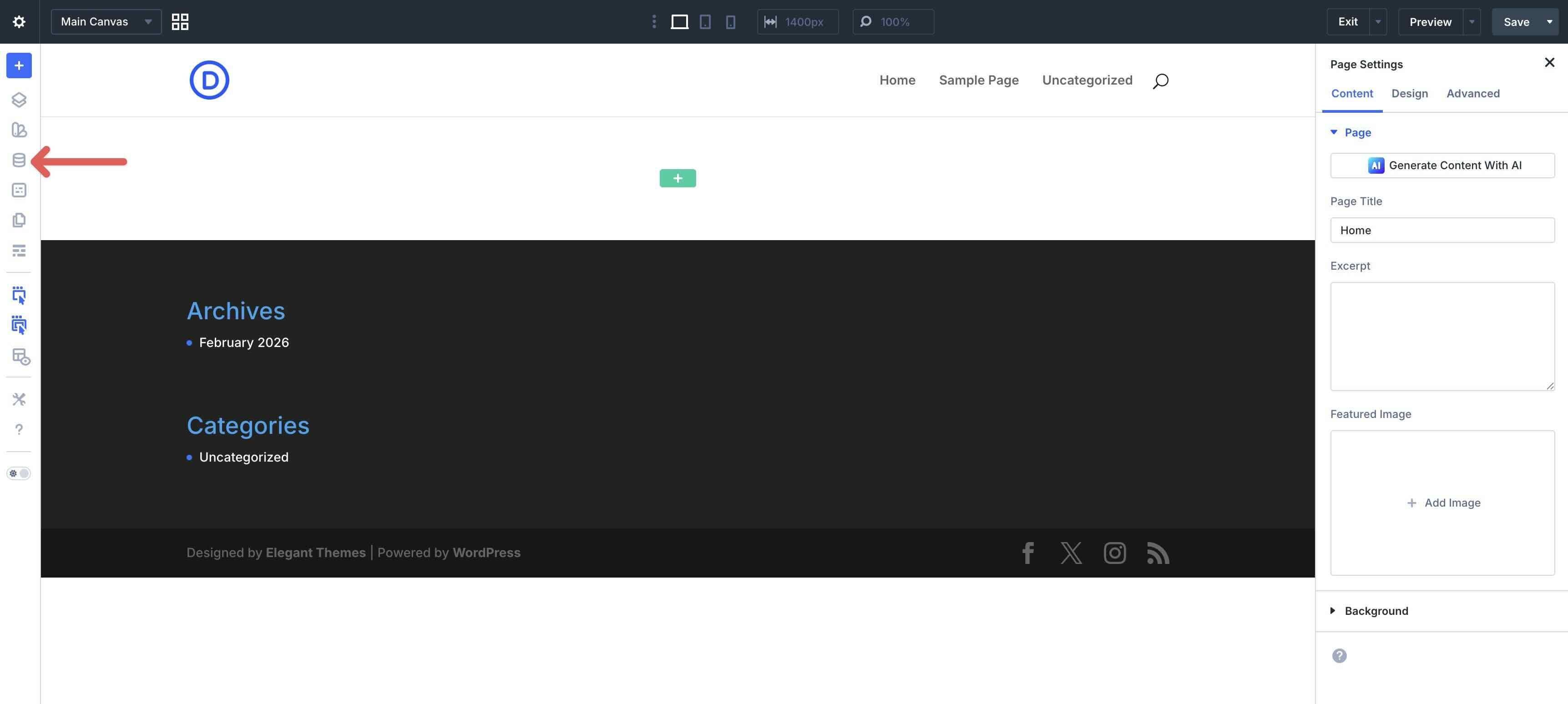
To import the JSON file, open any page in the Visual Builder. In the left sidebar, click the Variable Manager icon.
Click the import/export icon at the top left of the Variables panel.
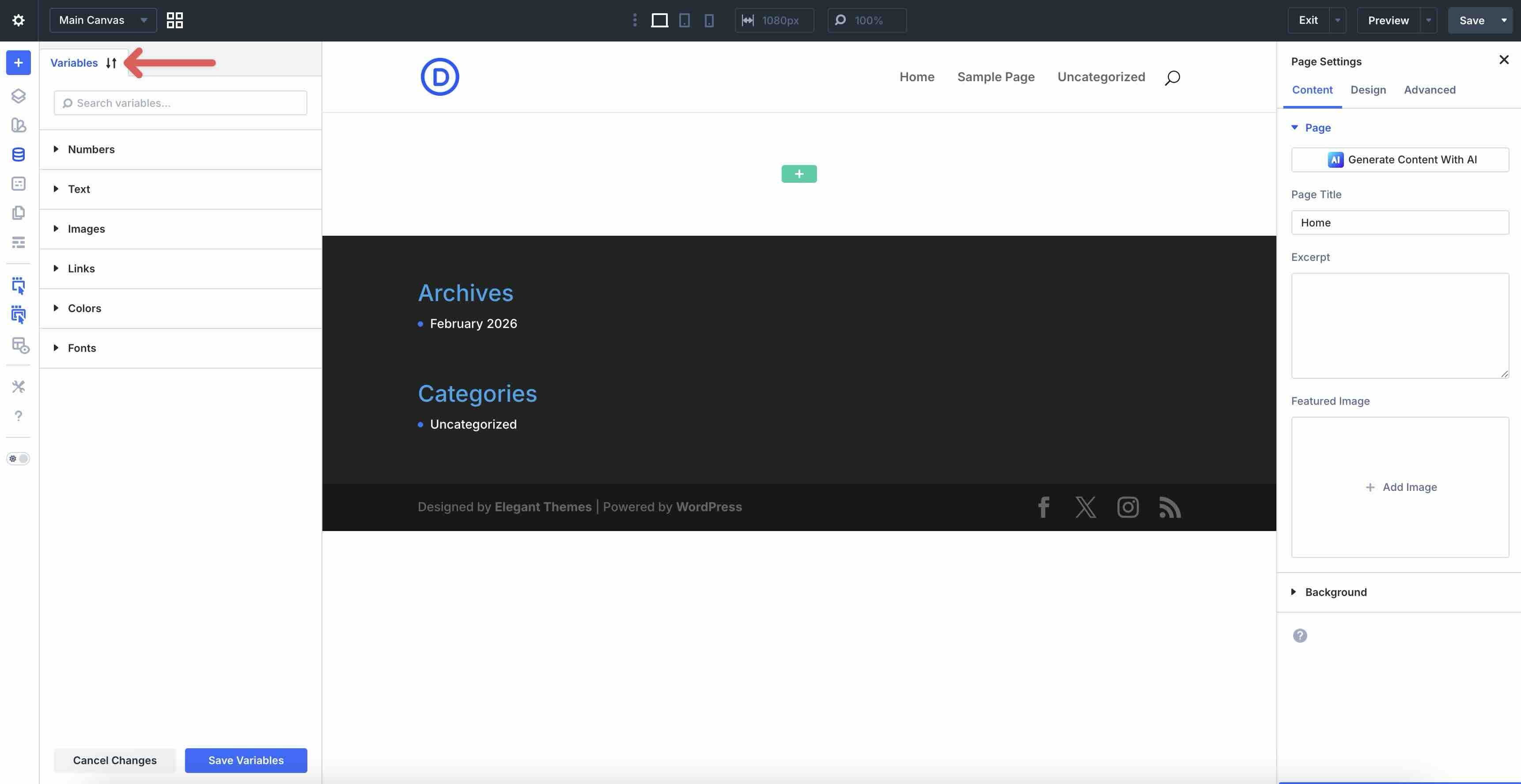
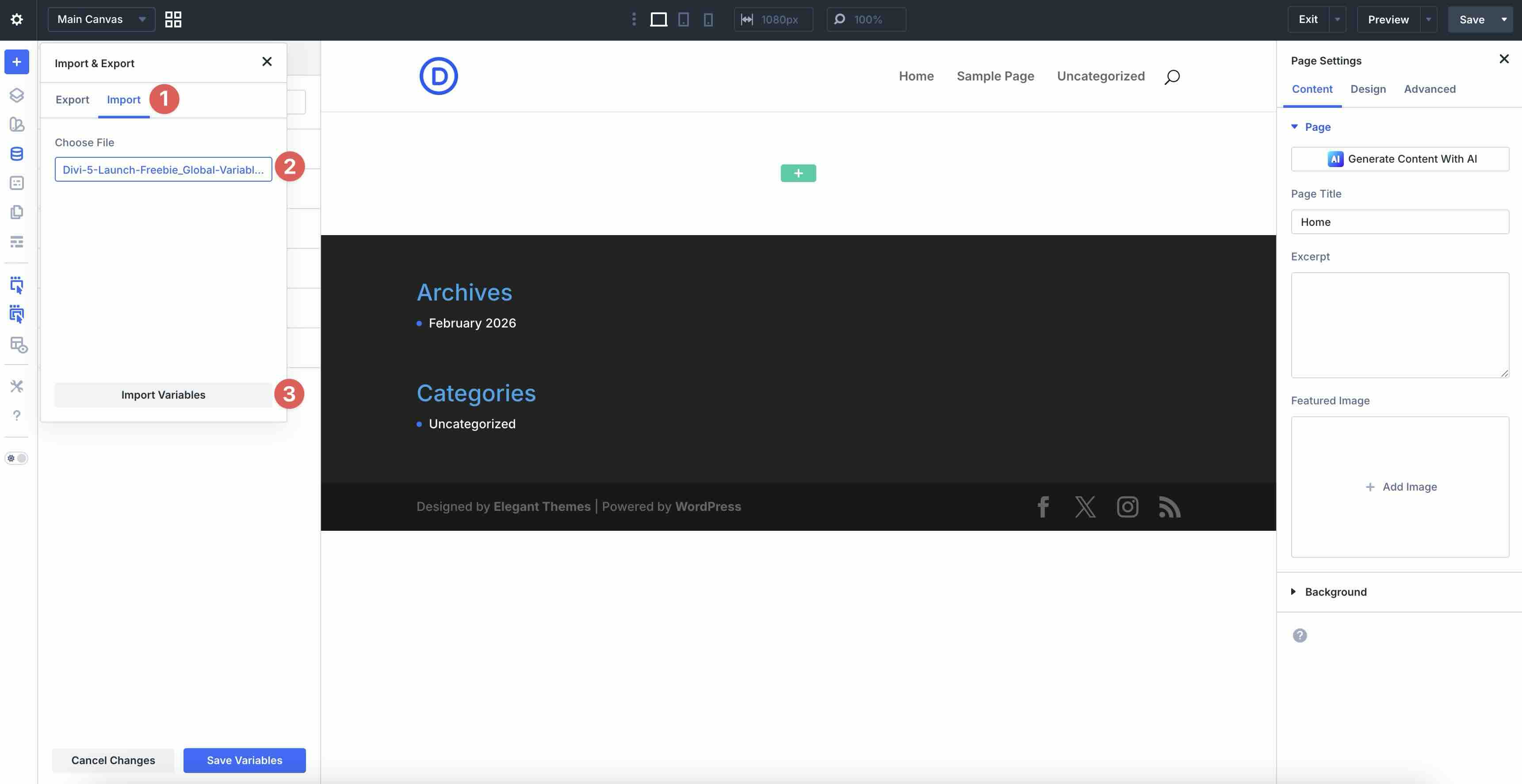
Select the Import tab, locate the Divi-5-Launch-Freebie_Global-Variables.json file on your computer, and click Import Variables.
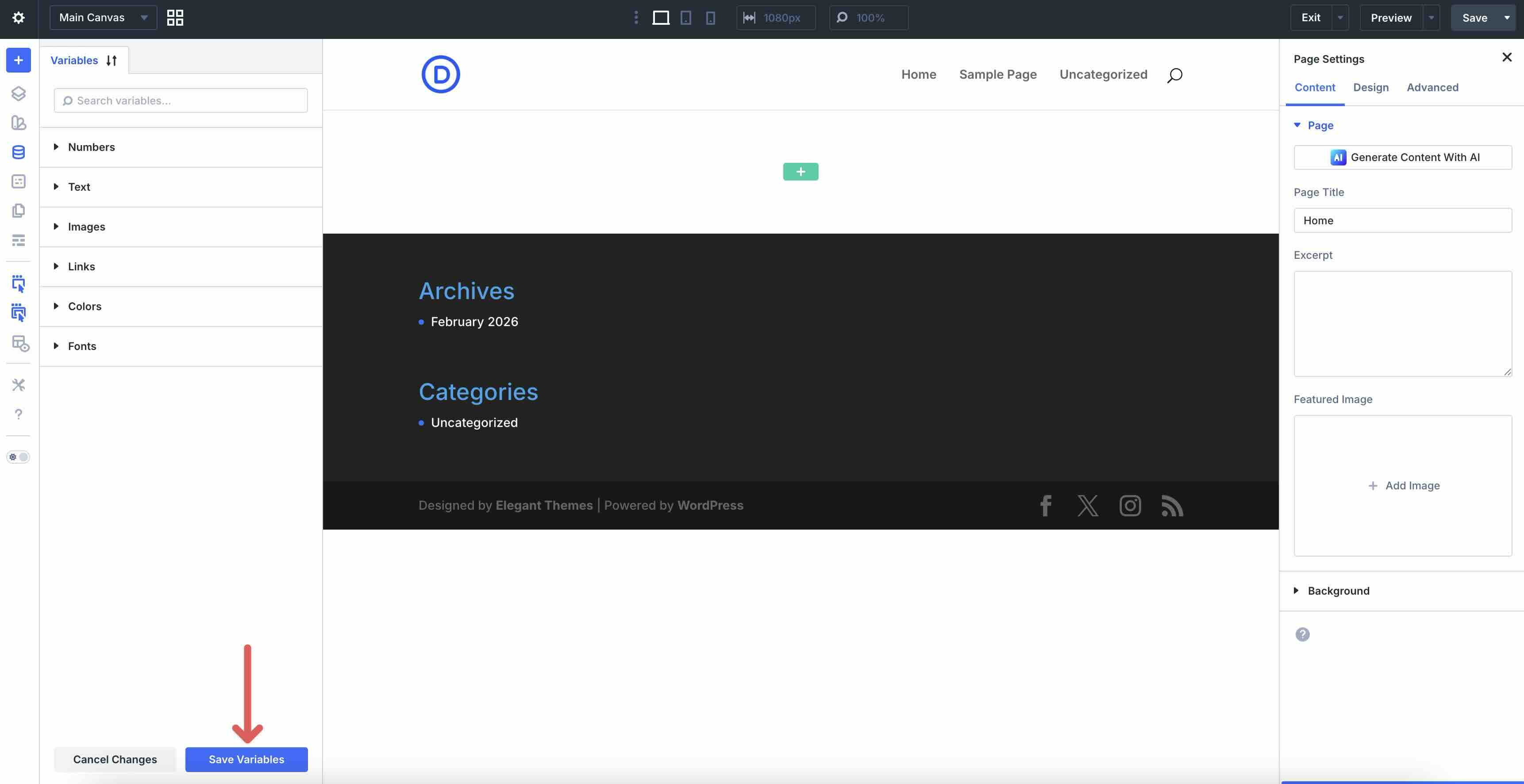
Once imported, click Save Variables to make them immediately available on your site.
Import Presets
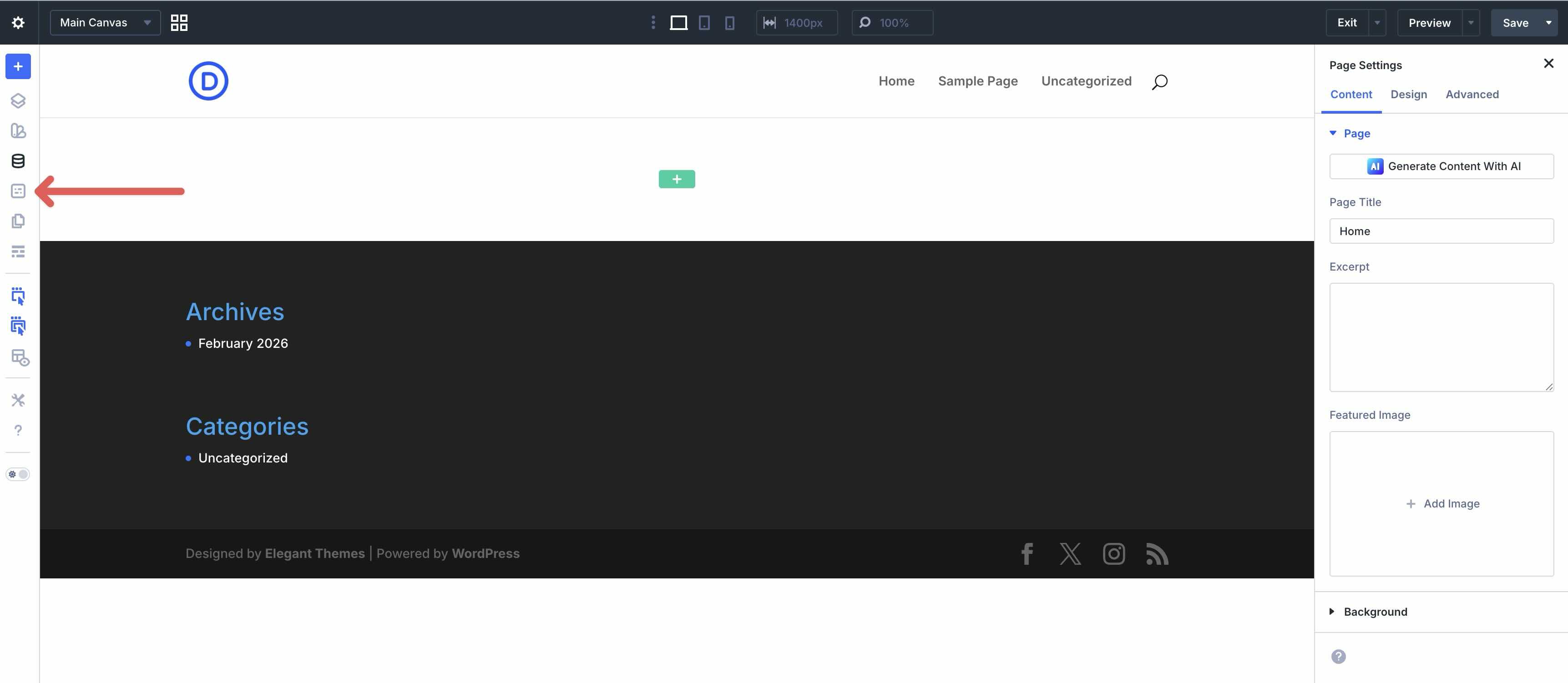
Next, we’ll import all the Presets associated with the Divi 5 Design System freebie. In the Visual Builder, click the Preset Manager icon.
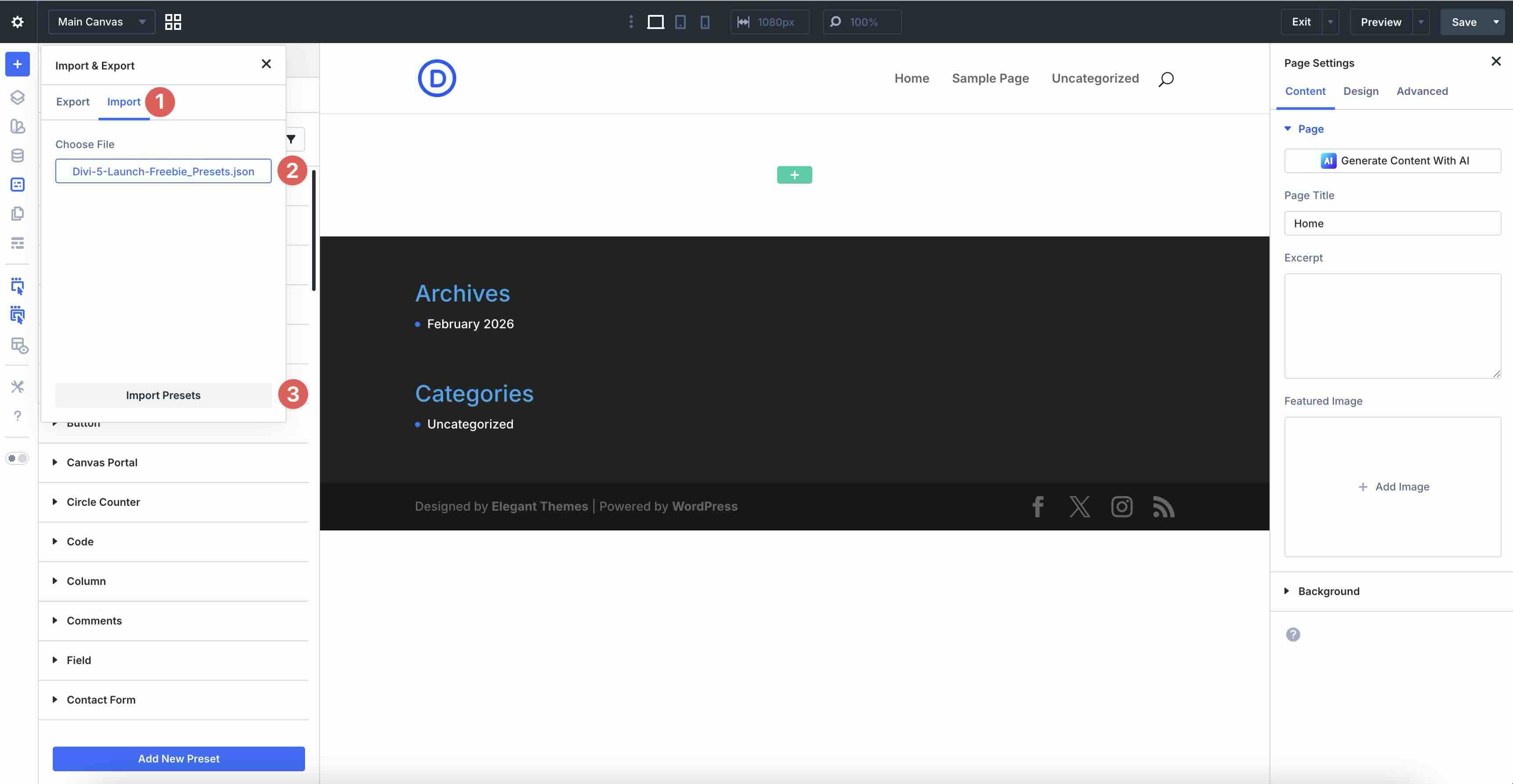
Click the import/export icon, select the Import tab, and choose the Divi-5-Launch-Freebie_Presets.json file on your computer. Click Import Presets to load them into your Divi site.
Once imported, you’ll have access to hundreds of Element Presets for modules and Option Group Presets for individual design settings, like borders, typography, and spacing.
Import Theme Builder Templates
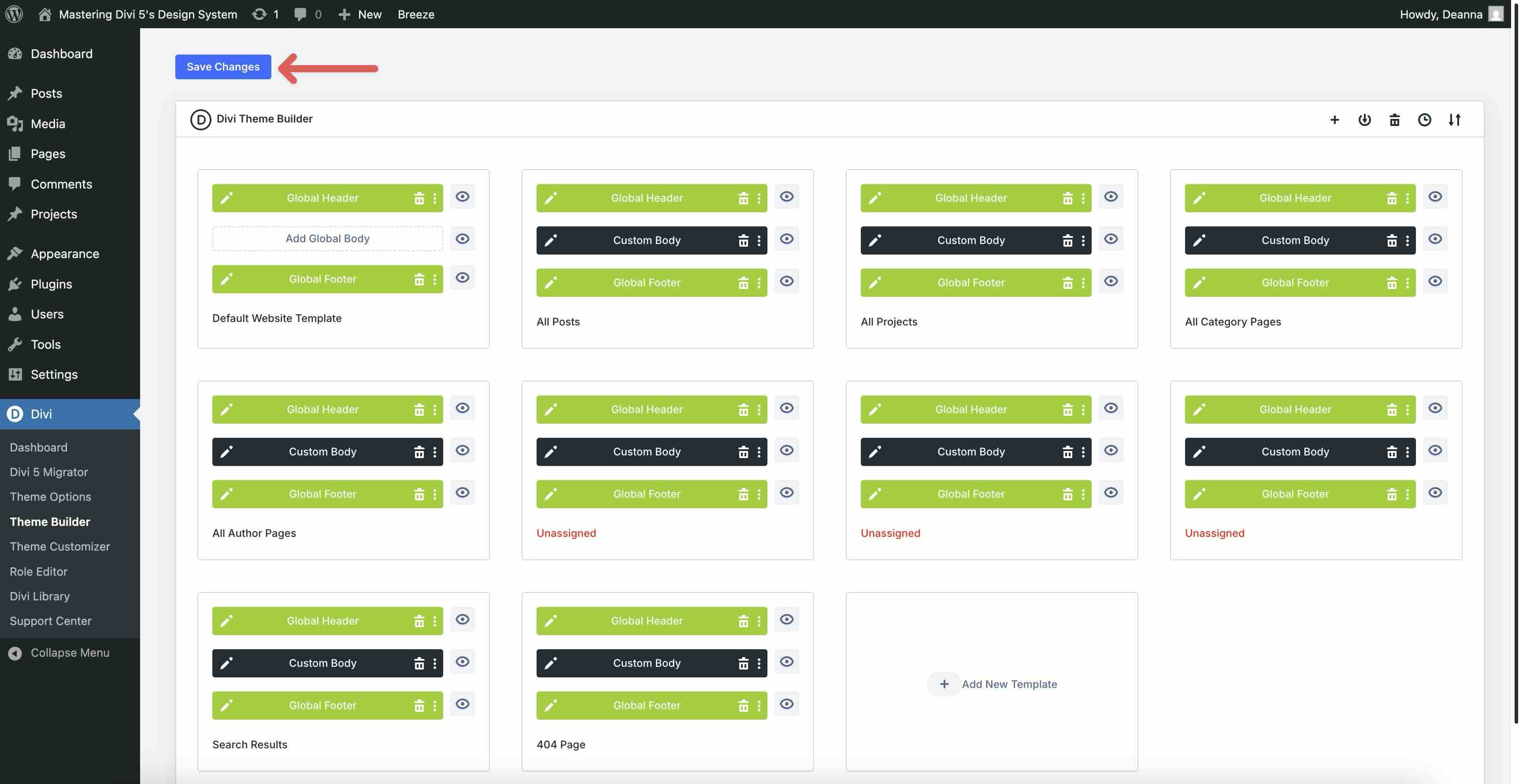
The freebie includes templates for a global header and footer, posts, projects, category pages, author pages, search results, a 404 page, and WooCommerce templates (when applicable).
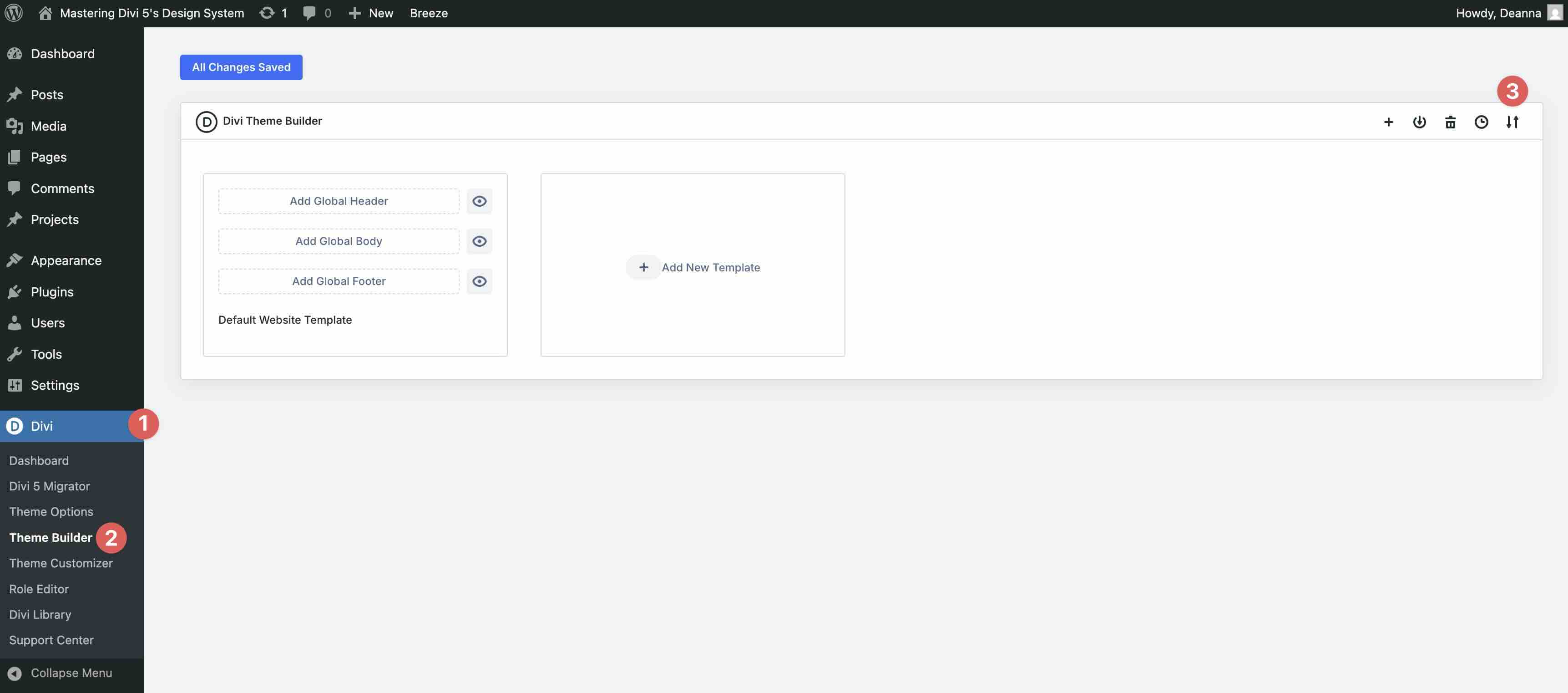
Go to Divi > Theme Builder and locate the import/export icon.
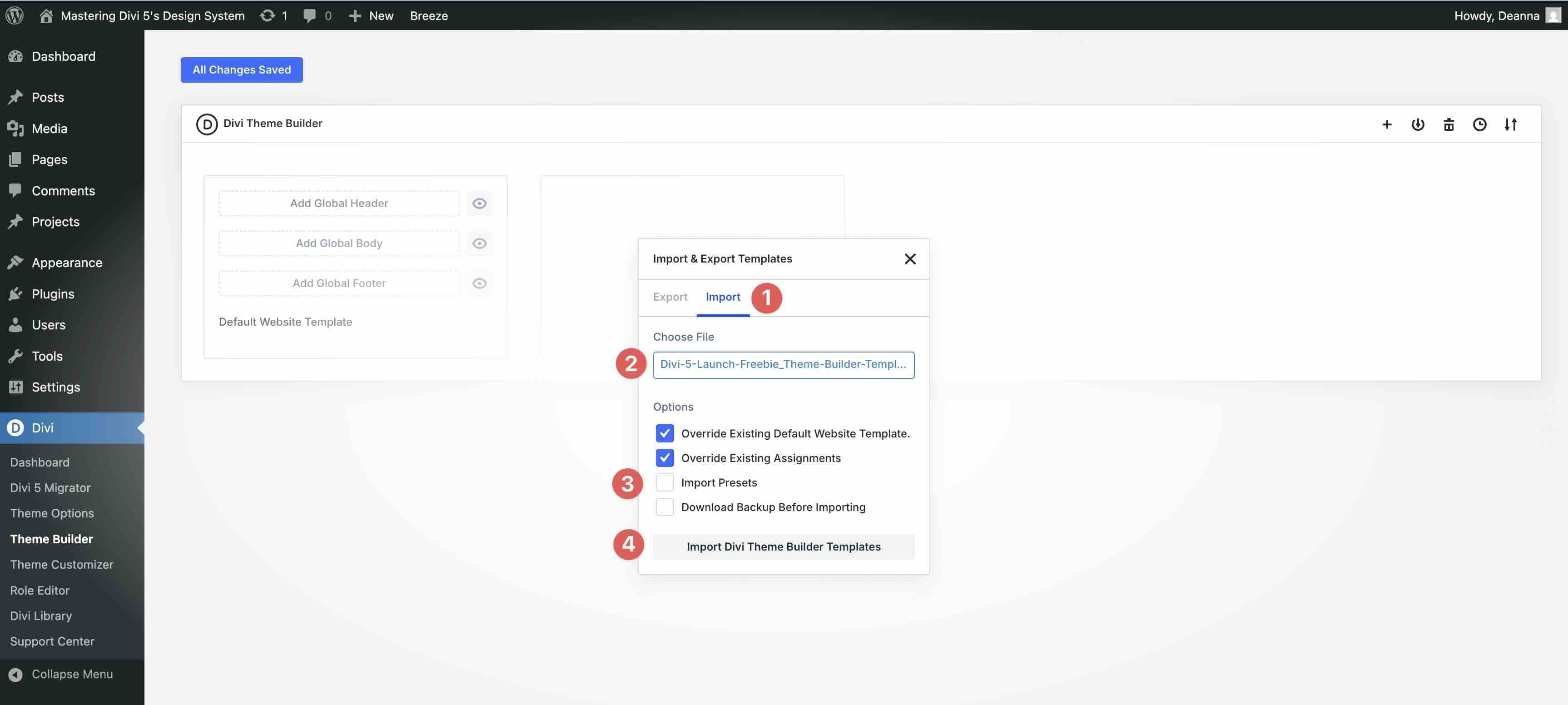
Select the Import tab, locate the Divi-5-Launch-Freebie_Theme-Builder-Templates.json file on your computer, and load it into the Import & Export Templates modal. Ensure that you leave Import Presets unchecked, since you’ve already imported the presets in the previous step. This helps prevent duplicate preset imports.
Once the file is loaded, click Import Divi Theme Builder Templates.
Be sure to save the templates by clicking the Save Changes button.
Import Divi Library Items
Lastly, the Divi 5 Design System includes 350+ sections and layouts, as well as 24 full-page layouts. You can import grouped section layouts, individual sections, and full page layouts depending on your workflow.
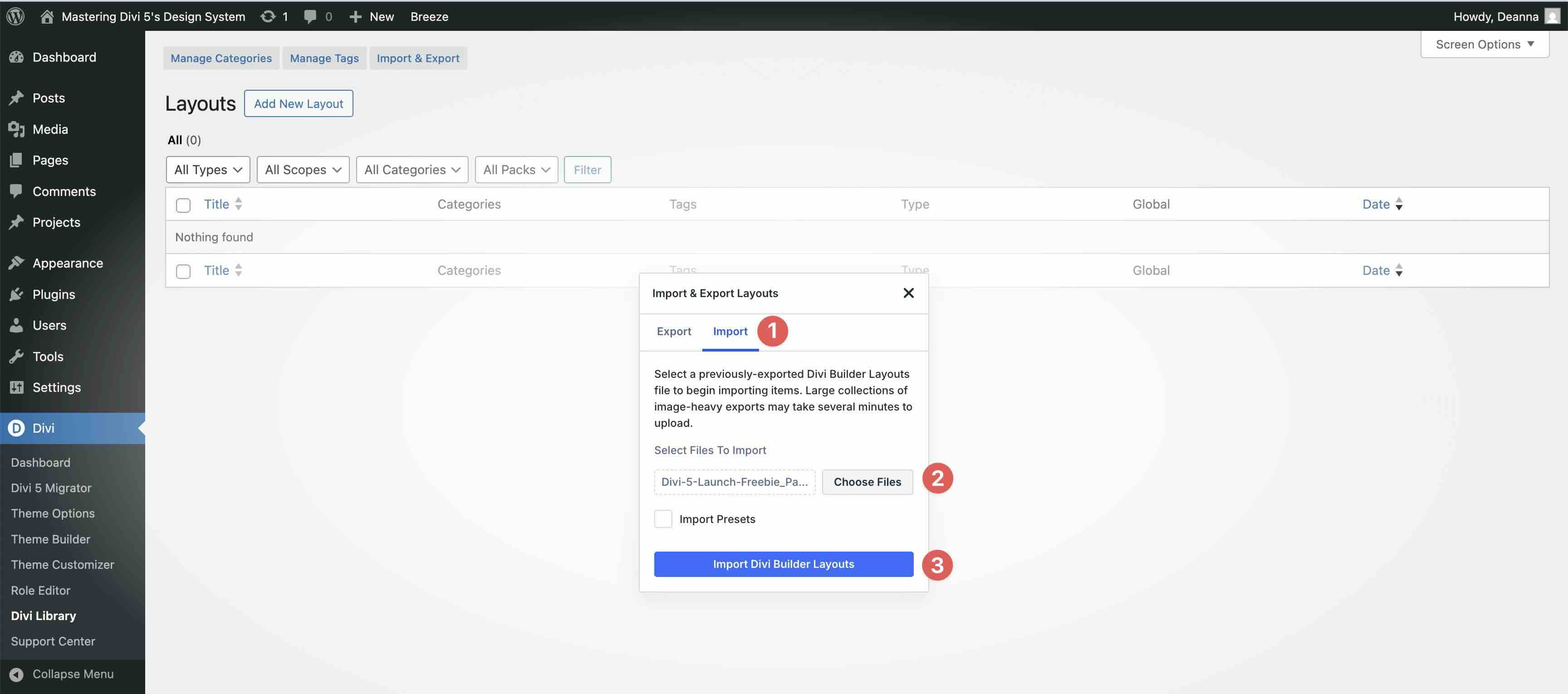
Navigate to Divi > Divi Library and locate the import/export icon.
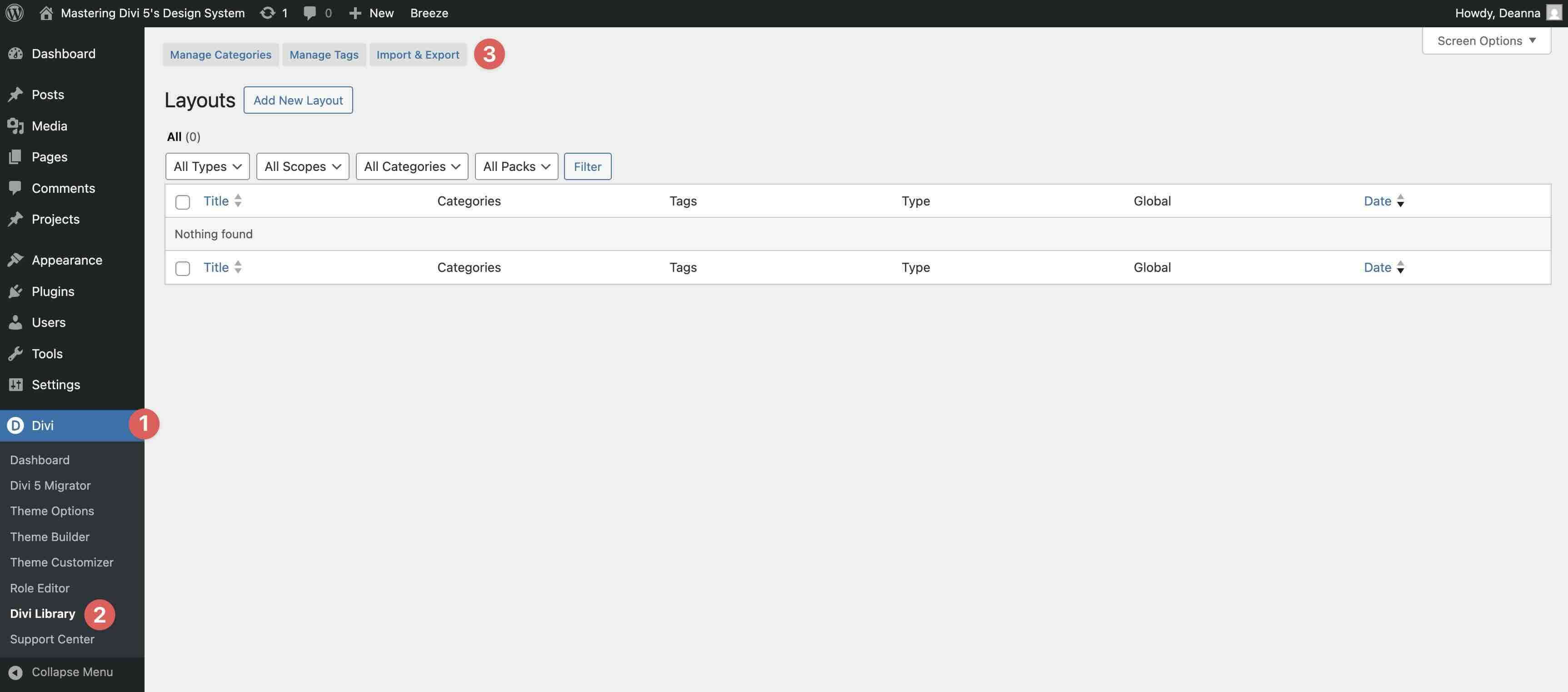
To import grouped section layouts, choose the Divi-5-Launch-Freebie_All-Sections_Layouts.json file. If you prefer importing individual sections instead, choose Divi-5-Launch-Freebie_All-Individual-Sections.json.
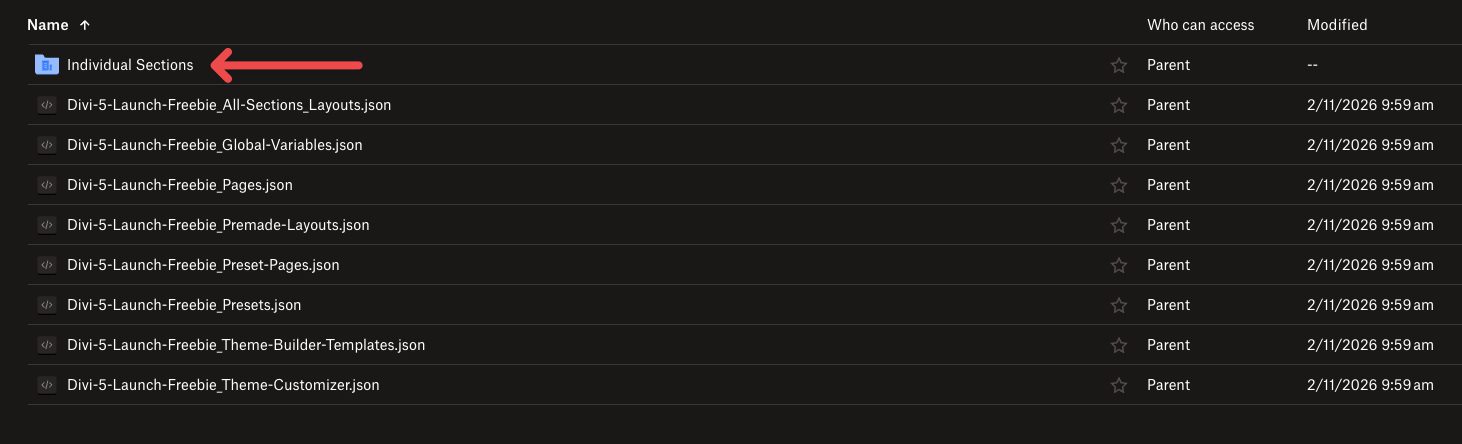
To import the page layouts associated with the freebie, select the Divi-5-Launch-Freebie_Pages.json file. After making a selection, keep Import Presets unchecked and click the Import Divi Builder Layouts button.
How To Approach New Builds In Divi 5
Divi 5’s no-code design system shines brightest when you follow a deliberate, repeatable workflow for new projects. This streamlined approach is built around Variables as the foundation, Presets for reusable styling, flexible layouts for structure, and smart tools for iteration. This approach lets you create consistent, high-performance sites quickly and efficiently.
With the imported Divi 5 Design System freebie already in place, you don’t need to build everything from scratch. Instead, focus on smart application: pull from the premade elements, apply your branding, and let Design Variables handle the heavy lifting.
Follow the steps below to turn a blank canvas into a live site efficiently.
Building A Design System
The key to scalable Divi 5 sites is building from the ground up in a specific sequence: Design Variables first, then Option Group Presets, and finally Element Presets. This order ensures every style cascades efficiently — update a single Variable, and your entire site refreshes instantly.
1. Start with Variables
Open the Variable Manager from the Visual Builder’s left sidebar icon, then expand the relevant tab.
Browse the Design System freebie’s pre-configured collection of primary, secondary, and accent colors (with HSL-based relatives for shades/tints), clamp()-powered typography sizes, consistent spacing numbers, text variables (company name, address, etc.), image variables (logos, icons), and URL variables (social links).
Adding your own variables is easy. For example, let’s say you want to create a new variable for the meta text in a blog loop. Open the Variable Manager and expand the Numbers tab. Scroll to locate the + Add Global Number button.
Give it a Name, such as Meta Text, and assign 13px as the Value. Click Save Variables to add it to the Variable Manager.
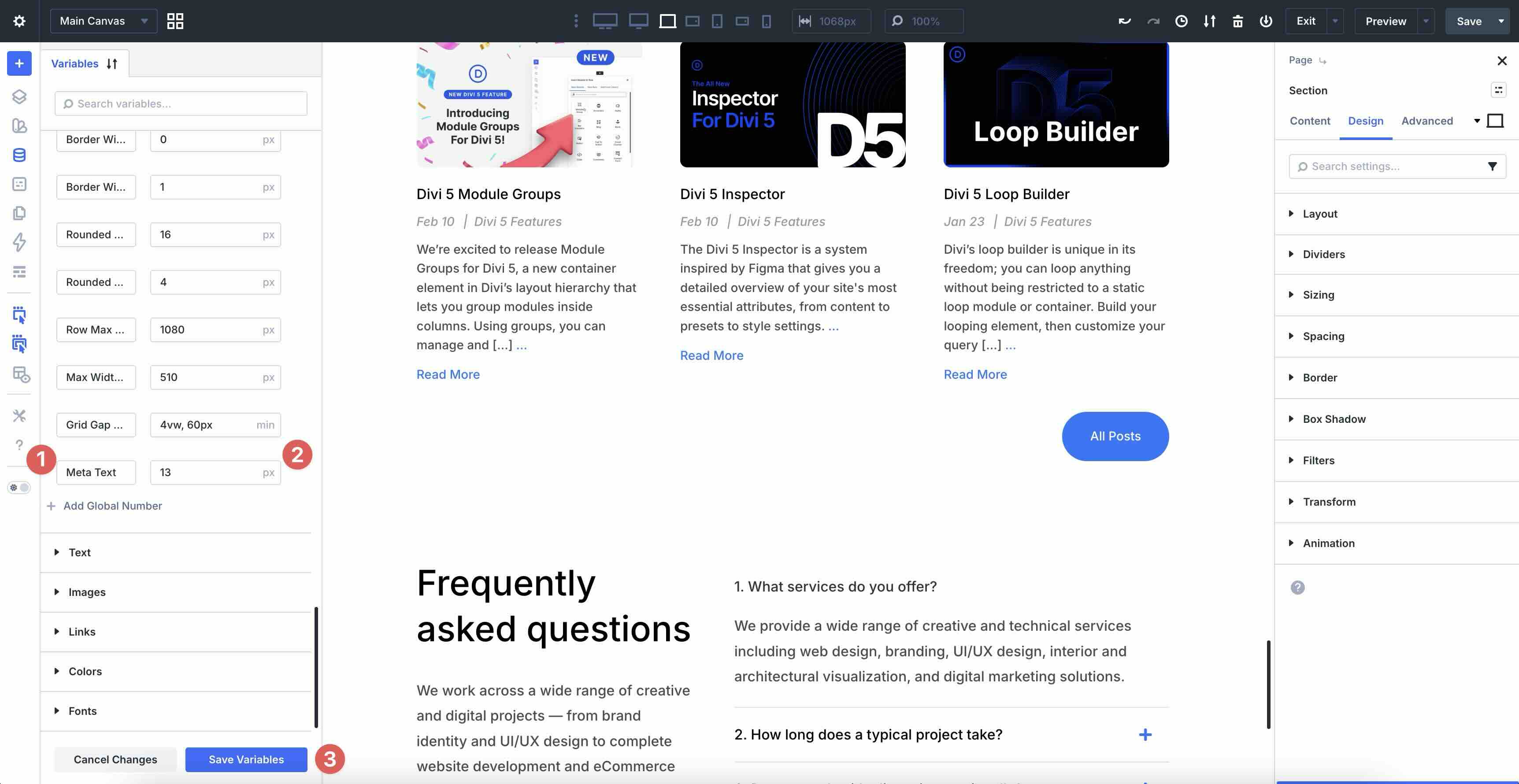
To apply the new variable, select the Text module that contains the meta text. In the Design tab, expand the Text option group. Hover above the Text Text Size field to reveal the Dynamic Content icon.
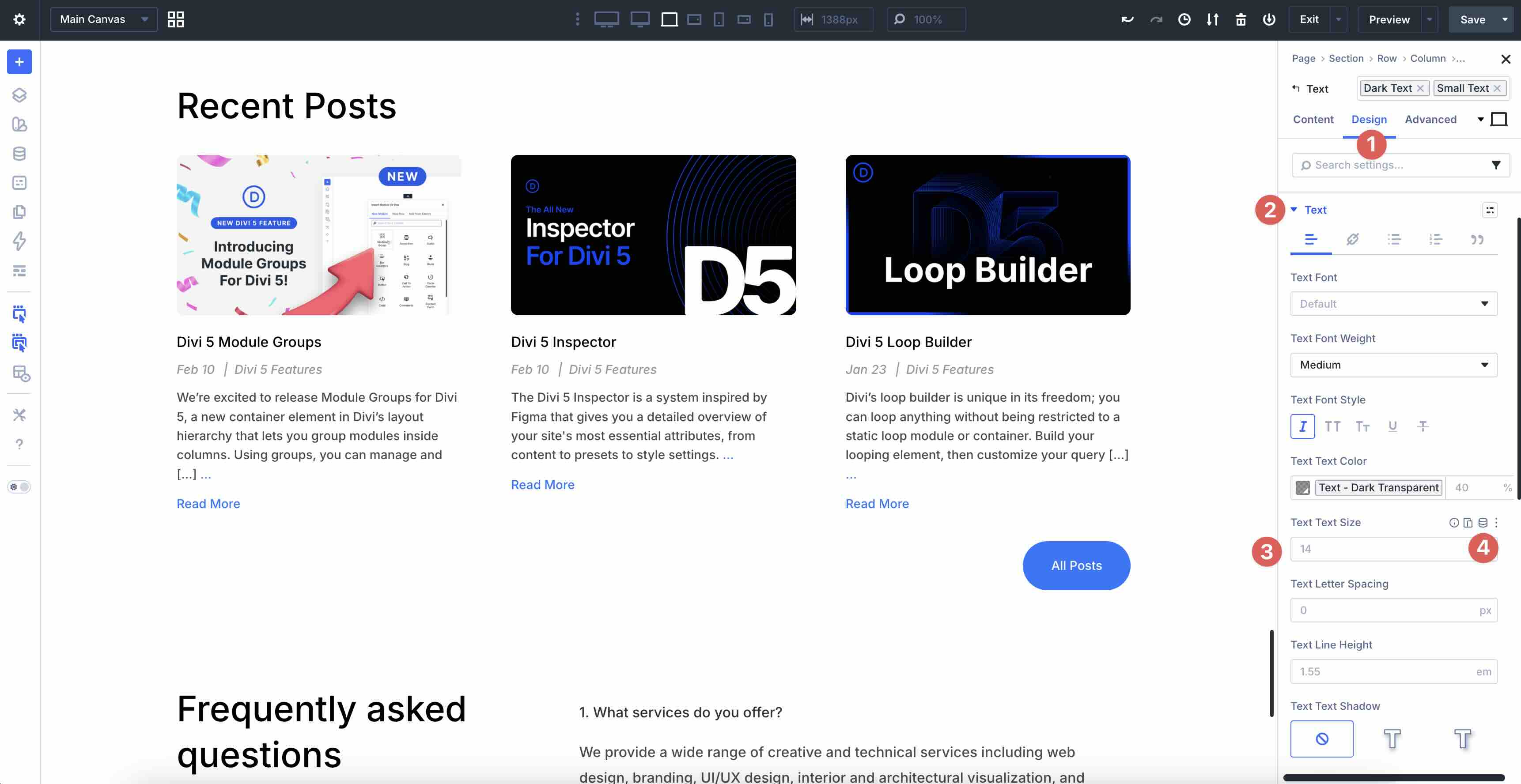
Select the Meta Text variable to apply it to the field.
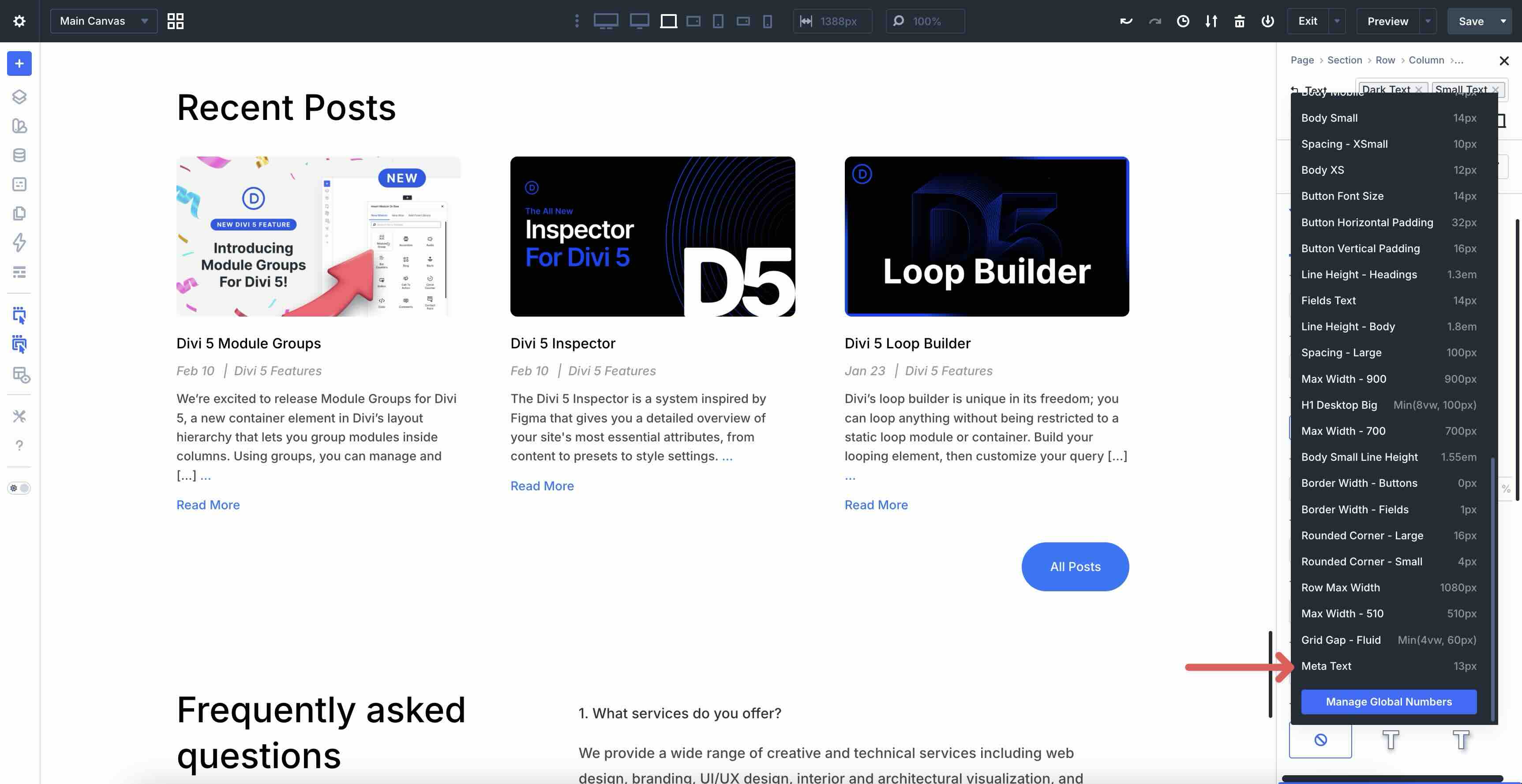
Divi 5 will apply the new variable to every appropriate Text module in the loop layout where you use it.
2. Create Option Group Presets
Option Group Presets let you save specific style groups, such as a typography set or a border style, and apply them to any module that contains that group.
To create a new Option Group Preset, open the settings for any module on the page. Navigate to the Design tab (or the Content tab for things like backgrounds) and find the specific style group you want to assign a preset. For example, we’ll style a button in a CTA module and assign an Option Group Preset to it so those styles can be applied in any other module with a Button option group.
In the CTA’s Design tab, expand the Button menu and enable Use Custom Styles For Button.
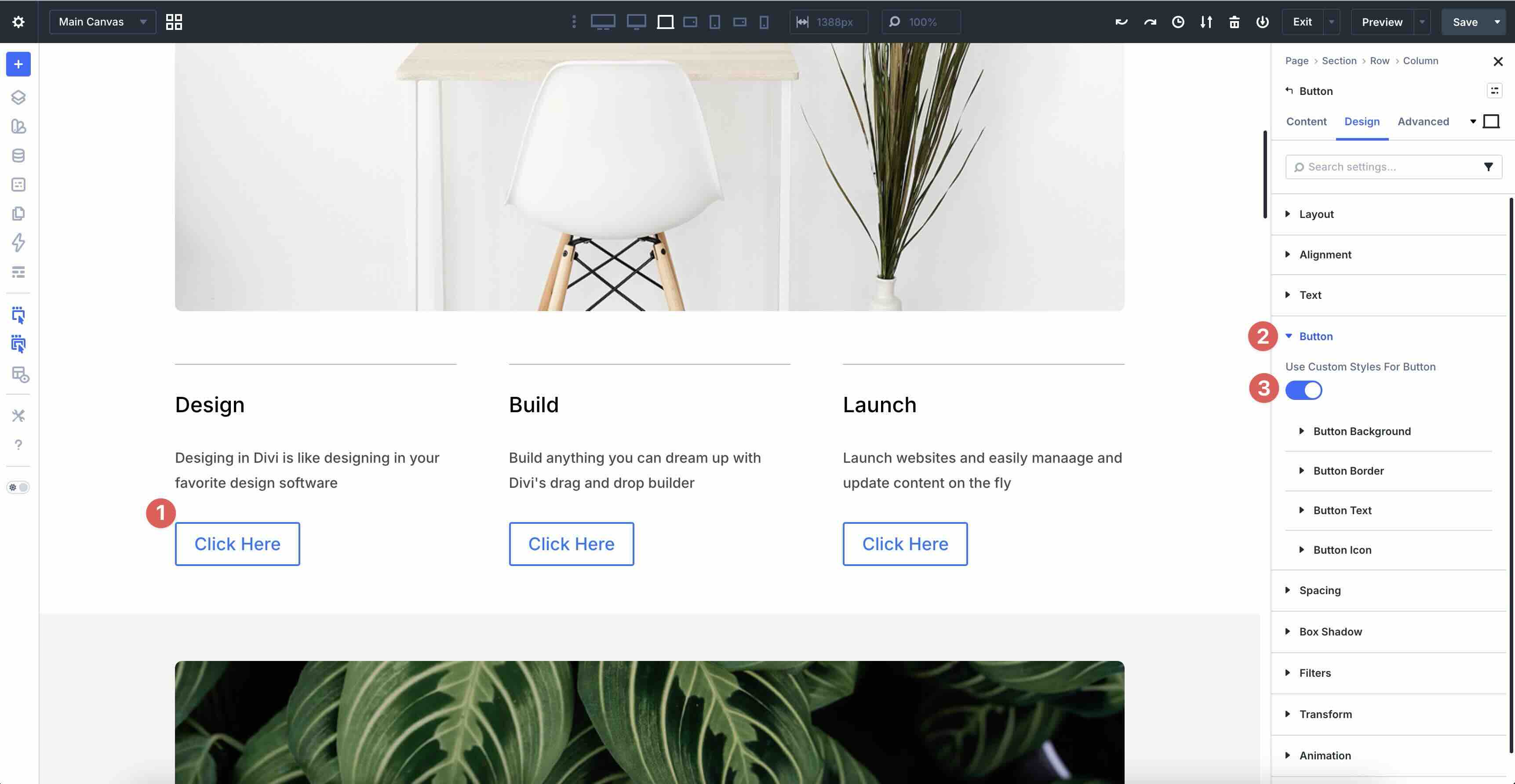
Style the button however you like, using existing Design Variables.
To create the OGP, click the Assign Preset icon in the Button option group.
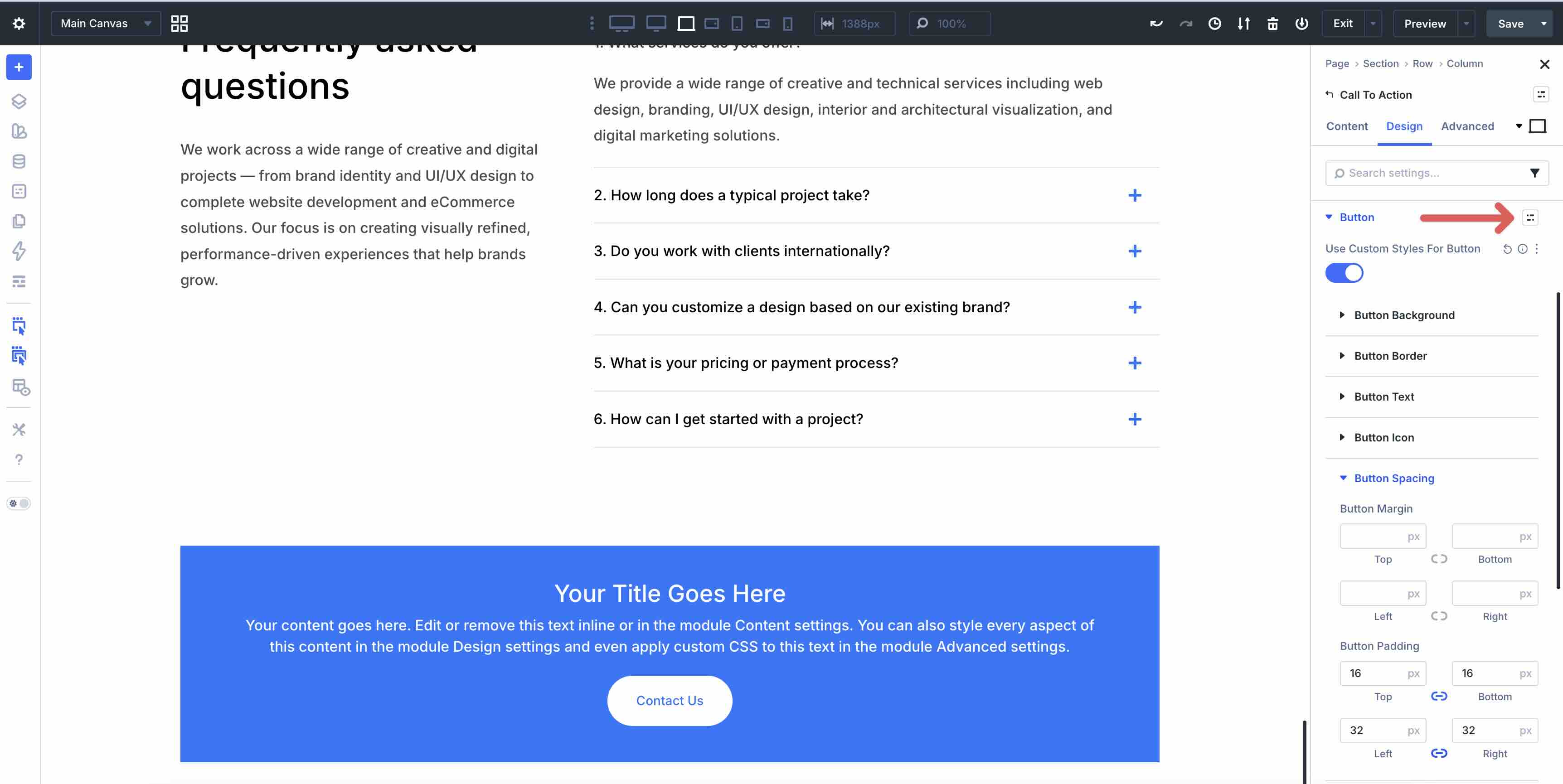
Select New Preset From Current Styles.
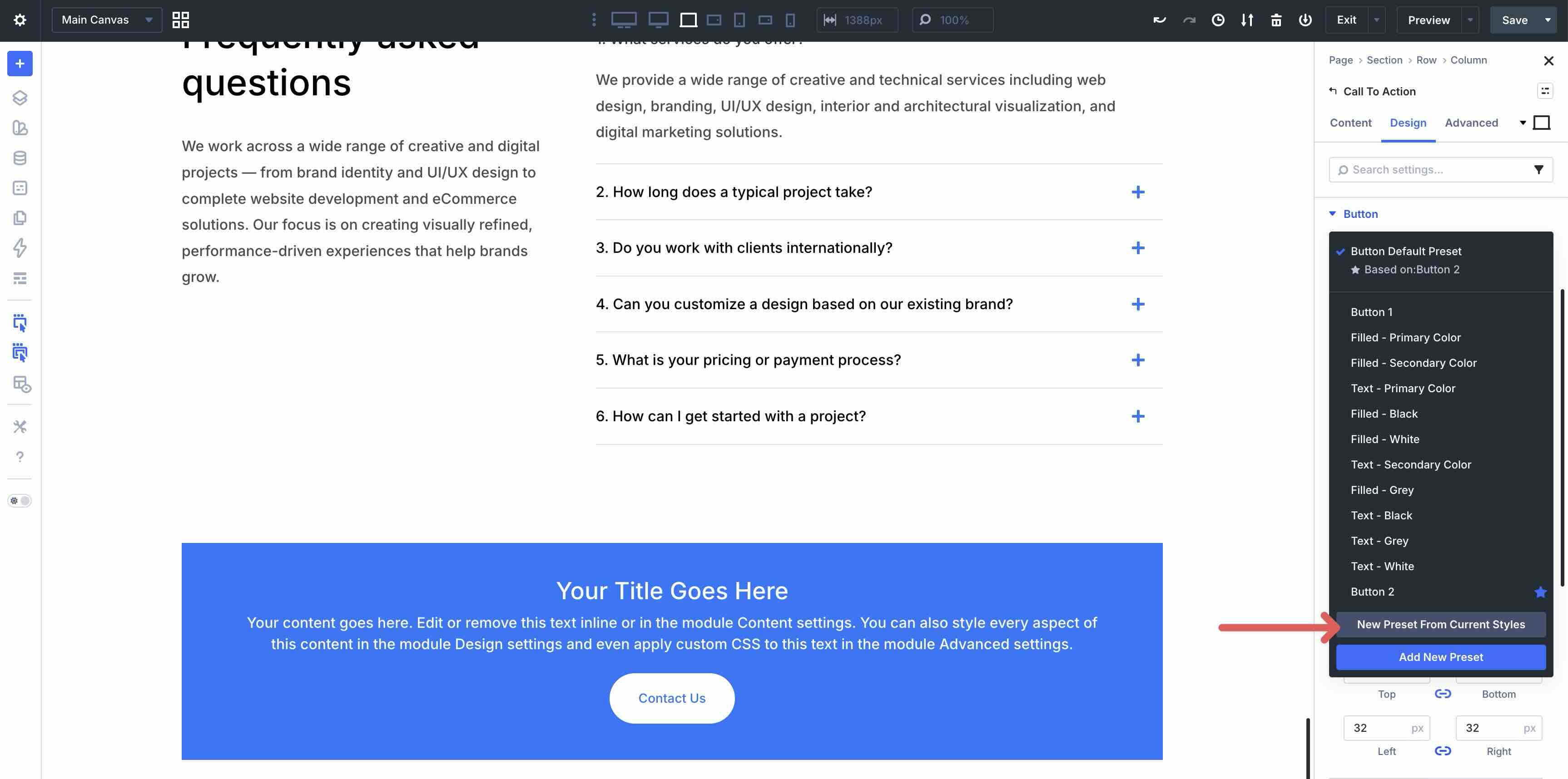
Give the new OGP a Name and click Save Preset to create it. Changes made to the preset are later updated in every instance that uses it.
3. Create Element Presets With Option Group Presets Embedded
In Divi 5, you can nest your OGPs inside an Element Preset. This creates a powerful hierarchy for maintaining styles. If you change an OGP later, every Element Preset using it updates automatically.
You can use the Preset Manager’s filter and search tools to browse the Design System freebie’s extensive collection of Option Group Presets for Typography (body/headings with variable fonts/sizes), Spacing (consistent padding/margins using number variables), Borders (radius/width/color from variables), Shadows (soft/subtle with HSL relatives), Backgrounds, Buttons, and more.
You can create new Element Presets in a few ways: by styling an element and using the Assign Preset icon to create one, or by creating one directly in the Preset Manager.
Let’s create a new Icon Element Preset for an icon and nest some Option Group Presets within it. This keeps everything consistent and easy to manage should you decide to make design changes in the future.
Open the Preset Manager and use the filtering feature to search for Icon elements.
In the Icon dropdown menu, locate the + Add New Preset button and click it to add a new preset.
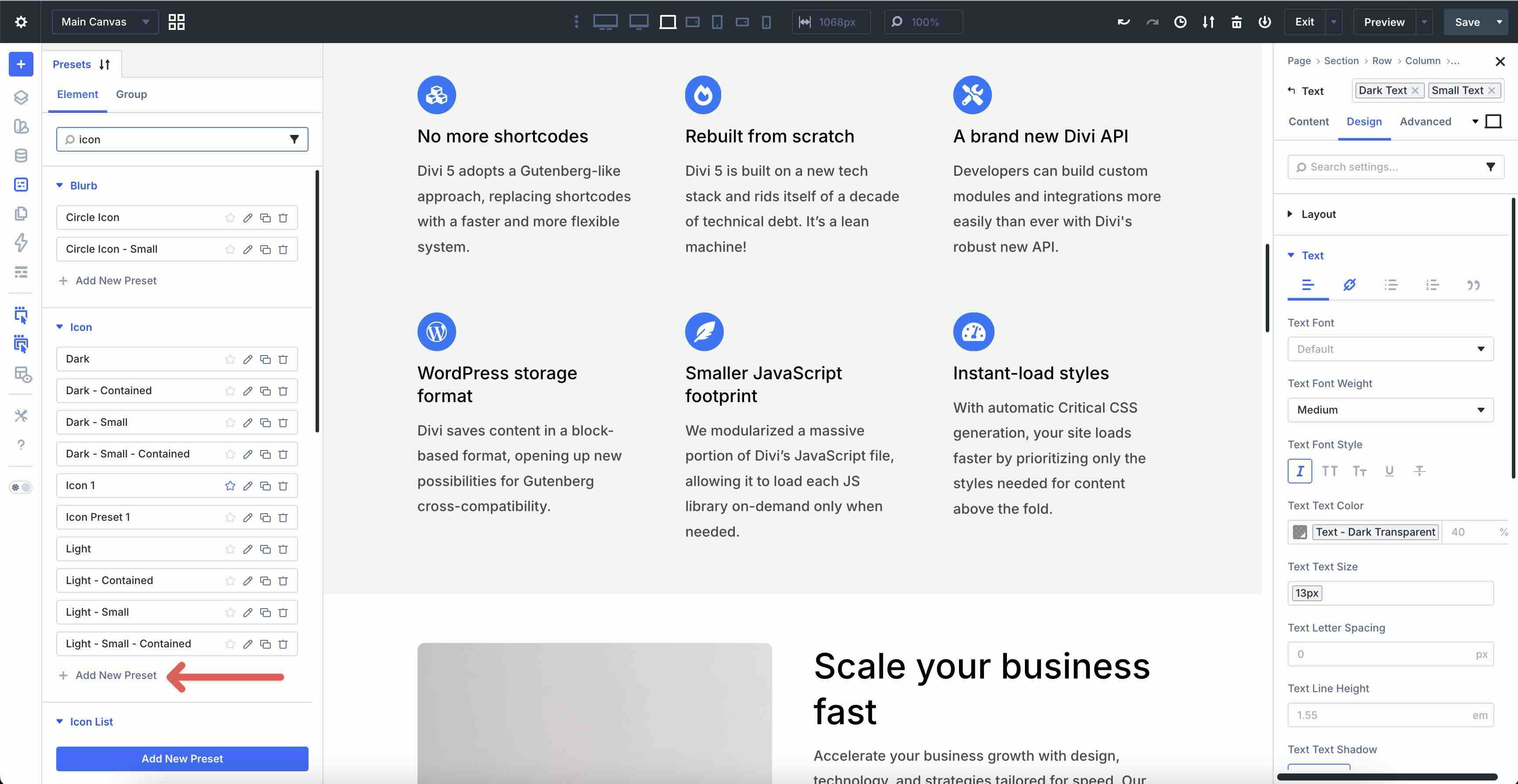
This will launch the Preset Preview window, where you can create and edit your preset. Use the Content and Design tab settings to style the module as you wish, add any Option Group Presets you want to include, and then click Save Preset to add it to the Preset Manager.
To apply it, select an Icon module on the page, click the Assign Preset icon in the top-right corner of the module’s settings, and select the new preset. The preset applies instantly, pulling in linked Variables and Option Group Presets assigned to it.
Build The Structure
With your design system in place, move into building your layouts. This is where you can leverage Divi 5’s new features to create a high-performance structure.
Choose Your Layout Style
Start with sections and rows using Divi’s Layout Style options: Flexbox or CSS Grid. Flexbox is ideal for most layouts, allowing you to use horizontal and vertical gaps to create perfectly uniform spacing between modules without manual margins. For more complex, asymmetrical designs, CSS Grid lets you control rows and columns simultaneously within a single container.
Utilize Premade Sections And Modules
To get started quickly, load one of the 350+ sections available in the Divi 5 Design System freebie.
Add modules and apply Presets for instant styling.
As your page grows, use the Layers View to stay organized. Labeling your layers here turns the panel into a searchable directory of your entire page hierarchy.
Advanced Components And Dynamic Content
To achieve more complex layouts, use Module Groups and Nested Rows. These allow you to place modules and rows within modules and/or rows, providing greater layout flexibility while maintaining a clean Document Object Model (DOM) structure.
Use Canvases to create pop-ups, mega menus, and other off-canvas content, keeping your Main Canvas clutter-free. Pair these with the Canvas Portal Module to inject your off-canvas content exactly where it’s needed.
Combine Canvases with Interactions to launch pop-ups on a time delay or create additional interactions for mouseover effects, including scale, translate, and zoom.
Use the Loop Builder to design a single-item layout and repeat it for dynamic content such as posts, products, portfolios, or other repeatable content.
Finally, ensure you’re using Semantic Elements to define key landmarks for assistive tech. Assigning tags such as main, nav, or footer directly in the module settings improves both SEO and accessibility.
Customize And Revise Styles
Once your structure is in place, Divi 5’s smart tools let you refine and polish your site with precision.
Layer Variations With Stacked Presets
Instead of creating dozens of unique Element Presets, use Stacked Presets for variations. For example, apply a base primary button preset, then stack a secondary preset on top. This modular approach keeps your design clean and your site-wide updates simple.
Make Targeted Refinements With The Inspector
Don’t waste time hunting through design settings. The Inspector panel acts as a centralized command center, showing you every setting that has been modified from the default. You can identify and tweak styles for an element and all its children from this single view, significantly speeding up the revision process. The Inspector is also a great tool for converting Divi Quick Sites or Layout Packs from Block to Flex.
Global Efficiency With Find And Replace
The Find and Replace feature is a great tool for bulk updates. If you decide to move from a static spacing value to a new Design Variable, use this tool to swap values across the entire page instantly.
Master Responsive Design
Use the Responsive Editor to view and adjust your design across seven custom breakpoints side-by-side. This ensures your fluid typography, spacing, and other design settings scale perfectly from the smallest phone to ultra-wide desktops without needing to toggle views constantly.
Test And Safely Preview
Use the Preset Preview within the Preset Manager to test global changes. This allows you to visually confirm how a typography or color change will look before it propagates across your entire site, ensuring your revisions never lead to unexpected design breaks.
Optimize And Launch
Before you hit publish, run through this final checklist to ensure your new build is fast, accessible, and ready for future growth.
Set Global Defaults
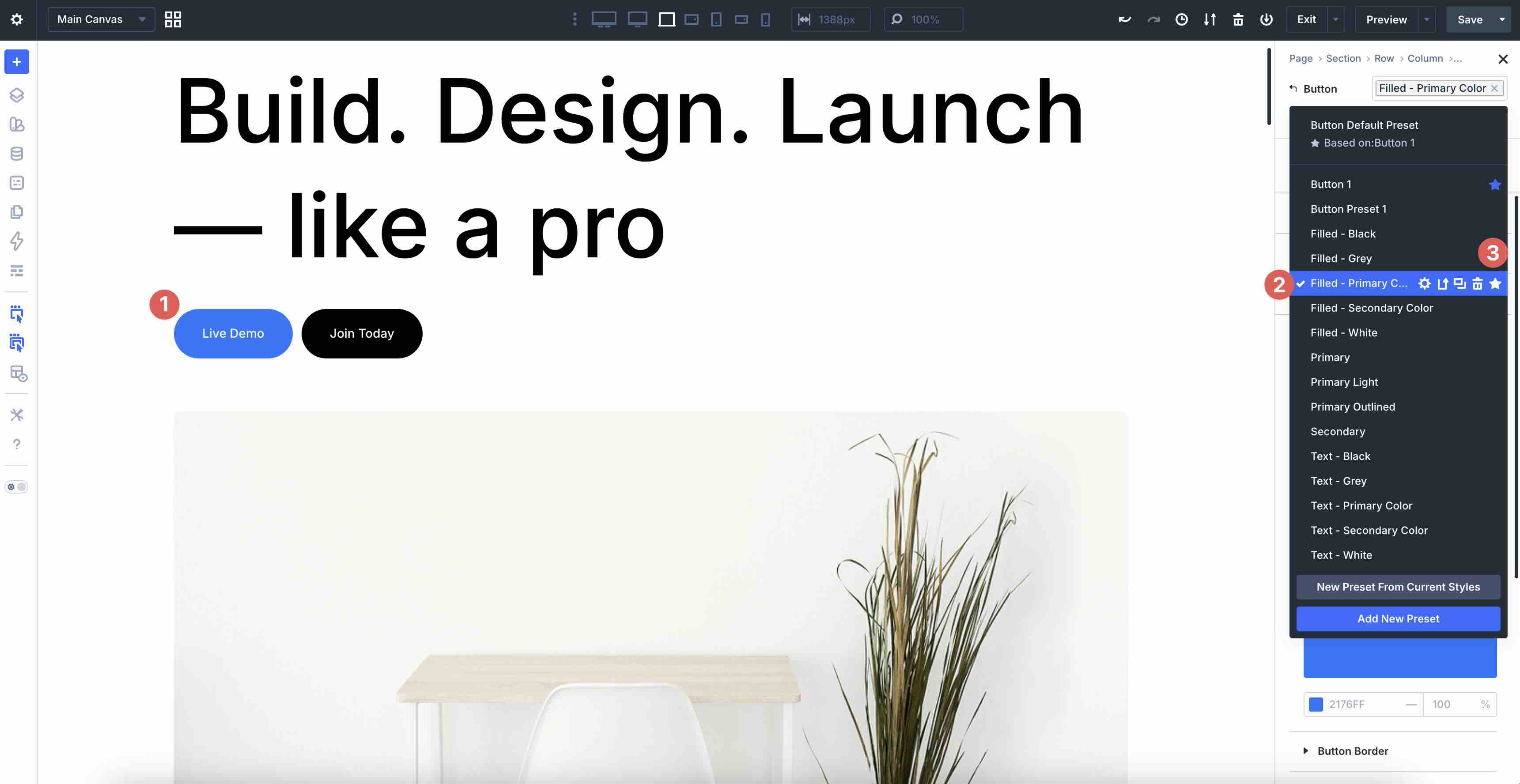
If there is an Element Preset you’ve used throughout the project, click the star icon in the Preset Manager. This sets it as the Global Default, ensuring any new pages you add to the site in the future follow your design system automatically.
Perform An Accessibility Pass
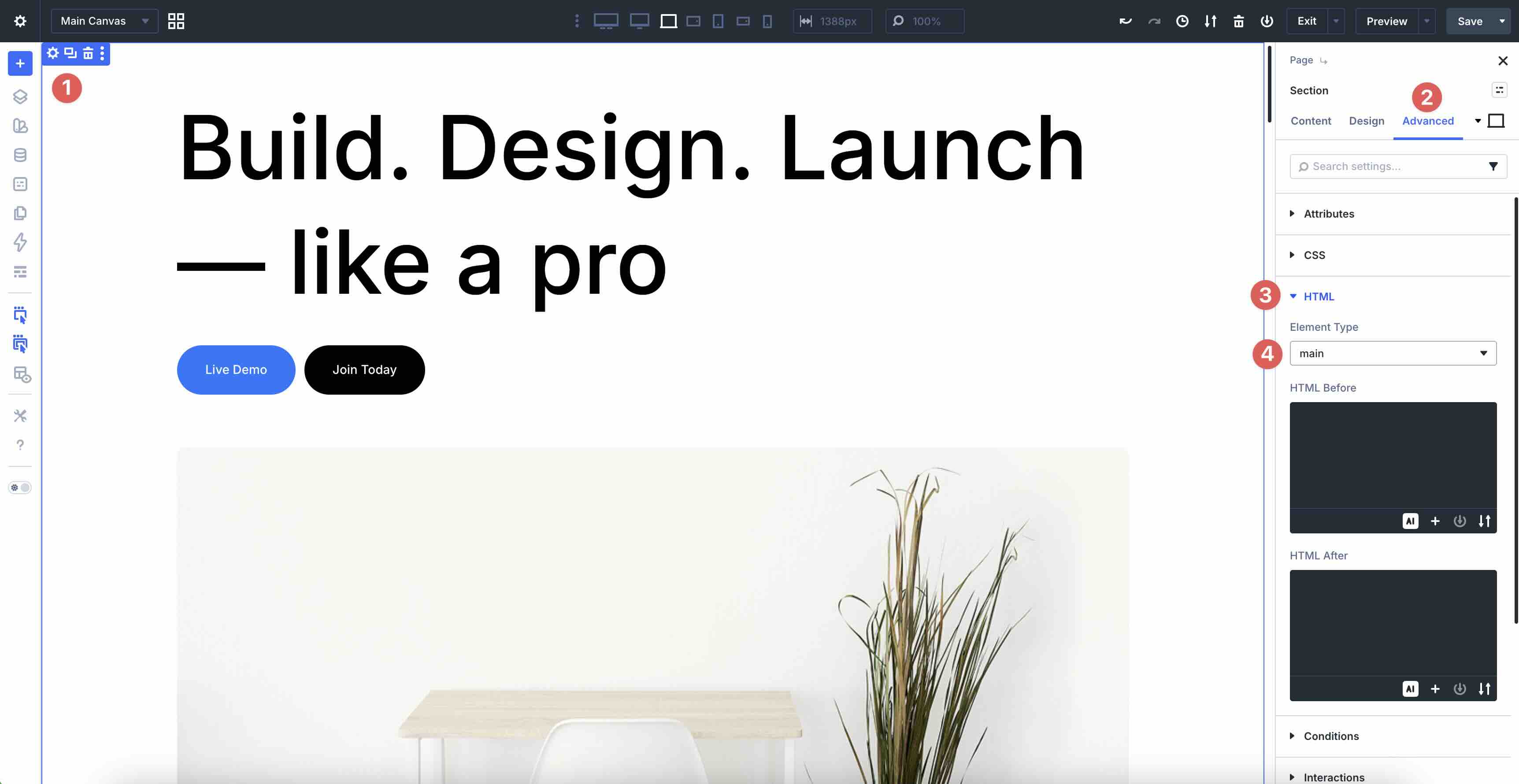
Check your Semantic Elements in the Advanced Tab > HTML. Ensure your primary navigation is labeled nav and your main content is labeled main. These small tweaks make a meaningful difference for screen readers and search engine rankings.
Export Your Design System
The true power of Divi 5 lies in its portability. Export your Design Variables and Presets as JSON files. You now have a custom brand kit that you can import into your next project to jumpstart your build process in seconds.
Download The Divi 5 Design System Freebie
To see all of Divi 5’s features working together in a real, ready-to-use setup, download our free Divi 5 Design System. It includes a large collection of importable JSON files, including premade section layouts, global Design Variables, page layouts, hundreds of Element and Option Group Presets, Theme Builder templates, and optional Theme Customizer settings. This system gives you everything you need to get started with Divi 5 and helps you understand how the full workflow connects.
Get the free Divi 5 Design System freebie

Start Building Websites With Divi 5 Today!
Divi 5‘s Design System transforms new builds into efficient, consistent, and organized processes. Variables provide the foundation, while presets deliver reusable, modular components that scale easily.
Download Divi 5 today, experiment with the Visual Builder, and build your framework for long-term scalability. Use the Divi 5 Design System freebie to kickstart projects quickly and gain a better understanding of how it all comes together.










Un grand Merci à vous.