

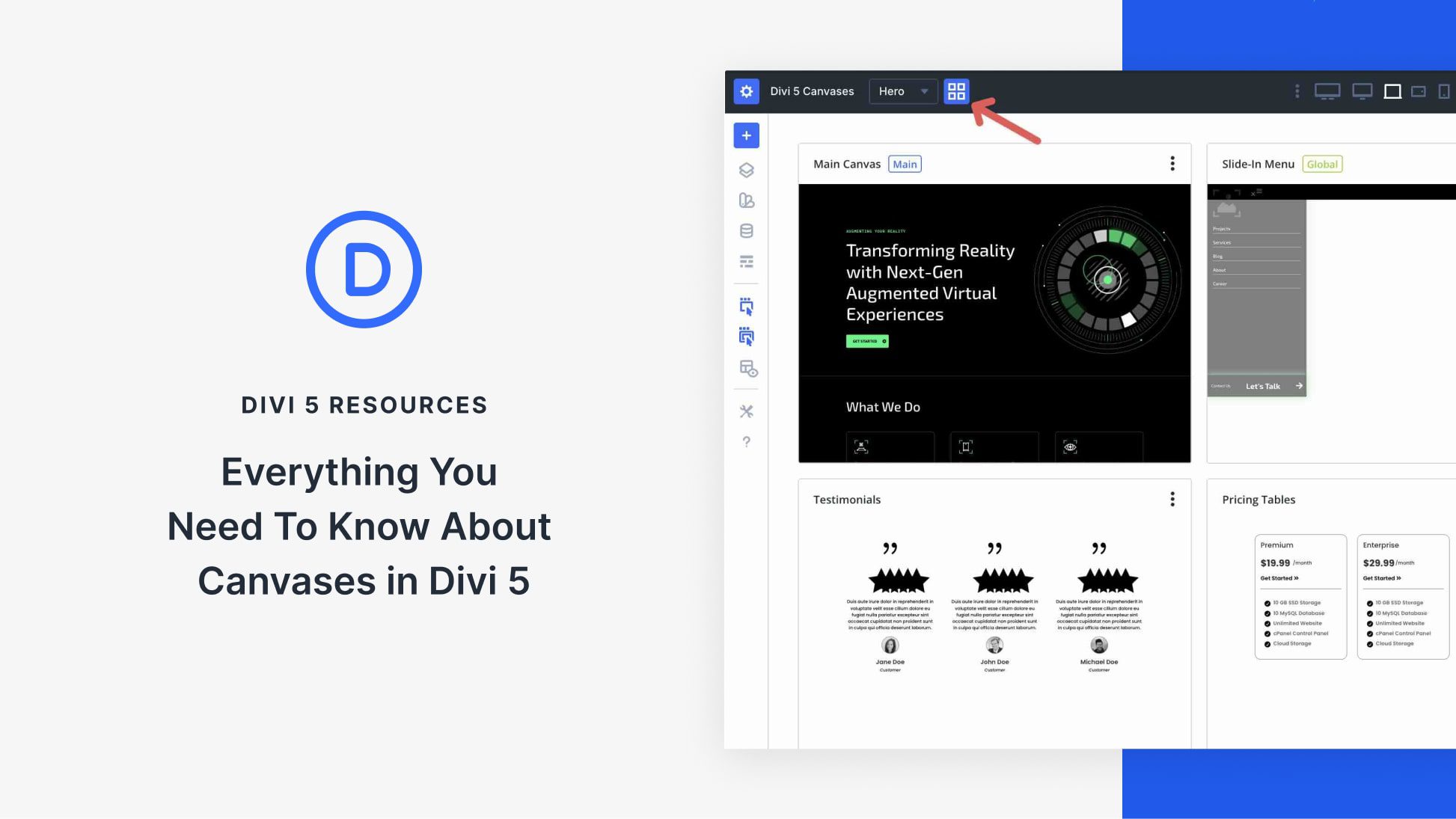
With each update, Divi 5 edges closer to its full release. It’s faster, more stable, and packed with features that set it apart from previous versions. The latest feature of Divi 5 is Divi Canvases, a powerful system for creating off-canvas elements such as menus, pop-ups, sidebars, and other reusable components.
A Canvas is a dedicated, detached workspace separate from your main page or post content. Every Divi page starts with a Main Canvas for your primary layout, but additional canvases provide isolated spaces for off-canvas builds. Canvases allow you to keep off-canvas elements organized, safely duplicate and tweak designs without affecting your live content, and can be global for site-wide components.
In this post, we’ll cover what Canvases are, how to use them, and share tips to unlock their full potential. Let’s get started.
What Are Canvases In Divi 5?
A Divi Canvas is a detached workspace within the Visual Builder where you can design and organize content. Think of it as a separate design board that exists alongside your main page layout.
Every Divi page or post automatically includes a default workspace called the Main Canvas. This is the primary area where you build the content of your page. In addition to the Main Canvas, you can create Detached Canvases. These are completely separate workspaces that do not appear in the main page area inside the Visual Builder.
They are ideal for building off-canvas design elements, such as slide-in menus, sidebars, or modals, and can be stored as reusable components without cluttering your primary layout.
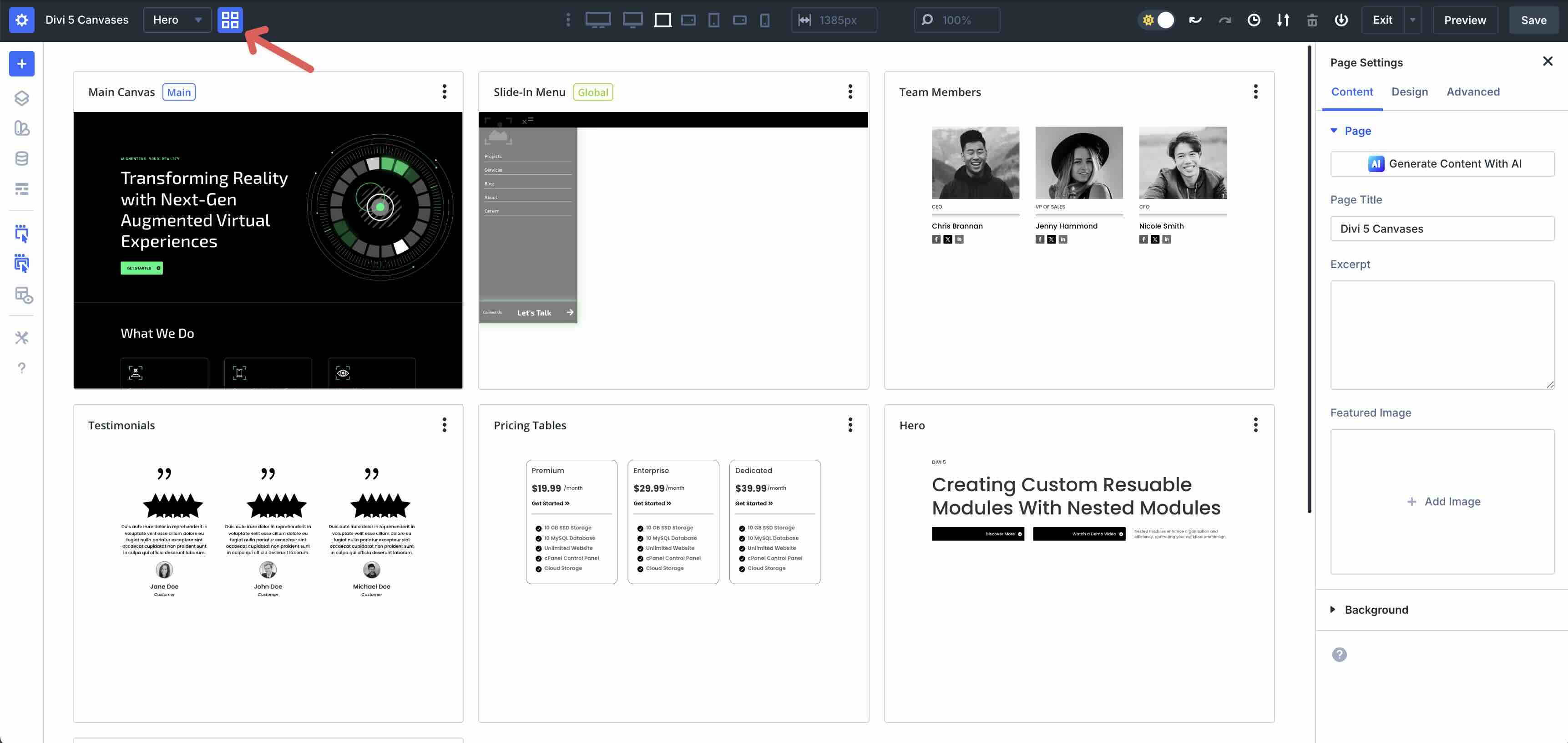
Canvases can be created and assigned to a local page or as a global element, making them accessible from any page or post on your website. Global Canvases are ideal for site-wide elements, such as menus, mega menus, pop-ups, cookie banners, or any component you want to reuse consistently across multiple pages.
Key Features And Tools
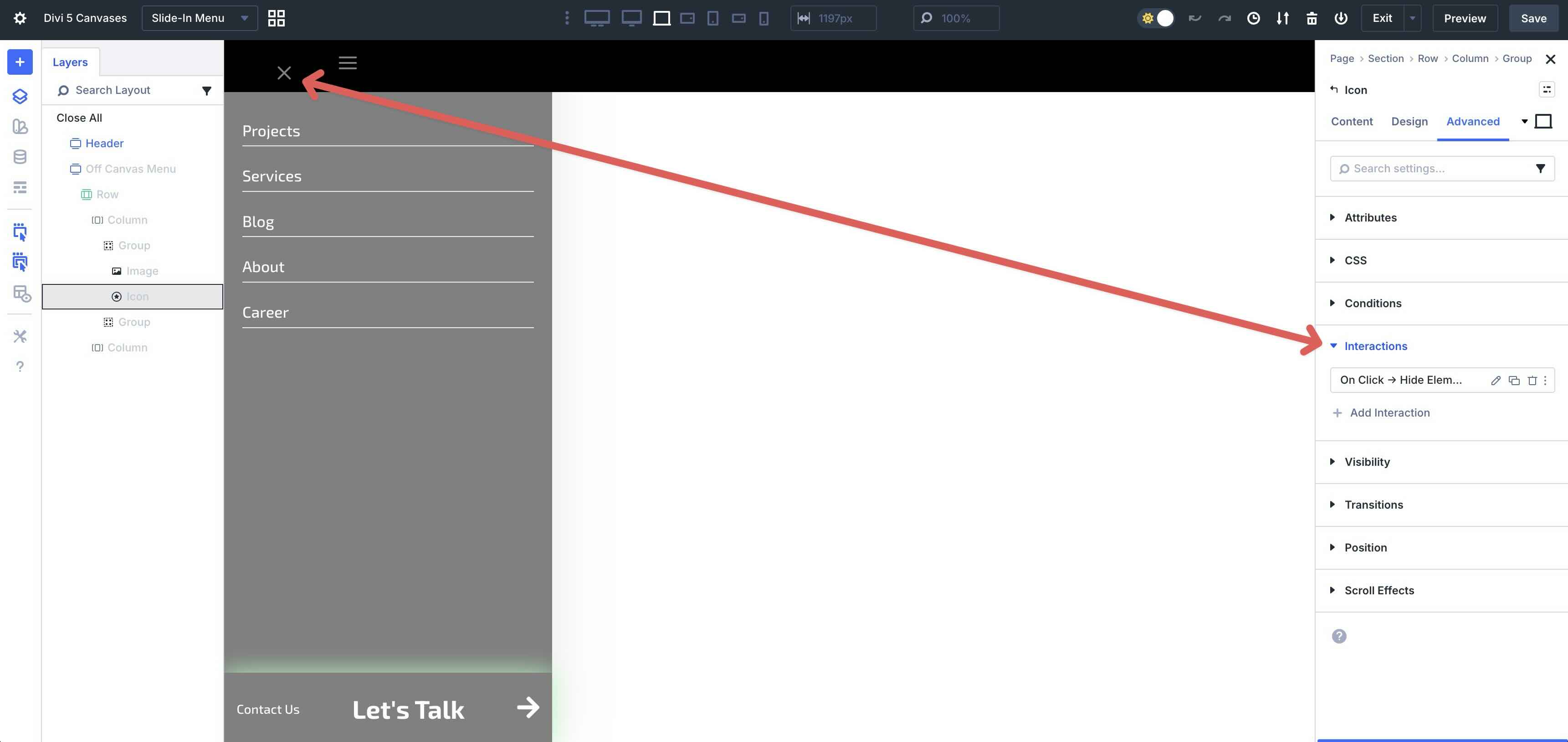
Divi Canvases are not just isolated containers. They are deeply integrated with Divi 5’s modern toolset, making them incredibly powerful for dynamic designs. Using Divi 5’s Interactions feature, you can target any detached canvas using triggers, such as click, hover, scroll, or viewport entry/exit.
This allows you to show, hide, or animate off-canvas content in response to user behavior, creating sophisticated menus, slide-in panels, or reveal effects without custom code.
Front-End Appending
When creating a canvas in the Visual Builder, you choose to append its content to the live page. Once appended, your off-canvas designs appear and function perfectly on the front-end, even though they remain hidden and separated in the Visual Builder for a clean website-building experience.

Full Support For Divi’s Design Tools
Content inside any canvas supports all standard Divi 5 features, including animations and transform effects, Visibility settings (hide on phone, tablet, and desktop), responsive editing, Nested Modules, Presets, and Global Design Variables.
Canvas Portal Module
The Canvas Portal Module enables you to insert content from a detached canvas directly into your layout within the Visual Builder or Theme Builder template. You can easily place the Canvas anywhere on the page, letting you plug and play reusable content anywhere on your site.
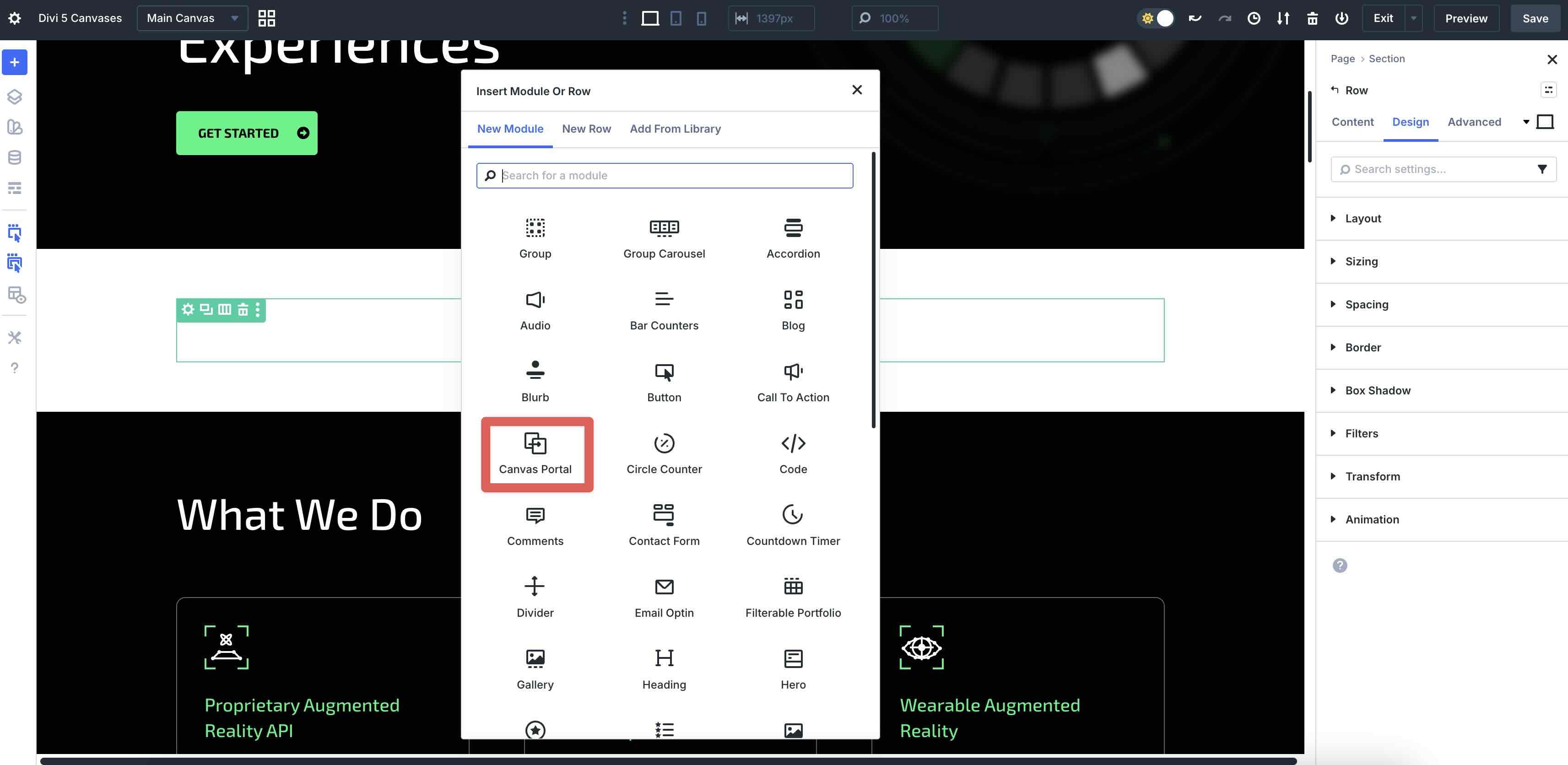
Once added, you can choose a Canvas through a dedicated dropdown menu.
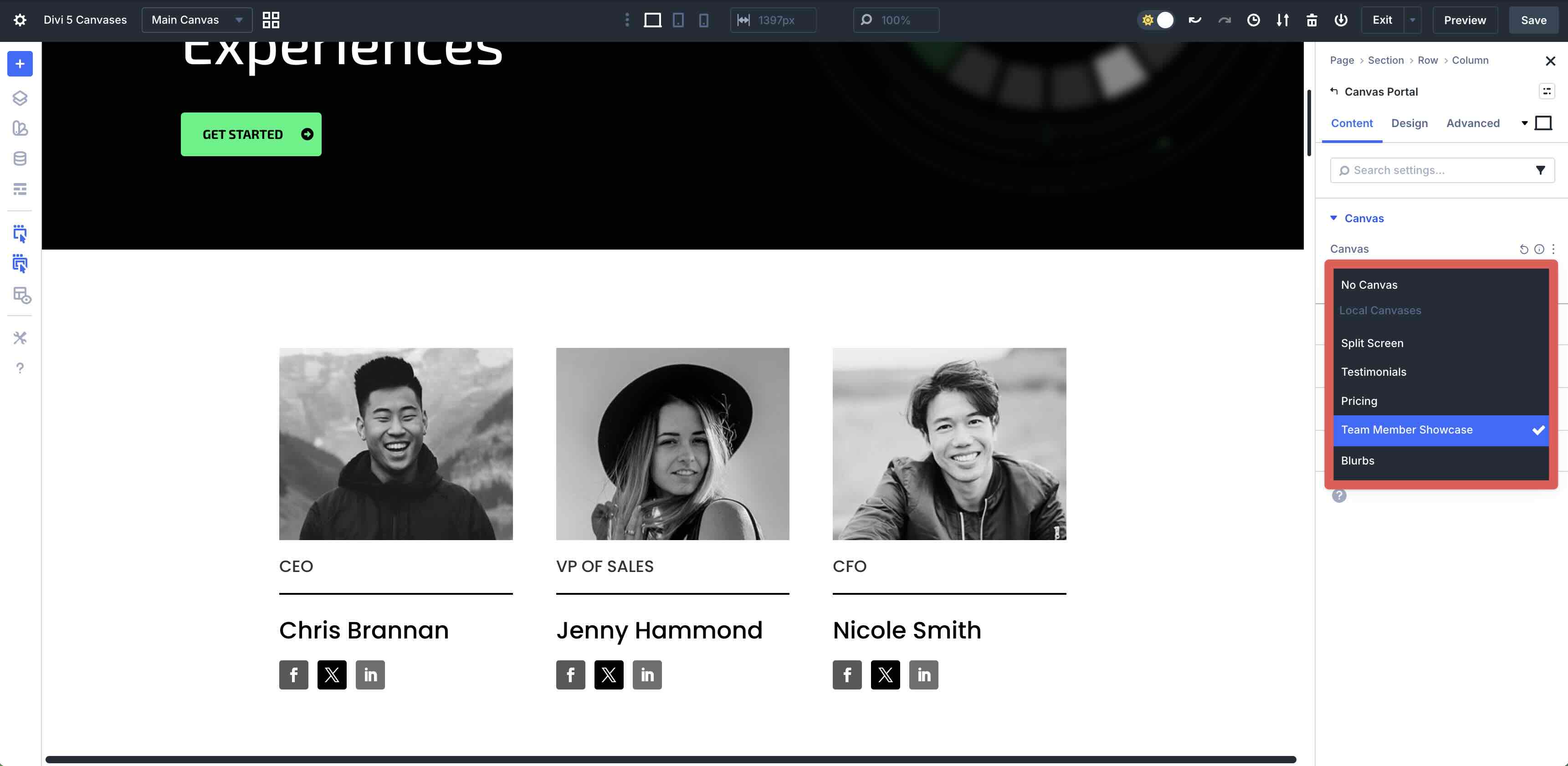
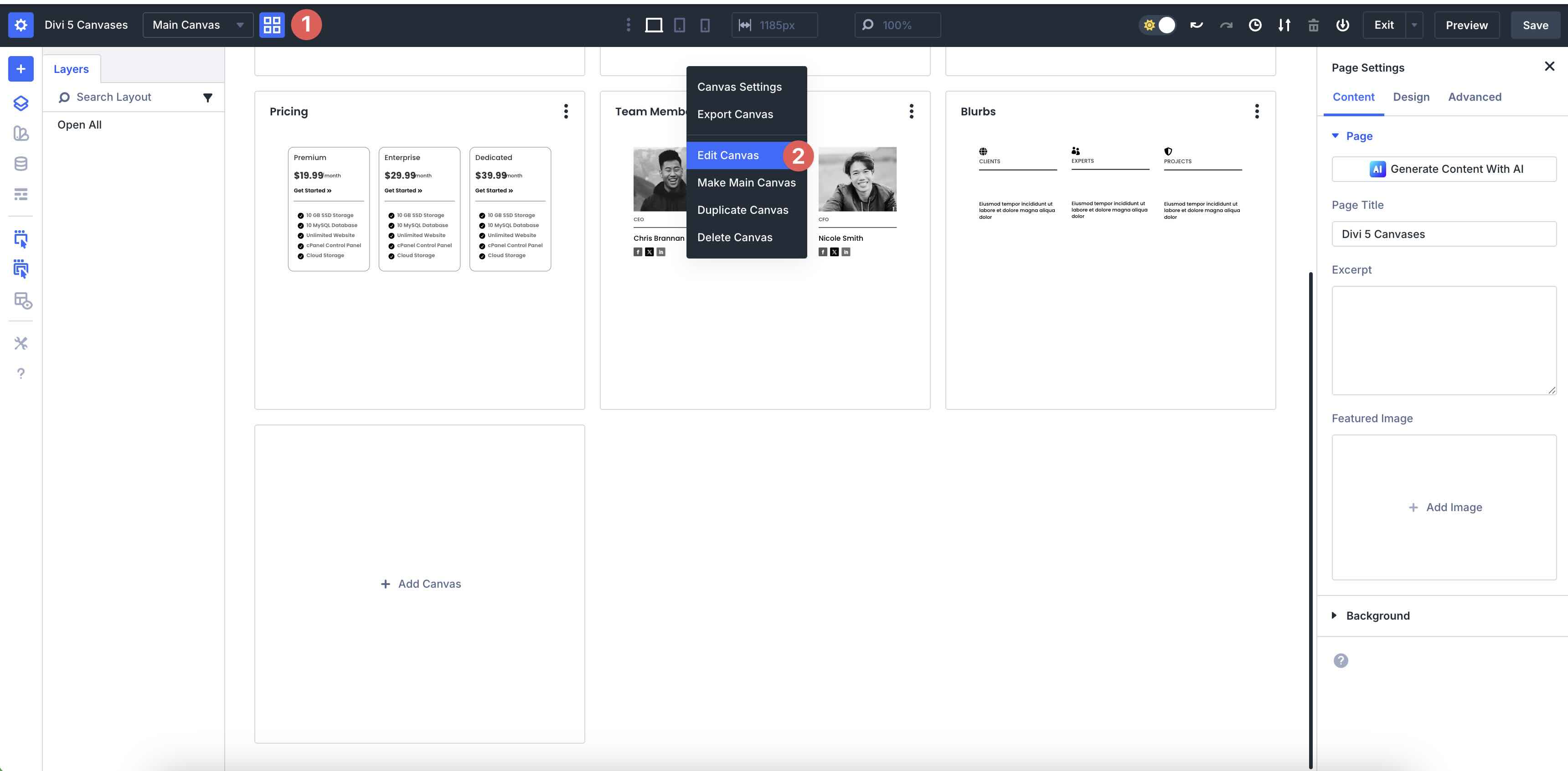
Although canvases added through the portal module can’t be directly edited, you can make changes by selecting the portal canvas in the Canvas Grid View.
How To Access And Manage Canvases
Accessing and managing Canvases in Divi 5 is easy, thanks to dedicated tools in the Visual Builder.
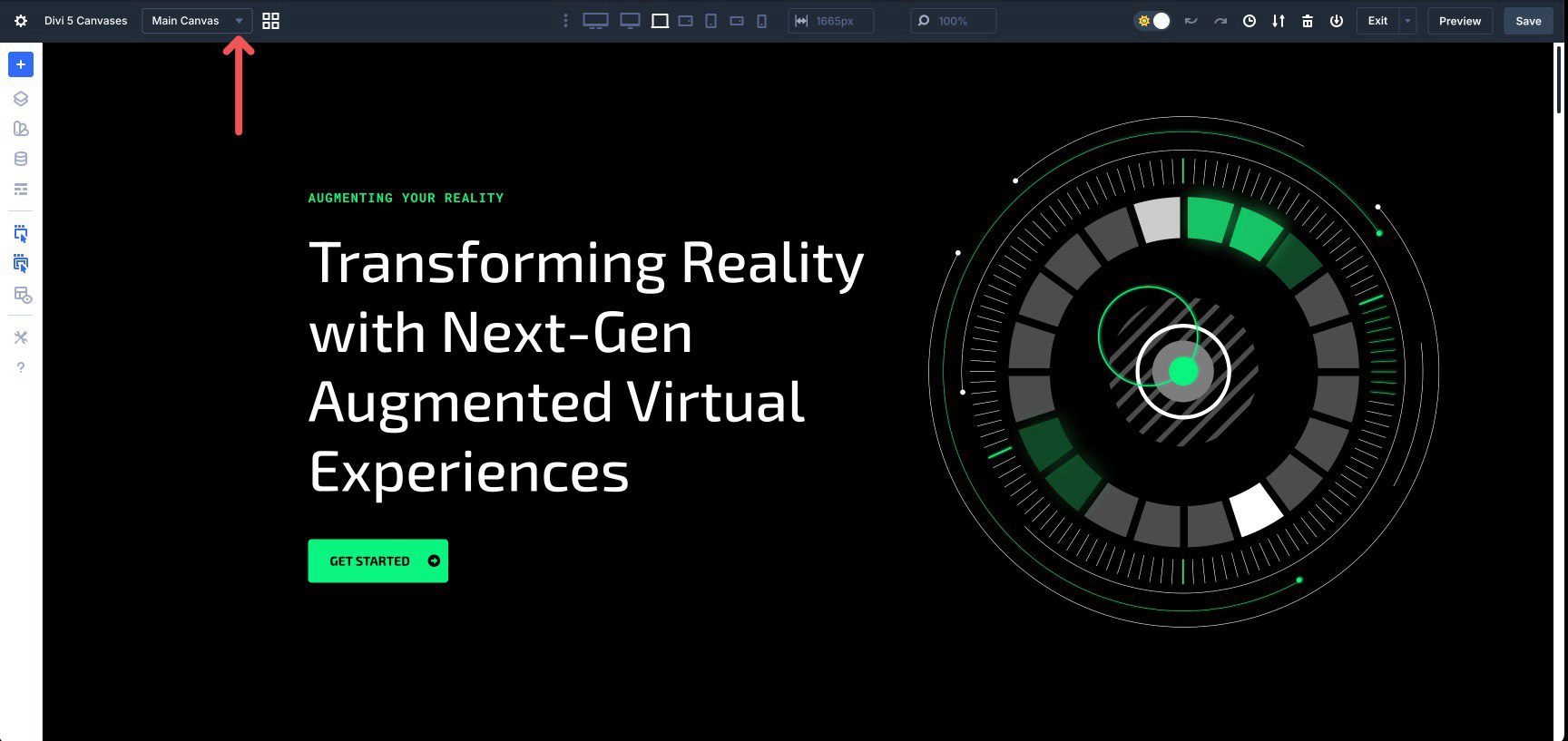
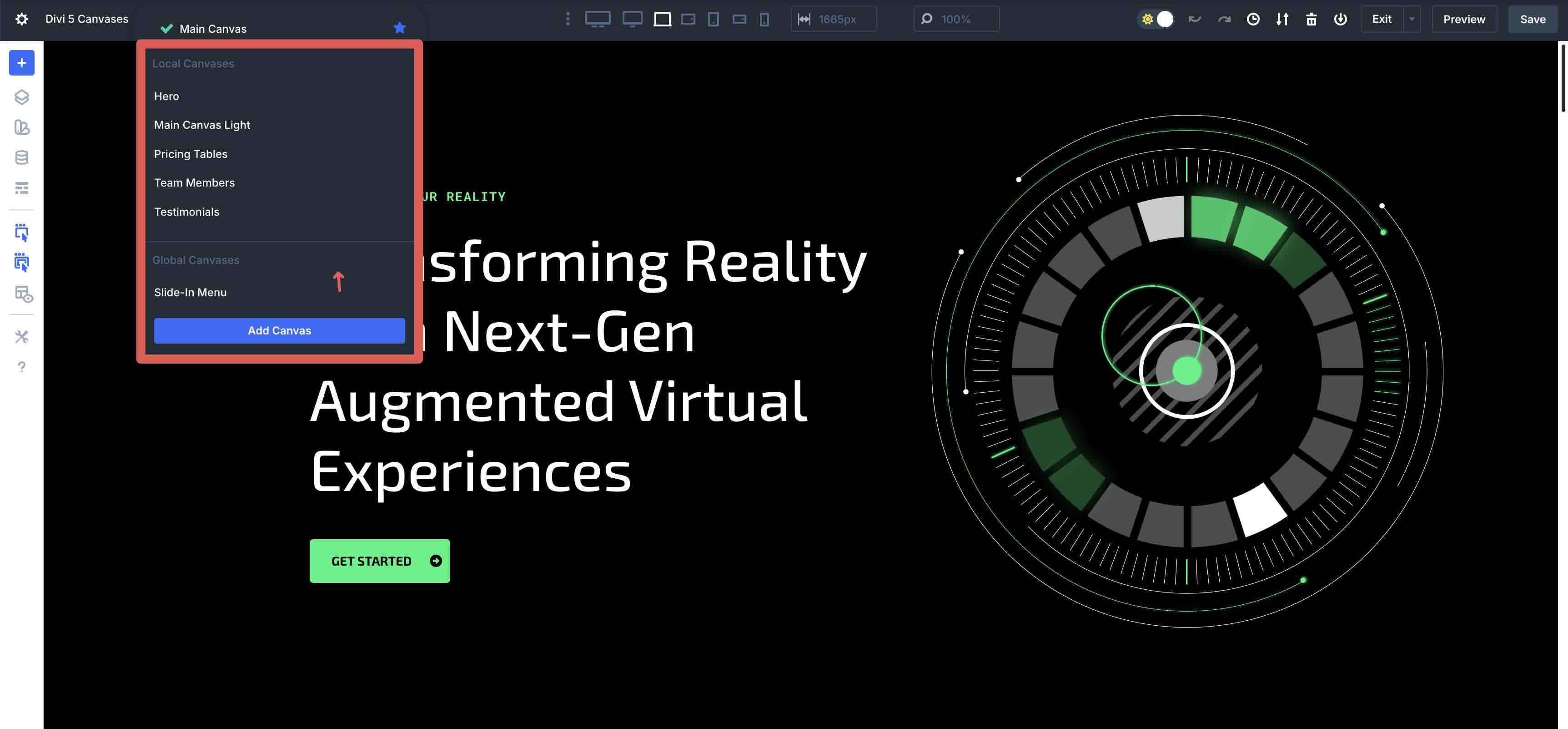
Located at the top of the Visual Builder, next to the page title, the Canvas dropdown menu serves as your primary hub for canvas navigation.
Click it to see a list of all available canvases. You can quickly switch between Local and Global canvases for editing or click the Add Canvas button to create a new one.
Canvas Grid View
For a broader overview, switch to Canvas Grid View. You’ll find it to the right of the Canvas dropdown menu.
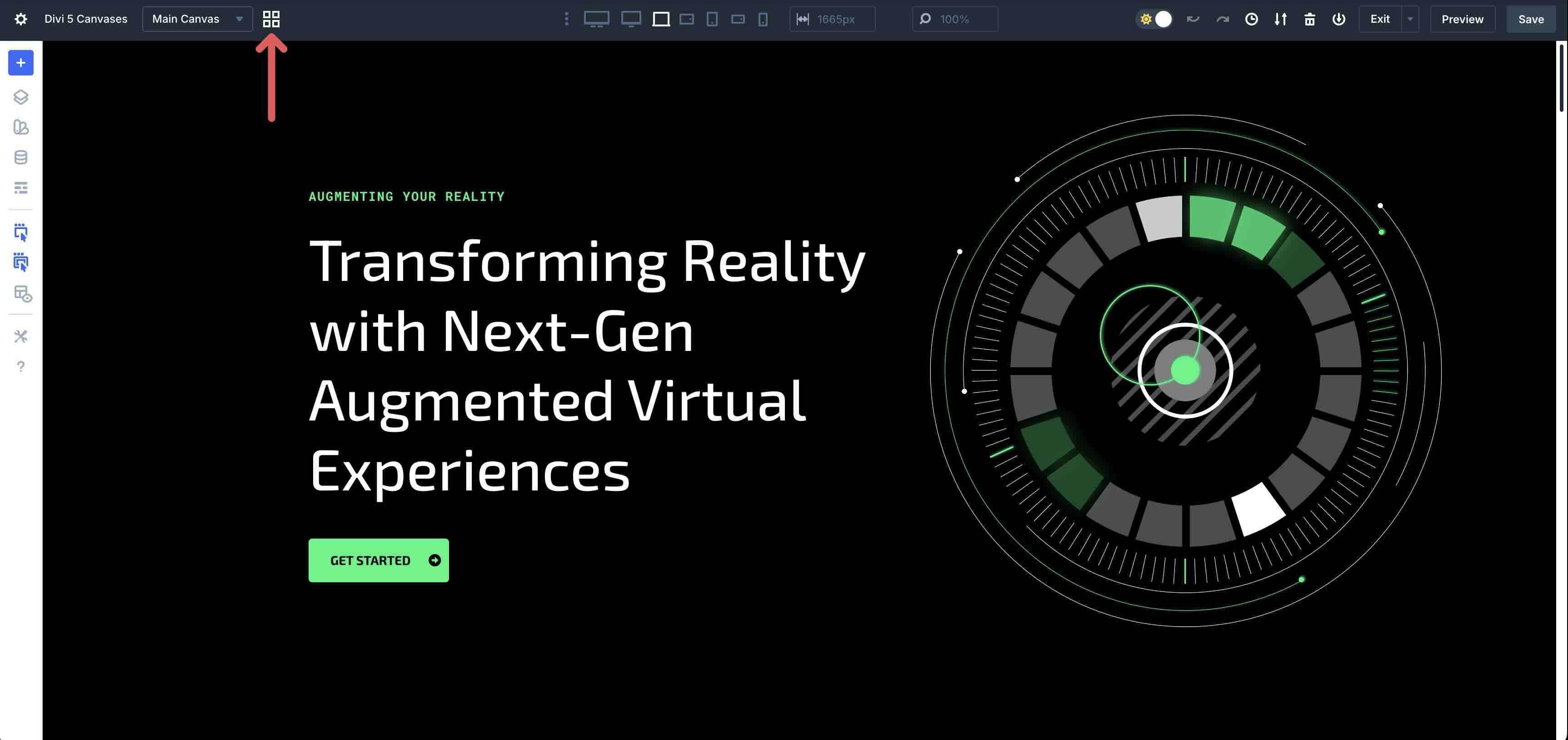
This displays all your canvases as thumbnails, making it easy to view and manage multiple workspaces simultaneously.
Management Actions
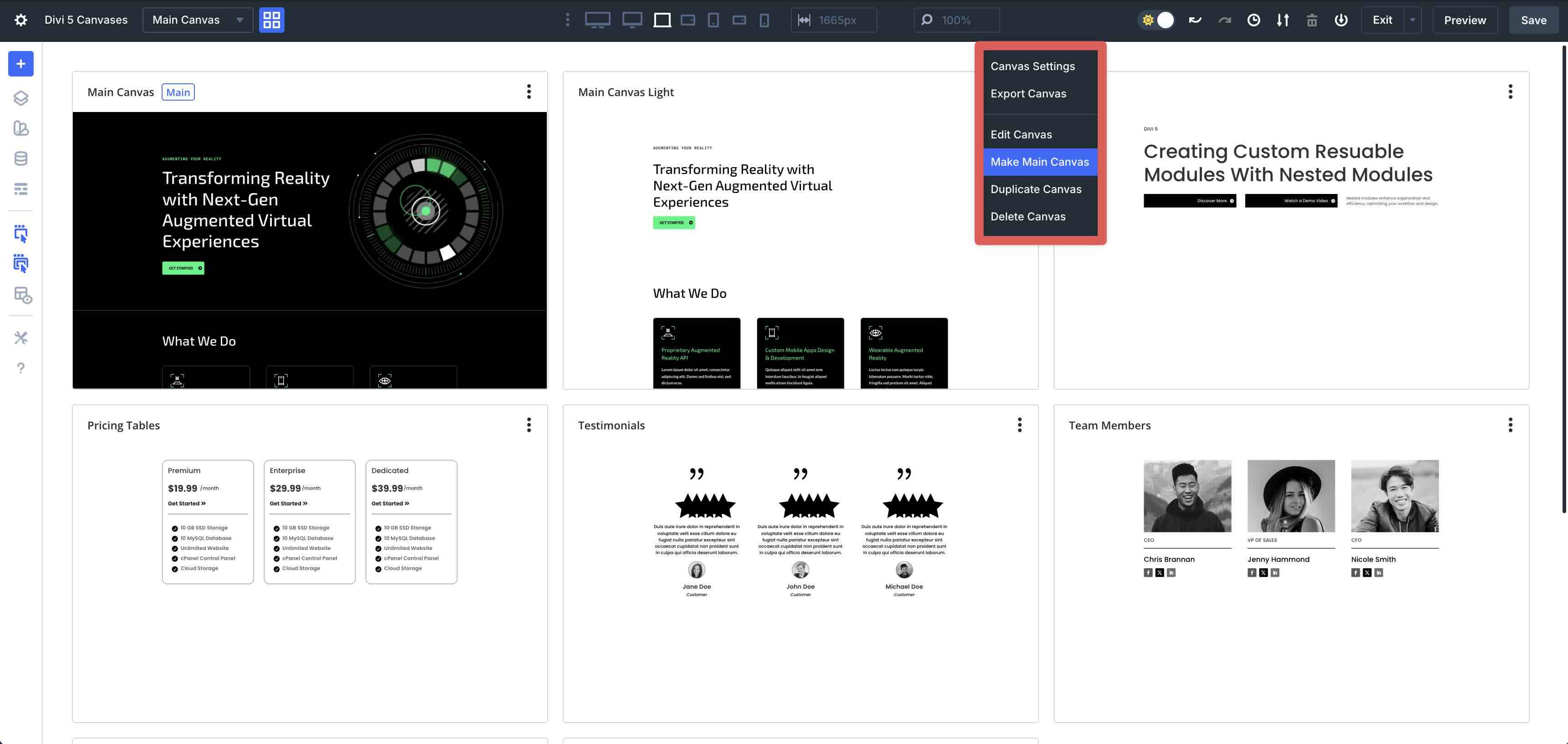
Each canvas has an ellipsis menu with options that allow you to perform essential actions.
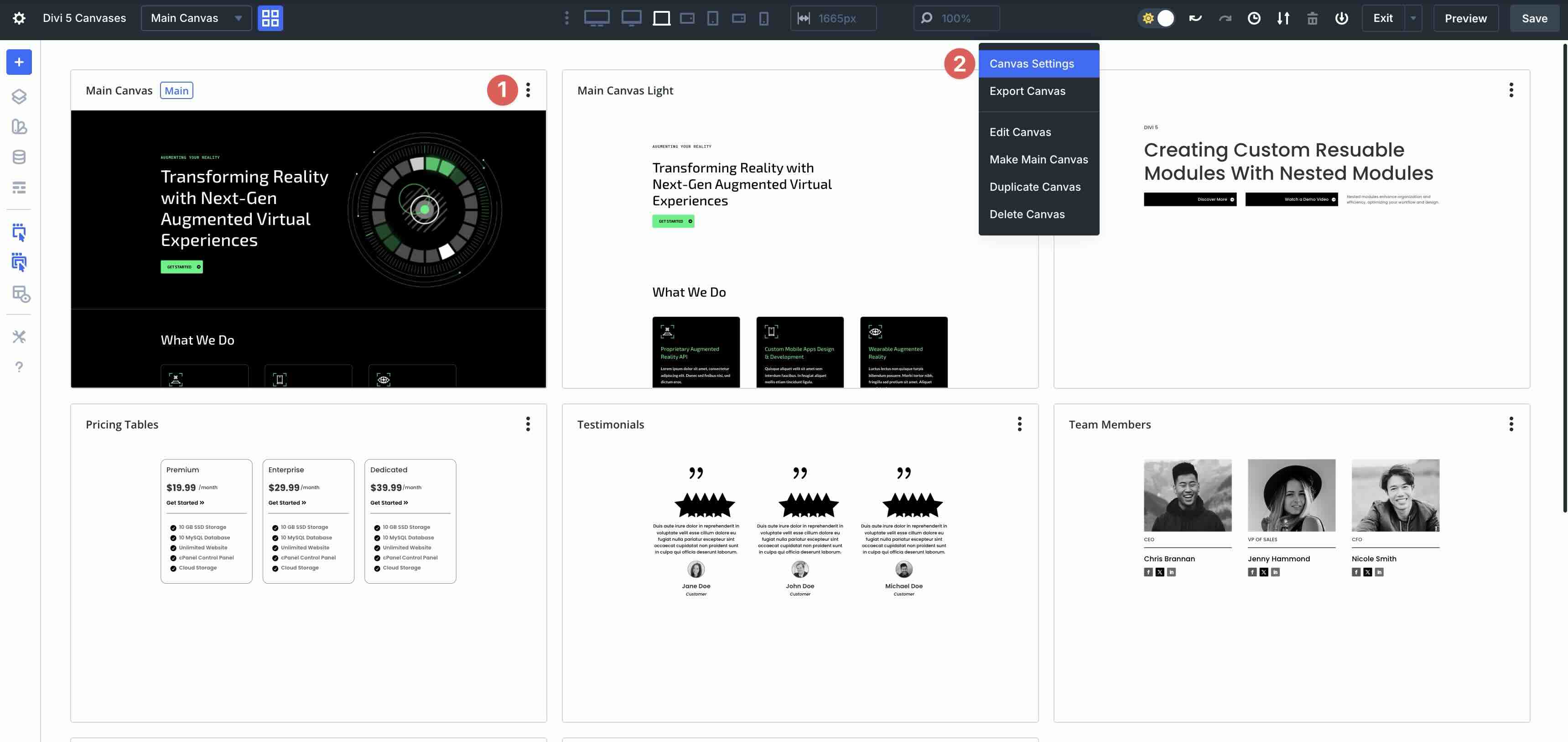
The Canvas Settings allow you to name your canvas, make it a global item, or append/don’t append it to the Main Canvas.
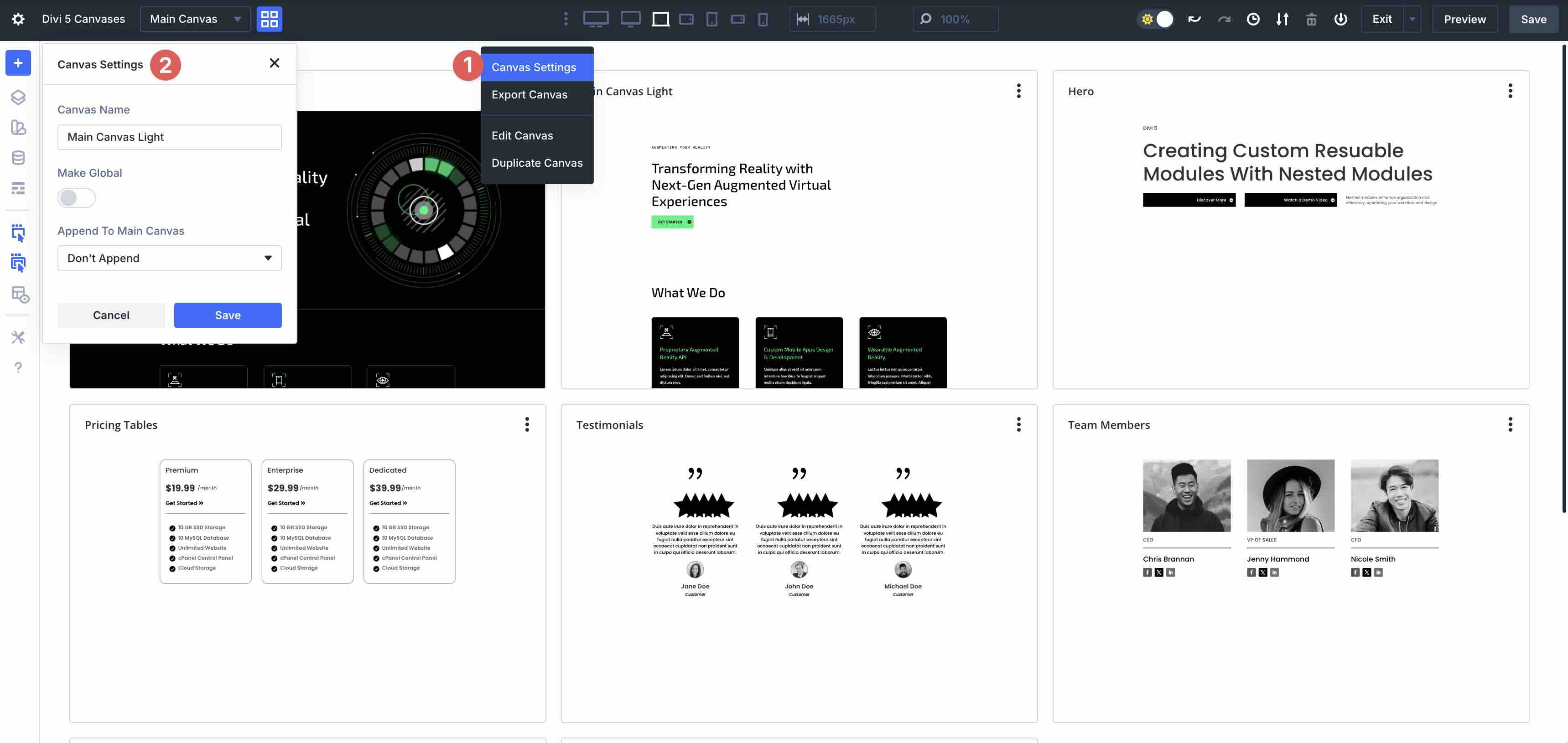
The Export Canvas option allows you to export the canvas as a JSON file for use on other Divi sites or import a new layout to replace it.
You can also edit, duplicate, or delete the canvas, or make any canvas the Main Canvas, which will display on the page.
Common Use Cases And Examples
Divi Canvases open up a world of creative and efficient workflows. Here are some of the most popular ways designers can use them in Divi 5.
As Staging Areas And Playgrounds
One of the simplest yet most powerful uses for Canvases is as a safe space for experimenting with various designs. You can duplicate your Main Canvas to create a new, detached canvas.
From there, you can make bold changes, test new layouts, or build entirely new page variations without any risk to your live design. When you’re happy with the results, simply set the new canvas as the Main Canvas. Divi 5 makes it easy to swap it on the front-end with a single click.
This is perfect for A/B testing ideas, developing presets, or iterating on client feedback. Local canvases work great here for page-specific experiments, while you can even use global ones for site-wide template testing.
Canvases shine when building dynamic navigation elements that stay out of the way until needed. Stay by creating a Global Canvas dedicated to your menu.
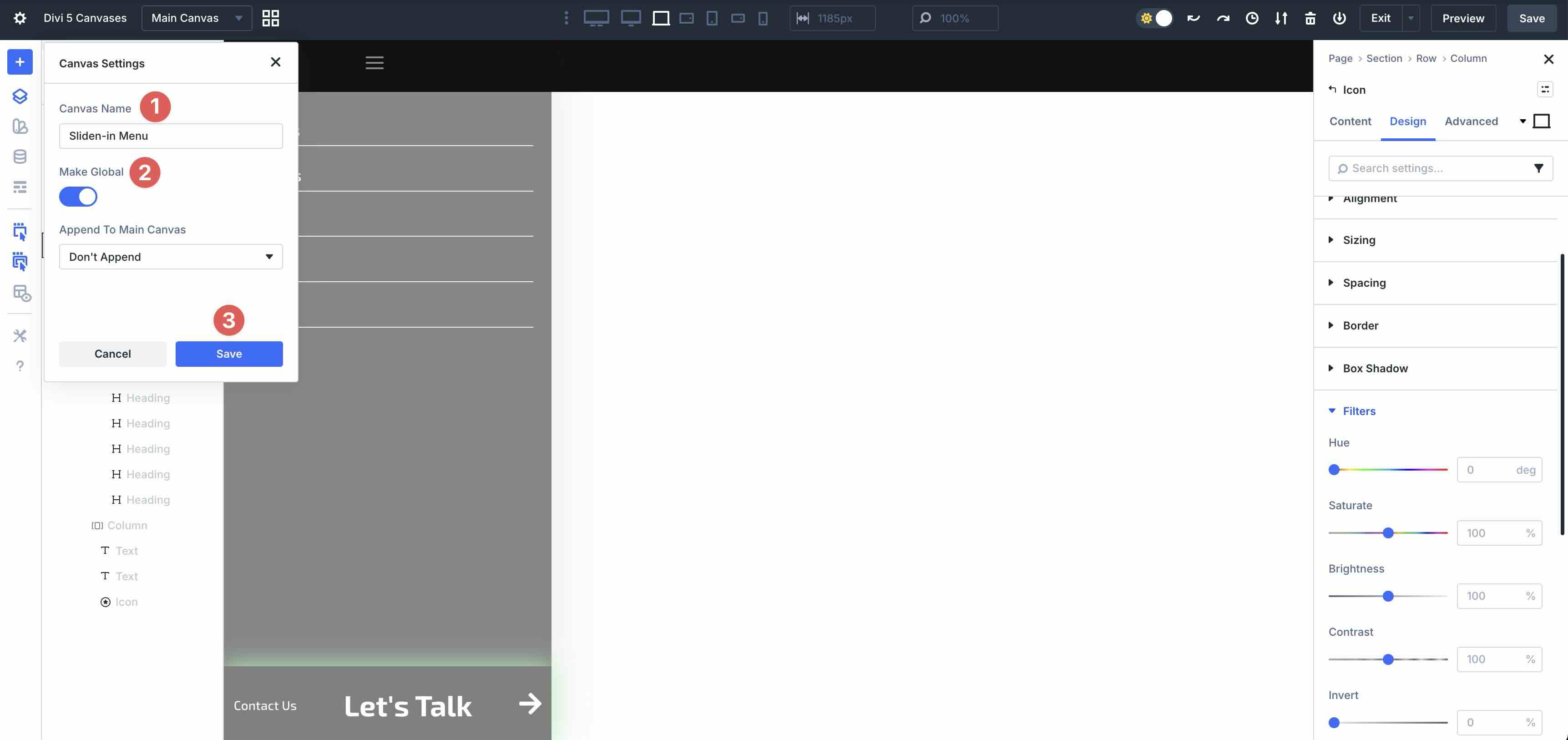
Build a slide-in menu with vertical columns, icons, and hidden sections.

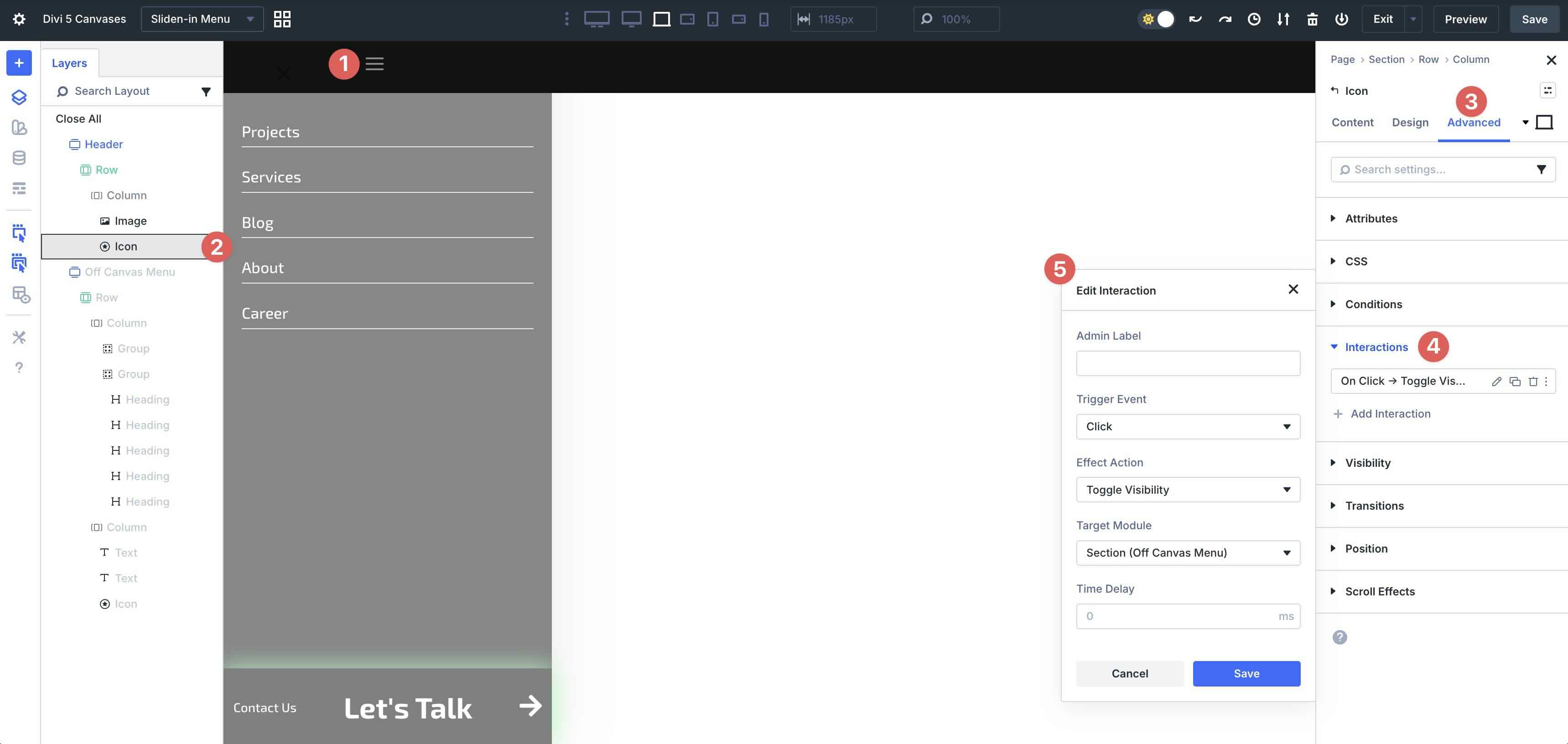
Use the Interaction Builder to target the canvas with triggers like Click.
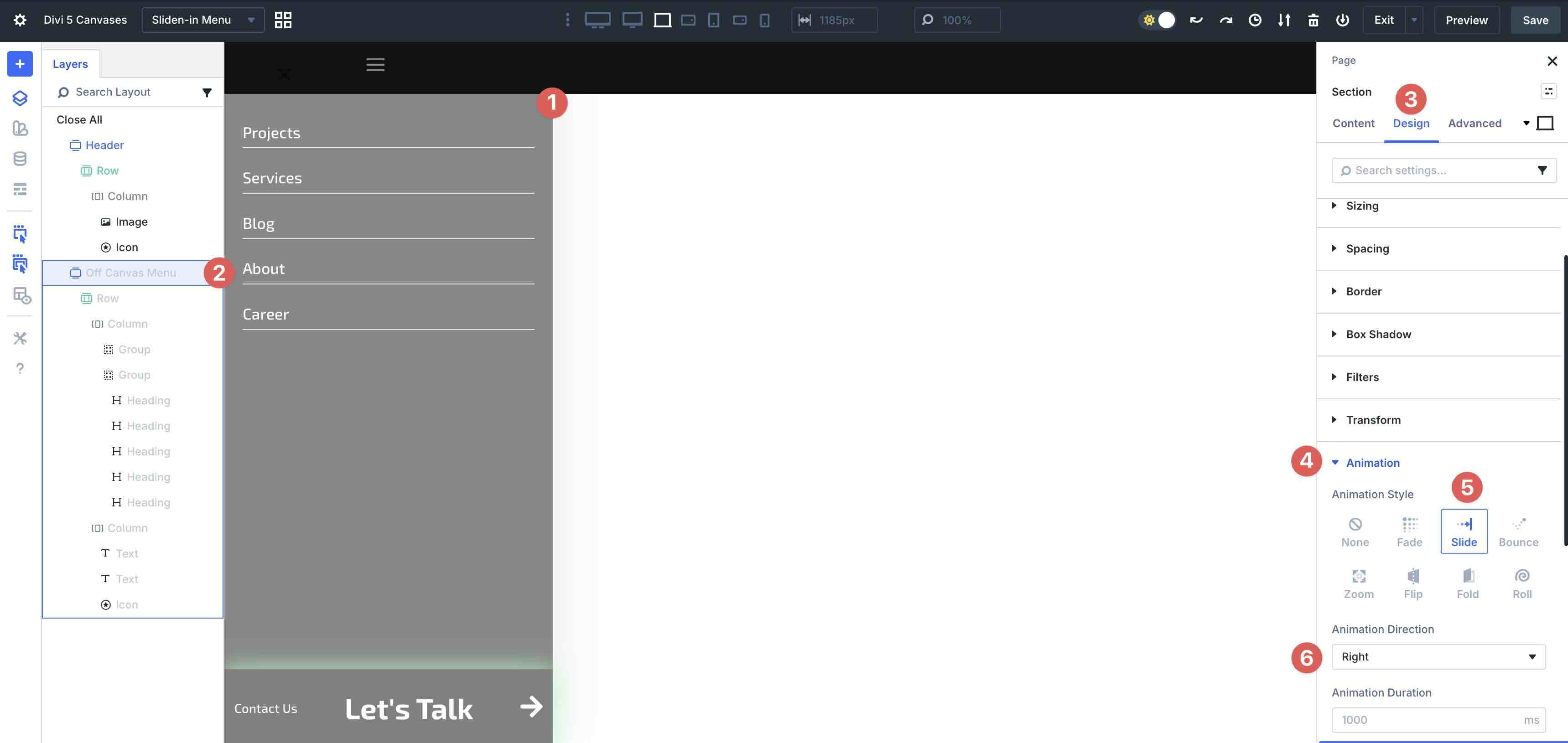
Add Divi’s built-in animations to hidden sections for smoother slide-in, fade, or scale effects.
The canvas remains separate in the builder for a clean workspace, but automatically appends to the front-end when triggered. This delivers responsive, animated menus without custom code.
Canvases can also be easily accessed in the Theme Builder, allowing you to create various looks for headers, footers, posts, archive pages, and more.
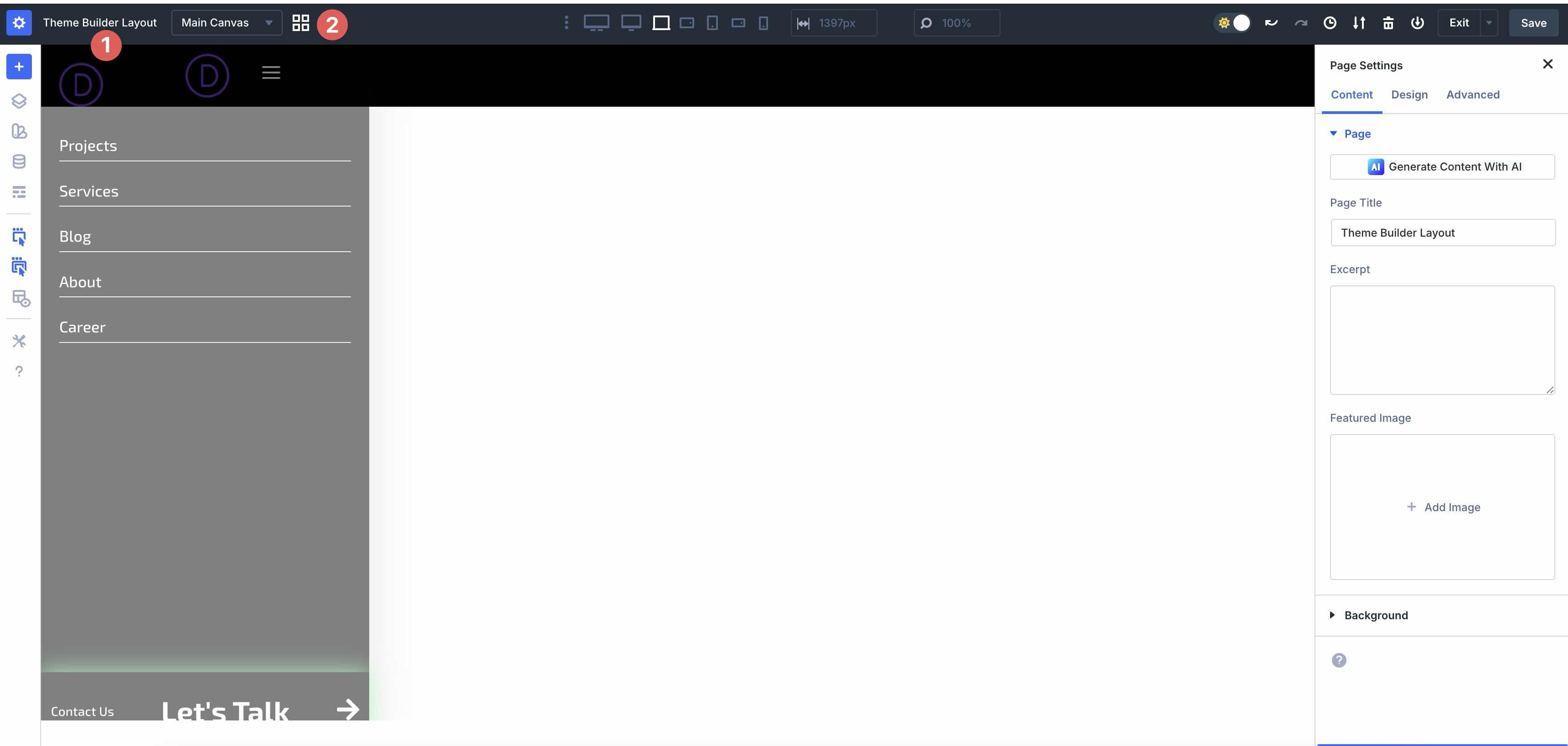
Pop-ups And Modals
Creating reusable, interaction-driven pop-ups has never been easier. Build your pop-up in a Global Canvas so it’s available site-wide or assign it to the Main Canvas of a single page.
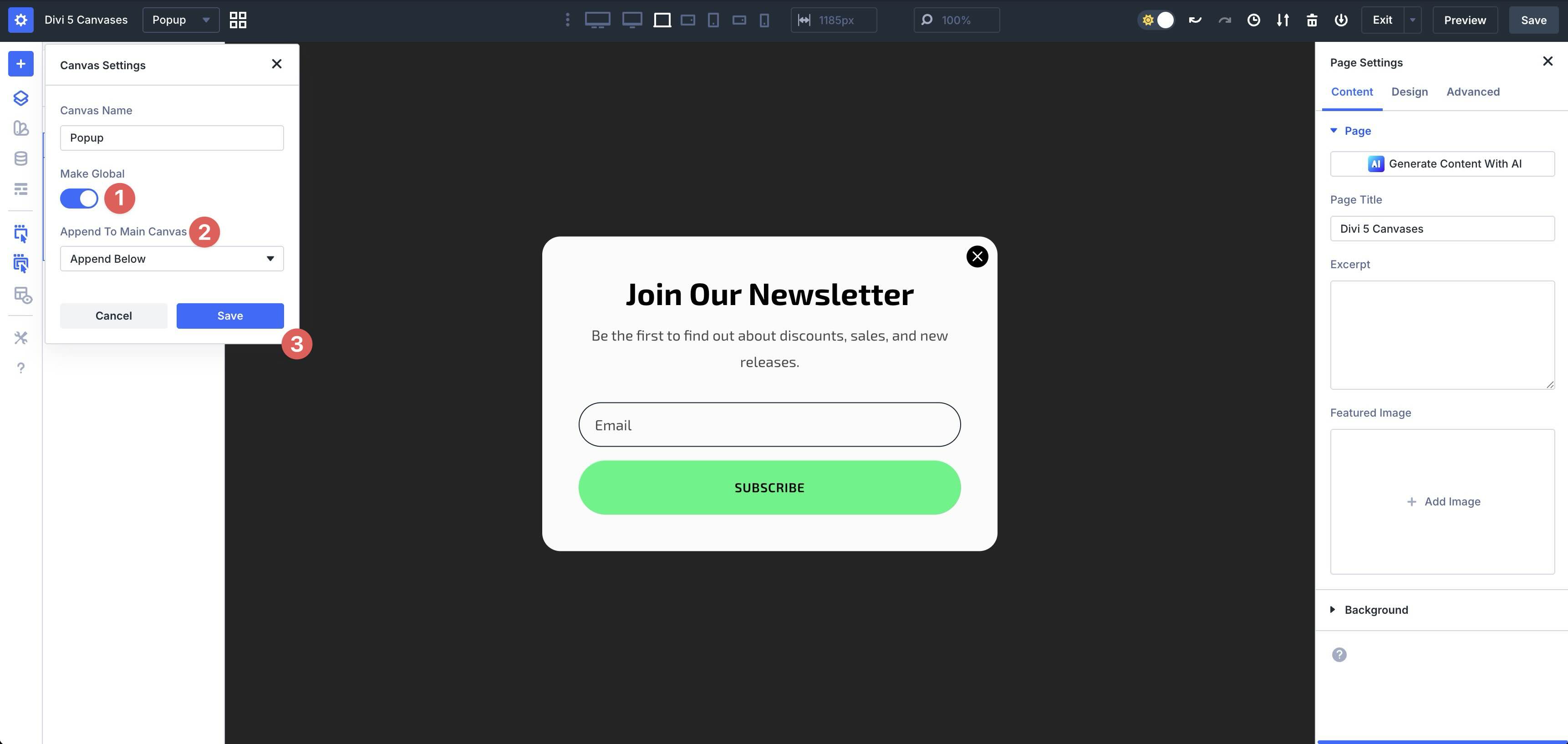
Trigger it via the Interaction Builder. Some common options include Scroll to Viewport or Click.
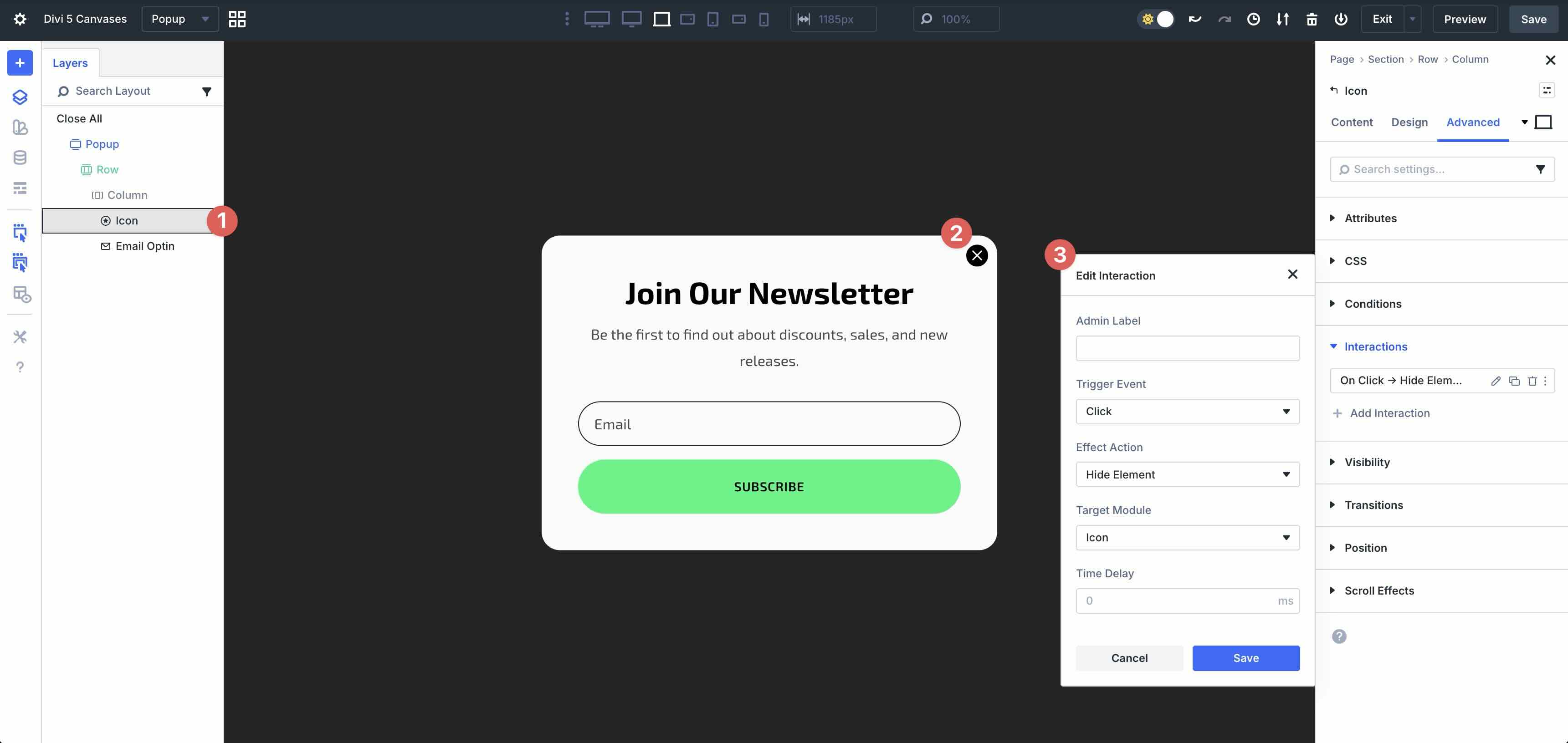
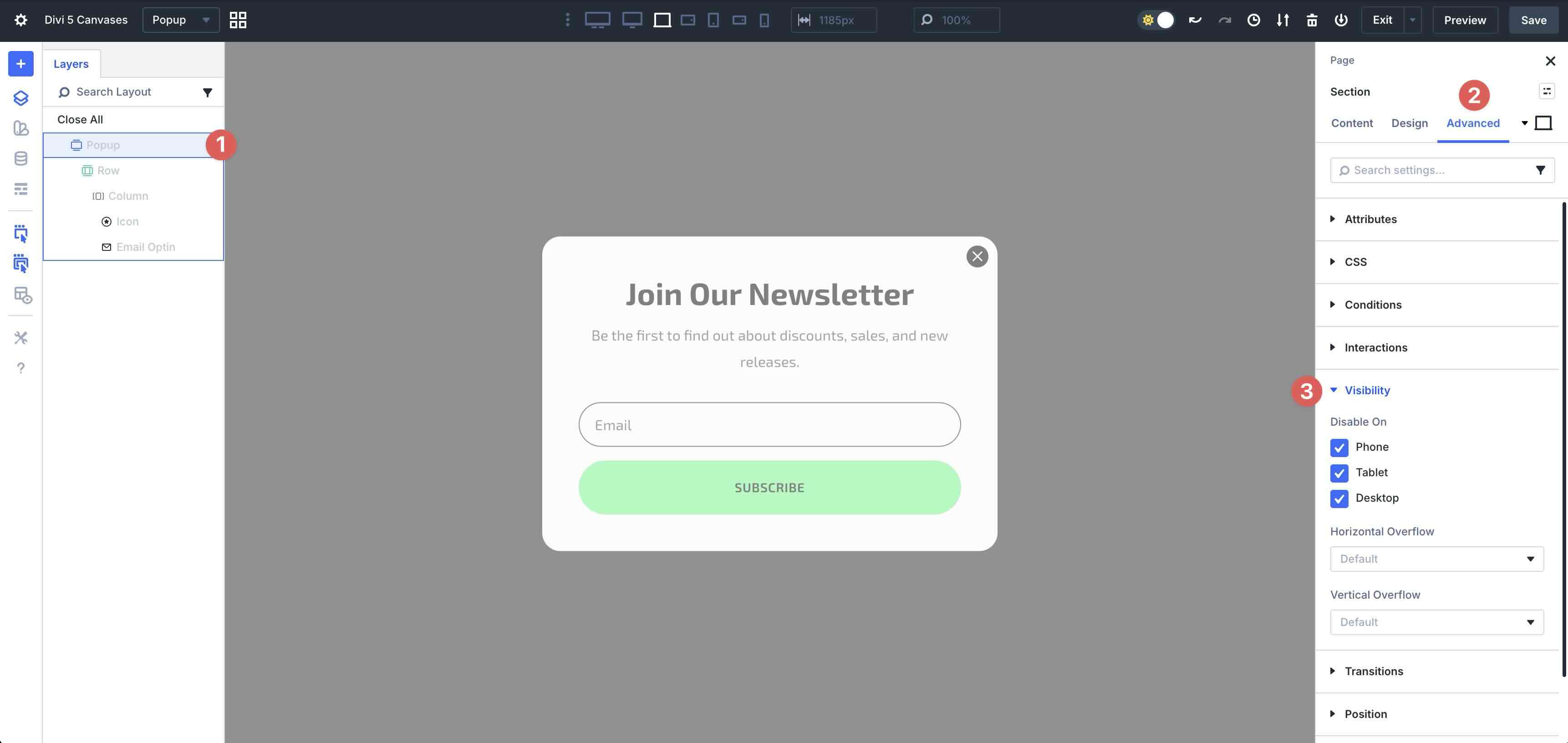
Enhance your pop-up with animations for entrance effects and Visibility settings to hide until scroll effects or click triggers are activated.
When set to Global, one pop-up canvas can power exit-intent modals, newsletter sign-ups, and more, across your entire site.
These examples only scratch the surface. You can combine canvases with Divi 5’s other features to create even more advanced effects, such as animated slide-in sidebars or interactive content reveals.
Tips And Best Practices
To get the most out of Divi Canvases, follow these simple tips below to build faster, smarter, and more reliably in Divi 5.
Start With Global Canvases For Common Elements
If you’re creating something you’ll use across multiple pages, always build it as a global canvas. This ensures instant site-wide availability and easy updates. You can change it once, and the change will be reflected everywhere it’s triggered. This is perfect for navigation menus, mega menus, pop-ups, cookie notices, or promotional modals.
Master Interactions
The real power of canvases comes from Divi 5’s Interaction Builder. Always target specific sections or the entire canvas with clicks or hovers for menus. Opt for scroll or viewport triggers for pop-ups or promo modals. It’s best to start with simple triggers, then layer multiple interactions to achieve advanced effects, such as sequential reveals.
Combine With Other Divi 5 Features
Canvases work beautifully with the rest of Divi’s toolkit. For example, you can use Nested Rows and Modules to build complex layouts inside canvases, like multi-column mega menus or accordion-style sidebars. You can also use presets to create reusable canvas sections, apply animations, and more, to build effective layouts that you can reuse throughout your site.
Always Test On The Front-End
The Visual Builder hides detached canvases for a clean view, but they can be appended to display on the live site. After setting up Interaction triggers, ensure that you preview the layouts on all breakpoints, including desktop, tablet, and phone views. When testing, verify animation timing, overlay behavior, and close pop-up functionality, and make adjustments as necessary.
Finally, clear your cache and test in an incognito window to catch any issues. A quick front-end check saves time and ensures the best possible browsing experience.
Try Canvases In Divi 5 Today!
Divi Canvases are a powerful addition to Divi 5, changing the way designers build modern, dynamic, and interactive websites. By providing dedicated, detached workspaces for off-canvas elements like menus, pop-ups, sidebars, and other reusable components, Canvases deliver a cleaner workflow, enhanced reusability, and greater versatility in the Builder.
Divi 5 continues to evolve in the Public Beta phase, and now is the perfect time to dive in and explore these features firsthand. Download Divi 5 today, experiment with building your own canvases, and discover how it can transform your web design experience!













Great news! What’s the difference between these and the elements saved in the Divi library? Besides the fact that the new canvases aren’t editable once inserted into the page, while library elements are.
Do they replace the custom elements we used to save in the Divi library? Can we import an external layout into a canvas? Thanks a lot!
Canvases may be edited when they are opened when the Visual Builder switches to a different canvas. Canvases can also be appended to pages/templates with Interactions.
Thanks Christopher
To make it easier to understand, is there a live website demo of the results of the tutorial above?
Great question! Since this post is a comprehensive guide explaining how the new Canvases feature works (covering multiple concepts like Off-Canvas Menus, Popups, and Staging areas), there isn’t a single “finished result” website demo for this specific tutorial.
However, the best way to understand the power of Canvases is to experience them firsthand! We highly recommend checking out the latest Divi 5 Public Beta if you haven’t yet – perfect way to play around with these new detached workspaces live. 🚀
Hello,
I agree with Xavi and would like clarification on the use of Canvas in relation to the library.
I have been following the announcements on this feature since the beginning, hoping to get an explanation of the differences between the two.
And, frankly, I can’t see any significant differences. From what I understand, they do the same thing but in different ways.
This may be beyond my level of expertise, so I would appreciate it if you could elaborate on this point. Namely:
– What can be done with Canvas that is not possible with the library?
– In which cases should one or the other be used?
– Anything else I may be overlooking?
Thank you in advance for enlightening us.
Fred,
A friend who wants the best for you 😂
Translated with DeepL.com (free version)
Canvases can be appended to a page via Interactions.
Fred, I totally agree with you, I don’t really see the point of it either. Instead of simply revising the library, a new feature with essentially the same functionality was introduced. The function that allows canvases to be controlled via interactions is somehow… the only feature. It could have been implemented in such a way that the library could be used via interactions. I find it confusing in another way as well, since it’s supposed to encourage you to design sidebar/full-screen menus and the like with it, even though the Theme Builder is actually intended for that purpose. I have to say, the only other feature behind it is perhaps that you have a kind of “staging” environment where you can revise the public page and then push changes. I’ve been doing that with “Visibility” or a “Draft” page, so it’s nothing earth-shatteringly different. And perhaps the very poor implementation of pop-ups with Interactions, as these were simply hidden sections that annoyingly floated around in the editor.
In reference to “even though the Theme Builder is actually intended for that purpose,” Canvases for menus can be used inside theme builder templates, like the header. So, it adds functionality to these templates that didn’t exist before.
Unfortunately this is still buggy, verified by ET today. I tried to used Canvases with the Template Builder in a global header, and they confirmed there’s still a bug.
Hi Fred, yes, I was a bit confused too. I thought this might be a preliminary step towards remodeling/reinventing the Divi layout library system and integrating it into the new Builder. We’ll see how it all goes.