Divi Marketplace Play Button

Divi AI

Everything has changed. There’s a new de facto way to build websites — Master AI-powered development and lead the next generation of web designers.

Get $60 of complimentary agent spend per year with Divi AI and Divi Pro★

The fastest way to build in Divi is to say what you need and let AI do the work

Tell Divi what you want and it takes care of the rest. Add modules, update your design, create pages, and manage your site — without clicking through endless menus or jumping back and forth between screens.

Included with Divi AI and Divi Pro★
Builder AI Agent

Ask for anything from right inside the builder

Add, edit, clone, move, and delete elements. Update design settings, presets, canvases, and builder UI state with natural language.
Divi AI Agent Commands and Context

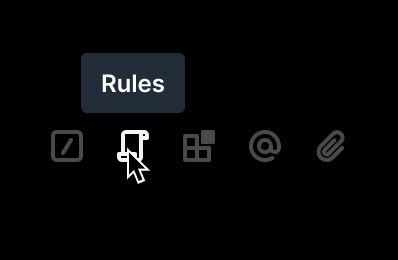
Save rules, run commands, and add context

Save site rules, run reusable commands, add context from your site, and use purpose-built Divi tools — all from the same chat.
Cross-Scope Workflows

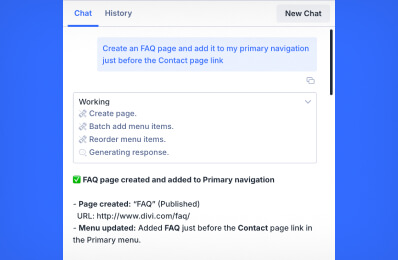
Execute cross-scope sitewide workflows

Manage pages, posts, and menus from the chat and run site-wide workflows across builder and admin — no wp-admin required.
Divi AI Agent Interface
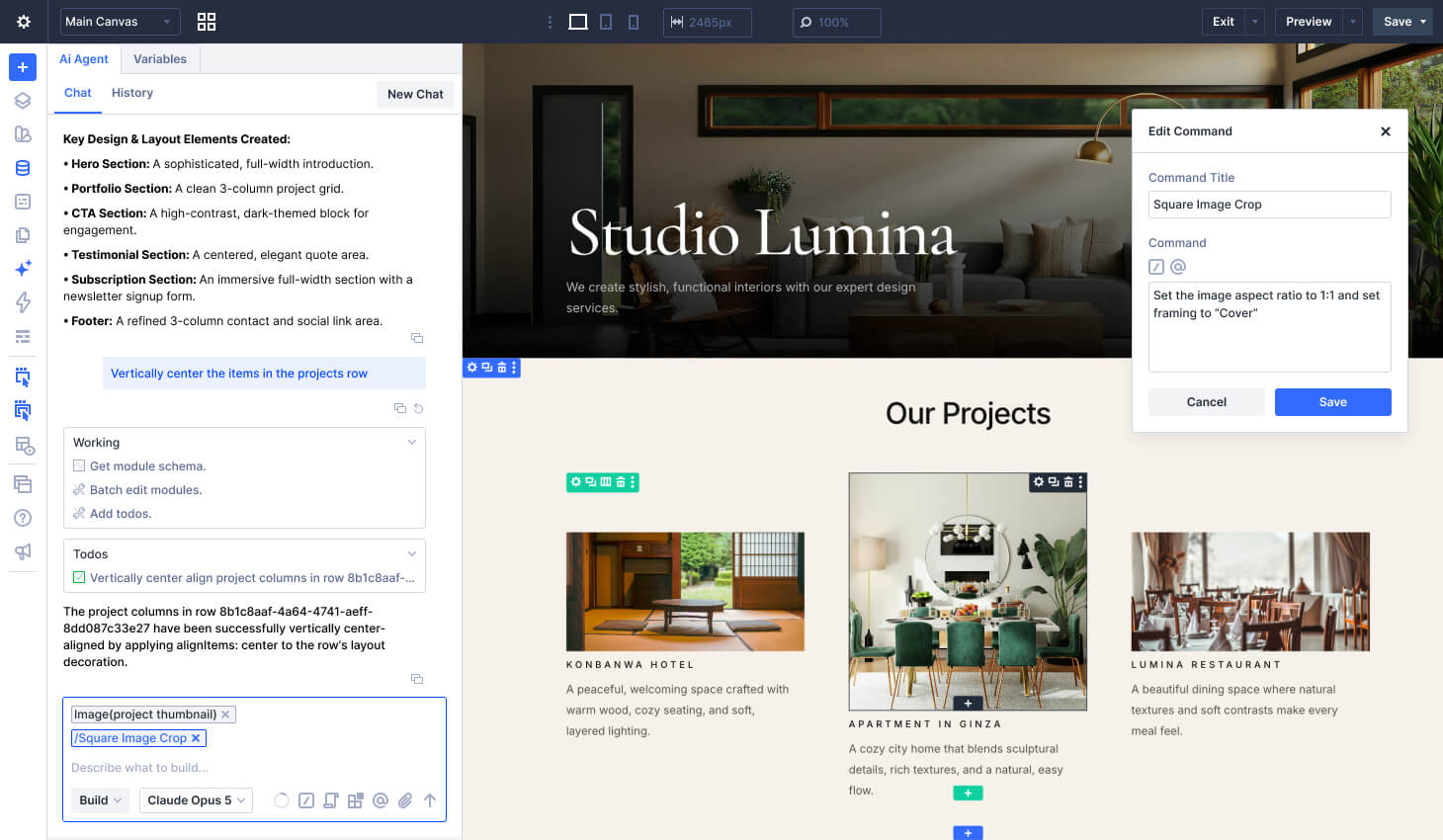
New Chat

Start a fresh conversation to tackle a new task while keeping your history organized.

Chat History

Browse past conversations and pick up where you left off without losing context from earlier sessions.

Agent Toggle

Open and close the Divi AI Agent from the toolbar for instant access while you design.

Work Summary

View detailed summaries of the agent's work after each task is completed.

Past Prompts

View past prompt checkpoints to reuse them for similar tasks, revert your build to a previous state, and easily browse chat history.

Progress Reports

See the agent's progress with detailed reports on actions and decisions made in real-time.

Prompt Window

Prompt Divi AI with custom prompts, added context, rules, tools, and commands to get the exact results you want.

Work Modes

Work in Ask Mode to get ideas and suggestions, or switch to Build mode when you are ready for the agent to make real changes on the canvas.

Models

Choose from a range of models to suit your needs and preferences, or we'll recommend the best one for your task.

Context Usage

See how much of the conversation context is in use — so you know when to start a fresh chat or trim attachments before hitting limits.

Commands

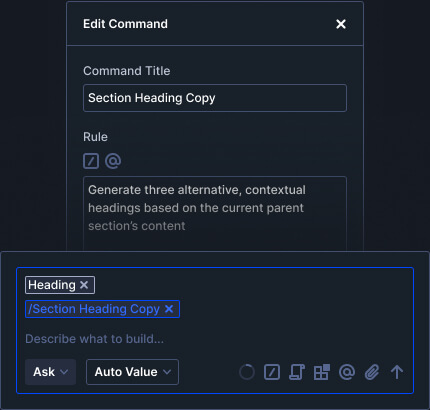
Insert reusable slash commands for common edits you run again and again.

Rules

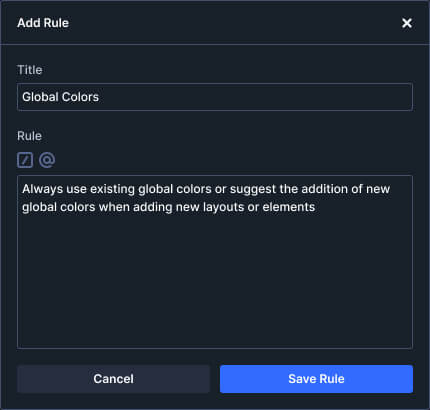
Set up rules for the agent to follow when making changes to your page.

Tools

Access Divi-specific tools the agent can call on your behalf during a build.

Context

Reference specific elements on the page so the agent knows exactly what you are talking about.

Attachments

Upload images and screenshots to give the agent visual reference for what you want changed.

Quick Context

Simply click an element on the page to add it as quick context to your prompt.

Commands & Rules Editor

Fine-tune saved commands with scoped instructions or define rules for the agent to follow when making changes to your page.

Build with AI at your side

Build with conversational commands and reference materials

Prompt it. Show it. You name it. Building agentically doesn't force you into any mold. Whether you're starting from scratch or building on top of an existing system, hours of work in the past are now just seconds of asking.

Get Divi AI today
Brief → Layout
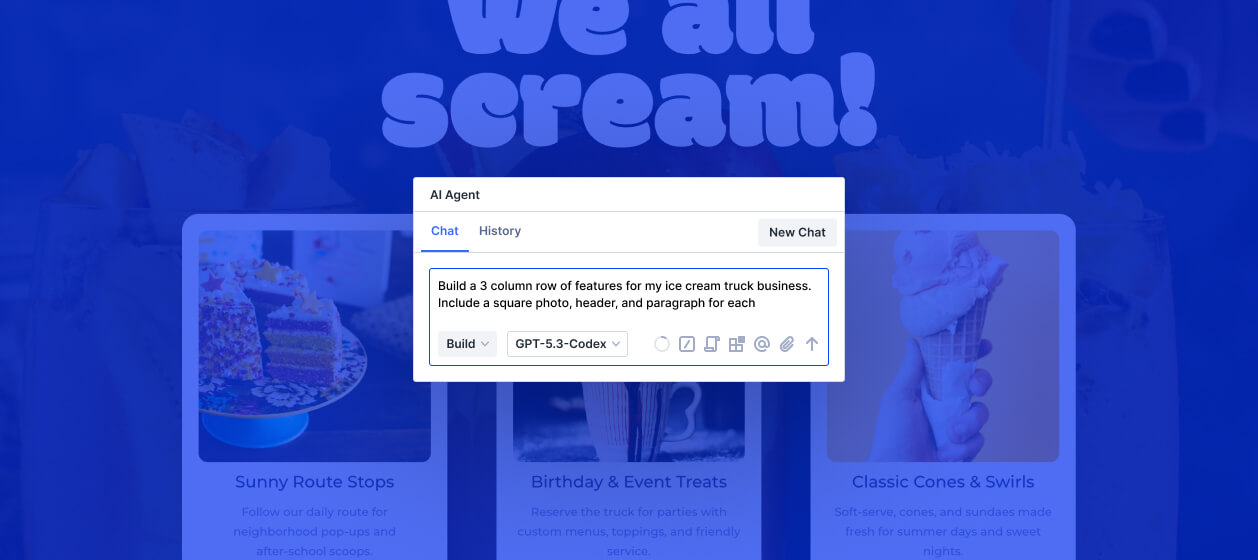
Describe it in plain language

Type a text prompt — what the page is for, who it’s for, and the vibe you want — and the agent builds a full layout from your brief alone.

Screenshot → Layout
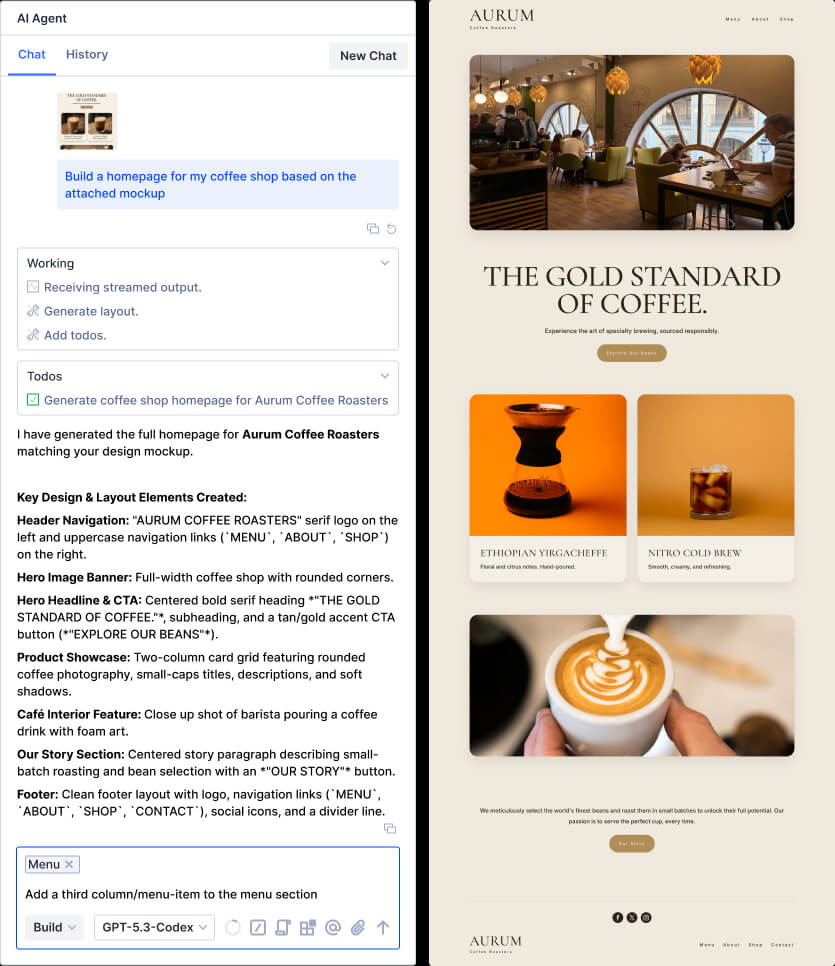
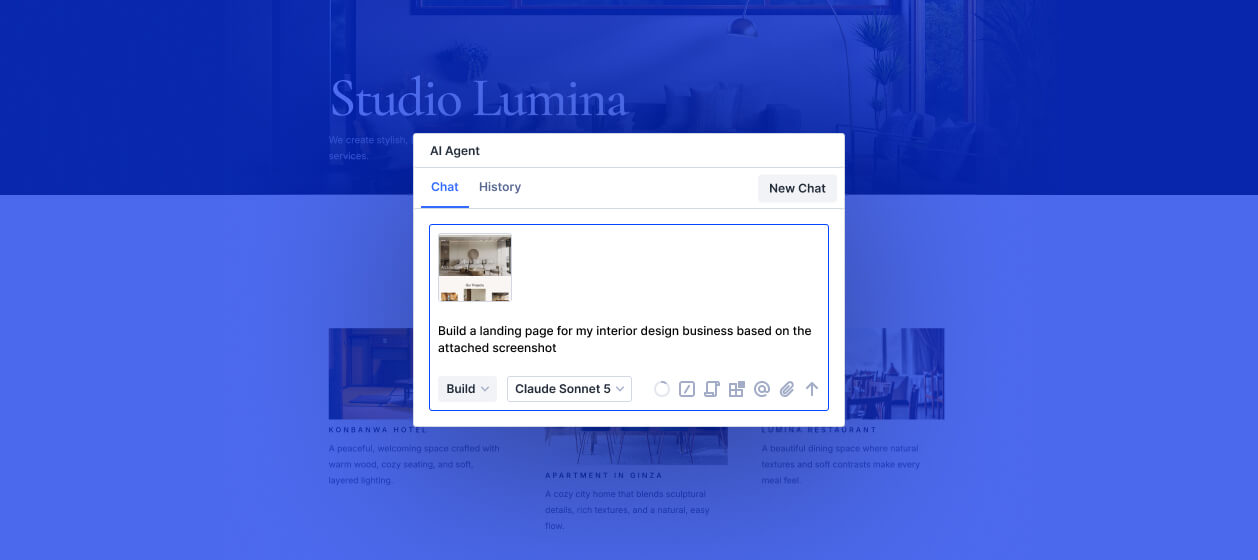
Upload an image and get a layout

Drop in a screenshot or mockup and Divi AI Agent turns it into a real Divi layout — sections, modules, and styles matched to what you showed it.

Website → Layout
Point it at any external URL

Share an external website link and the agent studies the page, then rebuilds a similar layout in Divi so you can start from inspiration instead of a blank canvas.

Moodboard → Layout
Upload a set of reference images

Attach a series of images like a moodboard and the agent pulls the shared style, structure, and feel into a cohesive Divi layout.
AI Agent Full Page Generation

Edit layouts just by asking

Add, edit, duplicate, move, and delete modules, rows, and sections. The agent understands Divi’s structure and can populate content as it builds — no blank modules left behind.

Build better with global variables and consistent styles

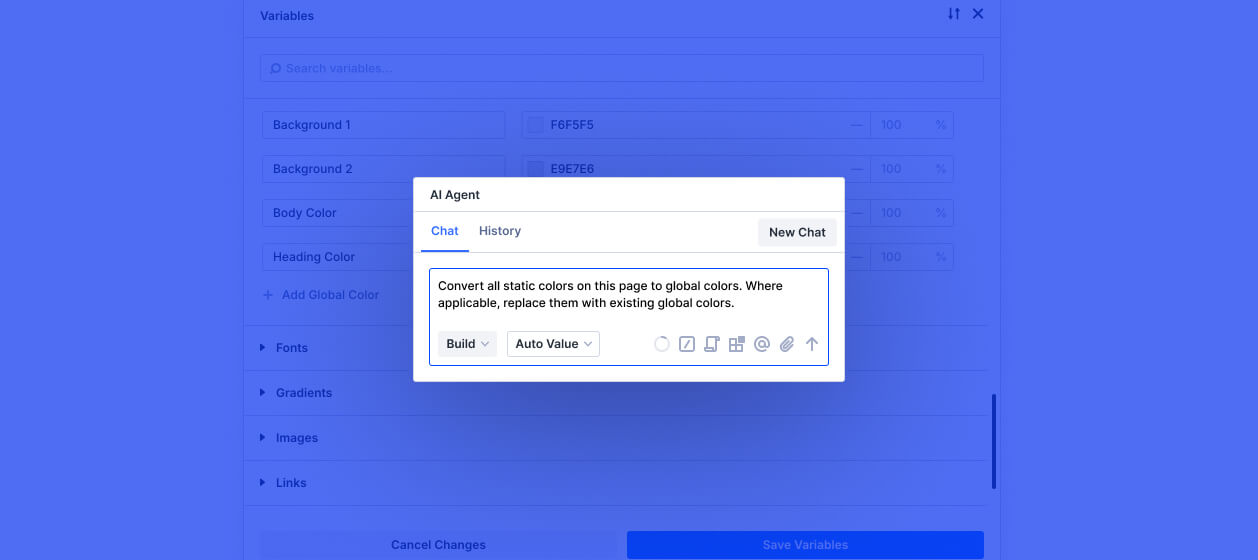
Divi applies your design system as it builds — colors, spacing, typography, and more — so layouts stay consistent. It can also convert hardcoded values into global tokens when your system needs to grow.

Every design and builder setting is only one prompt away

Update styles, layout, and content — or navigate the builder — with a single prompt. Skip digging through settings panels and get straight to the change you need.

Ask in Ask Mode, build in Build Mode

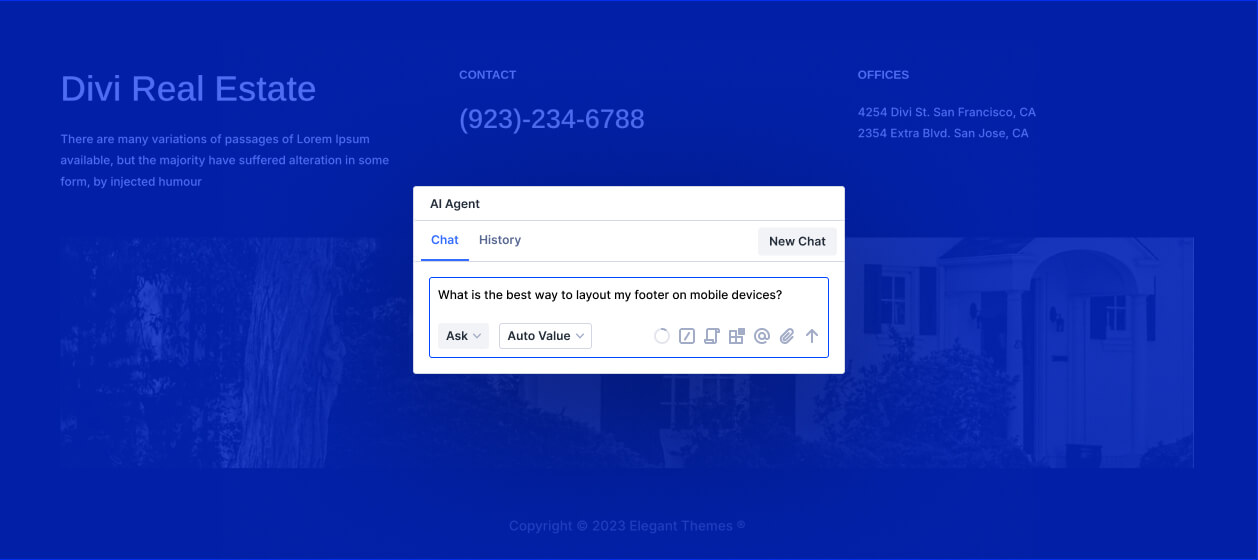
Not every conversation needs to change your layout. Switch to Ask mode for guidance first, then flip to Build mode when you’re ready for the agent to execute.
Divi AI Agent Hero
Divi AI Agent Hero
Divi AI Agent Hero
Divi AI Agent Hero
Divi AI Agent Hero

The little stuff adds up

A million cumbersome micro tasks, done in seconds — and for pennies

Alt tags, contrast fixes, spacing tweaks, preset cleanups, mobile overflow… the Divi AI Agent knocks out the tedious page-wide busywork that used to eat your afternoon — in one prompt, at a fraction of the cost.

Get Divi AI today
Accessibility

Make your site more inclusive with batch updates to accessibility settings — without auditing every module by hand.

“Add missing alt tags to all images on this page.”

“Improve text color contrast and size across this layout.”

“Add aria-label attributes to interaction triggers.”

Design Consistency

Unify spacing, typography, and styles across the page so every element is part of your global design system.

“Find all static colors on the page and replace them with matching variables.”

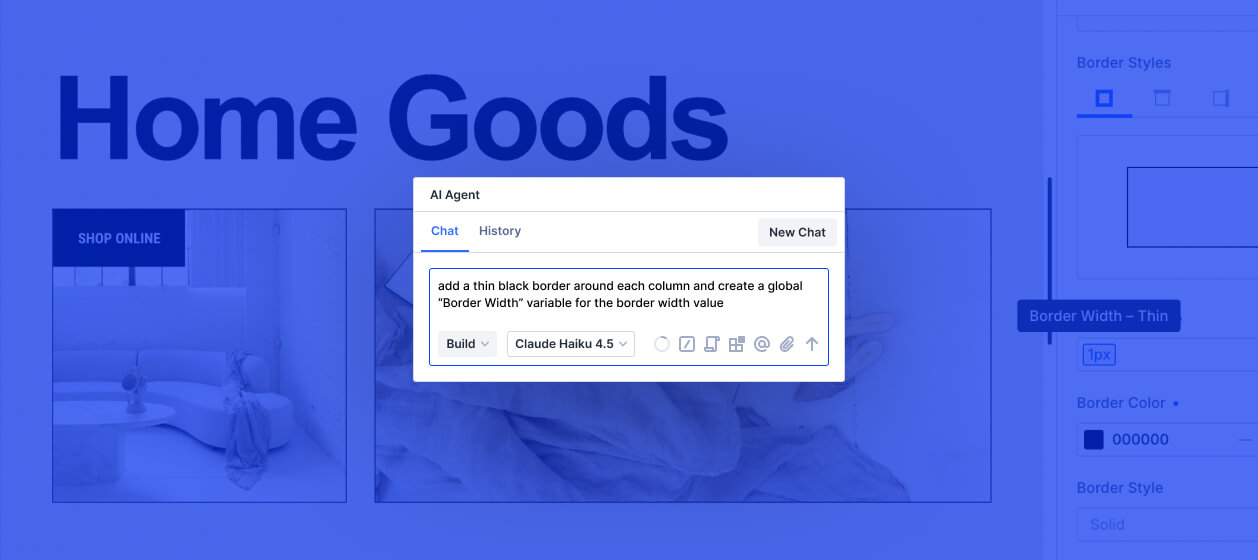
“Look for repeat styles and convert them into presets.”

“Update all buttons on the page to use the same dominant preset.”

Responsive Design

Tune layouts for phone, tablet, and desktop in one pass — without hopping between breakpoints module by module.

“Move the left sidebar to the bottom of the page on tablet and phone.”

“Create responsive font size variables and make sure all text on this page uses them.”

“Reduce section padding and tighten gaps for phone sizes.”

Visual Hierarchy

Make the most important content stand out first so that your visitors know where to look and what to do next.

“Make sure no secondary content competes with the primary CTAs.”

“Establish a clearer visual rhythm so sections are easy to scan and parse.”

“Increase heading weight and size so H2s clearly outrank body copy.”

Content Strategy

Refine messaging, sharpen copy, and align content with your brand voice — across the whole page at once.

“Suggest content structure improvements so the page tells a clear story.”

“Refine the messaging and tone of this page.”

“Rewrite CTAs to be more action-oriented and specific.”

Spelling & Grammar

Catch typos, grammar mistakes, and punctuation issues and let Divi AI fix them all.

“Fix spelling and grammar across every text module.”

“Correct punctuation and capitalization inconsistencies on this page.”

“Normalize American English spelling across this layout.”

Asset Management

Find oversized images that slow the page down so you can resize, compress, or swap them.

“Upload the attached font file and make it the primary font.”

“Find images whose dimensions are much larger than their display size.”

“Replace placeholder images with relevant stock photos.”

Custom Code Quality

Audit custom code for dead code and messy markup to simplify or harden what's been added.

“Review custom CSS and JS on this page and remove any dead code.”

“Find opportunities to simplify or improve custom CSS and JS.”

“Clean up HTML inside Text modules without changing the visible content.”

The Chat Window

Make every conversation work smarter

Save guidance, reuse prompts, pinpoint what you’re talking about, and tap into Divi-specific tools — all from the same chat.
AI Agent Rules

Save site rules the agent can follow

Add site-specific context the agent can pull in when it’s relevant — brand voice, layout preferences, naming conventions, and more.
AI Agent Tools

Save common prompts as reusable commands

Save reusable prompts and run them with /. Fire off common workflows instantly without retyping the same request.
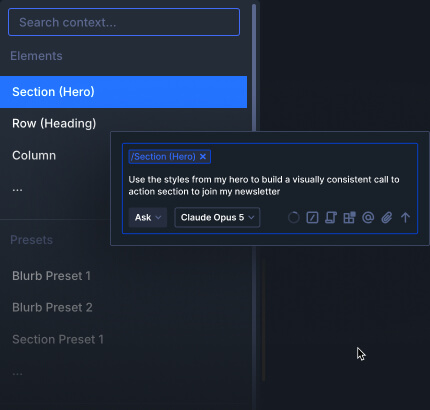
AI Agent Context

Add context from anywhere

Type @ to pull in context from pages, modules, media, and other site content — so the agent knows exactly what you’re talking about.
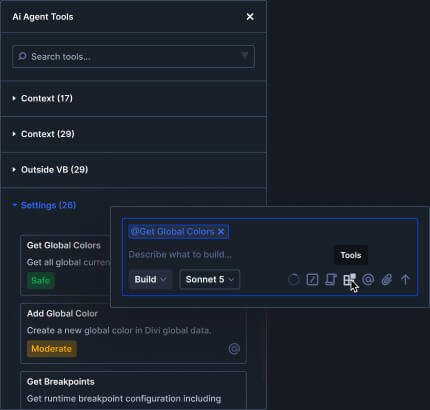
AI Agent Tools

Use purpose-built Divi tools that actually work

Purpose-built Divi tools for modules, settings, builder context, and WordPress admin — so natural language commands actually work the way Divi does.
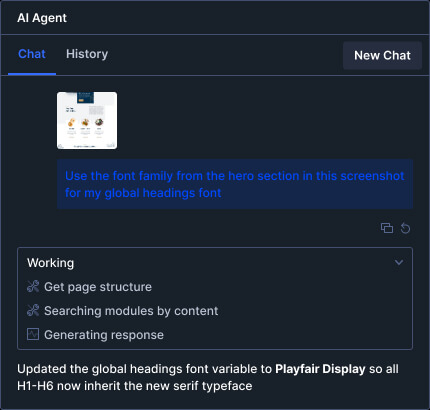
Divi AI Agent Attachments

Upload mockups and attachments for richer context

Attach images so the agent can see what you’re referring to. For example, show a design reference you want to match or highlight a problem area on the page.
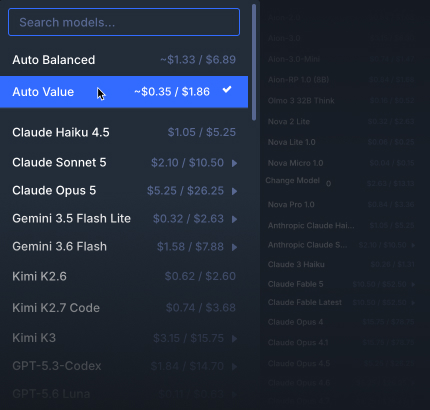
AI Agent Models

Choose from 400+ models or let Divi select the best model for the task

You can tell Divi to automatically choose the most efficient AI model for each task — so you get the best bang for your buck — or you can choose your favorite.

Subagents

Delegate focused work to agents that run in parallel

For complex tasks, the main agent spawns asynchronous subagents — each with its own goal and toolset. They work at the same time, report back when done, and hand results to the main agent so big jobs finish faster with better results.

Main agent

“Create a new About Us page that matches the design of my home page.”

Subagent

Explore the home page

read_web_page

get_design_system

Subagent

Build section scaffolding

list_structure

add_structure_template

Subagent

Module research

list_modules

get_module_schema

Subagent

Apply matching styles

get_preset

apply_preset

Speed

Parallel execution

Independent subtasks run at the same time instead of waiting in a single queue — so research, scaffolding, and module lookups can happen together.

Accuracy

Focused toolsets

Each subagent gets only the tools it needs for its job — explore pages, build structure, or look up module schemas — keeping every step on target.

Efficiency

Smarter orchestration

The main agent coordinates the work, chooses the right model for each subtask, and synthesizes results — so you get better outcomes without burning time or budget.

Skills

190+ skills. Unlimited possibilities.

Divi AI Agent comes packed with purpose-built tools for modules, settings, context, canvases, media, and WordPress admin — so natural language commands actually work the way Divi does.

Understand the Page

  • Get Page Structure Get the complete page hierarchy of Sections, Rows, Columns, and Modules.
  • List Activities List previous build activities from the current chat history.
  • Get Activity Inspect one prior build activity from the current chat.
  • Describe Image Analyze the visual content of an image.
  • Get Selected Modules Get selected Modules.
  • Get Hovered Module Get the hovered Module.
  • Find Modules By Type Find Modules by type.
  • Search Modules By Content Search Modules by attribute text content.
  • Get Root Modules Get top-level Modules in the active layout.
  • Resolve Module Reference Resolve ambiguous Module references to IDs.
  • Canvas Info Inspect visible and active builder canvases.
  • Get Parent Module Get the parent Module of Modules.
  • Get Child Modules Get child Modules of parent Modules.
  • Get Ancestor Modules Get Module ancestry for Modules.
  • Get Module Flags Get lock and Global Module instance status for one or more modules.
  • Get Post Custom Fields Get custom fields for a WordPress post.
  • List Library Items List non-trashed Divi Library Modules, Rows, Sections, and layouts with optional type or name filters.
  • List Knowledge List available knowledge articles by title and ID.
  • Get Knowledge Get the full content of one knowledge article by title or ID.
  • List Rules List available AI rules.
  • List Commands List available AI commands.
  • Read Ai Rules Read site AI rules.
  • Find Duplicate Styles On Page Find repeated Module and Option Group styles that are candidates for presets.
  • Get Design System Context Get deduplicated Design System usage for a page or module subtree, including Module Presets, Option Group Presets, Global Variables, Global Colors, and repeated static styles.
  • Add Todos Append items to the current chat TODO list.
  • Update Todo Update a current chat TODO.
  • Set Chat Context Set continuation context for the current chat.
  • Request More Tools Request additional tools when the current tool subset is insufficient.
  • Run Subagents Run up to ten independent sub agent tasks concurrently and return all results in one response.

Build & Edit Modules

  • List Activities List previous build activities from the current chat history.
  • Get Activity Inspect one prior build activity from the current chat.
  • Describe Image Analyze the visual content of an image.
  • Compare Design To Reference Image Compare the current layout with a reference image.
  • Get Module Retrieve existing Modules by ID.
  • Get Module Option Groups List canonical Option Groups for Modules.
  • List Library Items List non-trashed Divi Library Modules, Rows, Sections, and layouts with optional type or name filters.
  • Save Item To Library Save a Module, Row, or Section to the Divi Library.
  • Delete Library Item Delete an item from the Divi Library by item ID.
  • Import Library Layout Replace the current page with a Divi Library layout.
  • Load Library Item Insert a Module, Row, or Section from the Divi Library.
  • List Modules List available Module types and their metadata.
  • Get Ai Module Attribute Map Inspect the full writable Module attribute map.
  • Get Module Schema Inspect compact attribute schemas for modules.
  • Add Module Html Attributes Add or update HTML attributes on Module elements.
  • Batch Add Modules Add individual Modules or explicit Section, Row, and Column trees.
  • Batch Add Module Interactions Add interactions between existing trigger and target Modules.
  • Batch Remove Modules Remove Modules from the layout.
  • Batch Edit Modules Edit attributes on existing Modules.
  • Find And Replace Attribute Values Find and replace matching attribute values in one operation scoped to the current module subtree, parent section, or entire page without requiring attribute paths. Preferred for all bulk edit operations where a known value is being changed to something else.
  • Move Module Move Modules relative to another Module.
  • Save Page Save the current page.
  • Select Module Select a Module.
  • Clone Module Clone existing Modules.
  • Lock Module Lock Modules to prevent editing.
  • Unlock Module Unlock Modules to allow editing.
  • Remove Module Attributes Remove attribute keys from Modules.
  • Apply Module Preset To Module Apply a Module Preset to Modules.
  • Remove Module Preset From Module Remove a Module Preset from Modules.
  • Apply Option Group Preset To Module Apply an Option Group Preset to Modules.
  • Remove Option Group Preset From Module Remove an Option Group Preset from Modules.
  • Clear Layout Clear the page layout to an empty Section.
  • Generate Layout Generate a page, Section, row, or column layout from a creative brief.
  • List Module Interactions List interactions on trigger Modules.
  • Remove Module Interaction Remove interactions from trigger Modules.
  • Add Element With Structure Template Add a premade Flex or CSS Grid Row structure with empty Columns.
  • Apply Structure Template To Element Apply a premade Flex or CSS Grid structure template to existing elements.
  • List Structures List premade Flex and CSS Grid structure templates.
  • Get Available Loops List Modules with loops enabled on the current page.
  • Get Loop Settings Read loop settings for one or more Modules.
  • Enable Loop Enable a loop on one or more Modules.
  • Disable Loop Disable a loop on one or more Modules.
  • Set Loop Query Configure the content source and result order for loops on one or more Modules.
  • Set Loop Filters Configure filters for loops on one or more Modules.
  • Get Attribute Value Schema Get allowed options, units, formats, and composite shapes for Module attribute values.
  • Ask User Question Request missing information from the user to continue.
  • Pick Media Ask the user to provide an image, video, or audio URL.
  • Add Todos Append items to the current chat TODO list.
  • Update Todo Update a current chat TODO.
  • Set Chat Context Set continuation context for the current chat.

Search Documentation

  • List Documentation Search Divi product documentation.
  • Get Documentation Retrieve the full documentation item (article or snippet) content by knowledge ID.

Manage WordPress

  • List Activities List previous build activities from the current chat history.
  • Get Activity Inspect one prior build activity from the current chat.
  • List Templates List Divi Theme Builder templates.
  • Create Template Create a Divi Theme Builder template.
  • Update Template Update an existing Divi Theme Builder template.
  • Delete Template Trash and detach a Divi Theme Builder template.
  • Assign Template Set display conditions on a Divi Theme Builder template.
  • Get Custom Post Types Discover registered WordPress custom post types and their Divi Builder support.
  • Get Terms List WordPress taxonomy terms for a post type.
  • Get Site Info Get WordPress site identity and configuration.
  • Read Web Page Fetch a public web page URL for text extraction or design analysis.
  • Get Theme Options Get site-wide Divi Theme Options.
  • List Library Items List non-trashed Divi Library Modules, Rows, Sections, and layouts with optional type or name filters.
  • Update Theme Option Update a Divi Theme Option.
  • Export Layout Export a Divi layout as a portable JSON file.
  • Set Divi Layout Apply Divi Builder content to an existing WordPress post or page.
  • Import Attached Images To Media Library Import user-attached images into the WordPress Media Library.
  • Install Attached Fonts As Custom Fonts Install user-attached font files as Divi Custom Fonts.
  • Generate Image Generate custom AI imagery and import it into the WordPress Media Library.
  • Get Stock Image Fetch one or more Unsplash stock images.
  • Search Media Search the WordPress Media Library for existing media.
  • Resolve Menu Find a WordPress navigation menu by name or theme location.
  • List Menu Items List items in one or more WordPress navigation menus.
  • Create Menu Create a WordPress navigation menu by name.
  • Delete Menu Delete a WordPress navigation menu.
  • Assign Menu Location Assign a WordPress navigation menu to a theme location.
  • Unassign Menu Location Remove the WordPress navigation menu assigned to a theme location.
  • Batch Add Menu Items Add items to a WordPress navigation menu.
  • Batch Remove Menu Items Remove items from a WordPress navigation menu.
  • Reorder Menu Items Reorder items in a WordPress navigation menu.
  • Create Page Create a WordPress page, post, or custom post type item.
  • Get Page Get a WordPress page, post, or custom post type item by ID.
  • Search Pages Search WordPress pages, posts, or custom post type items.
  • Trash Page Move a WordPress page, post, or custom post type item to Trash.
  • Update Page Update the title, slug, or classic content of a WordPress page, post, or custom post type item.
  • Update Page Status Change the publication status of a WordPress page, post, or custom post type item.
  • Get Page Links List published WordPress page titles and permalinks with an optional search filter.
  • Ask User Question Request missing information from the user to continue.
  • Pick Media Ask the user to provide an image, video, or audio URL.
  • Add Todos Append items to the current chat TODO list.
  • Update Todo Update a current chat TODO.
  • Set Chat Context Set continuation context for the current chat.

Control Design Settings

  • List Activities List previous build activities from the current chat history.
  • Get Activity Inspect one prior build activity from the current chat.
  • Get Global Colors Get available Global Colors.
  • Add Global Color Add one or more Global Colors.
  • List Commands List available AI commands.
  • Add Command Create a new AI command.
  • Update Command Update an existing AI command.
  • Delete Command Delete an AI command.
  • List Rules List available AI rules.
  • Add Rule Create a new AI rule.
  • Update Rule Update an existing AI rule.
  • Delete Rule Delete an AI rule.
  • Get Breakpoints Get responsive breakpoint settings.
  • Update Breakpoints Update responsive breakpoint settings.
  • Promote Layout To Global Variables Find literal style values in a Section or full page and offer to convert them to Global Variables.
  • Get Global Variables List all Global Variables.
  • Get Global Variable By Id Get one Global Variable by ID.
  • Get Global Variable By Name Get one Global Variable by label.
  • Get Global Variable Value Get a Global Variable value.
  • Get Global Variable Metadata Get Global Variable metadata.
  • Create Global Variable Create a Global Variable.
  • Update Global Variable Update Global Variable labels or values.
  • Set Global Variable Value Set a Global Variable value.
  • Delete Global Variable Delete a Global Variable.
  • Save Global Variables Save pending Global Variable changes.
  • Is Dynamic Data Value Check whether a value uses Dynamic Content syntax.
  • Parse Dynamic Data Value Parse a Dynamic Content token.
  • Build Dynamic Data Value Build Dynamic Content tokens from variable definitions.
  • Get Dynamic Content Options Get available Dynamic Content options for the current post.
  • Resolve Global Variable Value Resolve Dynamic Content or Global Variable tokens to computed values.
  • List Module Dynamic Data List Dynamic Content assigned to a Module.
  • Ask User Question Request missing information from the user to continue.
  • Pick Media Ask the user to provide an image, video, or audio URL.
  • Add Todos Append items to the current chat TODO list.
  • Update Todo Update a current chat TODO.
  • Set Chat Context Set continuation context for the current chat.

Navigate the Builder

  • List Activities List previous build activities from the current chat history.
  • Get Activity Inspect one prior build activity from the current chat.
  • Set View Switch the active breakpoint view mode or switch to Wireframe view.
  • Get Current View Get the current viewport or Wireframe view.
  • List Modals List registered modals.
  • List Docked Modals List modals docked in sidebars.
  • Set Zoom Set the canvas zoom level.
  • Clear Selection Clear the current Module selection.
  • Open Modal Open a modal.
  • Close Modal Close a modal.
  • Dock Modal Dock a modal in a sidebar.
  • Undock Modal Undock a modal from a sidebar and restore floating mode.
  • Set Modal Size Set a floating modal size.
  • Set Modal Position Set a floating modal position.
  • Set Sidebar Width Set a sidebar width where panels are docked.
  • Set Sidebar Row Height Set the interface sidebar row height.
  • Create Workspace Create a workspace from the current UI state.
  • List Workspaces List available workspaces.
  • Delete Workspace Delete a workspace.
  • Duplicate Workspace Duplicate a workspace.
  • Update Workspace Update a workspace from the current UI state.
  • Switch Workspace Switch the active workspace.
  • Switch Canvas Switch the active canvas.
  • Add Canvas Create a new canvas.
  • Duplicate Canvas Duplicate a canvas.
  • Delete Canvas Delete a canvas.
  • Set Main Canvas Set a canvas as the main canvas.
  • Update Canvas Name Rename a canvas.
  • Set Canvas Global Set whether a canvas is global or local.
  • Set Canvas Append Position Set a canvas position, appending it above or below the main content.
  • Set Canvas Z Index Set a canvas z-index stacking order.
  • Set Preview Mode Enable or disable preview mode.
  • Set Color Mode Set the interface color mode (light mode or dark mode).
  • Get Color Mode Get the current interface color mode (light mode or dark mode).
  • Set Canvas Grid View Enable or disable Canvas Grid View.
  • Get Canvas Grid View Get whether Canvas Grid View is enabled.
  • Ask User Question Request missing information from the user to continue.
  • Pick Media Ask the user to provide an image, video, or audio URL.
  • Add Todos Append items to the current chat TODO list.
  • Update Todo Update a current chat TODO.
  • Set Chat Context Set continuation context for the current chat.

Create Design Presets

  • Add Module Preset Create a Module Preset from supplied attributes.
  • Create Module Preset From Current Styles Create a Module Preset from a Module's current styles and assign it to that Module.
  • Parse Module Preset Naming Context Recommend a context-aware Module Preset name.
  • Get Module Preset Get a Module Preset.
  • Get Module Presets List List Module Presets for a Module type.
  • Update Module Preset Info Update a Module Preset’s name or priority.
  • Edit Module Preset Attributes Edit a Module Preset attribute.
  • Delete Module Preset Delete a Module Preset.
  • Add Default Module Preset Add the default Module Preset for a Module type.
  • Assign Module Preset To Default Set a Module Preset as a Module type default.
  • Clone Module Preset Clone a Module Preset.
  • Save Module Preset Save pending Module Preset changes.
  • Add Option Group Preset Add an Option Group Preset.
  • Create Option Group Preset From Current Styles Create an Option Group Preset from an Option Group’s current styles and assign it to that Option Group.
  • Parse Option Group Preset Naming Context Recommend a context-aware Option Group Preset name.
  • Get Option Group Preset Get an Option Group Preset.
  • Get Option Group Presets List List Option Group Presets for an Option Group.
  • Update Option Group Preset Info Update an Option Group Preset’s name or priority.
  • Edit Option Group Preset Attributes Edit an Option Group Preset attribute.
  • Delete Option Group Preset Delete an Option Group Preset.
  • Add Default Option Group Preset Add the default Option Group Preset entry for an Option Group.
  • Assign Option Group Preset To Default Set an Option Group Preset as an Option Group’s default.
  • Clone Option Group Preset Clone an Option Group Preset.
  • Save Option Group Preset Save pending Option Group Preset changes.
  • Get Preset Summary Summarize a Module Preset or Option Group Preset.
  • Get Ai Module Attribute Map Inspect the full writable Module attribute map.
  • Get Module Option Groups List canonical Option Groups for Modules.
  • Get Attribute Value Schema Get allowed options, units, formats, and composite shapes for Module attribute values.

The Builder & Beyond

Perform site-level tasks and define global builder settings with AI

Stop bouncing between the builder and wp-admin. The Divi AI Agent handles pages, posts, menus, Theme Builder templates, Theme Options, and portability workflows on your behalf.

Manage pages, posts, and publishing workflows without leaving the builder.

Create, update, publish, unpublish, and schedule pages and posts. The agent can search your content, pull page links and custom fields, and manage publishing without leaving the chat.

“Create a new Services page as a draft and add it to the main menu.”

“Schedule this blog post for next Tuesday at 9am.”

“Find all unpublished pages and list their titles and edit links.”

“Duplicate the About page and rename the copy to Our Team.”

Navigate the builder and customize your workspace without moving your mouse.

Open panels, switch canvases, and configure workspaces with a simple ask. Stay in flow instead of hunting through menus — the agent handles routine builder operations for you.

“Open the Layers panel and select the hero section.”

“Switch to the tablet canvas and hide the sidebar.”

“Open Theme Options and turn on Divi’s custom CSS panel.”

“Create a new workspace that shows Layers and Settings side by side.”

Built-in Divi Support

Your on-demand Divi expert — with unique access to internal Divi knowledge

No more hunting through docs, waiting on a ticket, or breaking your flow to ask for help. Ask the Divi AI Agent right where you’re working — and get answers powered by thousands of Divi docs and Elegant Themes’ internal knowledge, in the context of the page you have open.

Stay in flow

Skip the ticket. Just ask.

When you hit a snag, keep building. Get instant help in the same chat you use to edit. No support form, no tab-hopping, no waiting around for a reply.

Official Divi knowledge

Backed by 1000's of docs

The agent pulls from thousands of Divi documentation articles and Elegant Themes’ internal knowledge base — so you’re not getting generic AI guesses; you’re getting Divi’s own product truth.

Page-aware help

Support that can see your layout

Because it lives inside the builder, it can inspect your modules, settings, and structure while it answers — and then help you fix the issue without ever leaving the page.

“Should I use Flexbox or Grid layout for this section?”

“What’s the difference between presets, variables, and global elements?”

“Why isn’t my Theme Builder template applying to this page?”

“How do Divi's aspect ratio options work?”
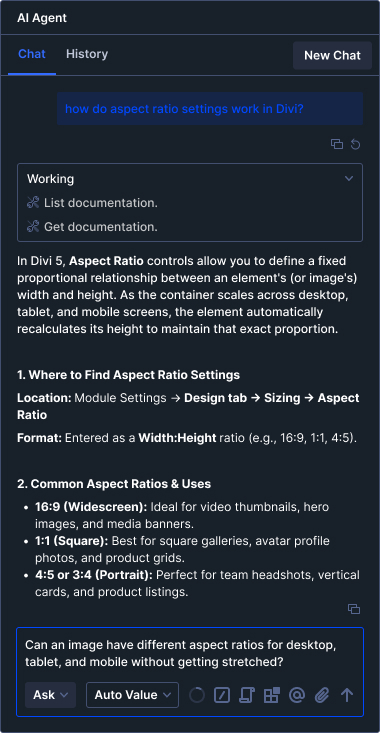
Divi AI Agent Support

Get 60% Off Today

You're In Luck! We Are Discounting Divi AI For A Limited Time.

Divi AI Agent is included with Divi AI. One subscription covers unlimited AI usage for you and your team across the builder and WordPress admin.

New To Divi?

Bundle and save! Divi Pro★ comes with Divi + all Pro Services, including Divi AI, Divi Cloud, Divi VIP, and Divi Teams.

Divi Pro★ Yearly

Pay Annually For Divi

Pay annually for Divi Pro and get access to all themes and plugins, including Divi, Extra, Bloom, and Monarch, plus Divi AI, Divi Cloud, Divi VIP, and Divi Teams. Perfect for website owners who want ongoing updates and support.
Divi Lifetime + Pro★

Only Pay Once For Divi

Get lifetime access to Divi and our entire suite of themes and plugins, including use on unlimited websites, lifetime updates, and support for a single payment! The Divi Pro membership bundles additional services, such as our powerful Divi AI tool, which are billed annually at a significant discount.

Divi Pro★

Divi Pro★ gives you access to Divi, plus its extended ecosystem of pro services for $652 off when compared to purchasing each service individually. If you don't use a particular service, you can cancel it and reduce your Divi Pro price.
Save 73%

Divi Theme & Builder + all Pro Services

$19.67/mo ($74.00 value)

$236 billed yearly

For web professionals who want to build unlimited Divi websites for their clients, faster, with powerful AI tools, cloud storage and VIP support.

Save $652 with Divi Pro
Divi + Pro Services
  • Divi (unlimited website usage) Learn more → Get full access to Divi, the ultimate WordPress theme and page builder, including unlimited website usage. Build/edit from scratch or start from hundreds of pre-built layouts and templates.
  • Divi Dash Learn more → Add unlimited sites to the Divi Dash site manager. Manage updates, theme, plugins, users and other maintenance tasks across all your websites in one convenient location
  • Divi AI Learn more → Enhance your WordPress workflow with a suite of powerful AI tools. Generate stunning images, write fantastic content and customize your website with AI-generated code fine-tuned on the Divi module codebase.
  • Divi Cloud Learn more → Divi Cloud is like Dropbox for Divi. Store your most-used Divi assets, such as layouts, theme builder templates and code snippets in the cloud so that you can access them on every new website you build!
  • Divi VIP Learn more → Get the white glove treatment. Divi VIP members and their team members get questions answered around the clock in under 30 minutes. Plus, you get 10% off every purchase in the Divi Marketplace.
  • Divi Teams Learn more → Grant your team members and clients access to your full suite of Divi services for a fraction of the cost of a normal membership. Collaborate and share assets in Divi Cloud.
Divi Pro Benefits
  • Support in 30min or less Get priority support with guaranteed response times. Divi VIP members get questions answered around the clock in under 30 minutes.
  • 4 team members Invite up to 4 team members with Divi Teams. Each team member gets their own account with access to all your Divi services.
  • Unlimited cloud storage Store unlimited layouts, templates, and code snippets in Divi Cloud. Access your design library from any website you build with Divi.
  • Unlimited layout, text, image, & code generation Generate unlimited layouts, text, images, and code with Divi AI. No usage limits or restrictions (does not apply to AI Agent usage).
  • $60 complimentary agent spend per year Get $5 of complimentary agent spend per month ($60/yr) to build sites using natural language in the Visual Builder.
  • 10% off all marketplace purchases Divi VIP pays for itself in savings! Get an additional 10% off every purchase you make in the Divi Marketplace.
Sign Up Bonuses
  • $50 Divi Marketplace credit Learn more → Your first Divi Marketplace purchase is on us! Get this one-time signup bonus and spend $50 in the Marketplace for free. You can unlock hundreds of new Divi modules and thousands of layouts in the Divi Marketplace.
  • Don Divi Collection ($170 value) Learn more → Get the entire DonDivi collection, including the top-selling family of DiviMenus modules, and the DonDivi Builder, including eight unique modules for free with your purchase. A $170 value!
  • 24/7 VIP Support Learn more → Divi VIP members get their questions answered in 30 minutes or less around the clock! Put us in your corner and let us help you run a successful web design business.
  • Risk-free guarantee Try Divi Pro risk-free for 30 days. If you're not completely satisfied, we offer a full refund— no questions asked.
Save 73% with Divi Pro★

Already A Divi User?

Add Divi AI to your membership! You can also bundle more services at checkout to unlock more discounts!

Divi AI Yearly

Pay Annually - Save 60%

Pay annually for Divi AI and save 60%. Includes Divi AI Agent and all AI tools.
Divi AI Monthly

Pay Monthly - Save 46%

Pay monthly for Divi AI and get unlimited AI usage, including the Divi AI Agent. Cancel anytime.

Divi AI

Get unlimited AI-generated text, code, imagery, and Divi AI Agent access. Utilize Divi AI on unlimited websites with your entire team.
Save 60%

AI Generation Tools

$9.60/mo

$115 billed yearly

For existing Divi customers who want to empower themselves and their teams with Divi AI, including the AI Agent, layout generation, and content tools.

Save $173/yr - Sign up for Divi AI
Divi AI
  • Unlimited layout, text, image, & code generation Generate unlimited layouts, text, images, and code with Divi AI. No usage limits or restrictions (does not apply to AI Agent usage).
  • $60 complimentary agent spend per year Get $5 of complimentary agent spend per month ($60/yr) to build sites using natural language in the Visual Builder.
  • AI website builder Generate unlimited Divi websites using Divi Quick Sites, including automated setup and AI-powered page creation.
  • Divi AI for all team members All of your team members get to use Divi AI and the Divi AI Agent for free!
  • Future updates included Get all future Divi AI features and updates at no additional cost.
Sign Up Bonus
  • 24/7 Customer support Learn more → Get around-the-clock support from our customer service team. We're available 24/7 to help you with any questions or issues.
  • Risk-free guarantee We offer a 30-day money back guarantee on all purchases. If you are not happy with your membership, we will refund your purchase. No questions asked.

Try Divi AI - Risk Free

If you aren't happy with Divi AI, we'll refund you, no questions asked. We are committed to providing the best experience possible, and we are confident that you will love using Divi AI and the Divi AI Agent!

Upgrade, customize, or switch plans at any time.

If you choose the Divi Pro bundle today to get significant savings, but you don't end up using a bundled service, you can cancel it while keeping the rest. You can always upgrade to Divi Pro at a later date for the difference in price. Don't sweat it!

Frequently Asked Questions

  • What is the Divi AI Agent?

    The Divi AI Agent is an intelligent command interface built into Divi 5. It understands natural language and executes real actions in the builder and WordPress admin, such as adding modules, changing styles, creating pages, and updating menus.

    Expand Menu Collapse Menu
  • Is the Divi AI Agent included with Divi AI?

    Yes. The Divi AI Agent is included with your Divi AI membership. If you subscribe to Divi Pro, Divi AI — and the AI Agent — are included in the bundle.

    Expand Menu Collapse Menu
  • How much does the Divi AI Agent cost?

    A Divi AI membership — available for as little as $7 per month when you purchase Divi Pro — includes a complimentary $5 in Agent spend each month. We act as the intermediary between you and the LLM provider. Each provider sets its model pricing based on input and output tokens per million, to which we add a small markup. The cost of each request varies depending on the model you choose and the complexity of the request. On average, generating an entire custom layout costs less than five cents.

    Expand Menu Collapse Menu
  • Can the Divi AI Agent help answer Divi questions?

    Yes. Beyond building and editing, the Divi AI Agent works as built-in support inside the builder. Instead of opening a ticket or leaving to dig through docs, ask right where you’re working — and get answers powered by Elegant Themes’ internal Divi knowledge, often while looking at the page you have open.

    Expand Menu Collapse Menu
  • Does the AI Agent only work inside the builder?

    The Divi AI Agent is available inside the builder. From there, it can handle layout and module operations as well as manage WordPress pages, posts, menus, Theme Builder templates, and more.

    Expand Menu Collapse Menu
  • What happens when I ask the agent to delete something important?

    The Divi AI Agent uses human-in-the-loop approval for destructive and high-impact actions. It asks clarifying questions when needed, confirms before deleting or unpublishing critical items, and provides a clear summary of completed actions.

    Expand Menu Collapse Menu
  • Do I need Divi 5 to use the AI Agent?

    Yes. The Divi AI Agent is a Divi 5 feature. It is designed for the Divi 5 builder and its modern architecture, including in-browser agent orchestration and direct access to builder state.

    Expand Menu Collapse Menu
Divi Marketplace Play Button Get Divi AI Today