

You build the homepage first. Then an about page, then a contact page. By the third one, you have the rhythm of it: drop in a section, add your content, style it, publish. One page, one design.
Then you get to the blog.
The rules change without warning. You are not designing a page anymore. You are designing something that has to work with fifty posts you may not have written yet, and there is no single page to build it on. This is where a lot of people get stuck — not because it’s an impossible task, but because it’s simply different than page building.
What you’re doing at this point is called theme building, and every serious WordPress theme and page builder has a way to handle it. Here, we dive into what a theme builder is, what it controls, and how you will know when you need it.
What Is A Theme Builder?
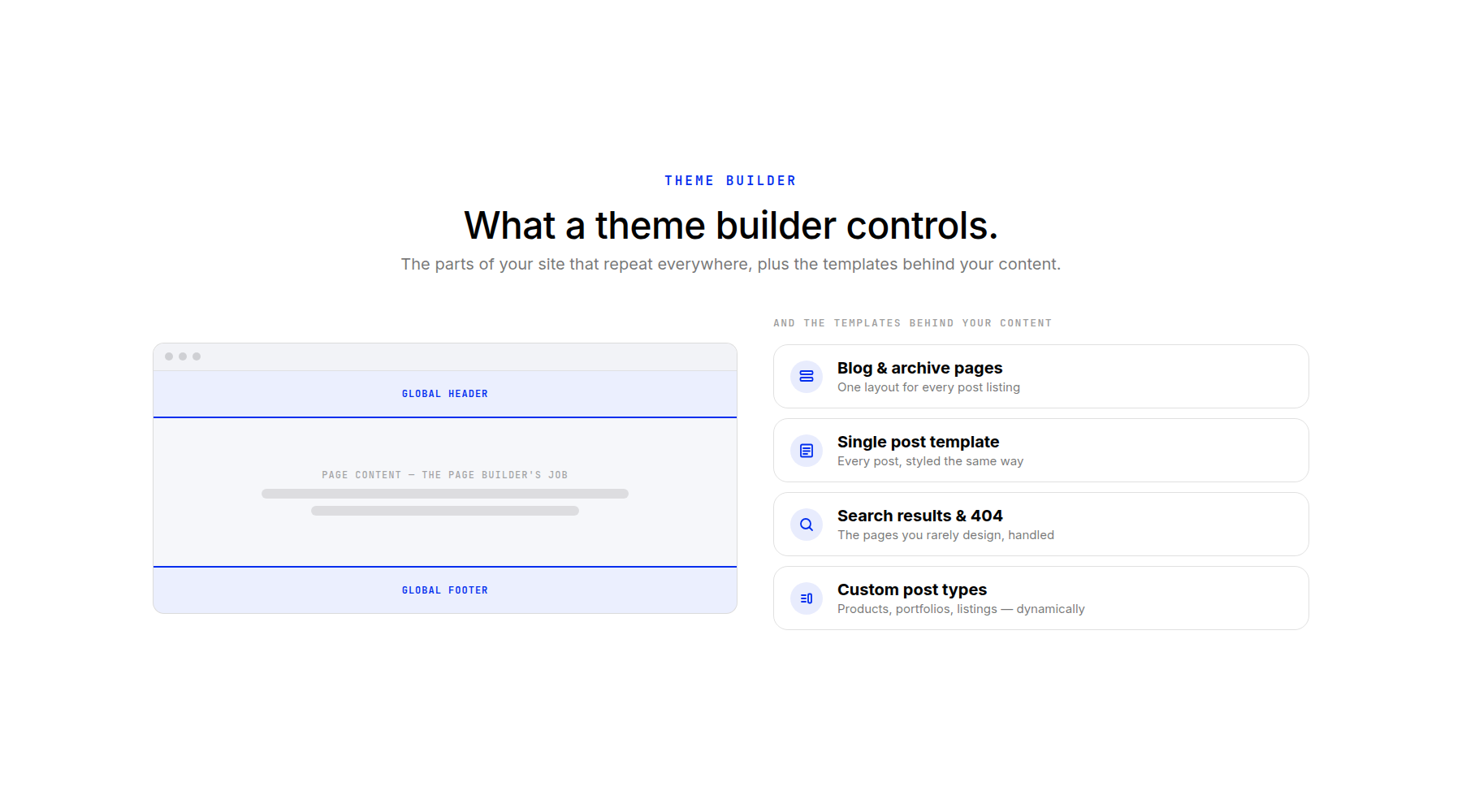
A theme builder is what you use to build all the repeatable parts of a website.
Headers and footers are the obvious ones. Every page needs them, and you want to design them once rather than rebuild them on every page you publish. The more interesting half is templates: the layout for a single blog post, the archive that lists those posts, search results, and a 404 page.
Those templates map to your site’s content structure. WordPress already knows the difference between a blog post, a page, and a product. A theme builder is what lets you design the pages that the structure turns into. WordPress stores and organizes your content; the theme builder decides what a visitor sees.
That relationship matters more as a site grows. Plugins like ACF, Pods, Meta Box, and ACPT let you extend WordPress with your own content types and fields. Think of a Products type for a shop, a Classes type for a workshop schedule, or a Projects type for a portfolio. They handle the data. The theme builder determines how that data appears on the dynamic pages your visitors land on.
How Theme Building Differs From Page Building
A page builder designs one page at a time. You open a specific page, you build it, and what you built lives at that one URL. Homepages, about pages, contact pages, landing pages — all page-building work, and all of it unique by design.
Theme building covers what repeats across similar types of content. You are no longer building on a specific URL. You are building something that gets applied by rule: to every post, or to every product. Headers and footers go further still, applying to every page on the site.
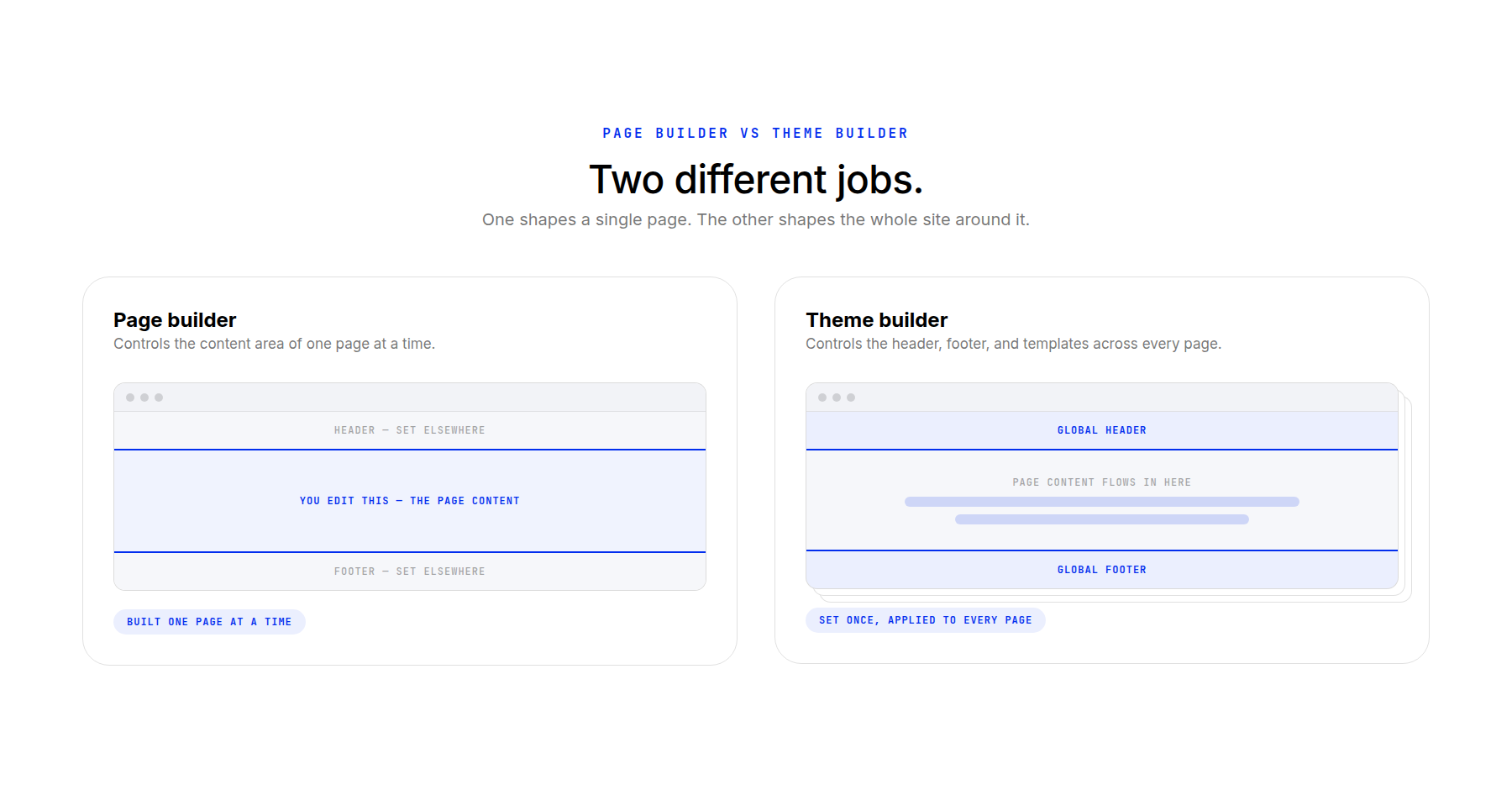
Here is the question that trips people up: Can I not just build a header with my page builder? You can build something that looks like a header on one page. Then you build it again on the next page, and again on the one after that, and when something needs to change, you get to edit all of them.
Also, why would you want to do it the static way when your page builder probably already has a way to do theme building? Every major WordPress page builder ships theme building alongside it. They could not really compete without it. When you compare page builders, you are comparing design tools, editor speed, the modules on offer, and price. Theme building comes with whichever one you choose.
Dynamic Content Works Like A Form
Dynamic content is the idea that makes theme building click, and it is simpler than the name suggests.
Think of a blog post as a form. To publish one, you fill in a title, an excerpt, a featured image, and the content itself. Each new post is a new submission to that same form. The form decides what every entry has in common. All of them carry a title, content, and a featured image.
Once the shape is identical from one entry to the next, a template can be built around it. You place the title here, the featured image there, the content below — and because every post fills in those same fields, one design handles all of them. WordPress and your theme builder wire up the connections between stored content and your layout for you.
The same logic scales up. A product is a form too, just with different fields: a price, a product image, and a stock status. A class may have a date and an instructor. Each content type brings its own fields (called custom fields), so each one gets its own template because it has different data available to it.
Two more ideas come with the territory:
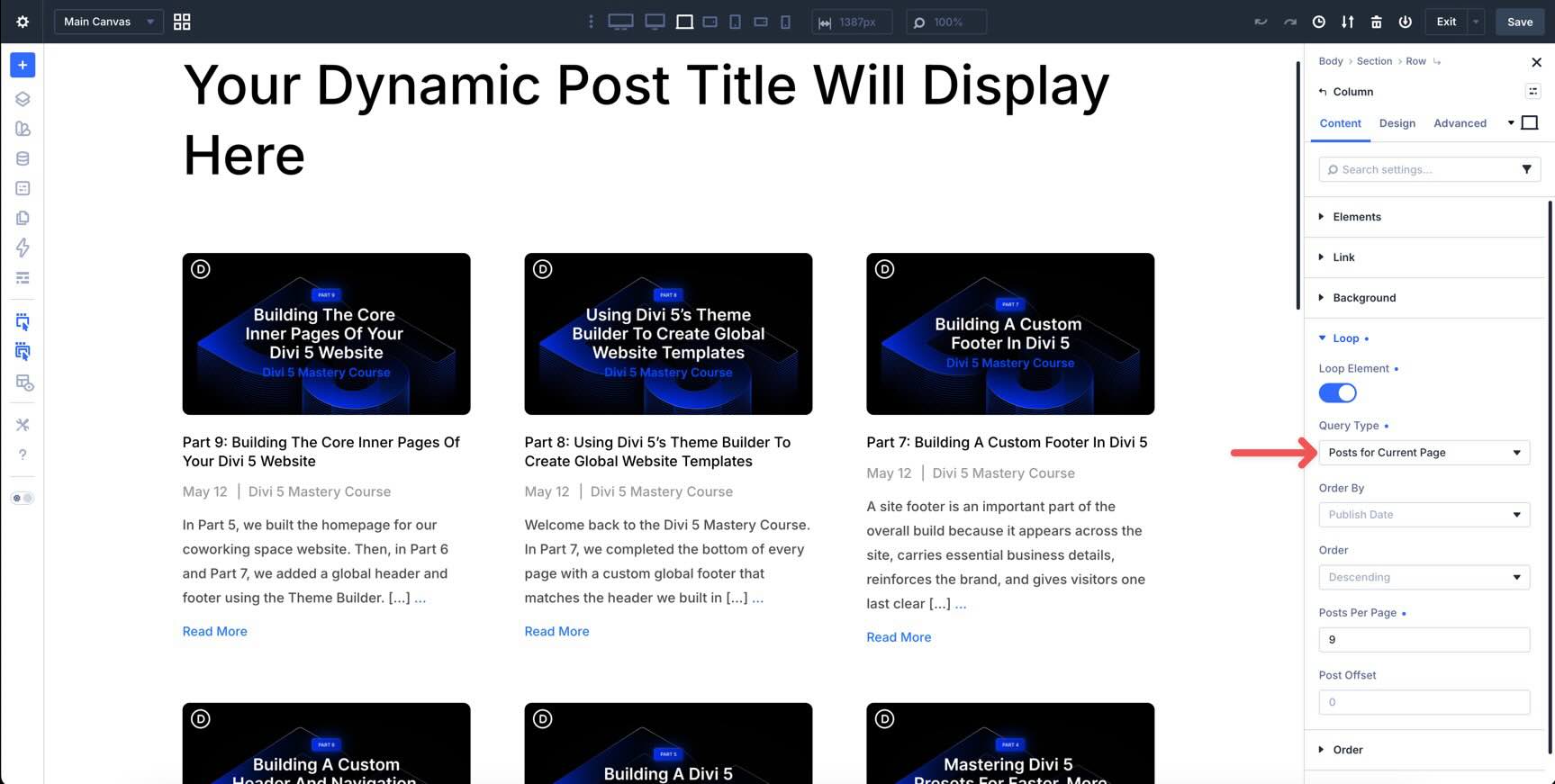
- Dynamic data is how a template says, “put the current post’s title here” instead of you typing a title. In Divi, this is the Current Post source (Post for Current Page), and it is what lets one layout serve every entry.
- Loops are how a template lists many entries instead of showing one. An archive page is a loop: repeat this card design for each post, in this order, this many at a time.
Pagination is the part that catches people out. It is the Previous and Next links at the bottom of a list, or the numbered version, and it belongs to the loop rather than to the page. Nothing in page building works that way.
The Templates Almost Every Site Needs
Theme building sounds open-ended until you notice that most sites need the same handful of templates. You are not inventing a list. You are working through a known one.
In the order people usually build them:
- Header and footer. Always first. They apply everywhere, and you see the result immediately.
- Single blog post. The layout every post pours into. Dynamic data, no loop.
- Blog archive. The list of posts, and usually the same template that handles your category, tag, and author listings. This one is a loop where pagination appears.
- 404 page. What visitors get at a broken link. Quick to build, but an important component.
- Search results. A loop again, listing whatever matched.
Add a custom post type, and you build its single and archive templates the same way: a single template for one product, an archive template for the shop listing. Add another type, and you do it again. Older themes may also have a sidebar or widget area, which is the same idea from an earlier era of WordPress.
Where To Find The Theme Builder
Theme building lives in a different part of the interface than page building, and where it lives depends on which tool you use.
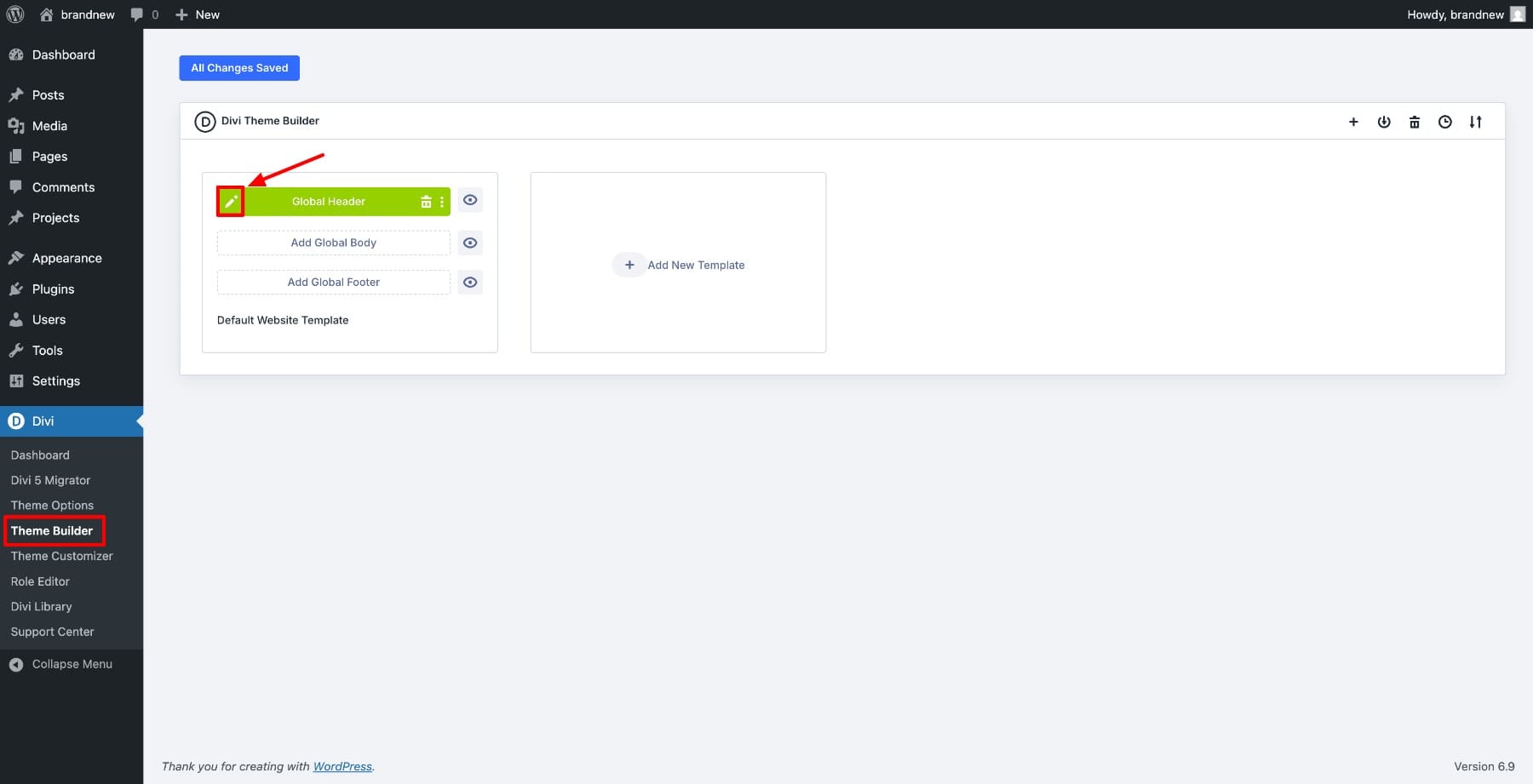
You will not find it under Pages, which is where you have spent all your time so far. It sits in its own area, because it is not attached to any single page. WordPress’s own Site Editor refers to these as templates and template parts. Divi calls it the Theme Builder. Elementor has one under its own menu. Different names, different click paths, same underlying concept.
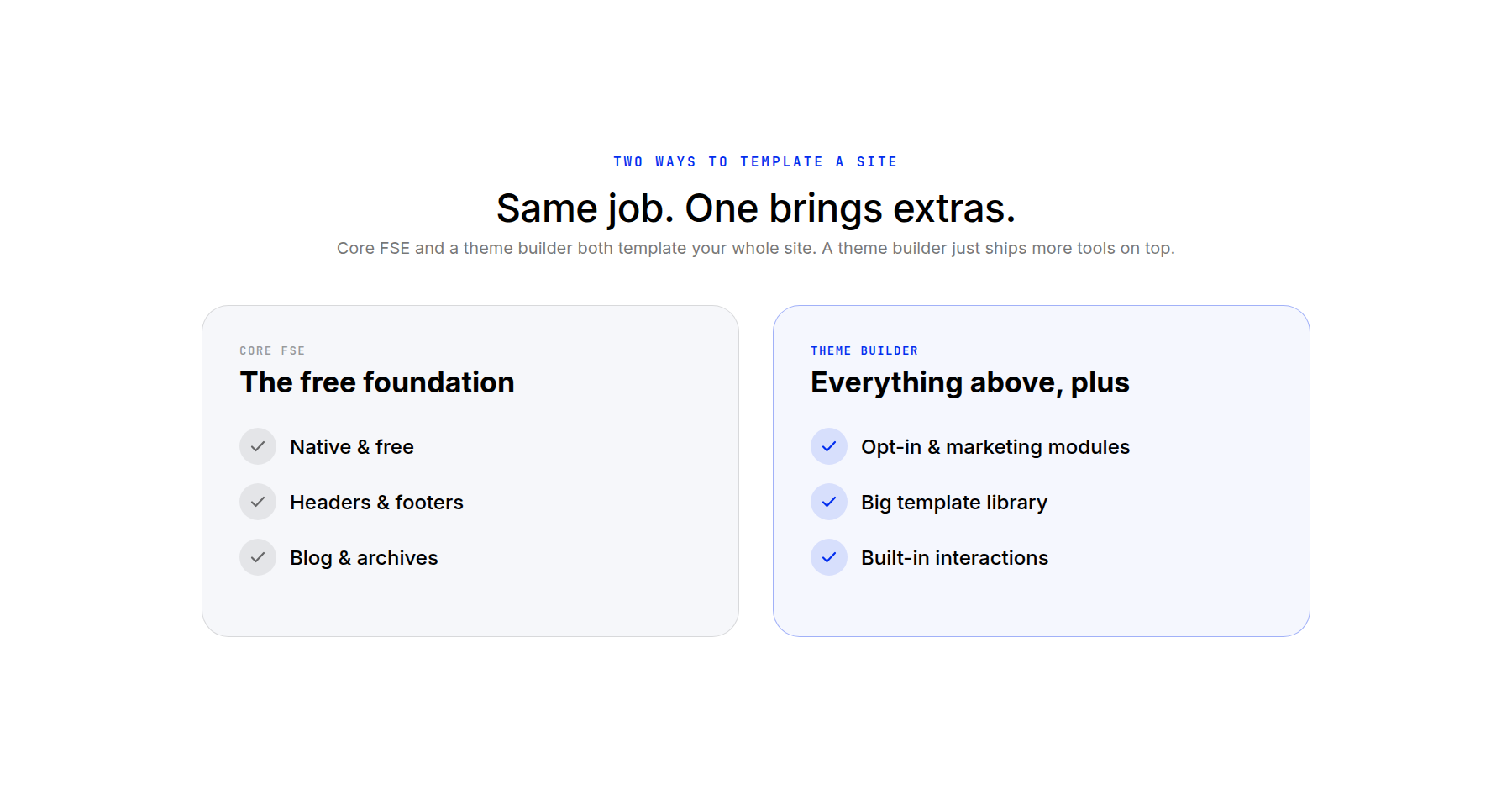
WordPress does this natively. Full Site Editing is Core’s own theme building: free, already installed, and capable of headers, footers, archives, and single templates. Plenty of people use it, and many extend it with plugins to cover what it does not do well. Others swap it for a dedicated theme builder so they are never held back.
The clearest difference shows up when you build a loop. In Full Site Editing, you work inside the Query Loop block, using the specific blocks made to nest within it. In Divi, you set any container or element as a loop, and any module inside it can pull dynamic content. There is no special loop module to learn: anything can be a loop, and anything can go inside one.
If you are weighing specific tools, our roundup of the best WordPress theme builders compares the main options side by side.
One thing holds true whichever you pick. Whatever a tool is like to design pages with, it will be like to build templates with, and the strengths and limitations carry straight over. If you find the block editor limiting for design, it is going to be limiting when you are editing templates in the theme area, too.
How Divi Does It
In Divi 5, all this lives in the Theme Builder. You build templates with the same visual editor you already used for your pages, so the tool is not new — only the job is.
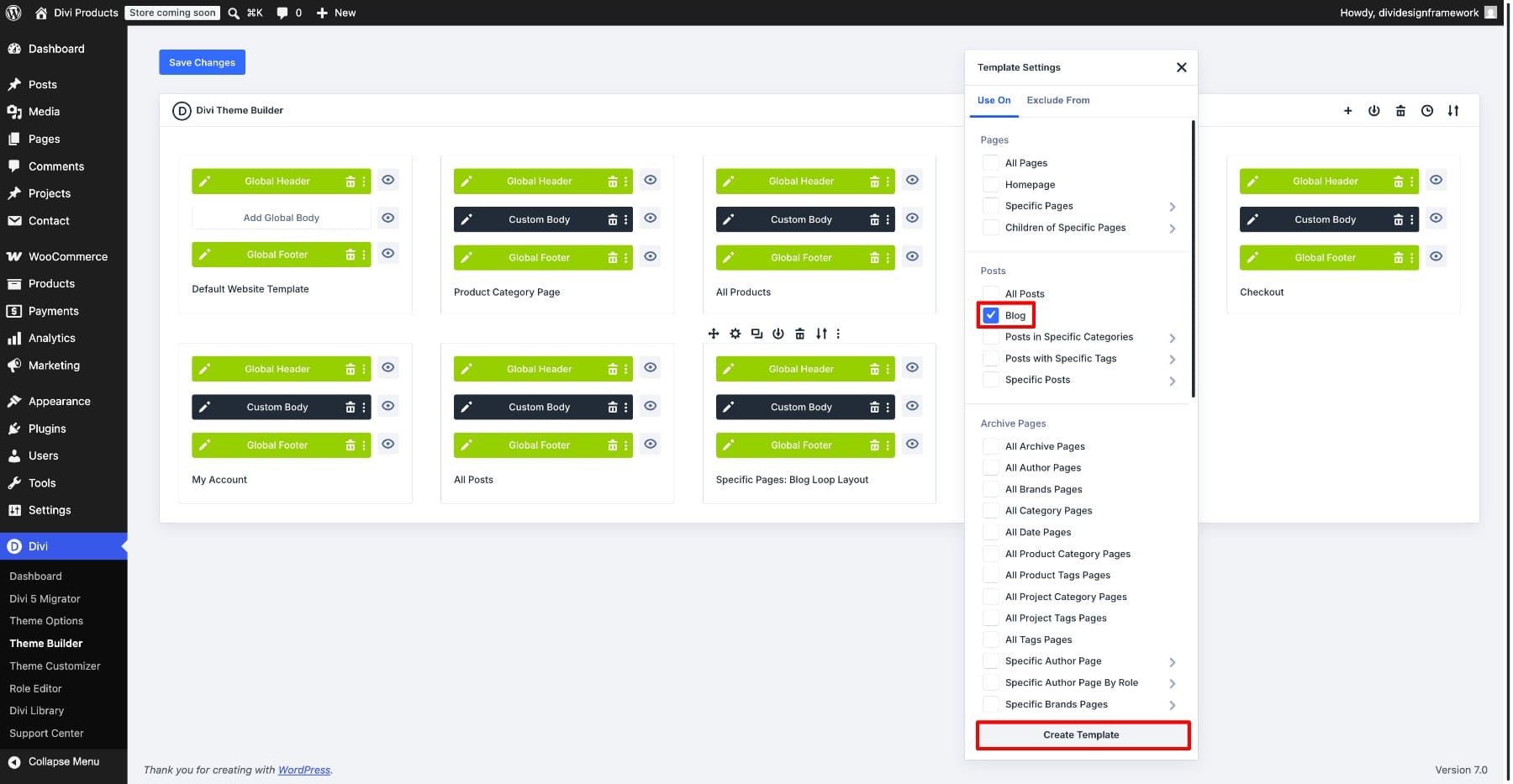
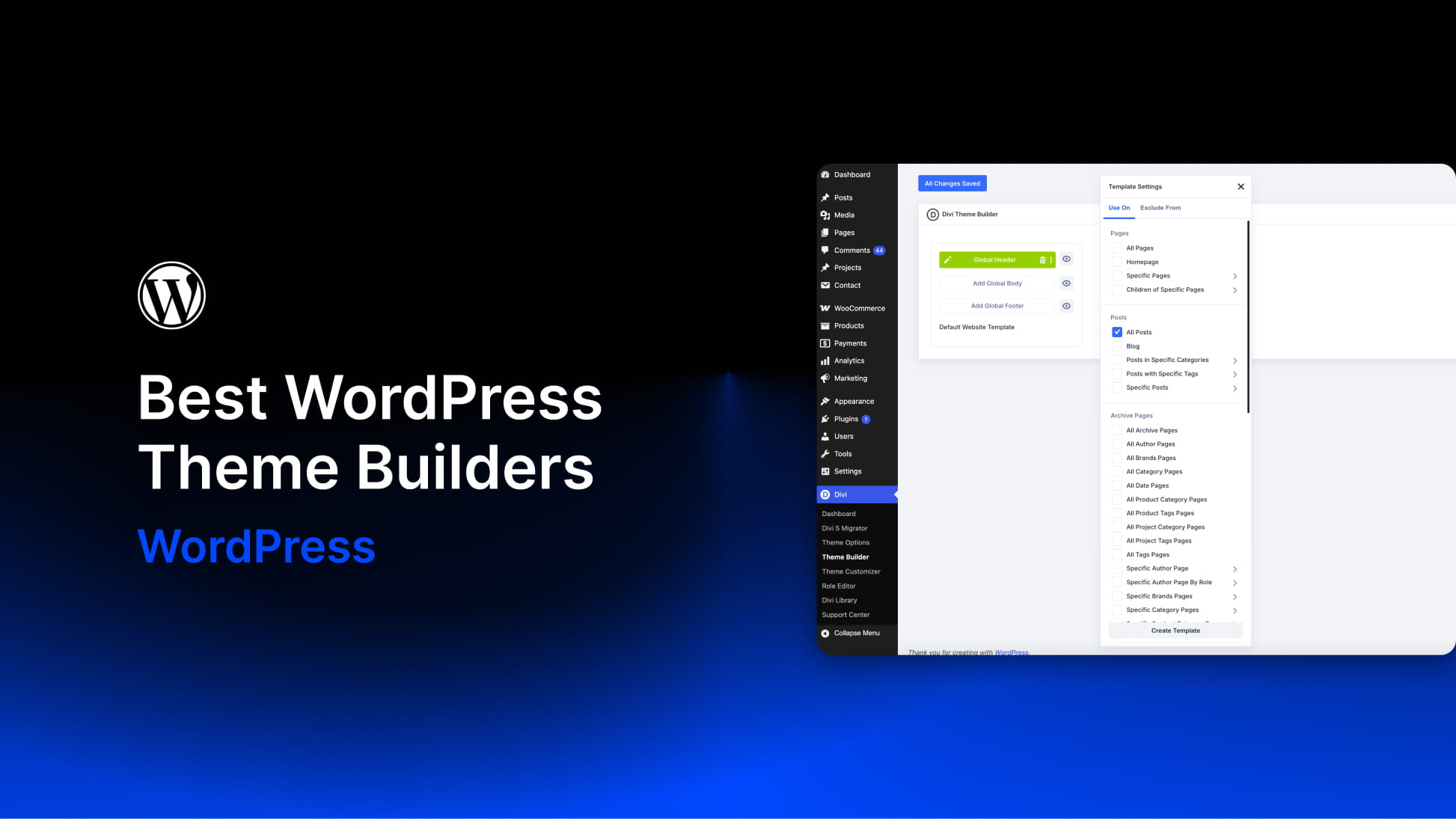
The first thing you do with a new template is tell Divi where to use it. That is the Use On setting, and its labels are worth translating, because they are the part people misread:
- All Posts — every single blog post, which is your single post template.
- Blog — the page that lists your posts, not the posts themselves.
- All Archive Pages — the category, tag, date, and author listings, all at once.
- All Author Pages — just the listings of posts grouped by who wrote them.
- Search Results and 404 Page — exactly what they say.
The pattern to hold onto: labels that begin with All cover a whole class of pages, and the singular names point at one specific page. A template assigned to All Posts is the design every post uses; a template assigned to Blog is the one page that lists them.
In a template, you pull in content using Current Post dynamic data and list many entries with a loop. Because any module can sit inside a loop, you design the card once, and Divi fills it from each entry.
Divi 5 also softens the split this article has been drawing. With editable Theme Builder areas, the header and footer assigned to a page can be edited from inside that page in the Visual Builder. There is no trip back to the Theme Builder. When a homepage or landing page revision needs a matching header change, you make both in one sitting. You can switch the areas off when you would rather focus on page content alone.
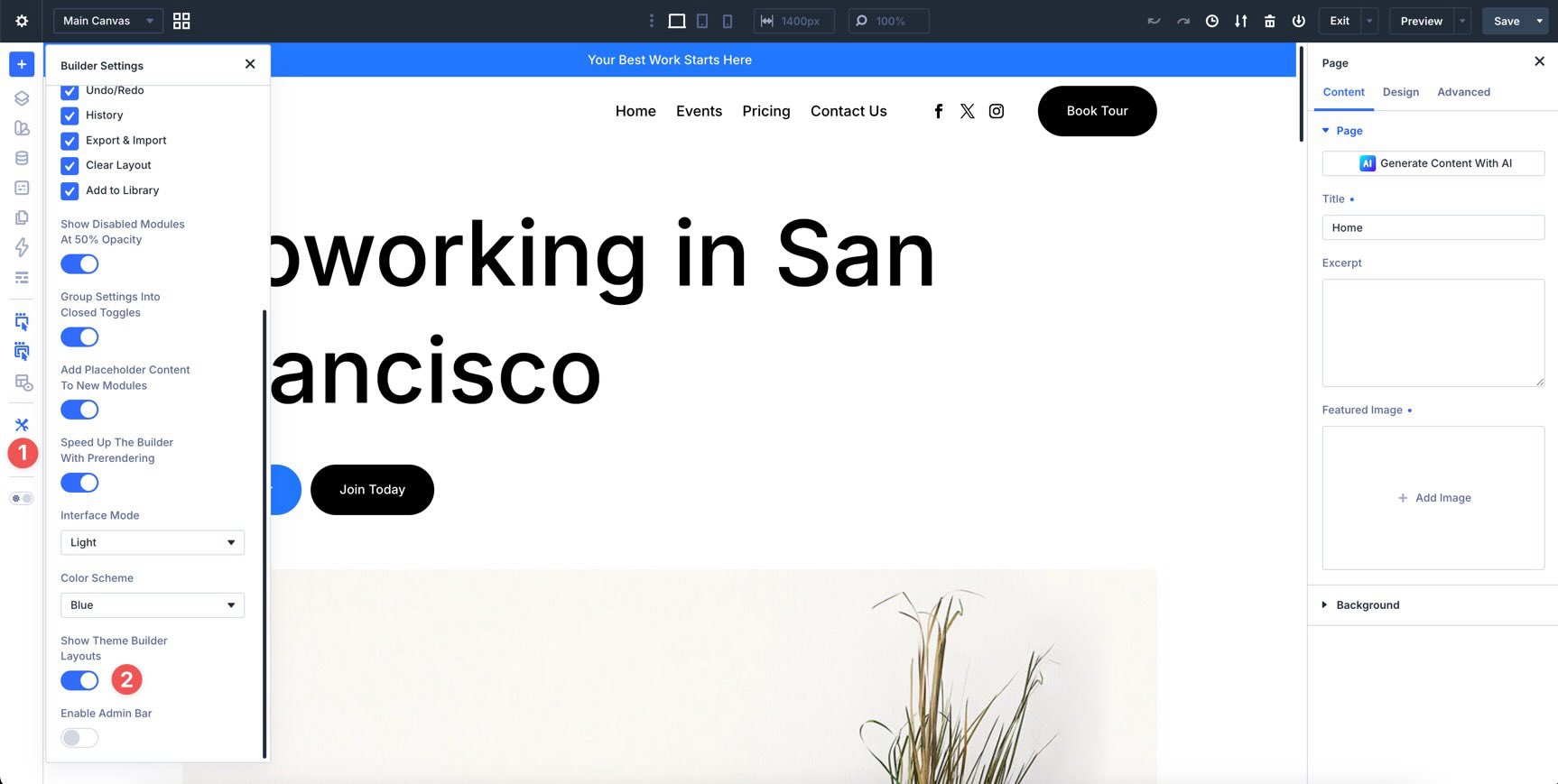
In Divi’s Page Editor, you can also edit the assigned Header and Footer. No context switching!
You do not have to start from a blank canvas, either. Divi Quick Sites are prebuilt starter sites you import: pages, Theme Builder templates, and a design system. It all arrives configured and ready to edit inside Divi. The templates land in the Theme Builder like any other, so you can open them and change whatever you want.
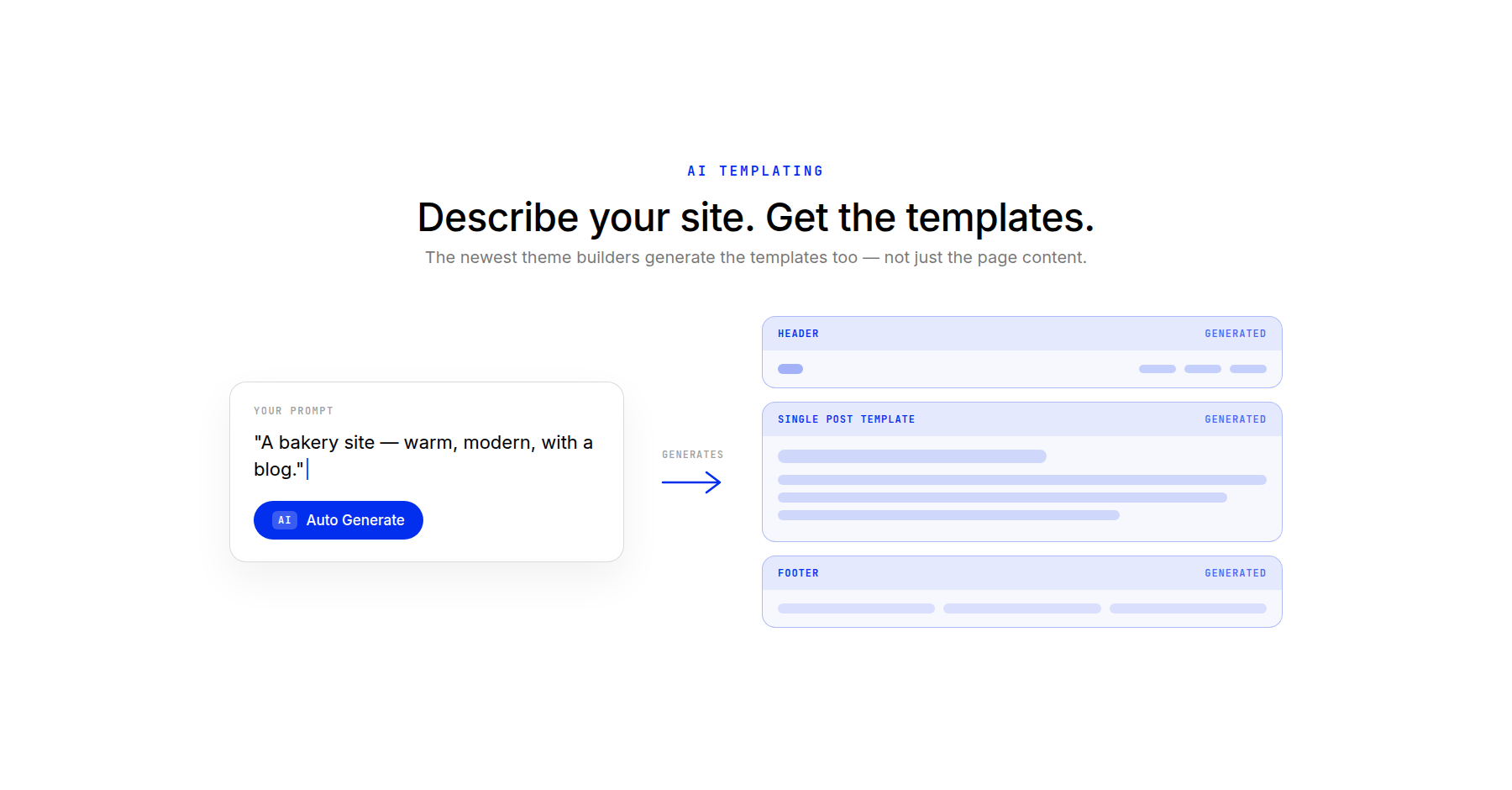
If you would rather generate something for your own brief, Divi’s AI can do that instead, templates included.
Do You Need A Theme Builder Yet?
Sooner than most people expect. Even a small brochure site has a header and a footer, and building those once in the theme builder beats rebuilding them on every page. That alone is worth the trip.
Where it stops being optional is structured content: a blog, a shop, a portfolio, a staff directory. Anything you publish more than once, and want to look consistent without designing each entry by hand.
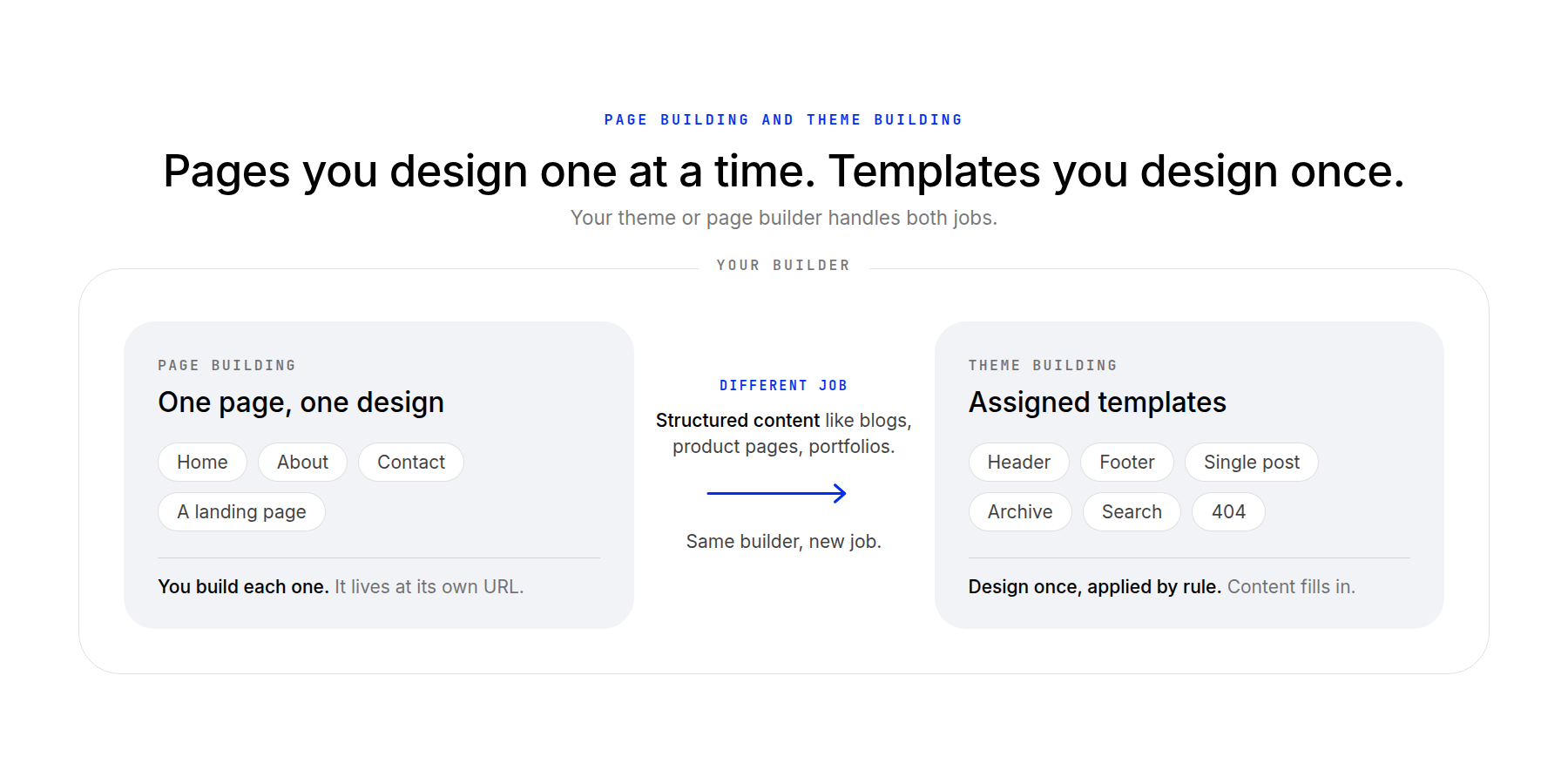
You will still page-build your homepage, your about page, and every one-off you make. Theme building just takes over the parts you would otherwise repeat.
If you are still working out the layer underneath this one, start with what a page builder is and come back.




Leave A Reply