

Divi 5 includes several features that help speed up your workflow and keep designs consistent as layouts grow more complex. Extend Attributes is one of the most practical because it lets you take styles, content, or presets from one element and apply them across other elements in just a few clicks.
That makes it especially useful during the build’s refinement stage. If you need to match spacing across repeated modules, sync button styles, clean up imported sections, or roll out a design change without manually updating each element, Extend Attributes can save significant time. It also fits naturally into Divi 5’s broader workflow without making the process feel repetitive or manual.
Here are three practical scenarios that show how it works.
What Extend Attributes Does
Extend Attributes lets you take attributes from one element and apply them across your layout in a few clicks. You can choose what to extend, whether styles, content, presets, or a combination, then define the scope, such as a parent row, parent section, or the entire page.
Unlike a basic copy-and-paste workflow, Extend Attributes gives you much more control over what actually moves. You can extend only the fields you modified, limit the change to a specific option group, and even apply attributes across different element types. That means a style decision made once can be reused more intentionally across the rest of the layout.
The more you use it, the more your workflow shifts away from manually maintaining each element individually. Instead, you make a design decision once and propagate it where it belongs.
Learn Everything About Divi 5’s Extend Attributes
Using Extend Attributes In Divi 5
To get started, right-click any styled element in the Visual Builder and select Extend Attributes.
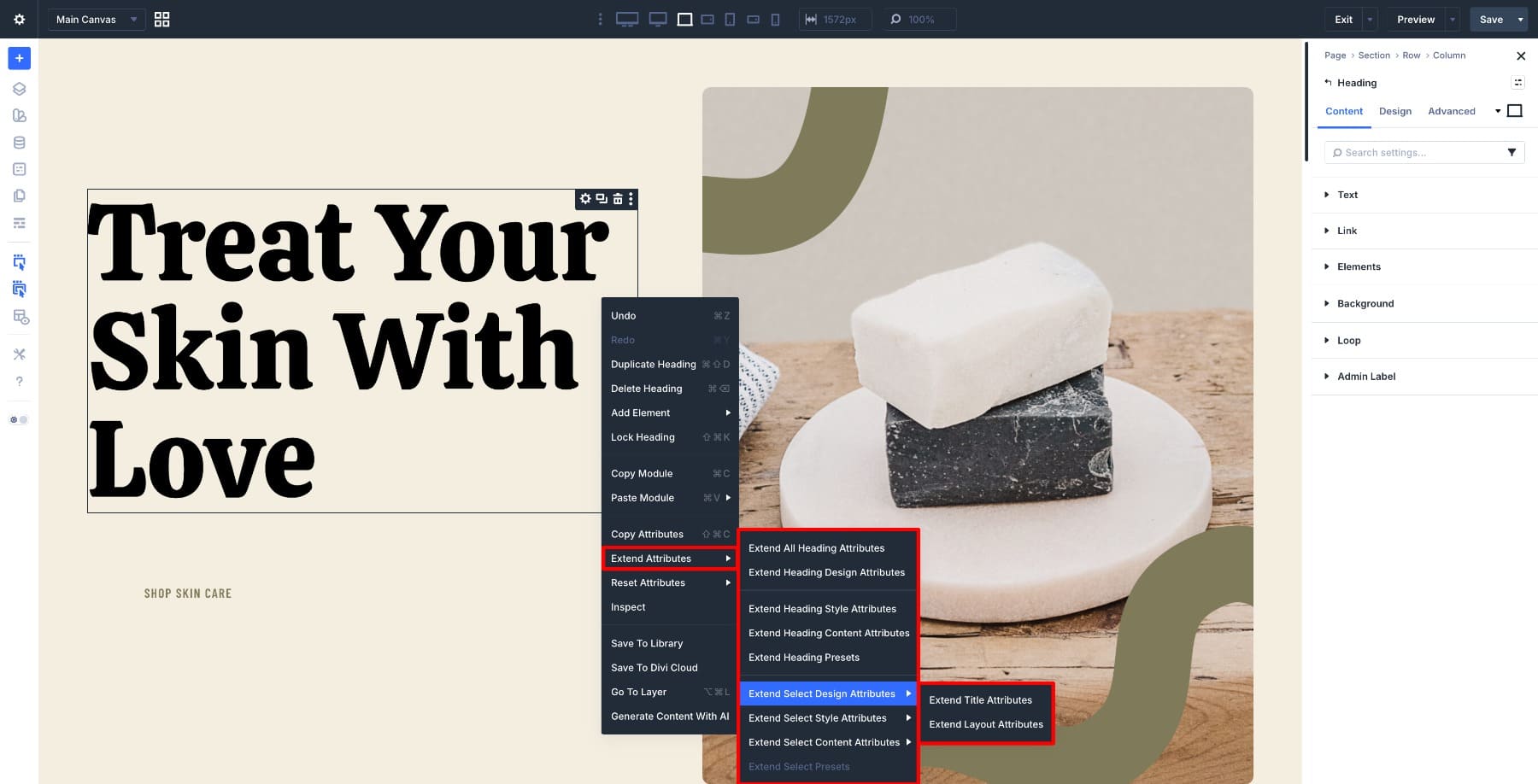
You can also right-click directly on a specific option group, such as Font or Spacing, to open the panel with that group pre-selected.
Once the panel opens, you’ll see six settings that work together to control what gets extended and where it goes.
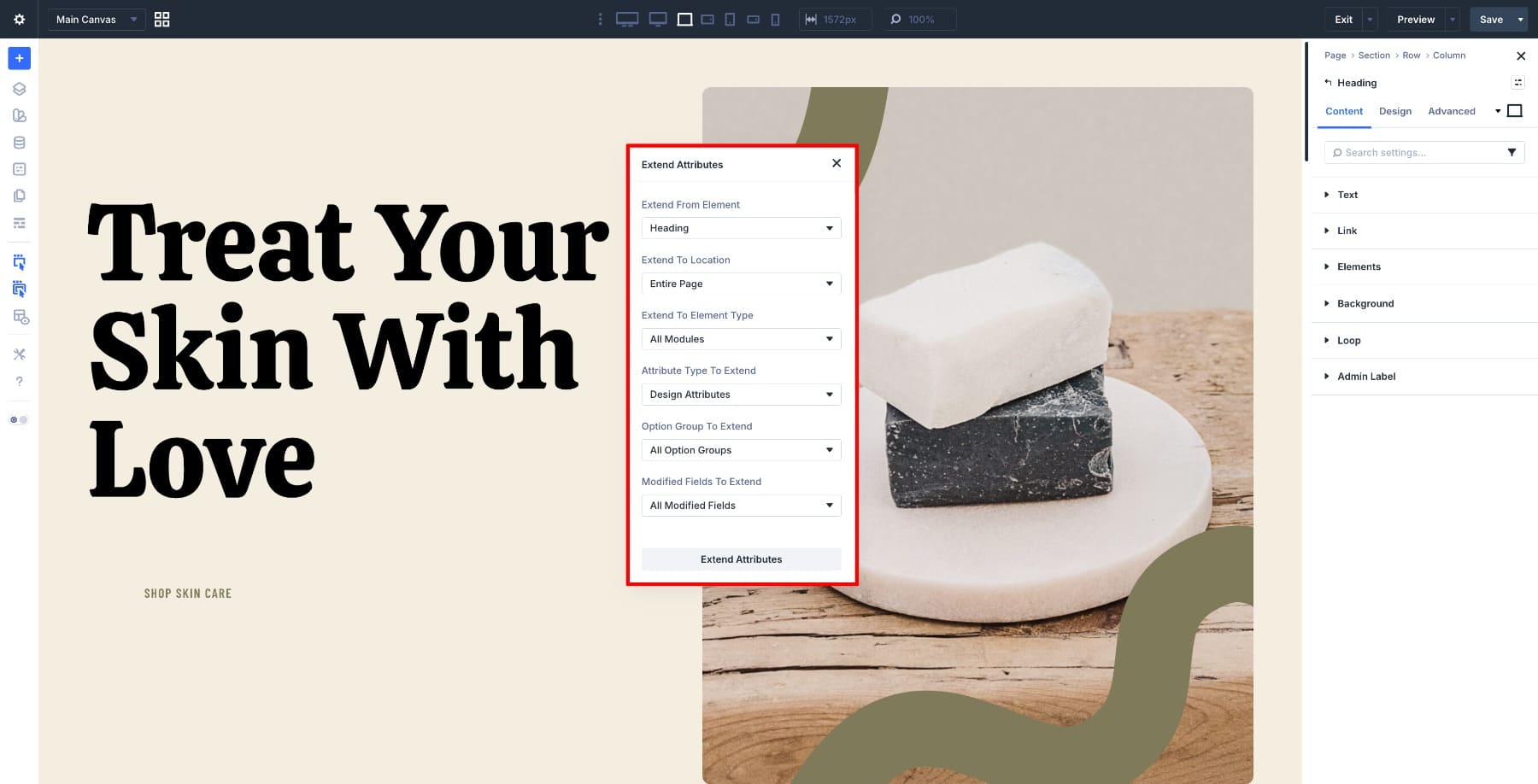
- Extend From Element is the source element from which attributes will be extended.
- Extend To Location defines the scope, such as the parent column, row, section, or entire page.
- Extend To Element Type lets you target specific element types, such as headings, text modules, buttons, people, or all modules.
- Attribute Type To Extend is where you choose whether to extend styles, content, presets, or a combination.
- Option Group To Extend narrows the action to a specific group, such as typography, spacing, border, or all option groups.
- Modified Fields To Extend lets you extend only the fields you changed, rather than all fields in the selected option group.
3 Examples Of How Extend Attributes Saves You Time
These are not edge cases. Each scenario below is the kind of cleanup or consistency work that appears on real projects all the time, and each one is exactly the kind of task Extend Attributes is built to speed up.
1. Matching All Cards In A Pricing Table At Once
Building a pricing table feels straightforward until the finishing stage. The cards may have been styled at different points during the build, and once they are side by side, the inconsistencies stand out. The same thing happens with feature comparison tables or any multi-column layout built in separate passes.
Going back through each column individually means opening separate settings panels and manually syncing backgrounds, button styles, spacing, and text colors until everything lines up. It works, but it is slow and easy to miss something.
Style one column the way you want it. Then open Extend Attributes, set the scope to Parent Row, switch Element Type to match the elements you want to target, and choose the option groups you want to extend.
To sync the background across all columns, target the column and extend the relevant background settings.
To carry over button styling, switch the Element Type to Button and extend the button-related option groups.
You can go even narrower. If you only want to push a single value, such as text color, use Modified Fields To Extend so only that field is propagated.
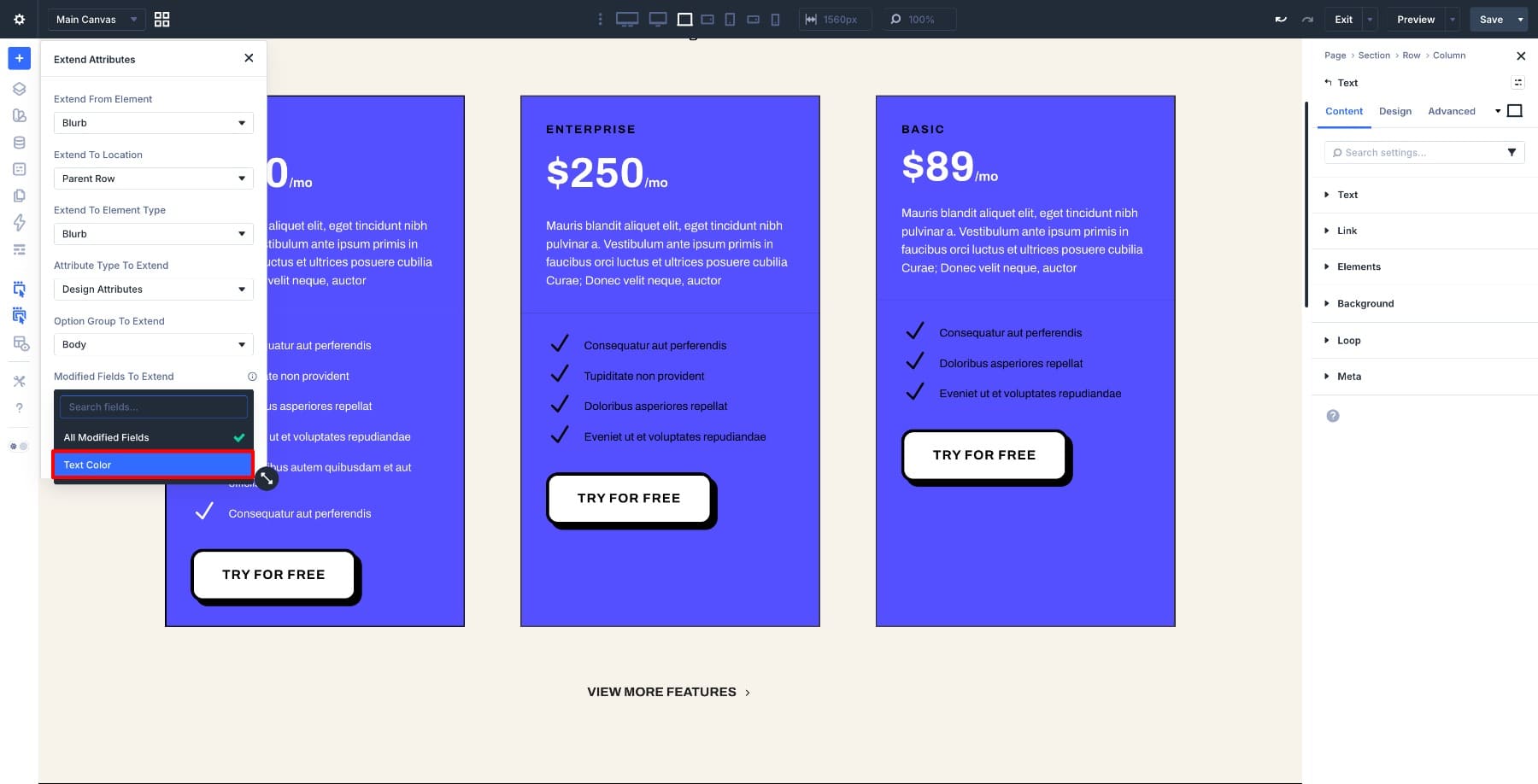
Instead of repeating the same fix across multiple modules, you make the change once and let the row catch up.
2. Syncing Person Modules Across A Team Section
Team sections are another place where small inconsistencies add up fast. You may have a large group of Person modules spread across several rows, each created at a different time during the build. By the end, border styles, image treatments, shadows, and text alignment can drift apart.
Style one Person module the way you want it.
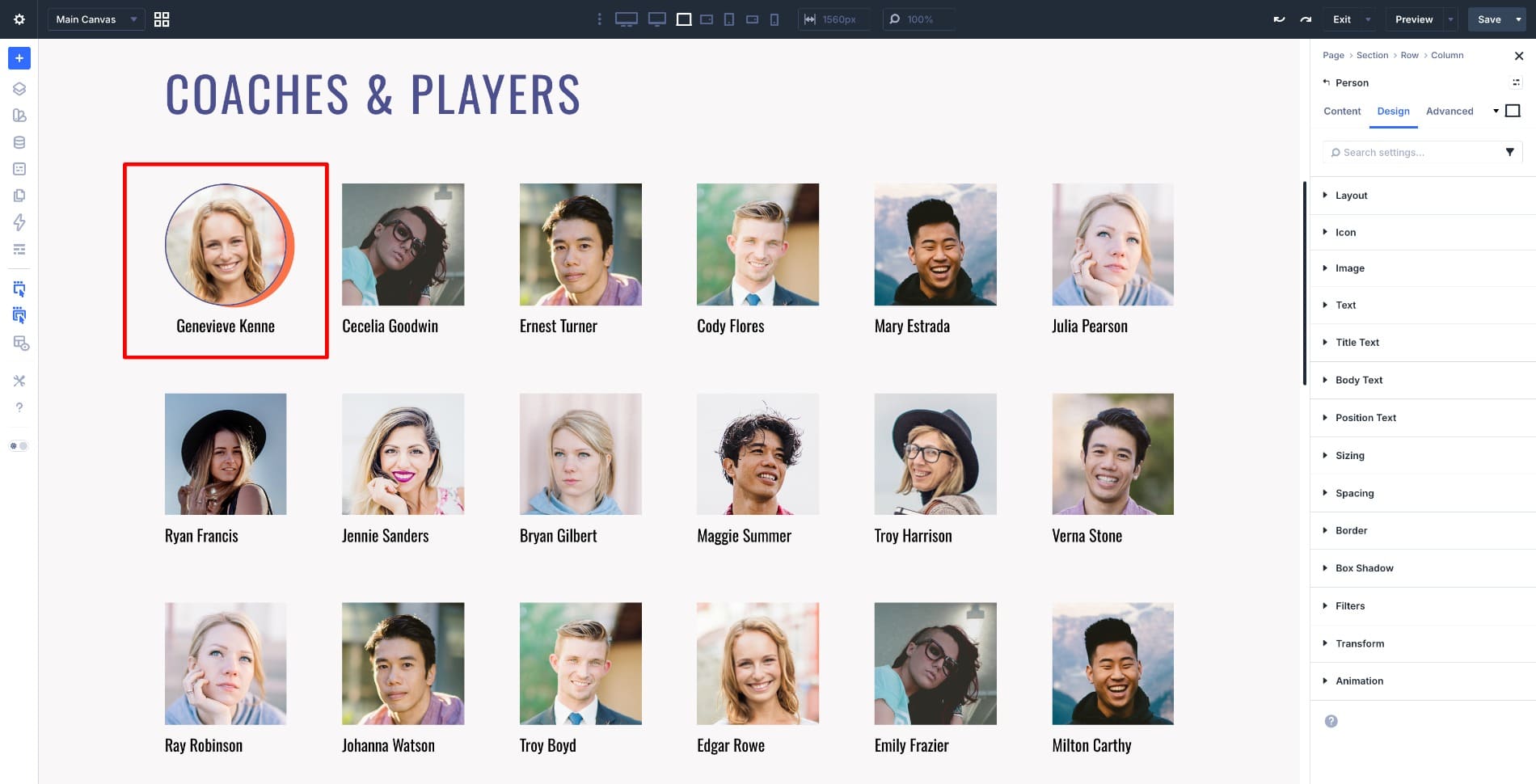
Then right-click, open Extend Attributes, set the scope to Parent Section, choose Person as the Element Type, and select the option groups you want to carry over. Every Person module in that section can pick up the same styling in one action.
That turns what could be a long cleanup pass into a quick consistency fix.
3. Rolling Out A New Testimonial Style Across An Existing Section
Testimonial sections often evolve late in a project. You may have the structure in place, the content approved, and the section working well, but then decide the cards need a stronger visual treatment to better match the rest of the page. Maybe the spacing needs tightening, the background needs more contrast, or the quote styling needs to feel more polished.
Updating each Testimonial module manually works, but it is exactly the kind of repetitive cleanup that slows everything down.
Style one testimonial card to match how you want the rest of the section to look. Then open Extend Attributes, set the scope to Parent Section, set Element Type to Testimonial, and use Modified Fields To Extend when you only want to push the fields you actually changed.
This is a fast way to apply a refined testimonial style across the full section without rebuilding cards or redoing the same edits one by one.
Extend Attributes And The Bigger Picture
The three examples above show specific use cases, but they all point to the same larger benefit. Every time you use Extend Attributes, you make one decision and apply it more deliberately across the layout. That is not just faster. It is a more scalable way to build.
A surprising amount of time on real projects is spent maintaining consistency rather than designing from scratch. Matching cards, aligning repeated modules, cleaning up imported layouts, and responding to late-stage client changes are all common tasks. They are not difficult, but they are repetitive, and repetition is where time disappears.
Extend Attributes becomes even more useful when paired with Divi 5’s broader design system. If you style an element using Design Variables and then extend those attributes across your layout, the resulting elements remain connected to those variables. Update the variable later, and the change cascades to every element that uses it.
Presets add another layer of efficiency. When you extend presets rather than use only static values, you are not just copying a look. You are reinforcing a system that can be updated later without another round of manual cleanup.
Try Extend Attributes In Divi 5 Today
Divi 5‘s Extend Attributes does not change the way you design. It changes how often you have to repeat yourself. Style one element, define the scope, and propagate that decision where it belongs. The creative work still comes from you. The repetitive setup work is what gets reduced.
When you combine Extend Attributes with Design Variables and Presets, it becomes more than a convenience feature. It becomes part of a faster, more consistent workflow that makes large layouts easier to manage and late-stage changes much easier to handle.




Leave A Reply