

You’ve clicked into a module to change some text. Now you need to edit the one next to it, so you close the settings and click into the neighboring module. Then you repeat the process for the third module in that row.
Each edit requires opening settings, making changes, closing out, and finding your next target. Divi 5 rethinks this workflow entirely, giving you more ways to move through your content that feel natural and keep your momentum going. And with the latest release, those navigation improvements now extend beyond individual elements to page management, previewing, and quicker access to page-level controls. Let’s look at what’s changed.
See Your Entire Page Structure At A Glance
Sections stack up, rows multiply, and before long, you’re scrolling through the canvas just to find one module buried three levels deep. Divi 5 tackles this with a set of visual tools in the left toolbar, each offering a different way to read your page structure without losing your place. Here’s what they do and when to use them.
The Layers Panel
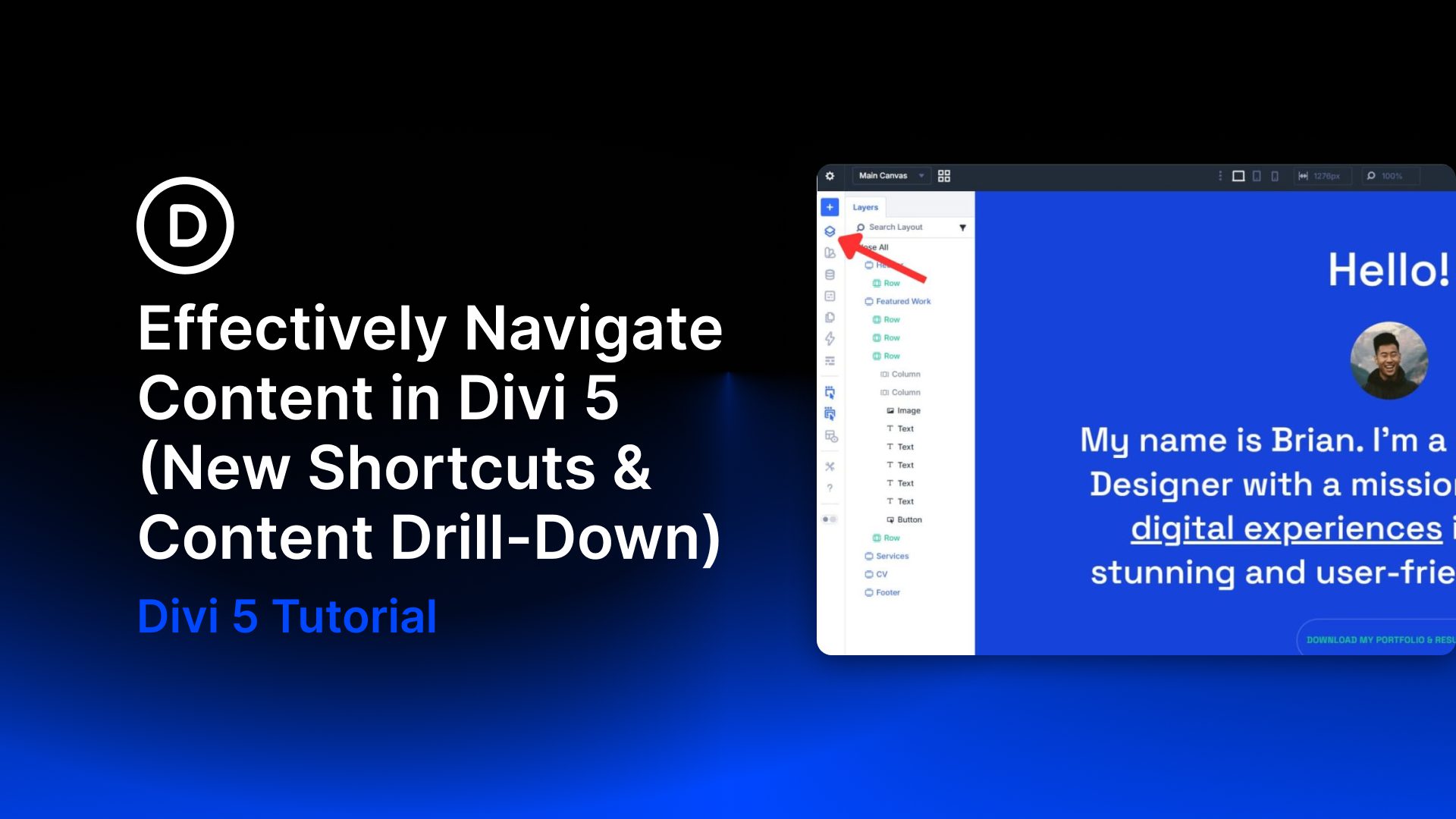
The Layers panel gives you a nested list of every element on your page. Sections, rows, columns, and modules all show up in order, indented to reflect how they sit inside each other. Open it from the left toolbar and your entire page structure appears in one panel, no scrolling through the canvas needed.

On pages with a lot going on, this pays off fast. Say you built a section with nested rows and a module group buried inside a column. Finding that module by clicking around on the canvas takes time. In the Layers panel, you spot it instantly, click it, and its settings open on the right. You didn’t have to touch the canvas at all.
You can also collapse and expand containers directly in the panel, which keeps things tidy when your list gets long. On a page with 40 or 50 modules, that alone saves a surprising amount of time.
Wireframe Mode
Wireframe mode strips your page back to its bare structure. Colors, images, fonts, and effects all disappear. What’s left is a flat outline of your sections, rows, columns, and modules, each one shown as a labeled block. Find it in the left toolbar, right next to the other navigation tools.
Pages with heavy backgrounds, overlapping elements, or full-width imagery can be hard to read quickly. You lose track of where things start and end. Switching to wireframe mode cuts out that noise so you’re looking at layout, nothing else.
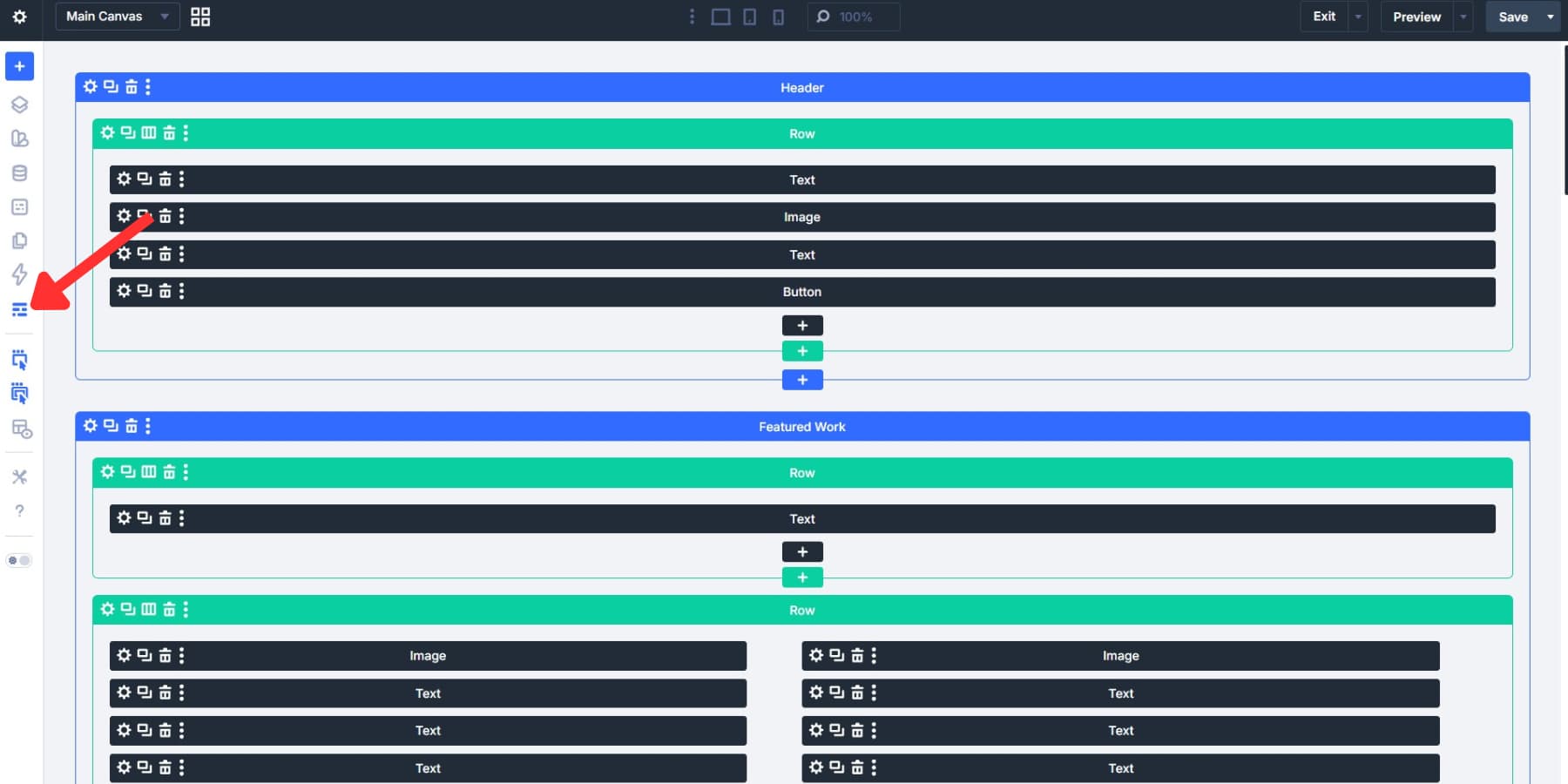
Reordering sections or catching structural problems takes a fraction of the time.
There’s also a case for using it before you style anything. Build your structure first in wireframe mode, get the hierarchy right, then start adding visuals. Decisions about content flow are clearer when there’s no finished design distracting you from them.
Divi veterans will recognize this. It carried over from Divi 4 and still does what it has always done well.
X-Ray Mode And Action Icon Modes
X-Ray mode draws a visible border around every element on your page. Sections, rows, columns, and modules all get outlined at once. It’s a fast way to see how your layout is actually stacked when backgrounds and full-width images make the boundaries hard to spot. Toggle it from the left toolbar, and it stays on until you turn it off.
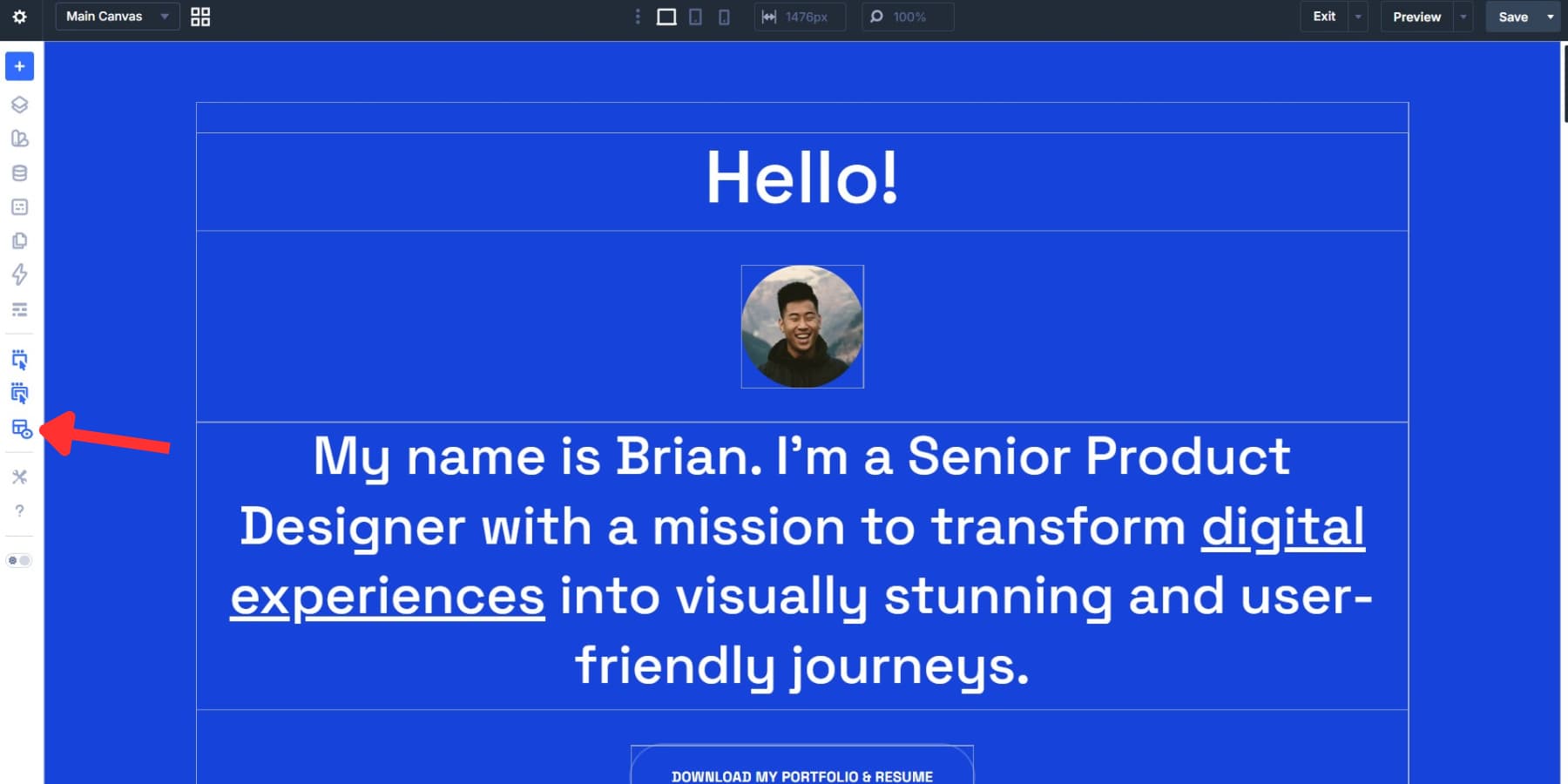
The Action Icon modes sit nearby in the same toolbar. Action Icons on Hover controls whether edit, duplicate, delete, and move icons appear when you hover over a module. Turn it on, and the controls show up right on the element. Turn it off, and the canvas stays cleaner, which some designers prefer when reviewing a layout without accidentally triggering something.

Parent Action Icons on Hover works the same way, but for parent containers, meaning sections and rows. With it on, hovering a module can also surface controls for its parent containers. That matters most when you need to act on a row and one of its child modules in the same editing pass, without clicking back and forth between them.

Moving Between Parent And Child Elements Instantly
You’re inside a module, settings open, and the parent row needs a quick adjustment. Or you’re editing a section and want to jump straight into a child module without closing out and clicking back into the canvas. Divi 5 keeps you right where you are and lets you move through the hierarchy without breaking stride. Here’s how it works.
At the top of the settings panel, a breadcrumb trail shows exactly where you are: Page, Section, Row, Column, Module. Each level is clickable. Select the Row label, and the row settings load instantly, no canvas clicking needed. It’s a small thing that saves a lot of back-and-forth on pages with deep nesting.

Content Drill Down
Going up is easy. Going down used to mean closing settings and clicking each child element in turn. The Content Drill Down menu, found at the end of the breadcrumb trail, adds the missing half of that workflow by letting you step downward into child elements from your current selection.
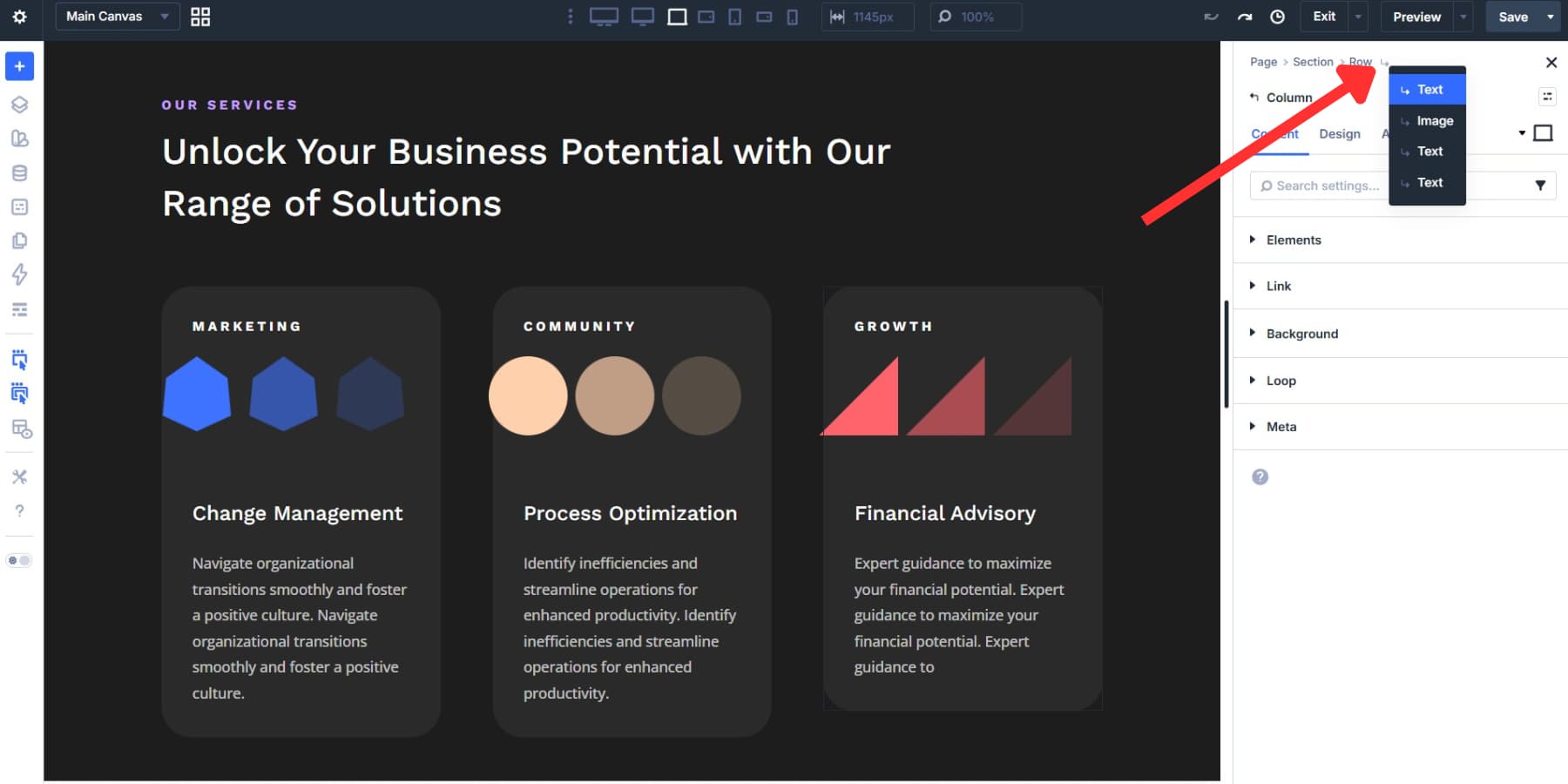
That means you can move from a section into a row, then into a column, then into a module without backing out of the settings panel. On layouts with nested structures, that saves a lot of unnecessary clicking and helps you stay oriented the whole time.
Divi 5 also lets you move through your content tree with the keyboard. Left and right travel between parents and children. Up and down move between adjacent elements inside the same container.
That’s worth calling out as more than a hidden shortcut. Combined with breadcrumbs and Content Drill Down, arrow key navigation gives you a complete way to walk your page hierarchy without relying on precise canvas clicks. On dense layouts, that can be the fastest and most accurate way to target the exact element you want.
Clicking Your Way To Faster Edits
A lot of build time disappears between edits. You find an element, open its settings, close out, scroll to the next one, and repeat. Divi 5 addresses this with a set of tools that shrink the gap between seeing something and changing it, whether you’re tweaking one module or making the same update across fifty. Here’s what each one does.
Right-click any section, row, or module in Divi 5, and a context menu appears with the actions you reach for most. Copy styles, paste styles, duplicate, delete, and add new modules. All of it, right there, without touching the settings panel.
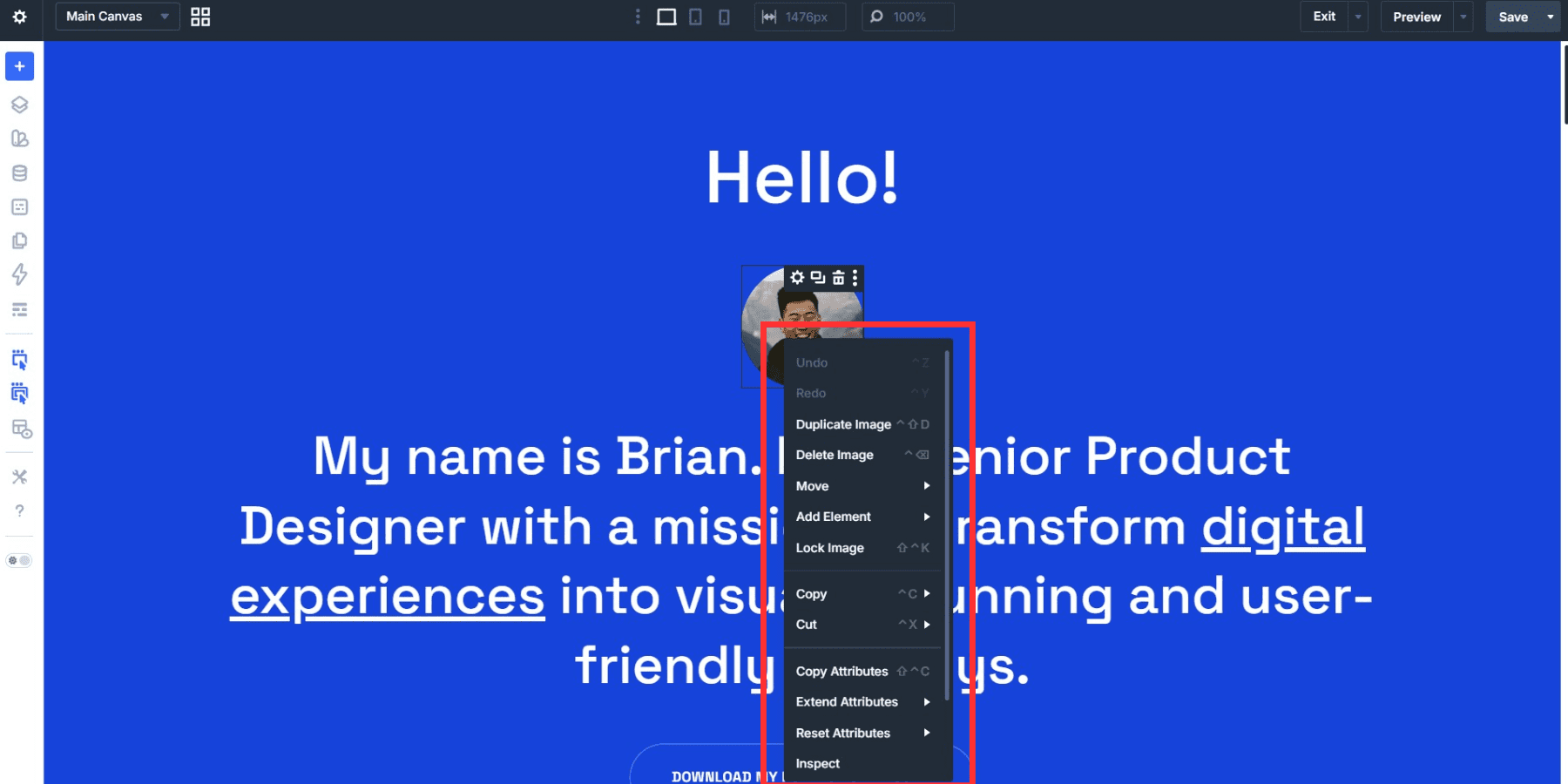
Style copying is where this becomes genuinely useful. Say you spent time getting a button module looking exactly right: custom colors, specific padding, a particular font weight. Instead of recreating that manually on every other button, you right-click, copy the style, then paste it onto each target element. Ten seconds of work rather than ten minutes.
It also reduces panel switching. Actions that used to mean opening settings, scrolling to the right option, confirming, and closing out now take a single click from the canvas. For repetitive tasks across a page with many modules, that reduction in steps adds up fast.
The menu works on all three container levels, so you’re not limited to modules. Right-clicking a row or section displays the same shortcut options for those elements, too.
Bulk Editing With The Inspector, Extend Attributes, And Find And Replace
The Quick Actions menu handles single elements well. But pages with 30 or 40 modules need a bigger approach. Divi 5 gives you three tools for that: the Inspector, Find And Replace, and Extend Attributes.
The Inspector is your audit tool. Open it on any element, and it collects design values across your selection so you can spot inconsistency faster. Colors, fonts, spacing, presets, and other modified values become easier to review when they aren’t scattered across multiple tabs. It’s a strong starting point when you’re working on a page you didn’t build or haven’t touched in months.
Find And Replace is more surgical. You already know what needs changing, say a hex color, spacing value, or font setting, and you want every instance of it replaced within a chosen scope. Right-click the field, enter your replacement, set your scope, and run it. The whole thing takes about ten seconds, even across dozens of modules.
Extend Attributes flips the direction. Instead of hunting for existing values, you’re pushing new ones out. Style one element exactly the way you want it, then extend those styles, content values, presets, or other attributes to matching elements across your page. Get one CTA button right and replicate it everywhere without having to touch each one by hand.
The three tools cover a wide range of editing scenarios, and we put together a full breakdown of when to use each one.
Getting To Places Faster With Speculative Preloading
Most of the wait time you feel in a page builder happens at the transition points. Opening the builder, switching pages, stepping back out to the front end, those seconds stack up across a full day of work. Divi 5 tackles this with Speculative Prerendering, and the payoff is easy to notice.
It works by using likely navigation intent as a signal. As a destination becomes more likely, Divi can preload or prerender it so the next view feels much faster by the time you click.
This applies to entering and exiting the builder, and also to tools like the Command Center when you’re navigating to another destination inside your site.
Speculative Prerendering is on by default. If server resource usage is a concern, you can turn it off under Builder Settings in the left sidebar.
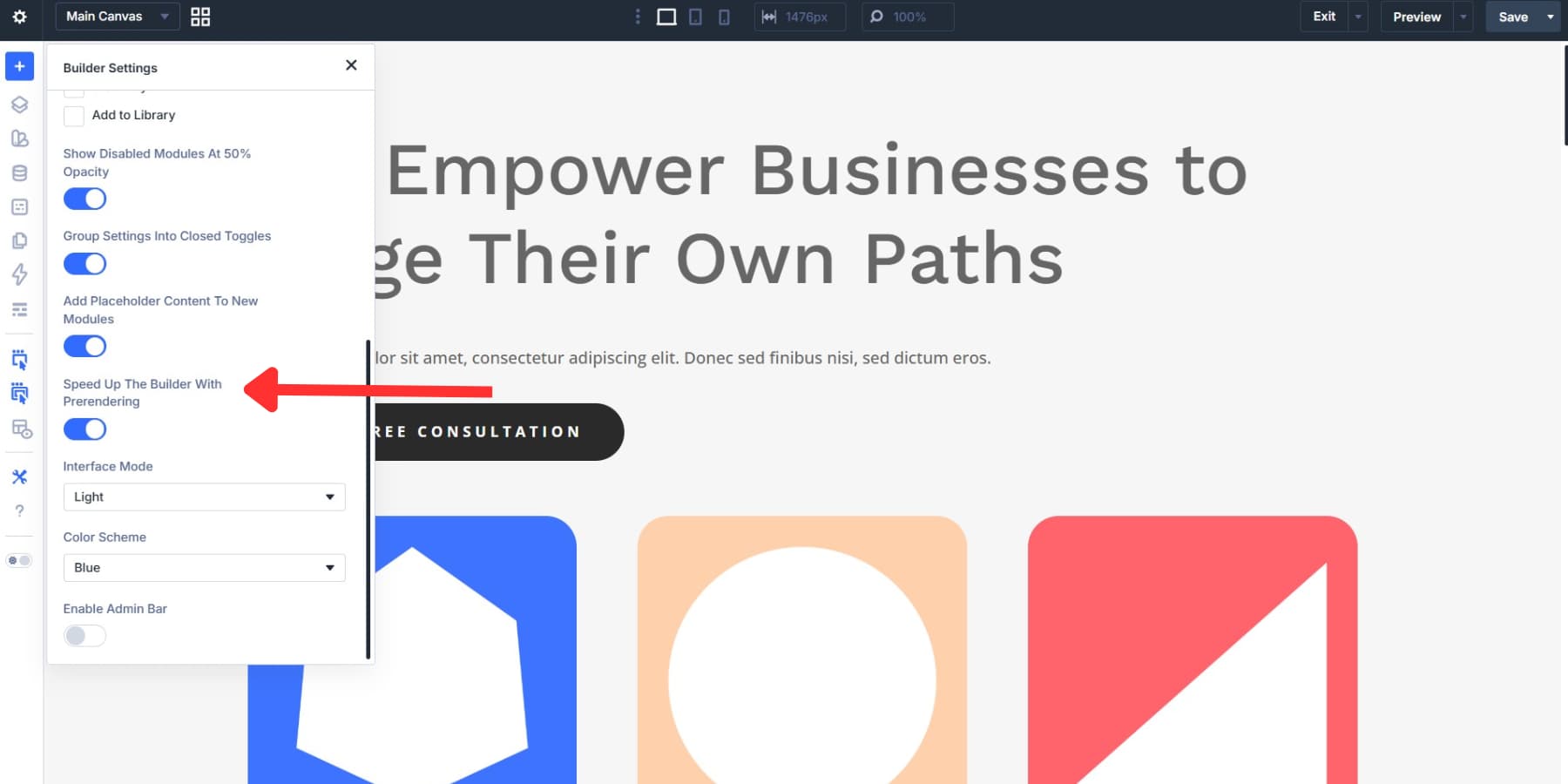
Worth knowing: the Speculation API currently works in Chromium-based browsers such as Chrome, Edge, and Opera. Safari and Firefox have not implemented it yet, so users on those browsers won’t see the benefit for now.
Settings Search And Filtering
Divi modules are packed with settings, and Settings Search & Filtering gives you a faster way to get to exactly what you need. A search bar at the top of the settings panel lets you type any keyword and jump straight to matching options, no tab switching or scrolling required.
The filter options go further. You can filter by settings type, such as colors, sizes, font families, or font weights. The modified filter is particularly useful: it shows only the settings you’ve already changed, so you get a clean view of exactly what’s been touched.
That’s worth a lot when you’re working on a layout someone else built.
Getting Things Done With Command Center
The Command Center is a keyboard-first way to do just about anything in Divi 5. Access it from the left toolbar or press Cmd+K, type a command, and run it. Adding elements, opening modals, jumping to a specific settings option group, switching view modes, and navigating to another page on your site all run through the same input.
Where it gets especially useful is command queuing. Hold Cmd+Return to stack commands without executing them yet. Type blurb > group > button *2, add a preset to the queue, then press Enter. Divi builds the entire nested structure with the preset applied in one go, no clicking through the module library or settings panel required.
The “:” operator keeps the list manageable as it grows. Type “:modal” and the results filter to modal commands only, so you get to the right one without scrolling past similar names.
Manage Pages And Preview Without Leaving The Builder
You’re mid-build, everything’s clicking, and then something at the site level needs attention. So you exit. By the time you’re back inside the builder, the momentum is gone. Divi 5 keeps more of those tasks in the same place you’re already working. Here’s what that looks like:
Introducing The Page Manager
Switching between the builder and the WordPress dashboard to manage pages breaks your concentration every time. The Page Manager fixes that by putting your page list directly inside Divi 5, accessible from the left sidebar without leaving the builder.
Adding, opening, duplicating, deleting, or jumping to another page takes a couple of clicks from that panel instead of a full trip through the dashboard.
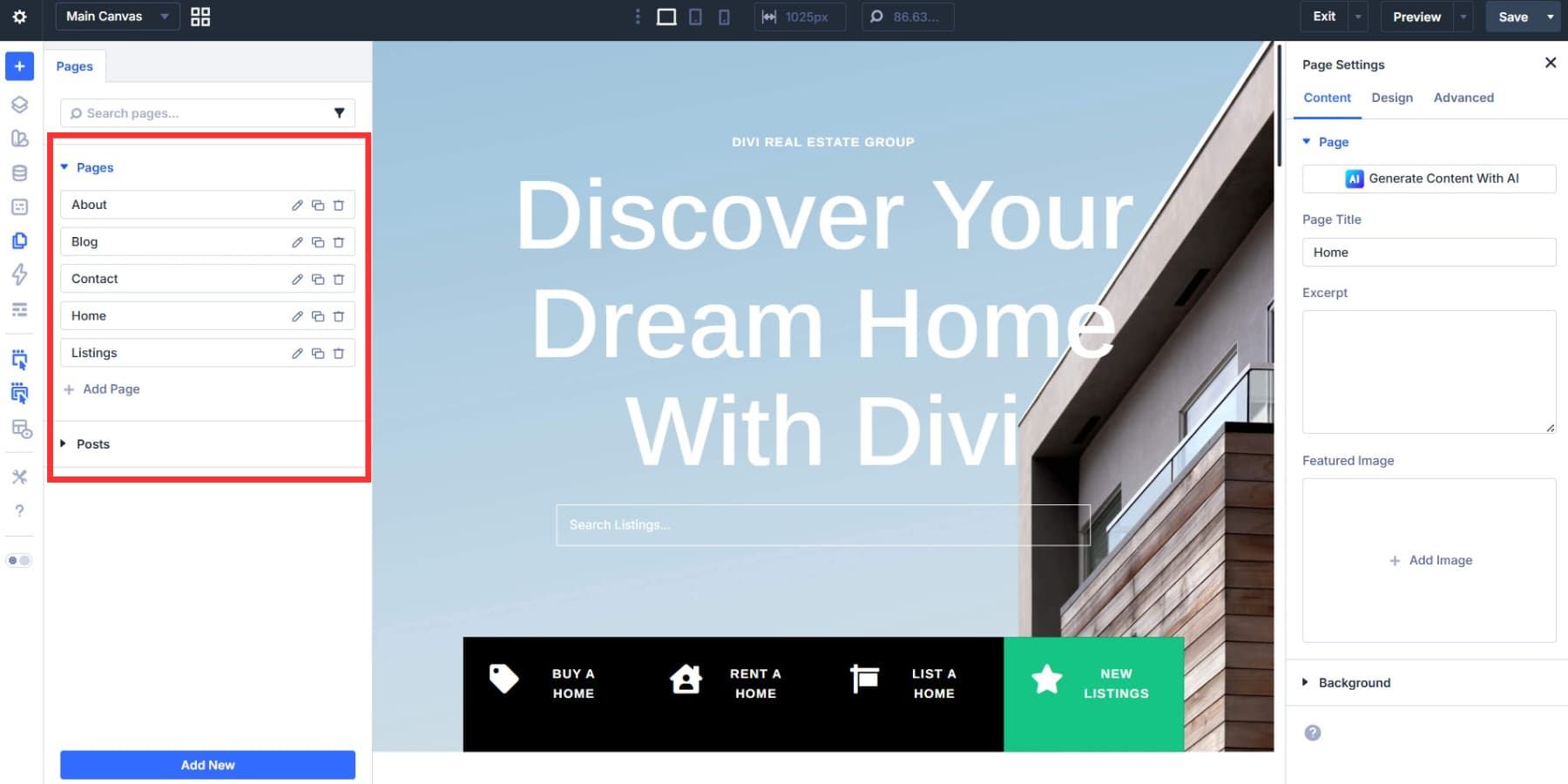
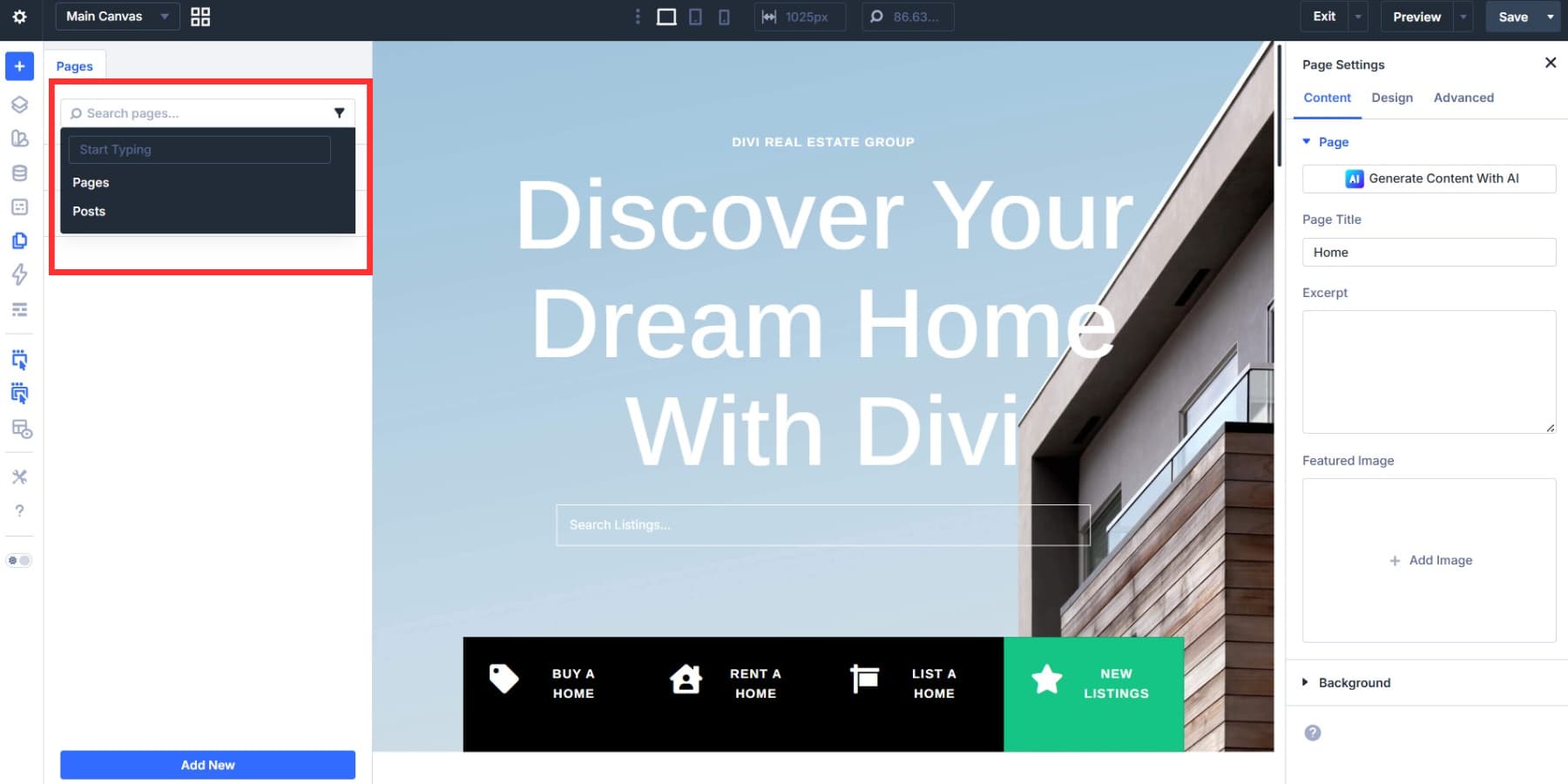
There’s also a search bar at the top, so on a site with 20 or 30 pages, you’re not scrolling through a long list to find the right one.
For anyone building multi-page sites, this matters more than it might sound. The old workflow meant losing your place, waiting for the dashboard to load, then finding your way back into the builder. Now that detour is gone. You finish a page and move straight to the next one while staying in the same working environment.
The All New Preview Mode
Most builders make you open a new tab or load a full front-end preview to see how your page actually looks without the builder UI. Divi 5’s Preview Mode skips all of that. Click Preview in the top bar, and every UI element disappears: the sidebar, the toolbar, the settings panel, all of it, leaving just your page the way a visitor would see it.

Getting back into edit mode takes a keystroke or a click. On Mac, Divi supports Cmd+Period, and the builder also exposes the equivalent shortcut in the UI for other systems. That’s fast enough to check your work after small changes without breaking your flow.
The dropdown next to Preview also lets you generate a WordPress preview link, giving you a front-end view of your page outside the builder when you want to share or inspect it that way.

New Top Bar Options
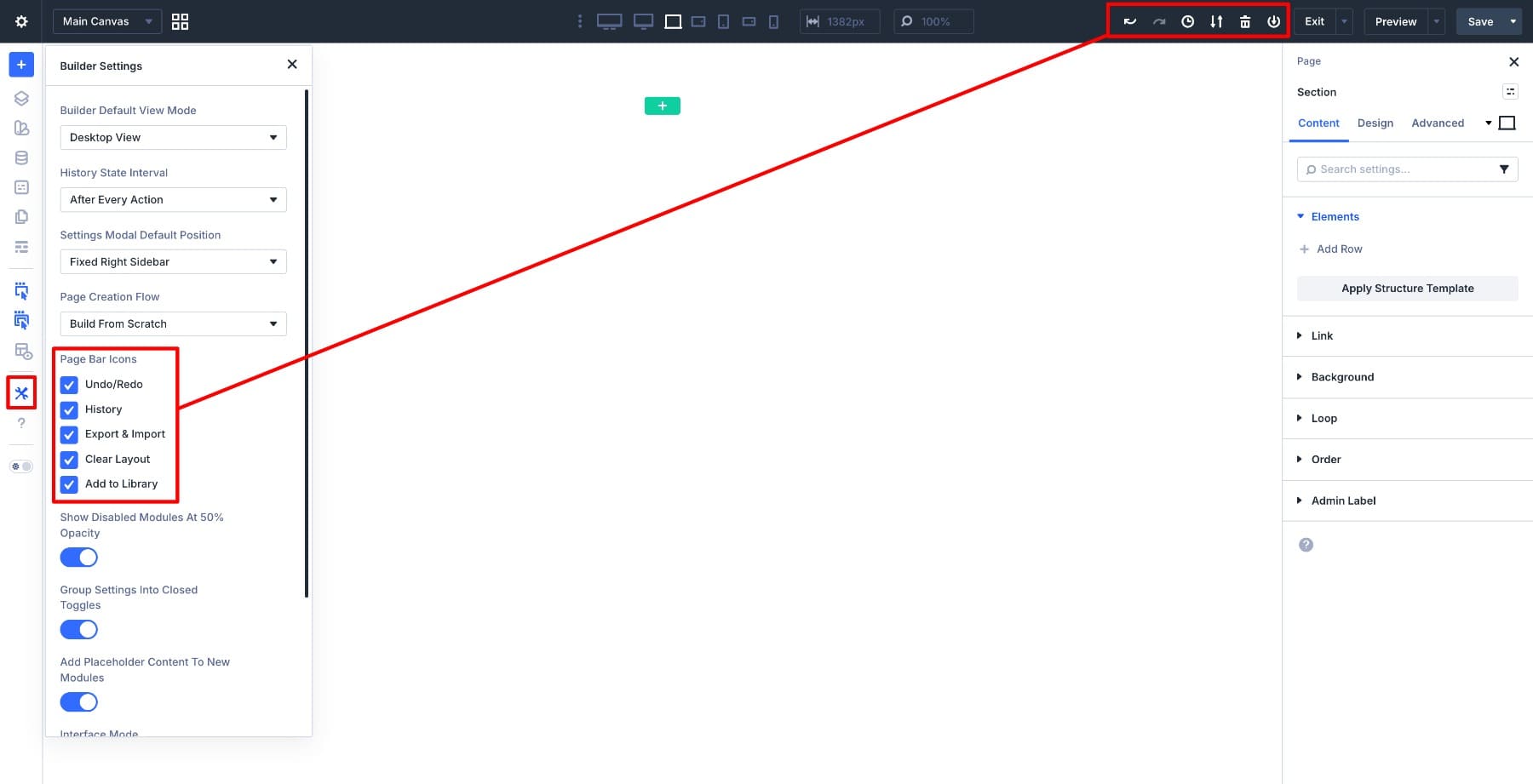
You’ll also notice that the top bar looks different. Divi 5 now uses a consolidated page-level menu that gathers page controls into one place, making those actions easier to find and reducing clutter across the interface.
That menu also exposes keyboard shortcuts for core actions, which helps you learn them naturally as you work. And if you’re bouncing between a few pages during a build, the recently opened pages list gives you a quick way back without digging through menus or reopening the dashboard.
If you prefer the older look, you’re not locked in. You can restore visible icons through the page settings panel and hide the ones you don’t use. So even this new top bar setup is built around the same idea as the rest of Divi 5’s navigation tools: faster access with less friction, but still under your control.
Start Building In Divi 5 Today!
Faster builds don’t come from working harder. They come from a builder that stops fighting you at every turn. Divi 5 cuts out the friction that used to break your concentration a dozen times per page.
In Divi 5, the Layers panel, wireframe view, X-Ray mode, breadcrumbs, Content Drill Down, and keyboard navigation all make it easier to understand your layout and move through it precisely. The Quick Actions menu, Inspector, Find And Replace, Extend Attributes, and Settings Search & Filtering make edits faster once you get where you’re going. And now, with Page Manager, Preview Mode, and the new top bar options, that same philosophy extends to the page level too.
All of it adds up to a noticeably smoother way to build. You spend less time hunting, closing panels, switching contexts, and reopening pages, and more time designing. Get Divi 5 today and see the difference on your next project.







Leave A Reply