

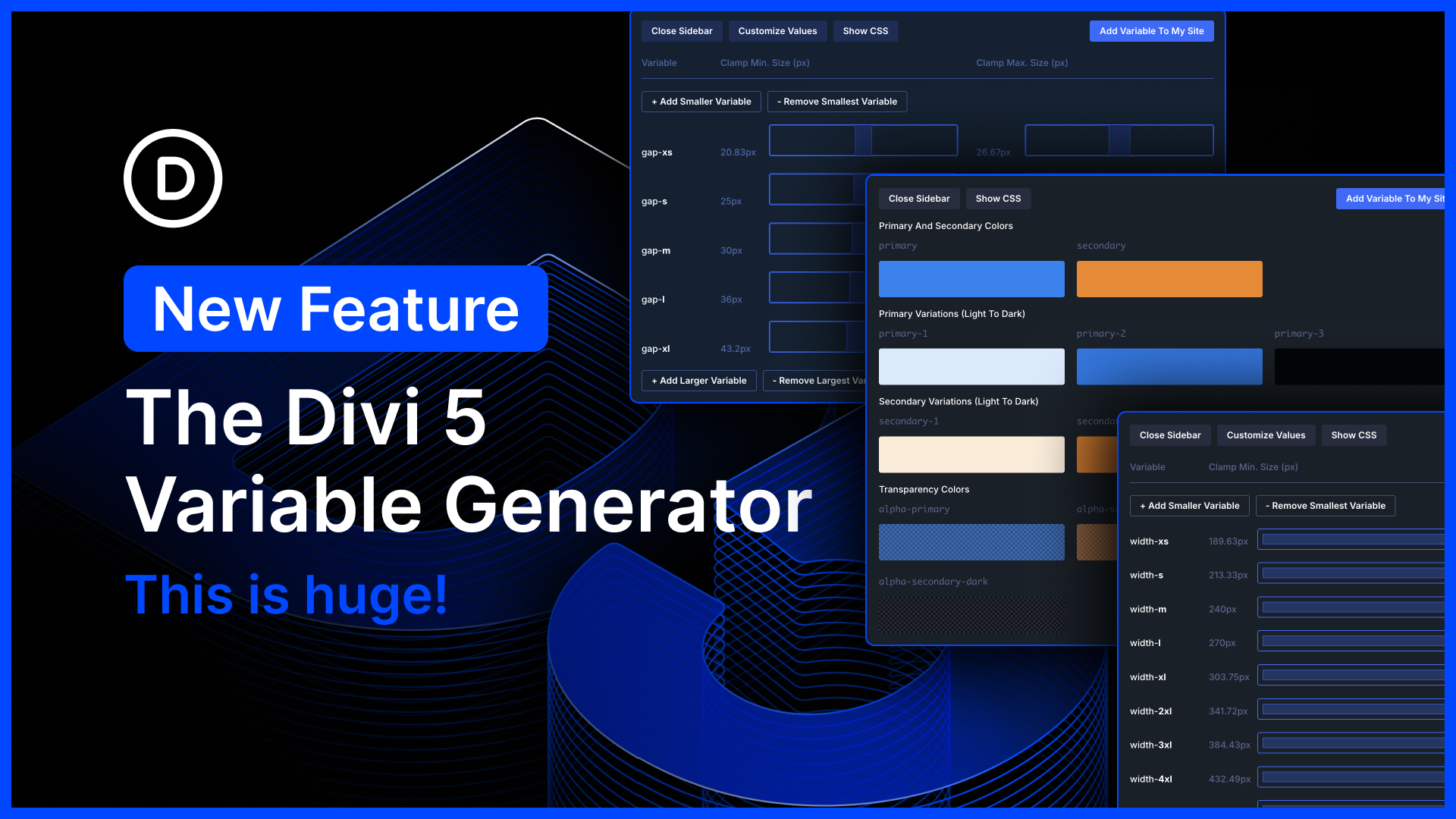
I am excited to introduce the Variable Generator for Divi 5.
At the core of Divi 5’s design system are variables and presets. With advanced units, you can create fluid, responsive sizing systems using clamp(). With relative colors, you can create mathematically beautiful color systems using HSL. When you set everything up correctly, it makes managing your website so much easier.
But, setting up all your color and number variables takes time, and learning clamp() can be intimidating.
That’s where the new variable generator comes in, allowing you to spin up an entire sizing and color variable system automatically in a few clicks. It’s easy for beginners because Divi does the work for you, but it also offers all the controls you could ever ask for, allowing CSS experts to fully customize their systems.
There’s much to explore, so let me jump into the builder and give you the full tour. 👇
Generate A Stunning Relative Color Palette
The Divi 5 color palette is global by default. Instead of creating a static color palette, each color you add is a color variable. When you use those color variables throughout your website, you can update each color once in the variable manager, and the changes apply to your entire site. That’s the beauty of variables.
What’s more, you can create color relationships using Divi’s relative color system. Instead of manually creating a set of light-to-dark shades of your primary color, you can create a relative color based on it and adjust its lightness. When you adjust the primary color, all related colors are automatically updated. The color scheme of your entire website can be adjusted based on a single color variable.
It’s simply amazing, and now, Divi does all the hard work for you!
Using The Color Palette Generator
In the variable manager, hover over the color group and click the “Generate Color Palette Variables” button to open the variable generator.
Divi takes your website’s primary color and automatically generates a color system relative to it. You can tweak the secondary color relationship, choose how many color shades you want, and you’re done!
Once saved, the variable generator will update your website’s base colors (primary, secondary, body text, header text, and link) and generate a spectrum of light-to-dark and transparent colors based on your primary and secondary colors.
The beauty of these color variables is that every variable is relative to the primary color, and when you change the primary color, everything else follows suit.
Generate An Entire Fluid Sizing System
The color palette generator is just the tip of the iceberg. The variable generator goes deep!
With a few clicks, the variable generator will create an entire fluid and responsive sizing system, including sizing variables for text size, spacing, gap, width, border radius, and more. The system Divi generates will work great out of the box, but you can also tweak every aspect.
Using The Sizing Variable Generator
In the variable manager, hover over the numbers group and click the “Generate Fluid Sizing Variables” button to open the variable generator.
Next, choose your desired variable type from the variable type menu. The sizing variable generator can generate the following systems:
- Font Size – Font size variables can be used to create headings and body text that scales with screen size.
- Spacing – Spacing variables can be used for margin and padding settings, creating spacing that scales with screen size.
- Gap – Gap variables can be applied to the horizontal and vertical gap settings of your flex containers to create varying gap sizing that scales with screen size.
- Radius – Radius variables can be applied to border-radius settings to create rounded corners that get more or less rounded based on the screen size.
- Border Width – Border width variables can be applied to border width settings to create widths and scale with screen size.
- Clamp (Generic) – If you want to generate your own generic clamp-based variables, the clamp variable generator makes it simple.
- Size (Generic) – Generate generic sizing variables for anything not covered by the overarching systems mentioned above.
For beginners, you don’t need to worry about configuring anything. Just choose how many variables you want, and then click the “Add Variables To My Site” button.
The Beauty Of Fluid And Responsive Clamp Variables
By default, all sizing variables generated by Divi use clamp to create sizes that adapt to all screen sizes. You don’t need to use responsive editing at all.
The preferred size scales with the viewport size, clamped to minimum and maximum values to prevent things from getting too big or too small.
For the Pros: Customize Everything!
The default sizing systems that Divi generates work great out of the box, but if you want control, you have it.
Open the customization sidebar to reveal all the settings you could ever ask for.
- Choose from different scaling functions.
- Define your website’s minimum and maximum width to tailor clamp functions to your website.
- Customizing each individual variable manually.
- Build static non-clamp-based variable systems.
- Change variable suffixes and prefixes.
Try Divi 5 Today
Complete site editing is now available for Divi 5. Give it a try and let us know your thoughts.
We rebuilt Divi from the ground up and packed it full of dozens of your most requested features. Forget everything you thought you knew about Divi, because Divi 5 is an entirely different beast.
Have Your Tried Nested Option Presets?
In case you missed it, we recently released Nested Option Presets.
Divi 5’s preset system is the most powerful class-based design system of any WordPress page builder. In fact, Divi 5 presets encapsulate far more than just CSS; they are stackable, nestable global components.
Additionally, Divi offers the unique concept of option presets that allow you to create shared styles for subcomponents and option types, and to nest them within broader element presets. It’s almost like using a CSS preprocessor and importing mixins; it just makes your website design system so much easier to manage.
Now, presets are even more powerful, since you can apply option presets to nested options and nest option presets inside other option presets. 🤯 Sub-options that previously didn’t support presets, such as Call To Action > Button > Border, no longer have that limitation.
Watch this video for all the details. 👇
More Divi 5 Updates Are On The Way
The features keep coming, and we aren’t slowing down anytime soon!
If you are enjoying these updates, do us a huge favor and let us know by liking this video and leaving a comment. It means a lot to us to see you cheering Divi on, and it’s essential to feed the algorithm and spread the word.
Don’t forget to follow us on YouTube and subscribe to the Divi newsletter so you never miss an update. I’ll see you soon for another Divi 5 feature announcement, which I promise will be right around the corner. 😁











This is a huge step forward, thanks to the developers and designers! I also second the requirement for a Headings variable (H1, H2, etc.). It would be good to see this essential element in 2026 😉
The color palette variable generator is fantastic, but there’s one slight annoyance for me. I have created a palette using my primary color, adjusted the Secondary Color Hue Offset slider to match a color element in a client’s logo, before adding the generated outcomes to my color variables. Fabulous! However, when I re-open the color palette generator, it defaults back to the generated color settings from the primary color. I know it is a generator, but I enjoy being presented with the text box examples at the bottom of the generator window, and like to refer to them for client meetings. I would like to see the generator reflect the “inserted” color variables used on the site. Perhaps this could be achieved with a toggle on the window, i.e. view the palette as locked away in the color variables, and return settings to default (and vice versa). Or perhaps, the ability to access the text box color examples that you present at the bottom of the generator window, with those text boxes reflecting their color variables set – and perhaps accessed from a Text and Headings module?
A final comment. I struggled to match my client’s logo color with the secondary color when adjusting the Secondary Color Hue Offset slider. I can of course access the logo color HEX codes, but I have no way to dial that in to the variables generator when selecting a secondary color. Have I missed something, or is there a workaround?
This is absolutely awesome!! I’d also love to see a history (saved by date and type) every time we save our variables. And, the ability to revert back to a previous state of the history (of the variables by date and type). I could easily see someone making a change and saying, oh no. I want to go back to what I had. So if you could add the ability for us to see a history of our changes that we make and save for the variables, etc., and allow us to revert back to previously saved settings, that would be great. Do you think this is possible, or can we do this now? Please let us know.
Thanks so much for the kind words and thoughtful suggestion! A version history for saved Variables, organized by date and type, with the ability to restore a previous state, would be a really helpful safety net.
This isn’t available as a built-in feature right now, but it’s a great idea. We’ve created a feature request for this and shared it with the team. 👍
Import/export could use some love too, on Presets and Variables, Need to overwrite existing variables/presets, or at least ask. A way to mass delete would be good too.
Thanks. 🙂 I’ll look forward to seeing it soon. *cheers*
I think this feature will help with creating highend sites. It would be cool to see an elite level divi designed website (maybe a tutorial) especially with all the latest sites using claude, 3d spline, or and immersive parallax options, or click funnel type marketing features. Wen can we have it all? Good work 🤙
We love that idea. A high-end Divi showcase or tutorial using modern design techniques, parallax, advanced interactions, would be a great way to show what’s possible with Divi 5.
We’ll pass this suggestion along to the team. Appreciate the kind words and the creative feedback! 😊
Love it. Could be even enhanced further by adding the Lightness Offset of HSL to the options for Color Variables. On one of my sites I have Primary Color and Secondary Color being based on Primary with H -15, S 100 and L 55. To emulate this color scheme I generated the Color Variables then edited the Secondary Color accordingly which then propagated across the other color variables that were base on the Secondary Color.
I second the headings observation by JPC.
I love the color palette generator, but in reality we have to use the client’s brand colors, so we need to be able to manually set the secondary and tertiary colors.
Overall this is a fantastic update and saves a lot of manual variable creating.
Thank you!
agreed – almost always we need to use the client’s pre-existing brand colors usually 2-3 colors. Somewhere I thought I saw Nick comment (like on Facebook post about this blog post) that he had incorporated that option – but I don’t know how to do it. An option to create a color pallete from 1-4 colors would be awesome 0 we input hex codes
Bring your multiple brand colors and use the “Color Scale” and “Color Harmony” generators. It’s not one shot like the whole Color Palette generator, but in this case, it lets you generate everything you need from your specified colors.
This looks awesome, but a single place to specify the heading H1-H6 in a single place is still missing. At the moment you need to
– create a preset for headings in the text module
– 6 presets for heading in the heading module and titles in composed modules
– and you can’t specify details for heading inside the body of composed modules
There needs to be a single heading group preset for all H1-H6 heading levels (like for the text module) and that should be used everywhere:
– for headings in the body of the text module
– for headings in the body of composed modules (the heading group is missing there)
– for titles in composed modules, with a drop down to choose the heading level that should be used
– for the heading in the heading module, with a drop down to choose the heading level that should be used
Thanks
Thank you for the new updates. I fully agree that there should be one central place where all headings, padding, site widths, and essentially all design settings can be managed. This would prevent us from having to create presets module by module. I have suggested this multiple times already.
Regarding the menu, I have also mentioned several times that this new menu is not a suitable solution for larger websites with multiple levels of sub and sub-sub menus.
In addition, Divi should first focus on fixing bugs in the current system and on improving and modernizing the existing modules. This should be a priority. An improved button module and a more advanced contact module are especially essential.
Thank you for the detailed feedback! 👍
We agree that having a more centralized place to manage global design settings like headings, spacing, site widths, and other foundational styles would make Divi much easier to manage at scale.
We’ve shared this feedback with the team. 😊