

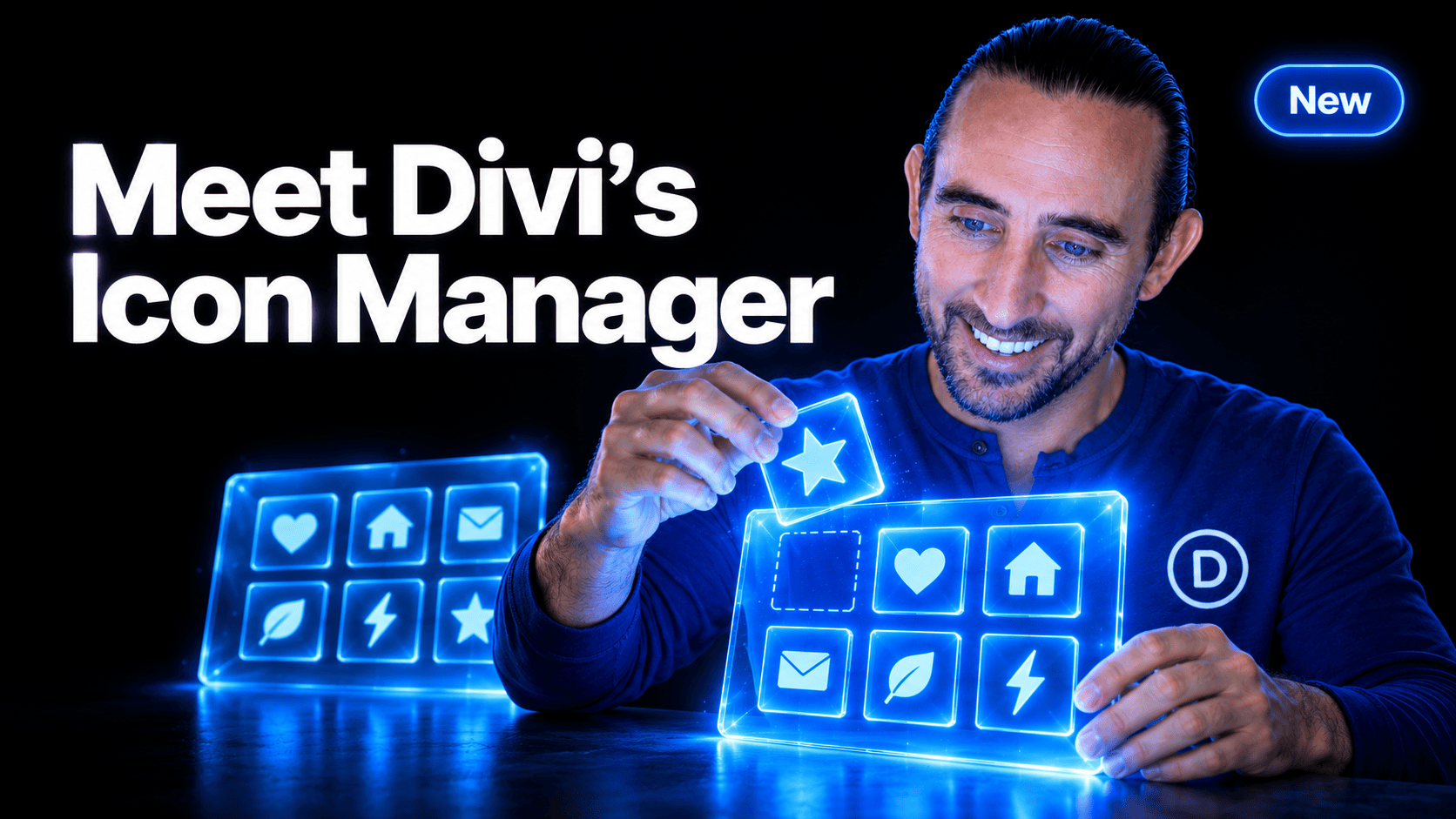
I’m excited to introduce the Icon Manager for Divi 5, a central place to import your own icons, organize them into collections, and choose which collections appear while you build. 🎉
Bring in custom SVGs or an icon font, create a collection for your client’s brand, and use those icons directly from Divi’s new icon picker. You can also organize the included icons into collections that fit your website.
Let’s take a look at how it works. 👇
Import Custom SVGs And Icon Fonts
The Icon Manager brings your own artwork into the same selection workflow as Divi’s included icons.
Click Import Icons to open the Add Icons window, then use Choose Icon Files to select your files. Choose an existing Collection or enter a Collection Name to create a new one, then click Import.
Add A Set Of SVG Icons
Drag as many SVG files as you want into the icon uploader to upload them all at once into a new or existing collection.
Imagine building a website for a landscaping company with custom symbols for planting, irrigation, and garden maintenance. Import those SVGs into a “Services” collection and select them as you build the company’s service sections.
Bring In An Icon Font
You can also import WOFF2, WOFF, TTF, or OTF icon fonts. Divi reads its character mappings and adds the available icons to your collection.
An optional Name Mapping File lets you supply readable names and search terms through a JSON file. That makes a large custom font easier to search when its built-in glyph names are less descriptive.
You can upload multiple SVGs and icon fonts at once!
Organize Collections Around Your Website
Icons are organized into collections.
Click New Collection, enter a name, then click Create to build a collection. Collections allow you to organize icons into groups, making them easier to find in the icon picker.
A collection can contain both SVG icons and font icons. You could group arrows, contact symbols, and custom service illustrations under “Brand Essentials,” even when they come from different sources.
Select an icon to reveal its available actions. Use Shift, Ctrl, or Command while selecting to work with multiple icons, then choose Move to place them in another collection. These actions are also available from an icon’s right-click menu.
Use Rename to update a collection’s name, Remove to take selected icons out of it, or Delete to remove a custom collection.
Keep Icon Pickers Focused
Each collection has a toggle that controls whether its icons appear in pickers across the website.
On a client site, you could enable a curated collection of approved icons and turn off collections the client does not need. That gives everyone a more focused selection when adding new content. Turning off a collection preserves icons already used on pages. Removing icons from a collection or deleting a custom collection also preserves those existing uses and the underlying Media Library files.
Take Icon Collections Between Websites
The Icon Manager includes an Import & Export Icon Collections control in its header.
Open it, select the collections you want to export, and use Export Icon Collections. The export includes their assignments and referenced custom icon files, including font name mappings when present.
On another website, open the same control and use Import Icon Collections to bring them into that site’s library.
If you build websites for multiple locations of the same business, you could prepare a single branded collection and transfer it to each site without having to upload every SVG or font again.
Your Icons, Inside Divi’s Icon Picker
The updated icon field displays a compact preview of your selected icon. Click it to open a dropdown with an icon grid, search, and collection filters.
Choose All Collections to browse everything enabled, or narrow the selection to a specific collection. The filter groups Theme Icons, Custom Icons, and Styles, making it easier to find the right set while editing.
When you need to organize your library or add something new, click Icon Manager at the bottom of the picker.
Manage Icons With The Divi AI Agent
The Divi AI Agent gains tools to search for icons and manage collections.
Ask it to create or rename a collection, turn a collection on or off, Import supported attached files or existing Media Library files, or move or remove icons. It can also delete custom collections.
For example, attach a set of service SVGs and ask, “Import these icons into a new collection called Services.” Or ask the agent to find icons in an existing collection before choosing which ones to use.
Imports request confirmation, as do moves, removals, and collection deletions.
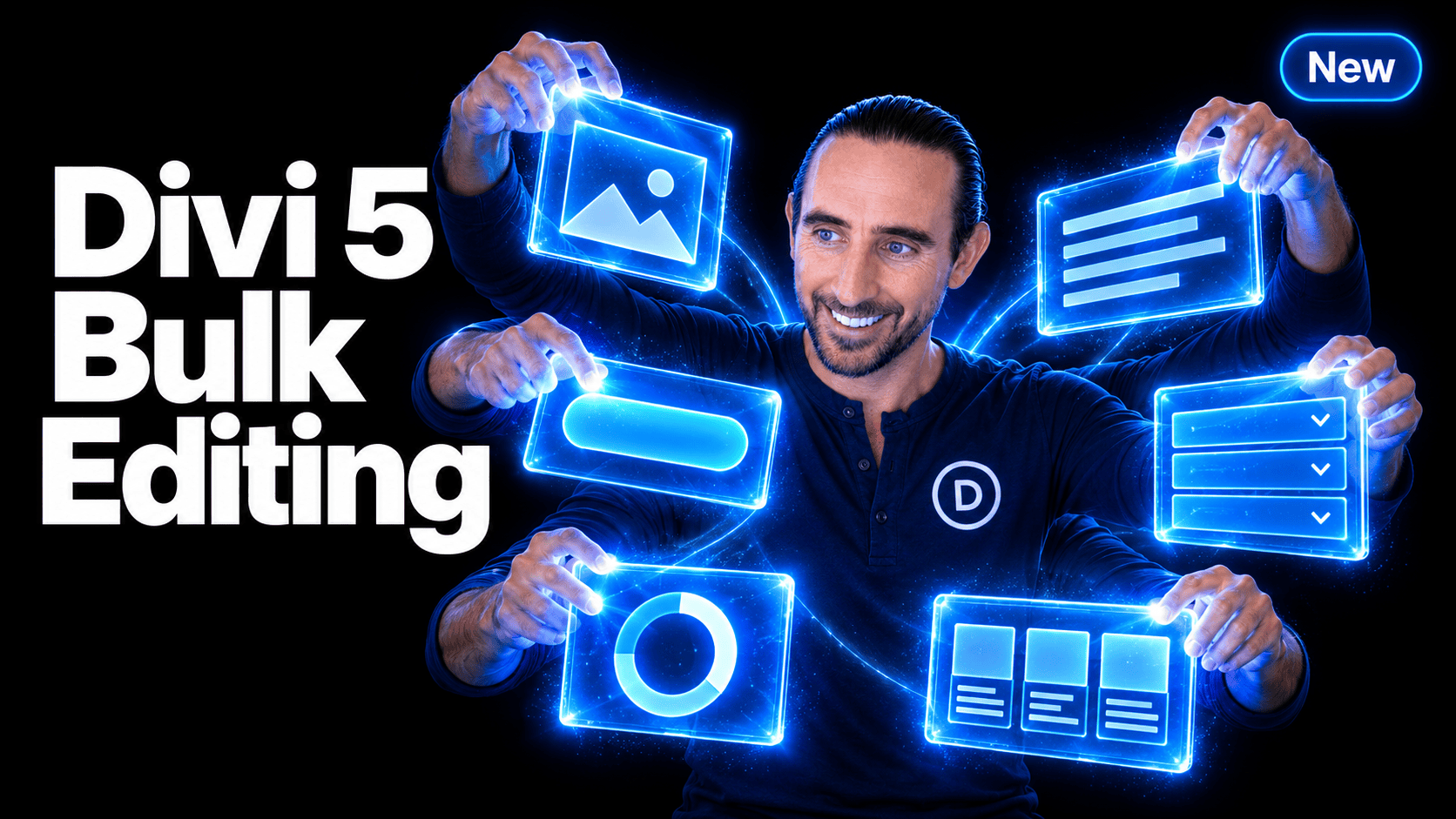
Have You Tried Divi’s Multi-Select & Bulk Editing?
Last week we released multi-select and bulk editing for Divi 5!
Editing a website often means making the same change more than once. Adjust the spacing on several cards. Restyle a handful of buttons. Move a collection of modules into another column.
Multi-Select and Bulk Editing bring those tasks together in Divi 5. 🎉 Select individual elements with Cmd/Ctrl-click, select a range with Shift-click, and edit your selection from one settings panel.
Selection also extends into the Layers panel, right-click actions, keyboard shortcuts, the Inspector, and the Divi AI Agent. You can choose the elements you want to work on, then carry that selection through your workflow.
Let’s take a closer look. 👇
More Divi 5 Updates Are On The Way
The features keep coming, and we aren’t slowing down anytime soon!
If you are enjoying these updates, do us a huge favor by liking this video and leaving a comment. It means a lot to us to see you cheering Divi on, and it’s essential to feed the algorithm and spread the word.
Don’t forget to follow us on YouTube and subscribe to the Divi newsletter so you never miss an update. I’ll see you soon for another Divi 5 feature announcement, which I promise will be right around the corner.






Leave A Reply