

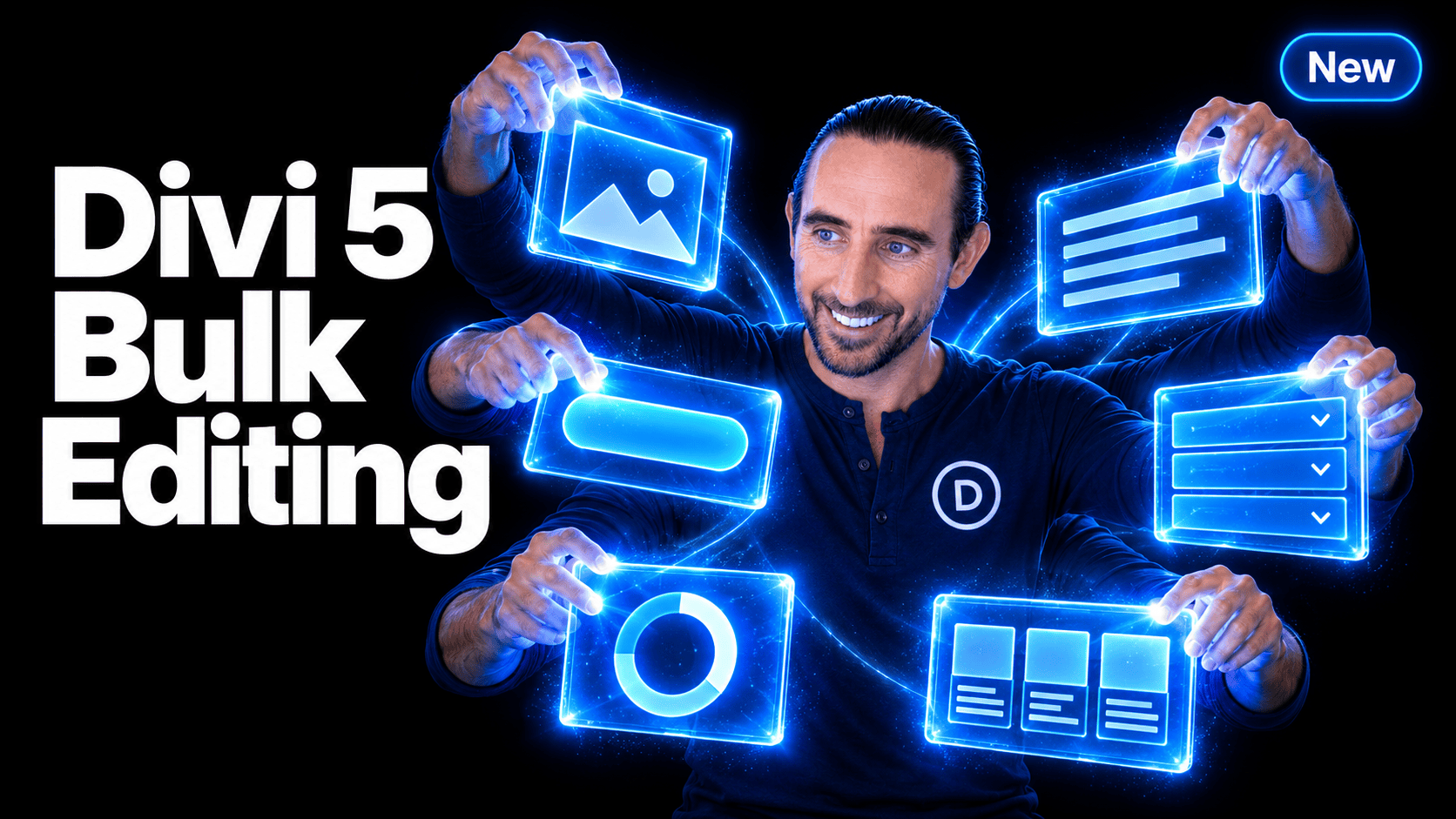
Editing a website often means making the same change more than once. Adjust the spacing on several cards. Restyle a handful of buttons. Move a collection of modules into another column.
Multi-Select and Bulk Editing bring those tasks together in Divi 5. 🎉 Select individual elements with Cmd/Ctrl-click, select a range with Shift-click, and edit your selection from one settings panel.
Selection also extends into the Layers panel, right-click actions, keyboard shortcuts, the Inspector, and the Divi AI Agent. You can choose the elements you want to work on, then carry that selection through your workflow.
Let’s take a closer look. 👇
- 1 Select Exactly The Elements You Need
- 2 Edit Multiple Elements From One Settings Panel
- 3 See Mixed And Inherited Values More Clearly
- 4 Manage Preset Assignments Across Your Selection
- 5 Use Familiar Actions Across Multiple Elements
- 6 Give The Inspector And AI Agent A Selected Scope
- 7 Keep Moving With Selection Shortcuts
- 8 Put Bulk Editing To Work On Your Next Layout
Select Exactly The Elements You Need
Now you can work with multiple elements at once, no matter where they exist on the page.
Pick Individual Elements Or A Range
Hold Cmd on Mac or Ctrl on Windows while clicking elements to add them individually to your selection. This is useful when the elements you want to edit are scattered throughout a layout.
To select a range, start with one element, then Shift-click another element in the same container. Divi selects the siblings between them. Modifier-click an already selected element to deselect it.
Imagine updating a services page with six cards. You could select every card in a range to adjust their spacing, or pick just three cards that need a different background. Your selection matches the task.
Make Selections In The Layers Panel
The same selection controls work in the Layers panel. Cmd/Ctrl-click individual layers or Shift-click a range; highlights indicate which elements are selected.
This is especially helpful when elements are nested, overlap, or are difficult to target on the page. You can find them in the layout hierarchy, build your selection there, and edit them together.
You can also drag selected layers together to a compatible location. Reorganizing several modules becomes one coordinated move.
Edit Multiple Elements From One Settings Panel
With multiple editable elements selected, the settings panel becomes a shared editing interface.
Change a setting once, and Divi applies it to the applicable elements in your selection. You can select matching modules or combine different element types, with shared controls brought together in the panel.
For example, select several Button Modules on a landing page and change their presets. Or select different modules that need matching outer spacing and update the relevant spacing controls in one place.
Each setting targets the selected elements that support it. You can work across a varied selection without treating every module as though it has identical settings, while still accessing settings unique to each selected module type.
See Mixed And Inherited Values More Clearly
We improved the way inherited values from presets, components, and parent breakpoints appear in the settings panel, and added new UI conventions for mixed values across a selection.
Know When Your Selection Contains Different Values
Bulk editing needs to show you where your elements agree and where they differ.
When selected elements have different values, the supported text fields and dropdowns display “Mixed”. Other controls use an appropriate mixed appearance, so a color preview, toggle, or alignment choice does not imply that every element shares a single value.
Suppose three selected elements have different spacing values. The mixed display makes that difference visible. Enter a new shared value, and the applicable elements update together.
Selecting elements lets you examine their differences. Changing a field is what applies your new value across the selection.
Distinguish Inherited Settings From Local Overrides
The settings panel also improves how controls represent inherited values, including those supplied by presets and those from responsive inheritance.
Inherited choices retain their placeholder styling rather than appearing as explicit local selections. Mixed-value detection also considers inherited values, helping you understand differences even when the selected elements have no local overrides.
This makes it easier to decide whether to add an override or reset a setting, letting each element inherit its own value again.
Manage Preset Assignments Across Your Selection
Bulk editing works with Divi’s preset-based design system, including element presets and option group presets.
The settings panel brings together assigned presets from the selected elements, allowing you to apply a preset across your selection. You can add or remove assignments across compatible targets, with element presets applied to their matching element types.
For example, select the buttons throughout a pricing section and assign your primary button preset together. You can also manage an option group preset for a shared design detail across the elements that support that group.
Existing preset stacks are represented in the combined interface, so working with multiple elements does not require opening each element just to manage its assignments.
Use Familiar Actions Across Multiple Elements
Right-click actions and keyboard shortcuts now handle more of your selection together.
Copy selected elements, cut and paste them into a compatible destination, duplicate them, move them, or reset their design attributes. You can also lock and unlock eligible elements together. You can also drag selected elements together between columns directly on the page, or move them through the Layers panel.
Imagine moving a heading, description, and button from one column to another. Select the three modules and move them together. Or copy that collection to repeat the composition elsewhere in the layout.
Actions continue to follow the layout’s placement rules, locks, and editing permissions.
Act On Settings Groups And Individual Fields
Bulk actions also extend within the settings panel.
Right-click a settings group or field to perform supported actions on the selected elements it applies to. Reset a shared field or group together, paste compatible attributes, or use Convert To Variable on supported fields to turn static values into Design Variables.
For example, select several modules with custom spacing overrides and reset their spacing group together. Copy and Extend actions are available when the selection contains the same element type.
Give The Inspector And AI Agent A Selected Scope
When scope matters, Divi’s panels will respect your specific selection.
Inspect A Chosen Collection Of Elements
The Inspector now supports multiple selected elements as its scope.
With the Inspector open, select the elements you want to examine and bulk edit. It aggregates attributes from those elements and their children, and follows changes to your selection.
For example, select two promotional sections to examine their colors, fonts, images, and other supported attributes together. You can then make Inspector edits within that selected scope.
Ask The AI Agent To Work Across Your Selection
The Divi AI Agent also recognizes a multi-selected scope.
Selected elements appear as individual scope chips in the composer. Your request provides context for the full selection, allowing you to request changes across the applicable elements and their descendants.
You could select several call-to-action buttons and ask the agent to update their labels. Check the scope chips before sending your request to see which elements are included.
You can remove an individual chip from the chat scope without changing your selection in the builder.
Keep Moving With Selection Shortcuts
Three useful shortcuts help you finish one task and move into the next:
- Cmd/Ctrl+A selects everything in a container.
- Cmd/Ctrl+D clears the current selection.
- Cmd/Ctrl+G converts the selected modules into a Module Group when grouping is permitted.
Grouping gives a collection a lasting container. For example, select an image, a heading, and a description, then group them so you can manage their composition as a group.
Put Bulk Editing To Work On Your Next Layout
Start with a repeated part of a page: a collection of buttons, service cards, or text modules. Select a few elements, examine their mixed values, and change one shared design setting.
Then try building the selection in Layers, moving it together, or bringing it into the Inspector or AI Agent. Each workflow starts with the same simple action: choose the elements you want to work on.
If you are enjoying these updates, do us a huge favor by liking this video and leaving a comment. It means a lot to us to see you cheering Divi on, and it’s essential to feed the algorithm and spread the word.
Don’t forget to follow us on YouTube and subscribe to the Divi newsletter so you never miss an update. I’ll see you soon for another Divi 5 feature announcement, which I promise will be right around the corner. 😁











Leave A Reply