

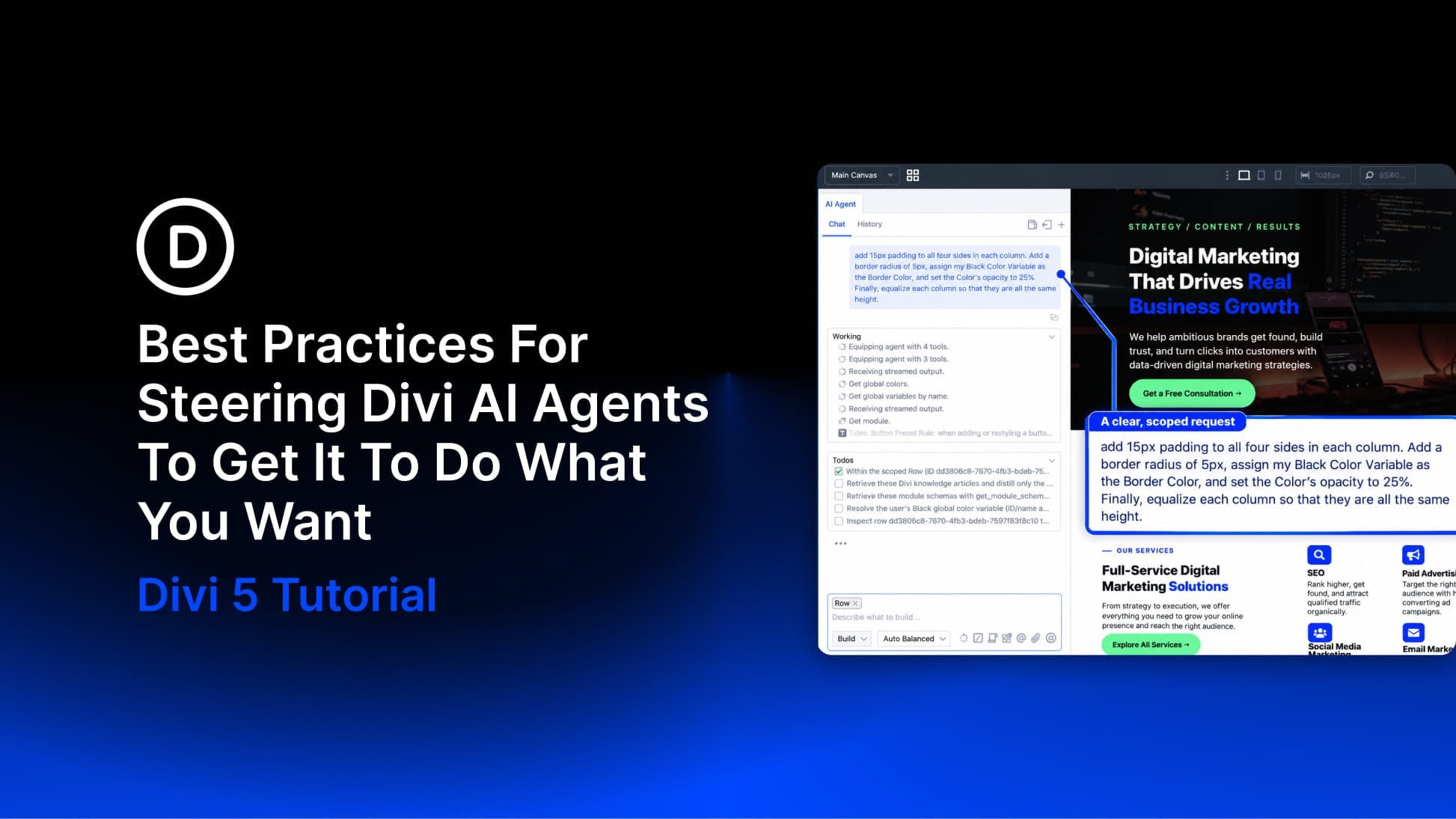
Divi 5 has a new way to build pages in the Visual Builder: Divi AI agents. Instead of working through settings panels one change at a time, you describe what you want in a conversation, and the agent carries it out on the page. It can add modules, update styles, work with your design system, and handle multi-step tasks while you watch.
Clear direction helps it produce a useful first pass. Name the outcome, identify the target, and explain what should stay unchanged. Without that guidance, the agent has more decisions to infer, and the result may need more cleanup.
In this post, we’ll explain which controls shape the work, then walk through ten best practices for steering Divi AI agents toward the result you have in mind.
- 1 What Are Divi AI Agents?
- 2 Divi AI Agents Features
-
3
10 Best Practices For Steering Divi AI Agents
- 3.1 1. Say What “Done” Looks Like
- 3.2 2. Name The Target
- 3.3 3. Keep The Scope Tight
- 3.4 4. Ask First When You Want A Plan
- 3.5 5. Point The Agent To A Preset
- 3.6 6. Teach The Agent Your Standards With Rules
- 3.7 7. Save Repeatable Jobs As Commands
- 3.8 8. Tell The Agent What The Reference Is For
- 3.9 9. Refine In Conversation, But Use The Builder When That’s Faster
- 3.10 10. Match The Model To The Job
- 4 Make Steering The Habit
What Are Divi AI Agents?
Divi AI agents brings a conversational assistant into the Divi 5 Visual Builder. You describe what you want, and the agent can add, edit, move, and style elements, update design settings, and coordinate changes across the layout. It can also use a screenshot, a public URL, or other reference material as direction for what to build.
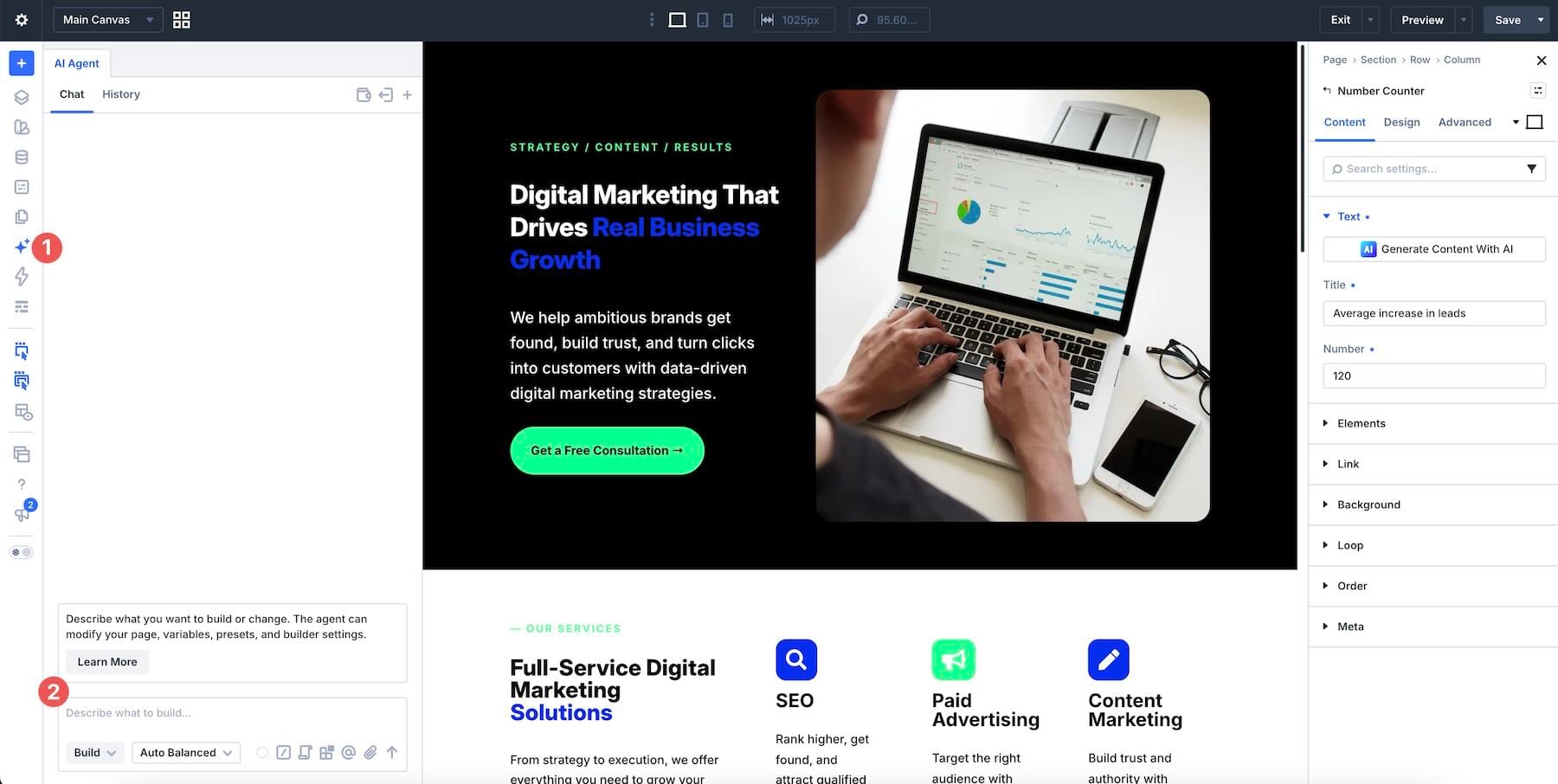
Supported attachments include JPEG and PNG images, TXT, HTML, and CSV text files, and font files. PDFs, Markdown, JSON, XML, YAML, and source-code files are not accepted as attachments. Video and audio cannot be attached to the chat. If your brief or brand guide is a PDF, paste the relevant text into the prompt or save it as a TXT or HTML file before attaching it.
Divi AI agents is part of Divi AI, but its workflow differs from the other generation tools. Divi AI can generate text, images, code, sections, and full layouts through dedicated controls. The agent adds a conversational workflow that can read page context and coordinate changes across multiple elements. You can discuss the work, refine the request, and continue editing the result in the builder.
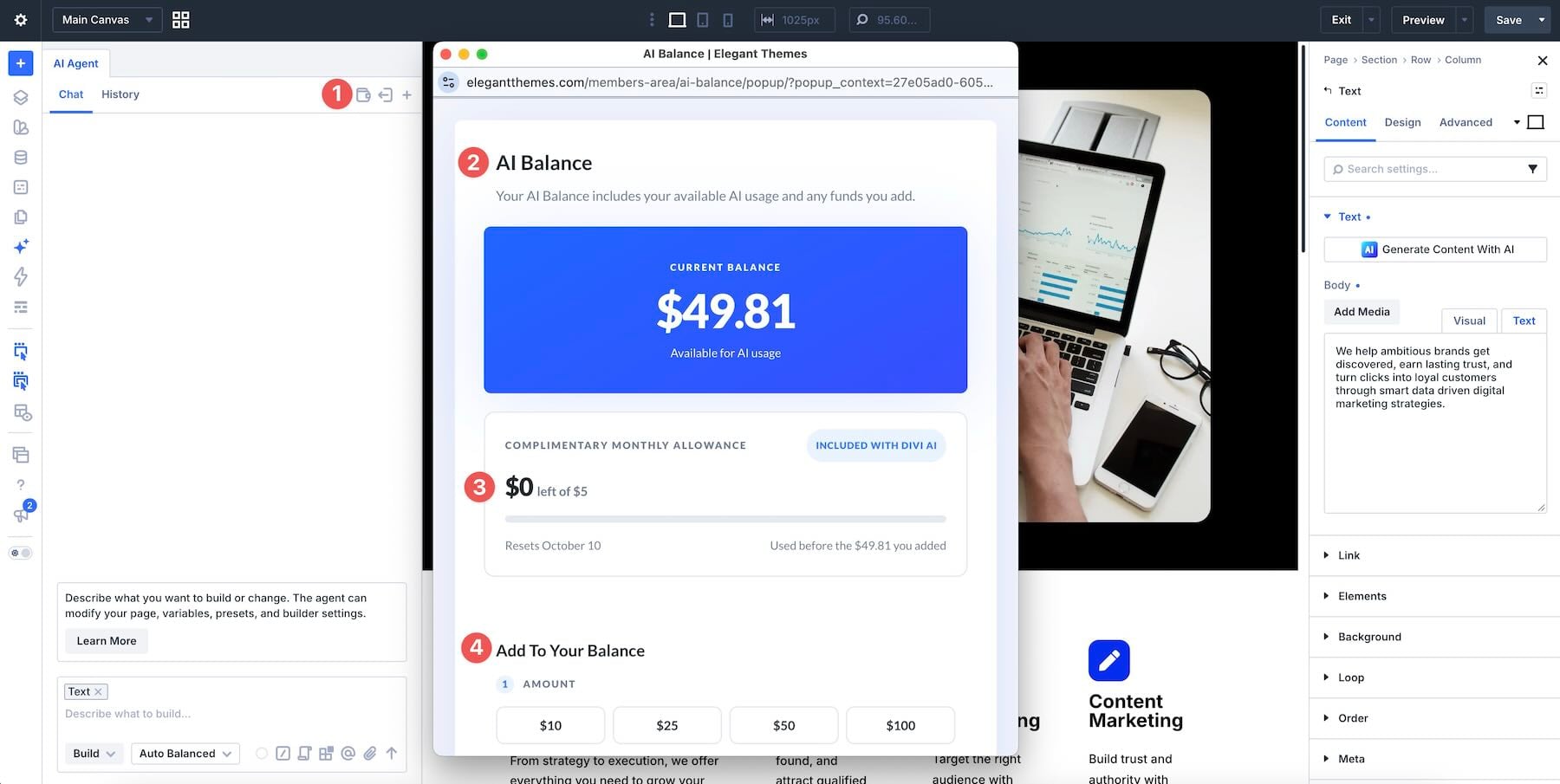
To use the agent, you need Divi 5 and an active Divi AI subscription, which is also included with Divi Pro. Agent usage is metered separately from Divi AI’s other generation tools. Requests draw on your AI Wallet, and your subscription includes $5 in agent usage each month.
Divi AI Agents Features
The chat window gives you controls for the agent’s mode, context, reusable instructions, and model choices. Understanding these controls helps you give clearer direction before sending a request.
Ask Mode And Build Mode
The Change Mode control lets you switch between Ask and Build.
Ask uses available page context and Divi documentation to answer questions, explain settings, and suggest an approach. It does not make changes to your site.
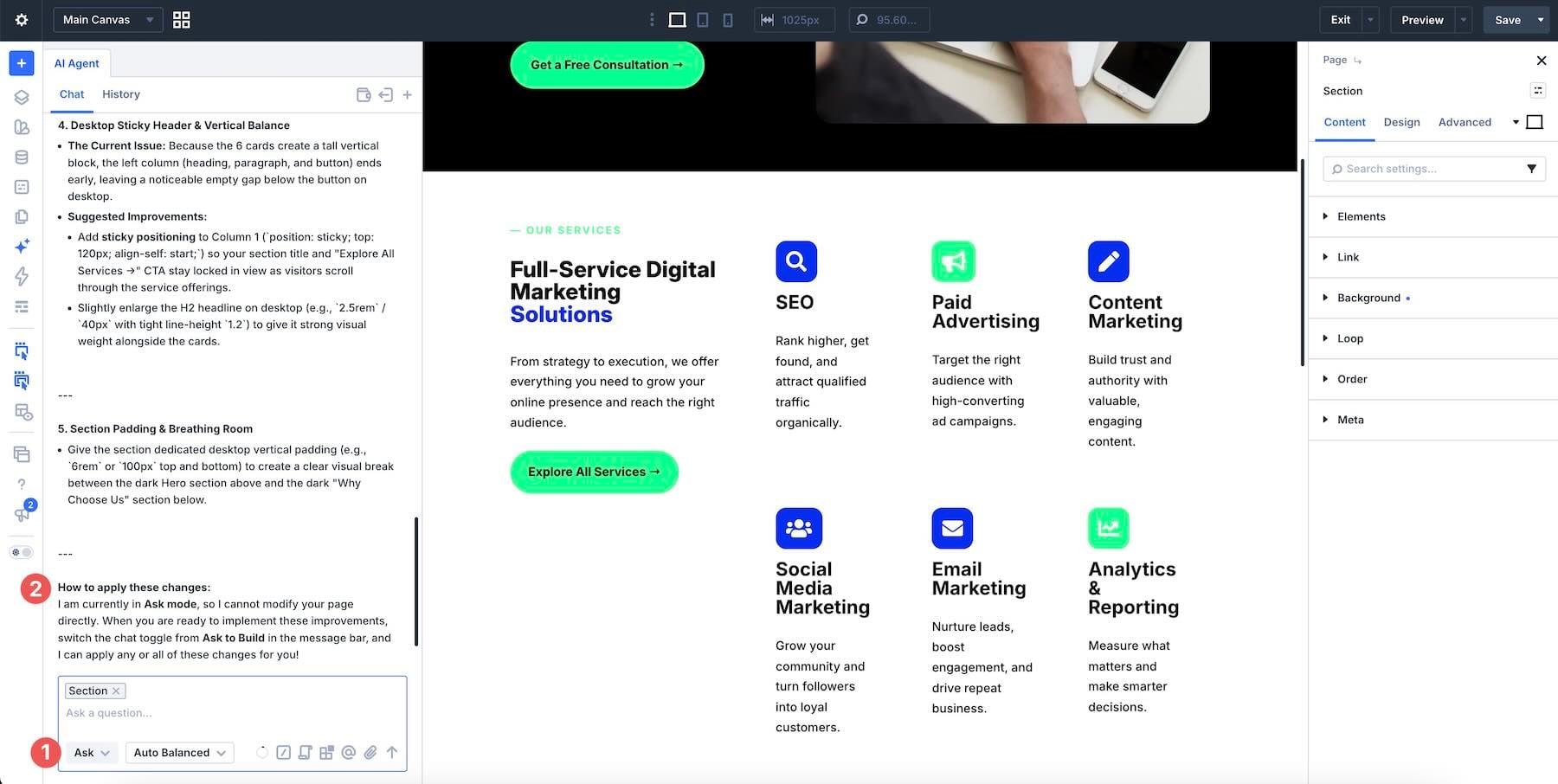
Build plans the request and carries it out. It can add, edit, move, and style elements, work with Presets and Design Variables, and operate the builder on your behalf.
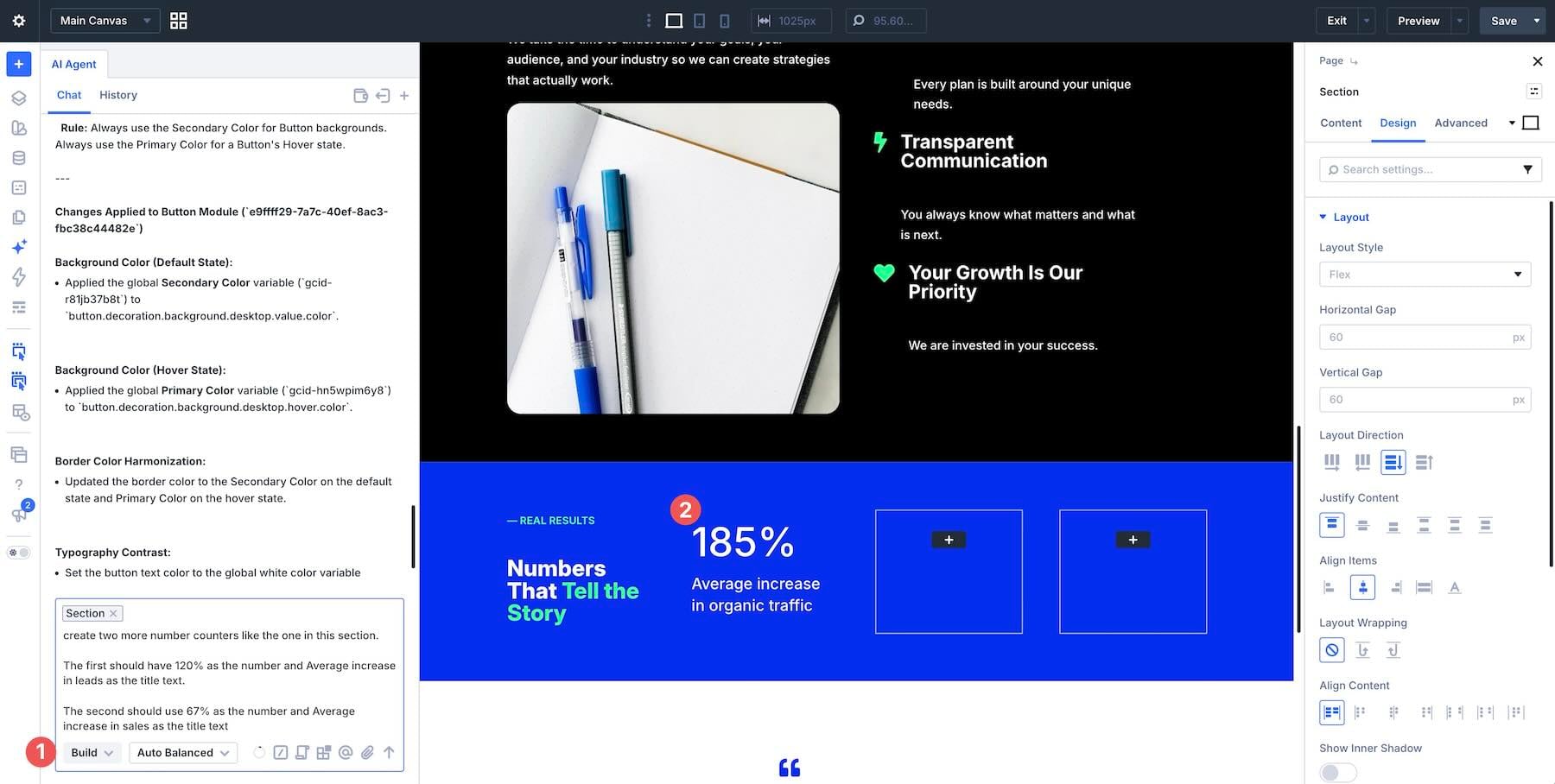
Use Ask when you want to understand an unfamiliar page, discuss a design change, or clarify how a setting works. Switch to Build when you are ready to apply the change.
Context, Attachments, And Scope
Context helps identify the exact element or resource you mean. Instead of asking the agent to change “the button,” add the relevant element to your message. You can choose it from the Context picker or select an element on the page. Typing @ in the chat opens the picker.
When a picture explains more than a paragraph, attach a screenshot or mockup. For a public webpage reference, paste its URL into the message. You can also scope a conversation to an element so follow-up requests stay focused on that part of the page. Check the selected scope before sending a request, and include only the context the task needs.
Rules
A Rule is standing guidance you save for later conversations. Use it for instructions you regularly repeat, such as your brand voice, spacing standards, or a preference for existing Design Variables.
Turn on Always Use for guidance that should be included in every conversation. Use When To Use to describe when a conditional Rule applies. The agent uses that description to decide whether the Rule is relevant to the task.
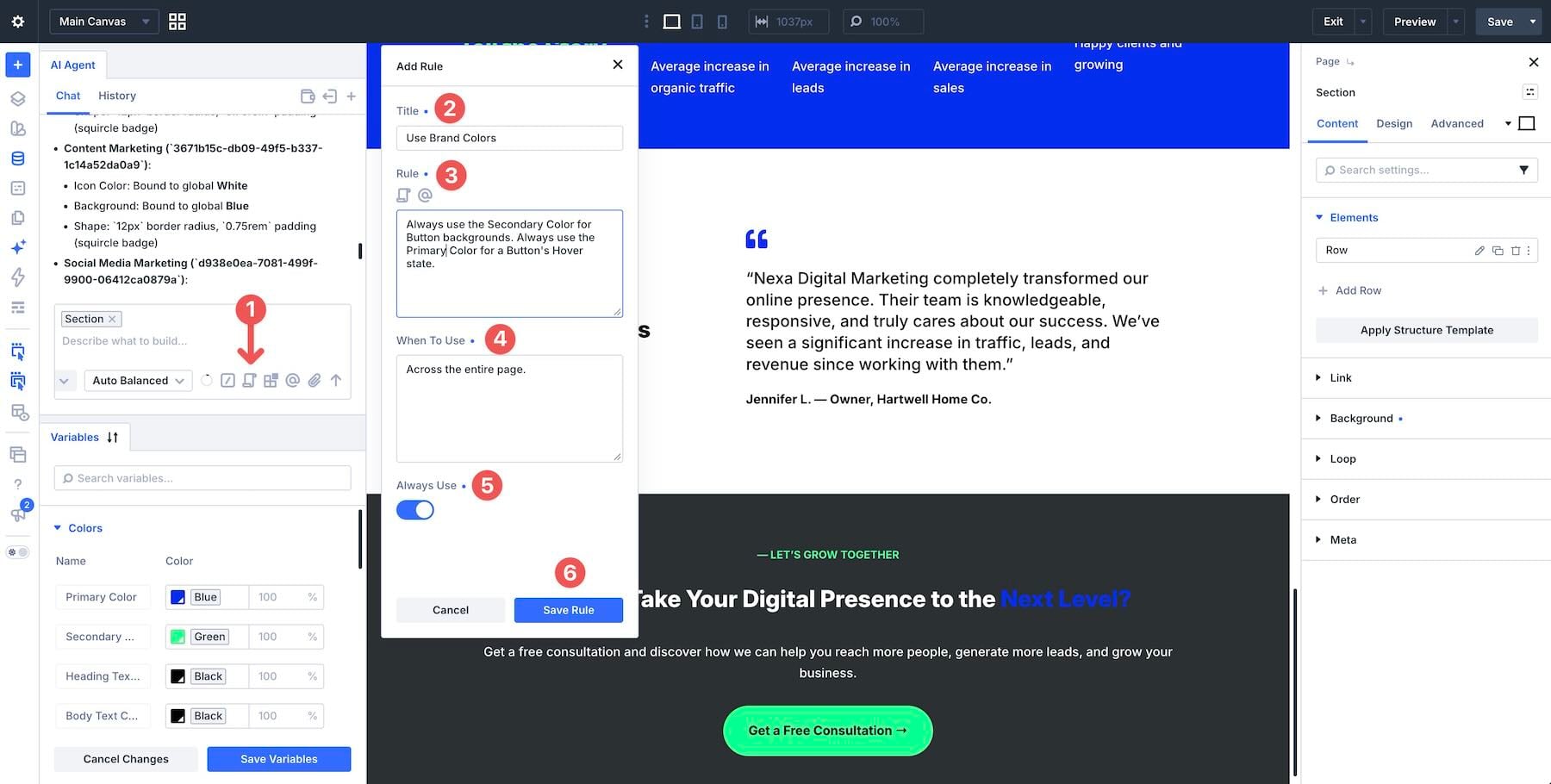
A Rule describes how you want work done. A Command stores a task you want to repeat.
Commands
If you regularly use the same request, save it as a Command. Retrieve it by typing / in the chat or choosing it from the Commands icon. The saved instruction is inserted into your message so you can review it, add page-specific details, and then send it.
You can attach context to a Command, such as a Preset or Variable. Keep its scope explicit: a reusable instruction that says “on this page” targets the page where you run it, rather than the page where you originally wrote it. If the Command includes a specific resource as context, check that the reference still suits the current task.
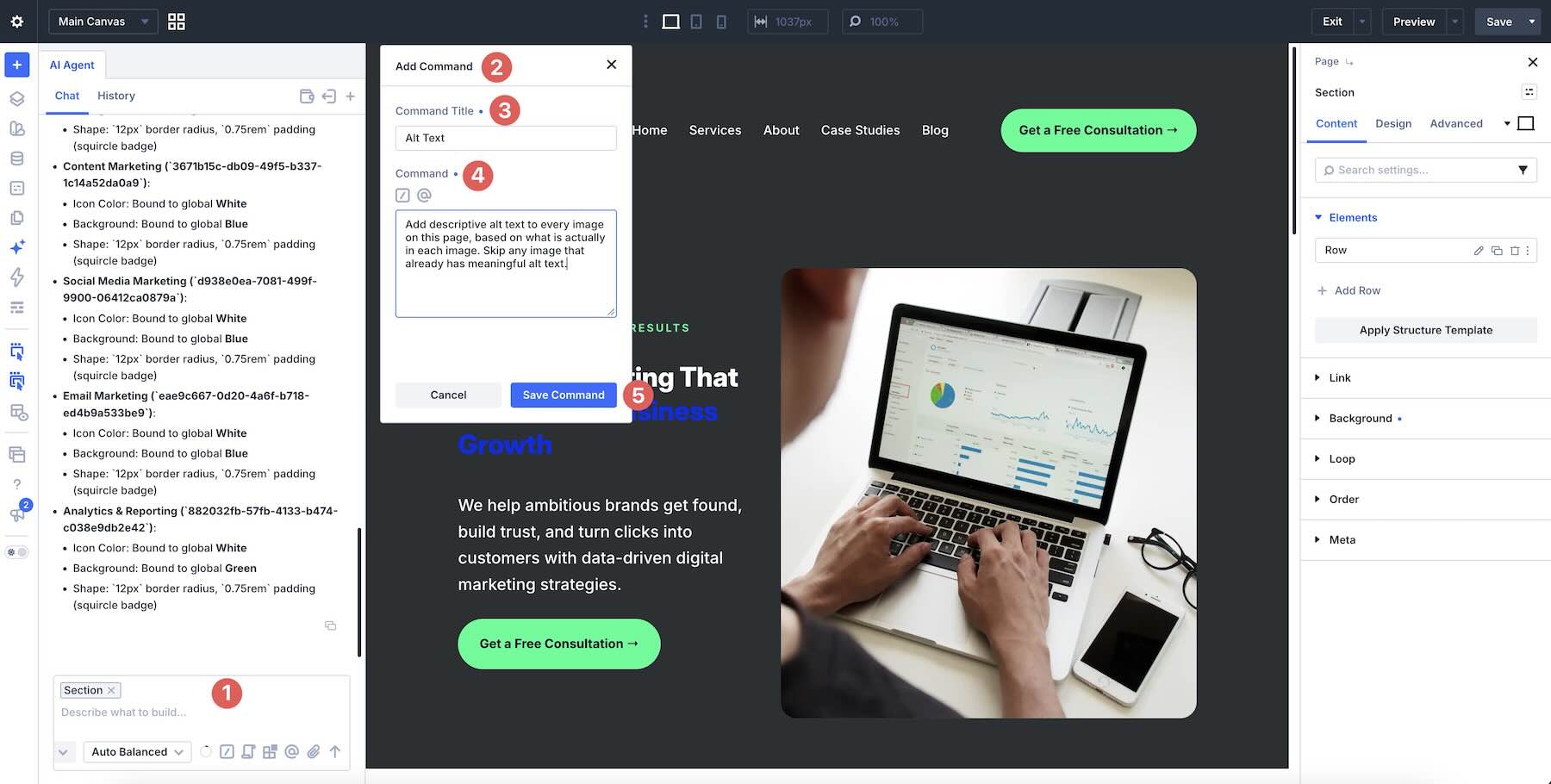
These Commands live inside the agent chat and are separate from the Divi 5 Command Center.
Tools, Approvals, And Working Notes
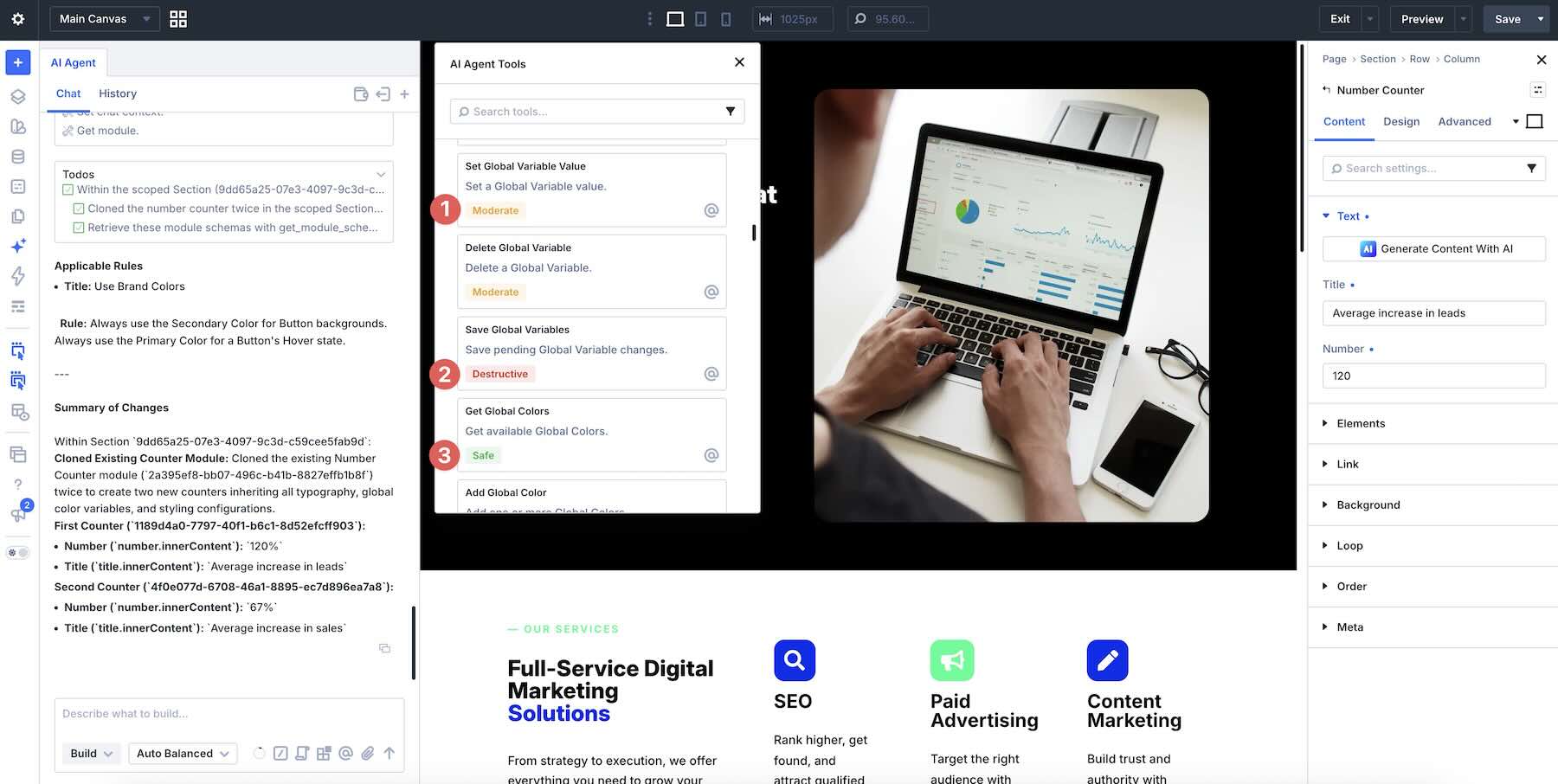
The Tools icon opens a searchable catalog of purpose-built actions for Divi and WordPress. Browse the catalog to understand the available capabilities, or add a specific tool as context when you want the agent to use it.
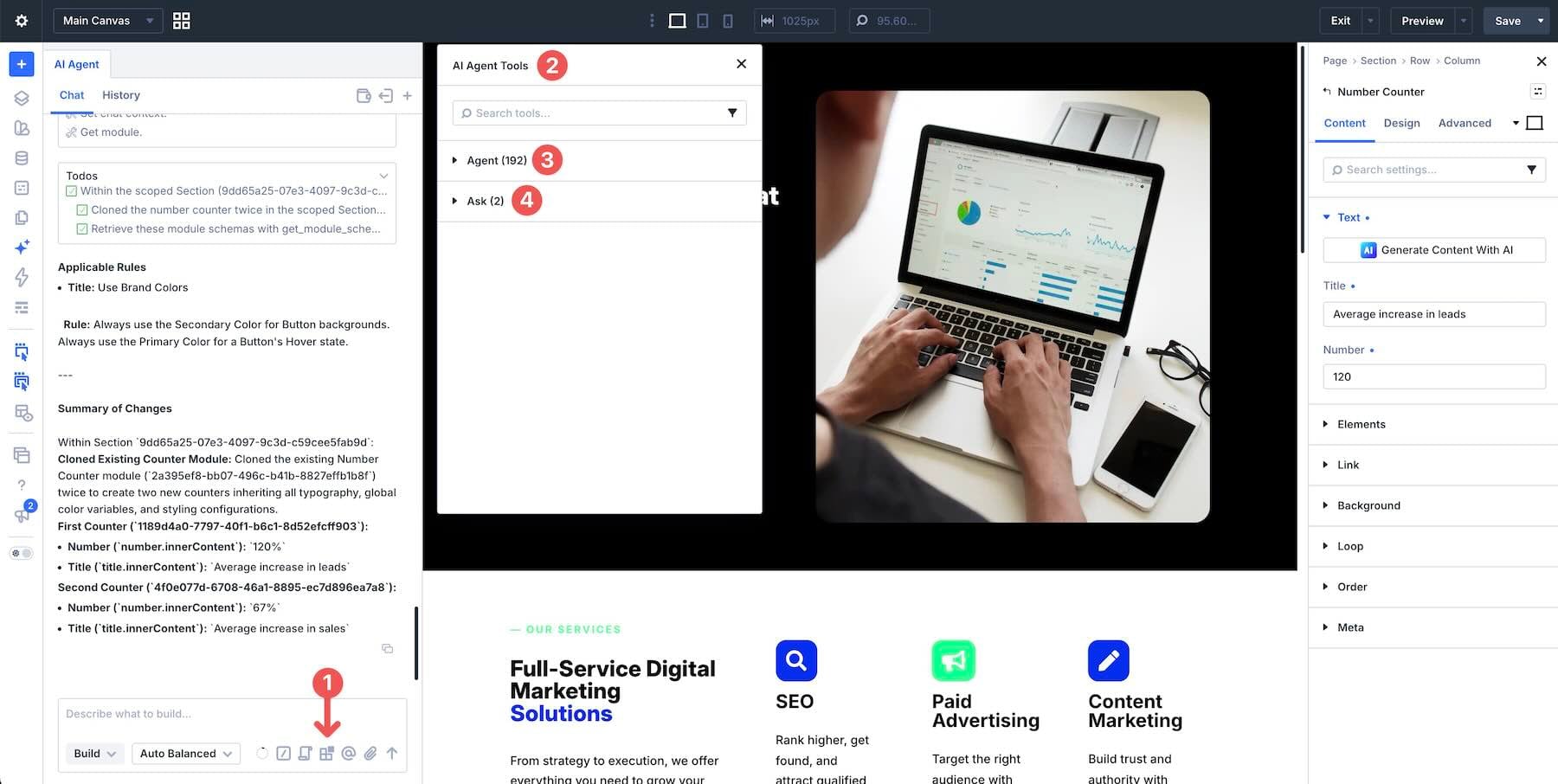
The catalog also lets you filter tools by risk level. Safe actions do not require confirmation. Moderate actions ask for approval only when the individual tool is configured to require it. Destructive actions always require confirmation before execution.
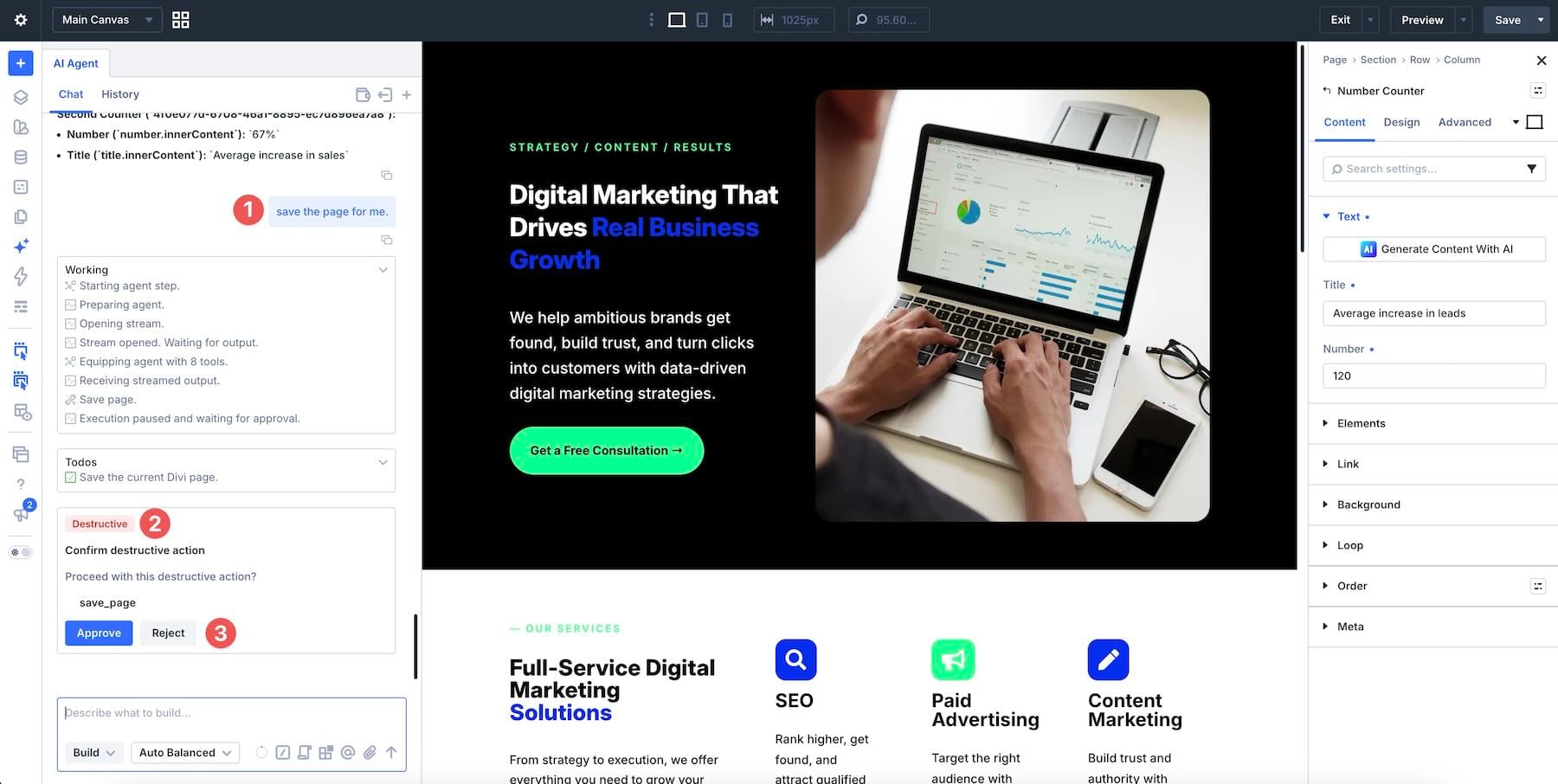
When an action needs confirmation, the chat displays Approval Required with Approve and Reject buttons. Saving the page is one action that requires approval. Review the requested action before approving it, especially when it affects shared resources or published content.
Page edits on the working canvas still need to be saved, but other resources can persist separately. A saved Preset, Variable, or site-level change should not be treated as temporary merely because the page itself has not been saved.
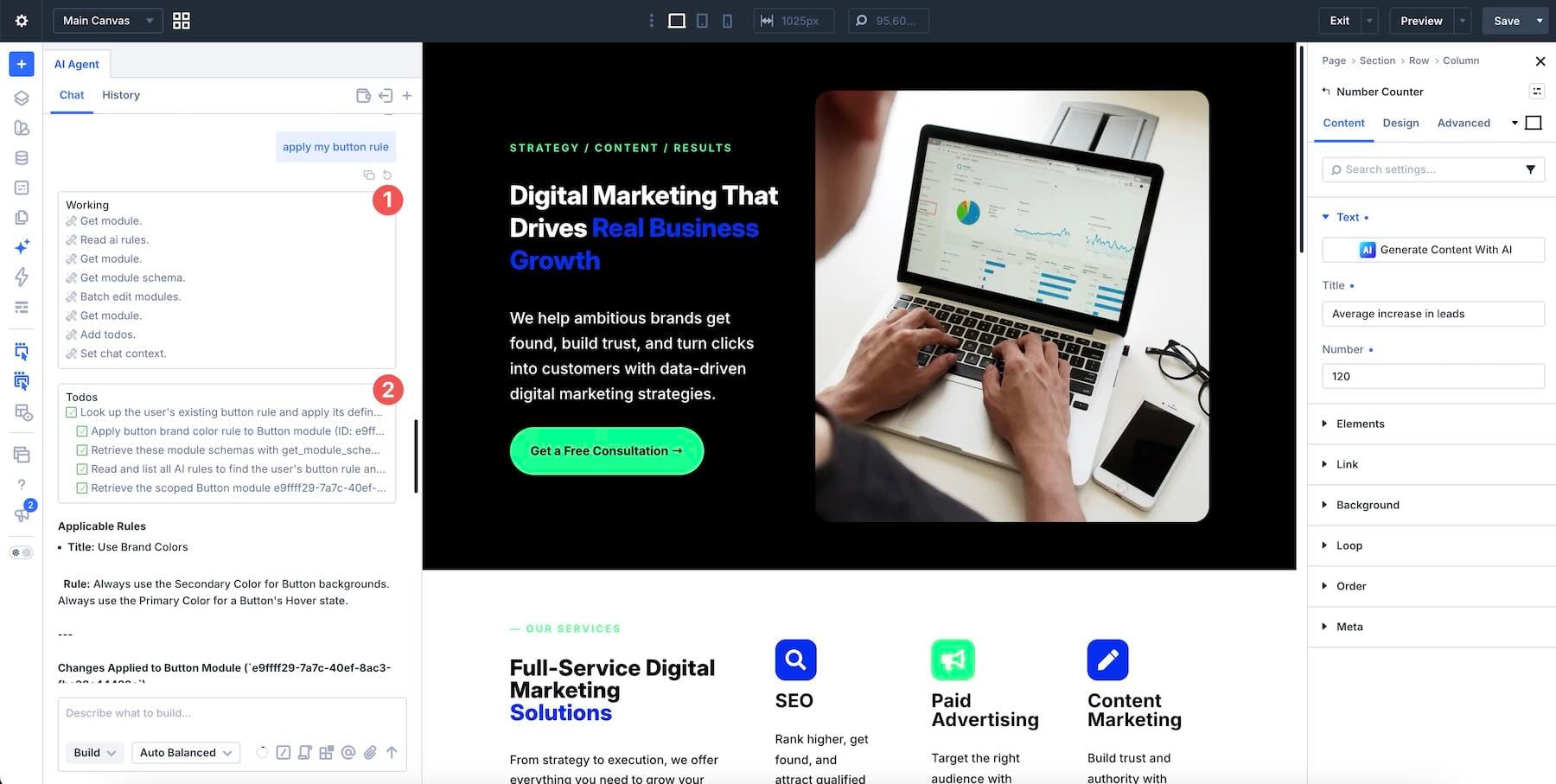
While a request runs, Working notes show progress, including thinking, tool use, and ongoing work. Longer jobs can also include a Todos list. Use these updates to follow the task, then inspect the result on the canvas.
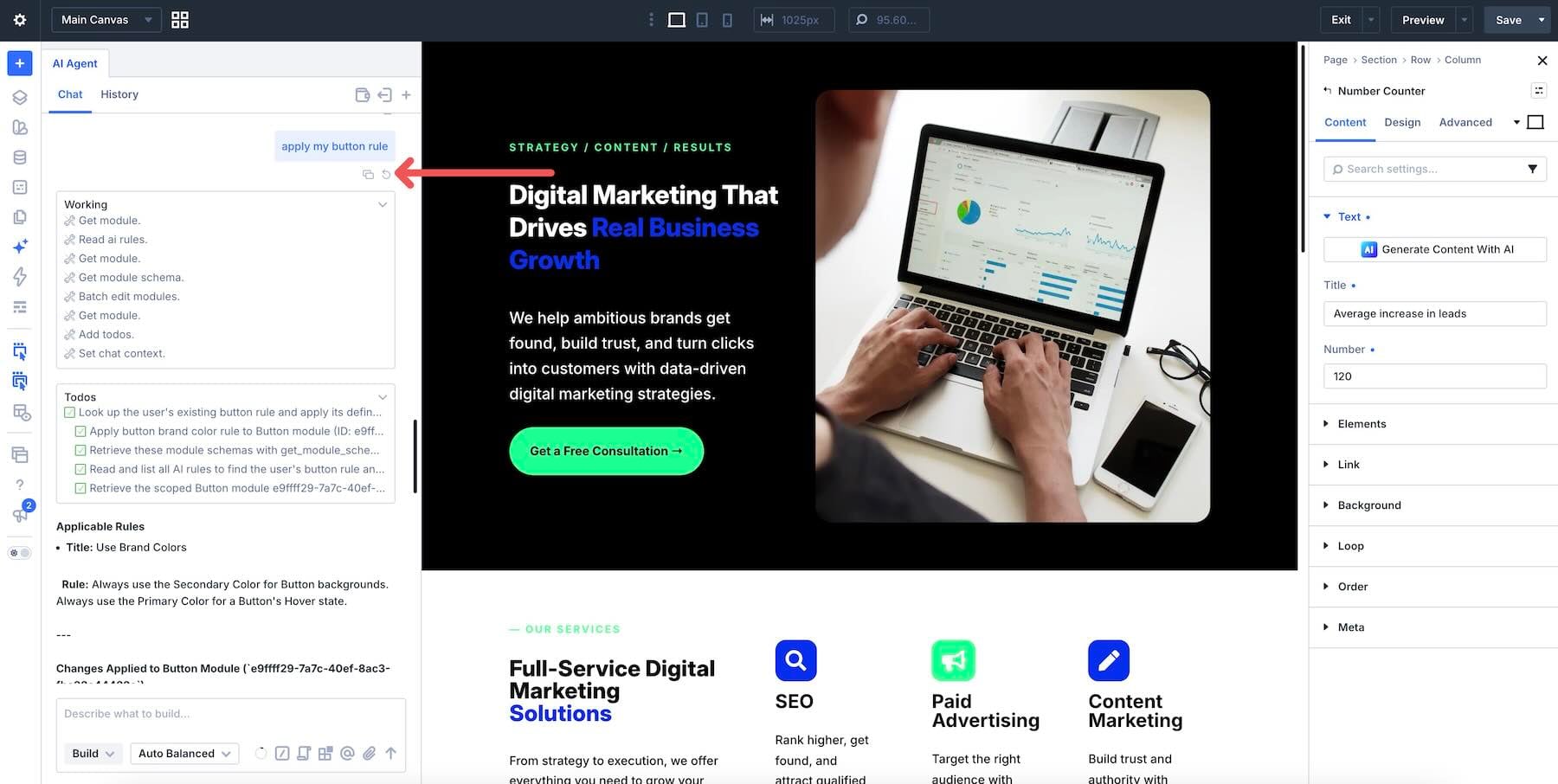
To return the working canvas to its state before a request, use the restore control on your own message. Confirm the Restore to This Point dialog before proceeding. This also removes manual edits made after that checkpoint, so review what you would lose first. Restoring the canvas does not reverse every saved or site-level action.
Models And The AI Wallet
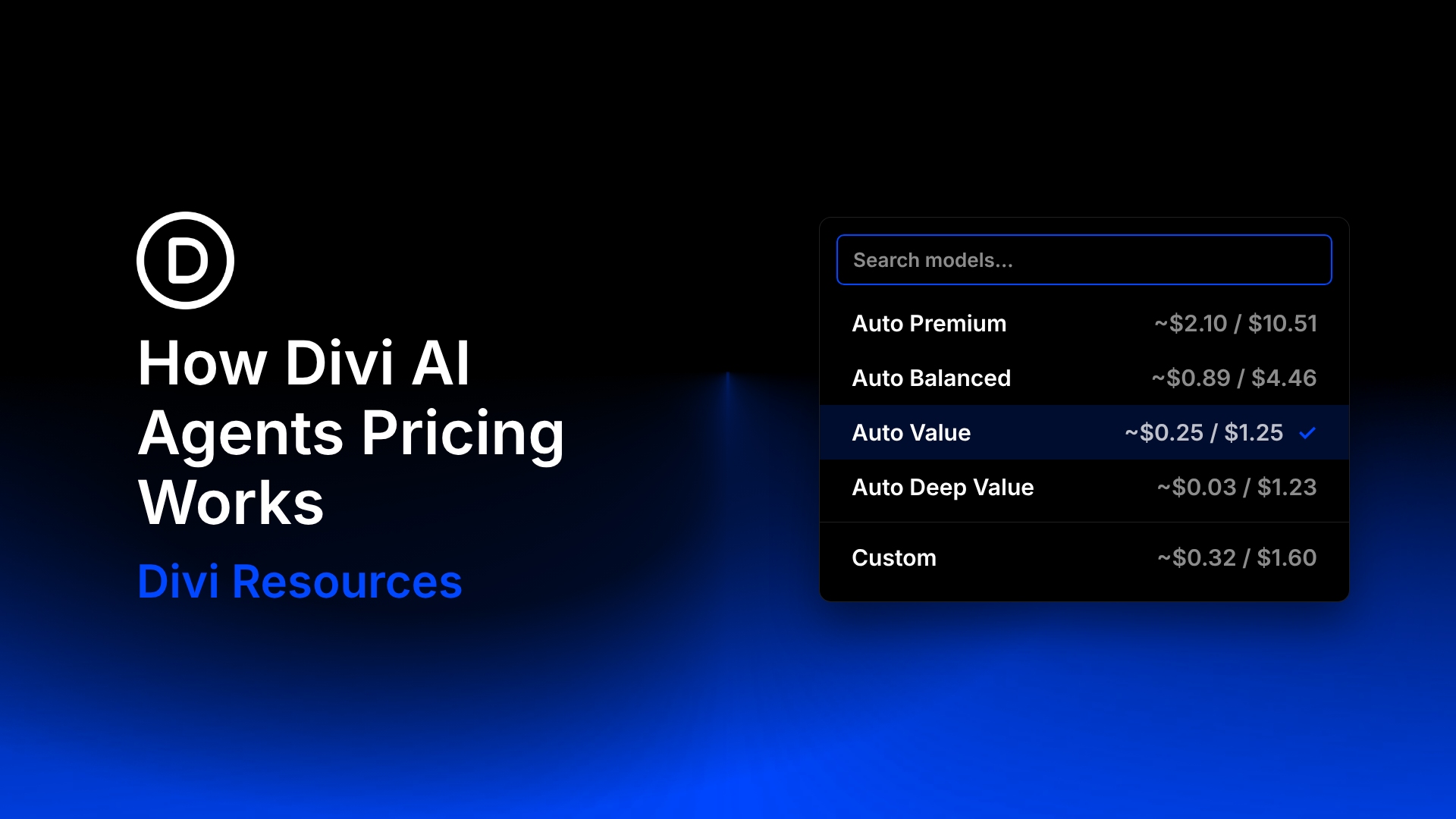
Your model selection affects speed, capability, and wallet spend. Divi AI agents offers four automatic tiers, with Auto Value selected by default. These are configurations for the models used behind the scenes, rather than four permanent model assignments.
- Auto Value: Prioritizes low cost for everyday work, including copy tweaks, alt text, and small additions.
- Auto Balanced: Offers a middle ground between cost and capability for several coordinated settings or steps.
- Auto Deep Value: Prioritizes more careful reasoning at a moderate price.
- Auto Premium: Prioritizes capability over price for demanding layout and design work.
- Custom: Lets you choose models for the Planner, Agent, Layout, and Ask roles individually.
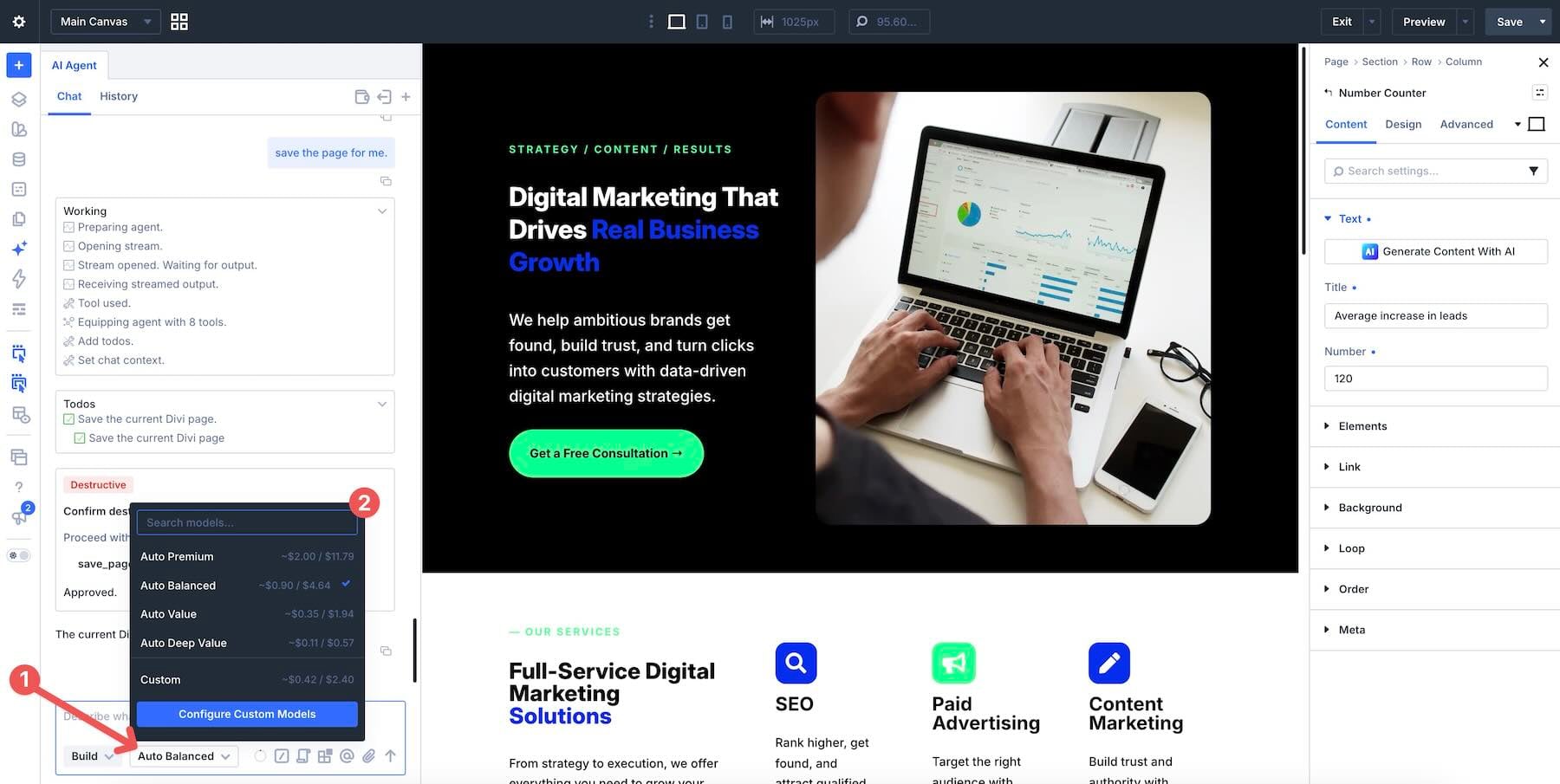
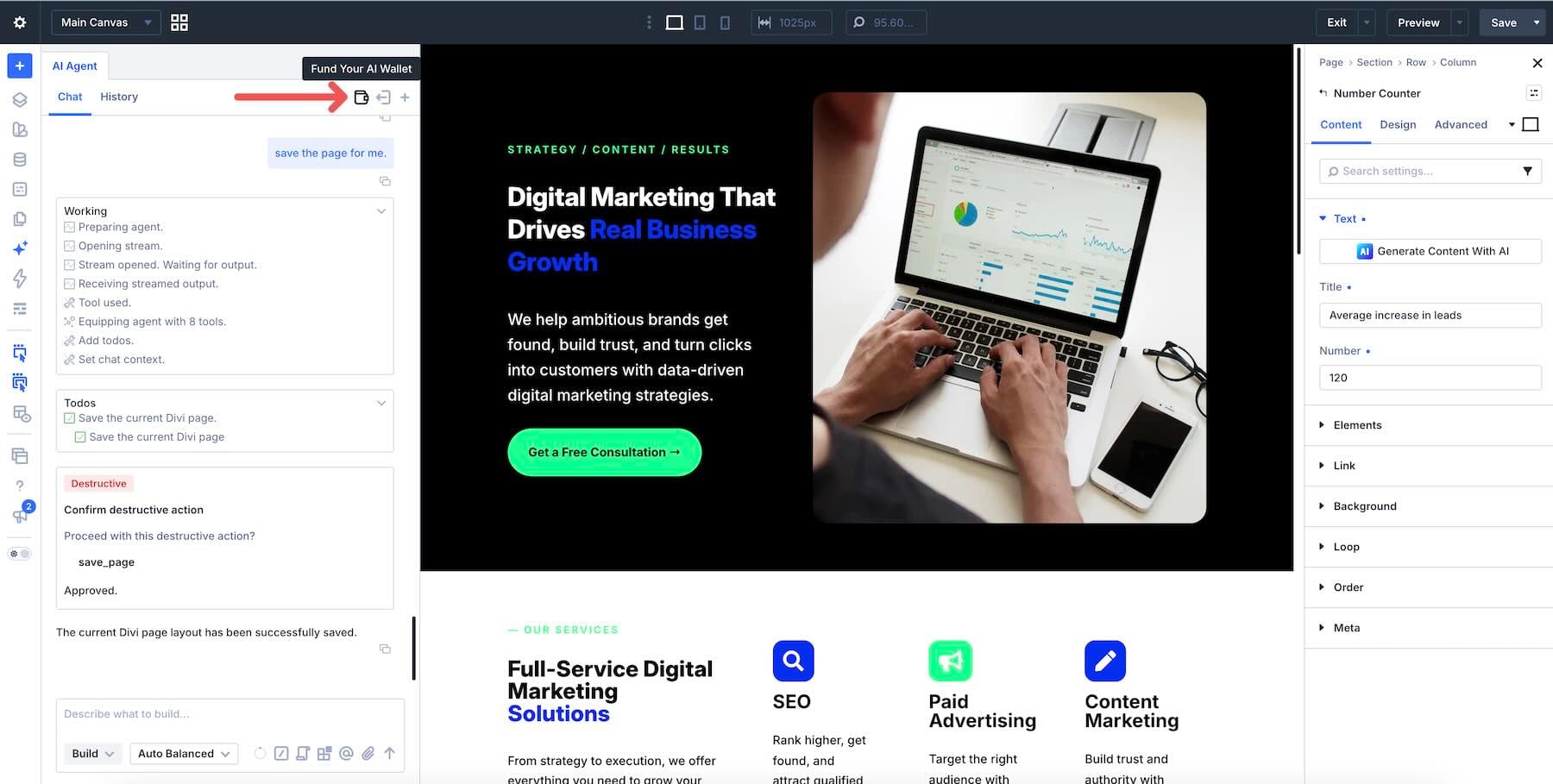
Match the tier to the job rather than leaving a premium option selected for every request. Your subscription includes $5 in agent usage each month. Unused complimentary funds do not roll over, and you can add funds through your Members Area or the wallet in the agent interface.
10 Best Practices For Steering Divi AI Agents
A useful prompt explains the desired result, identifies the target, and sets clear limits. Context, Rules, and Commands help you carry that guidance into the conversation without repeating every detail. The following practices show how to put those controls to work.
1. Say What “Done” Looks Like
Give the agent an outcome you can check. “Make it better” leaves the design decisions open. Naming the structure you want and the content to preserve gives it a clearer task.
Weak: Make the marketing section better.
Better:
The stronger request names both the change and the elements that should survive it. After the pass, you can check whether the section uses Blurb modules and whether the original icons and copy remain intact.
2. Name The Target
“Fix the button” is ambiguous on a page with nine buttons. Add the relevant element as context, or identify its section and position in the prompt. Then explain which settings should change and which should stay untouched.
Weak: Change the button color.
Better:
Attaching the button and the relevant Variables makes the references more precise. The final sentence also limits the work to the requested color changes.
3. Keep The Scope Tight
If you want one section changed, identify that section. If you want a page-wide sweep, name the exact setting and the elements it applies to. A scoped request can cover a whole page while remaining specific about what may change.
On an established site, work section by section when the task involves design judgment. Finish the hero, then services, then the footer. Inspect the result between passes rather than combining unrelated changes into one request.
Weak: Fix the spacing.
Better:
This example is page-wide, but its scope is narrow: one setting on Columns, with the other element levels excluded. Check that the Columns use a layout where Vertical Gap applies, and review the spacing at the relevant breakpoints.
4. Ask First When You Want A Plan
Use Ask when the page is unfamiliar, the change is still taking shape, or you want to review the approach before implementation. The agent can explain the available context and suggest a plan without editing your site.
Weak: Convert static text values to variables.
Better:
Review the recommendations and correct any misunderstandings in the same chat. When the proposed changes and exclusions match your intent, switch to Build and ask the agent to carry out that plan.
Planning first can help avoid unnecessary edits, though the cost still depends on the model and processing involved. Check the implemented settings afterward rather than relying only on the agent’s completion message.
5. Point The Agent To A Preset
Context can identify both the element you want edited and the style you want applied. Attach an existing Module Preset or Option Group Preset so the agent can work from its saved settings.
Open the Context picker, search or browse by type, and add the Preset before sending the request. Typing @ opens the same picker.
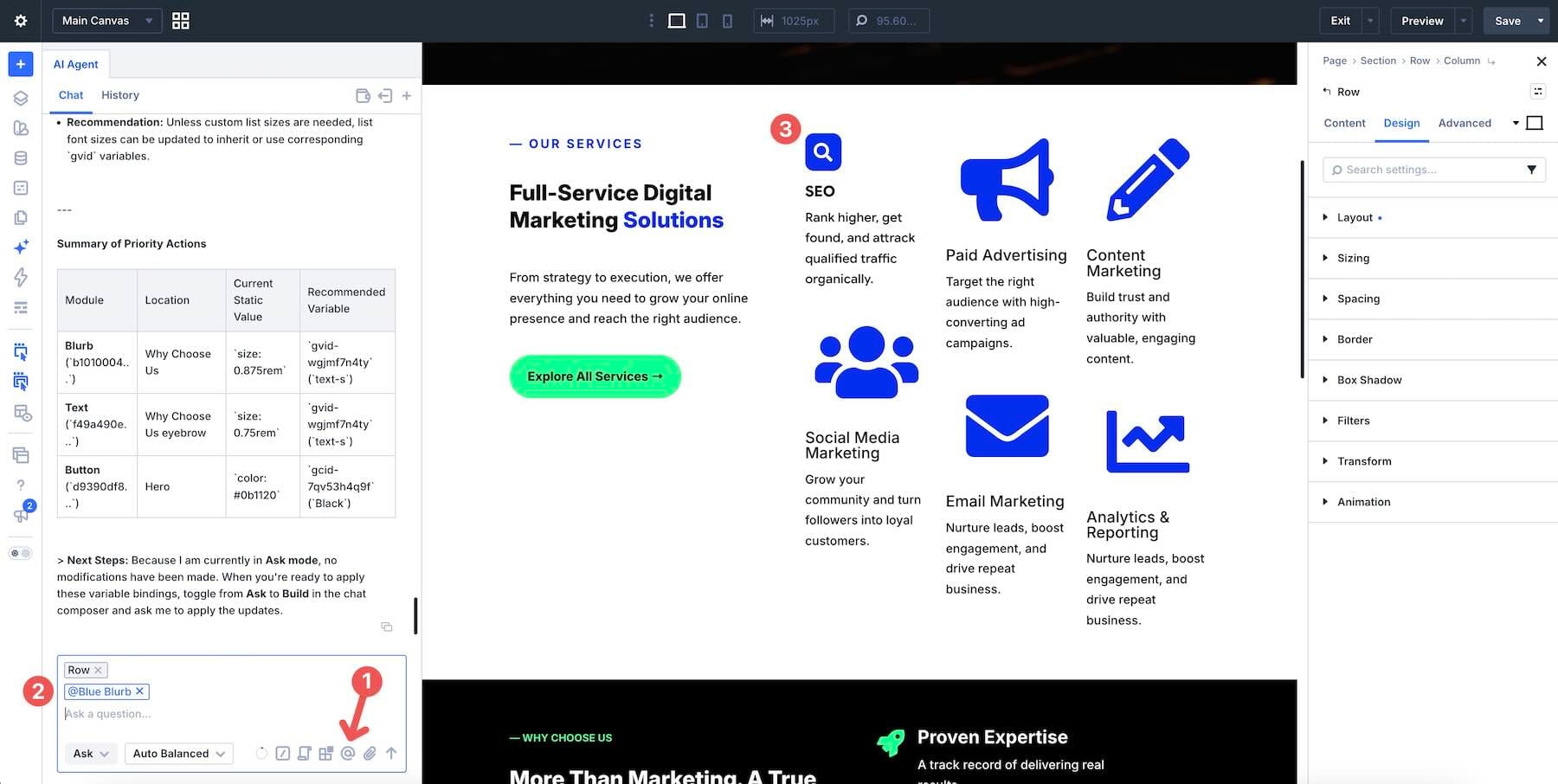
Weak: Make these cards look like the other cards, with the same styles, including the headings, body text, and colors.
Better:
After the pass, check that the intended Preset is assigned, the content is preserved, and local overrides are not preventing the expected styles from appearing. Matching the appearance alone does not establish that the Preset was applied.
You can also attach a Preset to a Command or Rule so reusable instructions point to the saved resource.
6. Teach The Agent Your Standards With Rules
Use Rules for guidance you regularly repeat, such as your preferred Presets, writing voice, spacing scale, or accessibility practices.
Turn on Always Use for instructions that should accompany every conversation. Use When To Use to describe the tasks where a conditional Rule belongs.
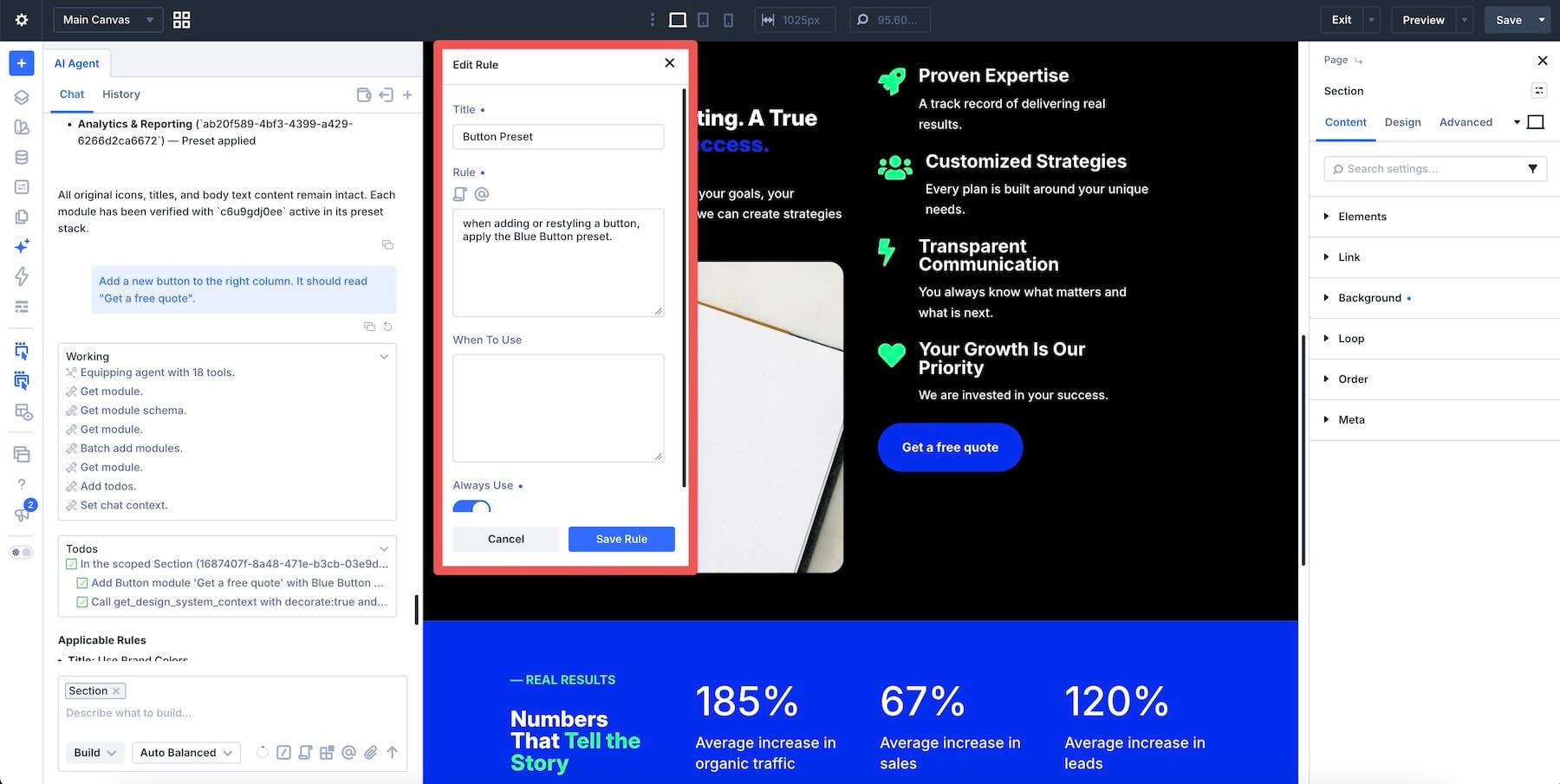
With relevant button-styling guidance saved in a Rule, your next request can focus on the button’s position and copy:
Rules give the agent additional guidance alongside your prompt, conversation history, and attached context. They can reduce repetition, but you should still review whether the result follows your standards.
Keep the distinction clear: a Rule describes how you want work done, while a Command stores a task you want to repeat.
7. Save Repeatable Jobs As Commands
When a prompt proves useful across several pages, save it as a Command. Type / in the chat or open the Commands picker to insert it into your message.
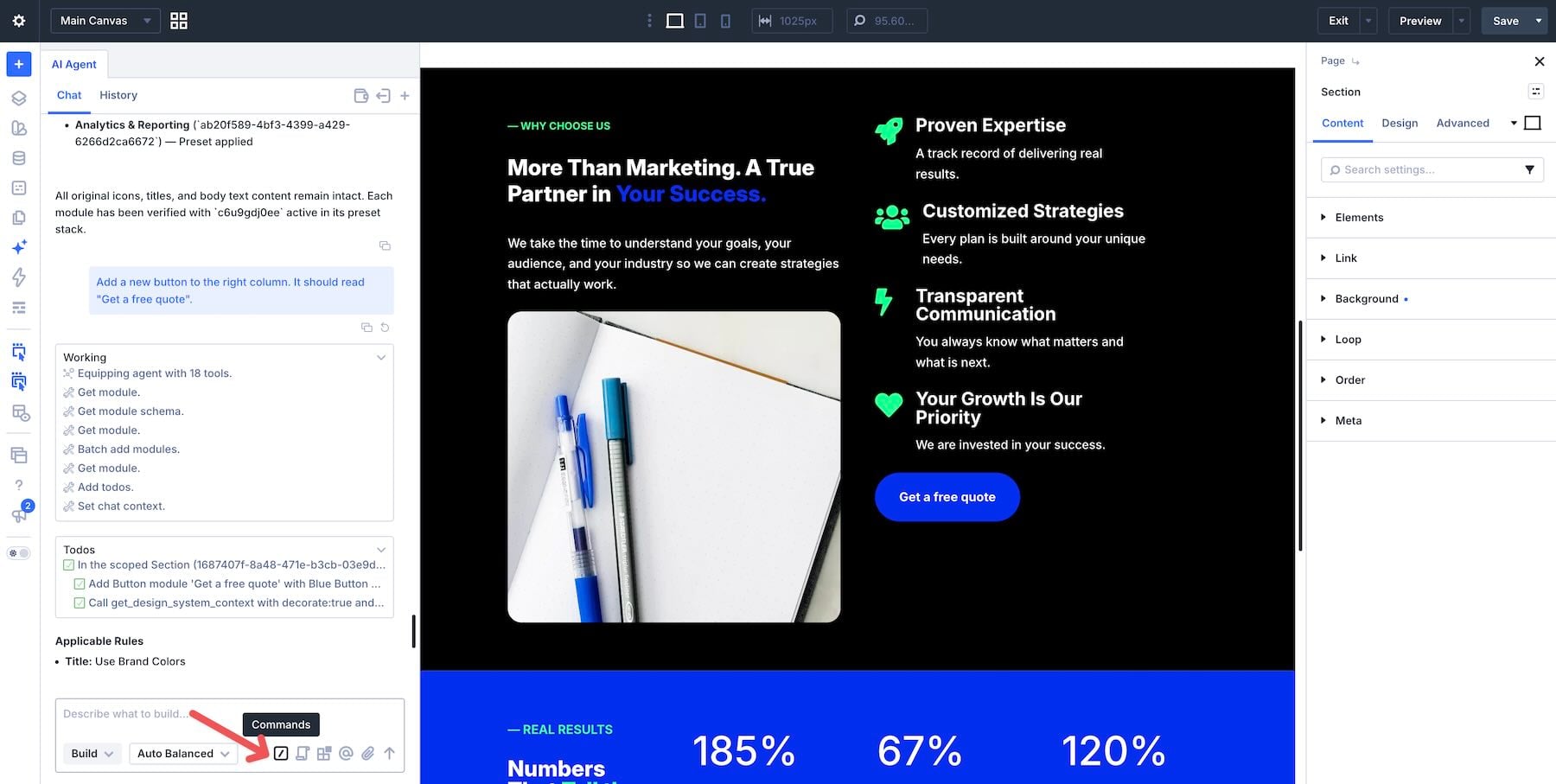
Useful repeatable jobs include:
- Alt Text: Check image alt text, retain meaningful existing descriptions, and identify decorative images that should have empty alt text.
- Scan For Hard-Coded Values: Identify static color and spacing values and recommend existing Variables that could replace them before making changes.
- Responsive Review: Check the Phone breakpoint for cramped content or overflow and report the findings before editing.
- Element Labels: Replace generic Element Labels with descriptive names that make the page structure easier to navigate.
- Pre-Publish Check: Review heading order, contrast, CTAs, and alt text, then report issues for you to verify.
Before sending the inserted Command, check its scope and add details such as “on this page” or “in the pricing section.” You can attach a Preset or Variable to the Command, but review those references when reusing it elsewhere.
For work that creates shared Variables or Presets, separate the audit from implementation. Review what already exists before allowing a reusable Command to create more resources.
8. Tell The Agent What The Reference Is For
The agent can build from a written brief, a screenshot or mockup, a public URL, or a moodboard. Explain what the reference should contribute: layout, spacing, color direction, typography, or overall mood. Then identify what should change.
Weak: Here’s a screenshot. Make my page look like this.
Better:
Use JPEG or PNG for attached image references. If the design is already online, provide a public URL the agent can access without signing in. Explain whether you want to borrow its structure, visual direction, or both, and identify any copy or branding that should not be reused.
Review the first pass against your instructions. Continue in the same chat for related refinements so the reference and your earlier decisions remain part of the conversation.
9. Refine In Conversation, But Use The Builder When That’s Faster
Treat a generated layout as a first pass to inspect. If one part misses the brief, identify that part and request a focused correction rather than rebuilding everything.
The result uses native Divi Sections, Rows, Columns, and modules that you can edit in the builder. A small padding or color adjustment may be quicker to make directly. Use the agent for changes that benefit from coordinated work across several settings or elements, such as a section restyle or an alt-text review.
Focused follow-ups can avoid repeating work, but their cost depends on the models and context involved. Choose the approach that makes the change easiest to complete and verify.
If a pass goes in the wrong direction, use the restore control on your message to return the working canvas to its earlier state. Remember that this also removes manual edits made after that point. Wait until the agent has finished and any pending approval has been resolved before restoring.
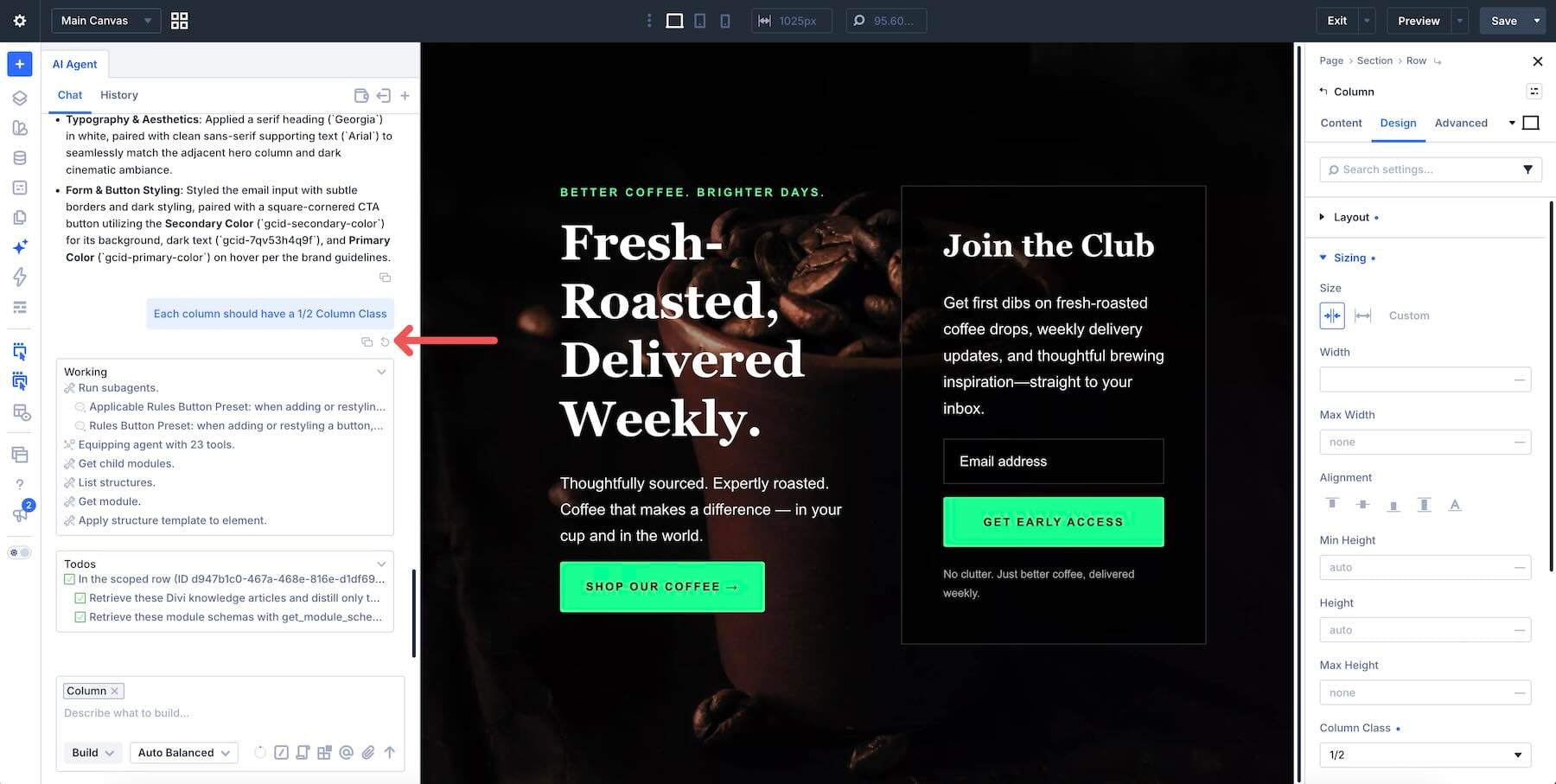
10. Match The Model To The Job
Use the automatic tiers as a starting point, then adjust based on the results you get for your work.
- Auto Value: Copy tweaks, alt text, and small additions.
- Auto Balanced: Section restyling or a few coordinated steps.
- Auto Deep Value: Tasks that benefit from additional reasoning at a moderate cost.
- Auto Premium: Demanding layout generation or building from a screenshot.
- Custom: Individual model choices for the Planner, Agent, Layout, and Ask roles.
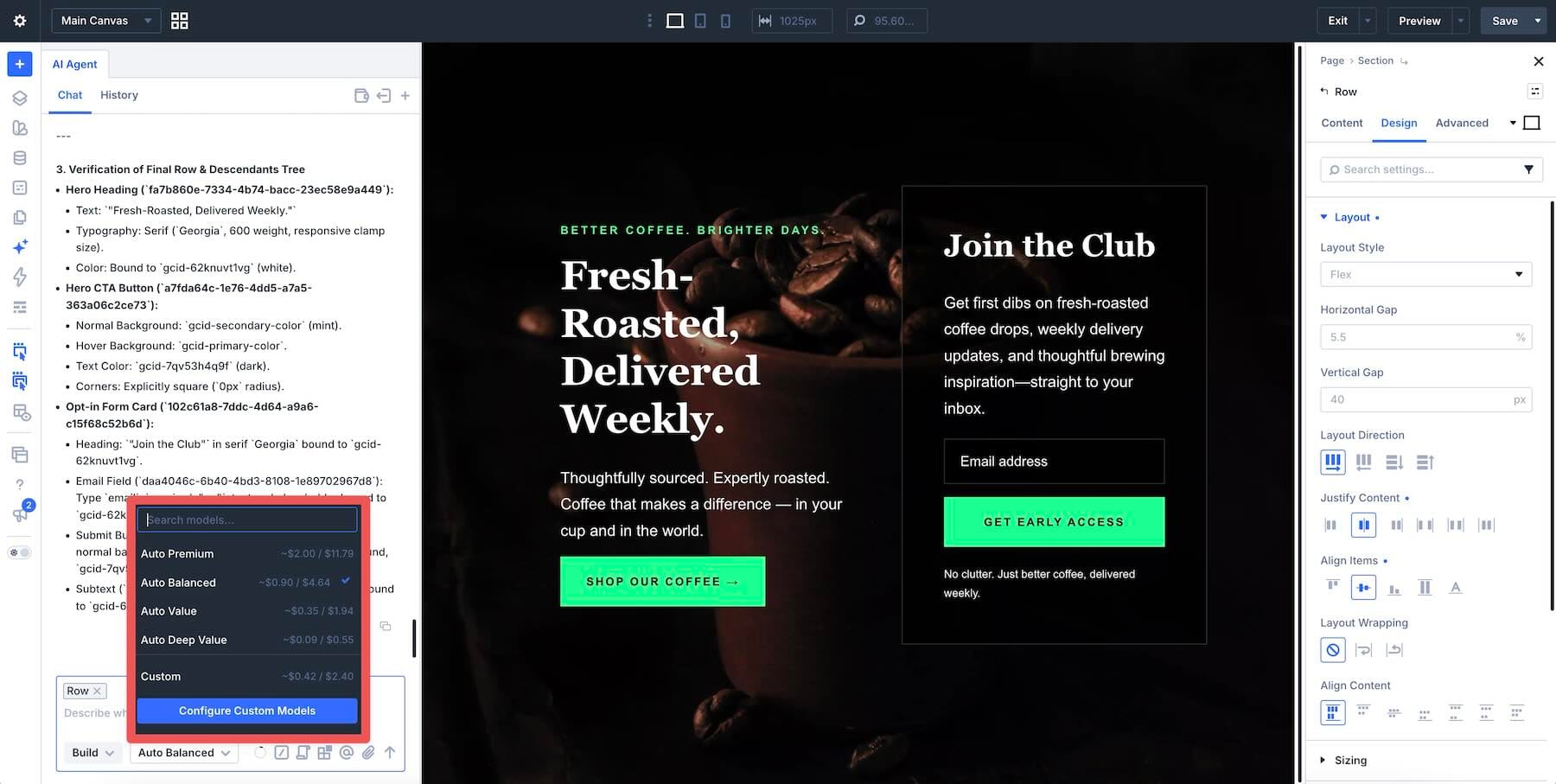
A stronger model may handle a complex request more effectively, but it does not remove the need for clear instructions or a final review. Reasoning effort can also affect response time and cost, so leave it at the default unless the task gives you a reason to change it.
Keep related refinements in the same conversation. Start a new chat when moving to an unrelated job, and check the selected scope and attached context again. This helps keep the conversation focused and prevents old requests from filling the Context Usage meter unnecessarily.
Make Steering The Habit
Start with one task on an existing page. Name the outcome, add the target as context, and explain what should remain unchanged. Use Ask if you want to review an approach first, then switch to Build and inspect the result.
As you find instructions worth repeating, save your standards as Rules and your recurring tasks as Commands. That gives Divi AI agents clearer direction while keeping everyday prompts concise.
If you haven’t already, download the latest version of Divi 5. With an active Divi AI subscription, including Divi AI through Divi Pro, you can open the agent in the Visual Builder and try your first scoped request.
Which instruction has made the biggest difference in your results? Share it in the comments below.






Leave A Reply