

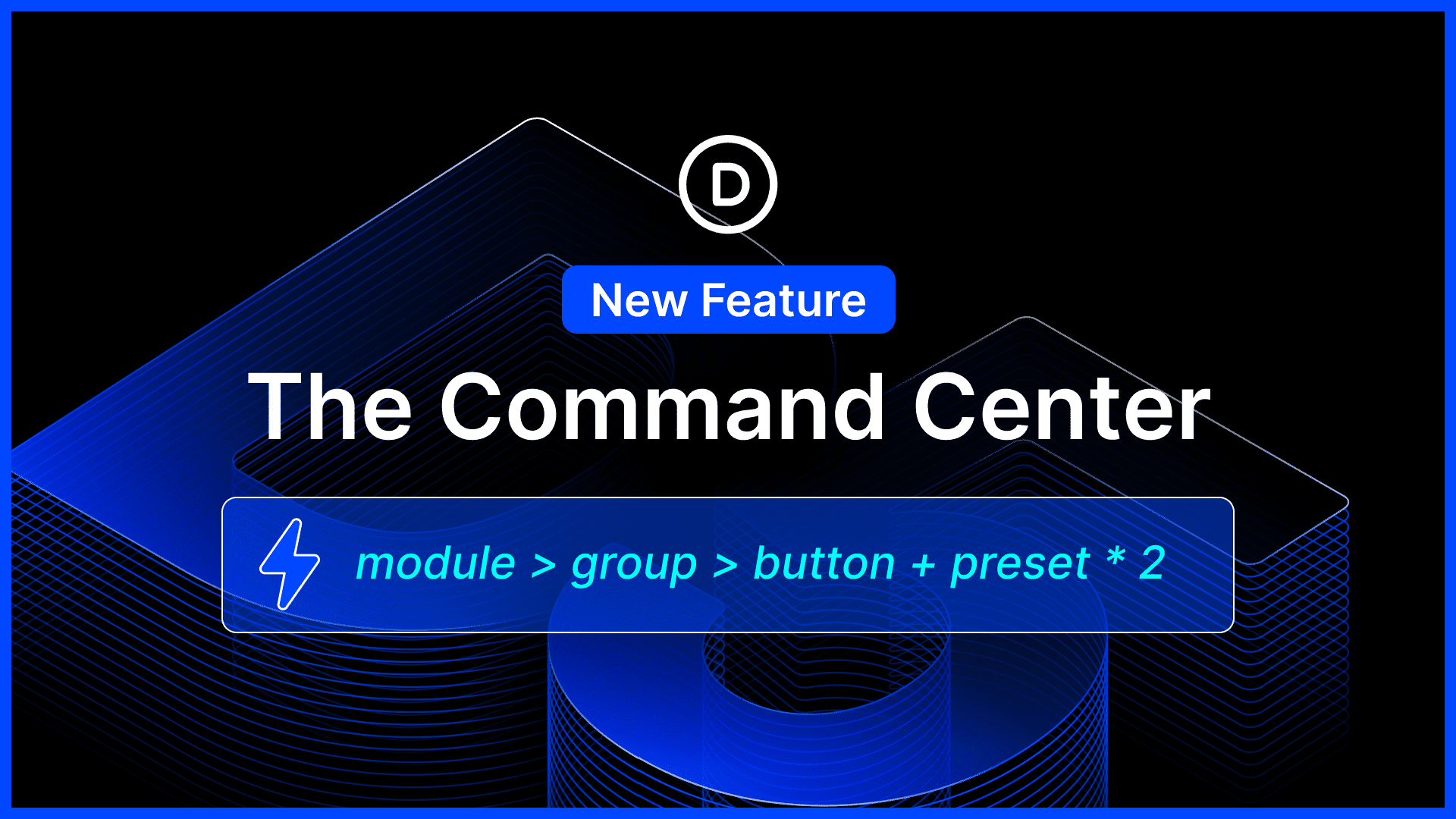
I am excited to announce the release of the Command Center for Divi 5. Mastering it feels like unlocking a superpower, giving the term’ power user’ true meaning.
You can quickly execute commands such as adding elements, navigating your website, jumping to specific settings, opening panels, and more.
There’s much to explore, so let me jump into the builder and give you the full, off-the-cuff tour. 👇
The Command Center
Press Cmd+K to open the Command Center, type a command, and execute! You can quickly perform actions that would otherwise take multiple mouse movements and clicks.
If you are an experienced Divi user, you often know exactly what you need to do before you do it. You’ve already mapped it out in your head: “Add a blurb module, add a group module inside that, add two button modules inside that, apply my primary button preset…” Instead of going through the mouse motions, you can type out a single command to build that entire element instantly.
But that’s just one example! The command center has tons of commands that not only help you build things faster, but also navigate the builder and your website instantly.
Command Categories
- Element – Add any element to the page. Plus, you can add multiple elements at once and construct entire nested layouts using queue operators like ^>*. For example, “blurb > group > button *2” will add a blurb module, a group module, and two buttons.
- Modal – Open any modal in the builder. Want to manage your variables? Just type “variables” and press enter. Would you like to export your layout? Instead of opening the page menu and clicking the Import/Export option, just type “export” and press Enter.
- Settings – Quickly navigate to options groups within the settings panel. No need to click “advanced” and then scroll down to the animation option group to open it. Just type “animation” and press enter, and the command center will take you where you want to go.
- View – Quickly switch between view modes, including breakpoints and wireframe mode.
- Modify – All options available via right-click are also available as commands. Duplicate, delete, copy, cut, paste, reset. If you forgot the keyboard shortcut, type the command instead of navigating the menu.
- Navigate – You can quickly edit different pages on your website. Type in the name of the page, press enter, and now you are editing that page! You can also quickly navigate to areas like the Theme Builder and Theme Options. Just type the name of the place you want to go instead of clicking around the WordPress admin.
- Preset – Use preset commands to add a preset to an element quickly. Just type the preset name and hit Enter—no need to look for it in the preset select menus. You can even add multiple presets at once by queuing them. “blurb preset (cmd+enter) border preset (cmd+enter) spacing preset (enter)” will add all three presets at once. No need to click around the settings panel and pick out presets from long lists.
- Page – Execute page-level commands like save, exit, and preview.
Command Operators
You can do much more than execute a single command at a time. You can queue multiple commands together and filter commands on the fly while you type.
Queueing Commands
You can queue both Element and Preset commands by pressing Cmd+Return when executing the command. Instead of adding the element or preset instantly, it adds it to the command queue. Keep typing and press Cmd+Return to queue up another element. Press return to execute the command queue when you are finished building it.
Command Queue Operators
When creating a command queue, you can use the following operators to affect the element structure.
- > – Place an element inside the previously placed element in the queue. Blurb > Button adds a button inside a blurb.
- * – Multiply elements in the queue. Blurb > Button *2 adds a blurb with two buttons.
- ^ – Place an element above the currently edited element. By default, the command center adds elements below the presently edited element. Using ^ and > will place the new element above or inside the current element.
Combine Presets & Elements In A Single Queue
You can even combine elements and presets in a single command queue. Adding a preset after a module in the queue will apply it to that module.
For example, “Blurb > Group > Button + Primary Preset *2″ will add a group inside a blurb, and inside that group, two buttons both with the Primary Preset applied.
Filter On The Fly
The command center has many commands. You can whittle down the list while you type by using the “:” operator followed by the command category. For example, typing “”modal”” will automatically apply the modal category filter and show you only modal commands.
It’s useful when multiple commands contain common words, and you want to get straight to your desired command without having to sift through commands with similar names.
Try Divi 5 Today
The new Command Center is now available for Divi 5. Give it a try and let us know your thoughts.
We rebuilt Divi from the ground up and packed it full of dozens of your most requested features. Forget everything you thought you knew about Divi, because Divi 5 is an entirely different beast.
In case you missed it, we recently introduced new menu components, menu looping, and selector-based targeting and breakpoint triggers to the interaction builder.
These new features, along with Divi 5’s broader systems, such as canvases and semantic elements, give you the freedom to build any type of menu, including mega menus, slide-in menus, and more. We aren’t done adding more menu features.
We’re adding them piece by piece, and each piece unlocks a broad range of new possibilities.
Watch this video for all the details. 👇
More Divi 5 Updates Are On The Way
The features keep coming, and we aren’t slowing down anytime soon!
If you are enjoying these updates, do us a huge favor and let us know by liking this video and leaving a comment. It means a lot to us to see you cheering Divi on, and it’s essential to feed the algorithm and spread the word.
Don’t forget to follow us on YouTube and subscribe to the Divi newsletter so you never miss an update. I’ll see you soon for another Divi 5 feature announcement, which I promise will be right around the corner. 😁













Awesome. I’m looking forward to using the Command Center.
Nick, you asked for feedback on the format of the video. I found it clear, concise and easy to understand. Your delivery is excellent but not so you colleague (I apologise for not knowing his name) that does the tutorials. I find his accent so heavy that I need the sub-titles on and while watching those I’m unable to watch what he’s doing.
I really do not wish to be unkind but perhaps he could work on being a little clearer in his pronounciation.
Completely agree with everything you said. Love the tutorials from Nick and have a VERY hard time understanding anything the other guy says. Makes it very hard to try and watch any videos.
I do understand him and i am not an native english speaker. My English level is just 60% or 70%.
This is seems useful – once I try it several times. I think your sentence may be missing something “You can whittle down the list while you type by using the “:” operator followed by the command category. For example, typing “”modal”” will automatically apply the modal category filter and show you only modal commands. ^ in the phrase – “” modal”” I think you left out the : ?
Great feature !
When will you implement MCP server so we can build directly with Claude Code ?
Thanks