

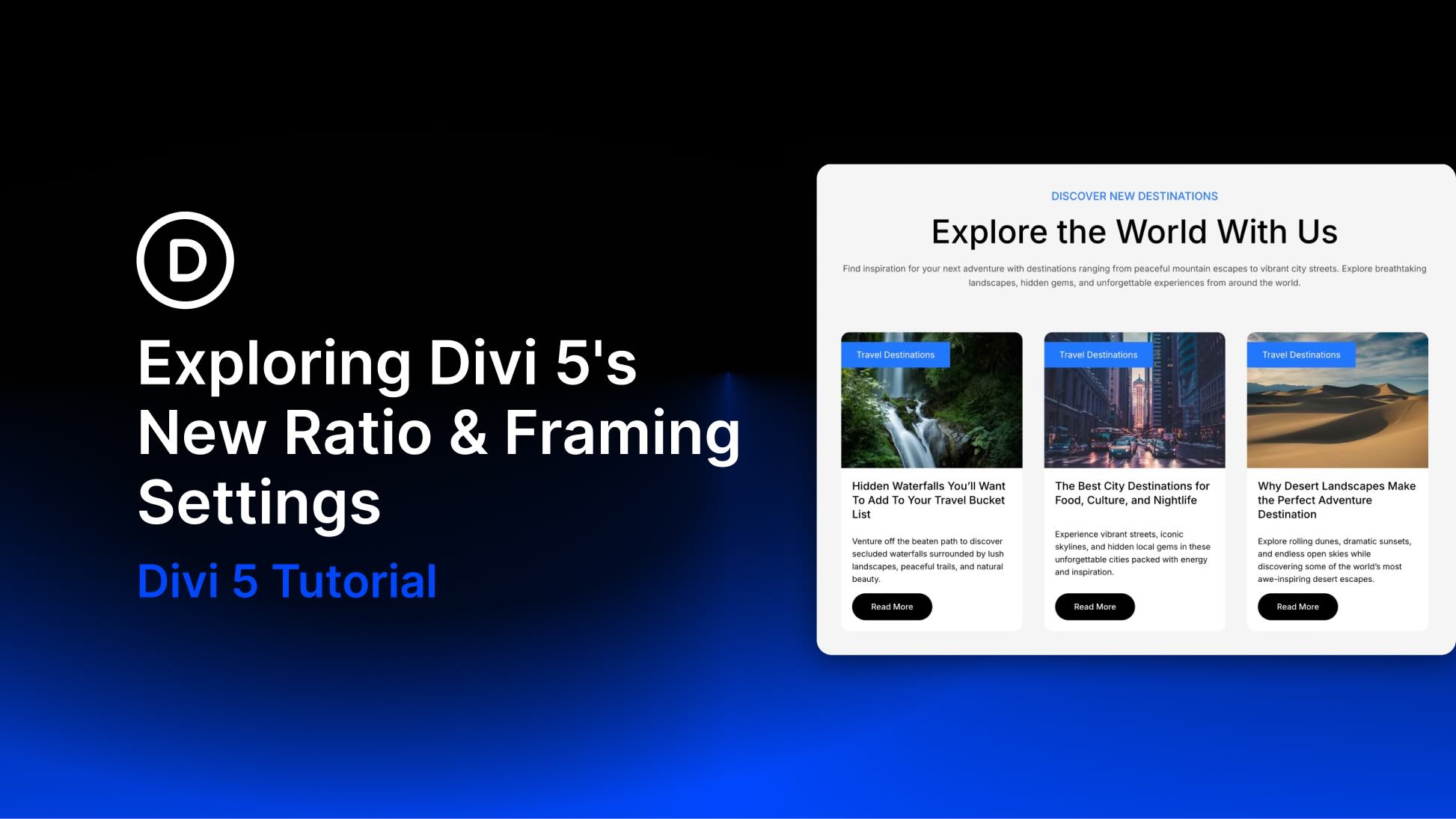
Inconsistent image sizes can make an otherwise polished layout feel unfinished. Blog grids lose alignment, galleries crop awkwardly, and responsive layouts can shift in ways that make images feel disconnected from the rest of the design.
Divi 5 gives you a better way to handle that with new Aspect Ratio, Image Framing, and Image Preset tools. Aspect Ratio helps you keep elements proportional. Image Framing controls how images fit and sit inside those proportions. Image Presets let you reuse image styling across modules that display images.
In this post, we’ll walk through what each setting does, where to find it, and how to combine these tools for cleaner grids, better crops, and more consistent image styling across your site.
- 1 What Changed In Divi 5?
- 2 Understanding Aspect Ratio In Divi 5
- 3 Using Image Framing In Divi 5
- 4 Reuse Image Styles With Presets
-
5
Tips And Best Practices
- 5.1 Start With The Ratio, Then Adjust The Frame
- 5.2 Use Cover For Consistent Grids
- 5.3 Use Contain When The Whole Image Must Be Visible
- 5.4 Check Mobile Crops Separately
- 5.5 Avoid Extreme Ratios Unless The Design Needs Them
- 5.6 Use Presets For Repeated Image Treatments
- 5.7 Combine These Tools With Loop Builder
- 6 Download And Install The Example Files
- 7 Download For Free
- 8 Build Cleaner Image Layouts With Divi 5
What Changed In Divi 5?
Divi 5’s new image workflow is built around three related updates.
- Aspect Ratio: A setting in the Sizing option group that keeps an element’s width and height in a defined proportion as it scales.
- Image Framing: Fit and position controls that decide how an image fills its frame and which part of the image stays visible.
- Image Presets: Preset support for the Image option group, making it easier to reuse image styles such as borders, shadows, filters, and framing.
These features are most useful when they work together. Aspect Ratio creates the frame. Image Framing controls how the image behaves inside that frame. Presets help you reuse the same image treatment across modules and pages.
Understanding Aspect Ratio In Divi 5
Aspect Ratio sets a proportional relationship between width and height. For example, 16:9 works well for widescreen banners and videos, 1:1 creates a square, 4:3 is useful for classic image cards, and 3:4 or 4:5 works well for portrait-style images.
Once you set a ratio, Divi keeps that proportion as the element scales across screen sizes. That makes it much easier to keep image cards, product photos, team headshots, blog thumbnails, and portfolio items aligned.
Before this update, consistent image proportions often meant preparing every image in an external editor or using layout workarounds. Now, you can control proportional sizing directly in the Visual Builder.
This is especially useful for Loop Builder layouts, blog grids, galleries, WooCommerce product sections, team pages, and any design where repeated items need to line up cleanly.
Where To Find Aspect Ratio Settings
You can find Aspect Ratio in the Design > Sizing option group.

When you define an aspect ratio, Divi calculates the element’s height based on its rendered width. As the width changes on different screen sizes, the height adjusts automatically to keep the same ratio.
Aspect Ratio is not only useful for Image modules. It can also help keep icons, avatars, decorative shapes, containers, and other elements proportional.
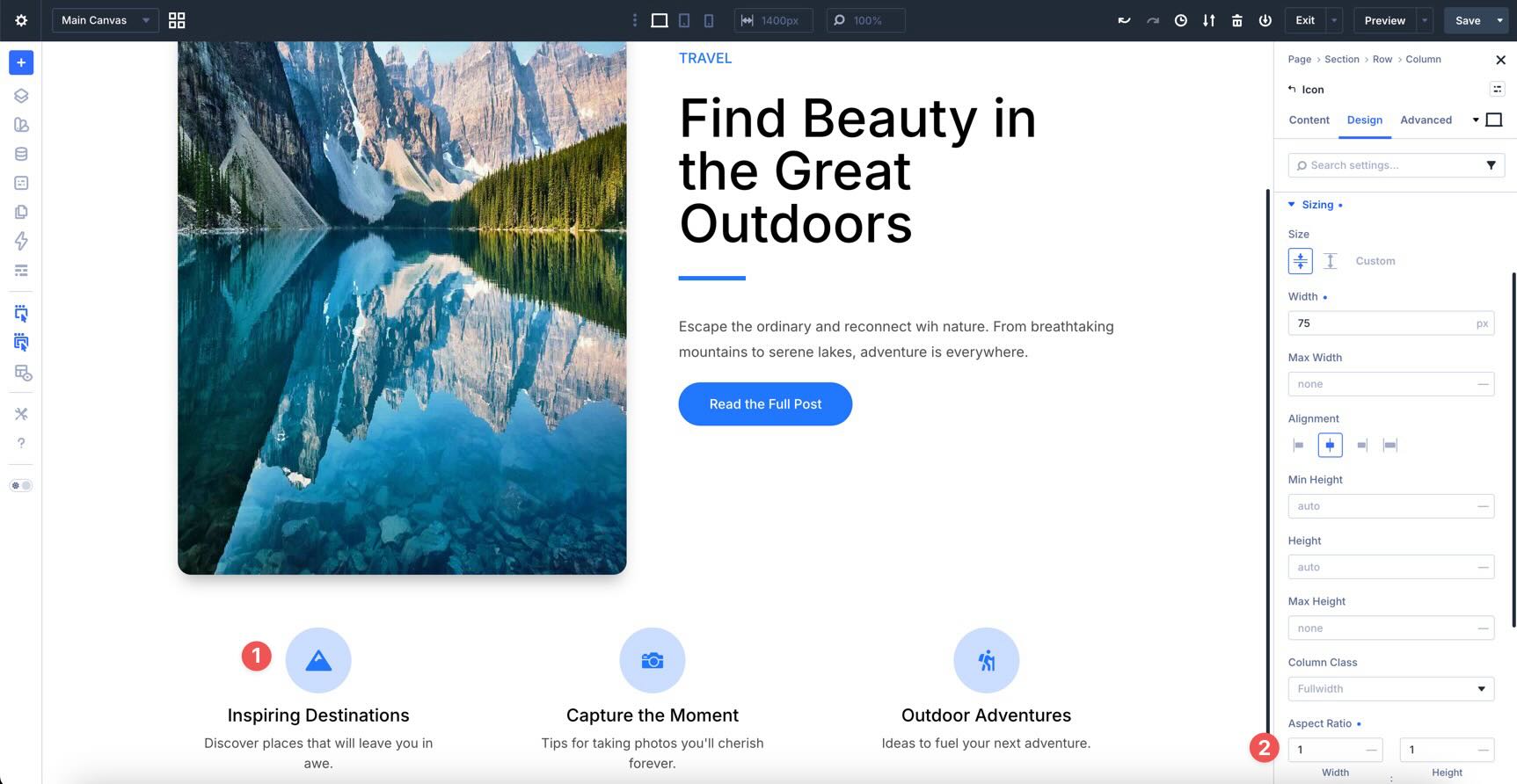
For images, Aspect Ratio defines the frame. The image inside that frame is controlled by the Framing settings.
Aspect Ratio Example
One of the easiest ways to see the value of Aspect Ratio is in a blog or portfolio grid. In a Loop Builder layout, you can set each featured image to the same ratio so every card lines up, even when the original image uploads have different dimensions.
For example, a 4:3 ratio creates consistent horizontal image cards that work well for blogs, portfolios, and resource grids.
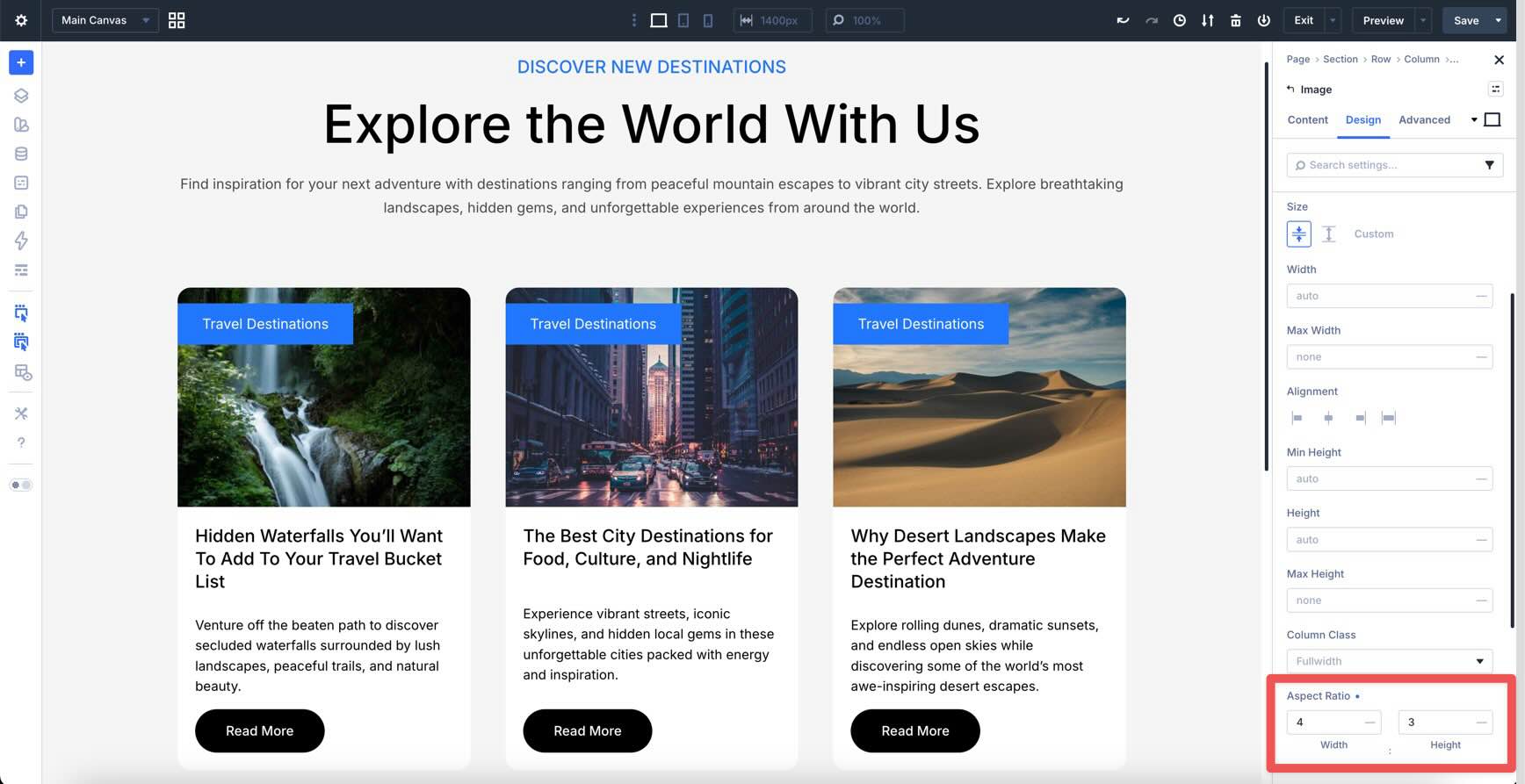
The advantage becomes even clearer on smaller screens. The image can scale with the layout while keeping the same proportion, so it does not stretch, squash, or force uneven card heights.
Using Image Framing In Divi 5
Aspect Ratio gives you the frame. Image Framing controls how the image fits inside that frame.
This matters because changing the frame can change how an image appears. Without framing controls, an image may stretch, show empty space, or crop in the wrong place. Framing gives you control over the fit and focal point.
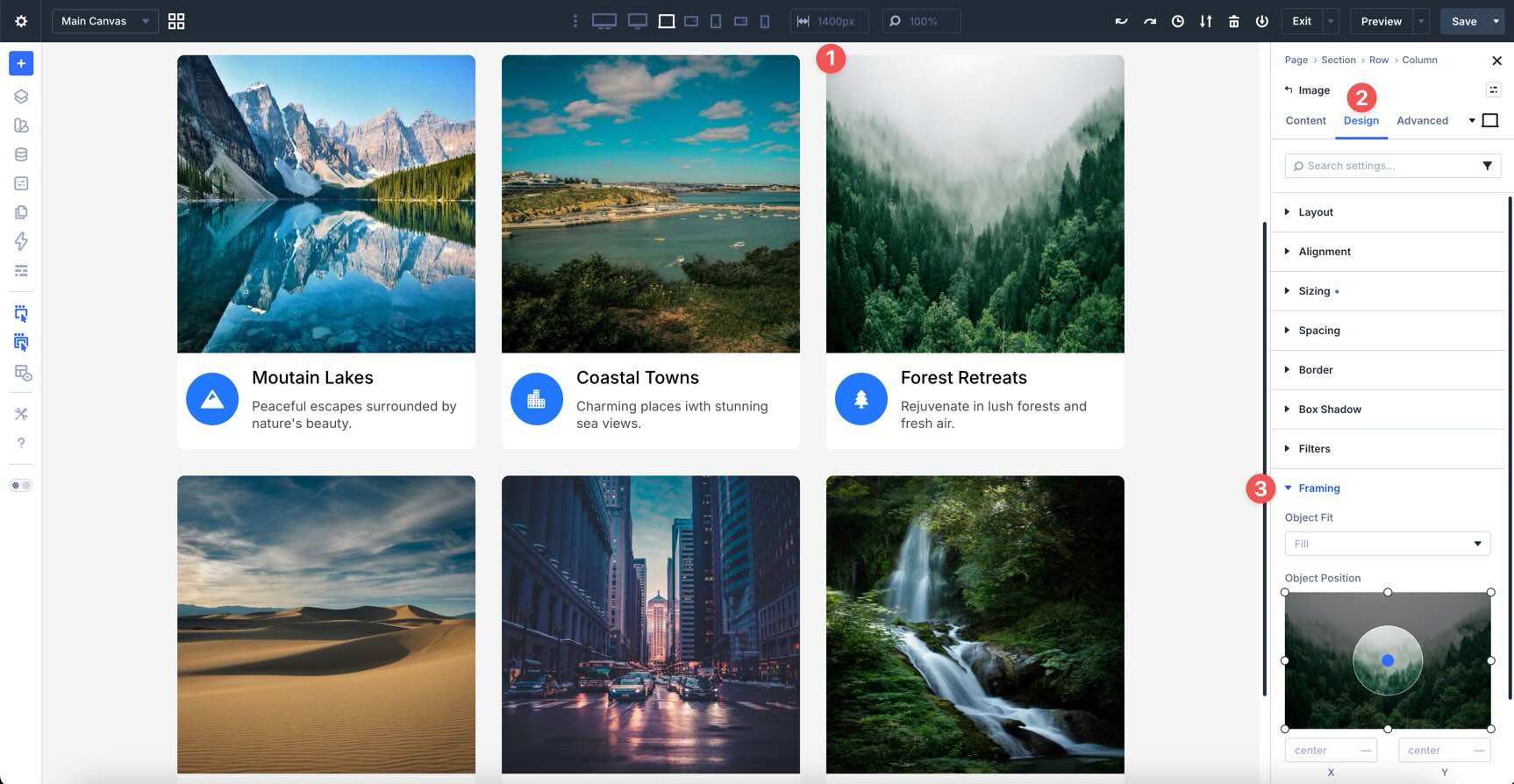
To use it, open a module that displays an image and go to the Design tab. In the Image module, Framing appears as its own option group. In modules where the image is a sub-element, such as Blurb or Person, you will usually find it under Design > Image > Framing.
Object Fit
Object Fit controls how the image fills the frame. Divi includes several fit options:
- Fill: Stretches the image to fill the frame. This can distort the image.
- Contain: Scales the full image inside the frame. This keeps the whole image visible but may leave empty space.
- Cover: Fills the frame while preserving the image’s proportions. Parts of the image may be cropped.
- None: Displays the image at its intrinsic size, which may crop or leave empty space depending on the frame.
- Scale Down: Uses the smaller result between None and Contain.
For most card grids and image-heavy layouts, Cover is often the best starting point because it fills the frame without distorting the image.
Object Position
Object Position controls which part of the image stays visible when the image is cropped. This is especially useful for portraits, product photos, and destination images where the subject is not perfectly centered.
You can anchor the image to preset positions such as top, center, bottom, left, or right. You can also enter custom horizontal and vertical values for more precise placement.

Object Fit only makes a visible difference when the image’s rendered size differs from its original proportions. In practice, that usually means you have set an Aspect Ratio or custom width and height.
Apply Framing Across Multiple Images
When you find a framing setup that works, you do not have to recreate it one image at a time.
For a quick one-off reuse, use Divi’s Copy/Paste Attributes workflow. Right-click a styled image, copy its attributes, and paste them onto another similar image.
For broader updates, use Extend Attributes to extend styling across matching modules or areas of the page. This is useful when you want many images in a section, grid, or layout to share the same ratio and crop behavior.
For long-term consistency, use presets. We’ll cover that next.
Image Framing Example
In the layout below, six destination cards use a 1:1 Aspect Ratio with Cover fit. That gives every card the same square frame.

The original images have different shapes and compositions.
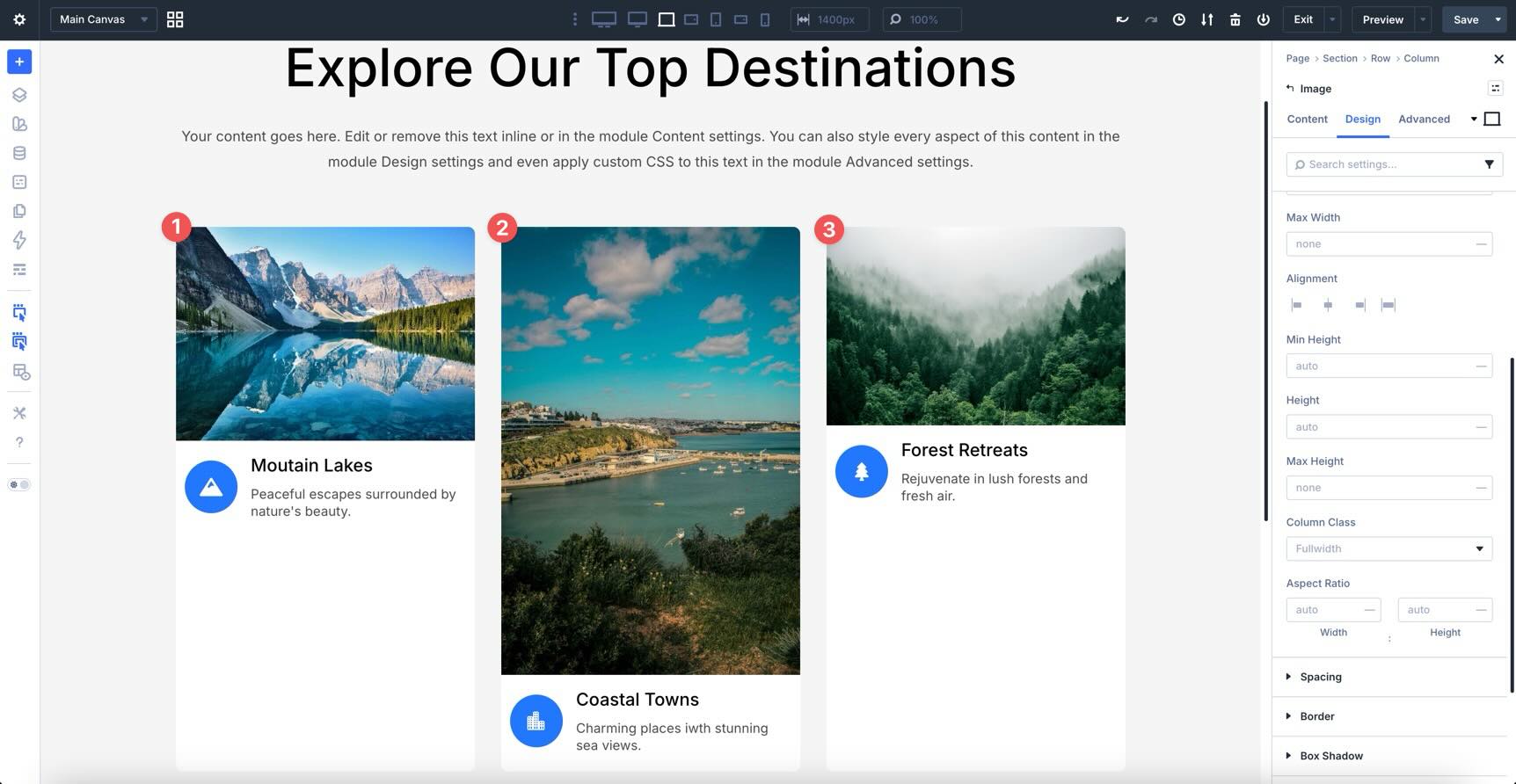
By adjusting the framing, you can keep the most important part of each photo visible while still maintaining a consistent grid. The result is a cleaner layout that feels intentional across desktop, tablet, and mobile.
Reuse Image Styles With Presets
Divi 5 now supports presets for the Image option group. This means you can save reusable image styles and apply them to other modules that display images.
An Image option group preset can include settings such as border radius, border styles, box shadow, filters, and framing. This is useful for repeated image treatments, such as card images, circular avatars, product photos, editorial thumbnails, or branded gallery images.
There is one important distinction: Aspect Ratio lives in the Sizing option group, not the Image option group. If you want to reuse Image Framing and other image styling, an Image option group preset works well. If you want to save Aspect Ratio and Image Framing together, use an Element Preset or combine a Sizing Option Group Preset with an Image Option Group Preset.
Create An Image Preset
To create an Image preset, style an image the way you want it. Then open the preset menu at the top of the Image option group, choose New Preset From Current Styles, name the preset clearly, and save it.
Use names that describe the role of the image style, such as Card Image Rounded, Product Image Square Crop, Avatar Circle, or Editorial Thumbnail.
Apply Or Update An Image Preset
When you add another module that displays an image, open its Image option group and choose the preset from the preset menu.
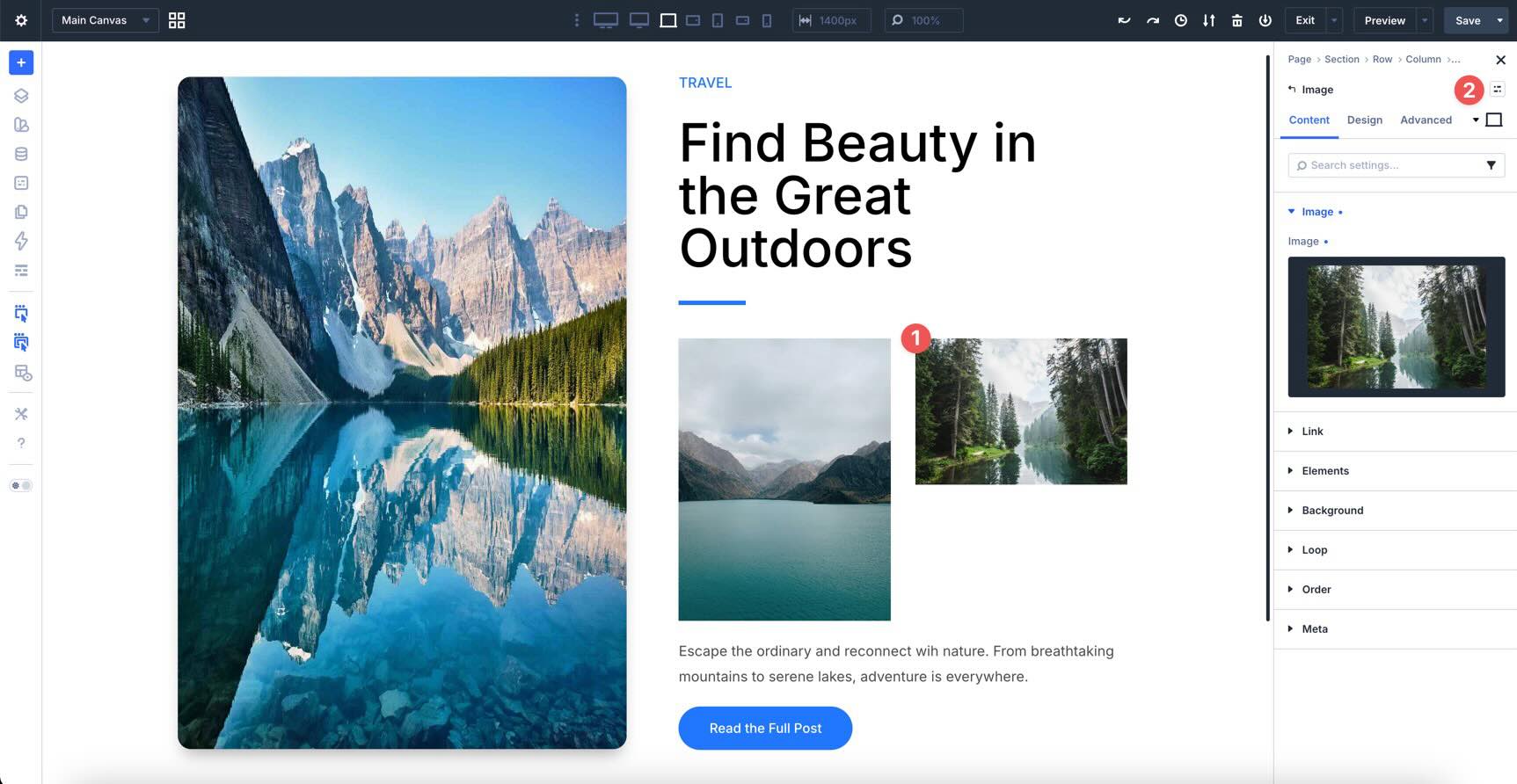
If you update the preset later, other images using that preset can update too. This keeps image styling consistent across the site without requiring you to edit each image module manually.
Image presets also work well with Composable Settings and Design Variables. Use variables for values like border radius, border color, and shadow color when you want image styles to stay connected to your larger design system.
Image Preset Example
The layout below shows how image styling can change across breakpoints. The large image uses a 2:3 Aspect Ratio on desktop and tablet, then switches to a 1:1 square ratio on mobile.
Below the hero image, the circular icons use a 1:1 Aspect Ratio and a fixed width of 75px.
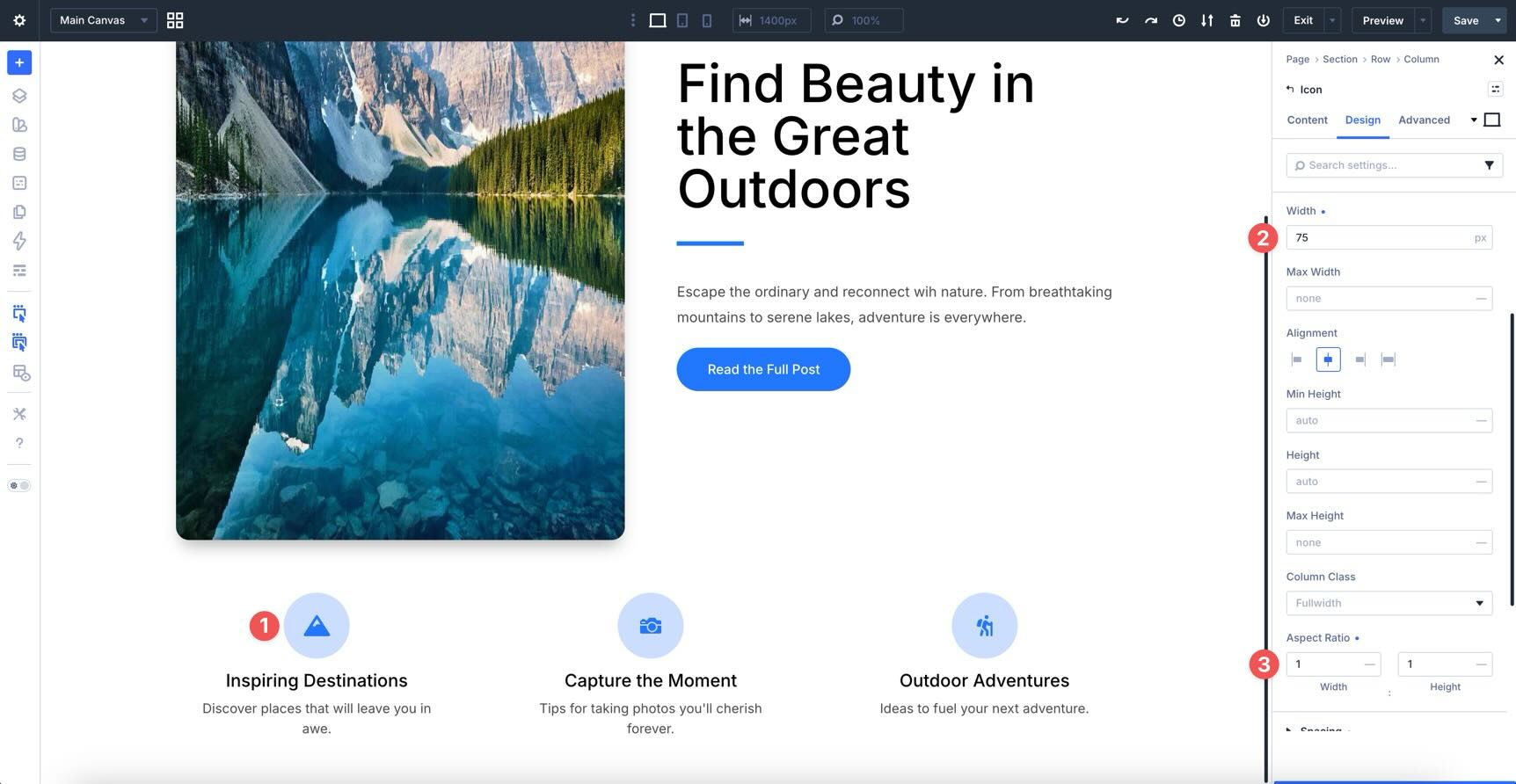
This shows that Aspect Ratio can help beyond traditional images. It can keep icons, avatars, decorative elements, and image containers proportioned across different layouts.
For this kind of responsive setup, use presets carefully. Use Image option group presets for reusable image styling and framing. Use Element Presets when the full module design, including Sizing and Aspect Ratio, should travel together.
Tips And Best Practices
Start With The Ratio, Then Adjust The Frame
Set the Aspect Ratio first. Then use Image Framing to decide how the image should fit inside that ratio. This two-step workflow keeps your layout consistent while still letting you protect the most important part of each photo.
Use Cover For Consistent Grids
For blog grids, product grids, team cards, and portfolio cards, Cover is usually the most reliable Object Fit setting. It fills the frame and preserves image proportions, although some cropping may occur.
Use Object Position to control what stays visible. For headshots, top center often works better than exact center because it helps keep faces from being cropped too low.
Use Contain When The Whole Image Must Be Visible
Use Contain when the entire image needs to remain visible, such as logos, diagrams, UI screenshots, or product images where cropping would remove important information.
Contain may leave empty space inside the frame, so pair it with a background color or layout treatment that makes that space feel intentional.
Check Mobile Crops Separately
A crop that works on desktop may not work on mobile. Use Divi’s responsive controls to adjust the ratio, fit, or object position at smaller breakpoints.
Square or portrait ratios often work better on phones, especially for card images and hero sections. Always preview the crop where the image will actually be used.
Avoid Extreme Ratios Unless The Design Needs Them
Very tall or very narrow ratios can make layouts harder to manage, especially inside grids and dynamic loops. Standard ratios like 1:1, 4:3, 3:4, 4:5, 16:9, and 21:9 are easier to reuse.
Extreme ratios can still work for editorial or experimental layouts, but test them across breakpoints before using them in repeated modules.
Use Presets For Repeated Image Treatments
If you use the same crop, border radius, shadow, or filter more than once, save it as a preset. This keeps your image styling consistent and makes future updates easier.
For full image module patterns that include Sizing, Aspect Ratio, Image Framing, border, shadow, and spacing, use an Element Preset instead of relying only on an Image option group preset.
Combine These Tools With Loop Builder
Aspect Ratio and Image Framing are especially useful in Loop Builder templates. Set the image ratio and framing once inside the loop item, and every repeated item can follow the same visual structure.
This is one of the easiest ways to turn dynamic content into a polished grid.
Download And Install The Example Files
To help you get started quickly, we prepared a downloadable Divi Library file that includes the example sections shown in this post.
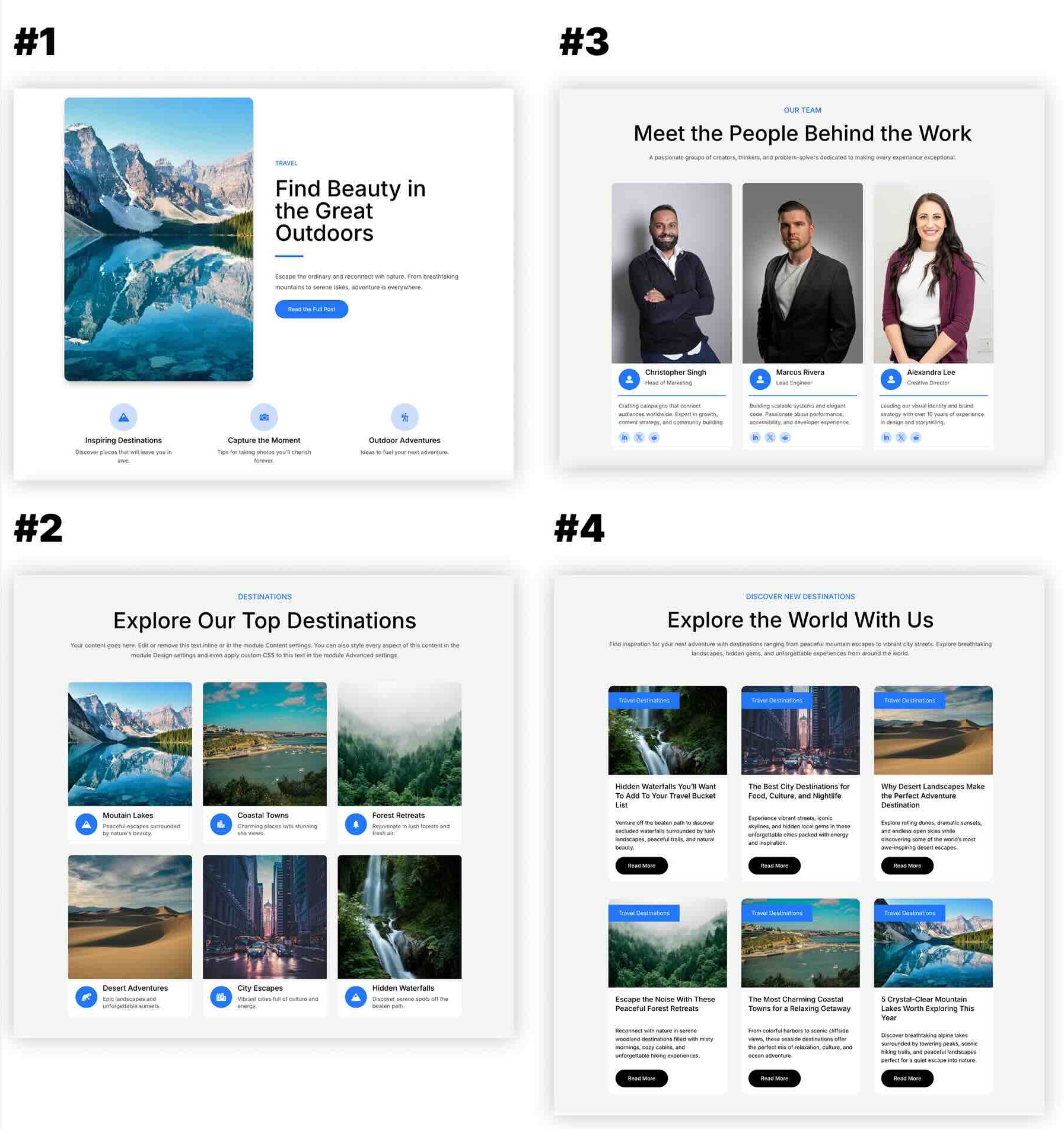
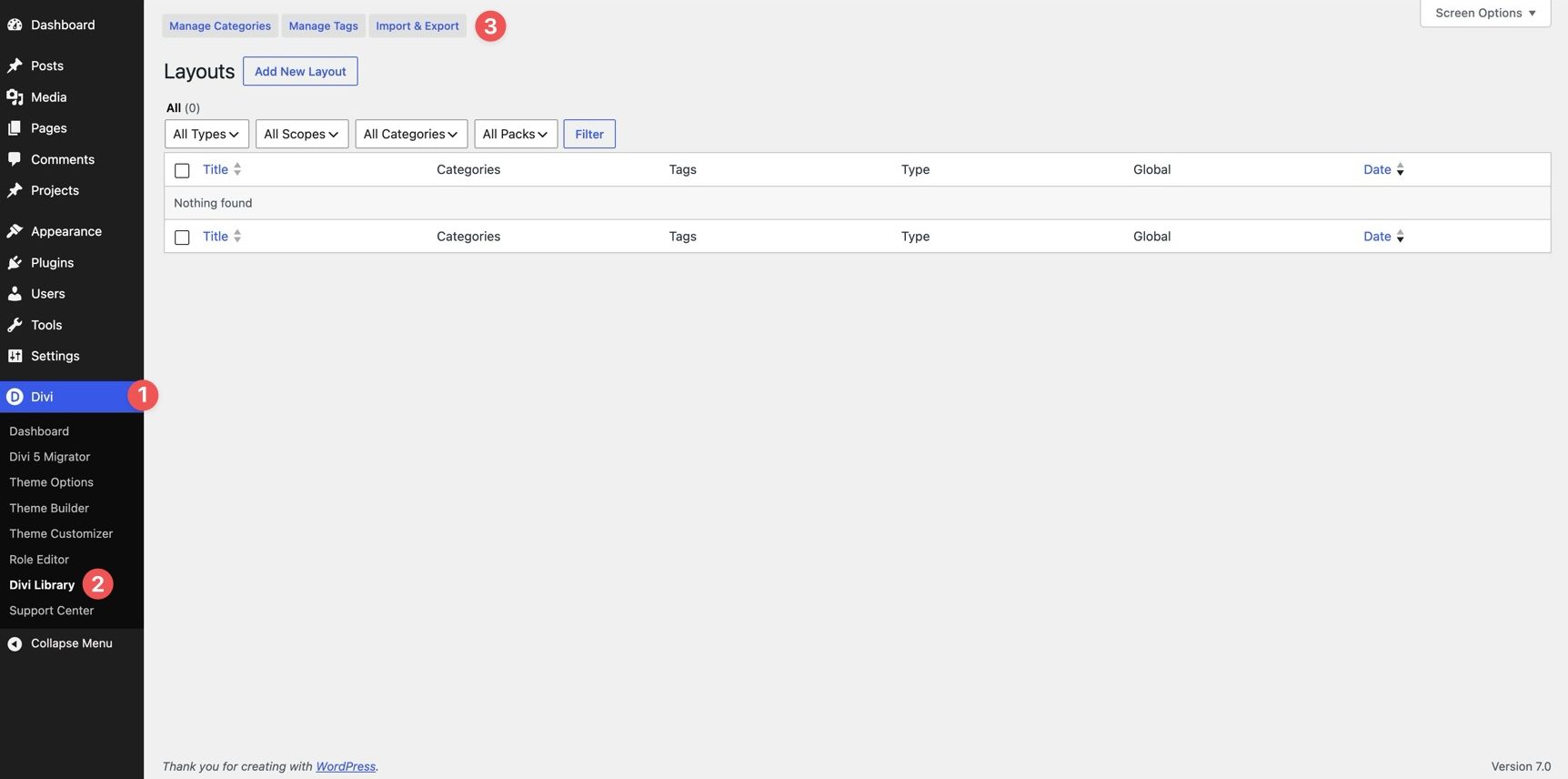
After downloading the zip file, go to your WordPress dashboard and open Divi > Divi Library. Click Import & Export.
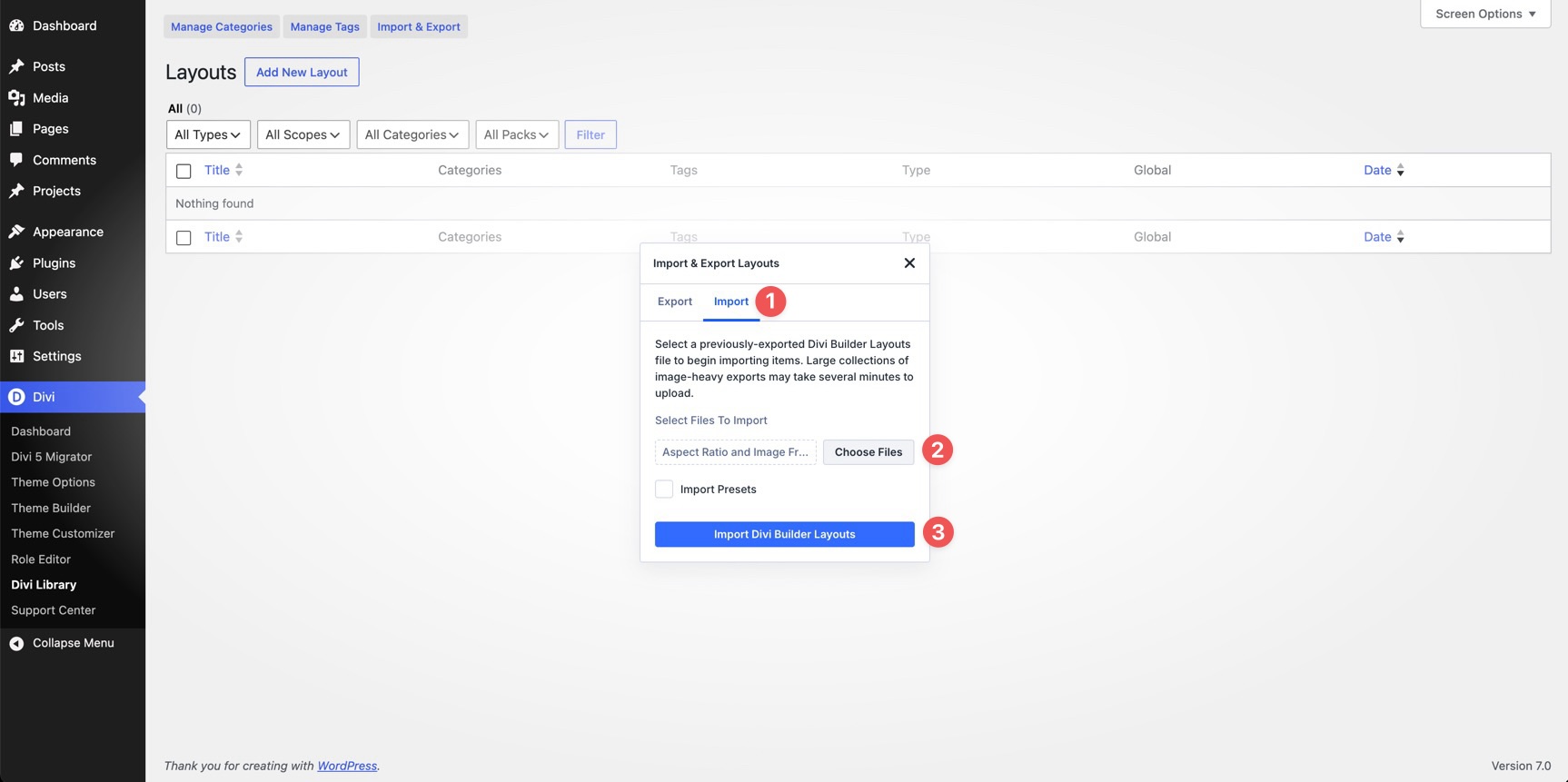
Select the JSON file from your computer, open the Import tab, and click Import Divi Builder Layouts.
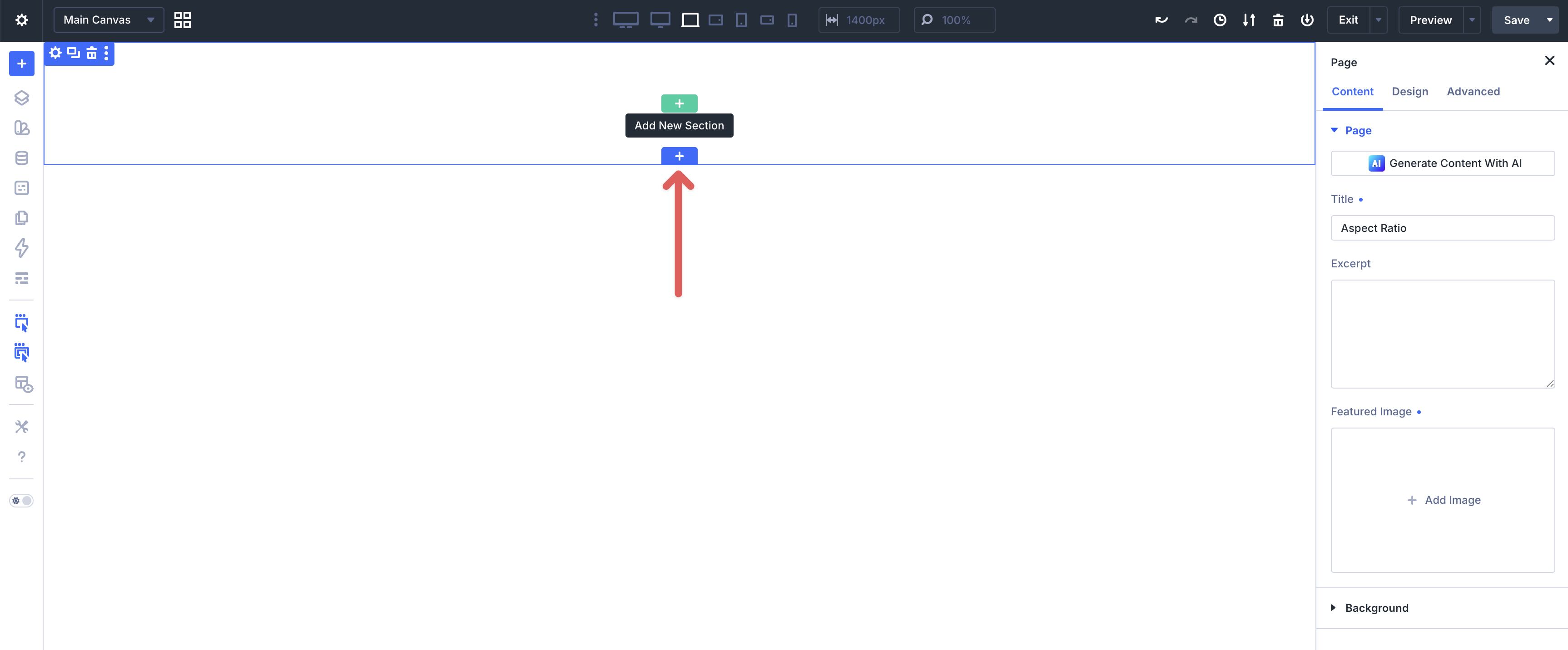
Once imported, open the Visual Builder on any page and click the blue plus icon to add a new section.
Click Add From Library, choose the section you want to use, and click Use This Section.

Build Cleaner Image Layouts With Divi 5
Divi 5’s Aspect Ratio, Image Framing, and Image Preset updates make image-heavy layouts easier to control. You can set consistent proportions, choose how images fit inside those frames, protect the most important part of each image, and reuse the same styling across your site.
Use Aspect Ratio to create the structure. Use Image Framing to control the crop. Use presets to keep repeated image styles consistent.
Together, these tools make image grids, galleries, product sections, portfolios, and responsive layouts easier to build and easier to maintain.











This is great, thanks!
The only thing is: in a blog image grid for example, it has always to be the “best average choice” (“fit”, “cover”) which cannot be right for every image.
But I cannot imagine that there will be a solution that solves all the image size issues in a blog with different image sizes, ratio etc… (I know, the solution would be to adjust the images that does not fit… 😉 )