


Capturing user attention requires more than static designs. Modern websites thrive on engaging, dynamic experiences that unfold as users scroll Divi 5‘s new Interactions feature allows designers to build scroll-triggered effects and animations that transform passive pages into captivating stories, guiding visitors through seamless interactions. In this post, we’ll explore how Divi 5 Interactions work, why they’re perfect for scroll-based layouts, and provide a step-by-step tutorial with practical examples to elevate your website’s engagement.
Let’s dive in.
What Are Divi 5 Interactions?
Divi 5 Interactions is a powerful, code-free system that lets you create dynamic, user-driven experiences. By defining triggers, effects, and targets, you can build animations and behaviors that make your website feel alive. For scroll-based effects, Interactions go beyond traditional animations by allowing precise control over when and how elements change as users navigate the page.
Key Components
Divi 5 Interactions are made up of three main components:
1. Trigger
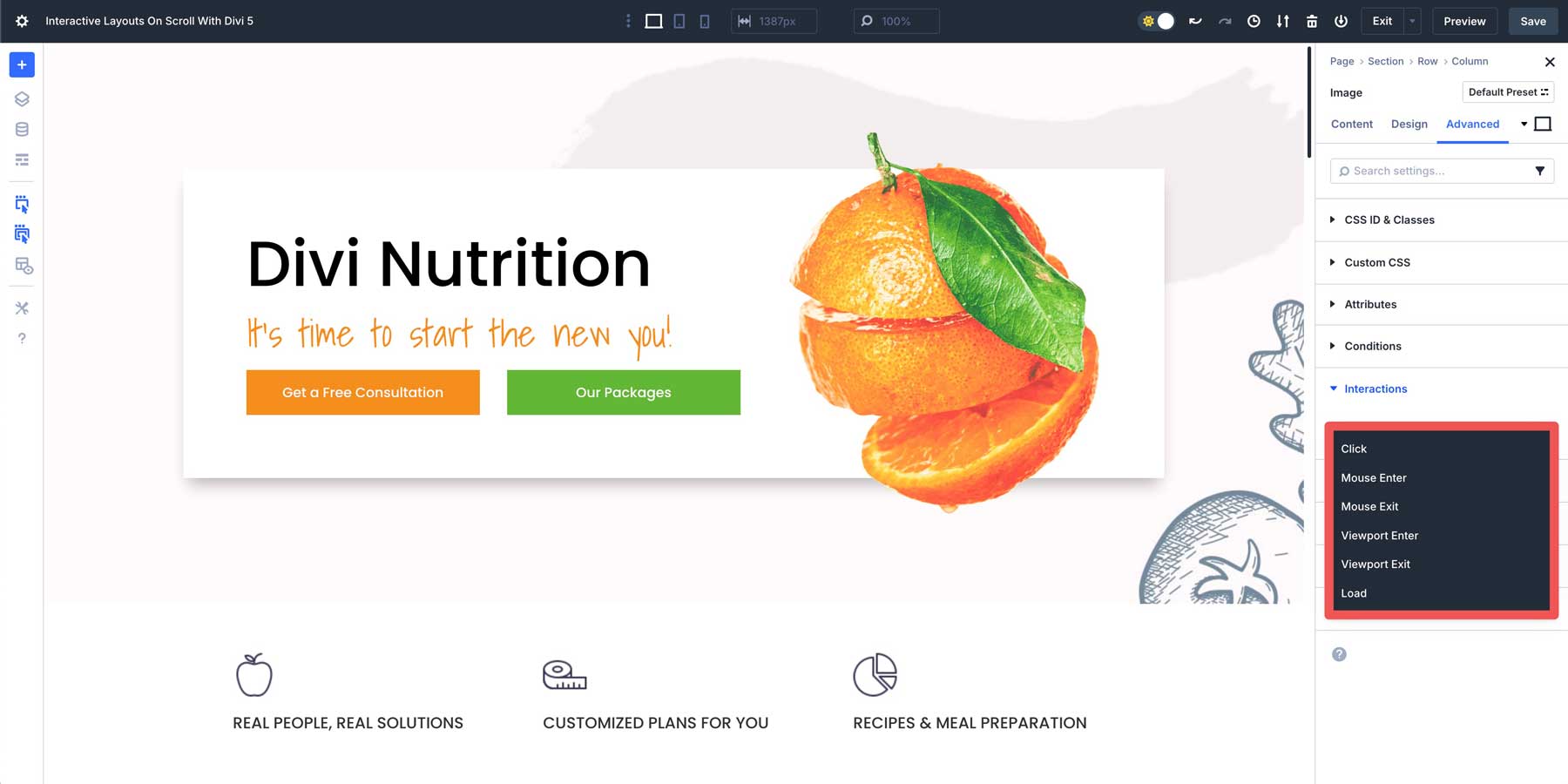
These are the events that initiate an interaction. For scroll-based effects, the Viewport Enter and Viewport Exit triggers are key, as they toggle an event when an element comes into view. Other triggers include Click, Mouse Enter, Mouse Exit, and Load, offering flexibility for various user interactions.
2. Effect
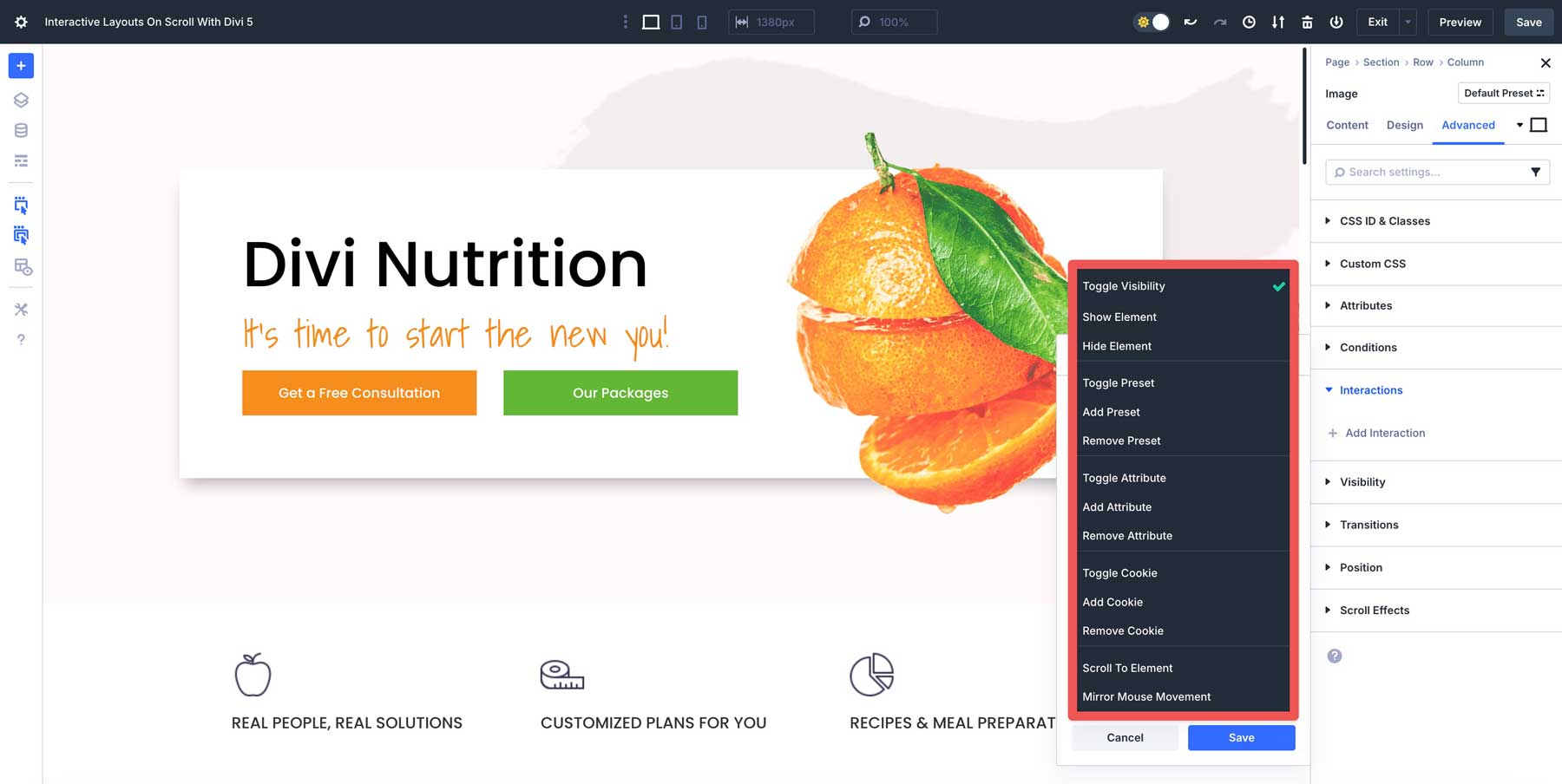
Once a trigger is activated, effects define what happens. Options include Toggle Visibility, Show or Hide Element, Toggle, Add, or Remove Preset, Toggle, Add, or Remove Attribute, Toggle, Add, or Remove Cookie, Scroll to Element, and Mirror Mouse Movement.
3. Target
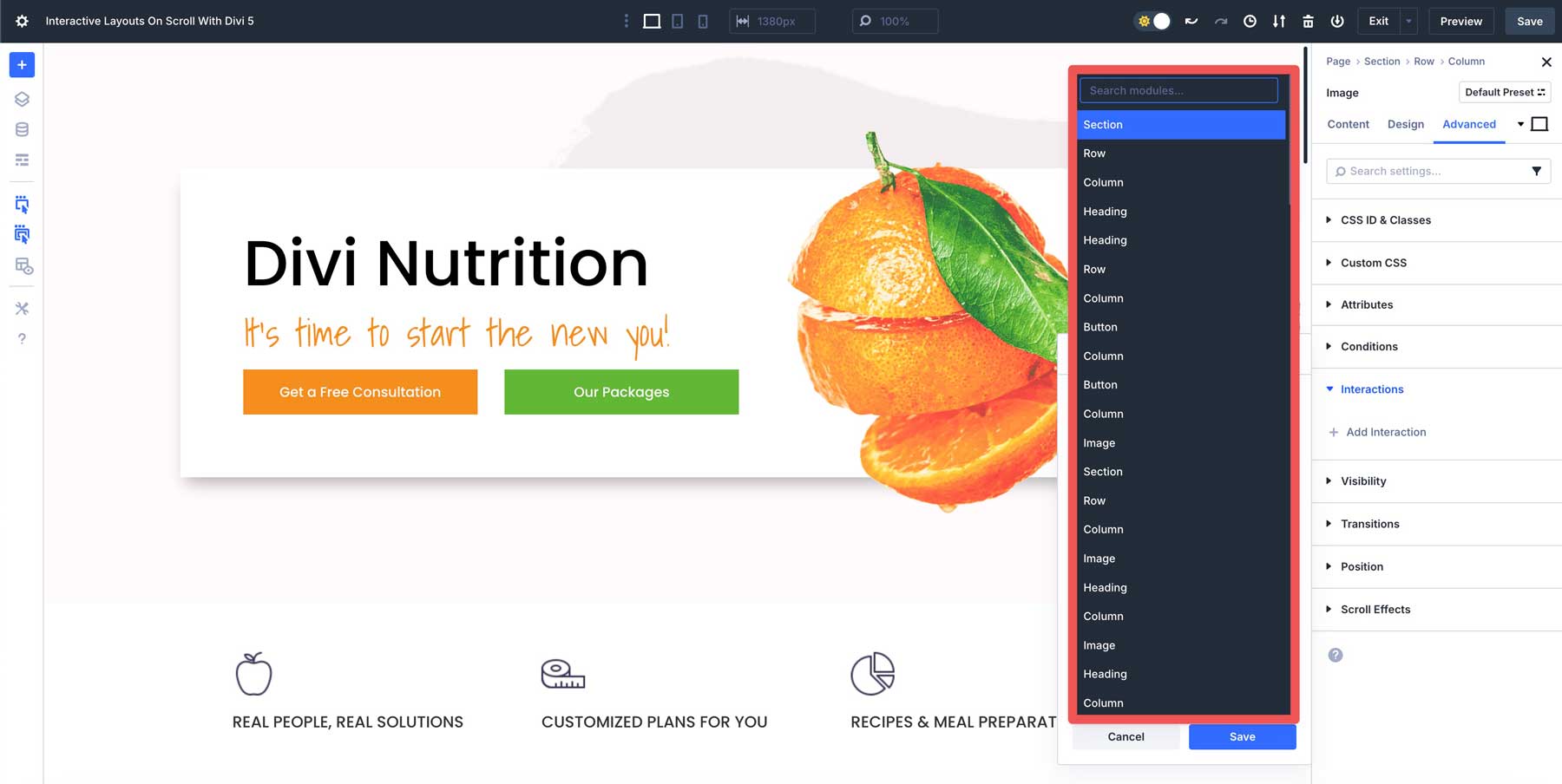
These are the elements affected by the Interaction, which can be any module, row, column, or section in your Divi layout, giving you precise control over what animates and when.
How It Works
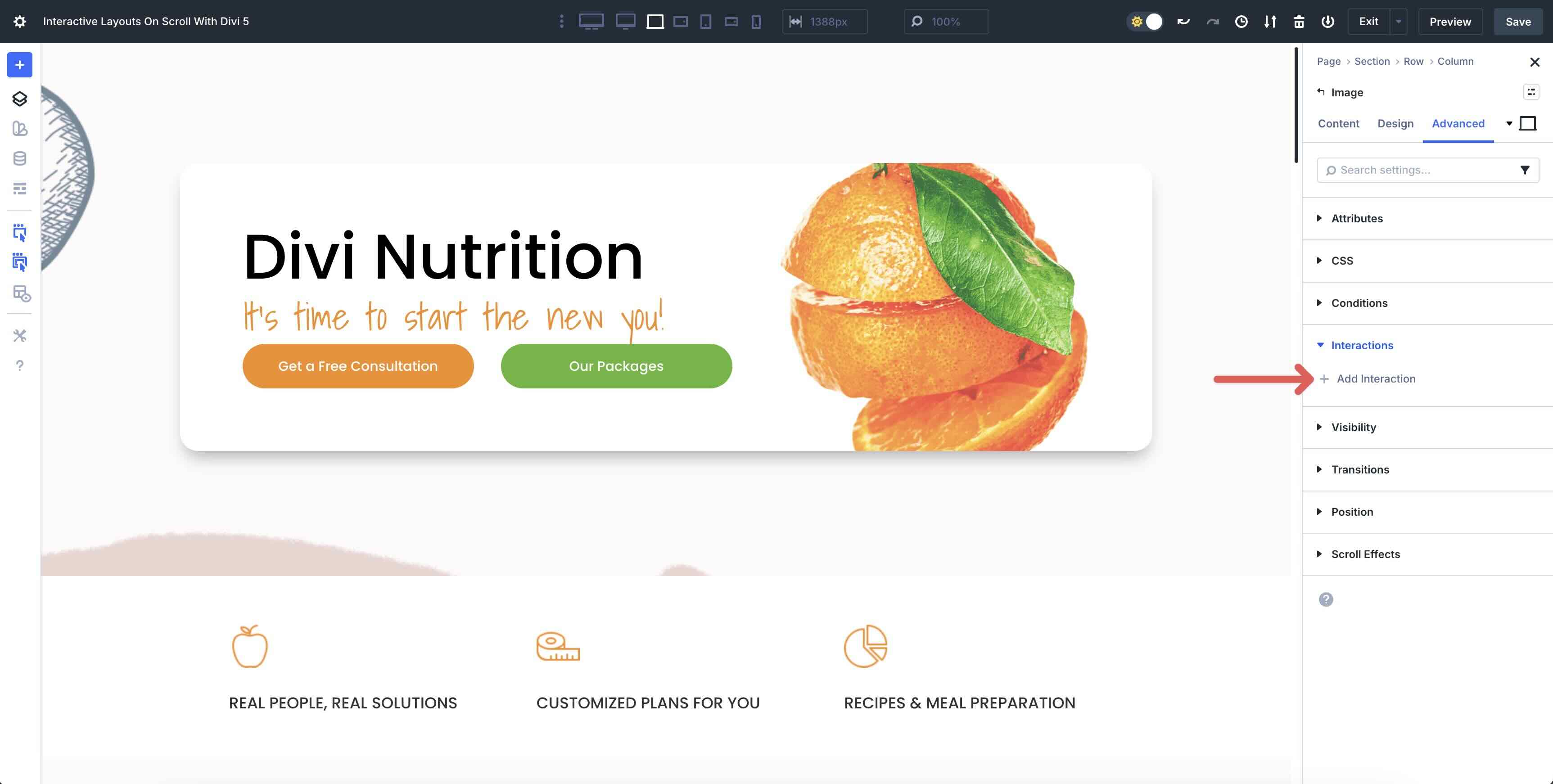
Interactions are seamlessly integrated into the Visual Builder. To use them, select any element, navigate to the Advanced tab, and locate the Interactions settings. From there, click + Add Interaction to open the Interaction editor, where you can configure the trigger, effect, or target. The real-time preview in the Visual Builder lets you fine-tune your animations instantly, ensuring the desired effect aligns with your vision.
Why Use Interactions For Scroll Effects?
Divi 5 Interactions turn passive scrolling into an engaging journey. By revealing or transforming elements based on the visitor’s position, you can highlight key content, guide user focus, and enhance the storytelling experience. These effects boost retention, reduce bounce rates, and create memorable experiences without requiring custom code. They’re ideal for landing pages, portfolios, or e-commerce sites where dynamic visuals drive conversions.
Difference Between Divi’s Sticky Options, Scroll Effects, And Interactions
Divi 5 offers three powerful tools for dynamic layouts: Sticky Options, Scroll Effects, and Interactions. Each serves a unique purpose, but they can work together to create engaging, scroll-driven experiences.
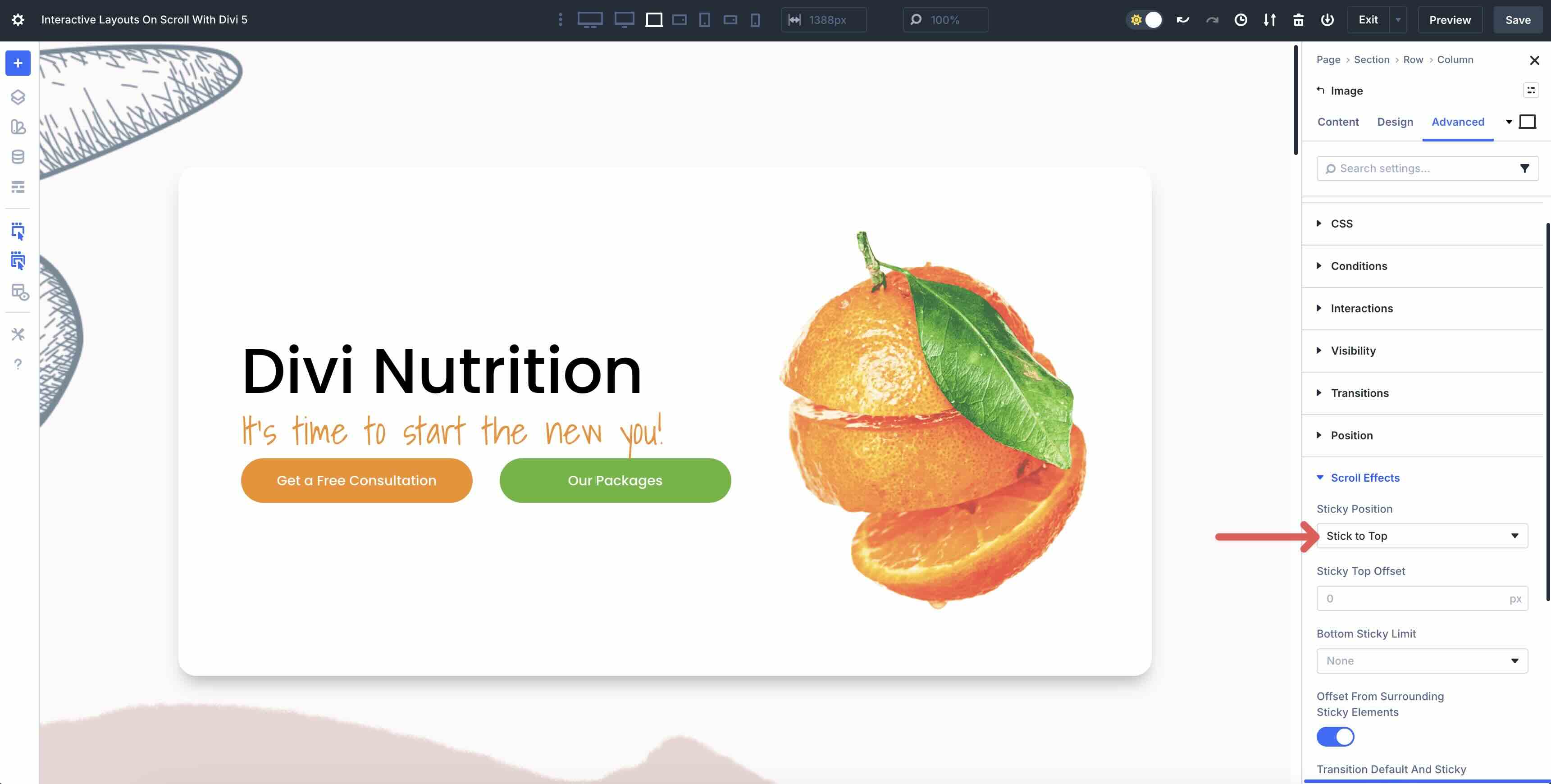
Sticky Options
These elements, such as headers or CTAs, remain fixed in place during scrolling. For example, a navigation bar can remain pinned at the top for easy access. Sticky options prioritize persistent visibility, and the styles can also change once the sticky position is enabled.
Scroll Effects
Divi’s Scroll Effects add pre-built animations, such as fading, scaling, or rotating elements, as users scroll. These are applied directly to a module’s settings and trigger based on the element’s position in the Viewport. For instance, an image might fade in or scale up as it enters view, but Scroll Effects are limited to predefined animations and lack the flexibility to target other elements or toggle complex styles.

Interactions
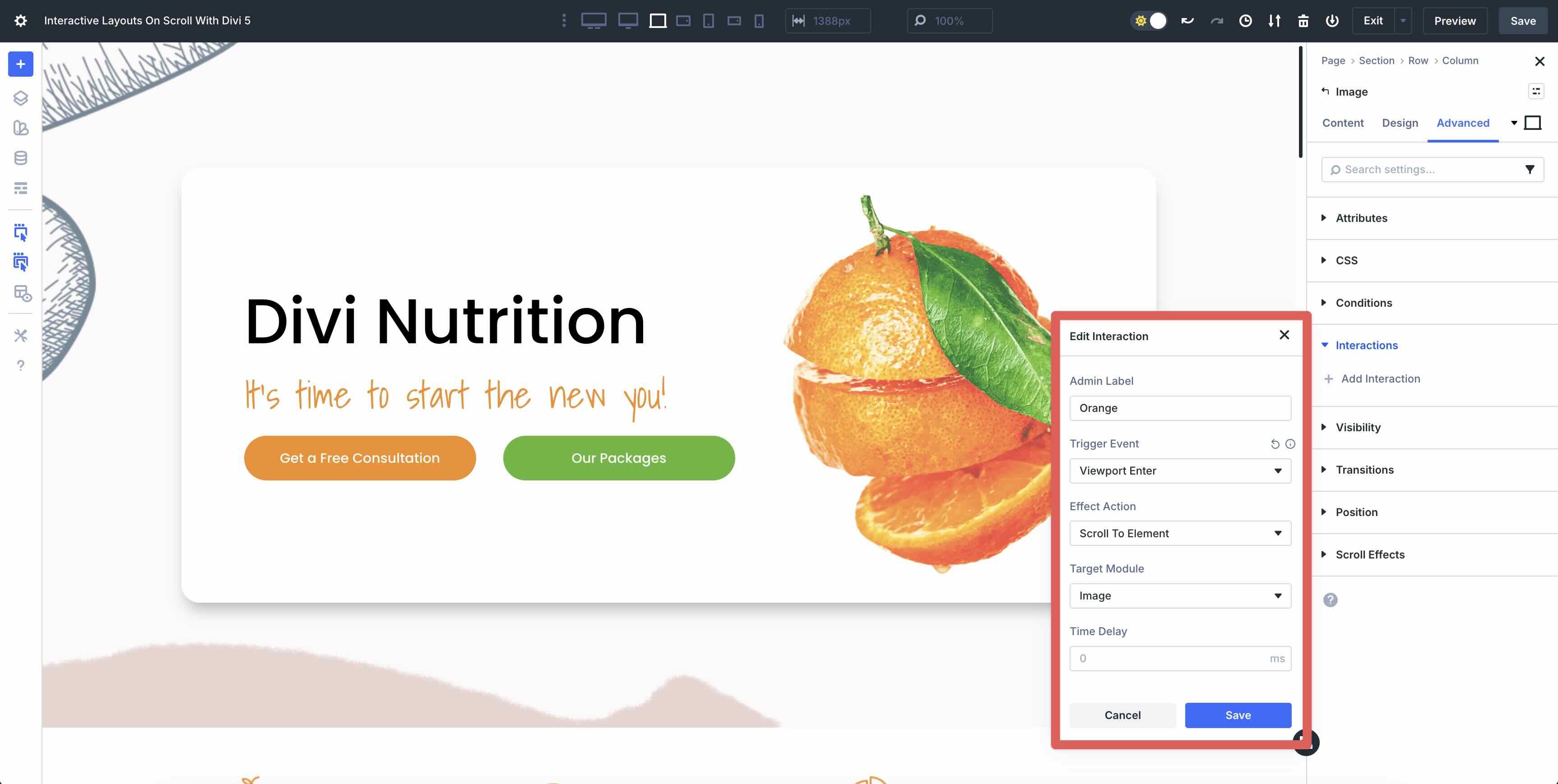
Interactions take scroll-based dynamics further by allowing you to define custom triggers (e.g., Entering the Viewport), effects (e.g., toggling a style preset or revealing an element), and targets (any module, Row, or section). For example, scrolling into a section could trigger a button to change color and scale while revealing a hidden text module elsewhere. Unlike Scroll Effects, Interactions offer precise control over multiple elements and complex behaviors without coding.
Real-World Applications
Divi 5 Interactions excel in scenarios that require attention and seamless narrative flow. For instance, you can change a row’s background color or scale as users scroll to emphasize a call-to-action.
Pop-ups can appear mid-scroll to highlight promotions, or content sections can toggle visibility to reveal information progressively, creating a seamless storytelling experience. These effects are ideal for landing pages, portfolios, or e-commerce sites where guiding the user’s focus is key.
Step-By-Step Guide On Creating Scroll-Based Interactive Layouts
Divi 5 makes scroll-based animations incredibly simple. With just a few clicks, you can make any element appear exactly when the user scrolls to it, without requiring any custom code. Let’s walk through the fundamentals with a practical example: a testimonials section where each testimonial fades and slides in as the user scrolls down the page.
Step 1: Accessing The Interactions Editor
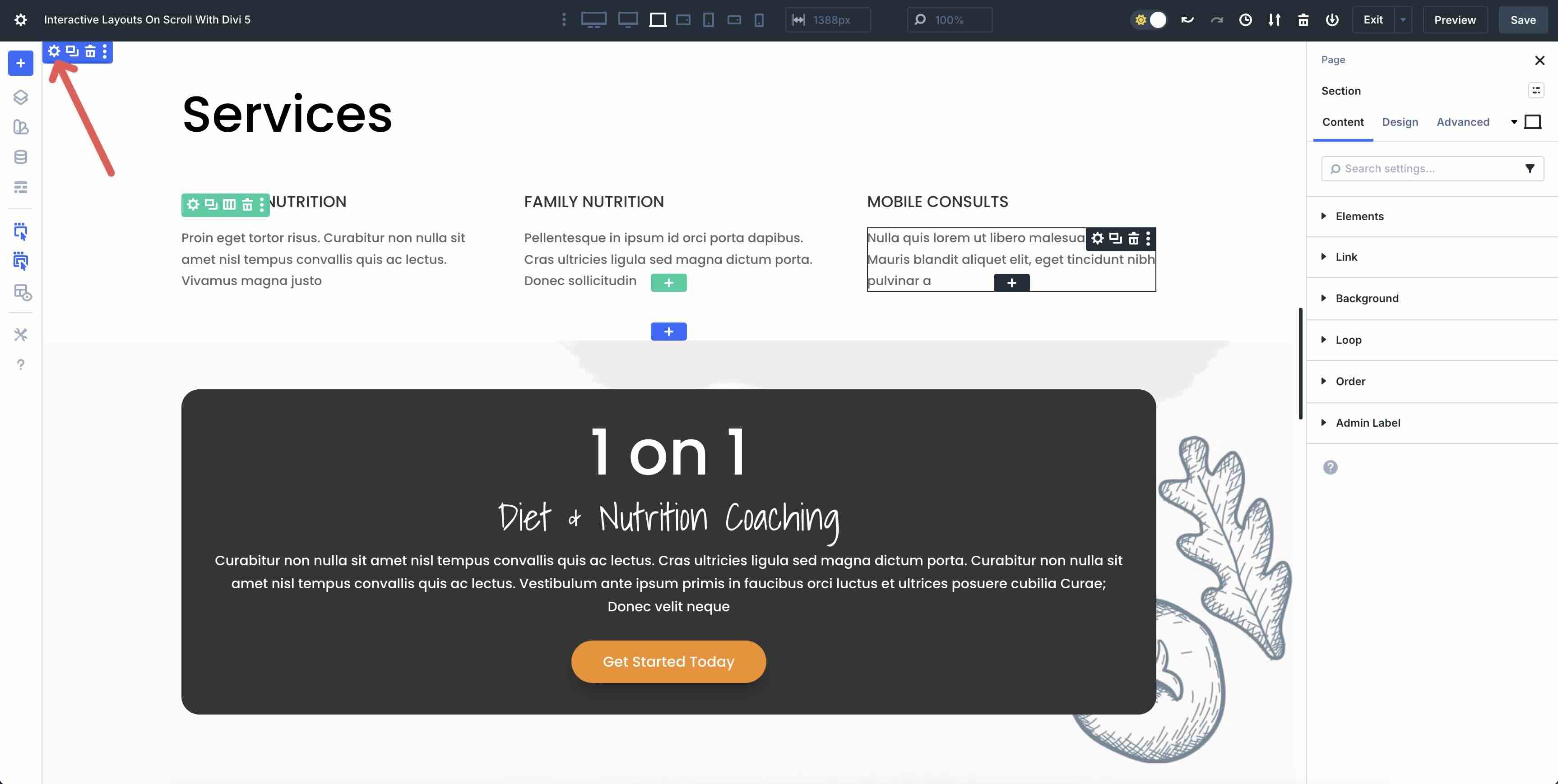
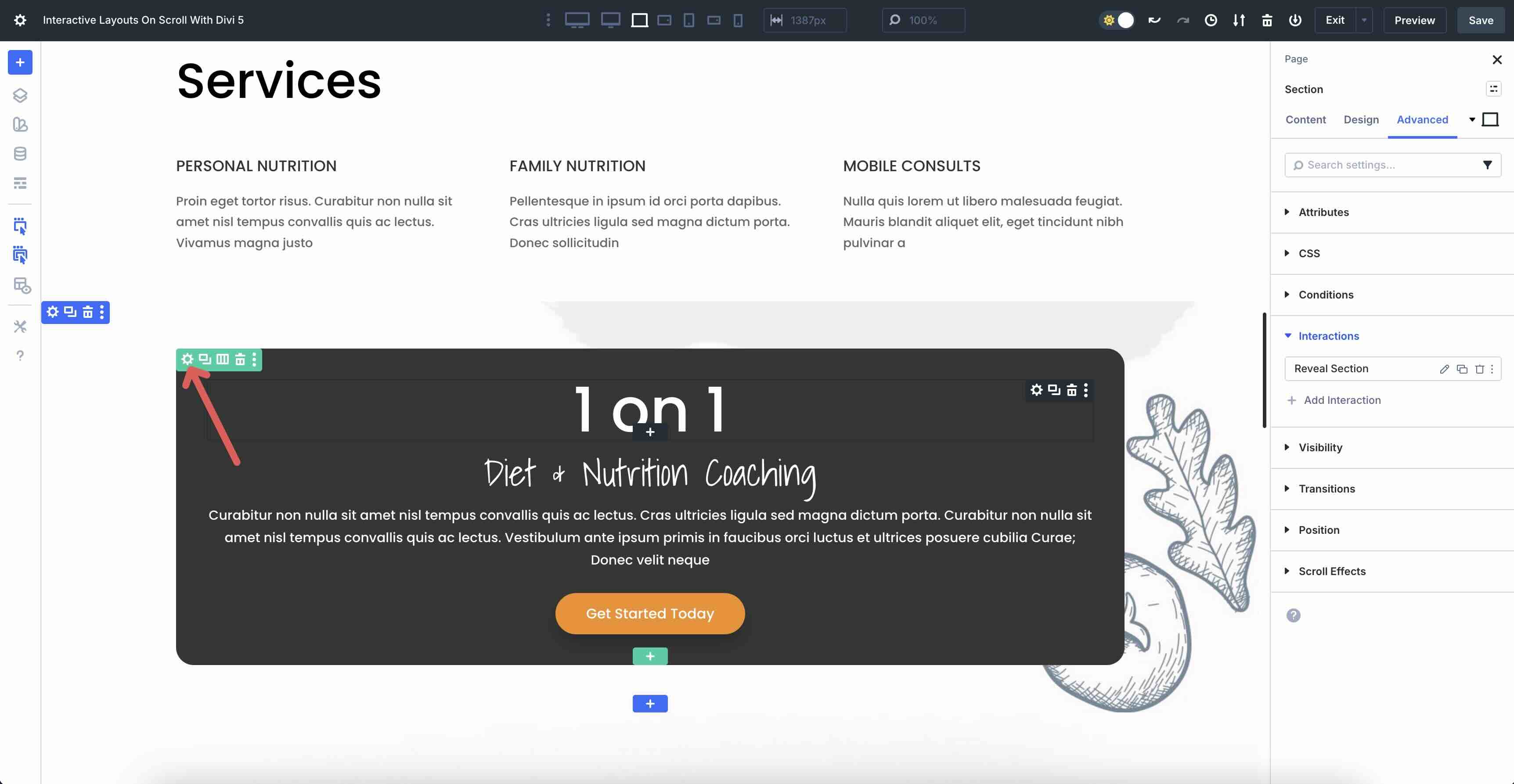
Open an existing page or create a new one in the Visual Builder. Click the section’s Settings icon to select the element that will trigger the Interaction. We will set a show element interaction on the section before the element we want to reveal.
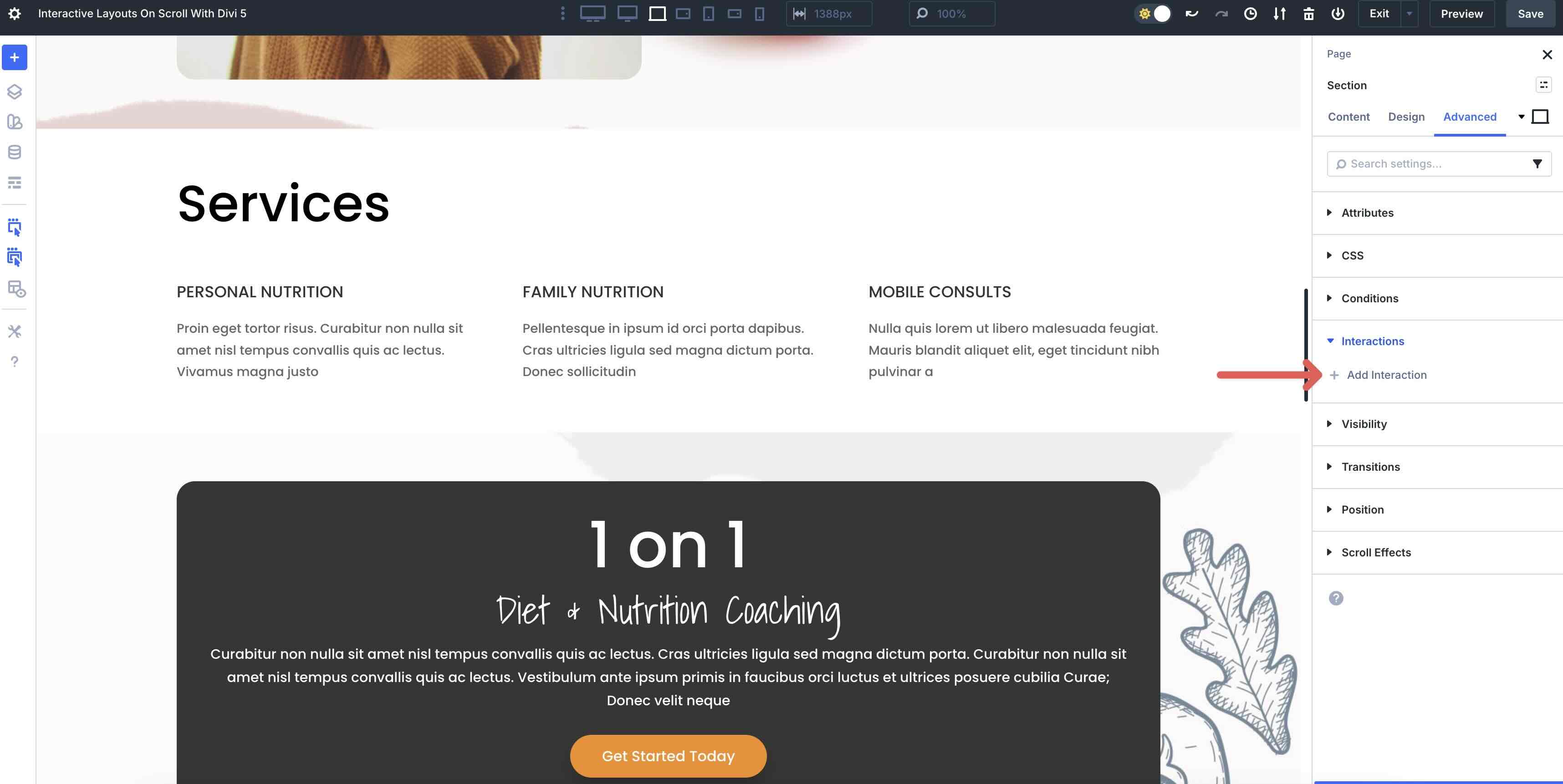
Navigate to the Advanced tab and expand the Interactions menu. To create a new interaction, click the + Add Interaction button.
Step 2: Configure A Simple Reveal On Scroll
When the Interactions modal appears, enter the following information into the fields:
- Admin Label: Reveal Section
- Trigger Event: Viewport Enter
- Effect Action: Show Element
- Target Module: Row (Show Row)
Note: It’s a good idea to add a name using the Admin Label field so that it’s easy to identify the section you’re targeting. - Time Delay: 1000ms
Enable the Interaction by clicking the Save button.

Step 3: Hide The Section From View
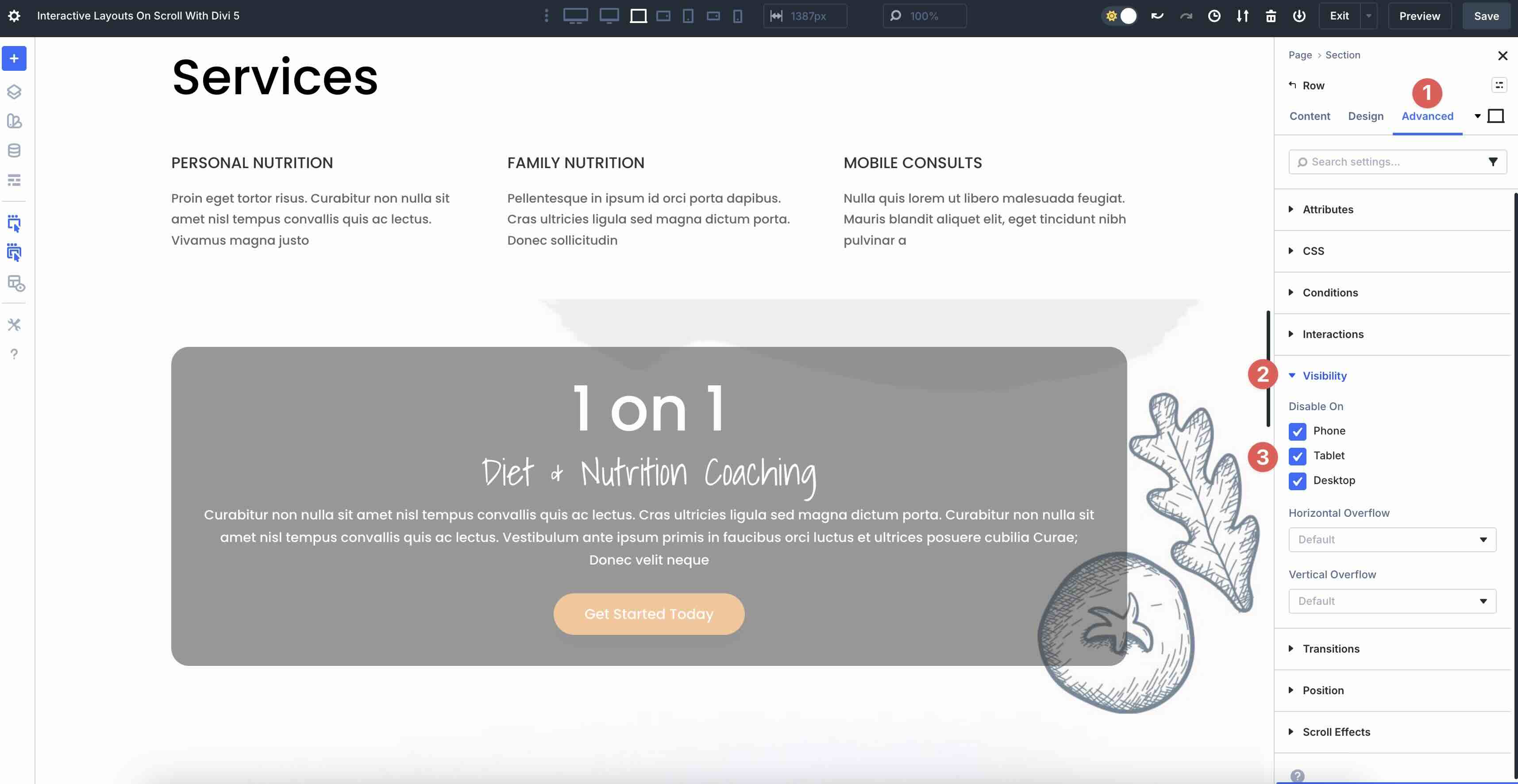
The next step is to hide the section you plan to reveal on scroll. Click into the Row that you’ll display on scroll.
Click the Advanced tab, scroll down to the Visibility tab, and expand it. Hide the Row on all three breakpoints.
Step 4: Preview The Interaction
To preview your Interaction, click the Preview button at the top right corner of the Visual Builder.
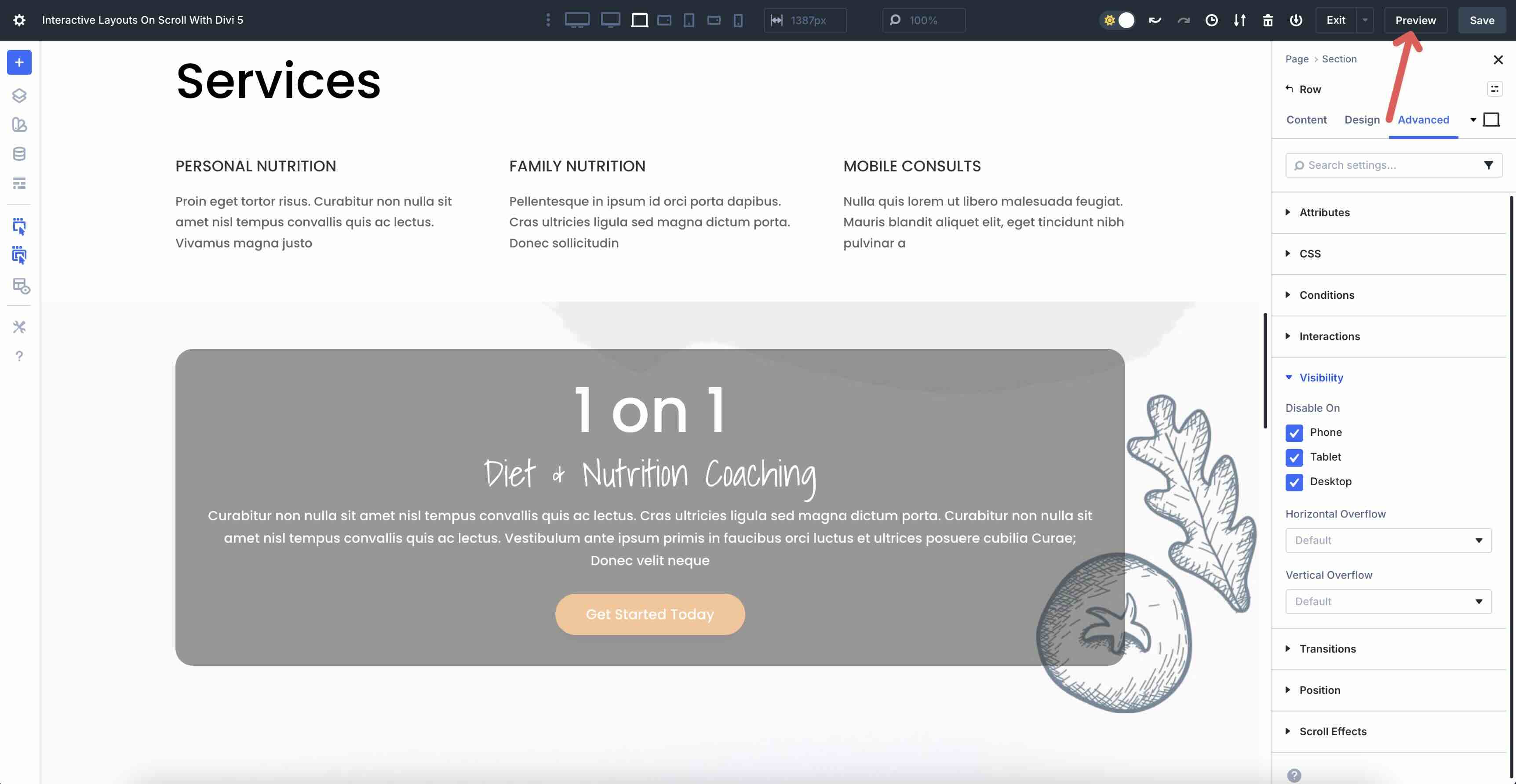
A new tab will open, allowing you to view the Interaction and make changes as needed.
Bonus Example: Highlight A Section With Dynamic Presets On Scroll
If you’re looking for another small example beyond simple content reveals, try this quick highlight effect for a section. This uses the Add Preset effect to dynamically change a section’s styling as it enters the Viewport, creating a subtle effect that draws the eye without overwhelming the layout.
Choose the section or Row above your target row. Go to Advanced > Interactions > + Add Interaction.
Apply the following settings to the Interaction modal:
- Admin Label: Highlight Section Enter
- Trigger Event: Viewport Enter
- Effect Action: Add Preset
- Target Module: Select your target section
- Time Delay: 1 second
- Preset: (Select a Preset for the section)
Save and enable.
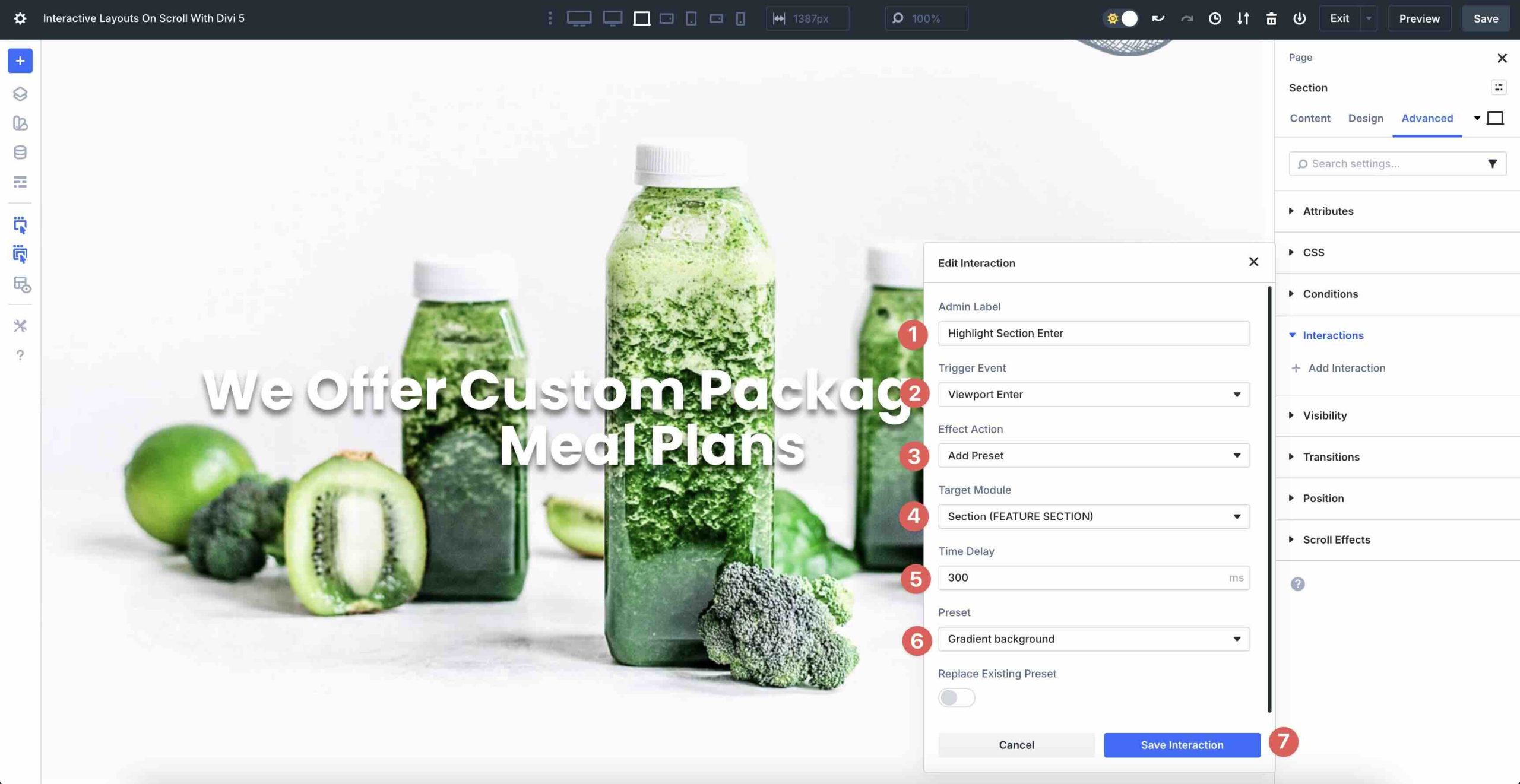
Preview the layout once again to see the new Interaction in action.
As you can see, Divi 5 makes it super easy to create scroll effects using Interactions. Although these examples are simple ones, they give you a better idea of the types of Interactions you can make in a matter of minutes.
Try Interactions In Divi 5 Today!
Divi 5 Interactions unlock endless creative possibilities, allowing you to build layouts that captivate and engage users without using custom code. By leveraging triggers like Viewport Enter, Show Element, and Add Preset, you can transform static pages into dynamic, story-driven experiences. Whether you’re building hero sections that pop or full pages designed to engage, Divi 5 Interactions make it accessible and fun.
Dive into the latest Divi 5 Public Beta, experiment with Interactions, and let us know what you think in the comments.













Thanks for the detailed tutorial! I’m really interested in using these new Interactions, but I have a question regarding Core Web Vitals and performance.
Specifically for the ‘Show Element’ on scroll example: Does this interaction reserve space for the hidden element before it is revealed? If the element is effectively display: none initially and then expands the DOM upon scrolling, wouldn’t that trigger a significant Cumulative Layout Shift (CLS) penalty?
Also, do these scroll-based event listeners have any noticeable impact on the main thread or general PageSpeed scores compared to standard CSS scroll-driven animations?
I must be missing a setting or something. It doesn’t show up for me when the section enters the viewing area. I double checked and I followed the instructions to the letter.