

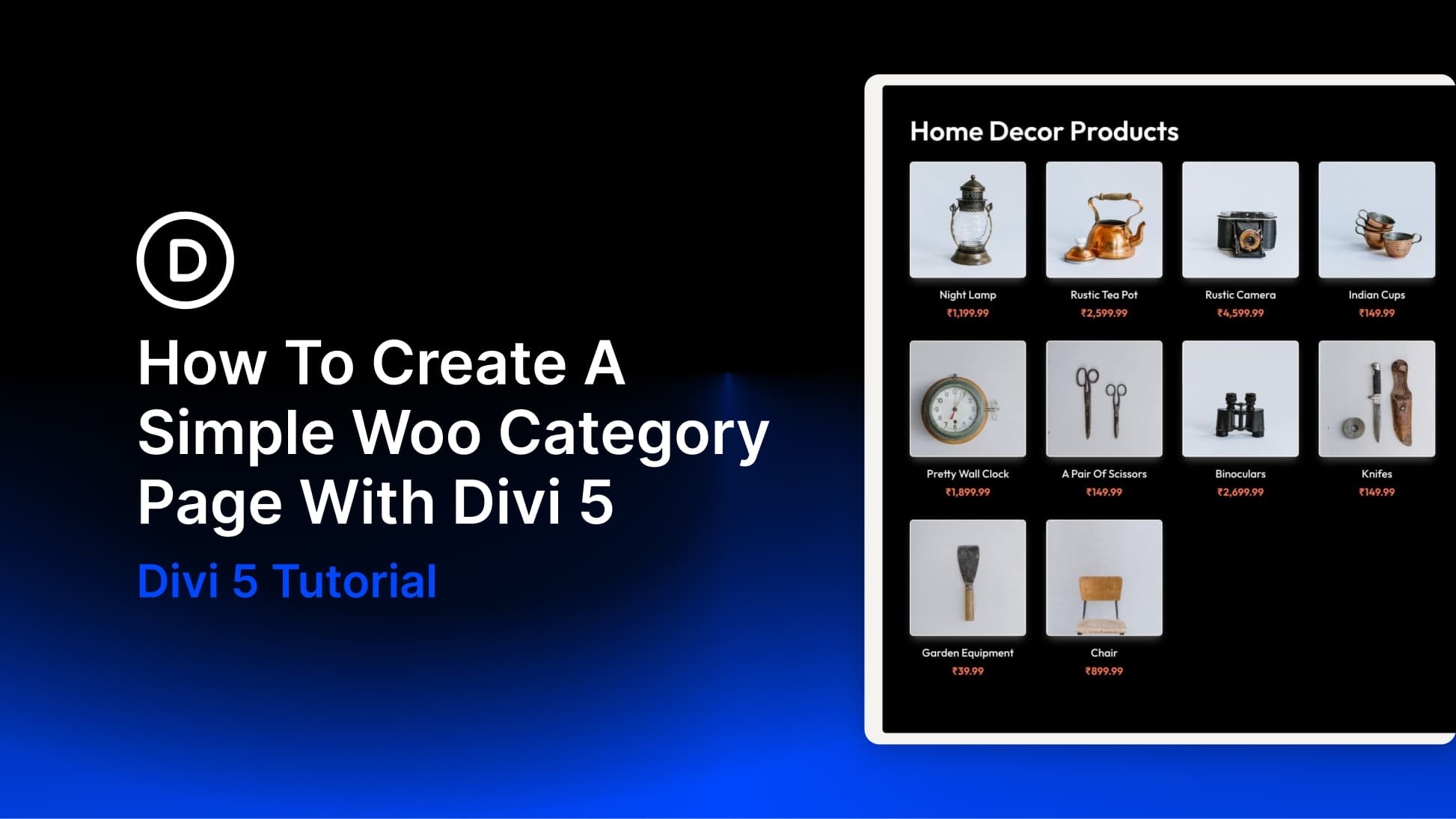
The new Woo Modules in Divi 5 give you much more control over how WooCommerce category pages look and function. Instead of relying on WooCommerce’s default archive layout, you can build category templates visually inside Divi’s Theme Builder.
In this tutorial, you’ll learn two practical ways to create a simple Woo category page in Divi 5. The first uses the Woo Products module to generate a dynamic product grid quickly. The second uses individual Woo modules to build a more custom product card layout for curated products or featured sections. We’ll also show when it makes more sense to use Divi 5’s Loop Builder for a fully dynamic custom archive.
What Are Woo Modules In Divi 5?
WooCommerce category pages work out of the box, but the default structure is restrictive. Product grids, card layouts, spacing, typography, and button styles are mostly controlled by WooCommerce and your theme, so deeper customization often means editing templates or writing CSS.
Divi 5 changes that by turning WooCommerce elements into visual building blocks. We released new Woo Product Modules for Divi 5, covering product and category page design while keeping compatibility with WooCommerce’s core functionality.
That means you can place product-related elements exactly where you want them and style them with the same design controls you already use throughout Divi.
You can use Woo Modules to customize product templates, category templates, and broader store experiences alongside Divi 5’s cart and checkout tools.
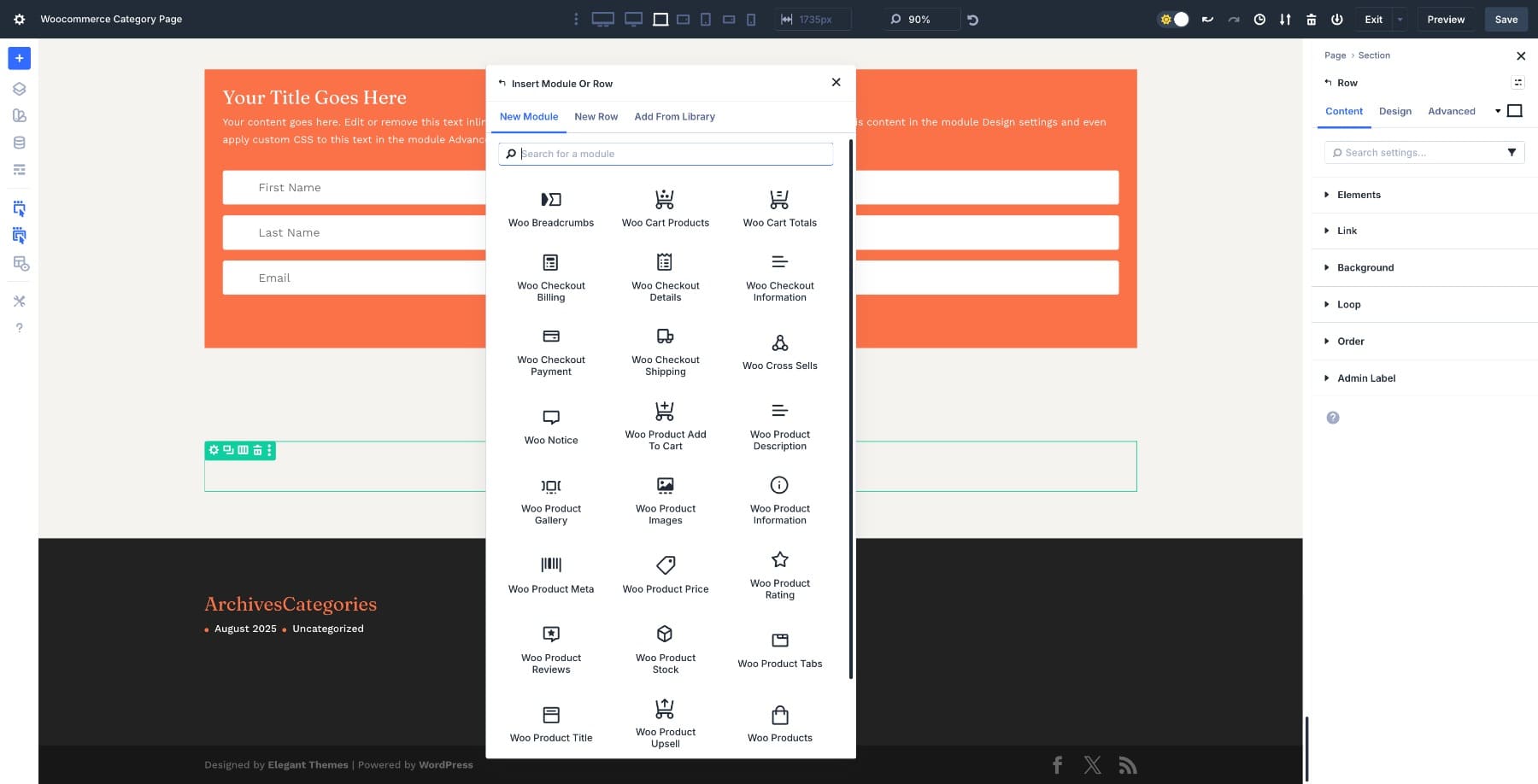
For category pages specifically, the most relevant options are the Woo Products module for quick dynamic grids and Divi 5’s Loop Builder when you want a fully custom repeating card layout that still updates automatically based on the current category.
Learn Everything About Woo Modules
Building A Simple Woo Category Page In Divi 5
There are two good ways to approach a simple category page in Divi 5.
- Use the Woo Products module when you want the fastest setup and a dynamic grid that automatically pulls products from a category.
- Use individual Woo modules when you want to design a custom product card for a few hand-picked items, featured products, or a category landing section.
If you want every product in a category to render automatically inside a fully custom card design, use the Loop Builder. That is the best option for a dynamic custom archive layout in Divi 5.
Set Up Your Theme Builder Template
Both approaches start in the Theme Builder. In Divi 5, Theme Builder lets you assign one template to a specific group of WooCommerce pages, including product categories.
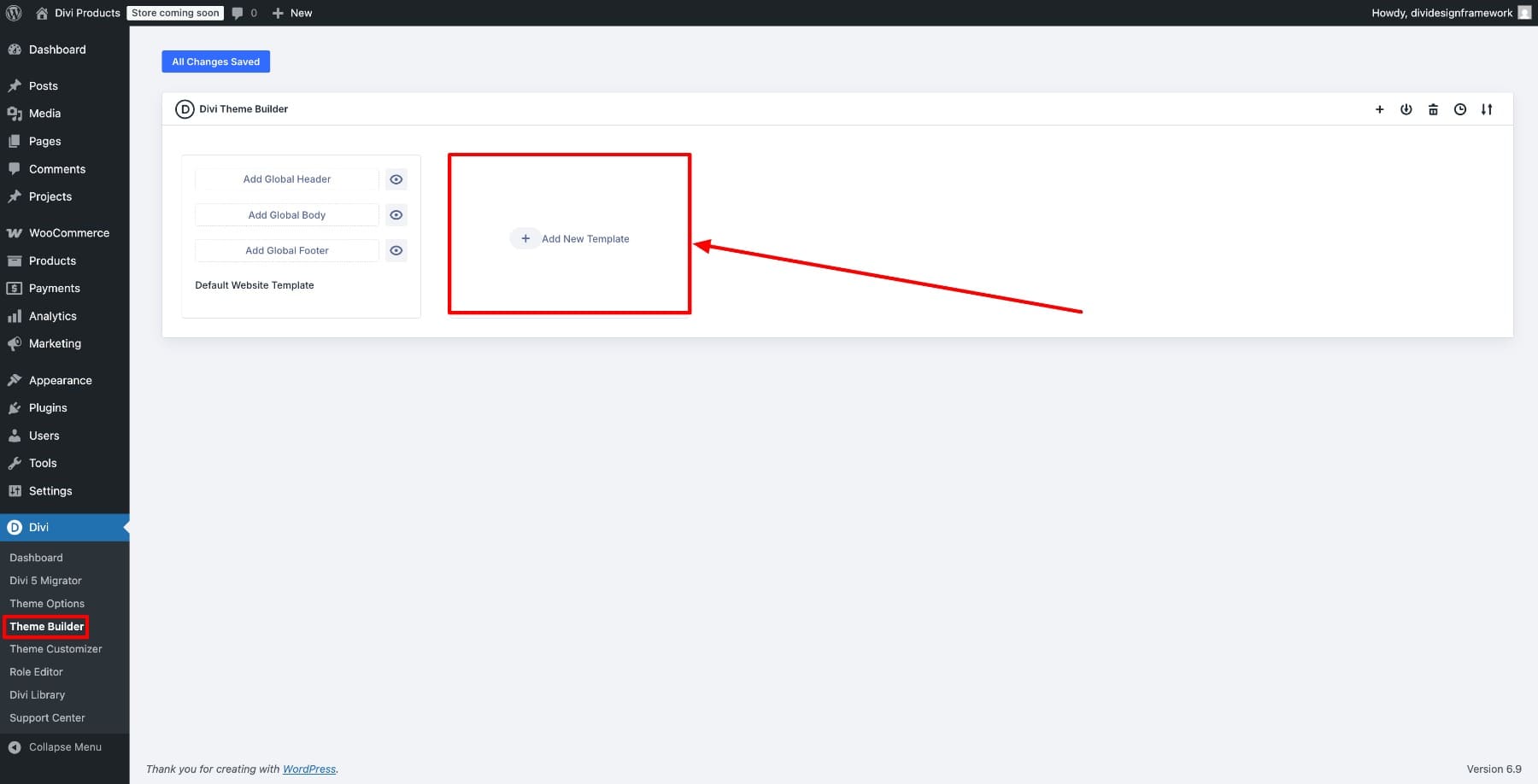
Go to Divi > Theme Builder and click Add New Template, then choose Build New Template.
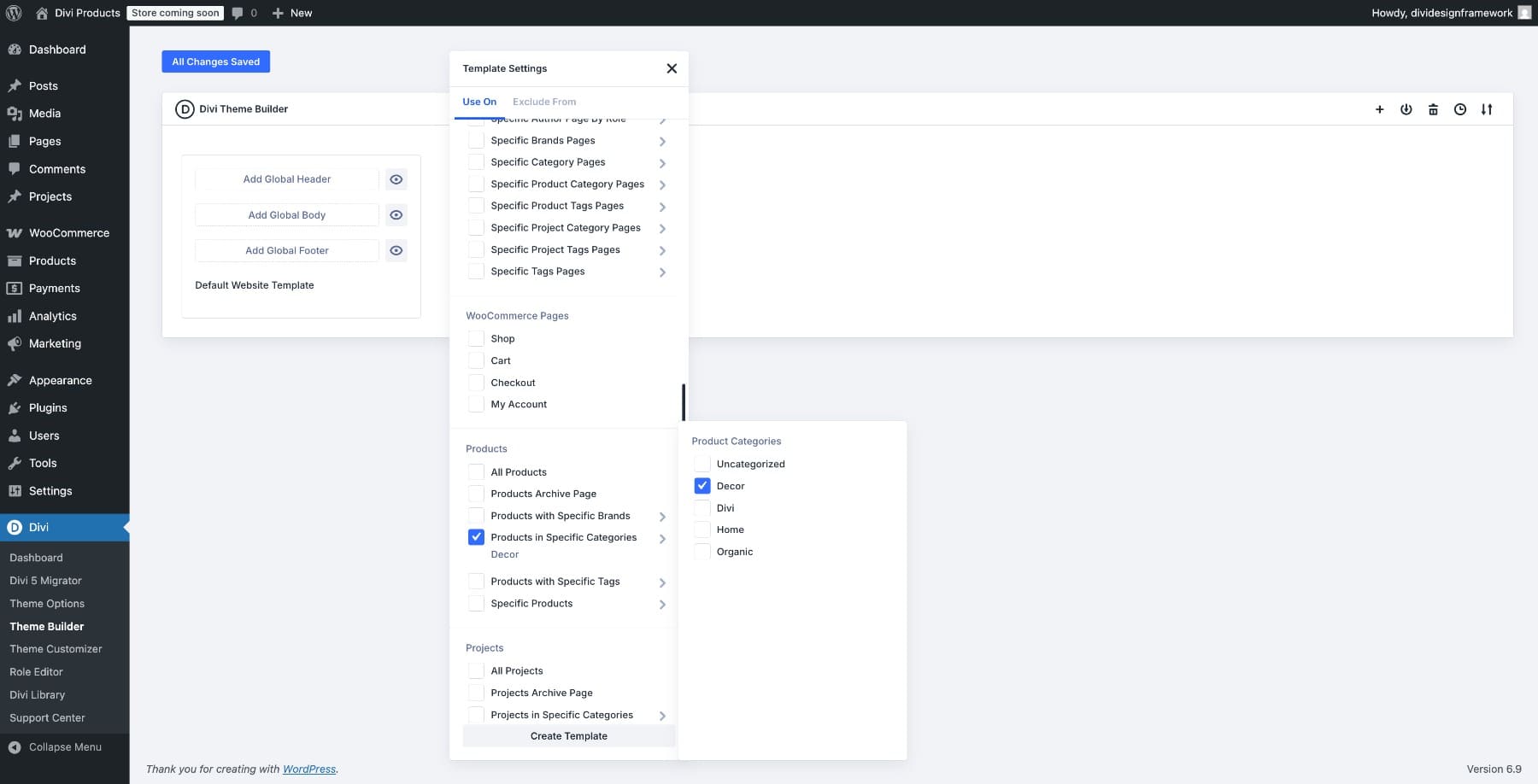
In the Use On settings, scroll to Products, then choose Products in Specific Categories and select the category you want to target, such as Decor. Click Create Template.
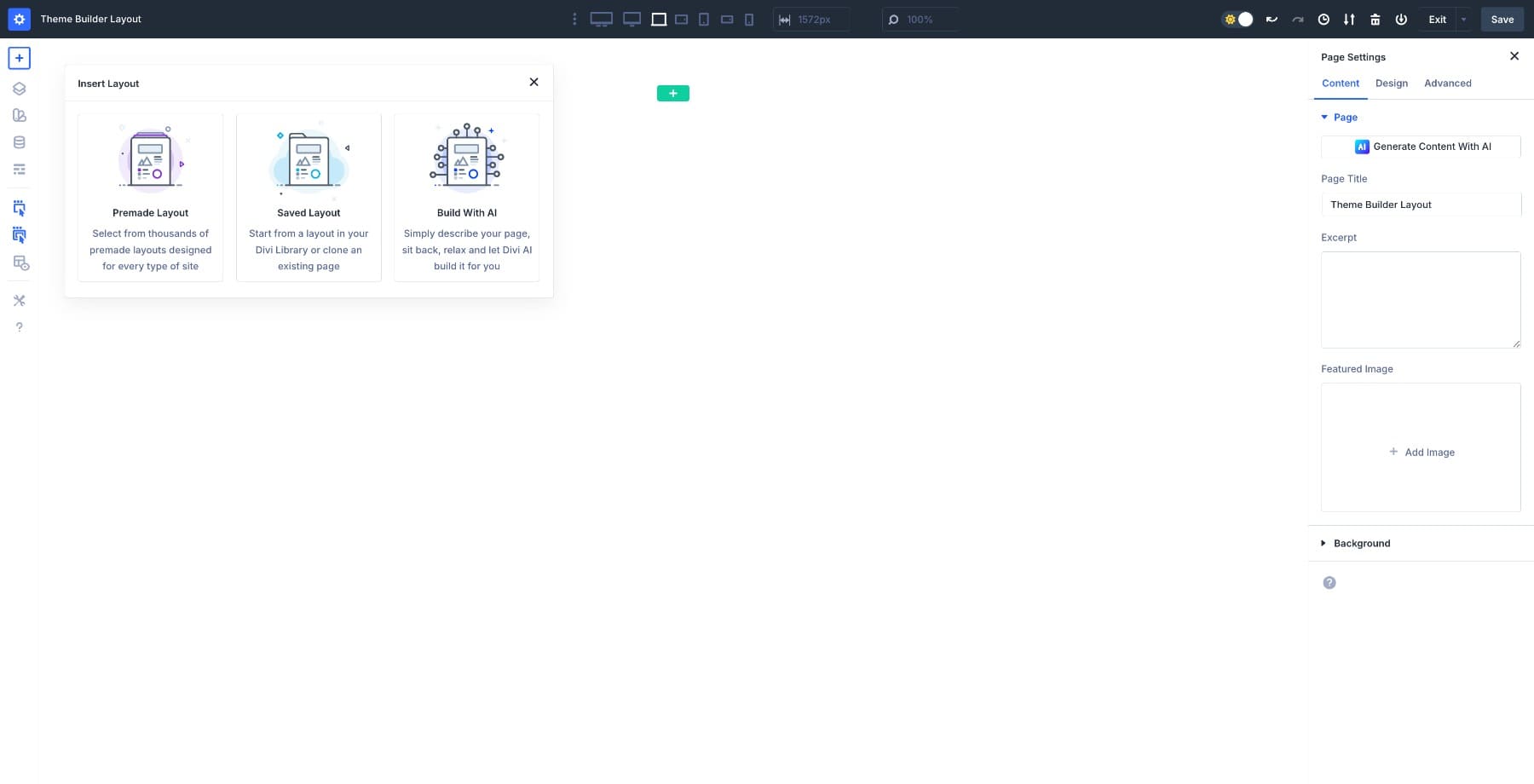
Add a new Custom Body and edit it with the Visual Builder.
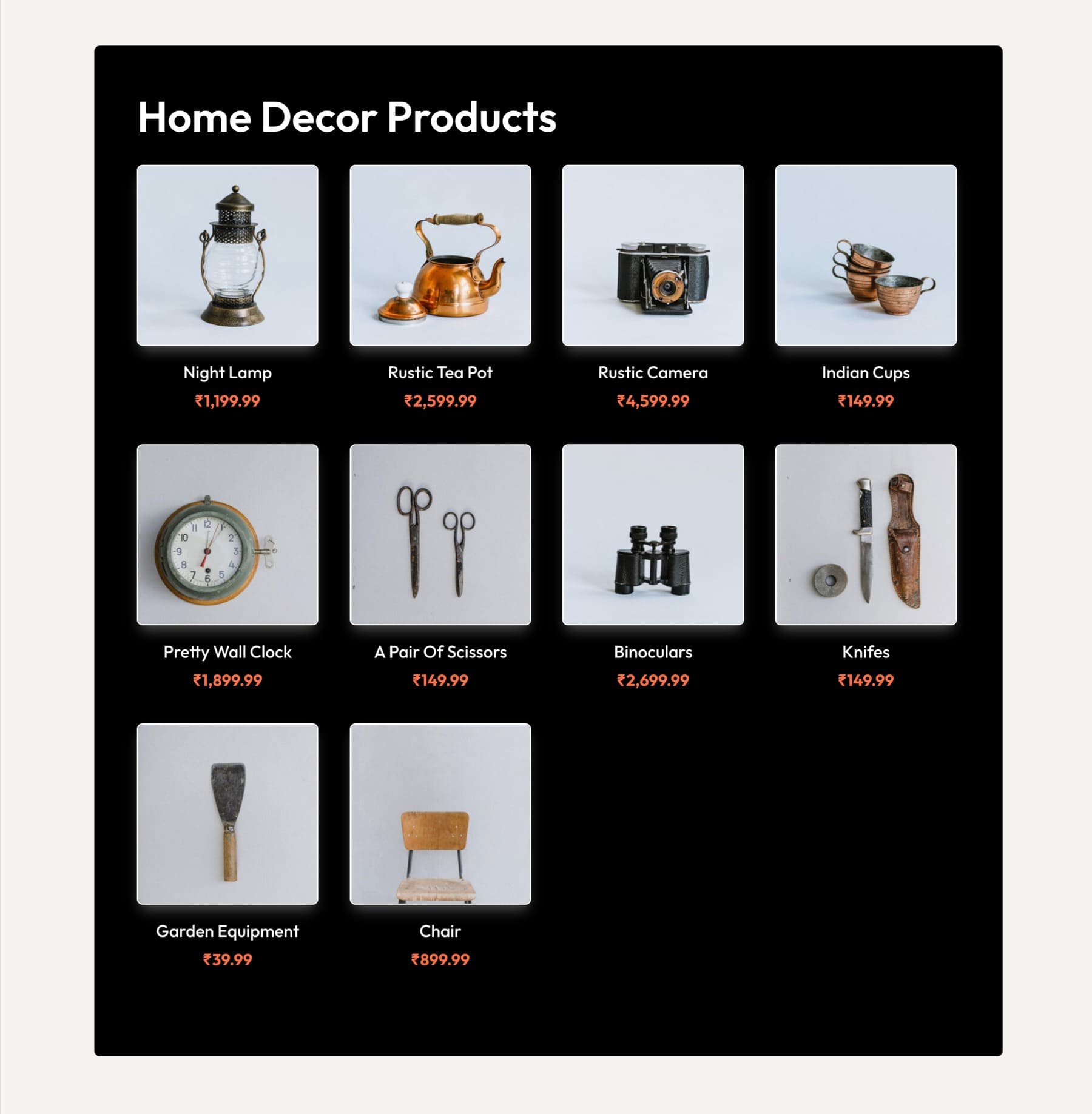
Design 1: Build A Dynamic Category Grid With Woo Products
This is the simplest and most practical method for most category pages. The Woo Products module is designed to display a dynamic gallery of WooCommerce products, and it can filter by category.
Add a new Section and insert a single-column Row.
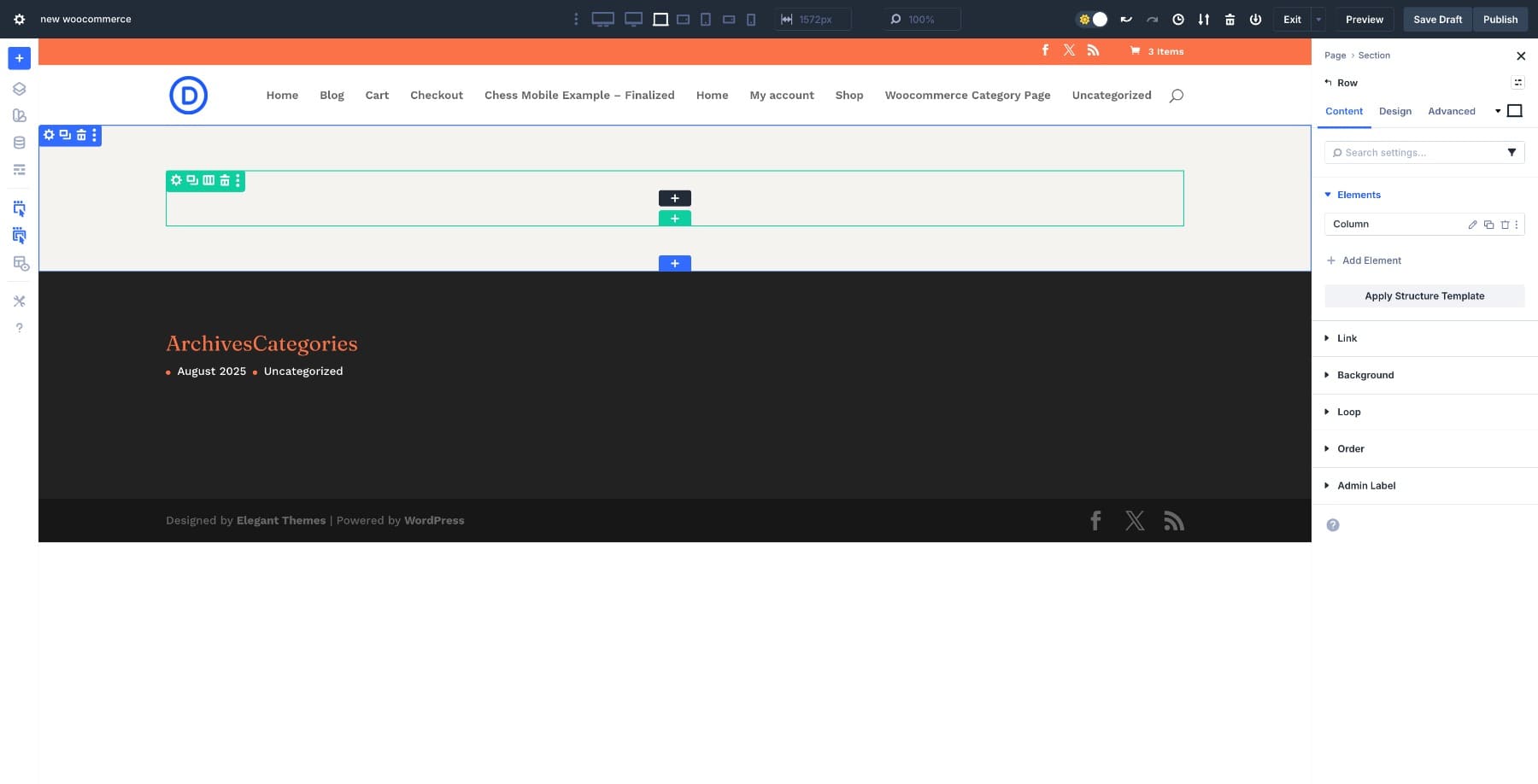
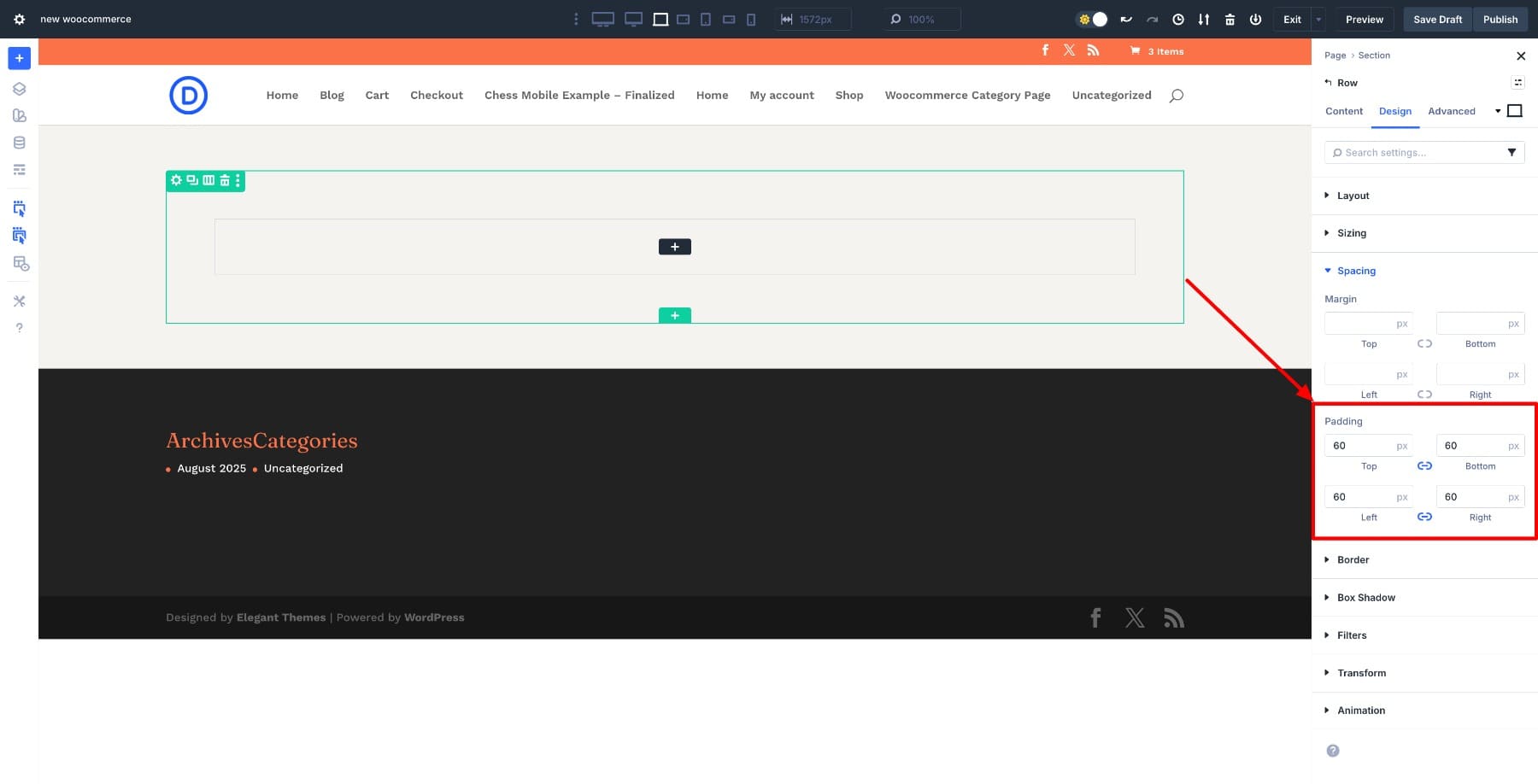
Open the Row settings and add 60px Padding to give the layout breathing room.
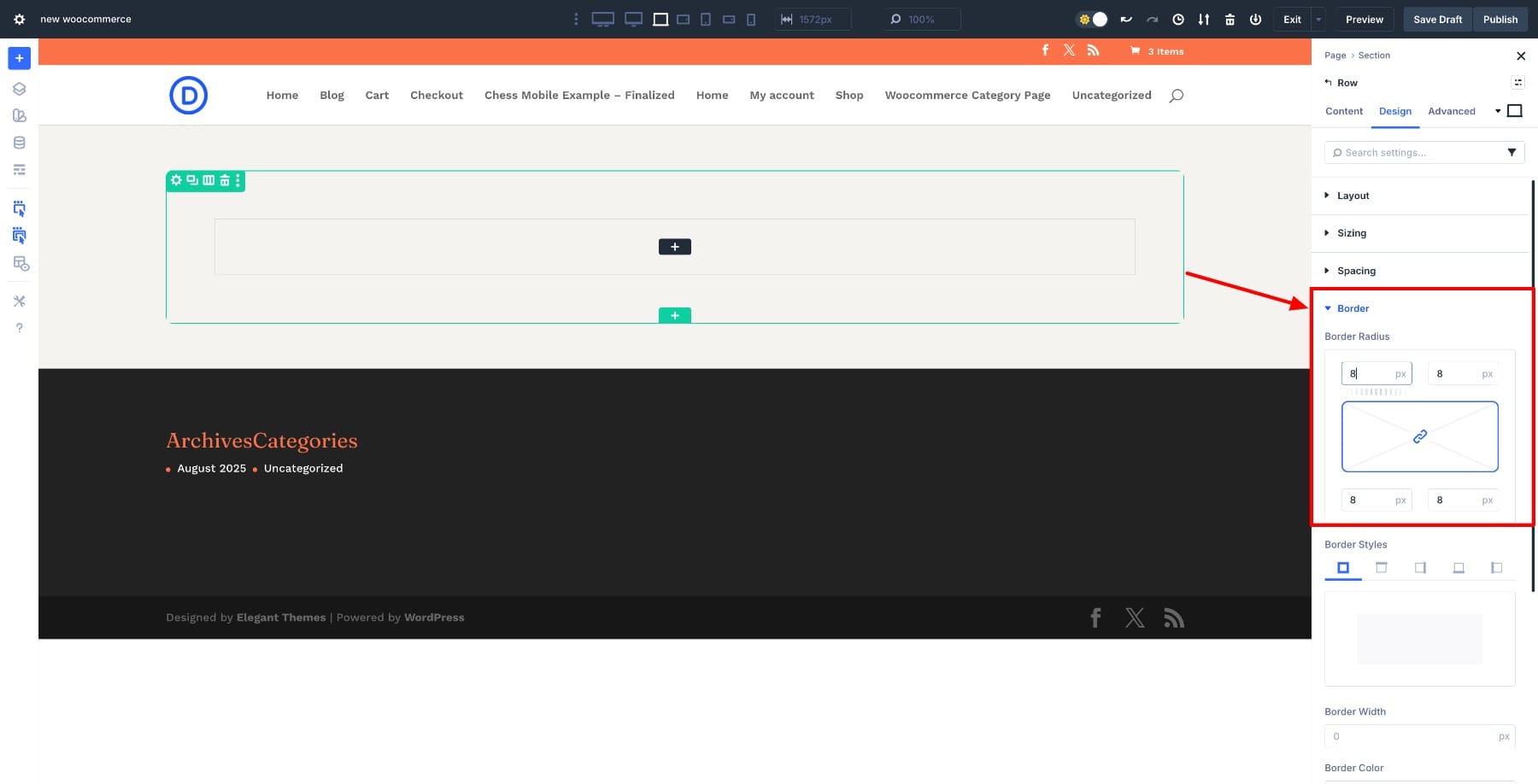
Apply an 8px Border Radius.
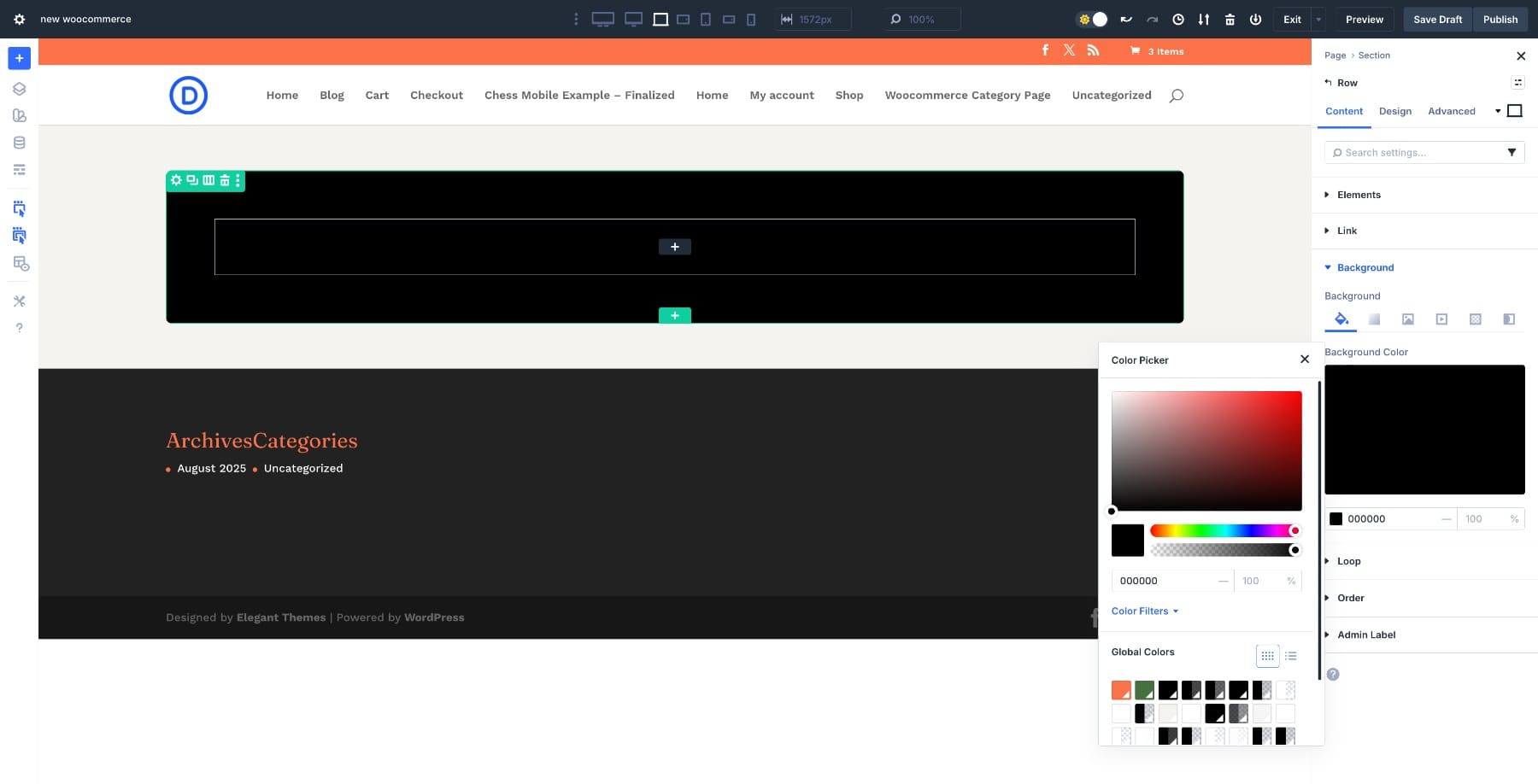
Set the background to Black.
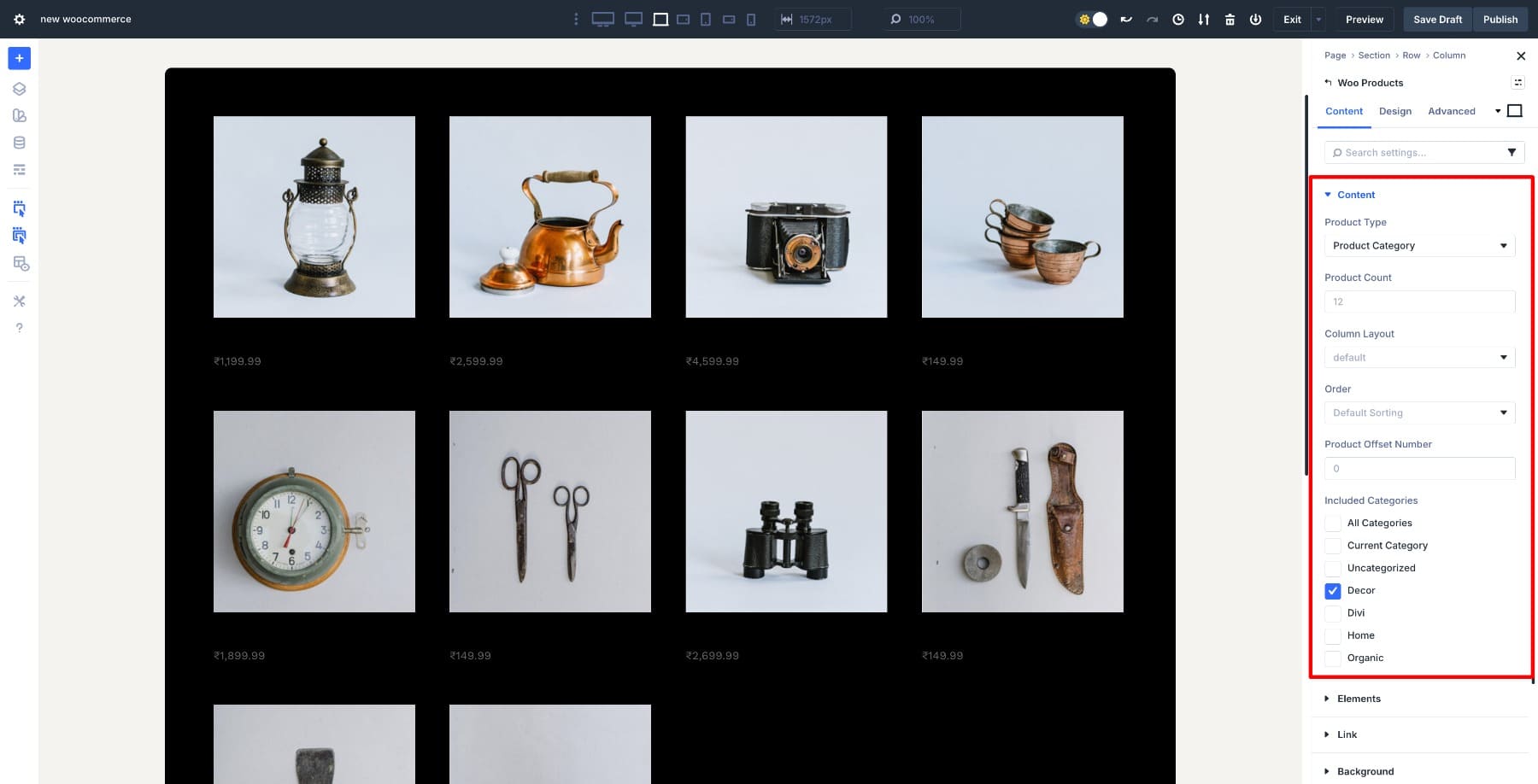
Click the black plus button inside the Row, open Woo Modules, and insert the Woo Products module.
In the module’s Content tab, set Product Type to Product Category, then choose Decor under Included Categories. This makes the grid pull products from that category dynamically.
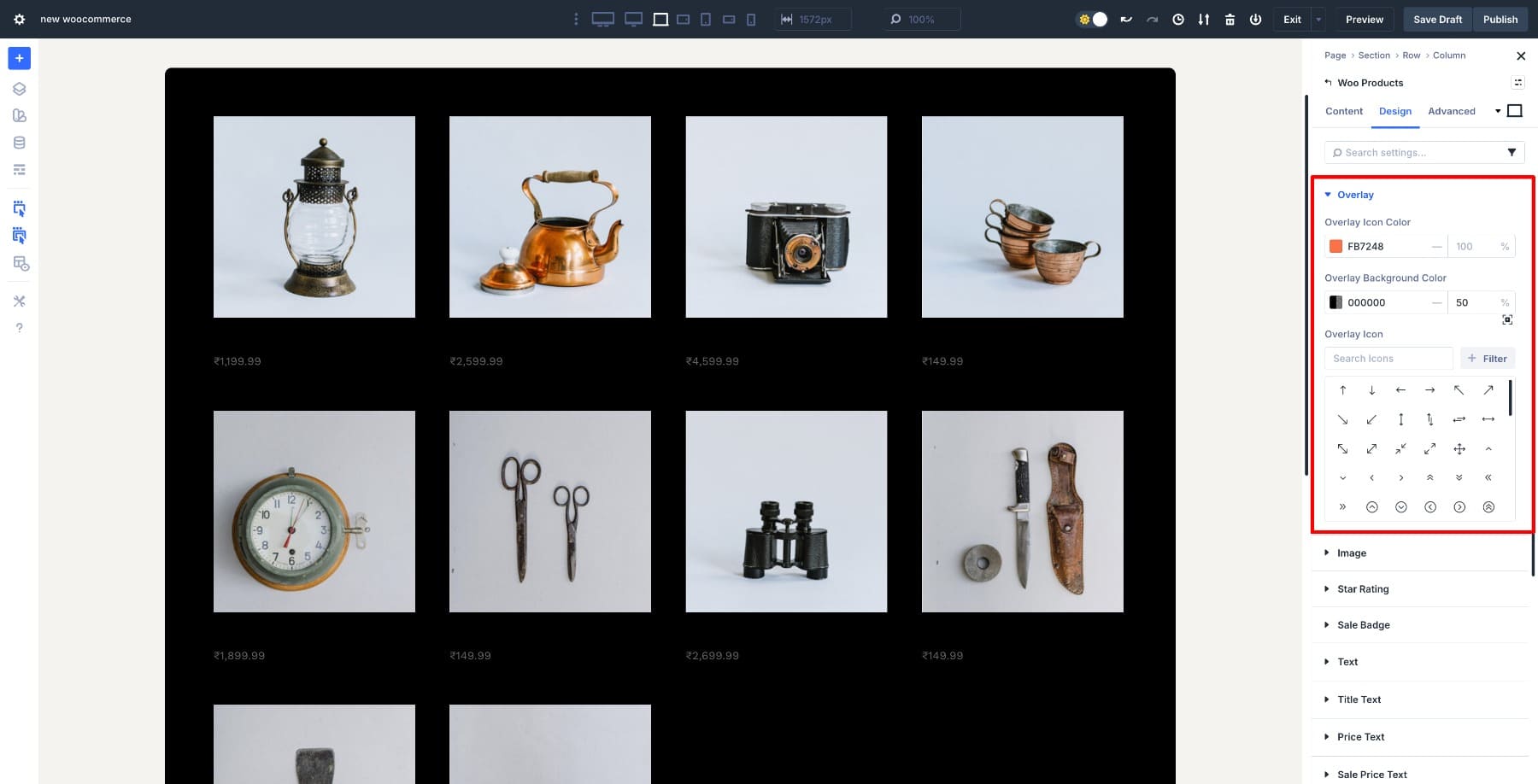
From there, style the module to match your brand. Go to Design > Overlay and set the Icon Color to #FB7248. Set the Overlay Background Color to #000000 at 50% opacity.
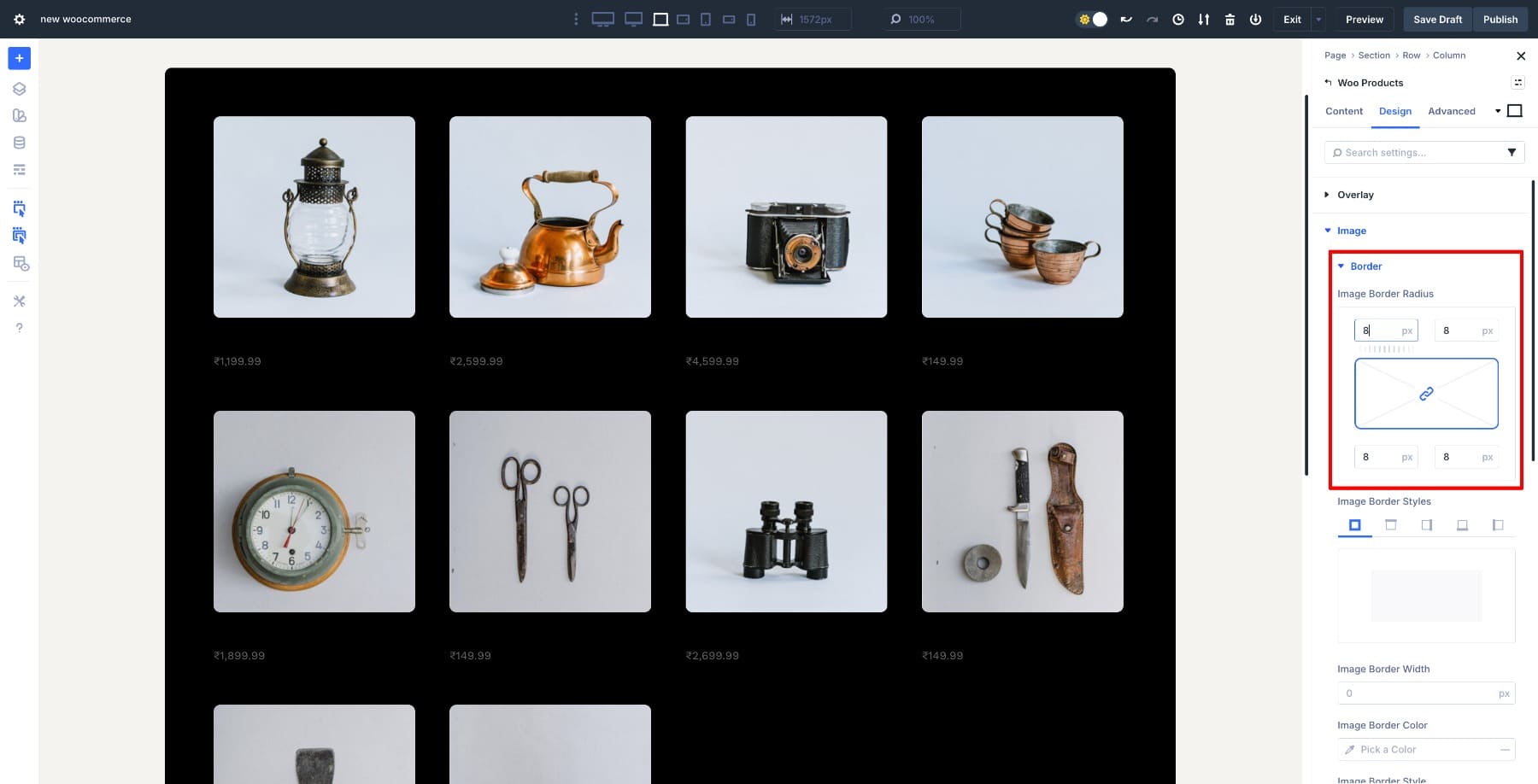
Under Image > Border, add an 8px radius to the product images.
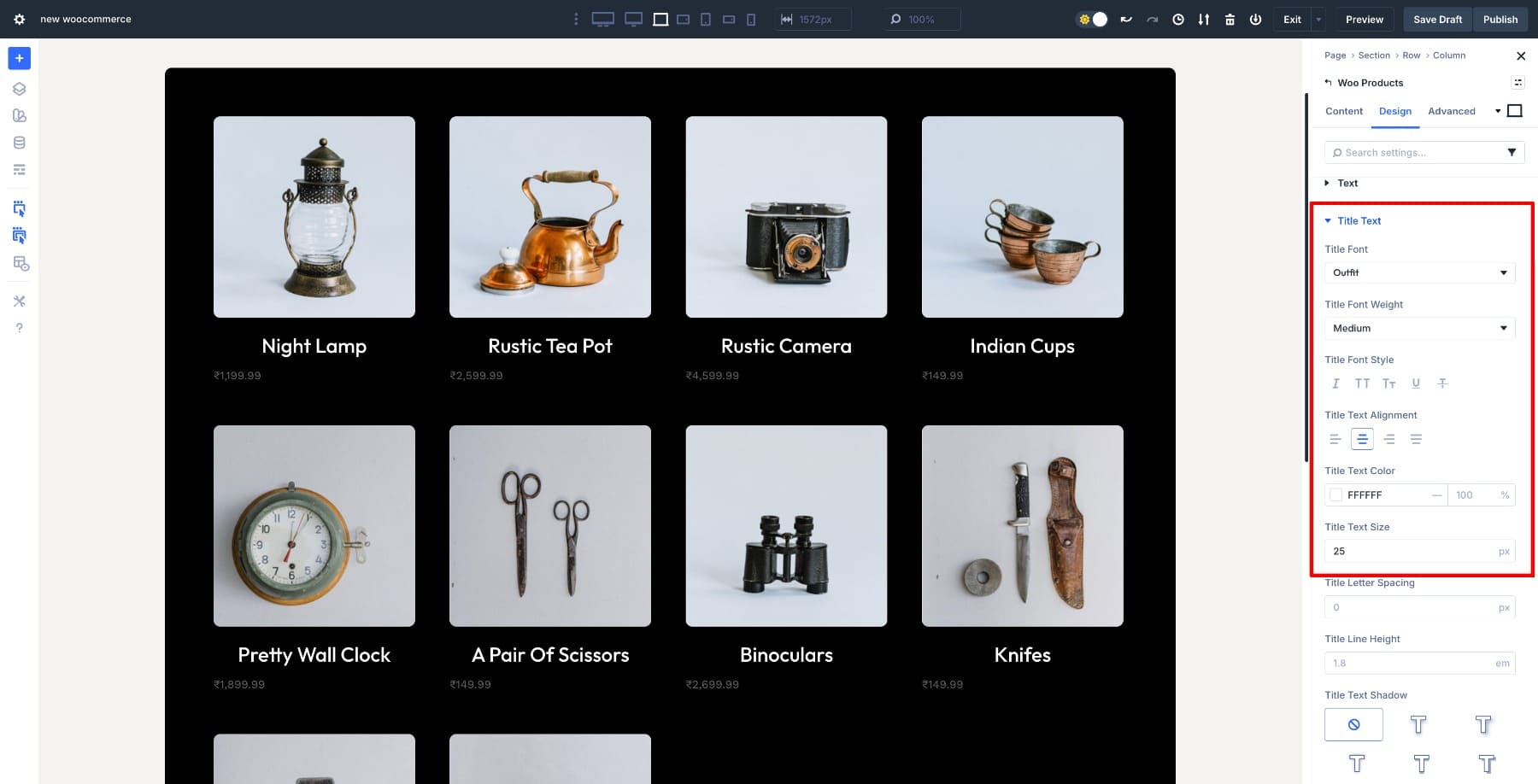
Style the Title Text and set the title color to White so it stands out against the dark background.
Then style the Price Text using your primary accent color to create stronger visual contrast.
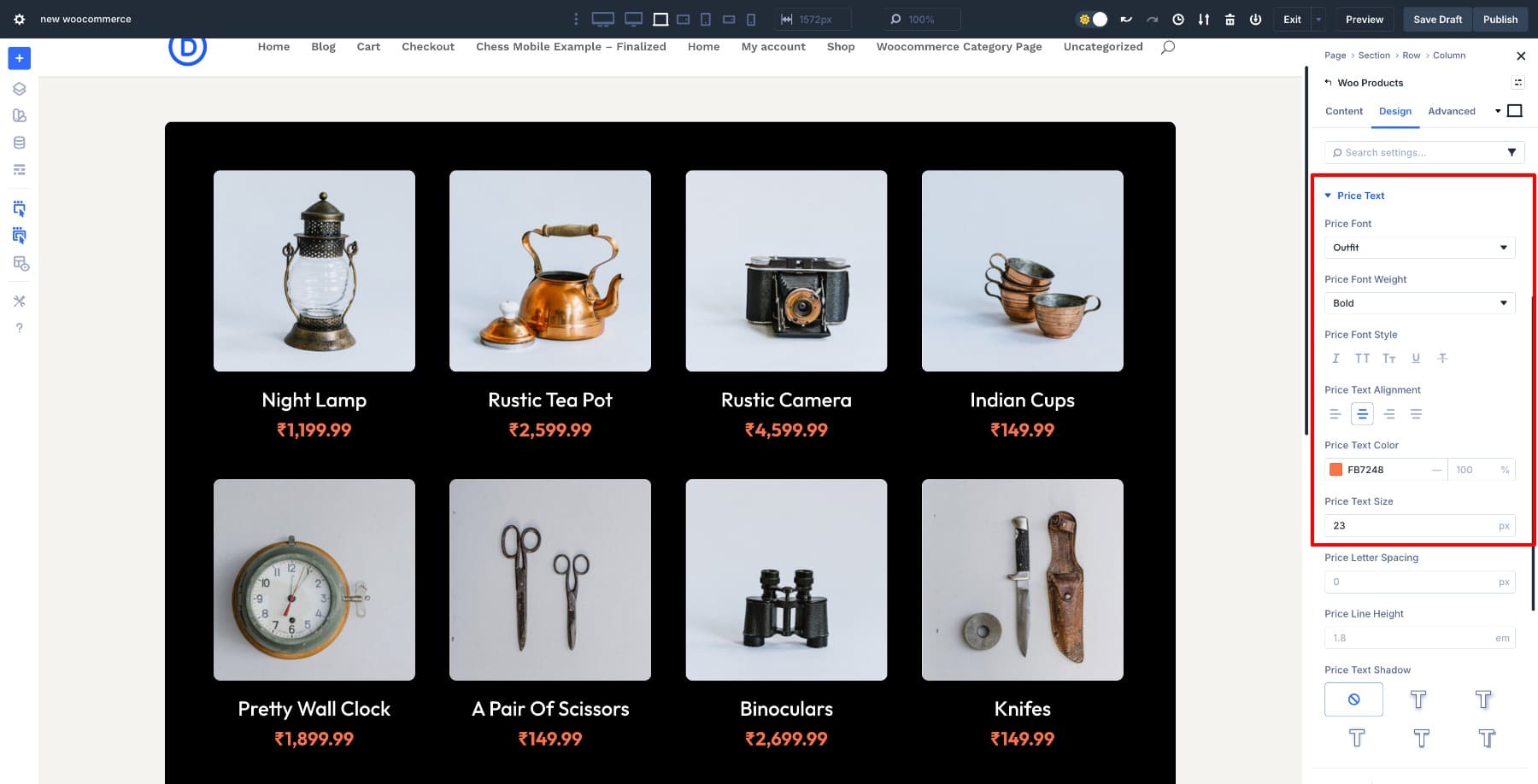
At this point, you have a dynamic category grid that updates automatically as products are added to or removed from that category.
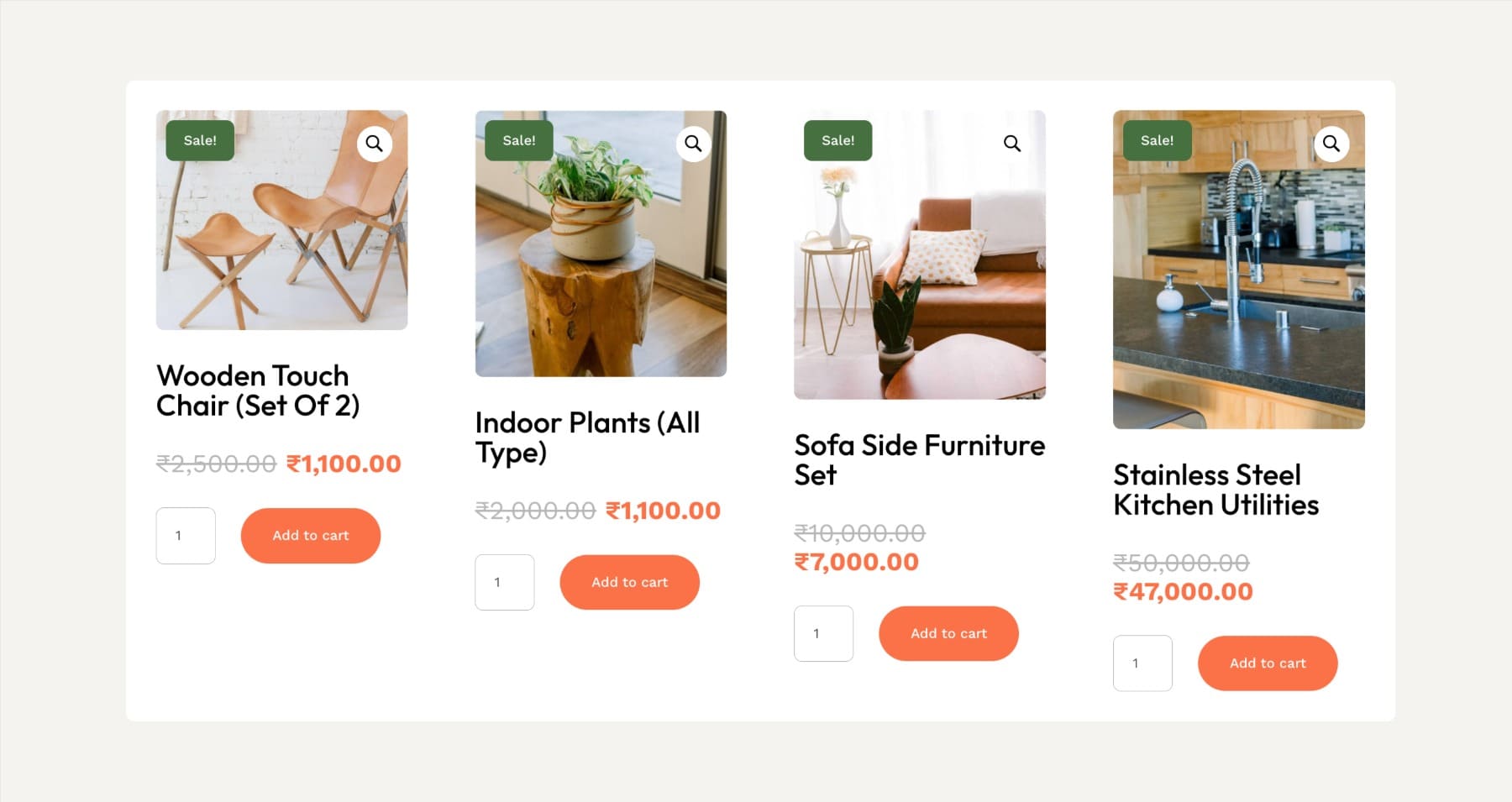
Design 2: Build A Curated Product Section With Individual Woo Modules
This approach gives you more visual control, but it works differently. Instead of building a dynamic archive grid, you create a custom card for specific products by combining separate Woo modules.
That makes this method a better fit for featured products, editorial category landing pages, or a small curated section inside a category template. If you want a fully dynamic repeating layout for every product in the category, skip to the note about Loop Builder below.
Add a new Section and insert a four-column Row. Apply 60px Padding, 8px Border Radius, and a White Background.
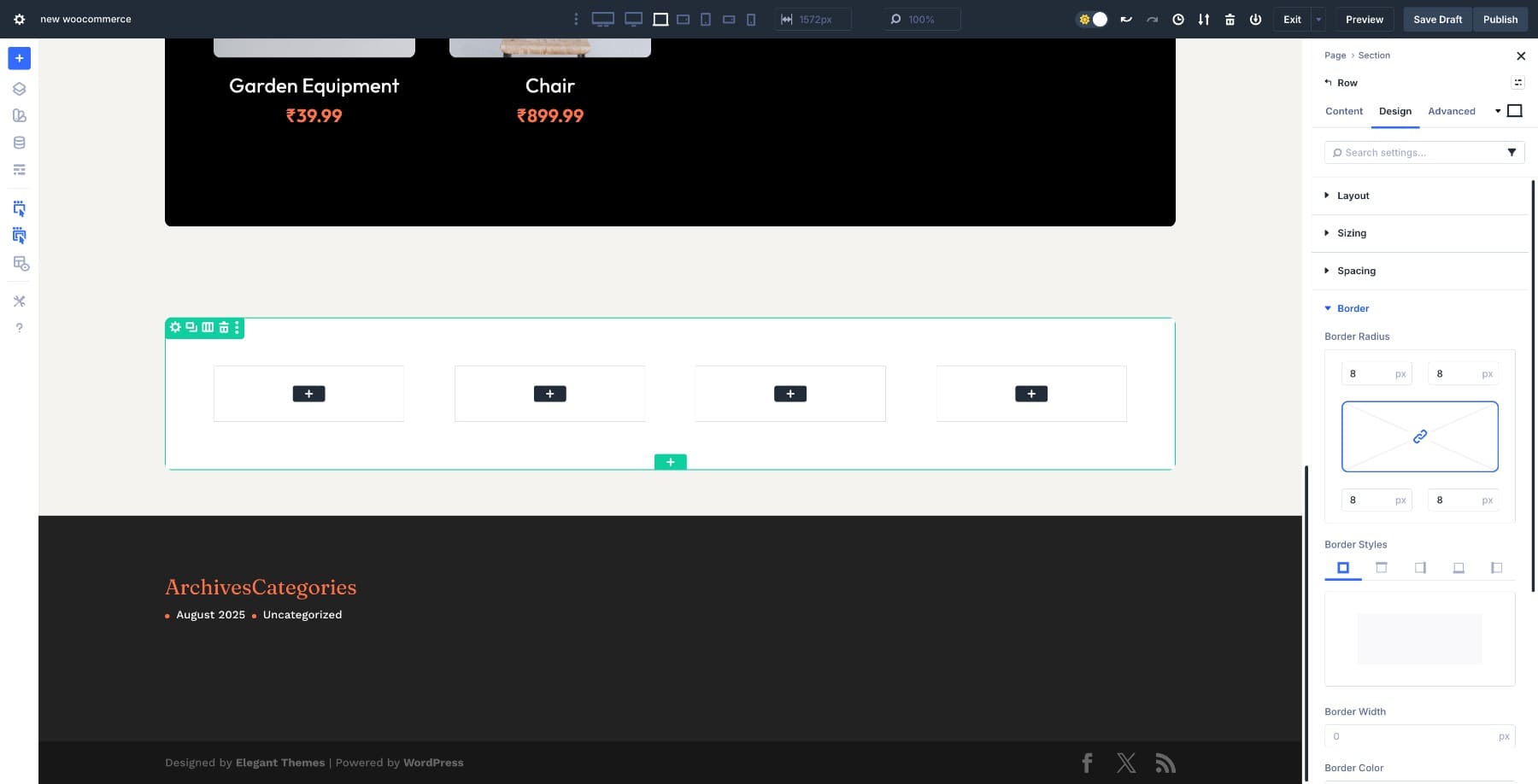
In the first column, add these modules in order:
- Woo Product Image
- Woo Product Title
- Woo Product Price
- Woo Add To Cart Button
Open the Woo Product Image settings and add an 8px Border Radius to the Sale Badge. Change its color to #467040.
Then style the title, price, and button modules so the card feels consistent. Adjust typography, spacing, borders, and colors until the design matches your store.
Once the styling is finished, open the Content tab in each module and assign the same product to all four modules. In this example, use Wooden Chair Set. That connects the image, title, price, and button to one specific product.
Your first card is complete. Copy the entire column and paste it into the second column so all styling carries over.
Repeat the process for the other columns, then change the selected product inside each module so every card displays a different item.
Before publishing, switch to tablet and mobile views to confirm the spacing, stacking, and button alignment still work well.
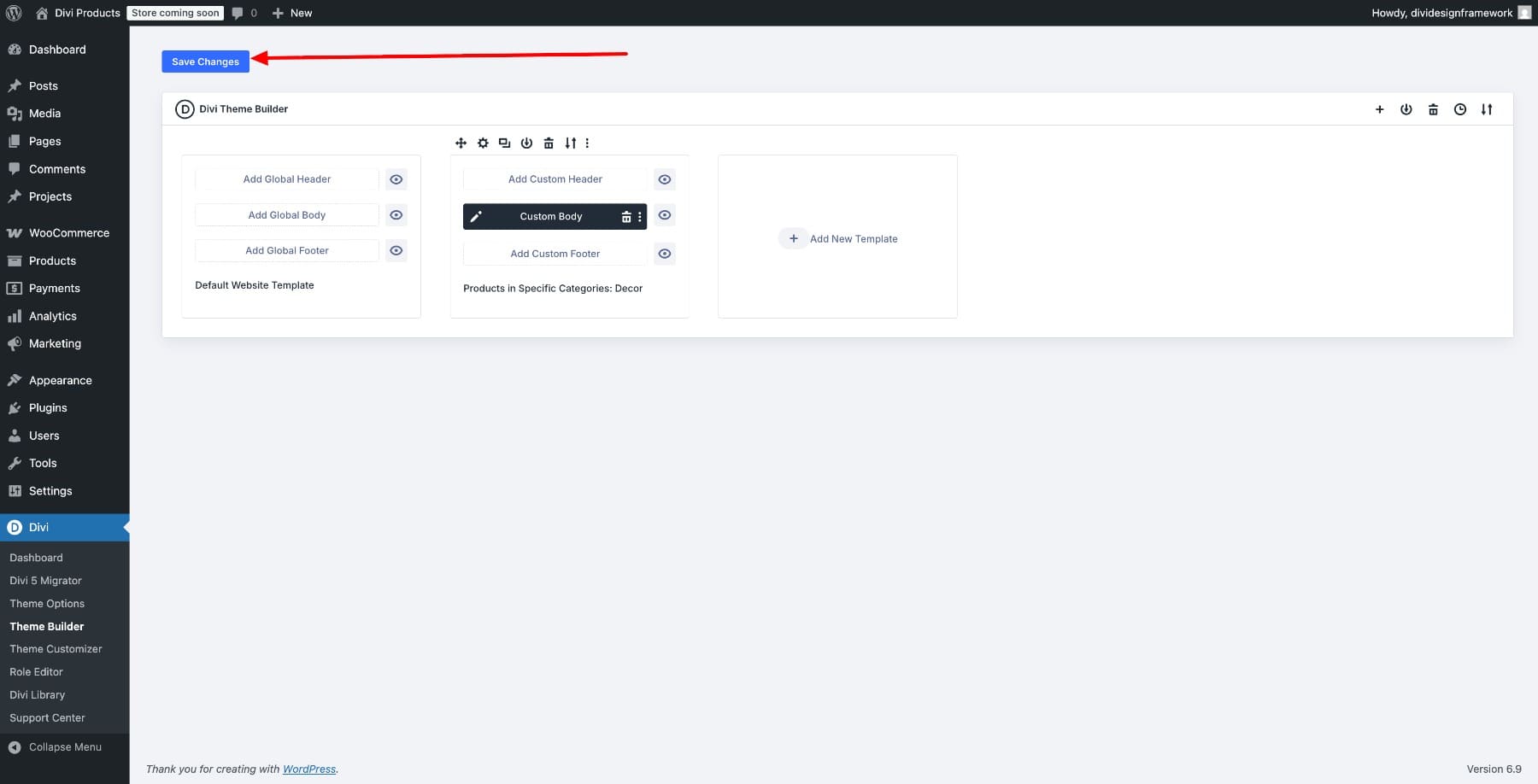
When you’re done, save the layout and return to Theme Builder. Click Save Changes to publish the template.
Important: When To Use Loop Builder Instead
The manual card method above is not the best choice when you want a true product archive that automatically repeats a custom card for every product in the current category.
For that, use Loop Builder. In Divi 5, the Loop Builder is a better tool for custom dynamic category pages because you can design a single product card layout, query WooCommerce products, and have Divi repeat that layout automatically across the category page.
In other words:
- Use Woo Products for the fastest dynamic category grid.
- Use individual Woo modules for curated or hand-picked product sections.
- Use Loop Builder for a fully custom dynamic archive layout.
Practical Tips Before You Publish
A few final checks can make the difference between a category page that looks good in the builder and one that works well for shoppers on the front end. Before you publish, review these details to make sure your layout stays polished, readable, and easy to use across devices.
- Keep category templates simple first, then refine spacing and styling once the structure is in place.
- Use consistent image ratios to keep product cards balanced across the grid.
- Check hover states, sale badges, and Add to Cart buttons on mobile and desktop.
- Preview the template on a category with enough products to test line breaks, pagination, and spacing.
- If you use a dark background, verify the contrast of the title, price, and button for readability.
Try Divi 5 Woo Modules On Your Category Pages
Divi 5 gives you more than one way to build WooCommerce category pages. The Woo Products module is the quickest route to a clean dynamic grid, while individual Woo modules give you more control for curated featured-product sections. When you need a fully custom repeating archive layout, Loop Builder is the stronger option.
That flexibility is what makes Divi 5 so useful for WooCommerce stores. You can start simple, improve the layout visually, and choose the method that matches the type of category page you’re actually building.













The video is a product page, not a category page
Thank you so much for the heads-up, Chris! 👍
The issue will be corrected promptly. 😊