

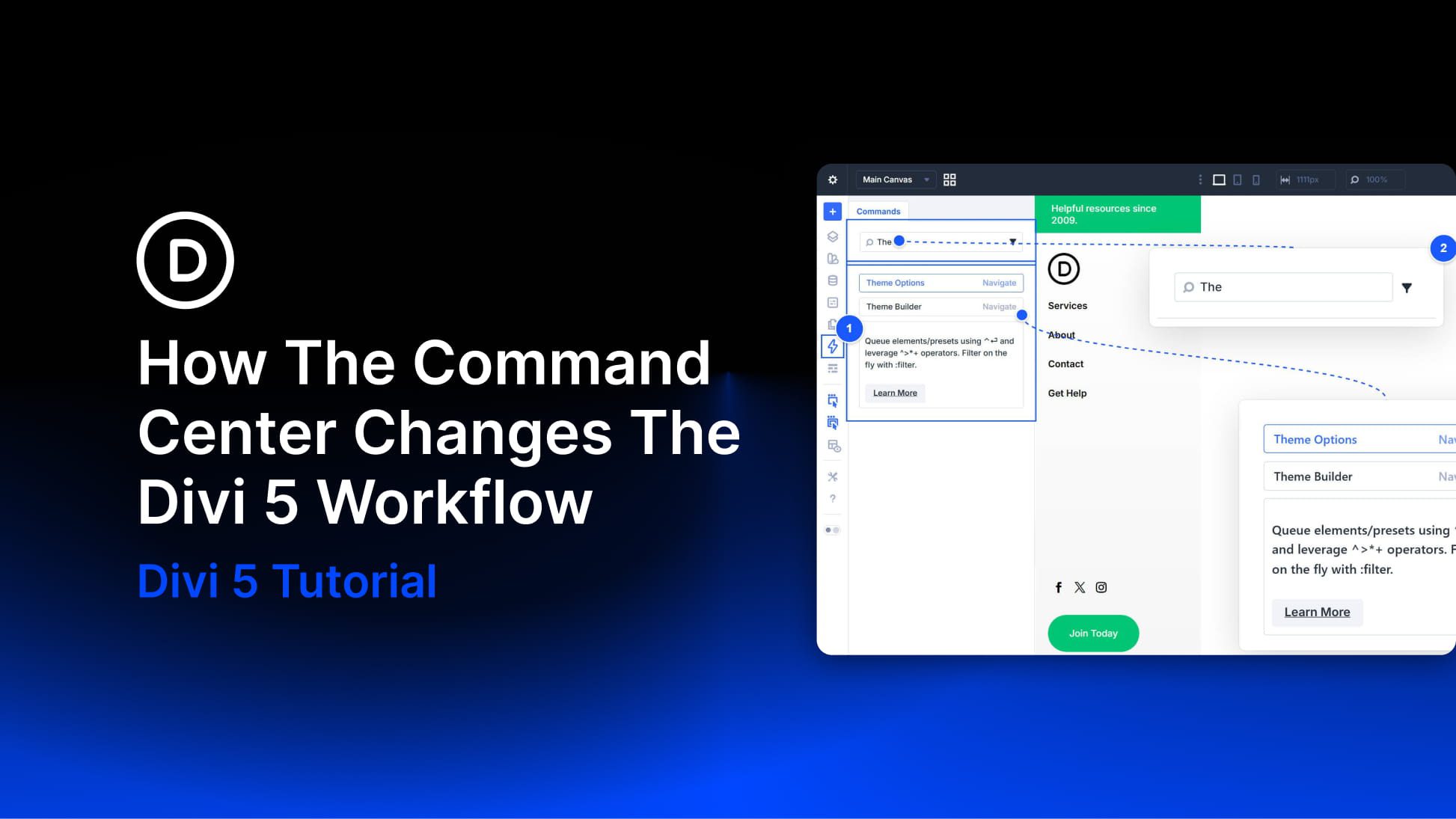
Divi 5 gives you more than one way to work. You can click through settings panels and modals when you want fine-grained control. You can use keyboard shortcuts for speed when performing smaller, repeatable actions. The Command Center adds a third option. It lets you trigger more complex builder tasks at keyboard speed, including navigation, context changes, and builder actions, without relying on a long list of dedicated shortcuts.
You open it, start typing, and run the matching command you need. That simple shift changes the workflow more than it might seem at first. Instead of hunting through the interface, you can move directly to the page, panel, state, or action you want from one searchable input.
What Is The Command Center?
Subscribe To Our Youtube Channel
The Command Center is a searchable action bar built into the Divi 5 Visual Builder. You can open it from anywhere in the builder by pressing CMD+K on Mac or CTRL+K on Windows. From there, type what you want to do, let the results narrow as you type, and press Enter to run the matching command.
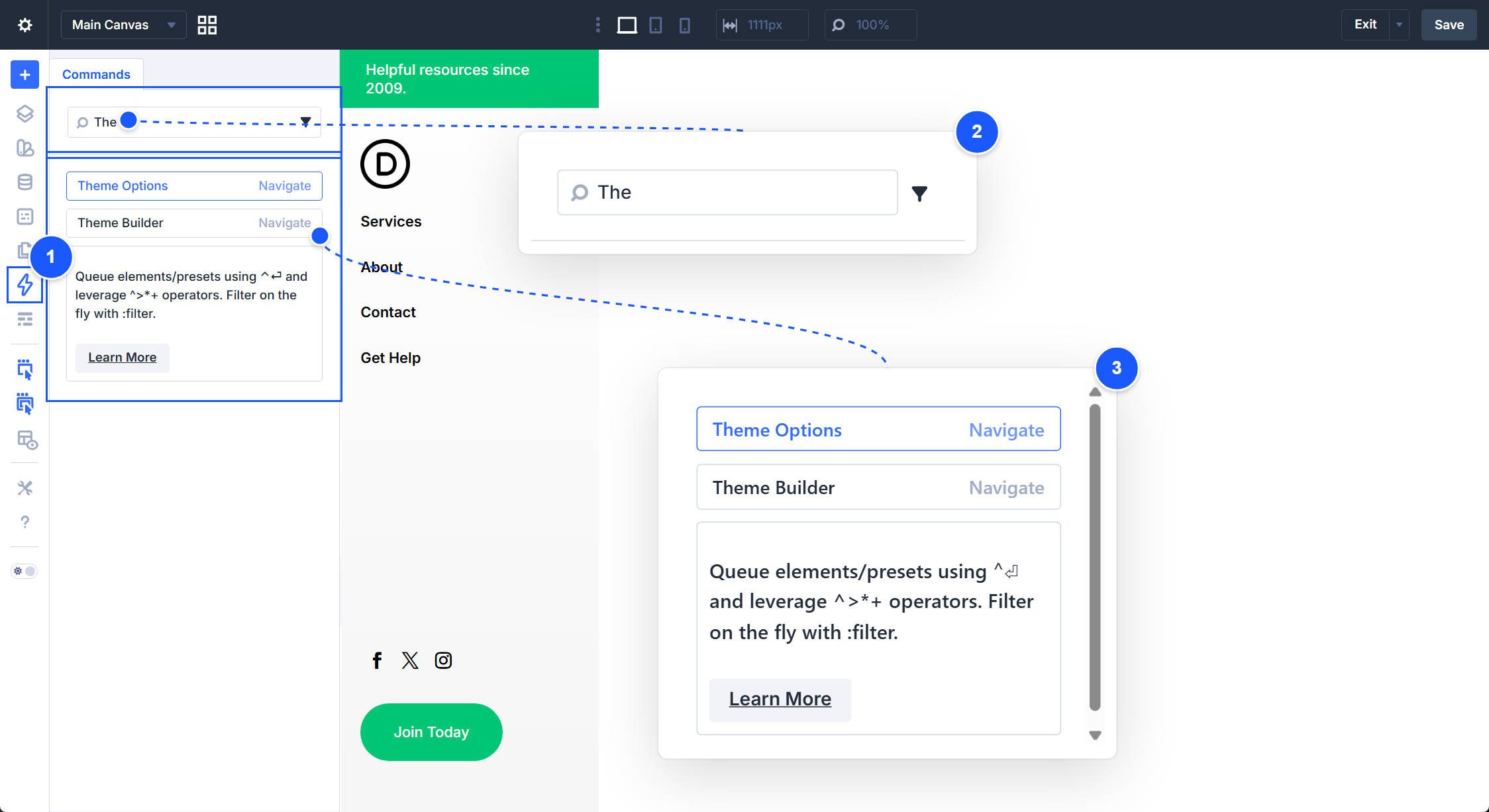
In practice, it gives you one place to handle a wide range of builder tasks. Instead of navigating through menus or remembering lots of separate shortcuts, you can search for pages, settings, panels, breakpoints, and actions from the same interface. That makes it useful both for speed and for reducing interface friction during longer build sessions.
There are three broad types of Command Center commands.
- Navigation: Commands that move you to another page or another area of Divi, such as the Theme Builder.
- Context-Switching: Commands that change the editing state, open a panel or modal, or switch the builder into another view.
- Actions: Commands that do something directly, such as adding an element, saving the page, or applying a preset.
Each type supports a different part of the workflow, so it helps to look at them separately.
Navigation commands move you from one destination to another. That could mean another page on your site or another area of Divi itself.
One of the most useful examples is page-to-page navigation. Type the name of any page on your site into the Command Center, and it can surface as a navigation result. Press Enter, and the builder loads that page directly. That removes several small steps from the process, especially when you are jumping between pages for quick edits.
The same idea applies to major Divi destinations. Type Theme Builder and jump directly into the Theme Builder. Type Theme Options and go there without backing out through the WordPress admin first. When you use those areas often, that kind of direct access adds up quickly.
There is also a broader workflow benefit here. Navigation commands reduce the mental interruption of leaving what you are doing just to find another area of the builder. Instead of switching modes by way of menus, you move directly to the next destination from the keyboard.
Context-Switching Commands: Reach The Right View Or Editing State Faster
Context-switching commands do not necessarily move you to a new page. Instead, they change what you are looking at, what state you are editing, or which builder tool is currently active.
Breakpoint changes are a clear example. Type tablet or phone into the Command Center, and the builder switches into that responsive view. Type desktop to switch back. That makes responsive editing much faster when you already know which breakpoint you want to work in.
Hover state works in a similar way. With an element selected, type hover state and the builder switches into hover editing mode for that element. When you are finished, type default state to return to the base styles. That saves time compared with opening the same state controls manually each time.
Opening panels and modals also fits this category. Type variables to open the Design Variables manager, layers to open Layers View, or canvas to surface available canvases you can switch to. This is especially useful in Divi 5 because there are more builder contexts, modals, and workspace tools than before, and they are not always the fastest things to reach by clicking.
These commands matter because they remove a lot of interface scanning. You do not need to remember exactly where a feature lives if you know what it is called.
Action Commands: Build, Apply, And Save Directly From The Keyboard
Action commands are the ones that actually build, apply, save, or modify something. They perform a direct change rather than simply changing your destination or editing context.
Adding an element is the simplest example. Open the Command Center, type button, and press Enter. Divi adds a Button module to the currently selected container. That same pattern works for many other elements, which makes the Command Center a quick way to build without moving back and forth through insertion dialogs.
But this part of the Command Center becomes much more powerful when you start queueing commands. A single queue can add a section, nest rows and columns, place modules, and apply presets inline. That is the part of the workflow where the biggest time savings appear, especially on sites with a strong preset system already in place. We cover that in more detail in Queueing Commands In Divi 5 To Build Your Layouts.
Save commands belong in this category too. Type save and press Enter to save the current page. Variations such as saving as draft, pending, or private are also available through search. For something you do repeatedly during a build, turning that into a quick keyboard sequence is a meaningful improvement.
Start Using The Command Center In Divi 5 Today!
The Command Center does not replace every other way of working in Divi 5. It gives you another path through the builder, and in many cases, it is the faster one. Navigation commands cut down the overhead of moving between pages and builder areas. Context-switching commands bring the right panel, mode, or view into focus faster. Action commands let you add, save, and build without so much interface handling.
Its biggest advantage may be that it does not require much memorization. Because it is searchable, you do not need to remember an exact shortcut for every action. You only need to remember that the Command Center is there and reach for CMD+K or CTRL+K before you start clicking through menus. Over time, that becomes less of a trick and more of a workflow habit.
For a broader overview of the feature, visit the Everything You Need To Know About The Divi 5 Command Center post. For a more practical roundup of high-value commands, see Divi 5 Commands Every Power User Should Know. And for the deeper queueing workflow, see Queueing Commands In Divi 5 To Build Your Layouts.










Leave A Reply