

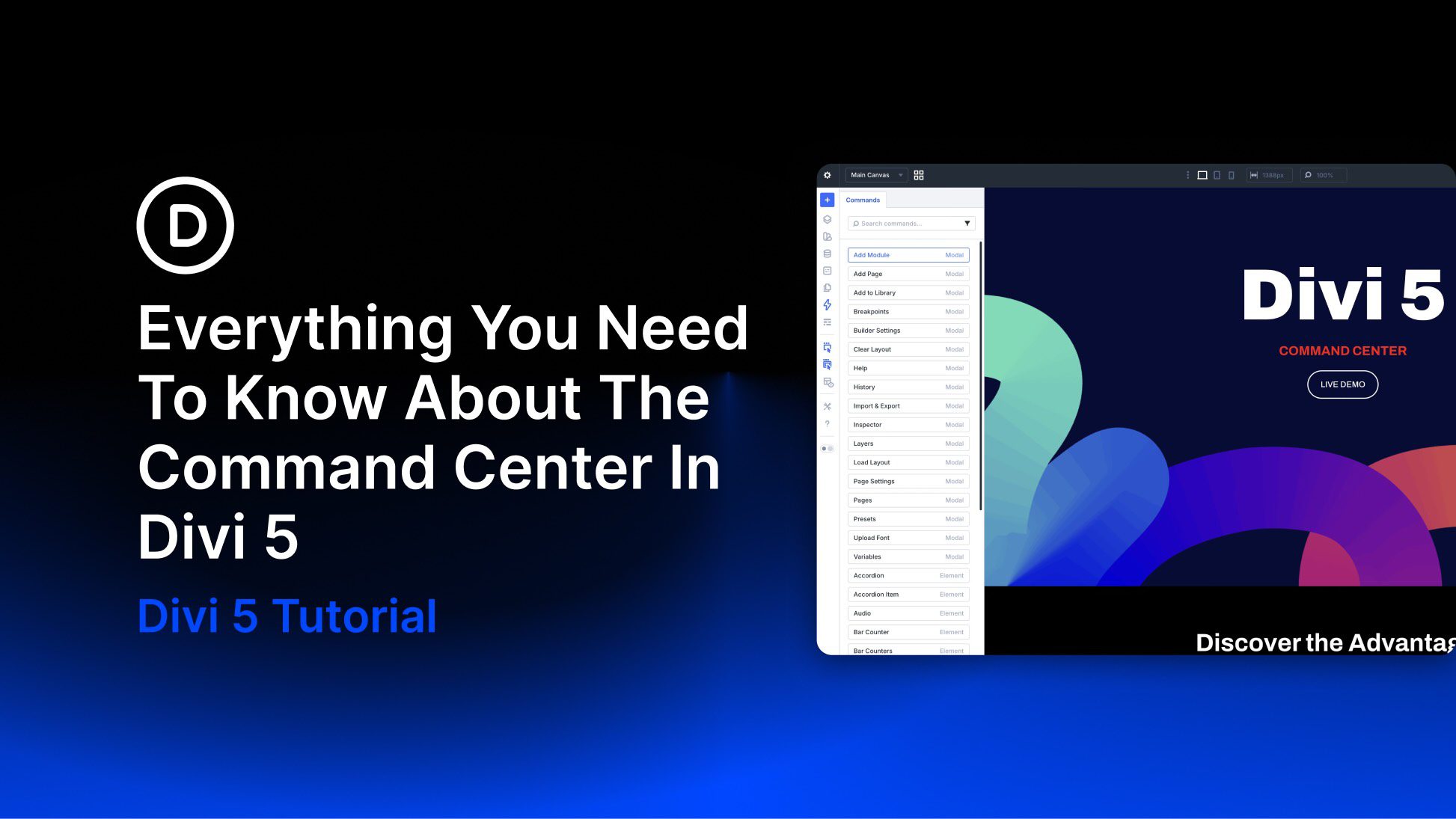
Divi 5 is out of beta and ready to use. With that in mind, we’d like to highlight one of its newest workflow features: the Divi 5 Command Center. The Command Center is a keyboard-driven command system built directly into the builder. It lets you execute actions quickly by typing instead of manually adding modules, clicking through menus, or hunting for options.
We rebuilt Divi 5 from the ground up on a completely new, modular foundation that prioritizes speed, efficiency, and modern builder tools. The Command Center is possible because of that new foundation, allowing you to interact with Divi in a very different way. Using the Command Center can speed up the design process and make navigation through settings easier, so you can build and edit sites faster. It is especially useful when working with complex layouts, presets, and modified styles.
In this post, we’ll take a hands-on look at the Command Center, show you how to use it, and share tips and best practices.
Let’s get started.
What Is The Divi 5 Command Center?
The Divi 5 Command Center is a powerful, searchable panel that lets you perform builder actions instantly using typed commands instead of traditional point-and-click workflows. Press Cmd + K on Mac or Ctrl + K on Windows anywhere in the builder to launch it.
Start typing, and results appear in real time. Press Return to run a command immediately, or use Cmd + Return on Mac or Ctrl + Return on Windows to queue commands for later execution.
You can add elements, including nested structures via Nested Rows or Module Groups, open panels, jump to settings, switch views, apply presets, navigate your site, and modify elements, all from one panel.
Key Features Of The Command Center
Whether you’re adding nested layouts, editing design settings deep within a module, switching views on the fly, or jumping between pages and presets, everything happens through quick typing and smart operators. This single feature replaces countless mouse clicks and deep dives into settings, turning repetitive tasks into near-instant actions.
Below are the main command categories, along with practical examples to show how they work.
Element Commands
Add modules, sections, rows, or groups instantly, including multiple elements at once or elements nested inside other modules. This is especially powerful for rapid prototyping or recreating common structures without building them manually.
For example, click anywhere on the canvas, press Cmd + K, type Row into the search field, and press Return. The Command Center will add a new single-column row to the page.
The real power of the Command Center is the ability to run complex commands like Row > Column * 3 > Group > Image + Heading + Text + Button. This adds a three-column row with an Image, Heading, Text, and Button module in each column.
Note: Use Cmd + Return on Mac or Ctrl + Return on Windows to queue commands before adding operators.
Modal Commands
The Command Center lets you open builder panels and modals directly, saving you from hunting through menus when you need to manage global styles, export layouts, or edit Design Variables.
For example, you can use the Command Center’s filter dropdown and select Modal so only relevant results are displayed.
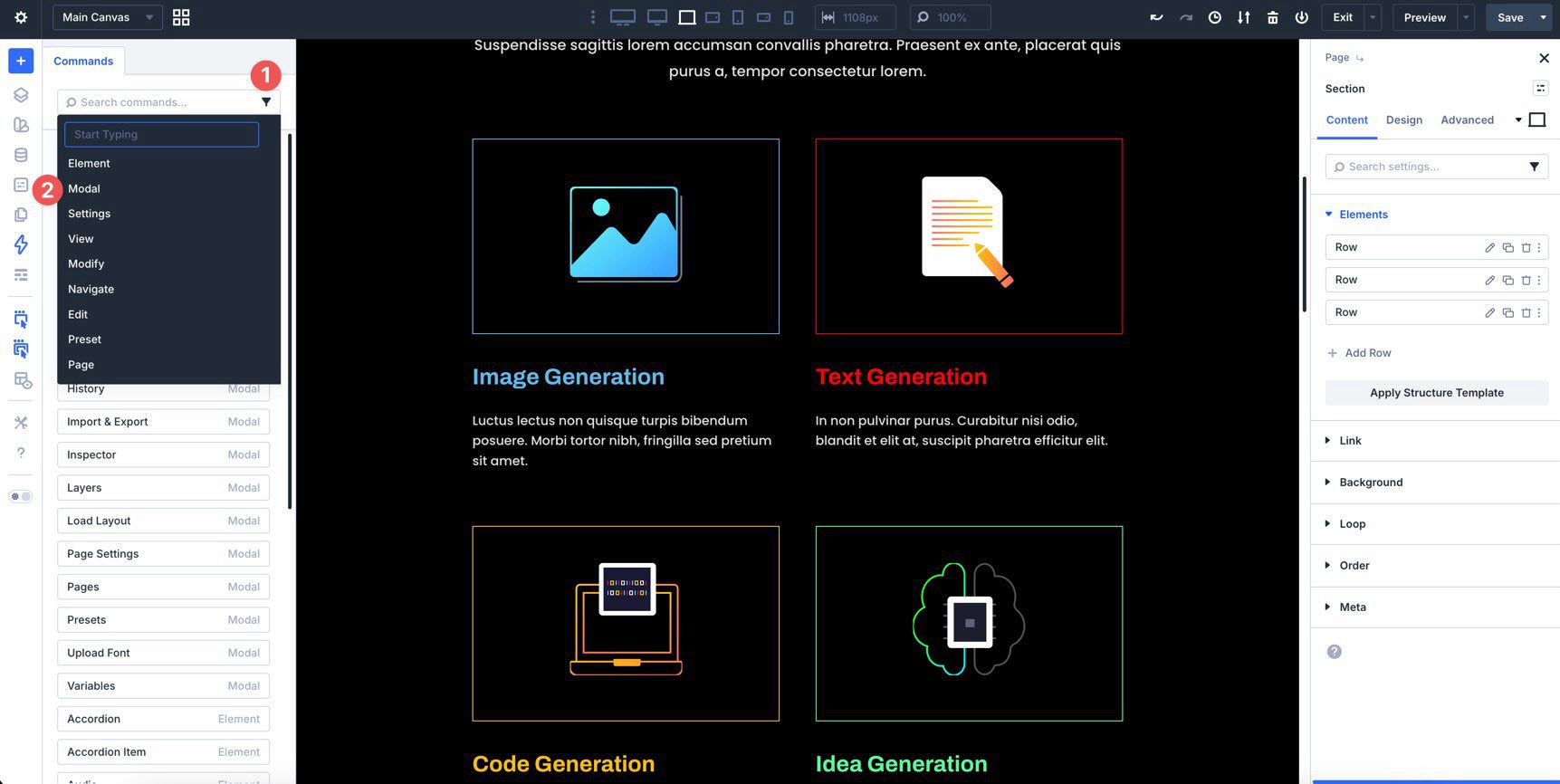
Typing reset and pressing Return allows you to open the Preset Manager. Similarly, typing variables opens the Variable Manager.
Settings Commands
The Command Center lets you jump straight to specific settings panels within any selected module, column, row, or section, so you can fine-tune options like design, advanced settings, transforms, animations, and more without scrolling through an element’s settings.
For example, type animation to jump to the animation settings of a selected module.
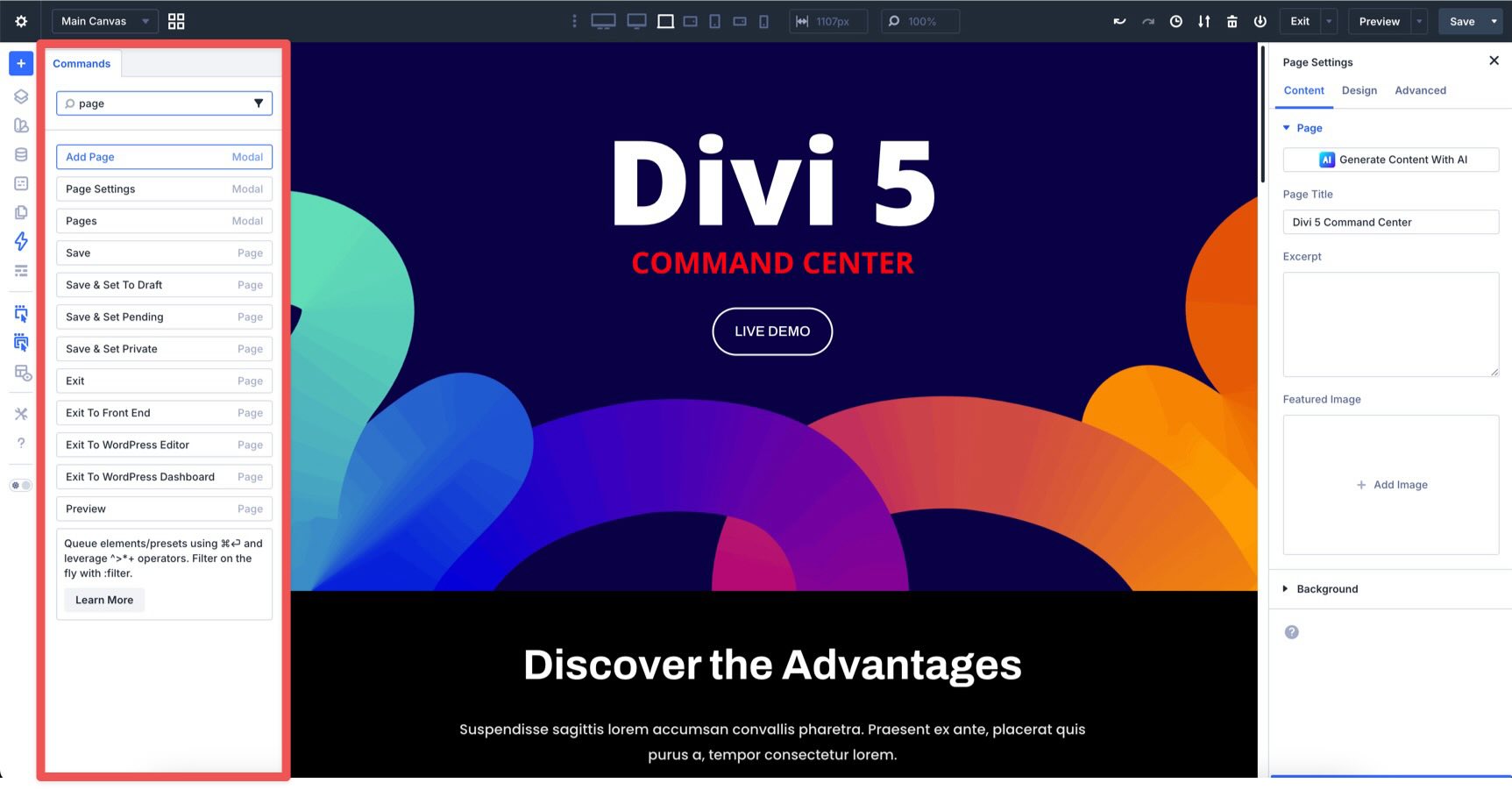
You can also type page to bring up relevant page-level results, such as saving, previewing, or exiting the builder.
View Commands
You can switch to different views, such as ultra-wide, widescreen, tablet, and phone, enter Wireframe mode, activate Preview mode, and more. This makes it easier to check responsiveness or debug layouts without manual toolbar clicks.
For example, typing view lists all associated view commands.
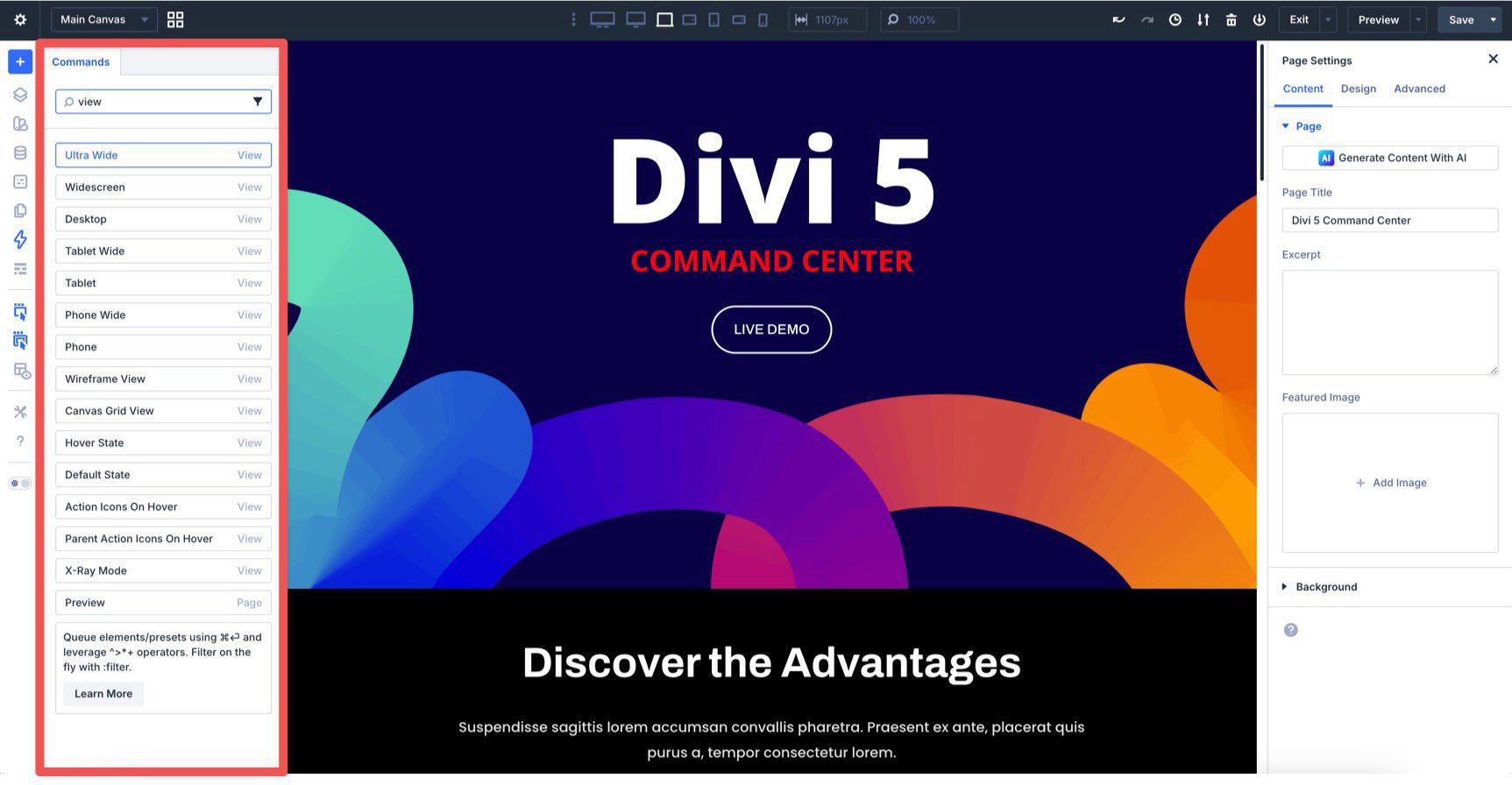
You can also type preview to open Divi 5’s Preview mode, which is great for quick testing.
Modify Commands
The Command Center’s modify commands let you perform common edit actions as an alternative to right-click menus or keyboard shortcuts. You can duplicate, delete, copy, cut, paste, or reset elements and presets, making repetitive tasks easier when refining a page.
For example, with a Button Module selected, open the Command Center. Type preset, press the down arrow key to select Reset Presets, and hit Return. That action removes any assigned presets from the module.
The Command Center also provides an easy way to navigate your website from one panel. You can jump to other pages, Theme Builder areas, or Theme Options by typing names instead of clicking around the WordPress admin.
For example, type page or theme builder and press Return to access pages or the Theme Builder instantly. This feature is especially useful for hopping between your home page, blog, or custom Theme Builder templates without leaving the builder.
Preset Commands
The Command Center makes it easy to apply saved Element and Option Group Presets to a selected or newly added element, allowing you to maintain consistent styling across modules without manually recreating designs.
For example, select an area of the page where you’d like to add a new module. Activate the Command Center and type Blurb (Cmd + Return), then the name of an Option Group Preset (Cmd + Return), followed by a + sign, then another Option Group Preset. The command should look something like this: Blurb + White H4 + White Body Text.
This command adds a Blurb Module with two presets already applied, making it much faster to build consistently styled content.
Command Queuing And Operators
The Command Center shines when you combine queuing and operators to build complex layouts in seconds. Press Cmd + Return instead of Return to add a command to the queue without running it. Keep queuing, then press Return to execute everything at once.
You can nest elements inside the previous one by using the “>” operator. For example, Blurb > Button nests a Button Module inside a Blurb Module.
To place an element above the currently edited element, use the “^” operator. The “*” operator multiplies the number of elements, and “+” applies presets within the queue. For example, you can add a new section using ^ Section > Row > Column * 3 > Video + Accordion. This adds a new section with a three-column row above the selected element and places a Video and Accordion Module in each column.
Creating new layouts with the Command Center is fast and flexible. With these tools, you can build complex layouts using Nested Modules, Group Carousels, and more.
How To Use The Divi 5 Command Center
Getting started with the Command Center is simple and can instantly boost your productivity. Once you’re comfortable using it, you can build entire styled sections in seconds with minimal mouse movement.
Step 1: Access The Command Center
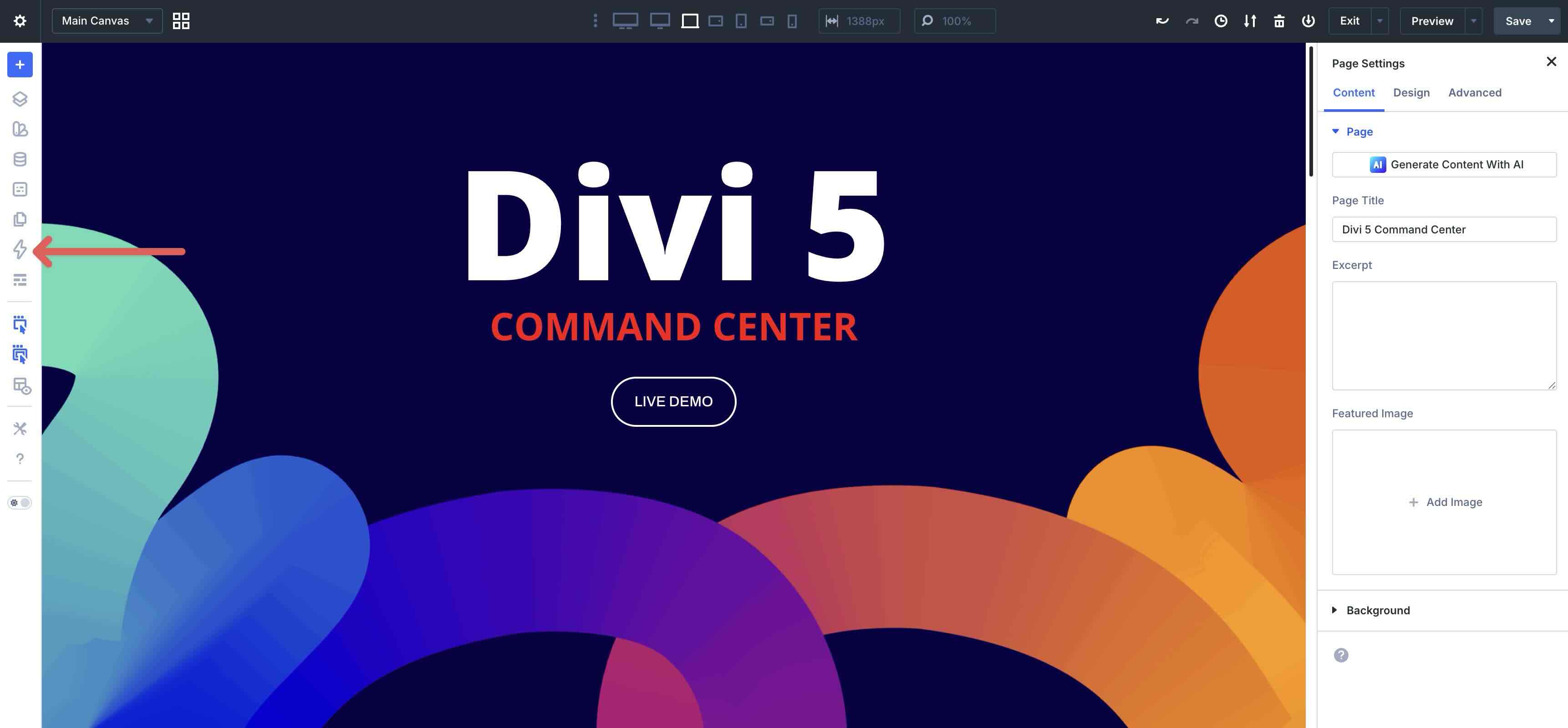
As mentioned earlier, there are two easy ways to access the Command Center. Click the Command Center icon in the builder interface.
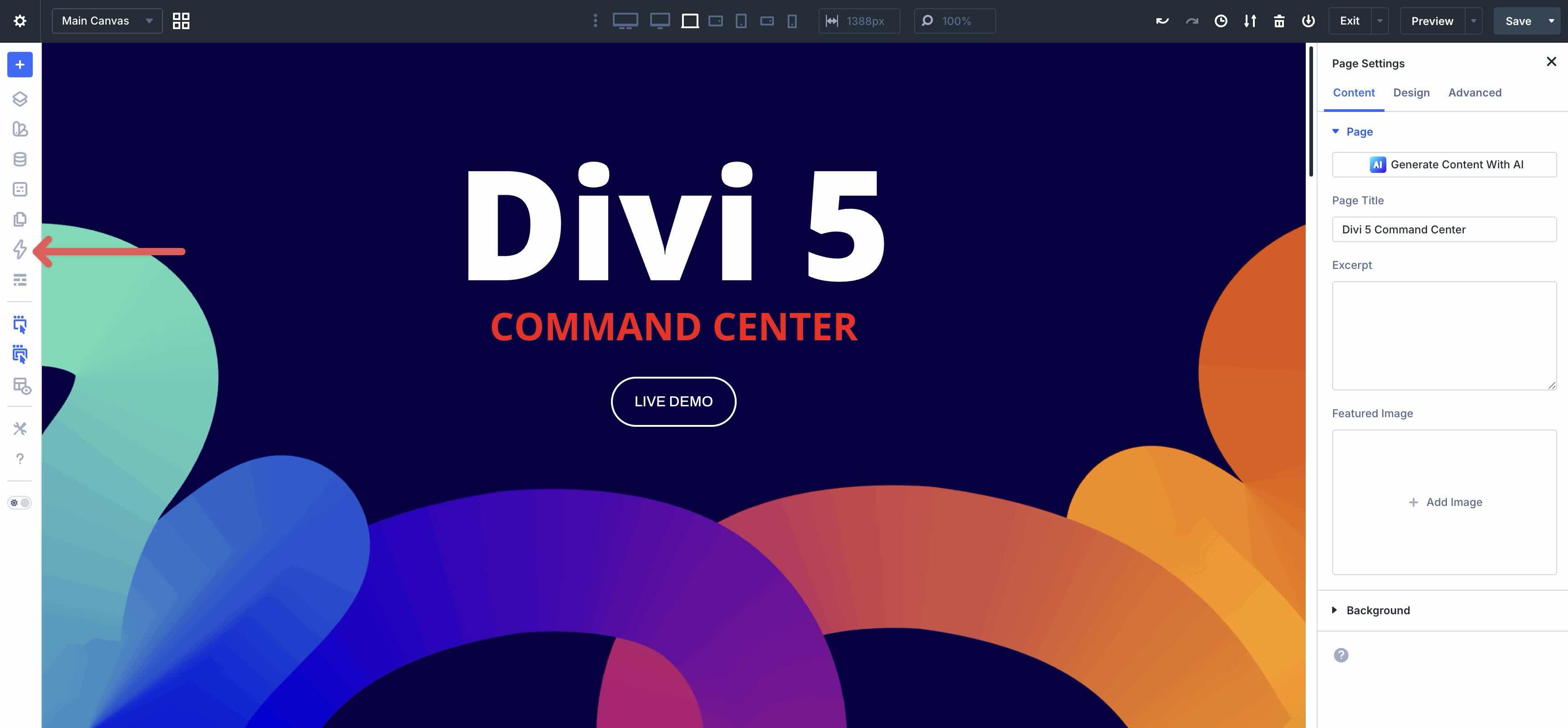
Alternatively, and preferably, use the keyboard shortcut Cmd + K on Mac or Ctrl + K on Windows to open the Command Center panel.
Step 2: Build A Three-Column Layout With Presets Applied
Let’s walk through a real-world example: creating a three-column row where each column has a gradient background, proper spacing, rounded corners, and an Image, Heading, Text, and Button Module with presets applied.
For this example, we’ll use Option Group and Element Presets. Before you begin, make sure you’ve already created the presets used in this workflow. We won’t cover that process here, but you can learn more by reading The Ultimate Guide To Presets In Divi 5.
The beauty of this method is that it uses reusable global styles for things like backgrounds, spacing, borders, and typography, so very little manual styling is needed after the command runs.
Here’s the full command you’ll type: ^ Column + Gradient Background + 10px Border Radius + Column Spacing * 3 > Before/After Image > Heading + White H4 > Text + White Body Text > Button + Primary.
Note: The commands immediately following the “+” symbol are presets. The commands immediately before the “>” and “^” symbols are elements. If you don’t already have presets created on your site, create them before proceeding.
Entering The Command
The command starts with ^, so click into the area of the page where you want to insert the new section. Open the Command Center.
Type ^ Column and press Cmd + Return. This targets adding the new structure above the selected area of the layout.
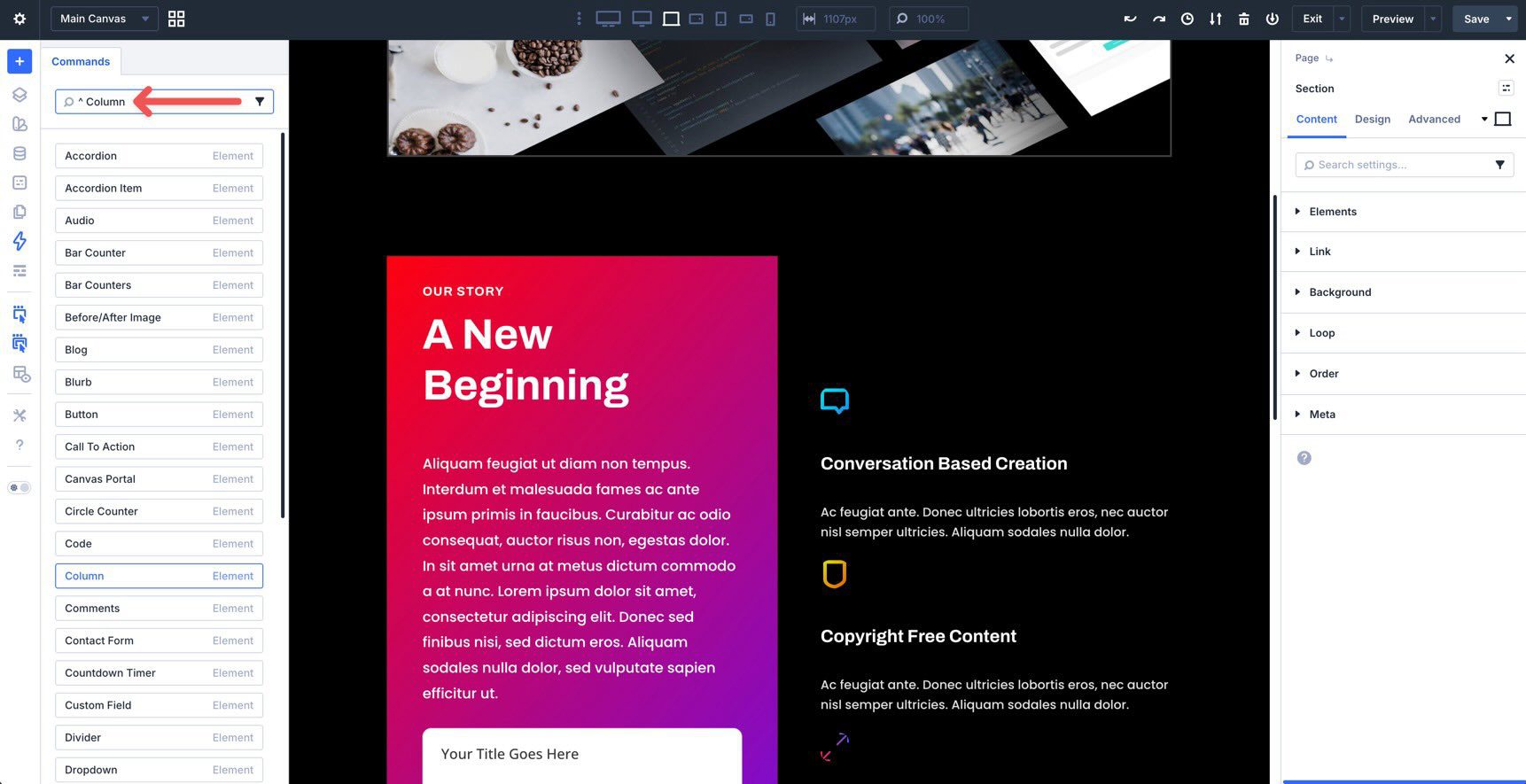
You’ll see a list of commands you can choose from. Before adding presets, add the + symbol to the field. This tells the Command Center that you want to apply presets to the element. Type + Gradient Background and press Cmd + Return. This adds a background preset to the column. Add two more presets by typing +, then the preset name, followed by Cmd + Return.
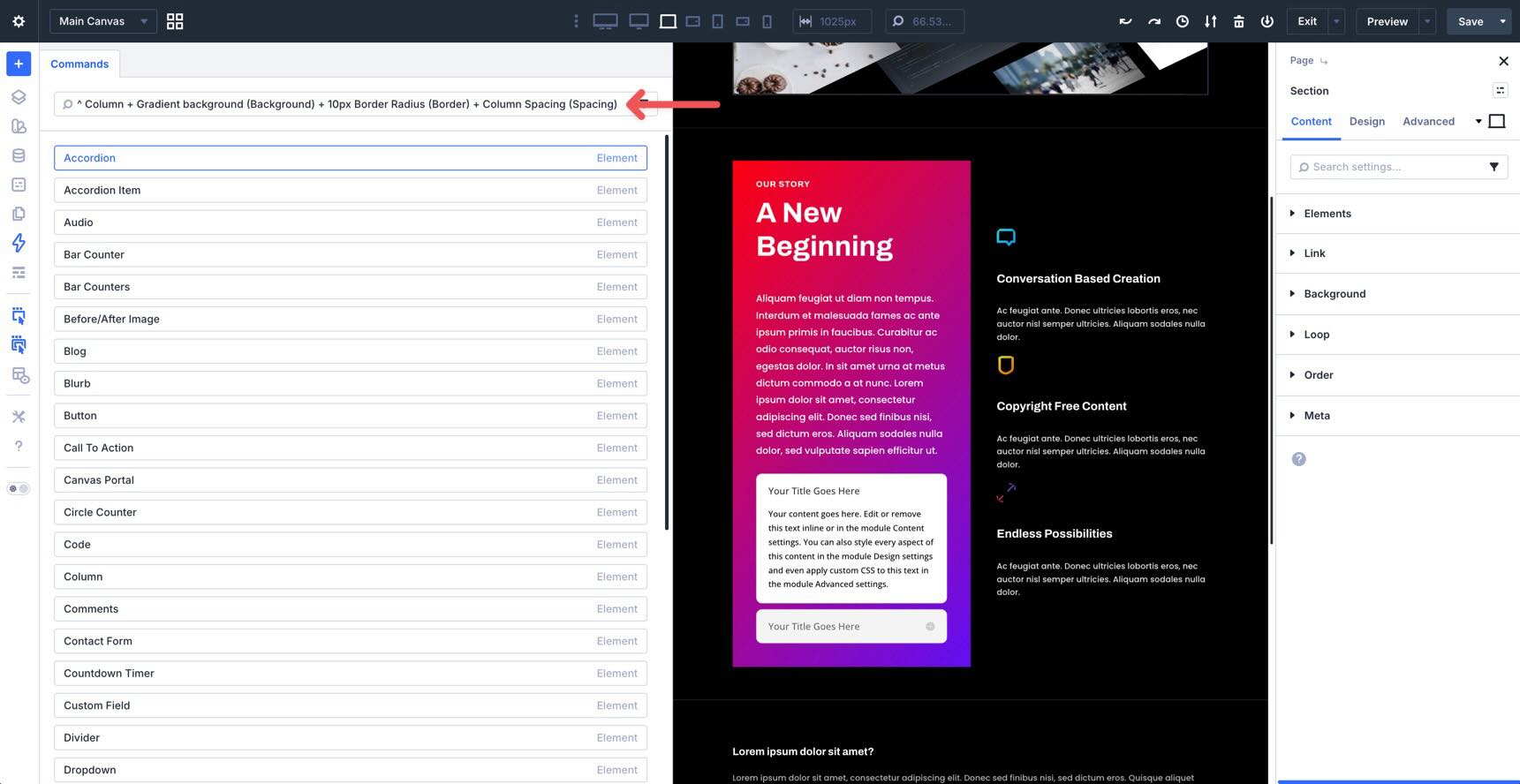
Before we start adding modules, we need to tell the Command Center that we want to duplicate the column and its design settings twice. Type * 3 > Before/After Image, and then press Cmd + Return.
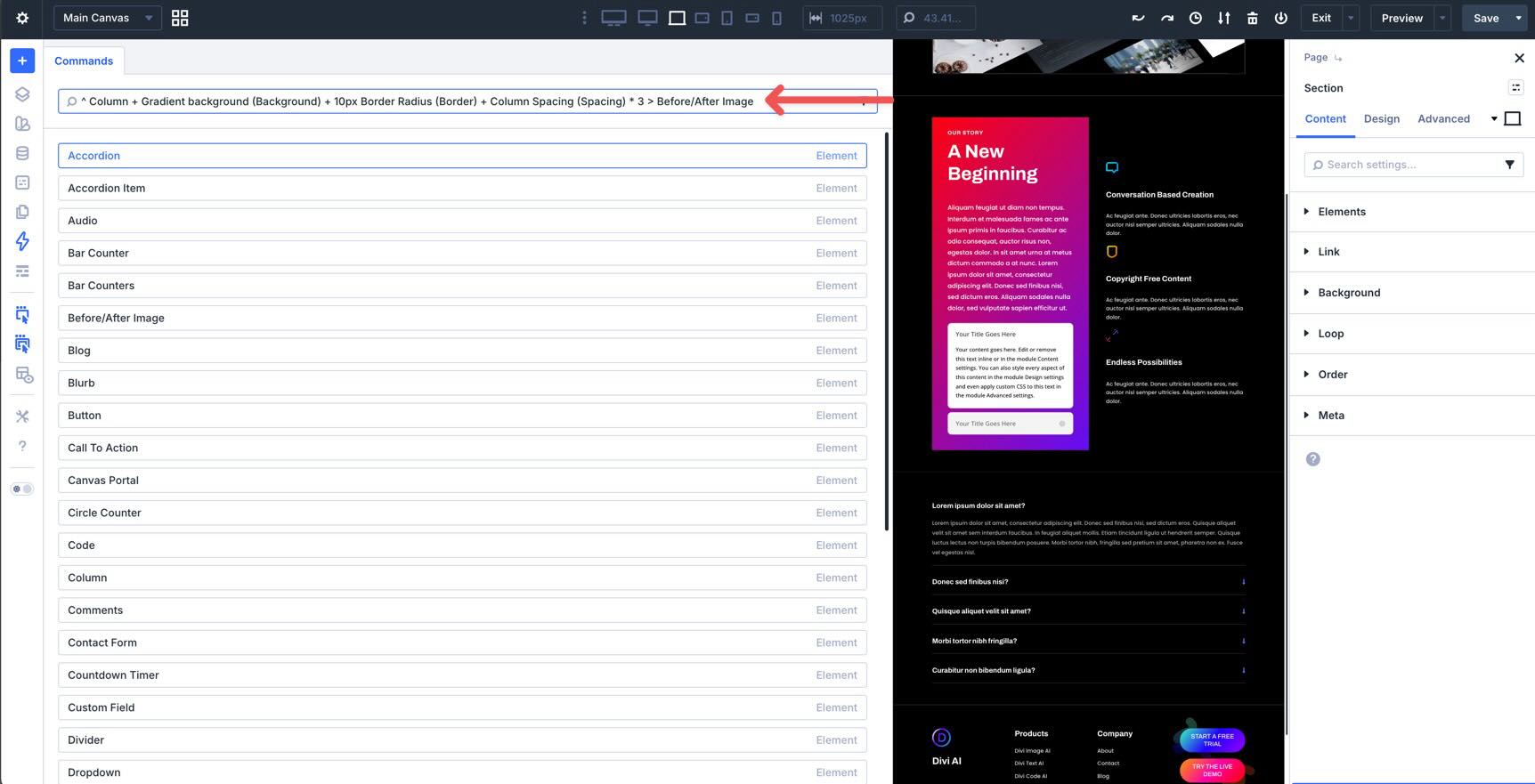
Continue adding modules by typing > Heading and pressing Cmd + Return.
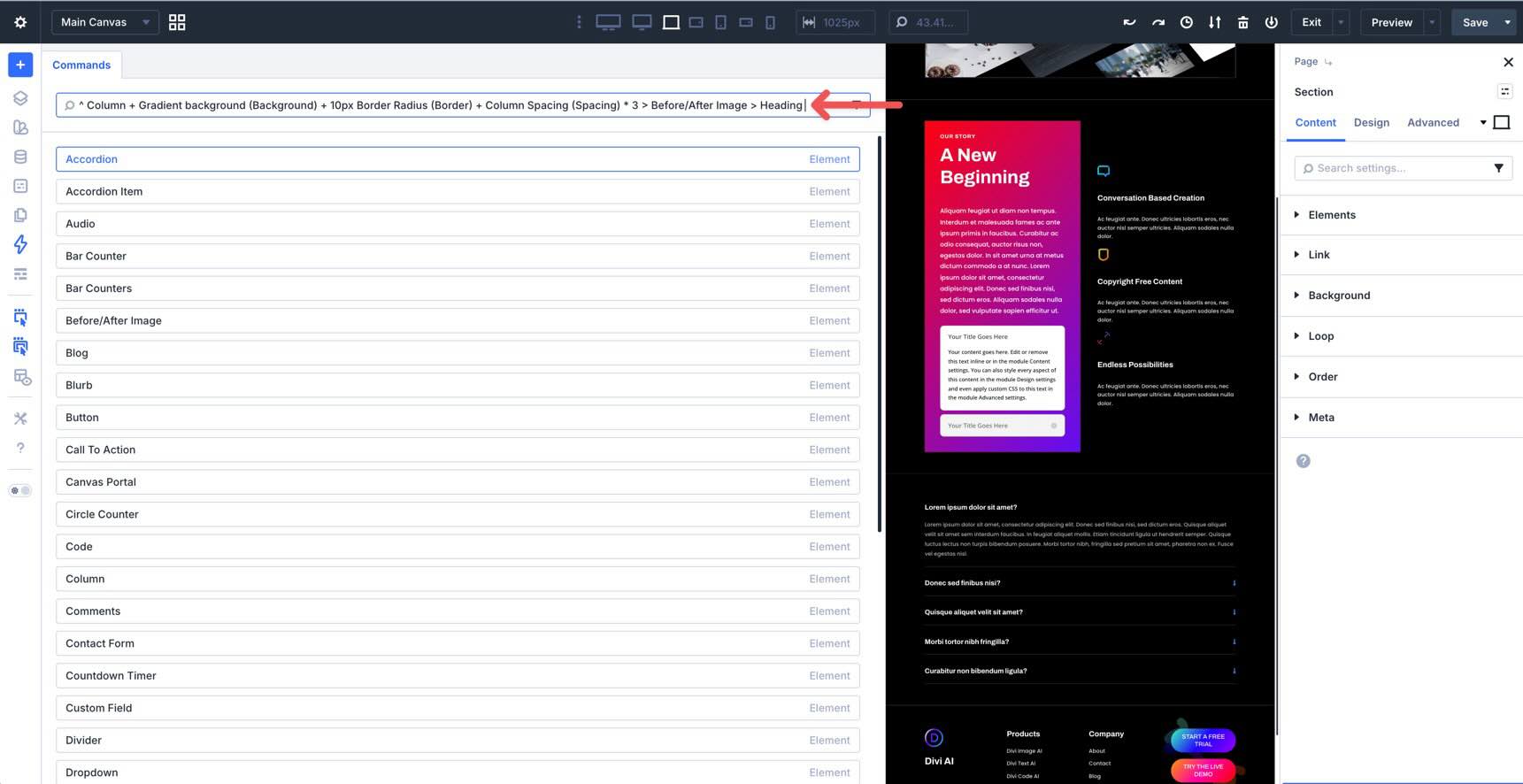
Finish the sequence as follows: type + White H4, press Cmd + Return, type > Text, press Cmd + Return, type + White Body Text, press Cmd + Return, type > Button, press Cmd + Return, type + Primary, then use a final Return to execute the queue. Divi 5 will add a section above the selected one with the preset styles already applied.
Once you get the hang of it, the entire process takes only seconds, and you end up with a three-column row of styled modules that you can refine further if needed. There are already plenty of options in the Command Center, with more likely to come.
Tips And Best Practices
Getting the most out of the Command Center comes down to smart habits that turn it from a handy tool into part of your everyday workflow. Here are some practical tips to help you build faster and avoid common hiccups.
Master Keyboard Shortcuts
The Command Center is all about efficient keyboard use, so prioritize learning the operators, such as “>” for nesting, “*” for multiplying, and “^” for placing above. Also remember to press Cmd + Return to queue commands instead of executing them immediately. For example, build a nested structure like Blurb > Button * 2 by queuing each part with Cmd + Return, then hit Return to run it all at once. This keeps your workflow smooth and lets you build complex layouts without interruption.
Just Start Typing
You don’t need to memorize everything. The fuzzy search is smart and forgiving, so just type a few letters, such as anim for animation settings, dup for duplicate, or nav for navigation options. It surfaces what you need quickly, even if the wording isn’t exact. Spend a little time experimenting in a test layout, and you’ll quickly learn the commands you use most often.
Use It Alongside Other Divi Features
The Command Center works best when paired with other Divi features. Type preset to jump straight to the Preset Manager to edit or create new ones, then apply them in your command queue. Use navigate commands such as page to hop between pages in Page Manager without leaving the builder.
You can also set up your Design Variables first, then apply related presets through commands for more consistent global styling.
Filter Categories For Quick Results
To quickly filter results, type a colon followed by the category name. For example, type :modal to display only modal results, :page to display page-level commands, and other category filters to narrow the list as you type.
Try The Command Center In Divi 5 Today!
The Divi 5 Command Center stands out as one of the most useful additions to Divi’s workflow. By letting you add elements, apply presets, jump to settings, switch views, navigate your site, and run common modifications, it helps you skip repetitive mouse work and move much faster inside the builder.
With Divi 5 now fully released and available to the public, there’s no better time to jump in and start using it. Update directly from your Divi dashboard, open a test page, and give the Command Center a try to see the speed boost for yourself.
We’d love to hear how it works for you. After trying it out, drop a comment below and let us know what you think.











Leave A Reply