

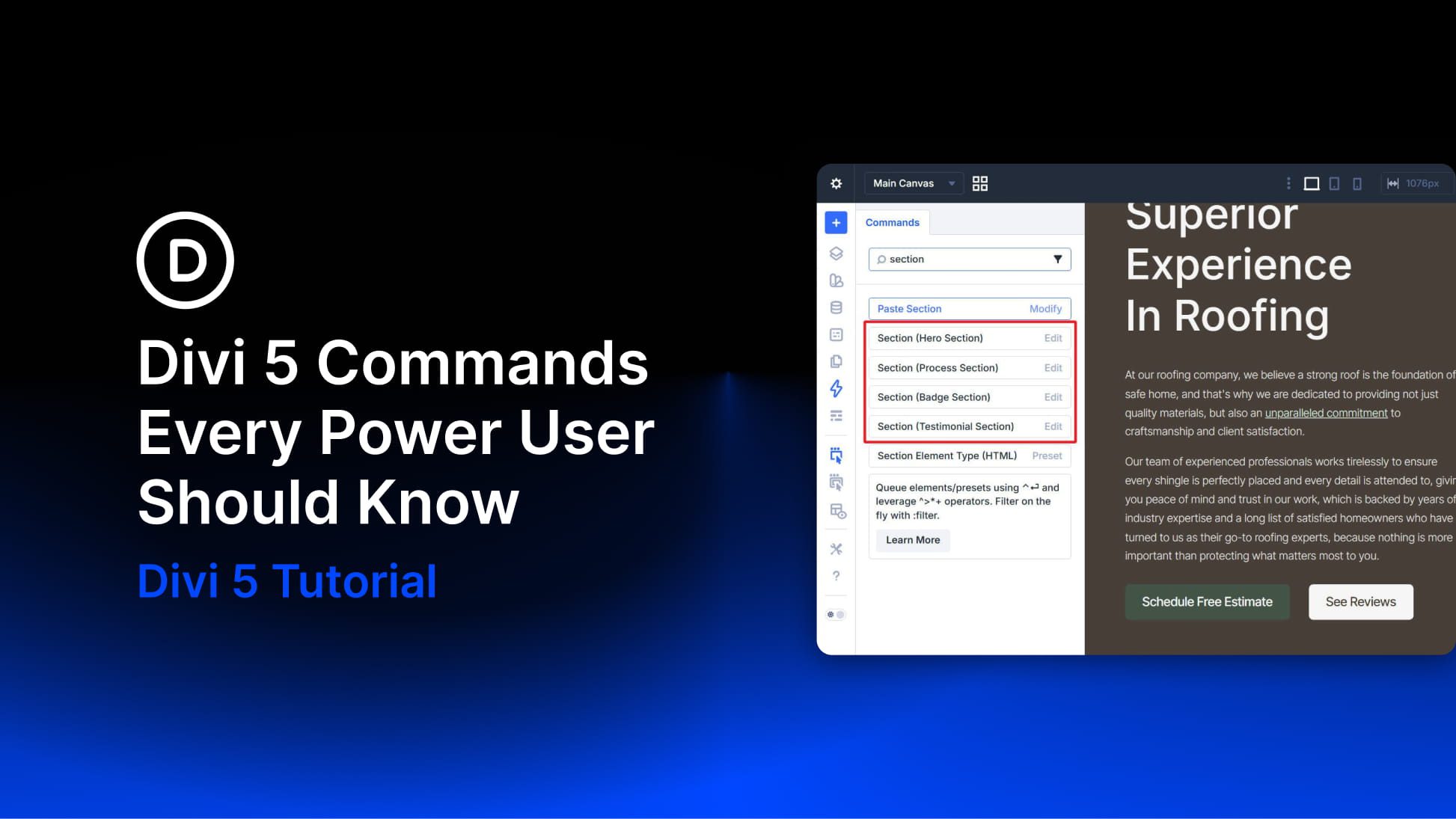
The Divi 5 Command Center is one of those features that does not seem like a big deal until you build with it for a few hours. Press CMD+K on Mac or CTRL+K on Windows, type what you want to do, and press Enter. No digging through menus, no scanning sidebars, and no breaking your flow to find the same panel again and again.
What makes it especially useful for power users is not just speed. The Command Center gives you one searchable place to run builder actions, jump to settings, open panels, and navigate around your site. That means less interface friction and fewer unnecessary clicks during a long build session.
This post breaks down five Command Center commands that are especially worth knowing. Not every command in the system, just the ones that are most likely to save time during real work.
1. Canvas Grid View
If you are building with Divi 5 Canvases (detached workspaces used for off-canvas menus, popups, slide-ins, and other content that lives outside the main page layout), Canvas Grid View is one of the fastest ways to see what is attached to the current page.
When you open it, you get a visual overview of the canvases tied to the page you are working on. That makes it easier to jump between them without leaving the builder or losing your bearings.
To open it, press CMD+K on Mac or CTRL+K on Windows, type canvas grid, and press Enter. You can also open it from the canvas controls in the builder UI, but the Command Center route is faster when you are already deep into a build.
The value here is mostly organizational. Once a page starts using more than one canvas, having a quick visual way to open the right one becomes much more useful than clicking around through interface controls.
2. Hover State And Default State
Designing hover interactions usually means a lot of switching back and forth. You set a hover style, preview it, return to the default state, adjust something, and then check the hover state again. Each switch is small, but the repetition adds up.
The Command Center makes that faster. With an element selected, open the Command Center and type hover state, then press Enter. Divi switches the selected element into Hover State mode. When you are done, open the Command Center again, type default state, and press Enter to switch back.
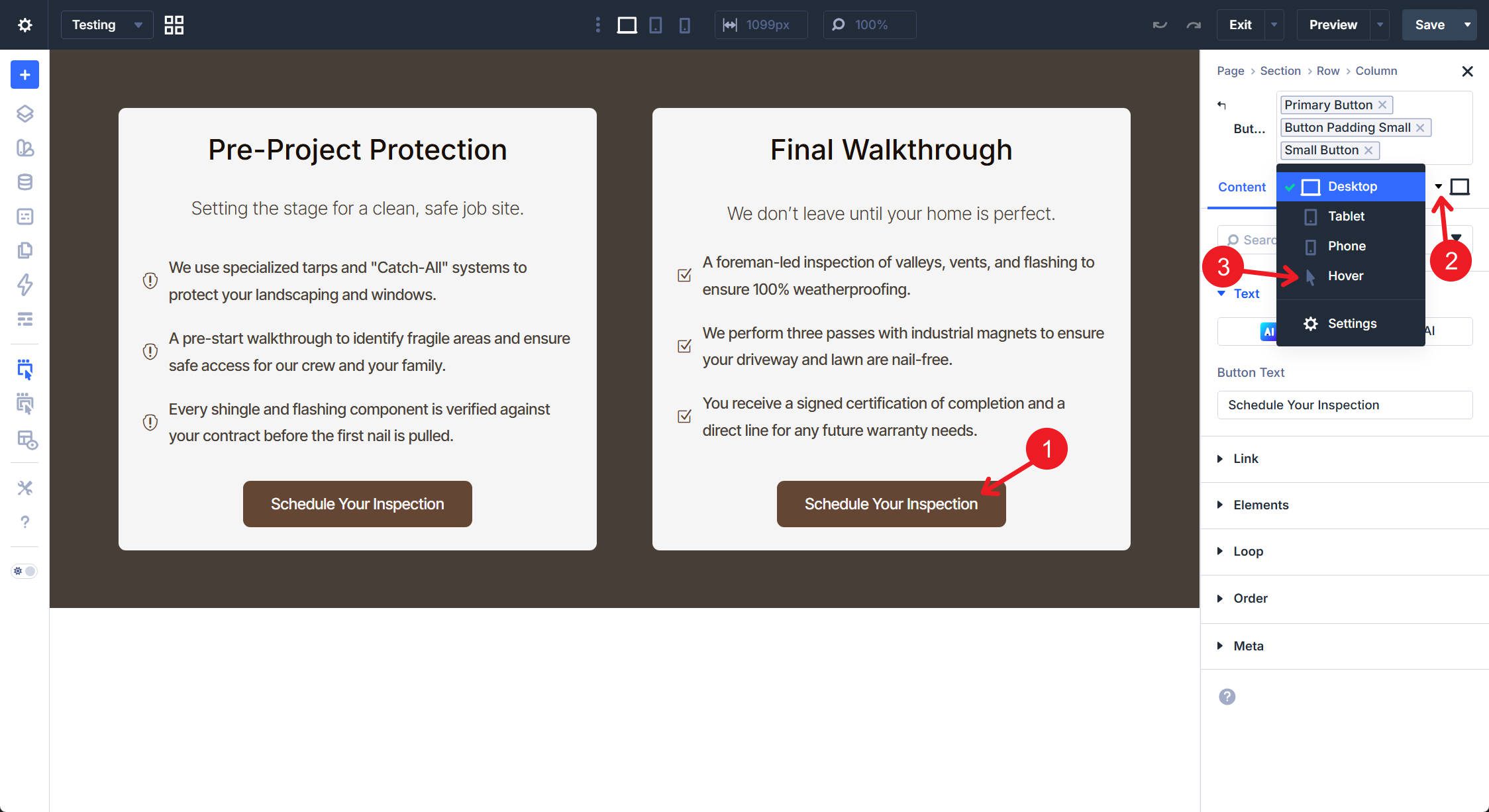
This is a small shortcut, but it pays off because hover design is something you often revisit while styling buttons, images, cards, and menus. The easier it is to switch states, the easier it is to fine-tune those details.
3. Save And Save Variants
Saving is one of the most frequent page-level actions in any build session, so it makes sense to keep it as close as possible. Open the Command Center, type save, and press Enter to save quickly without hunting for the save controls.
Where the Command Center becomes even more useful is with save variants. Divi 5 supports different save actions tied to post status, including options such as Save & Set To Draft, Save & Set Pending, and Save & Set Private. These are especially useful in content-review or team workflows where publishing status matters as much as saving the work itself.
If you only need a quick save, CMD+S on Mac or CTRL+S on Windows is still the fastest option. The Command Center becomes the better route when you want to save and change status in one move.
This is one of the Command Center features that can save the most visible time during a real build.
Instead of opening the WordPress dashboard, searching for a page, and launching the builder again, you can open the Command Center and type the name of the page you want. Divi surfaces it as a navigation result, and pressing Enter takes you straight there from inside the builder.
The same idea applies to major builder destinations. Type Theme Builder to jump to the Theme Builder. Type Theme Options to open Theme Options directly. The Command Center effectively acts as a navigation layer across your Divi and WordPress workspace.
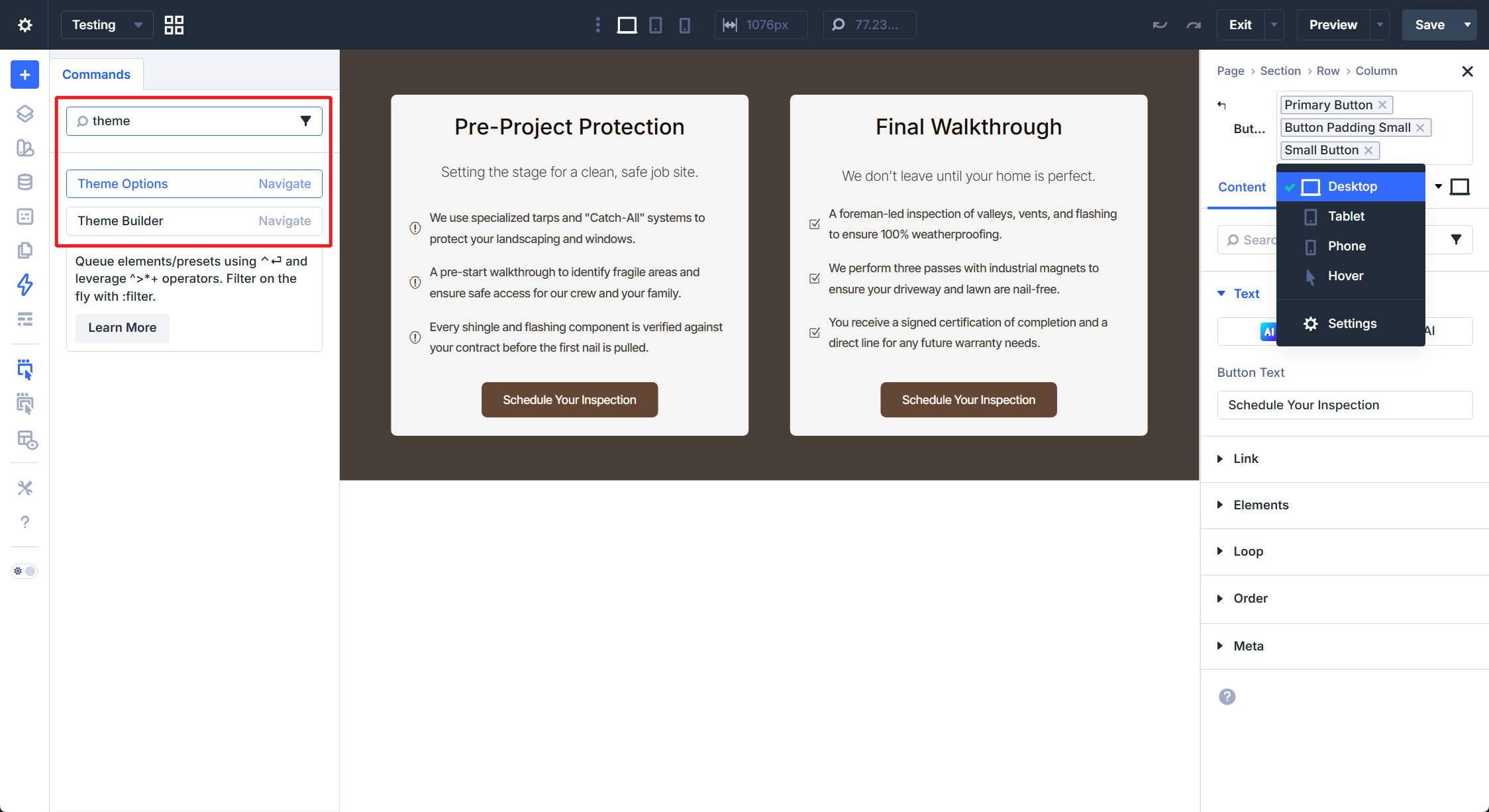
This is the kind of command that changes how you move through a site. Once you get used to it, going back to dashboard-first navigation feels much slower.
5. Inspector And Layers
The Inspector and Layers panels are two of the most useful interface tools in Divi 5, especially on larger or more complex layouts.
The Layers panel shows the hierarchical structure of the page, including sections, rows, groups, columns, and modules. That makes it one of the fastest ways to understand or navigate a complex layout. The Inspector helps you review the styles and attributes applied to the selected element, which is useful when you are troubleshooting why something looks the way it does.
Open the Command Center, type layers or inspector, and press Enter.
The real advantage is not just that these panels open quickly. It is that the Command Center makes it easier to build the habit of using them more often. That is especially helpful on smaller screens, where you may prefer to keep panels closed until you need them.
Bonus: Edit Element
The Edit command becomes more useful as your page structure becomes more organized.
When you open the Command Center and type something like section, Divi can surface matching editable elements on the current page so you can jump to and edit them more directly. This becomes much more practical when you use clear Admin Labels, because those labels make it easier to identify the exact element you want.
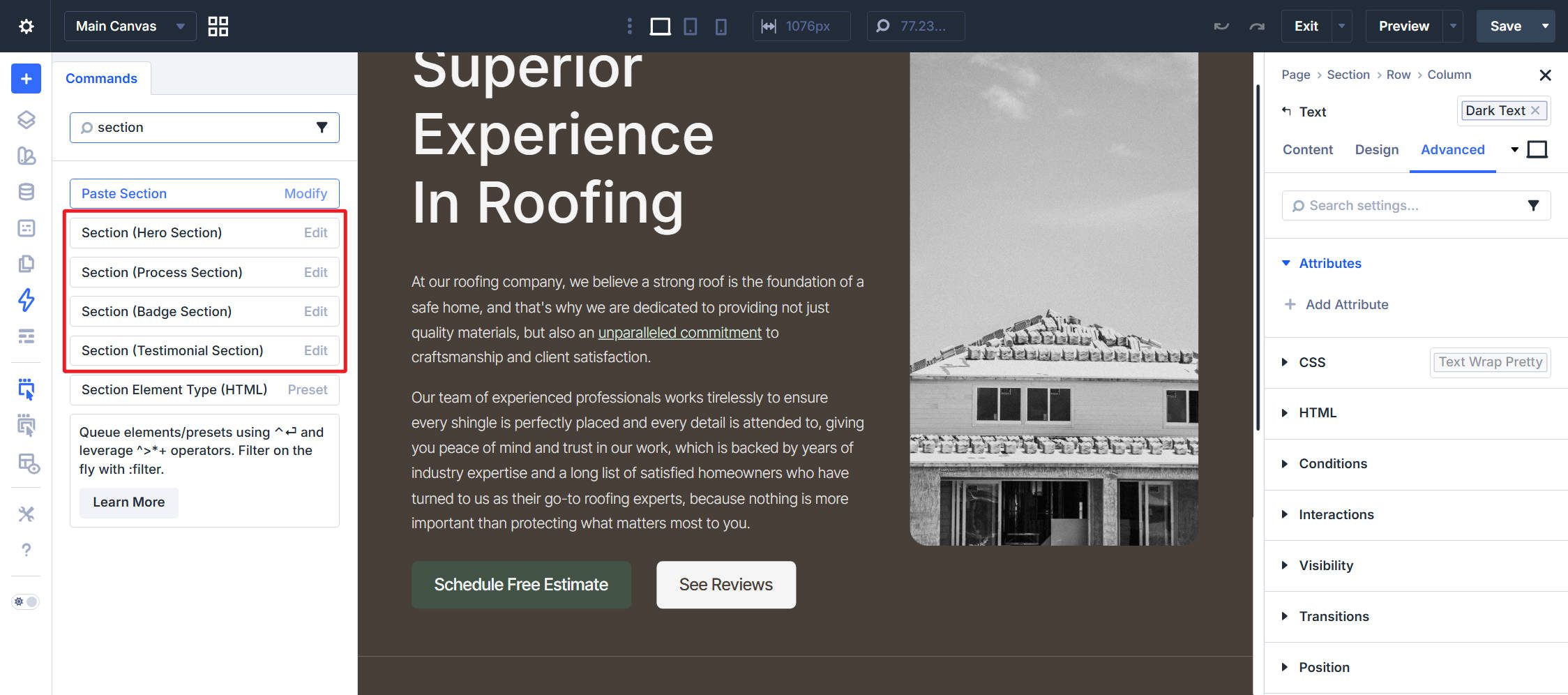
If your sections, groups, or modules are labeled consistently, you can often type that label name and get to the right element faster, without digging through the Layers panel or clicking around the canvas.
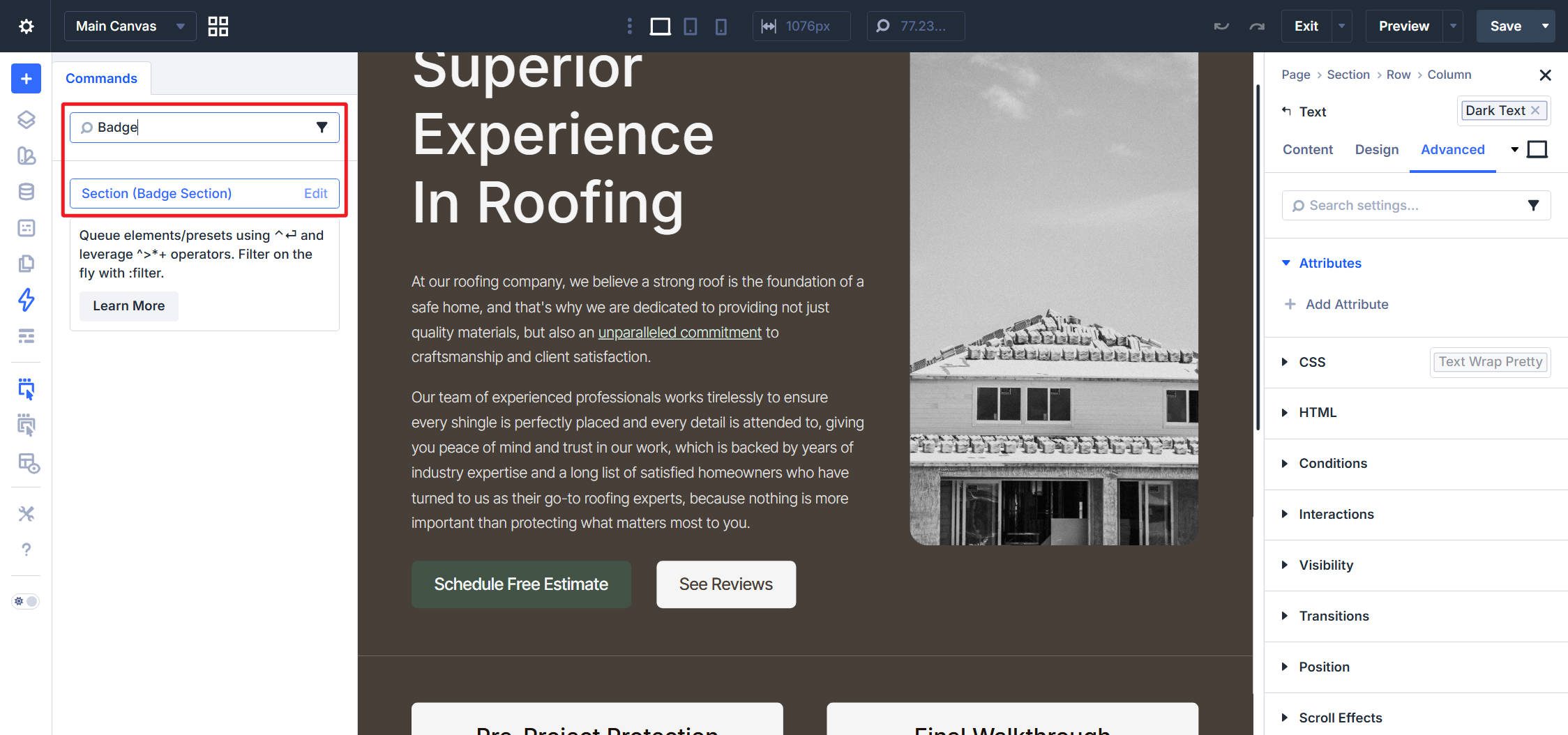
That is one of the quieter benefits of keeping Admin Labels tidy. They do not just help inside Layers and wireframe-style workflows. They also turn the Command Center into a much better page-wide navigation tool. Admin Labels are also useful when working with Interactions, where clear naming helps you target the right elements more confidently.
Use The Command Center In Divi 5 Today!
The easiest way to build Command Center habits in Divi 5 is to start with the command tied to your most frequent annoyance. If you are constantly jumping between pages, start with navigation. If you are always switching in and out of hover styling, start with Hover State and Default State. Pick one command, use it until it becomes automatic, and then add another.
That is part of what makes the Command Center so effective. It is more flexible than a traditional keyboard shortcut because you do not need perfect recall. Start typing, and Divi surfaces matching commands, pages, panels, and actions as you go. You only need to know enough to recognize what you want.
Divi 5 keeps adding more tools and builder areas, and the Command Center is one of the easiest ways to access them without memorizing where everything lives in the interface. Once it becomes part of your routine, a lot of the builder starts to feel faster.










Leave A Reply