

Divi 5 now includes a native Breadcrumbs module, giving you a built-in way to add breadcrumb navigation to pages, posts, archive templates, and Theme Builder layouts.
Breadcrumbs help visitors understand where they are on your site and give them a quick path back to higher-level pages or categories. They are especially useful on blogs, documentation sites, knowledge bases, course sites, and any website with layered content.
In this post, we’ll look at how Divi 5’s Breadcrumbs module works, what you can control, where it makes the most sense, and how to add it to a Theme Builder post template.
- 1 What Is Divi 5’s Breadcrumbs Module?
- 2 Where Breadcrumbs Help The Most
- 3 What The Breadcrumbs Module Lets You Control
- 4 How To Add Breadcrumbs To A Theme Builder Post Template
- 5 Breadcrumb SEO And Usability Notes
- 6 Best Practices For Breadcrumbs In Divi 5
- 7 Add Breadcrumbs To Your Divi 5 Templates
The Breadcrumbs module is part of Divi 5’s core module library. It displays a clickable navigation trail that shows where the current page or post sits within your site structure.
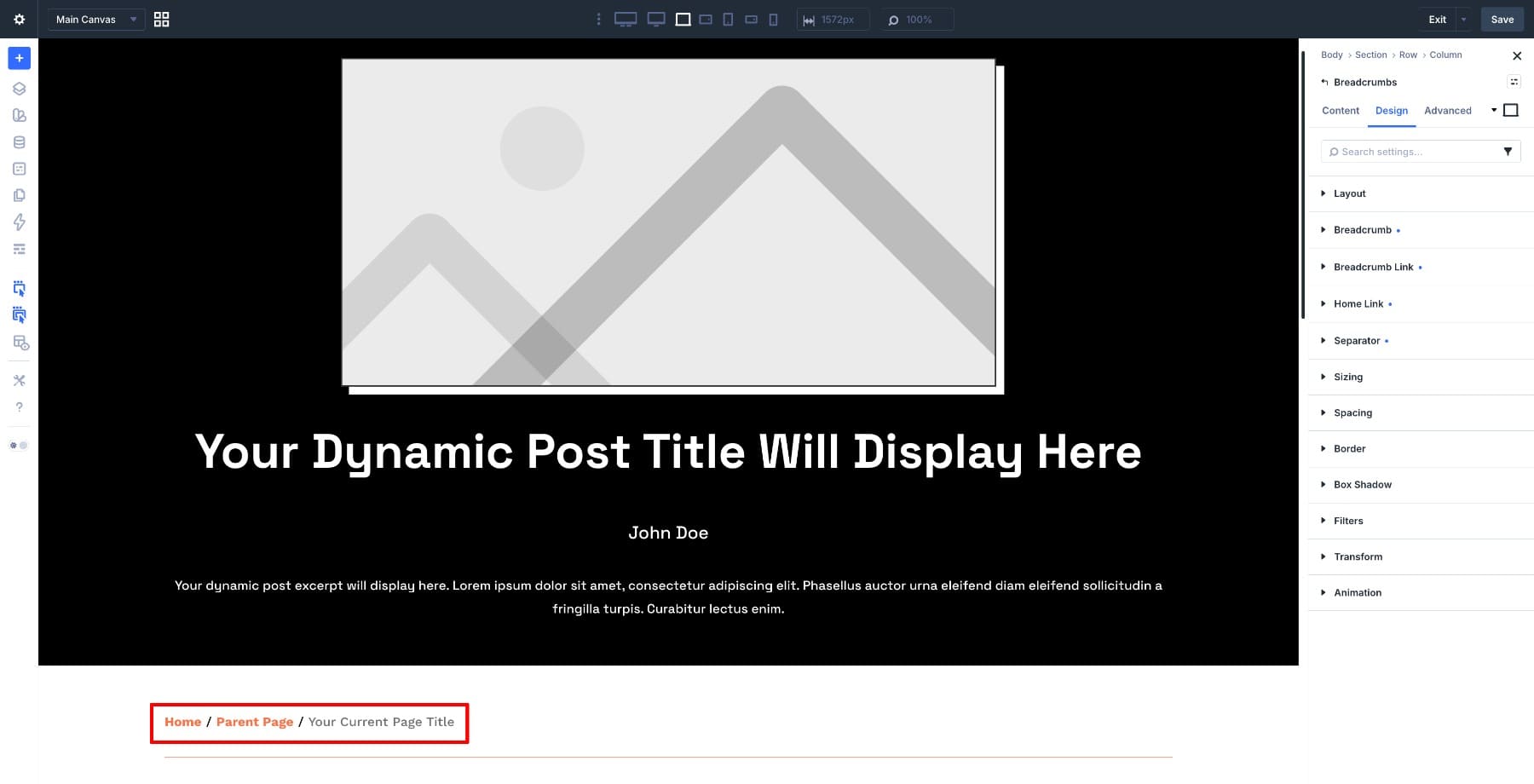
A typical breadcrumb trail might look like this:
- Home / Blog / Category / Post Title
- Home / Services / Web Design
- Home / Documentation / Getting Started / Setup Guide
Before this module, Divi users often relied on third-party breadcrumb plugins or custom shortcode workflows. Those options can still be useful in some cases, but Divi 5 now gives you a native module that works directly inside the Visual Builder and Theme Builder.
This module is different from Divi 5’s Woo Breadcrumbs module. Woo Breadcrumbs is built for WooCommerce product navigation. The Breadcrumbs module covered here is for general site navigation, including pages, posts, archives, and other non-product layouts.
Breadcrumbs are most useful when your content has more than one level. If visitors can land on a page and wonder where it fits, a breadcrumb trail helps answer that question immediately.
Theme Builder Post Templates
Post templates are one of the best places to use the Breadcrumbs module. Add the module once to a Theme Builder template, and each post can display a trail that matches its place in your site structure.
For example:
- Home / Travel / Europe / Post Title
- Home / Design / Typography / Post Title
- Home / Tutorials / WordPress / Post Title
Category And Archive Templates
Category and archive templates can also benefit from breadcrumbs. They give visitors a clearer sense of how a category, tag, or archive fits into the broader site.
This is especially helpful on larger blogs, resource libraries, documentation sites, and publications with multiple content categories.
Pages With Parent And Child Relationships
Breadcrumbs also work well on nested pages. If your site uses parent and child pages, the module can help visitors move back up the hierarchy without relying only on the menu.
Use them on service pages, support sections, learning paths, membership content, internal documentation, and multi-level landing pages.
The Breadcrumbs module settings are organized into three main tabs: Content, Design, and Advanced.
The Content tab controls what the trail displays. The Design tab controls how each part of the trail looks. The Advanced tab includes custom CSS, semantic HTML, visibility, conditions, interactions, position, and other advanced controls.
Content Tab
The Content tab is where you configure the starting point and separator for the breadcrumb trail.
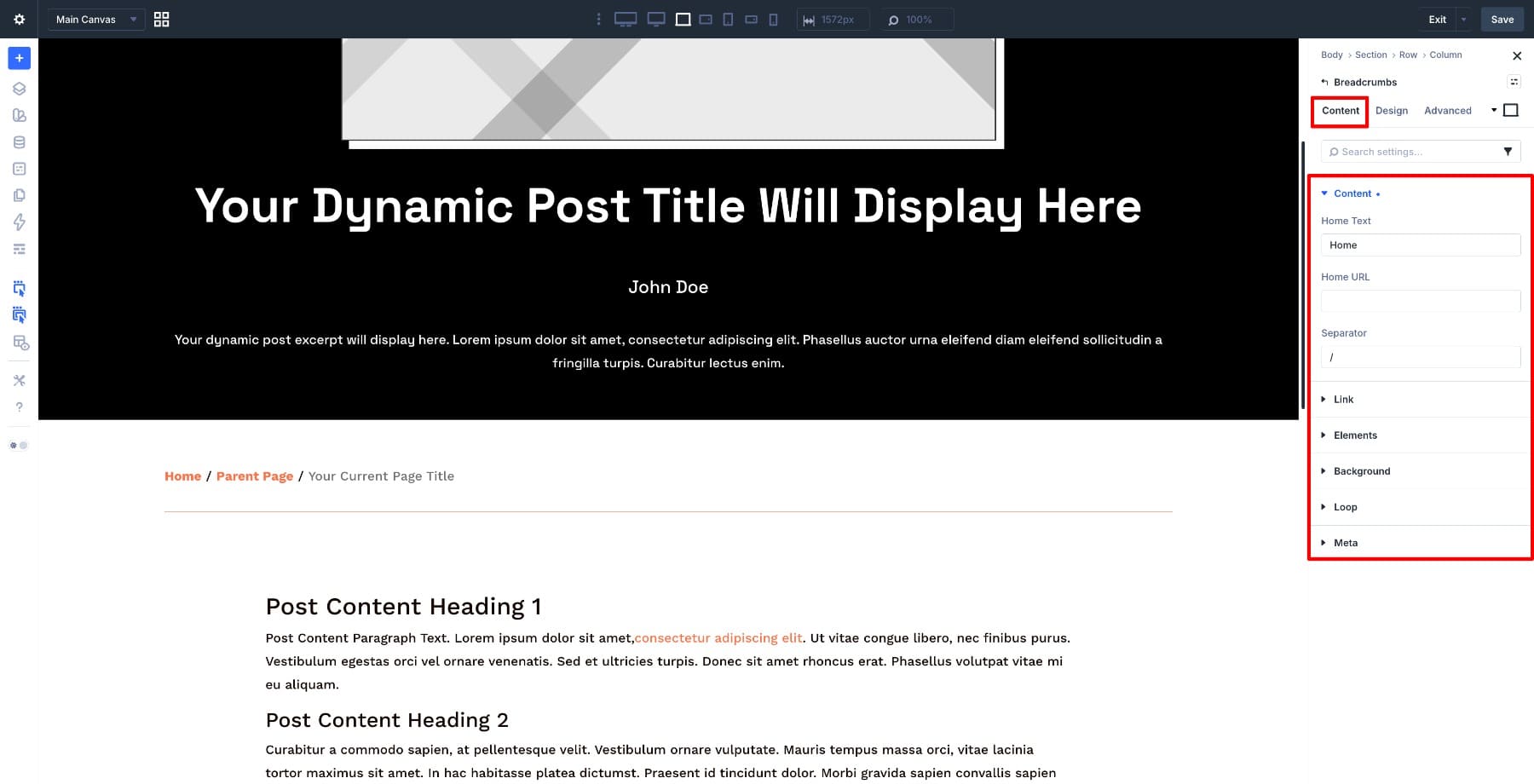
Key settings include:
- Home Text: Sets the label for the first item in the trail. The default is Home, but you can change it to something like Blog, Resources, or Docs.
- Home URL: Sets the destination for the first item in the trail. By default, this points to your site’s homepage.
- Separator: Controls the character or symbol between breadcrumb items. Common options include /, >, |, or →.
- Elements: Lets you toggle optional breadcrumb pieces on or off.
- Background: Controls the module background, including color, gradient, image, video, pattern, or mask options.
- Meta: Lets you label the module in the Visual Builder and control builder visibility options.
For most sites, you only need to update the Home Text, Home URL, and Separator. The rest depends on how custom your layout needs to be.
Design Tab
The Design tab gives you separate styling controls for the module and its breadcrumb sub-elements.
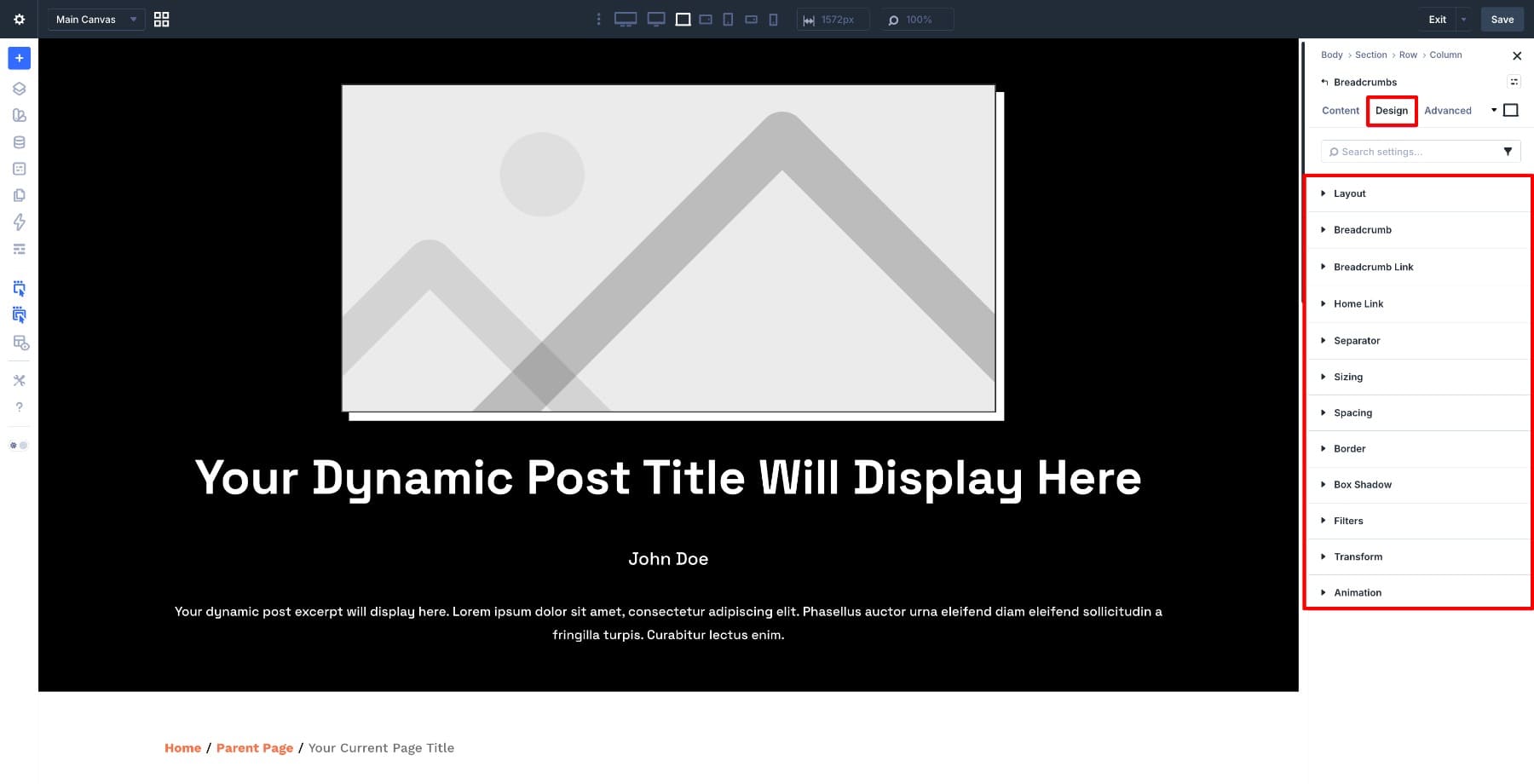
The Breadcrumbs module includes these main design groups:
- Layout: Controls how the breadcrumb items are displayed. The module supports layout options such as Flex, Block, and Grid.
- Breadcrumb: Styles the wrapper that contains the full breadcrumb trail.
- Breadcrumb Link: Styles the clickable breadcrumb items, except for the Home link.
- Home Link: Styles the first item in the trail separately from the other linked crumbs.
- Separator: Styles the separator between breadcrumb items.
- Sizing: Controls the module’s overall width, height, and alignment.
- Spacing: Adjusts the module’s margin and padding.
- Border: Adds or customizes the module border and rounded corners.
- Box Shadow: Adds shadow styling to the module.
- Filters: Applies visual filter effects to the module.
- Transform: Scales, rotates, skews, or moves the module.
- Animation: Adds animation effects to the module.
The important part is that the Breadcrumb, Breadcrumb Link, Home Link, and Separator groups can be styled independently. That means you can make clickable links use your primary color, keep the current page crumb muted, and give separators their own spacing without custom CSS.
The module also supports Composable Settings. If a sub-element does not show a design group you need, you can enable additional option groups and style that part of the trail more precisely.
Advanced Tab
The Advanced tab includes Divi 5’s standard advanced controls.
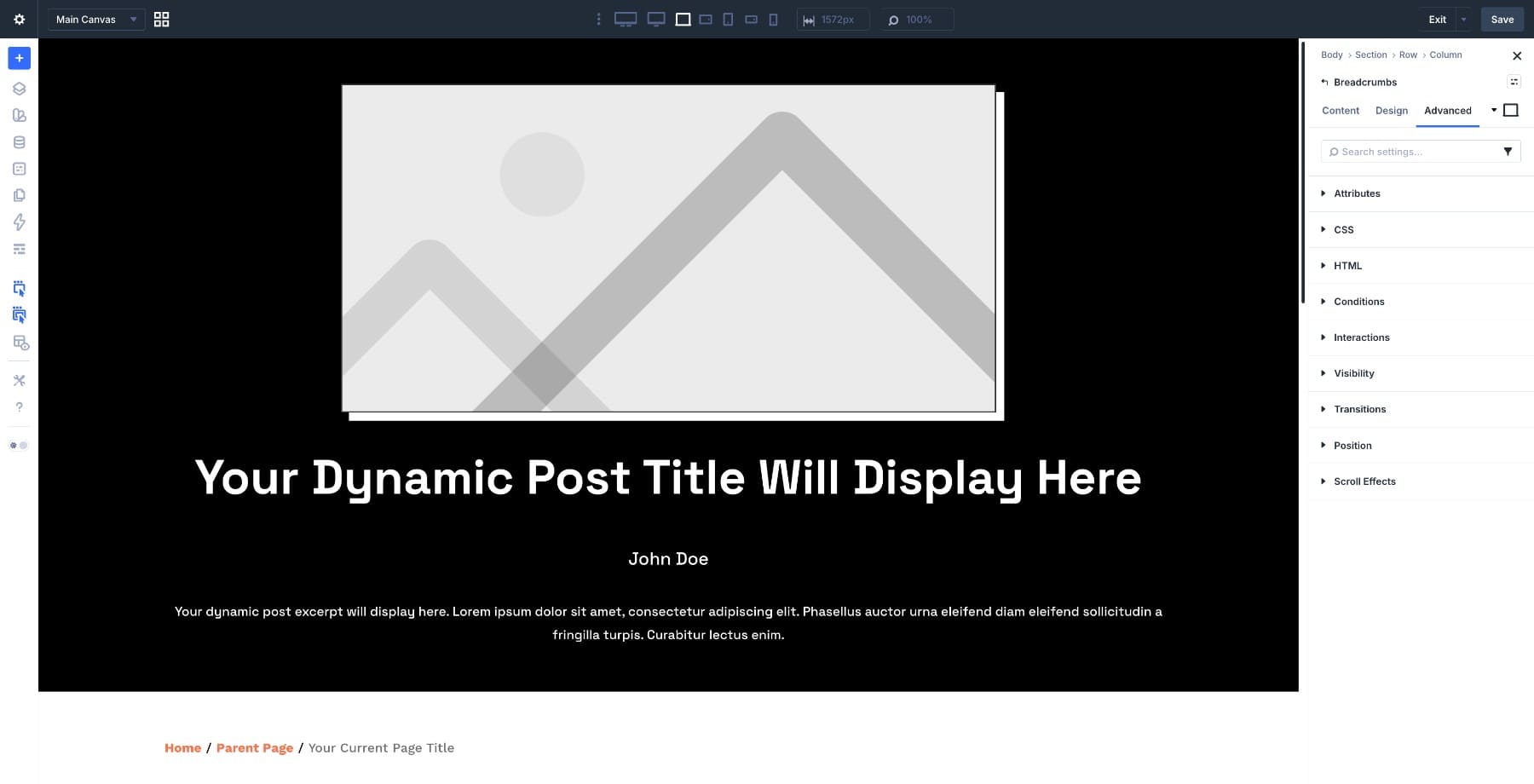
Use these settings when you need more control:
- Attributes: Add a CSS ID, CSS classes, or custom attributes.
- CSS: Add custom CSS for styling beyond the built-in options.
- HTML: Choose the semantic HTML tag that wraps the module, such as nav or div.
- Conditions: Show or hide breadcrumbs based on rules such as user status, category, date, or other conditions.
- Interactions: Trigger custom behavior when another element is clicked or when another event occurs.
- Visibility: Hide the module on desktop, tablet, or phone.
- Transitions: Control hover and state transition timing.
- Position: Position the module relative to its container or pin it where needed.
- Scroll Effects: Add scroll-based animation effects.
Most breadcrumb trails should stay simple. Use the Advanced tab when you need conditional display, semantic markup, custom CSS, or layout-specific behavior.
A Theme Builder post template is a strong use case because you can place the Breadcrumbs module once and reuse it across every post assigned to that template.
Step 1: Create Or Open A Post Template
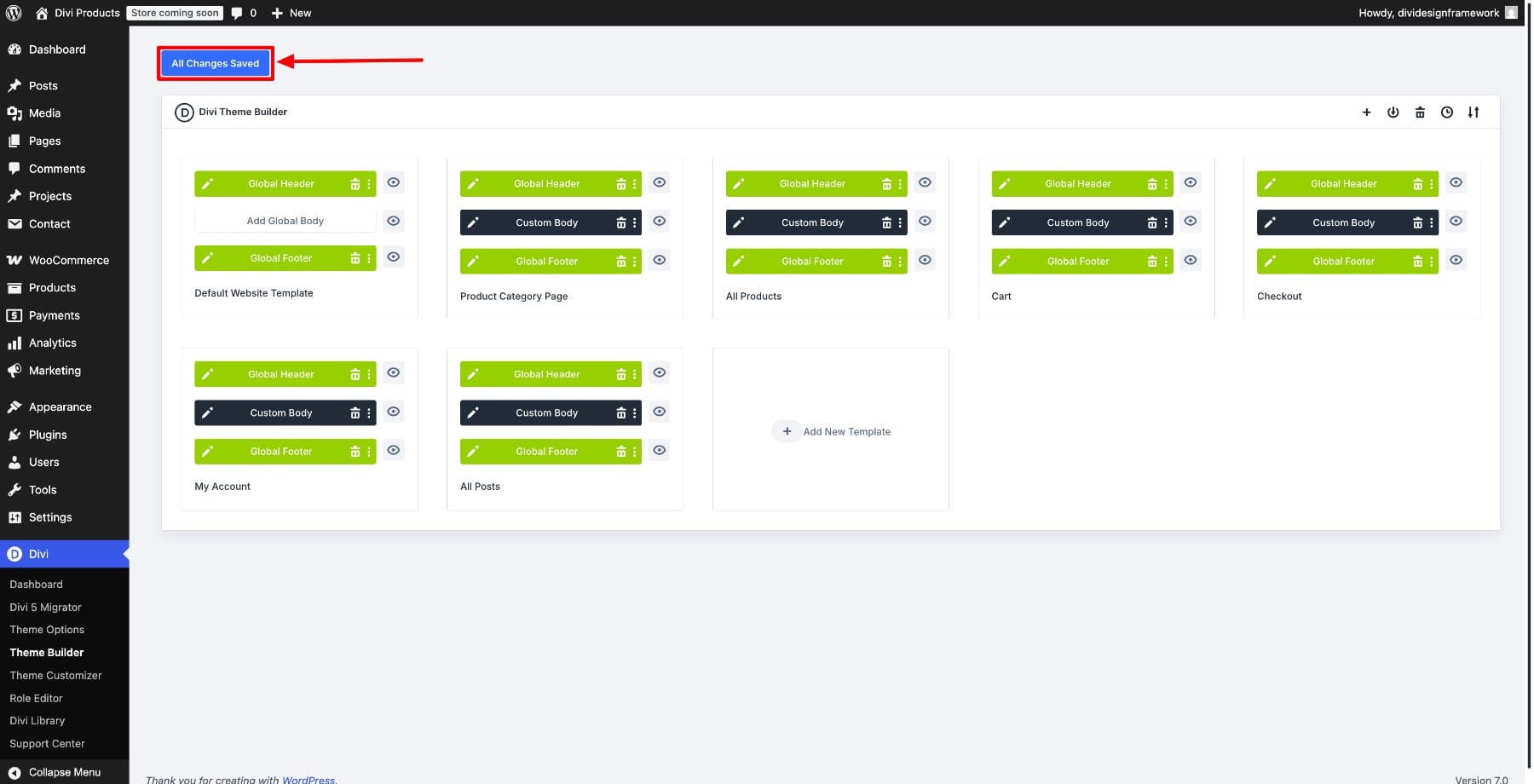
From your WordPress dashboard, go to Divi > Theme Builder.
If you already have a post template, open it. If not, click Add New Template, assign it to All Posts, and confirm the template assignment.
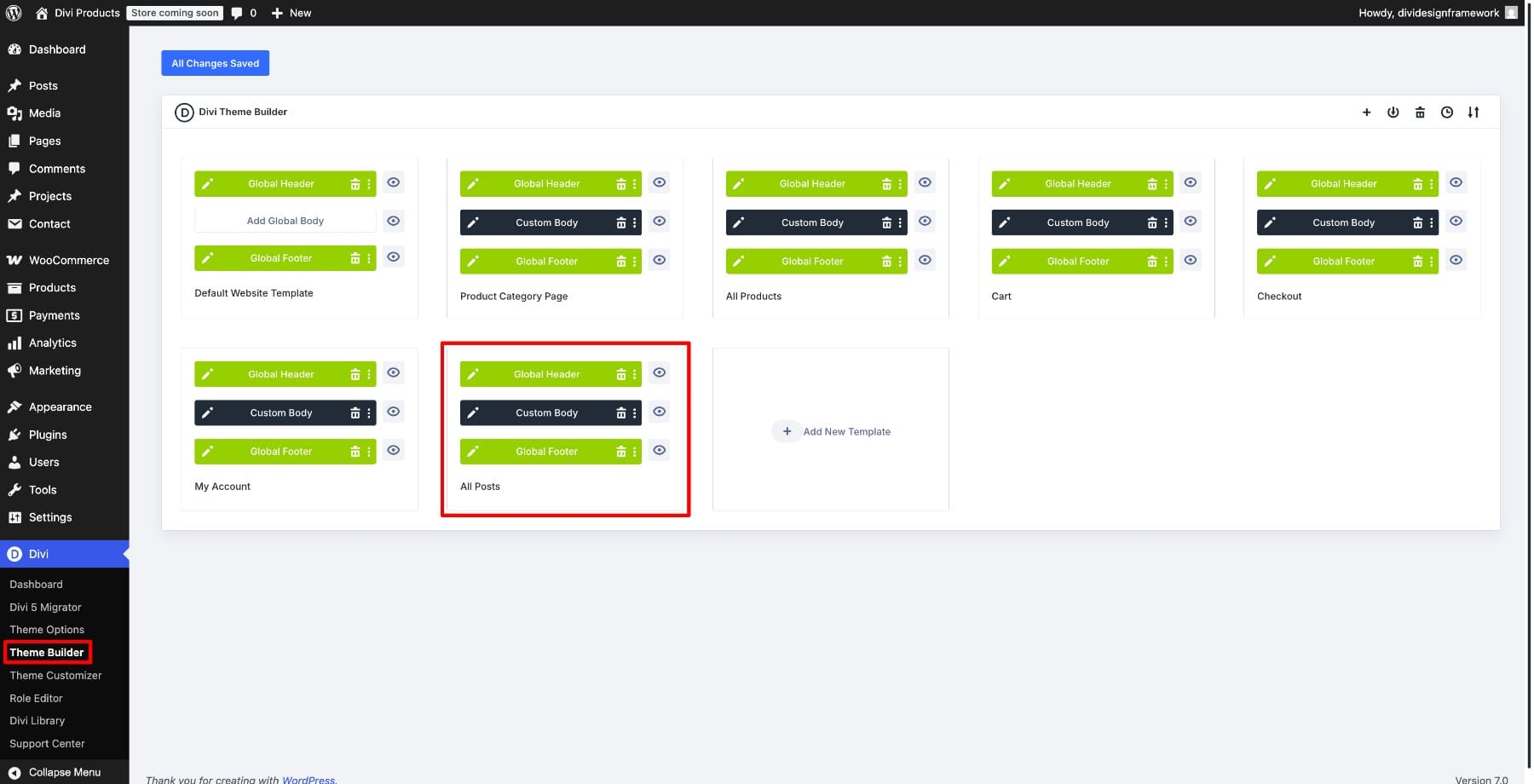
Then click Add Custom Body or open the existing custom body in the Visual Builder.
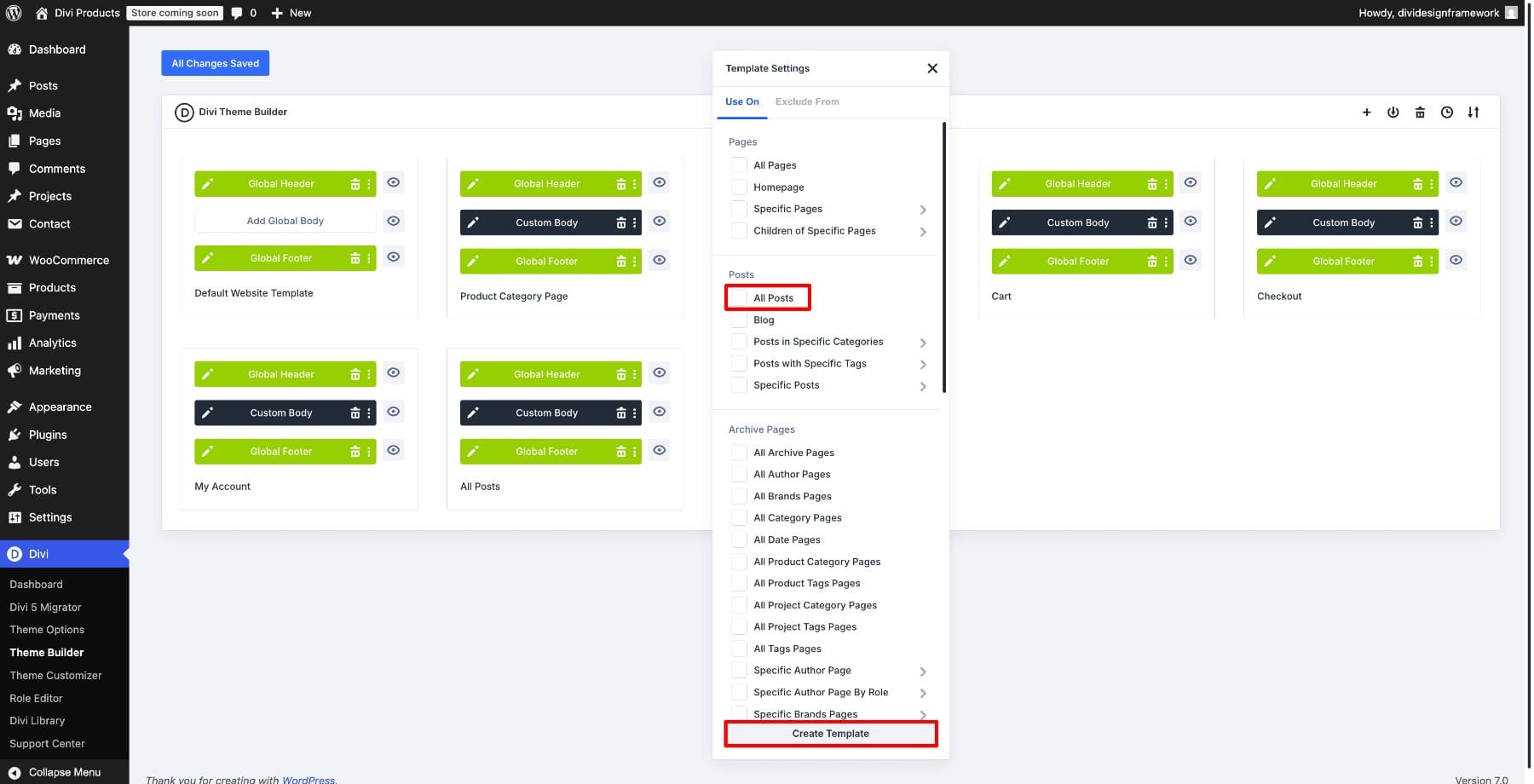
Step 2: Build The Post Template Structure
Inside the Visual Builder, build the post template structure. A simple post template might include:
- A header section with the featured image, title, author, date, or excerpt
- A row for the Breadcrumbs module
- A content section with the Post Content module
- Optional sections for related posts, author information, comments, or calls to action
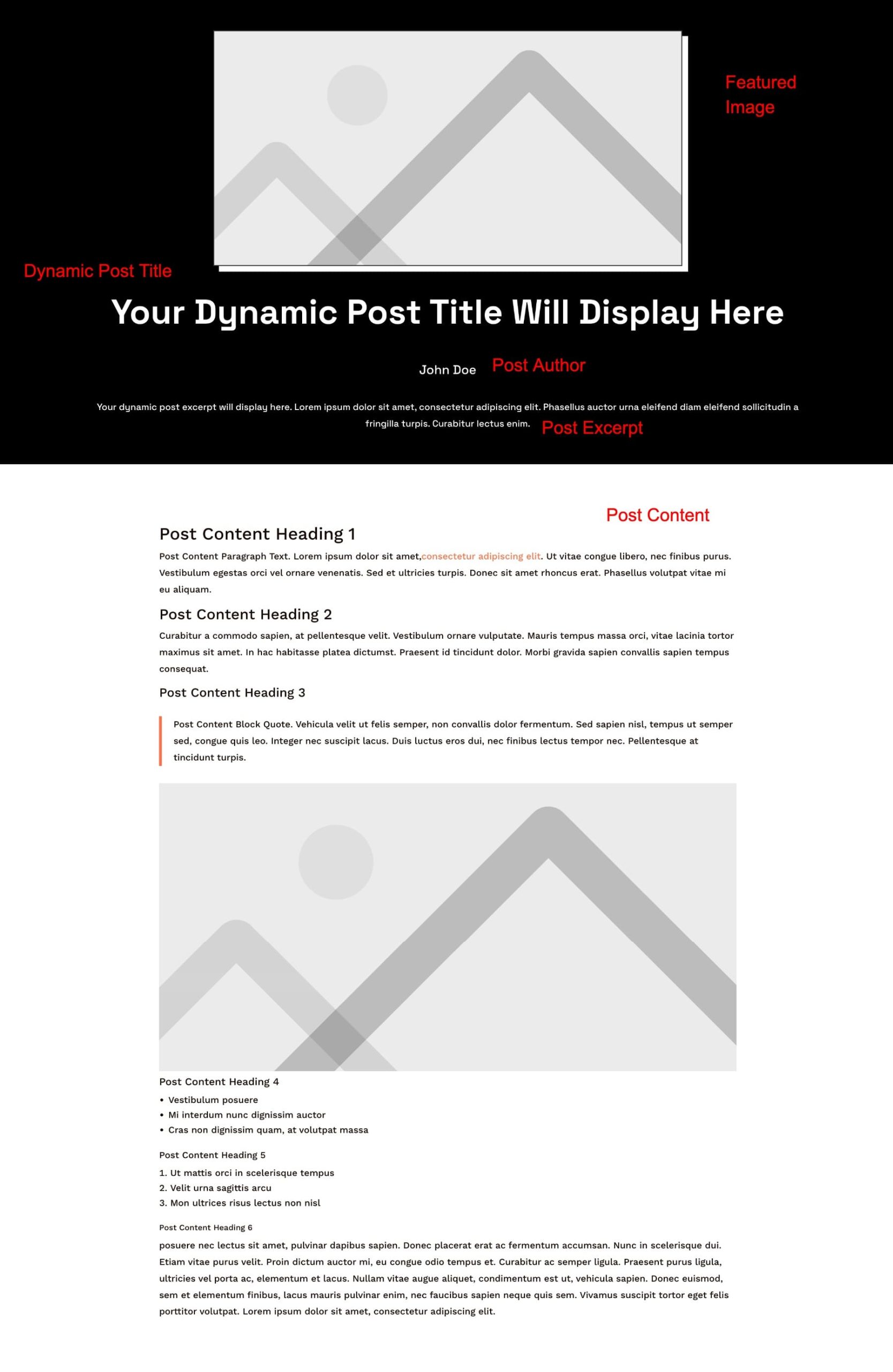
Place the breadcrumb trail near the top of the post, usually between the post header and the main content. This keeps it visible without letting it compete with the title.
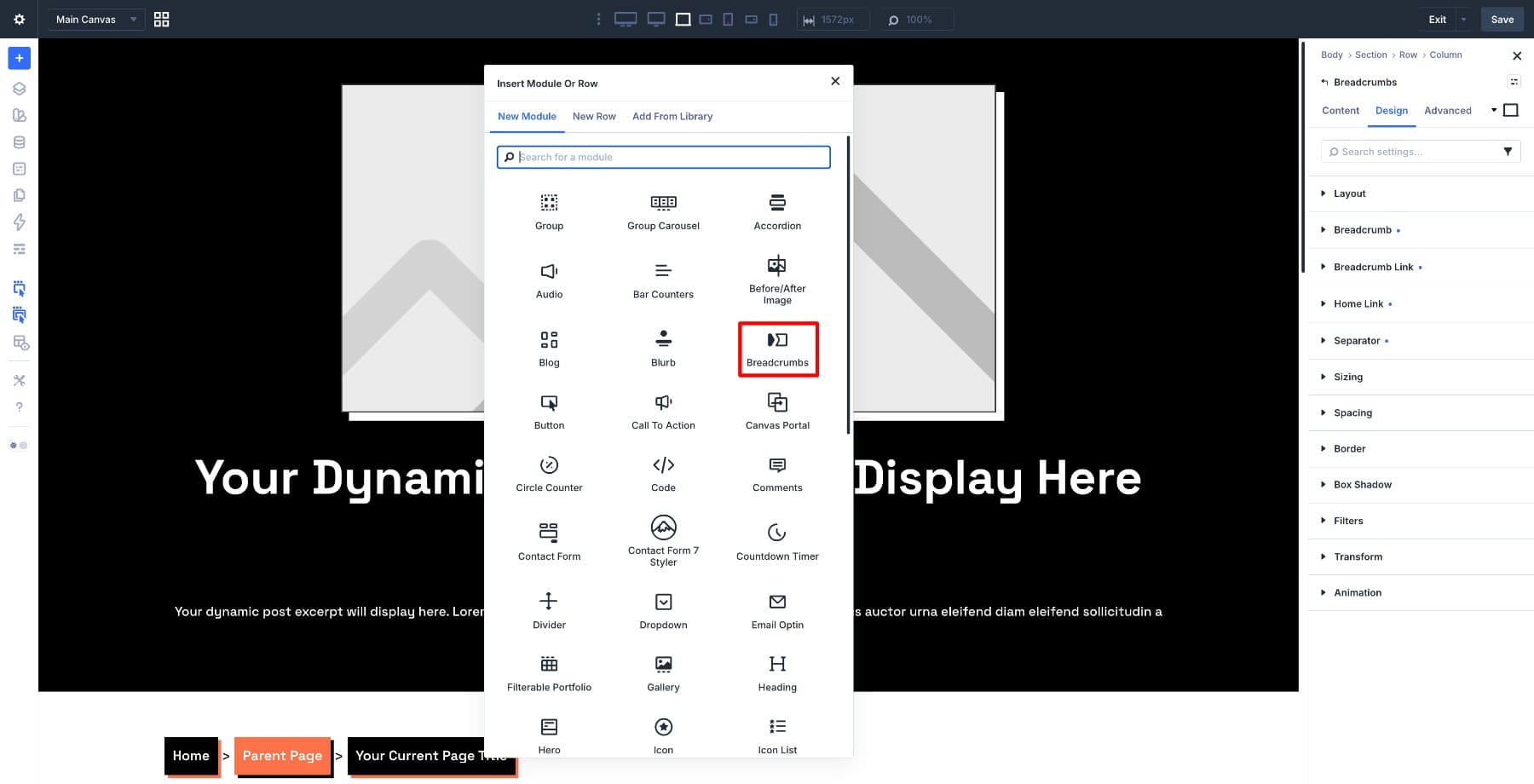
Add a new row where you want the breadcrumb trail to appear. Click the gray plus icon, search for Breadcrumbs, and insert the module.
The trail appears in the Visual Builder so you can style it in context.
If your site uses Design Variables, use them while styling the breadcrumbs. For example, you can connect breadcrumb link colors to your primary color variable and connect typography to your sitewide font variables.
Design Variables do not style the module automatically unless you apply them or they are part of a preset. But once the module uses those variables, future variable updates can help keep the breadcrumb trail aligned with the rest of your design system.
Step 4: Configure The Trail
Open the Breadcrumbs module settings and go to the Content tab.
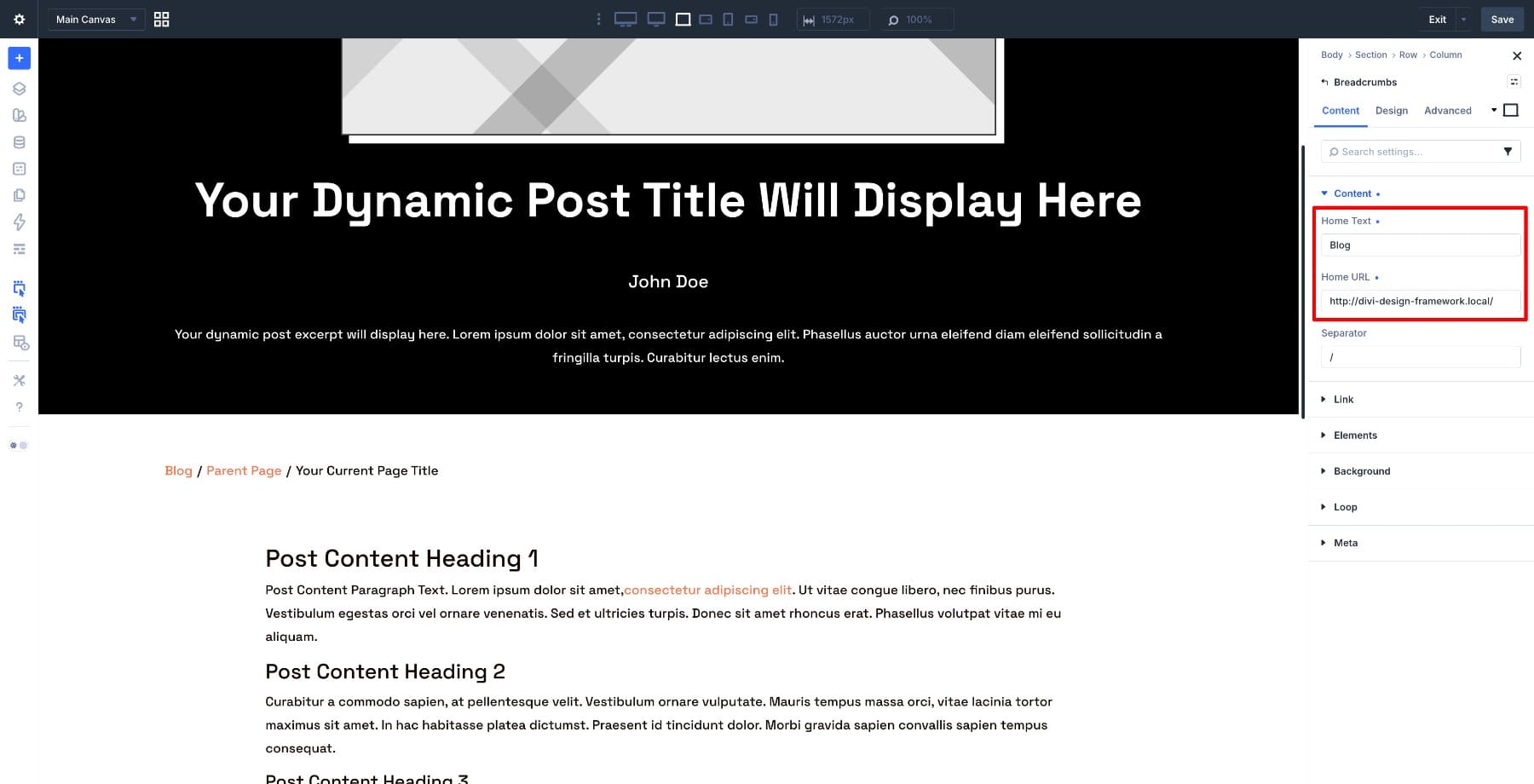
The Home Text field defaults to Home. Keep that label if the first crumb should link to your homepage.
If your blog has a dedicated landing page, you may prefer to set the Home Text to Blog or Resources and set the Home URL to that page instead. Use the label that best reflects the structure visitors expect.
For the Separator, choose a simple character. A forward slash, greater-than sign, or arrow usually works well.
Switch to the Design tab.
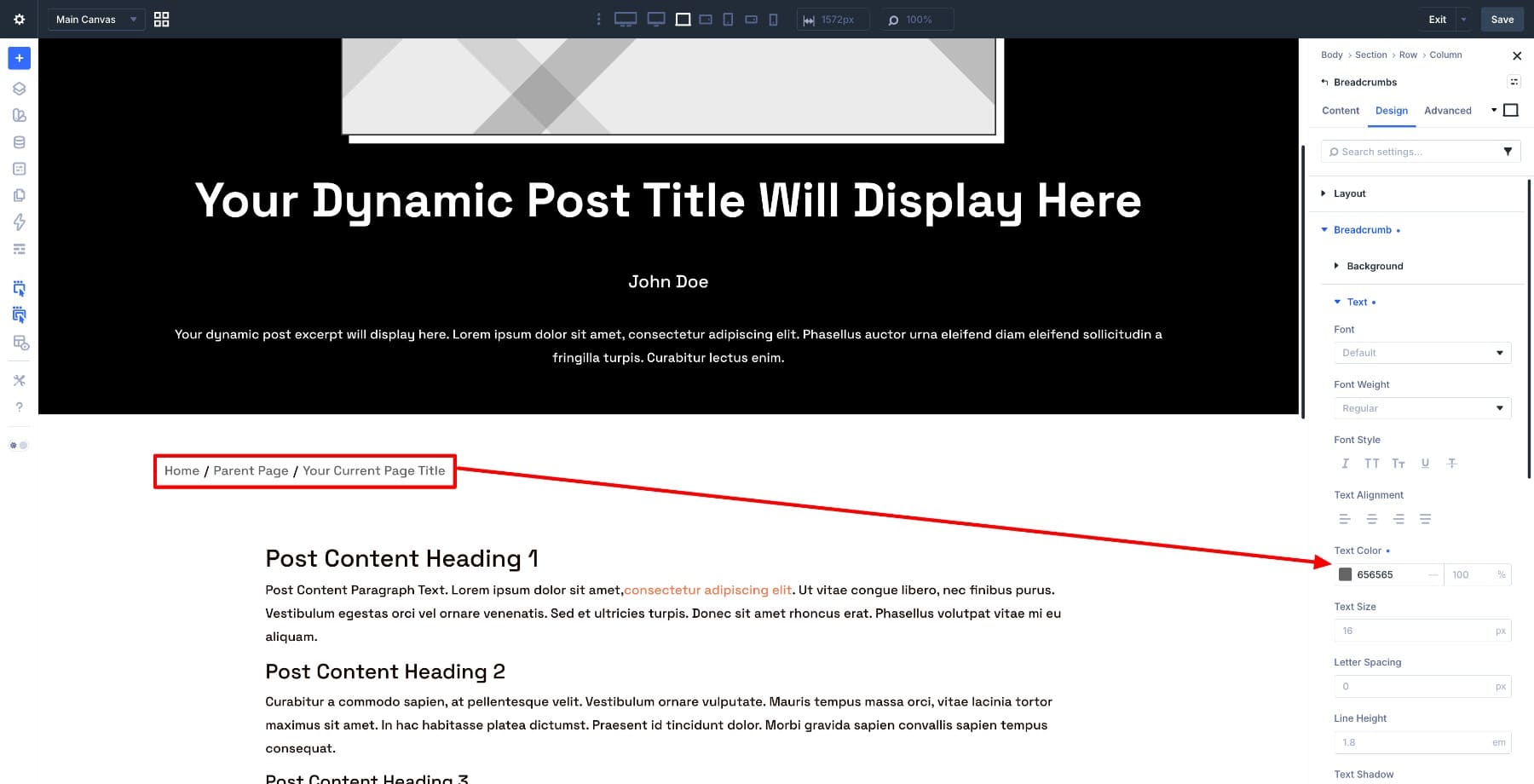
Start with the linked items. Open Breadcrumb Link and choose a link color that matches your site. A primary color variable works well here because linked crumbs are clickable.
Then open Home Link. Style it separately if the first crumb should stand out or match the rest of the linked crumbs.
Next, style the current page crumb. Use the Breadcrumb group for the wrapper and the current trail styling available in your setup. Keep the current page less visually prominent than the clickable links so visitors can tell what is interactive.
Finally, open the Separator group. Adjust its color, size, weight, and spacing so the trail reads clearly without feeling crowded.
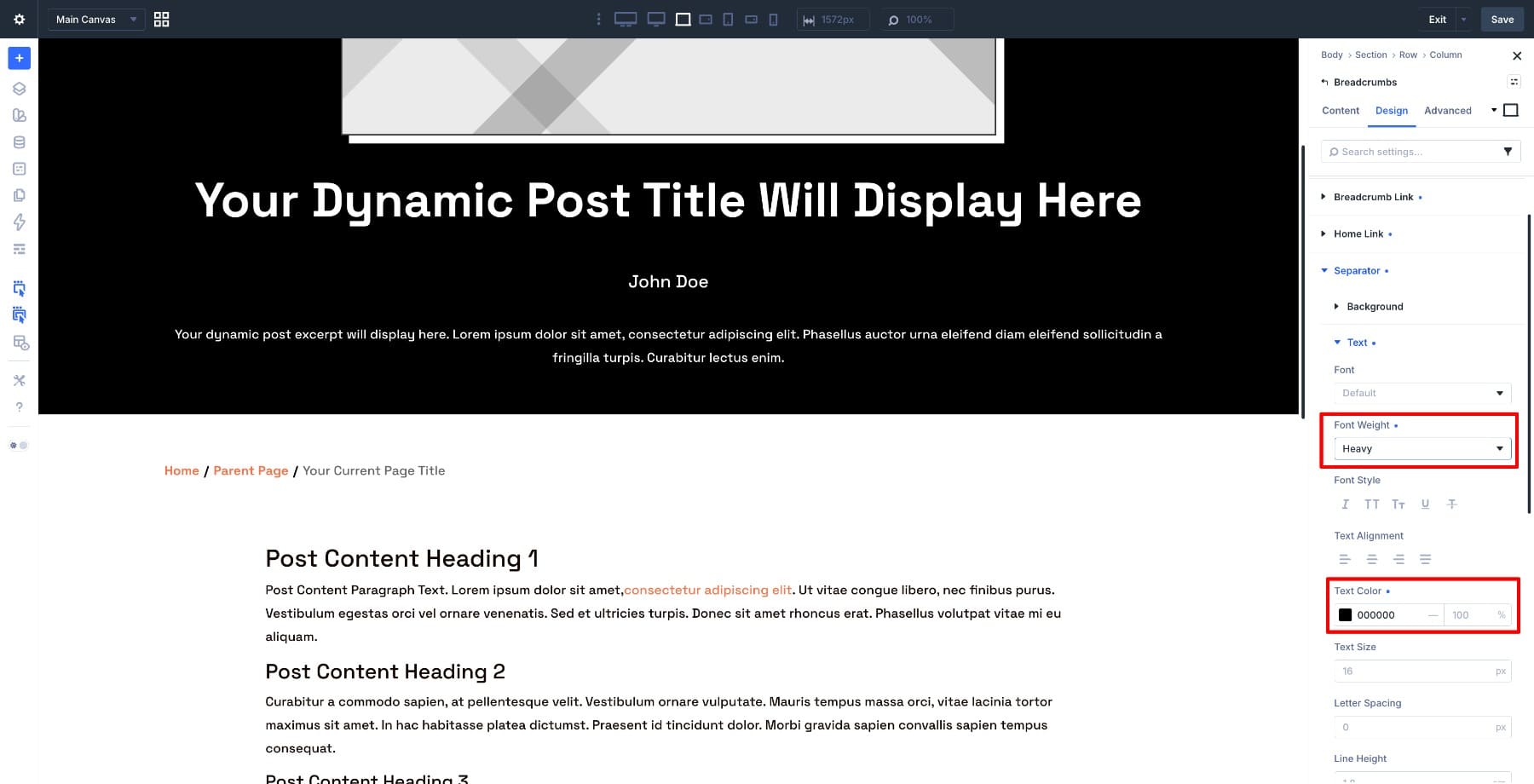
Keep the design subtle. Breadcrumbs should support navigation, not compete with the post title or main content.
Step 6: Check Responsive Views And Save
Before saving, switch between desktop, tablet, and phone views in the Visual Builder.
Breadcrumbs are usually compact, but long post titles, narrow screens, and multiple category levels can make trails wrap. Check the text size, spacing, separator style, and line breaks on smaller screens.
When everything looks right, save the template. Then return to the Theme Builder and click Save Changes.
Open a live post to confirm the breadcrumb trail appears where you placed it.

Breadcrumbs are mainly a navigation aid, but they also support a clearer site structure.
For visitors, breadcrumbs show context. Someone who lands directly on a post from search, social media, or a newsletter can see where the post belongs and move up to the category, blog, or parent page.
For search engines, breadcrumbs can reinforce how pages relate to one another. They are not a replacement for good internal linking, clean category structure, or an SEO plugin, but they can support those systems.
If you want breadcrumb schema in search results, check how your SEO plugin handles BreadcrumbList schema. Plugins such as Yoast SEO and Rank Math often manage breadcrumb schema separately from the visible breadcrumb trail. The Divi module gives you the visible navigation trail; your SEO setup should handle schema output if that is part of your strategy.
Use breadcrumbs where they add context, not just because the module exists.
- Place them near the top: Breadcrumbs usually work best above the main heading or between the header and content.
- Keep them subtle: Use smaller text, simple separators, and restrained color so the trail supports the page instead of dominating it.
- Make links look clickable: Linked crumbs should be visually different from the current page crumb.
- Use short labels: Keep Home Text and custom labels concise.
- Check mobile wrapping: Long titles and nested categories can wrap on small screens.
- Use Theme Builder templates: Add breadcrumbs once to templates that power many posts or pages.
- Use the Woo Breadcrumbs module for products: Product pages should use the Woo-specific module when you need WooCommerce breadcrumb behavior.
The Breadcrumbs module is a small module with a practical job. It helps visitors understand where they are, gives them a quick path back through your content, and fits naturally into Theme Builder templates.
Use it on posts, archives, documentation, resource libraries, course content, and nested pages. Style the Home link, linked crumbs, current crumb, and separators so the trail matches your design system. Then save the template and let Divi 5 handle the placement across the content assigned to that template.







Leave A Reply