

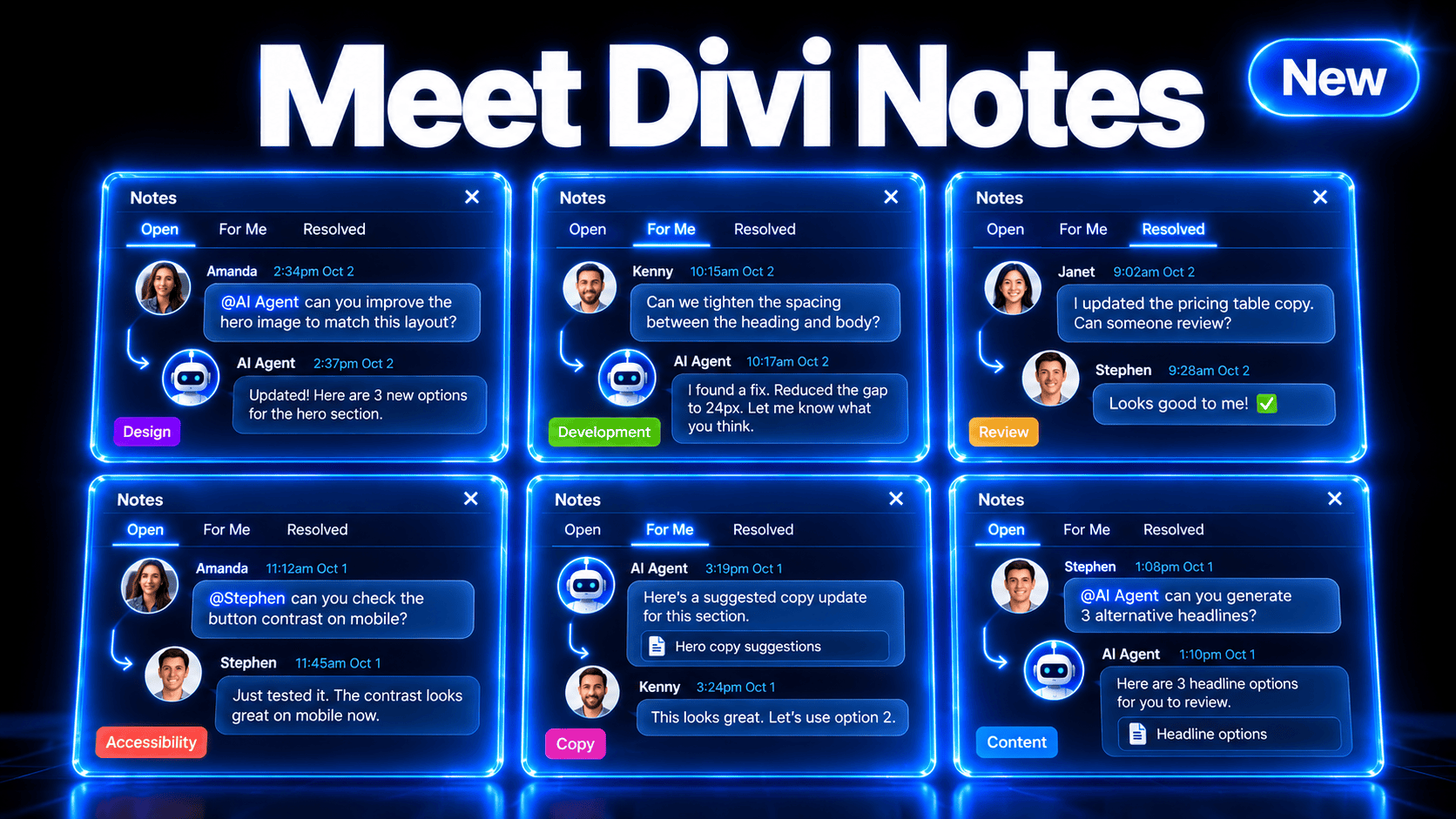
Divi Notes brings feedback, conversations, and assigned tasks directly into Divi 5. Attach a note to an element, discuss the change with your team, and resolve it when the work is complete. 🎉
It’s also a great way to leave contextual notes for yourself so you never forget a TODO.
A request to update a headline belongs beside that headline. A question about a button belongs with that button. Notes keep those conversations connected to the design, giving everyone a clearer picture of what needs attention.
You can organize feedback with categories, control your notifications, and ask the Divi AI Agent to work through tasks using the attached discussion.
Let’s take a look. 👇
- 1 Leave Notes On Relevant Elements
- 2 Give Every Request An Owner
- 3 Keep The Discussion With The Work
- 4 Organize Your Review Around Your Workflow
- 5 Choose Which Updates Reach Your Inbox
- 6 Turn Feedback Into Tasks For The Divi AI Agent
- 7 Did You Miss Divi 5’s New Variable Features?
- 8 More Divi 5 Updates Are On The Way
Leave Notes On Relevant Elements
Right-click an element and choose Add Note. The Add Note window lets you confirm the element, write your note, choose an Assignee, and select a Category before clicking Submit.
You can also open Notes from the builder bar and use Add Note, then click on or search for the element you want to discuss.
Imagine reviewing a client’s services page. Attach “Replace this headline with the approved copy” to the heading, leave a spacing request on the surrounding row, and add a question to the contact button.
Each conversation has its own target.
Find Notes On The Page And In Layers
With Notes open, numbered badges identify elements with open notes on the canvas. The Layers panel also displays note counts beside element labels. Click a badge to view the discussions associated with that element.
You can also hover and click on elements on the canvas to highlight relevant notes in the Notes panel.
Use Go To Element from a note’s menu to return to its target, or choose Copy Link to share a direct link to the discussion with another authorized editor.
Notes remain private to authorized website editors and do not appear on the public page.
Give Every Request An Owner
Choose an Assignee when creating a note, or leave it unassigned until you know who should handle it. You can change the assignee later from the conversation without posting another reply.
Type @ in a note or reply to mention an eligible website user. That makes it easy to bring your copywriter into the conversation about a content question or ask your designer to review a specific element.
The For Me tab gathers open notes that are assigned to you or mention you. On a busy project, it gives each person a focused view of the feedback that needs their attention.
Assignments and mentions use eligible WordPress accounts with access to the relevant page. Divi’s Role Editor also includes View Notes, Add and Reply to Notes, and Manage Notes controls so you can configure access for your team.
Keep The Discussion With The Work
Open a note to read its conversation, post a reply, or add an emoji reaction. Follow-up questions, assignment changes, and resolution updates stay together in the thread.
When you finish a request, choose Resolve with Reply to explain what changed and close the task in one step. The discussion moves into the Resolved tab, preserving its history for later reference.
If another revision is needed, use Reopen with Reply to bring it back into the open list with an explanation.
For example, a designer could adjust a product image and reply, “Updated the crop to keep the entire product visible.” If the next review calls for a different crop, the reviewer can reopen that same discussion.
Organize Your Review Around Your Workflow
Notes include Design, Content, Development, Accessibility, and Question categories. Use them to distinguish copy revisions from layout adjustments or technical questions.
You can also create your own labels and customize their colors.
Users with the required Notes permissions can open Manage Labels from the Category picker to create, rename, recolor, reorder, or remove labels. These labels are shared across the website.
You could add a “Launch Checklist” category for final revisions or a “Client Question” category for decisions that require an answer before work can continue.
Find The Right Conversation
Switch between Open, For Me, and Resolved, then search the notes and their replies. Filters let you narrow the list by author, assignee, or mention, category, read status, follow status, notification status, and element type.
You can also work with several notes together. Use Ctrl-click or Command-click to select individual notes, or Shift-click to select a range, then open the context menu to resolve, reopen, mark unread, or mute notifications for the selection.
You can even ask the AI Agent to solve all notes at once!
Choose Which Updates Reach Your Inbox
Open Email notifications in the Notes panel to choose which events send you email. Options cover assignments, mentions, replies, and resolution or reopening updates for notes you created, follow, or are assigned to.
Use Follow to keep track of a discussion, or Mute Notifications to silence a particular thread. You can also mark a note unread when you want to return to it later.
Notification emails include conversation context and an Open in Divi link. That gives a teammate a direct route back to the discussion when they are ready to respond.
Turn Feedback Into Tasks For The Divi AI Agent
Notes also connects with the Divi AI Agent. We added a wide range of notes-related tools, allowing the agent to add, update, delete, resolve, assign, and respond to notes.
Assign Tasks To Your Agent And Have Them Resolve Notes For You
Choose Resolve With AI Agent to hand over a note’s discussion and attached element as a task.
The handoff asks the agent to read the latest conversation, make the requested changes, verify its work, and reply in the same thread before resolving the note. If the task is blocked or uncertain, the agent is instructed to explain the problem and leave the note open.
For example, attach “Reduce this heading’s size on phones” to a heading, then use Resolve With AI Agent to ask it to handle the adjustment with the discussion as context.
You can select several open notes and send them together. The agent receives instructions to handle each task separately and continue through the remaining notes when one is blocked.
Ask The Agent To Audit Pages And Leave Notes
The agent can also audit a page and leave notes on the issues it finds, turning its recommendations into feedback attached to the relevant elements.
Try asking, “Review this page for inconsistent spacing and unclear calls to action. Leave a note on each element that needs improvement, explaining your recommendation.”
You can review those suggestions, assign them to teammates, or use Resolve With AI Agent to ask the agent to work through them. It’s a useful way to build a list of improvements before deciding which changes to make.
Did You Miss Divi 5’s New Variable Features?
We recently released Nested Variables, Variable Math & Variable Combinations for Divi 5 variables: combine them, nest them within other variables, and use them directly in calculations within your settings. 🎉
Create spacing relationships that stay connected as your design changes. Build fluid sizes from shared minimum and maximum values. Mix reusable text, dynamic content, and your own words in the same field.
This expands on Design Variables and works alongside Relative Colors, turning reusable values into the building blocks of more connected designs and content.
More Divi 5 Updates Are On The Way
The features keep coming, and we aren’t slowing down anytime soon!
If you are enjoying these updates, do us a huge favor by liking this video and leaving a comment. It means a lot to us to see you cheering Divi on, and it’s essential to feed the algorithm and spread the word.
Don’t forget to follow us on YouTube and subscribe to the Divi newsletter so you never miss an update. I’ll see you soon for another Divi 5 feature announcement, which I promise will be right around the corner.




Leave A Reply