

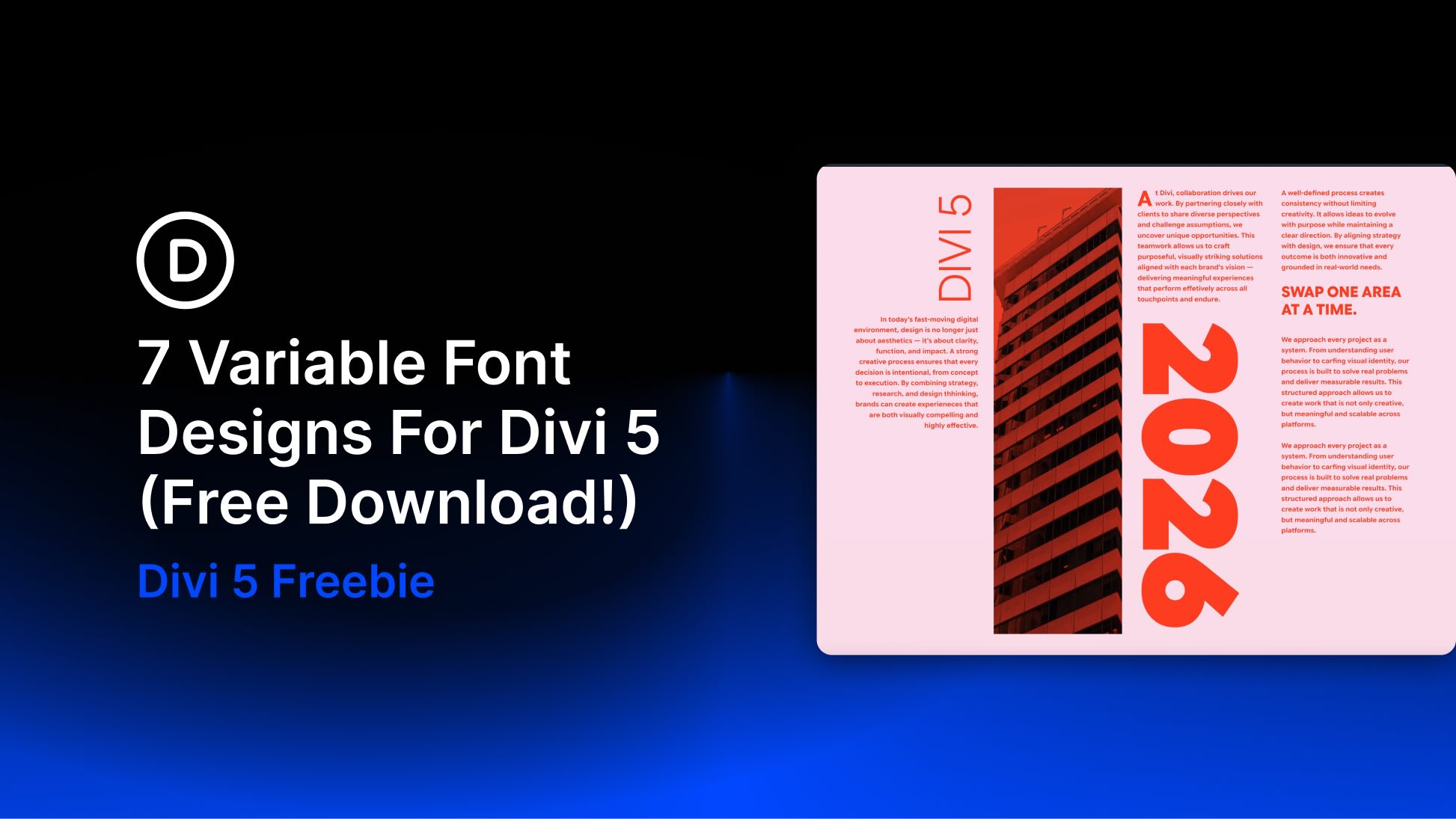
Variable fonts make it possible to fine-tune typography instead of settling for a few fixed styles. Depending on the typeface, you can adjust Weight, Width, Slant, Optical Size, Grade, roundness, and other characteristics along a continuous range.
Divi 5 brings those controls into the Visual Builder for supported Google variable fonts. To help you explore them, we created seven free variable font section designs that you can import into the Divi Library, add to a page, and customize for your own site.
In this post, we’ll explain how variable fonts work in Divi 5, introduce the text styling options that complement them, and show you how to use the downloadable designs.
- 1 What Are Variable Fonts?
- 2 How Variable Fonts Work In Divi 5
- 3 Pair Variable Fonts With Divi 5’s Text Styling Options
- 4 Preview The Seven Designs
- 5 Download Seven Variable Font Designs For Divi 5
- 6 Download For Free
- 7 What’s Included: Eight JSON Files
- 8 How To Use The Variable Font Designs
- 9 Tips For Effective Variable Font Designs
- 10 Explore Variable Typography In Divi 5
What Are Variable Fonts?
Traditional font families usually provide a fixed selection of styles, such as Regular, Medium, Bold, and Italic. Each style may be delivered as a separate font file. If the exact weight or style you need is unavailable, you have to choose the closest option or rely on a browser-generated approximation.
Variable fonts work differently. One font file can contain a range of styles controlled through axes. Each axis changes a particular aspect of the typeface. Common examples include Weight, Width, Slant, Italic, Optical Size, and Grade. Some fonts also include custom axes for characteristics such as roundness, shape, or casualness.
This additional range gives you more control over typographic hierarchy and fit. A heading that feels too heavy at 700 could work better at 640. Body text that needs more presence could use 520 instead of jumping to the next fixed weight.
Some fonts also include an Optical Size axis. When supported and enabled, it allows the typeface to adjust its letterforms for different text sizes. Smaller text can become sturdier and easier to read, while display text can gain more detail and contrast.
A variable font can sometimes replace several static font files and reduce the number of font files a design needs. That does not automatically make every variable font setup smaller or faster, however. The result depends on the font file, the axes included, and which static styles it replaces.
How Variable Fonts Work In Divi 5
Divi 5 makes variable font axes available inside the Visual Builder. Choose a supported Google variable font, and Divi reads the font’s available axes and displays the matching controls in the relevant text option group under the Design tab.
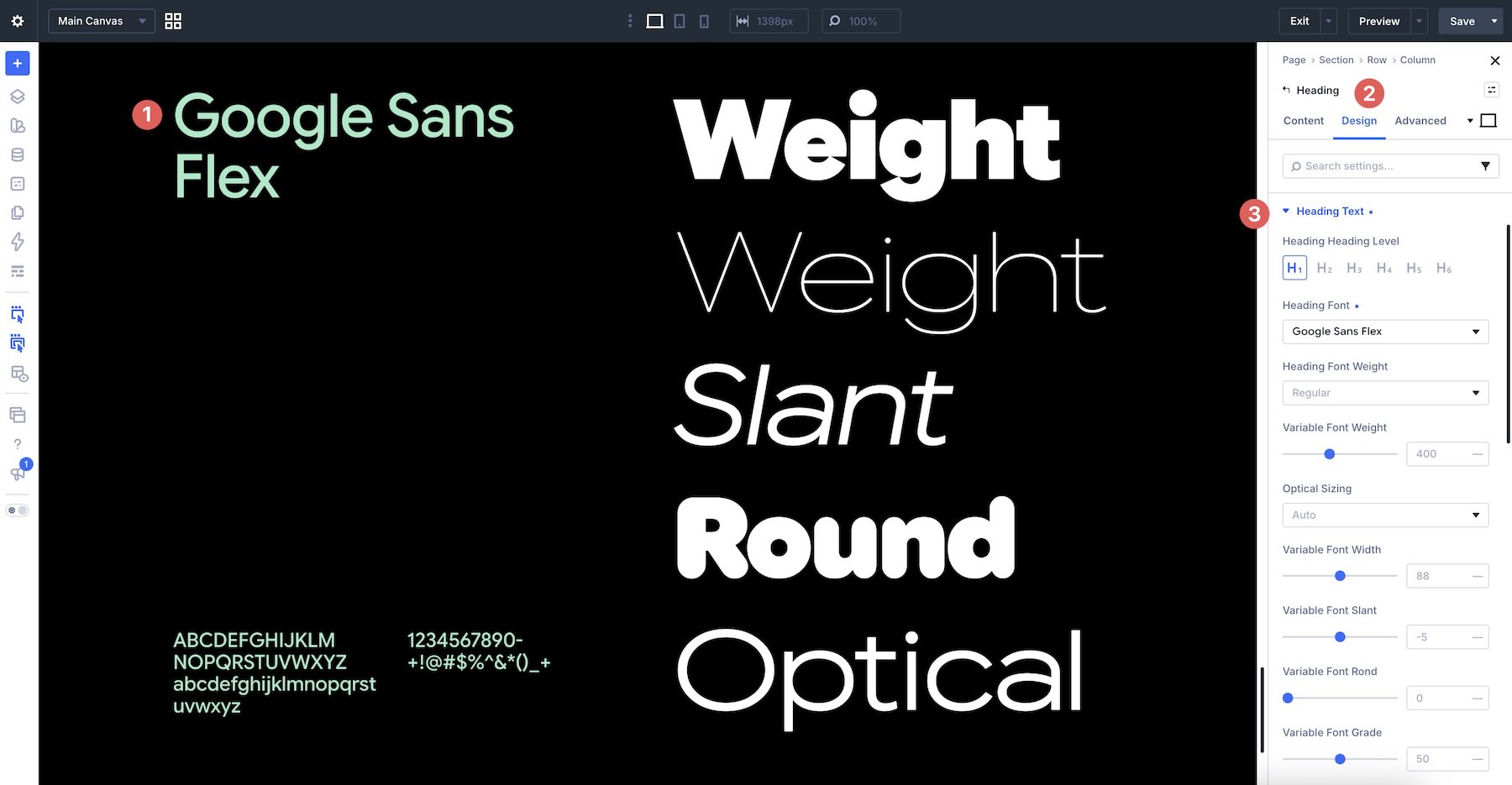
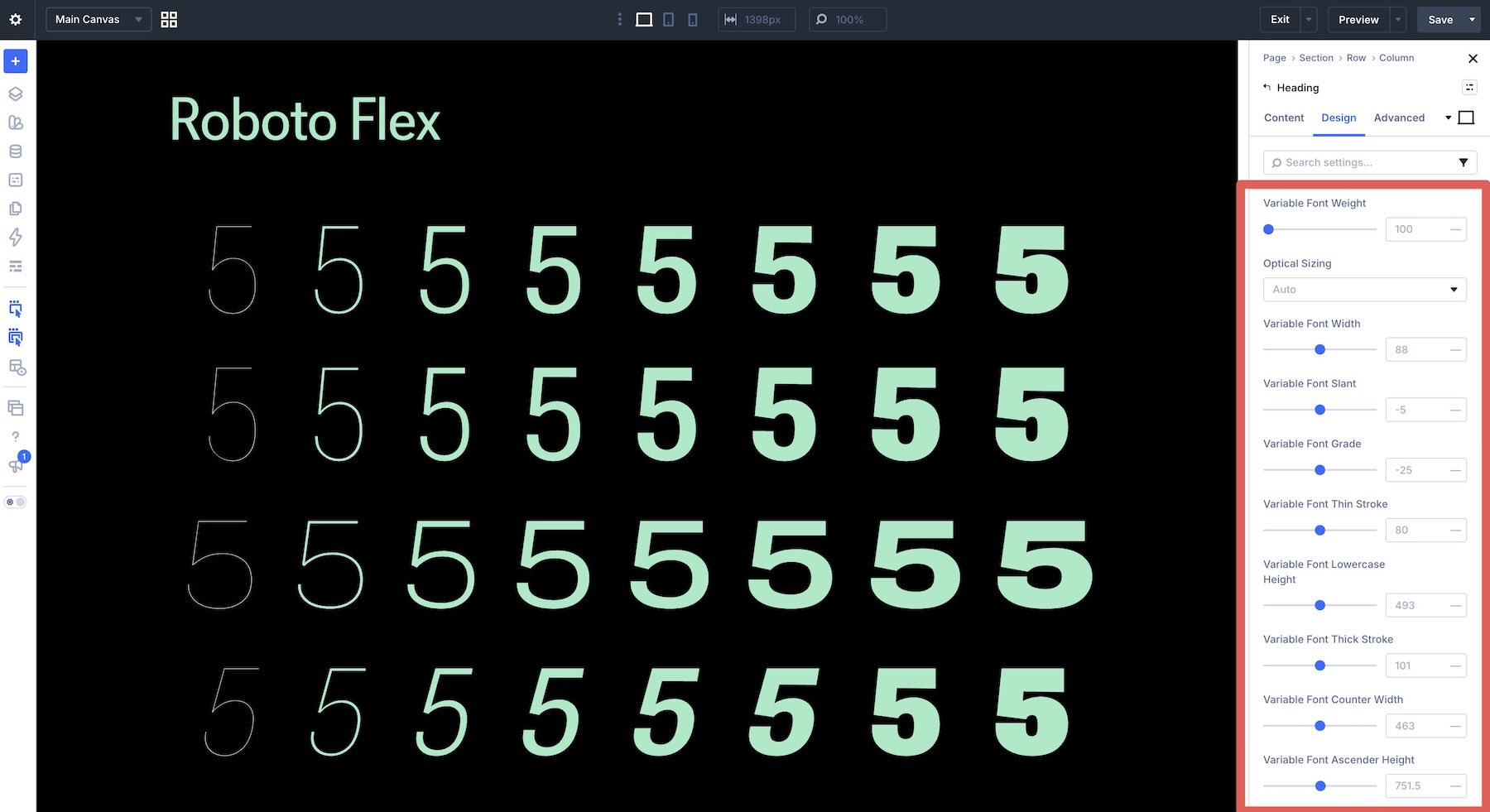
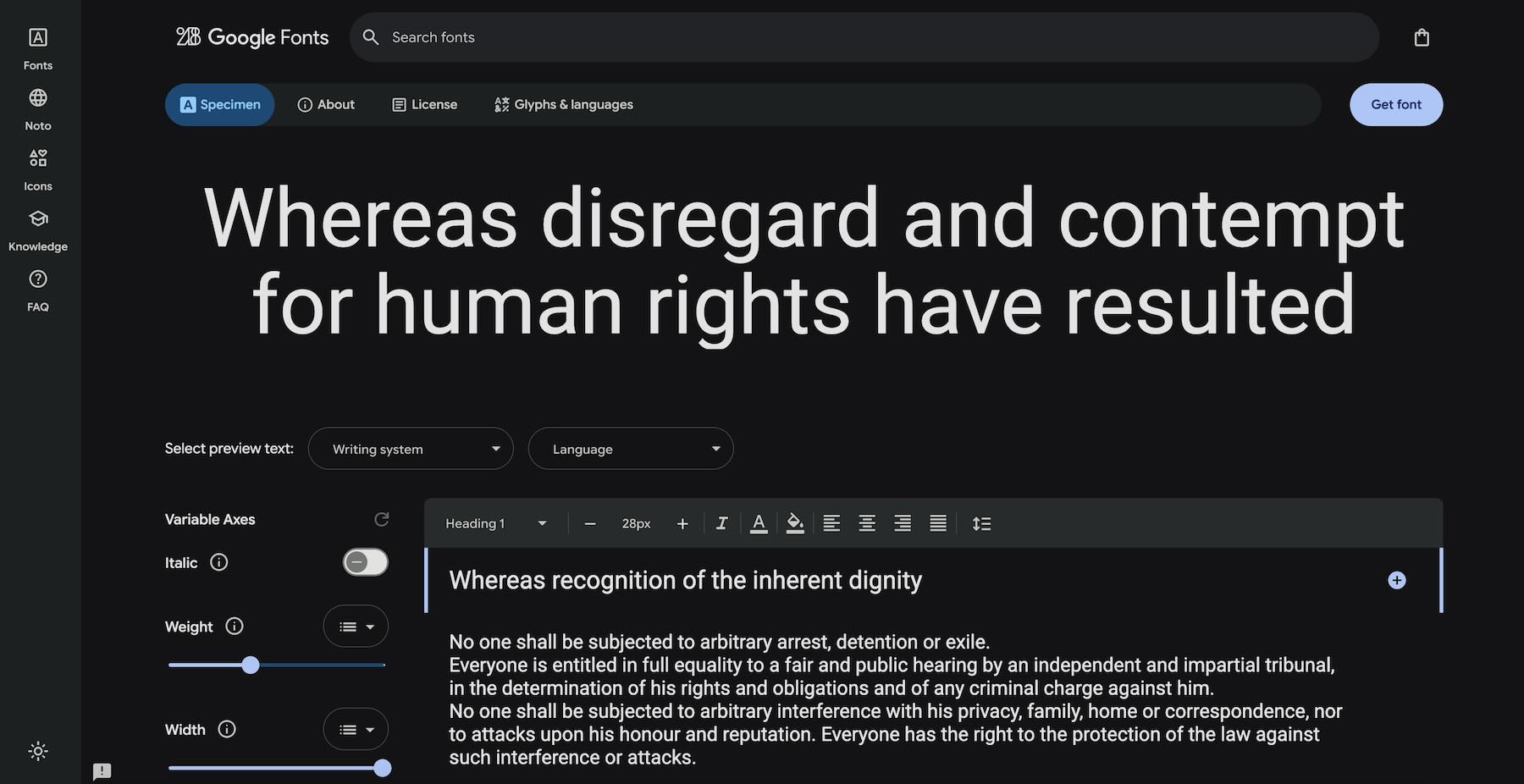
The available controls depend on the font. A simple variable font may expose only a Weight axis. A typeface such as Roboto Flex can provide controls for Weight, Width, Slant, Optical Sizing, Grade, and several other axes. Divi shows only the controls supported by the selected font.
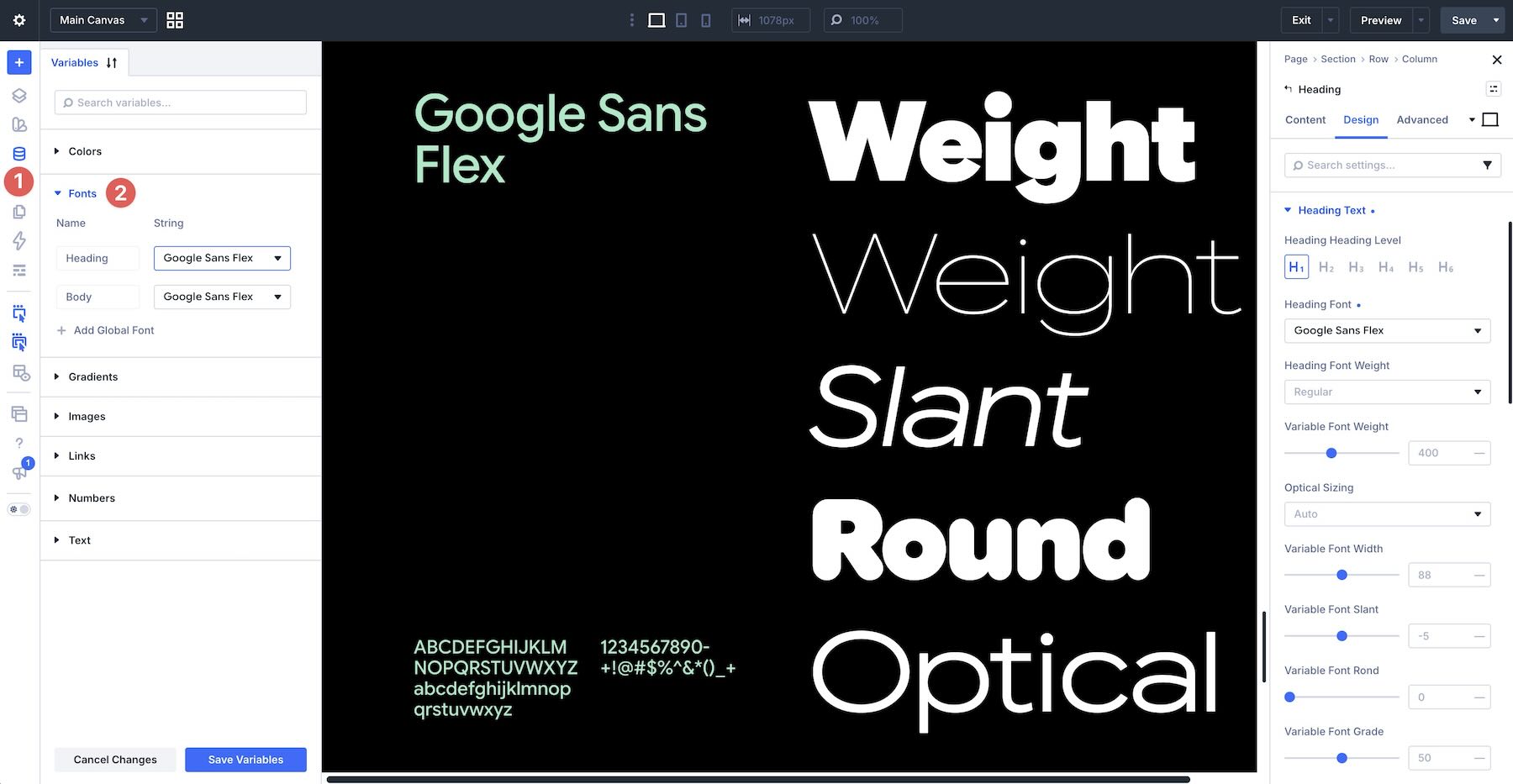
You can use Font Variables, part of Divi’s Design Variables system, to manage the font family itself. Define a heading font, body font, or another reusable font choice in the Variable Manager, then reference it across modules and Presets. If you change that Font Variable later, every element that references it can inherit the new font family.
Font Variables do not store a complete set of variable font axis values. To reuse a combination of Weight, Width, Slant, and other typography settings, save those settings in a Preset.
The Google Fonts website is a useful place to find variable fonts. Apply its variable fonts filter to narrow the library to typefaces with one or more variable axes.
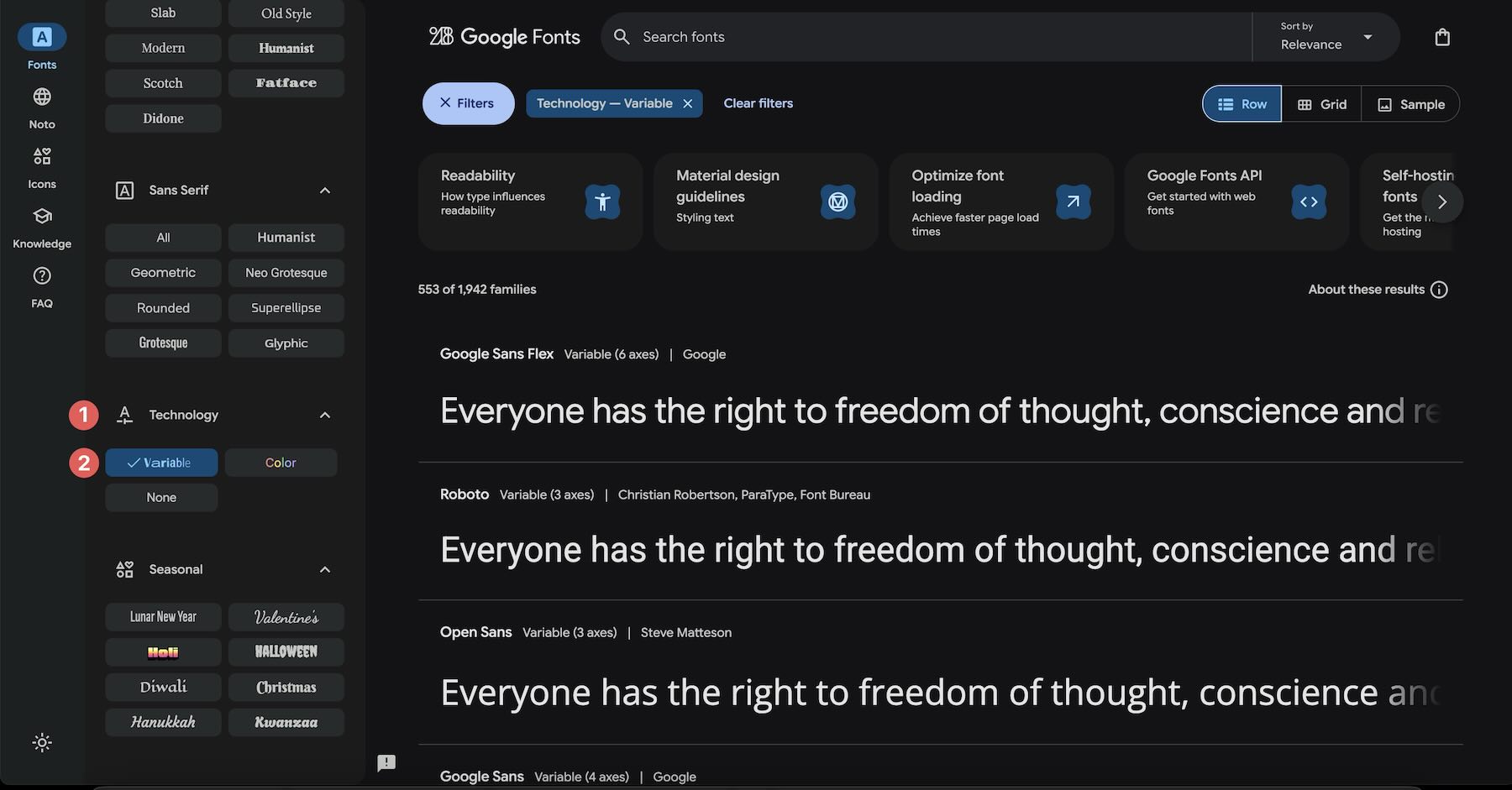
Open a font’s detail page before choosing it for a project. The page lists the axes and ranges the font supports, which can differ significantly from one typeface to another.
Note: The Divi 5 font picker does not include a dedicated variable font filter. Select a supported Google variable font as you would any other font, and Divi will display the axes that font provides.
For a helpful starting point, explore our list of the 10 best variable fonts available in Divi 5.
Pair Variable Fonts With Divi 5’s Text Styling Options
Variable font axes change the construction and appearance of a typeface. Divi 5’s text styling options control how the text sits, flows, and wraps within a layout. These features work with any font, but they give variable typography even more creative range without requiring custom CSS.
Here is a closer look at the options introduced alongside Variable Fonts.
Text Columns
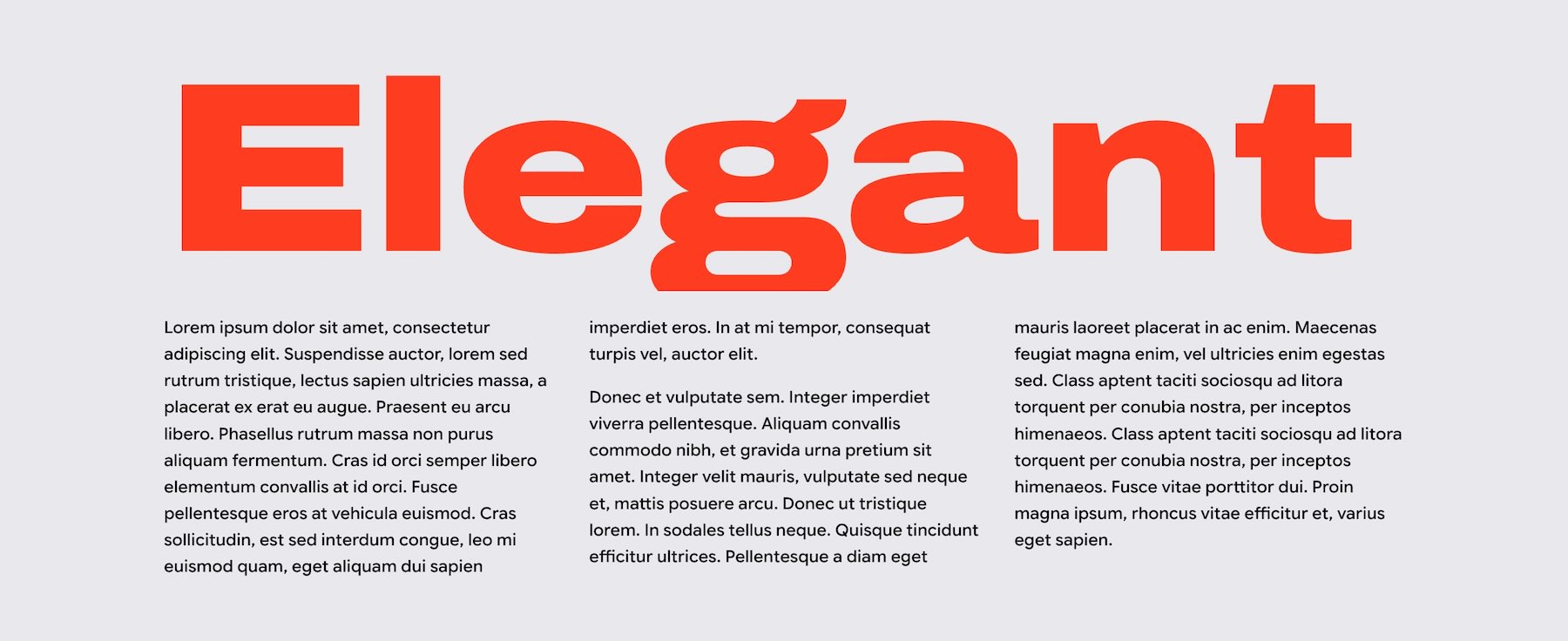
Text Columns split a block of copy into magazine-style CSS columns without requiring separate Text Modules. The content flows naturally from one column to the next, and you can change the number of columns at different breakpoints.
Use the Text Column Gap field to adjust the space between columns. Its default unit is em, and the field also supports Divi 5’s Advanced Units.
Drop Caps
The Drop Caps tab in a body text option group lets you style the first letter of a text block. You can set its line size and spacing, then use the available text settings to shape the treatment. The surrounding copy wraps around the enlarged letter automatically.
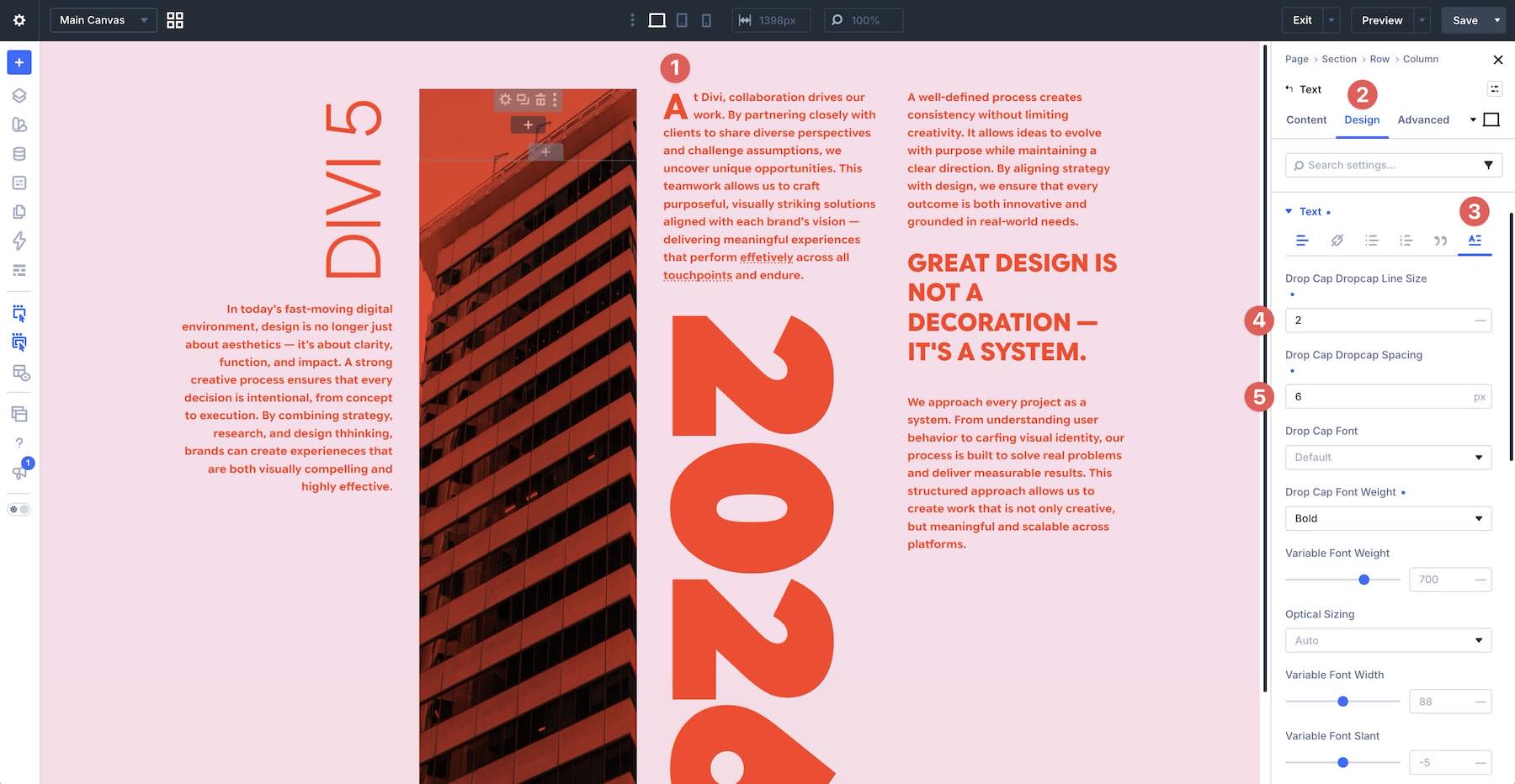
Text Direction
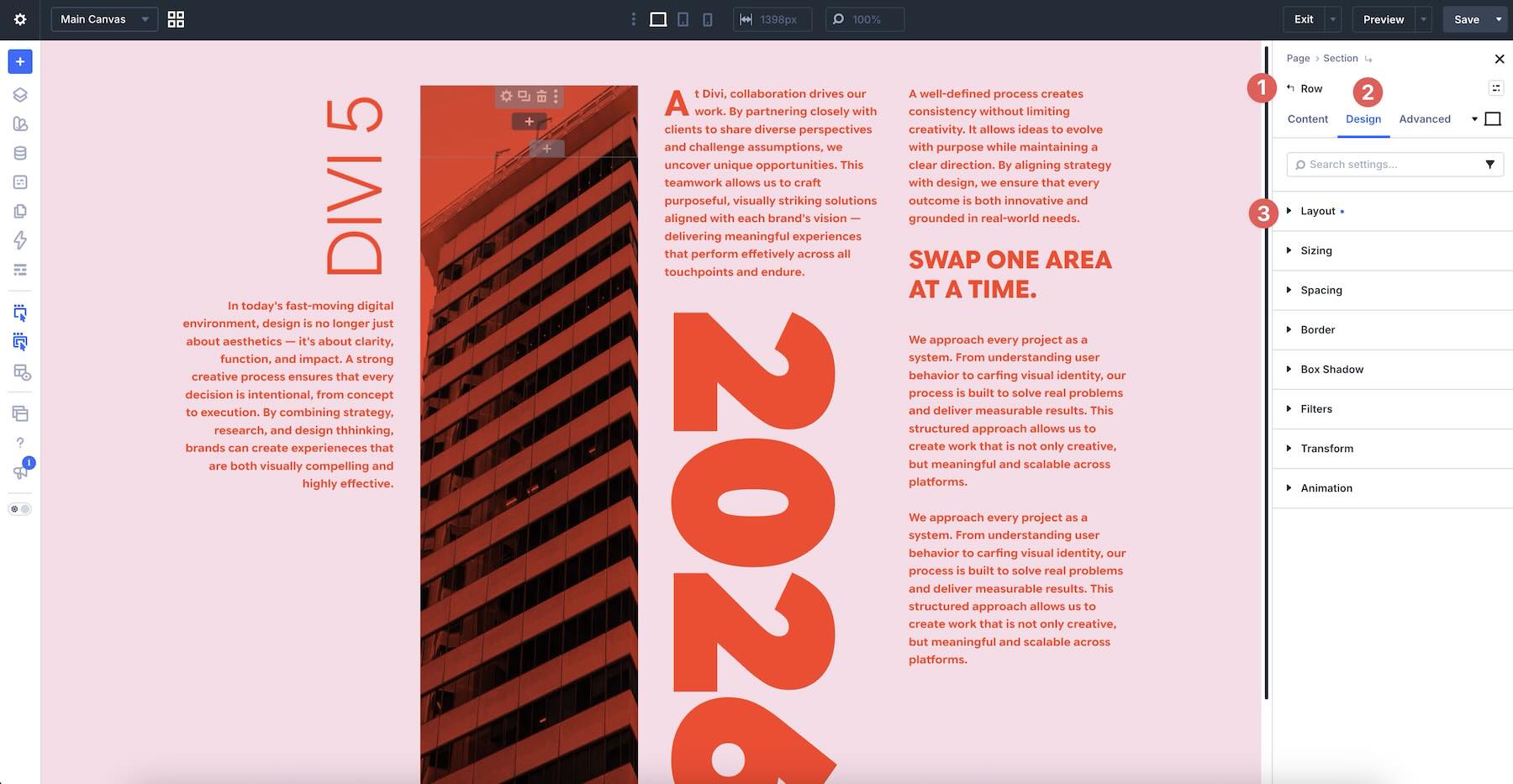
Text Direction lets you display text horizontally or along a vertical axis. Because the setting can be adjusted responsively, you can use vertical text for editorial labels and decorative accents on larger screens, then switch to a more compact treatment on smaller devices.
Stroke Position
Stroke Position determines whether a text stroke sits in the center of the letterform or outside it. Placing the stroke outside preserves more of the original letter shape and prevents the stroke from covering the fill. You can combine Stroke Position with Stroke Width and Divi’s state options to create interactive text effects.
Capitalization
Divi 5 separates text styling from capitalization. In addition to Uppercase, Capitalize, and Lowercase, you can choose Small Caps or All Small Caps when the selected font supports those letterforms.
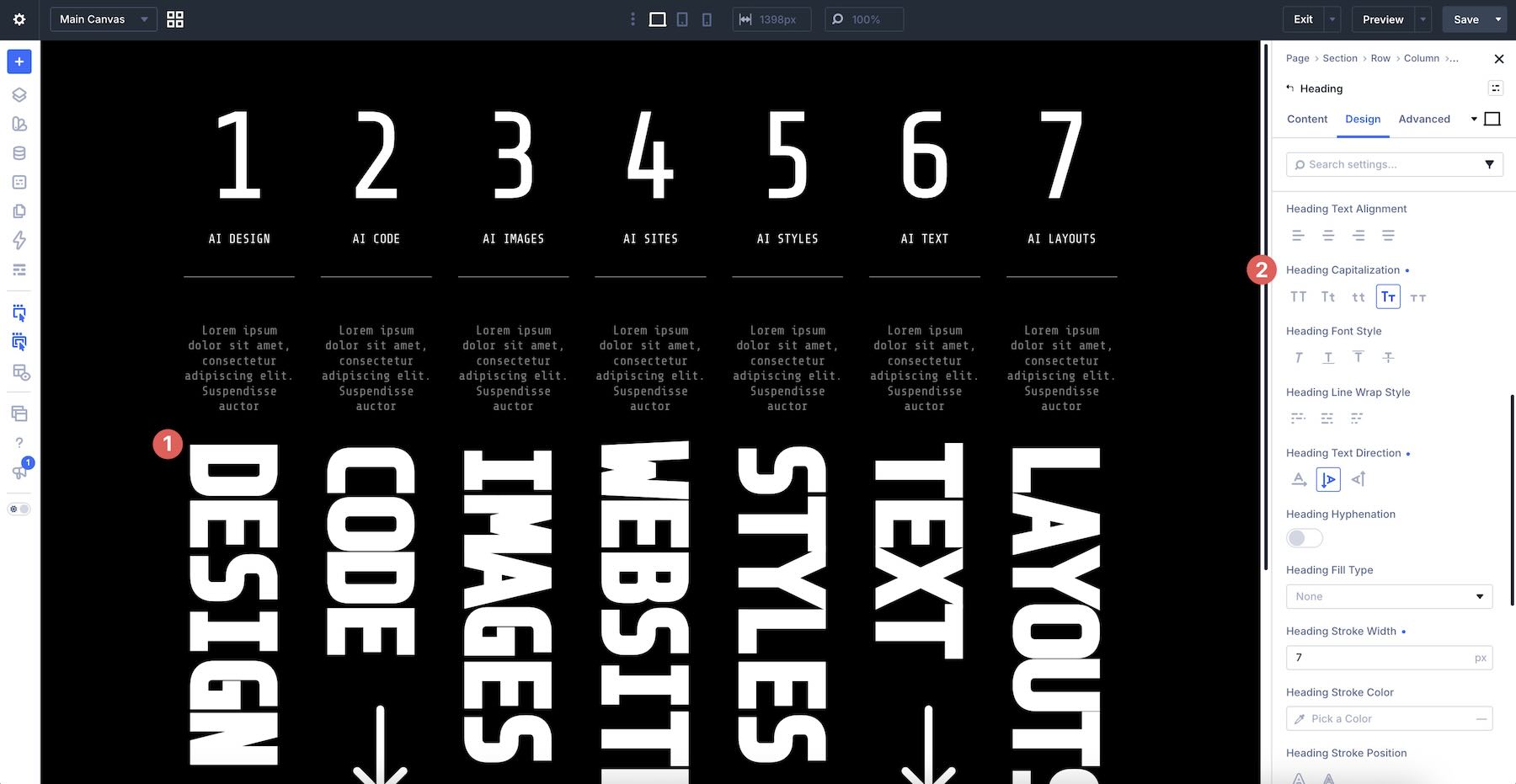
Paragraph & List Spacing
Paragraph & List Spacing controls the space between paragraphs and between list items within the same text area. The default unit is em, and you can use other supported units when the design requires them.
Hyphenation
The Text Hyphenation setting lets the browser hyphenate long words when they exceed the width of their container. This can improve wrapping in narrow columns, although the result also depends on the page language and the browser’s hyphenation support.
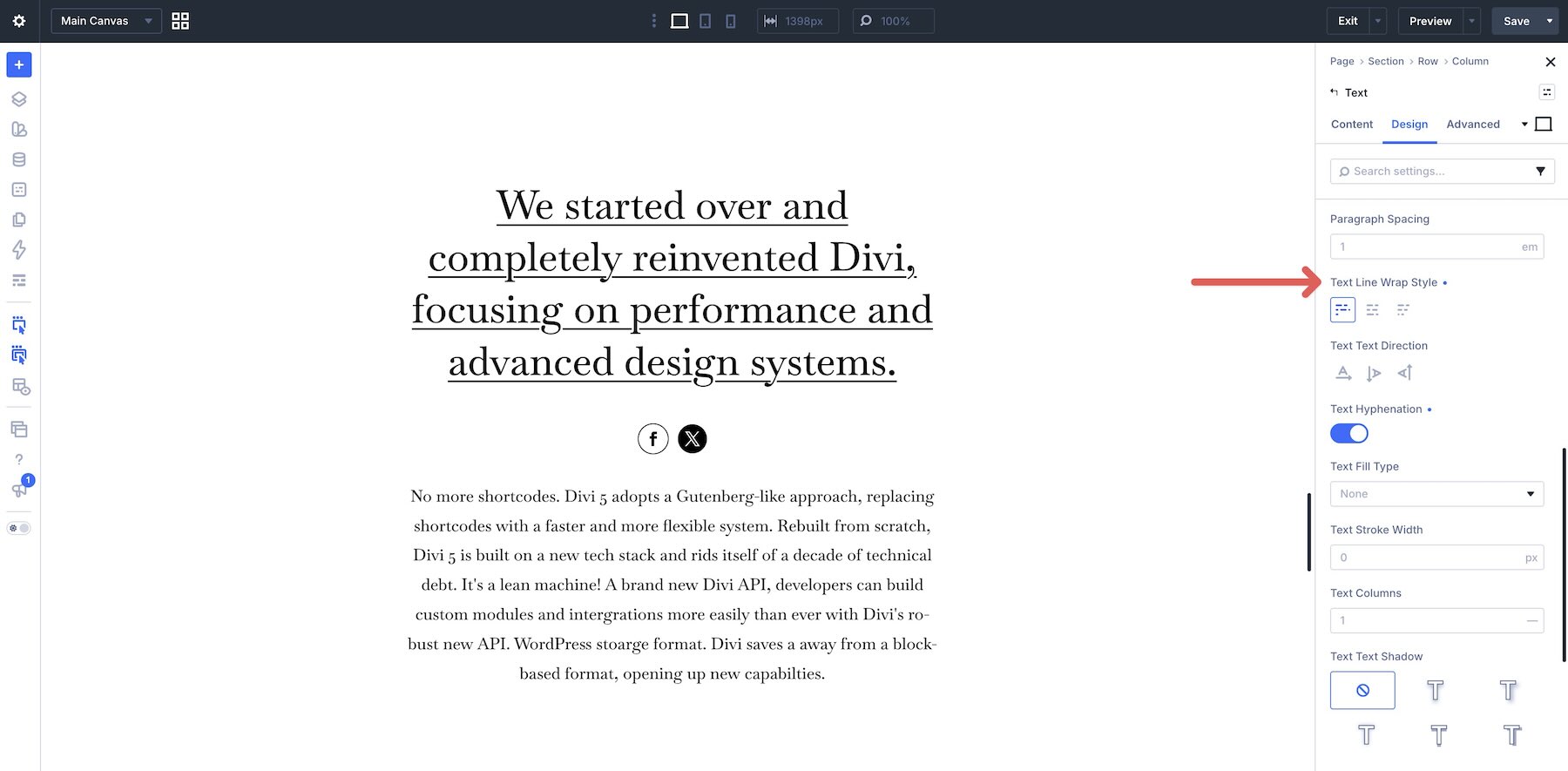
Line Wrap Style
Line Wrap Style controls how text breaks across lines. Default uses the browser’s normal wrapping behavior, Balance distributes text more evenly across lines, and Pretty aims to improve line endings and reduce awkward final lines. Browser support and the exact result can vary.
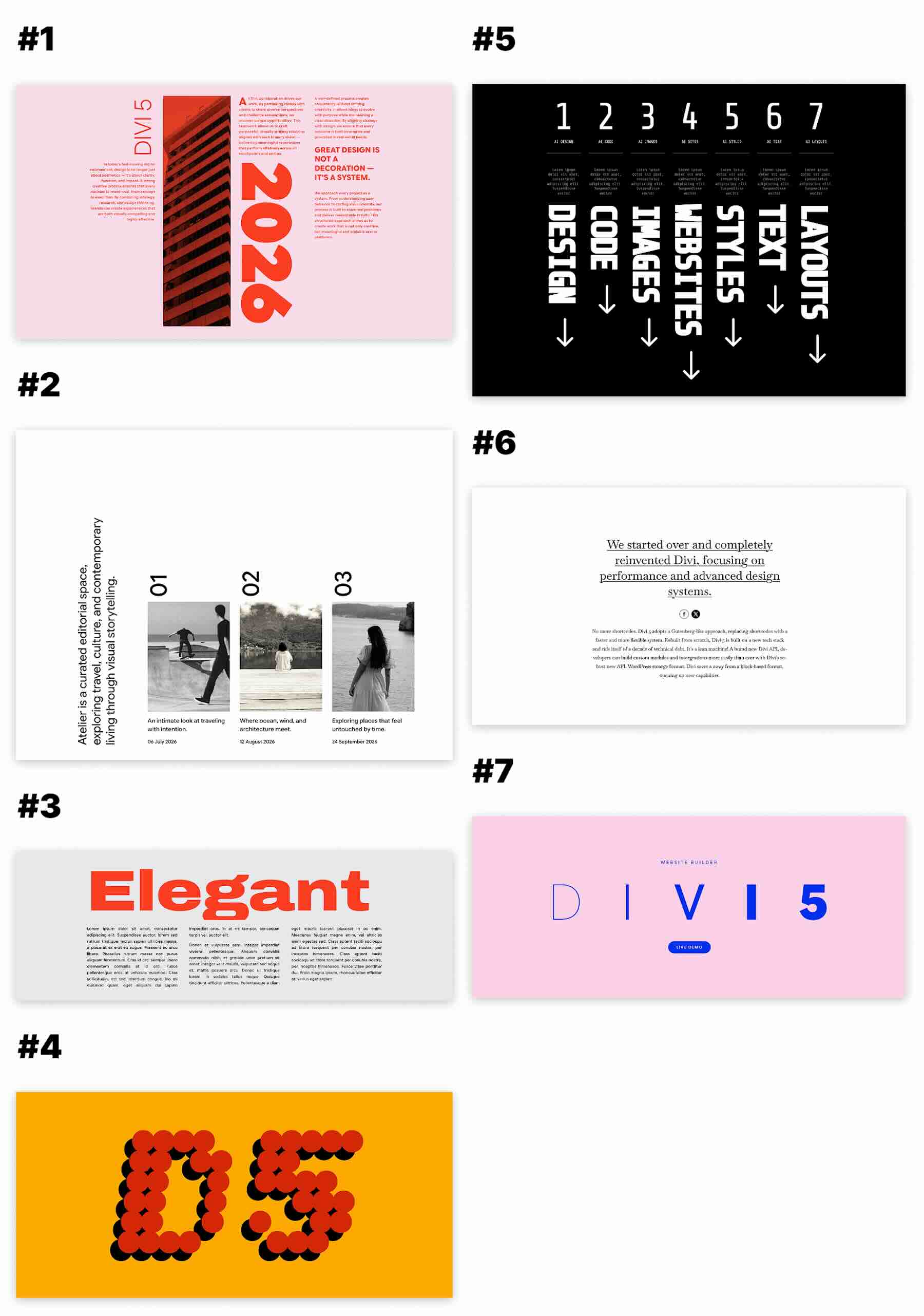
Preview The Seven Designs
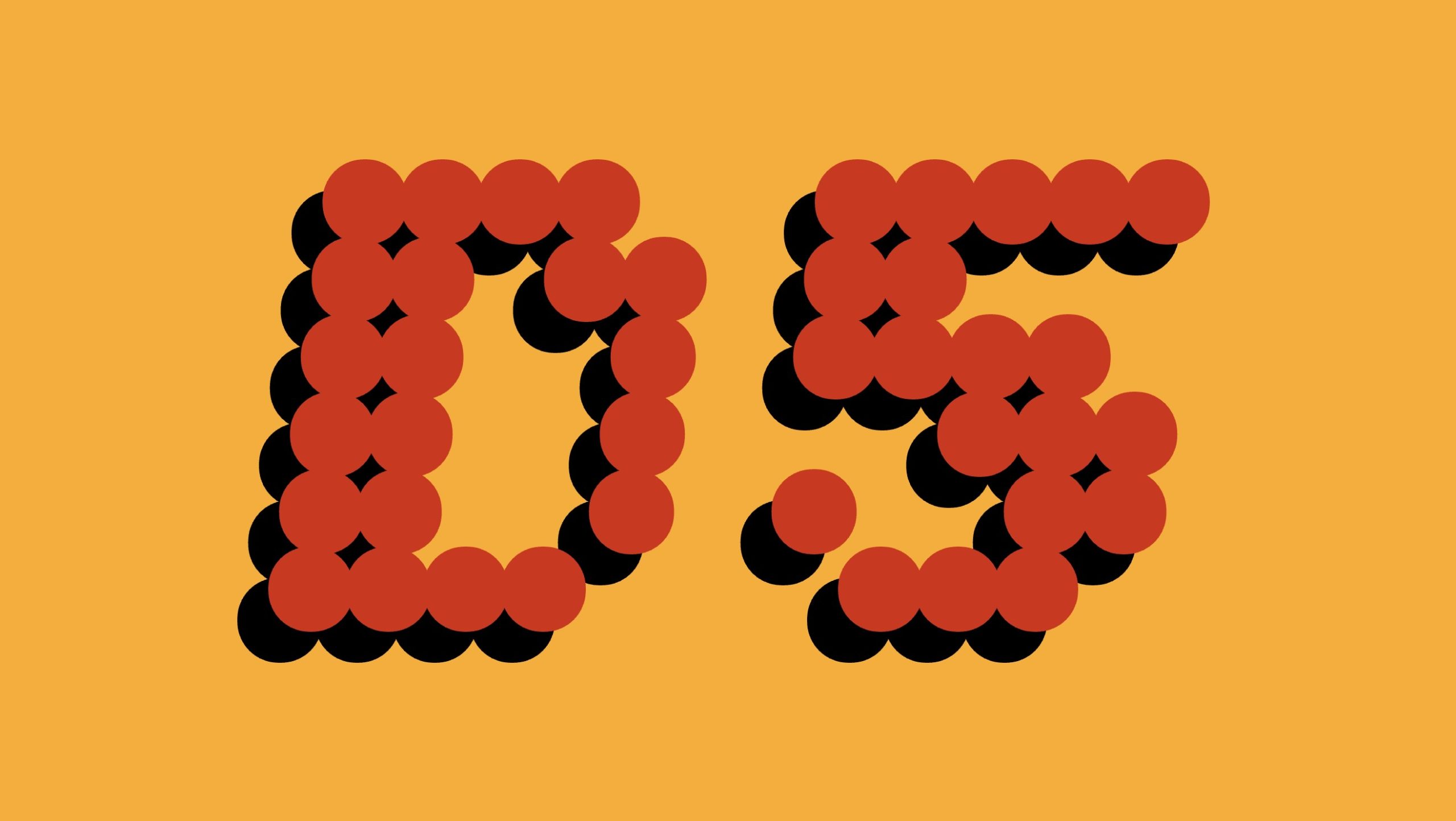
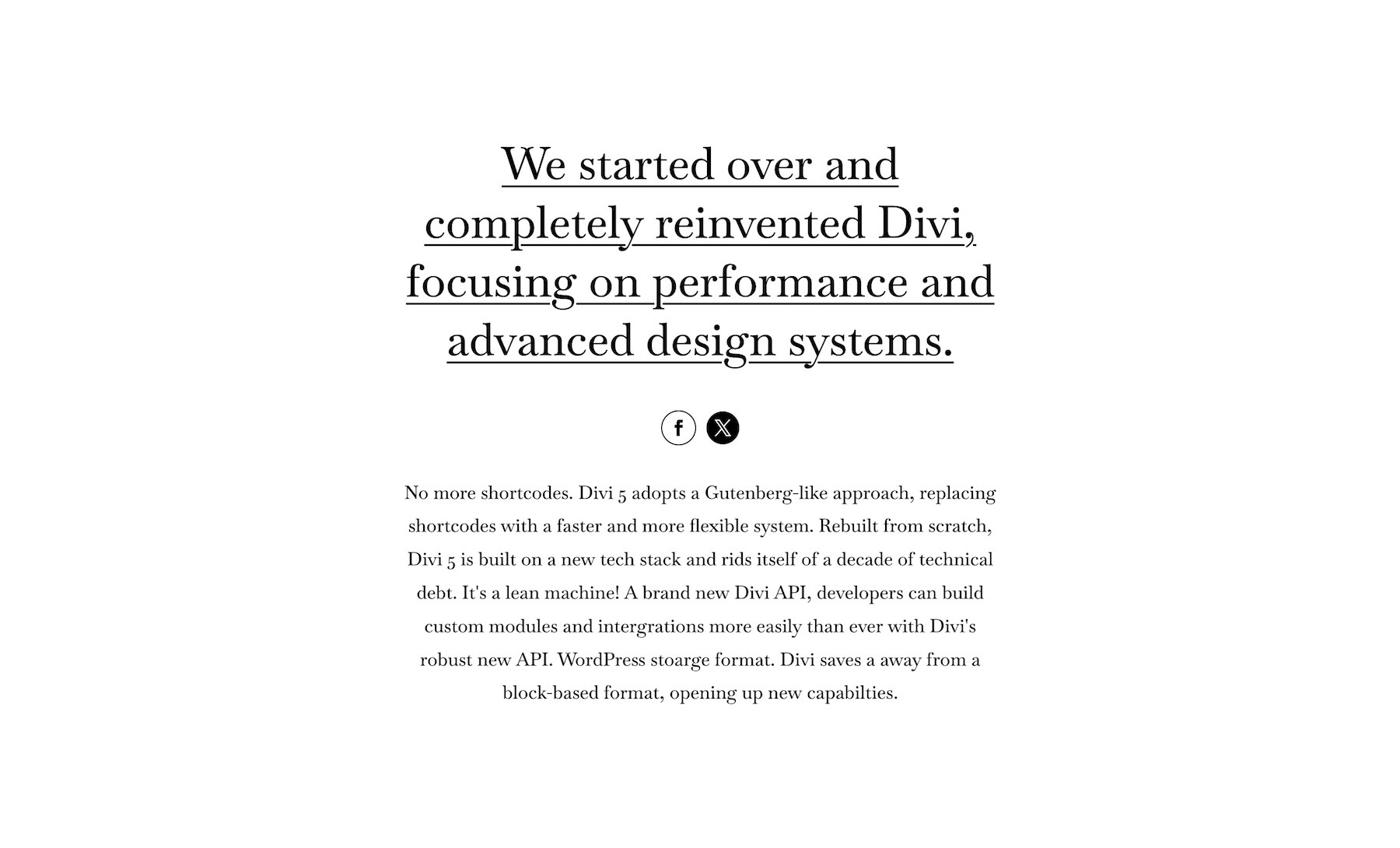
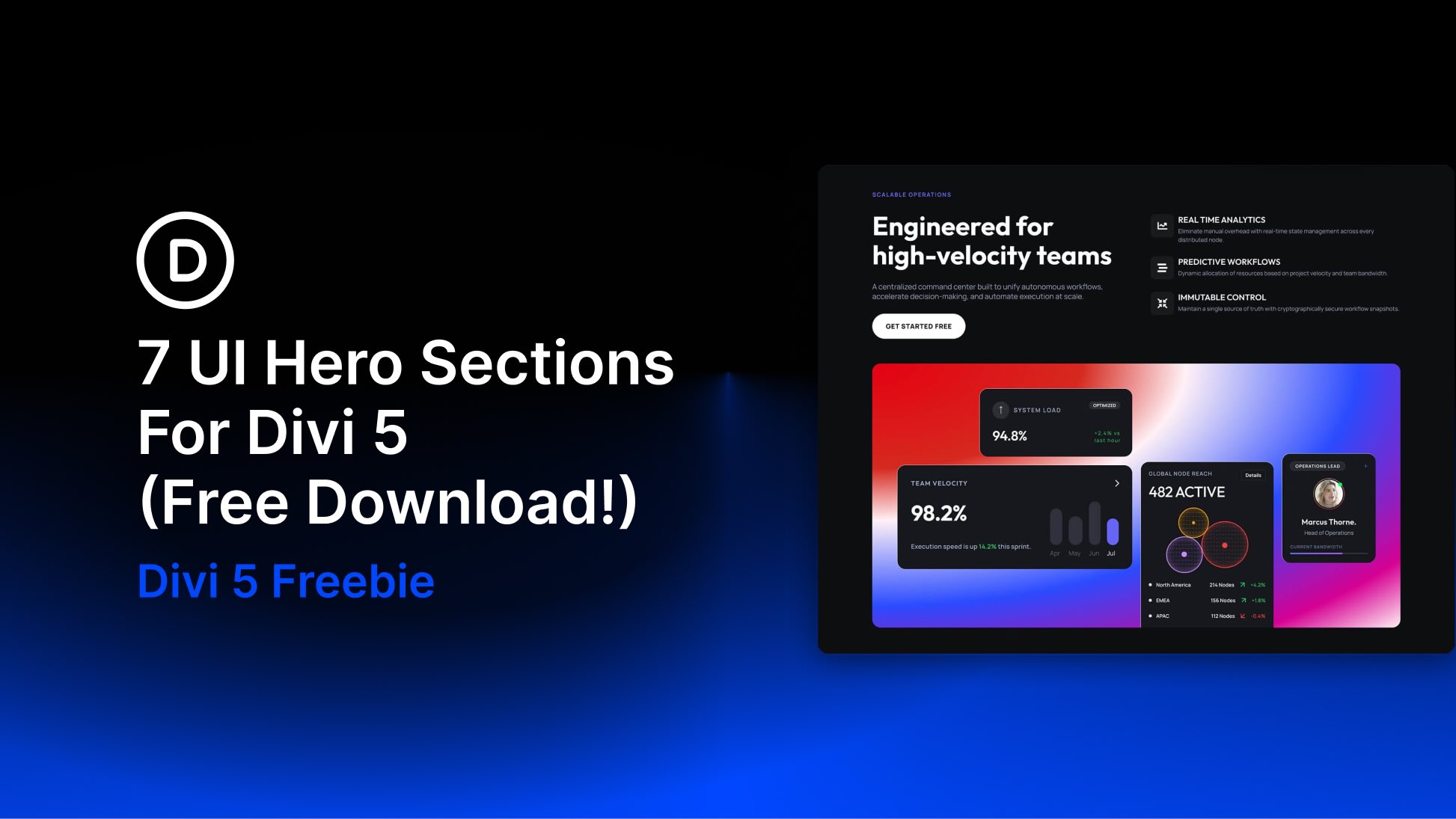
The pack includes seven variable font section designs. Each one combines variable font axes with layout, spacing, and text styling choices that you can study or adapt. The free download appears below the preview.
Download Seven Variable Font Designs For Divi 5
Download all seven section designs for free, import them into the Divi Library, and add any of them to a page in the Visual Builder.

What’s Included: Eight JSON Files
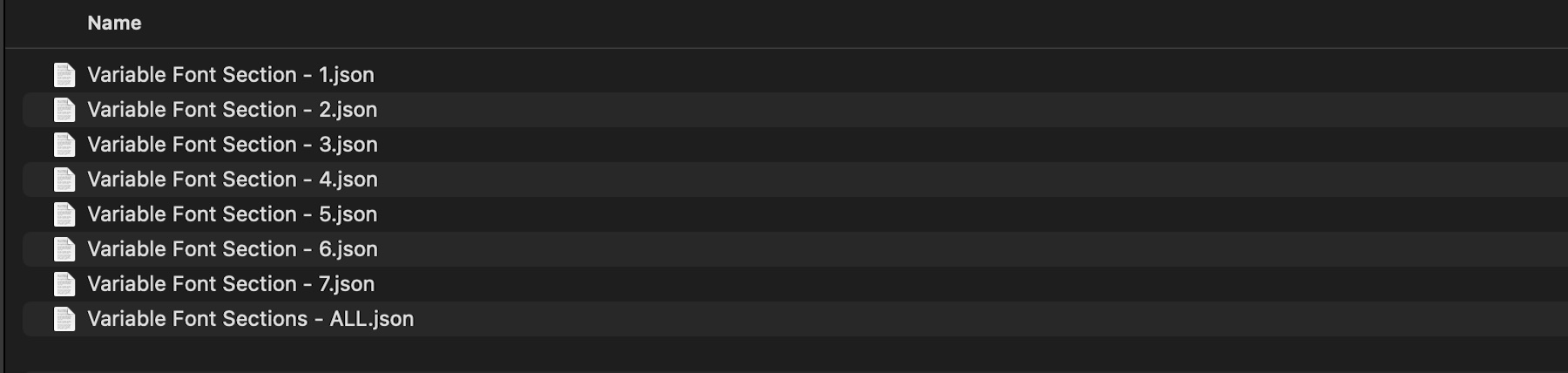
After downloading and unzipping the package, you will find seven individual section exports and one combined export.
Styled: Variable Font Section 1 through 7 (seven files): Each file contains one fully styled variable font section with layered type treatments, image areas, text blocks, buttons, and a flexible structure that you can use as-is or customize.
Styled: Variable Font Sections (All) (one file): This file imports all seven designs into your Divi Library at once.
How To Use The Variable Font Designs
Keep the unzipped download folder nearby. You will import one or more JSON files, add a saved section to a page, and replace its example content.
1. Import The Sections Into The Divi Library
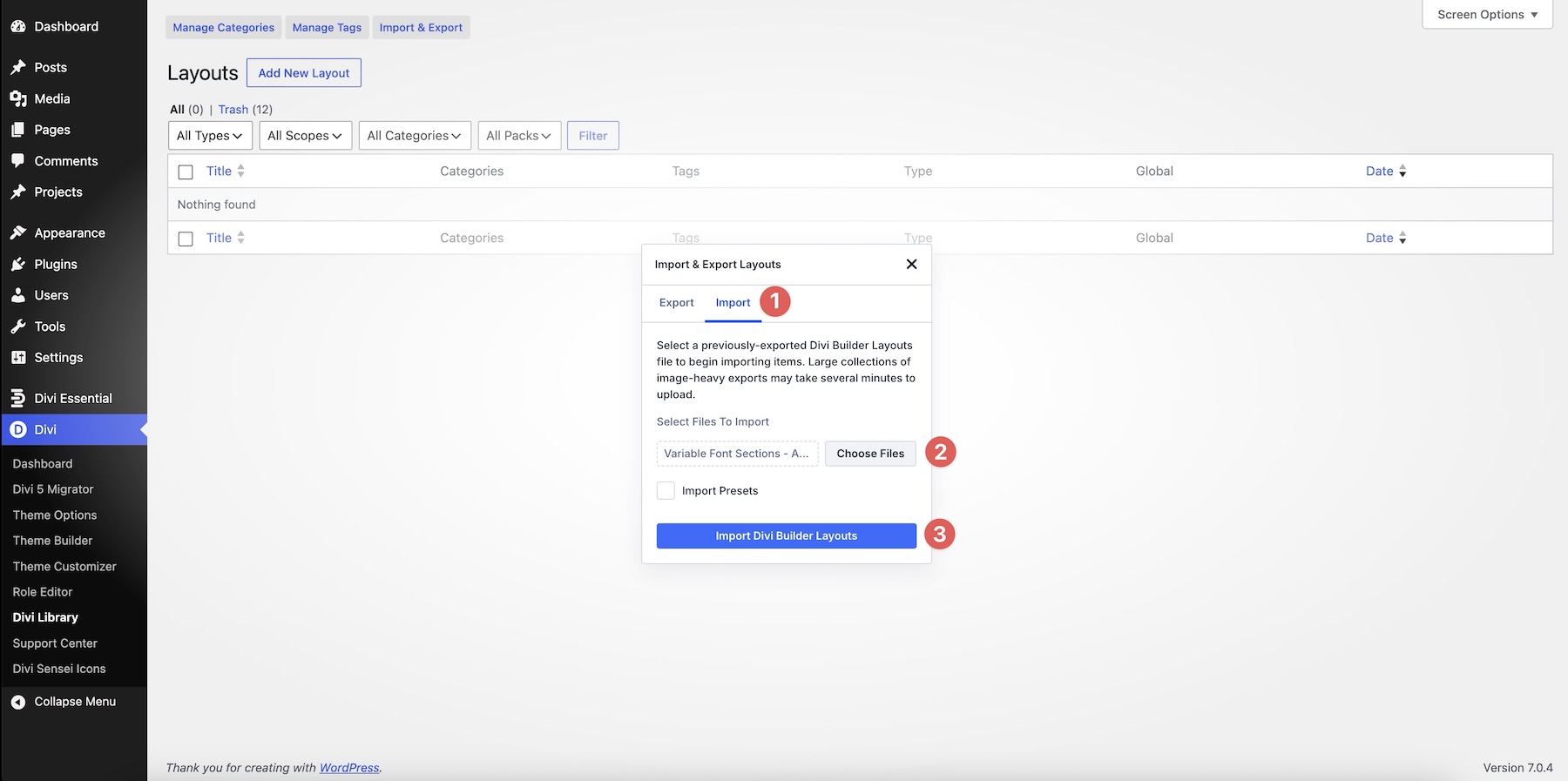
In the WordPress Dashboard, go to Divi > Divi Library. Select Import & Export at the top of the screen.
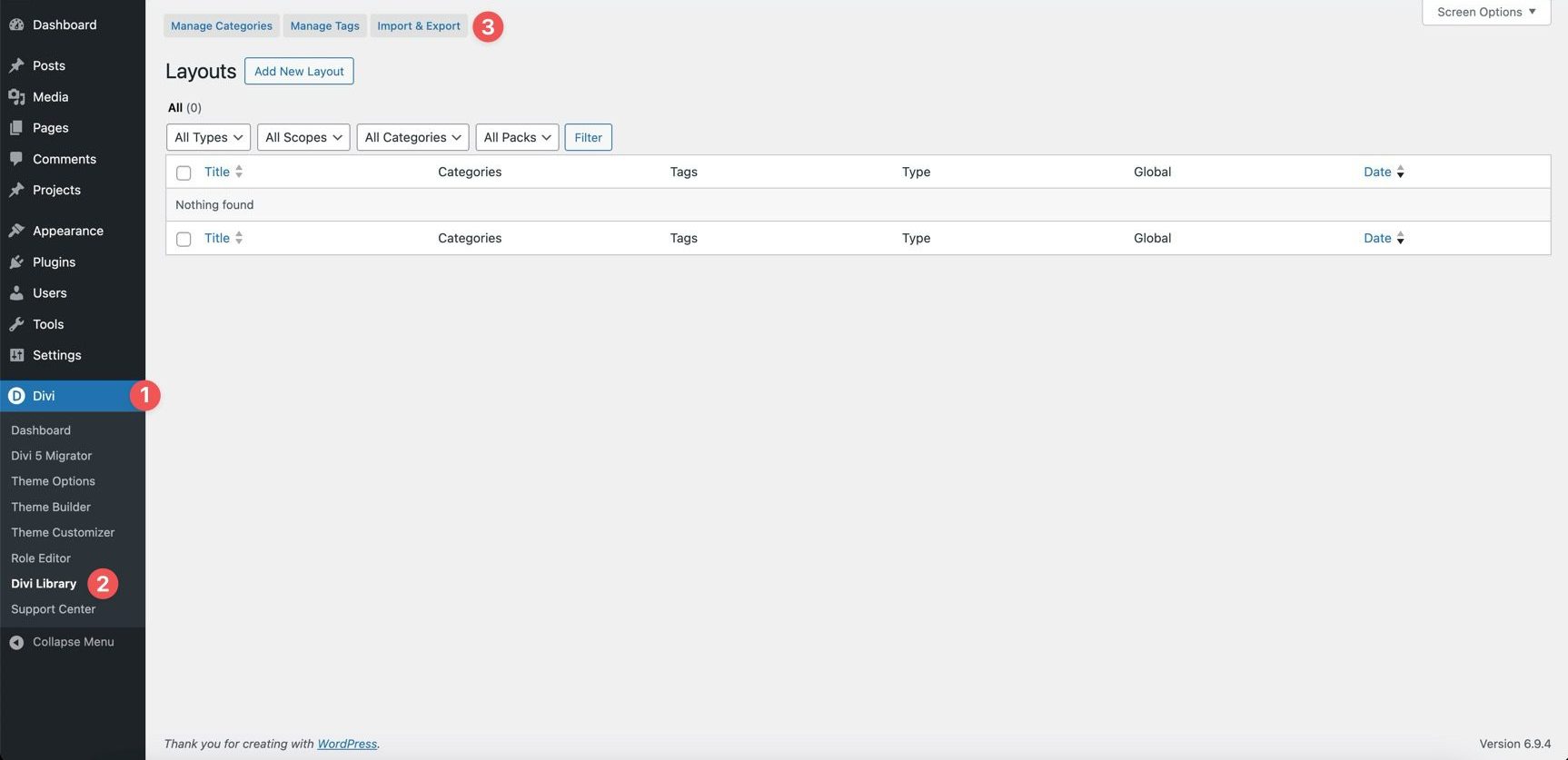
In the Import & Export Layouts modal, open the Import tab and select Choose File. Choose one of the individual section JSON files or the combined file, then select Import Divi Builder Layouts.
2. Add A Variable Font Section To A Page
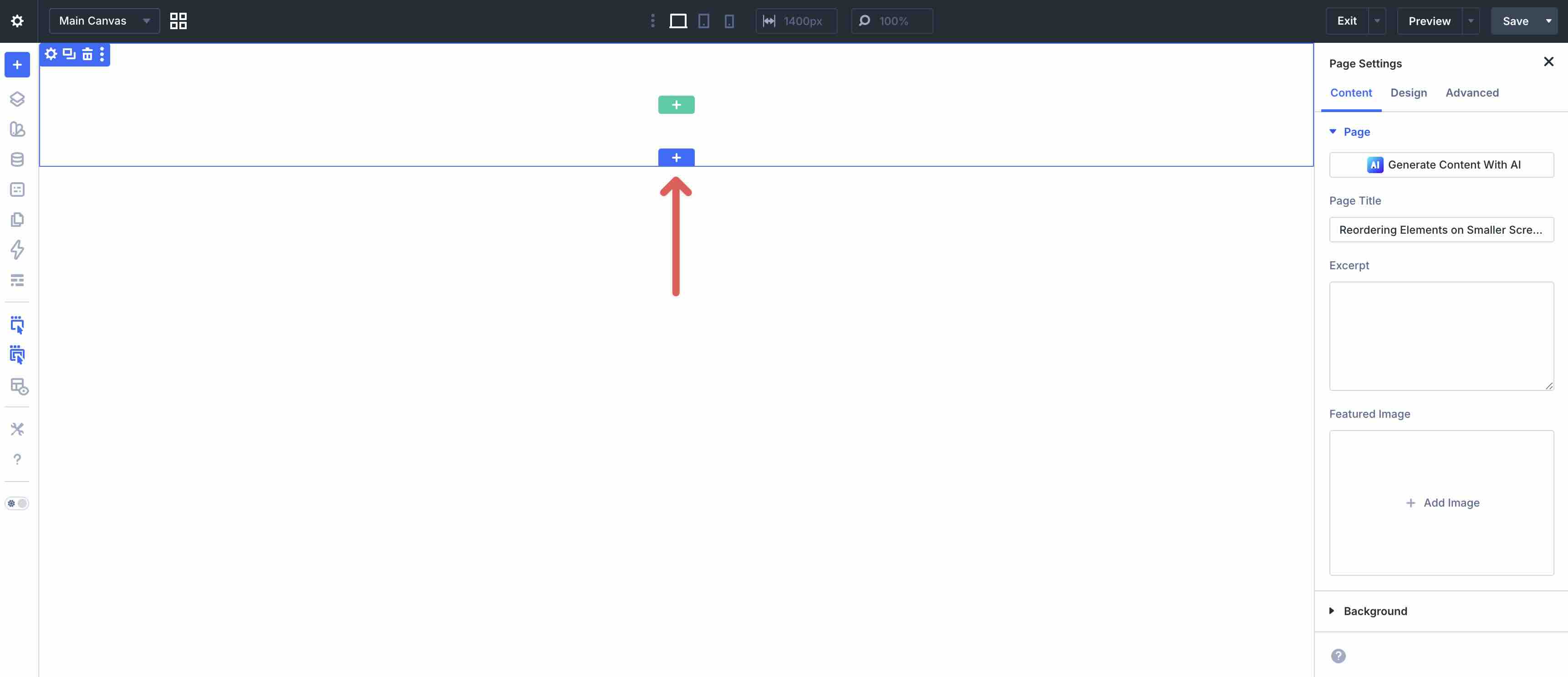
Open a page in the Visual Builder and add a new Section.
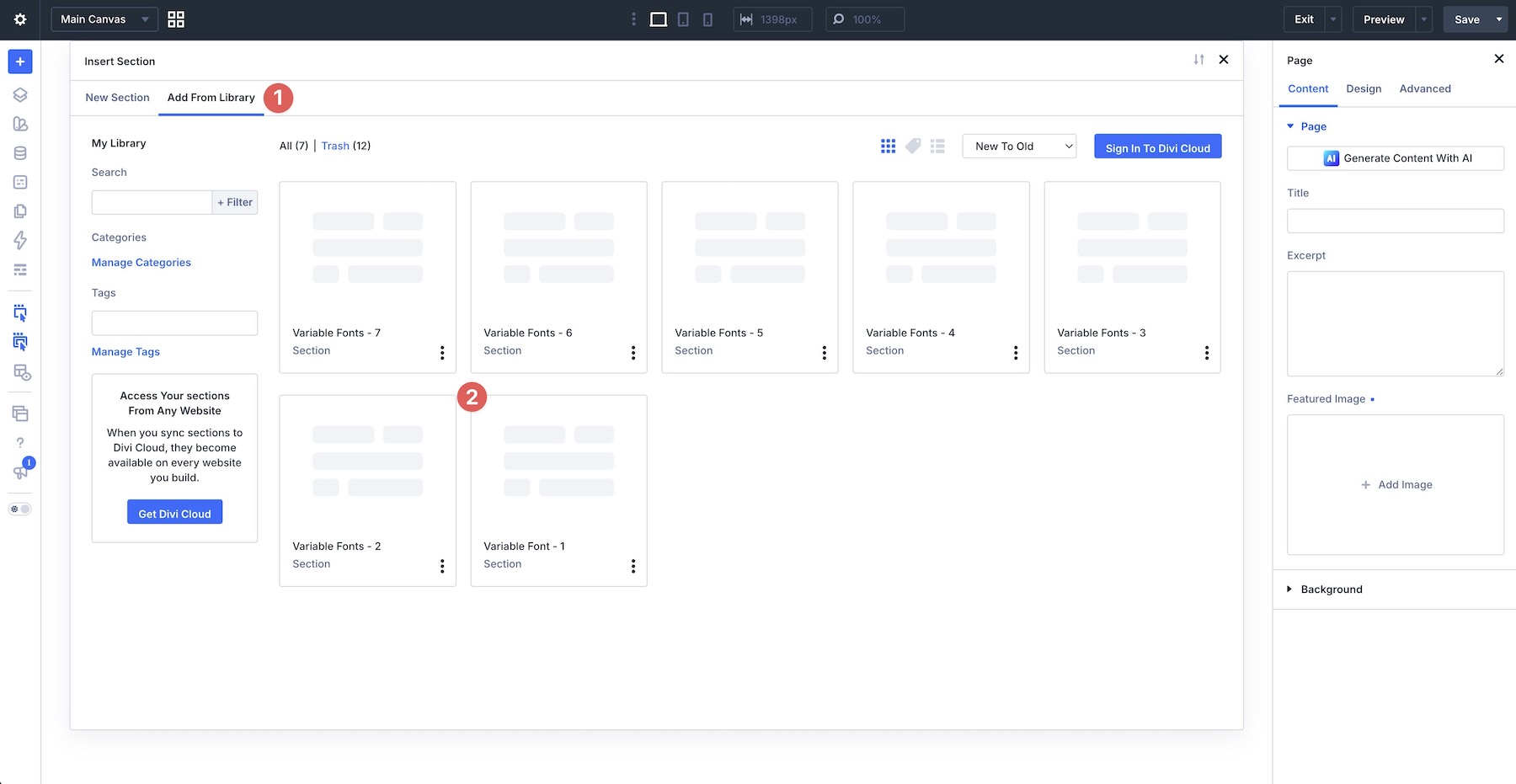
Select Add From Library, then choose one of the imported Variable Font sections.
3. Replace The Content
Start by replacing the headings, body copy, labels, captions, and supporting text with your own content. These designs rely heavily on typography, so watch how the new copy responds to the existing Weight, Width, Slant, Optical Sizing, and other axis values.
Next, replace the example images, icons, and supporting visuals where needed.
Work through one area at a time. This makes it easier to preserve the relationship between the variable font settings, text styling options, spacing, and overall composition.
If your copy is significantly longer or shorter than the placeholder text, review the hierarchy and line breaks. Variable Font Width and Weight can change how text wraps. Use the relevant spacing and Line Wrap Style controls when the composition needs further adjustment.
To expand or simplify a section, duplicate or remove existing Rows, Columns, Text Modules, Heading Modules, or Image Modules. Reusing the existing structure helps preserve the section’s spacing and typographic rhythm.
4. Adjust The Styles
You can use the designs as provided or customize them to match your site. To change the typography, open a Text Module or Heading Module, select the Design tab, and expand the relevant text option group. Depending on the module and selected font, you can adjust:
- The font family or Font Variable
- Variable Font Weight, Width, Slant, Optical Sizing, Grade, and other supported axes
- Text Size, Letter Spacing, and Line Height
- Text Columns, Drop Caps, Text Direction, Stroke Position, Capitalization, Paragraph & List Spacing, Hyphenation, and Line Wrap Style
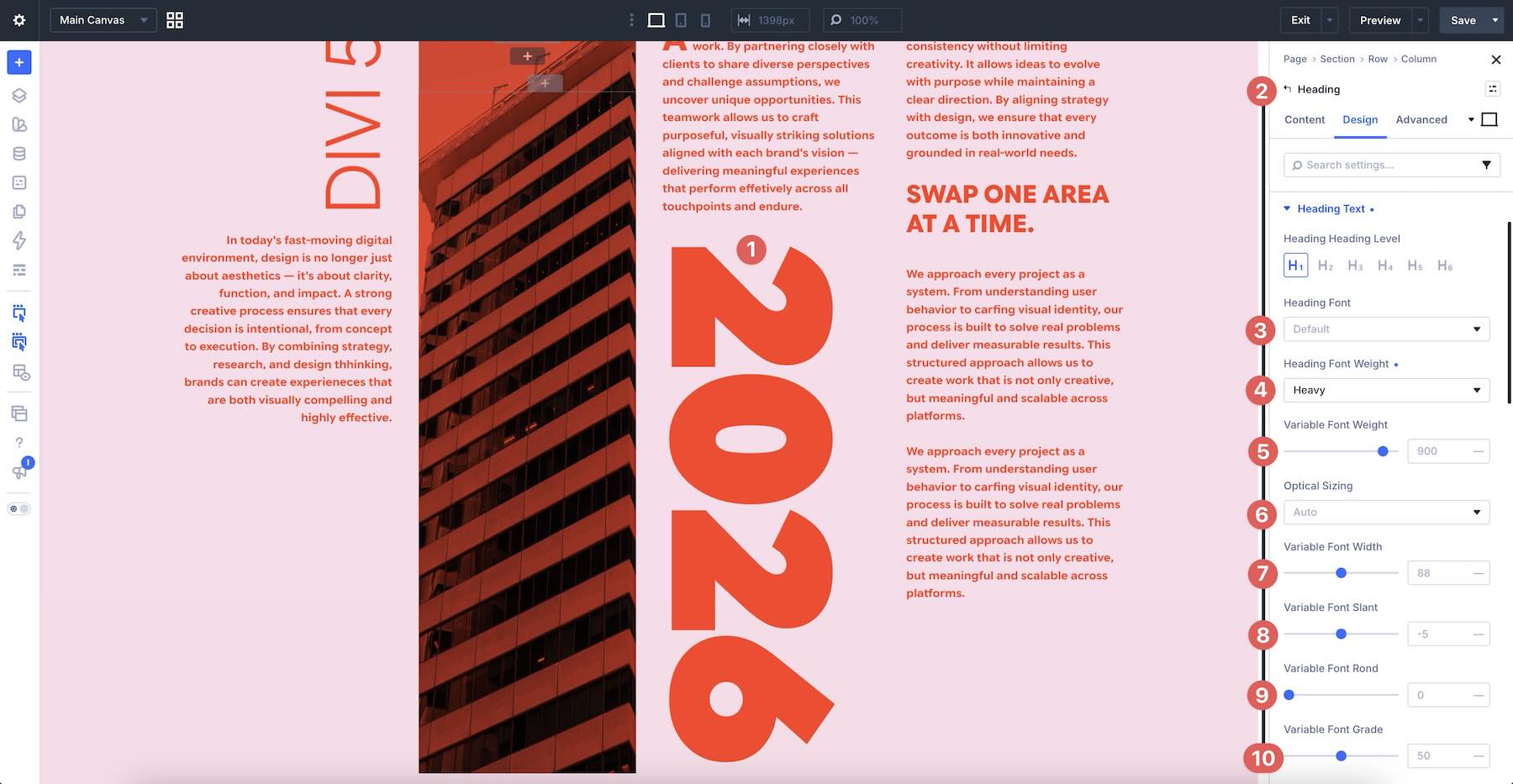
Small axis adjustments can noticeably change hierarchy, density, and fit. Move one control at a time while viewing the text in the layout, then keep only the adjustments that serve the design.
For spacing, sizing, borders, and backgrounds, use the standard Design tab controls at the Section, Row, Column, or Module level.
Finally, use Divi’s responsive editing controls to review each design at desktop, tablet, and phone widths. Weight and Width values can affect wrapping, so adjust only the breakpoints that need a different treatment.
Tips For Effective Variable Font Designs
Variable fonts offer plenty of creative freedom, but a few deliberate constraints will keep a typography system consistent and maintainable.
Check The Axis Ranges First
Before committing to a typeface, open its Google Fonts detail page and review its available axes and ranges. One font may offer only Weight, while another includes Width, Slant, Optical Size, Grade, or custom axes. Knowing what the font supports helps you choose the right tool before it becomes part of the design system.
Reuse A Small Set Of Axis Values
Avoid choosing a different Weight or Width value for every Module. Select a small set of deliberate values for body copy, labels, navigation, section headings, and display text, then reuse them. Presets can help you apply those complete typography combinations consistently.
Pair Variable Fonts With Number Variables
Variable font axes control the letterforms, while fluid font sizes control how the typography scales across viewports. Divi 5’s Variable Generator can create responsive clamp() values and save them as Number Variables. Reference those variables in Modules and Presets to build a type scale that is easier to reuse and update.

Make Purposeful Axis Adjustments
A font may expose many axes, but you do not need to change all of them. Use Weight to refine hierarchy, Width to improve fit, Grade to change visual density with less effect on layout width, Slant for controlled emphasis, and Optical Sizing when the font supports it. If an adjustment does not solve a specific design problem, leave it at its default value.
Test Every Breakpoint
Weight and Width values can change line breaks and the space text occupies. A display setting that works on a wide desktop may become cramped on a phone. Review headings, buttons, navigation, and narrow text columns at desktop, tablet, and phone widths. Adjust the responsive settings only where the hierarchy, fit, or readability needs correction.
Explore Variable Typography In Divi 5
Variable fonts add useful range to Divi 5‘s typography controls. Their axes let you fine-tune the design of the letterforms, while Text Columns, Drop Caps, Text Direction, Stroke Position, Capitalization, Paragraph & List Spacing, Hyphenation, and Line Wrap Style control how the text behaves in the layout.
Download the free pack and open the sections in the Visual Builder to see how those controls work together. Use a Font Variable to manage the font family, Presets to reuse complete typography treatments, and Number Variables to build a consistent sizing system. With a small set of intentional values and a responsive review, the designs can become a practical starting point for a broader site-wide type system.










Leave A Reply