

Divi 5 gives you a flexible way to build polished visual sections with clean layouts, modern styling, and lightweight design elements. In this free pack, you’ll get 5 SVG Sections for Divi 5 that you can use to add decorative graphics, illustrated content blocks, testimonial visuals, profile accents, rating elements, and more to your website. These sections use SVG-based design details to create crisp, scalable visuals that look sharp across screen sizes.
All SVG elements are added through Divi’s Code Module, making them easy to inspect, adjust, and restyle if you are comfortable editing SVG markup. One section also uses an Image Module with a nested SVG element that defines a clipPath for the quote mask effect. Import a section, update the content, adjust the styling, and you’re ready to go.
What makes this freebie especially valuable is the combination of ready-to-use designs and smart, flexible code. These sections include multiple color options, CSS custom properties for quick customization, and clean structure, so you can match them to your brand while keeping everything light on any device.
Preview
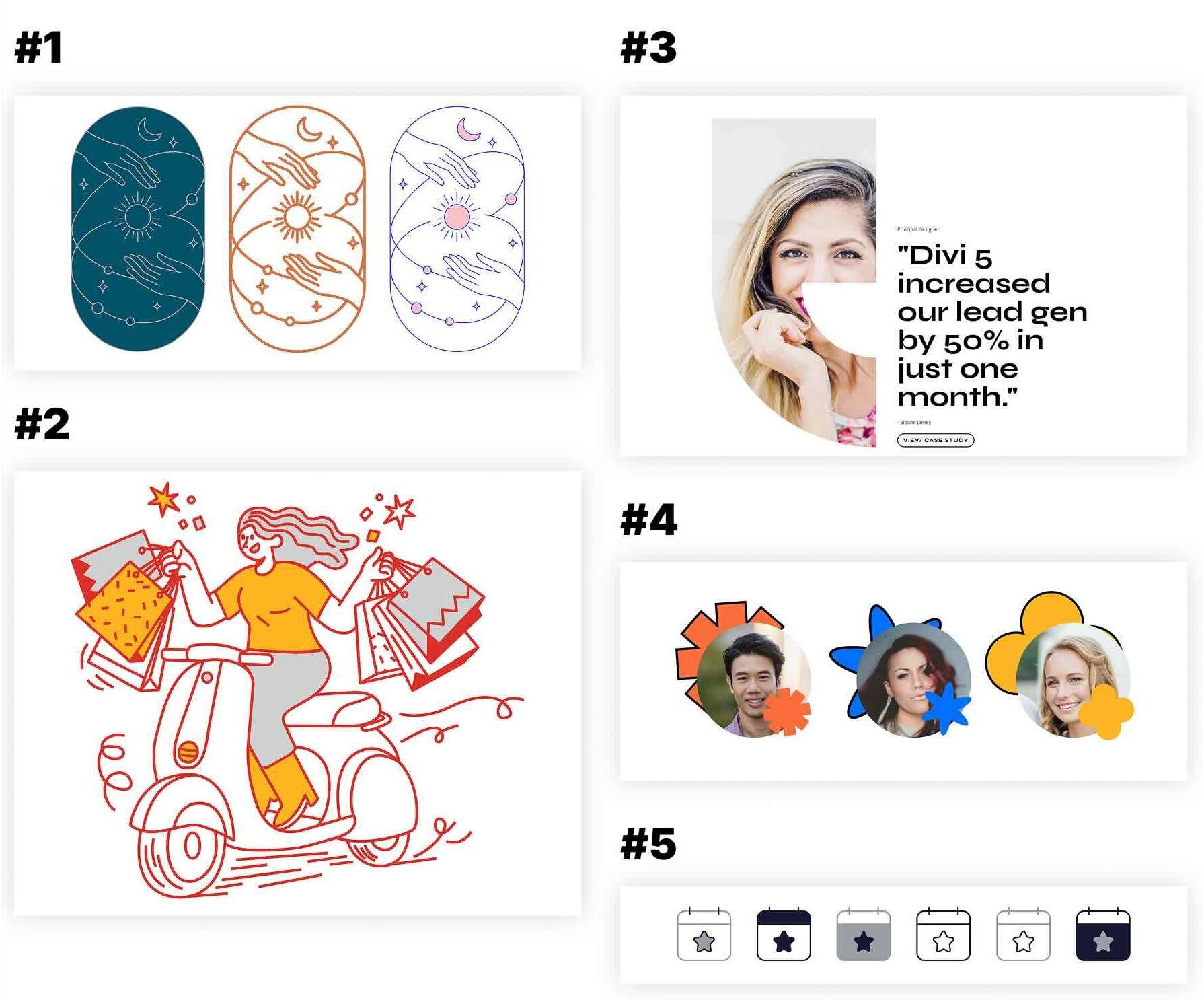
Here’s a quick look at the 5 SVG Sections included in the pack. The download is further down the post.
Download 5 SVG Sections For Divi 5
Get all 5 sections for free. Import them into your Divi Library and add them to any page in the Visual Builder.

What’s Included (6 Exports)
After you download and unzip the file, you’ll find 5 styled SVG section exports, plus 1 file containing all layouts.

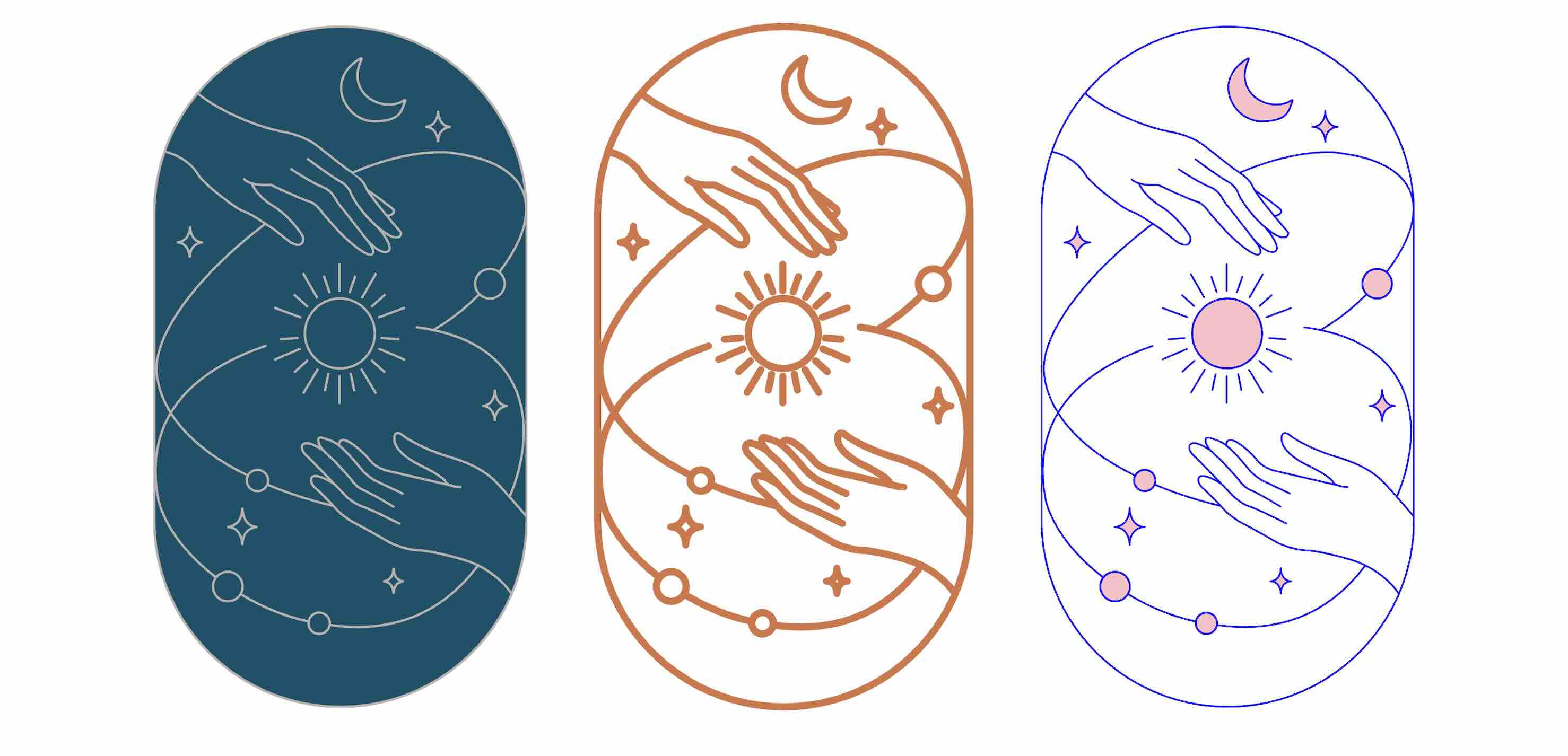
Styled – SVG Section 1
This fully styled SVG section features decorative SVG artwork that can be used as a visual accent, feature block, or design-forward content section. What makes this one unique is the cosmic scene within a tall, elegant capsule. It features hands gently reaching toward a glowing sun, surrounded by flowing lines, stars, and a crescent moon. One version offers a rich, deep teal background with subtle strokes for a night-sky feel, while the others feature a bold orange outline and a vibrant blue-and-pink combo.
Built with clean paths and simple CSS variables for color and stroke width, it’s super easy to customize and ready for animations.
Styled – SVG Section 2
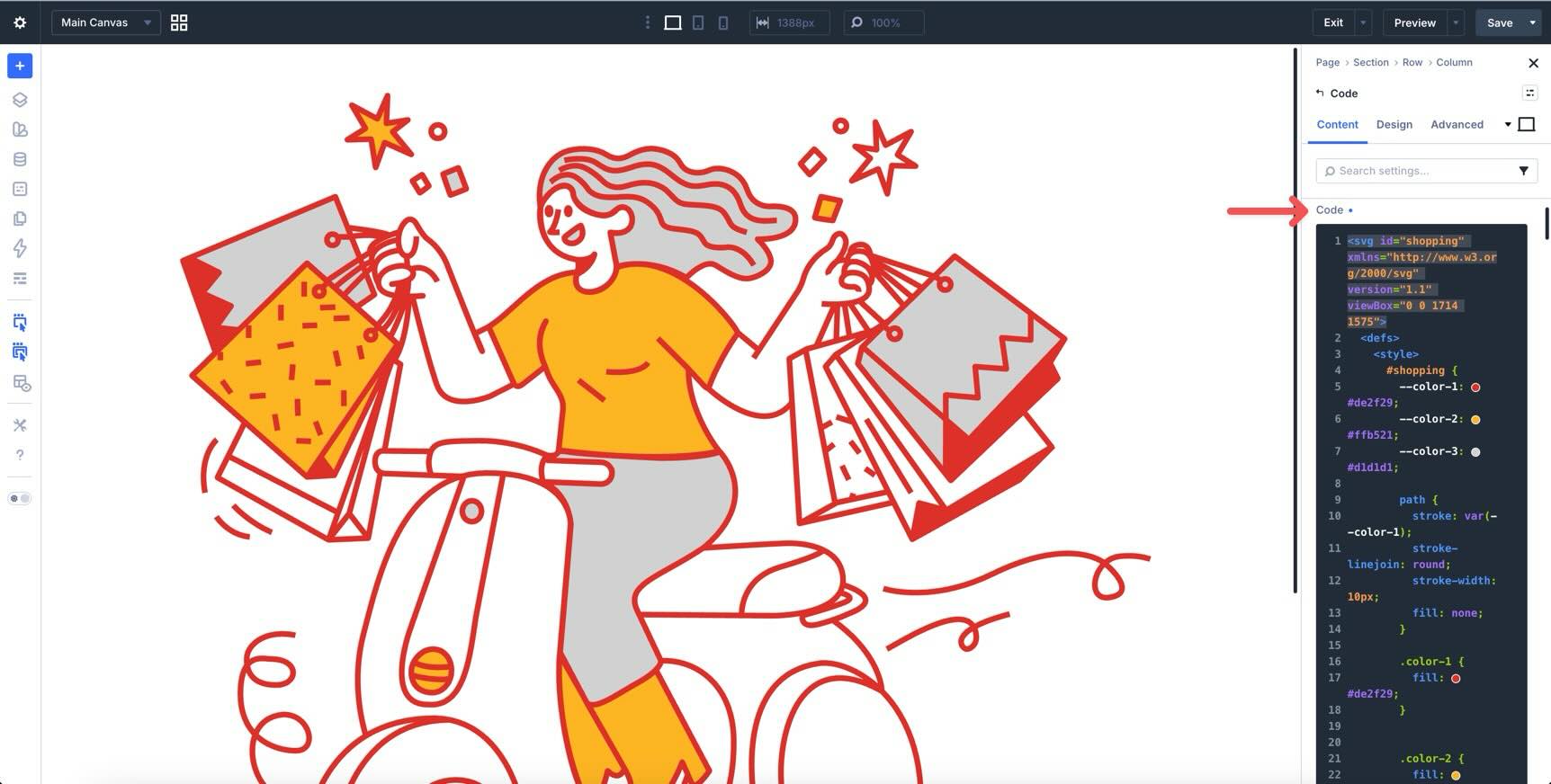
This fully styled SVG section features an illustrated graphic that works well for promotional content, product highlights, ecommerce messaging, or brand storytelling. The illustration has plenty of personality, thanks to the dynamic motion lines, floating stars, and sense of fun movement. It uses a vibrant red stroke with smart color fills controlled through simple CSS, making it super easy to match your brand colors.

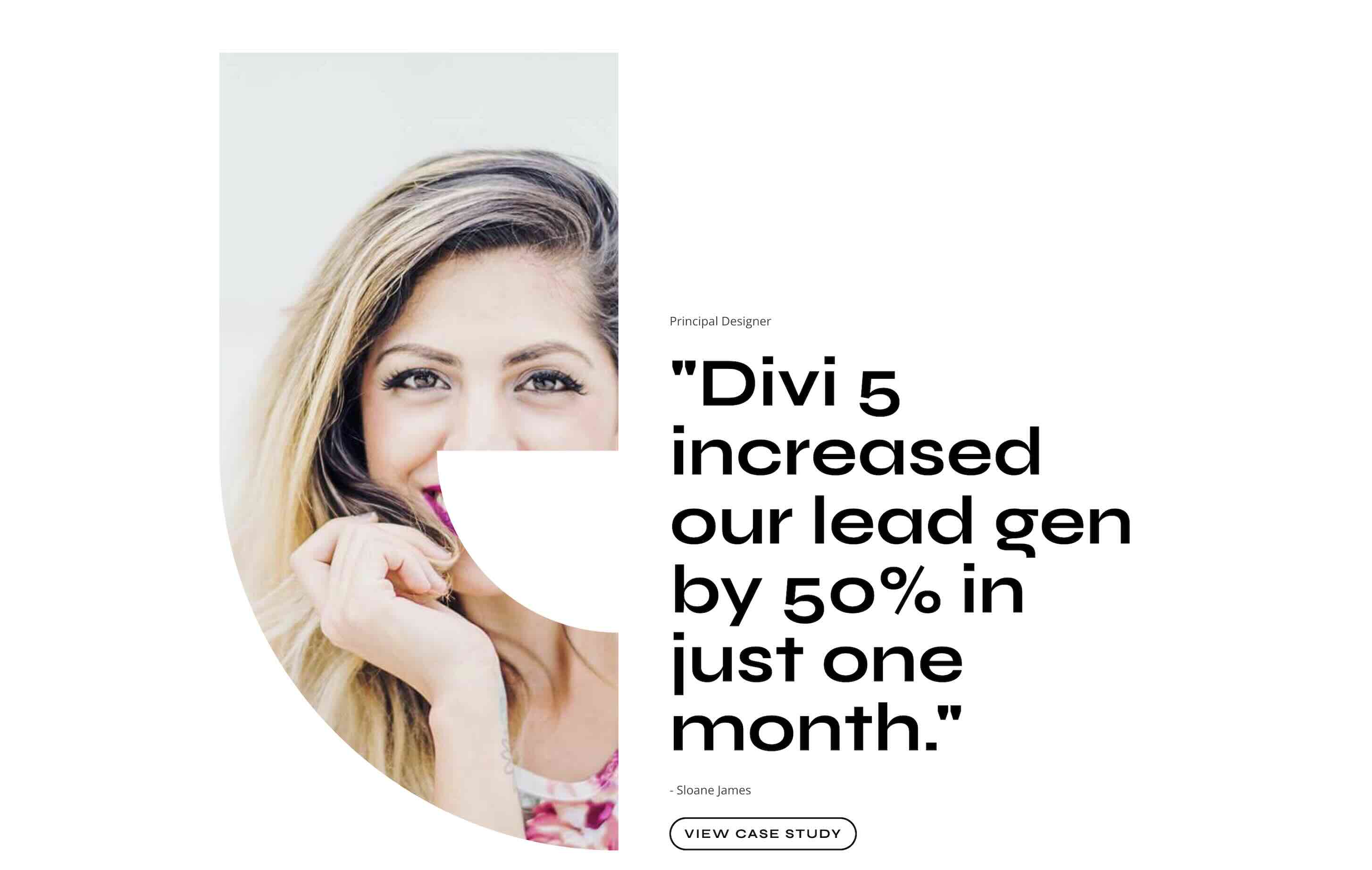
Styled – SVG Section 3
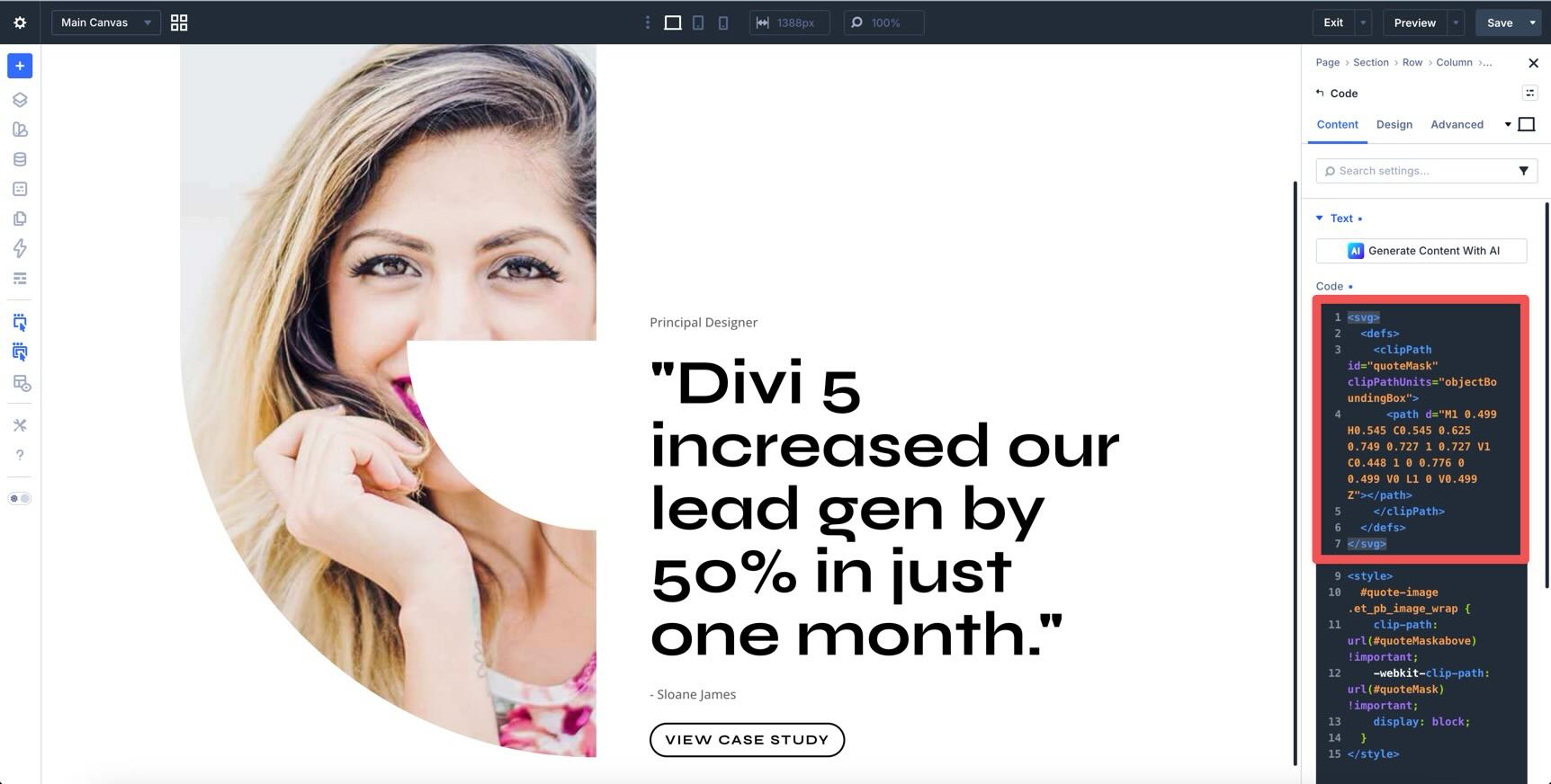
This section is a fully styled testimonial-style section that uses a visual mask effect to frame content more dynamically. It uses an Image module with a nested element to create a clip-mask effect using SVG code. It shapes the background photo in a unique, organic, asymmetrical form, gently curved on one side for a modern, flowing look. The combination of a clipped image and bold text creates a standout framed effect that feels artistic, rather than a plain rectangular box. It’s lightweight, fully responsive, and easy to customize.
Styled – SVG Section 4
This layout is perfect for testimonials, team highlights, social proof, customer status, or community-focused content. It uses a set of three bold, playful SVG shapes, each designed to frame circular profile photos with personality. Available in vibrant colors and bold strokes, they add energetic visual interest around headshots. The simple, scalable SVG paths make them lightweight, fully responsive, and easy to recolor or animate, helping your team or customer profiles feel fun instead of ordinary.

Styled – SVG Section 5
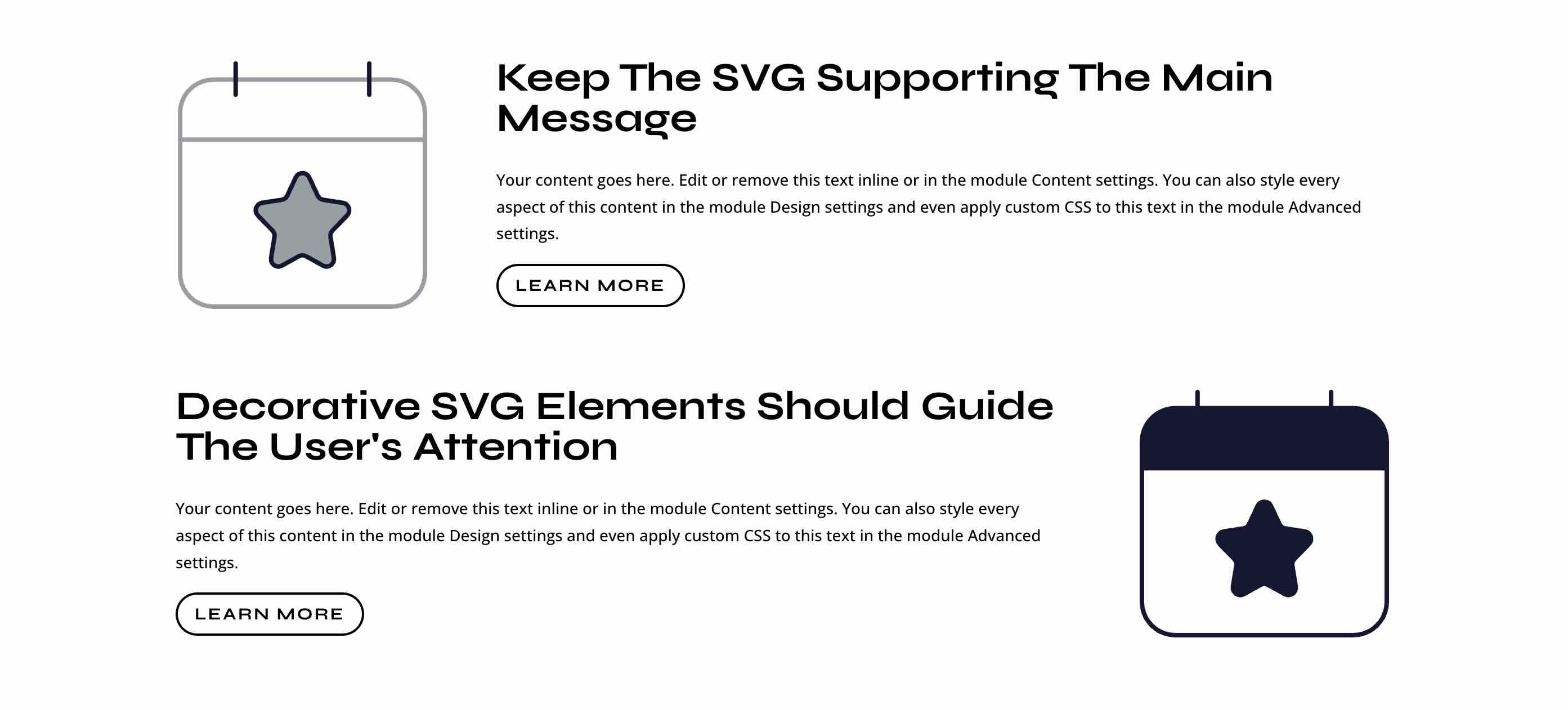
This section uses compact icon-style elements for ratings, reviews, feature highlights, or small supporting visuals. What makes this one unique is its bold, calendar-style icons that use clean, thick strokes and smart CSS custom properties for primary and secondary colors, giving you multiple color variations right out of the box. Thanks to vector-effect: non-scaling stroke in the code, the lines stay crisp and consistent no matter how small or large you make the icon. It’s lightweight, fully responsive, and super easy to colorize.

Styled – SVG Sections (All) → Imports all 5 designs into your Divi Library at once.
How To Use The SVG Sections
Keep your download folder handy. We’ll import the files, add a section to a page, and then update the content and SVG styling as needed.
1. Import Sections Into The Divi Library
Go to Divi → Divi Library. Click Import & Export at the top of the screen.
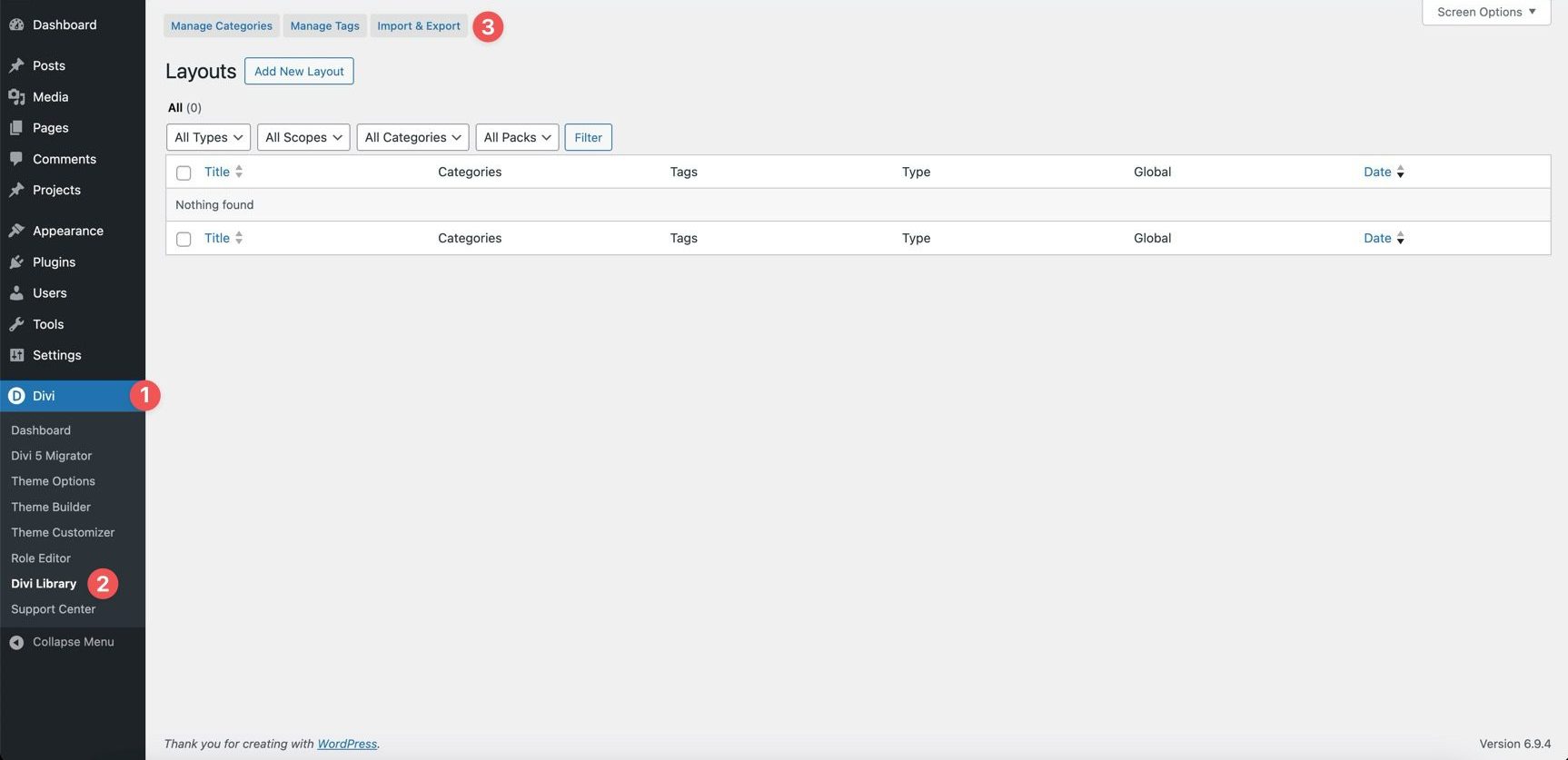
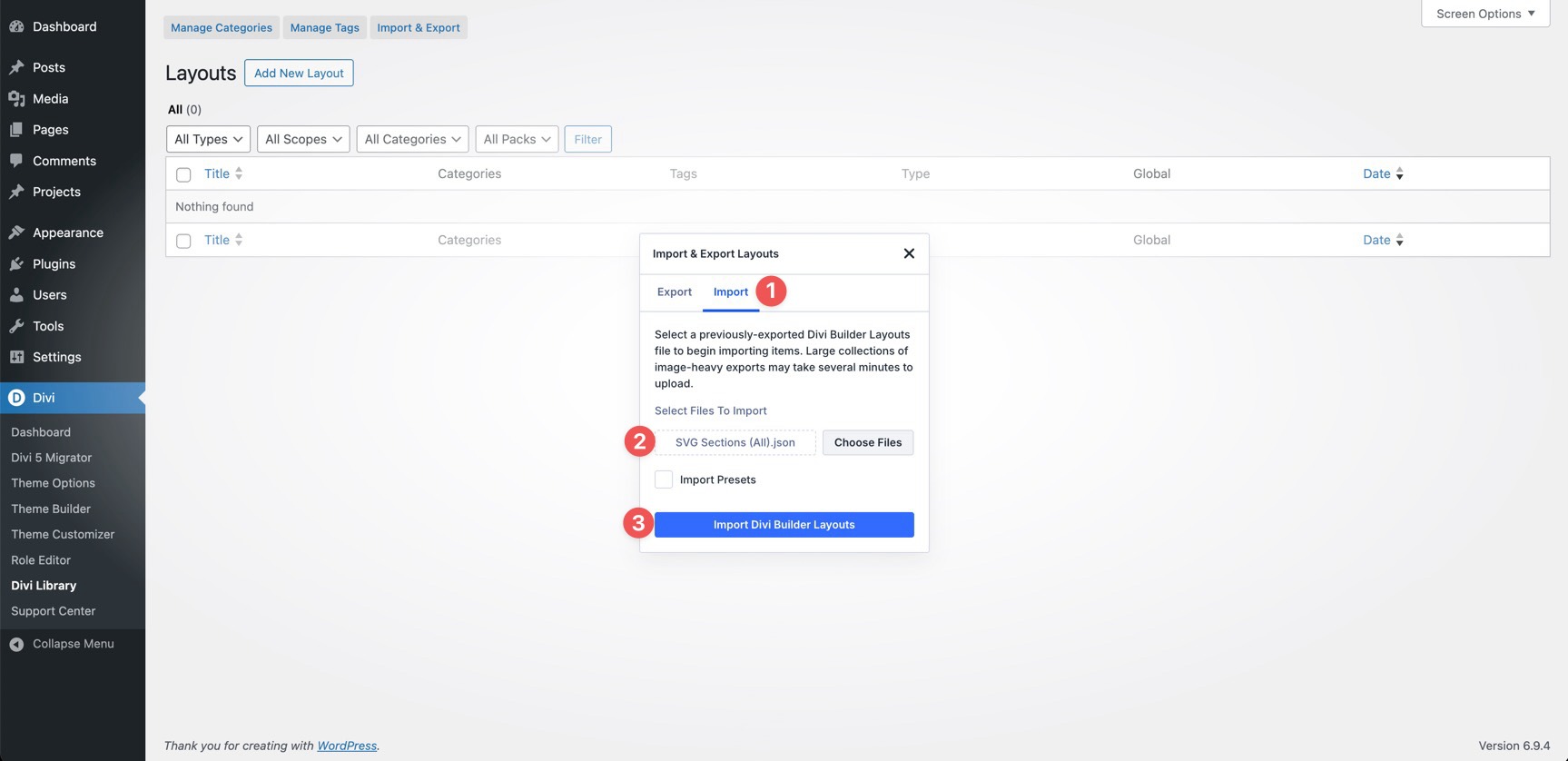
In the Import & Export Layouts modal, switch to the Import tab, then click Choose File and select your JSON file. Choose any SVG Section JSON you’d like to use, then click Import Divi Builder Layouts.
2. Add An SVG Section To Any Page
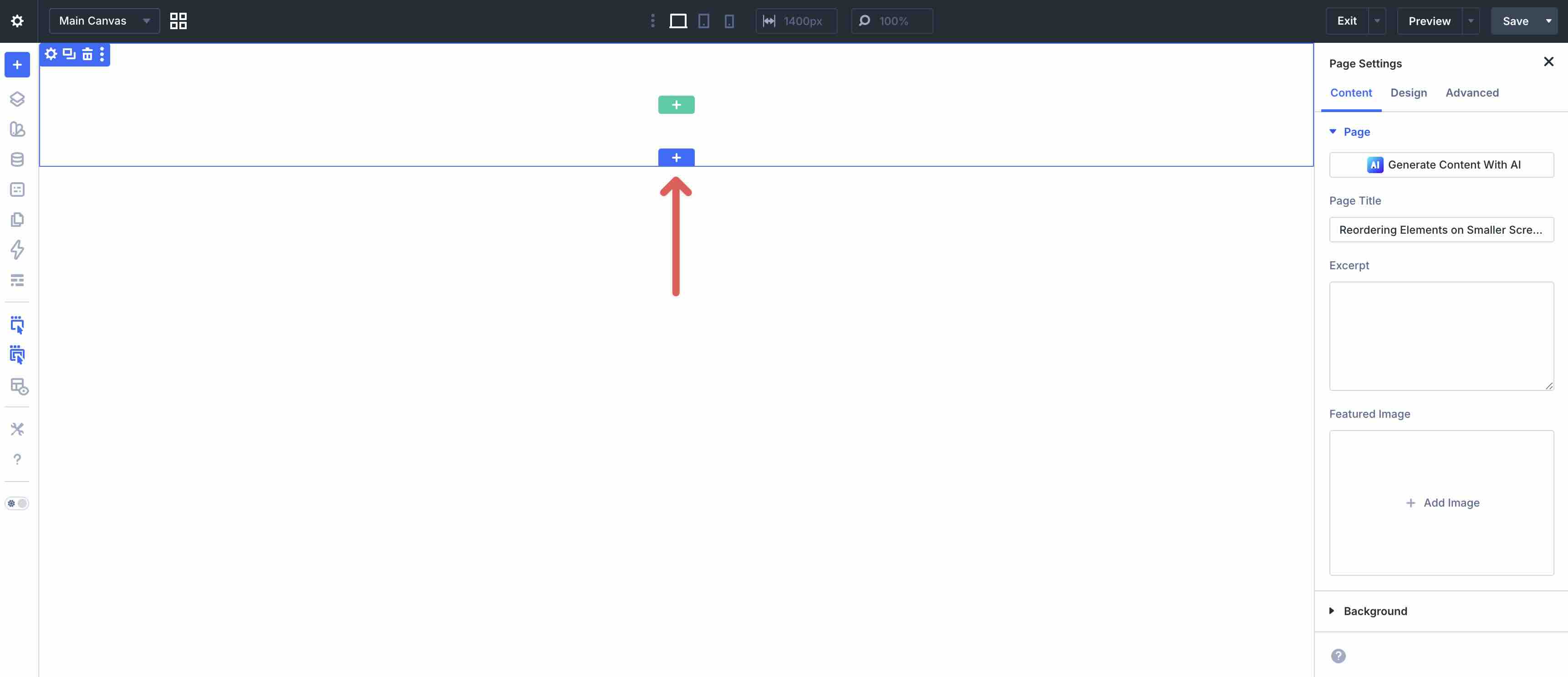
Open a page in the Visual Builder and add a new Section.
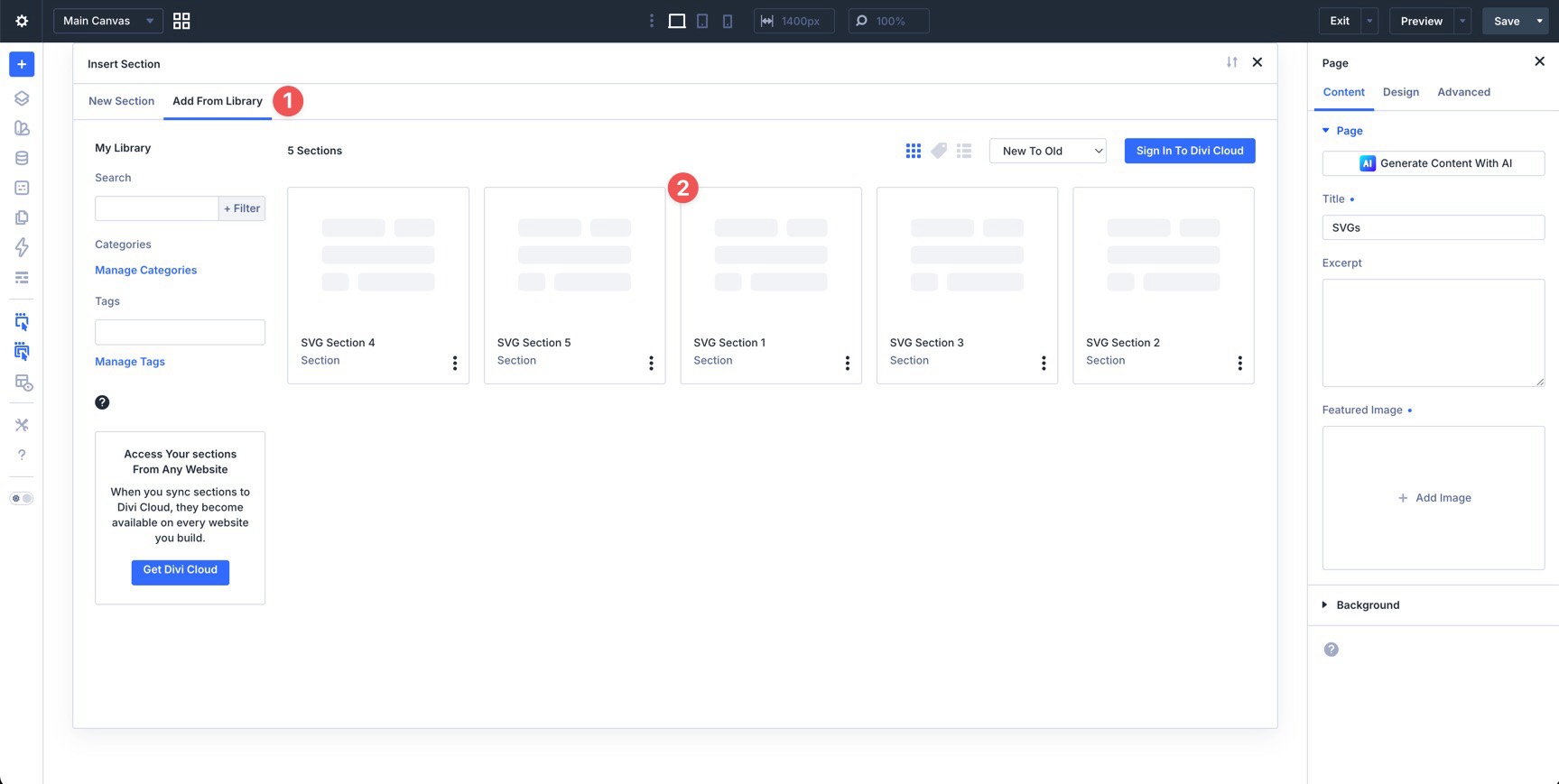
Click Add From Library and select one of your SVG sections.
3. Update The Content
Once the section is on the page, replace the placeholder content. Update the headings, body text, captions, buttons, images, testimonials, names, ratings, icons, and supporting copy so the section aligns with your website.
Because these designs use SVG elements as part of the visual structure, it’s best to update the regular content first before editing the SVG markup. This helps you see how the section reads with your real copy in place.
4. Edit The SVG Code Carefully
All of the SVG artwork in these sections is added through Code Modules. To customize those visuals, open the relevant Code module and inspect the SVG markup.
Common SVG edits include changing fill colors, stroke colors, stroke widths, opacity values, gradients, shape colors, and other inline SVG attributes. Make small edits and preview the section after each change to quickly catch any missing tags or broken markup.
For example, to change colors in Section 1, look for the hex code values immediately after the opening style tag.
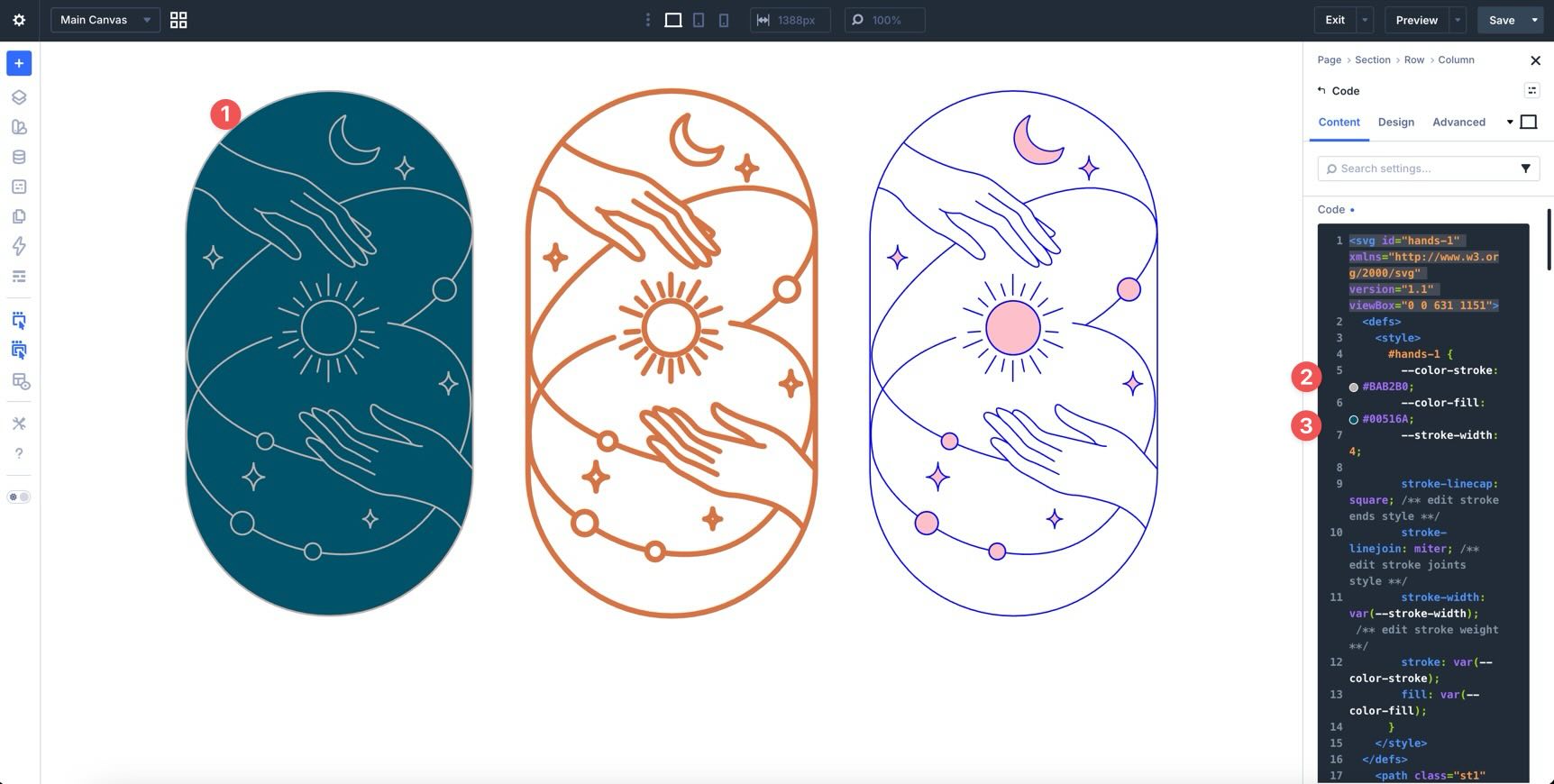
Replace the color-stroke and color-fill values with new hex values. Divi will update the colors in real time, letting you view changes as you work.
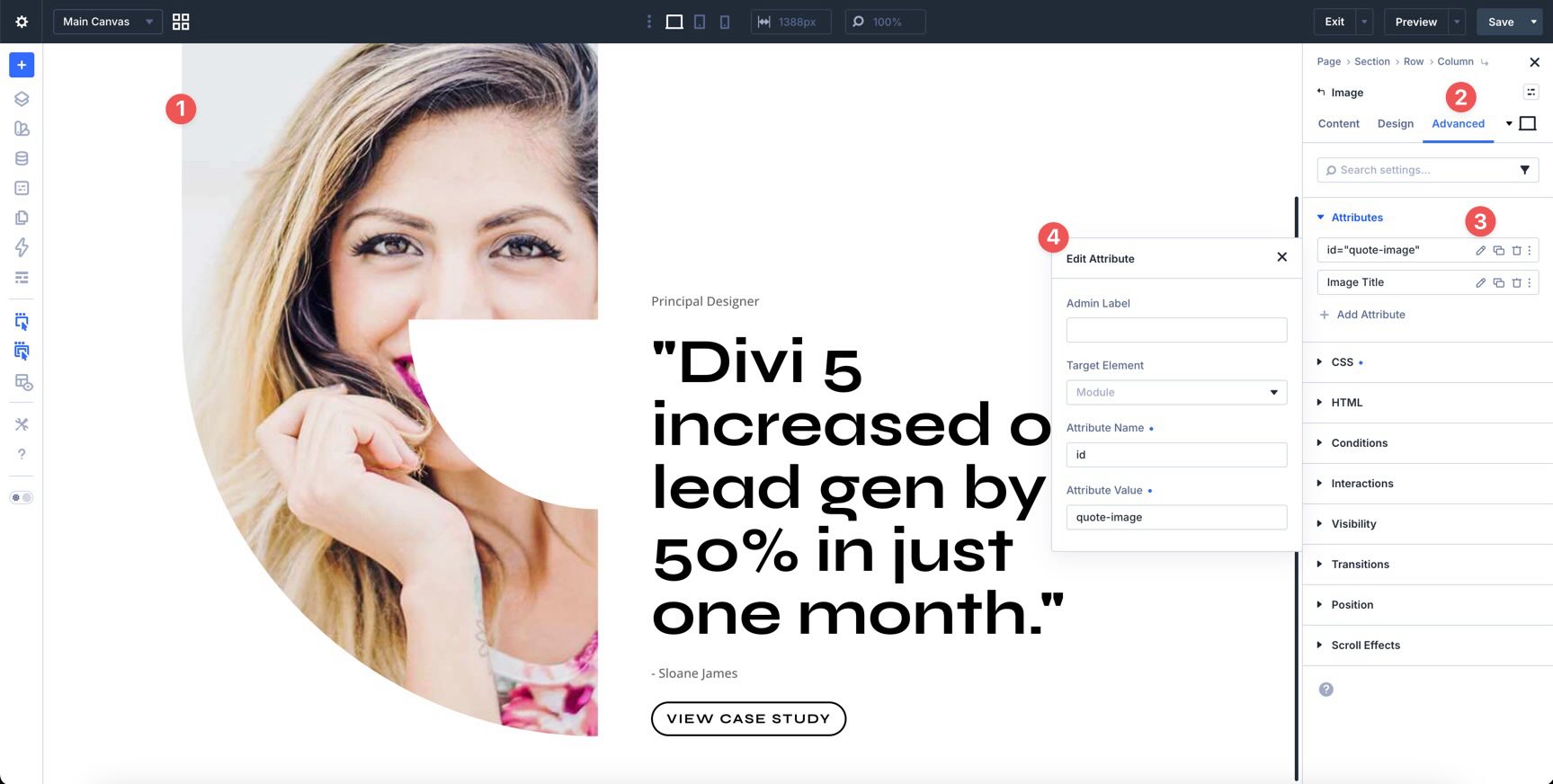
If you are editing the quote mask section, note that the mask effect is handled differently. It uses an Image Module with a nested SVG element that defines the clip path.
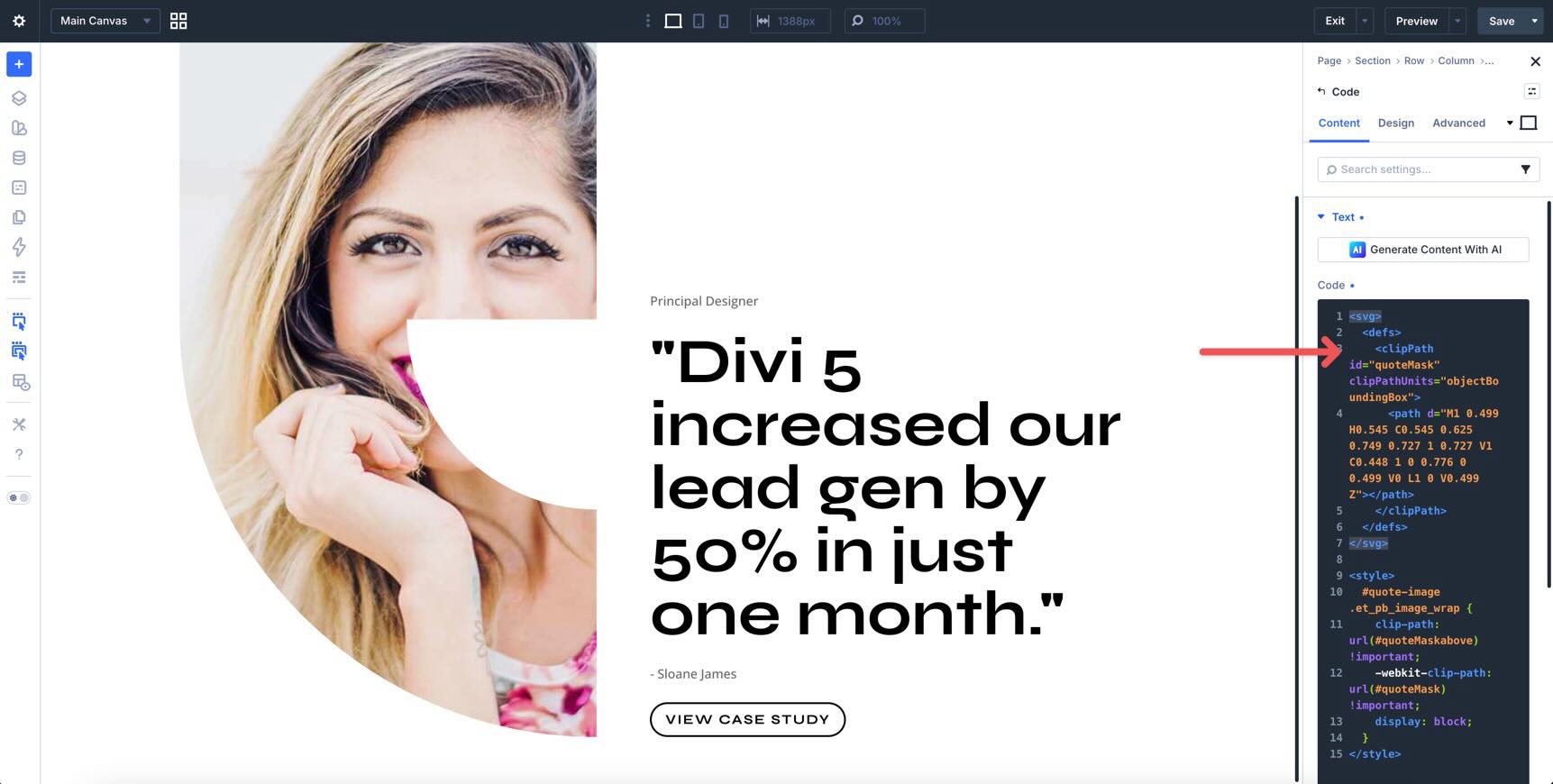
When customizing that section, be careful not to remove the SVG element or change the clip path ID (located in Advanced tab > Attributes) unless you also update every place where that ID is referenced.
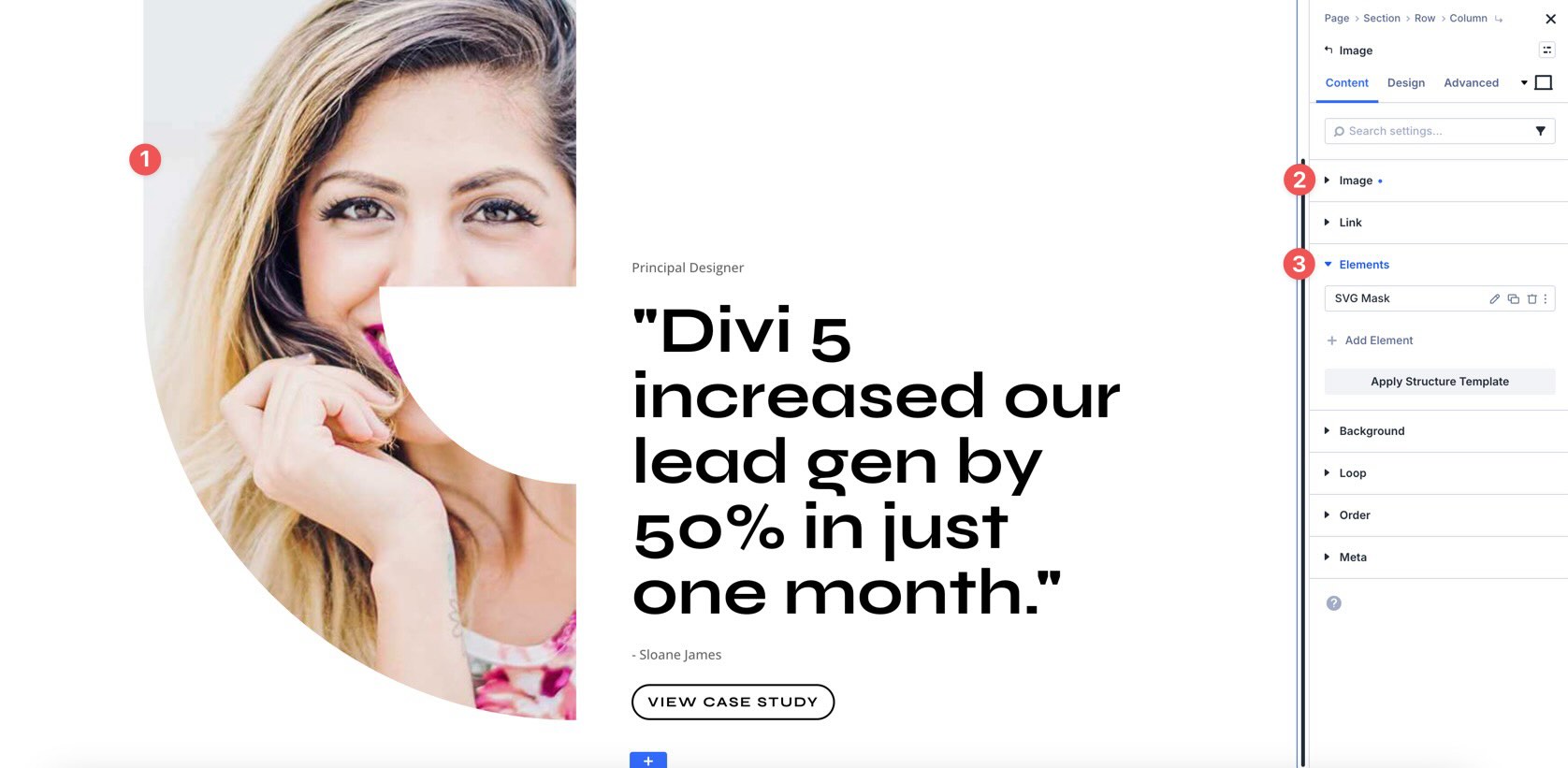
To locate the SVG in Section 3, open the Image module, expand the Elements option group, and click the edit icon of the nested Code module.
5. Adjust Styles In Divi
These SVG sections are already styled, so you can use them right away or refine them to better match your site. Update typography, colors, spacing, backgrounds, borders, shadows, sizing, and responsive settings using Divi’s Design tab.
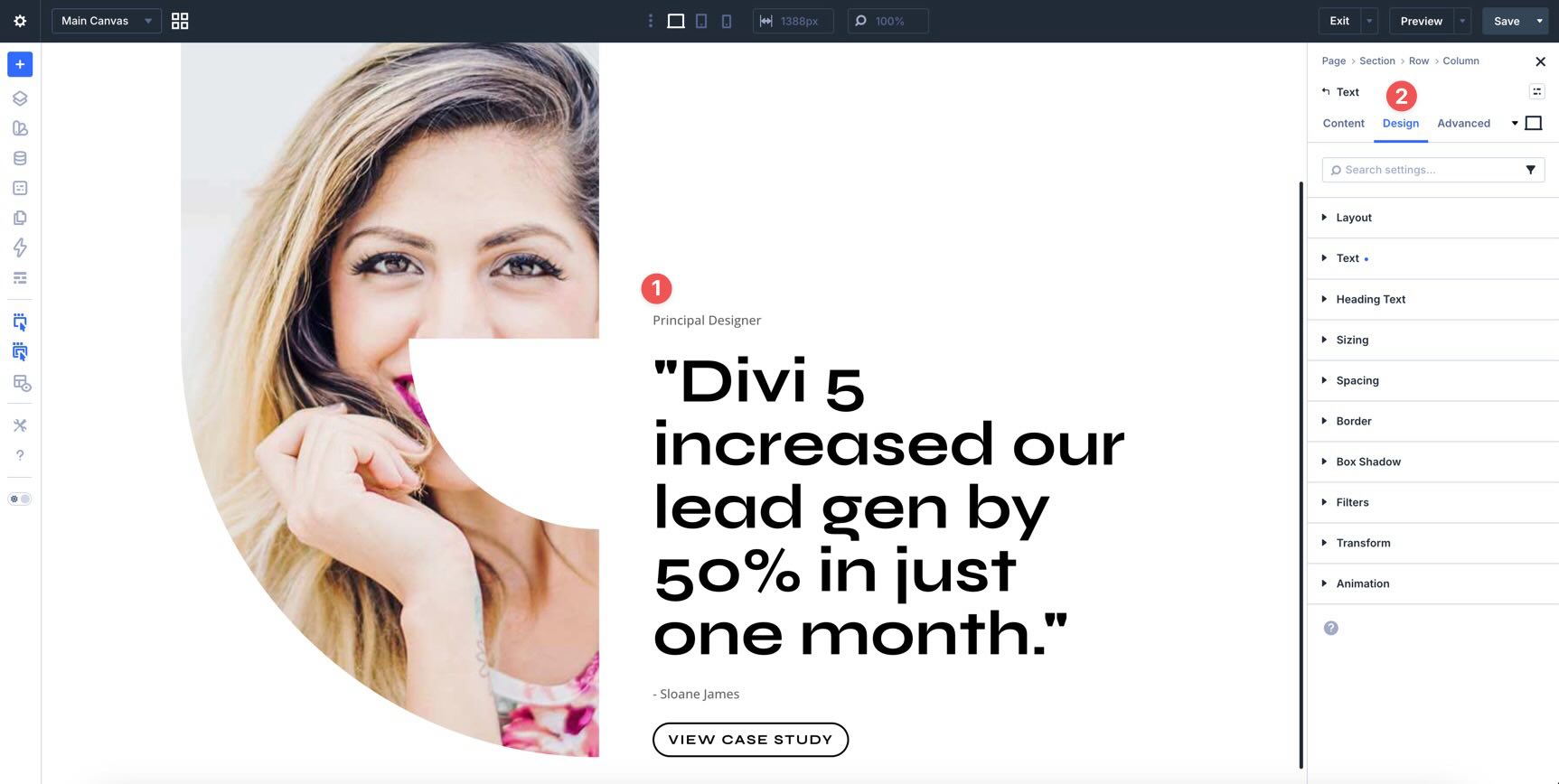
To change typography, open any Text or Heading module and go to the Design tab. Expand the relevant text settings to adjust Font, Font Weight, Text Alignment, Text Color, and more.
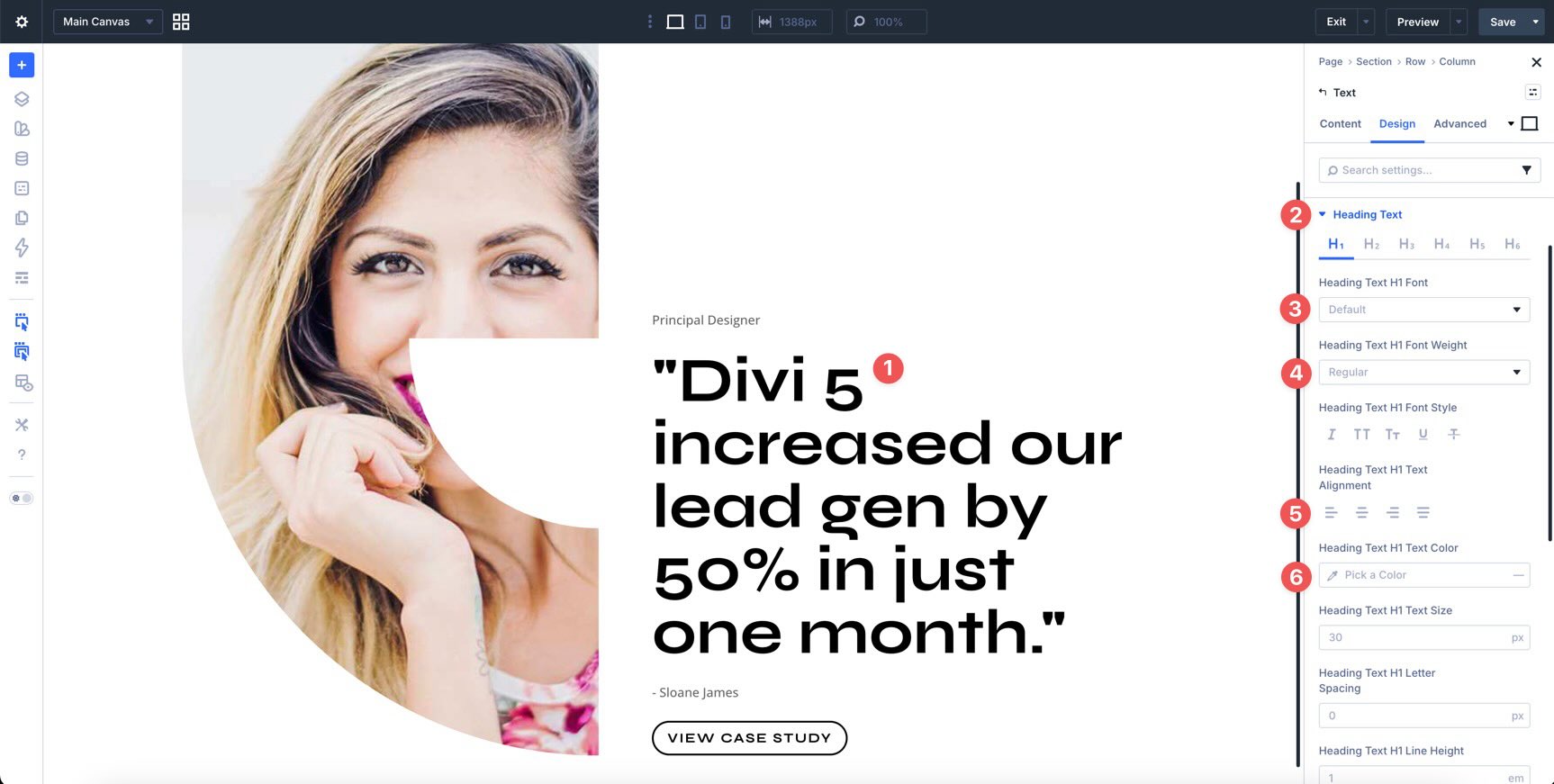
To refine the surrounding section layout, open the section, row, column, group, or module you want to adjust and use the Design tab to tweak Border, Box Shadow, Sizing, and Spacing.
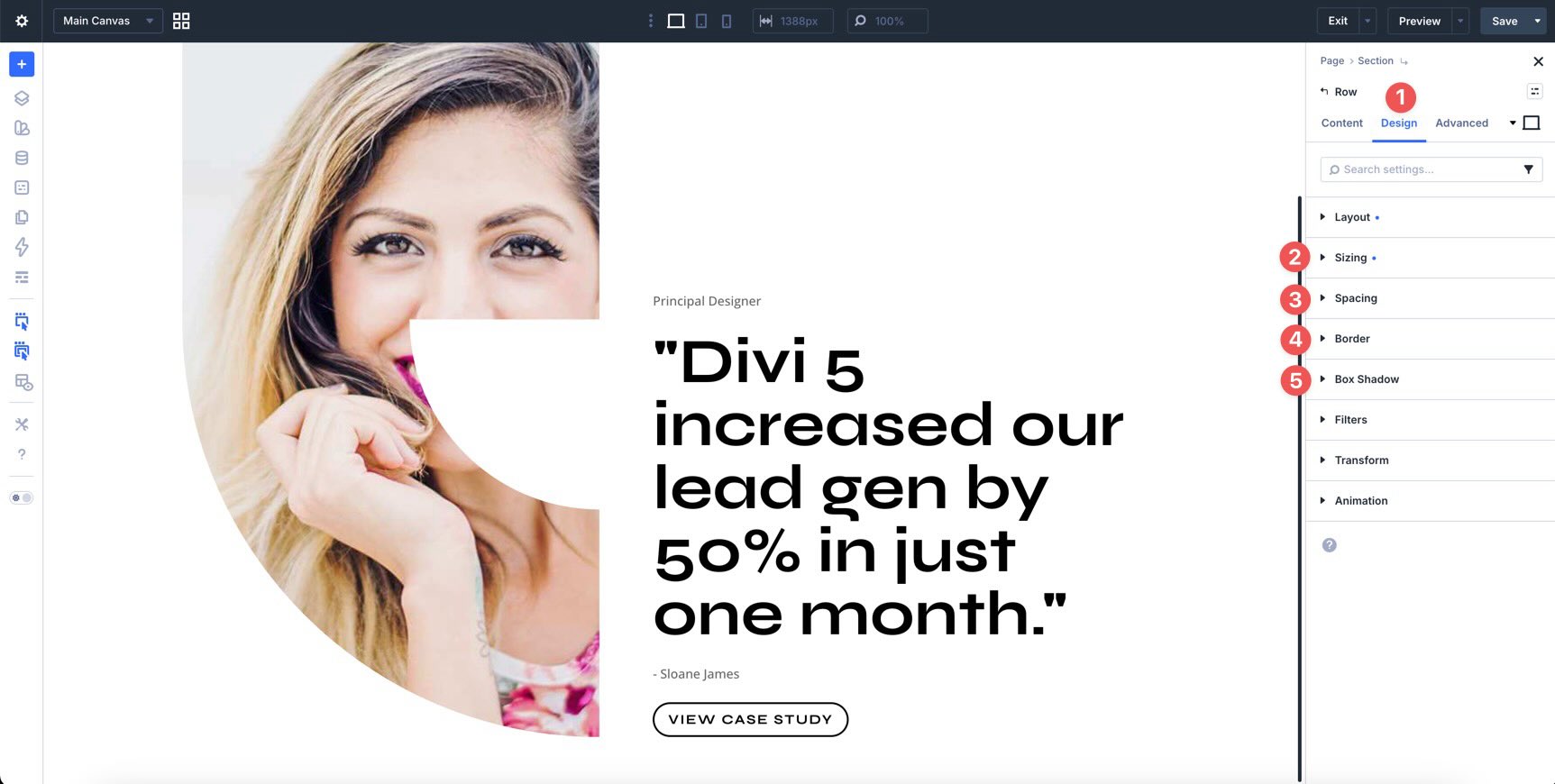
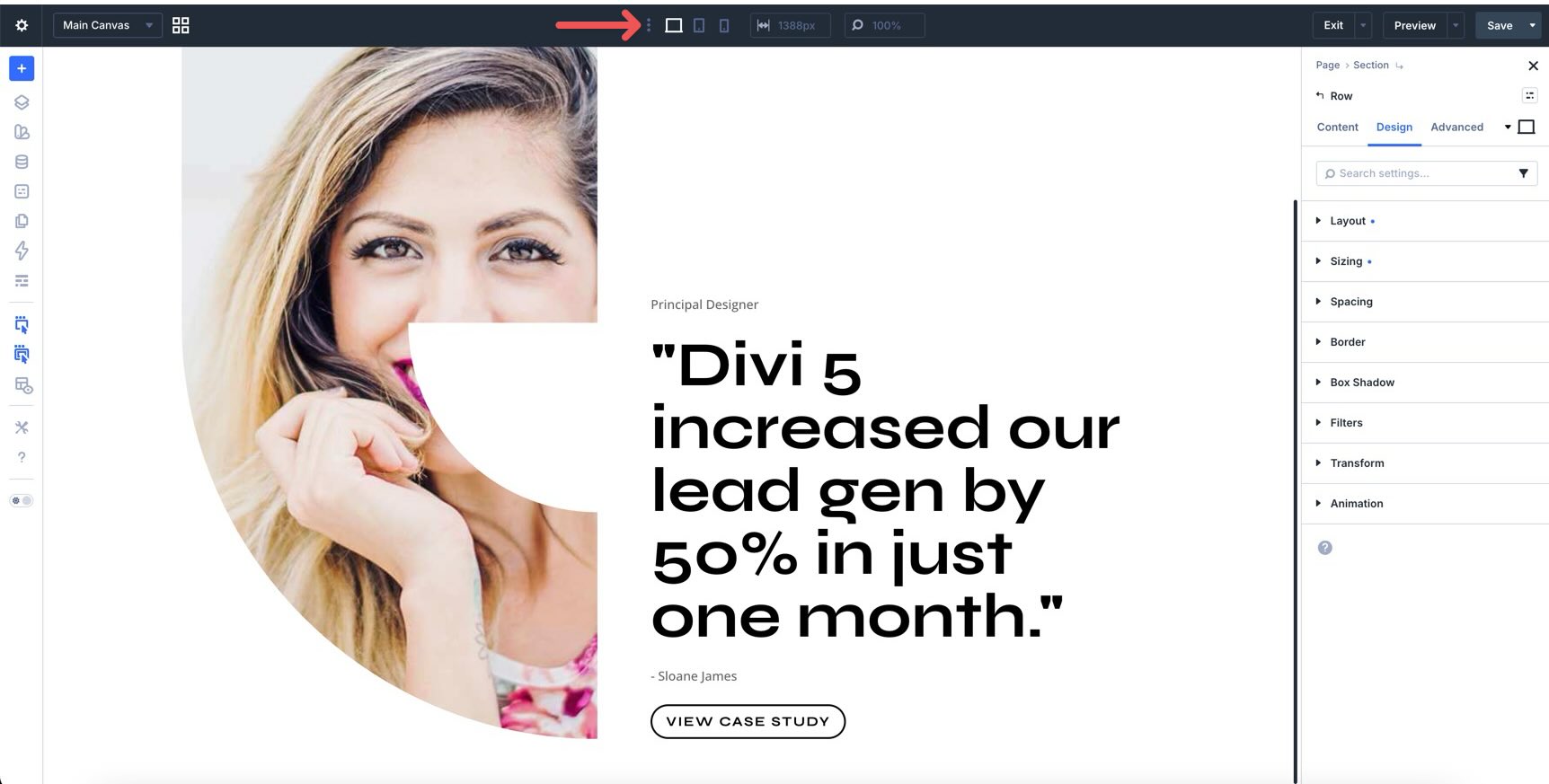
Use Divi’s responsive editing tools to fine-tune spacing, stacking, image size, SVG scale, text alignment, and button placement on smaller screens.
Tips For Using SVG Sections Effectively
SVG sections work best when the visuals support the message rather than distract from it. Use these quick tips to keep your sections polished, flexible, and easy to customize.
Keep The SVG Supporting The Main Message
Decorative SVG elements should guide attention toward the section’s content. Use headings, short copy, and clear calls to action to make the design feel intentional.
Use Consistent Colors
SVGs can include multiple fills, strokes, gradients, and opacity values. Keep your palette focused so the section matches your brand and remains easy to scan.

Edit SVG Code In Small Steps
When working inside a Code Module, make small changes and preview often. A missing bracket, a changed ID, or a missing closing tag can affect how the SVG displays.
Preserve Masks, Clip Paths, And IDs
Some SVG effects depend on internal IDs, masks, or clip paths. If you edit those values, make sure all related references are updated too. This is especially important for the Quote SVG mask section.
Check The Layout On Mobile
SVG visuals can scale beautifully, but spacing and stacking still matter. Review each section across tablet and phone views to ensure the SVG artwork, text, buttons, images, and supporting elements remain balanced.
Start Building In Divi 5 Today!
These 5 SVG Sections give you a fast way to add crisp, scalable visuals to landing pages, service pages, product pages, testimonial sections, promotional layouts, and more. Import the layouts, update the content, customize the SVG styling where needed, and use Divi 5‘s Visual Builder to refine each section for your website.













Hi, Donjete Vuniqi
WordPress doesn’t support SVG, and despite trying various code snippets found online, it’s not working.
Using your SVG sections won’t be possible.
I might be the only one having this problem.
Thanks
A lot of mime type code snippets only work for an Admin user — not sure if that is something you are running into. There are also some plugins that handle this, they might be a bit more reliable for you. You should be able to disable the plugin when you are done uploading your SVGs. As you mentioned, this is a security choice on the WordPress side of things.