

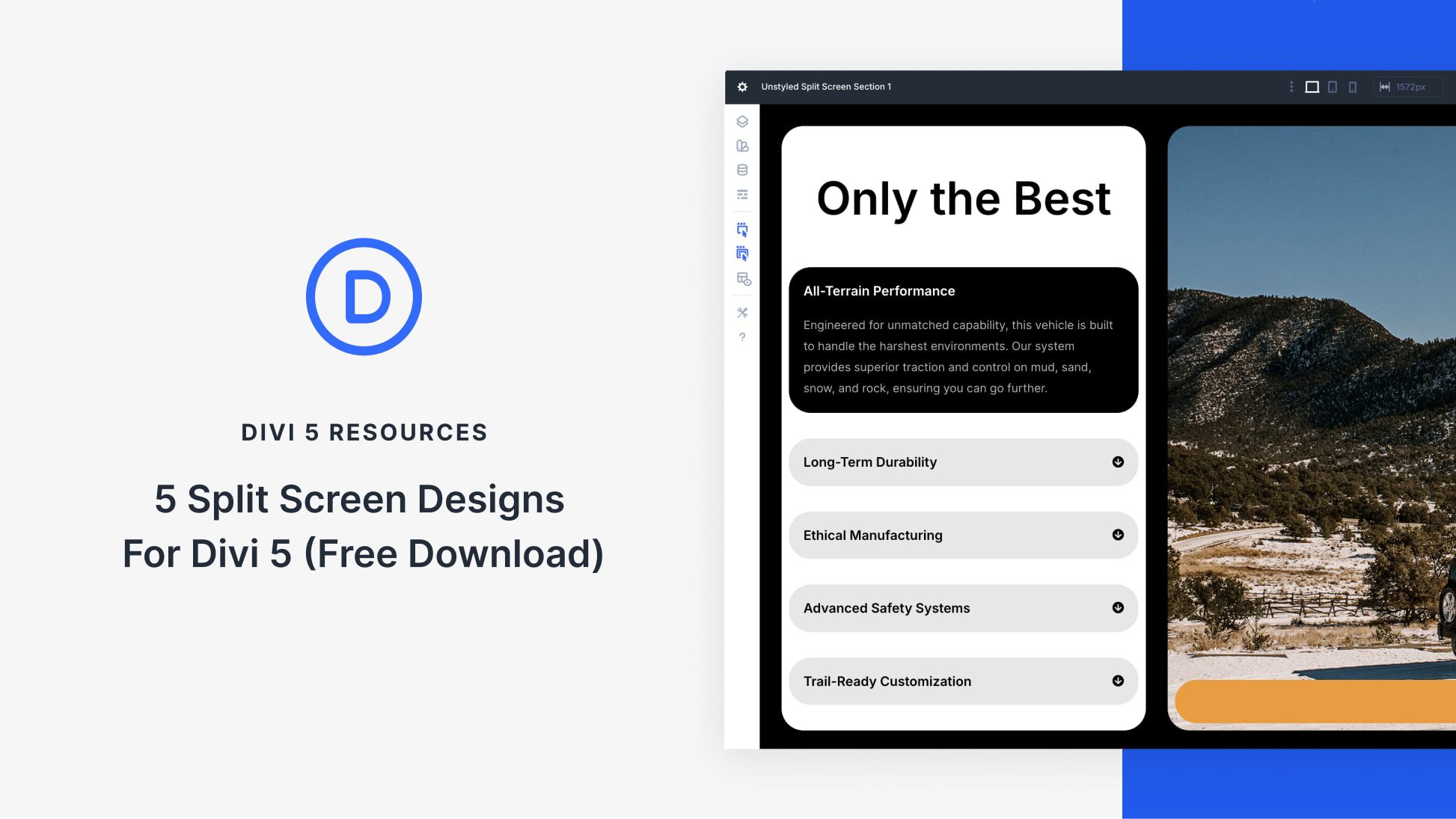
Divi 5 makes it easy to build split screen layouts that feel modern, clear, and professional. In this free pack, you will get 5 Split Screen Sections, each designed to pair content and imagery side by side for immediate visual impact. Drop one onto any page, swap the text and images, and you are ready to go. No extra setup required.
Preview
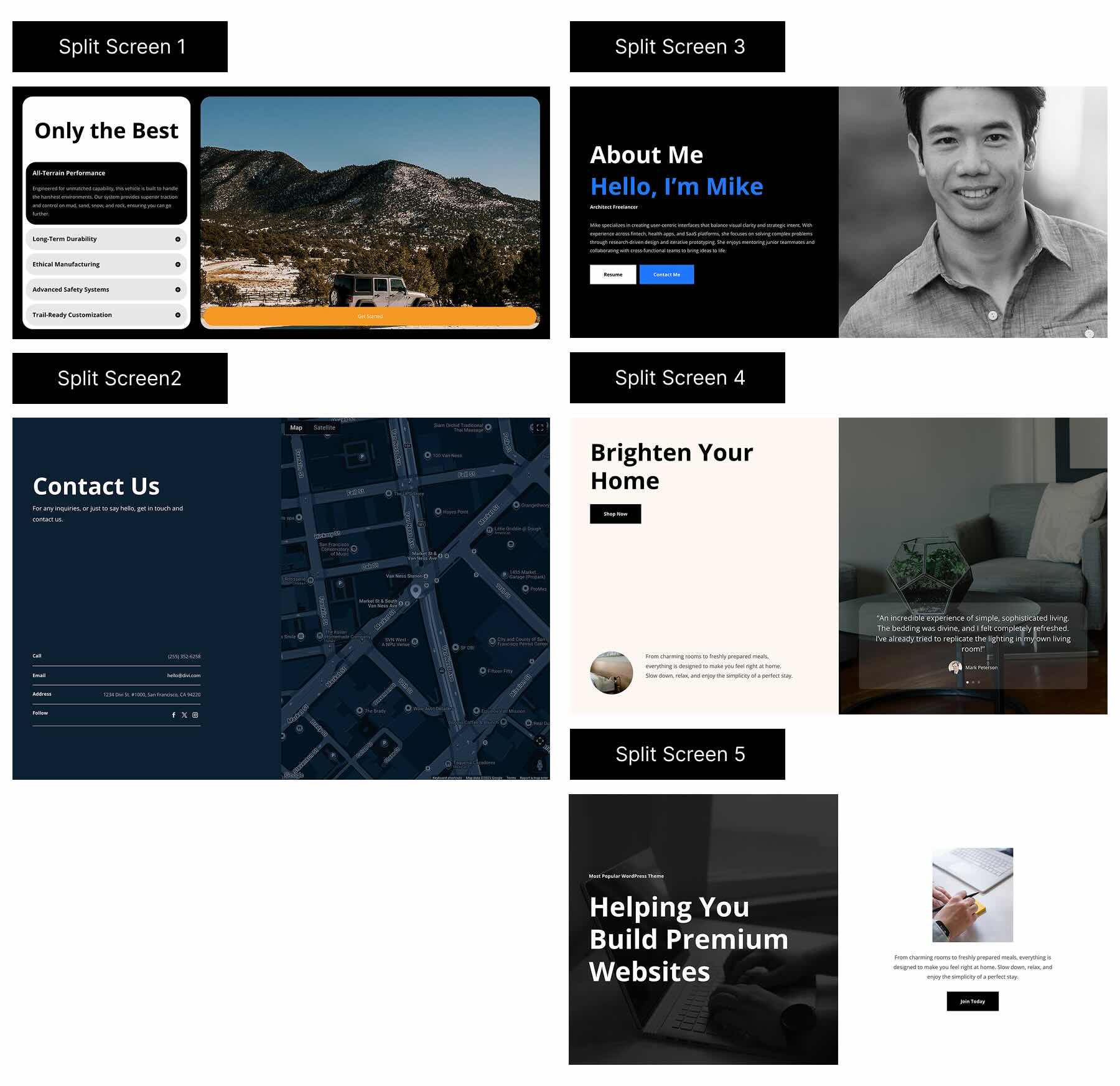
Here’s a quick look at all 5 Split Screen Sections included in the pack. The download is further down the post.
Download 5 Split Screen Designs For Divi 5
Get all 5 sections for free. Import them into your Divi Library and add them to any page in the Visual Builder.

What’s Included (6 Exports)
After you download and unzip the file, you’ll find 5 Split Screen Section exports, plus 1 file containing all designs.
Split Screen Section 1 to 5 (5) → Five unstyled split screen layouts that combine text, buttons, and imagery in a balanced two-column format for fast page building.
Split Screen Section (All) → Imports all designs to your Divi Library at once.

How To Use The Split Screen Sections
Keep your download folder handy. We’ll import, then add a section to a page.
1. Import Sections Into The Divi Library
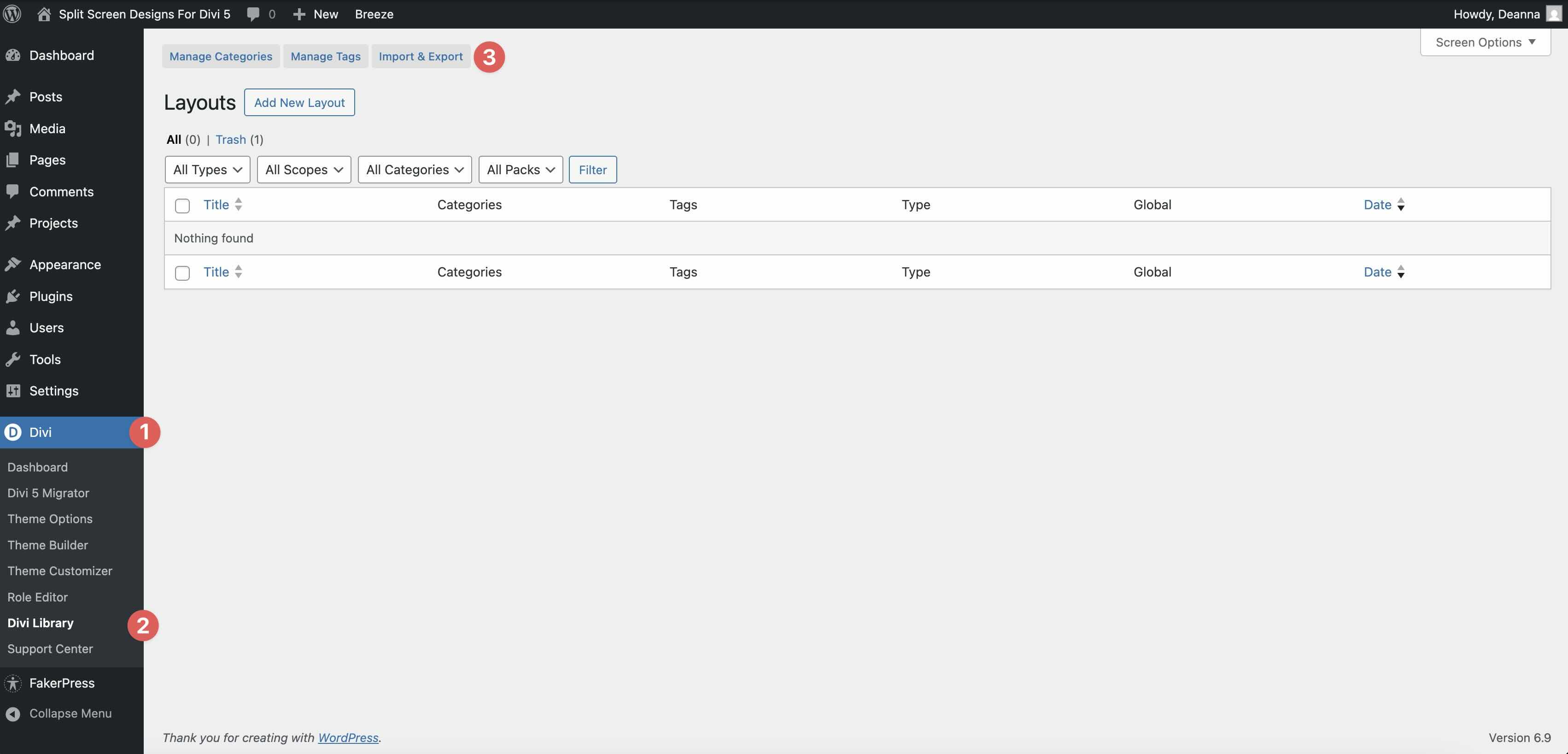
Go to Divi → Divi Library. Click Import & Export at the top of your screen.
In the Import & Export Layouts modal, switch to the Import tab, then click Choose File and select your JSON.
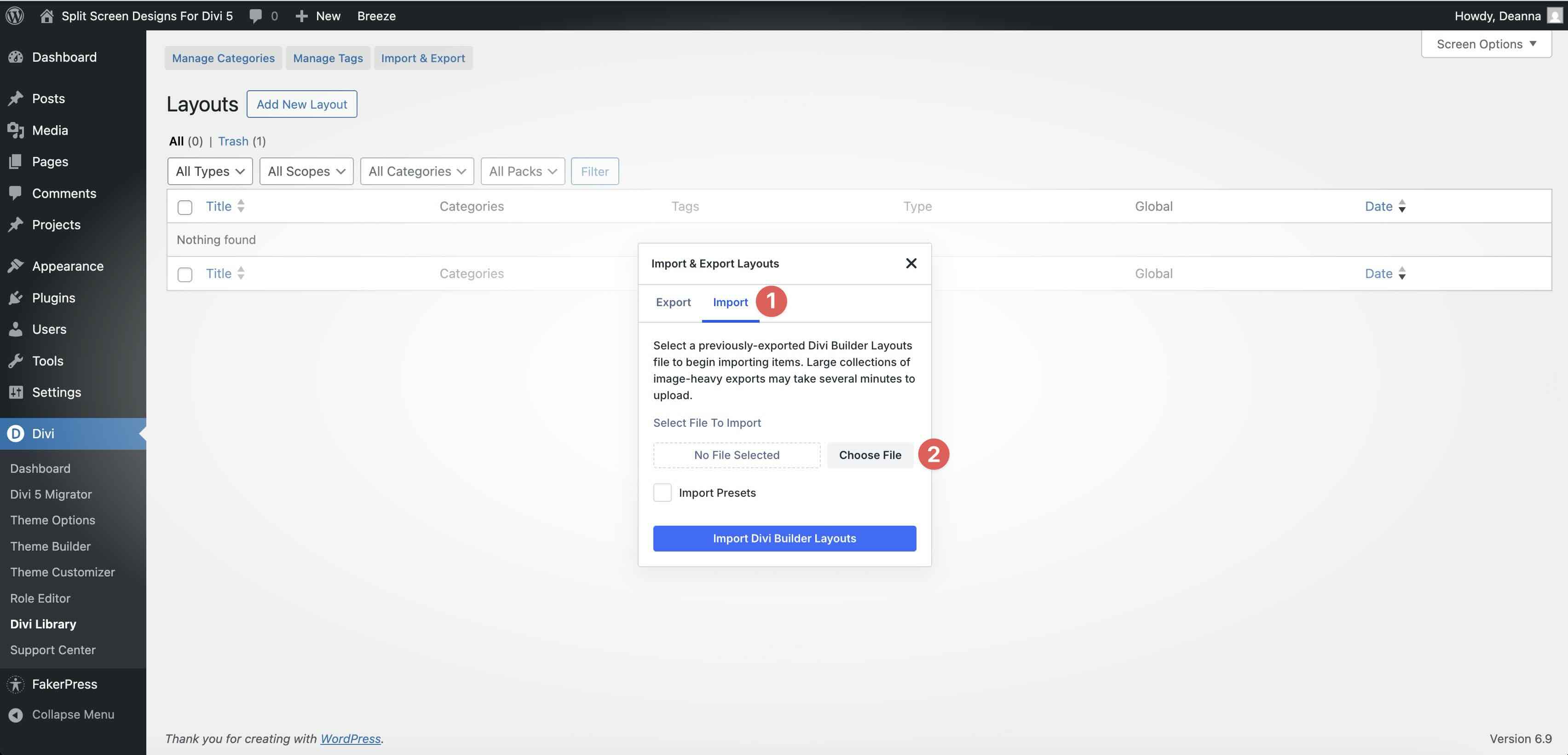
Choose any Split Screen layout JSON you want to use, then click Import Divi Builder Layouts.
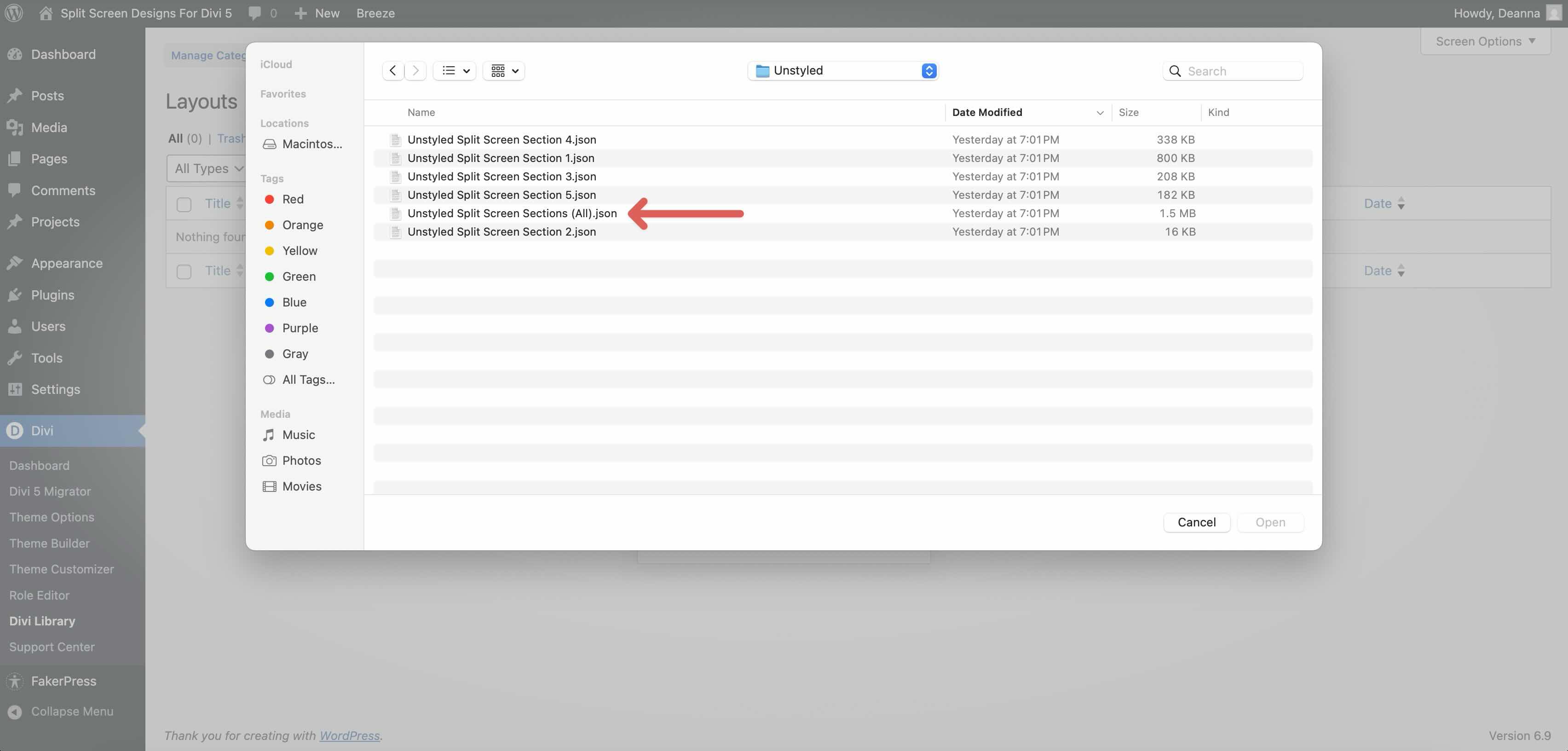
2. Add A Split Screen Section To Any Page
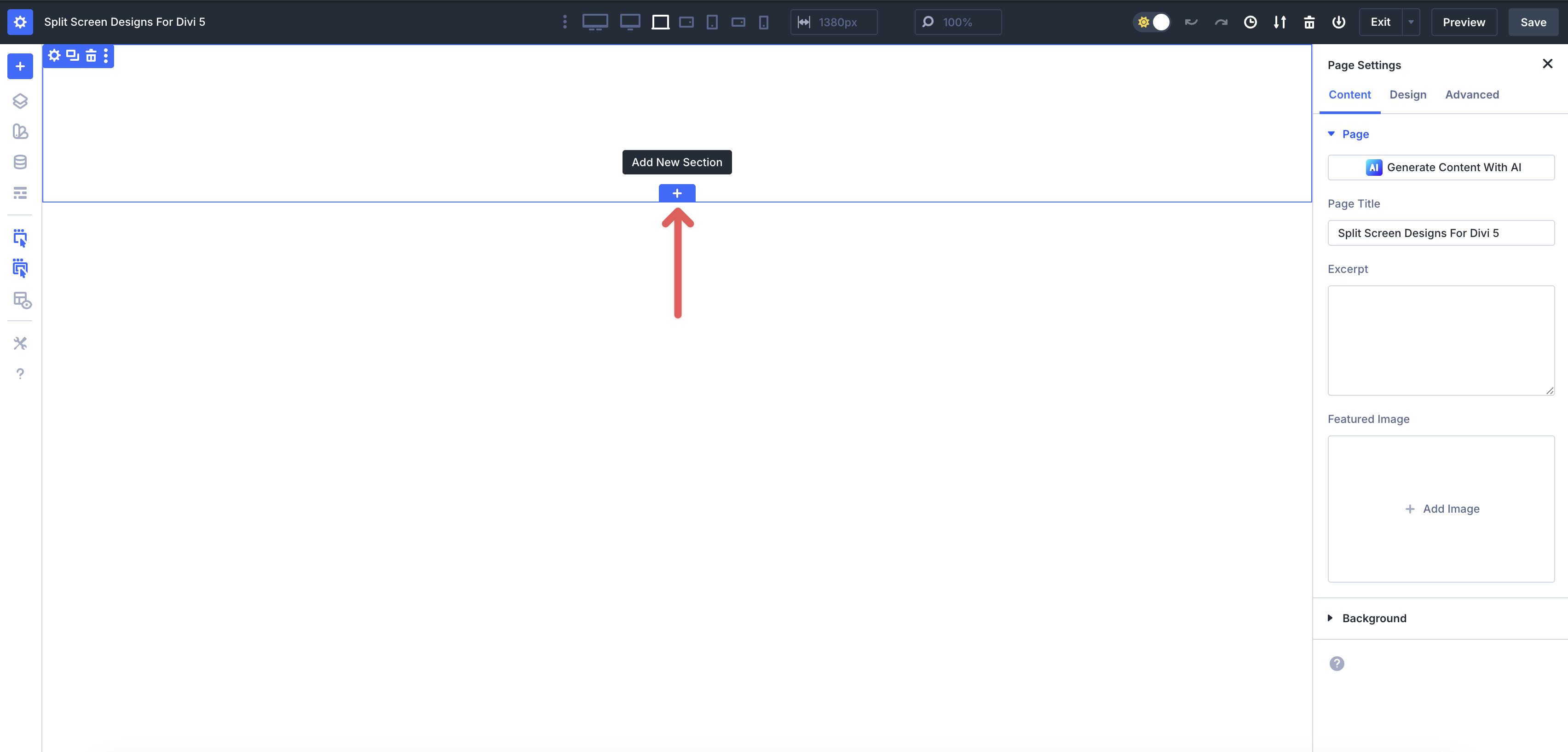
Open a page in the Visual Builder and add a new Section.
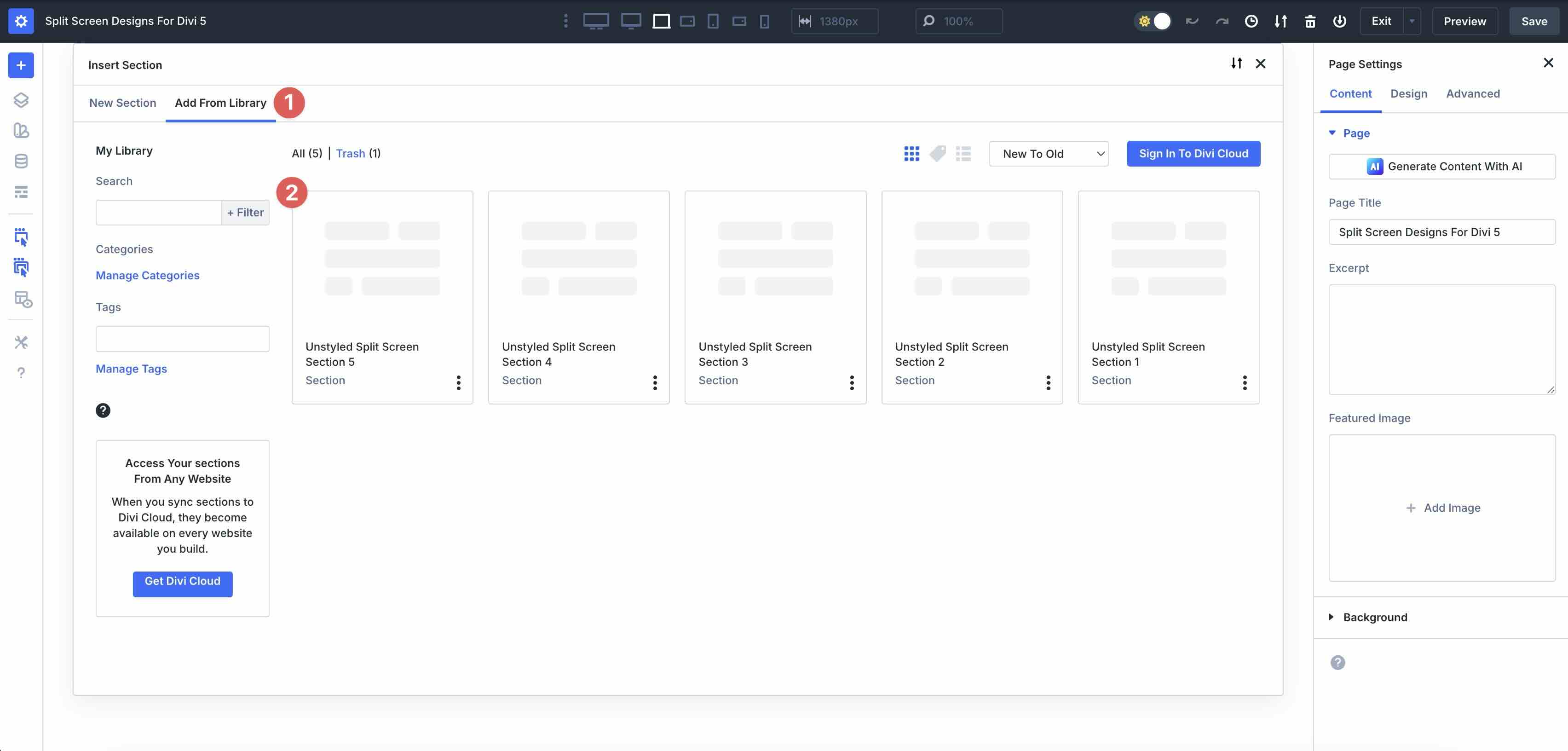
In the Insert Section modal, click Add From Library and select a Split Screen layout.
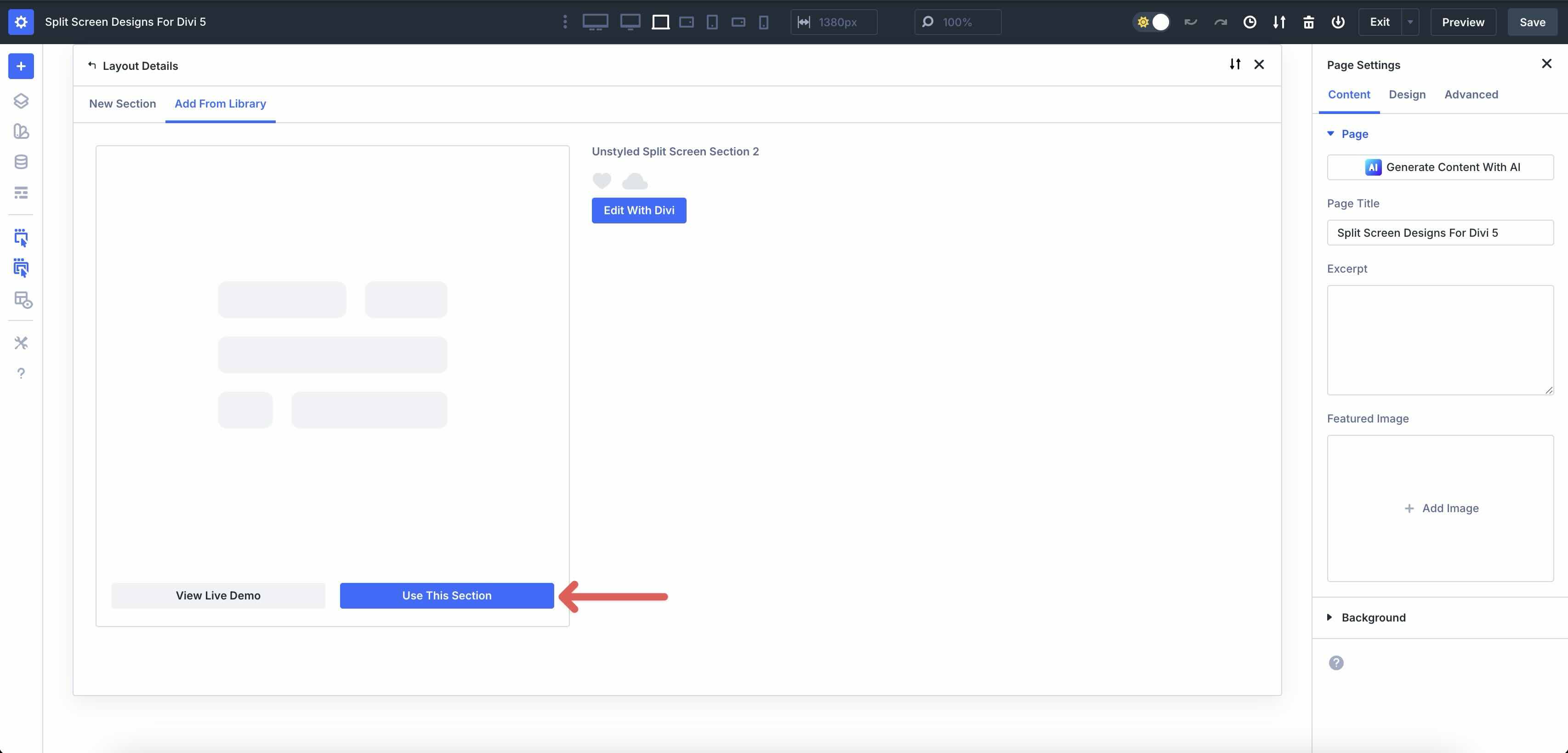
Finally, click Use This Section.
3. Swap The Content
Once the Section is on the page, replacing the placeholder content takes just a few clicks. Click directly on any module with text to edit the heading, subheading, body text, or button text in real time.
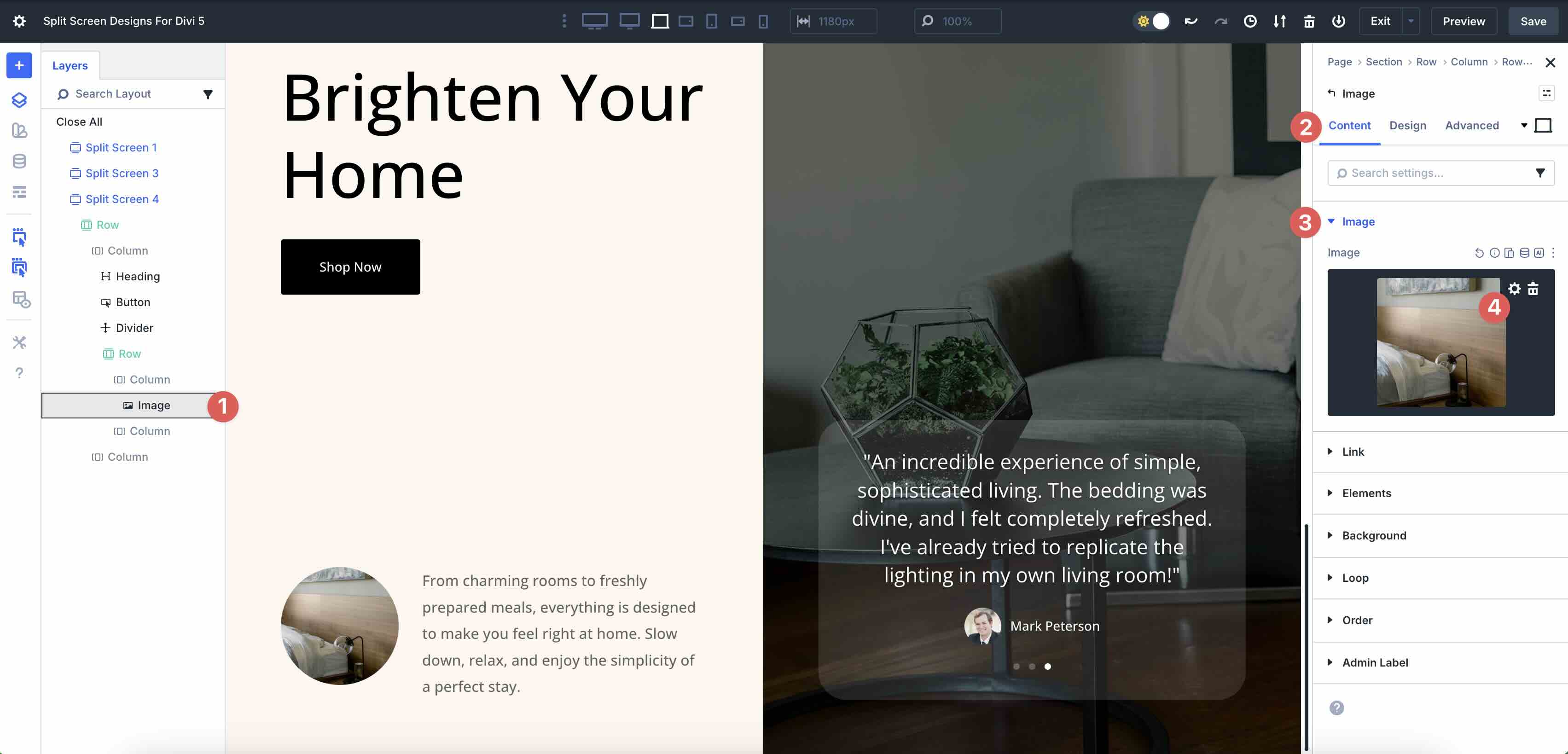
To replace images, open the Image settings by navigating to the Content tab of that module. Click Image → Upload or choose an image from your Media Library.
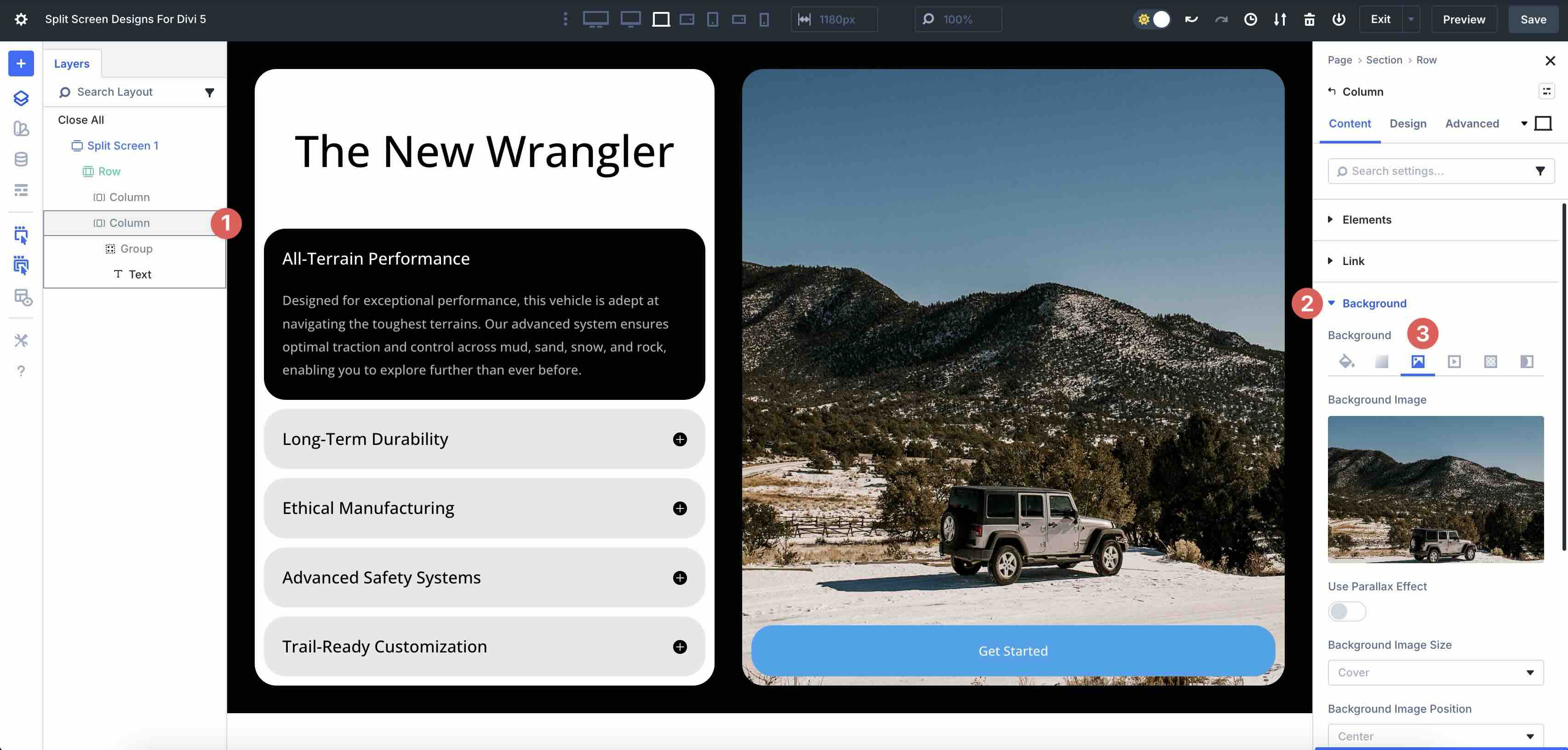
For Background Images or Gradients, go to Section settings → Content tab → Background tab and drop in your own image or adjust the Gradient Stops.
Buttons and CTAs are already set up, so you can simply update the link and text.
4. Adjust Styles (Optional)
You can easily match these sections to your brand by updating fonts, colors, spacing, and background treatments. Here are a few quick ways to customize without rebuilding the layout.
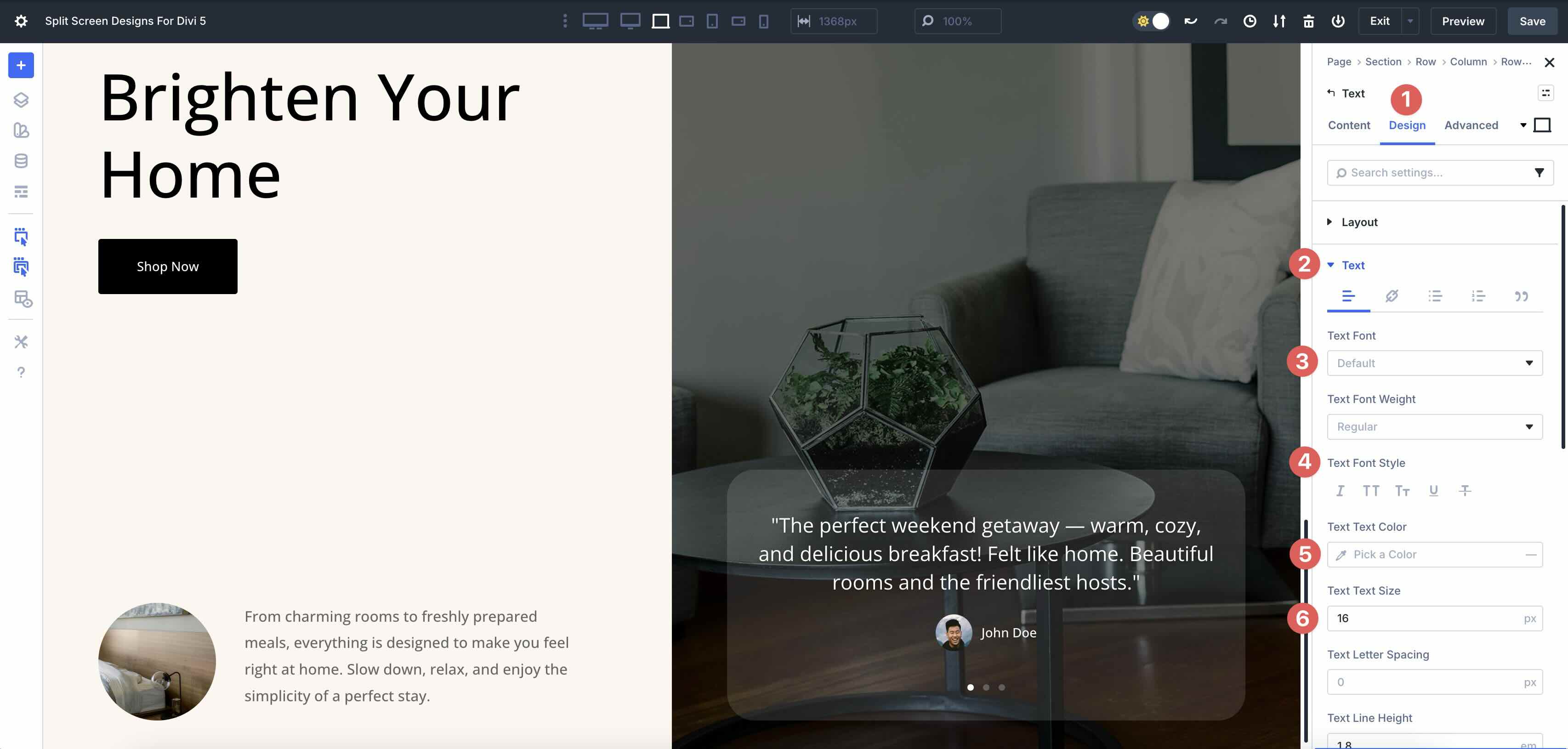
To change fonts, open any of the Text or Heading modules in the Section and go to the Design tab. Expand the Text or Heading dropdown menu to change the Heading Level, Font, Font Style, Text Alignment, or Text Color.
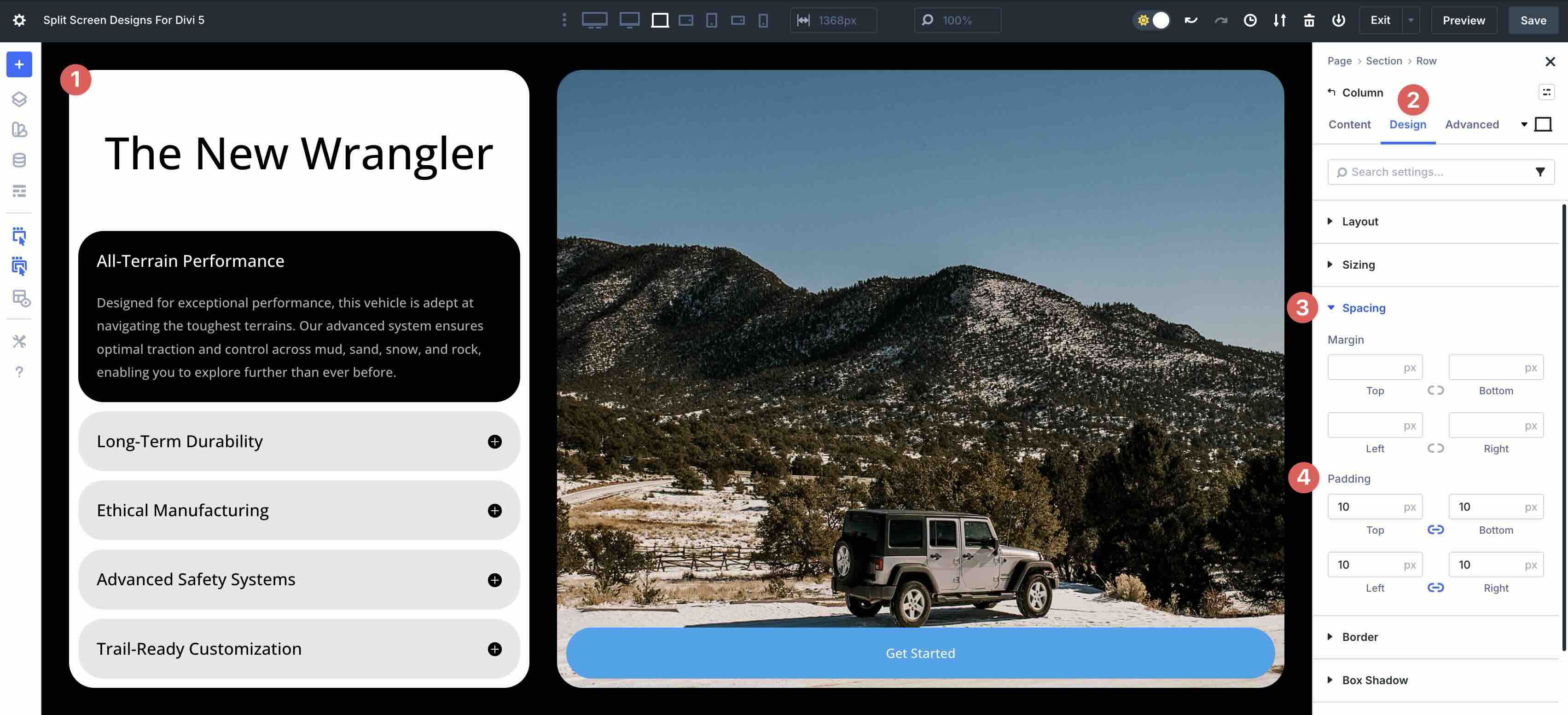
To adjust spacing, tweak padding and max-width values to give the text side more breathing room, or to bring the content closer to the split line.
Use Divi’s Layout settings to adjust Flex properties, such as column order, alignment, and spacing. This is especially helpful when refining how the split screen stacks on smaller screens.
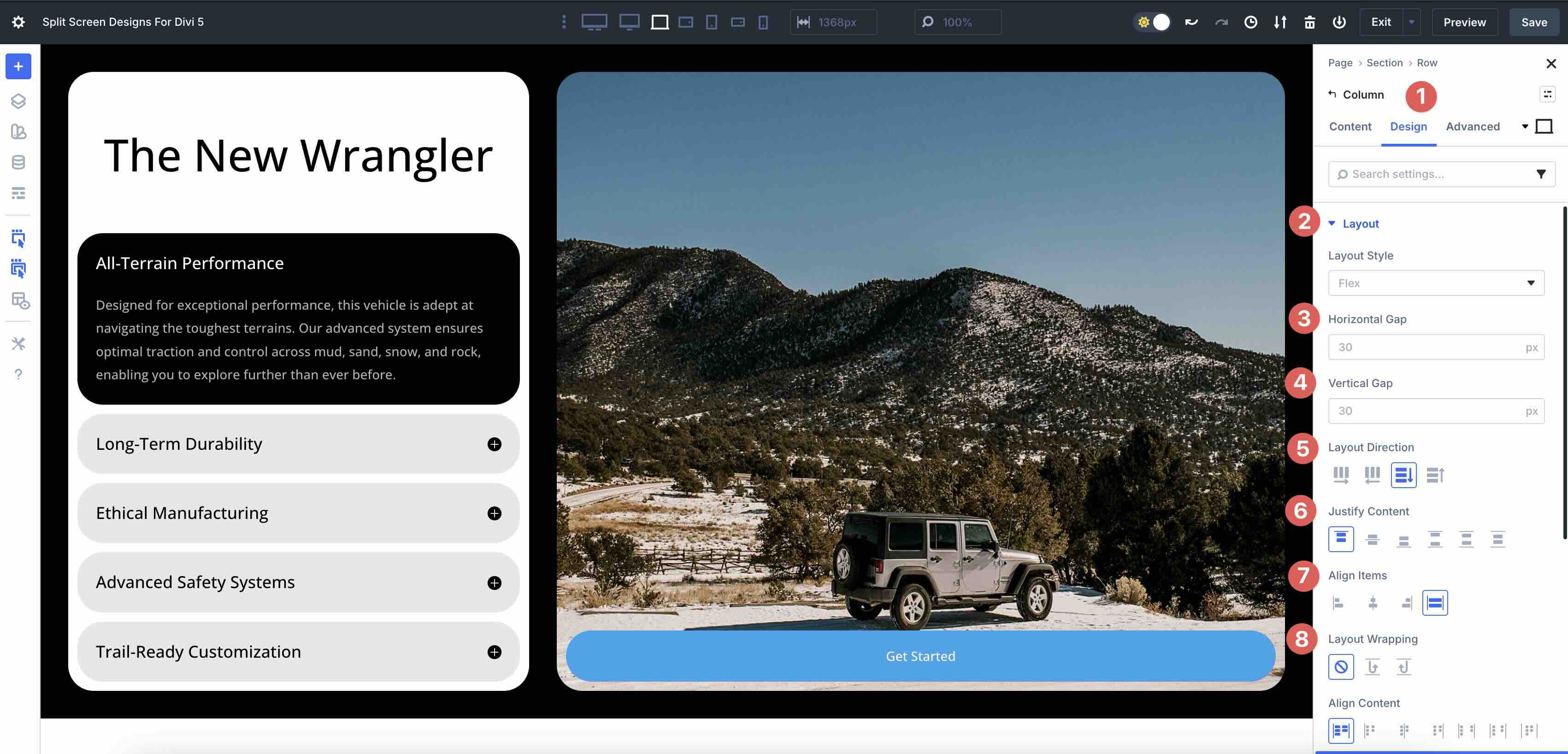
Add subtle effects, such as hover states on buttons or gentle reveal animations, to keep the Section feeling polished without distracting from the content.
Tips For Effective Split Screen Designs
Split screens are simple, but small choices make the difference between average and premium. Utilize these quick wins to maintain clean, readable, and engaging layouts.
Lead With A Clear Headline
Keep your main heading concise and direct, then use a smaller supporting subheading to provide context or highlight benefits. This hierarchy guides the eye quickly and ensures the text side remains scannable, especially on mobile, where attention spans are shorter.
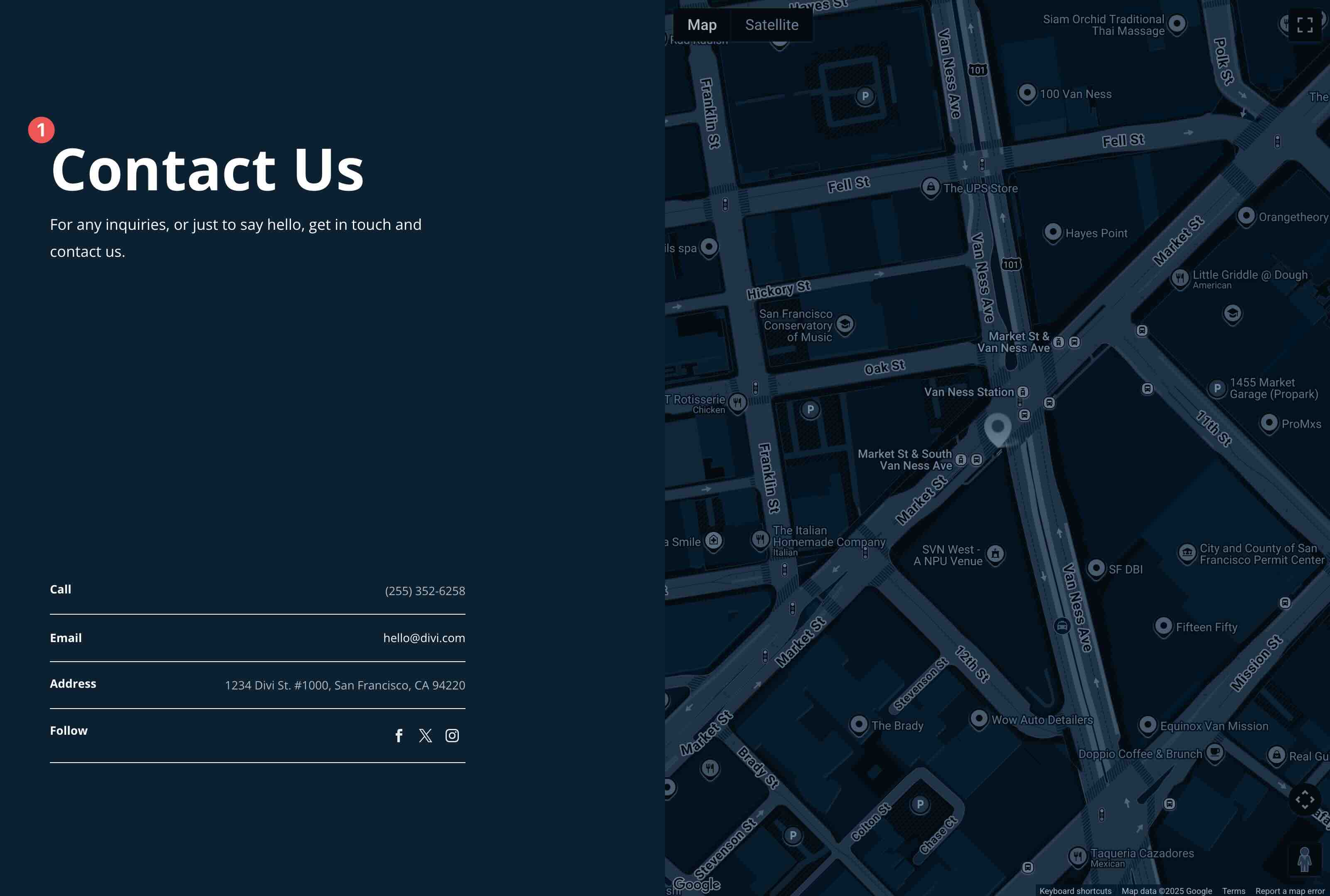
Choose The Right Image Crop
Your image will often fill half the screen, so use photos with a clear focal point and enough negative space. Avoid overly busy or cluttered backgrounds that compete with text, buttons, or CTAs. Opt for images that complement the content.
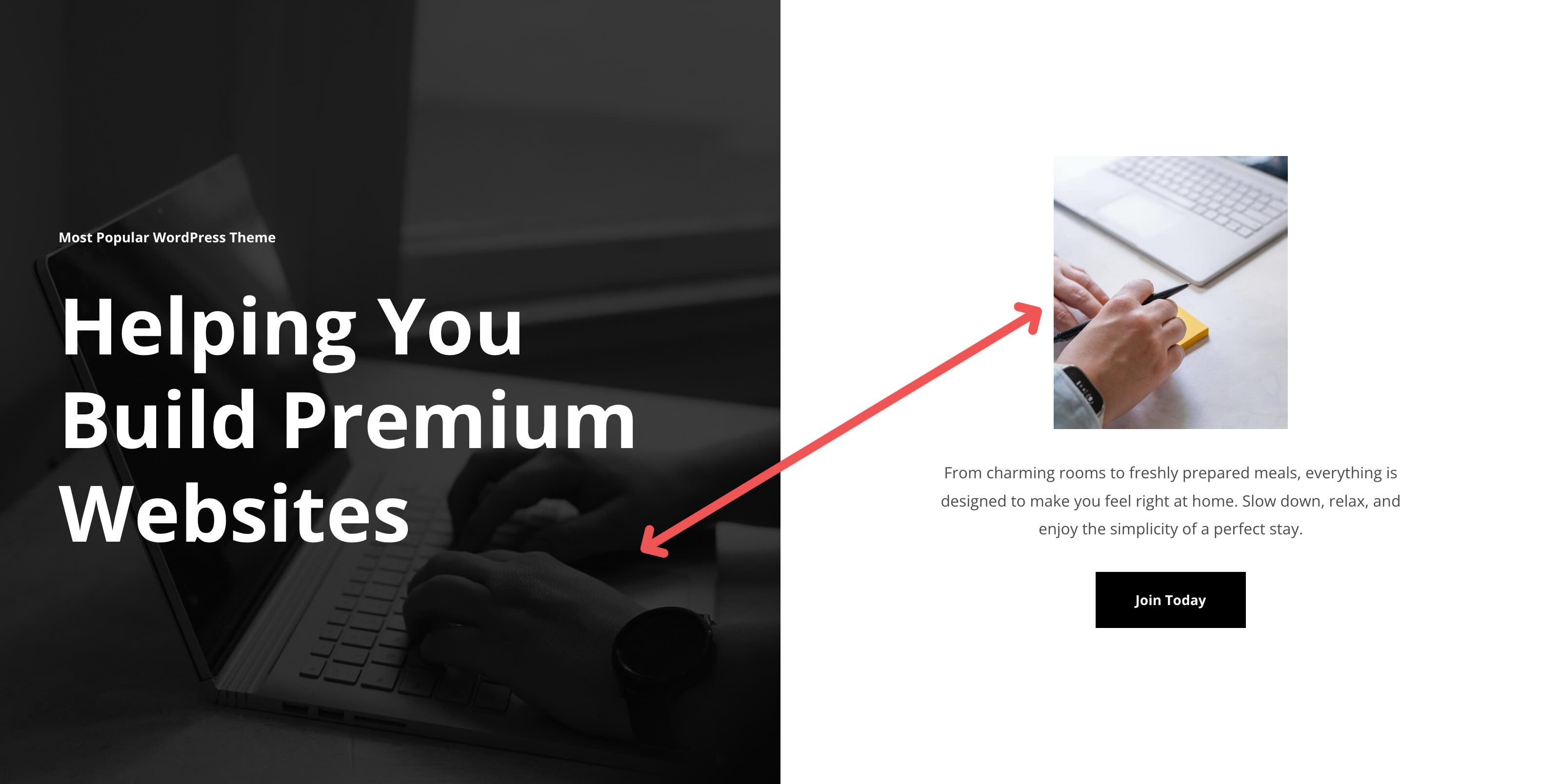
Balance The Two Sides
If the image is visually heavy, simplify the text side with fewer lines and more spacing. If the text is longer, choose calmer imagery so the Section does not feel crowded. Use contrasting colors or subtle dividers to separate sides while maintaining overall harmony.
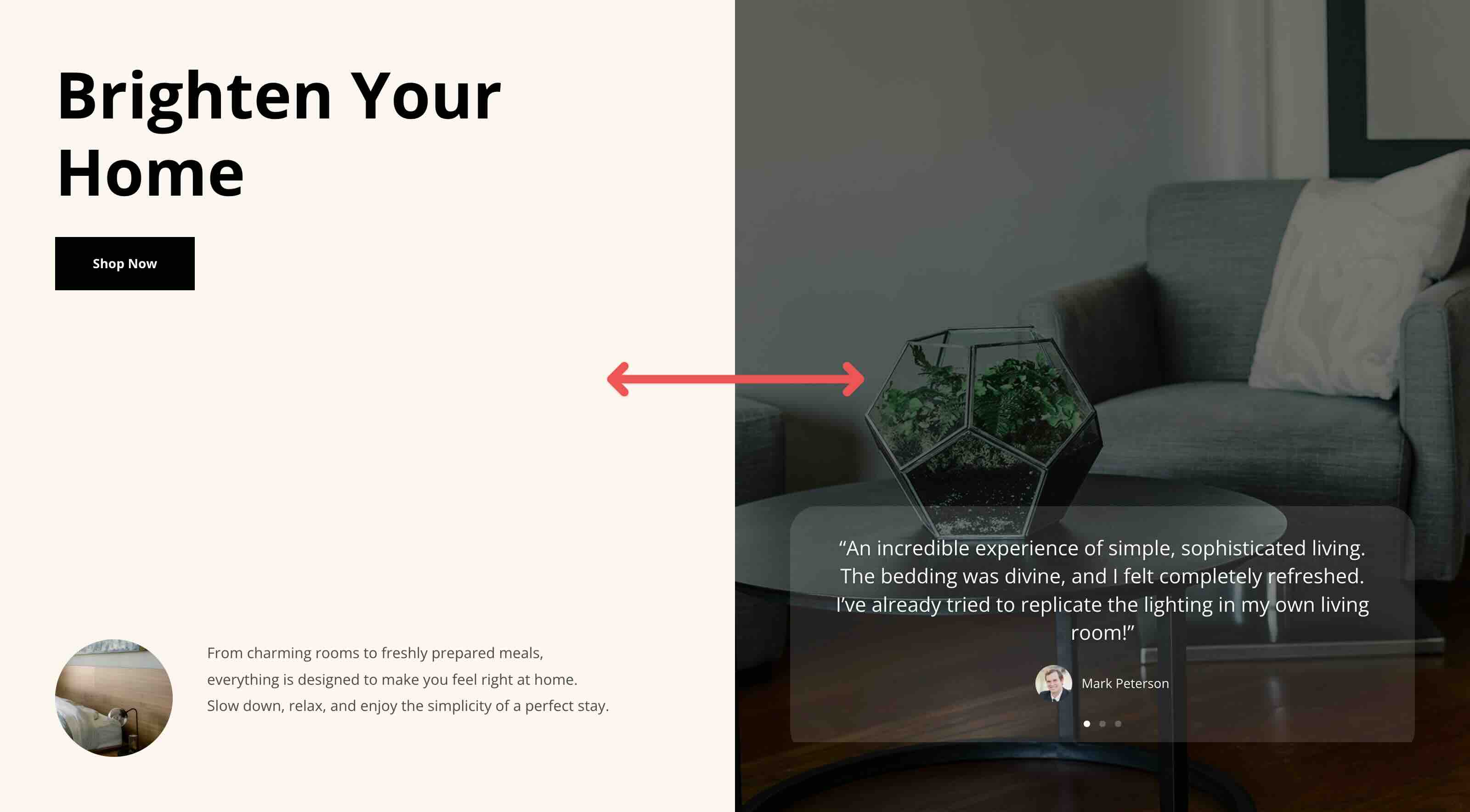
Plan For Mobile Stacking
Split screens naturally collapse into a vertical layout on smaller devices. Ensure the text remains readable if it appears above or below the image, and adjust the order as needed. Ensure the flow still tells a story when stacked.
Keep CTAs Simple
One primary button is often enough. If you use two, make the hierarchy obvious with contrast and spacing so that the visitor knows which one to click first. Consistent colors across both sides create cohesion, while subtle differences can highlight key elements.

Start Building In Divi 5 Today
These 5 Split Screen Sections give you a fast way to build modern hero areas, about sections, service highlights, and landing page intros. Swap the content, adjust the image, and you will have a polished layout that fits your site in minutes with Divi 5‘s Visual Builder.













Leave A Reply