

Divi 5 makes it easy to create bold testimonial and quote sections that feel more visual, branded, and memorable. In this free pack, you’ll get 5 Large Quote designs for Divi 5 that are perfect for testimonials, reviews, client quotes, case studies, landing pages, service pages, creator websites, personal brands, agencies, and more.
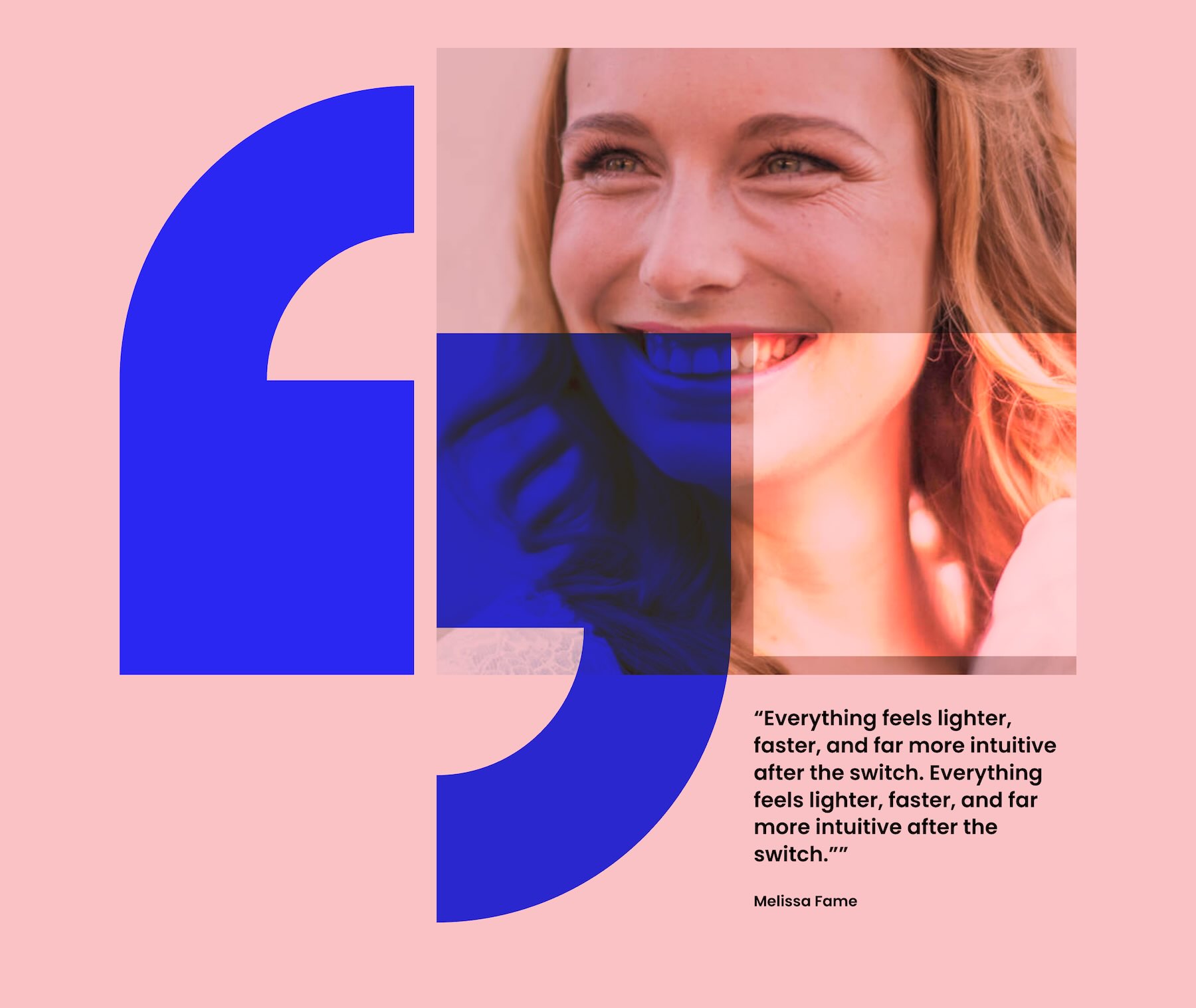
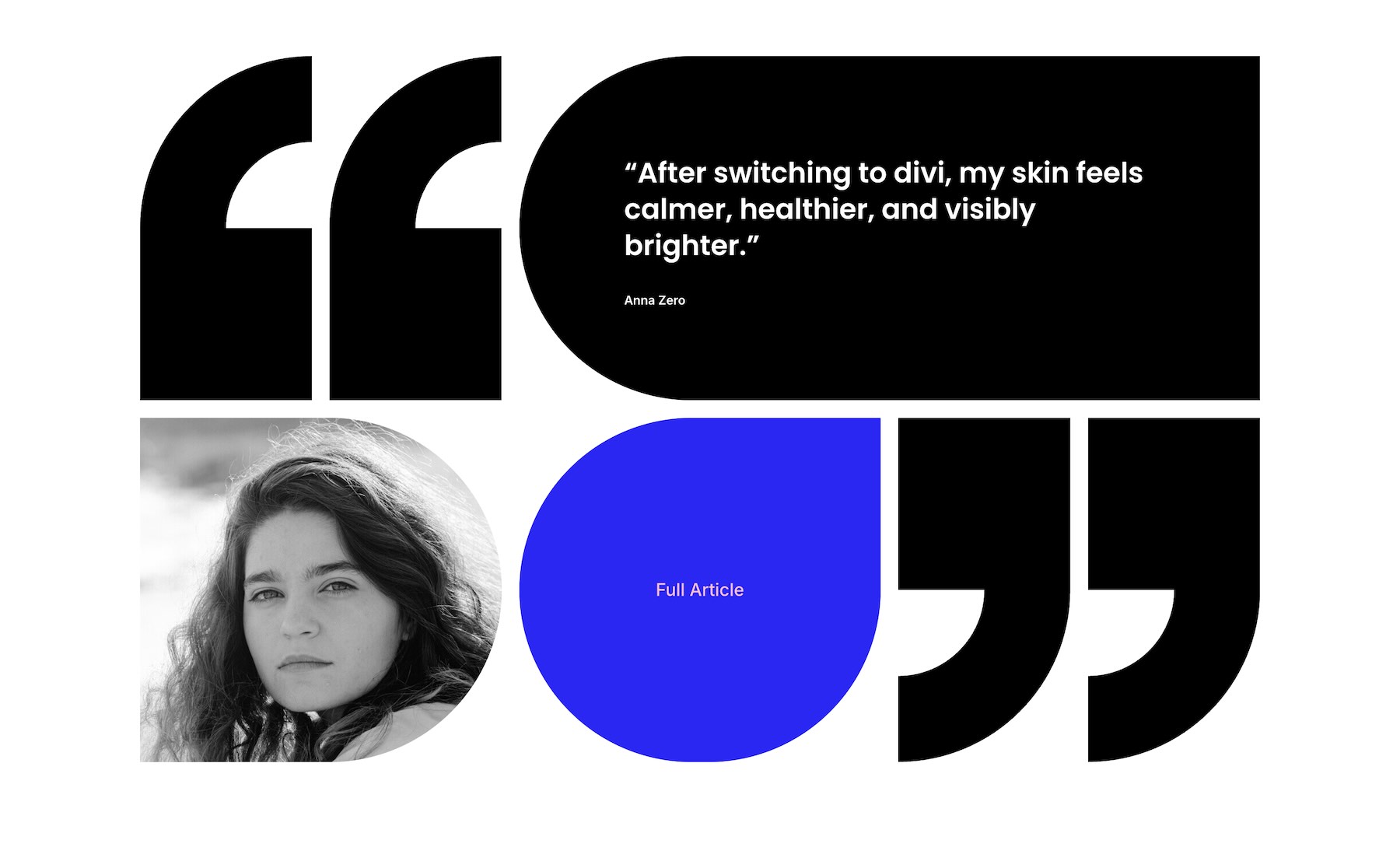
Each design uses oversized quote marks, strong typography, portrait imagery, color blocks, layered composition, and clean spacing to turn simple quotes into polished page sections. Import a section, replace the quote and author details, update the imagery, and you’re ready to go.
Preview
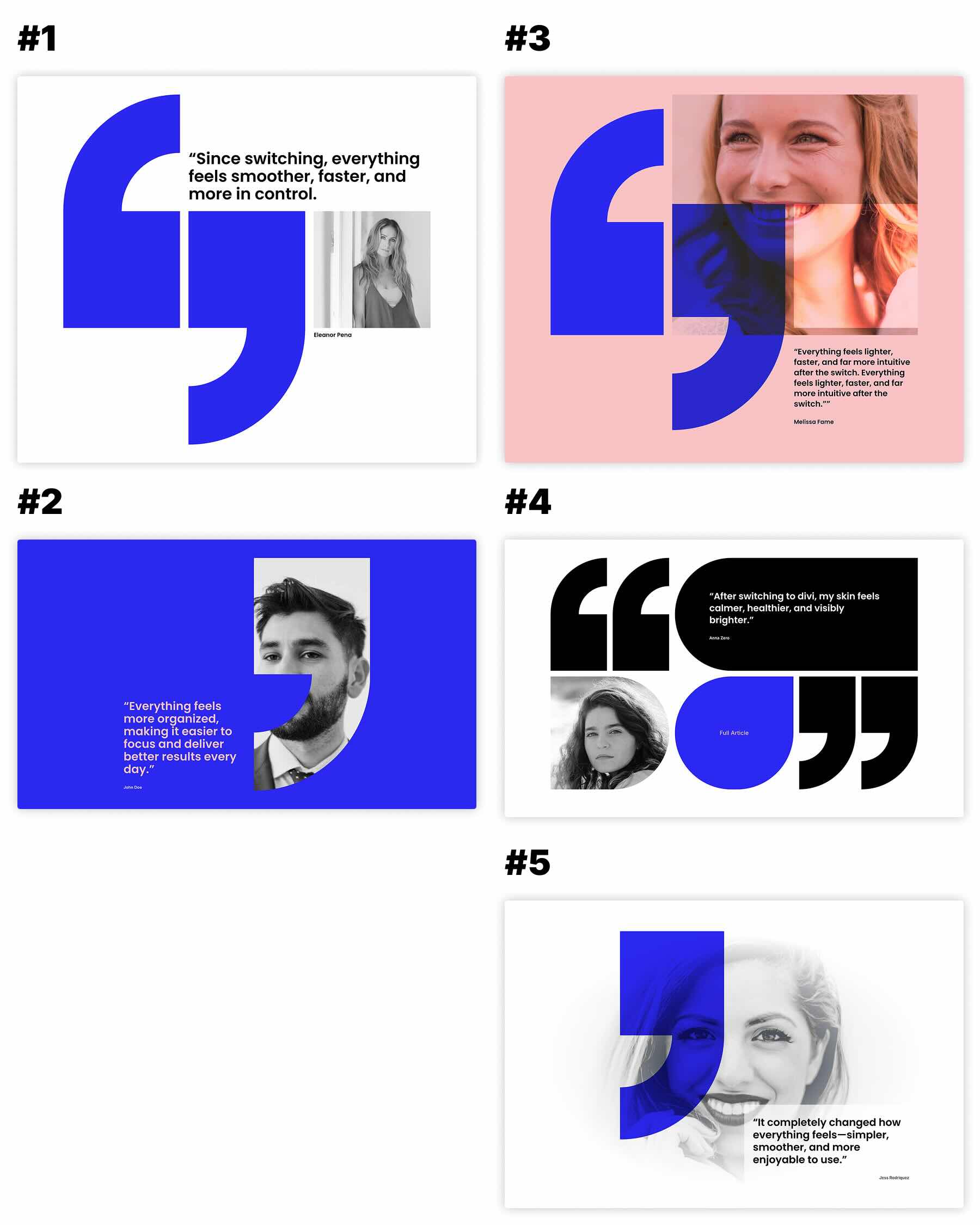
Here’s a quick look at the 5 Large Quote sections included in the pack. The download is further down the post.
Download 5 Large Quotes For Divi 5
Get all 5 sections for free. Import them into your Divi Library and add them to any page in the Visual Builder.

What’s Included (6 Exports)
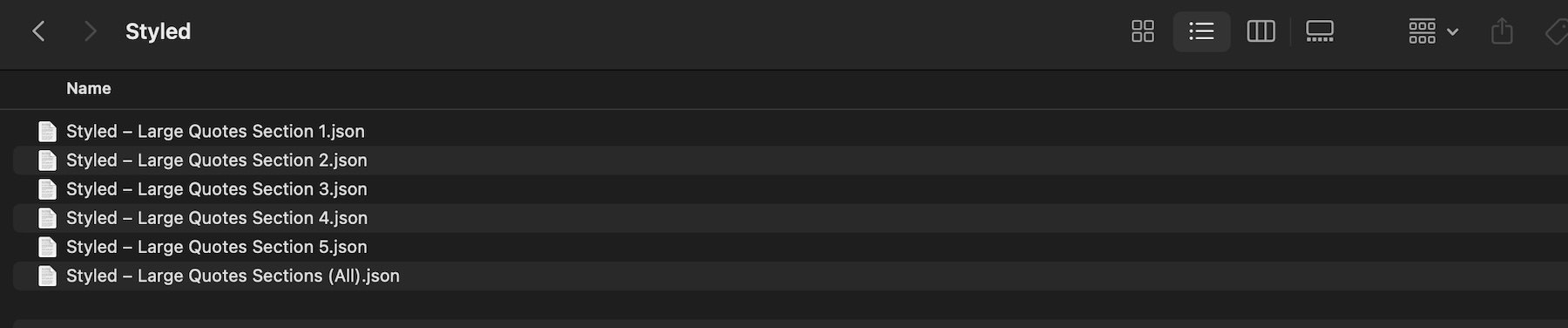
After you download and unzip the file, you’ll find 5 styled Large Quote section exports, plus 1 file containing all layouts.
Styled – Large Quotes Section 1 to 5 (5) → Five fully styled quote section layouts with oversized quote marks, testimonial text, author details, portrait imagery, bold color treatments, layered content blocks, and clean spacing that you can use as-is or customize.
Styled – Large Quotes Sections (All) → Imports all 5 designs into your Divi Library at once.
How To Use The Large Quote Sections
Keep your download folder handy. We’ll import the files, add a section to a page, and then replace the content.
1. Import Sections Into The Divi Library
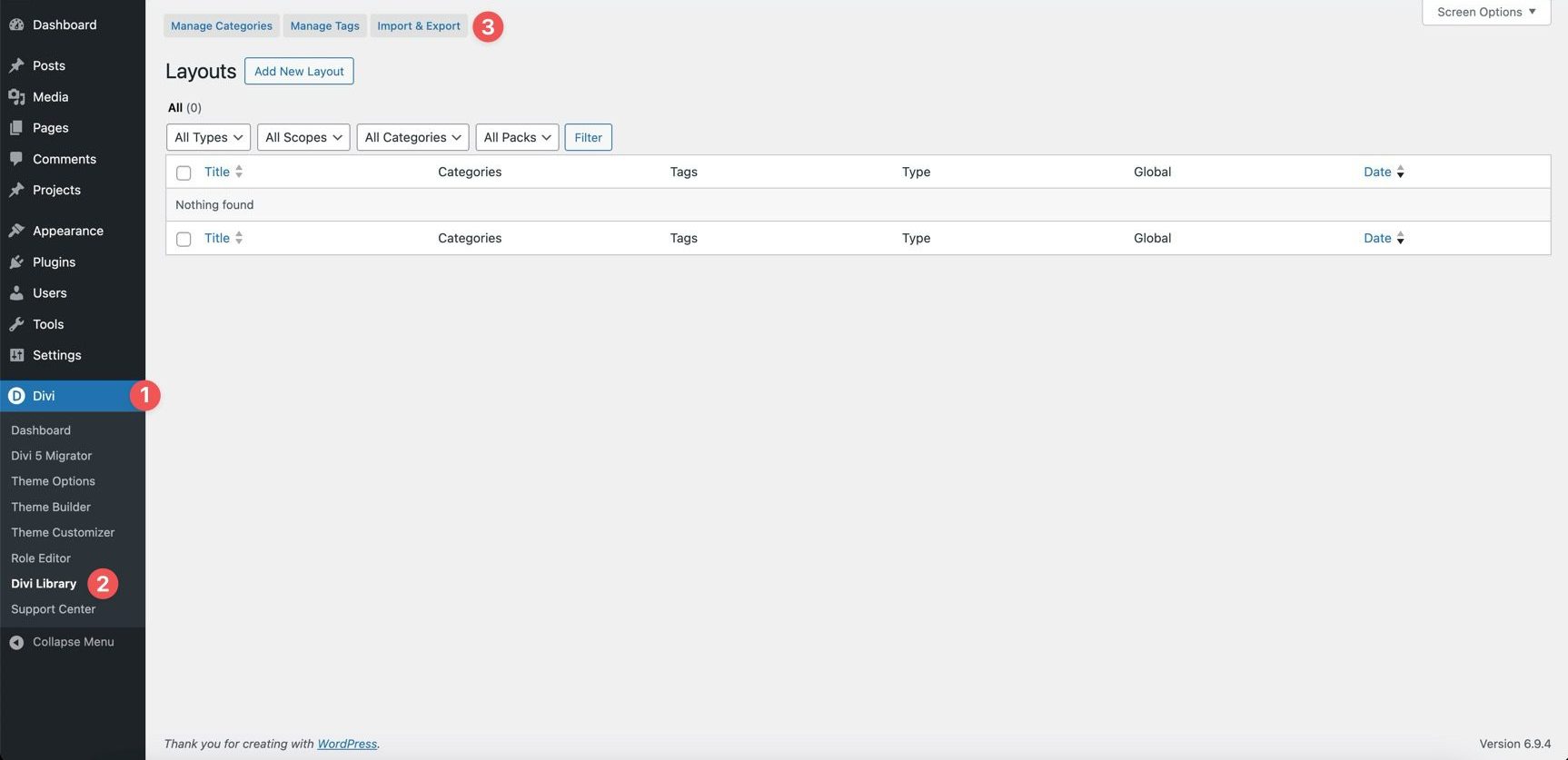
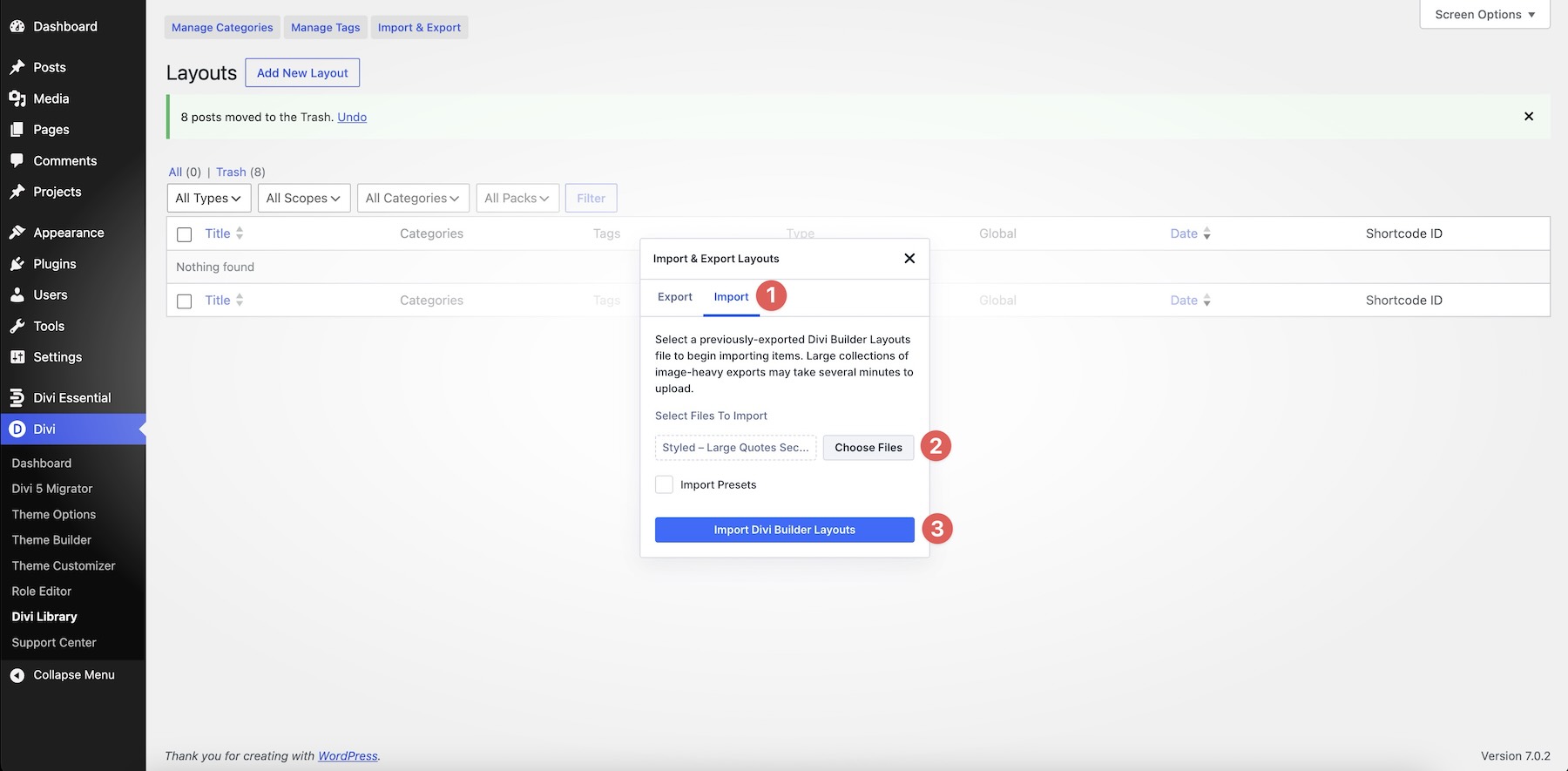
Go to Divi → Divi Library. Click Import & Export at the top of the screen.
In the Import & Export Layouts modal, switch to the Import tab, then click Choose File and select your JSON file. Choose any Large Quotes Section JSON you’d like to use, then click Import Divi Builder Layouts.
2. Add A Large Quote Section To Any Page
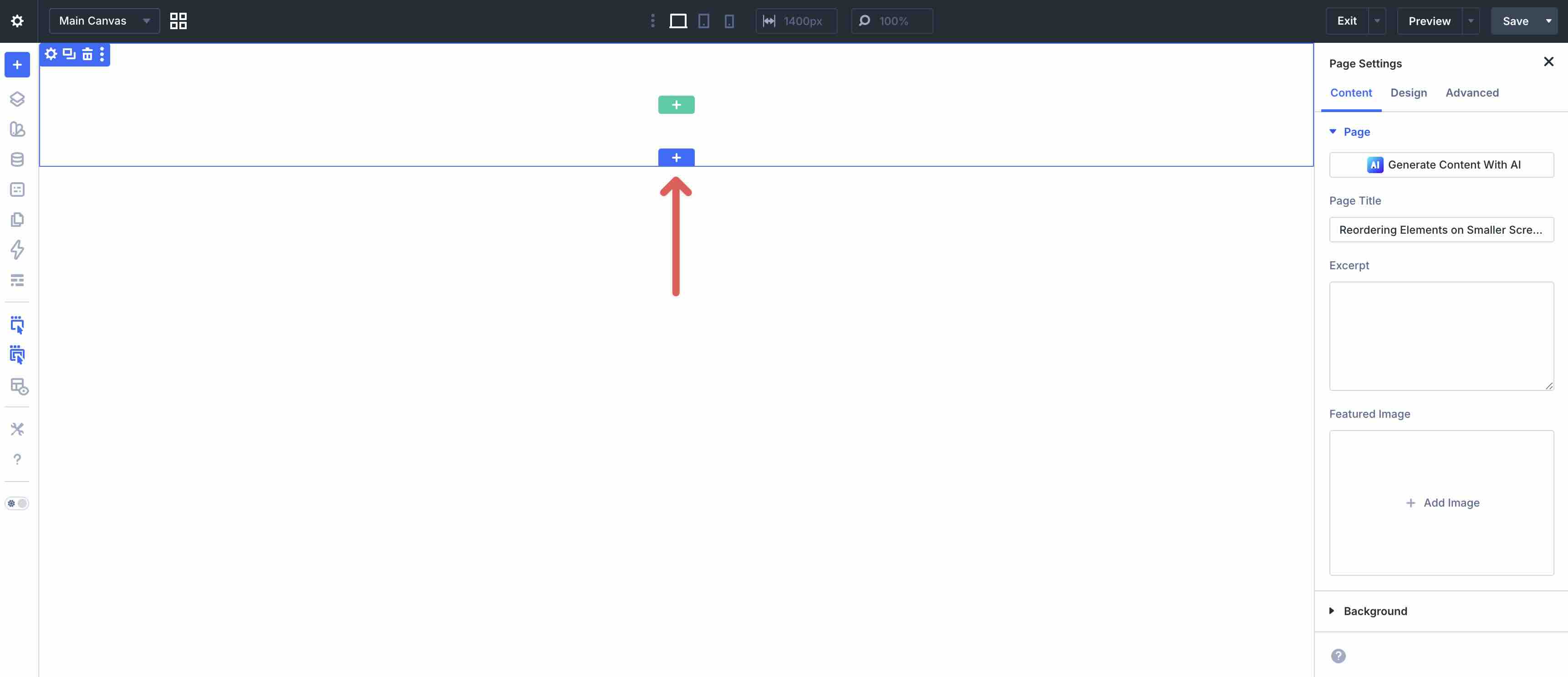
Open a page in the Visual Builder and add a new Section.
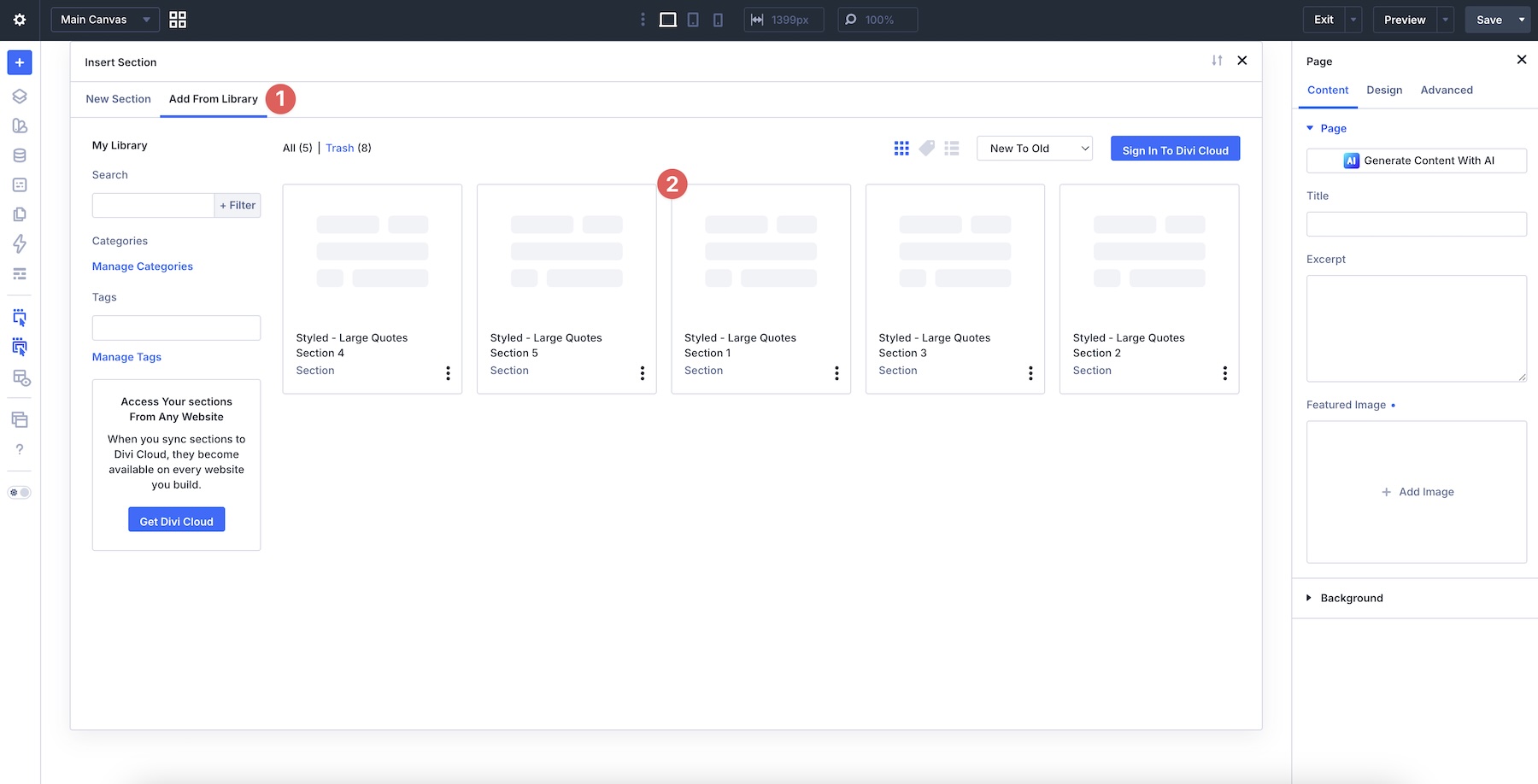
Click Add From Library and select one of your Large Quote sections.
3. Swap The Quote Content
Once the section is on the page, replacing the placeholder content only takes a few clicks. Start by updating the quote, author name, role, company name, testimonial details, supporting text, and any short labels or captions so the section matches your website and message.
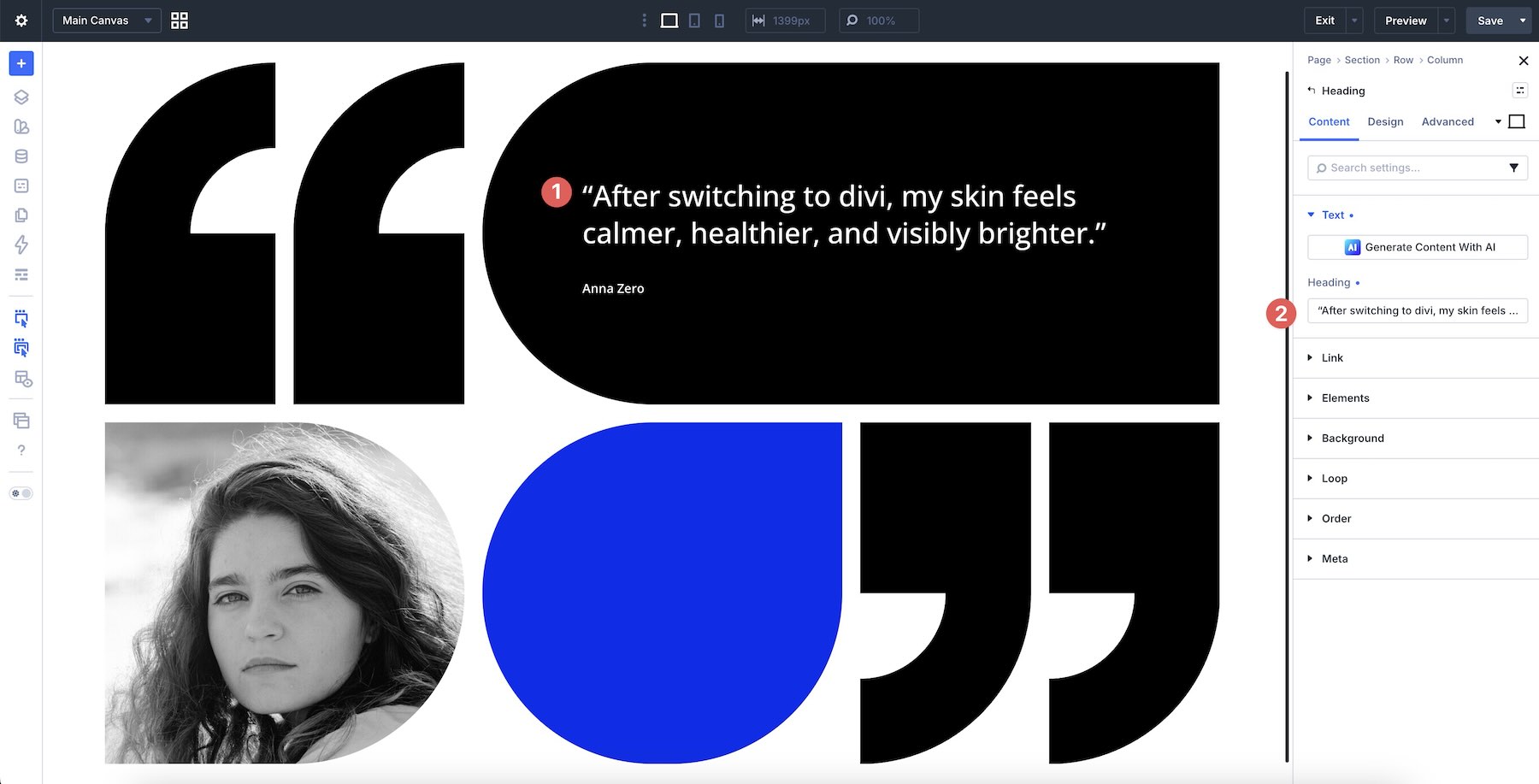
Then swap in your own portrait image, client photo, founder image, team member photo, brand visual, or supporting imagery as needed.
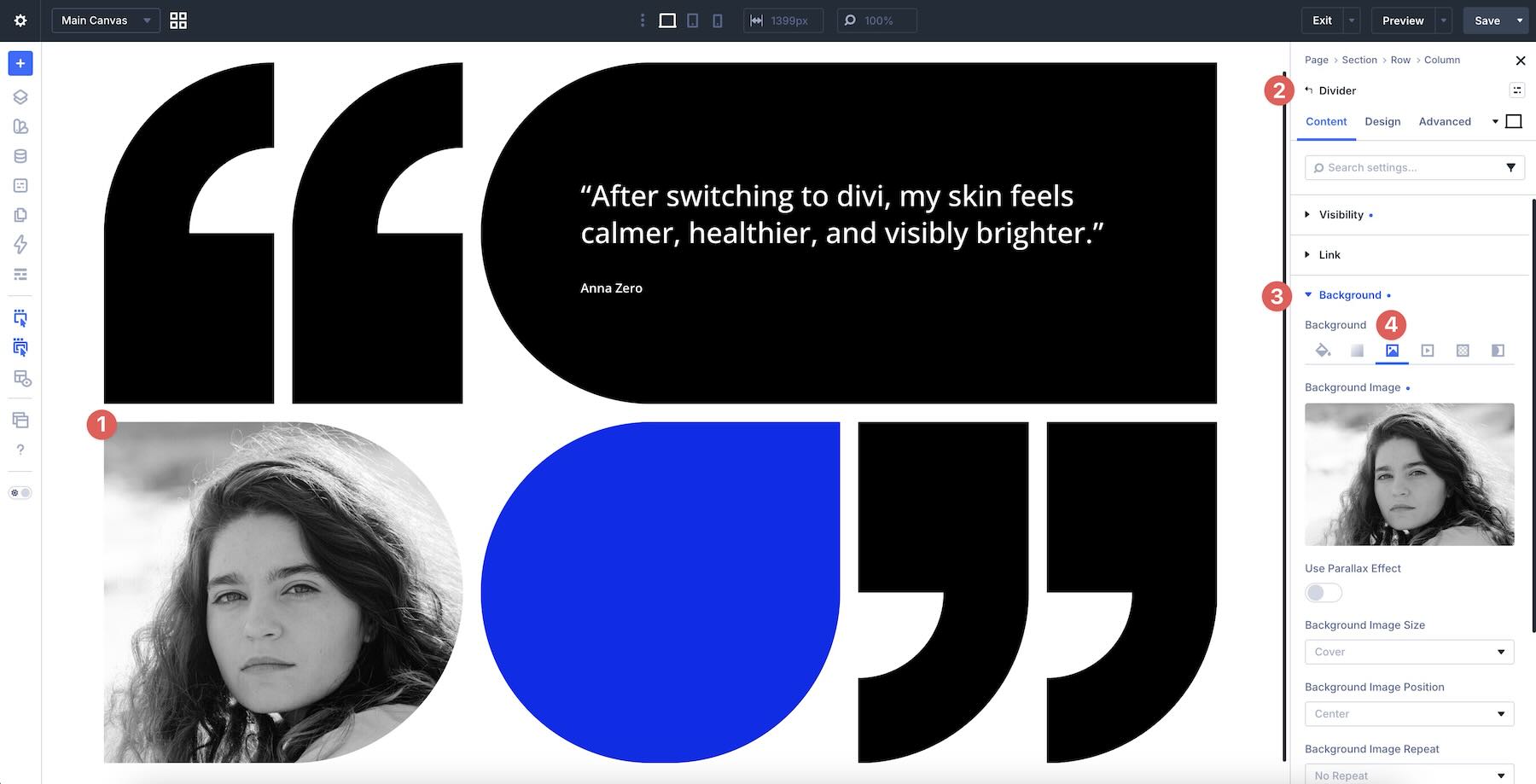
Because these sections rely on large quote marks, portrait placement, text alignment, and strong visual hierarchy, it’s best to replace content one area at a time. This helps preserve the balance between the quote, image, background color, author details, and negative space as you customize the design.
If your new quote is much longer or shorter than the original, review the layout immediately after editing. Large quote sections can change quickly when text wraps differently. Adjust text size, line height, spacing, module width, or image placement as needed to keep the section readable and balanced.
4. Adjust Styles (Optional)
These Large Quote sections are already styled, so you can use them right away or refine them to better match your site. Update typography, colors, quote marks, image treatments, backgrounds, borders, shadows, spacing, and layout sizing as needed using the settings in the Design tab.
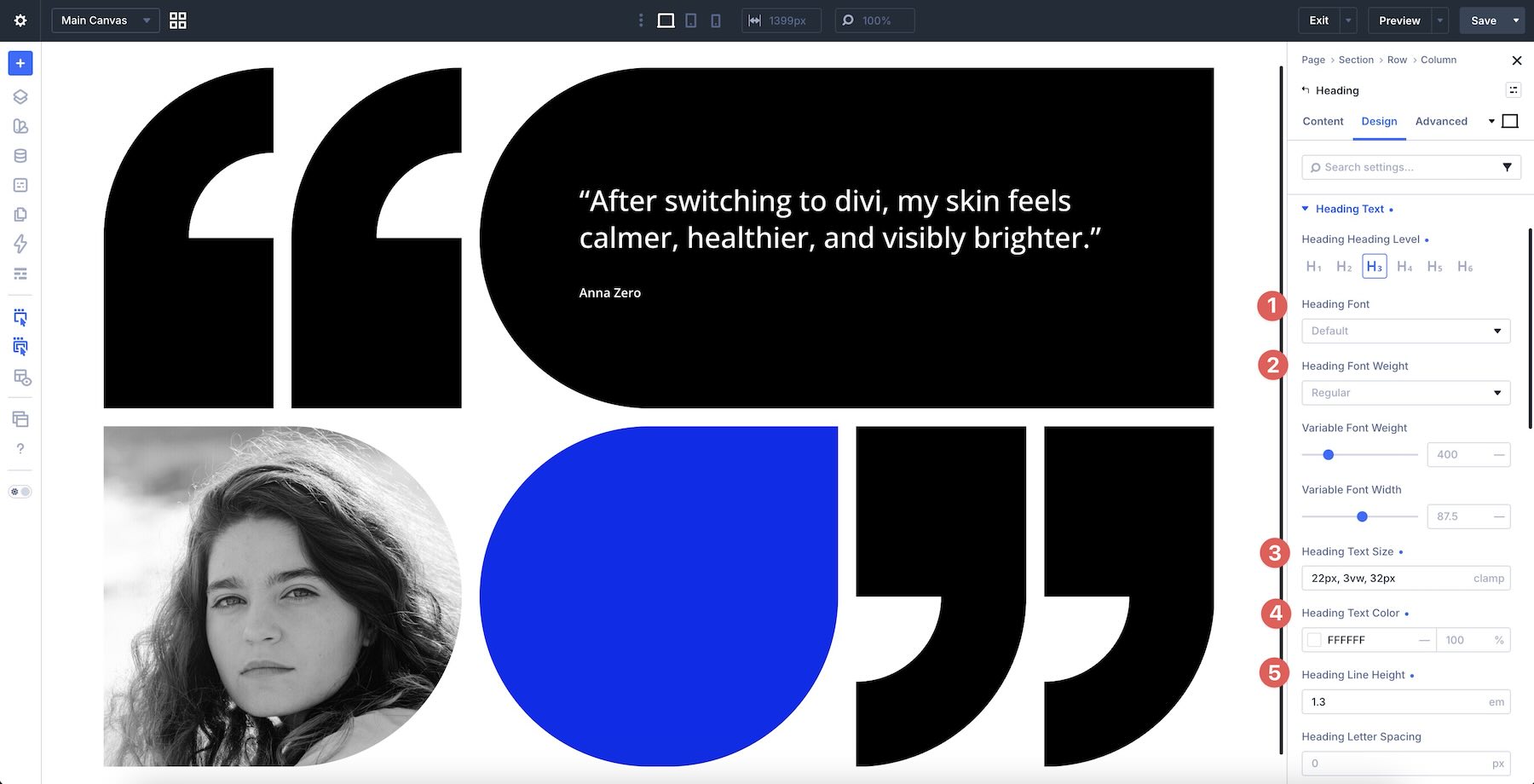
To change typography, open any Text or Heading module and go to the Design tab. Expand the relevant text settings to adjust Font, Font Weight, Text Alignment, Text Color, Text Size, Letter Spacing, and Line Height.
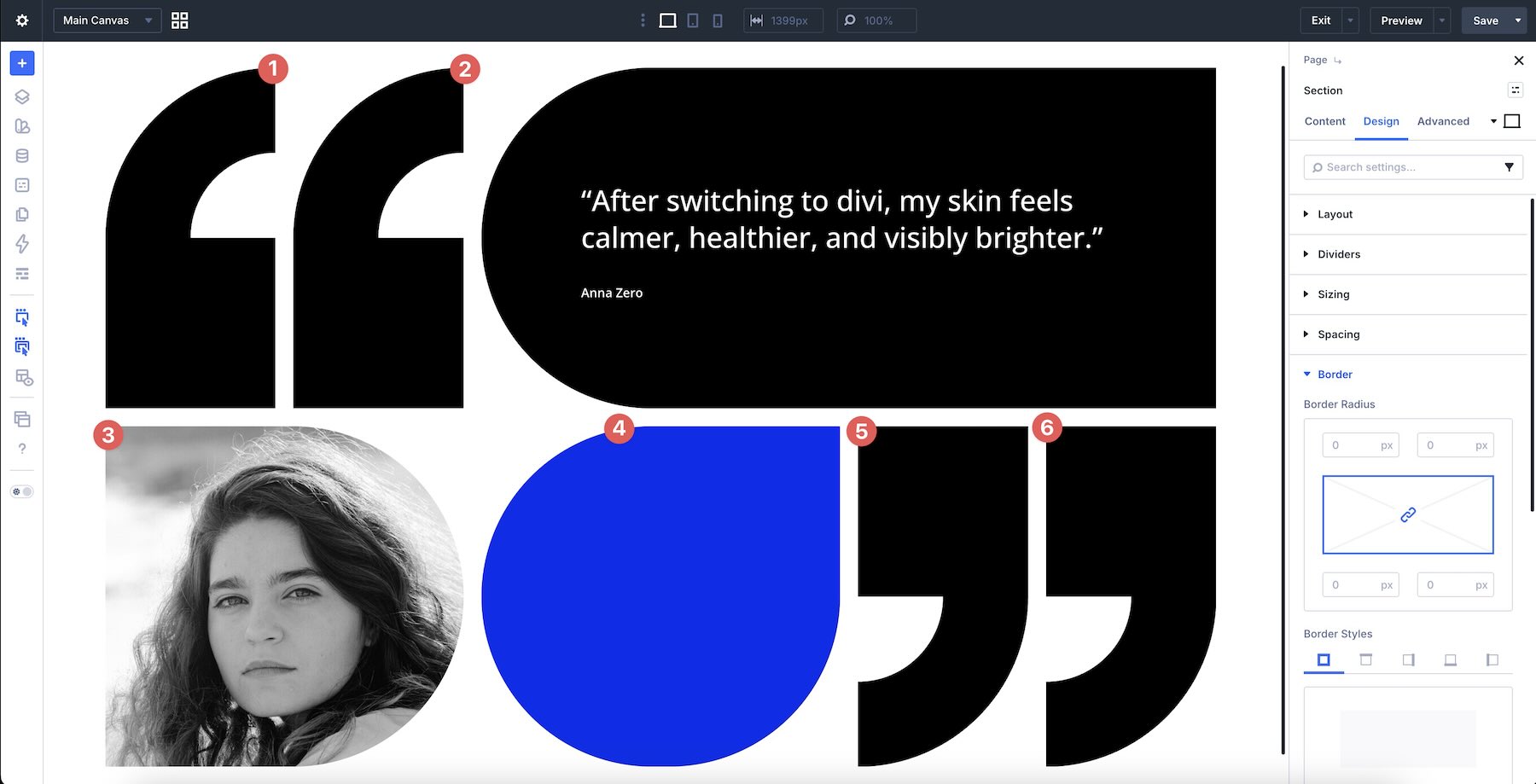
To refine the visual styling, open the section, row, column, group, image module, or quote element you want to adjust and use the Design tab to tweak Background, Border Radius, Box Shadow, Sizing, Spacing, Filters, and Position settings.
If your section uses oversized quote marks, cropped portraits, color blocks, layered image areas, split layouts, or high-contrast backgrounds, keep those relationships in mind as you edit so the layout remains polished and easy to read.
Use Divi’s responsive editing tools to fine-tune stacking, image size, quote width, text size, spacing, and alignment on smaller screens so the section stays readable across devices.
Tips For Effective Large Quote Sections
Large quote sections work best when the testimonial feels easy to read and visually important. Use these quick tips to keep your sections polished, credible, and easy to customize.
Keep The Quote Focused
Large quote layouts work best with concise testimonials. Choose a quote that communicates one strong idea, result, reaction, or benefit instead of trying to include every detail.
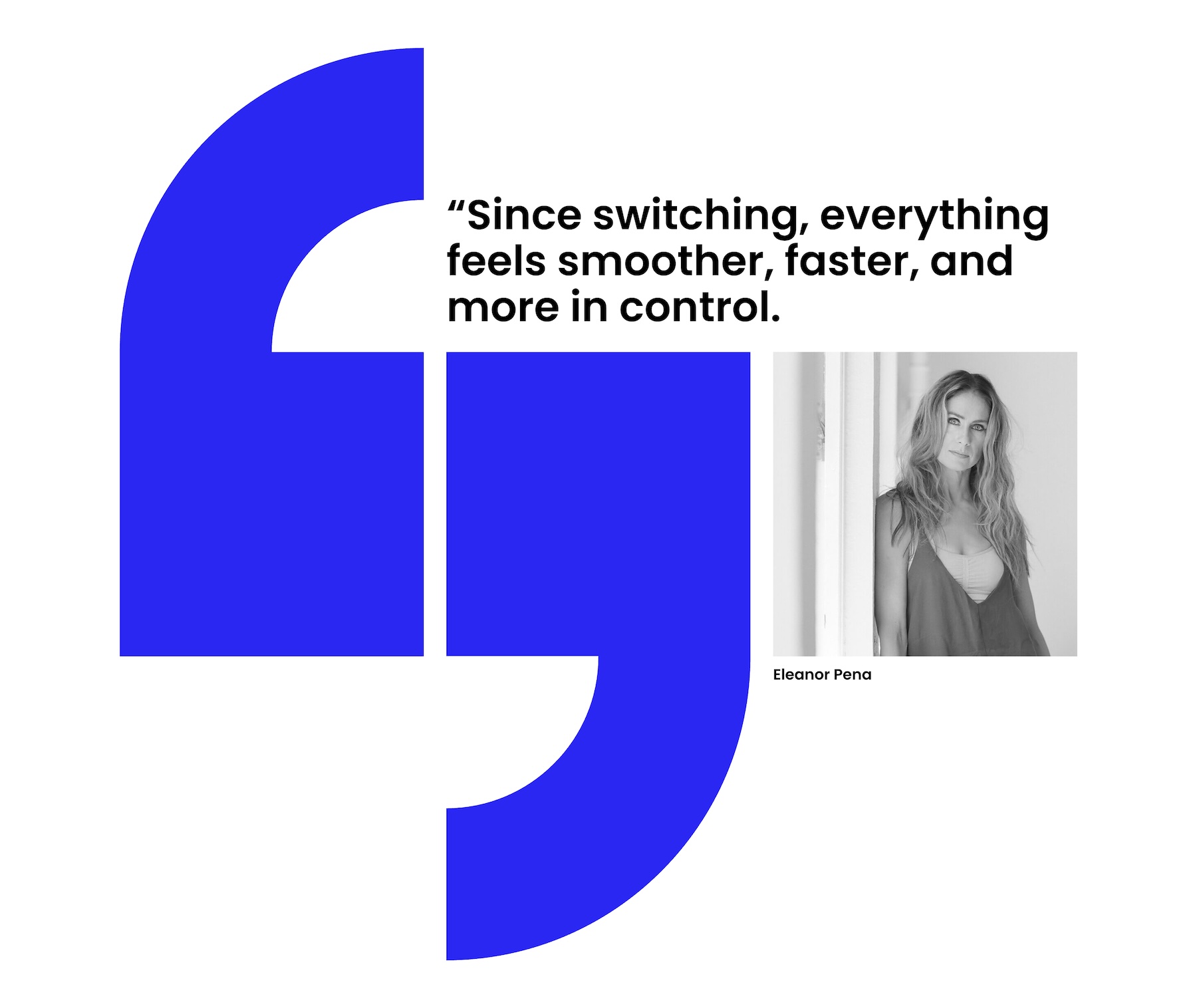
Make The Quote Easy To Scan
Oversized typography can create impact, but readability still matters. Use clear line height, balanced text width, and enough spacing around the quote so visitors can read it quickly.

Use Portraits With Purpose
Portraits can make a testimonial feel more personal and credible. Use images that support the quote without distracting from the message, and check that the crop works well inside the layout.
Balance Quote Marks With The Content
Large quote marks can become a strong design element. Keep them visually connected to the testimonial while making sure they do not overpower the actual message.
Check The Layout On Mobile
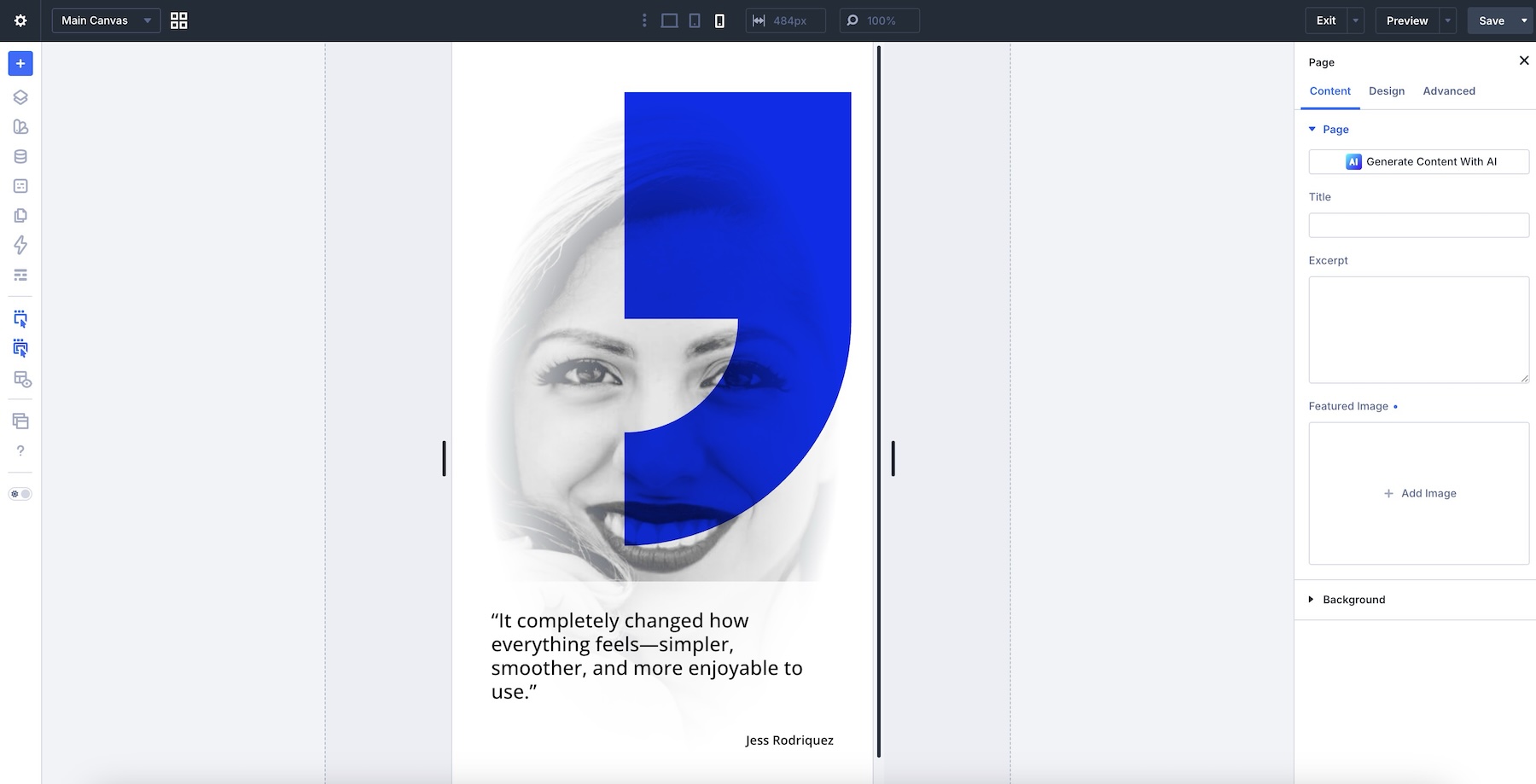
Large quote sections can change noticeably on tablet and phone screens as text wraps and images stack. Review your layout on smaller devices to ensure the quote remains readable, portrait images crop well, spacing feels balanced, and author details stay clear.
Start Building In Divi 5 Today!
These 5 Large Quote sections give you a fast way to build bold testimonial and quote sections for landing pages, service pages, case studies, creator websites, personal brands, agency sites, portfolios, and more. Swap in your quote, add your author details, customize the styling if needed, and you’ll have a polished testimonial section ready in minutes with Divi 5’s Visual Builder.




Donjete, WOW!
So beautiful design concepts.