

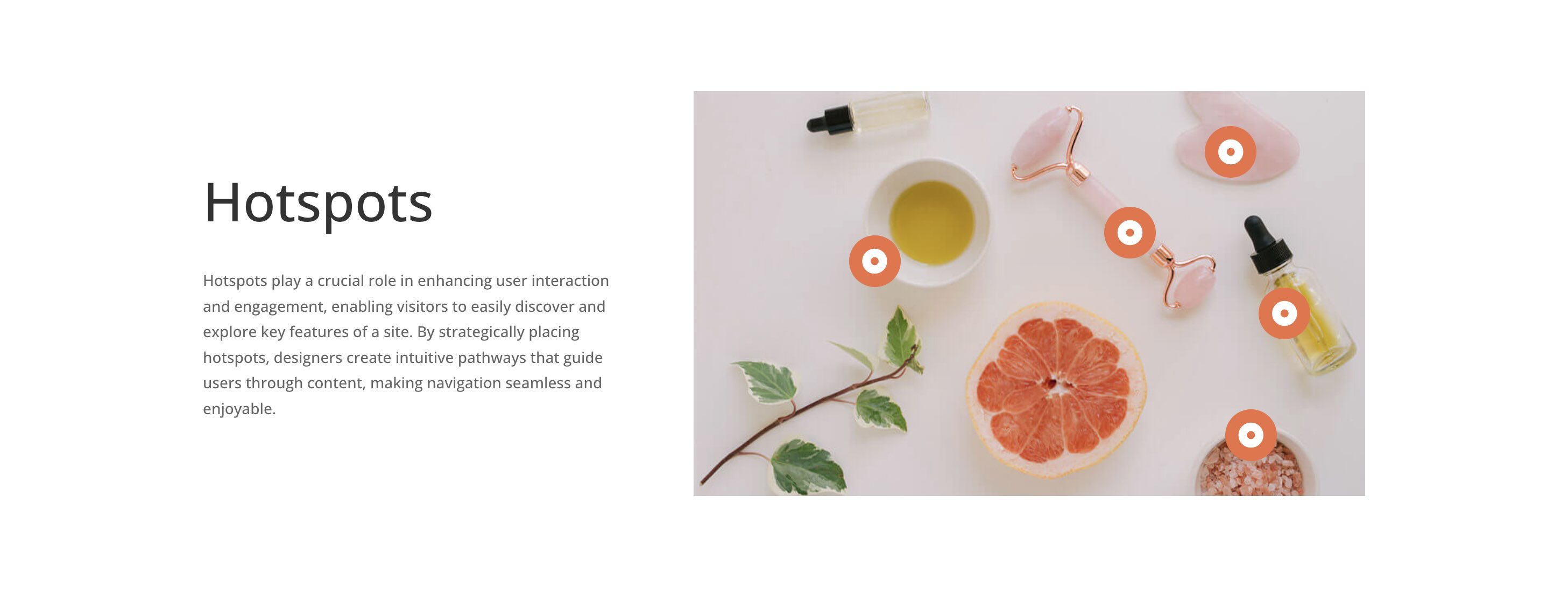
Divi 5 makes it simple to build interactive sections that feel intentional, balanced, and on brand. In this free pack, you will get 5 Hotspot Sections, each designed to highlight key locations, features, or details in a clean and engaging way. Drop one onto any page, swap the text and imagery, and you are ready to go.
Preview
Here’s a quick look at all 5 Hotspot Sections included in the pack. The download is further down the post.

Subscribe To Our Youtube Channel
Download 5 Hotspot Sections For Divi 5
Get all 5 sections for free. Import them into your Divi Library and add them to any page in the Visual Builder.

What’s Included (6 Exports)
After you download and unzip the file, you’ll find 5 Hotspot Section exports, plus 1 file containing all designs.
Hotspot Section 1 to 5 (5) → Five unique hotspot layouts that help you showcase locations, features, or callouts with interactive pins and info areas.
Hotspot Section (All) → Imports all designs to your Divi Library at once.

How To Use The Hotspot Sections
Keep your download folder handy. We’ll import, then add a section to a page.
1. Import Sections Into The Divi Library
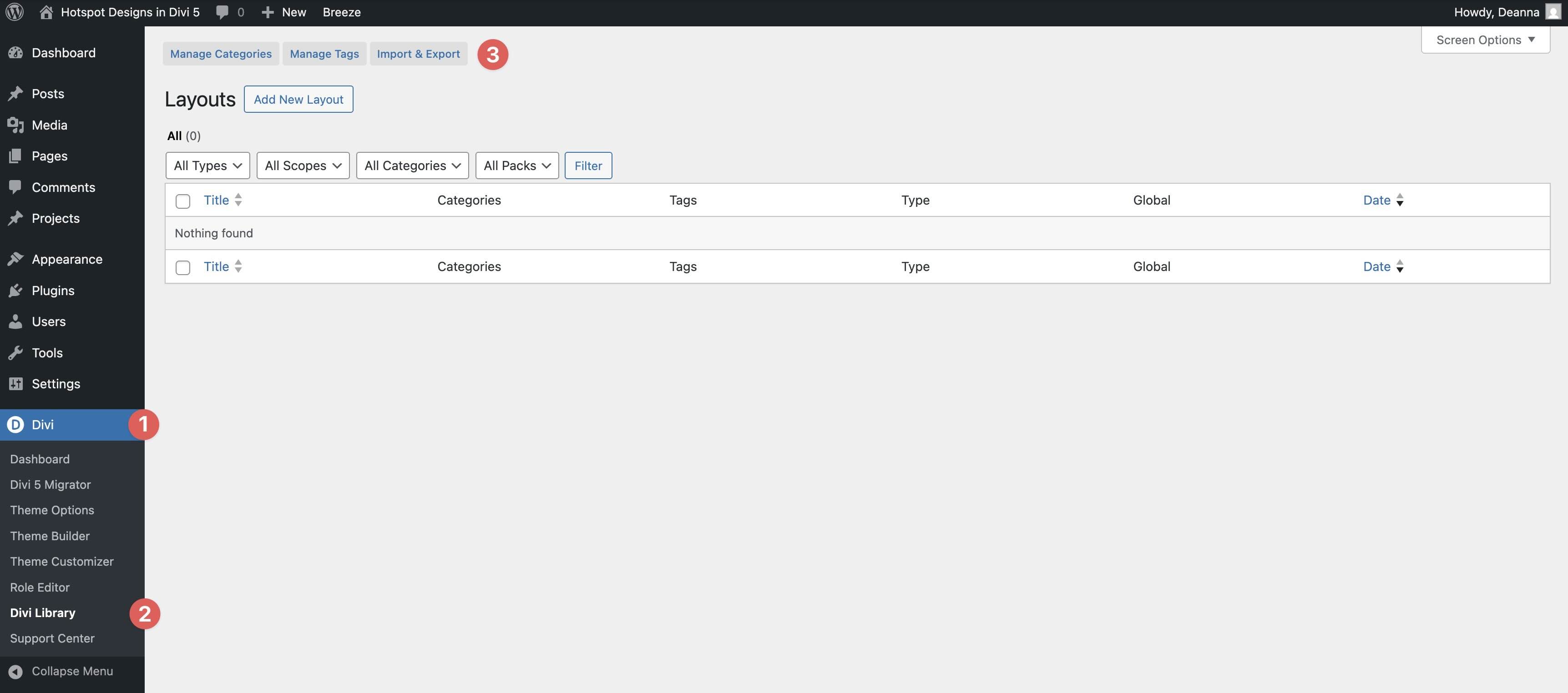
Go to Divi → Divi Library. Click Import & Export at the top of your screen.
In the Import & Export Layouts modal, switch to the Import tab, then click Choose File and select your JSON.
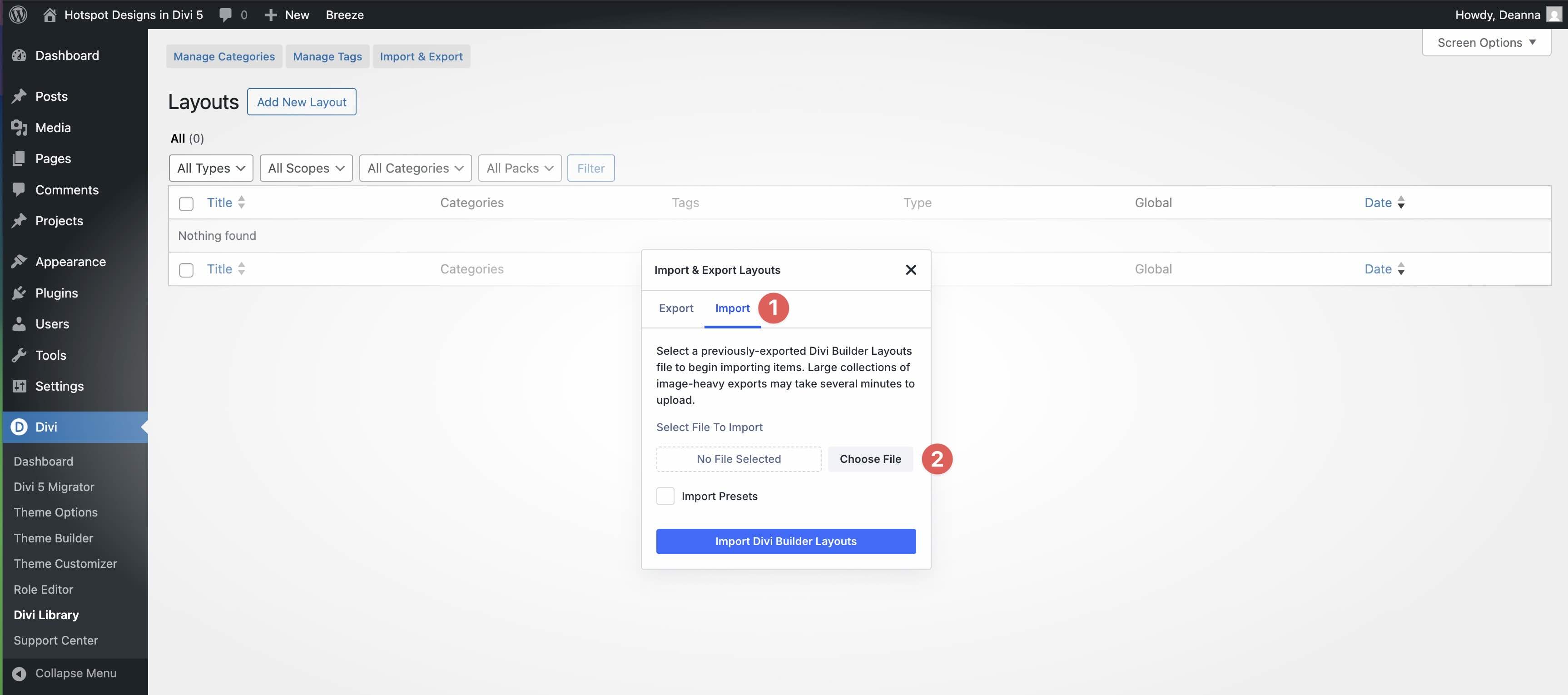
Choose any Hotspot Section JSON you want to use, then click Import Divi Builder Layouts.
2. Add A Hotspot Section To Any Page
Open a page in the Visual Builder and add a new Section.
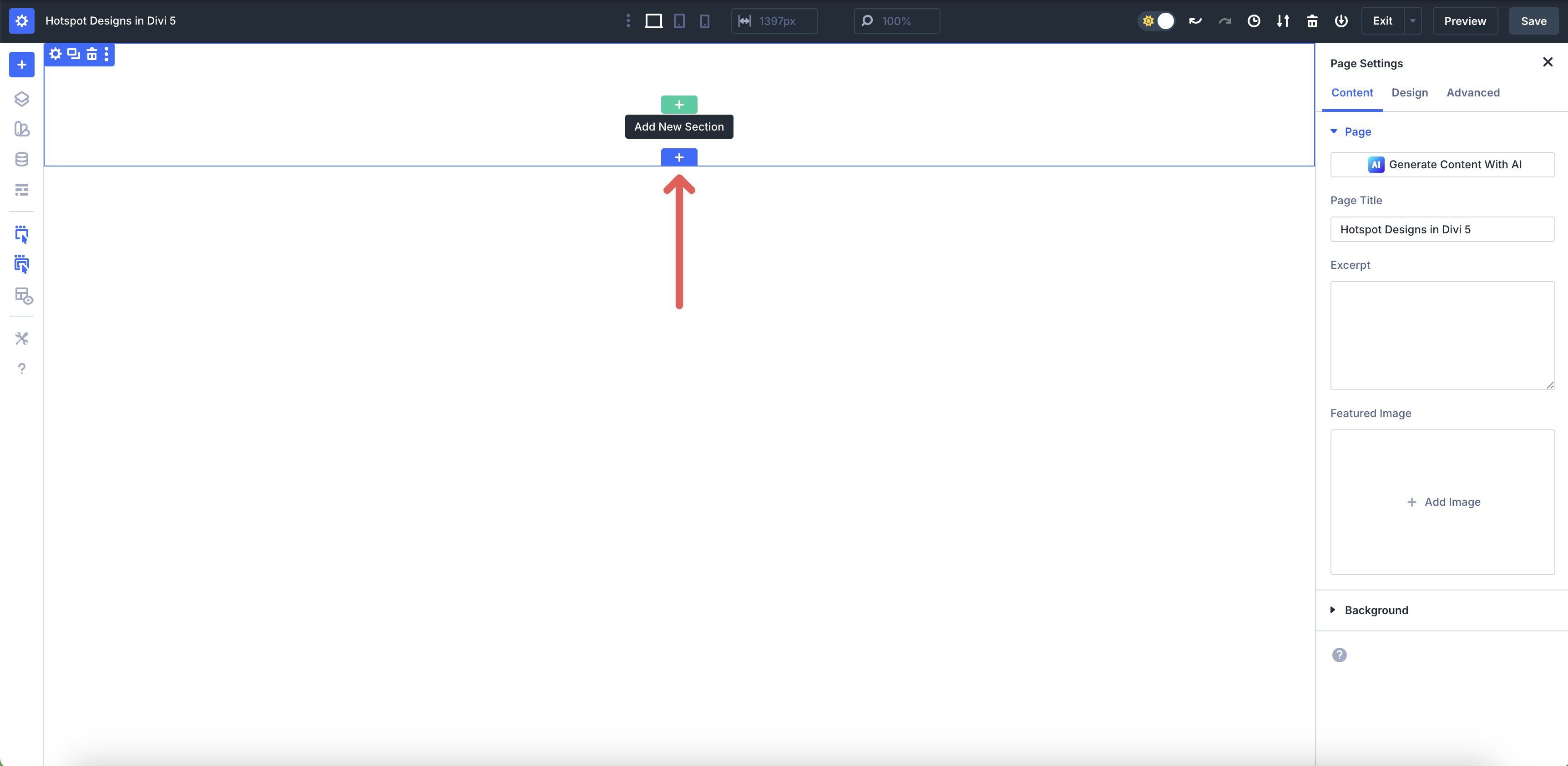
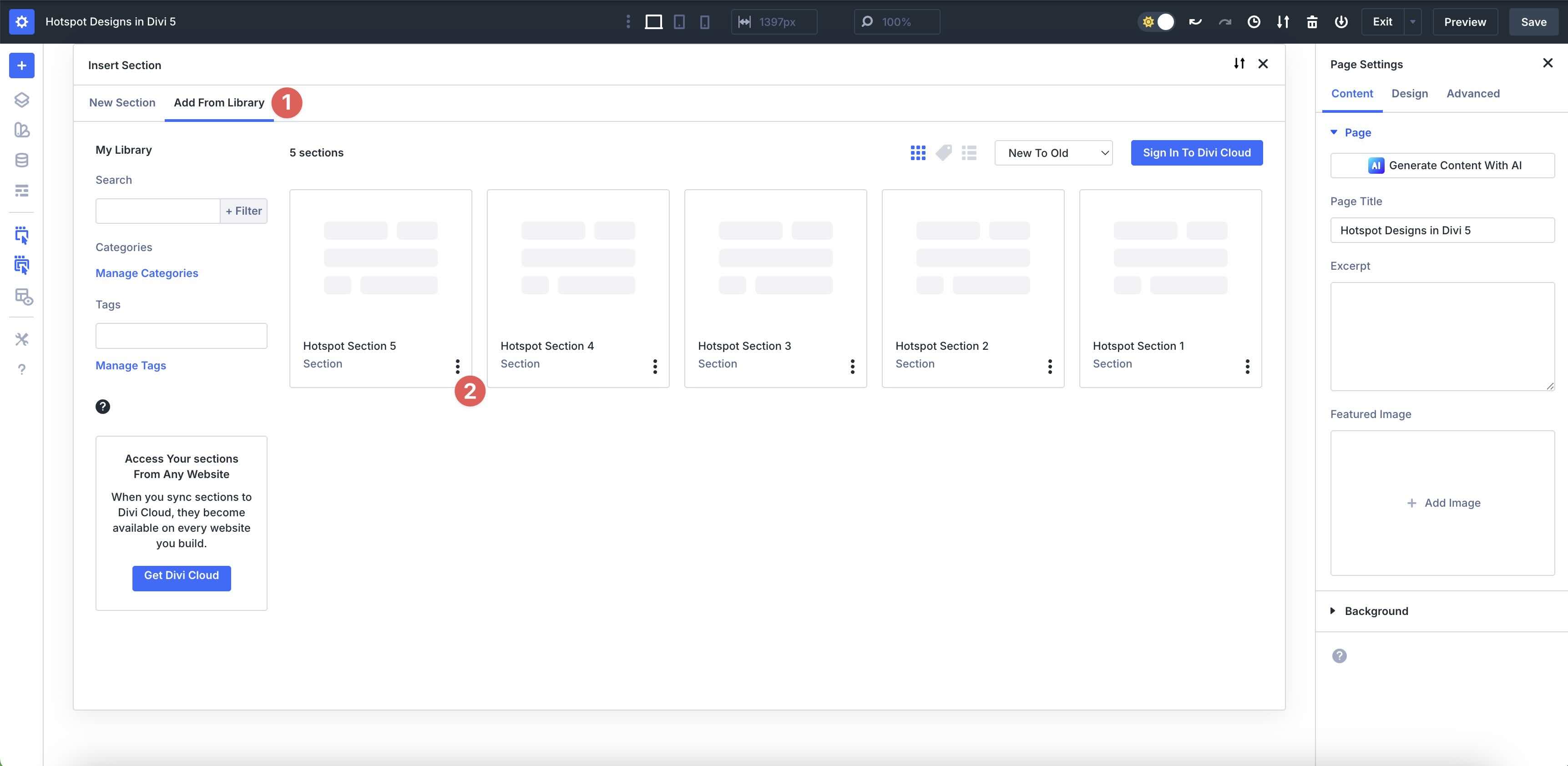
In the Insert Section modal, click Add From Library and select a Hotspot layout.
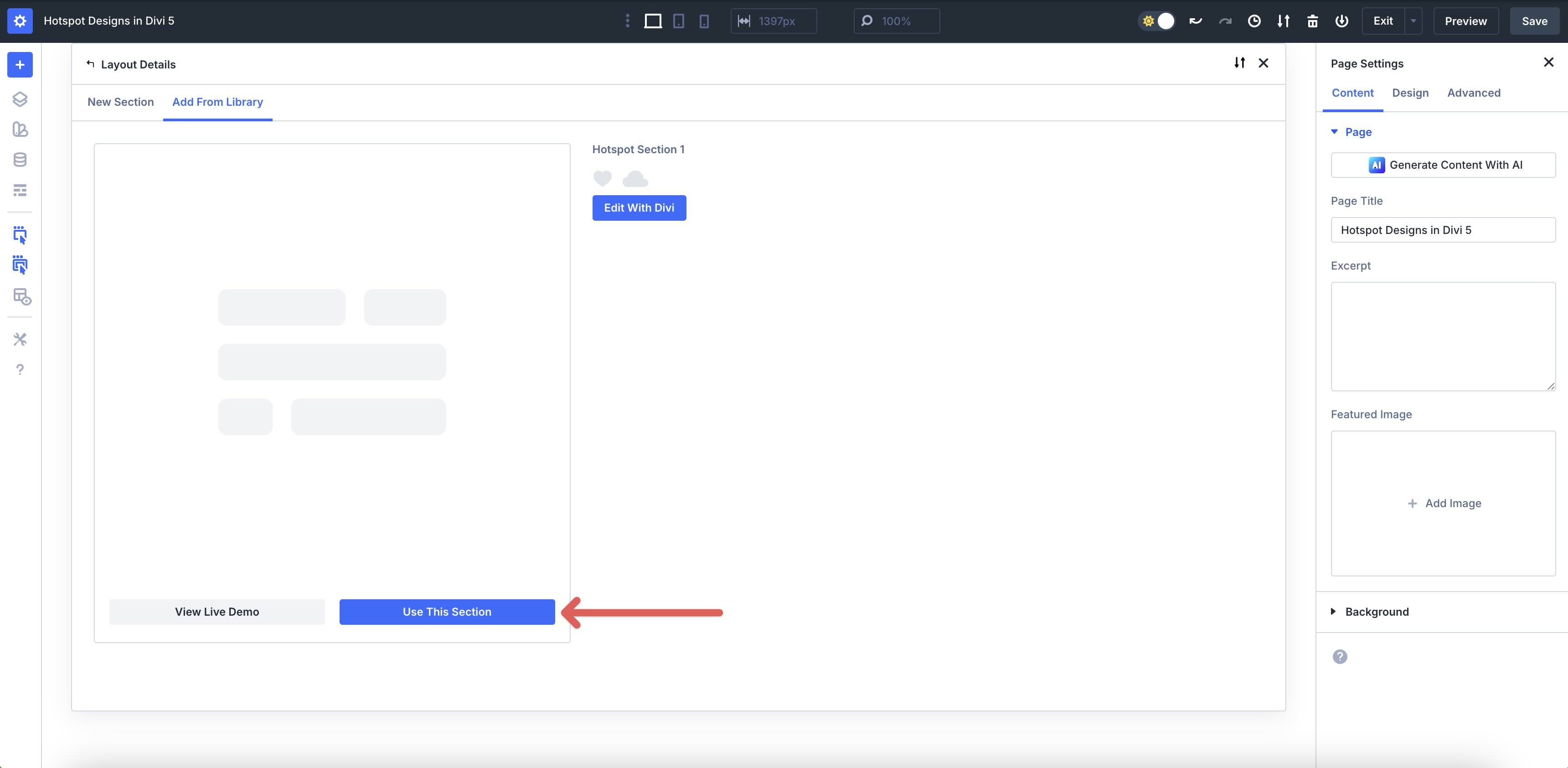
Finally, click Use This Section.
3. Swap The Content
Once the layout is active in the Visual Builder, it’s easy to swap out the content. You’ll notice that all hotspot areas are greyed out, indicating that their visibility is hidden. Each hotspot is activated by hovering over an icon, which reveals its content.
The easiest way to select each hotspot is to use Divi 5’s Layers View panel.
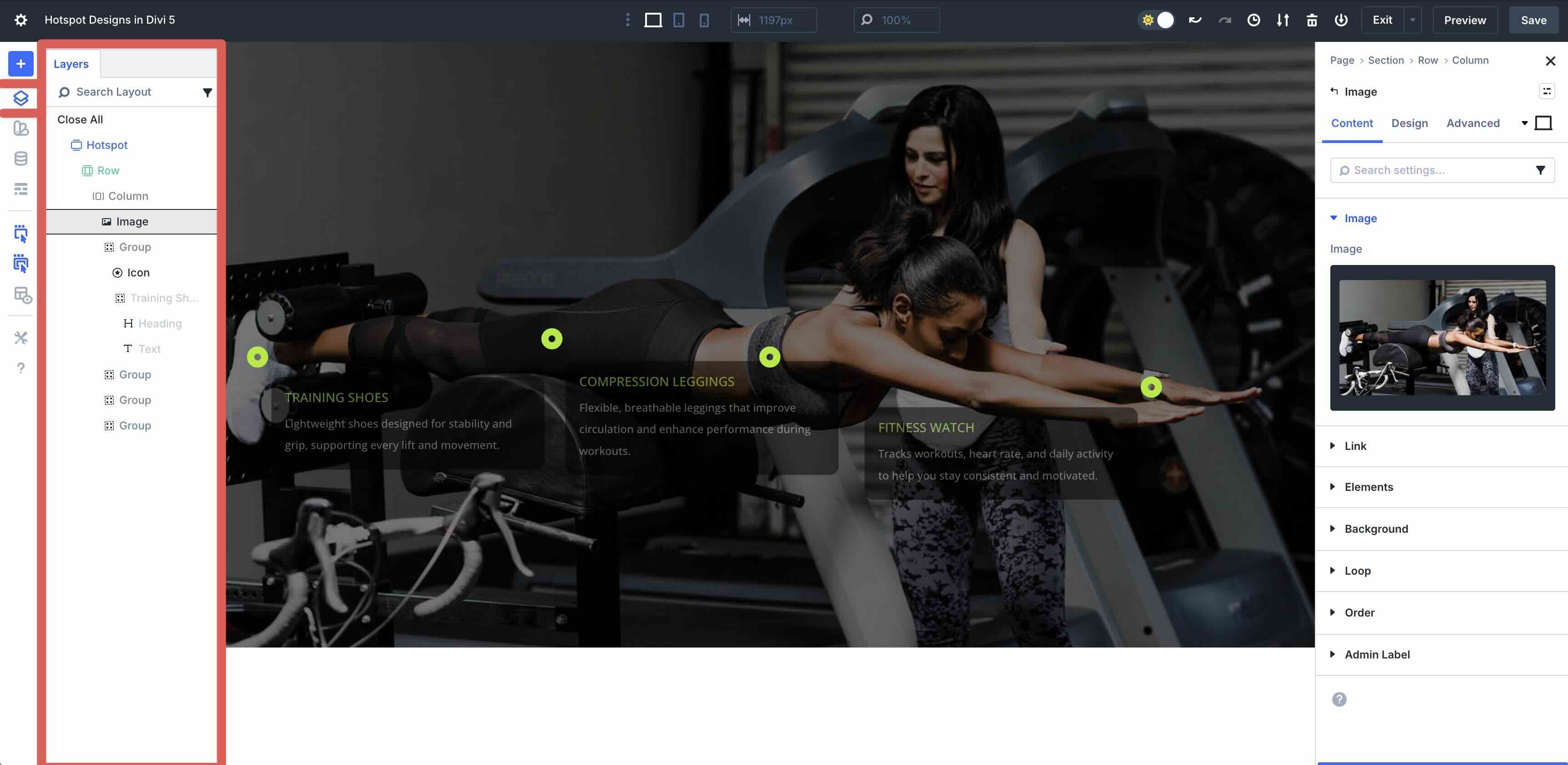
Expand the layers to select the first hotspot group. Click on each Heading and Text module to alter the content.
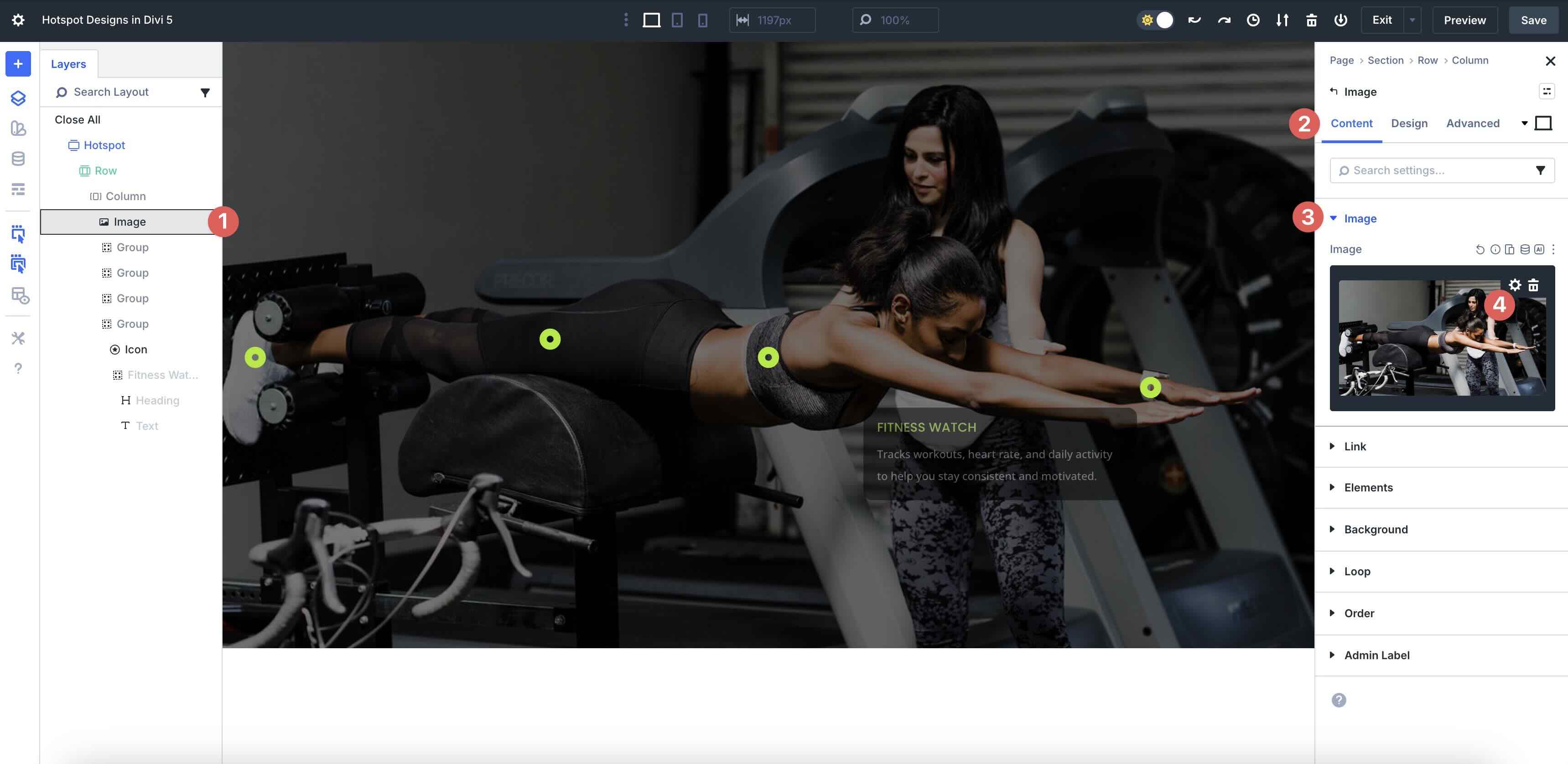
To swap Images, select the Image module in the Layers View panel, go to the Content tab, and expand the Image dropdown menu. Replace the image by clicking on the Settings icon in the Image Preview.
4. Adjust Styles (Optional)
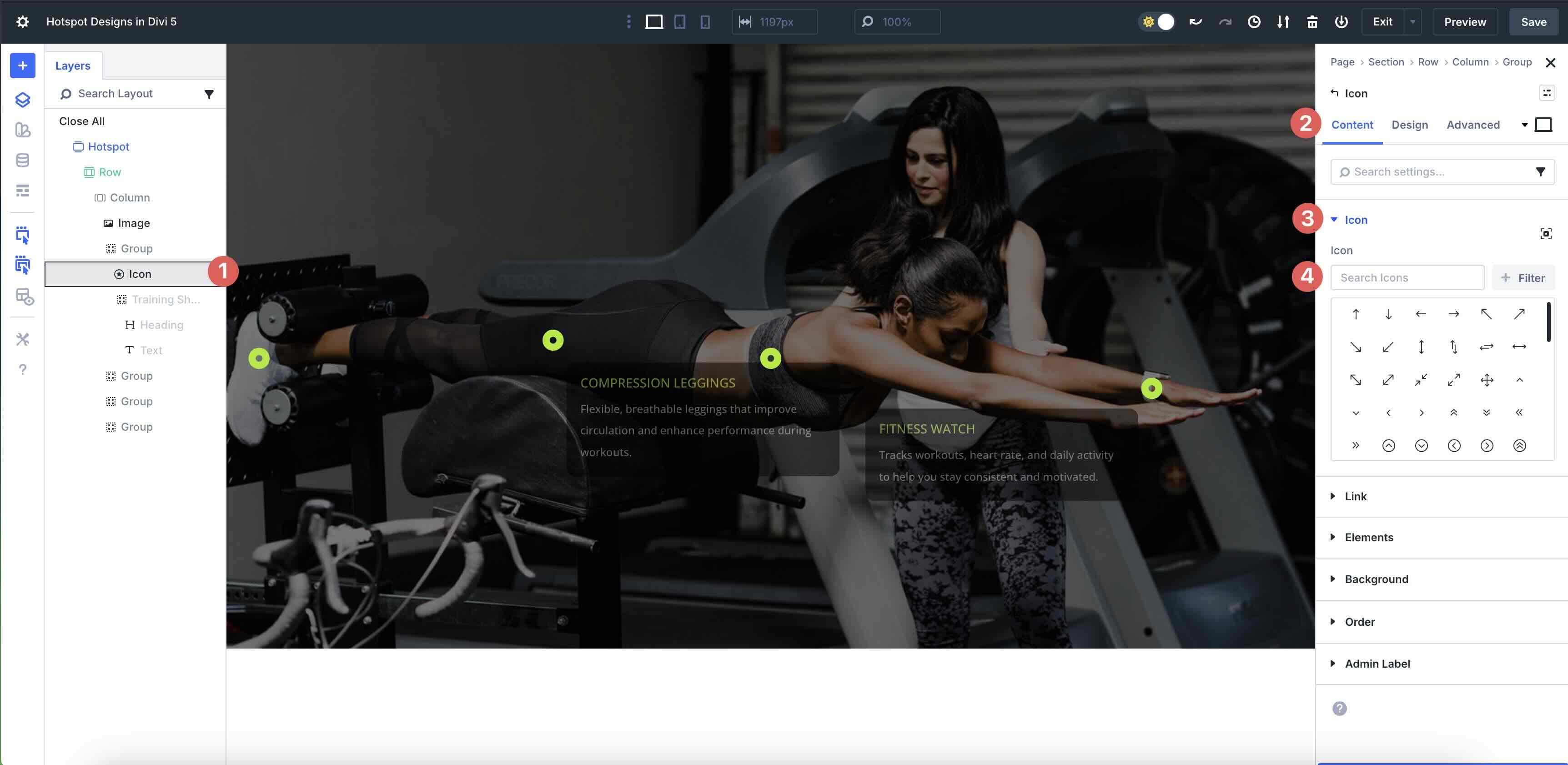
Using the same method, you can use Divi 5’s design settings to alter the appearance of each hotspot. For example, you can easily change the color or size of each Icon by selecting the icon in the Layers View. To change the Icon, click on the Content tab, expand the Icon dropdown menu, and select a new Icon of your choice.
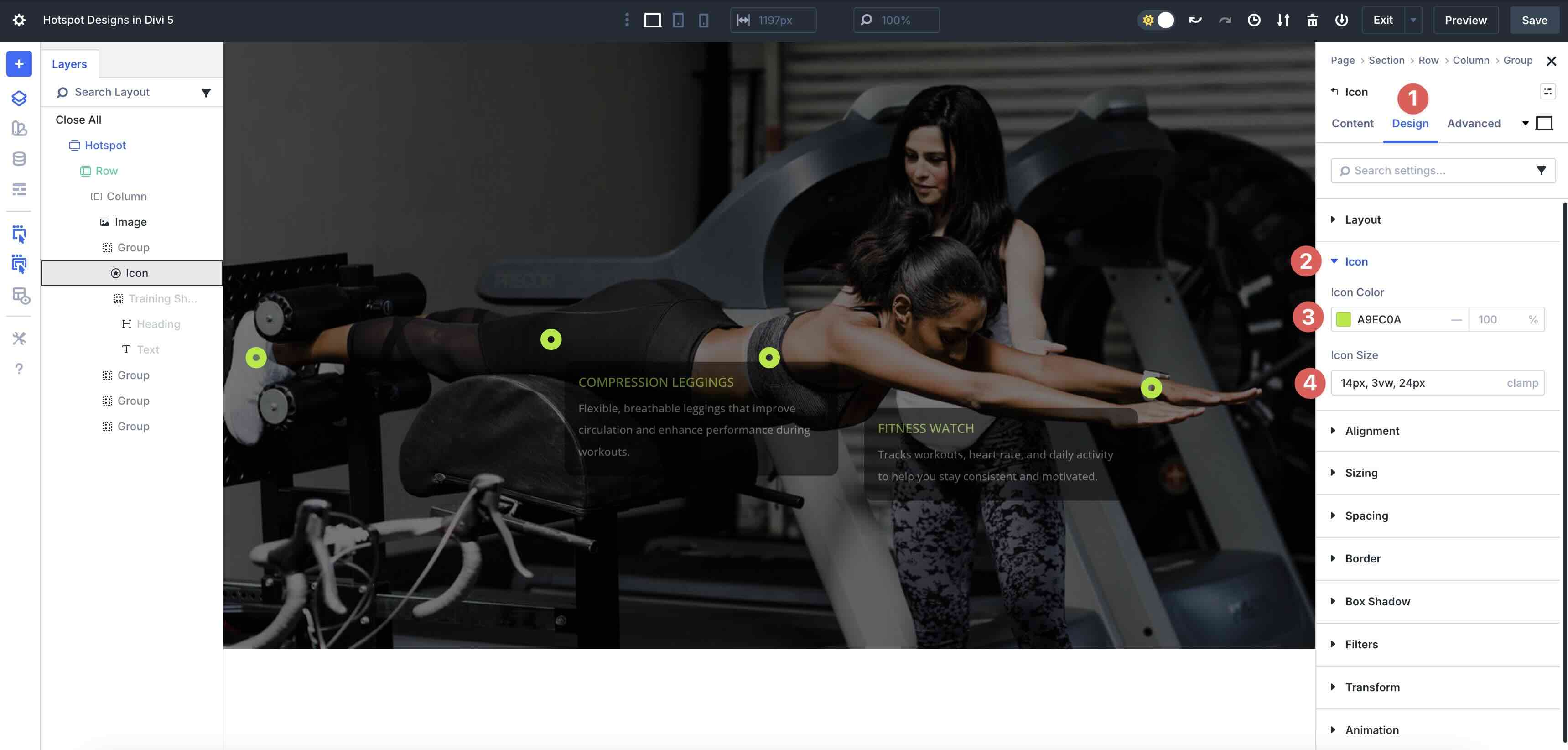
Change the appearance by going to the Design tab, expanding the Icon dropdown menu, and changing the Icon’s Color and Size.
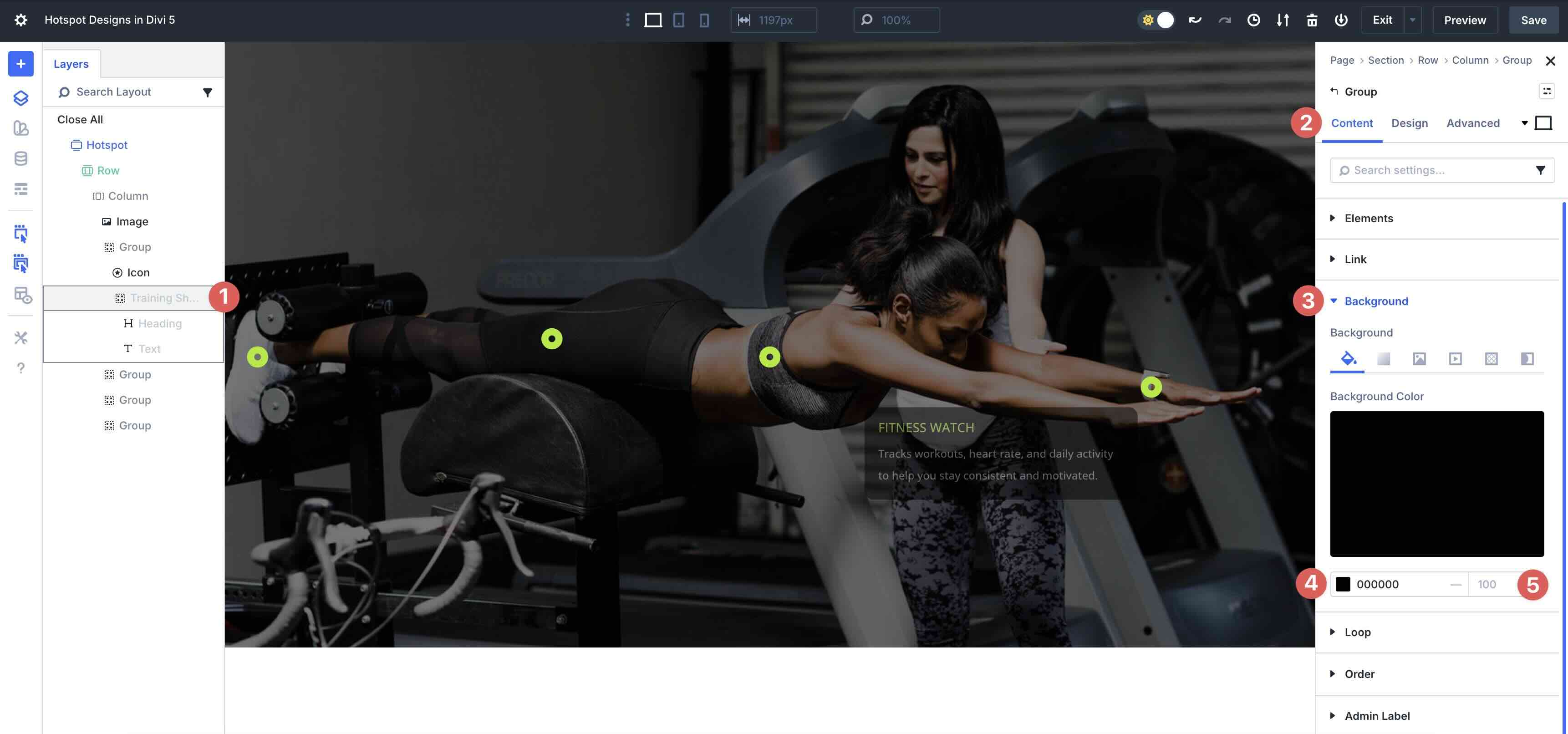
To change the styling for the hotspot’s content, select the Group Module containing the text, alter the Background Color and Opacity.
In the Design tab, you can adjust the hotspot Group’s Spacing, Border, Flex settings, or add a Box Shadow.
You can also tweak the Heading and Text font, colors, sizing, and more, with Divi 5’s intuitive design controls.
Tips For Effective Hotspot Sections
Small choices add up. Here are quick wins to keep your hotspot sections clear and engaging.
Keep Labels Short And Scannable
Hotspots work best when visitors can understand each callout at a glance. Use a short, bold title, followed by one of two lines of supportive context. Avoid using long paragraphs, as they can overwhelm the hotpot and reduce readability when hovered over.

Make The Focus Obvious
Use contrast and spacing to guide the eye toward your primary hotspot or featured region first. Then let supporting hotspots play a secondary role. For example, make the main icon larger or in a bolder color, and add subtle effects sparingly to draw attention without overwhelming the layout.
Match Imagery To The Message
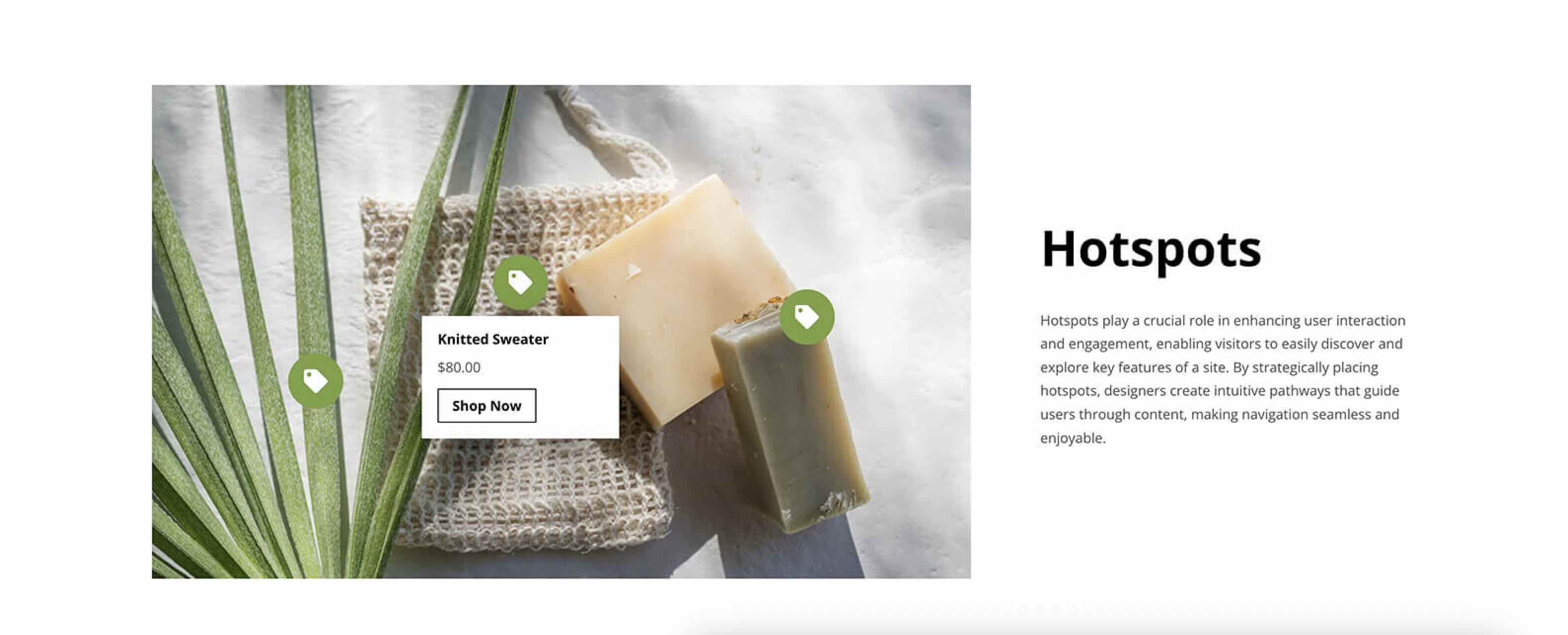
If your design uses a background image, keep it subtle and avoid busy textures or high-contrast patterns behind hotspot labels. Simple backgrounds ensure interactive elements (like icons) stand out clearly and remain easy to notice on both desktop and mobile.
Use Motion Lightly
Subtle hover states or gentle reveals are enough. Use fade-ins or subtle zoom effects to effectively showcase hotspots for optimal results. Keep movement to a minimum so it supports the interaction itself, rather than distracting from the content. Overly flashy animations can frustrate users.
Start Building In Divi 5 Today!
These 5 Hotspot Sections for Divi 5 help you highlight locations, features, and key details in a clean, interactive way. Use them for offices and service areas, product callouts, feature maps, team locations, event hubs, or any layout where visitors benefit from exploring information point by point.












Cool feature. I tried it on one of the new Canvas panels. But, when I added it to the main page through the Canvas portal, the size was different, and the icons were not in the correct locations. I thought this would be a good use for Canvas, but it didn’t work out this way. Did I miss something? Thanks so much for all of these tools!
Yeah, it seems cool, but I’ll probably never develop it that way. It seems too complicated to implement a simple hotspot design. I think it’s great that Divi is so flexible and offers so many possibilities. But one of the advantages of a builder is that you don’t have to create everything from scratch. Themes like Enfold already had an image with a hotspot in 2017, and Brix has its own modules for this. Something like this should be its own module. That would not only reduce development time, but also expand the possibilities. There are many solutions for implementing something like this intuitively and combining it with the modularity of Divi.
There are many reasons: easier positioning, options for the close and open buttons, size, alignment, or even to ensure that everything is responsive, that the pop-up is not outside the canvas, that it is more accessible and easier to maintain. Just thinking about WooCommerce stores, where something like this could also be dynamically integrated, or products that contain something like this, there are so many great possibilities that could be exploited, but with the solution shown here, they are unfortunately too complicated in production.
Please don’t make the mistake of resting on your modularity and expanding Divi only for heavy users. I count myself among them, but I can’t expect any customer to edit something like this themselves.
How do you change the icon location?
Marco, that one I figured out! Select Icon> Advanced > Positioning, then use the sliders on the vertical and horizontal axes. The text modals work the same way, but I found it easier to move the whole group. My issue is that if you duplicate a group, it maintains the same heading and text of the original group, even when I’ve made changes. I’ve done the same work 4 times. On canvases, on the live site, it doesn’t seem to matter. I want to have 9 hotspots on this image, and can only really get the 4 it starts with. I also lose the ability to make them fixed so they stay in place, even when the sidebar says I have them set to fixed.
I am using Hotspot 1. I have added an X in a Group that closes the open Group. Is there a way to add an Interaction that closes any other Groups that might be open? I have 14 states and all can be, technically, opened at once. I wouldn’t do that as a user, but some might and it gets very disjointed.
Not currently as a built-in behavior. These hotspot groups are set up as individual reveals, so they can technically all be opened independently. 👍
This is great but it would be great to have a step by step breakdown of how to make hotspot images.
There is no content when I try to edit in the library or to add to a page.
Hey, Jarrod!
We can only assume that the Library import did not complete successfully. We retested the download (containing zipped JSON layouts) and found that it works and that all 5 sections are in it: https://bit.ly/4reTAyl
One thing to note is that you first need to unzip the downloaded archive and then choose one of the included JSON files – “Hotspot Sections – All.json” contains all five sections.
Hope this helps! 👍