

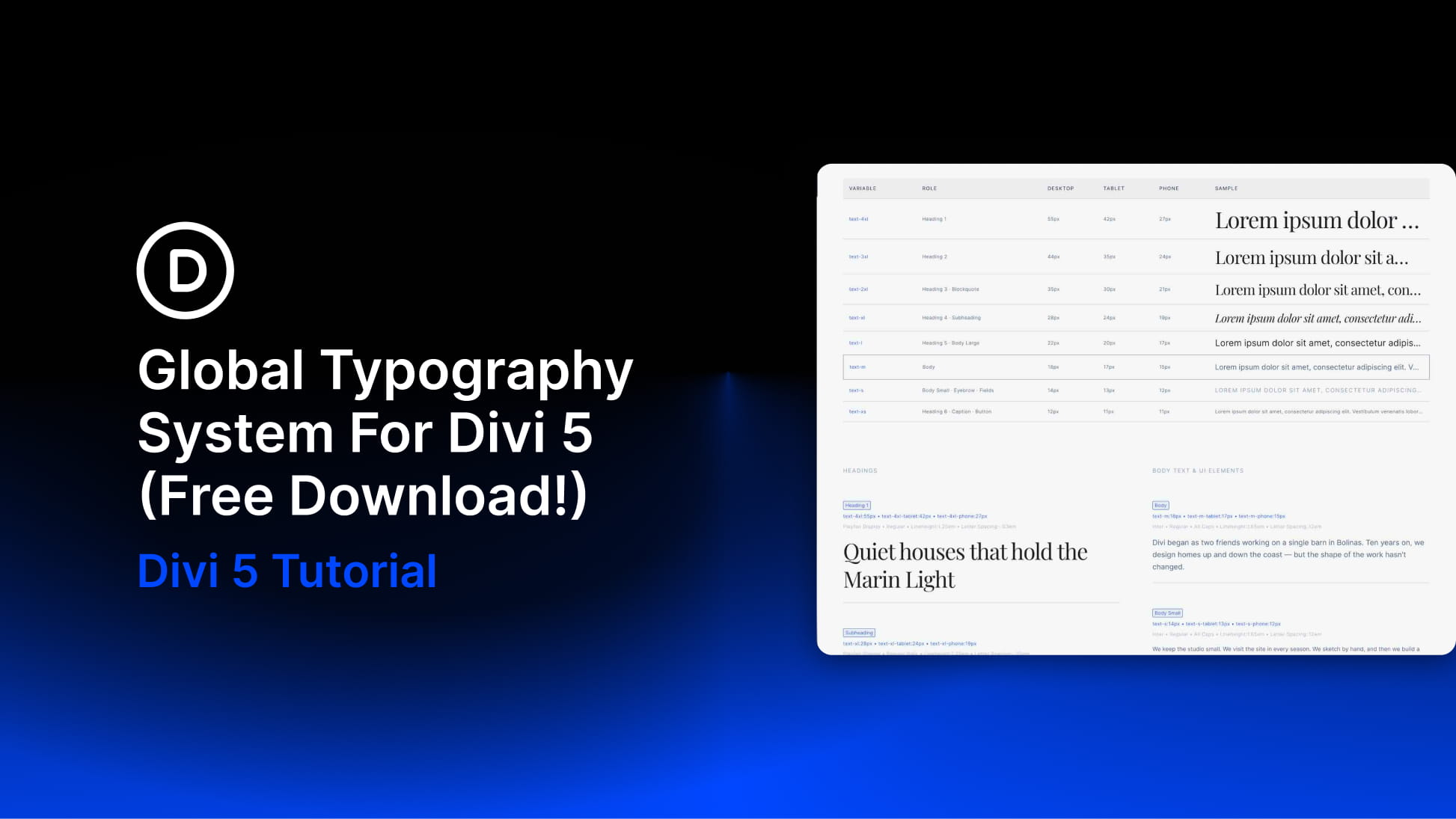
Divi 5 gives you more control over reusable design systems, especially when you pair global variables with presets and consistent typography rules. In this free pack, you’ll get a complete Global Typography System for Divi 5 with two setup options: a Fixed Scale system and a Fluid Scale system.
Both are based on Divi 5’s Variable Generator and use Option Group Presets for headings, text, buttons, and fields, making it easier to create consistent typography across an entire website.
- 1 Preview
- 2 Download The Global Typography System For Divi 5
- 3 Download For Free
- 4 What’s Included
- 5 Fixed Scale Vs. Fluid Scale
- 6 Recommended Import Order
- 7 How To Import The Global Typography System
- 8 What The Layout Includes
- 9 Important Notes
- 10 Tips For Using A Global Typography System
- 11 Start Building In Divi 5 Today!
Preview
Here’s a quick look at the Global Typography System included in the pack. The download is further down the post.
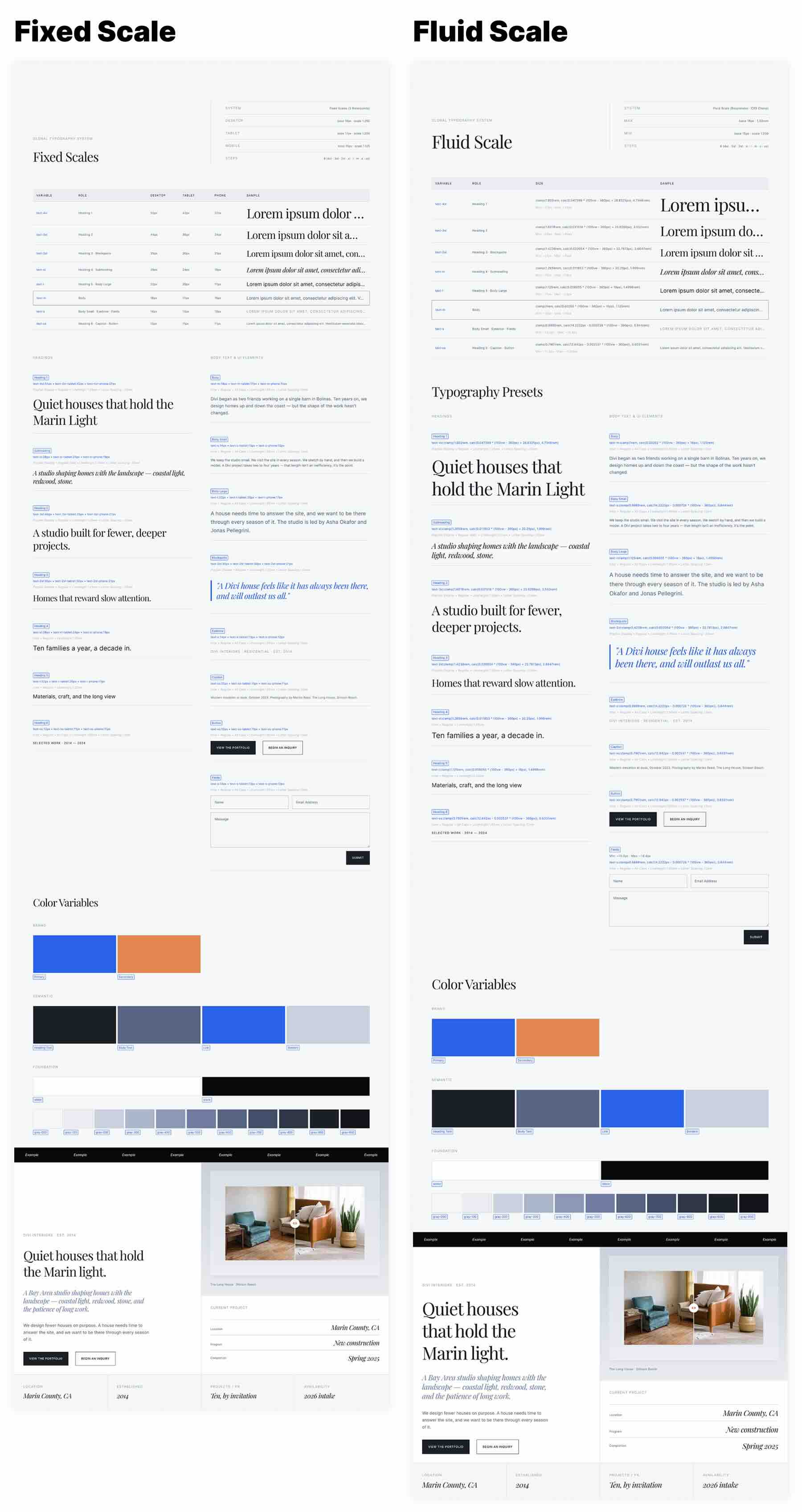
Download The Global Typography System For Divi 5
Get the Fixed Scale and Fluid Scale typography systems for free. Import the files into Divi 5, apply the variables and presets, and use the included layouts as typography references for your next project.

What’s Included
After you download and unzip the file, you’ll find two folders: Fixed Scale and Fluid Scale. Each folder includes four numbered JSON files that should be imported in order.
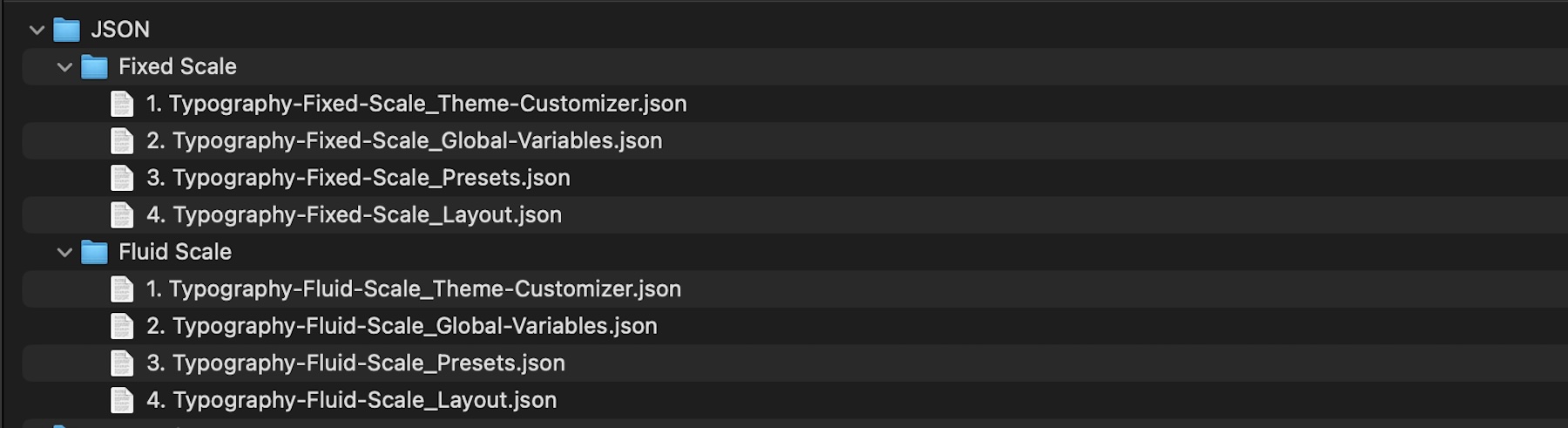
Fixed Scale → A responsive typography system based on fixed pixel values for desktop, tablet, and mobile. This setup is ideal if you want direct control over typography sizes at each breakpoint.
Fluid Scale → A responsive typography system based on CSS clamp values. This setup is ideal if you want typography to scale more fluidly across screen sizes using a single clamp value for each typography style.
Each scale includes a Theme Customizer file, Global Variables file, Presets file, and Layout file. The numbering prefix in each filename indicates the recommended import order.
Fixed Scale Vs. Fluid Scale
Both systems are designed to help you manage typography more consistently in Divi 5, but they use different approaches.
Fixed Scale
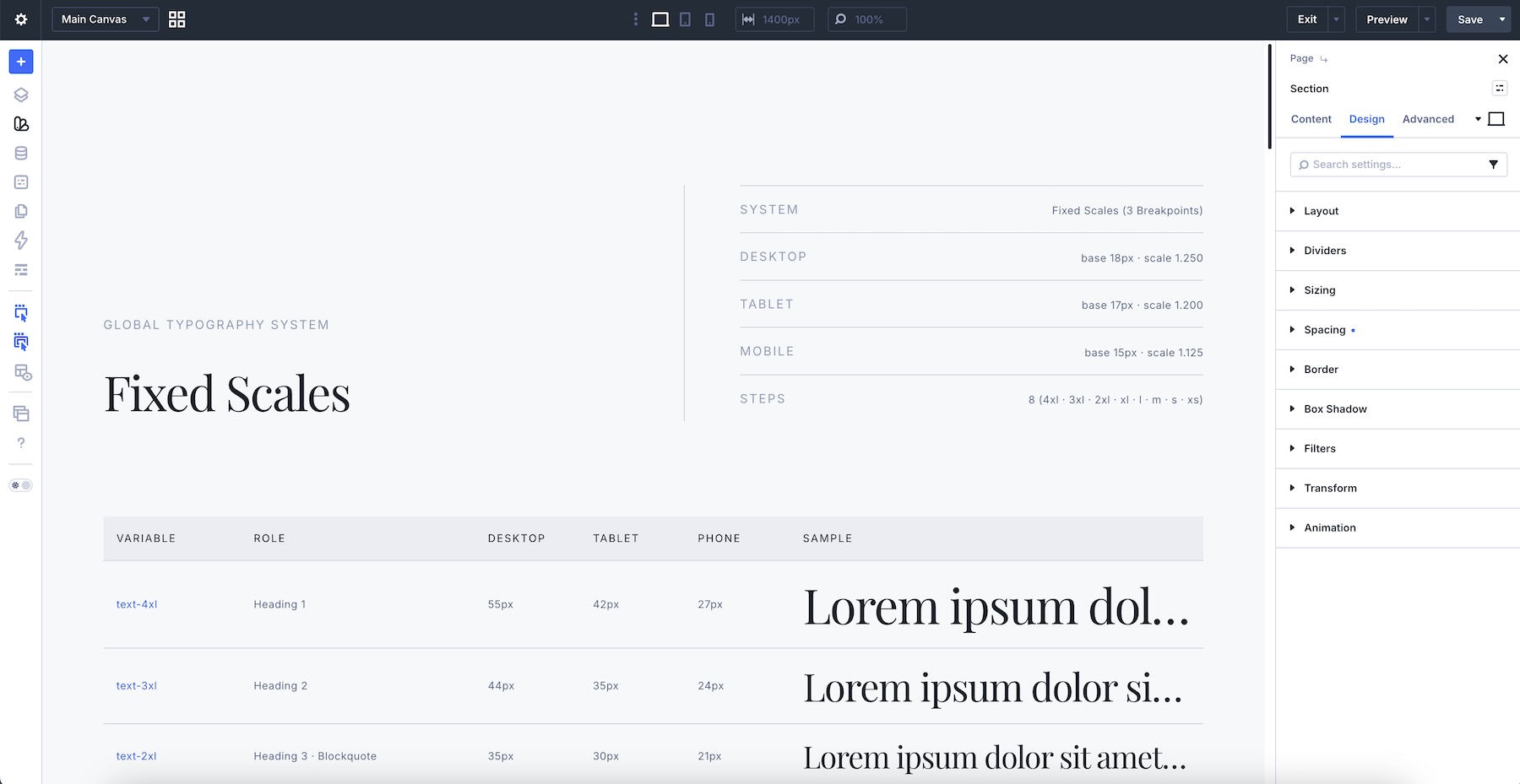
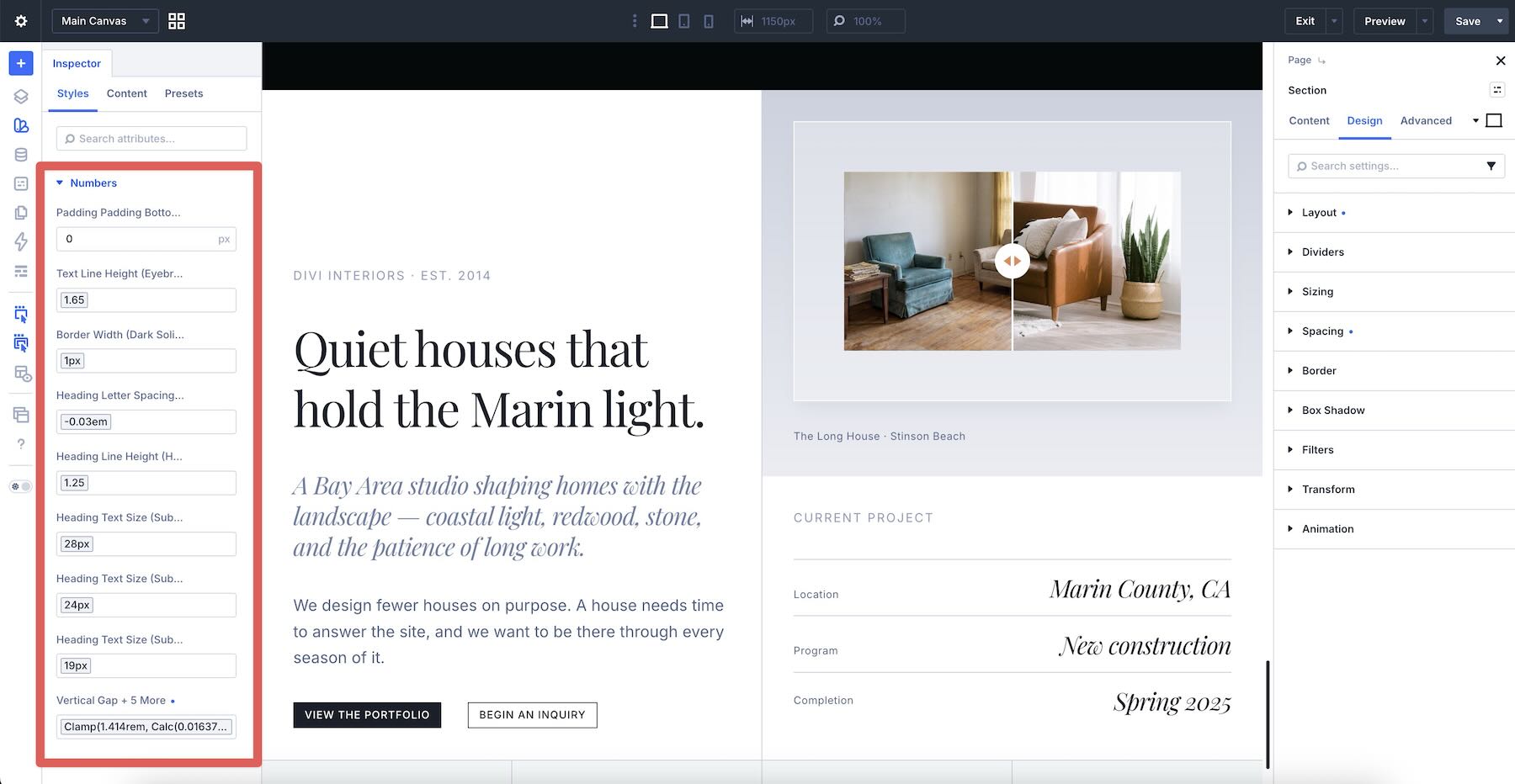
The Fixed Scale system is based on Variable Generator → Numbers → Font Size → Fixed Scale (Responsive). Each typography style includes three separate pixel values for desktop, tablet, and mobile breakpoints.
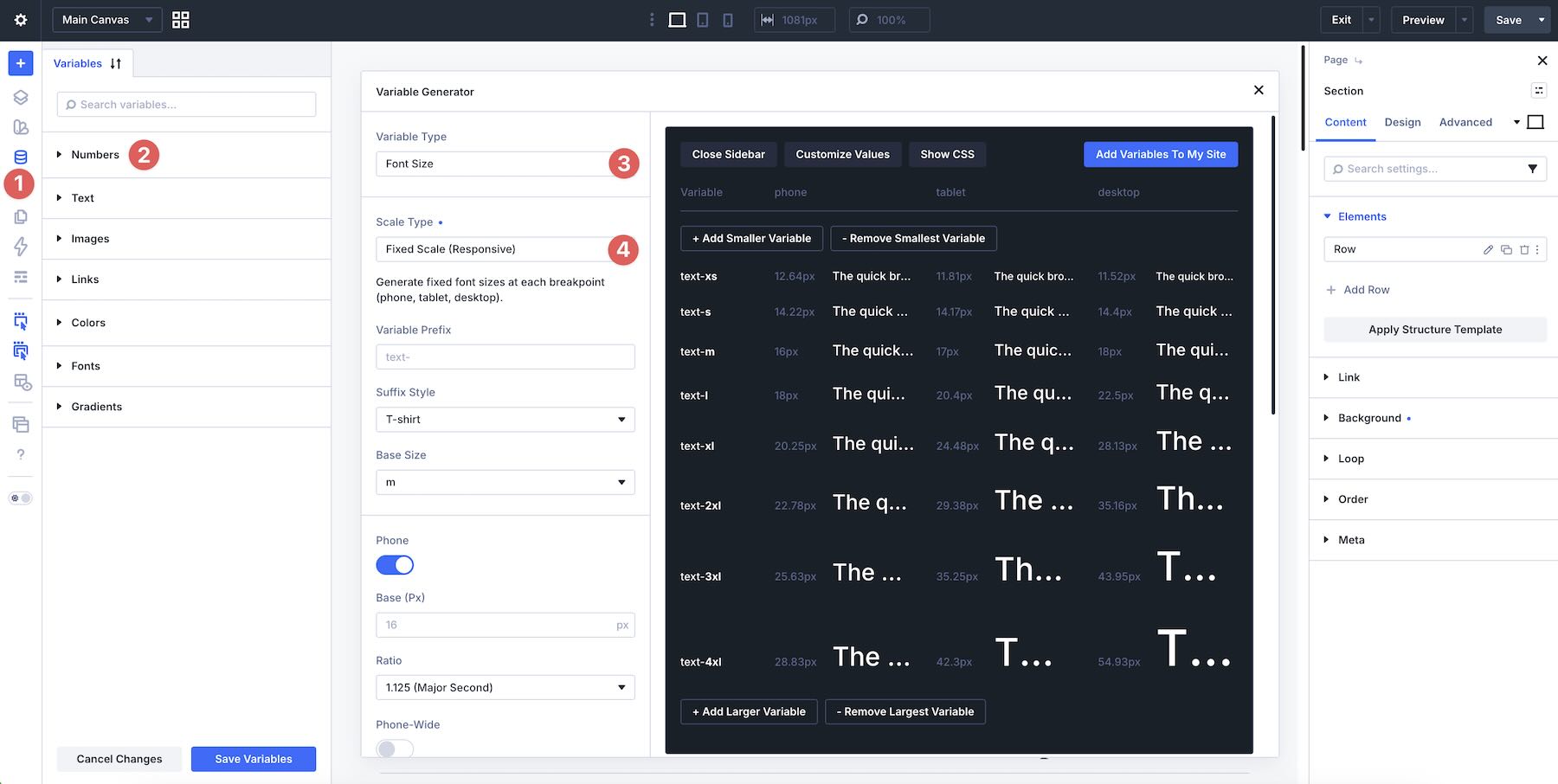
This gives you precise control over how headings, body text, buttons, fields, and supporting text styles resize across devices. Use Fixed Scale if you prefer predictable breakpoint-based sizing and want to define exactly how each style behaves on desktop, tablet, and phone screens.
Fluid Scale
The Fluid Scale system is based on Variable Generator → Font Size → Fluid Scale (CSS Clamp). Each typography style uses one clamp value that scales fluidly across screen sizes.
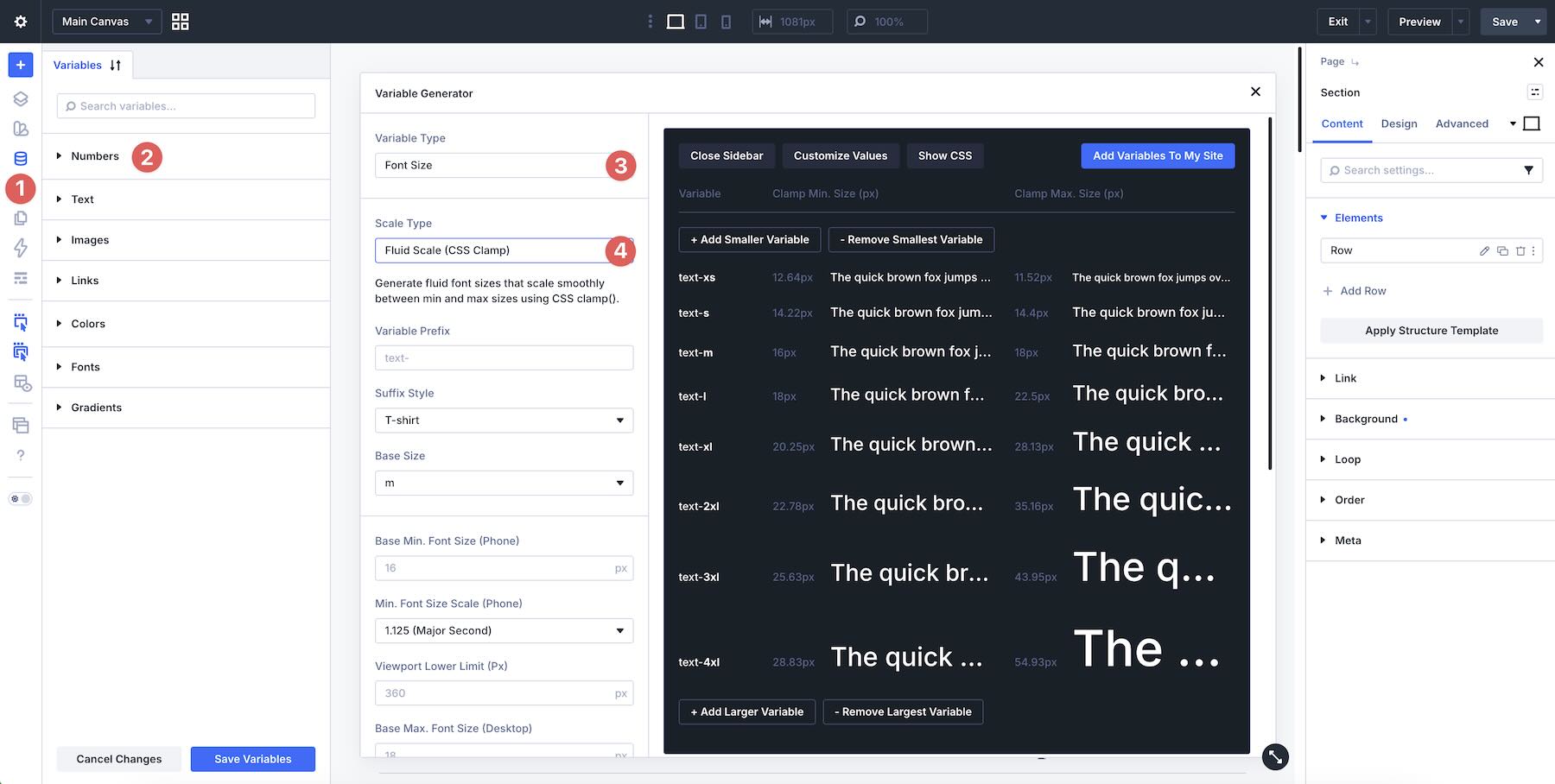
This gives your typography a smoother responsive behavior without manually setting separate values for each breakpoint. Use Fluid Scale if you want your text to scale naturally between screen sizes while still keeping your typography system structured and reusable.
Recommended Import Order
For the best result, choose either the Fixed Scale folder or the Fluid Scale folder and import the files in the numbered order provided. The import order matters because the layout relies on the variables and presets that come before it.
Fixed Scale Import Order
1. Typography-Fixed-Scale_Theme-Customizer.json → Import into the Theme Customizer.
2. Typography-Fixed-Scale_Global-Variables.json → Import into the Variable Manager.
3. Typography-Fixed-Scale_Presets.json → Import into the Preset Manager.
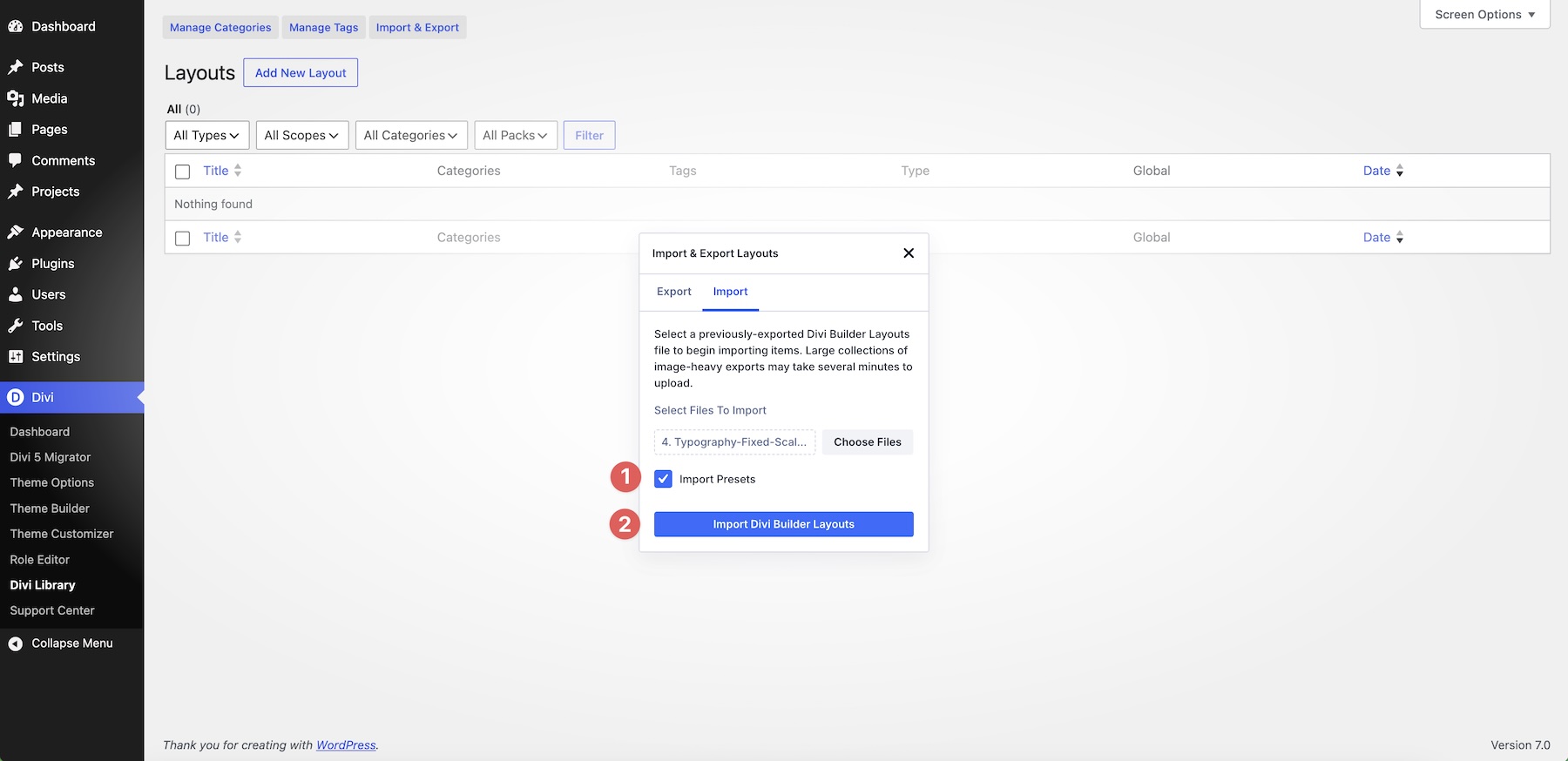
4. Typography-Fixed-Scale_Layout.json → Import through the Divi Library with Import Presets selected.

Fluid Scale Import Order
1. Typography-Fluid-Scale_Theme-Customizer.json → Import into the Theme Customizer.
2. Typography-Fluid-Scale_Global-Variables.json → Import into the Variable Manager.
3. Typography-Fluid-Scale_Presets.json → Import into the Preset Manager.
4. Typography-Fluid-Scale_Layout.json → Import through the Divi Library with Import Presets selected.

How To Import The Global Typography System
Keep your download folder handy. The steps below walk through the full import process. You can follow the same process for either the Fixed Scale folder or the Fluid Scale folder.
1. Choose The Typography Scale You Want To Use
Start by deciding whether you want to use the Fixed Scale system or the Fluid Scale system.
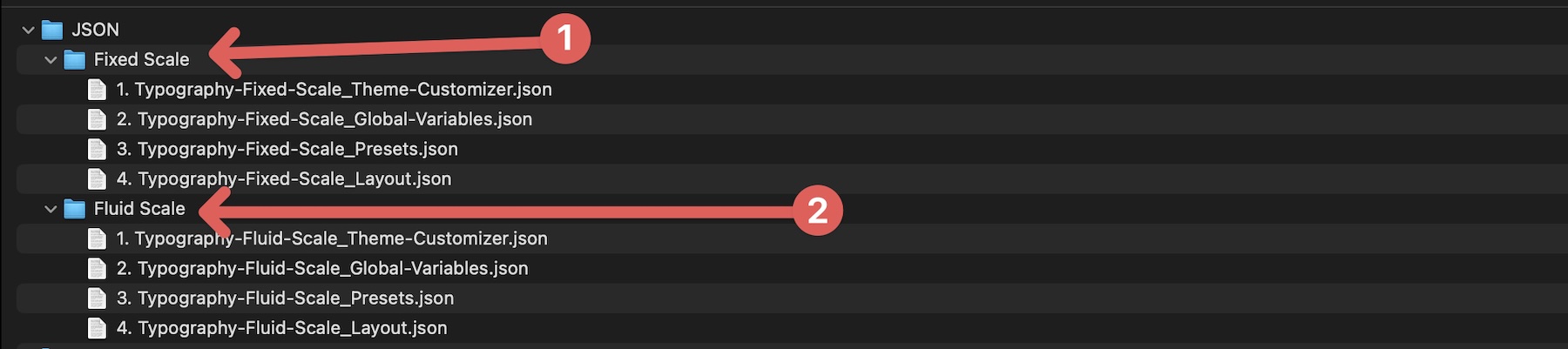
Choose Fixed Scale if you want separate desktop, tablet, and mobile values. Choose Fluid Scale if you want typography that scales smoothly using CSS clamp values. Once you choose a scale, stay inside that folder and import the four files in order.
2. Import The Theme Customizer File
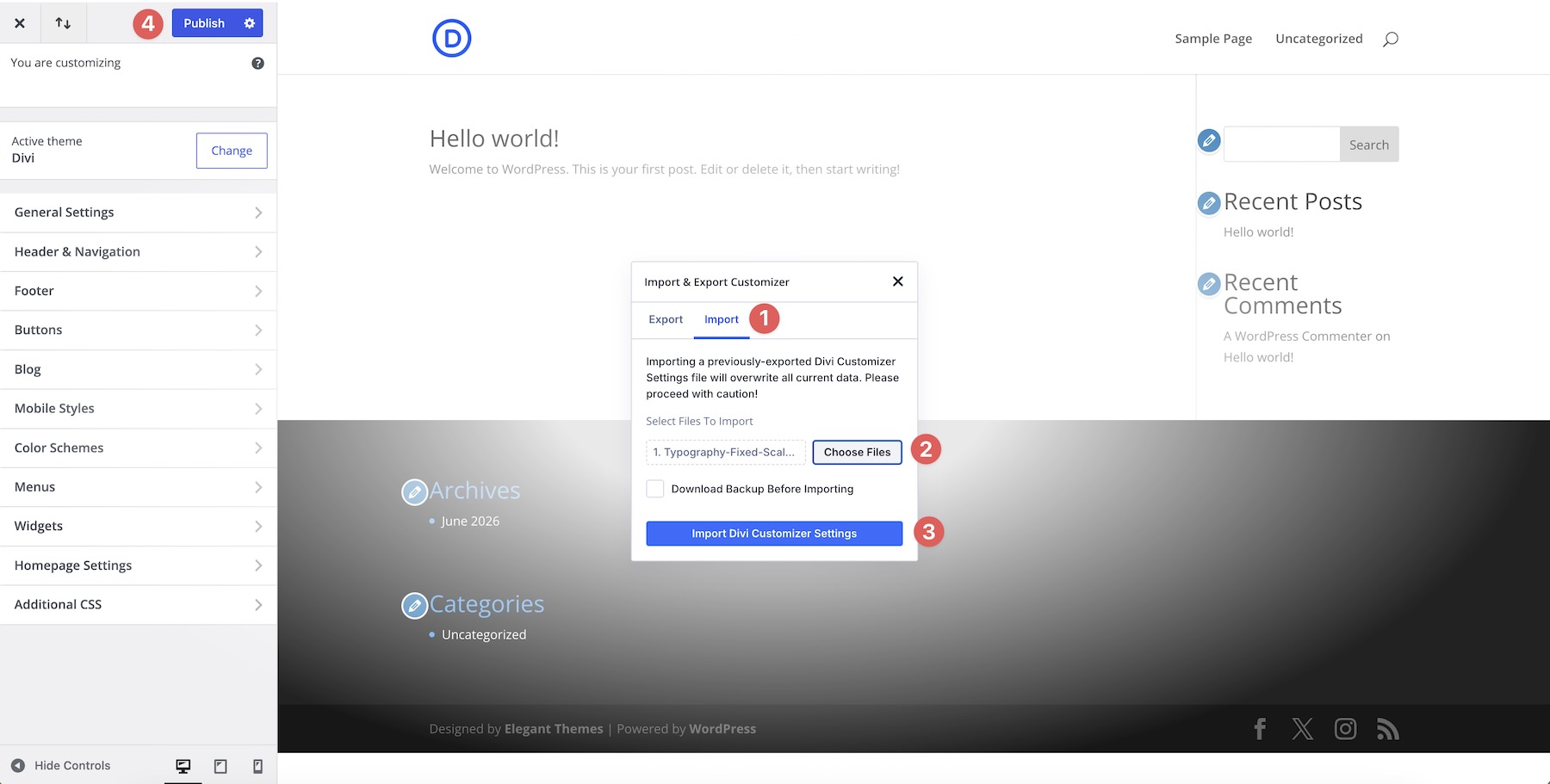
The first file should be imported into the Theme Customizer. This file is mainly used for heading and body font weight settings, helping the layout match the intended typography system more closely.

Go to the Theme Customizer import area and upload the file labeled 1. Typography-Fixed-Scale_Theme-Customizer.json or 1. Typography-Fluid-Scale_Theme-Customizer.json, depending on the scale you chose.
After the import is complete, save your Theme Customizer changes before moving on to the next file.
3. Import The Global Variables File
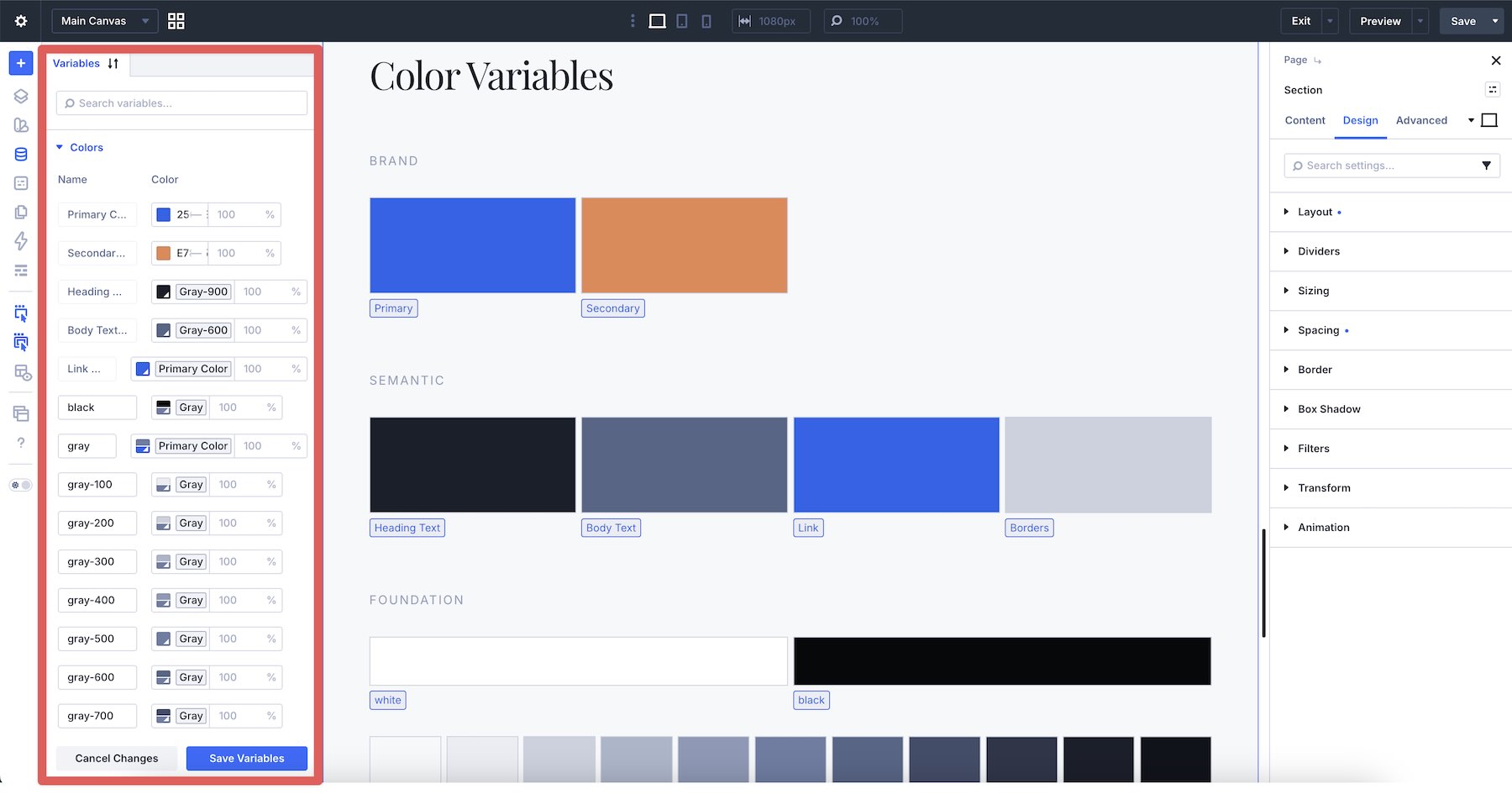
Next, import the Global Variables JSON into Divi 5’s Variable Manager. This file brings in the typography variables and color variables used throughout the system.

Open the Variable Manager and import the file labeled 2. Typography-Fixed-Scale_Global-Variables.json or 2. Typography-Fluid-Scale_Global-Variables.json.
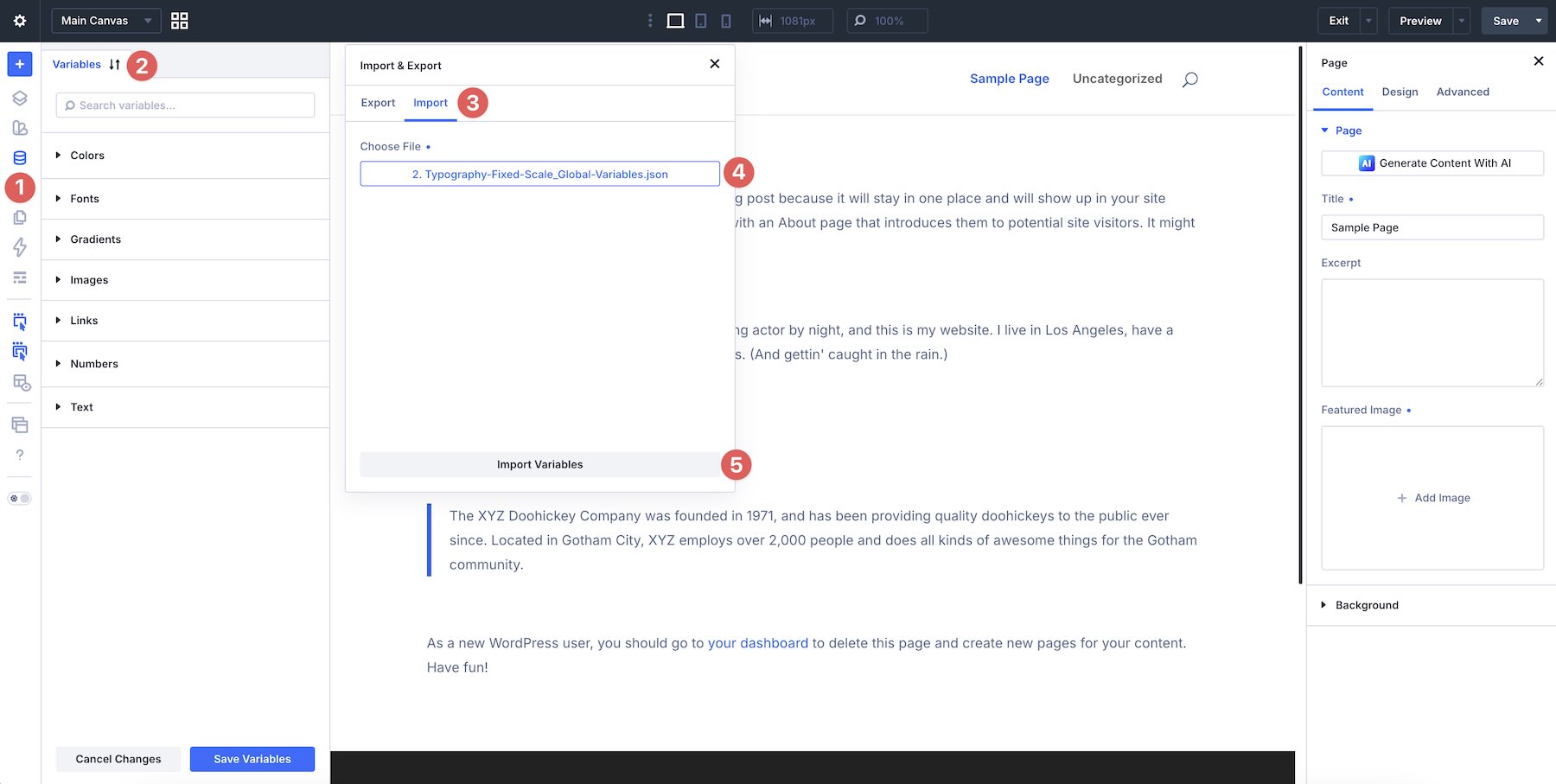
This step adds the font size variables used by the typography system, along with key color variables such as Primary Color, Secondary Color, Heading Text Color, Body Text Color, and Link Color.
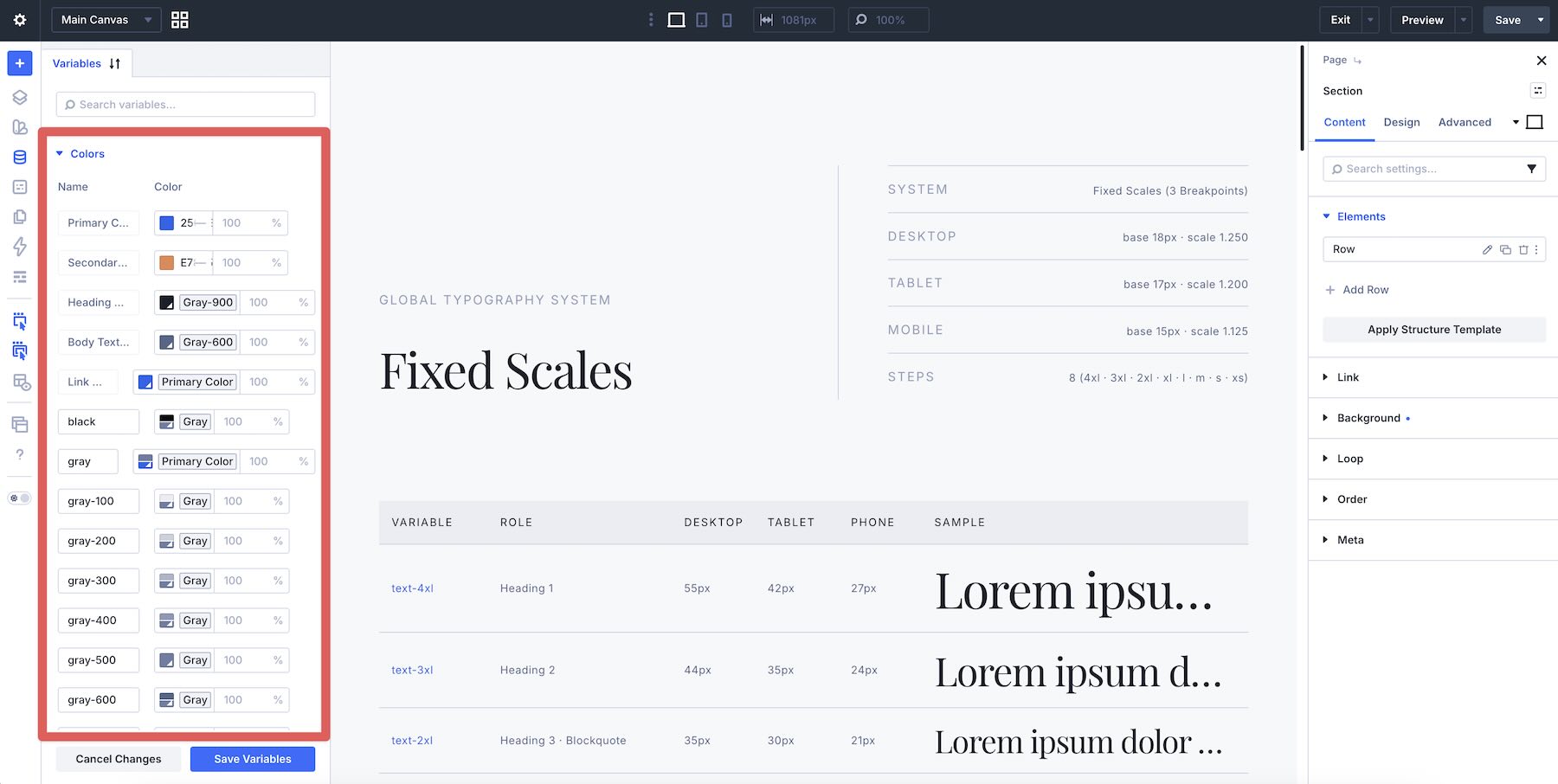
If you skip this step, the layout may still look close to the preview, but those global color variables will not be added under Variables → Colors. You can fix that at any time by importing the Global Variables JSON file for the scale you are using.
4. Import The Presets File
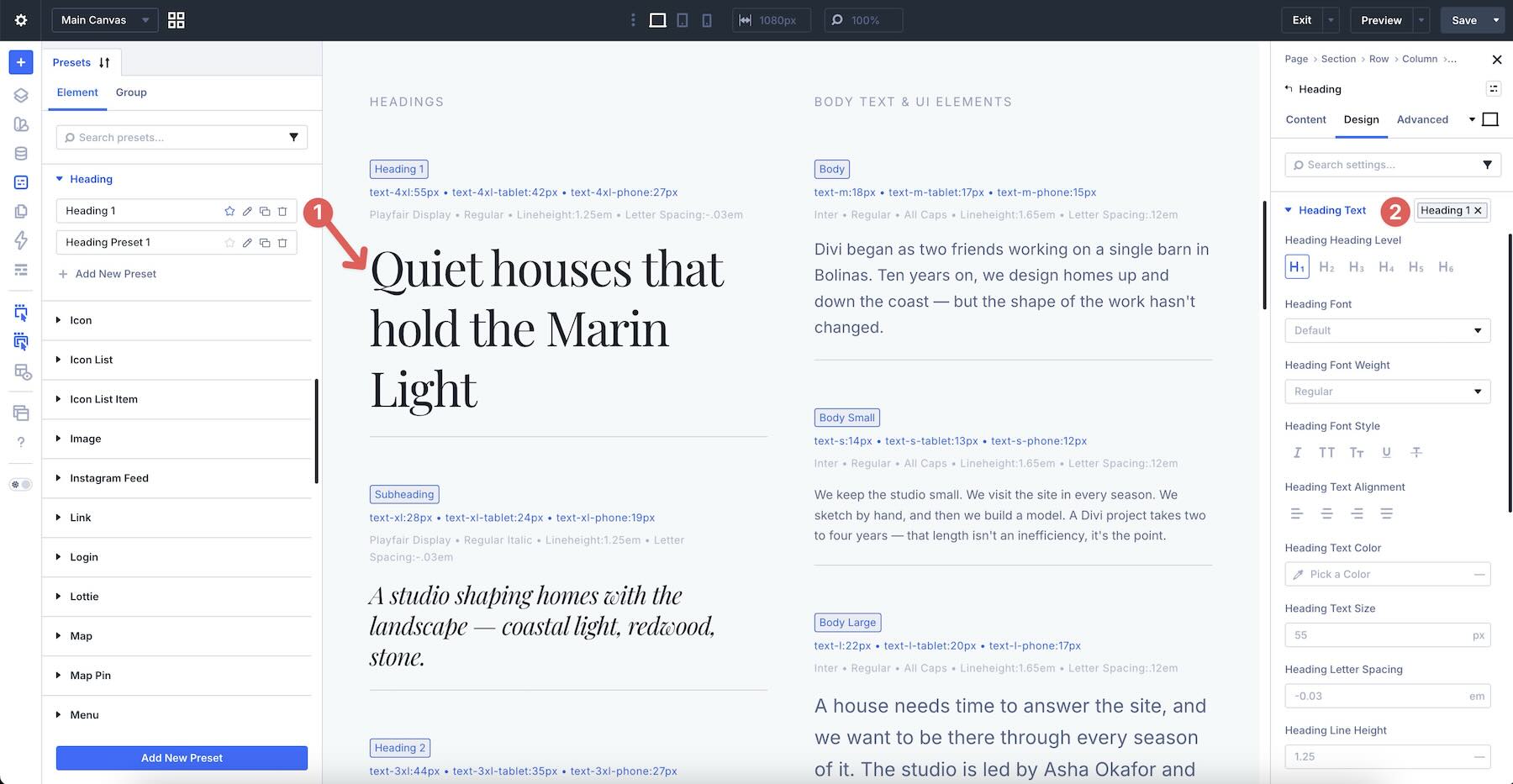
After importing the variables, import the Presets JSON into Divi 5’s Preset Manager. These presets help connect headings, text, buttons, and fields to the typography system.

Open the Preset Manager and import the file labeled 3. Typography-Fixed-Scale_Presets.json or 3. Typography-Fluid-Scale_Presets.json.
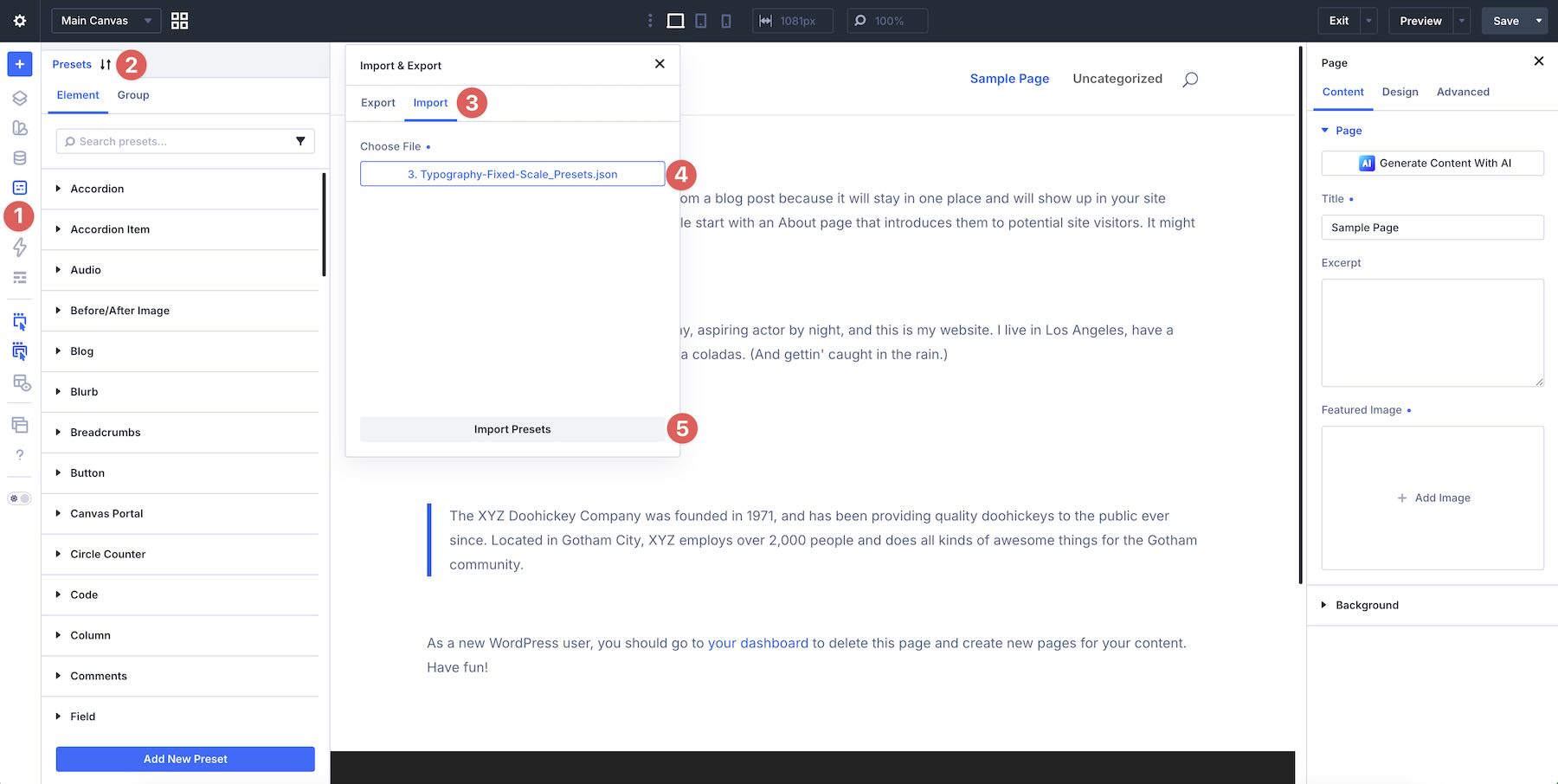
The presets are built around Option Group Presets for headings, text, buttons, and fields. This gives you a reusable styling foundation that can be applied throughout your site instead of manually restyling each module.
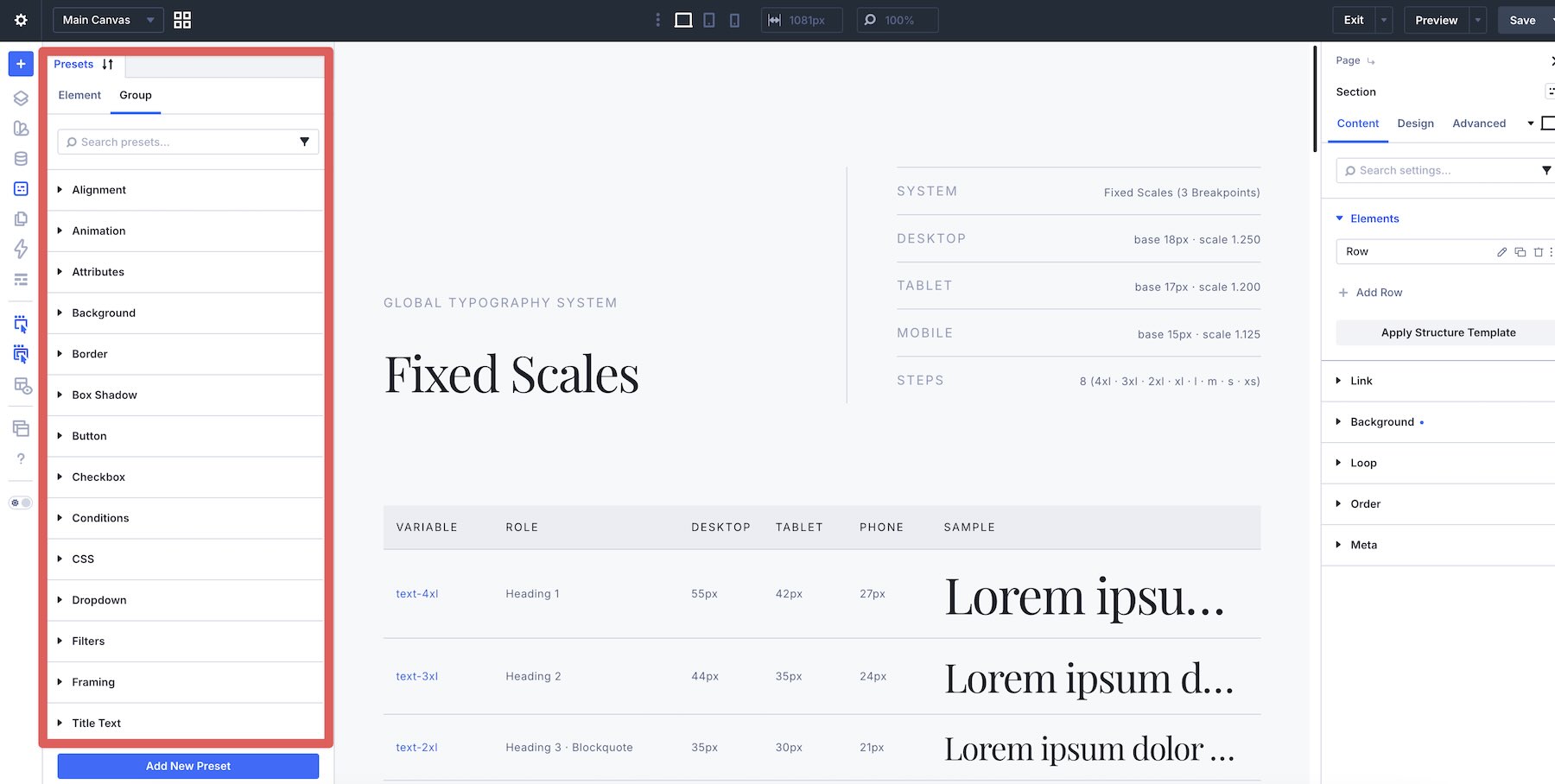
Not all Option Group Presets may be imported through every import path, so using the recommended import order gives you the most complete setup.
5. Import The Layout File Through The Divi Library
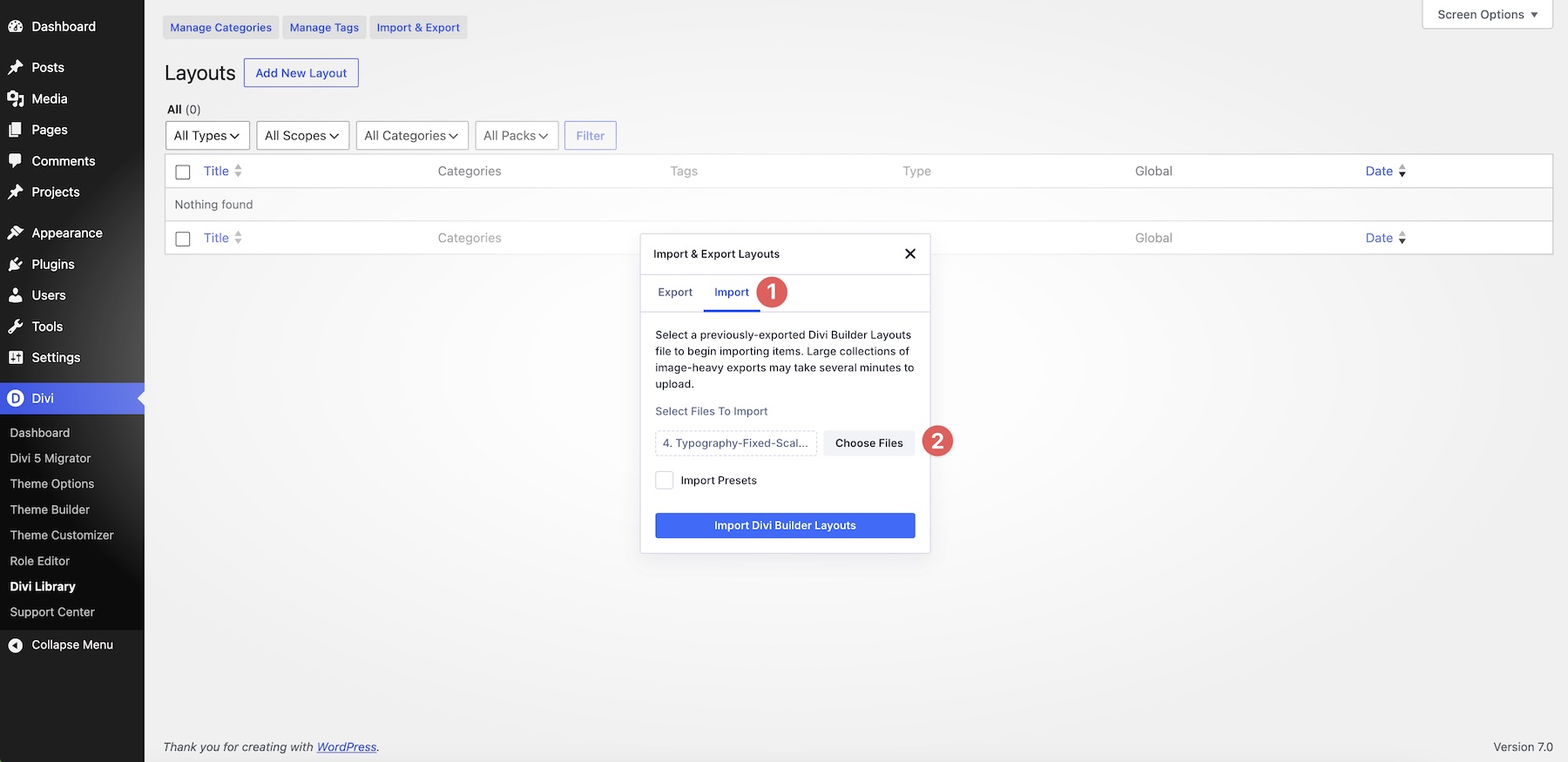
Finally, import the layout file through the Divi Library. Go to Divi → Divi Library, then click Import & Export.
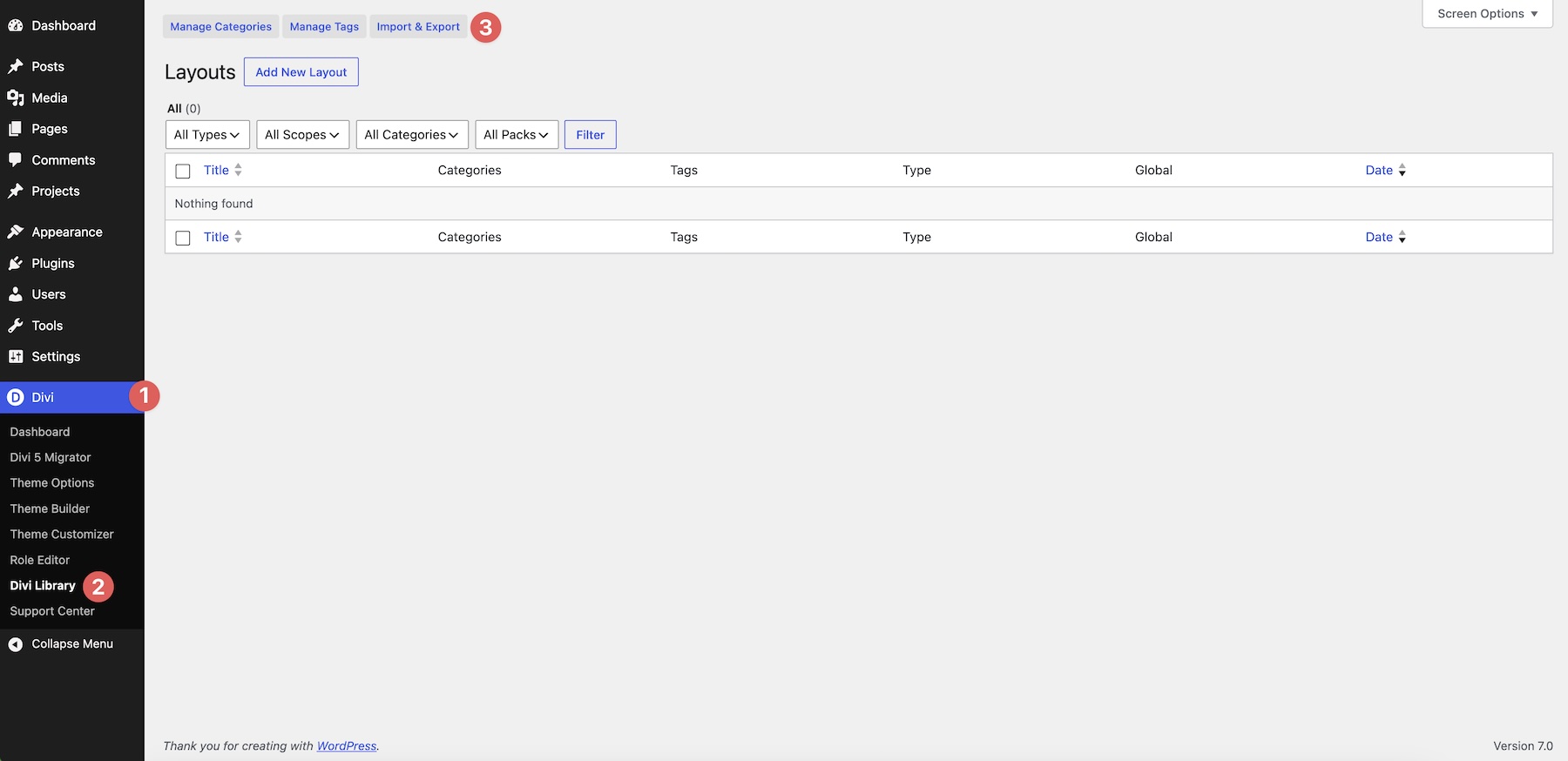
In the Import & Export Layouts modal, switch to the Import tab and choose the file labeled 4. Typography-Fixed-Scale_Layout.json or 4. Typography-Fluid-Scale_Layout.json.
Make sure Import Presets is selected before importing the layout. This helps bring the layout in with the preset styling it was built to use.
Once imported, add the layout to a page from the Divi Library and review the typography system in the Visual Builder.
What The Layout Includes
The included layout is designed as a typography system reference. It helps you see how the imported variables and presets work together across headings, text, buttons, fields, and color values.
Scale & Type
The Scale & Type section shows the typography styles included in the system. This includes heading styles, body text styles, smaller supporting text styles, and sample type treatments.
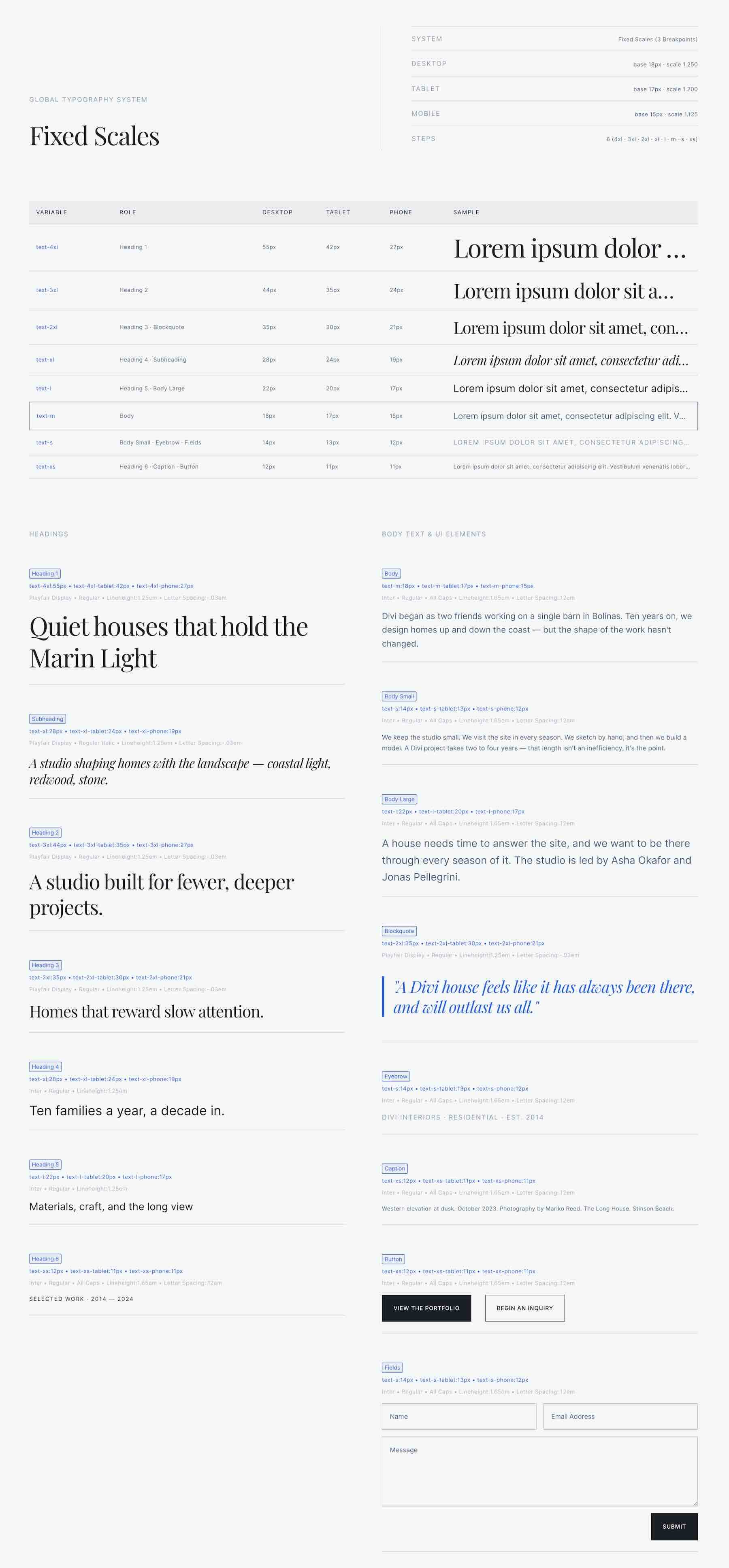
Use this section as a reference when deciding which typography preset or variable to apply throughout your site.
Color Variables
The Color Variables section shows the brand, semantic, and foundation colors used in the system.
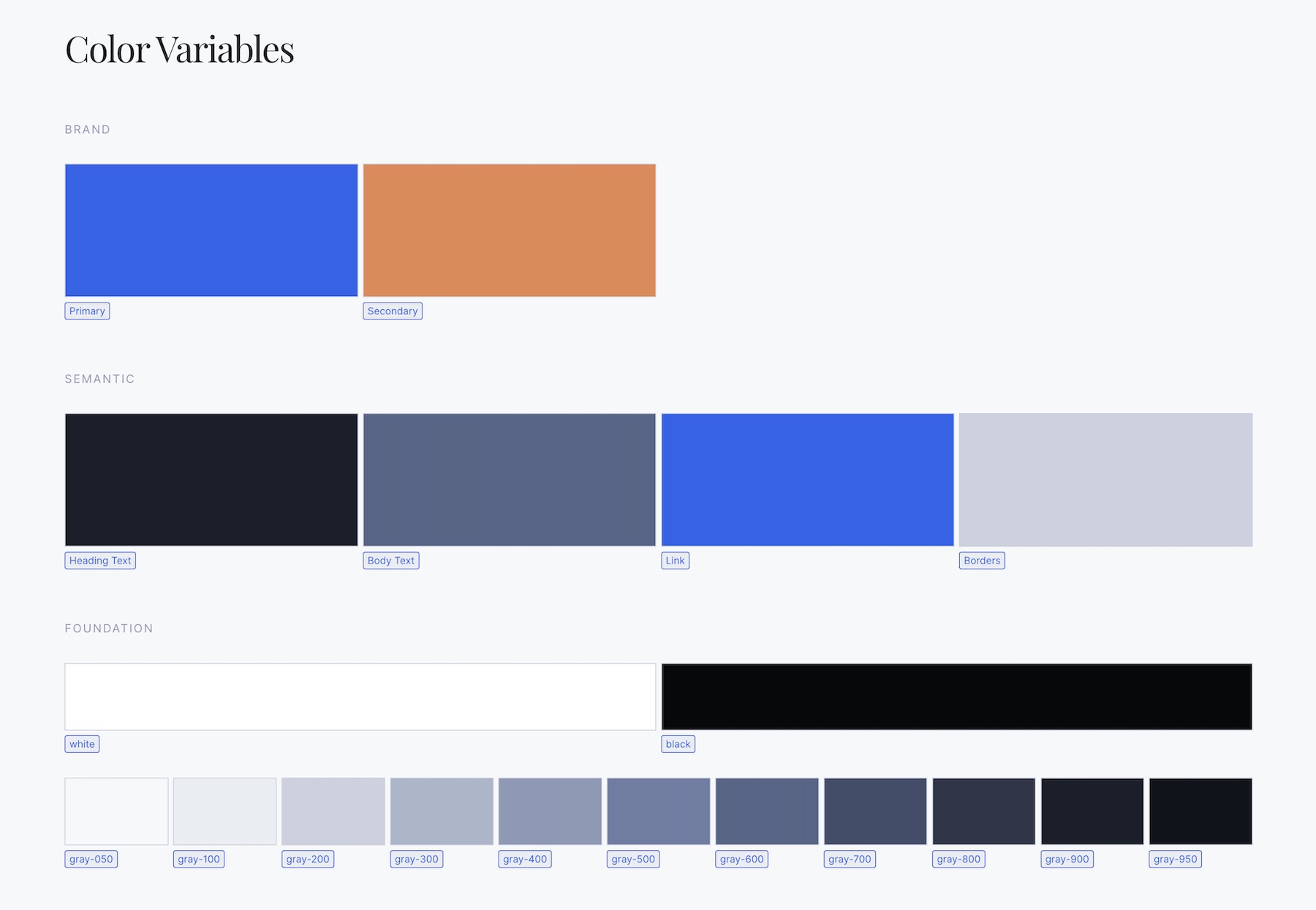
These variables help keep typography, buttons, links, form fields, and supporting interface elements consistent across your design.
The layout also includes examples of common website elements that use the typography system in practical ways.
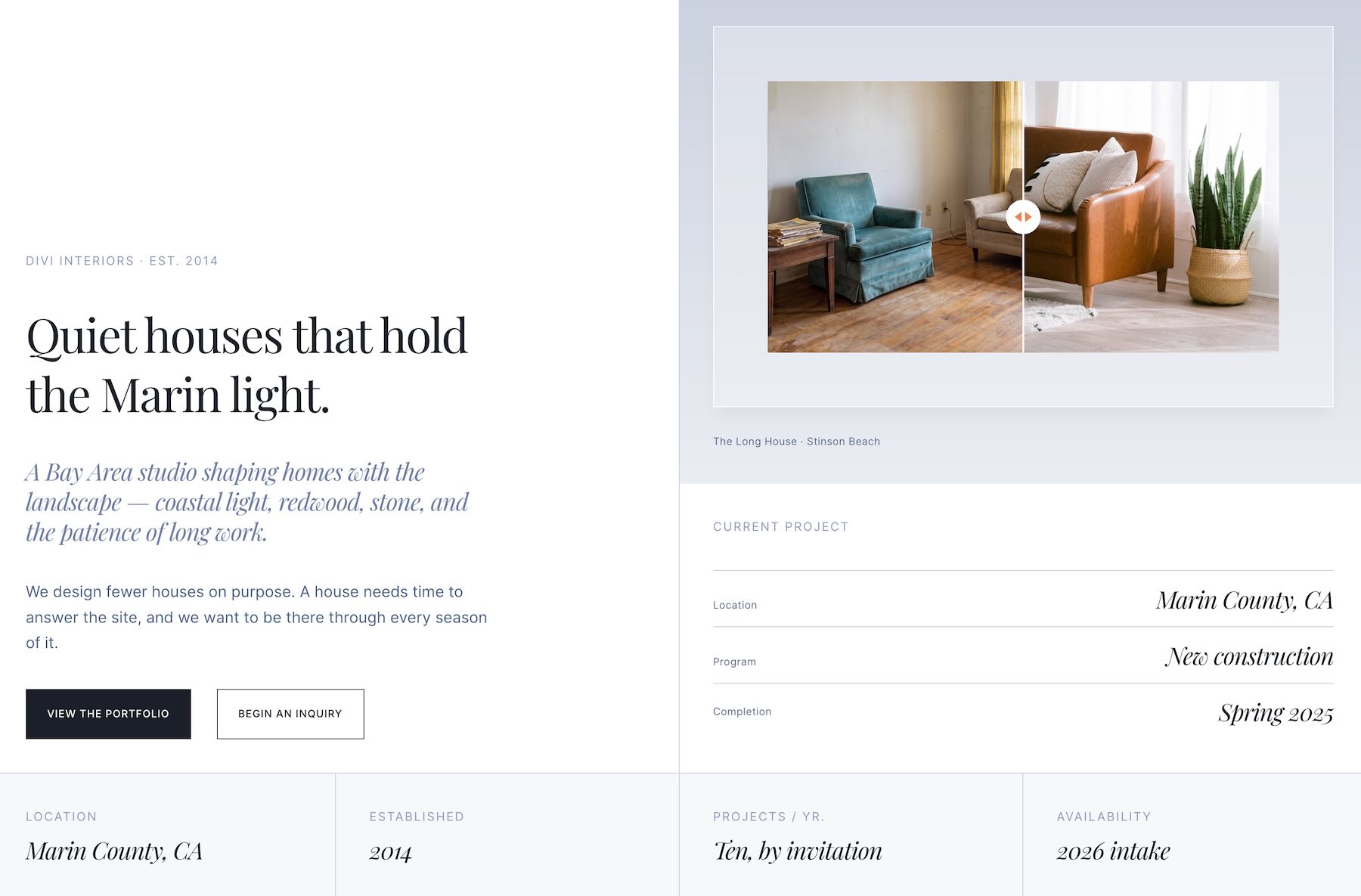
You’ll see heading styles, text styles, button treatments, and field styling working together through Option Group Presets. This makes it easier to understand how the system should be applied when building new sections.
Important Notes
You can import just the layout file with Import Presets selected, and it should still look close to the preview. However, the full setup works best when you import all four files in the recommended order.
If you skip the Global Variables file, the Primary Color, Secondary Color, Heading Text Color, Body Text Color, and Link Color variables under Variables → Colors will not be imported. To fix that, import the Global Variables JSON file for the scale you are using.
The Theme Customizer file is mainly included for heading and body font weight settings. It helps the typography system match the intended design more closely, but the variables, presets, and layout files are what carry most of the system.
Not all Option Group Presets may be imported through every import path, so follow the recommended import order for the cleanest starting point.
Tips For Using A Global Typography System
A typography system works best when it gives your site structure without slowing you down. Use these quick tips to keep your typography consistent, flexible, and easy to maintain.
Start With One Scale
Choose either the Fixed Scale system or the Fluid Scale system before building pages. Using one system consistently helps your headings, body text, buttons, fields, and supporting styles feel connected across the site.
Use Variables For Repeated Values
Variables make typography easier to manage. When font sizes, colors, and reusable values are stored globally, you can update the system in one place instead of editing each module manually.
Apply Presets Consistently
Presets help turn your typography system into a reusable workflow. Use heading, text, button, and field presets consistently so new sections match the rest of your site without extra styling.
Review Typography In Context
Typography can look different in a full layout than it does in an isolated style reference. Use the included layout to check hierarchy, spacing, readability, line length, button styling, and field styling together.
Check Every Breakpoint
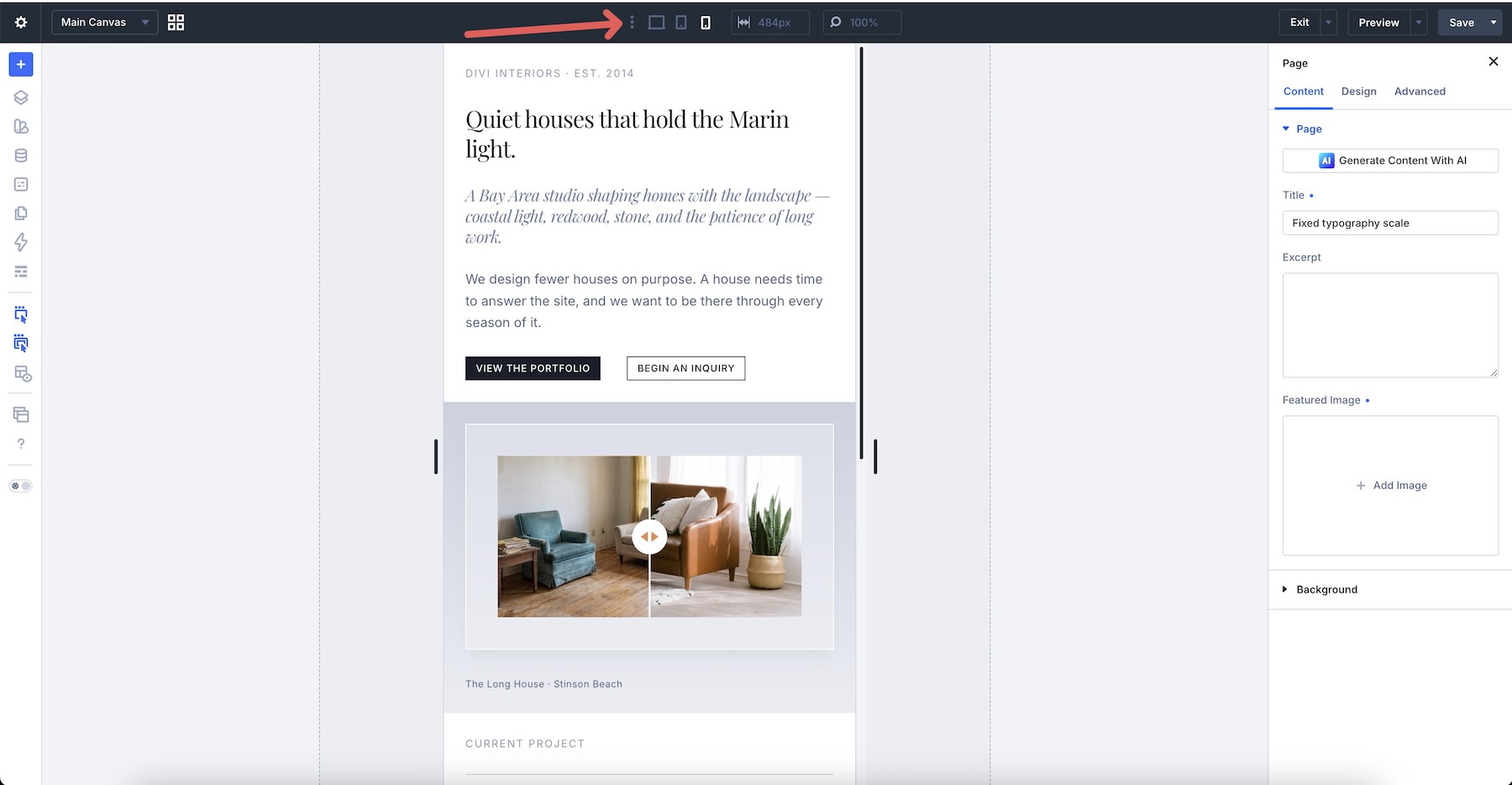
Whether you use fixed responsive values or fluid clamp values, always review the layout on desktop, tablet, and mobile. Make sure headings remain readable, line lengths feel comfortable, and buttons and fields scale cleanly.
Start Building In Divi 5 Today!
This Global Typography System gives you a more structured way to manage type in Divi 5. Choose the Fixed Scale system for precise breakpoint control or the Fluid Scale system for smooth CSS clamp-based resizing. Import the files in order, explore the included reference layout, and start building consistent pages faster with variables, presets, and Divi 5’s Visual Builder.













This is really well done. It makes fluid typography in Divi feel simple, practical, and useful for real projects. A great contribution for designers who want more consistency without making things complicated. Never better.
Thank you so munch !! it’s great tools !