

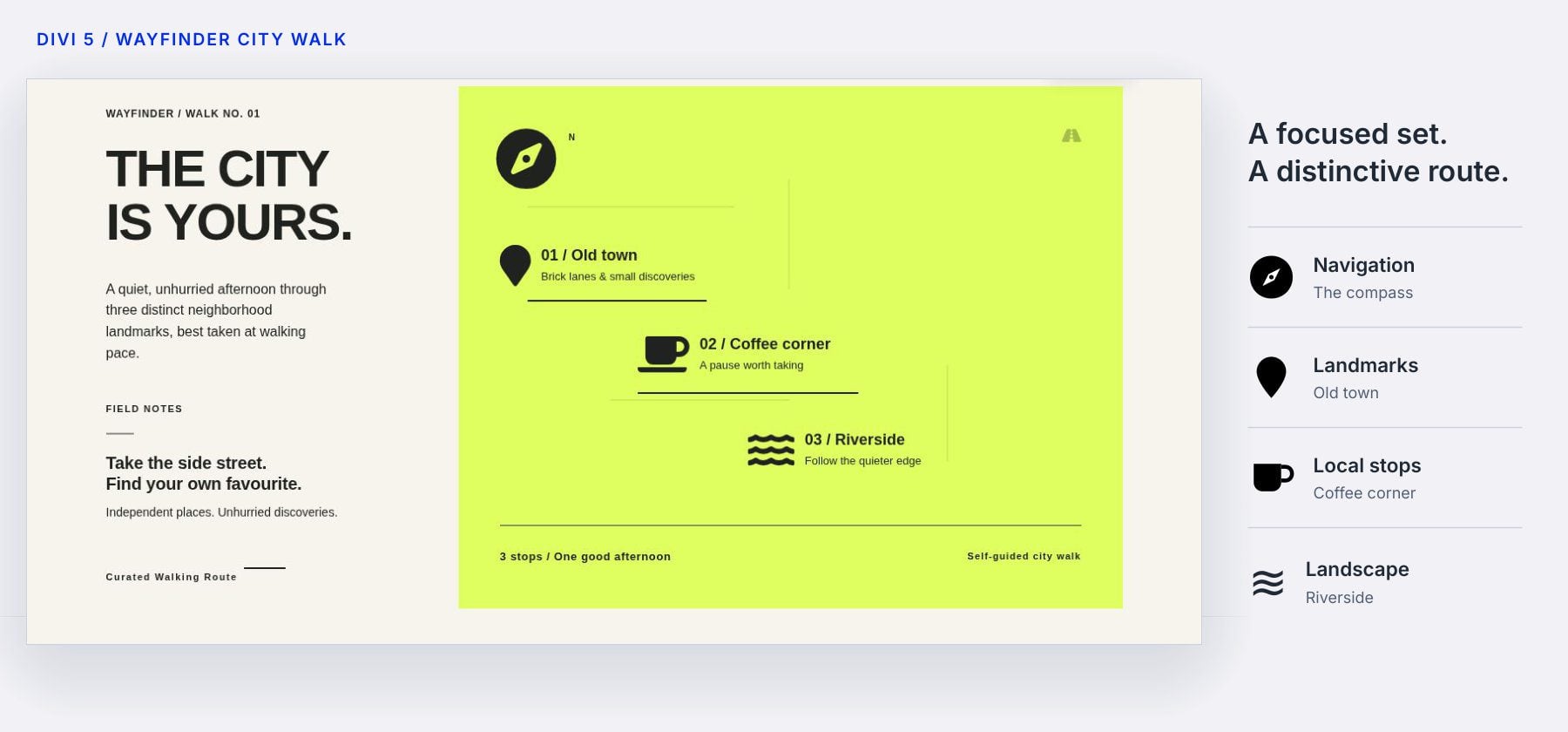
A compass, a coffee cup, and a riverside marker can give a walking guide its own visual language. But which collection holds the right symbols when it’s time to add another route?
The Icon Manager in Divi 5 puts our icon library in one place. We can add custom artwork and group the symbols a project needs into collections. Those collections appear in Divi’s icon picker, ready to use as we build.
We’ll use a city-walk design to explore that workflow, from choosing a single icon to taking a whole collection to another website.
- 1 What The Icon Manager Does And Where To Find It
- 2 Choose Icons With The Updated Picker
- 3 Create A Collection For Your Website
- 4 Import Custom SVGs And Icon Fonts
- 5 Organize Icons With Copy, Move And Remove
- 6 Set A Default And Control Picker Visibility
- 7 Export And Import Collections
- 8 Use Divi AI Agents To Manage Icons
- 9 What To Know Before Editing A Shared Icon Library
- 10 Build A More Consistent Icon Library In Divi 5
What The Icon Manager Does And Where To Find It
The Icon Manager organizes the icons available across your website. Divi Icons and Font Awesome provide starting collections. We can also create our own collections, grouping symbols to suit a client’s brand or a specific part of the site.
For a city guide, a small collection could hold navigation symbols and landmark icons. The same collection would be available when editing another walk, a neighborhood directory, or a contact section on that site.
To reach the Manager from an Icon Module:
- Open the module’s settings in the Visual Builder.
- Under Content, expand the Icon option group.
- Click the selected icon’s preview to open the picker.
- Click Icon Manager at the bottom of the picker.
Use the picker to choose an icon for the current field; open the Manager when you need to work on the library itself. Both are available inside the Builder.
Choose Icons With The Updated Picker
An icon field displays a compact preview of its current selection. Click that preview to browse the grid, search for a symbol, or narrow the results with collection filters. Choose All Collections to browse enabled collections together.
Open a field that already has an icon and its collection can open first, keeping related choices nearby when we want a replacement. The compass field in our example opens on its current icon collection.
Search works best when the library has useful names and search terms. For our walking guide, words such as coffee, navigation, and water describe the role each symbol plays. Choose a matching icon, then check its appearance in the layout.
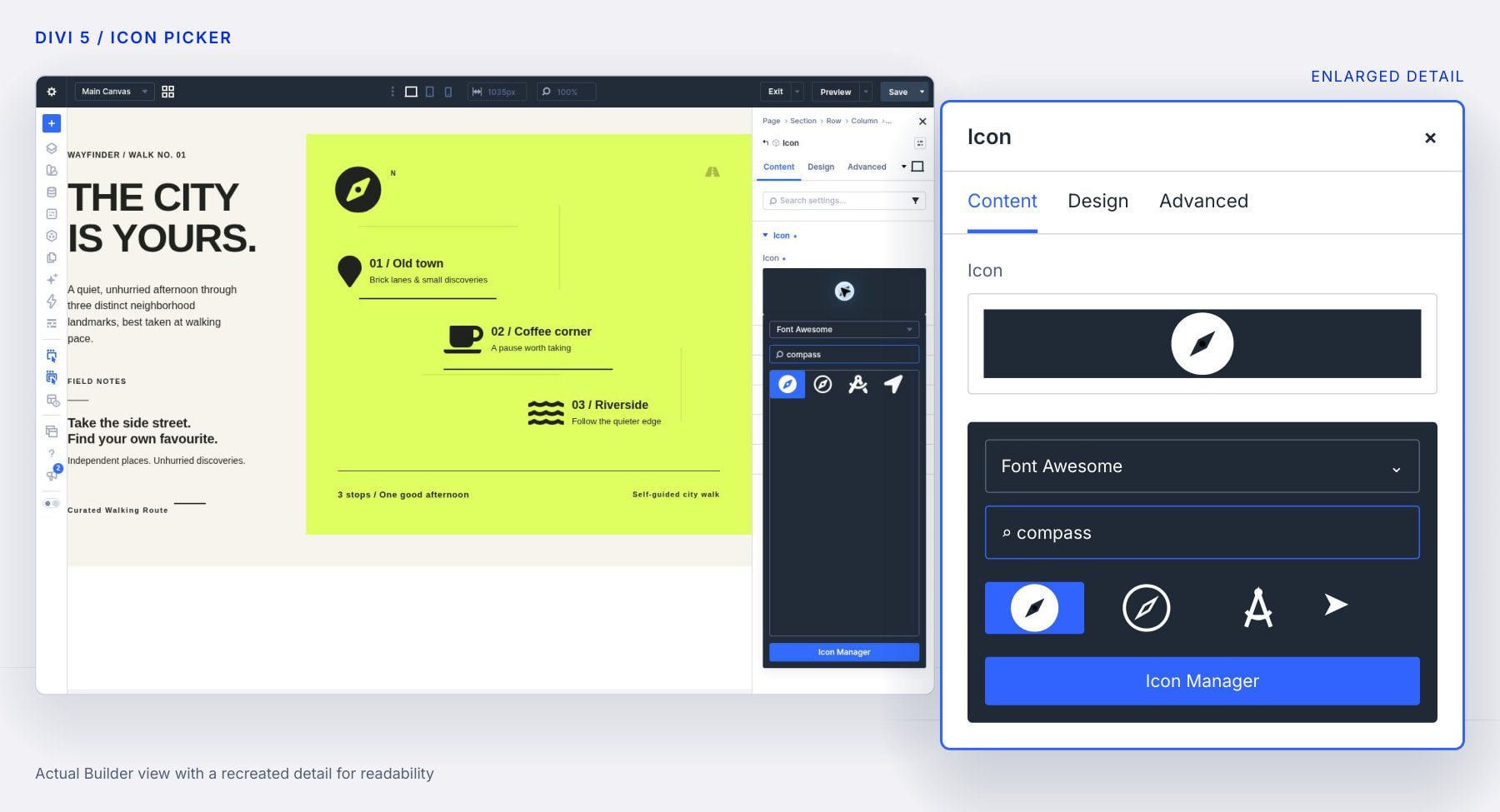
The picker also groups filters such as Theme Icons, Custom Icons, and Styles. These help narrow a broad library before choosing the final symbol. If the symbol is missing, open the Manager to organize or import it. When opened from a picker, the Manager offers Insert for one compatible selected icon in an enabled collection; selecting several icons exposes collection actions instead.
Create A Collection For Your Website
A collection gives editors a set of icons chosen for the project. For the city-walk design, we could gather the compass, coffee, location, and water symbols into one collection of essential icons.
Open the Icon Manager, click New Collection, enter the collection name, and click Create. We can populate it by copying included icons or importing our own files. A collection can contain SVG icons and font icons together.
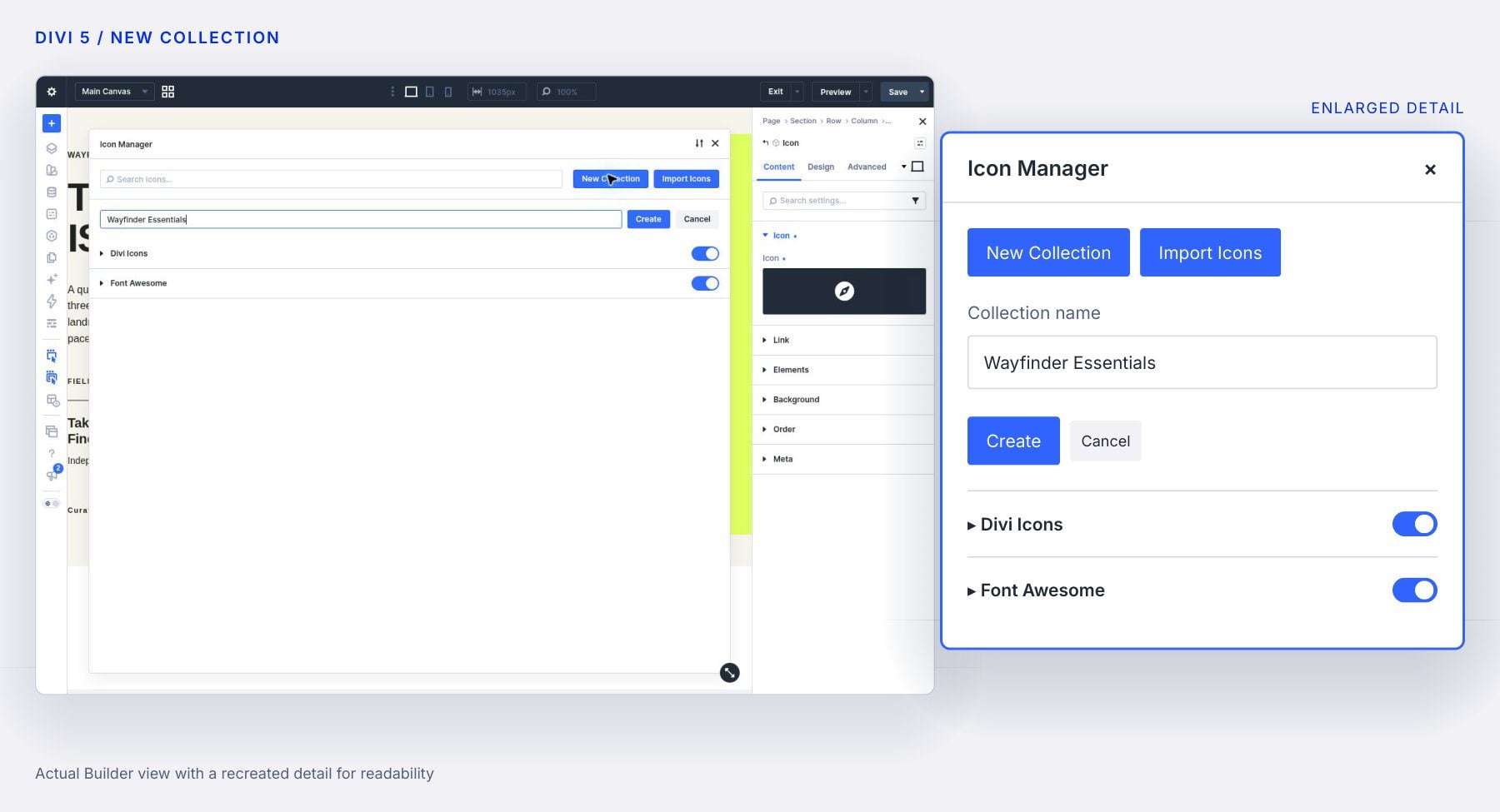
Keep the name understandable to the next person editing the website. A client who sees Brand Essentials or Walking Routes has a better starting point than someone faced with an unexplained file name. Collections can be renamed as the project takes shape.
Import Custom SVGs And Icon Fonts
Custom imports let us use a client’s own artwork through Divi’s icon fields. SVGs suit a small set of individual symbols. An icon font suits a library already packaged as a font file.
Add SVG Icons To A Collection
For a city guide, we might commission matching compass, coffee, and route SVGs. Importing that set gives editors a consistent family to choose from as they create more walking routes.
- Click Import Icons in the Icon Manager.
- In the Add Icons window, click Choose Icon Files and select the SVGs.
- Choose an existing Collection, or choose a new collection and enter its Collection Name.
- Click Import and wait for the import to finish.
The upload window also offers Add More SVGs when working with SVG files. We can assemble the set before submitting the import, rather than opening a separate upload for every symbol.
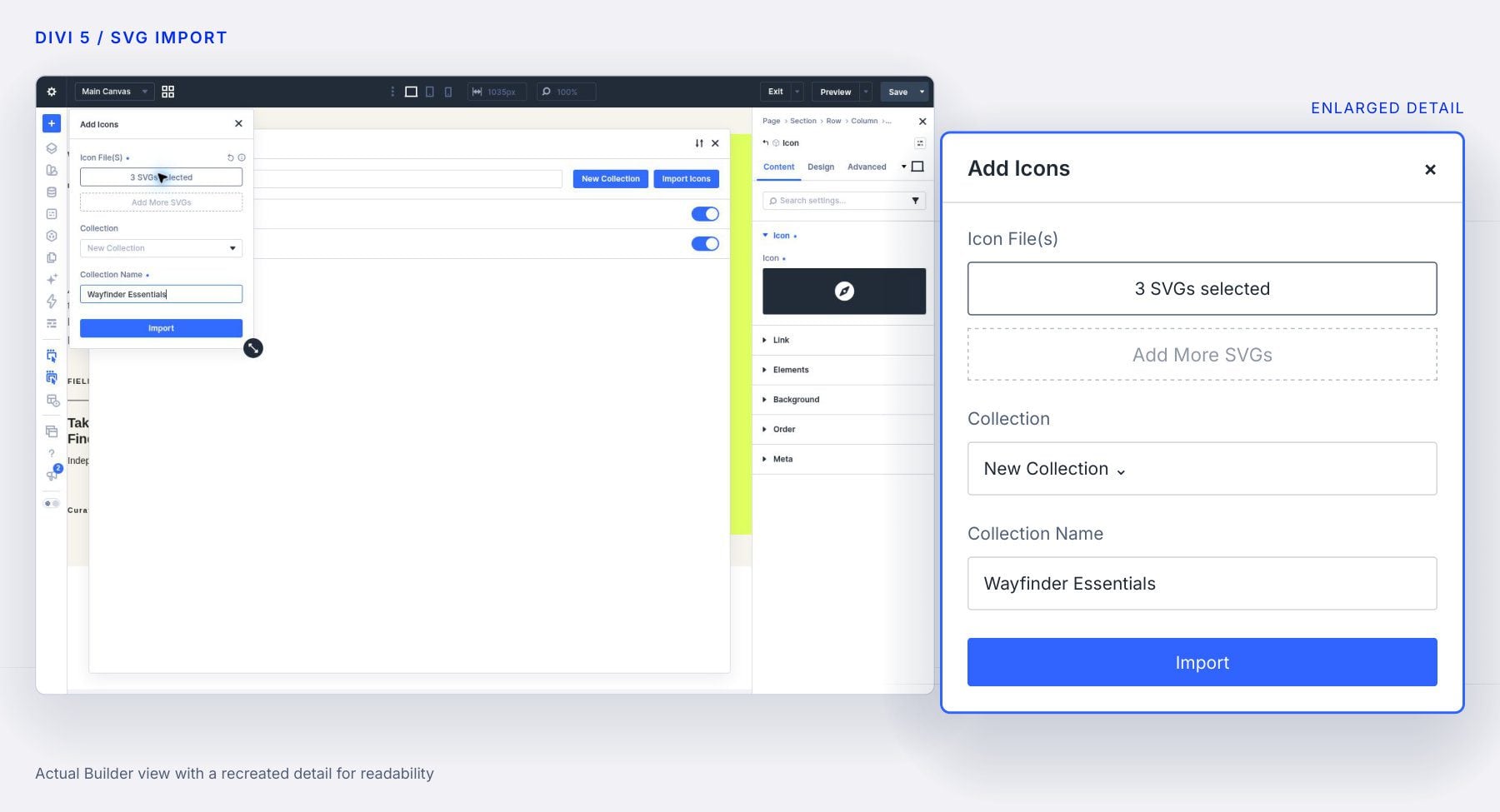
After importing, return to an icon field and find the collection in the picker. Inspect a symbol in its intended setting: a delicate outline that works as a large compass may need more weight when used beside a small landmark label.
Import An Icon Font And Optional Names
The uploader accepts WOFF2, WOFF, TTF, and OTF icon-font files. Choose the font through Choose Icon Files, select its destination collection, and import it. Supply a supported font file directly rather than the ZIP package from an icon provider.
When a font is selected, the optional Name Mapping File field appears. This accepts a JSON file containing an icons array with Unicode values, names, and optional search terms. The mapping associates readable labels with the font’s glyphs.
A compass glyph could include navigation and bearings as search terms. That makes the library easier to browse than a set of unexplained character codes. The JSON supplies naming information; the font supplies the actual artwork.
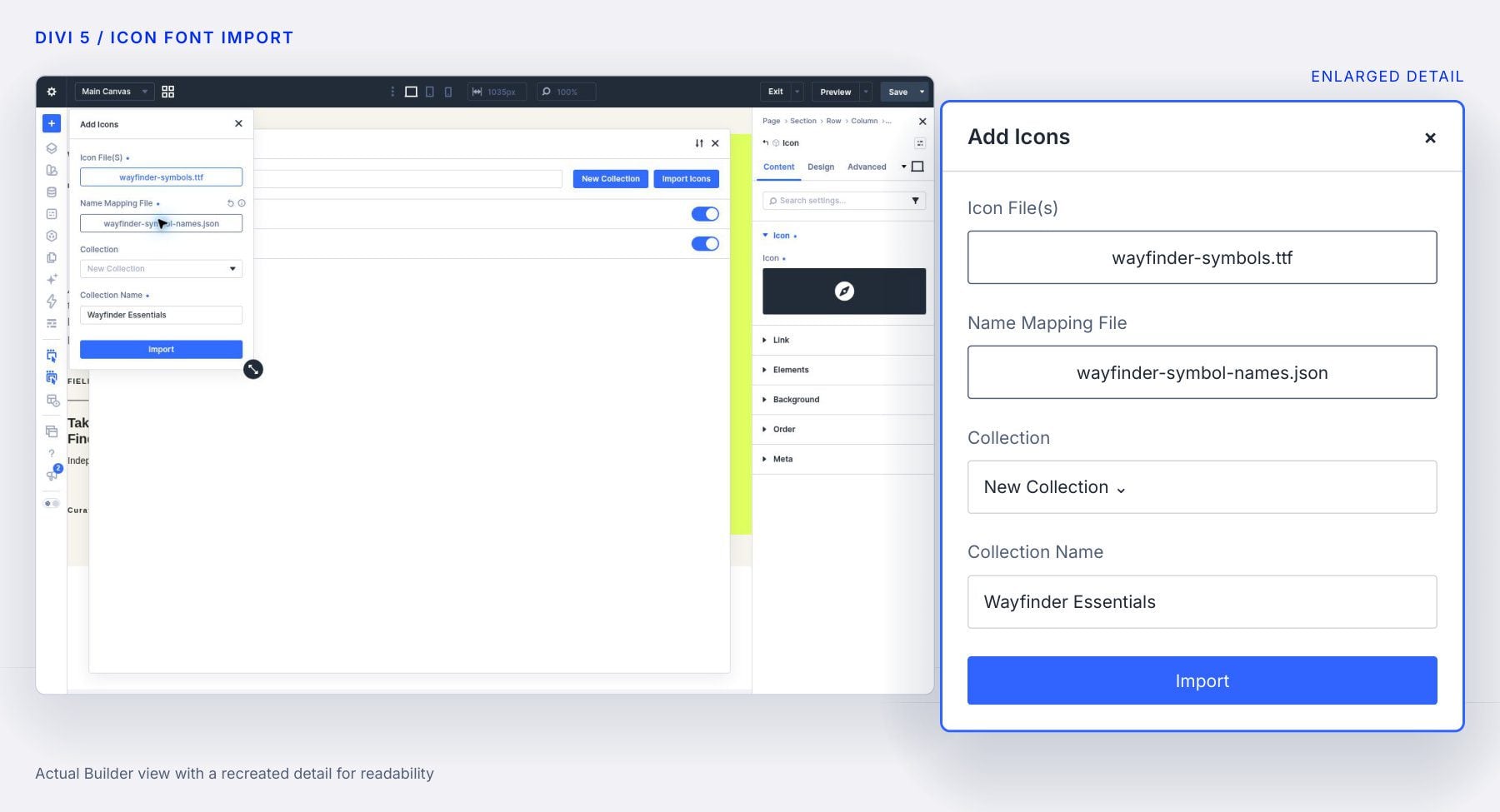
Your site’s upload limit applies to these files. If an import fails, check the format and the error shown in the upload window before trying the same file again.
Organize Icons With Copy, Move And Remove
We don’t have to import artwork to create a useful collection. We can gather included icons into a smaller set that fits the website.
Expand a collection and select an icon to reveal its available actions. Hold Ctrl on Windows or Command on Mac while clicking additional icons to build a selection. Modifier-clicking a selected icon removes it from that selection.
Choose the operation according to the result you want:
- Copy: Add the selected icons to another collection while keeping them in the source collection.
- Move: Transfer the selected icons to another collection and remove their membership from the source collection.
- Remove: Take the selected icons out of the current collection.
For our city guide, Copy is a useful starting point: gather the needed symbols into a dedicated collection while preserving their original organization. Both Copy and Move offer another collection as the destination, so create that destination first.
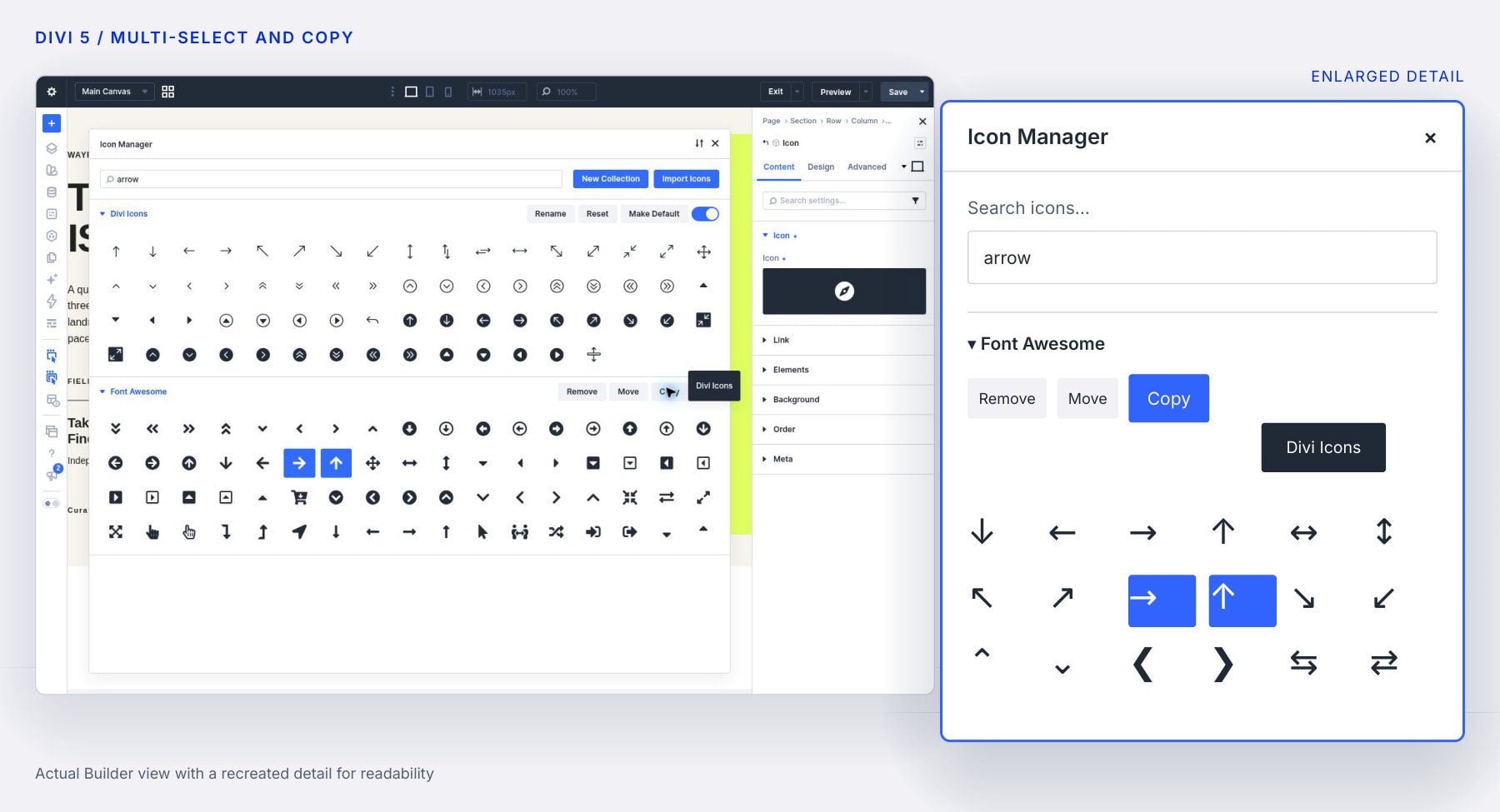
An icon’s right-click menu also exposes available actions. Check the selection before confirming a removal. Removing collection membership preserves icons already used in layouts and the underlying custom files in the Media Library. With no icons selected, Reset restores the collection’s original icon assignments while retaining icons added to it.
Set A Default And Control Picker Visibility
A default collection gives new icon choices a useful starting point. Expand an enabled collection and clear any icon selection to reveal Make Default. Click it to make that collection the starting choice; the button then reads Default. An existing icon can still open its own collection when its field is edited.
Each collection also has a toggle controlling whether it appears in icon pickers across the site. For a focused client handoff, enable the approved collections and turn off sets that would distract from those choices. The default collection must remain enabled; choose another default before disabling it.
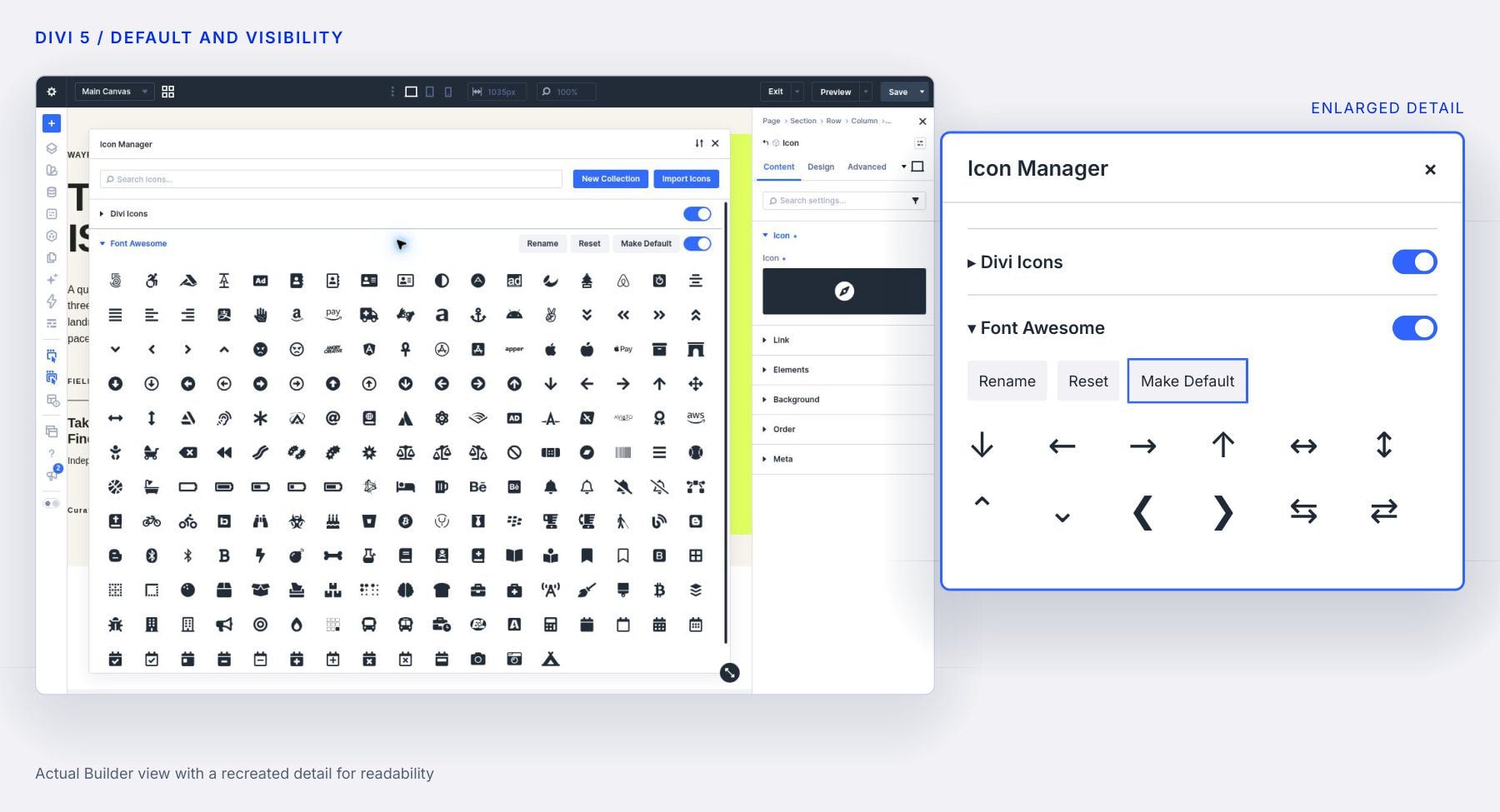
Turning off a collection preserves the icons already placed on pages. This lets us simplify future choices without replacing existing artwork. It also means changing the default collection doesn’t automatically restyle the icons throughout a website.
Export And Import Collections
Once a collection fits a project, we can reuse it on another website. For example, a city-guide publisher could prepare its approved landmark symbols once and take that collection to a separate regional site.
Open Import & Export Icon Collections in the Manager’s header. Select the collections to include and choose Export Icon Collections. On the destination website, open the same control and use Import Icon Collections to bring them into its library.
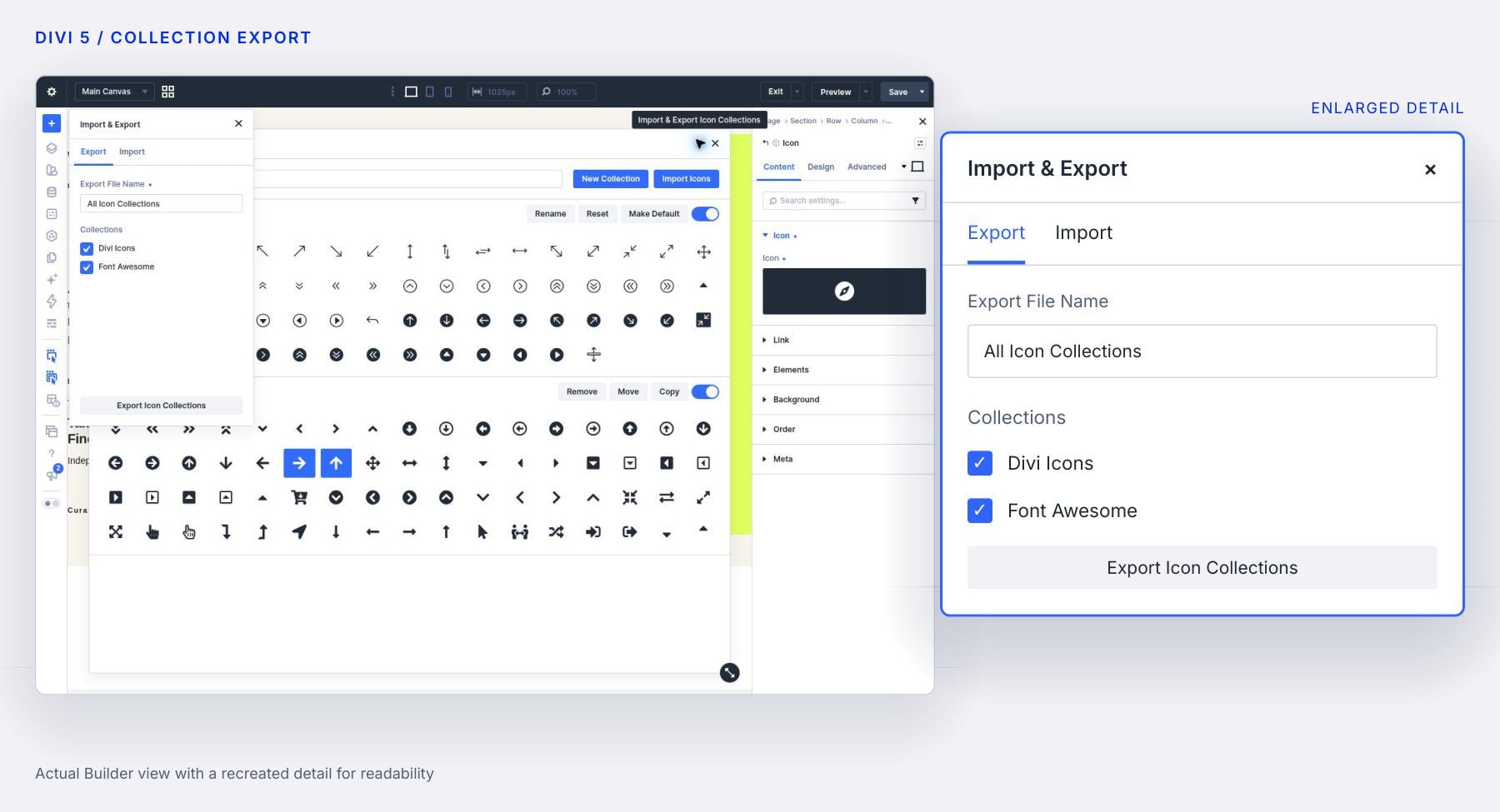
The collection export includes icon assignments and referenced custom icon files, including font name mappings when present. It transfers the library resources; the page’s layout, spacing, and colors belong to the page design. Check both the imported collection and its intended icon fields on the destination site.
Use Divi AI Agents To Manage Icons
Divi AI Agents can help find icons in the library and organize them. The agent can create or rename a collection and turn it on or off in pickers. It can also import supported attached files or files already in the Media Library.
For a larger library, use search to identify suitable symbols before requesting changes. Name the destination collection when asking the agent to organize icons, and review the proposed selection. Imports, moves, removals, and collection deletions request confirmation.
The visual Manager remains useful for checking the outcome. Open the collection, inspect its contents, and try the icons in a field. An agent can help with library tasks, while the page preview shows whether the choices suit the design.
Collections affect the whole website. If we rename a collection or change its contents, everyone working on that site sees the change. Library changes are saved separately from the page being edited in the Visual Builder.
Managing icons requires permission to manage theme options and upload files. Collection portability also depends on Divi’s portability permissions. Someone may be able to select icons while lacking the controls to manage the library. If management controls are missing, ask the site administrator to check those permissions.
To delete a custom collection, clear its icon selection, click Delete, and review the confirmation. Built-in collections have no Delete control. Existing page uses and the underlying Media Library files are preserved when a custom collection is deleted, so file cleanup remains a separate job.
When several people manage the same library, Divi may ask you to Reload Library after a conflicting change. Reload to see the current contents before trying the action again. The Icon Manager documentation provides a reference for these shared-library behaviors.
Build A More Consistent Icon Library In Divi 5
A compact collection can make a design easier to extend. In our example, the large compass establishes the walking-map theme, while labeled landmark symbols give each stop a recognizable identity. The staggered route gives those icons a purpose within the composition.
Start with the symbols your website needs and gather them into a collection editors will recognize. Add custom SVGs or an icon font in Divi 5 when the project calls for its own artwork. A focused library gives the next person building a page a useful set of choices from the start.





Leave A Reply