

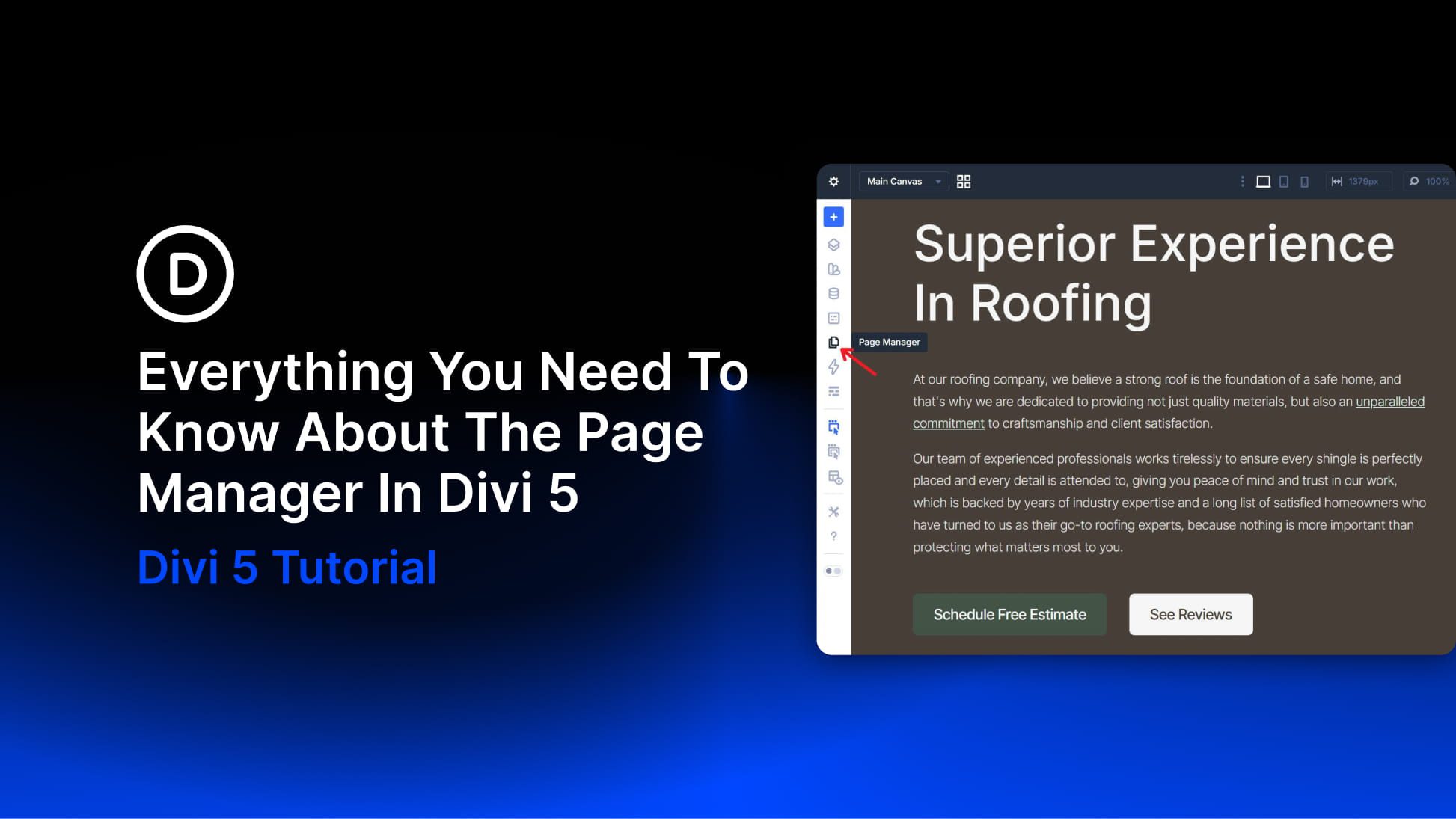
Divi 5 keeps getting better at keeping you on task when you are in the builder. The new Page Manager lets you navigate to any page on your site, create new ones, and manage existing ones — all without touching the WordPress dashboard. It’s a small addition with a noticeable impact on how smoothly a typical editing session flows.
What Is The Divi 5 Page Manager?
Subscribe To Our Youtube Channel
Divi 5 is designed to be a complete working environment — not just a tool you dip into to tweak a layout and then leave. The Page Manager is a good example of that philosophy in practice. It lives in the persistent left sidebar as a dedicated icon, and clicking it opens a panel listing every page and custom post type on your site where Divi is the active editor.
Pages built in the WordPress block editor are excluded. The list stays focused on what you can actually edit in Divi, so there’s nothing listed that isn’t worth sorting through.
From the Page Manager, you can open any page directly in the Visual Builder, or create, duplicate, and delete pages without leaving the builder at all. For anyone building or maintaining multi-page sites in Divi, this eliminates the need to visit the WordPress dashboard for these routine tasks. And that is a welcome change because we all know how slow some client dashboards can get.

Before the Page Manager, moving between pages meant exiting the builder, waiting for the dashboard to load, finding the page you wanted, and clicking Edit with Divi — then waiting for the builder to load again on the other side. It worked, but it added friction to what should be a quick task.
The Page Manager makes this a single step. When you are working through multiple pages in a single session, that smoother navigation makes a real difference. It keeps you in the same working context and reduces the interruptions that slow down design work.
Click the icon, find the page, and open it. The list includes posts from custom post types registered with Divi as the editor, so portfolios, team members, services, and similar content types built with Divi are accessible from the same panel as standard posts and pages.
The Page Manager pairs well with speculative prerendering, which Divi 5 uses to make page switching feel nearly instant. The idea is simple: Divi predicts where you are about to go and starts loading that destination in the background before you click. By the time you make your move, the next page may already be partially or fully loaded.
This applies not only to switching between pages, but also to entering and exiting the builder. If you spend a lot of time moving between the front end, the WordPress editor, and the Visual Builder, those saved seconds add up quickly. Combined with the Page Manager, it helps make site-wide work in Divi feel much more fluid.
Note: Prerendering is supported in Chromium-based browsers — Chrome, Edge, Opera, and others. Safari and Firefox users may not see the same behavior yet. You can also disable prerendering in the builder settings if you want to limit extra background page requests.
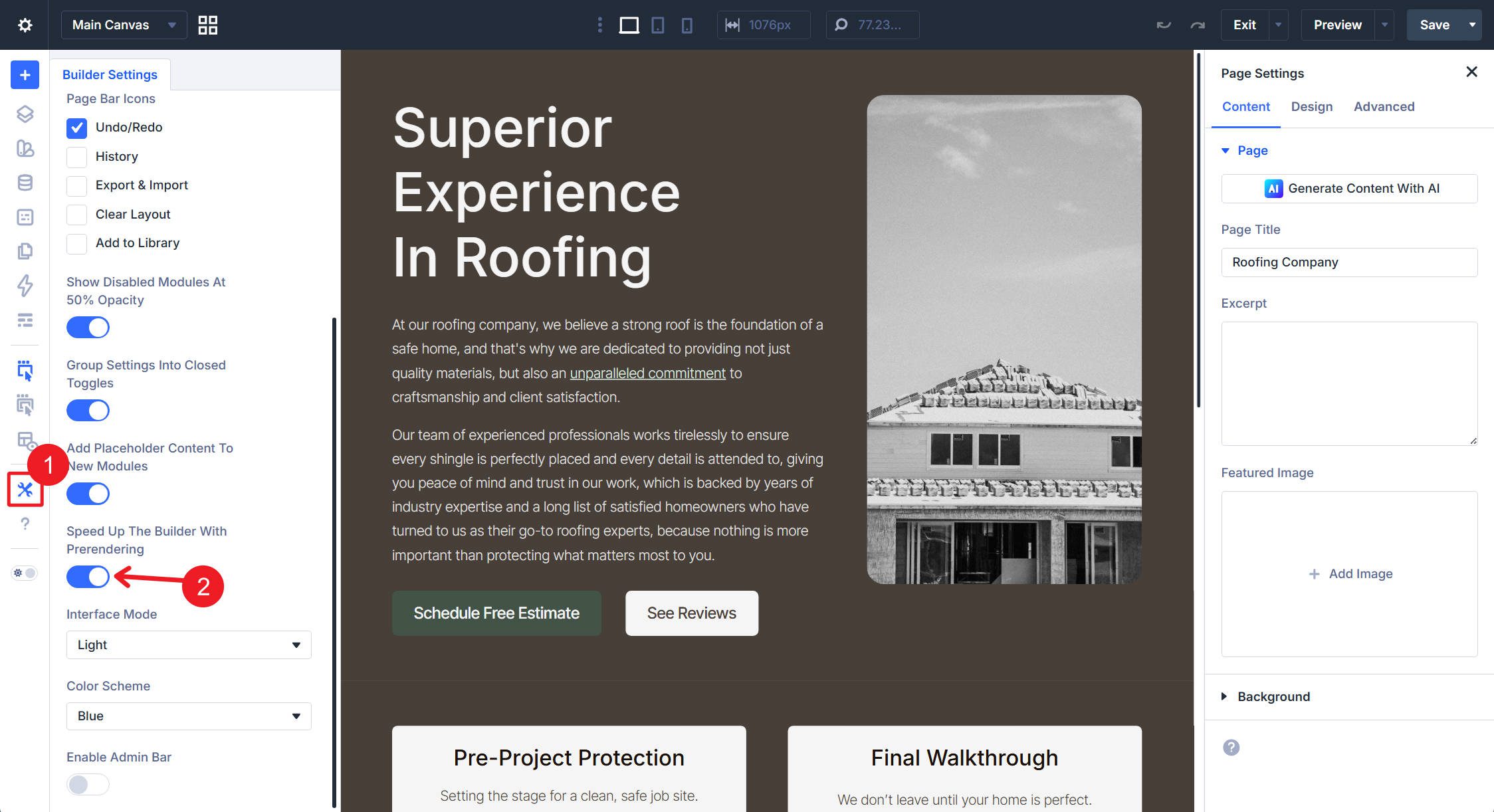
All The Options In The Page Manager
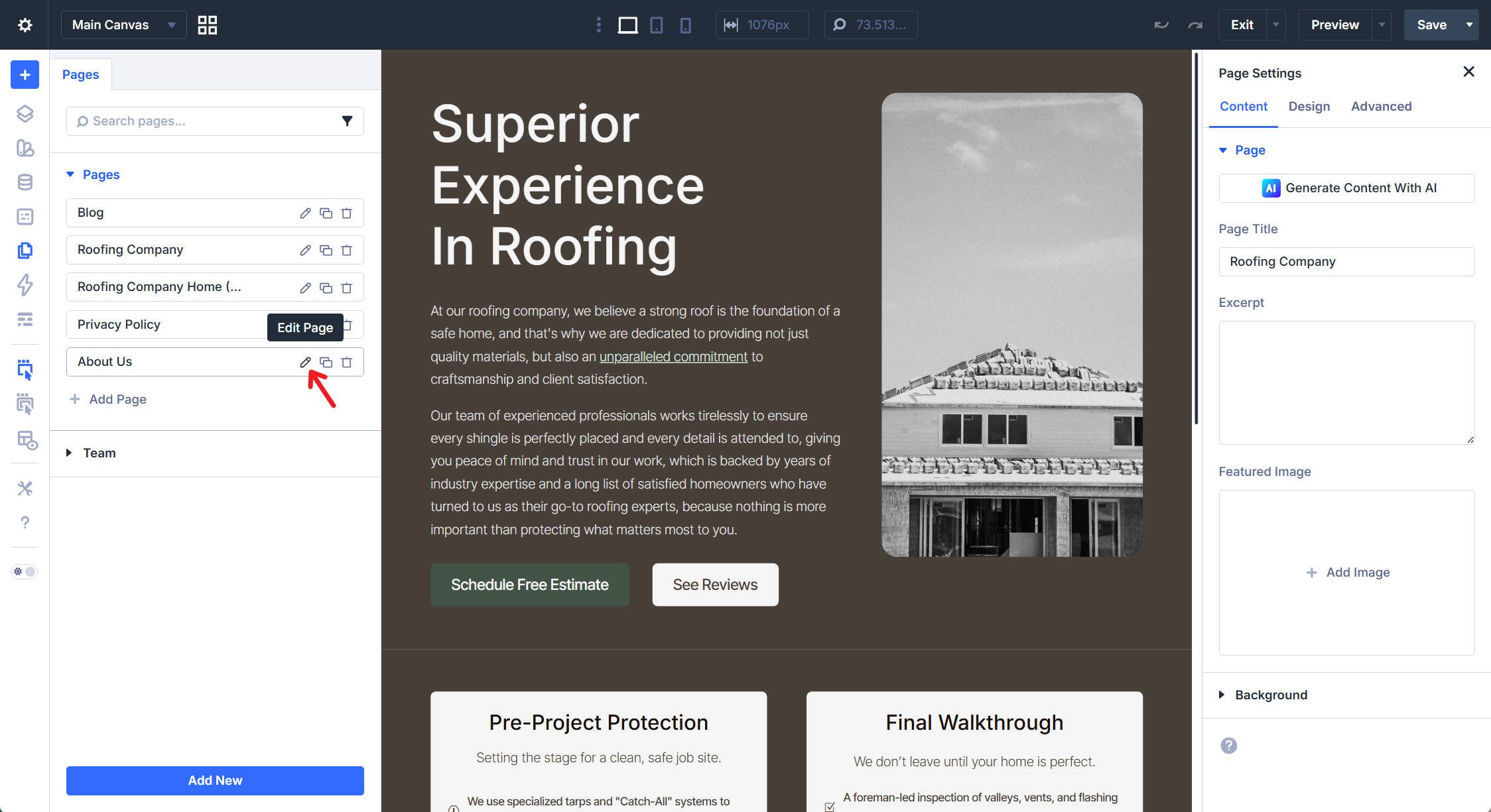
The Page Manager icon is located in the persistent left sidebar — the same sidebar that houses the Layers panel, the Design Variable Manager, and the layout tools. Clicking the icon opens the Page Manager panel on the left side of the builder interface.
From there, you can scroll through the list of Divi-edited pages, posts, and custom post types. Clicking any individual page/post (with the pencil/edit icon) in those categories opens it in the Visual Builder.
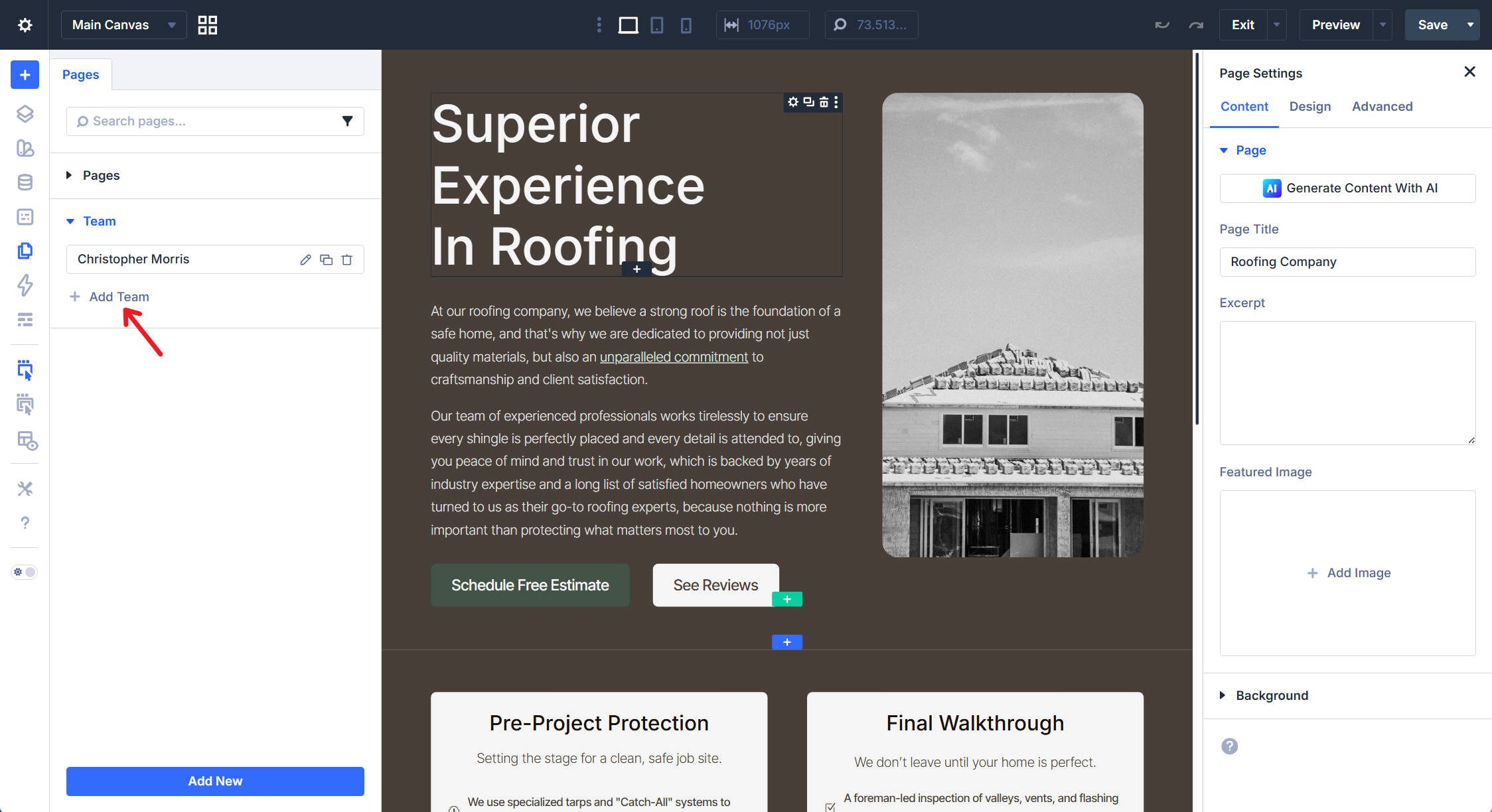
To create a new page, use the add button inside the panel.
Duplicating a page is just as straightforward. This will take all the content from the selected page and duplicate it into a completely separate page, and navigate immediately to it.
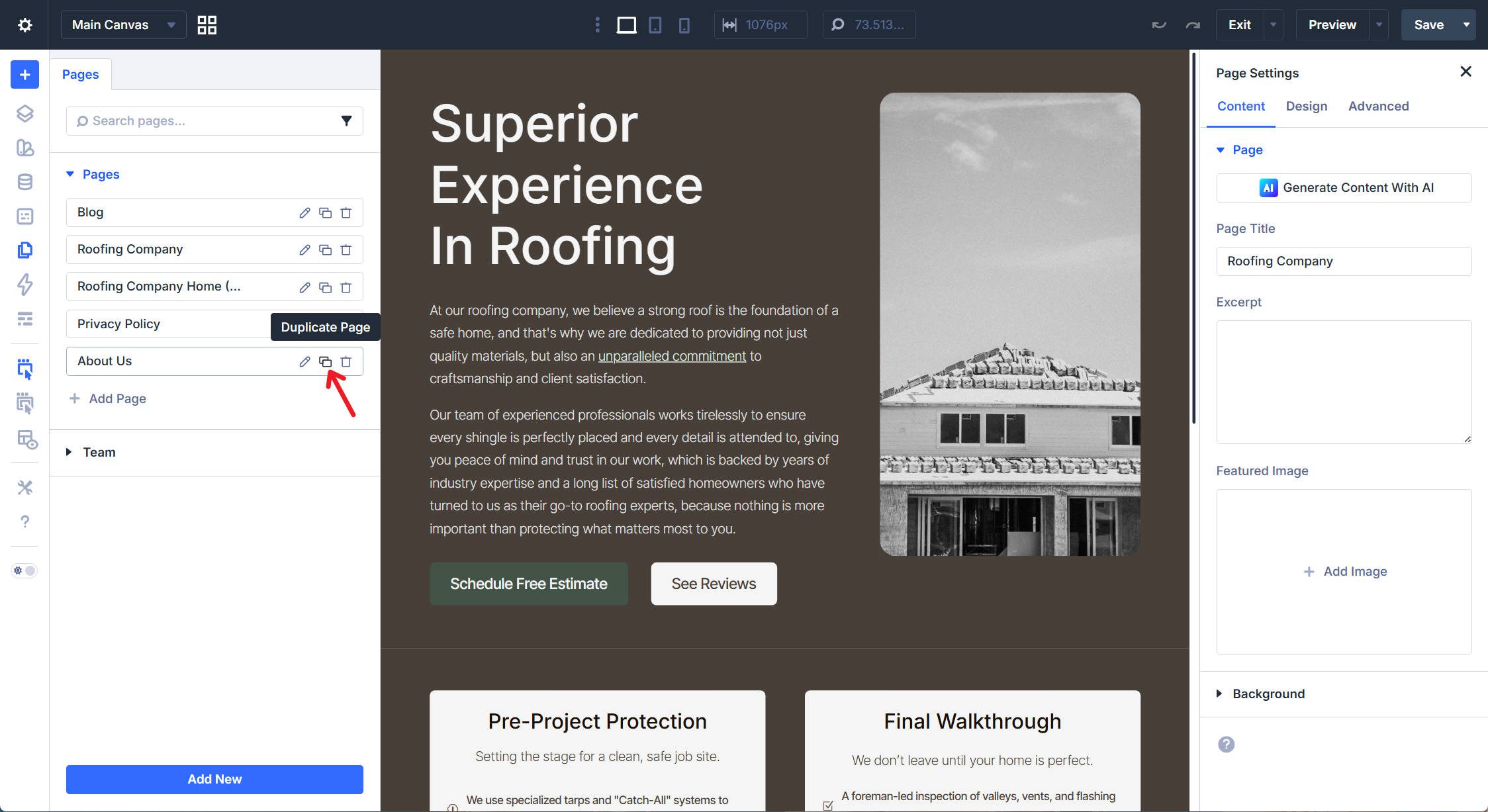
You can also delete pages you no longer need, making cleanup as easy as creating them.

The panel stays available throughout your editing session. You do not need to close it before working on the page you’ve selected — it collapses out of the way once you navigate.
The Page Manager And The Command Center
The Page Manager is one part of a broader set of navigation and workflow tools in Divi 5. The Command Center is another. Opened with Cmd+K (or Ctrl+K on Windows), it lets you navigate to any page by typing its name, and speculative prerendering applies there as well — the destination begins loading as soon as your navigation command becomes active, so pressing Enter opens the page instantly.
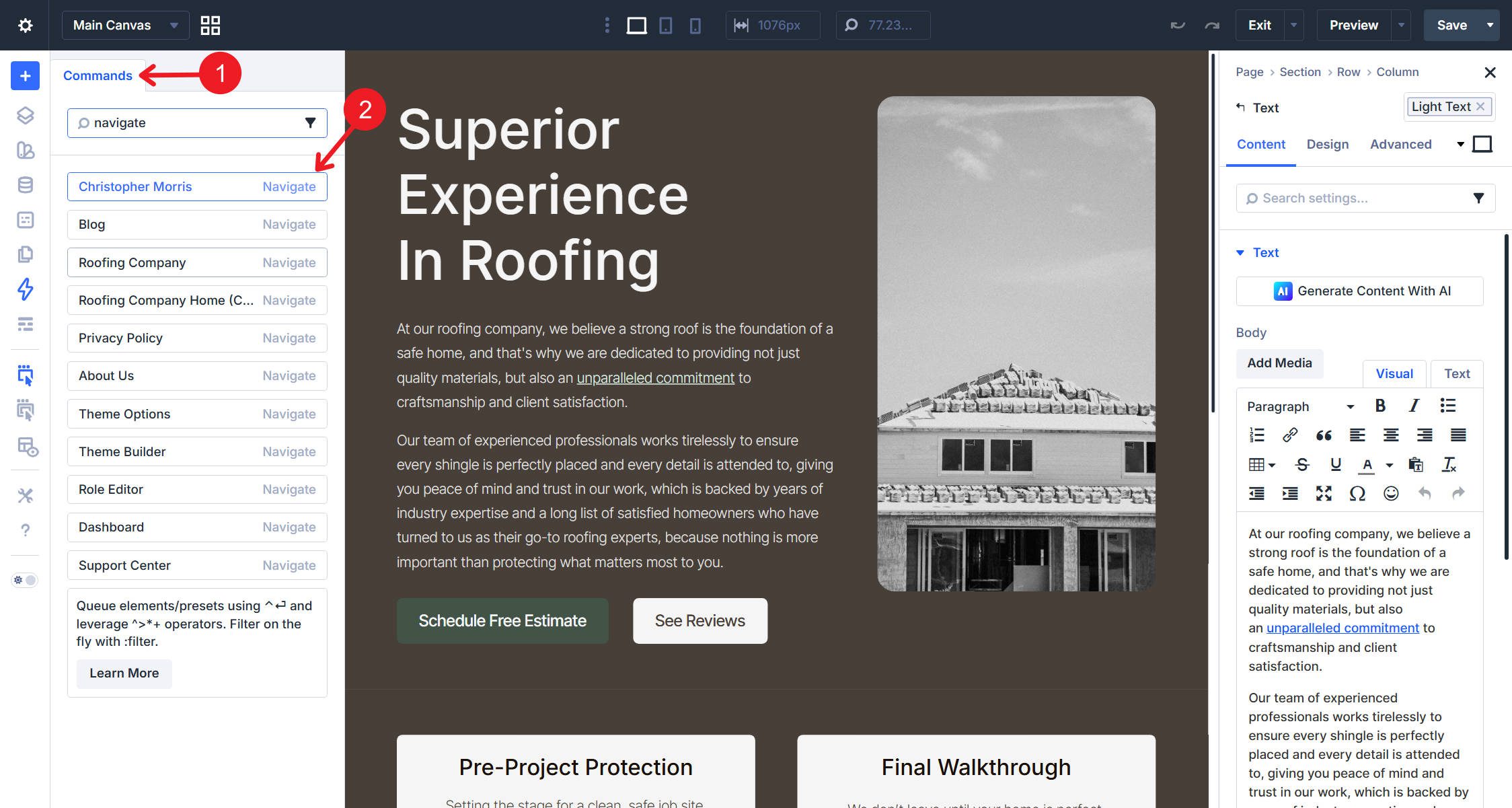
Try it yourself with Cmd+K (Mac) or Ctrl+K (Windows), then type a page name or ‘Navigation.’
The two tools serve slightly different use cases. The Page Manager gives you a visual, scannable list and lets you manage pages directly. The Command Center is faster for users who know exactly where they’re going and prefer keyboard-driven navigation. Used together, they eliminate most reasons to visit the WordPress dashboard during an active design session.
Navigating to pages is just one of its functions — the Command Center also handles adding elements, editing settings, and keyboard-driven navigation across the builder. That’s covered in more depth in the Command Center overview.
Explore The Page Manager In Divi 5 Today!
For users building sites with multiple pages, the Page Manager keeps more of the job inside a single interface. There is less loading, less context switching, and less time spent bouncing between the builder and WordPress admin screens. That is the real value here. The feature is not flashy, but it meaningfully improves the day-to-day experience of working across a multi-page site.
The Page Manager, speculative prerendering, and the Command Center all push Divi 5 closer to what it is aiming to be: a complete site-building workspace, not just a page editor. The builder has all the modern tools you expect, navigation between pages is effortless, and the WordPress dashboard becomes something you visit when you need WordPress-level settings — not to get from one page to another.










Leave A Reply