

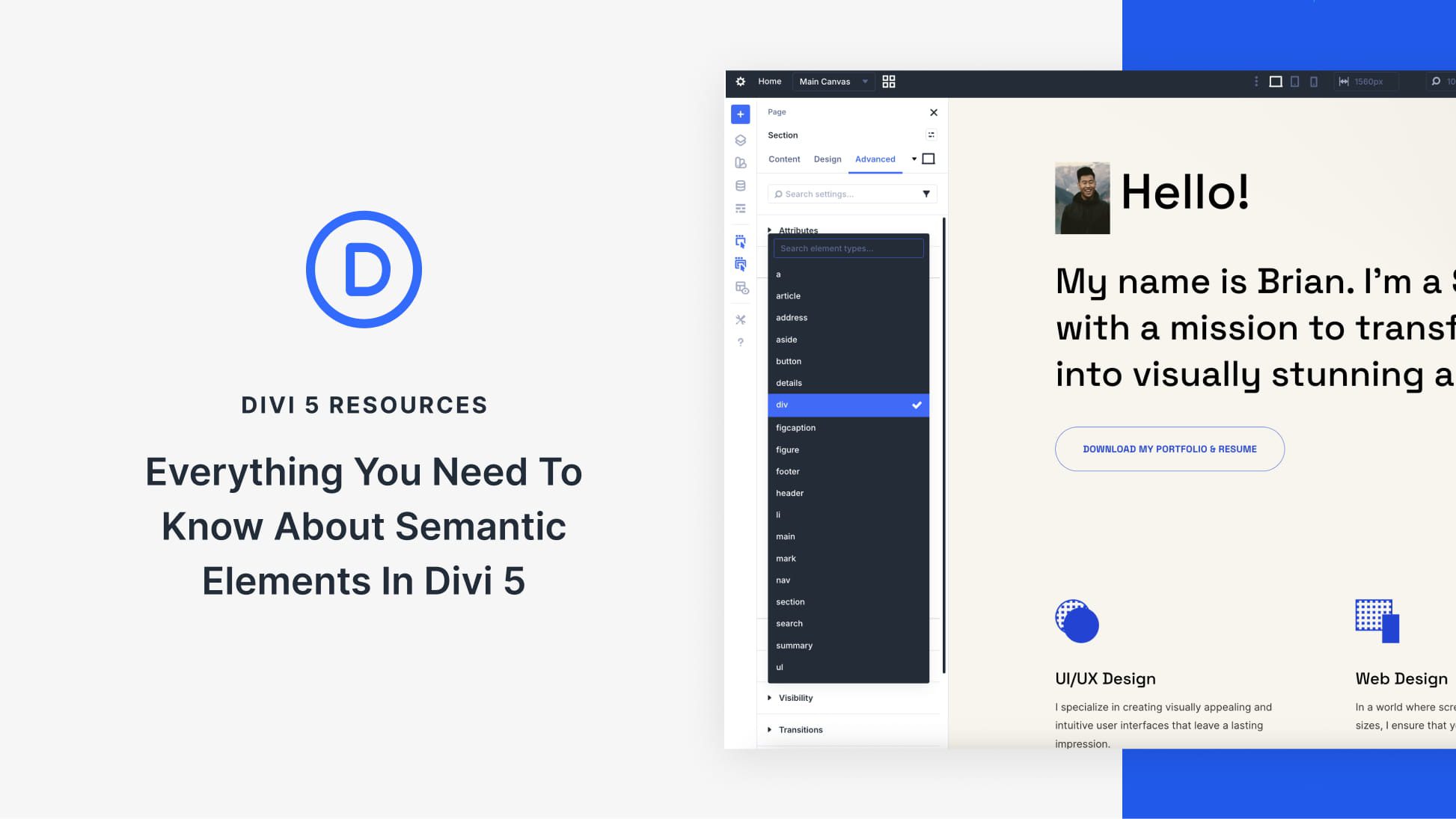
For WordPress users building with Divi 5, it’s now much easier to apply semantic HTML to your layouts, which can improve accessibility, clarify page structure for search engines, and create a better experience for visitors. That’s thanks to a new feature called Semantic Elements.
In this post, we’ll cover the fundamentals of semantic tags and show you how to apply them in Divi 5 step by step, along with practical tips and best practices.
Let’s dive in.
Semantic Elements In Divi 5
Before diving into how Divi 5 implements Semantic Elements, let’s explore what semantic HTML is and why it matters in web development.
Subscribe To Our Youtube Channel
Semantic HTML tags are elements that describe their meaning and purpose to web browsers and assistive technologies. Unlike generic tags, such as div and span, which provide no inherent context about the content they hold, semantic tags convey key structural information.
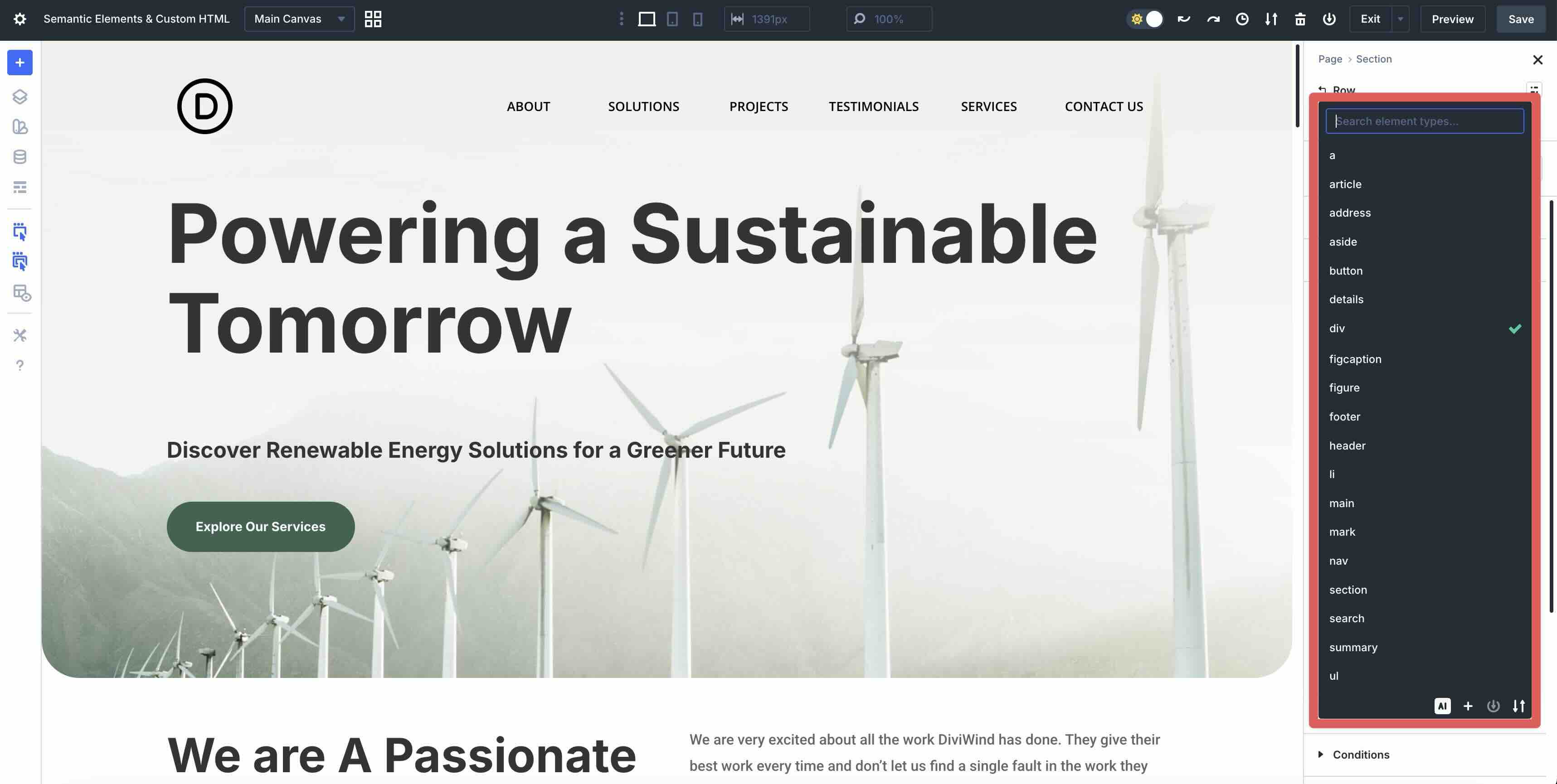
Here are a few examples:
- header defines introductory content or a page header
- nav marks a navigation section
- main wraps the primary content of the page
- section groups thematically related content
- article represents a self-contained composition, like a blog post
- footer indicates footer information
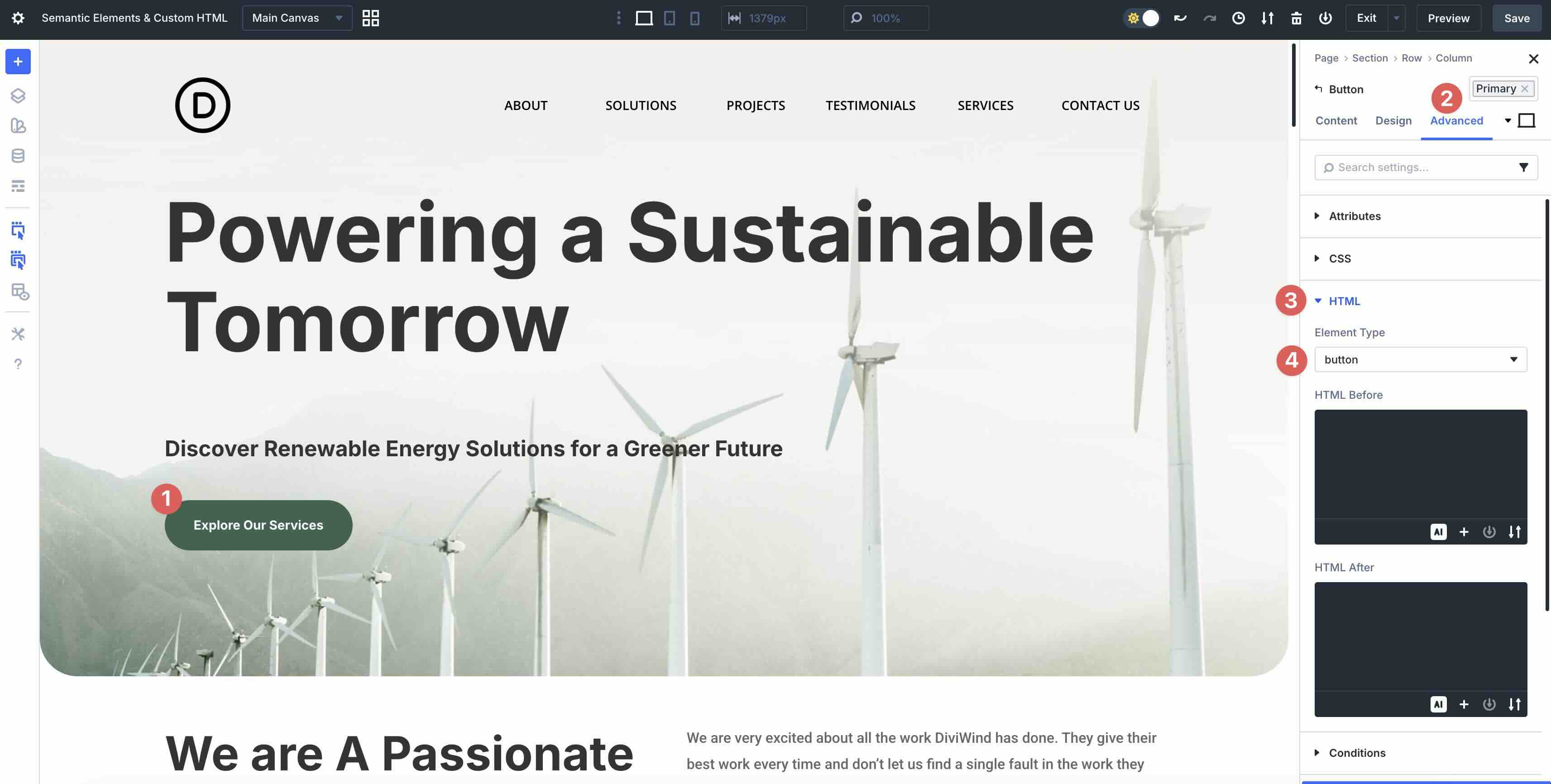
- button specifies a clickable element
A div class=”header” might visually function as a header, but it lacks built-in meaning. Semantic tags like header make the structure explicit without relying on classes or IDs alone.
Why Semantic Elements Matter
Using Semantic Elements goes beyond visuals; it delivers tangible benefits across multiple areas.
Clearer Site Structure And Organization
Using semantic tags transforms your layout from a collection of generic containers into a logically organized map. Even within the Visual Builder, choosing a section, nav, or footer tag helps you — and any future collaborators — understand the intent of each part of the layout at a glance. By adopting a standard structure, you reduce the mental load of managing complex pages, making it much easier to maintain or update your site months or years down the road.
Better Parsing By Search Engines (SEO)
Search engines like Google prioritize the structure of content when indexing pages. Semantic Elements help crawlers understand page hierarchy, potentially boosting rankings. In an AI-driven search era, clear semantics provide stronger contextual signals, aiding features like rich snippets and featured results.
Enhanced User Experience And Accessibility
Semantic markup improves how assistive tech, such as screen readers, interpret pages. Tags like nav and main allow users to navigate efficiently, while elements like button announce interactive elements correctly.
Screen readers often struggle to properly render elements because of missing or incorrect landmarks, headings, and roles. By using proper semantics, you can reduce barriers for users with disabilities, contributing to a more inclusive experience.
In Divi 5, it’s easier than ever to apply these principles visually, allowing you to change an element’s Element Type in the HTML option group. This puts professional-grade markup in users’ hands, helping them create sites that are more accessible and SEO-optimized.
Implementing Semantic Elements In Divi 5
DiDivi 5 makes semantic HTML easy by adding a new HTML option group to the Advanced tab of every element’s settings. From the Element Type dropdown, you can choose a semantic tag and change the HTML output without writing code.
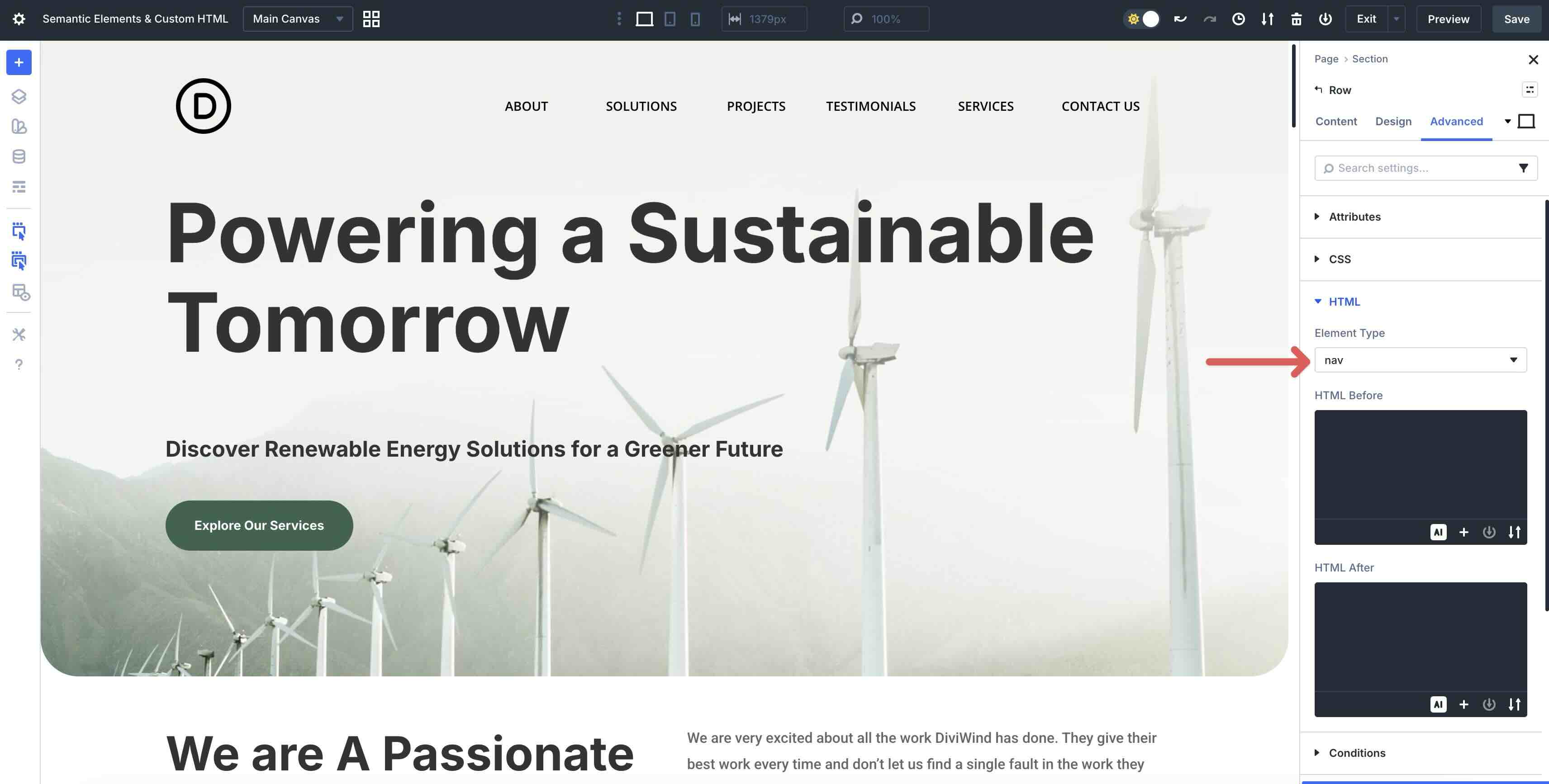
Step-By-Step Guide To Using Semantic Elements
Implementing semantic tags is simple and intuitive. I’ll demonstrate using a landing page layout from one of Divi’s Layout Packs. I’ve created an offset column Row that contains an Image Module and six Text Modules with anchor links. This will serve as the navigation for a one-page website.
Add A Header Tag
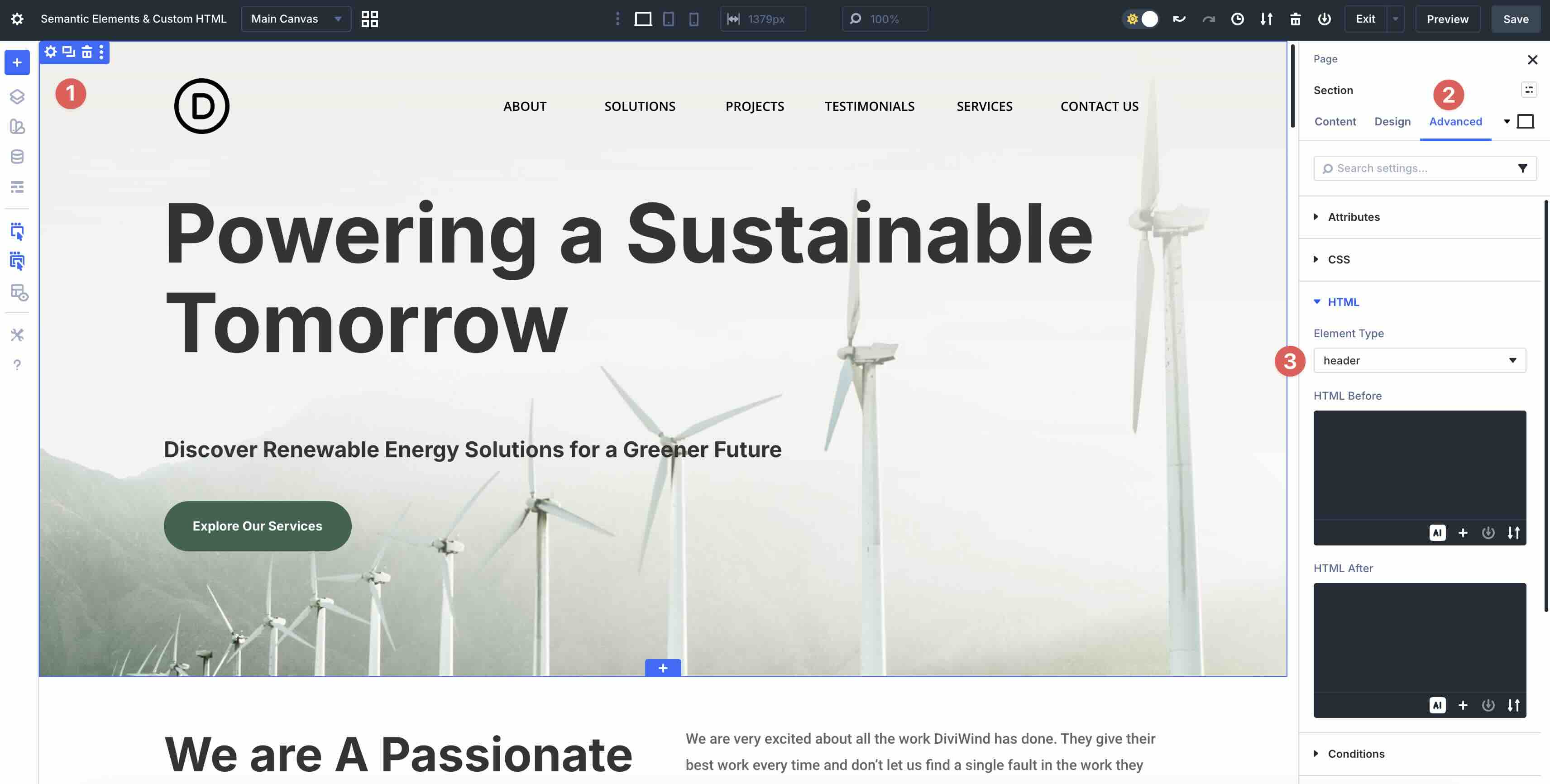
Start by clicking the first Section on the page to open its settings. Navigate to the Advanced tab of the Section and expand the HTML dropdown menu.
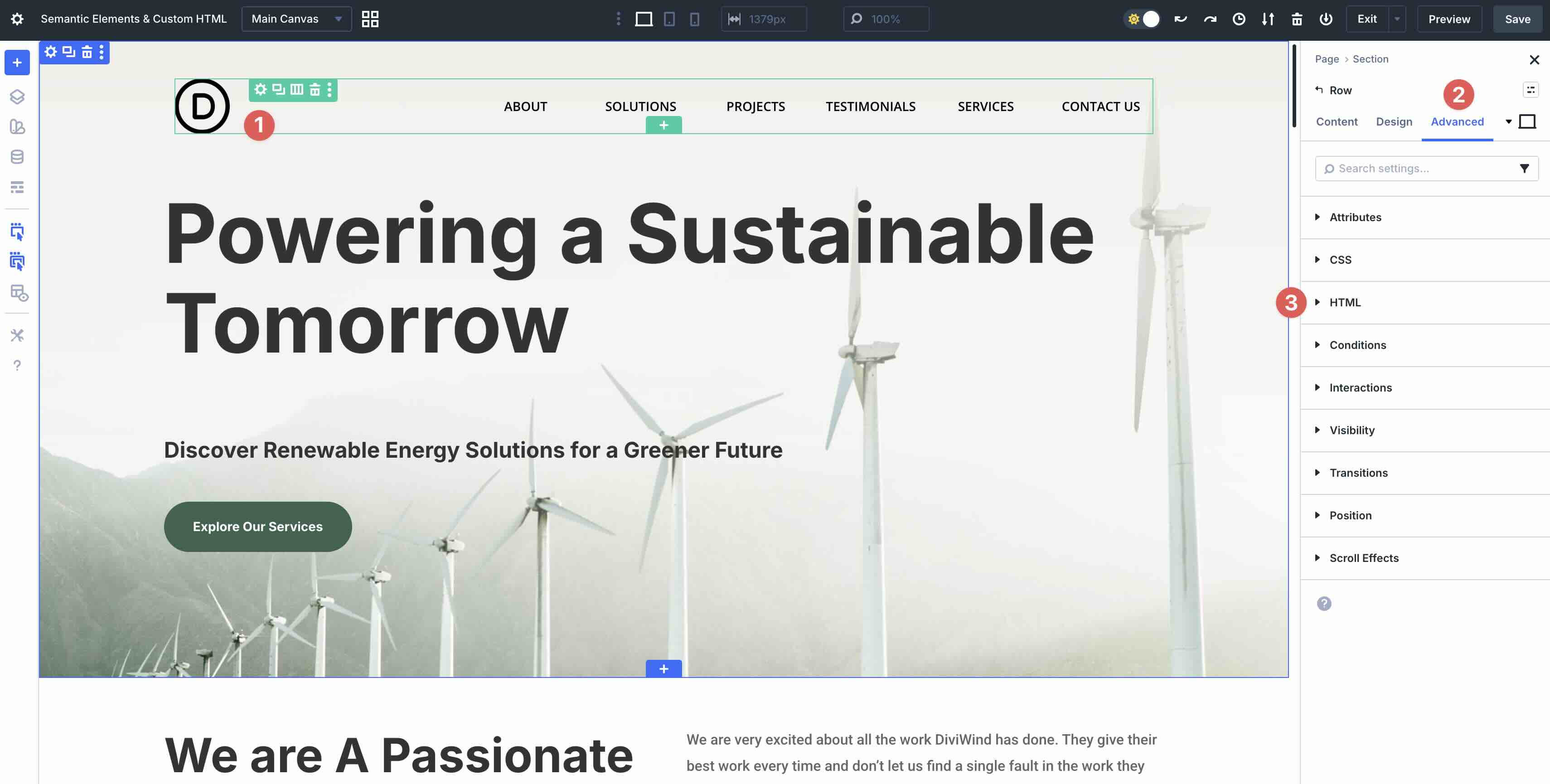
Click the arrow to the right in the Element Type field.
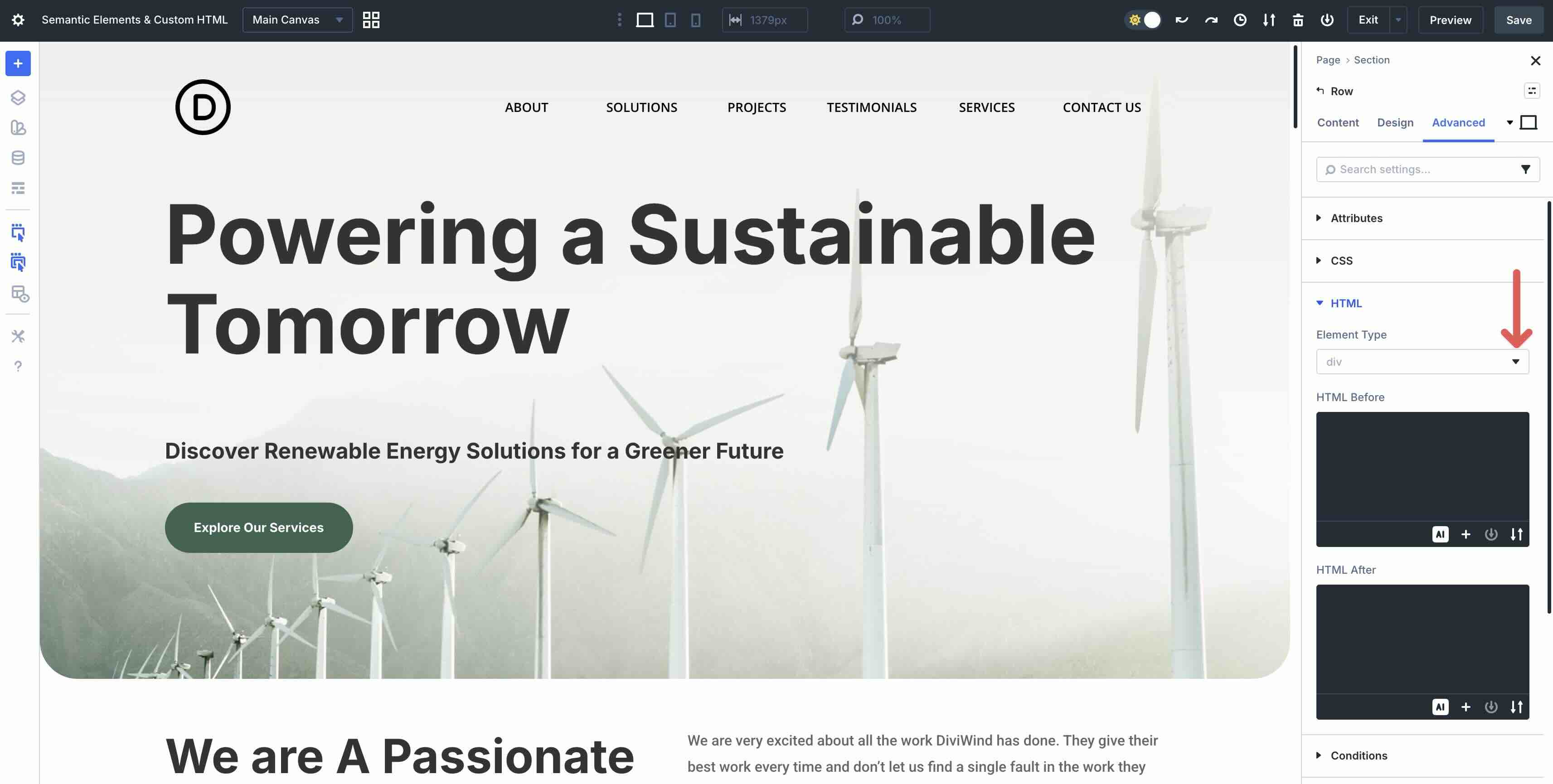
From the dropdown options, select header as the Element Type.
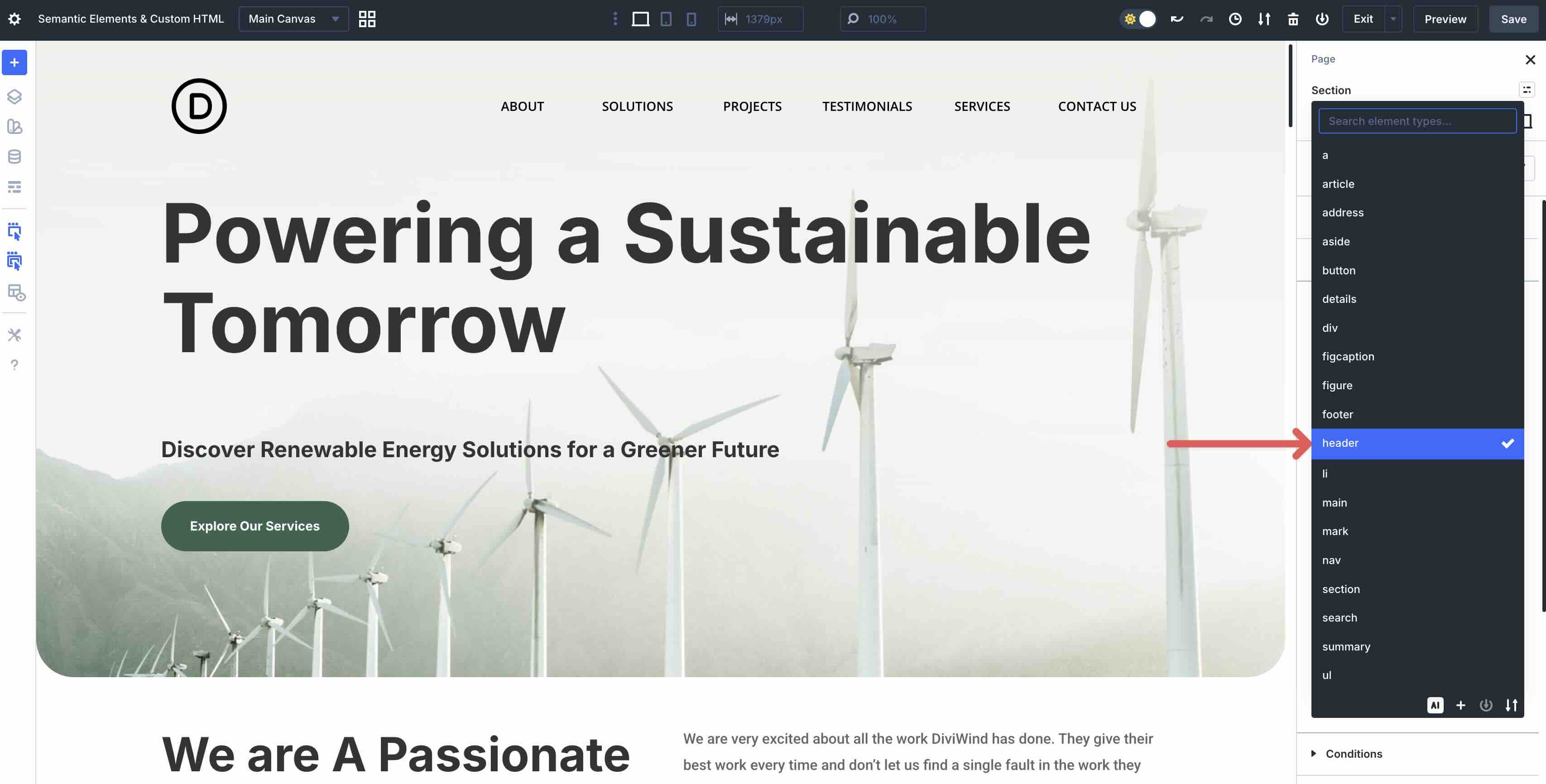
Using the header tag tells search engines and screen readers exactly what that row is. It improves your SEO by clarifying structure, helping visually impaired users quickly access your menu.
Add A Nav Tag
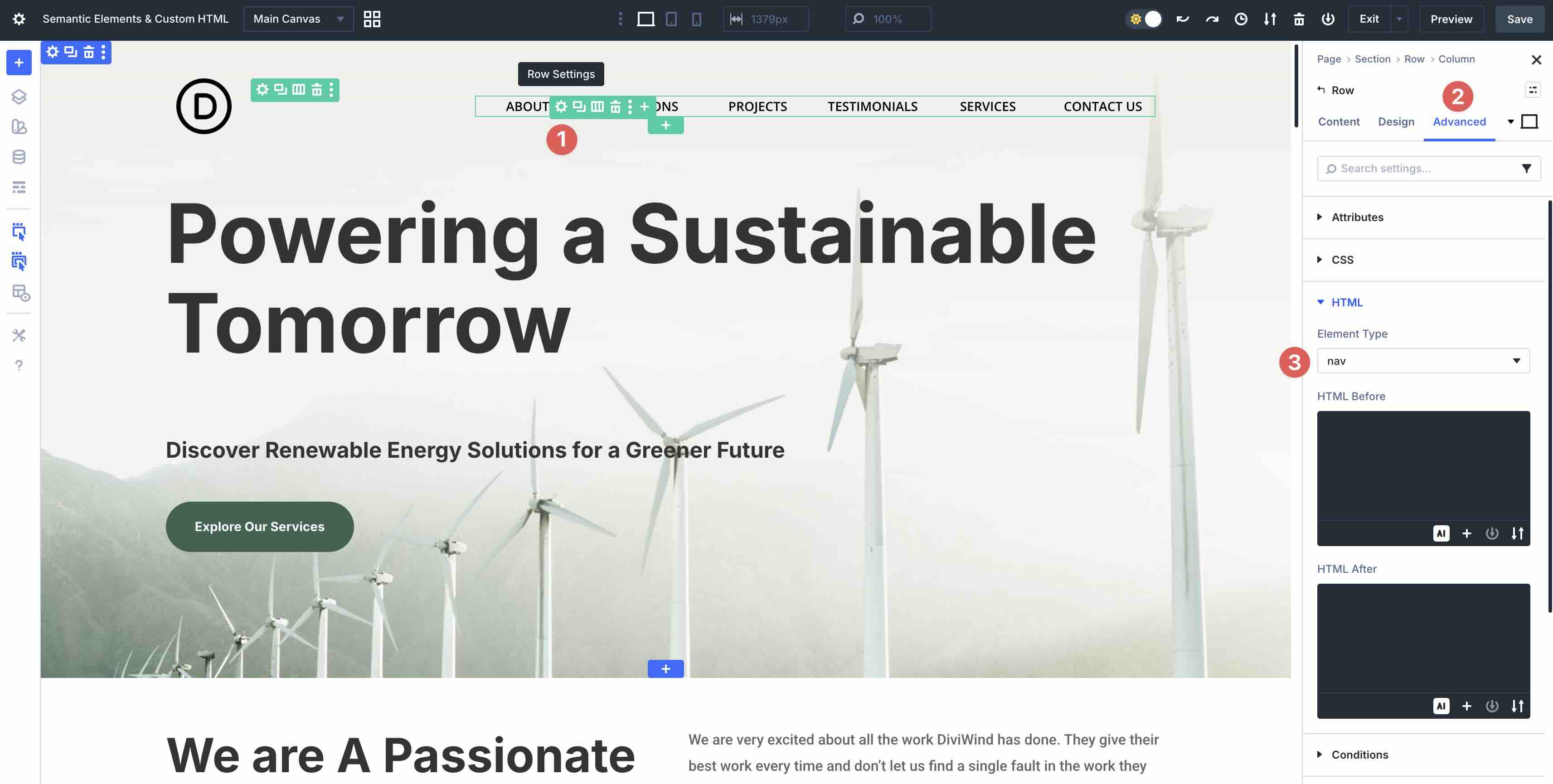
The next step is to set a nav tag for your menu links. While the header tag defines the general area at the top of your page, the nav tag tells browsers and search engines explicitly that this is the navigation.
In the Row, we have included a Nested Row that contains our nav links. Bring up its settings, click the Advanced tab, and select nav as the Element Type.
Add Nav Links
In each Text module, go to the Content tab and expand the Link settings. Add your URL (in this case, an anchor link).
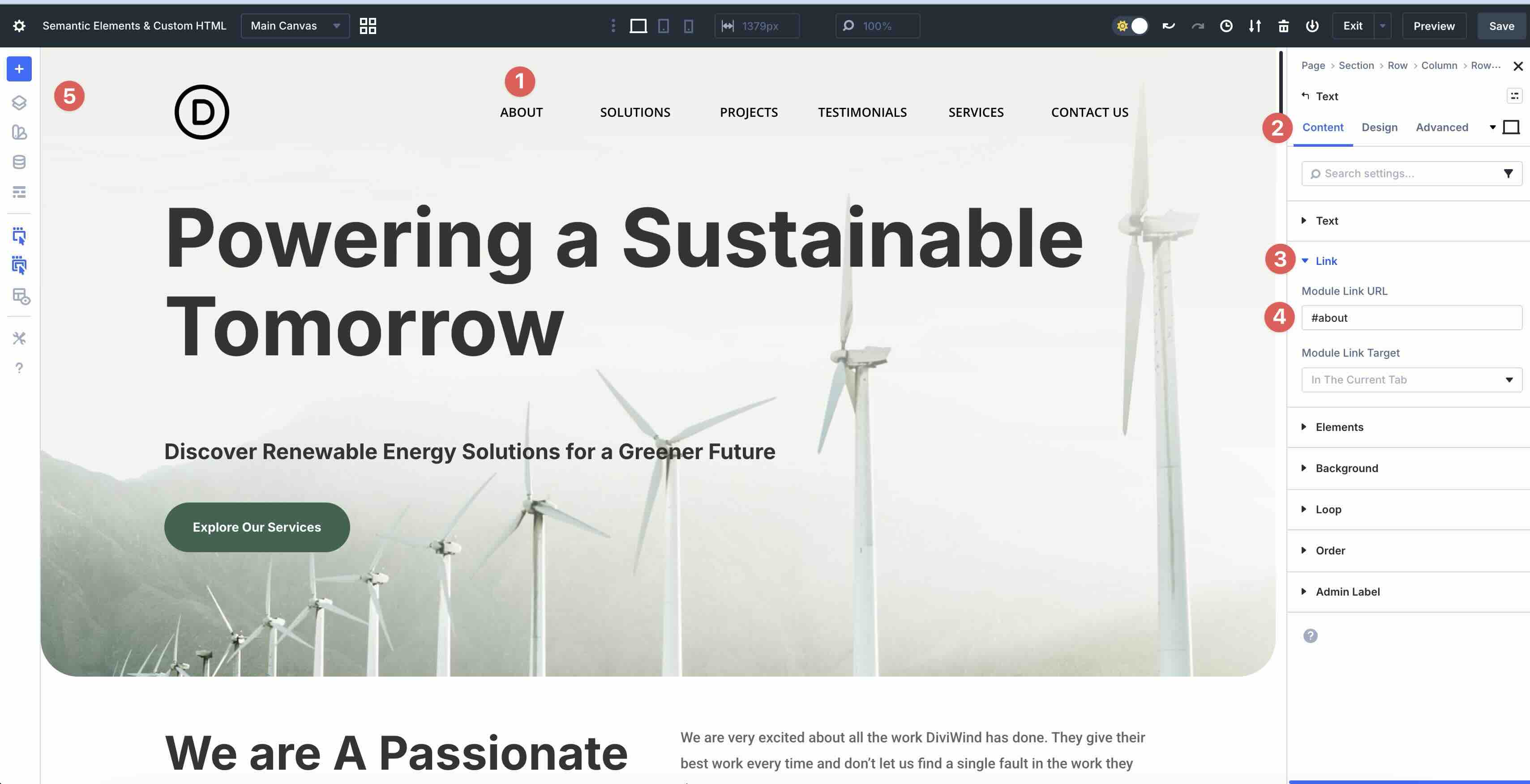
This automatically wraps your text in a proper tag, ensuring the link is fully functional, keyboard-accessible, and announced correctly by screen readers. You don’t need to change the Element Type to a here — it could cause nested links or other issues. Instead, rely on Divi’s link handling for the individual items, and use the nav tag on the parent Row (as shown earlier) for the overall navigation landmark.
For even more advanced control, use Divi 5’s separate Custom Attributes feature in the Advanced tab to assign an aria-label or rel attribute.
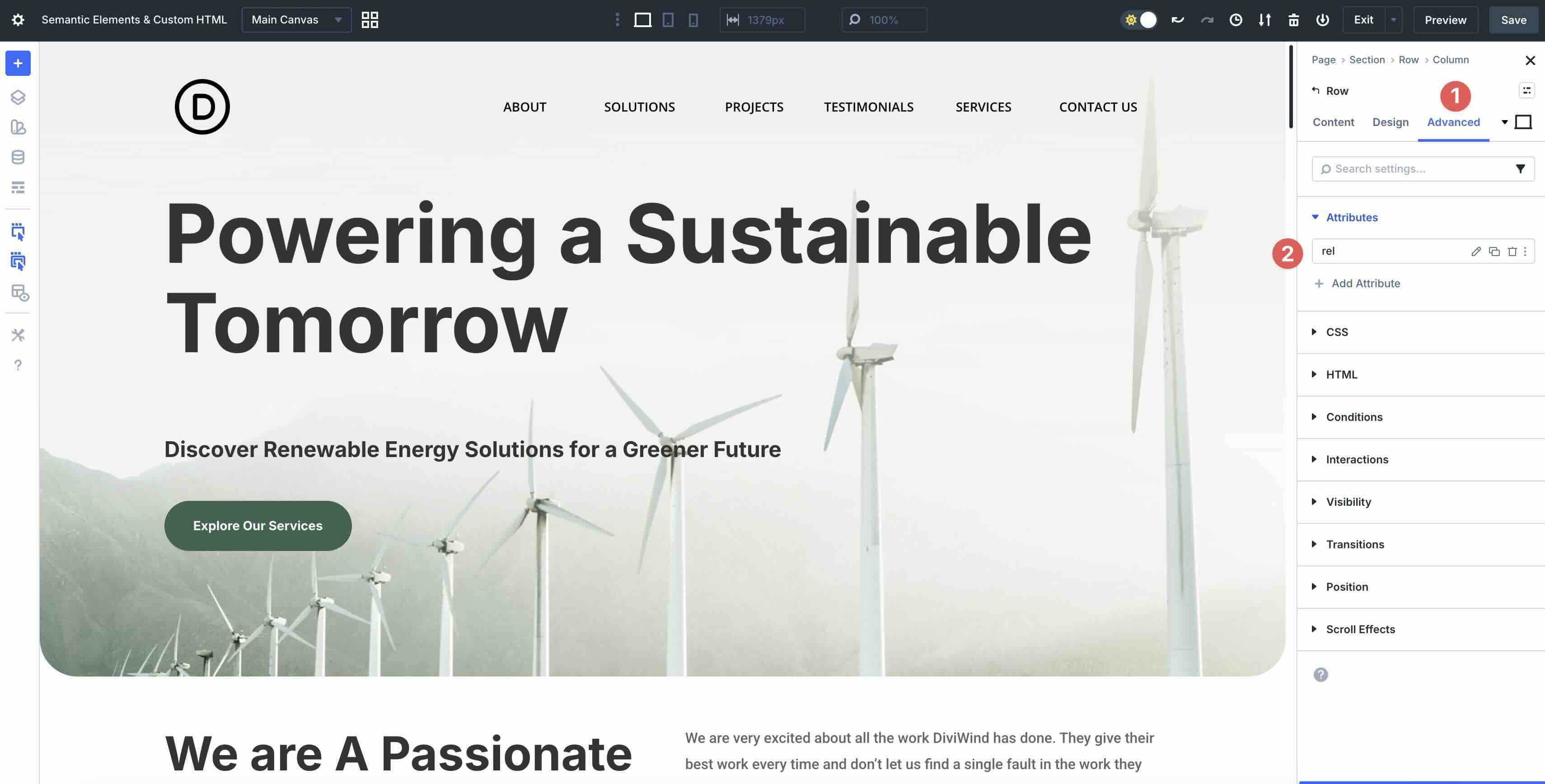
This keeps your custom menu fully semantic, accessible, and SEO-optimized.
Tips And Best Practices
Mastering Semantic Elements in Divi 5 is straightforward, but following a few guidelines ensures your sites are accessible, SEO-optimized, and maintainable. Here are some tips and best practices to follow:
Always select tags based on the content’s purpose, not its appearance. This is the core principle of Semantic Elements as outlined by modern web standards. Use nav for primary navigation menus or groups of links that help users move around the site.
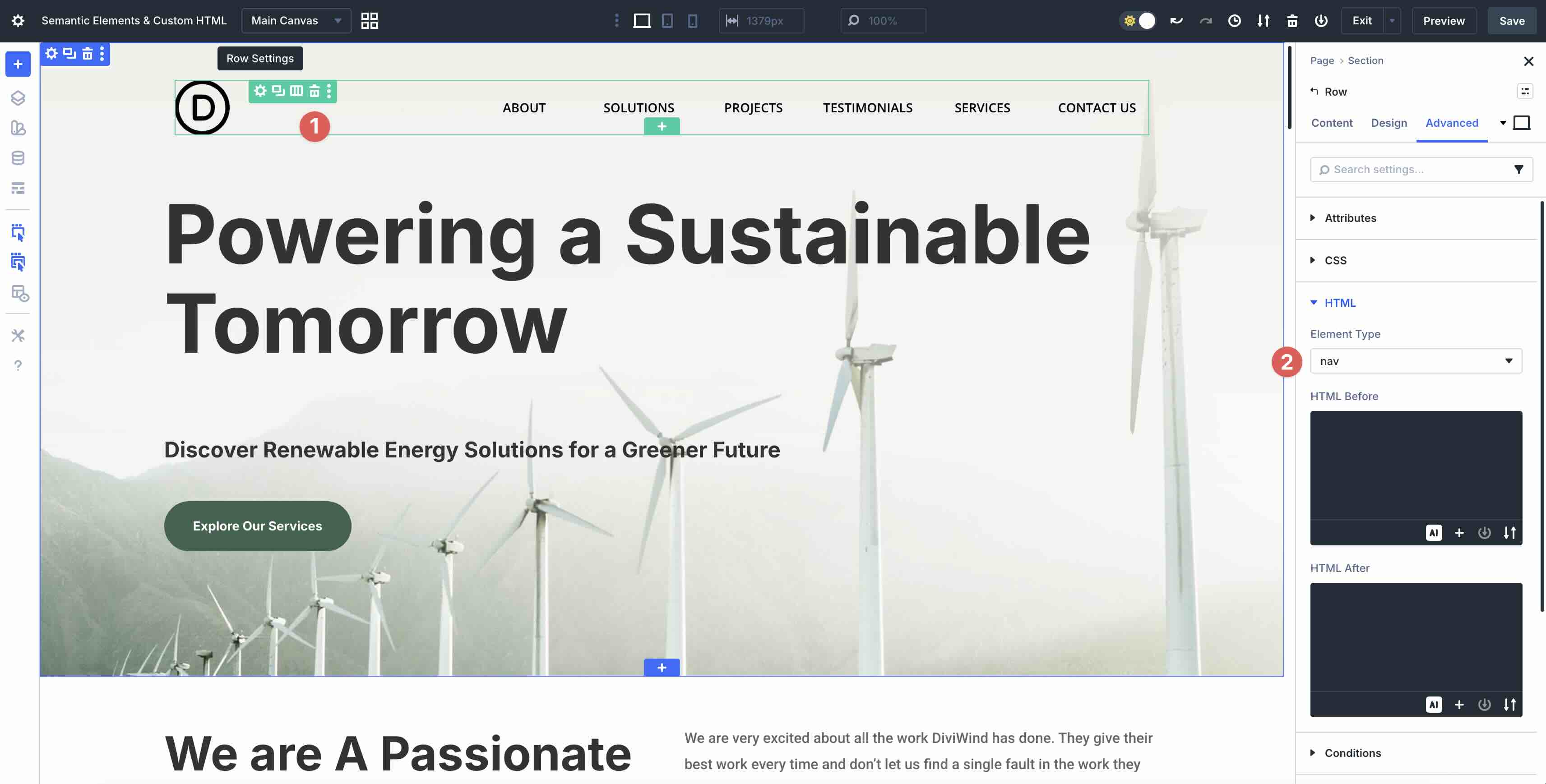
Use section for thematic groupings of content, typically with a heading.
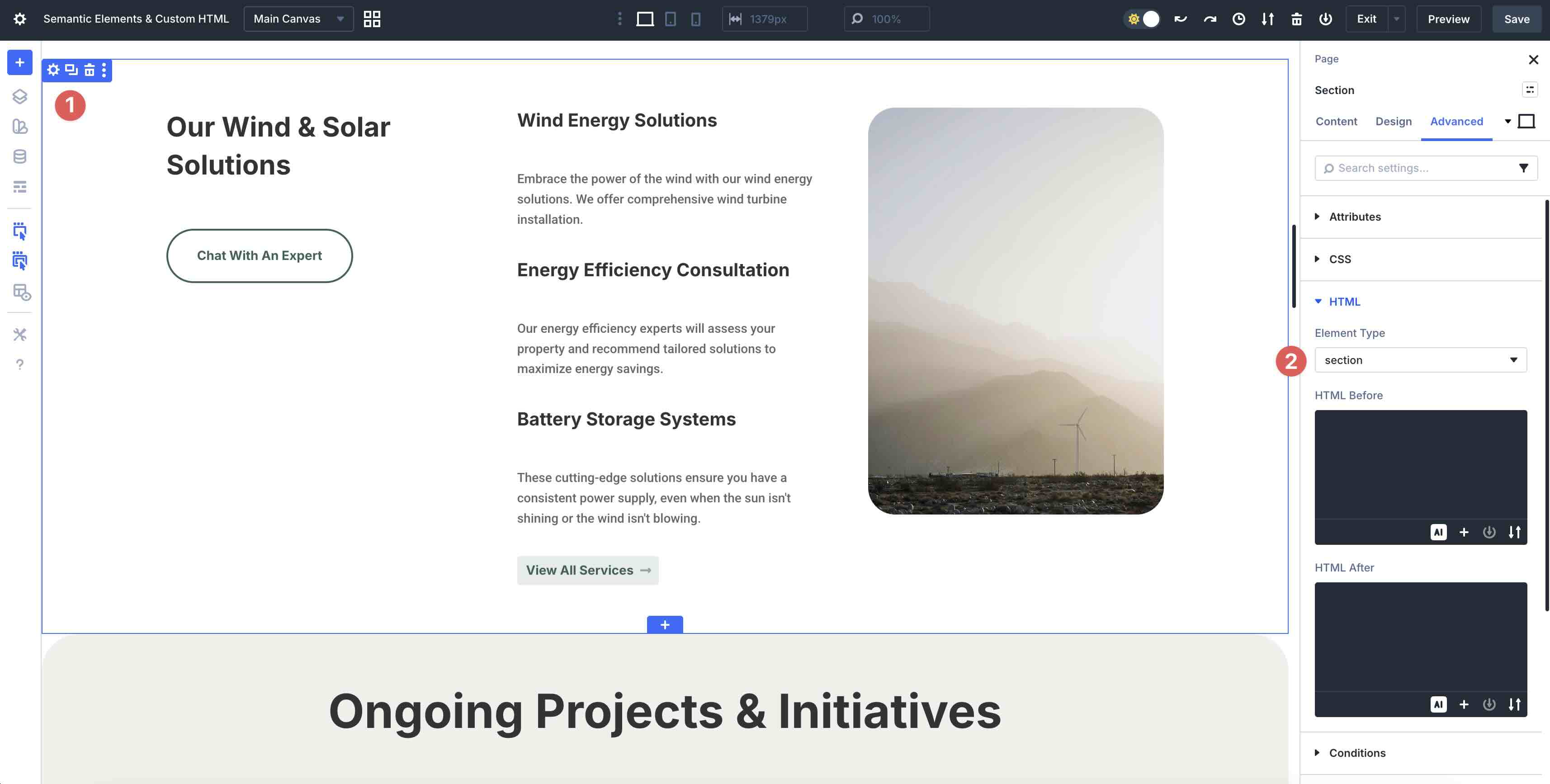
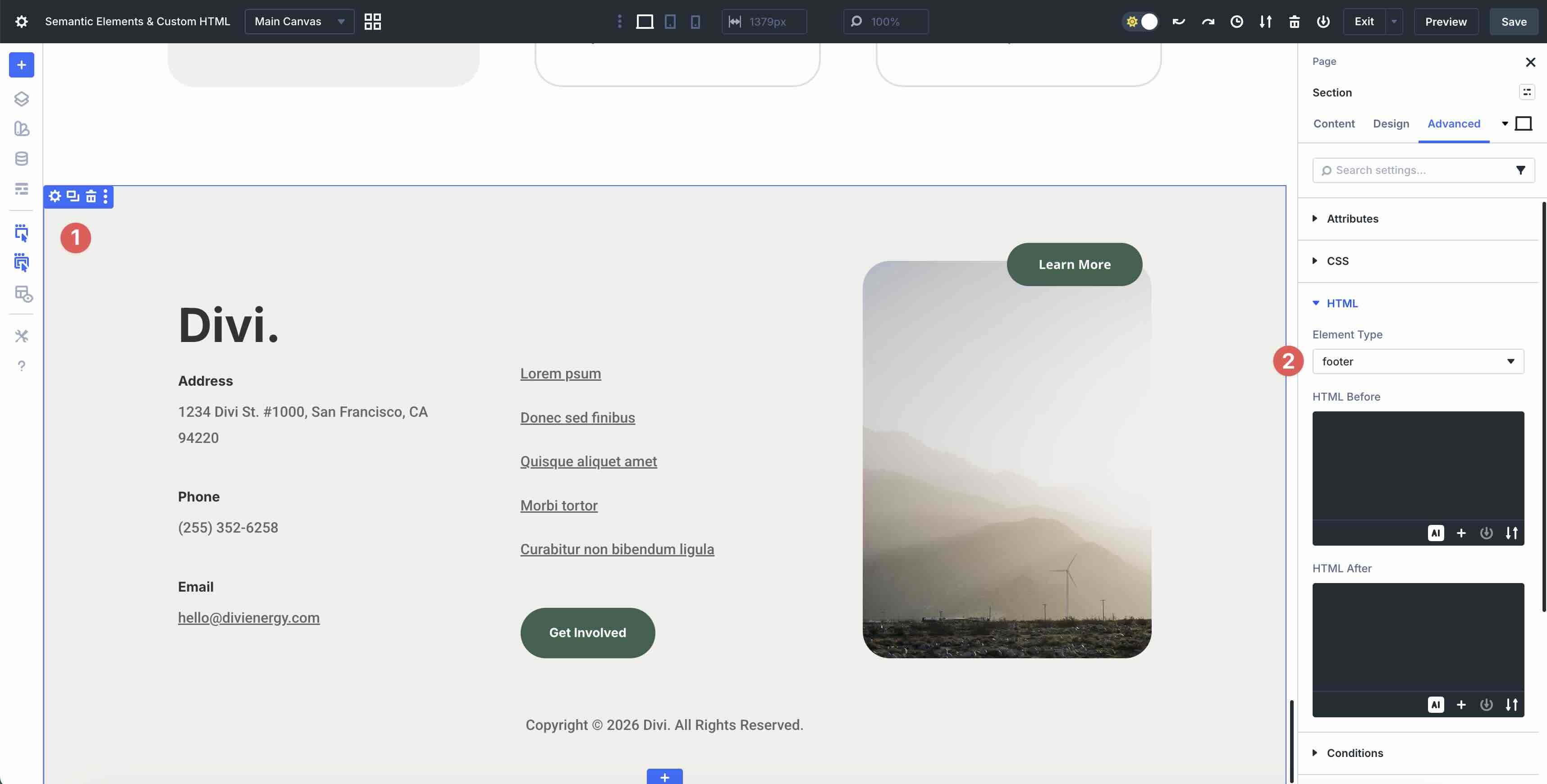
Reserve header for introductory content or page headers, and footer for closing information like copyright or contact details.
Optimize For SEO And Accessibility
Semantic Elements directly contribute to better search engine understanding and assistive tech like screen readers. With proper use of landmarks, headings, and roles, you have a better chance of standing out in search results. For the best results, try these tips for compliance:
- Maintain a Logical Heading Hierarchy: Use one H1 per page, followed by H2-H6 in order.
- Hit the Semantic Sweet Spot: Combine native tags for automatic logic, custom wrappers for style control, and ARIA labels to fill gaps for screen readers.
- Test Regularly: Use accessibility evaluation tools like Google Lighthouse to flag improper structures and get suggested fixes.
- Aim for WCAG Standards: Follow Web Content Accessibility Guidelines to ensure universal inclusivity and meet legal requirements.
Common Mistakes To Avoid
Even experienced users can slip into common pitfalls when using Semantic Elements. Overusing or misusing semantics defeats their purpose and creates confusion for browsers, search engines, and assistive technologies.
Failing to adhere to proper nesting rules or leaving custom wrappers unbalanced can disrupt page structure and compromise accessibility. Similarly, injecting malformed code into wrappers, like unmatched tags or invalid attributes, often triggers rendering errors, slows performance, or can cause rendering issues.
Finally, treating headings as visual styling tools rather than a logical hierarchy misleads screen readers and crawlers.
Avoiding these mistakes keeps your sites clean, accessible, and effective.
Try Semantic Elements In Divi 5 Today!
Semantic Elements represents a leap forward in Divi 5, allowing you to infuse real meaning into your designs. By swapping generic wrappers with proper tags and precise markup, you create sites that are more accessible, SEO-friendly, and customizable right inside the Visual Builder. These tools allow Divi users to bridge the gap between visual design and professional code standards, making it easy to build inclusive websites that perform better for users, screen readers, and search engines.
I encourage you to download the latest Divi 5 Public Beta and experiment with Semantic Elements. Whether you’re refining an existing site or starting fresh, this feature will help you build faster, cleaner, and more meaningful experiences.










Is there an audit tool that can crawl our layouts to confirm that we did this correctly? Or it would be wonderful to continue on with another tutorial on loops for blog posts vs blog post templates specifically blog posts templates that have two columns, one with the blog Title, categorical bread crumps, author, post content in one column; and the other column containing a loop of recent posts.