

Editing a website rarely happens in one place. You build a page, notice something off in the header, then leave to adjust a template. A few minutes later, you jump again to change a footer or archive layout. That context switching adds friction, especially when you are managing a whole site instead of a single page.
Different builders have tried to solve that problem in different ways. Some reduce the back-and-forth. Some still separate key parts of the site into distinct editing sessions. Divi 5 takes a more unified approach by bringing more of the site into one builder session.
In this comparison, we’ll look at how Divi 5, Divi 4, Elementor, and Bricks each handle full site editing, and what those differences mean when you’re actually building.
What Complete Site Editing Actually Means
At its best, complete site editing means your site is reachable from wherever you are working. You open a page, and the header, footer, and page content are all available in context. That lets you adjust navigation, refine the content area, and update the footer without leaving the builder or switching to a separate template screen.
There is a design-system side to this too. When layouts, styles, and global elements work together, a single update can carry through every part of the site that shares it. Colors, spacing, typography, and repeated components stop behaving like isolated settings and start behaving like a connected system.
That is what makes full site editing genuinely useful. It is not just about seeing more things at once. It is about reducing context switching and making the whole site feel easier to manage as one working environment.
How Each Builder Approaches Site Editing
In practice, that ideal depends heavily on the builder you are using. Each tool approaches site editing with its own balance of flexibility, structure, and workflow tradeoffs.
Let’s take a closer look at how these builders handle it and what that means in day-to-day use.
1. Elementor: Templates First, Workflow Second
Elementor was one of the first major WordPress builders to take site-part editing seriously through its Theme Builder. It gives you a way to work on headers, footers, and other site parts visually, and its newer Global Editing flow lets you access header, content, and footer areas from the same page-level editing experience. That was a meaningful improvement over having to return to the WordPress dashboard for every structural change.
The experience, however, still depends on switching active contexts. In Elementor’s Global Editing flow, you click into the header area to edit it, then click back into the content area to work on the page body, then into the footer to edit that area. It is more convenient than managing everything from separate admin screens, but it still treats those parts as separate editing regions rather than one continuous canvas.
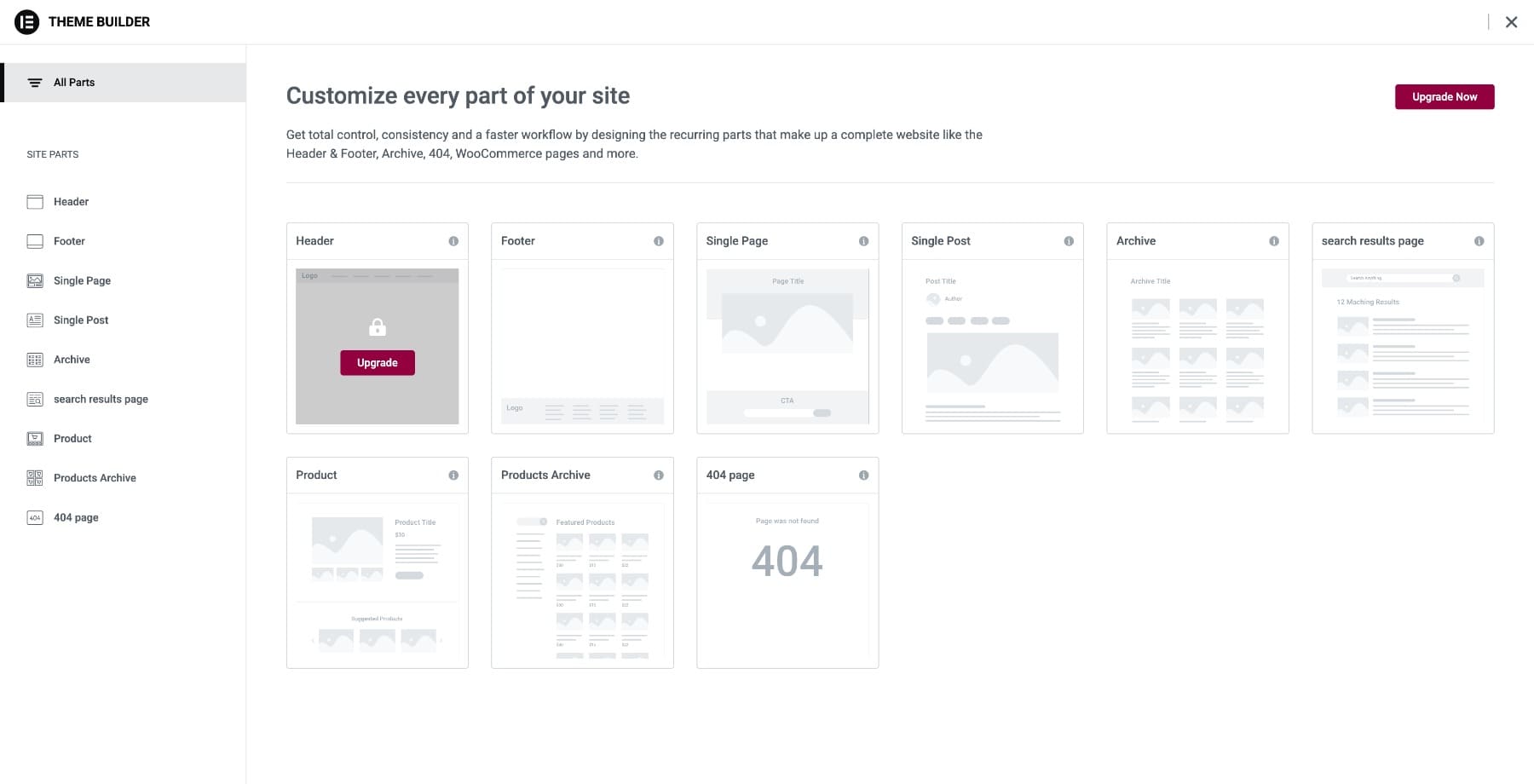
There is also an access distinction worth noting. Elementor’s Theme Builder is part of Elementor Pro, not the free version. So while the workflow is capable, complete site editing is tied to the paid product rather than included in Elementor’s core free experience.
It solved a big part of the navigation problem, but the underlying workflow still keeps headers, footers, and content in their own editing lanes.
2. Divi 4: Further Along, But Still Layered
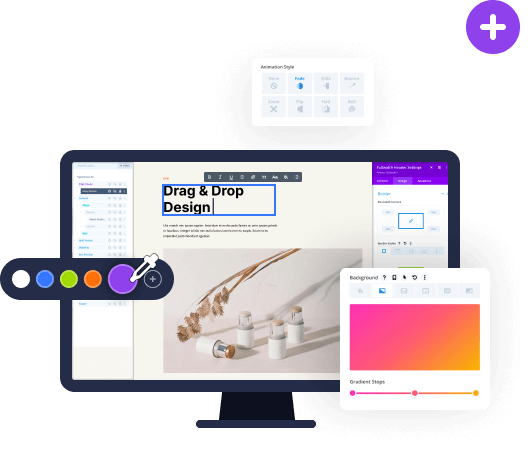
Divi 4 pushed the experience further. With full-site front-end editing, the Visual Builder could open with your header, page content, and footer all visible on the same screen. You could click directly into those areas and edit them without having to open a separate Theme Builder screen first.
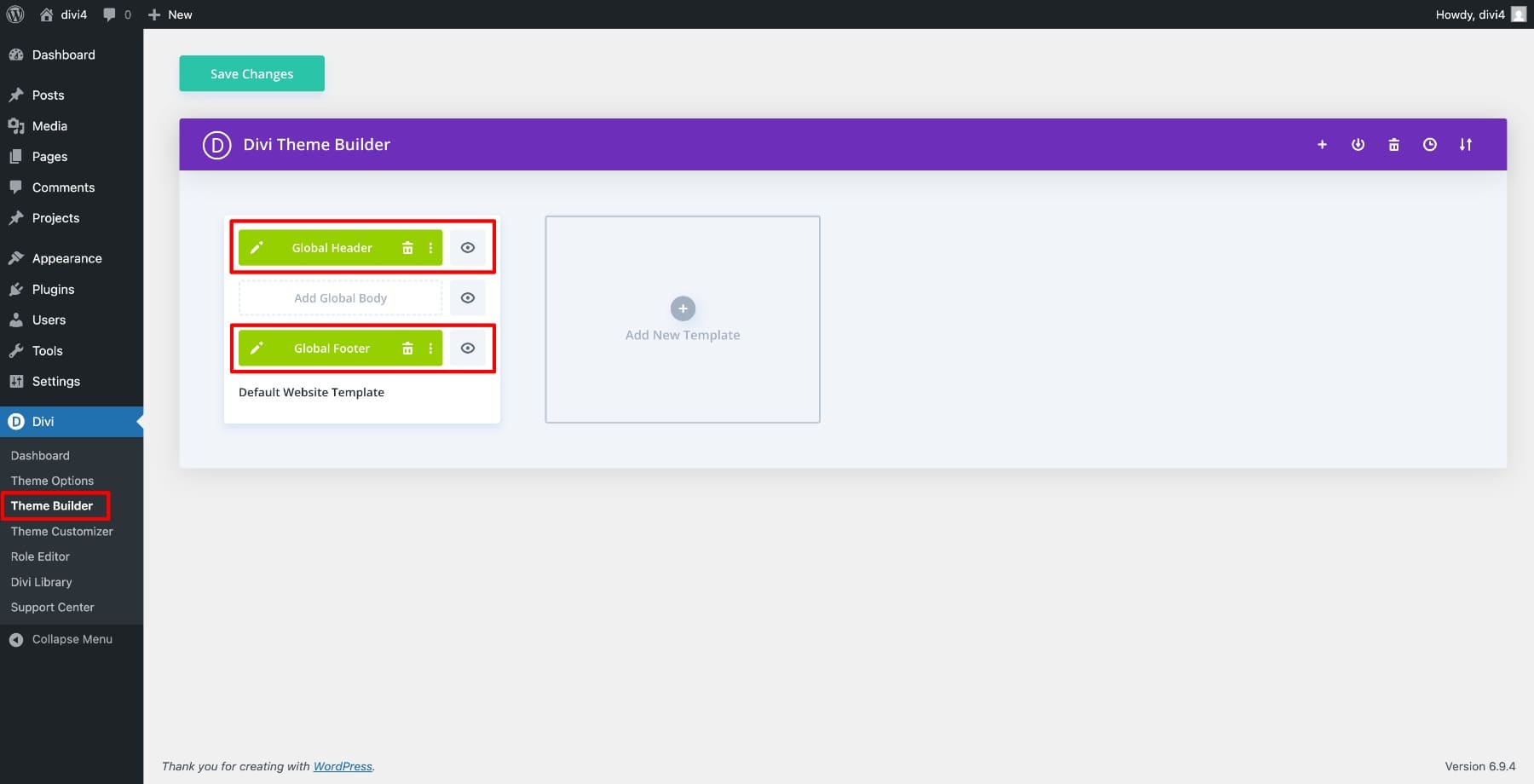
That made Divi 4 feel noticeably more fluid than older template-based workflows. You could edit multiple template areas in one front-end session, and that was a real step forward.
The limitation was architectural. Divi 4’s full-site editing experience sat on top of its existing Theme Builder structure, so headers, footers, and body templates were still separate template objects underneath the interface. In many cases that worked well, but it could also create friction in more complex setups. For example, responsive header structures could become awkward in the editor because different template states were still being managed through an older layered system.
Divi 4 made full-site front-end editing more practical, but it was still working within a system that had been designed before complete site editing became the central idea.
3. Bricks: Built For Precision, Not Continuity
Bricks takes a different approach. It emphasizes structural clarity, template control, and system-level styling. That has made it popular with developers and advanced users who want a more explicit relationship between templates, classes, and layout structure.
Its Structure panel is a big part of that appeal. It gives you a precise hierarchy of the page, and its styling workflow leans heavily on shared classes, variables, and centralized style controls. For people who like building in systems, Bricks can feel very organized.
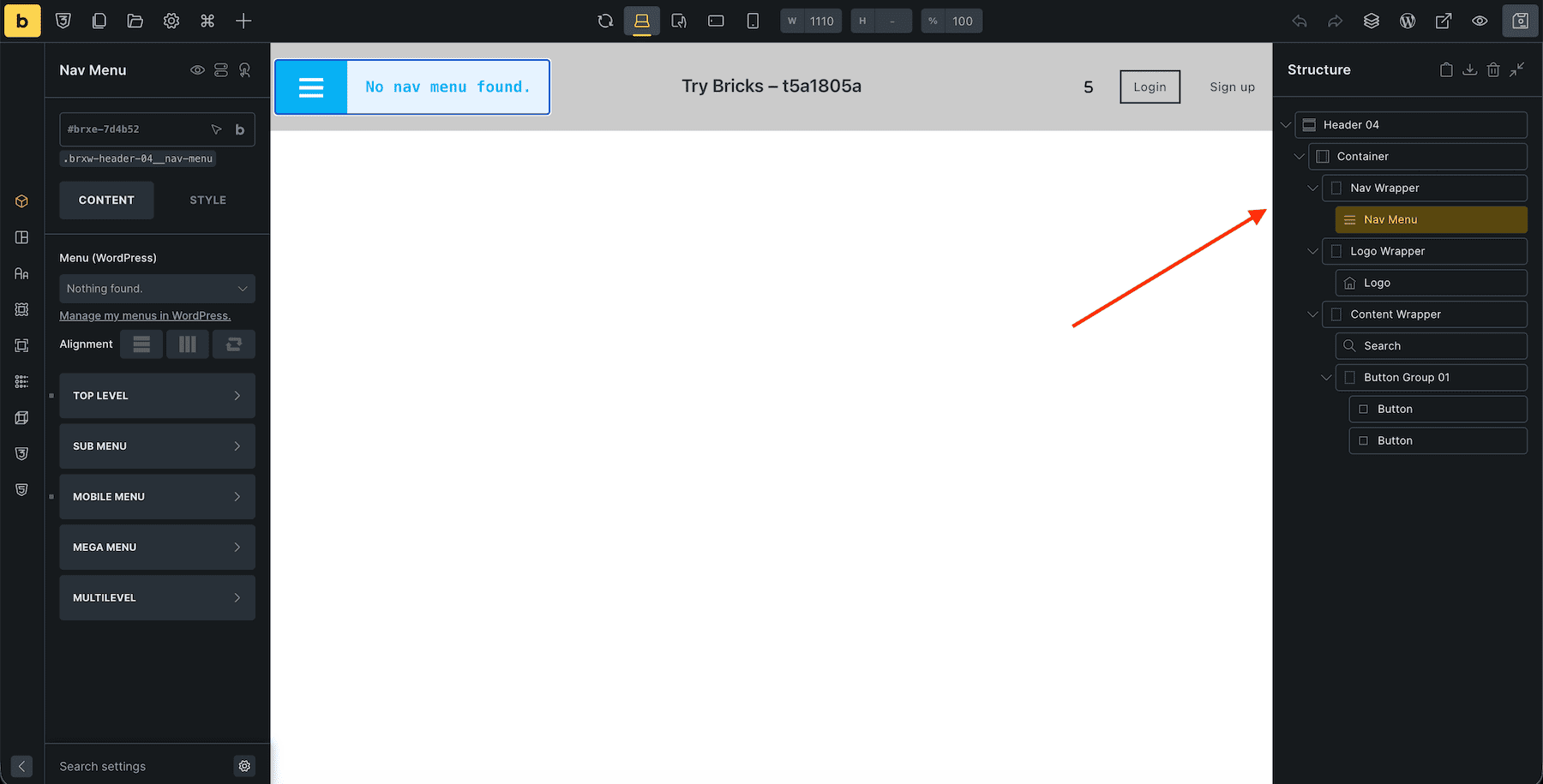
The tradeoff is that Bricks does not try to make the whole site feel like one continuous editing session. Headers, footers, and other site parts are managed as templates. If you want to edit a header, you open the header template. If you want to work on page content, you open that page. That keeps the architecture clear, but it also means more jumping between separate editing sessions when you are making site-wide refinements.
Bricks is powerful and precise, but its workflow is more template-driven than unified.
That makes it a strong fit for users who prioritize structure and control, but less fluid for people who want to edit the whole site in one pass.
4. Divi 5: One Site, One Session
Divi 5 was rebuilt around a more unified editing model. With complete site editing, you can edit your assigned header, body, and footer in one builder session instead of opening the Theme Builder separately. The goal is simple: when you open a page, more of the site should already be there in context.
That changes the feel of the workflow. You can adjust navigation in the header, move into the page content, continue down to the footer, and save from the same session without needing to reload another editing environment.
That same idea extends beyond standard pages. Divi 5 makes Edit With Divi available across more template-driven areas, including posts, archives, and other layouts controlled through the Theme Builder. That means you are less likely to step out of context just to reach the structural part of the site you need to change.
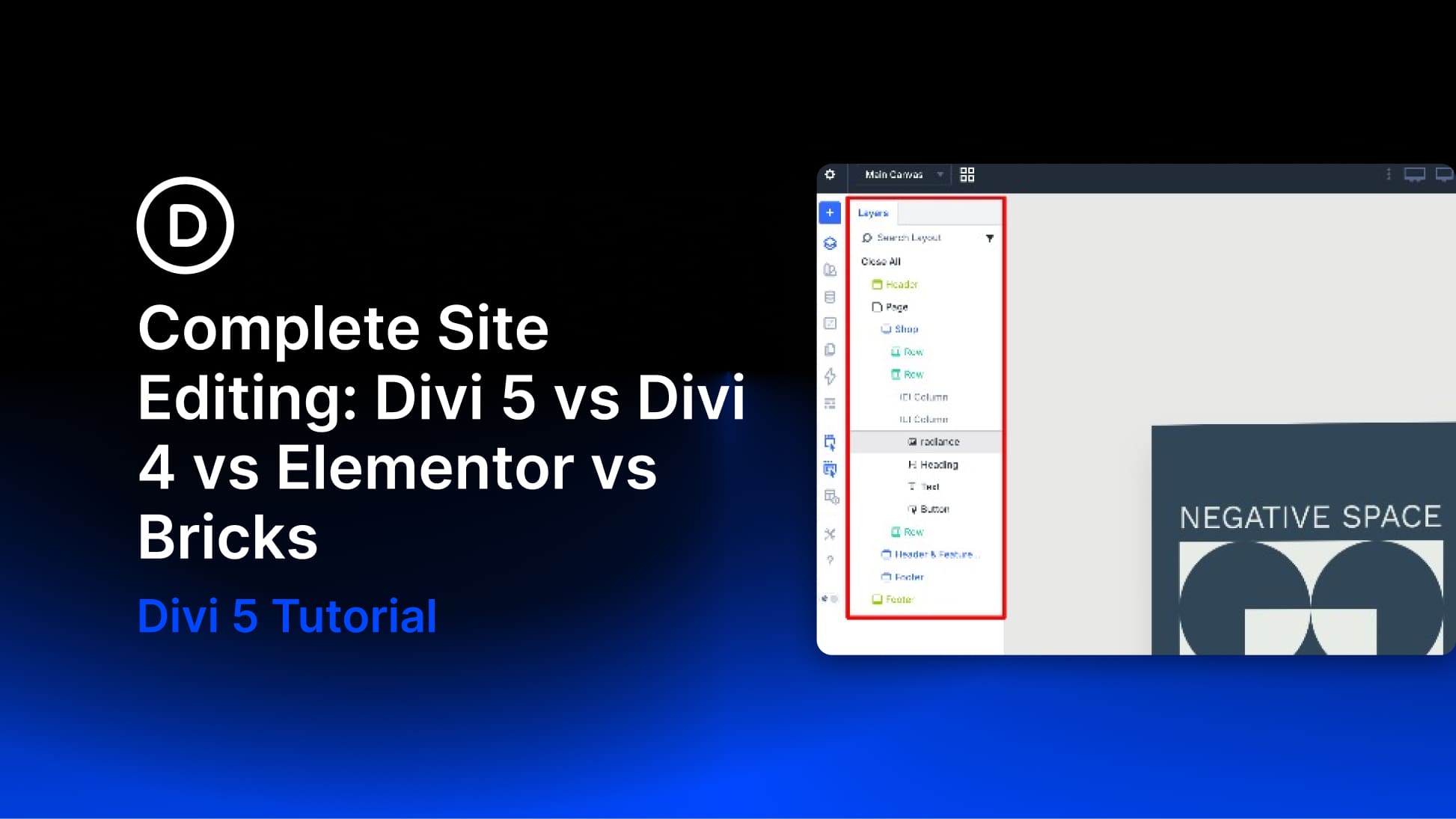
The Layers panel helps make that unified view easier to manage. When more of the page is visible at once, clear structural visibility matters more, and Layers gives you a quick way to understand what you are editing and where it sits in the layout.
A Design System Built For Speed
Divi 5 extends this same thinking into styling. Design Variables, Presets, and Extend Attributes make it easier to apply and reuse styling decisions across the site from a visual interface.
That gives Divi 5 a more system-oriented workflow without asking users to manage everything through a strictly class-driven editing model. Because the header, body, and footer can be visible in the same session, the relationship between those global style changes is easier to understand while you work.
Learn Everything About Full Site Editing In Divi 5
Each builder here has real strengths. Elementor has familiarity and a mature ecosystem. Bricks offers precision and a very deliberate structure-first workflow. Divi 4 pushed front-end site editing forward when that shift mattered. But for a more continuous complete site editing experience, Divi 5 is the builder in this comparison that is most clearly designed around the idea of editing the site as one connected working environment.
Divi 5 Brings Full Site Editing Together
Complete site editing is not just a feature label. It changes how a website feels while you are building it. Some builders approach it by layering site-part editing onto existing template systems. Divi 5 takes a more unified route by bringing more of the site into the same builder session from the start.
If you want a workflow where more of the site is reachable, visible, and editable without losing your place, that is exactly the direction Divi 5 is built around.




You compared Divi to elementor but elementor can do much more. For example a complex mega menu builder for specific menu elements are still not possible and your support can not handle it. We have to wait for another update, maybe mega menu builder will be possible soon they say. Same issue on flexbox and inline editing. For example elementor had flex-box standard about years and divi still can not work with it many years later… And lets say you open a website in frontend as an admin. Now you wanna edit the header of the current page -> this is not possible. In elementor its possible to switch into the current loaded header in frontend and edit it. Basics like this and many more making divi slow in daily business. Also plugins like jetengine are still not supporting divi and divi still not supporting this plugins. While elementor have tons of extra widgets and addons like jetengine the divi still stuck in some basics plugins and their own functions.
Thomas, thanks for your thoughts. We tend to disagree on a few major points, mostly because you are relying on old information, which is understandable. For instance, Google “JetEngine Divi 5” and let me know what you find. If you want to edit the header of a page, and want to get there fast from the front end, click “Edit with Divi” and then start editing the Header, or the footer, or the page body, or all of them at once if you like. Divi’s CSS Flexbox and CSS Grid are very mature and stable and include many things not available in Elementor. We very much encourage you to look into and even try Divi 5 for yourself. We’ve worked very hard and can assure you that it is not the same Divi you may have used 5, 3, or even 1 year ago. Our comparison with Elementor is valid and we stand by our claim that Divi is quickly usurping Elementor in performance, usability, and flexibility, you just have to try it to have the latest information. We appreciate your comment.