

Images almost always share space with supporting content, such as titles, short descriptions, and links. A static layout can handle that well, but even a small hover interaction can make the entire composition feel more responsive. Instead of showing everything at once, the layout reveals extra content only when someone engages with it.
In this tutorial, we’ll use Divi 5 and its Interactions system to build exactly that: a layout where hovering over an image reveals additional content and shifts the surrounding text into a secondary state, all without custom code.
- 1 What We’re Building
-
2
Step-By-Step Tutorial
- 2.1 Step 1. Create The Book Showcase Layout
- 2.2 Step 2. Create The Group For Additional Book Details
- 2.3 Step 3. Hide The Additional Content On Page Load
- 2.4 Step 4. Create An Alternate Preset For The Book Title
- 2.5 Step 5. Trigger The Reveal On Hover
- 2.6 Step 6. Add The Return-State Interaction
- 2.7 Step 7. Add A Fade-In Animation For A Smoother Reveal
- 3 Preview
- 4 Practical Tips Before You Publish
- 5 Try Interactions in Divi 5 Today!
What We’re Building
The layout is a two-column book showcase. The left column displays a book cover image, and the right column contains the book’s core metadata: the author’s name and the book title. This is the default state visitors see first. It’s clean, simple, and easy to scan.
When someone hovers over the book cover, the right column reveals more content through a module group: a testimonial, a short description, and a Buy Now button. At the same time, the book title shifts into a smaller alternate preset so the new content has room to appear without crowding the layout.
Subscribe To Our Youtube Channel
When the cursor leaves the image, the layout returns to its default state. That reset is what makes the interaction feel polished instead of one-directional.
Why Use Divi 5 Interactions
Interactions is Divi 5’s built-in system for adding behavior to elements inside the Visual Builder without writing code. Divi 5’s Interactions system works through three parts: a trigger that starts the interaction, an effect that defines what happens, and a target that tells Divi which element should change.
That structure makes it easy to coordinate multiple changes from a single hover. In this build, one trigger reveals hidden content while a second target switches the title to an alternate preset. Small interaction, multiple coordinated responses.
Step-By-Step Tutorial
This build comes together in seven steps. We’ll create the two-column layout, add the book metadata, build the hidden content group, hide it on page load, create an alternate title preset, connect everything to the hover trigger, and then add the return-state interaction to reset the layout cleanly.
Step 1. Create The Book Showcase Layout
Start by adding a new Section to your page and inserting a Row with a two-column layout.
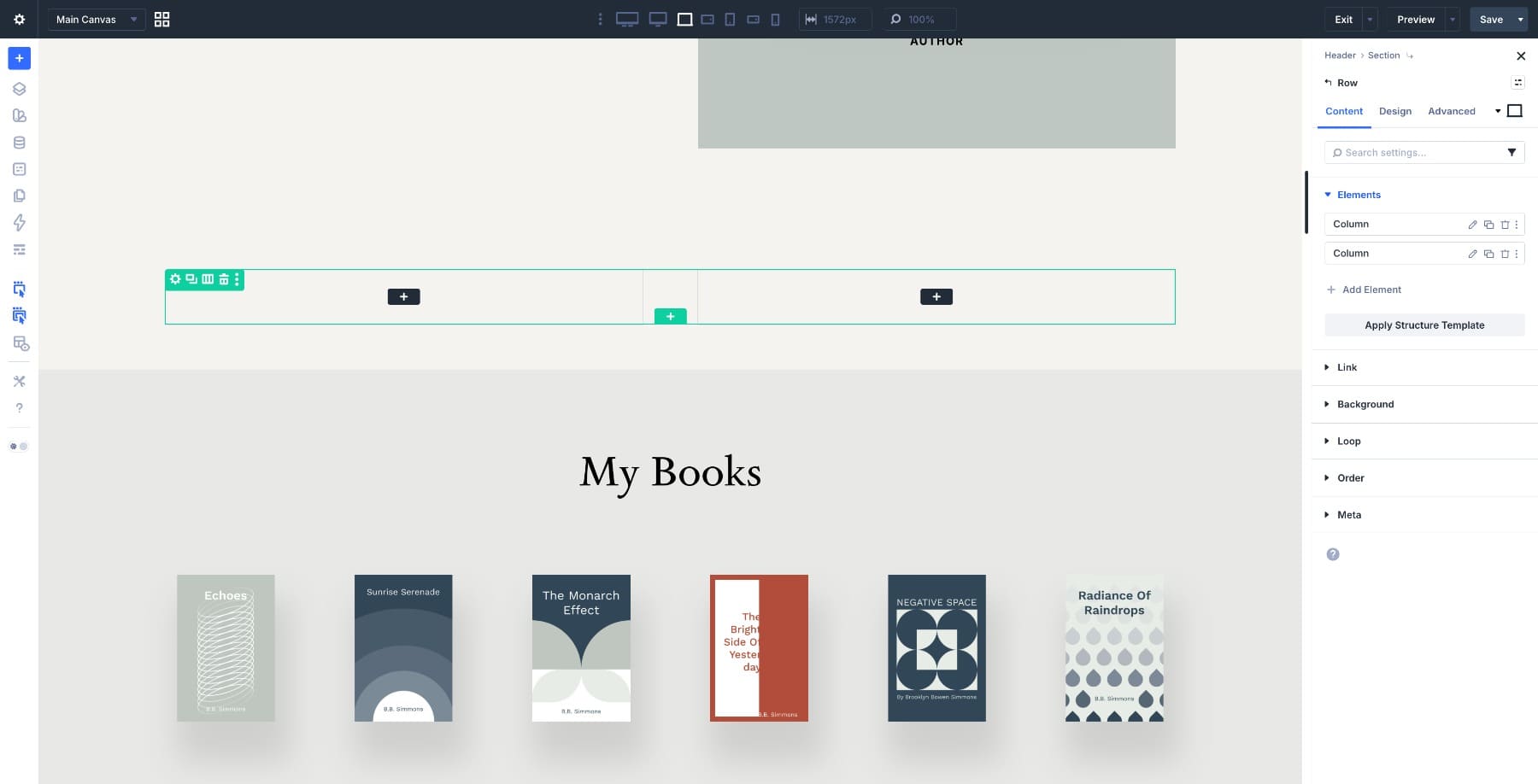
In the left column, add an Image Module and upload your book cover image.
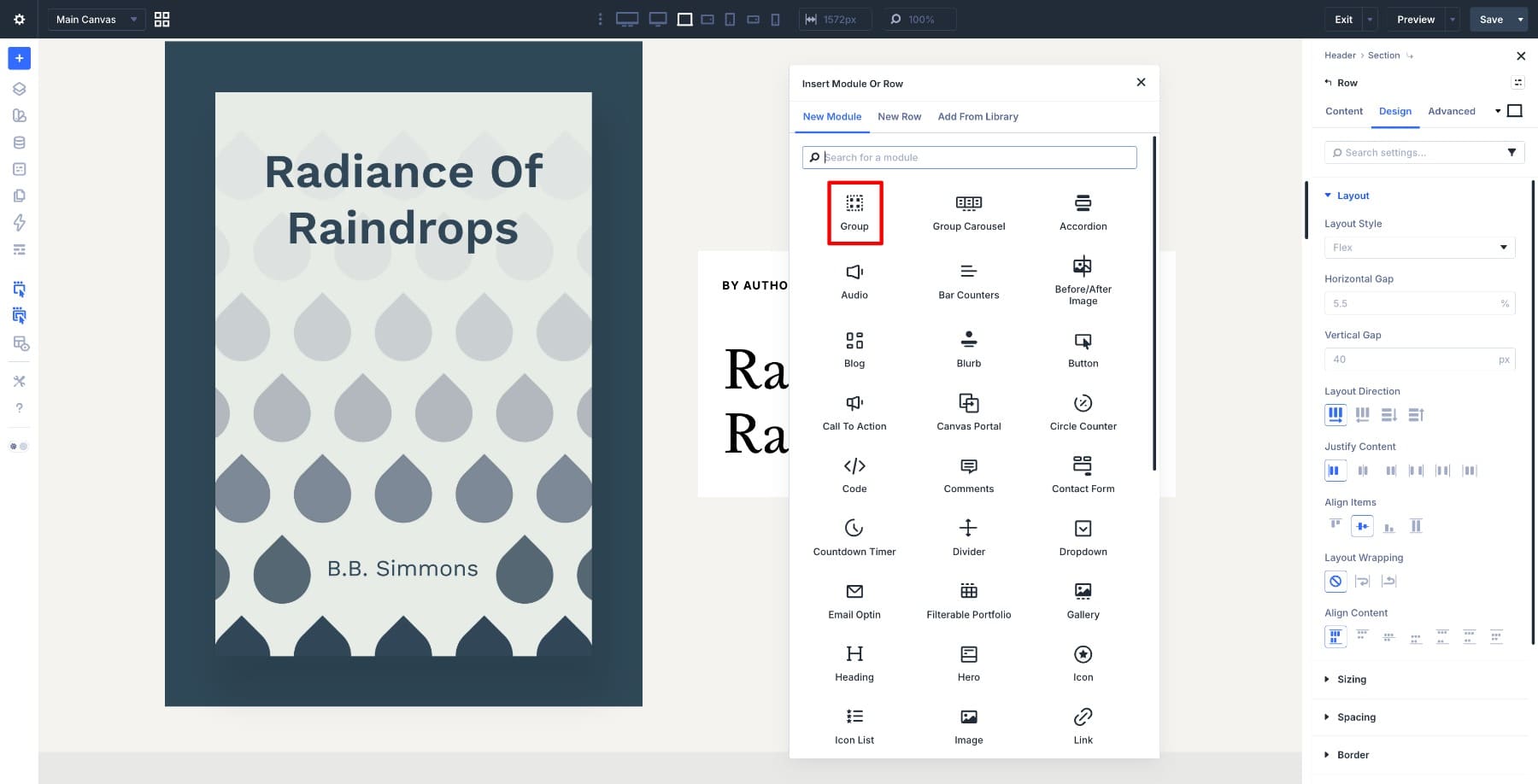
Move to the right column and add a Module Group. In Divi 5, a Module Group lets you wrap multiple modules into a single unit so they can be styled and targeted as a single unit. Inside that group, add two Heading Modules, one for the author name and one for the book title.
Style them to match your layout. Once those two headings are in place, the base structure is ready.
Step 2. Create The Group For Additional Book Details
Add another Module Group below the title inside the right column. This second group will hold the content revealed on hover.
Inside it, add a Heading Module for the testimonial quote, a Text Module for the short description, and a Button Module labeled Buy Now.
Adjust the typography, spacing, and button styling until the new group visually connects with the metadata above it.
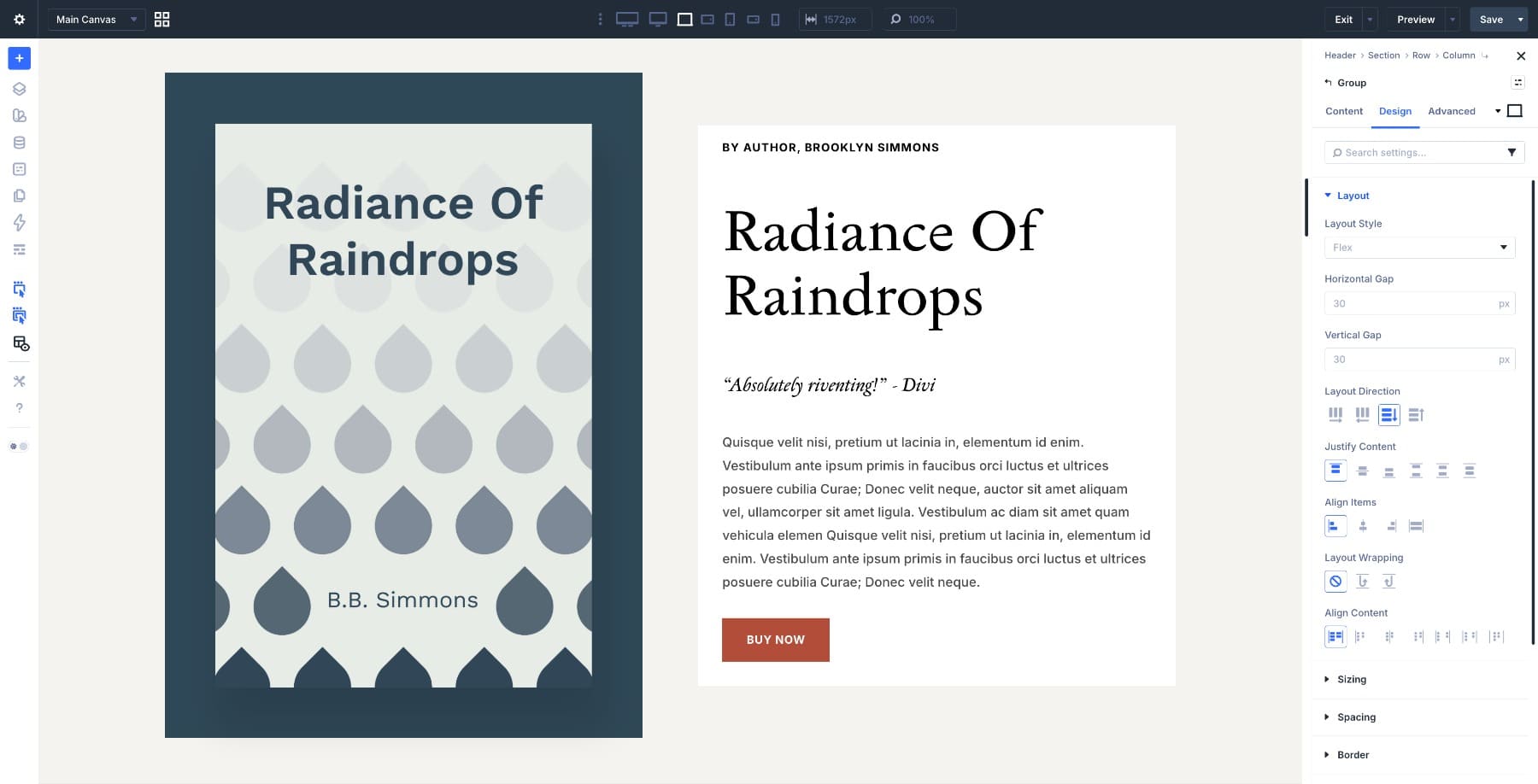
Right now, the group is fully visible. The next step hides it on load so it can be revealed by the hover trigger.
Step 3. Hide The Additional Content On Page Load
Select the second Module Group and open its Content settings. Scroll to Meta > Element Label and give it a clear name such as Radiance Meta. Labels make it much easier to identify the right target when you’re building interactions.
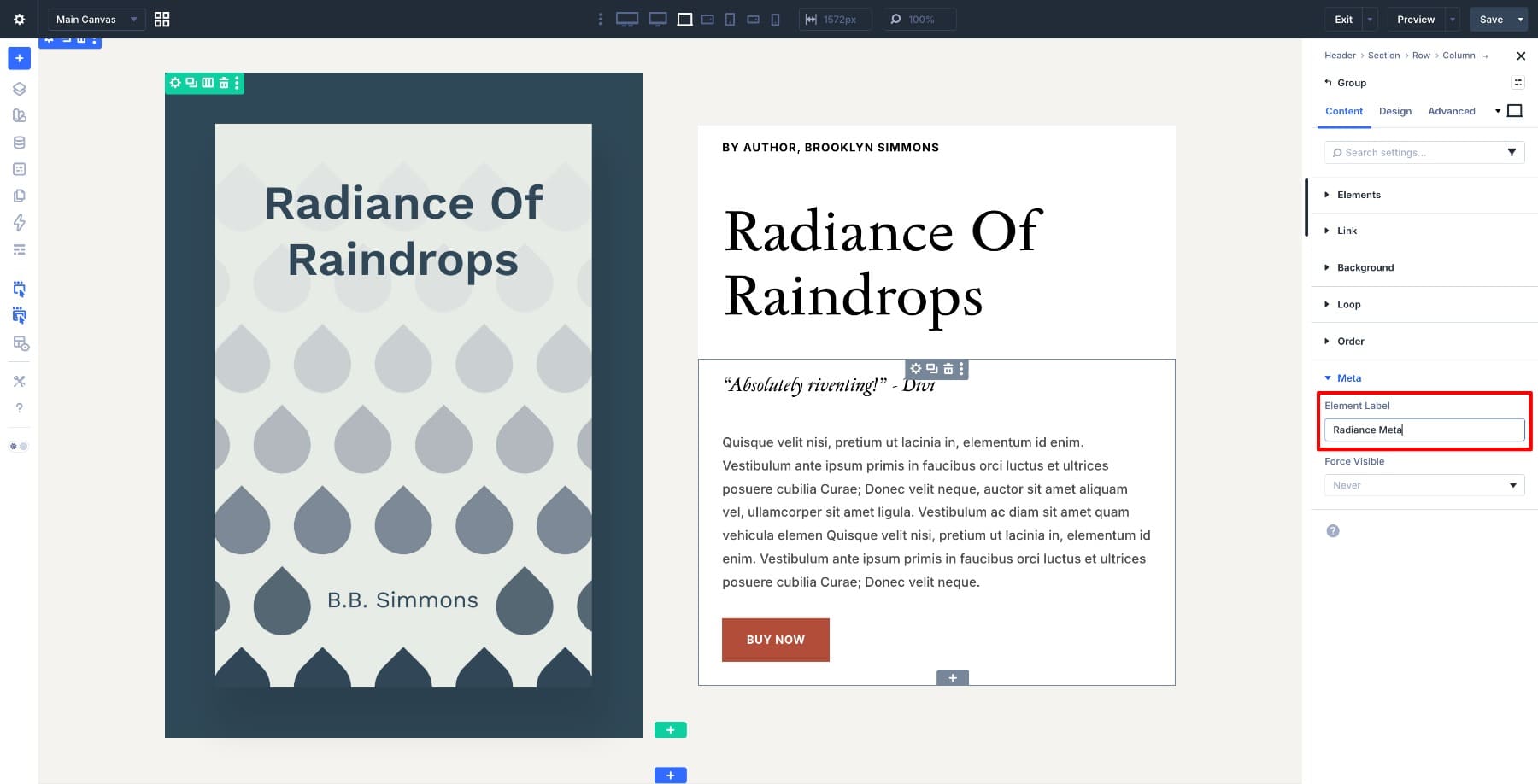
Now open the Interactions panel, add a new interaction, and set the trigger to Page Load with the effect set to Hide Element. This ensures the second group starts hidden as soon as the page loads. You could also hide the group through Advanced > Visibility, but using a Page Load interaction keeps the setup tied directly to Divi 5’s Interactions workflow.
With that in place, the layout returns to its default state: just the author and title, with the extra content waiting off-screen until the hover interaction triggers it.
Step 4. Create An Alternate Preset For The Book Title
In Divi 5, a preset is a saved style configuration for a module. Duplicating a preset lets you create a second visual state without overwriting the original. That’s exactly what we need here, because the title needs one look by default and another look when the hover reveal is active.
Select the Book Title Heading Module in the first group and open the Preset menu. Duplicate the current preset, then rename it to something recognizable like Heading Small.
With the new preset active, reduce the font size slightly and apply italics if you want the secondary state to feel more understated. The goal is not to completely restyle the title, but to make room for the revealed content.
The title now has two states ready to switch between during the interaction.
Step 5. Trigger The Reveal On Hover
Select the Image Module in the left column and open the Interactions panel. Add a new interaction and set the trigger to Mouse Enter. This fires as soon as the cursor moves over the book cover.
Add the first effect: Show Element, targeting the Radiance Meta group.
Add a second effect to the same hover interaction. Target the Book Title Heading, choose Add Preset, and select the Heading Small preset.
At this point, hovering over the book cover reveals the hidden content and simultaneously shifts the title to its alternate style.
Step 6. Add The Return-State Interaction
To make the effect feel complete, add a second interaction to the same Image Module and set the trigger to Mouse Exit.
For the first effect, target Radiance Meta and choose Hide Element. This hides the additional content when the cursor leaves the image.
For the second effect, target the Book Title Heading and choose Remove Preset if you’re removing the alternate state, or switch back to the original preset if that’s how your setup is configured. The result should be the same: the title returns to its original default styling.
This is the step that keeps the interaction from feeling stuck. The reveal is important, but the reset is what makes the pattern reusable across cards, showcases, and hover-driven layouts.
Step 7. Add A Fade-In Animation For A Smoother Reveal
Select the Radiance Meta module group and open the Design tab. Scroll to Animation and choose Fade.
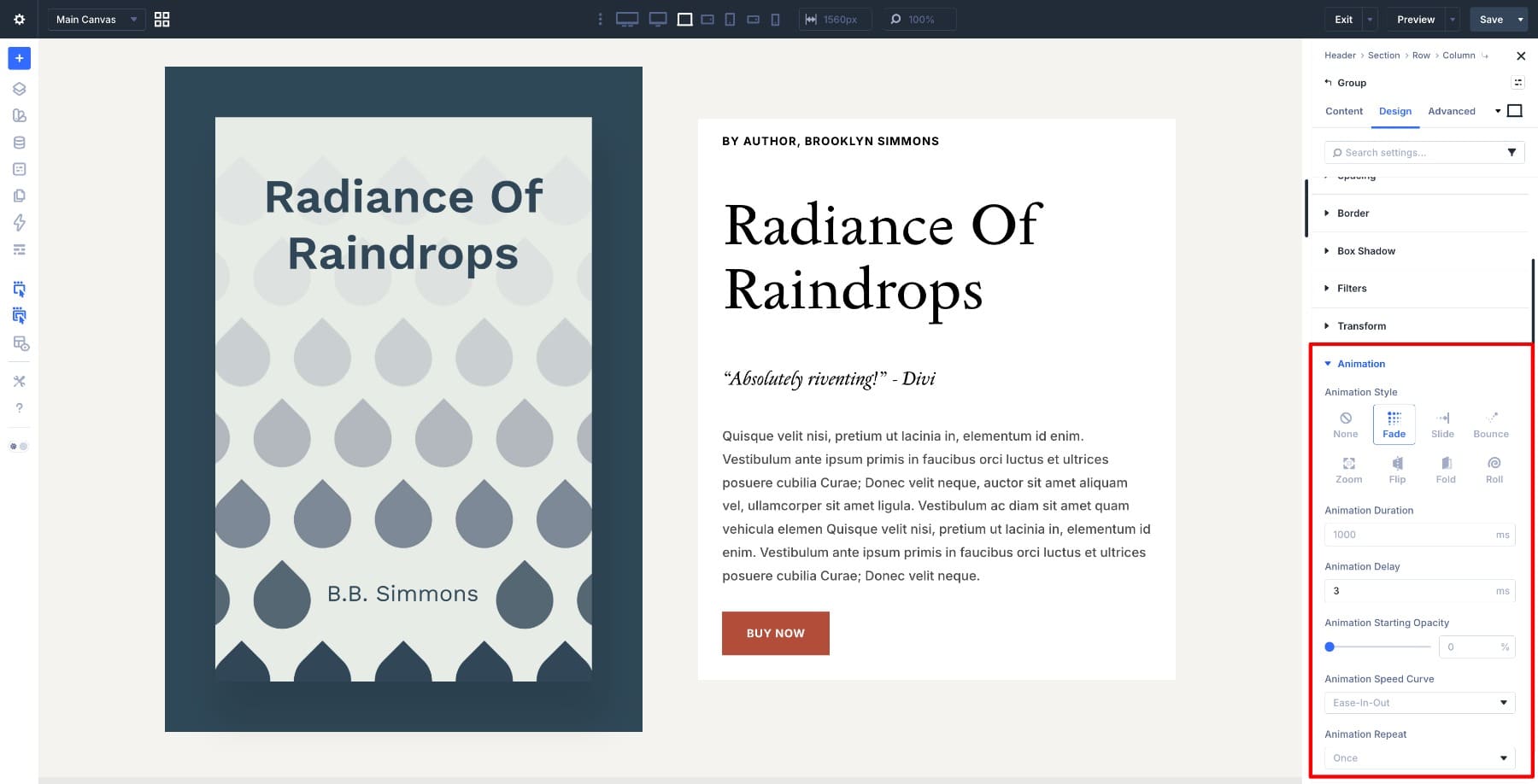
Keep the duration short so the content eases in instead of snapping into place. That small change helps the reveal feel intentional and refined.
Preview
Here’s the finished layout in action.
Practical Tips Before You Publish
A hover reveal can look great in the builder but still feel awkward on a live page if the timing or spacing is off. Before you publish, review the details below to ensure the interaction feels smooth, readable, and intentional.
- Keep the hover target large enough that the interaction is easy to trigger.
- Make sure the revealed content does not push nearby elements into unstable positions.
- Keep the alternate preset subtle so the title still feels visually connected to its default state.
- Check tablet and mobile views and decide whether the interaction still makes sense on touch devices.
- Use short animation timing so the effect feels responsive instead of delayed.
Try Interactions in Divi 5 Today!
A layout like this shows why Divi 5 Interactions is so useful. A single hover can reveal new content, switch presets, and coordinate multiple elements without custom code. Once you understand that pattern, you can adapt it to product cards, portfolio items, team layouts, pricing tables, and content reveals across your site.
The book showcase is just one example. The real value is learning how triggers, effects, and targets work together so you can reuse the same logic in different designs.







interactions are a very good advanced feature in Divi 5, however; there should be an easier way to do some things like a popup or image reveal, with fewer clicks and setting up several modules to create the desired effect