

Header and footer elements are commonly understood as page-level structure. A site has one header, one footer, and the rest of the layout lives in between. Most people stop there. In HTML5, though, <header> and <footer> go further. They can describe structure within individual sections of content, beyond page level.
Divi 5 makes it easy to apply semantic elements to any layout component. This post walks through the specific scenarios where adding header and footer elements to your layout actually improves clarity.
What Are Semantic HTML Wrappers In Divi 5?
Semantic HTML gives your website’s structure a vocabulary that browsers and assistive technologies can understand. A generic <div> doesn’t carry inherent meaning about what’s inside. But a <header> tag signals “this introduces a section,” and a <footer> tag says “this wraps things up.”
Divi 5 includes this capability directly in the builder through Custom HTML wrappers and Custom Attributes. Any section, row, column, or module can be rendered with a semantic tag instead of a generic div element. You can do it without custom code or template modifications. Just pick the tag from a dropdown, and Divi handles the rest when your page loads.
Screen readers and other assistive tools benefit from a clear structure because it helps users understand where a block of content begins and ends. Just note that <header> and <footer> become true landmarks only at the page level. In practice, you generally want only one page-level banner (<header>) and one page-level contentinfo (<footer>) per page. Inside main content, they still add meaning, but they are typically not treated as standalone landmarks in the same way.
After updating to the latest Divi 5 version, open any element’s settings and go to the Advanced tab. There’s a new HTML option waiting.
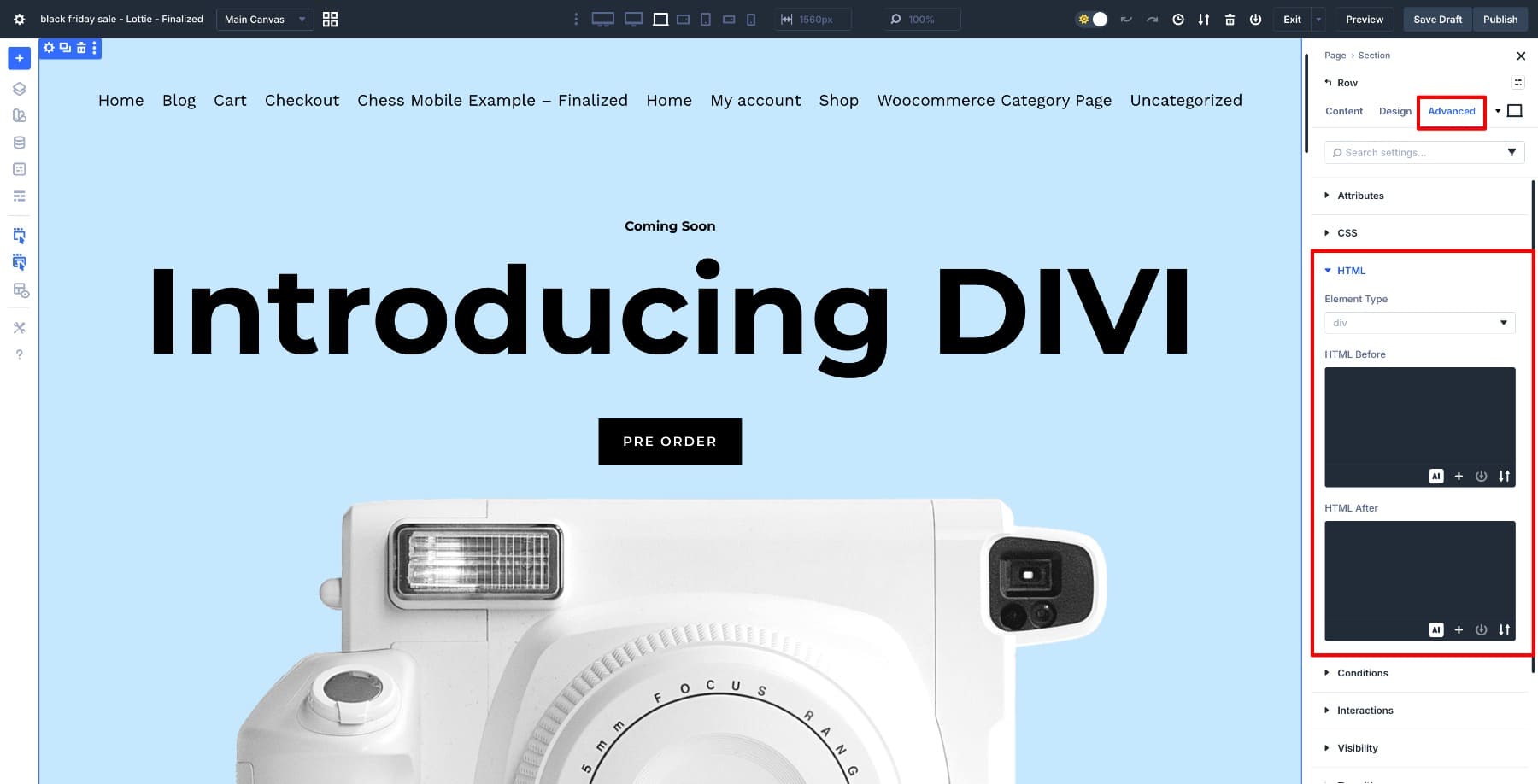
The Element Type dropdown is where you assign tags. We can take a footer row and tell Divi to render it as a <footer> instead of a <div>.
Below that, HTML Before and HTML After fields let you add custom code snippets around specific parts of your layout if needed.
However, one thing to note here is that just because these controls exist doesn’t mean everything needs a semantic label. <header> and <footer> aren’t decorative tags, they communicate purpose. A header introduces something meaningful. A footer concludes it. So, you should use them when that meaning exists, not just to fill a dropdown.
Once semantic HTML becomes easy to apply, the natural impulse is to use it everywhere. The problem starts when every visual grouping gets labeled as a header or footer just because the option exists. Screen readers rely on a clear hierarchy to help users navigate content, and flooding the document with semantic tags that serve no real purpose makes that navigation harder.
Divi sites typically already have a global header, a main content region, and a global footer provided by the theme or Theme Builder templates. Because that page-level structure is usually already in place, you rarely need to recreate it inside your layout.
Most sites will have a global header and footer, along with a main content region provided by the theme or Theme Builder templates. When that structure is already in place, you rarely need to recreate it inside your layout.
These elements define how the page itself is organized, so recreating them inside your layout is unnecessary. Overriding these elements with custom roles can change how assistive technologies interpret the page, so it’s best to avoid doing it unless you have a specific reason. Divi already takes care of the page level. What matters now is the content level.
In HTML5, <header> and <footer> aren’t limited to the top or bottom of a page. They can introduce or conclude individual sections or articles within the main content. A single page can contain multiple headers and footers, as long as each one belongs to a specific block of content and communicates meaning, not just visual boundaries.
They still need to be scoped correctly. A page-level <header> or <footer> functions as a major landmark, but headers and footers used inside the main content are best treated as section-level structure, not additional page landmarks.
Once you understand that distinction, it becomes easier to spot where adding these elements actually helps.
The best time to add header or footer elements is when a part of your layout behaves like its own unit of content. In Divi, this usually becomes obvious once you look at how content is structured rather than how it looks.
1. Self-Contained Content Sections Built With Sections Or Rows
Feature breakdowns need a clear beginning and end. The same goes for documentation blocks or step-by-step instructional areas. These sections introduce a topic, walk through the details, then wrap up with next steps or related actions.
In Divi, you’ll often build these using a single Section or Row. At the top, there’s a heading and short intro. The middle holds one or more content modules explaining the feature or process. At the bottom, you’ll find a call to action or related links that guide readers forward.
If the block represents a distinct topic, consider rendering the outer wrapper as a <section> (or an <article> if it could stand alone). Then place the section’s intro inside a <header> and the closing actions inside a <footer>. That keeps the header and footer clearly tied to a specific unit of content.
Assigning a <header> wrapper to the element containing the section title and intro marks where that content block begins. Assigning a <footer> wrapper to the element with links, buttons, or next steps signals its conclusion.
The header and footer wrap content roles here, not layout containers. The surrounding Section stays generic, which means the semantic structure lives exactly where it matters. Assistive technologies can now read the section as a complete, self-contained unit without affecting page-level structure.
2. Loop Builder Items That Represent Individual Pieces Of Content
When you’re displaying 20 blog posts or a grid of case studies, each item needs to stand on its own. Loop layouts are one of the clearest cases where semantic structure becomes genuinely useful because you set it up once and it applies across every item automatically.
Each loop item in Divi 5 usually represents something meaningful:
- A blog post preview
- A resource card
- A case study summary
- A product listing
In the builder, each loop item is typically composed of multiple modules stacked together. Giving the loop item internal structure turns a loose group of modules into something organized and navigable.
Use a <header> wrapper for the element that contains the item title, author, or metadata. Keep the main body content unwrapped or inside a neutral container.
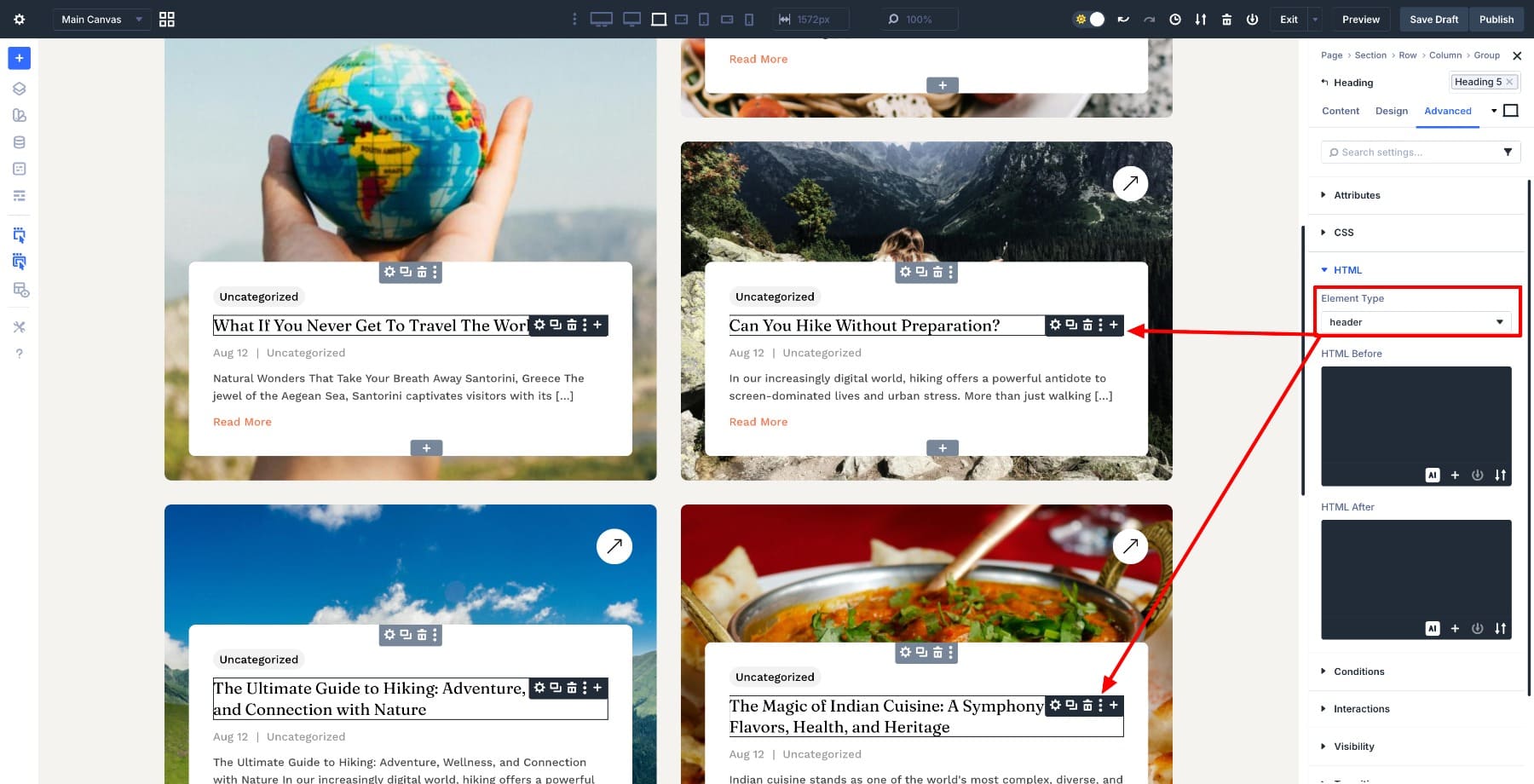
Use a <footer> wrapper for elements like Read More, tags, or action buttons. This mirrors the structure of an <article> in HTML, making each loop item easier to understand when navigating and skimming content in a structured way.
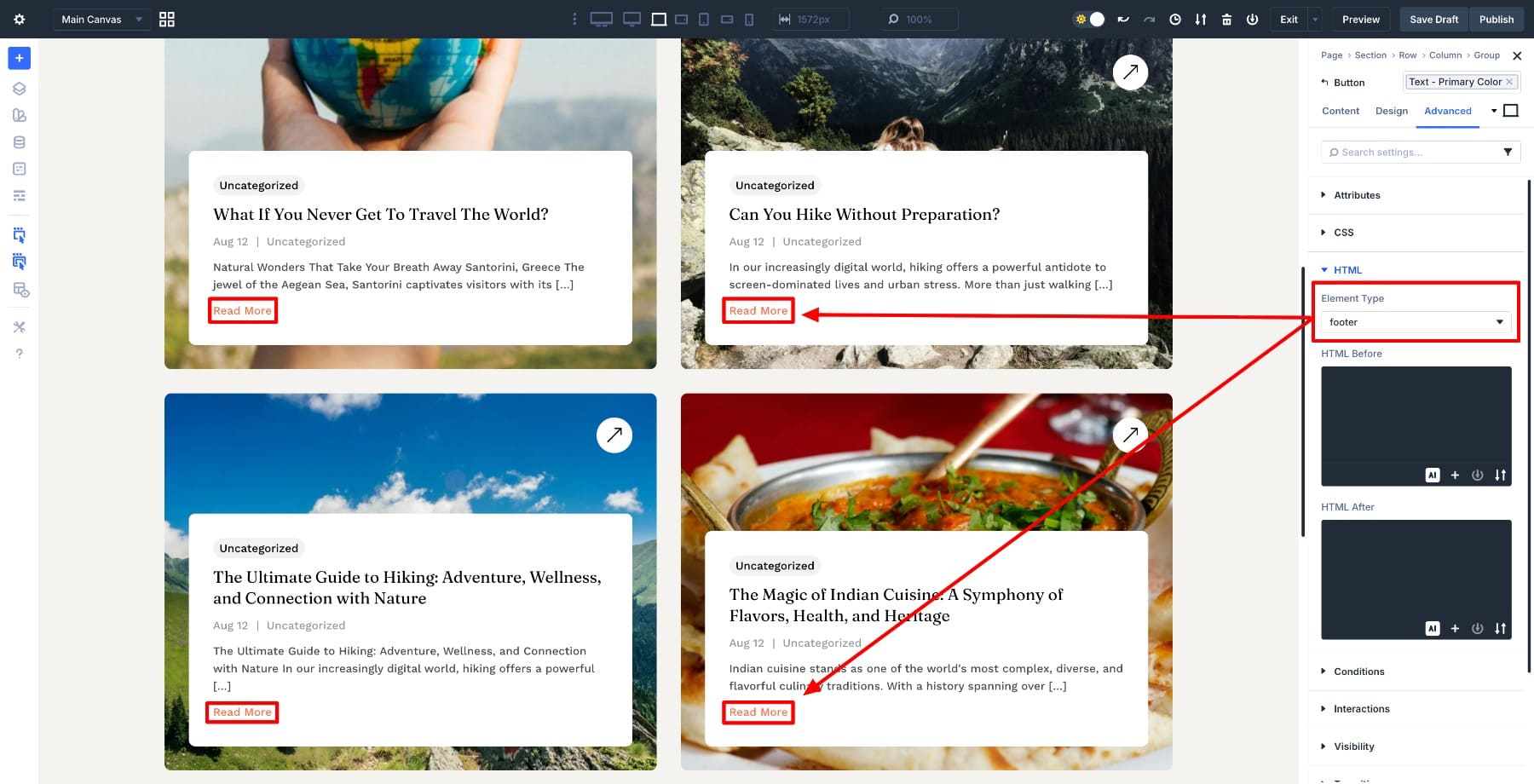
For many loop layouts, the cleanest approach is to render each loop item as an <article>, then use a <header> for title and metadata and a <footer> for actions like Read More.
Because each loop item repeats the same structure, it’s easy to see the pattern visually and confirm the semantic labels are doing their job across the entire layout.
3. Canvases Used As Standalone UI Panels
Canvases live outside the main page layout. An off-canvas menu, slide-in panel, or contextual tool operates as its own small interface with a clear purpose, defined controls, and a natural endpoint.
If the panel needs a clear name for assistive technologies, make sure its title is explicit and consistent (for example, “Menu” or “Filters”), and avoid adding extra global-style landmarks inside the panel.
Because an off-canvas panel behaves like a self-contained UI component, its internal structure matters just as much as its visual styling. Adding a <header> wrapper to the element containing the panel title, icon, or primary controls defines what the Canvas is for. Adding a <footer> wrapper around actions like Close signals where the interaction concludes.
These header and footer elements remain correctly scoped because the panel is its own UI component, not a replacement for the site header or footer. Used this way, it avoids confusing the panel’s structure with the site header or footer. Semantic intent matches UI behavior perfectly, making this one of the clearest examples of when and why to use these tags.
4. Modules That Are Manually Composed From Multiple Elements
When you’re building a content block piece by piece using multiple modules, you control how everything fits together. A Module Group might combine a heading, supporting text, and one or more actions into a single feature card or informational panel.
Because each part of the content is its own element, you can clearly separate what introduces the block from what concludes it. Assigning a <header> wrapper to the element containing the title and intro establishes context. Assigning a <footer> wrapper to the element with links or actions signals completion.
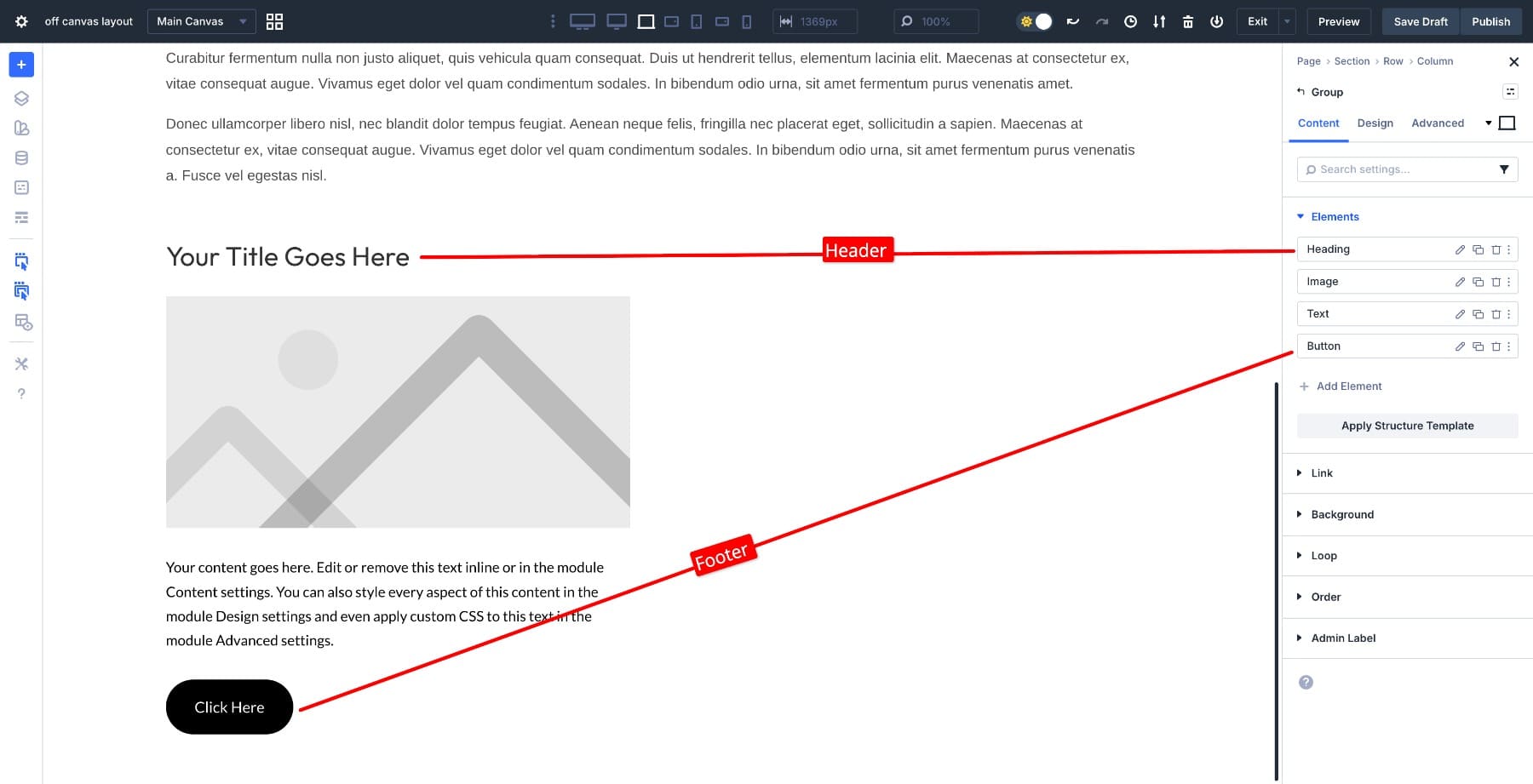
This approach works especially well for feature cards, resource listings, or informational panels where each block behaves like a small article. It also avoids the limitations of modules that manage their own internal markup.
A good rule is this: if you would not describe the content as having an introduction and a conclusion, don’t use <header> and <footer> for it.
Header and footer elements should not be used for visual grouping or styling purposes. If the goal is to control spacing, alignment, or layout, a section, row, column, or generic wrapper is the correct choice. Avoid using <header> or <footer> to label every card, module, or design block by default. When these elements are applied without a clear structural role, they add noise to the page structure and reduce accessibility rather than improving it. They should also not be used as substitutes for page-level structure.
Divi themes and Theme Builder templates typically provide the main page header, footer, and content region. Recreating or overriding those elements inside your layout is unnecessary and can lead to conflicting semantics. If an element does not clearly introduce or conclude a meaningful block of content, it should not be marked as a header or footer.
Start Building In Divi 5 Today!
Divi 5 sites typically provide foundational page structure through the theme or Theme Builder templates, including a global header, a main content region, and a global footer. The ability to add semantic header and footer elements inside layouts exists to support clearer content structure, not to replace what Divi handles automatically.
When used intentionally for self-contained sections, loop items, canvases, or manually composed modules, these elements help browsers and assistive technologies understand how content is organized. When applied everywhere by default, they create noise. The key is restraint. Use header and footer elements to describe purpose and structure, not layout.













Do we have to add the “Header” and “Footer” HTML additionally in the layouts built inside Theme Builder Global Header and Footer area?
No, theme builder header and footer templates automatically are assigned Header and Footer element tags. Also, body content between them get the role=”main”.
Super confusing to me. A website has one header and one footer, or maybe a few versions thereof. Right? Will treating cards as if they have headers and footers make things clearer or more confusing for search engines? Also to use semantic tags for site-wide styling feels like this goes against the idea of a visual builder?