

Most images on your site need nothing more than what Divi already does. Add an Image Module, style it, and you’re done. But there are times when you want to group an image with a caption in a way that your HTML explicitly defines as a single unit.
That’s where figure and figcaption come in. These HTML elements create a built-in semantic relationship that plain image-plus-text layouts often don’t express as clearly. The question isn’t whether they’re better, it’s when they’re worth using. Divi 5 makes adding these HTML wrappers straightforward when your content needs that extra structure. Here’s how to decide.
Understanding The Figure And Figcaption Elements
Both elements come from HTML5 and work together to mark up content that benefits from a visible caption. Before you can decide when to use them, you need to know what each one actually does and how they interact with browsers and assistive technology. Let’s break down each element separately, then look at why their relationship matters:
What Is The Figure Element
The figure element wraps content that can stand on its own as a self-contained reference. Images, diagrams, code blocks, or charts all fit this purpose. You can often move this content elsewhere on your page without breaking the flow of your main text.
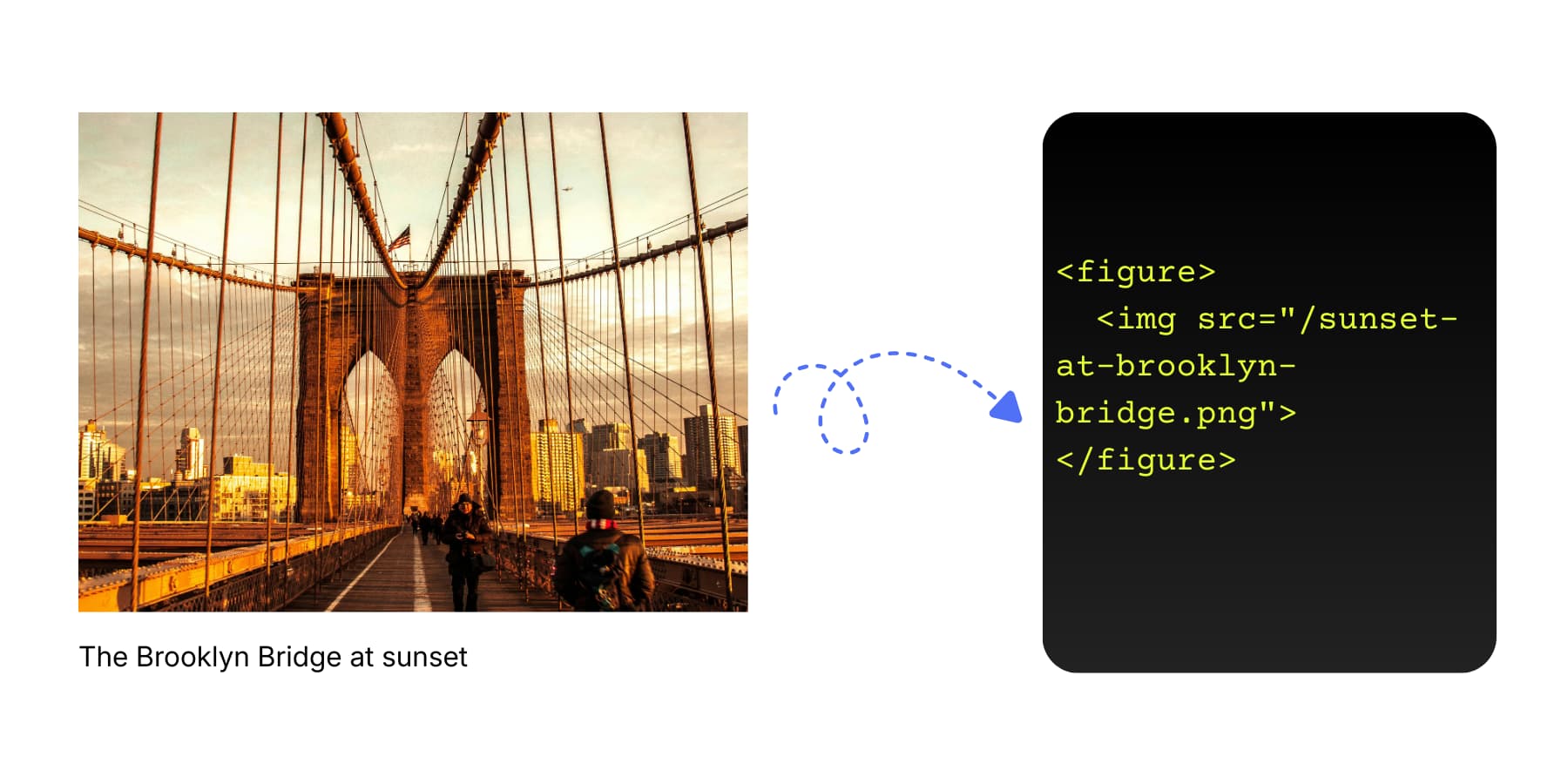
Browsers expose a figure as a grouped piece of content in the accessibility tree, and a figcaption is semantically tied to it. Search engines can use surrounding text, including captions, to better interpret what an image is about. Using figure and figcaption makes that relationship explicit in your markup.
Figures can also wrap videos, audio clips, code samples, and data visualizations. The content type doesn’t matter. What matters is whether that content functions as a self-contained reference that supports your main text without being part of the reading flow.
What Is The Figcaption Element
The figcaption element adds a visible caption to your figure. Place it as either the first or last child inside the figure, and browsers will treat it as the caption (or legend) associated with that figure.
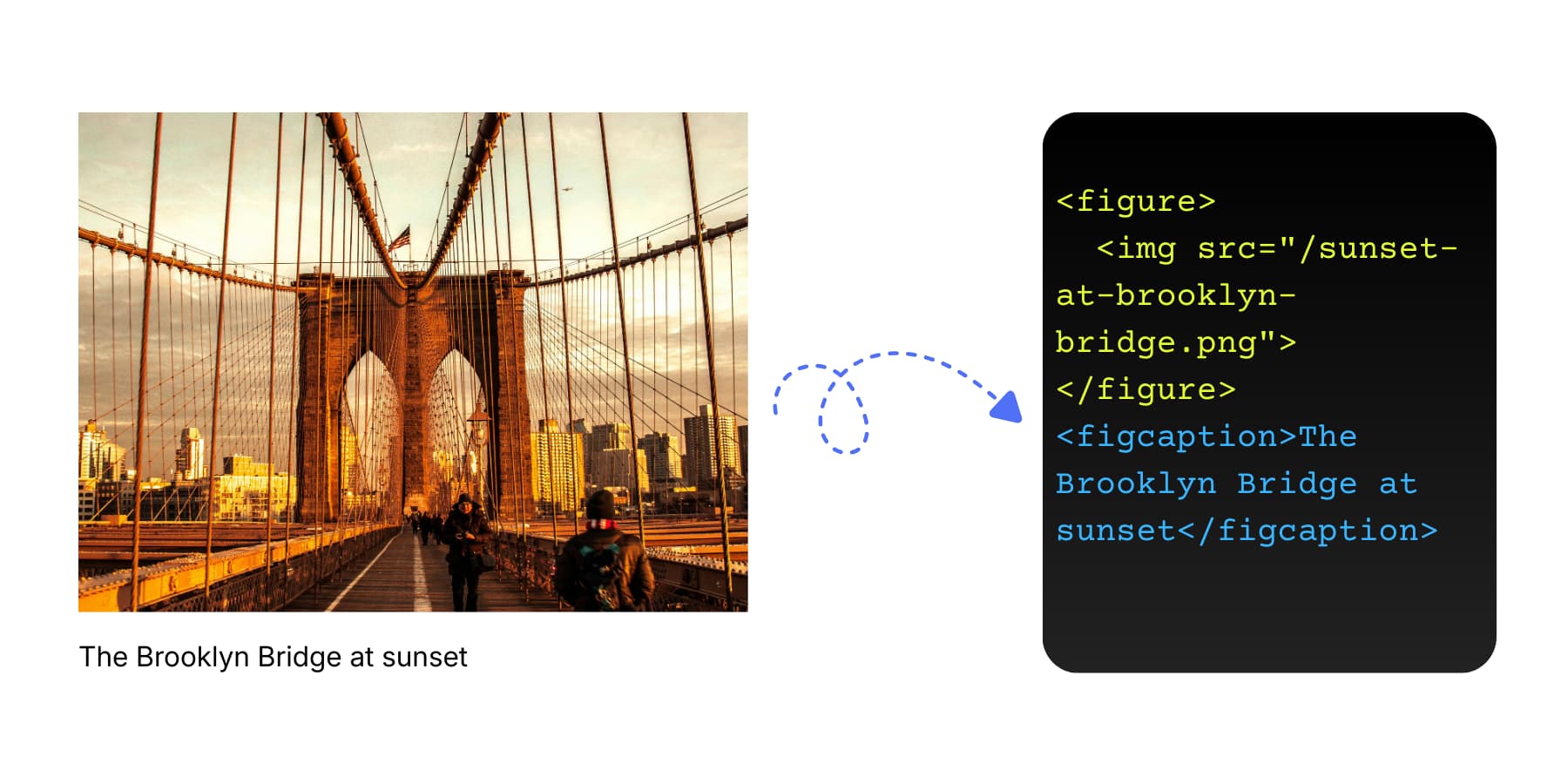
This isn’t just text floating near an image. Figcaption creates a programmatic link between the caption and the figure. Many assistive technologies will expose the caption in a way that makes the association clear, but the exact announcement depends on the browser and screen reader. When someone using assistive technology encounters your figure, they may hear the image’s alt text and the caption content in sequence, with the markup indicating that the caption belongs to the figure.
You can only use one figcaption per figure. If you add multiple, browsers will only recognize the first one as the actual caption. The rest just becomes regular text. Position matters less than you’d think. Whether you put the caption above or below your content, the semantic connection stays intact.
The element can contain other HTML inside it as well. Links, emphasis tags, or inline code all work fine within a figcaption. Just keep it relevant to describing or crediting the figure content. That focused purpose makes the caption useful for both people and machines trying to understand your content.
How They Work Together And Why They Matter
When you combine figure and figcaption, you create a semantic package that serves different needs at once. Alt text describes the image itself for screen readers and search engines. The figcaption adds context or attribution that both sighted users and assistive technology can access. They work in tandem, not as replacements for each other.
Search engines parse this relationship differently than they would loose text near an image. They know the caption describes the figure content, which helps them understand the topic and relevance of your page. That structure can help with interpretation and indexing, especially when captions add clear context.
Choosing When To Use Figure Elements
You’ve learned what these elements do. Now comes the harder part: deciding when they’re actually worth the effort. Not every image needs this treatment, and overusing semantic markup can be just as problematic as ignoring it. This section walks through the key decision points:
Figure vs Div With An Image
Both approaches can display an image alongside text. The difference lies in what that markup communicates to browsers and assistive tech. Here’s a quick table to help you understand the differences:
| Aspect | Div With Image | Figure With Image |
|---|---|---|
| Semantic meaning | None | Self contained content |
| Caption support | Manual text placement | Built in figcaption element |
| Accessibility | No relationship announced | Announced as connected unit |
| SEO value | Image and text indexed separately | Caption indexed with image context |
Here’s a quick rundown of when to use what:
| Use Figure When | Use Div When |
|---|---|
| Content needs a visible caption | Image is purely decorative |
| Content references something in your text | Image is part of page layout |
| You could move it without breaking reading flow | Removing it would break page structure |
| Screen readers should announce it as a unit | No semantic relationship matters |
When Not To Use Figure
Not every image deserves semantic markup. Many images on your site serve as decoration, branding, or layout elements. These don’t reference your content, so wrapping them in figure tags just adds noise.
Decorative images fall into this category. Icons, background patterns, and ornamental graphics exist purely for visual design. Use CSS backgrounds for purely decorative visuals, or use an image with an empty alt attribute when it’s purely presentational. Logos in your header or navigation work the same way. They’re branding elements that form part of your site structure, not content references. Hero images and banner graphics support your layout rather than explaining your text.
Button icons, thumbnail grids, and UI controls serve functional purposes. They help users navigate or interact with your site. Adding figure markup to these elements confuses their actual role.
Here’s A Quick Test…
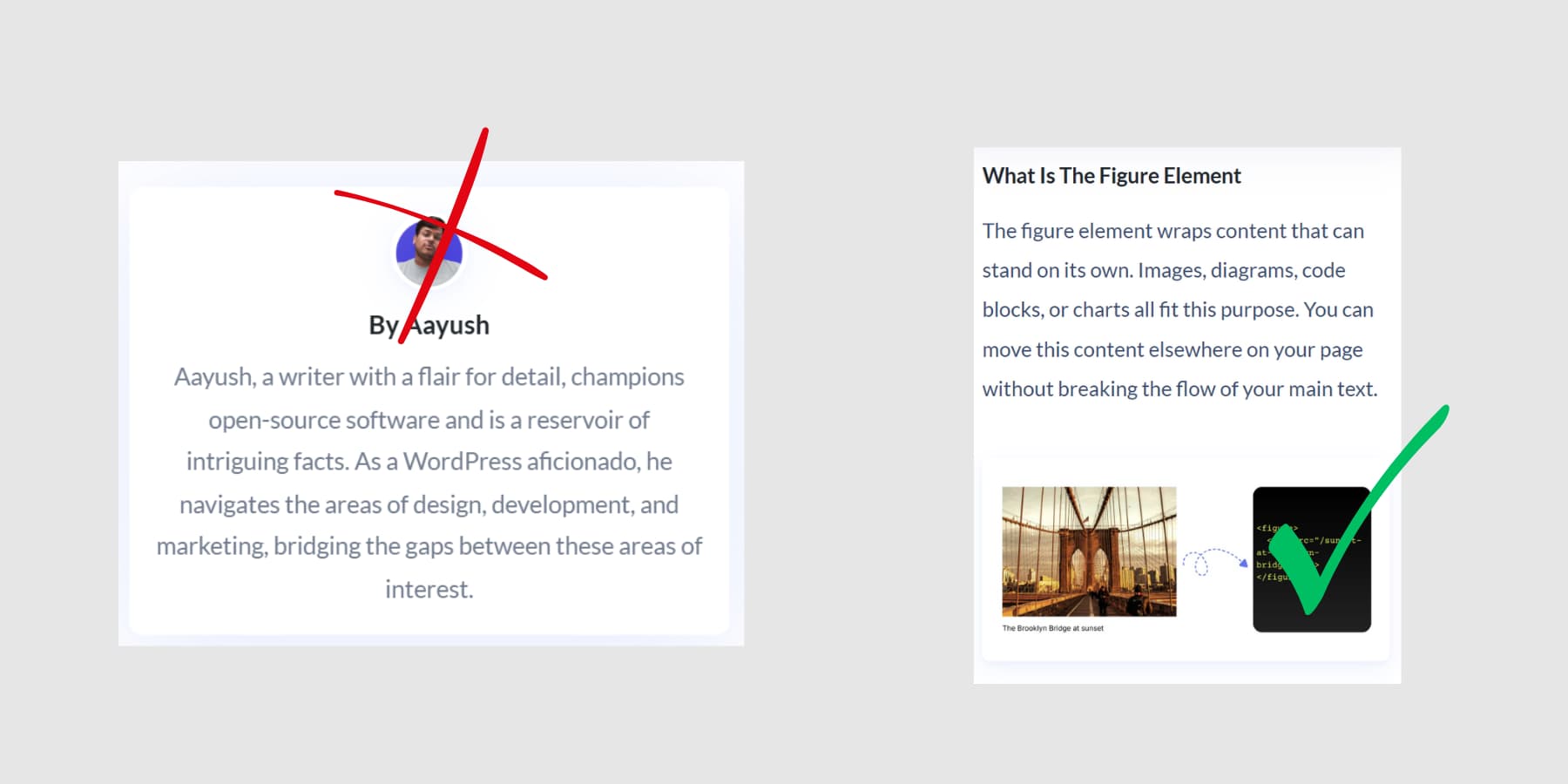
The easiest way to decide is to perform two simple checks. First, remove the image mentally. Your content should still make complete sense without needing to explain what was missing. A product photo in an ecommerce grid passes this test. A chart showing your sales data fails it.
Second, try relocating the image. Figure content should be portable. Moving it to a different spot on the page shouldn’t break your layout or interrupt the reading flow. Images that must stay in one exact spot to make sense aren’t truly self-contained.
For example, profile photos in author bio sections rarely need figure markup. Screenshots in tutorials often benefit from it, especially when a caption adds context.
When To Use Figcaption
You don’t need a figcaption every time you add a figure wrapper. The element becomes useful in three specific situations where visible text helps users understand your content better.
Use figcaption when:
- Attribution matters. Charts sourced from research papers, photos from other sites, or graphics with licensing requirements all need proper credit. The caption gives you a clean place to cite your source where everyone can see it.
- Images need context beyond alt text. Data visualizations, technical diagrams, or historical photos often contain details that both sighted users and screen reader users need explained. A map showing election results works better with a caption noting the year and specific race.
- The figure needs a label that clarifies what the reader is looking at, such as the year of a map, the dataset behind a chart, or the phase shown in an architectural diagram.
Skip figcaption when:
- Your image already explains itself. Product photos in a grid, icons next to feature descriptions, or screenshots that match the surrounding text don’t gain anything from visible captions. Alt text still matters for accessibility in these cases, and the surrounding text often provides enough context without a visible caption.
The caption exists to serve readers. If adding one feels like busywork or just repeats what people can already see, leave it out.
What Content Goes Inside Figcaption
Write in plain language. “The Brooklyn Bridge at sunset” works fine. Avoid overly flowery captions like “A breathtaking view of the iconic Brooklyn Bridge bathed in golden evening light.”
One or two sentences usually do it. Anything longer belongs in your main text. You can nest links, emphasis tags, or other HTML when needed, like wrapping photographer credits in an anchor tag or highlighting key terms.
Place the figcaption as either the first or last child inside your figure element. Both positions work the same way for browsers and screen readers.
Using Figure And Figcaption In Divi 5 Using Semantic HTML
You use the Visual Builder to build your websites, but adding semantic HTML to your elements means choosing between a visual workflow and proper markup. You could build in the Visual Builder or write semantic markup by hand, but doing both used to take extra steps.
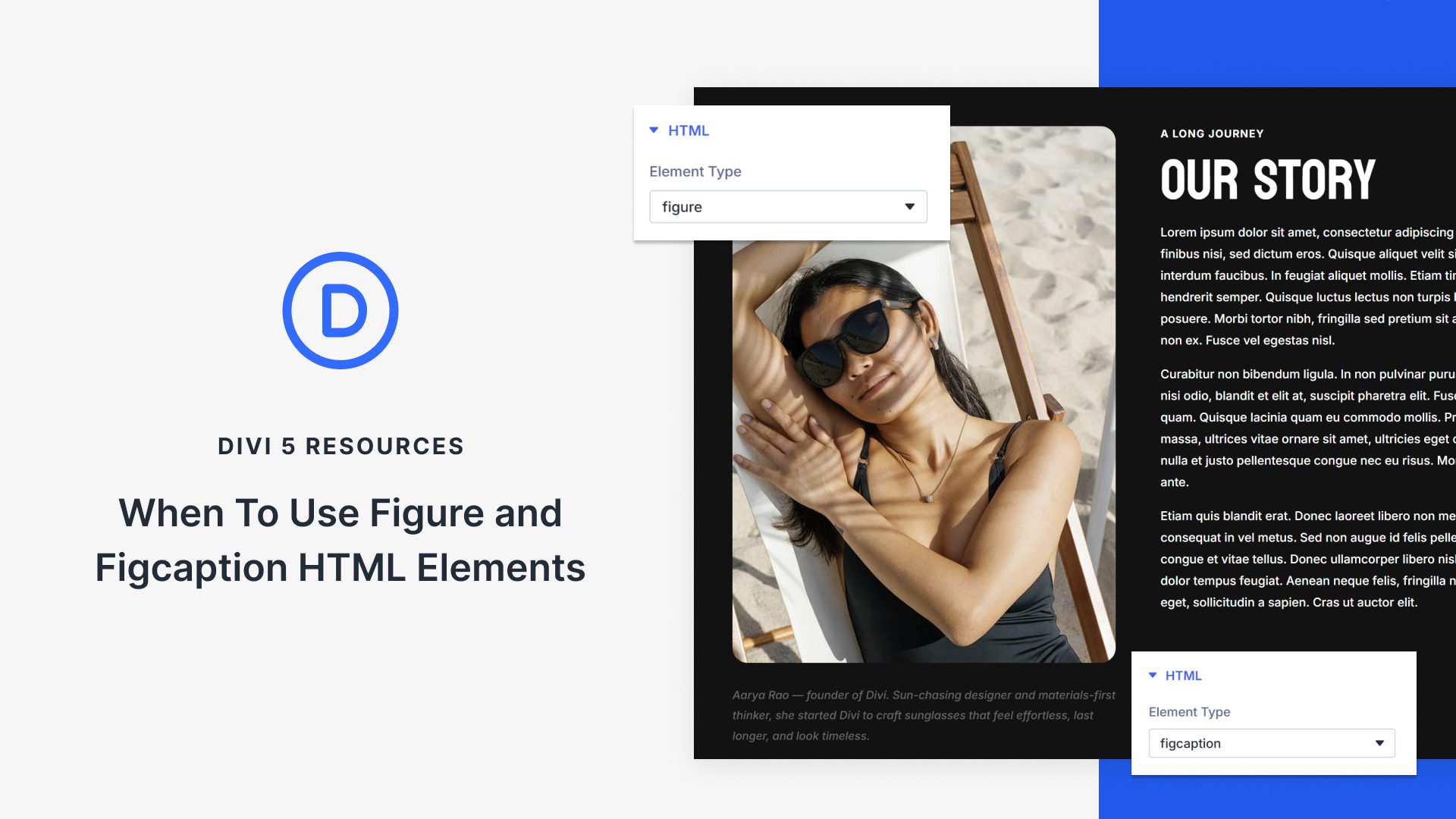
Divi 5 changes that with its recent feature release: Custom HTML Wrappers. This feature puts semantic control directly in the Visual Builder, where you already work. Without editing theme files, writing custom code, disrupting your layout, or jumping between interfaces.
Every Divi element now includes an HTML option group in the Advanced tab. The Element Type dropdown contains the tags you need for proper semantic structure:
- div (default wrapper)
- figure (for self-contained content)
- section (for thematic grouping)
- article (for independent content)
- aside (for tangential content)
And more.
Plus, below the Element Type, there are two fields called HTML Before and HTML After. These let you inject custom markup around any module without touching your theme files.
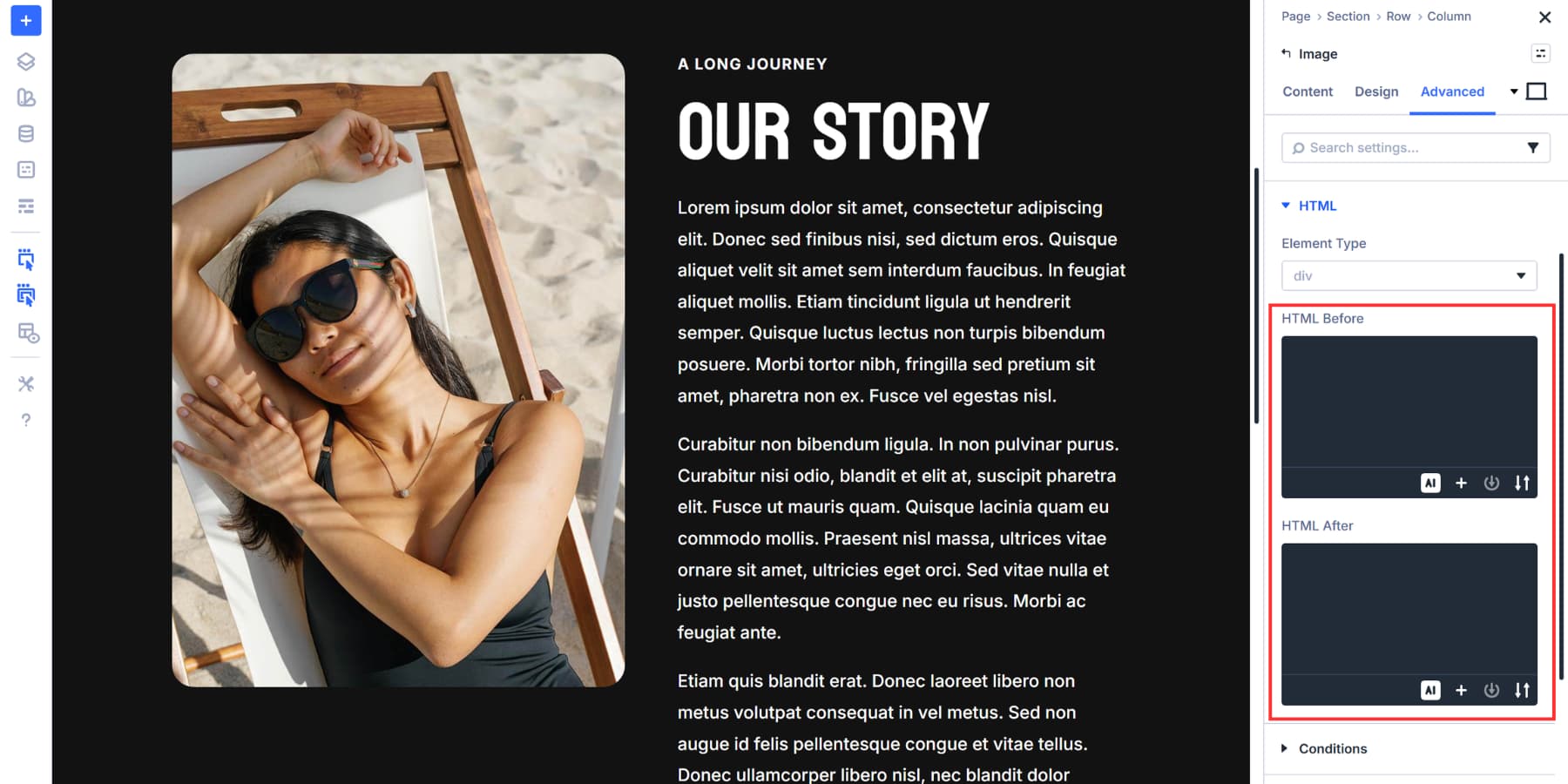
The Visual Builder updates in real time as you work, so you see exactly what your semantic structure produces. This setup works for figure and figcaption elements just like any other semantic markup. Your images get proper semantic wrappers while staying part of your visual workflow.
Adding A Figure And Figcaption Wrapper
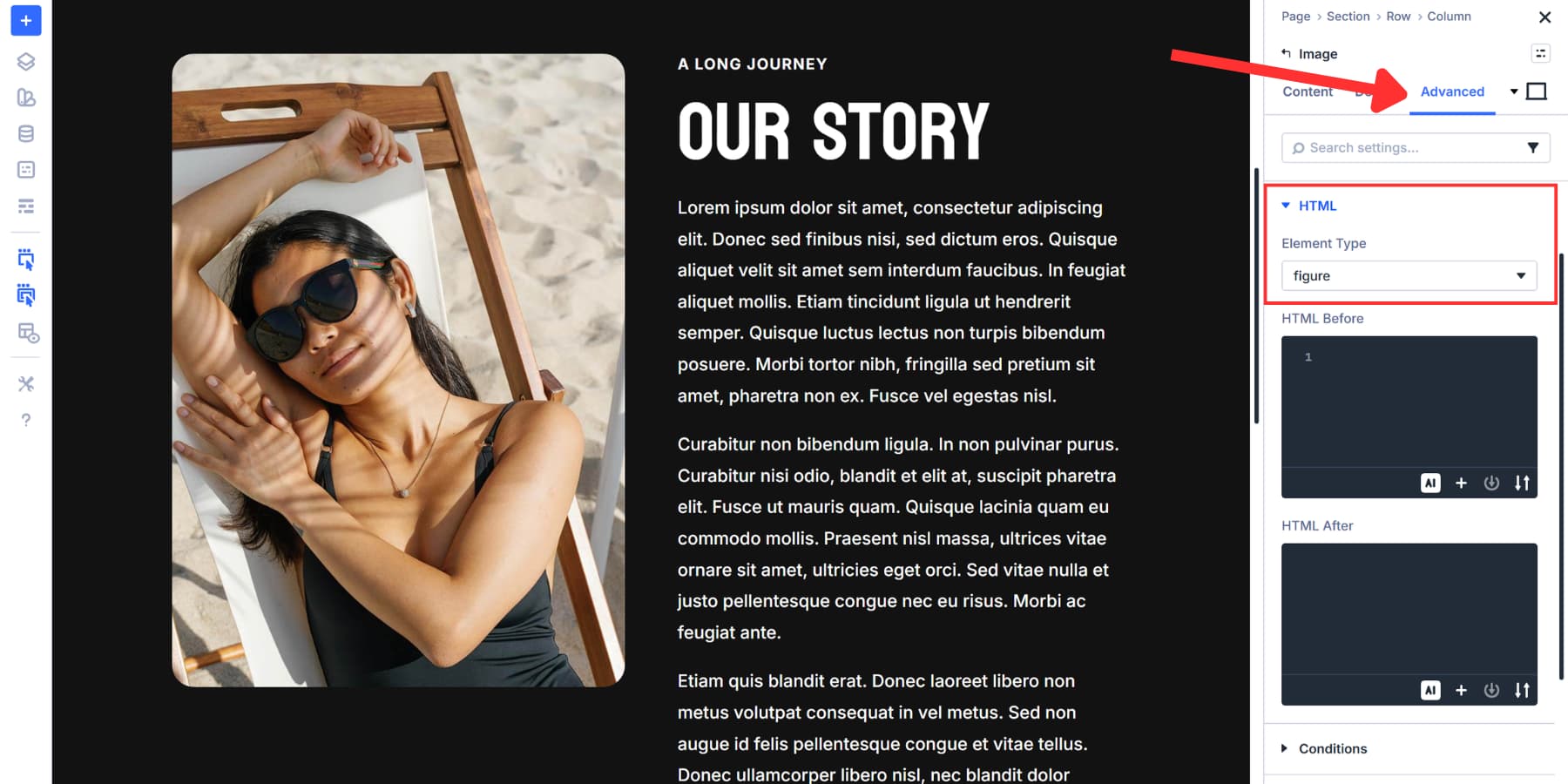
Select the Image Module you want to wrap and open its settings panel. Navigate to the Advanced tab, scroll to the HTML option group, and click the Element Type dropdown.
Select figure from the list. Your image now sits inside proper semantic markup instead of a generic div.
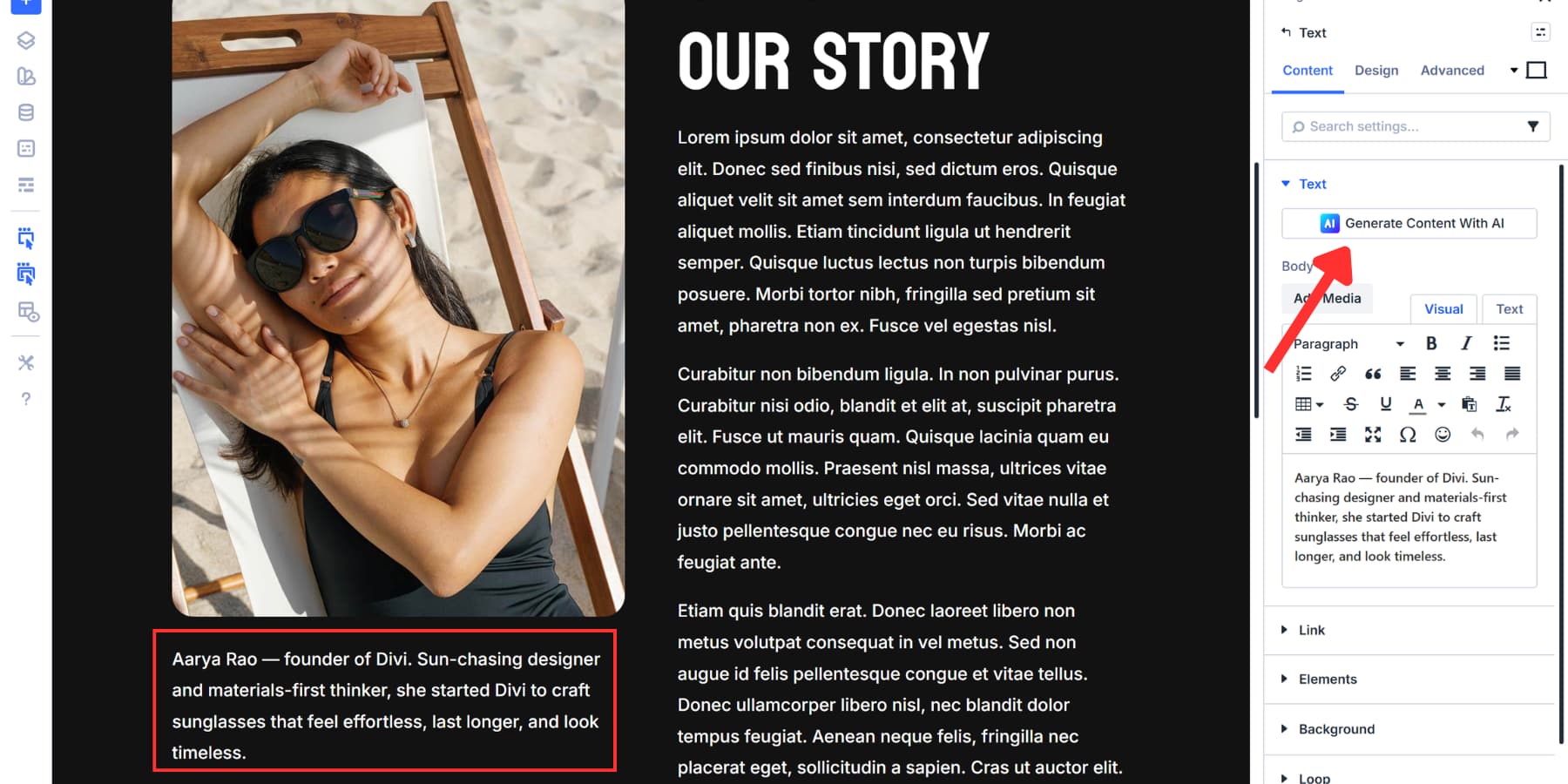
Add a Text or Heading Module right below your image. Divi AI can generate succinct descriptions for each image directly inside the Text Modules.
Once finalized, open its settings, head to the Advanced tab, and find the HTML option group again. Set its Element Type to figcaption.
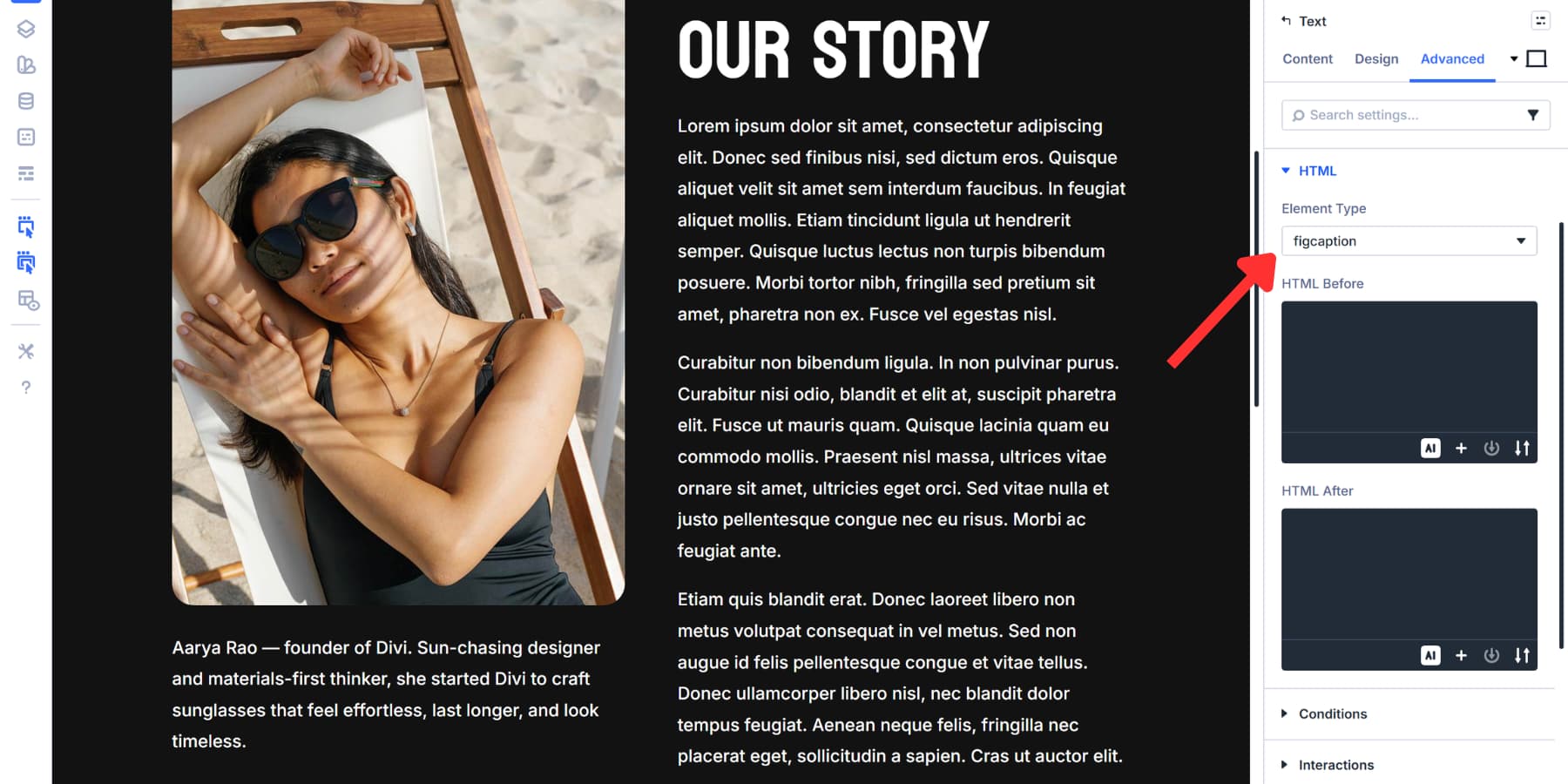
The two modules now function as a connected semantic unit that browsers and assistive technology recognize automatically. However, the figcaption module behaves like any other Text or Heading Module in Divi.
Style it with full design control over fonts, colors, and spacing. Design Variables let you link captions to your typography scales and brand colors. Change those core values once, and every caption on your site updates automatically.
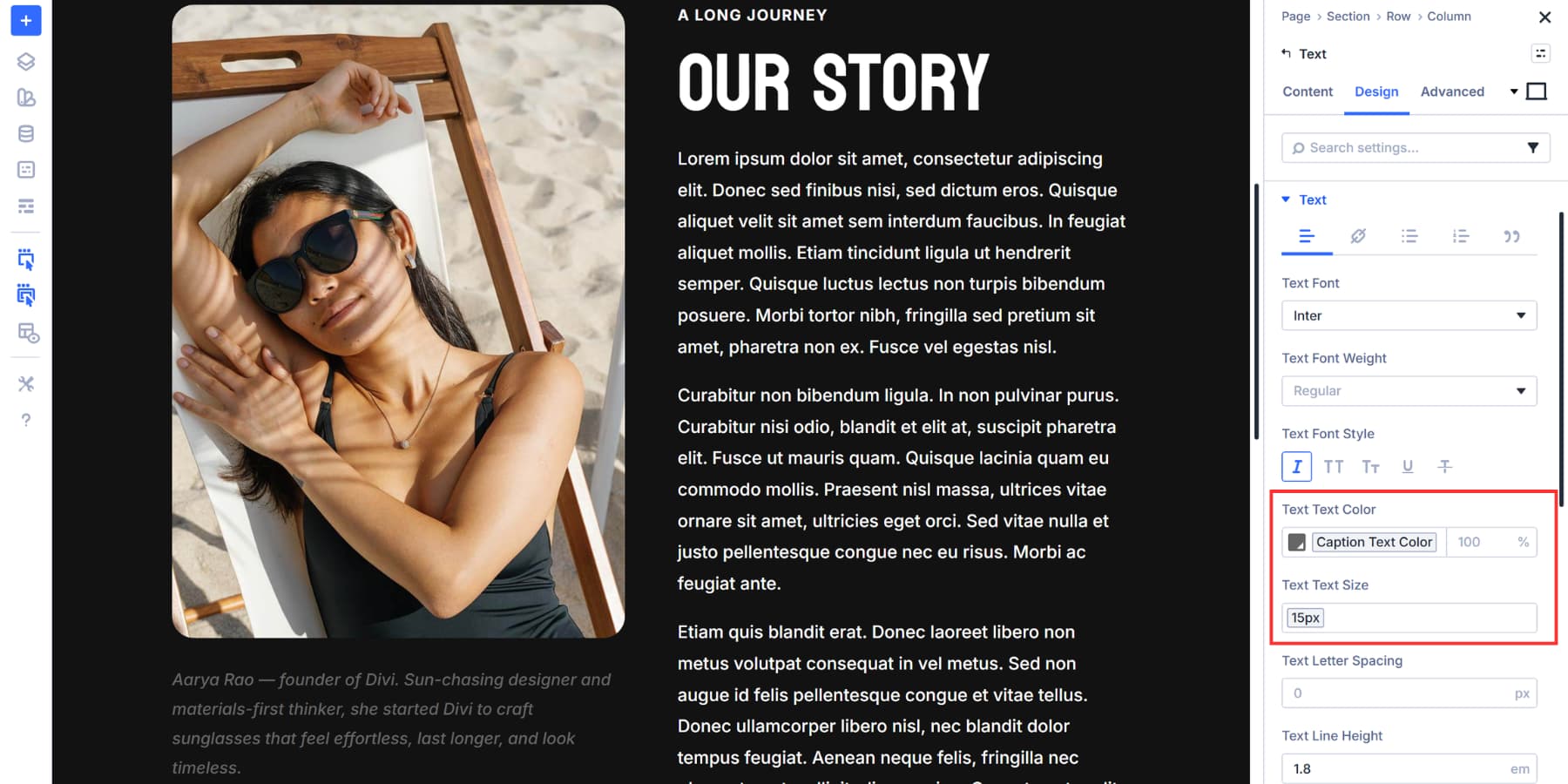
Option Group Presets and Element Presets keep your captions consistent without manual copying. Apply one preset, and all your images and captions inherit the same HTML wrapper and styling.
Your markup stays clean and accessible while your flow stays visual, quick, and most importantly, exactly where you work.
A Few Use Cases
Figure and figcaption work best when building specific page types in Divi. Here are some ideas:
- About pages with team member photos: Headshots paired with captions that include names, titles, or brief credentials create proper semantic connections between the image and the person’s information. That’s the approach used in this post’s example.
- Landing pages with statistics or metrics: Charts showing customer satisfaction scores, growth percentages, or comparison data get figure wrappers. The figcaption cites the source and adds credibility to your claims.
- Sales pages with product feature comparisons: Side-by-side images showing different plan tiers, feature sets, or package options get clearer when captions specify which version appears in each shot.
These scenarios share one trait: you’re building a specific page where individual images need visible context that serves both sighted users and screen readers.
Try Building In Divi 5 Today!
Figure and figcaption solve real problems when images need attribution or require explanation beyond alt text. They create a semantic connection that helps both readers and machines interpret the content.
Divi 5 puts the HTML controls where you already make design decisions. Adding semantic wrappers becomes part of page building rather than a separate task that requires custom code. Start adding semantic structure where it matters. Download Divi 5 and build accessible sites with clearer, more descriptive content.













That’s great ! How do we add the caption field from the WordPress Media Library ?
At the moment, the caption is can only be added manually by placing a Text or Heading Module under the Image Module, then setting that module’s HTML element to figcaption in the Advanced tab. 👍