

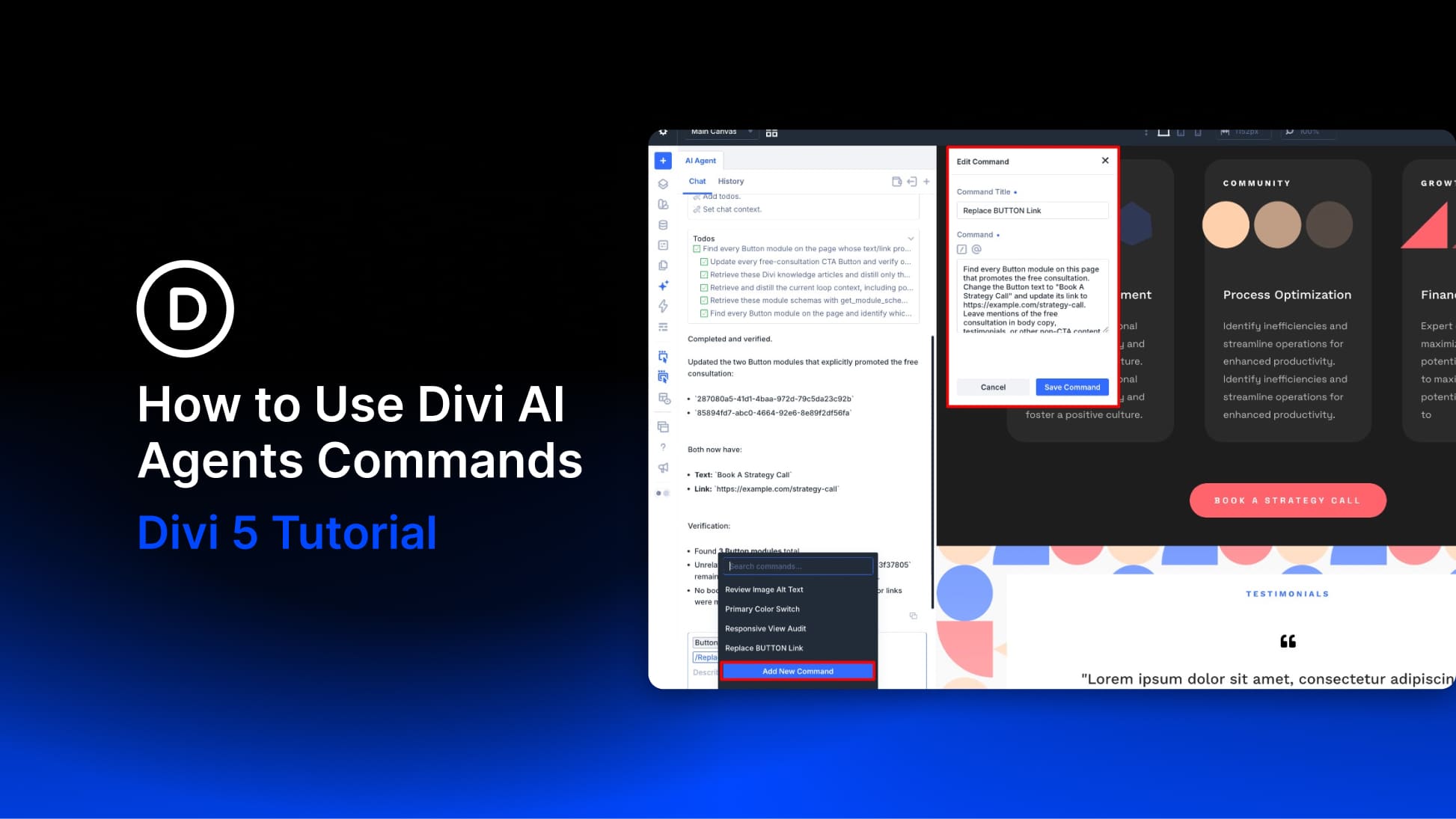
When you use Divi AI agents to review several pages, the same tasks often come up: checking image alt text, reviewing responsive layouts, or updating calls to action. Saving a useful prompt means you can reuse those instructions on the next page.
Commands exist for exactly this. They let you save a prompt inside the Divi 5 Visual Builder and pull it into chat with a slash whenever the same job comes up. This guide explains what makes a Command worth saving, how to create and run one, and three practical workflows you can reuse.
- 1 Where Commands Live In Divi AI Agents
- 2 What You Need Before You Start
- 3 How To Create And Run A Command
- 4 Use Case 1: Bring A Page Into Your Design System
- 5 Use Case 2: Run A Pre-Publish Page Review
- 6 Use Case 3: Repeat A Temporary Update Across Multiple Pages
- 7 Build A Command Library Around Work You Repeat
Where Commands Live In Divi AI Agents
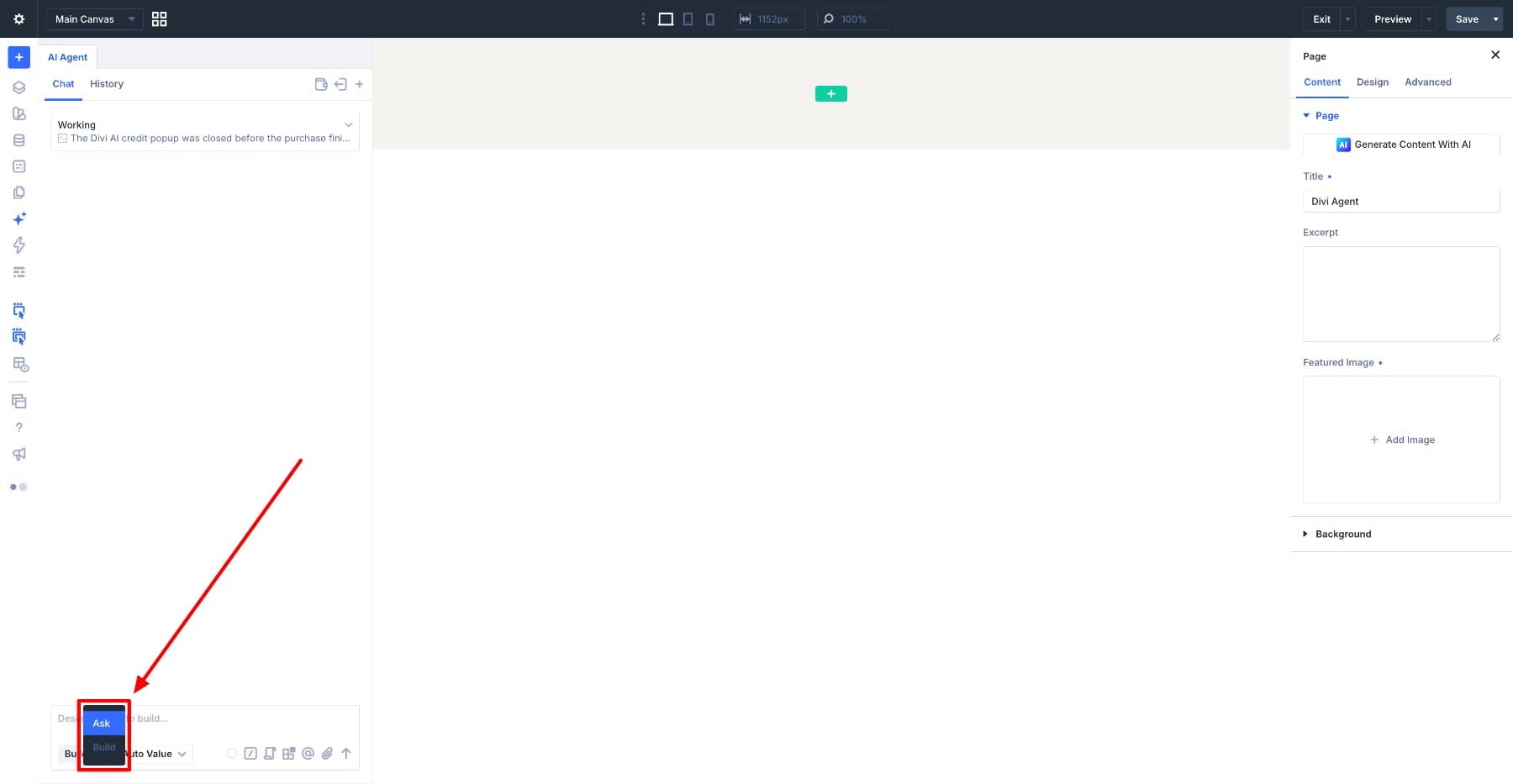
Divi AI agents work inside the Divi 5 Visual Builder. You can use plain-language requests to inspect a page or make changes to its sections, rows, and modules. Commands live inside the AI chat window, alongside Rules and Context. Click the Commands icon to view and manage the prompts you have saved.
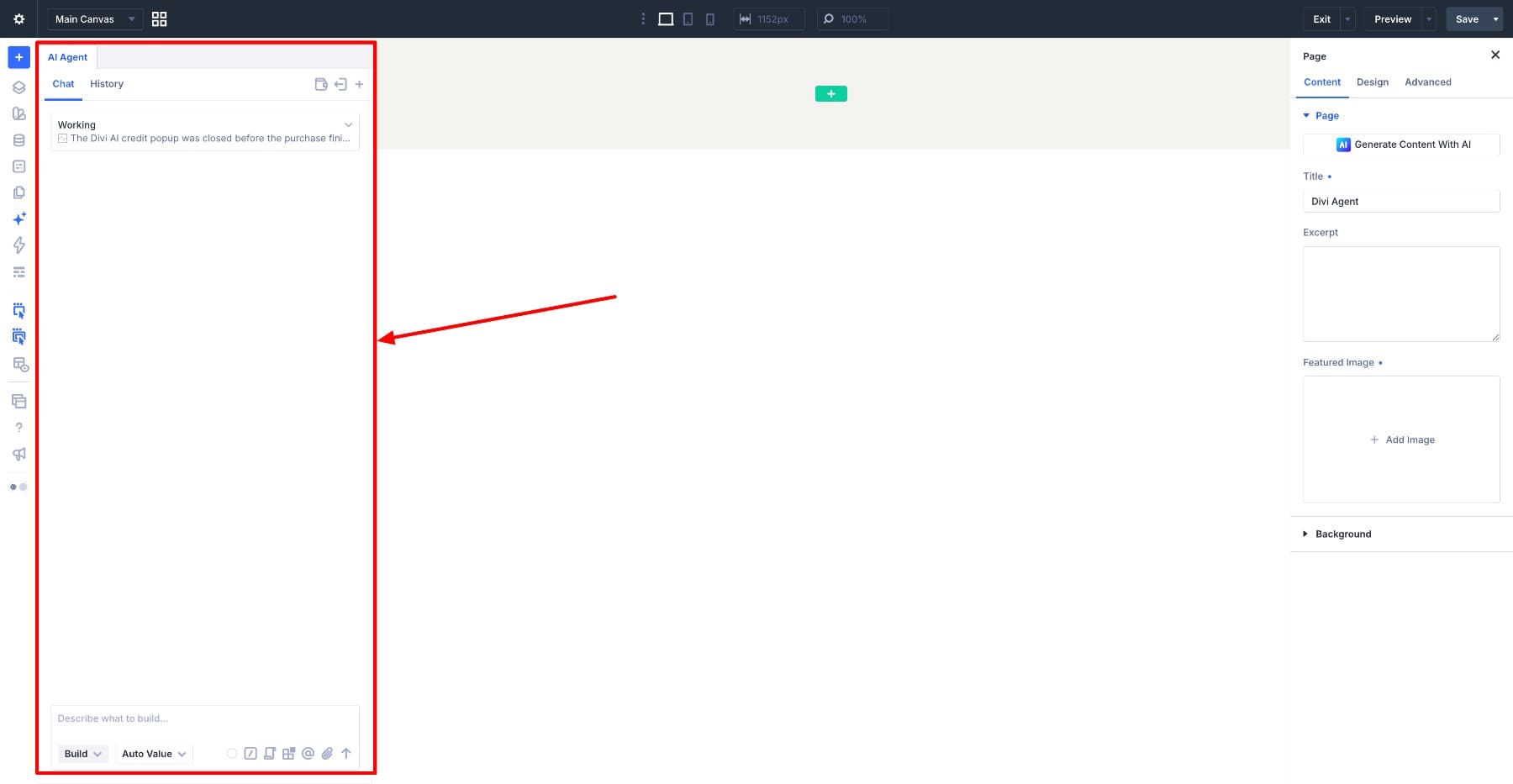
Choose Ask Mode when you want analysis and suggestions without changes to page content or design. Use Build Mode when you want the agent to apply edits. Select the mode that matches the Command you are about to run.
What Gets Saved When You Save A Command
A Command stores reusable instructions, not a recording of a previous edit. The agent works from those instructions and the current page when you run it.
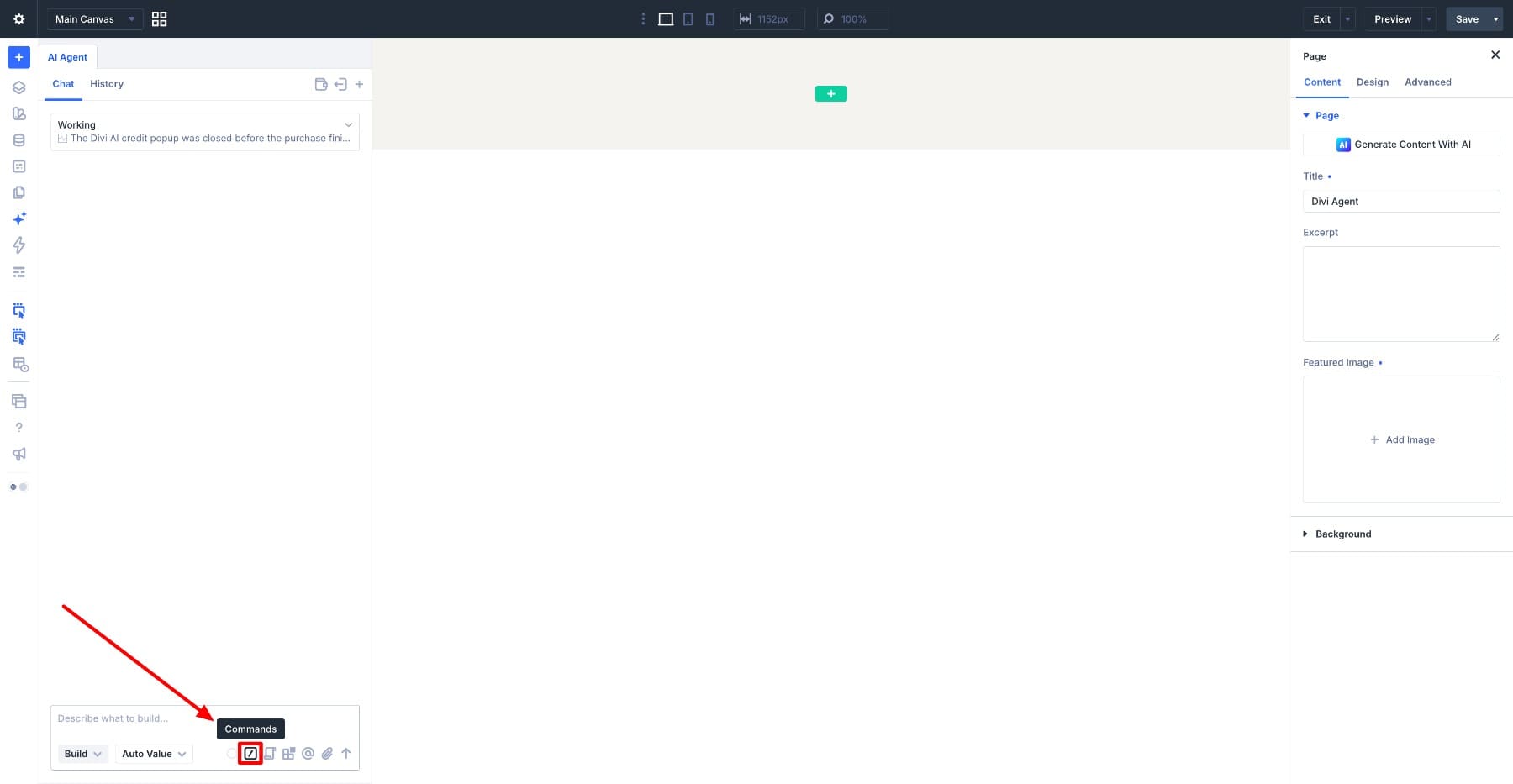
Type / in the chat window and a picker opens with your saved commands. Choose one and its text lands in the composer, ready for you to read over, adjust for the page you are on, and send when it looks right.
The parts of a request that stay the same belong in the saved command, and the details that shift from one page to another can go in right before you send it.
Commands, Rules, And Context Do Different Jobs
Rules, Context, and Commands are available from the chat interface, but serve different purposes.
- Rules provide persistent guidance, such as brand voice or preferred color variables. They can apply broadly or when relevant to a particular task, depending on their settings.
- Context points the agent at the exact thing you mean. Reference a section, preset, or variable so the agent can identify it. Your prompt should still explain what you want done with that reference.
- Commands are the jobs you pull up when you need them. They suit instructions you expect to reuse without wanting them applied to every request you type.
When you are unsure where something belongs, use this as a quick check.
| If you find yourself... | Save it as a... |
|---|---|
| Adding the same sentence to the end of every request | Rule |
| Typing out the same multi-step job on a new page | Command |
| Describing which element you mean, at length | Piece of context |
What Is Worth Saving As A Command?
Useful Commands share a simple trait: The job repeats, even though the page you run it on changes.
Alt text is a good example. The images differ on every page, while the instructions stay mostly the same. Reviewing a page before publishing works the same way, and so does bringing an imported layout into your existing design system.
Saved prompts also help when a request carries details you would rather not rebuild from memory, like what to check, what counts as finished, and what the agent should leave alone. The saved version keeps those instructions together when you move to another page.
Before saving one, run through three questions.
- Will I run this job again? A one-off request can stay in the chat.
- Does the agent need to inspect or act on the current page? A good Command holds the workflow steady while the result changes with the page.
- Does Divi already have a better way to repeat this? Updating a shared variable or preset affects the elements using it. For an intentional shared change, that may be more direct than repeating edits page by page.
What You Need Before You Start
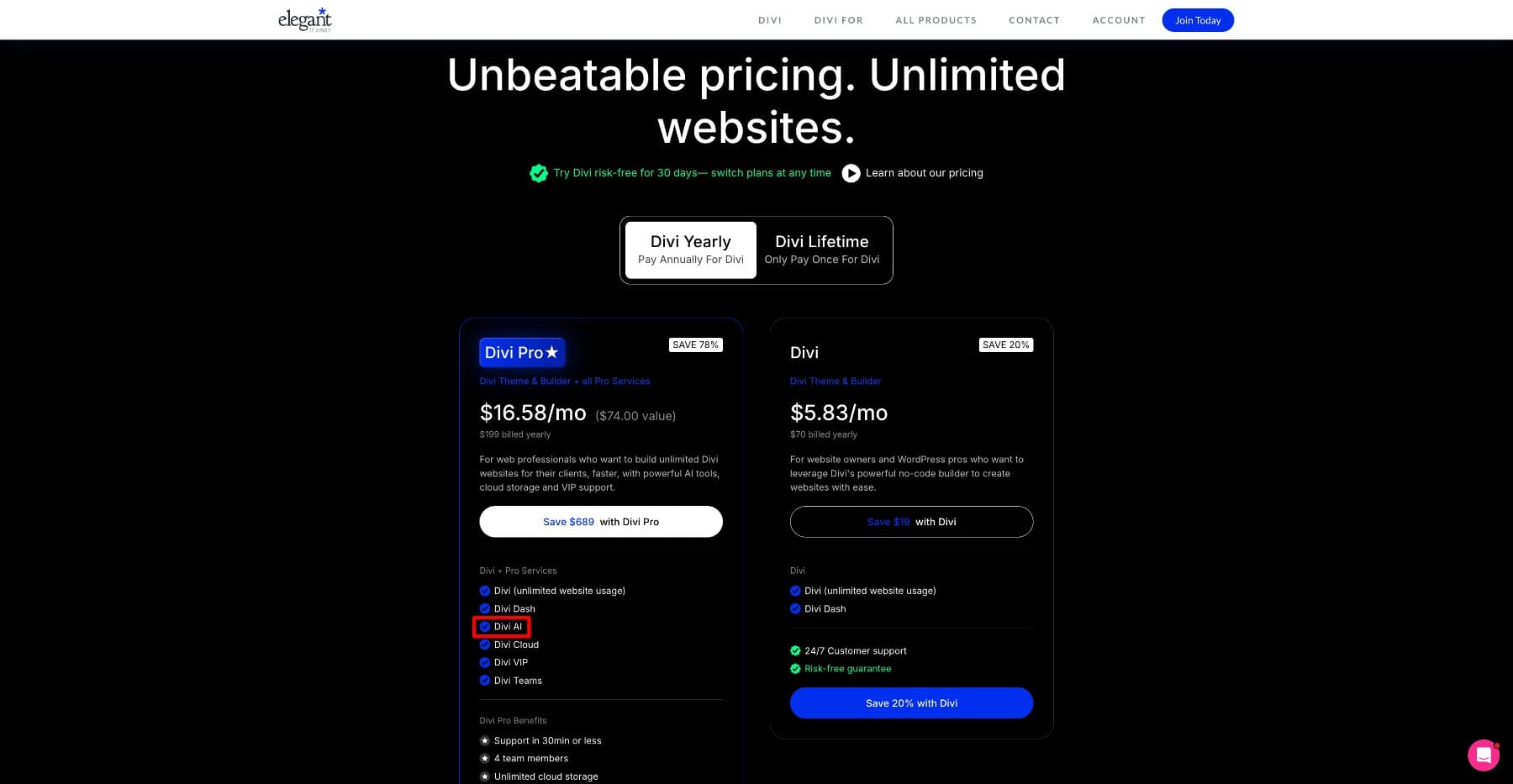
Divi AI agents require Divi 5 and access to Divi AI. Divi AI is available as a separate subscription or as part of Divi Pro.
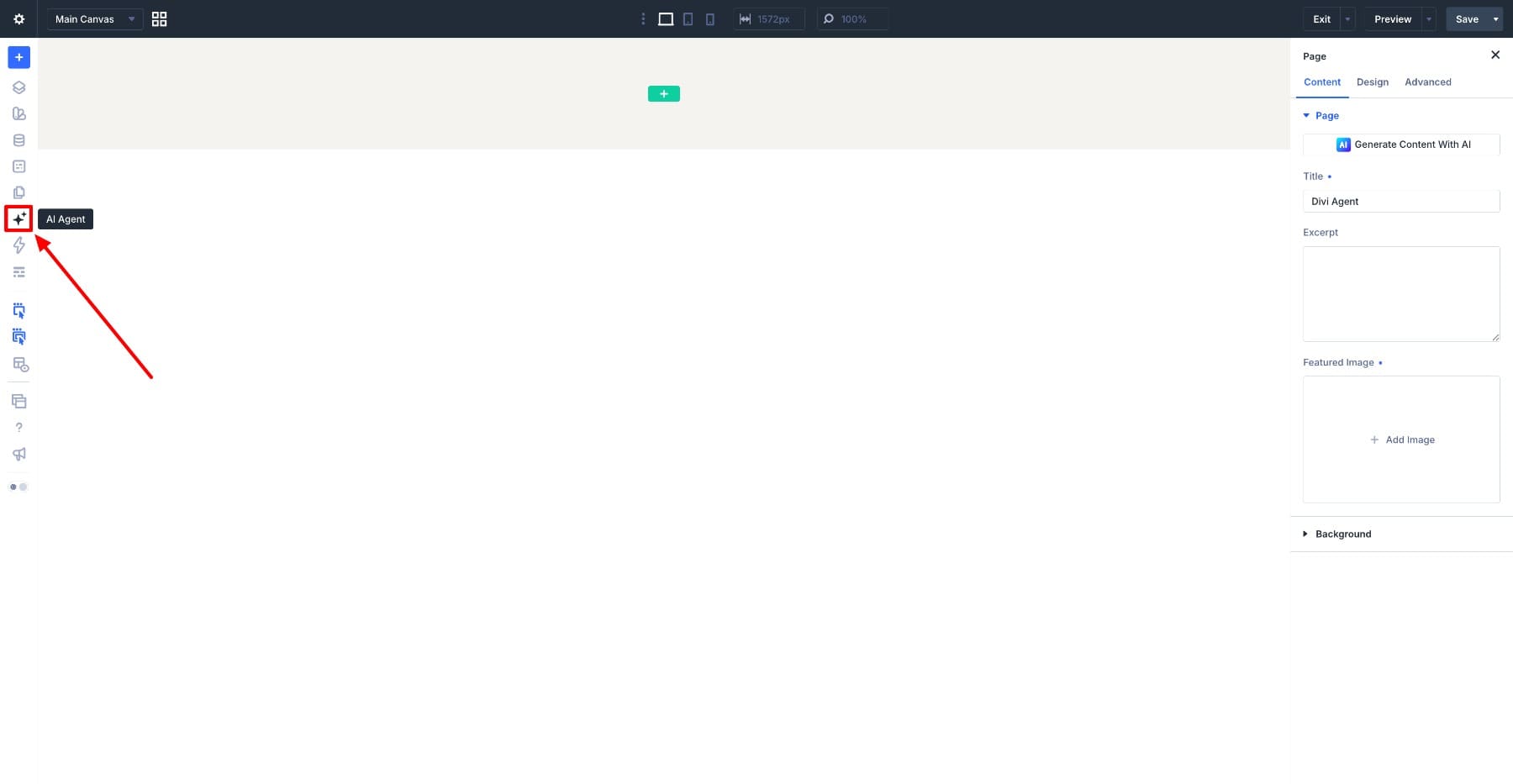
Open a page in the Divi 5 Visual Builder and click the AI Agent icon in the left sidebar. We will start with a job that comes up on almost every site, which is handling image alt text across multiple pages.
How To Create And Run A Command
Before we get to the workflows worth saving, let’s build one Command so the process is familiar.
We will use the alt text example from earlier. Suppose you have already tested this prompt on a page and it gives you the result you want.
Review the images on this page and add meaningful alt text where it is needed. Preserve existing alt text that already describes the image well, and leave decorative or redundant images without alt text.
For decorative images, an empty alt attribute (alt="") is different from a missing attribute. Review the generated descriptions and decorative-image handling in the rendered page.
Once a prompt behaves the way you expect, it is ready to save.
Save The Command
- Open the AI chat window and click the Commands icon.
- Click Add New Command.
- Enter a short title that clearly describes the job, such as Review Image Alt Text.
- Paste the tested prompt into the Command field.
- Click Save Command.
Use titles that tell you what the Command actually does. As your library grows, “Review Image Alt Text” is easier to spot than something broad like “Image Check.”
Run A Saved Command
To use it, type / in the agent chat. The Command picker opens with your saved prompts, and selecting one drops its text into the composer.
Review the inserted prompt before sending it. Add any page-specific details or exclusions, and use Build Mode for this alt text update. Editing the inserted text does not change the saved Command.
Test first, save the part that stays the same, and fill in the rest at run time. For the full Command reference, including how to edit, duplicate, delete, attach Context to, and nest Commands, see our guide to using Commands in Divi AI agents.
Use Case 1: Bring A Page Into Your Design System
Imported layouts and older pages arrive carrying their own colors, spacing, and styles. If your site already uses Design Variables and Presets, the task is to connect suitable page-level values to those existing resources.
Take this imported layout. The same green accent shows up across buttons, icons, borders, and links, and every instance is a hardcoded color value.
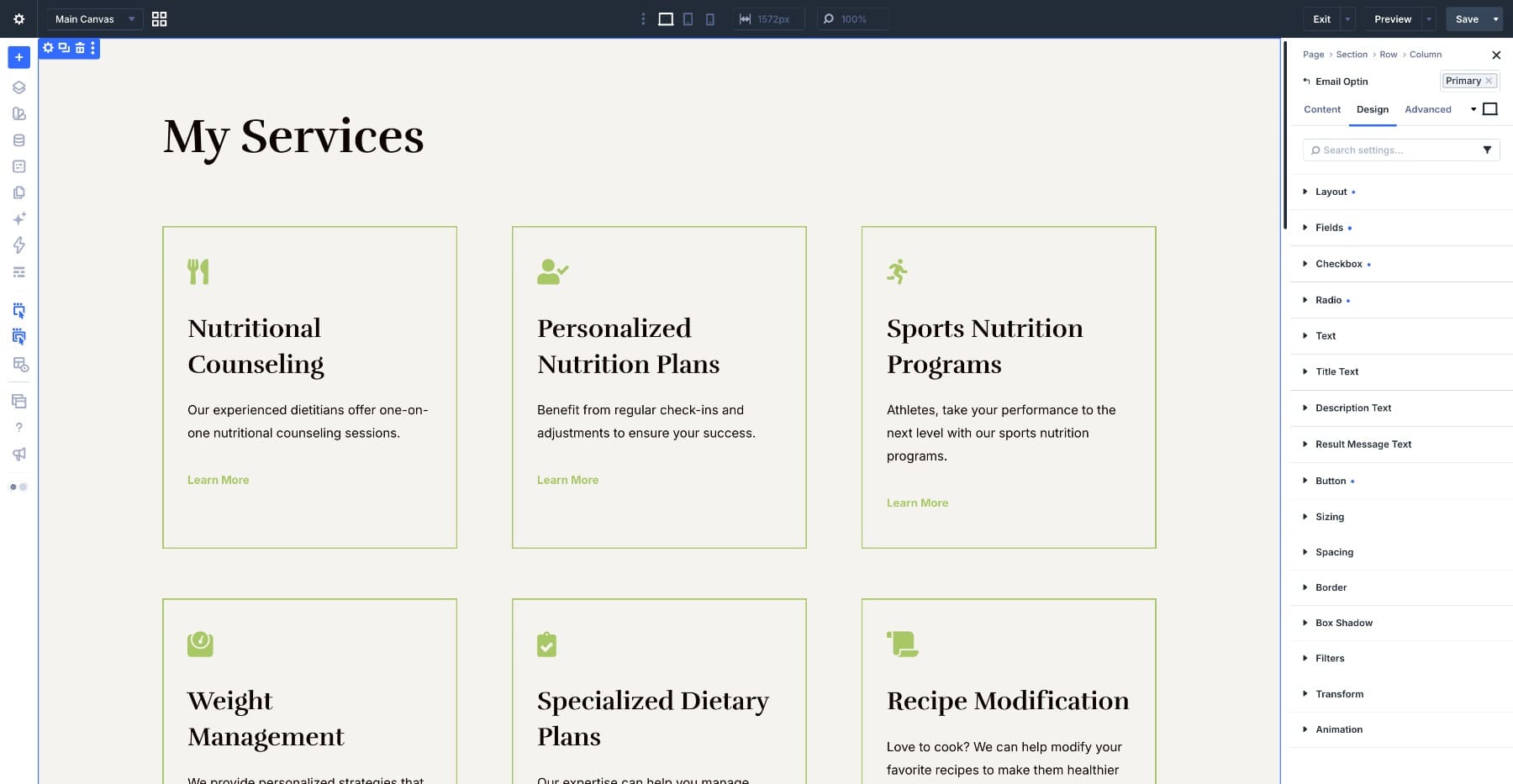
Before changing anything, Ask Mode can show you what the page holds.
Scan this page for hardcoded color values and list every one you find, with a count of how many modules use each and which modules those are. Do not change anything.
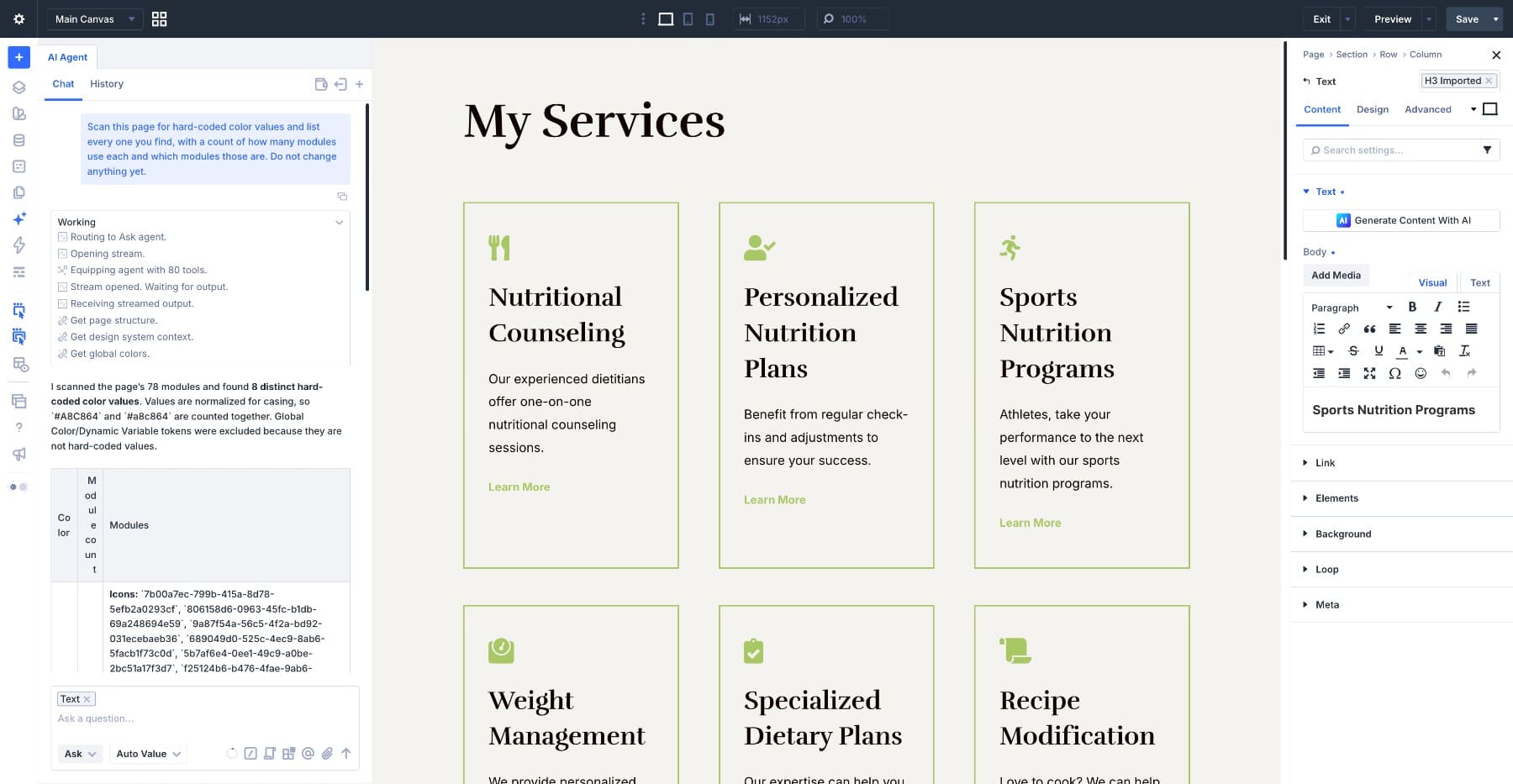
You can save the scan as a Command if you regularly audit imported layouts. Here, we will focus on reusing the replacement step.
In the Command editor, use Add Context to reference the site’s Primary Color variable. Save the following instruction, then use Build Mode when running it.
Replace every instance of the light green accent color on this page with the Primary Color Global Variable attached in Context. Apply it wherever that light green is used, including text, backgrounds, borders, icons, and buttons. Do not change any other colors or styles, and do not create a new Global Variable.
Run the Command to replace the specified light green values with references to the Primary Color variable, as shown below.
Before reusing this Command on another layout, update “light green” to identify that page’s source accent. Use the exact value from the scan if several similar shades appear, and check that the attached variable is still the intended destination.
The workflow stays useful while the page changes. One imported page may carry hardcoded button colors, and the next may hide them in backgrounds, icons, or borders. The agent finds the relevant values on the page in front of it, while the Command keeps the rules for replacing them the same every time.
There is a limit worth remembering here. When your styles already reference a variable or preset and you intend to change every use of it, update that shared resource directly. Commands help when disconnected page-level styles need pulling into the system, not when Divi is already managing them globally.
Use Case 2: Run A Pre-Publish Page Review
Some workflows earn a spot because you want the same checks on every page before it goes live. A pre-publish review fits neatly. The problems shift from page to page, while the checks you want the agent to run stay the same. Save this Command and run it in Ask Mode.
Review this page before publishing. Check the desktop, tablet, and phone layouts for overflow, cramped spacing, awkward text wrapping, inconsistent alignment, or elements that appear too large or small. Also flag images with missing or unclear alt text and any obvious placeholder or unfinished content. Group the issues by section and module. Do not change anything.
Use the report to decide which issues need attention. Follow it with your own responsive preview; an AI review may miss issues or flag a deliberate design choice.
On this page, for example, the agent flags the “Virtual Meal Prep Course” H2 as potentially too large on phones because its 44px size has no phone-specific override.
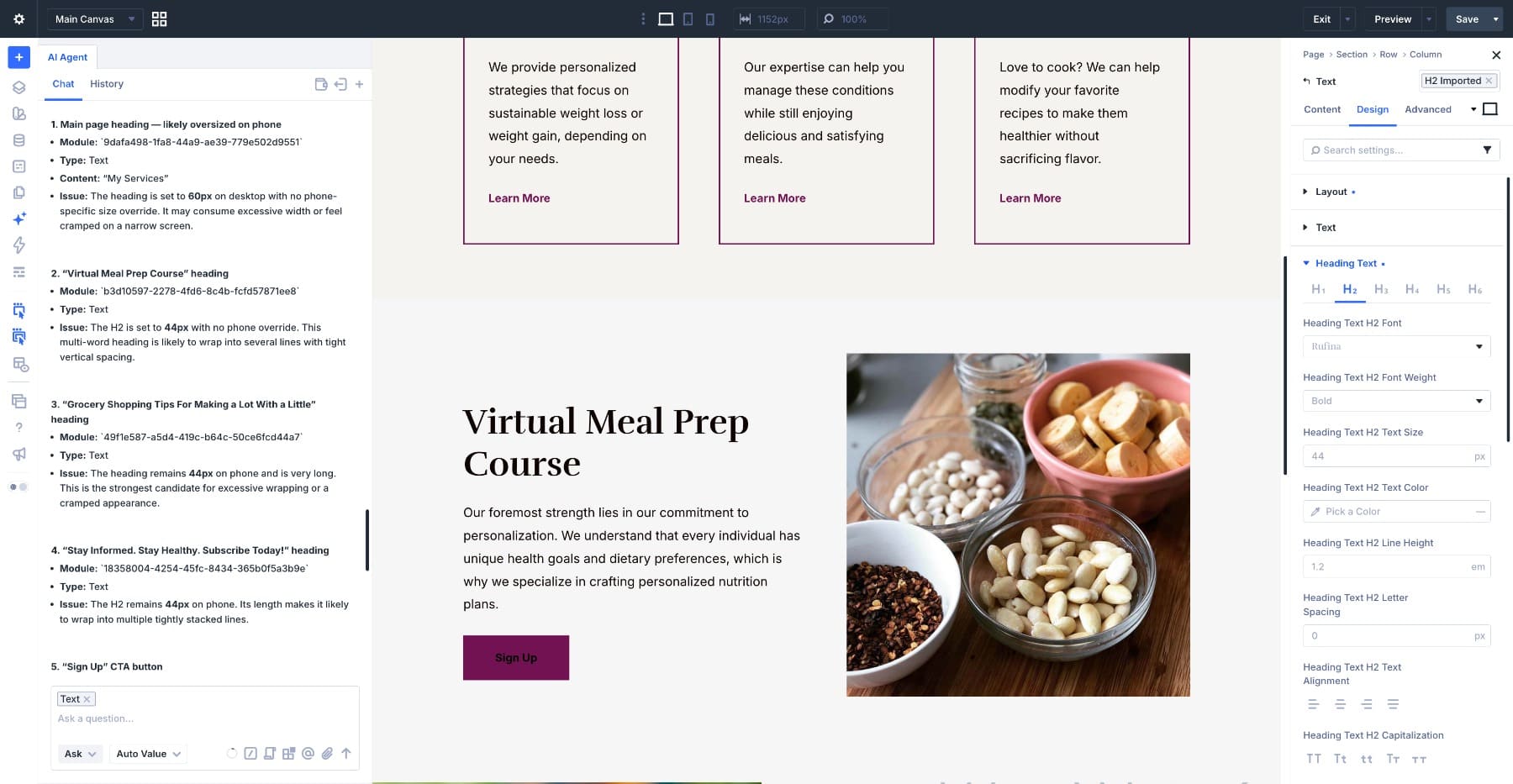
The review is worth keeping because it comes back around on every page, while the fix that follows rarely does.
Once you know what needs attention, reference the affected heading in Context, switch to Build Mode, and ask for a targeted fix.
Reduce the H2 font size to 26px on phone only. Leave the desktop and tablet values unchanged.
The next page may need something else entirely, like overflowing buttons or cramped card spacing. A page-specific fix can stay in the conversation unless you expect to reuse it.
The pre-publish review stays useful because the job never changes. It gives you a repeatable starting point for inspecting each page and deciding what to adjust.
Use Case 3: Repeat A Temporary Update Across Multiple Pages
Not every Command needs to live in your library forever. Some are worth saving because the same job repeats across several pages for a short stretch of time.
Say you are changing an offer across the site. Several pages promote a free consultation, and those CTAs now need to send visitors to a strategy call. You could rewrite the instruction on every page you open, or save a temporary Command while the update is in progress.
Find every Button module on this page that promotes the free consultation. Change the Button text to “Book A Strategy Call” and update its link to [NEW URL]. Leave mentions of the free consultation in body copy, testimonials, or other non-CTA content unchanged. Do not change any other buttons or links.
Replace [NEW URL] with the actual destination before sending the Command. Run it in Build Mode on each page that needs the update, then check the changed button labels and links.
The exclusions do real work here. An unrestricted text replacement could also change mentions in body copy or testimonials. The Command asks the agent to identify relevant Button modules and leave other content alone.
A Command like this may be useful for a week while you work through the site, and it still counts as a good one. It saves you repeating the instructions and keeps the update consistent across every page in the project.
Once the update is complete, remove the Command if you no longer need it. This keeps outdated campaign instructions out of your active list.
Build A Command Library Around Work You Repeat
A Command library in Divi AI Agents works best when you keep it intentional. Save the prompts that stand for jobs you expect to repeat, from a permanent workflow like a pre-publish review to a temporary update you will run across several pages.
Start with the prompts you already find yourself rewriting. Test them first, keep the instructions that stay consistent, and leave the page-specific details for the moment you run the Command. The useful ones become obvious over time, since they are the prompts you stop having to rebuild from memory.



Leave A Reply