

Divi 5 already gives you useful ways to work with icons, SVGs, masks, and background design. The native SVG module lets you add SVG markup and style it with Divi controls, while Divi’s mask and background tools give you more ways to shape images and sections.
But some projects need more variety than the default tools provide. Client sites, brand-heavy landing pages, 404 templates, service cards, feature grids, and editorial layouts often need icons and shapes that feel more specific.
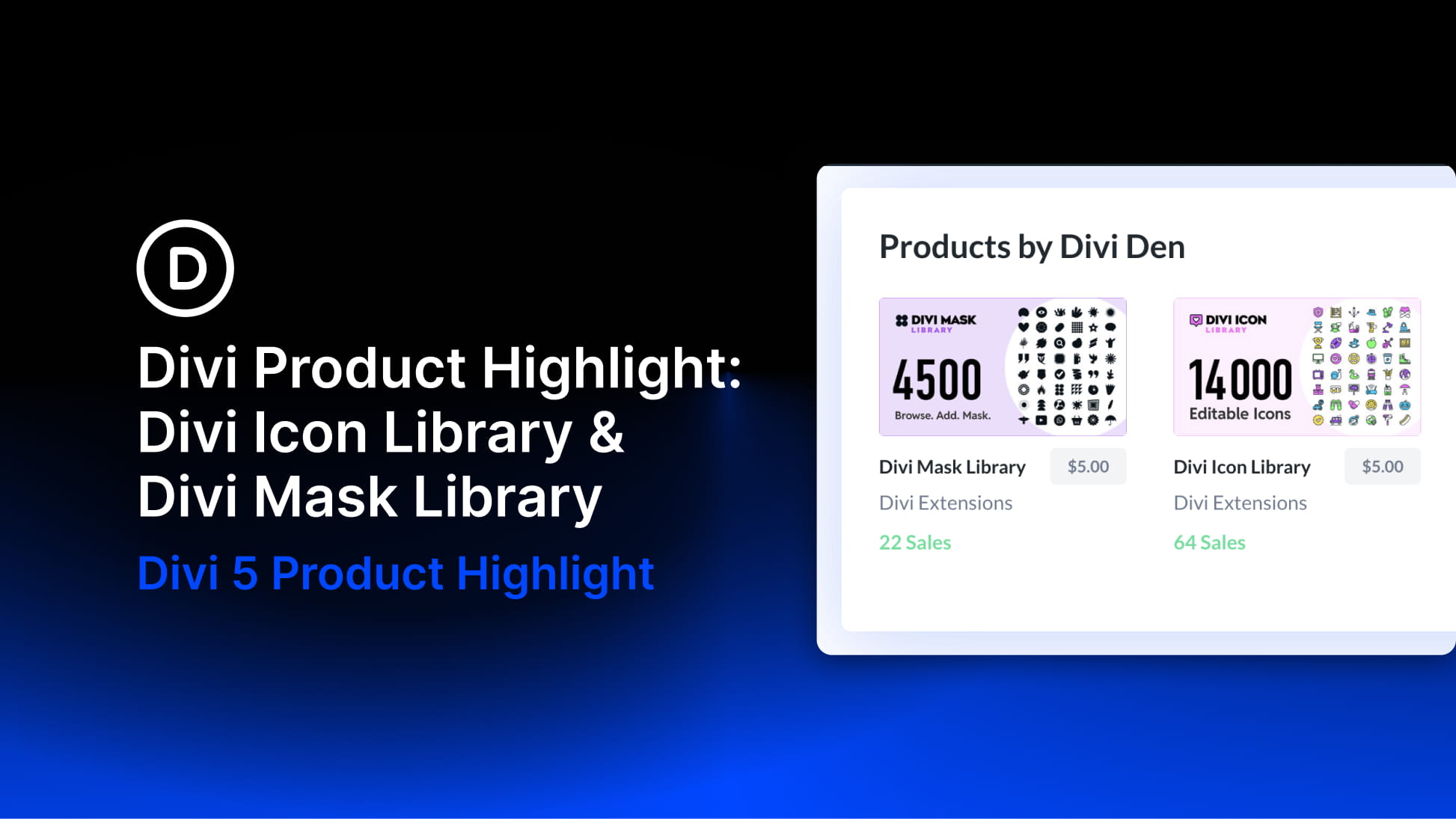
That is where two Divi Marketplace extensions from Divi Den can help: Divi Icon Library and Divi Mask Library.
Divi Icon Library adds a searchable library of 14,000+ SVG icons directly inside the Visual Builder. Divi Mask Library adds 4,500+ hand-drawn SVG shapes you can save and apply as masks. Both are built for Divi 5, and both are designed to give you more visual options without leaving the builder.
In this Product Highlight, we will look at what each extension does, how they work, and a few practical ways to use them in real Divi 5 layouts.
Divi Icon Library: 14,000+ SVG Icons Inside The Visual Builder
Divi Icon Library adds a custom Icon Library module to Divi 5. Once the extension is active, the module appears in the Visual Builder alongside Divi’s native modules.
Think of it as a faster way to find and use custom SVG icons. Divi’s native SVG module is useful when you already have the SVG markup or file you want to use. Divi Icon Library gives you a searchable collection of SVG icons from inside the builder, so you can browse, select, and style an icon without sourcing one elsewhere.
When you add the module and open the icon picker, you get a searchable modal with three icon styles:
- Line: Stroke-based icons that work well for lightweight UI and outline styles.
- Shape: Solid icons that work well for bold visual accents.
- Filled: Two-tone icons with both stroke and fill controls.
A category sidebar helps narrow the library by topic, and the search updates as you type. That makes a 14,000+ icon library practical to use because you are not forced to scroll through the entire collection manually.
The advantage becomes clear when you need a specific symbol. A generic icon set may have a handful of business, social, or interface icons. This library gives you more room to match the icon to the site, industry, or message.
For example, if you are building a section about services, benefits, categories, or features, you can search for more specific terms and swap icons until the set feels balanced.
How The Icons Are Styled
The icons render as inline SVG, which means they stay sharp at any size and do not rely on icon fonts on the front end.
The module also includes the design controls you would expect from a Divi element:
- Color controls: Adjust stroke, line, fill, or accent colors depending on the icon style.
- Responsive sizing: Set the icon size and adjust it per breakpoint.
- Stroke width: Fine-tune line thickness for supported icon styles.
- Alignment controls: Position the icon inside its layout.
- Hover states: Create simple interactive color or styling changes when needed.
Not every icon style exposes the same controls. A solid shape icon does not need the same stroke settings as a line icon, for example. Choose the style that matches the design controls you need.
Divi Mask Library: 4,500+ Custom Masks For Divi 5
Divi Mask Library works differently from the icon extension. Instead of adding a new content module, it gives you a large library of SVG shapes that can be saved and applied as masks in Divi 5.
The library includes 4,500+ hand-drawn shapes across 56 categories. The shapes are CC0 licensed, which makes them usable for personal, client, and commercial projects without attribution.
The workflow starts outside the Visual Builder. Open the Mask Library page in WordPress, browse the cloud library, search by keyword, or filter by category. When you find a shape you want to use, save it to your site.
Those saved masks are stored locally in your WordPress database. That means the published page does not need to call an external cloud library just to render the mask.
Once saved, the masks appear in Divi’s mask workflow. You can apply them from the Mask Library option group on supported image-bearing modules, and saved masks also appear in Divi’s native Background > Mask picker.
Mask Controls
After applying a mask, you can adjust how it behaves. Common controls include:
- Size: Control how large the mask appears, including custom sizing.
- Position: Place the mask where it works best over the image or background.
- Repeat: Repeat the mask pattern when the design calls for it.
- Flip: Flip the mask horizontally, vertically, or both.
- Mode: Use normal or inverted masking.
- Rotate: Rotate the shape to fit the composition.
Those settings can be especially useful because masks rarely need to be used exactly as-is. A shape may work better flipped, rotated, resized, repeated, or inverted.
The mask controls also support responsive and hover-state workflows, so a mask can be adjusted for desktop, tablet, phone, or interactive states.
5 Practical Ways To Use Divi Icon Library And Divi Mask Library
These extensions are most useful when they make a real layout feel more intentional. Here are five examples that show how icons and masks can improve ordinary sections.
1. Create A 404 Page That Matches The Brand
A 404 page is a good place for a small visual idea. In this example, the layout uses three inline elements: a Text module with 4, an Icon Library module in the middle, and another Text module with 4.
The icon becomes the zero.
That one swap lets the page match the industry. A dental site can use a tooth. A cleaning company can use a spray bottle. A park service can use a tree. A fitness brand can use a dumbbell. The layout stays the same, but the message becomes more specific.
This is where a deep icon library helps. You are not just decorating the page. You are using the icon to make a generic template feel like it belongs to that site.
2. Replace Border Radius With A Background Mask
Border radius is useful, but it can only round corners. Masks can create more expressive shapes.
In this example, the hero section started with a background image shaped by border radius. Removing the radius turns it back into a plain rectangle. Applying a half-pill mask brings the original shape back, but with more flexibility.
Now the image shape is swappable. The same layout could use a blob, brush stroke, torn edge, organic curve, or geometric mask without rebuilding the section.
3. Add Character To An Image Collage
Image collages can easily become a grid of rectangles. Masks help break that pattern.
In this example, two images in a five-image collage were masked. One image uses a repeating semi-circle shape to soften the edge of the grid. Another uses an inverted line mask to create a cutout that feels related to the content.
The layout still feels structured, but it no longer looks like five flat image boxes.
4. Use Masks On Images And Backgrounds
Divi Mask Library can be useful in more than one context. You can apply masks to image modules and to background images.
That means a portrait, product photo, hero background, section background, or decorative image can share the same shape language.
This is helpful when you want a design motif to repeat across a page. A shape can appear in the hero, return in a card, and show up again in a background treatment.
Social icons are small, but they can still affect the tone of a design.
In this example, the section started with standard social icons. Divi Icon Library gives you more variations for the same social platforms, which makes it easier to match the icon weight, corner style, and overall personality of the layout.
That is useful when the default version is technically correct but visually not quite right.
Using The Divi Den Libraries
Both extensions install like other Divi Marketplace products.
After activation, Divi Icon Library adds the Icon Library module to the Divi 5 module list. Divi Mask Library adds its mask workflow for supported image-bearing modules and saved masks for Divi’s background mask picker.
The current Divi Den documentation lists both products as Divi 5-only. Divi 4 is not supported. Divi Den also lists WordPress 6.3+ and PHP 8.0+ as minimum requirements.
Pricing
At the time of writing, both extensions are listed on the Divi Marketplace at $5 each.
Each Marketplace listing includes:
- Unlimited website usage
- GPL licensing
- One year of support and updates
- 30-day money-back guarantee
Because pricing and licensing details can change, check the Marketplace pages before purchasing.
About Divi Den
Divi Den is a long-running third-party Divi creator and Divi Marketplace author. Its product lineup includes Divi Den Pro, Divi Icon Library, and Divi Mask Library. Divi Icon Library and Divi Mask Library solve two specific design problems: finding more icons and creating more custom image shapes. Both do that inside the Divi 5 workflow, which is what makes them useful.
Use the icon library when a design needs a better symbol. Use the mask library when a rectangle is not enough. Use both when you want a Divi 5 layout to feel more custom without leaving the Visual Builder.






Leave A Reply