

In an era where WCAG compliance, semantic HTML, and AI-assisted search experiences matter, modern website builders are evolving to make accessibility and meaningful structure standard rather than an afterthought. Divi 5 is part of that shift, making it easier for Divi users to build sites with clearer structure and stronger accessibility.
Divi 5 includes Semantic Elements, which let users change a module’s underlying HTML tag to native semantic tags such as nav, header, article, or button. Another recent feature, Custom Attributes, lets users add HTML attributes, including ARIA roles and states, in the Advanced tab. While Semantic Elements provide built-in meaning through proper HTML tags, Custom Attributes provide additive semantics and finer control when a native tag alone is not enough.
In this post, I’ll compare the two approaches head-to-head, explain when to prioritize one over the other, and show how they work together in Divi 5 to improve accessibility, clarity, and long-term maintainability.
Let’s dive in.
What Are Semantic Elements?
Semantic Elements are one of the most important accessibility upgrades in Divi 5. At their core, they let you replace default wrapper tags with native semantic HTML tags such as nav, header, section, article, main, footer, and button, each of which carries built-in meaning about the content’s purpose and structure.
Unlike generic div wrappers, these tags help browsers, screen readers, and search engines understand what the element is for. A nav tag clearly signals navigation, a button identifies an interactive control, and structural tags like header, main, or article help define the page’s logical hierarchy without extra role attributes.
Key Benefits of Semantic Elements
- Strong Accessibility: Screen readers can recognize landmarks such as navigation and main content automatically, making pages easier to navigate for people using assistive technologies.
- Clearer Structure For Search Engines: Search engines can parse semantic HTML more accurately, understanding content hierarchy, boundaries, and purpose more clearly.
- Cleaner HTML Output: You get meaningful structure without relying on extra ARIA roles or custom code, resulting in simpler, more maintainable markup.
How It Works In Divi 5
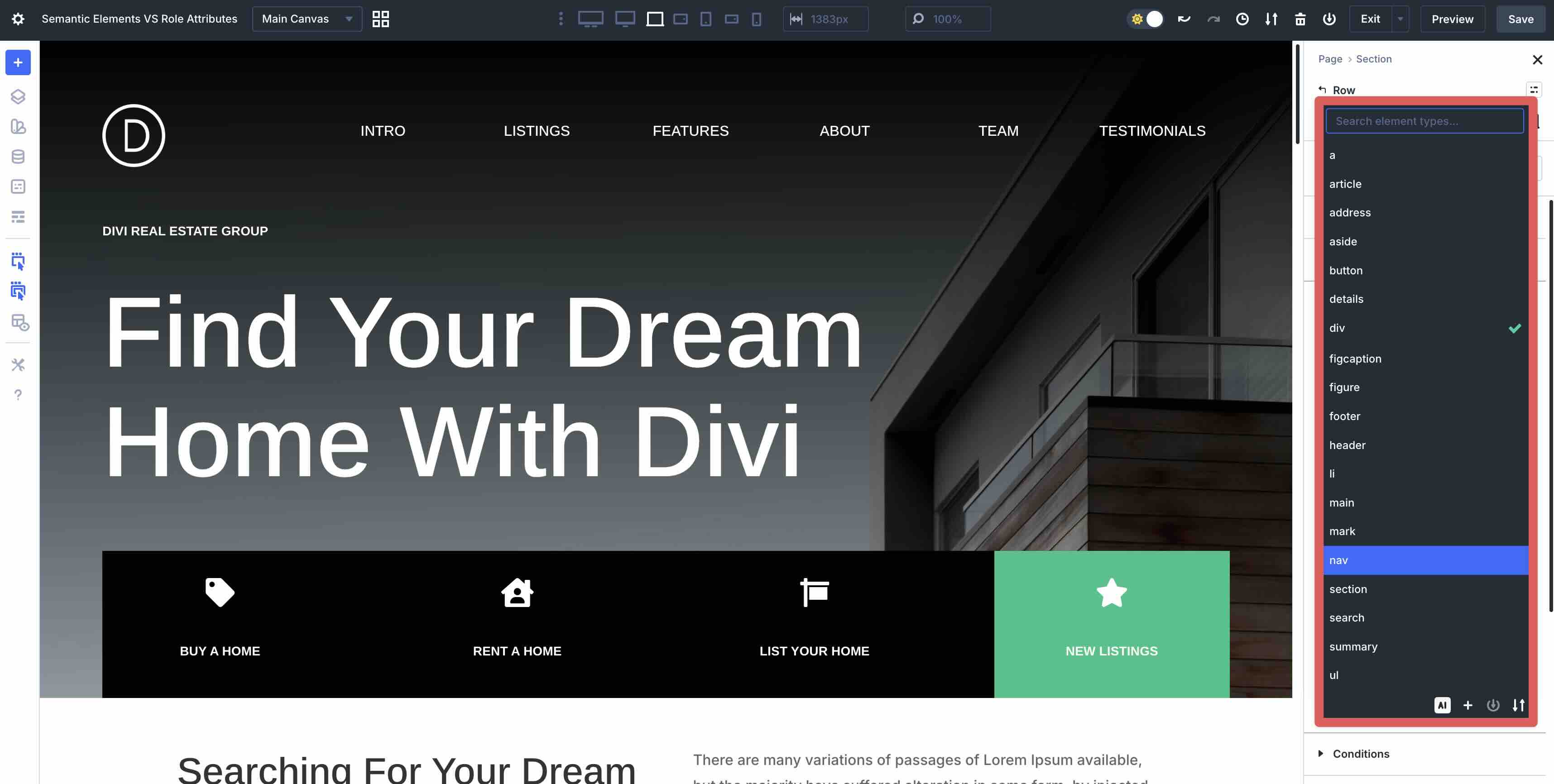
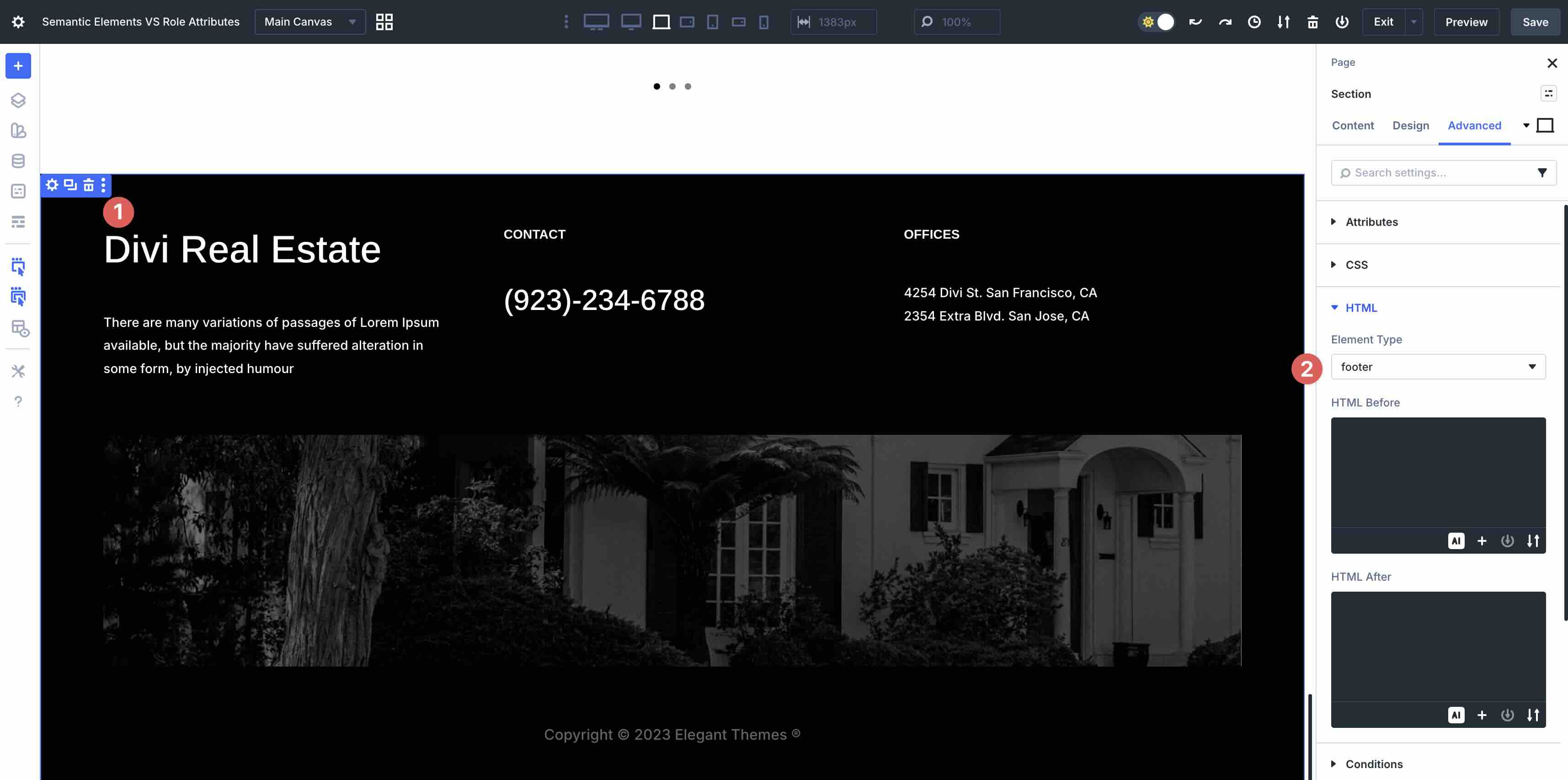
The Semantic Elements feature lives in the Advanced tab under the HTML option group. There, you’ll find an Element Type dropdown that lets you select from a list of semantic tags.
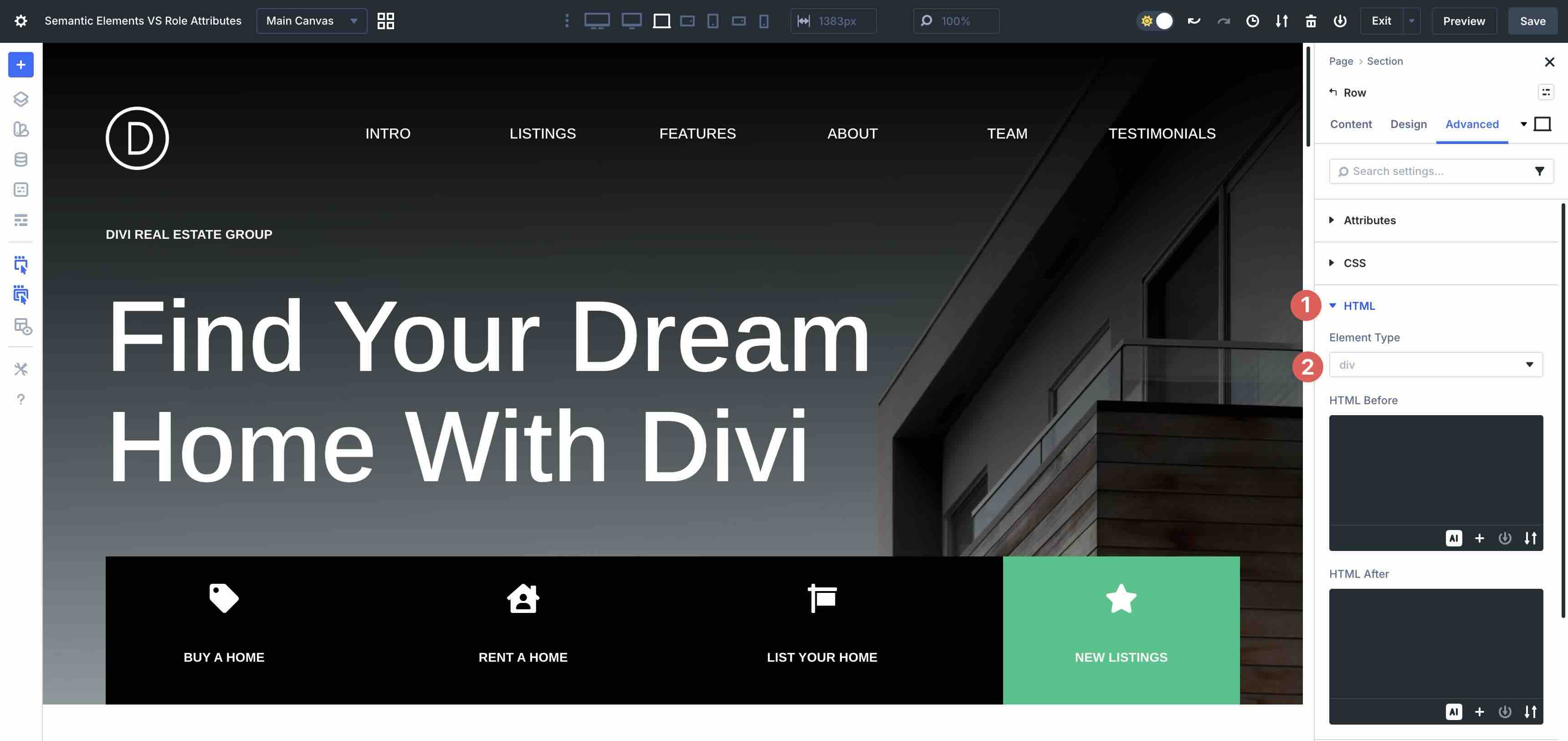
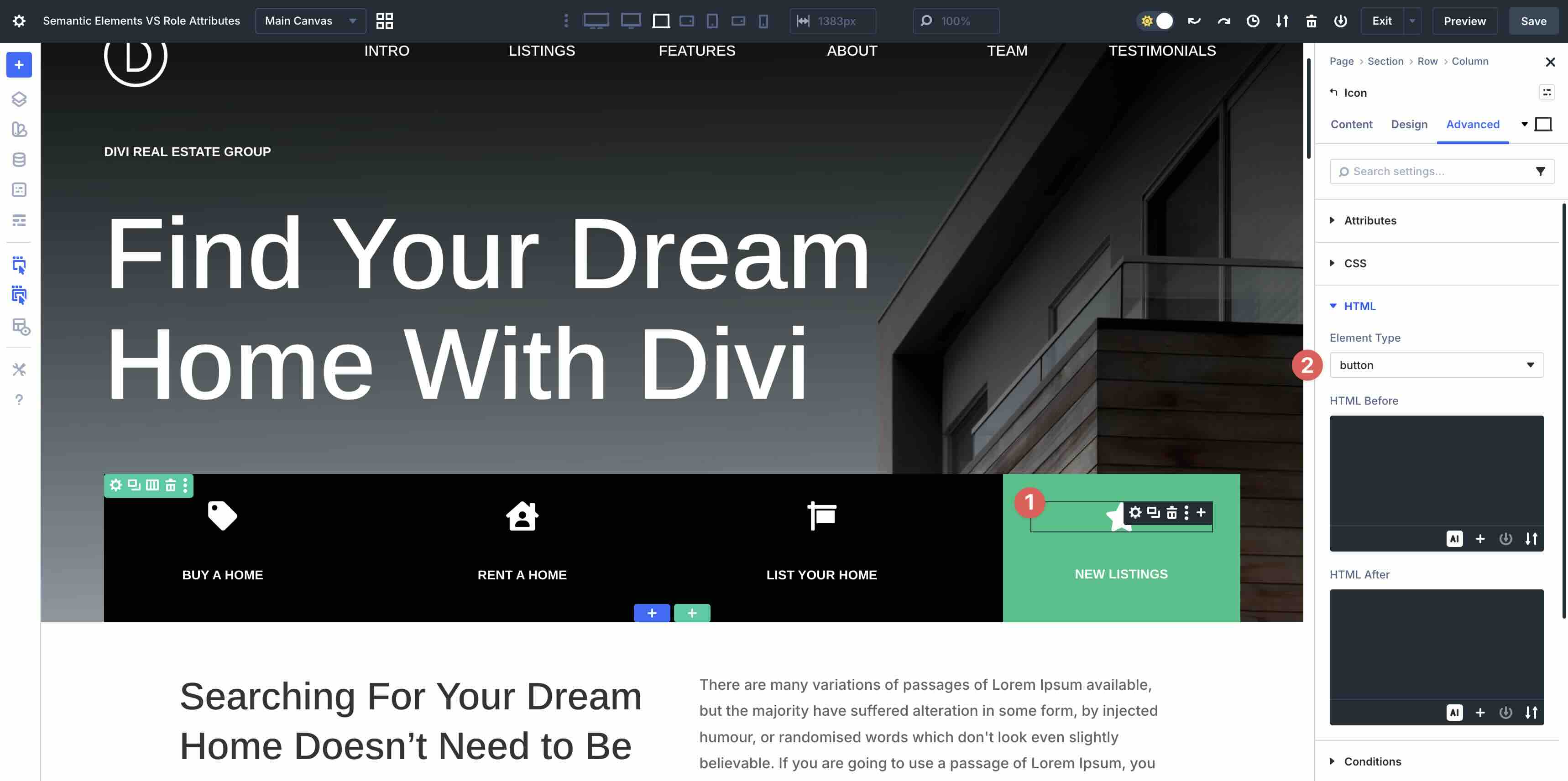
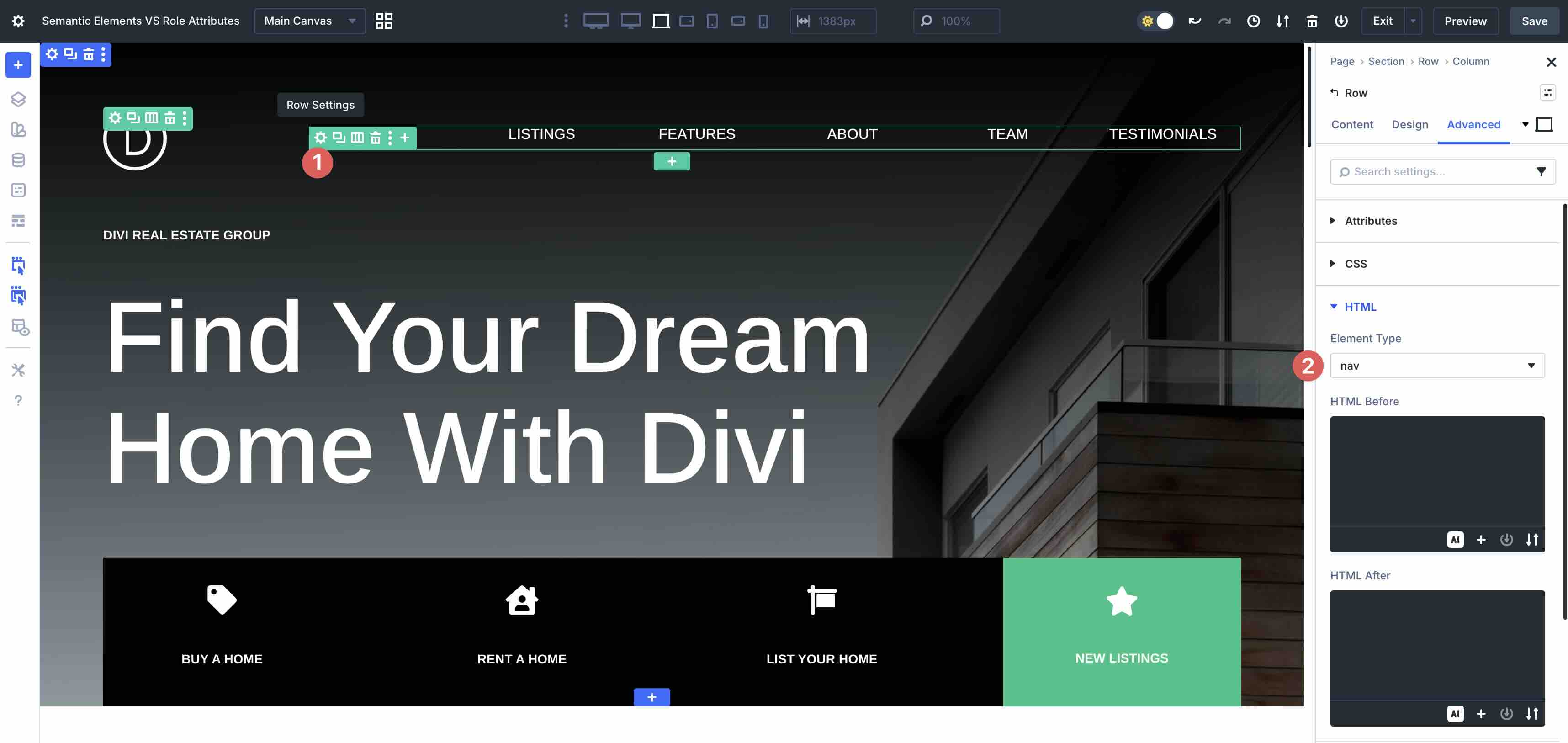
This option applies to modules and containers, giving you a lot of flexibility. You can change a custom menu wrapper to nav so assistive technologies recognize it as navigation. You can convert an Icon module acting as a close or toggle control into a proper button element. You can also group content into semantic wrappers like header, main, or article, which is especially useful for one-page layouts built directly in the Visual Builder.
Practical Examples
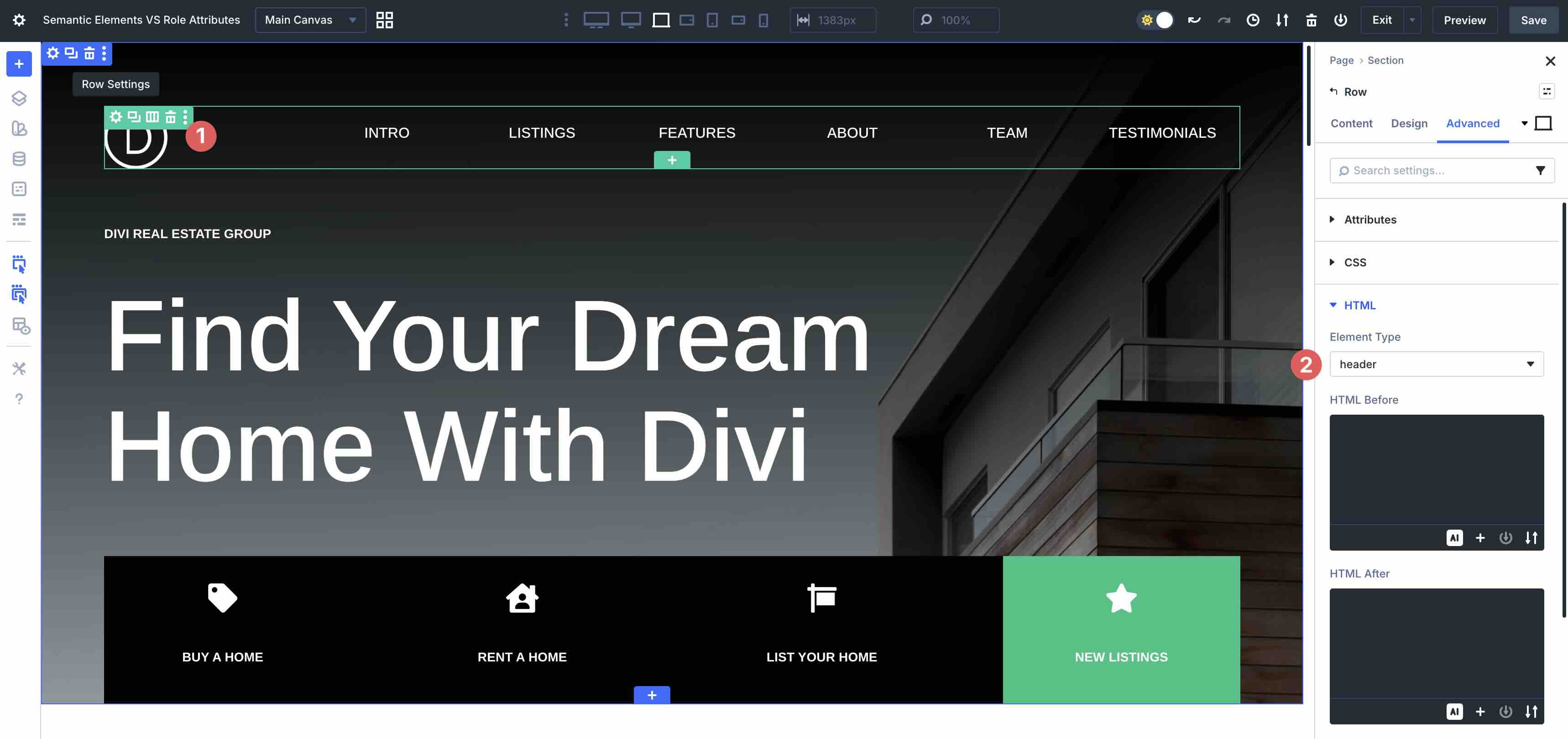
You can build a semantic one-page layout by wrapping your hero area in a header tag, primary content in a main or article tag, and closing sections in a footer tag. This creates clear page regions for both assistive technology and crawlers.
You can also create icon-only controls by changing an Icon module from a generic element to a real button. That gives it native button semantics, and you can pair it with ARIA later if you need an accessible name or state.
Finally, you can create custom navigation by assembling a menu with Divi modules and applying the nav tag to the container. This gives the region landmark status immediately.
Strengths And Limitations
Semantic Elements are best for structural and interactive elements where a native HTML tag already exists. They’re easy to implement, low-risk, and closely aligned with web standards.
That said, they are limited to the tags available in the dropdown. They also don’t cover every accessibility need on their own. For example, a semantic tag won’t add a state like aria-expanded to a toggle button or label a dialog automatically. For cases like that, Custom Attributes and ARIA fill the gaps.
Semantic Elements give your Divi site a strong, meaningful foundation in the HTML layer, making accessibility and clean code much easier to achieve.
What Are Role Attributes?
While Semantic Elements give your Divi modules native HTML tags with built-in meaning, not every situation fits neatly into those predefined tags. That’s where role attributes come in. A role attribute explicitly describes an element’s purpose to assistive technologies when the underlying HTML tag doesn’t provide enough meaning or when you need additional semantic context.
These are added through Divi 5’s Custom Attributes system. This feature lives in the Advanced tab under the Attributes option group and lets you add attributes directly in the builder.
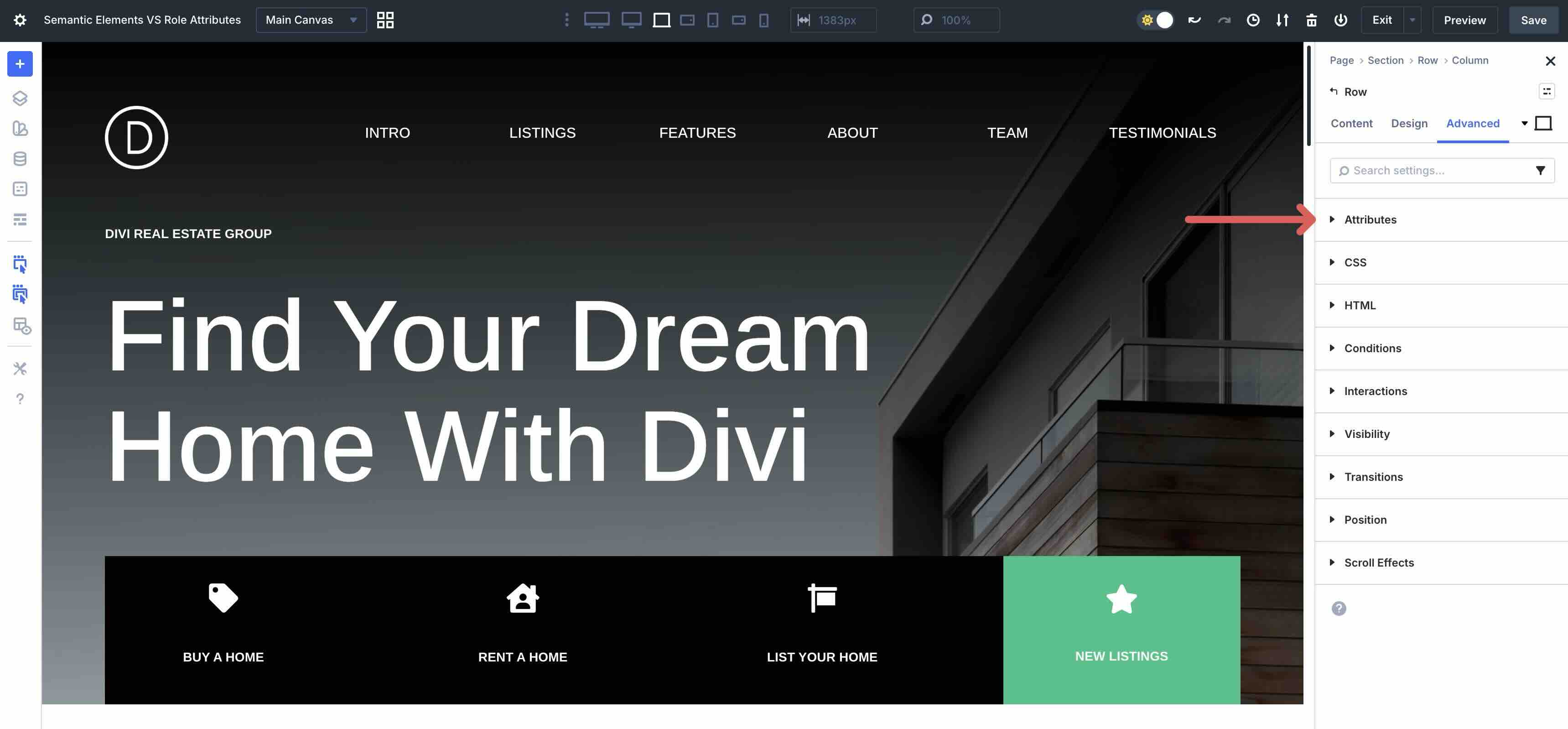
Custom Attributes let you add valid HTML attributes such as data-* for custom scripting, tabindex for focus management, rel for link behavior, and ARIA attributes such as role, aria-label, and aria-expanded. This makes the feature useful for fine-tuning semantics, especially on sub-elements or dynamic components.
Key Benefits of Role Attributes
- More Flexibility: You can target the entire module or specific sub-elements, such as an icon in a Blurb module, list items in an Icon List, or looped elements in the Loop Builder.
- Helpful For Accessibility Gaps: You can add semantics to generic wrappers, describe dynamic components, or improve accessibility without changing the base tag.
- Useful When Tag Changes Aren’t Ideal: They help when the Element Type dropdown doesn’t offer the right semantic tag, or when you need states and labels that native tags alone don’t provide.
How Role Attributes Work In Divi 5
Adding an attribute is straightforward. In this example, we’ll assign a role to a close Icon module on a pop-up. An Interaction is already set, but we also want assistive technologies to understand that the Icon module behaves like a control.
Simply open any module’s settings and go to the Advanced tab. Expand the Attributes menu, then click + Add Attribute.
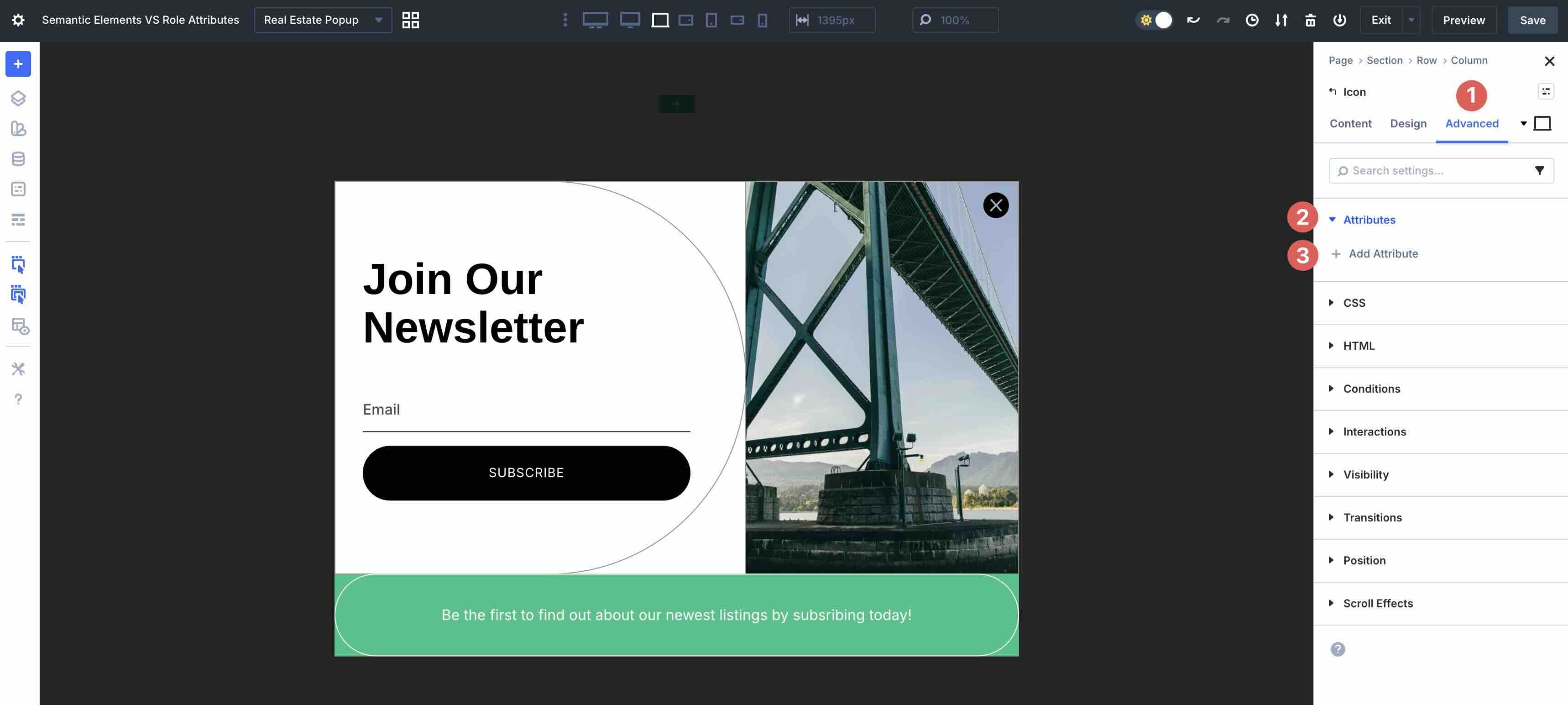
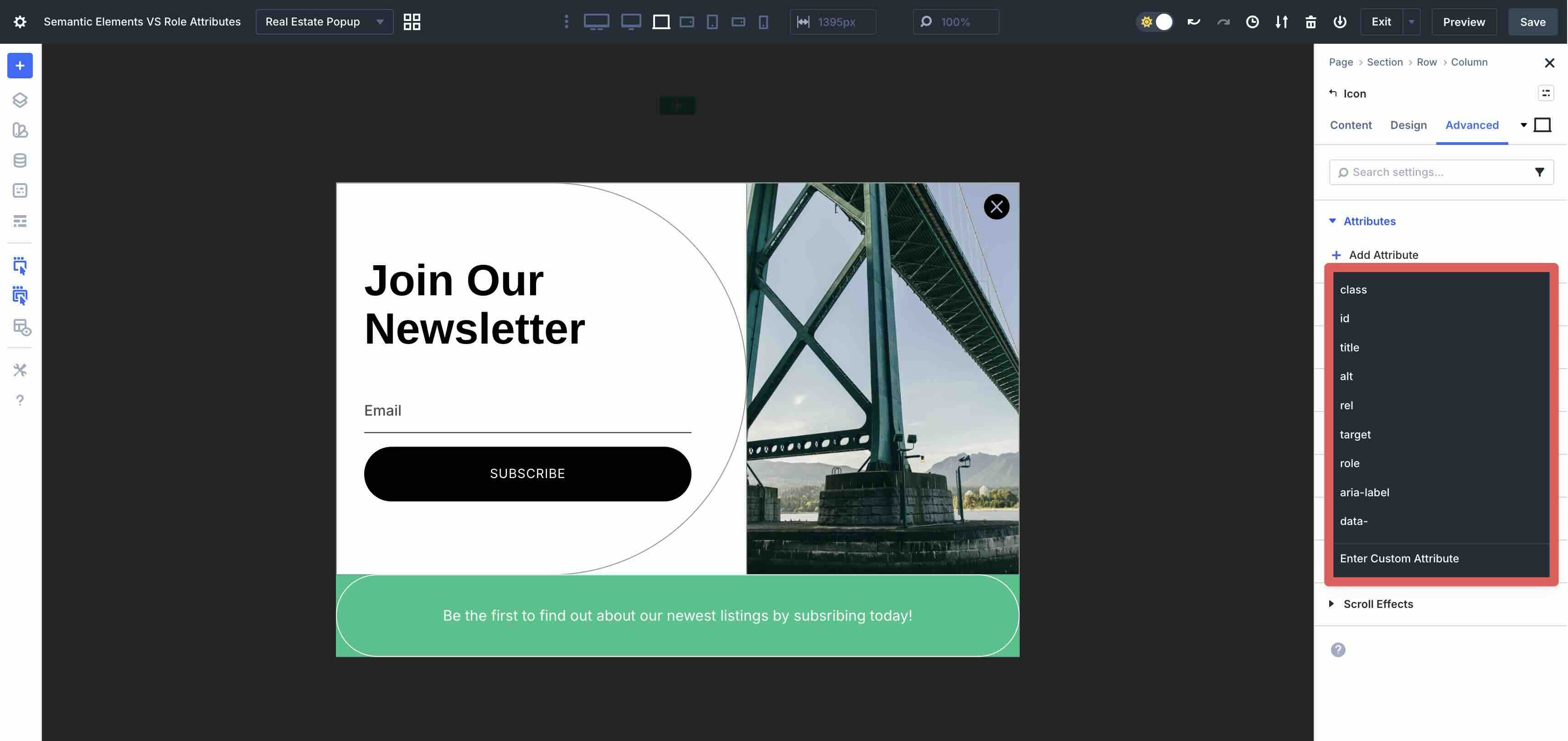
Choose role as the Attribute.
Assign an Admin Label for easy identification, and set the Attribute Value to button.
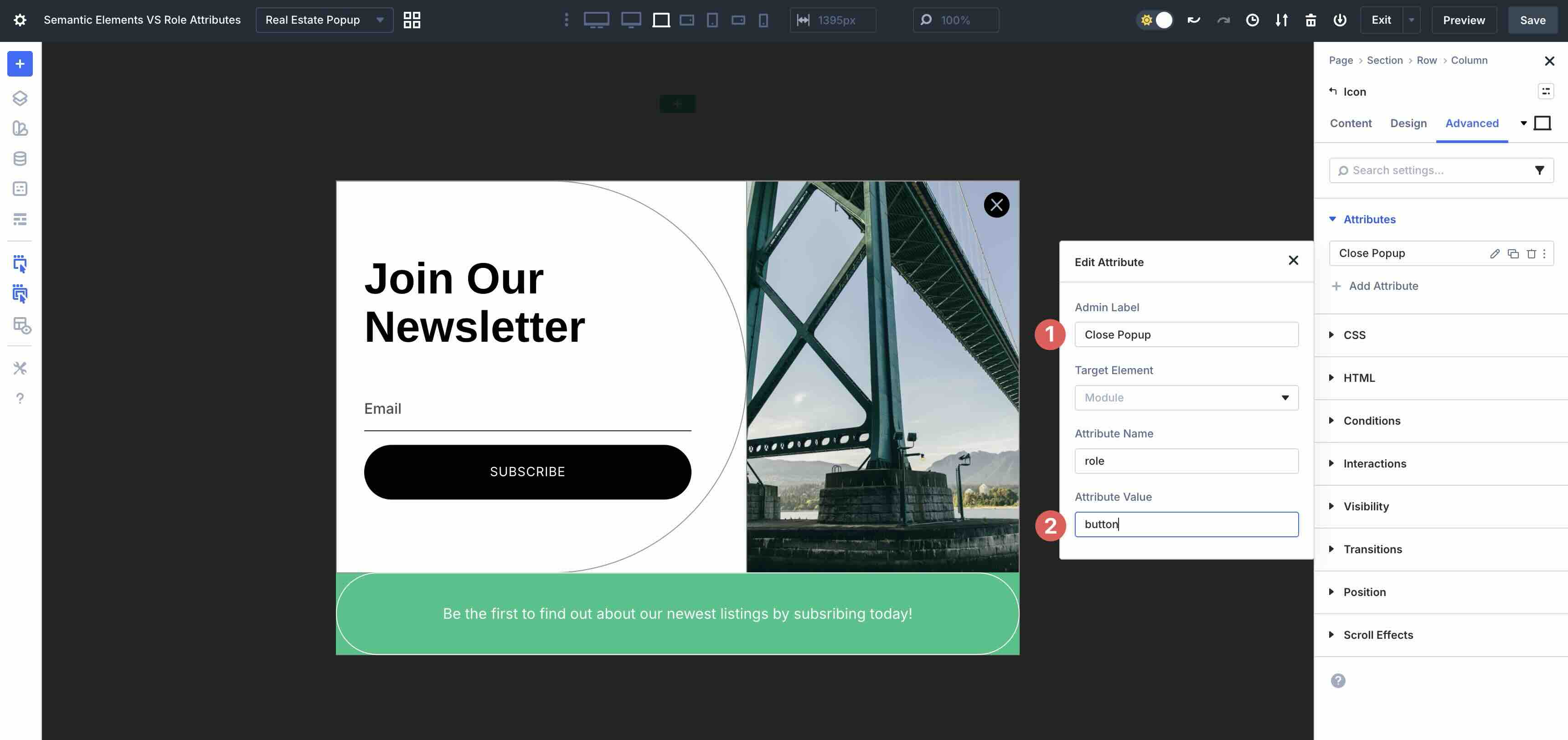
Adding role=”button” tells assistive technologies that the element should be treated as a control rather than as a decorative graphic. However, role alone does not make a generic element behave like a native button. If the element is not already keyboard-focusable and operable, you’ll also need the right interaction handling and, in some cases, tabindex and keyboard support. When possible, using a real button element through Semantic Elements is still the better option.
Practical Examples
In addition to using a role attribute on an Icon module to support a pop-up close control, there are other cases where a role attribute makes sense.
Custom Menus Built Without Using The Menu Module
For example, if you’re assembling a navigation bar using Text modules, you could add role=”navigation” to the parent Row.
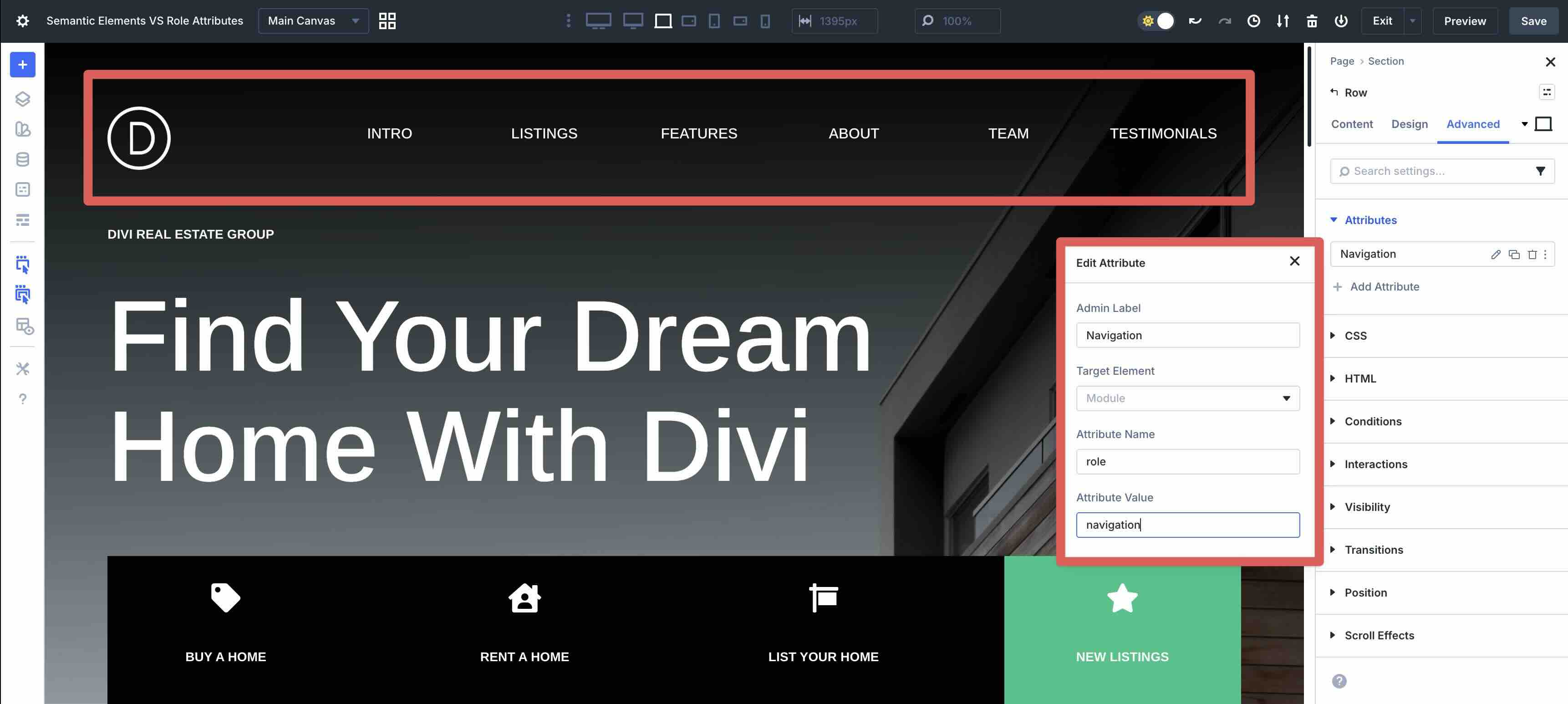
This can be useful when you don’t want to change the container itself to nav or when the structure around it needs to stay as-is. That said, a native nav element is still preferable whenever it’s practical.
Modal Or Popup Containers
Another example is a modal or pop-up container. A full-screen overlay, pop-up, or dialog box triggered by Interactions is often built with generic Section and Row structures.
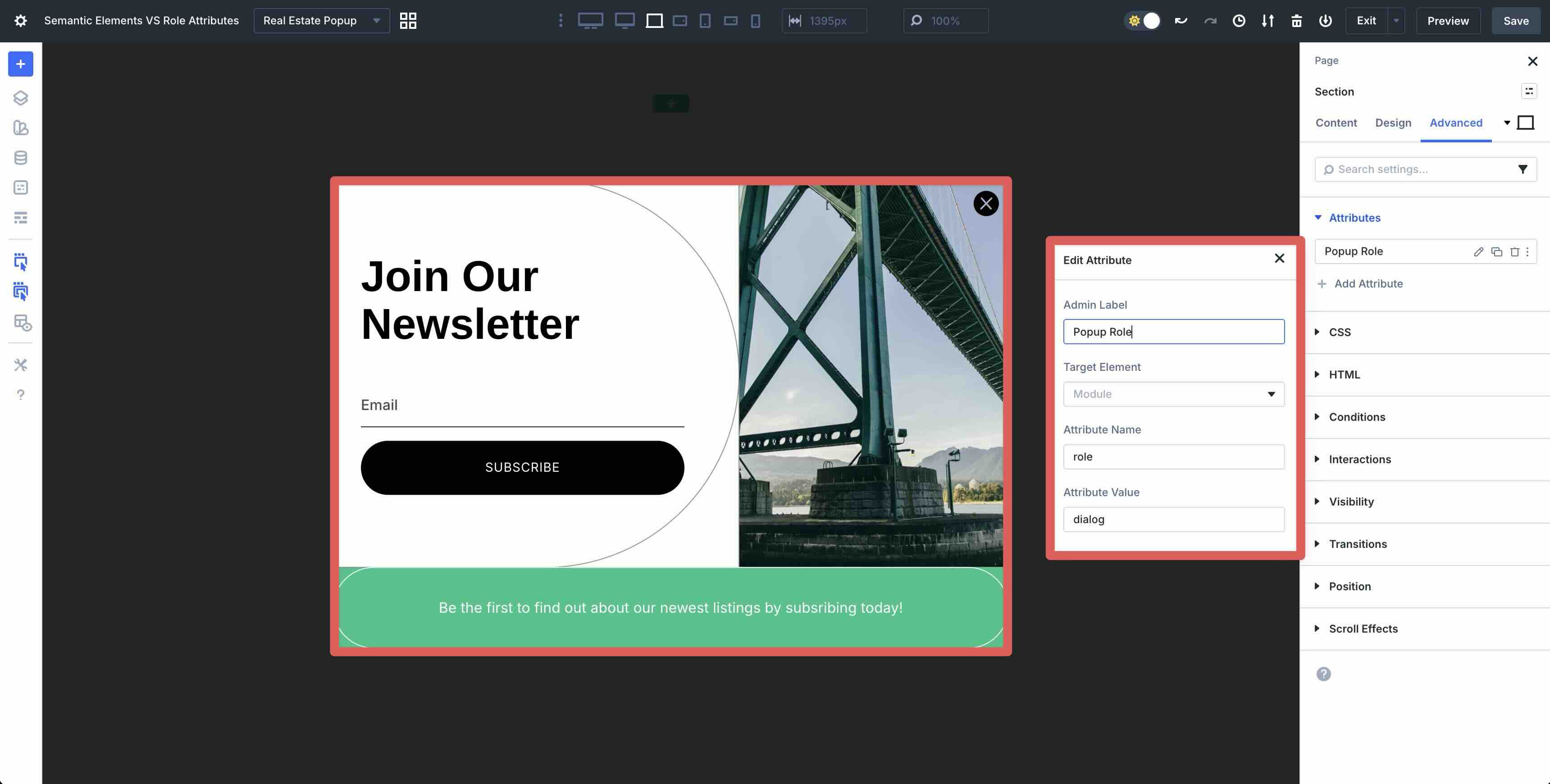
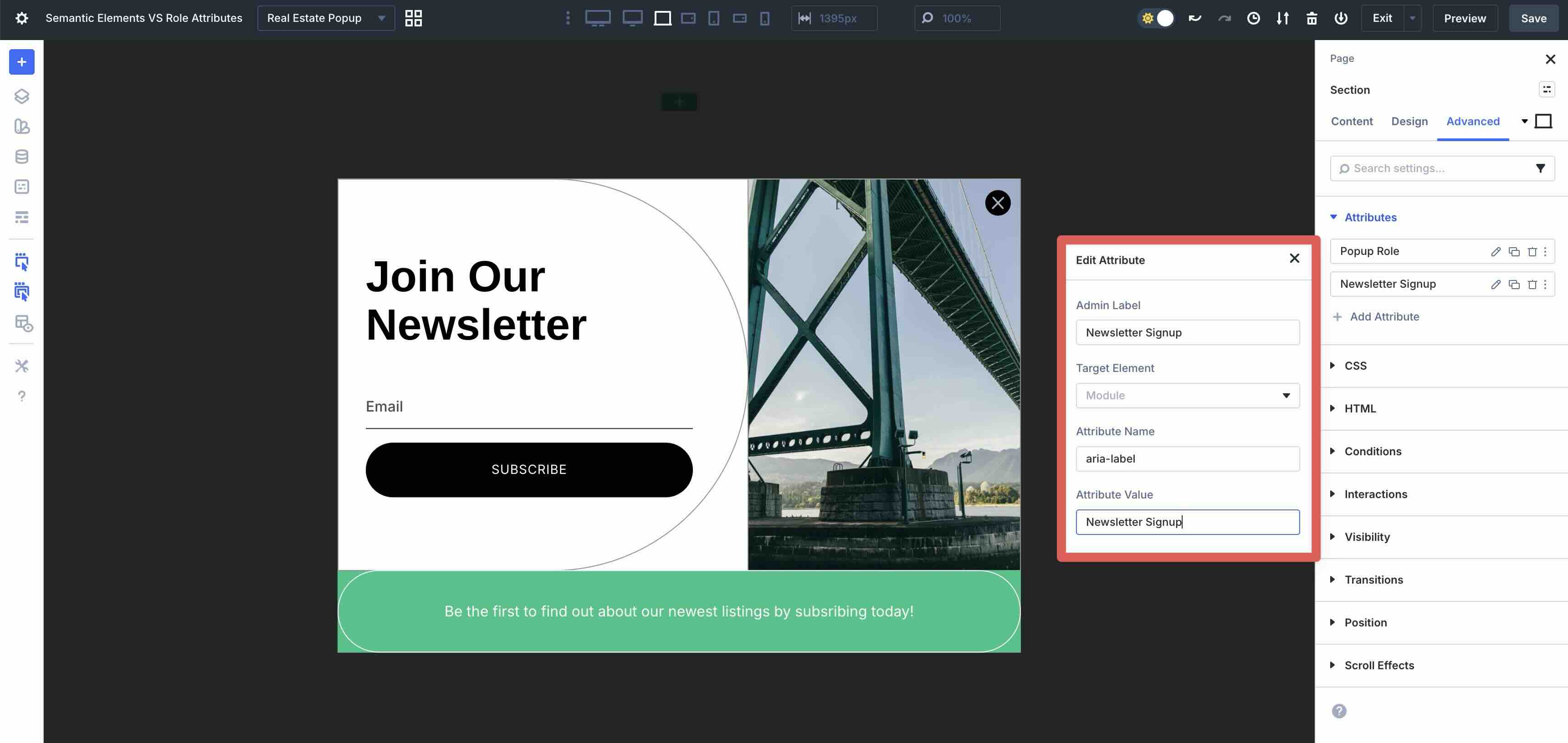
By adding role=”dialog” to the section, you tell assistive technologies that the region is a dialog. To make it more accessible, pair it with a label such as aria-label=”Newsletter Signup” or aria-labelledby. In a fully accessible modal pattern, you should also manage focus correctly and indicate modality where appropriate.
Defining List Intent
You can also use role attributes on the Icon List module to clarify its purpose in certain edge cases. Divi 5 typically outputs this module with native list semantics, which is the ideal setup.
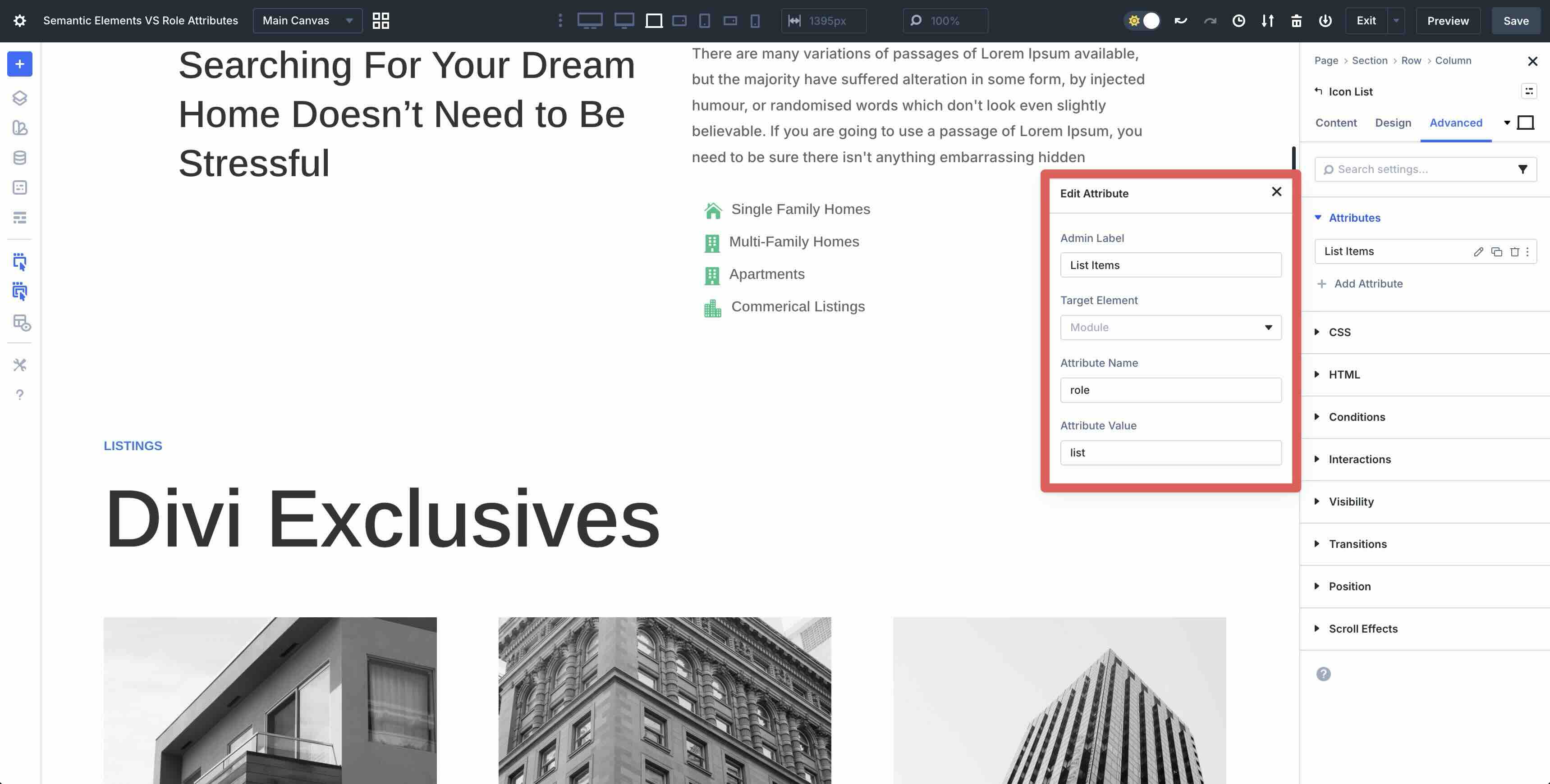
In some situations, custom styling can affect how lists are exposed to assistive technologies. Adding role=”list” can act as a fallback when native list semantics are weakened or not conveyed as expected. It shouldn’t replace proper list markup, but it can help reinforce intent when needed.
Semantic Elements vs Role Attributes
Both Semantic Elements and role attributes are useful tools in Divi 5 for creating more accessible, understandable websites. They share the same broad goal: improving how browsers, screen readers, and other tools interpret your page structure and content. Divi 5 makes both features easy to use directly in the Visual Builder.
Similarities
Semantic Elements and role attributes both improve accessibility and semantic meaning. They can help screen readers announce content more accurately, define landmarks that let users jump quickly to key page regions, and clarify the purpose of interactive elements.
Both approaches also align with modern web standards. Used correctly, they support better accessibility practices and make it easier to build sites with clearer structure and more maintainable markup.
Differences
The key distinction lies in how each approach delivers meaning: native and built-in versus descriptive and additive.
Native vs Additive
Semantic Elements use proper HTML tags that browsers and assistive technologies understand natively. The meaning is built into the tag itself. Role attributes, by contrast, add semantic meaning to an existing element without changing its underlying tag. That makes them useful when native tags aren’t available, aren’t practical, or need additional context.
Preferences And Best Practices
Web standards recommend using native semantic elements first whenever possible. A native tag usually provides stronger and more reliable semantics than an ARIA role added to a generic element. For example, changing a module to nav is preferable to adding role=”navigation” to a div. Fall back to role attributes when:
- The Element Type dropdown doesn’t offer the semantic tag you need.
- Changing the tag would break the layout, styling, or functionality.
- You need to describe dynamic or composite behavior, such as role=”dialog” for a modal.
- You’re targeting a sub-element, such as an icon inside a Blurb module.
Impact On SEO And Maintainability
Semantic Elements usually produce cleaner HTML, which can make page structure easier for search engines and developers to understand. Role attributes are primarily accessibility-focused. They don’t replace native structure, but they can improve usability when used carefully. From a maintenance perspective, native semantic tags are usually easier to reason about than a layer of added ARIA.
To help you better understand the differences, refer to the table below:
| Semantic Elements | Role Attributes | |
|---|---|---|
| Implementation | Change Element Type in HTML option group | Add via the Attributes panel |
| Type of Semantics | Native/Inherit (built into HTML5) | Additive/ARIA-described |
| Best For | Structural/page landmarks, static elements | Dynamic content, sub-elements, gaps |
| Accessibility Strength | Excellent (automatic landmark recognition) | Excellent when used correctly, but requires care |
| SEO Impact | Strong (cleaner, semantic HTML) | Indirect (accessibility helps indirectly) |
| Flexibility | Limited to supported HTML tags | Unlimited (any valid attribute/role) |
| Risk of misuse | Low (hard to overdo) | Higher (redundancy, conflicts possible) |
| Divi 5 Targeting | Whole module/element | Module + sub-elements, like an icon or title |
| Example Scenario | Menu as a nav tag | Decorative icon as aria-hidden or role="button" on non-button elements |
Best Practices
To get the most out of Semantic Elements and Custom Attributes in Divi 5, follow these best practices:
Use Semantic Elements First
In accessibility work, this aligns with the First Rule of ARIA: if you can use a native HTML element or attribute that already provides the semantics and behavior you need, use that instead of repurposing an element and adding ARIA. Native HTML gives the strongest, most reliable semantics because the meaning is built directly into the language.
Use ARIA Roles When Necessary
ARIA roles and attributes should be used only when necessary: when the Element Type dropdown doesn’t offer the right tag, when changing the tag would break your design or functionality, or when you need to describe dynamic states that native tags can’t handle alone. Following this hierarchy helps avoid common accessibility mistakes such as redundant roles, confusing announcements, or incomplete interactive patterns.
Keep Role Attributes Minimal
Avoid adding roles to elements that already have equivalent native semantics. For example, adding role=”navigation” to a nav tag is unnecessary and may trigger warnings from accessibility testing tools.
Test Regularly
Test with a real screen reader to hear how your site is announced in practice. It’s also helpful to run automated accessibility testing and inspect the rendered markup. If you use Divi add-ons, tools such as Accessibility Bundle may also help visualize structure during development.
Keep Performance And Maintainability In Mind
From a code quality standpoint, leaning on Semantic Elements tends to produce lighter, easier-to-maintain markup with fewer extra attributes. Custom Attributes add only what you specify, but overusing ARIA, adding conflicting roles, or stacking unnecessary attributes can make markup harder to understand and maintain. Aim for the cleanest possible structure: use native tags for the foundation, then add roles or ARIA only where genuine gaps exist.
Semantic Elements And Role Attributes: Better Together
In Divi 5, Semantic Elements and role attributes offer two complementary paths to stronger, more accessible web design.
Semantic Elements provide inherent structure by letting you assign native HTML tags directly to modules. This creates cleaner, self-explanatory markup that browsers, screen readers, and search engines understand automatically, making it the preferred foundation for structural and static content.
Role attributes, added through the Custom Attributes option group, provide flexible, additive enhancements. When native tags aren’t available, aren’t suitable, or can’t fully describe dynamic behavior, roles help fill those gaps without changing the underlying tag.
Try both features on an existing Divi 5 page and use them intentionally. Start with native semantic tags where possible, then add role and ARIA attributes only where they genuinely improve meaning, labeling, or behavior. That approach leads to cleaner code, better accessibility, and a more resilient site structure.













I was wondering how we can add a main tag to the main area, since the page might have multiple sections. I currently have two ideas but I’m not sure if there’s a better approach:
1. Add in the “HTML Before” of the first section, and in the last section.
2. Change div id et-main-area to main id et-main-area by JS.
The Theme Builder does add role=”main” to the body of your pages (what’s between your Theme Builder Header and Footer). While not the <main> element, it is valid. Make sure that you aren’t contradicting that role tag with a separate <main> element because you should only have one per page.
Thank you. What’s the best way to include the main element on pages with multiple sections?
Well, make sure that those pages don’t already have the role=”main” loaded, because if so, you shouldn’t also add a separate main element. So, there’s probably not a reason for you to need to add main yourself.