

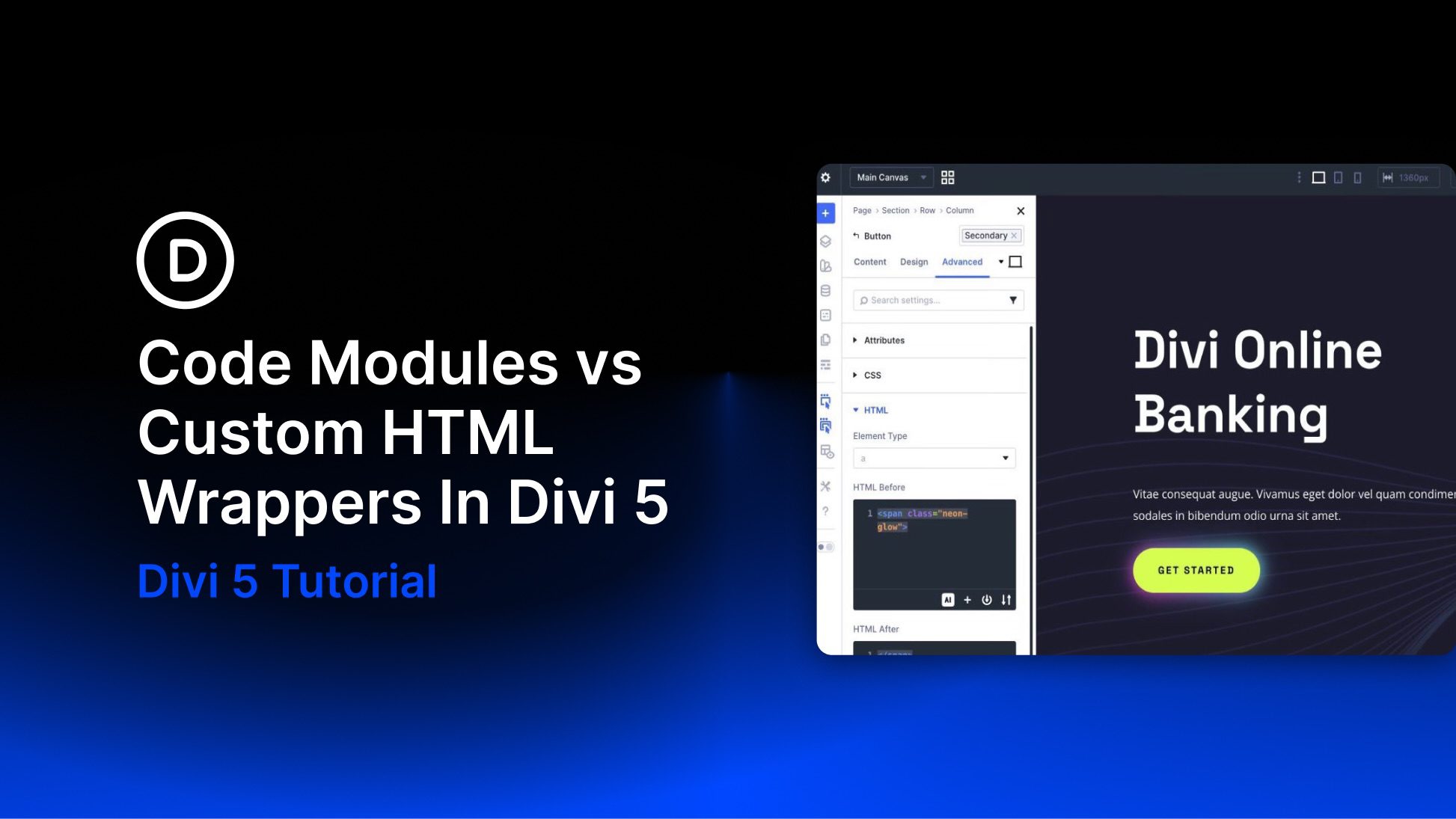
One of Divi 5‘s most practical newer features, Custom HTML Wrappers, adds two dedicated fields — HTML Before and HTML After — inside the HTML option group in the Advanced tab. These let you place custom HTML directly before or after an element’s output, putting code exactly where you want it. This expands on the traditional Code module, which still excels at standalone custom HTML, CSS, JavaScript, shortcodes, and third-party embeds.
In this post, we’ll compare the longstanding Code Module with Divi 5’s Custom HTML Wrappers. We’ll explain when to use each approach and highlight the key improvements wrappers bring: greater flexibility, cleaner markup, reduced layout bloat, and better performance potential.
Let’s dive in.
What Is The Code Module In Divi 5?
The Code Module has always been a reliable way to add custom code that standard modules couldn’t handle out of the box. It’s a dedicated Divi module designed for inserting raw code directly into your layouts.
At its core, the Code Module gives you a built-in code editor, making it easy to write HTML, CSS, and JavaScript right inside the Visual Builder. You can drop in full snippets of markup, shortcodes, CSS rules, or scripts without needing an external editor.
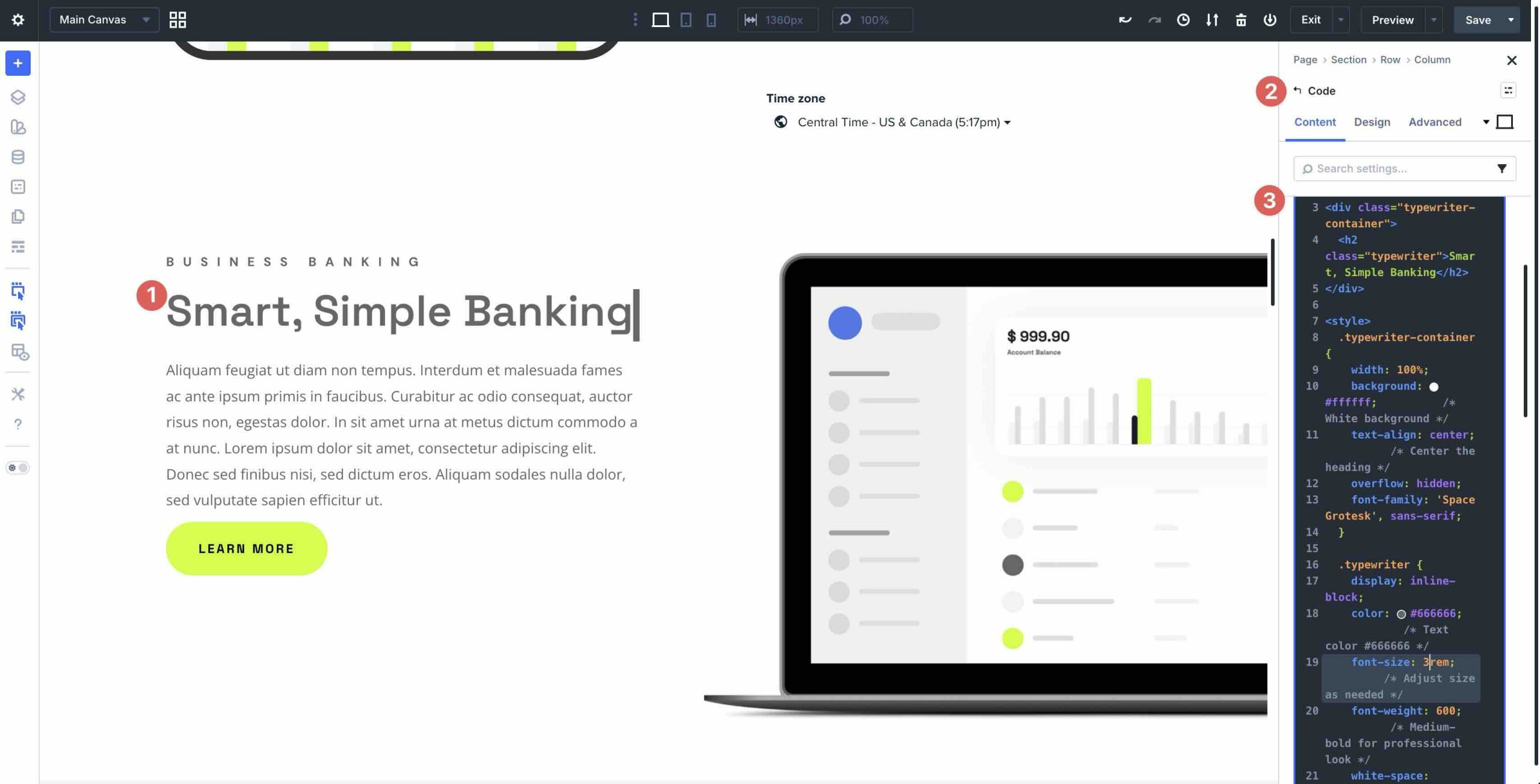
Because it’s a full Divi module, it also inherits design controls for background settings, text alignment, sizing, spacing, and more.
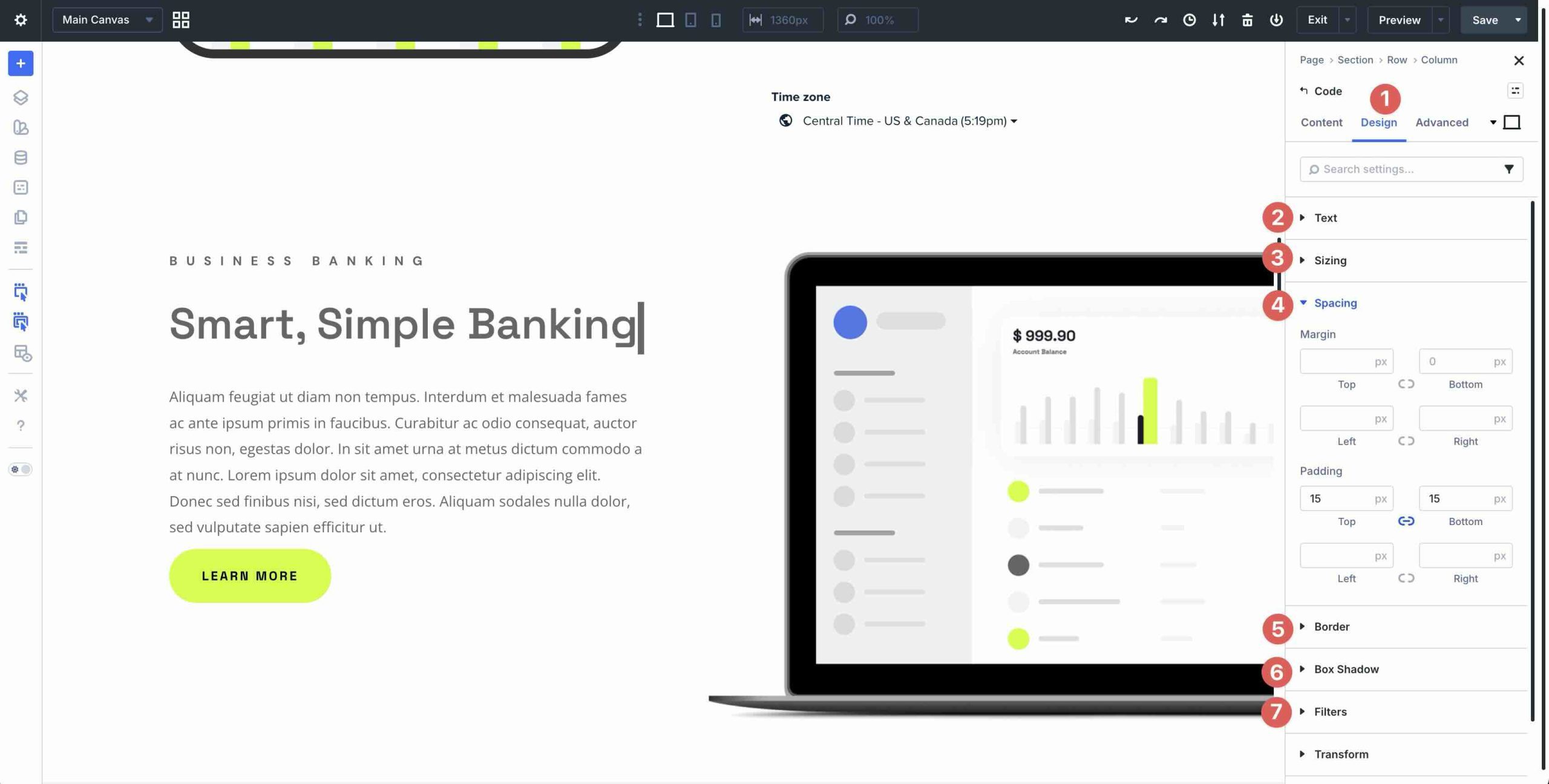
Key Features
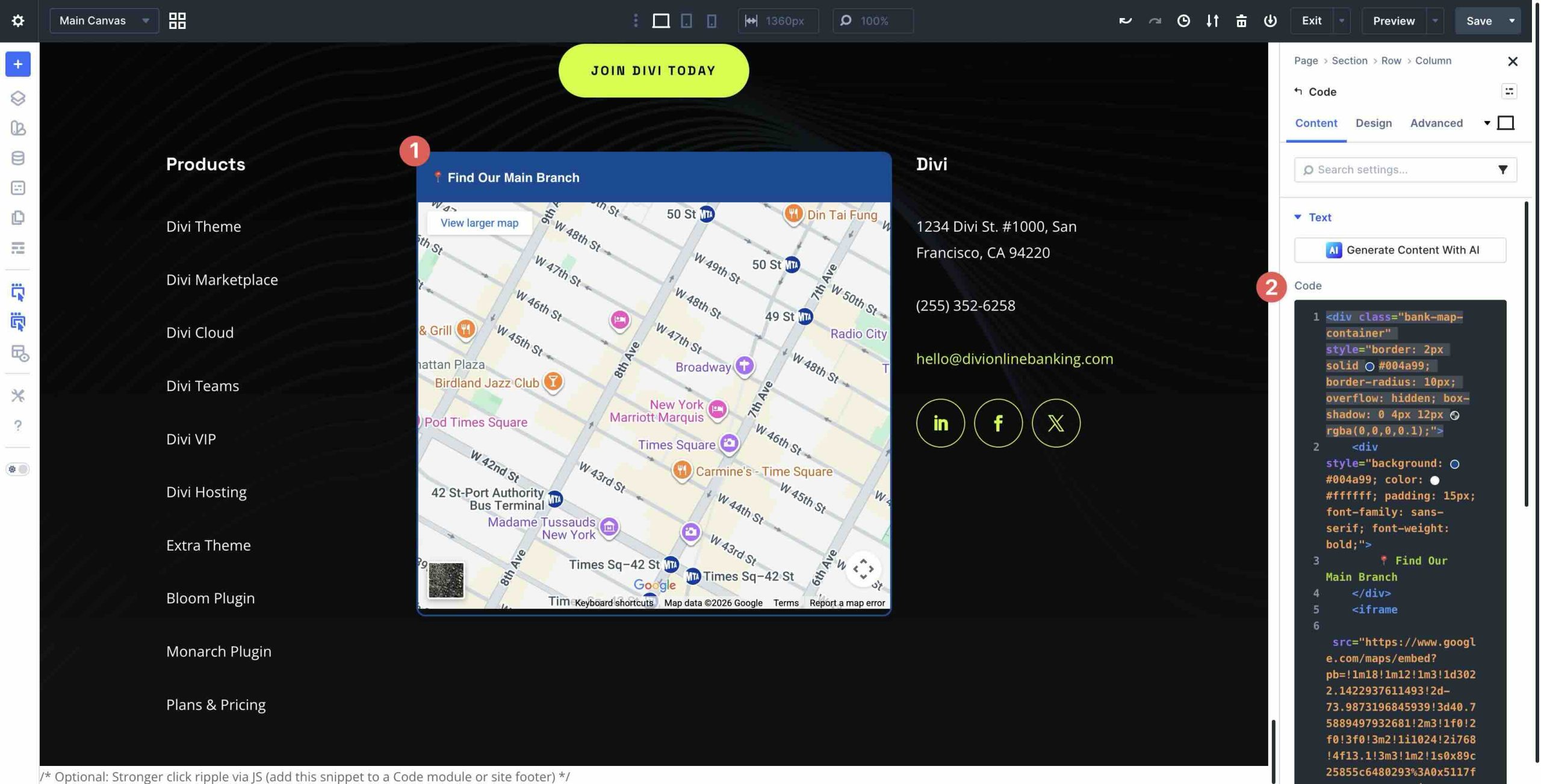
The Code Module is perfect for standalone third-party embeds and custom blocks, such as calendars, forms, maps, iframes, widgets, and more, so you can place them anywhere in your layout just like any other module.
It also works seamlessly with Divi AI. You can generate custom interactive components, effects, and functional snippets using simple text prompts. For example, you can describe a basic currency converter for a banking website in just a few words, and Divi AI can output the HTML, CSS, and JavaScript directly into the module.
This combination makes the Code Module a go-to choice for adding extra functionality to your Divi website. Whether you need a quick embed, a custom script, or a self-contained interactive feature, it remains one of the fastest ways to extend what Divi can do without leaving the builder.
Limitations
The Code Module has some limitations due to how Divi structures its elements. Because it’s treated as a completely separate block, it can’t directly wrap, precede, or follow other modules or elements without extra workarounds. With the Code Module, you can’t neatly add opening and closing tags around an existing Button, Image, or Section. It can’t reach those spots on its own, so you often end up adding extra structural elements, which can lead to layout bloat, more complicated styling, and maintenance headaches when you later tweak layouts.
There are some common use cases where the Code Module still shines, though:
- Isolated Content Sections: You can create custom content sections, like an interactive form, calculator, survey, or custom widget.
- Page-Specific Scripts: You can add global or page-specific scripts for analytics, tracking pixels, or lightweight interactions.
- Third-Party Embeds: The Code Module allows you to inject third-party embeds or standalone widgets, such as Calendly embeds, iframes, maps, or forms.
- Raw Code Output: You can output custom HTML, CSS, JavaScript, or shortcodes exactly where a self-contained block makes sense.
The Code Module is fantastic when you want a contained custom block that you can style and place anywhere. But for scenarios requiring precise, integrated code placement, it often forces compromises or creative hacks. That’s exactly where Divi 5’s newer HTML tools come in.
What Is Custom HTML In Divi 5?
Divi 5 introduces Custom HTML Wrappers as one of its most practical upgrades. This feature lives in the Advanced tab > HTML option group in every element’s settings and provides powerful markup control through two dedicated fields: HTML Before and HTML After.
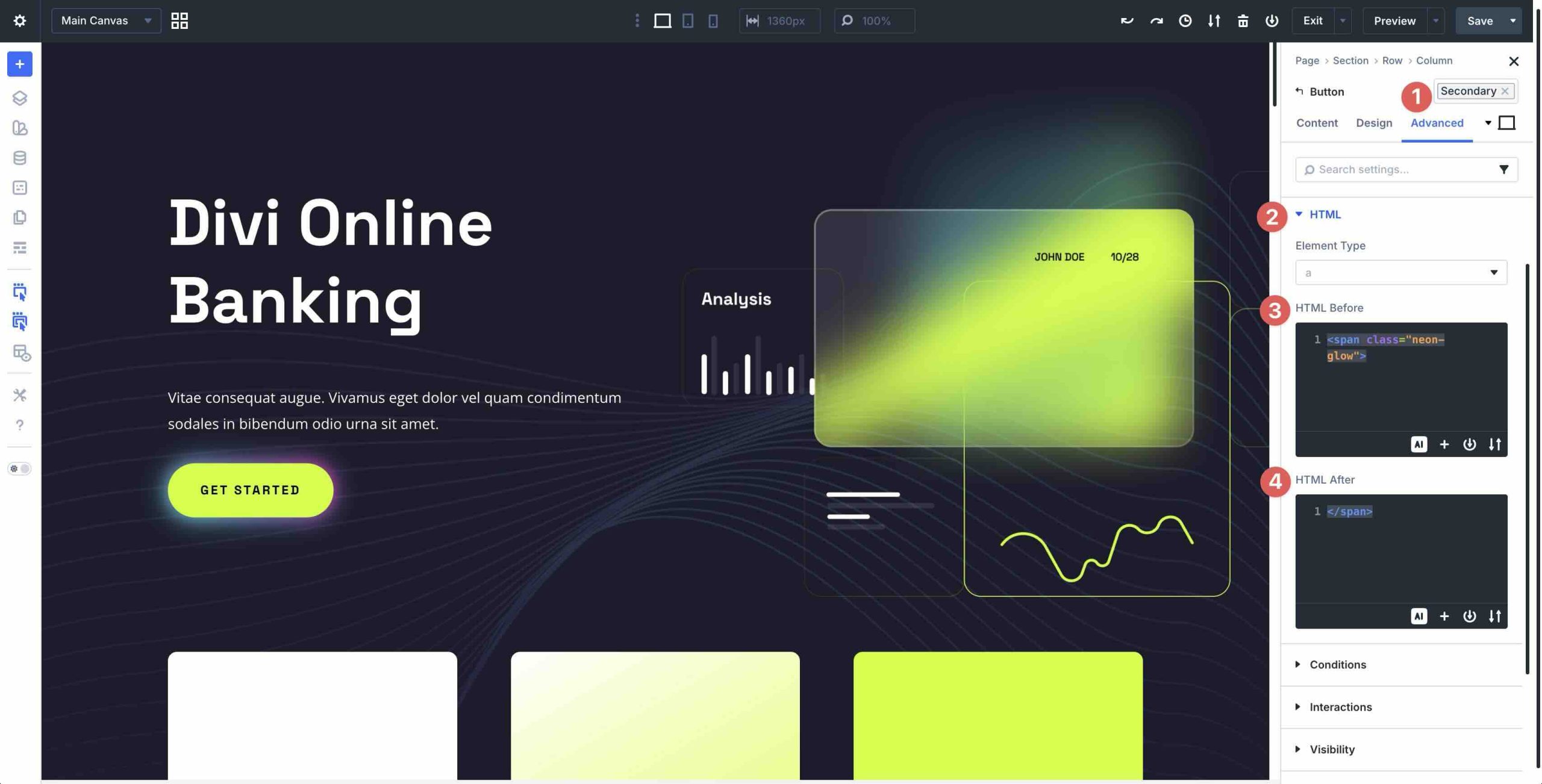
These fields allow you to insert valid custom HTML directly before and after an element’s output on the frontend. In practice, they function like built-in wrapper points attached directly to the element itself, something the traditional Code Module can’t achieve because of Divi’s modular separation.
Key Features
You can achieve true wrapping by opening a custom tag in one field and closing it in the other. For example, you might add <div class=”image-badge”> in the HTML Before field and the closing </div> tag in the HTML After field.
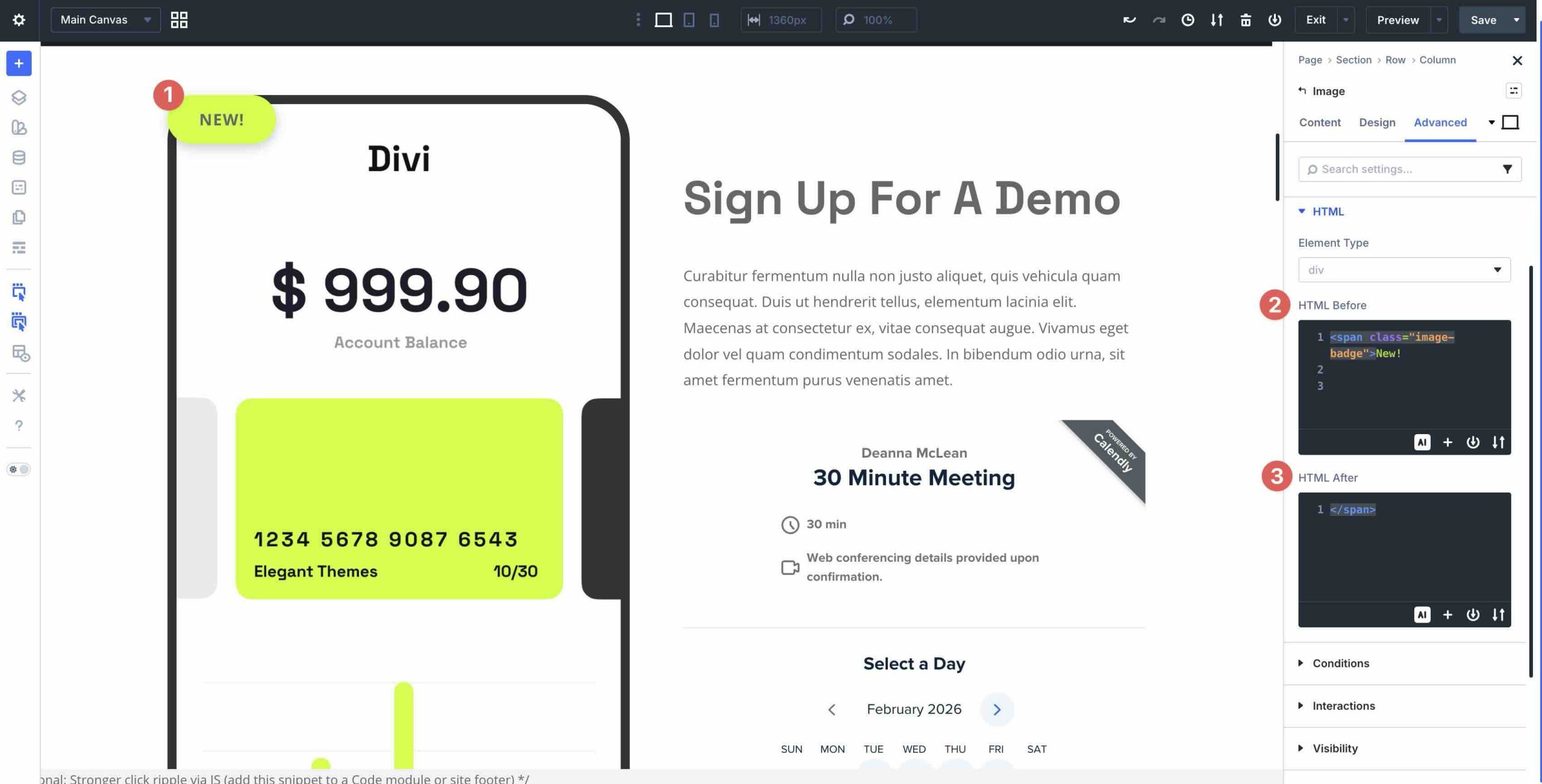
The result is a neatly enveloped module, such as an Image with a badge overlay, with corresponding CSS in the Page Settings Custom CSS field or Theme Options. You can also add attributes, micro-markup, helper elements such as badges, labels, or icons, and even lightweight supporting code where needed, right up against the element’s output in places a standalone Code Module can’t reach.
Key Benefits
With Custom HTML Wrappers, you get cleaner, more integrated HTML output with fewer unnecessary divs or extra modules, resulting in slimmer, more efficient page source code. The custom code can now interact with elements directly instead of being isolated in the layout, like it is with the Code Module. It delivers greater creative freedom without the usual hacks. You can build custom containers, add helper markup, improve targeting for CSS, or insert labels and icons, all from inside the Visual Builder.
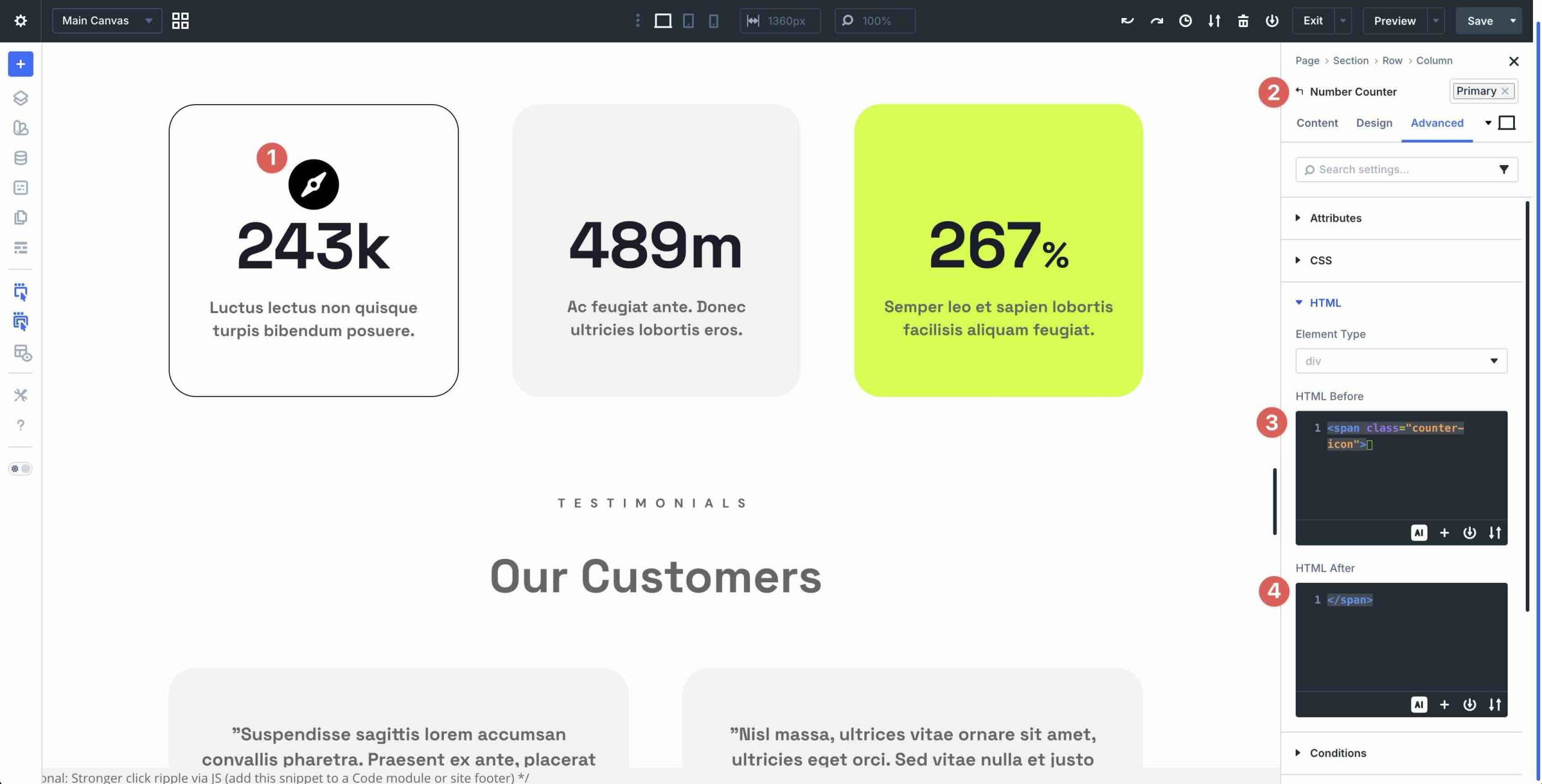
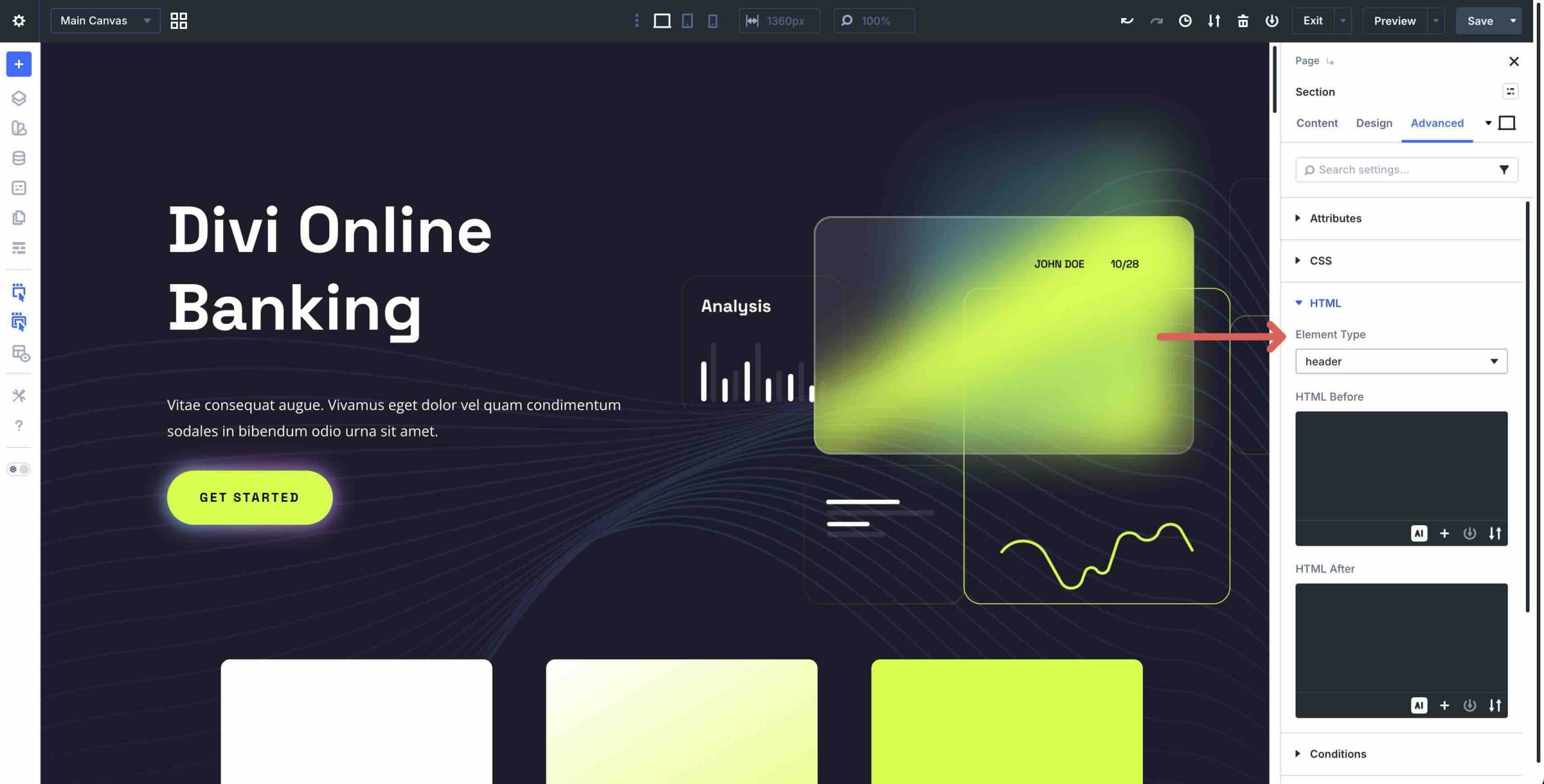
The HTML option group also includes the Element Type dropdown (Semantic Elements) for selecting semantic tags such as nav, section, article, or button, which is great for accessibility, document structure, and SEO.
Head To Head Comparison: Code Modules vs Custom HTML Wrappers
To make the differences crystal clear, here’s a side-by-side breakdown of the two features across the most important aspects for Divi users:
| Code Module | Custom HTML | Winner | |
|---|---|---|---|
| Placement & Scope | Standalone module | Attached directly to any existing module | Custom HTML |
| Wrapping Other Elements | Not possible | Yes - open and close tags around the target element | Custom HTML |
| Integration Level | Separate block, adds extra layers | Inline with module output, cleaner markup | Custom HTML |
| Access to Hidden Areas | Limited by Divi's block separation | Reaches spots a Code module can't | Custom HTML |
| Best for Standalone Code | Excellent for embeds, scripts, or full sctions | Less ideal (not a full independent block) | Code Module |
| Markup Cleanliness | Can introduce bloat/extra divs | Reduce layers, more semantic and optimized output | Custom HTML |
| Learning Curve | Beginner-friendly | Requires HTML knowledge for effective use | Code Module |
| Performance/Maintainability | More modules equals potential overload | Fewer modules, easier long-term benefits | Custom HTML |
The Code Module remains a powerful choice for self-contained elements, while Custom HTML Wrappers excel at targeted, integrated tweaks that address Divi’s previous structural limitations.
Practical Examples
Here are three practical examples to show the two in action:
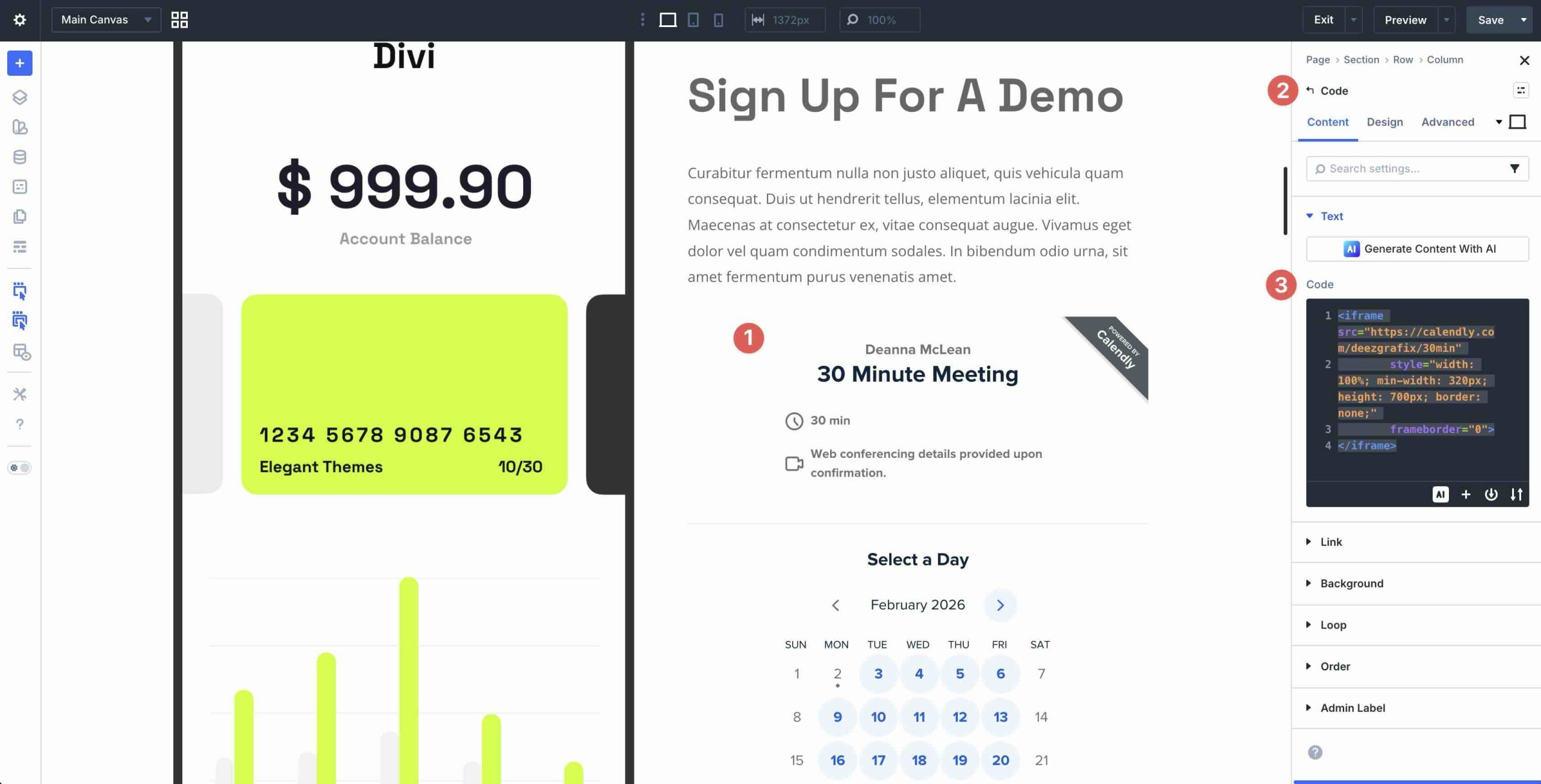
Adding A Standalone Embed For A Calendar Widget
This is a classic win for the Code Module. You drag it into your layout, paste the full embed code, style the container with Divi’s background, spacing, and shadow settings, and position it exactly where needed. No wrapping or integration with other modules is required. Using wrappers here would be overkill and less intuitive, since you’d have to attach them to an existing element while still handling the full embed logic.
Wrapping A Module Group In A Custom Container
Enclosing a Module Group in <div class=”feature-grid”> in the HTML Before field and a closing </div> tag in the HTML After field allows you to add custom styles to it. The entire Group is now wrapped cleanly without adding an extra Code Module.
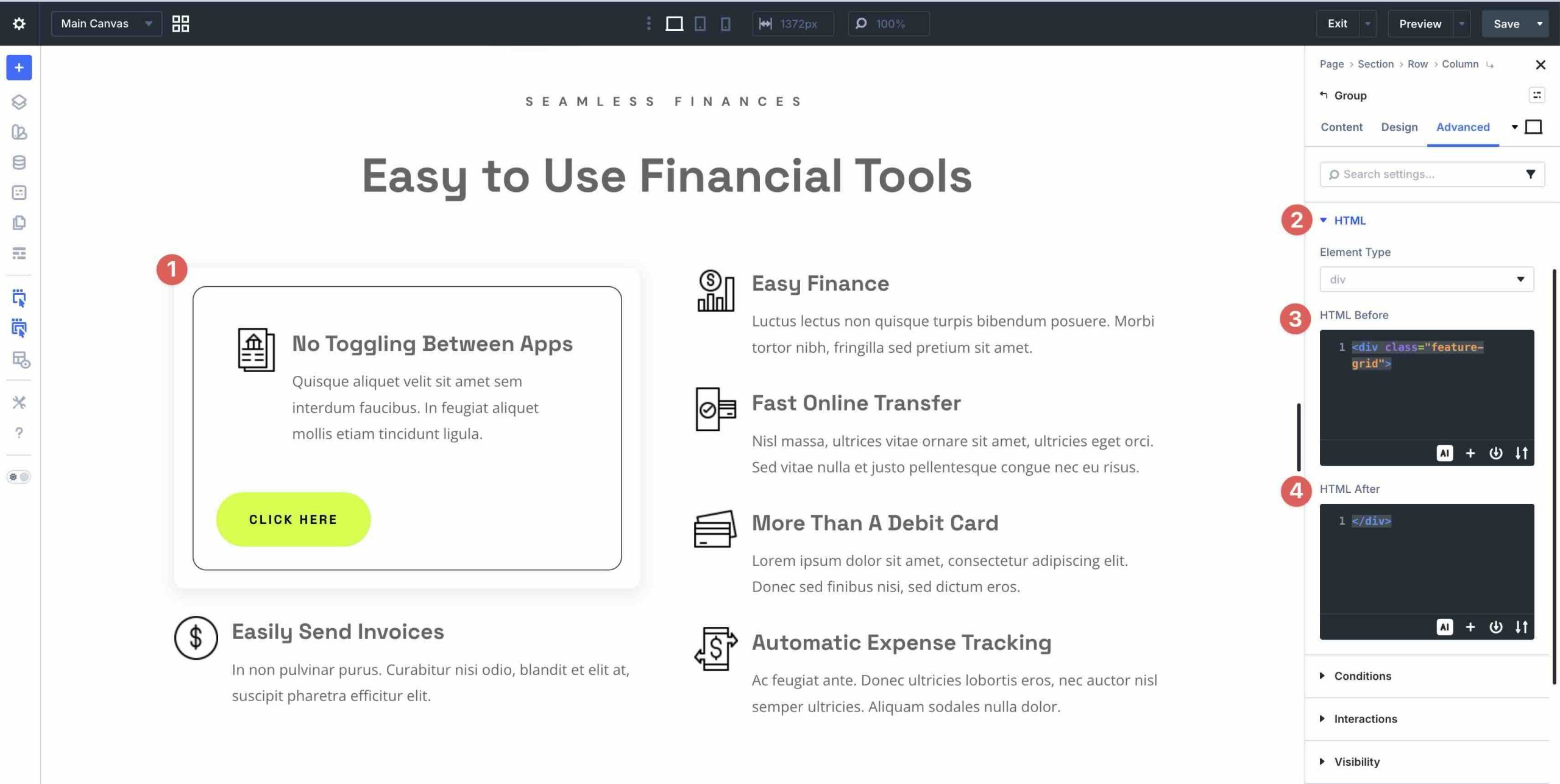
The result is no added bloat, better CSS targeting, and a more maintainable structure. Any associated CSS can be placed in the Page Settings Custom CSS field or in Theme Options.
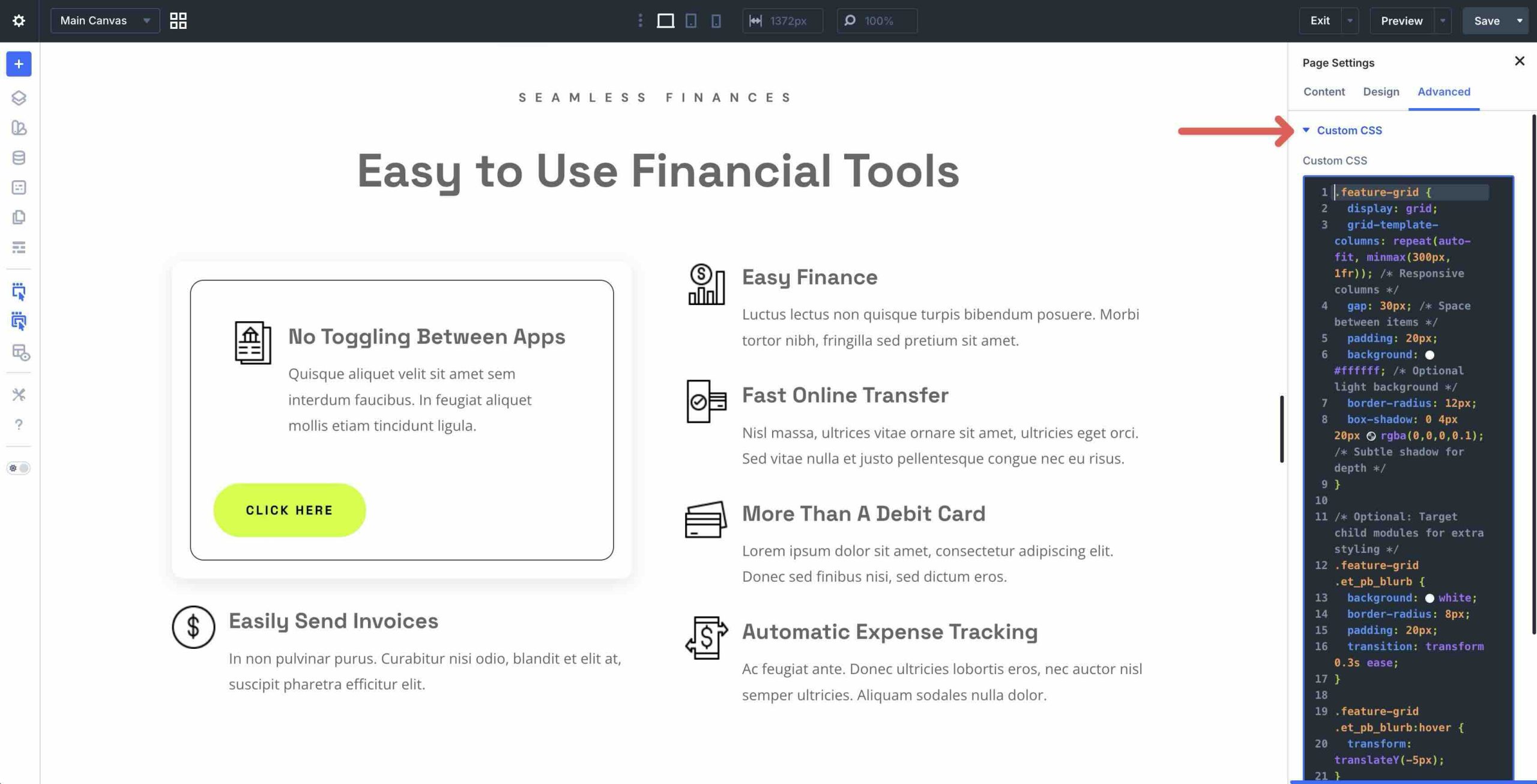
With the Code Module, you’d need workarounds like extra structural elements or duplicated markup, which are messier and more prone to breaking.
Inserting Opening And Closing Tags Around A Button
Adding <div class=”neon-glow”> in the HTML Before field and a closing </div> tag in the HTML After field on a Button Module creates a neon glow effect using Custom HTML Wrappers and CSS.
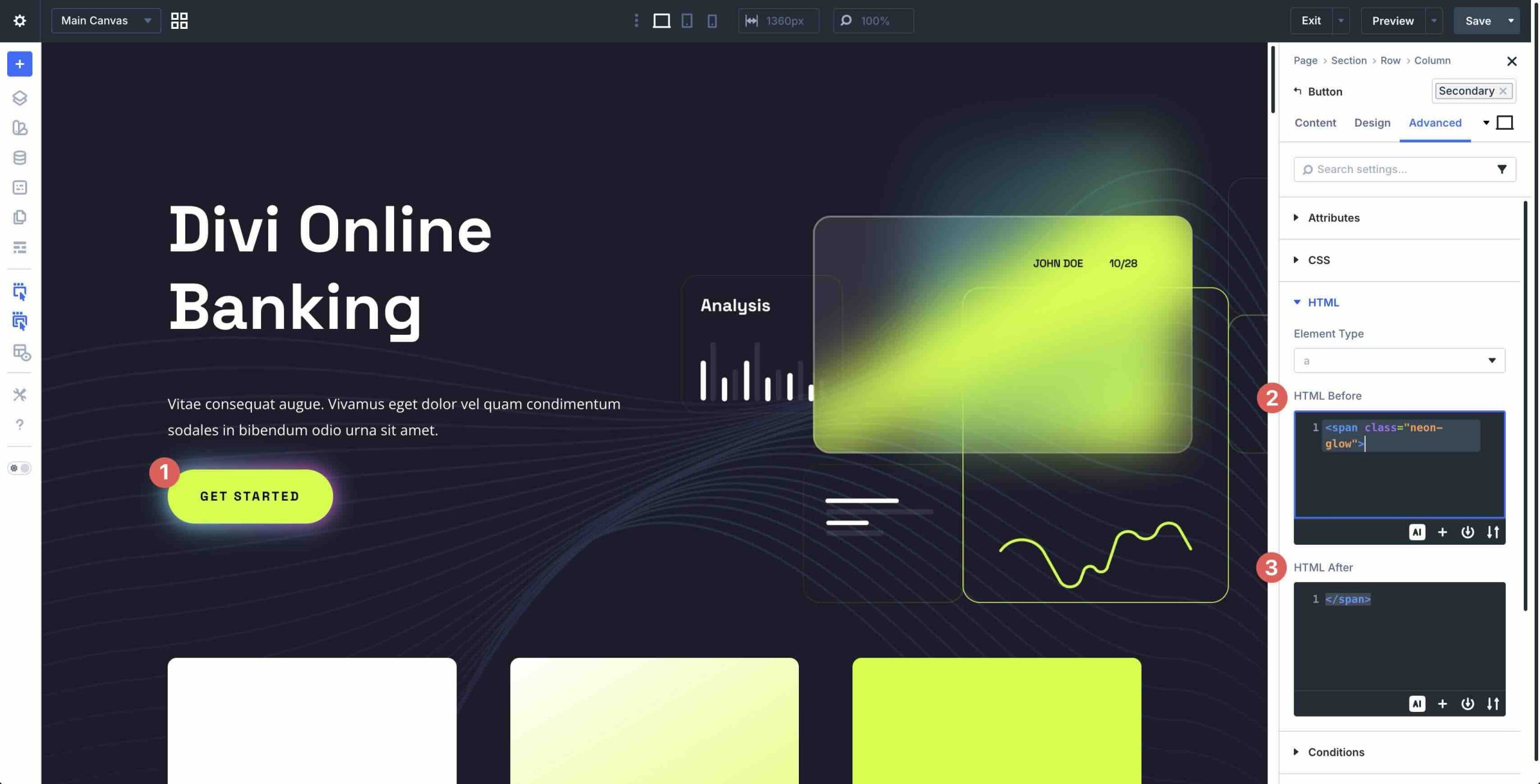
The tags hug the button’s output precisely, letting your CSS target the wrapper for effects like glows, gradients, overlays, or pseudo-elements.
A Code Module couldn’t do this without recreating the Button. Wrappers make it simple, clean, and native to the element.
These examples highlight the fact that the Code Module is your reliable go-to for isolated custom pieces, but Custom HTML Wrappers unlock deeper, more elegant control when you need code to work with Divi’s existing structure rather than alongside it.
When To Use Each Approach
Now that we’ve covered what each feature does and how they compare head-to-head, the big question is which one should you reach for in your next project. The short answer is that both have their place. The important thing to remember is that Divi 5 doesn’t replace the Code Module. Instead, it complements it with a more precise alternative for certain jobs.
When To Use The Code Module
Use the Code Module when you need an independent, self-contained custom code block that stands on its own within the layout, or when you’re embedding external content or scripts that don’t require any direct tie-in to surrounding modules.
The Code Module excels in these scenarios because it’s beginner-friendly, uses Divi’s design settings, and doesn’t force you to worry about HTML structure or matching opening and closing tags. It remains the fastest, most straightforward option for quickly adding isolated elements, such as Calendly scheduler embeds, third-party widgets, or custom JavaScript snippets that operate independently without interacting with other parts of the page.
When To Use Custom HTML Wrappers
Use Custom HTML Wrappers when you need to wrap, prefix, or suffix existing modules. For example, adding helper markup around a Button module to create advanced effects like glows. They also make the most sense when you’re aiming for cleaner HTML output, reduced layout bloat, or code injections in spots that a standalone Code Module can’t reach.
Wrappers shine in these cases because they attach directly to the element itself, producing slimmer, more integrated frontend output and eliminating the need for workarounds like hidden divs, duplicated structure, or extra layout layers. They’re especially valuable for developers and advanced users who prioritize tight integration, maintainable code, and optimized performance when building complex layouts.
Benefits And Best Practices
Switching to Divi 5’s Custom HTML Wrappers brings noticeable upgrades for anyone who’s spent time wrestling with code.
The biggest benefits are:
- Cleaner Code And Fewer Layout Workarounds: By attaching code directly to elements, wrappers eliminate the need for extra modules or hidden divs that bloat your page source code. The result is slimmer page markup with less nesting, making your HTML easier to read, target, and debug.
- Better Performance Potential: Reduced structural layers result in lighter Document Object Model trees, which can improve rendering efficiency, especially on complex pages with many modules. Fewer unnecessary elements can also help keep layouts easier to maintain over time.
- More Maintainable Sites: Changes are localized to the exact module you need, so updates are quicker and less likely to break other parts of the layout. This is a huge step toward professional, scalable Divi websites.
Of course, no tool is perfect. Custom HTML Wrappers do require a solid understanding of HTML. Keep in mind that mismatched opening and closing tags can break your page layout or cause rendering issues that are tricky to spot in the Visual Builder. Beginners might find them intimidating at first compared to the Code Module, which remains the easier, faster choice for quick tasks.
Best Practices To Get The Most Out Of Wrappers
- Validate Your HTML: Always check that opening tags in HTML Before match closing tags in HTML After. Use browser dev tools or an online validator to catch errors early.
- Test For Accessibility And SEO Impact: Custom wrappers can enhance semantics when paired thoughtfully, but mismatched tags can confuse screen readers and weaken structure. Run pages through tools like Google Lighthouse or WAVE to ensure no regressions in accessibility scores or landmark structure.
- Start Small: Begin with simple tests on a single module before tackling complex wraps. Preview on the frontend often because some effects may look different in the Visual Builder versus the live site.
- Keep It Lightweight: Reserve wrappers for precise injections or structural tweaks. Save heavier embeds or full scripts for the Code Module to avoid overloading the fields.
By following these habits, you’ll harness Divi’s Custom HTML Wrappers while minimizing risks. The result is cleaner, faster, and more professional Divi 5 websites.
Start Building In Divi 5 Today!
Divi 5‘s Custom HTML Wrappers change how we control page markup inside the Visual Builder. By letting you inject precise HTML before and after any module, these fields enable true wrappers, targeted markup, and fewer layout hacks. On the other hand, the Code Module isn’t going anywhere. It remains the ideal choice for isolated embeds, standalone scripts, third-party widgets, or any self-contained custom block that benefits from Divi’s full design controls.
Together, these tools provide simplicity for quick tasks and surgical precision for advanced, maintainable builds. The result is slimmer code, better performance potential, easier debugging, and more professional Divi sites overall.
We encourage you to download Divi 5 today, open a test page, and experiment with the HTML Before and After fields on a few modules. See how they transform your workflows, then share your favorite use cases in the comments below.











Leave A Reply