


Divi 5 makes it simple to build timelines that are clear, flexible, and easy to reuse. In this free pack, you’ll get 11 unstyled Timeline Sections — each focused on clean structure so you can plug in your own design system, presets, and branding. Drop one onto any page, connect it to your styles, and start telling your story. No extra setup required.
Preview
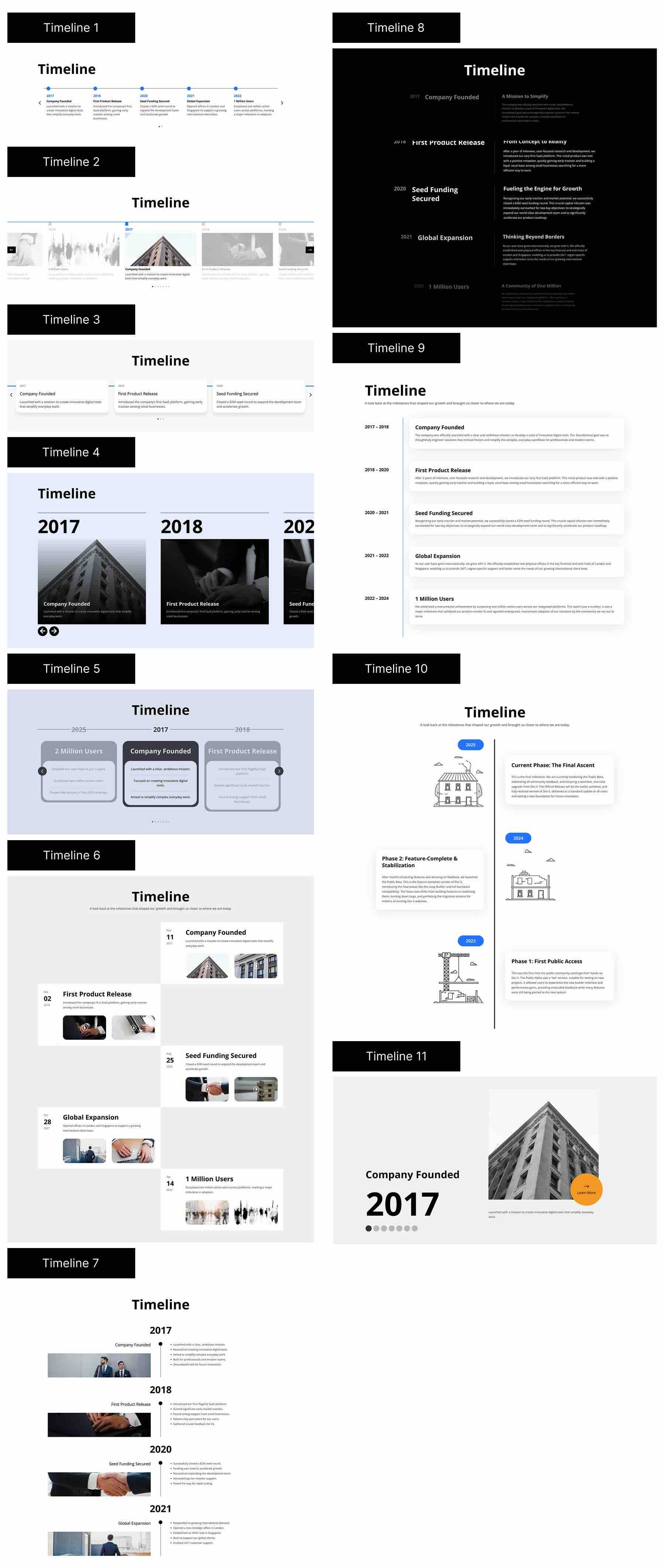
Here’s a quick look at all 11 Timeline Sections included in the pack. The download is further down the post.
Subscribe To Our Youtube Channel
Download 11 Unstyled Timeline Sections For Divi 5
Get all 11 sections for free. Import them into your Divi Library and add them to any page in the Visual Builder.

What’s Included (11 Exports)
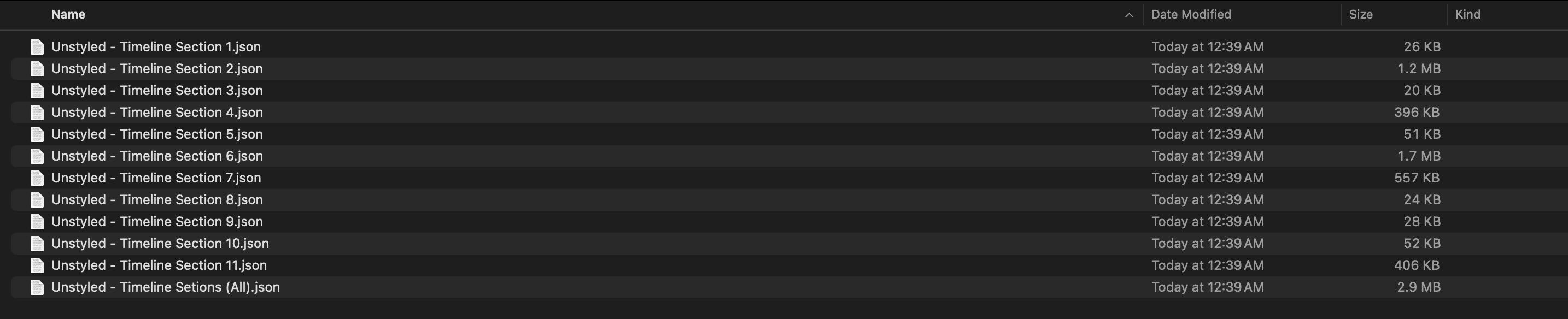
After you download and unzip the file, you’ll find 11 Timeline Section exports.
Unstyled — Individual Timelines (11) → Clean structural layouts with minimal styling, ready for your own presets and Design Variables.
Perfect starting points for project roadmaps, process overviews, product journeys, and launch timelines.
How To Use The Timeline Sections
Keep your download folder handy — we’ll import, then add a section to a page.
1. Import Sections Into The Divi Library
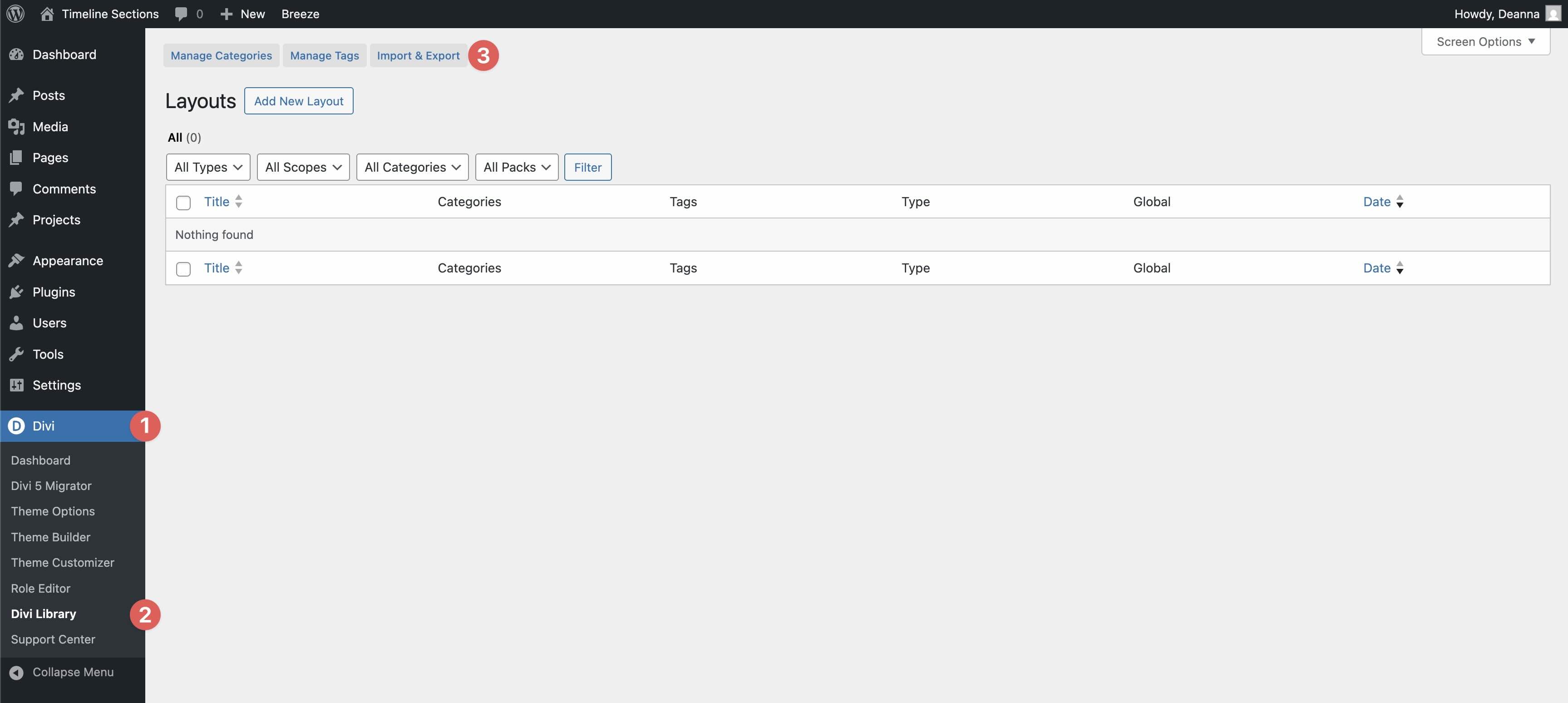
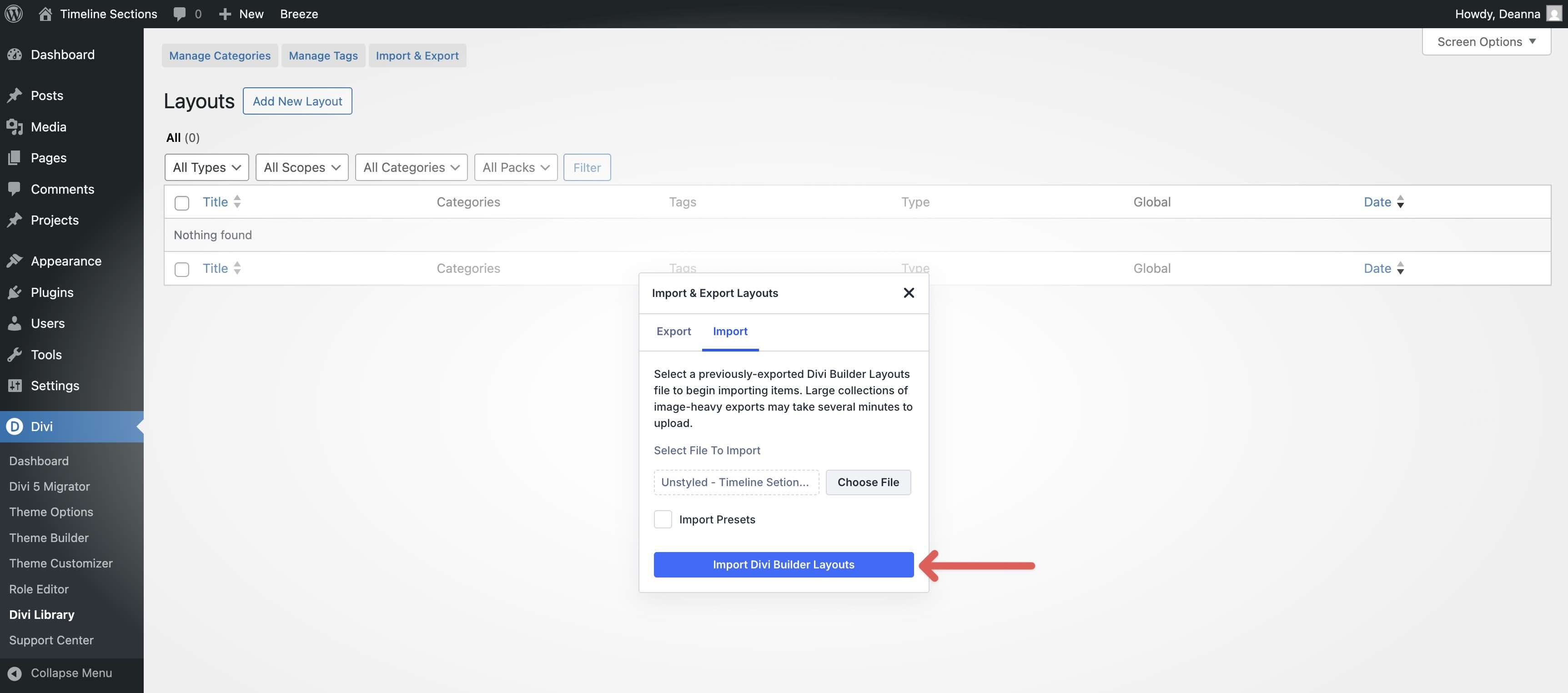
Go to Divi → Divi Library. Click Import & Export at the top of your screen.
In the Import & Export Layouts modal, switch to the Import tab, then click Choose File and select your JSON.
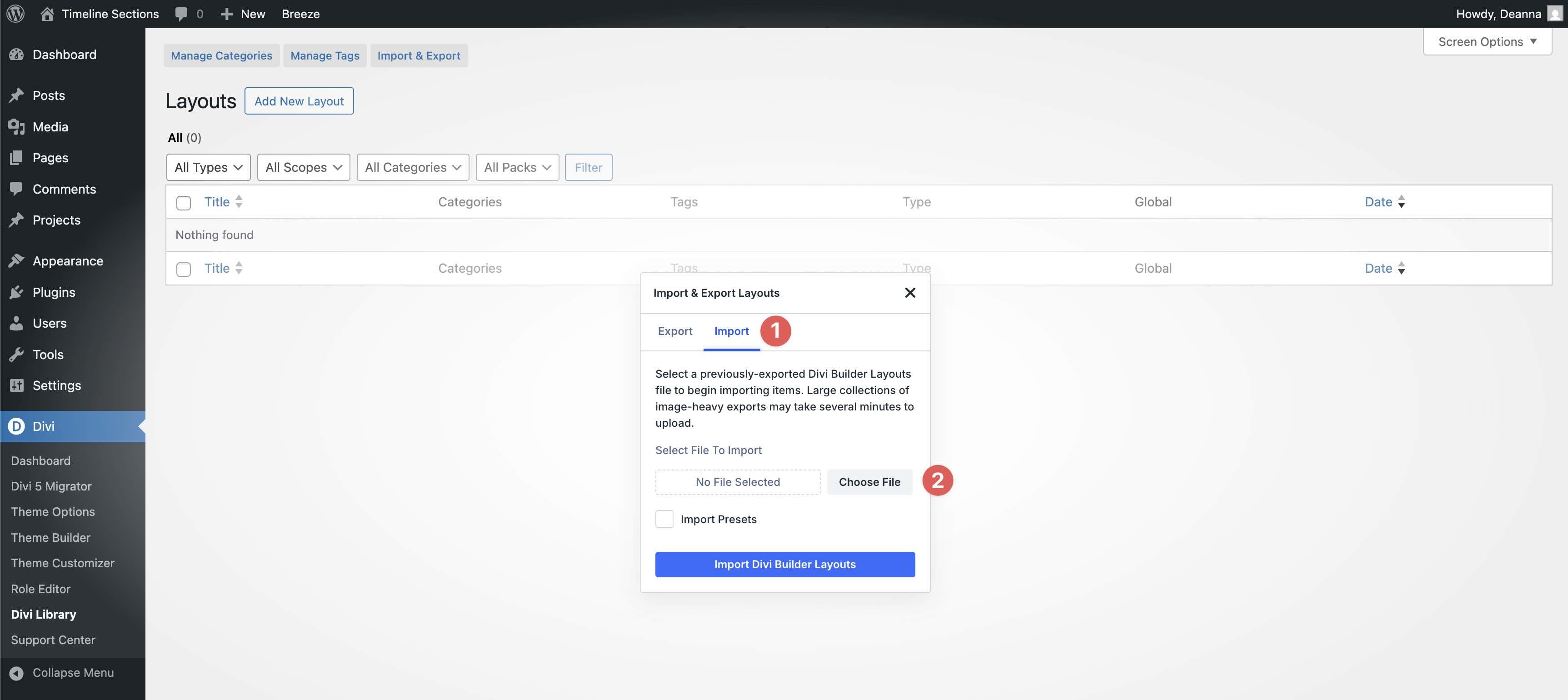
Choose any Timeline layout JSON you want to use, then click Import Divi Builder Layouts.
2. Add A Timeline Section To Any Page
Open a page in the Visual Builder and add a new Section.
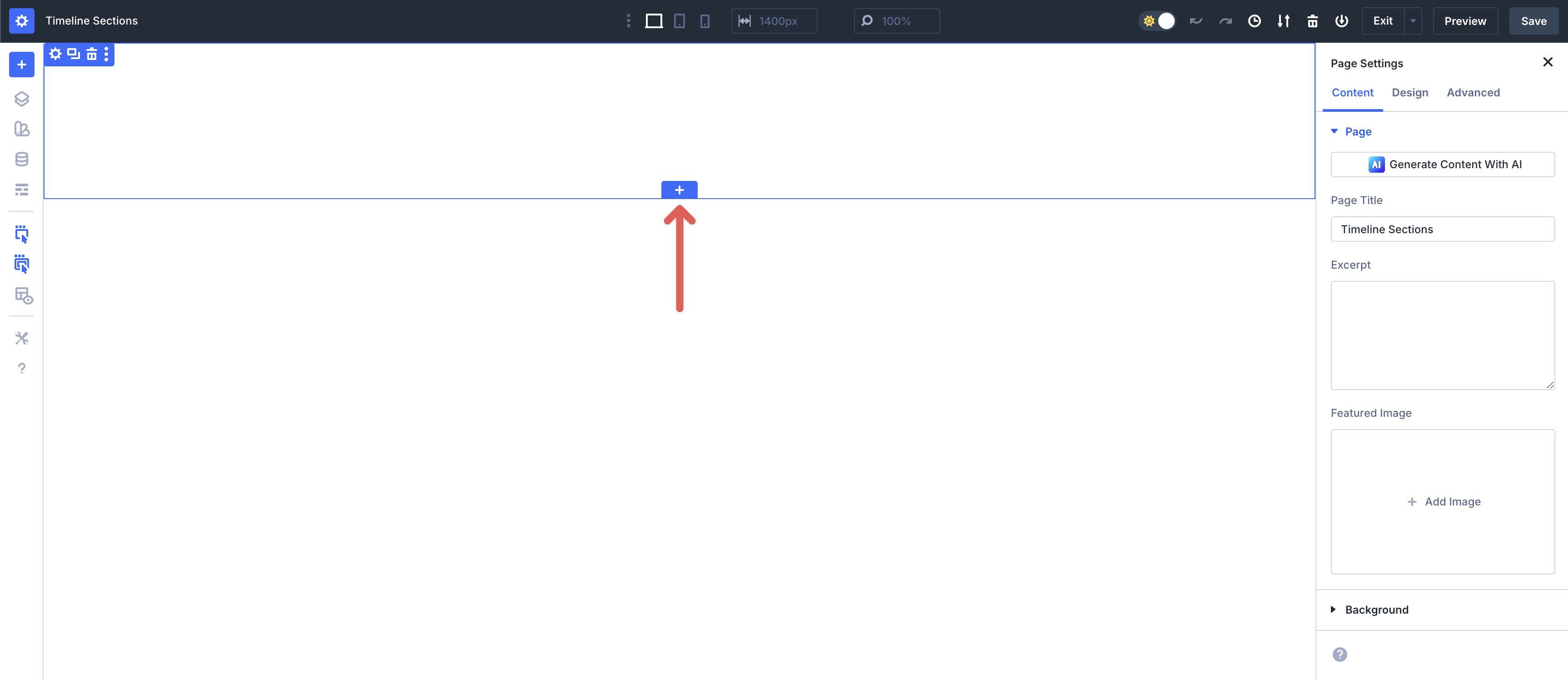
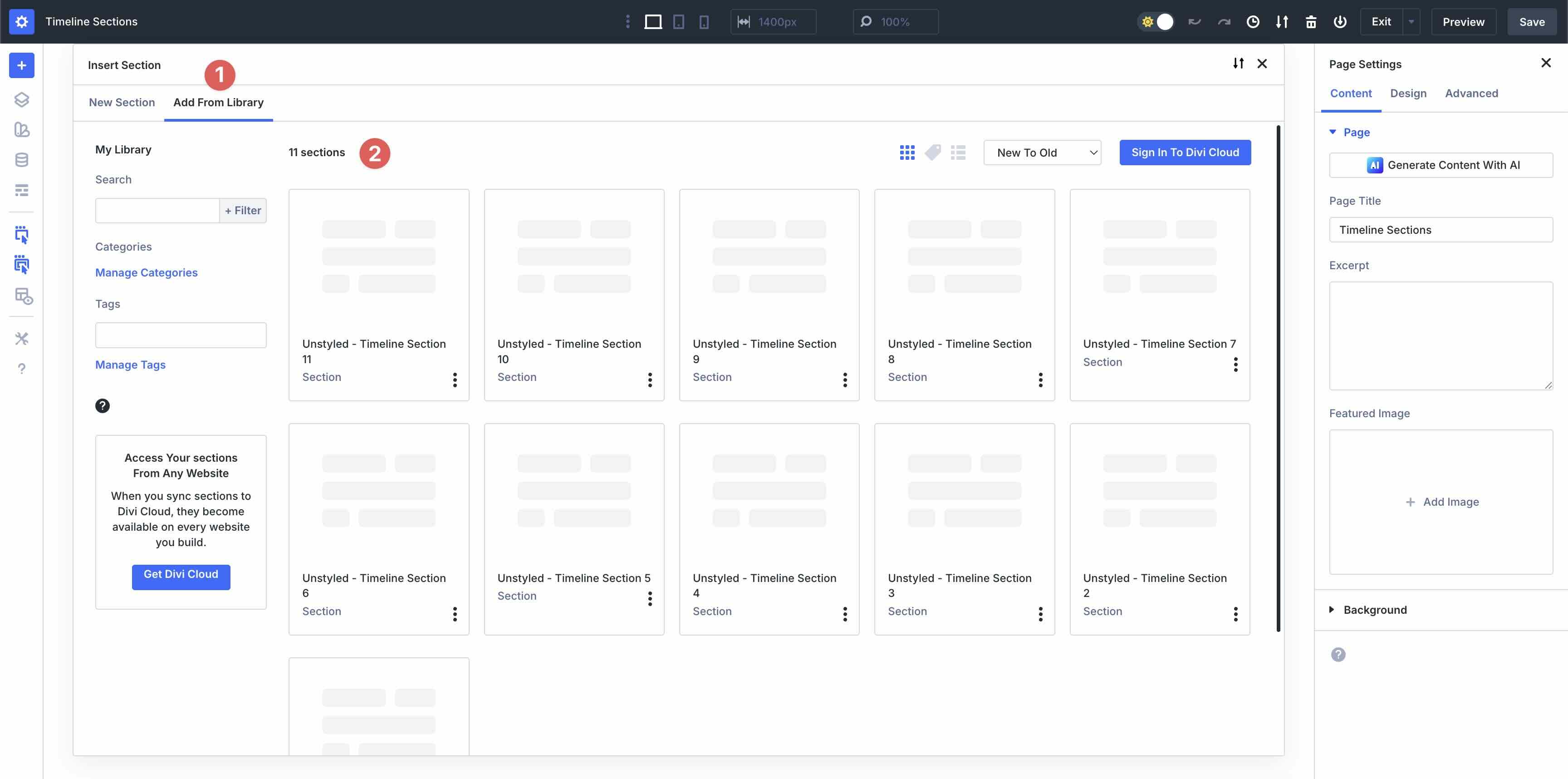
In the Insert Section modal, click Add From Library and select a Timeline layout.
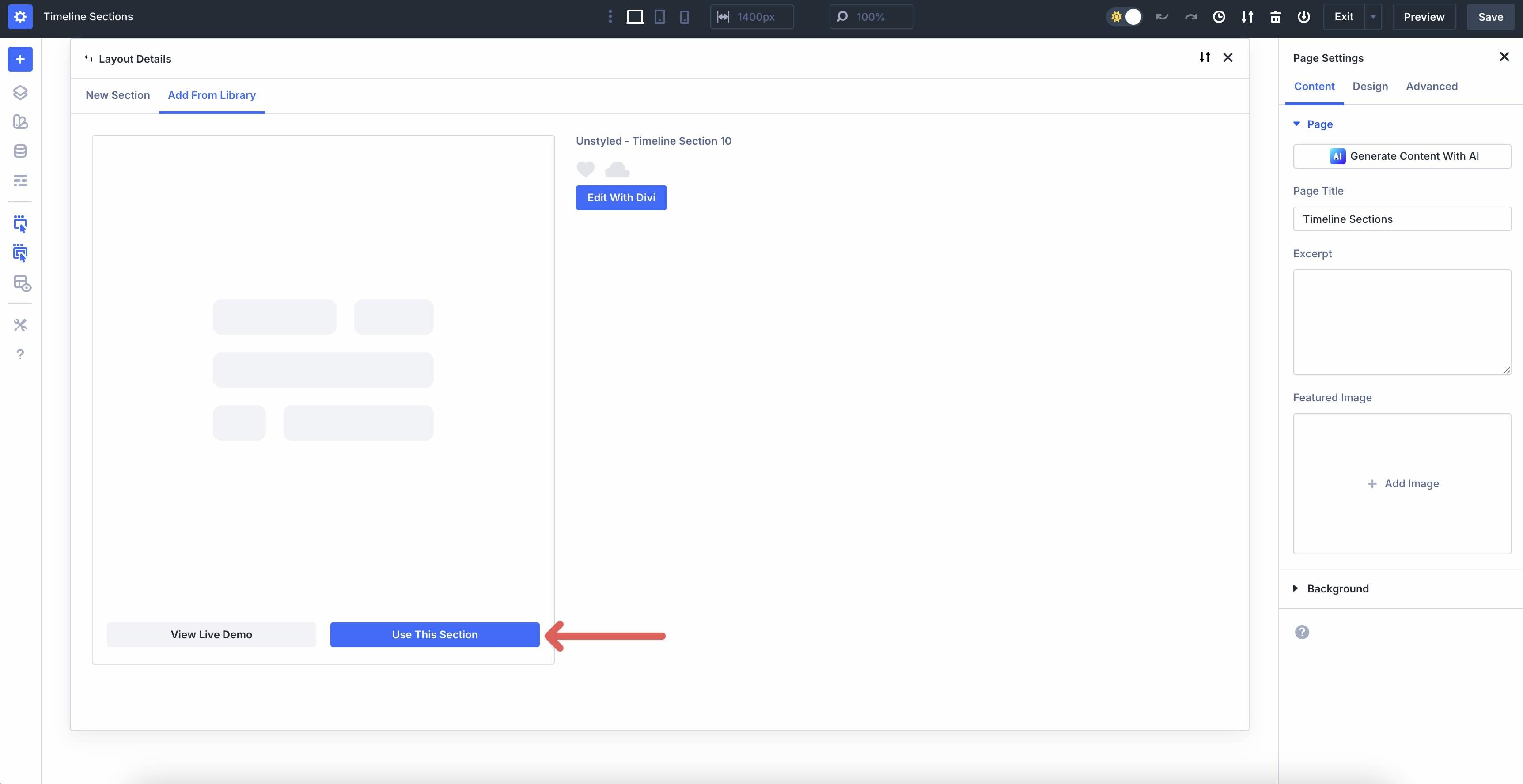
Finally, click Use This Section.
3. Swap The Content
Replace dates, headings, descriptions, and CTAs to match your project or story. These layouts utilize core Divi modules (Text, Image, Icon, Button, etc.), making edits straightforward. Use the right-click menu to copy/paste styles if you’re matching other parts of the page.
With these Timeline layouts, Divi 5 makes it easy to swap content and reorder steps. Open any step’s Module Settings to edit its content.
If a step includes an image or icon, you can navigate through the structure — for example: Section → Row → Column → Module — and update the Image options.
Click the Image tab, hover over the Settings Icon, and replace the image with one of your choosing.
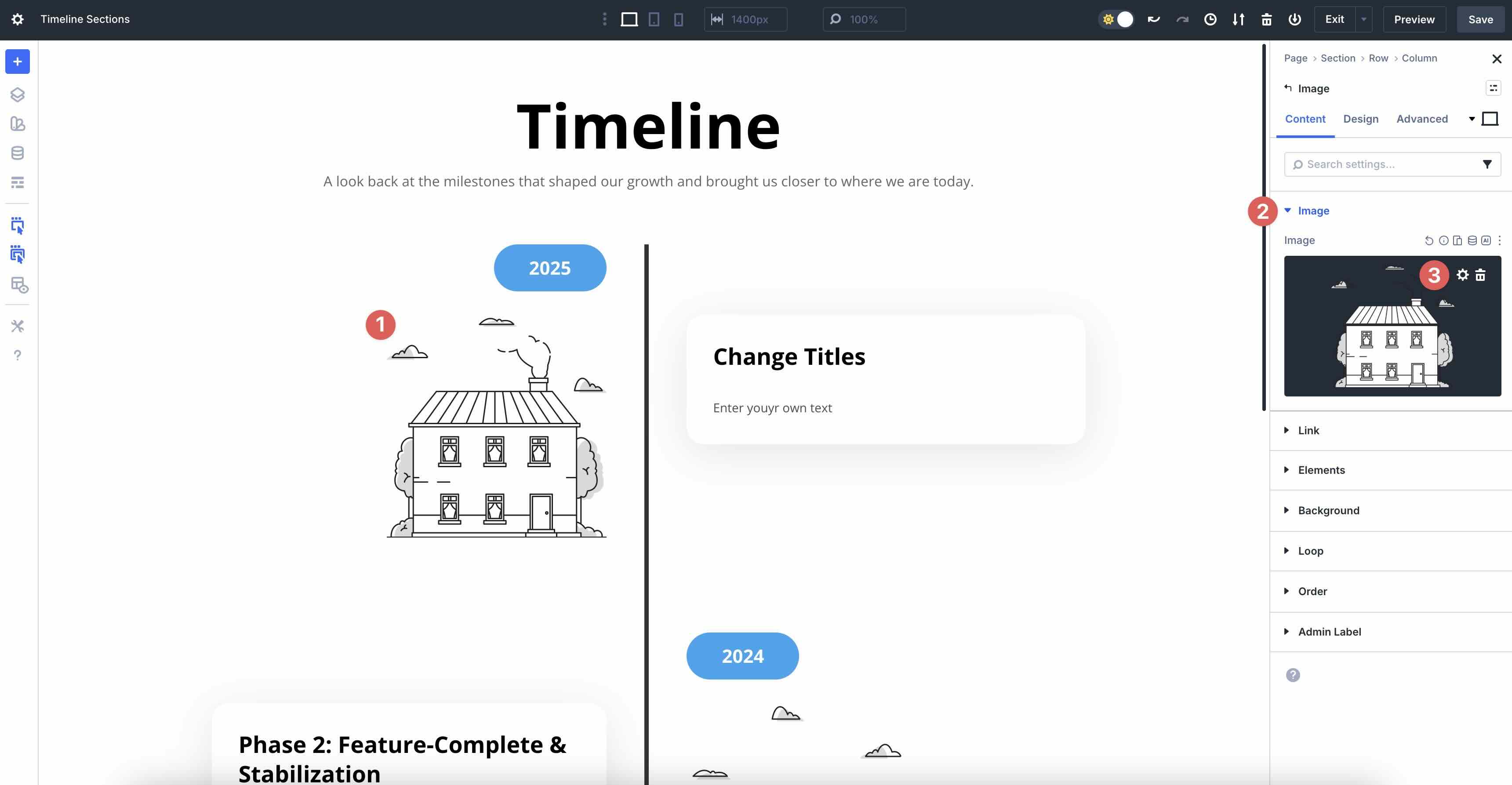
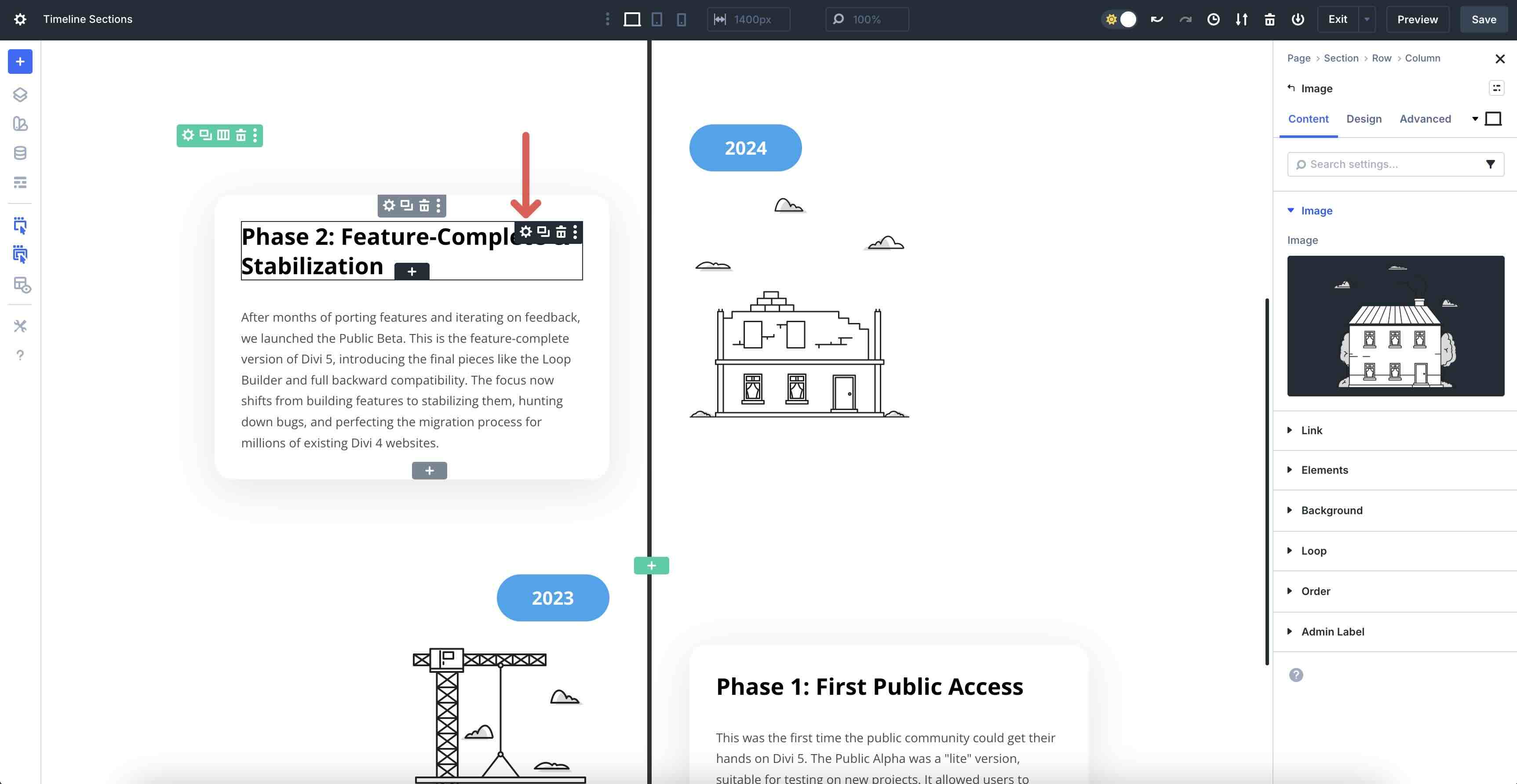
To replace text, hover over the relevant Module in the canvas to reveal the Module’s Settings icon.
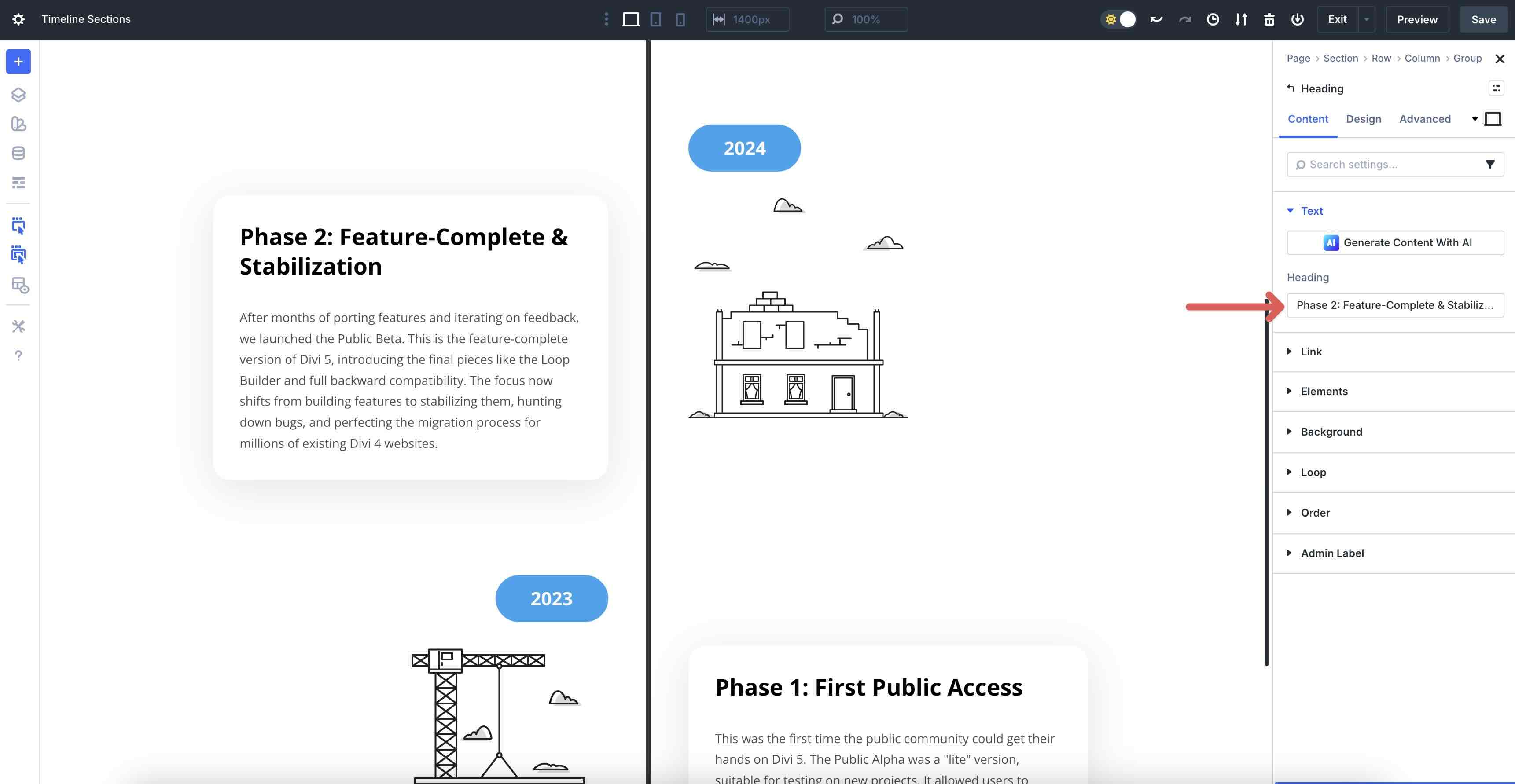
Click into the Heading field (or Body field, if applicable) to replace the text in seconds.
4. Adjust Styles (Optional)
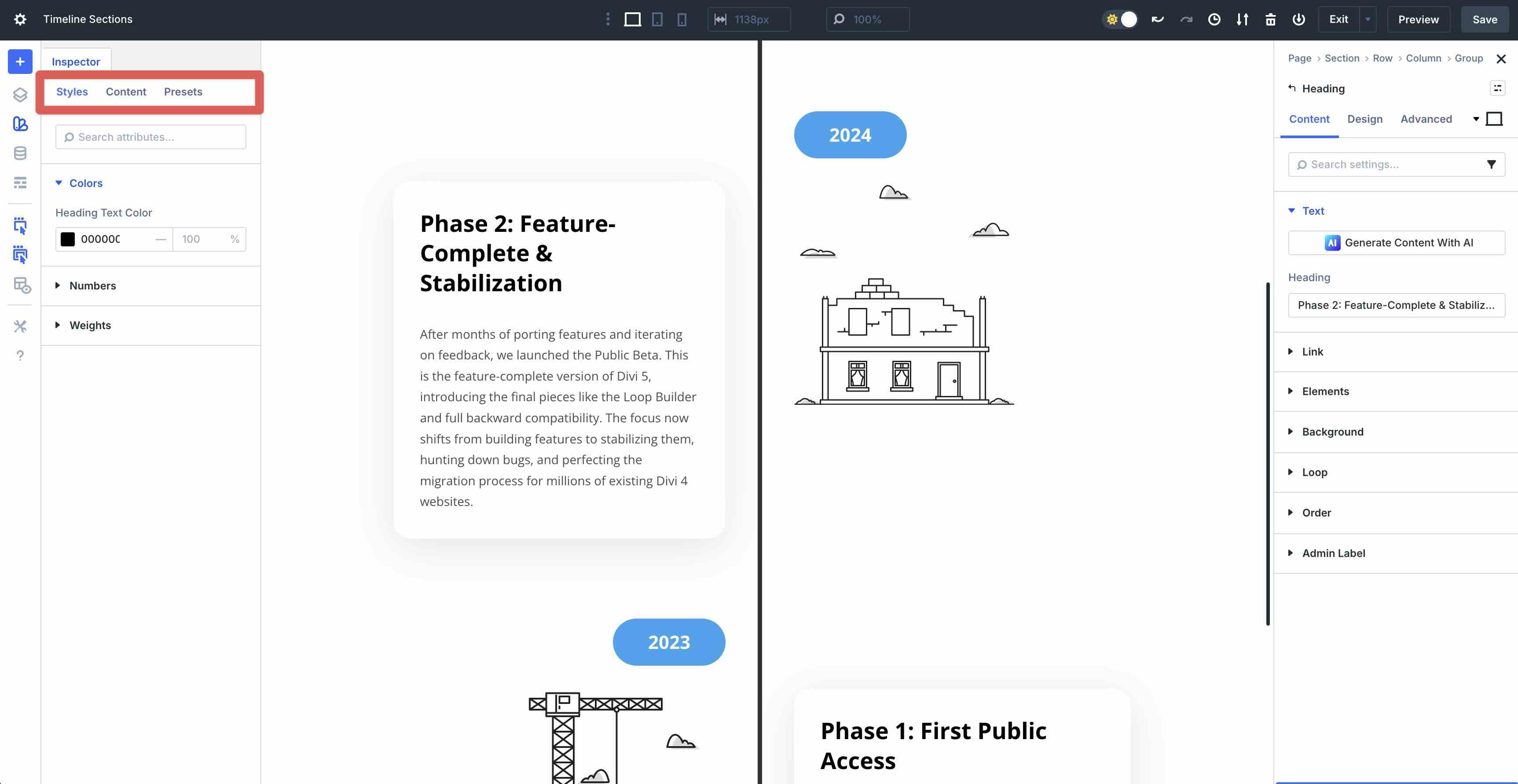
All timelines are structurally ready as-is, but you can quickly change their styling by using the Divi 5 Inspector feature. Click the Inspector Icon to activate the panel.
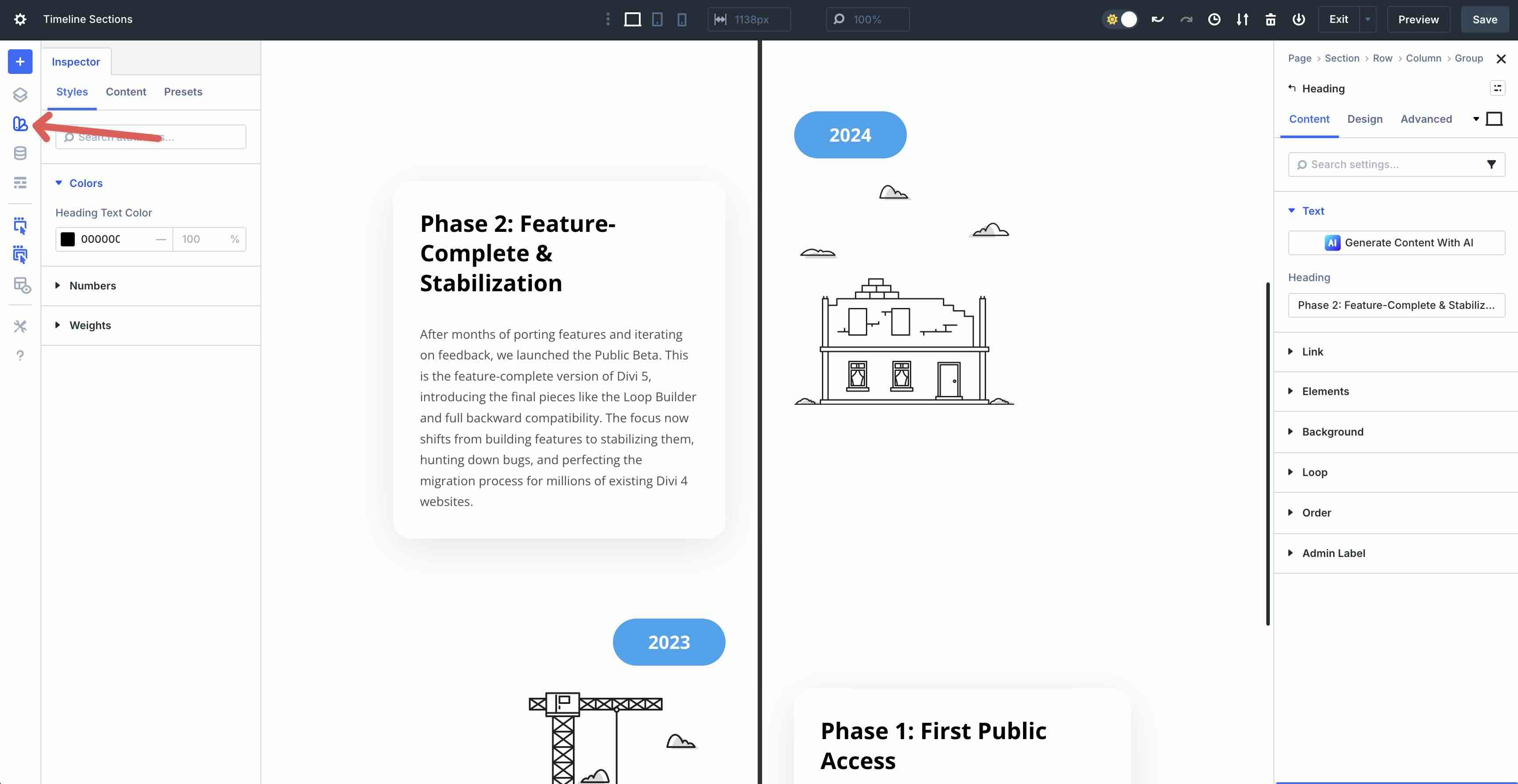
When the Inspector Modal opens, there are three tabs — Styles, Content, and Presets — where you can easily change the colors, fonts, or step content with a few clicks.
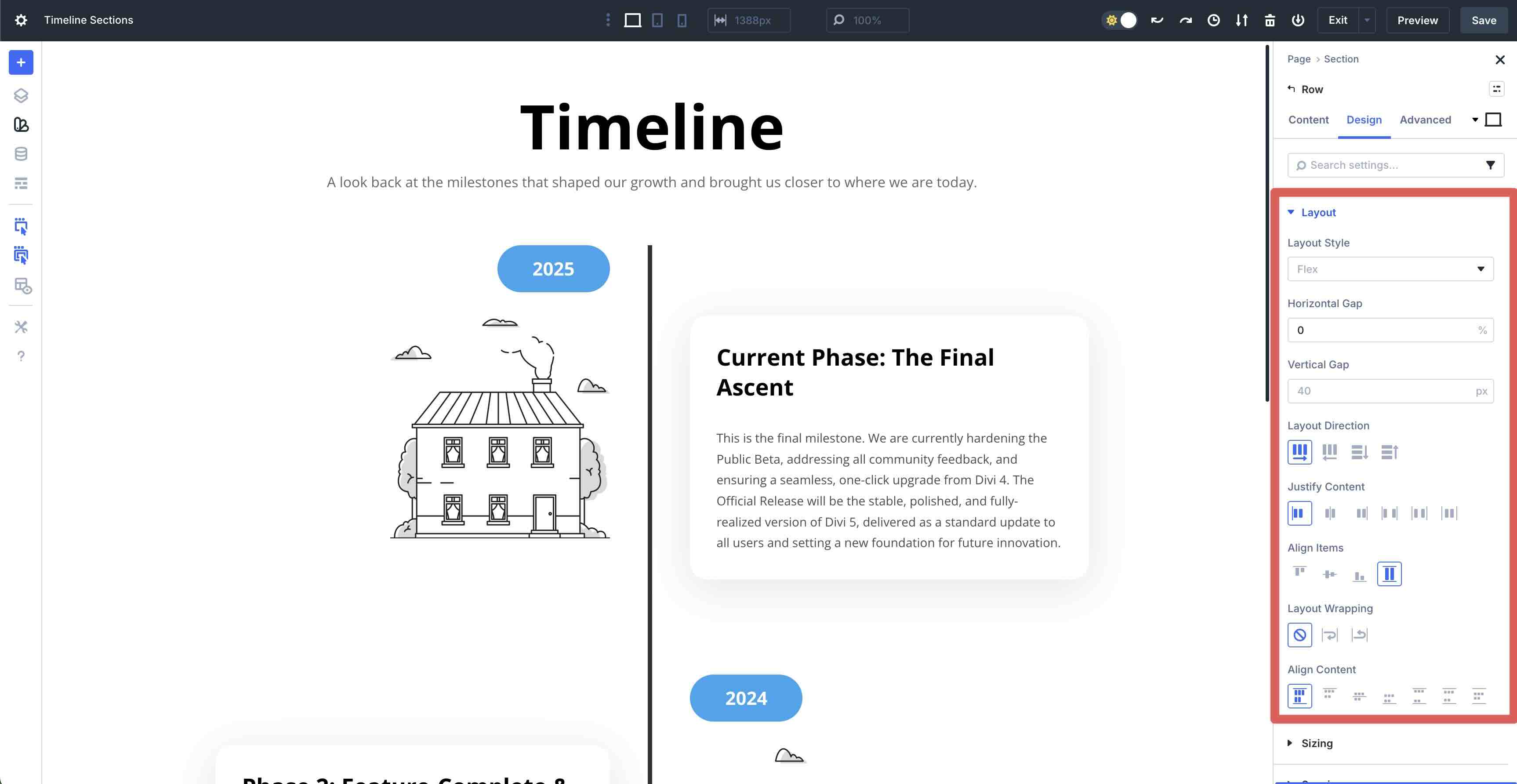
You can also tweak your layout in the Design tab. Adjust the Layout Style (CSS Grid or Flex), Gaps, Layout Direction, and more with a few clicks.
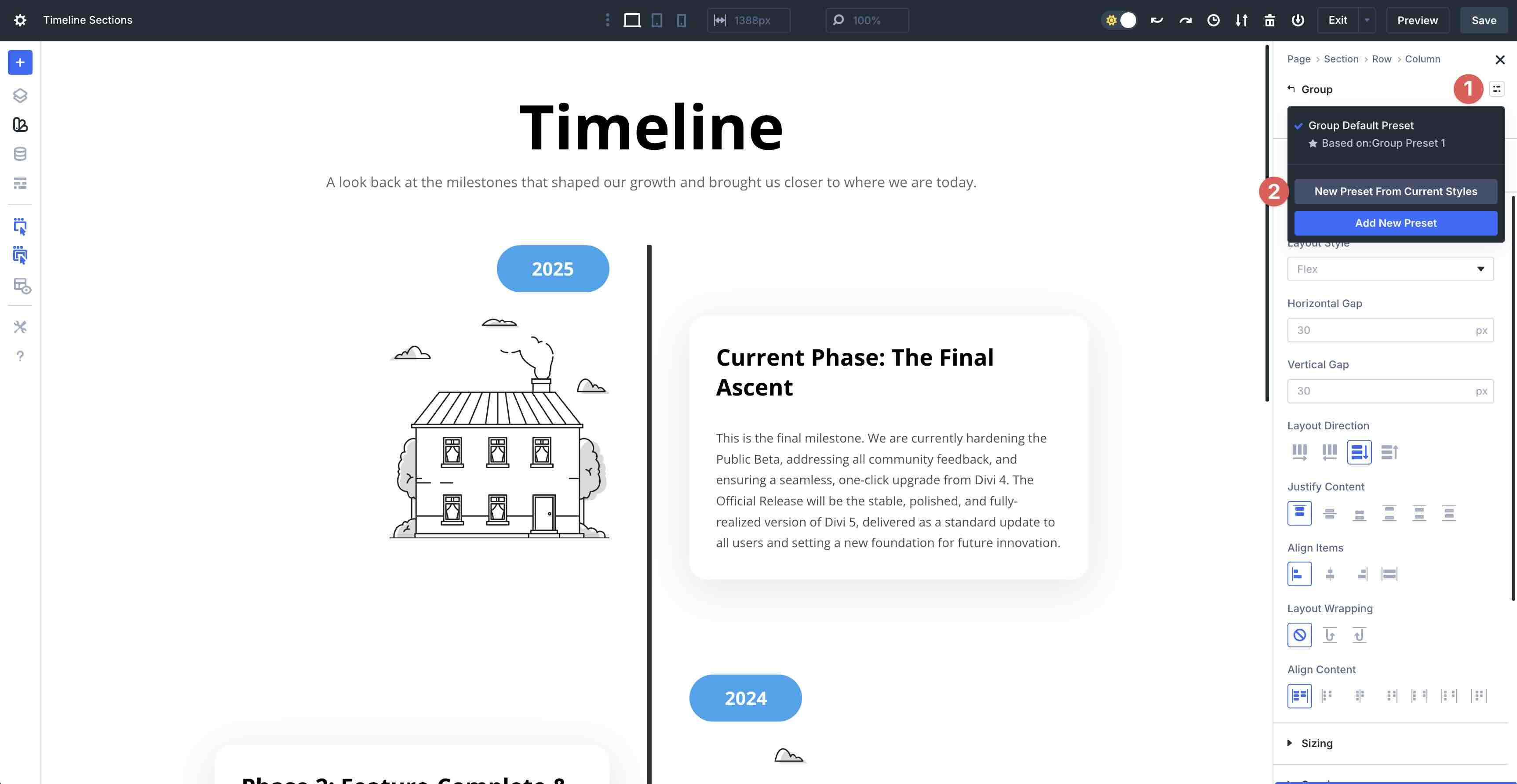
Save your favorite version as a Preset to quickly apply it throughout your site with ease.
Tips For Effective Timelines
Small choices add up. Here are quick wins to keep your timelines clear and impactful.
Keep Steps Short
Use Divi 5’s Customizable Responsive Breakpoints to keep each step concise on smaller screen sizes. Aim for short headings and 1–3 lines of text on mobile, especially with multi-column layouts, to avoid overwhelming small screens.
You can also use Divi AI to summarize long paragraphs into scannable timeline steps, keeping the focus on key milestones.
Highlight Key Milestones
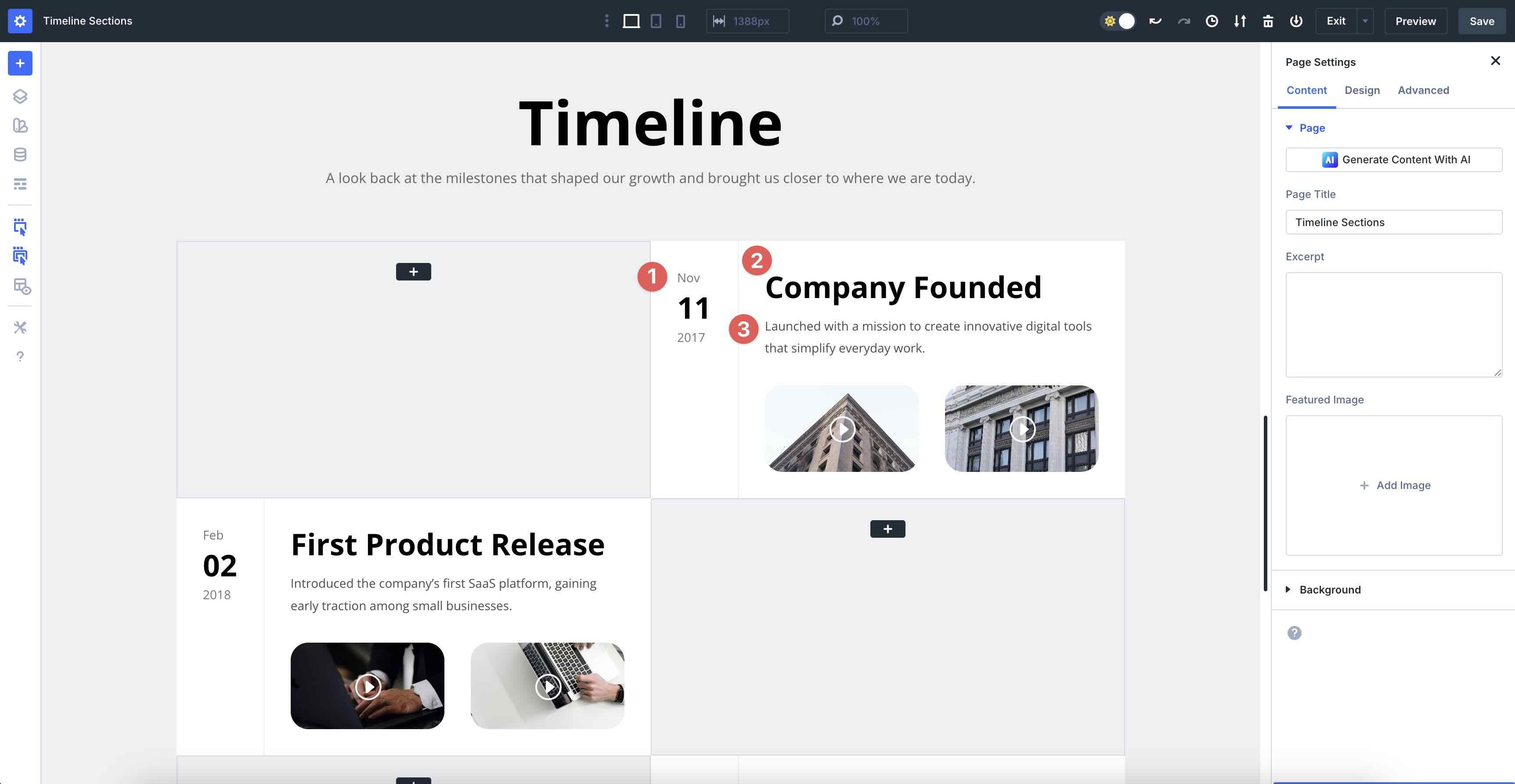
When adding timelines to your website, make your most important milestones stand out. Use clear labels, dates, and short descriptions. Consider adding icons or small visuals for major phases (such as launches, releases, and achievements) to help users quickly scan the story.
Be Mindful Of Contrast
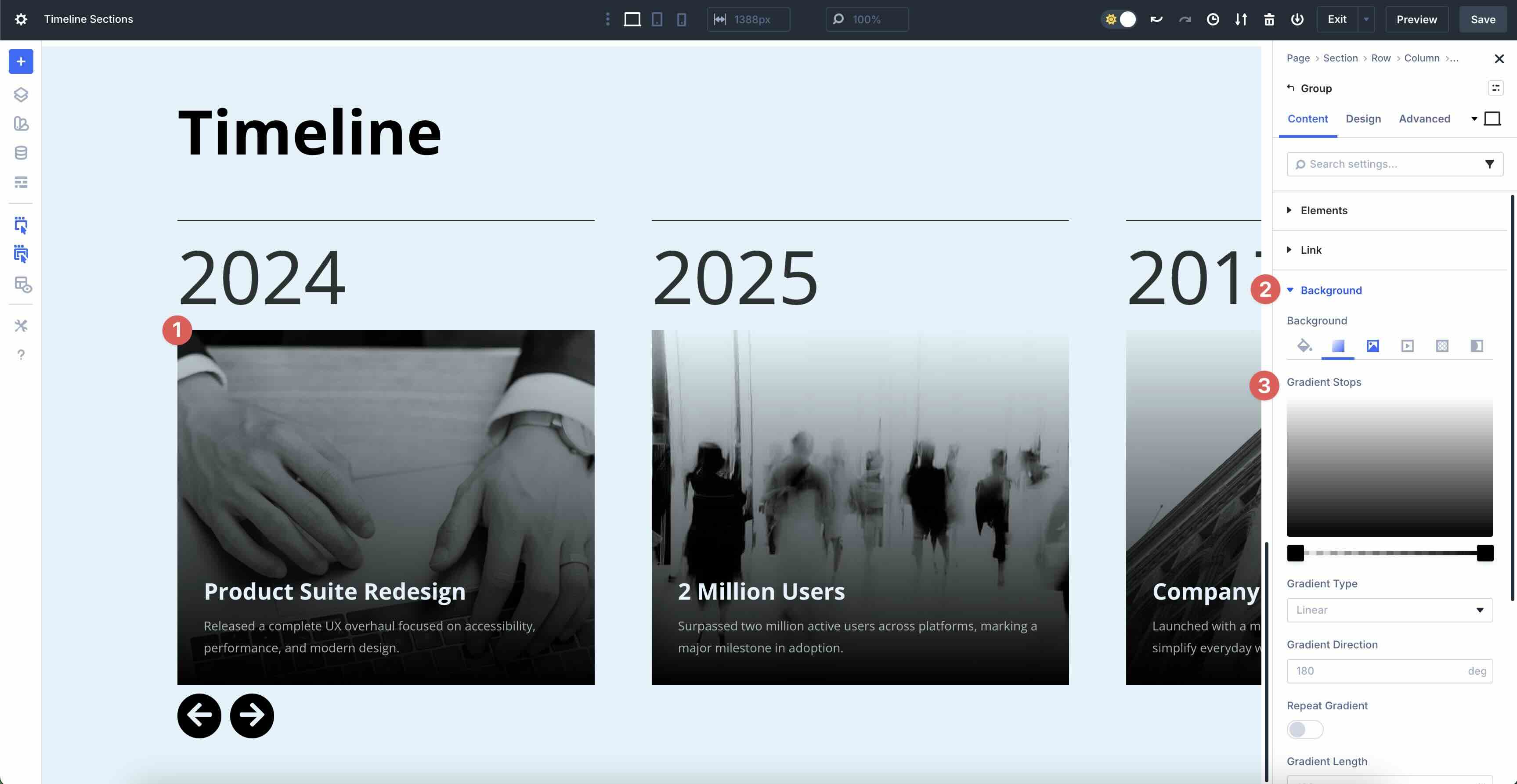
When using text over images, gradients, or colored backgrounds, ensure that the background contains enough contrast for readability. Use Divi 5’s Background Gradient options to add a light-to-medium gradient behind your timeline text, making each step easy to read. This is important not only for design, but also for accessibility.
Use Consistent Imagery
When building timelines, use consistent icon styles, avatar shapes, and image sizes. Mixing too many shapes and sizes makes the design look messy and less visually appealing. If an image is purely decorative, leave the alt text empty to avoid unnecessary noise for screen readers.
Order For Impact
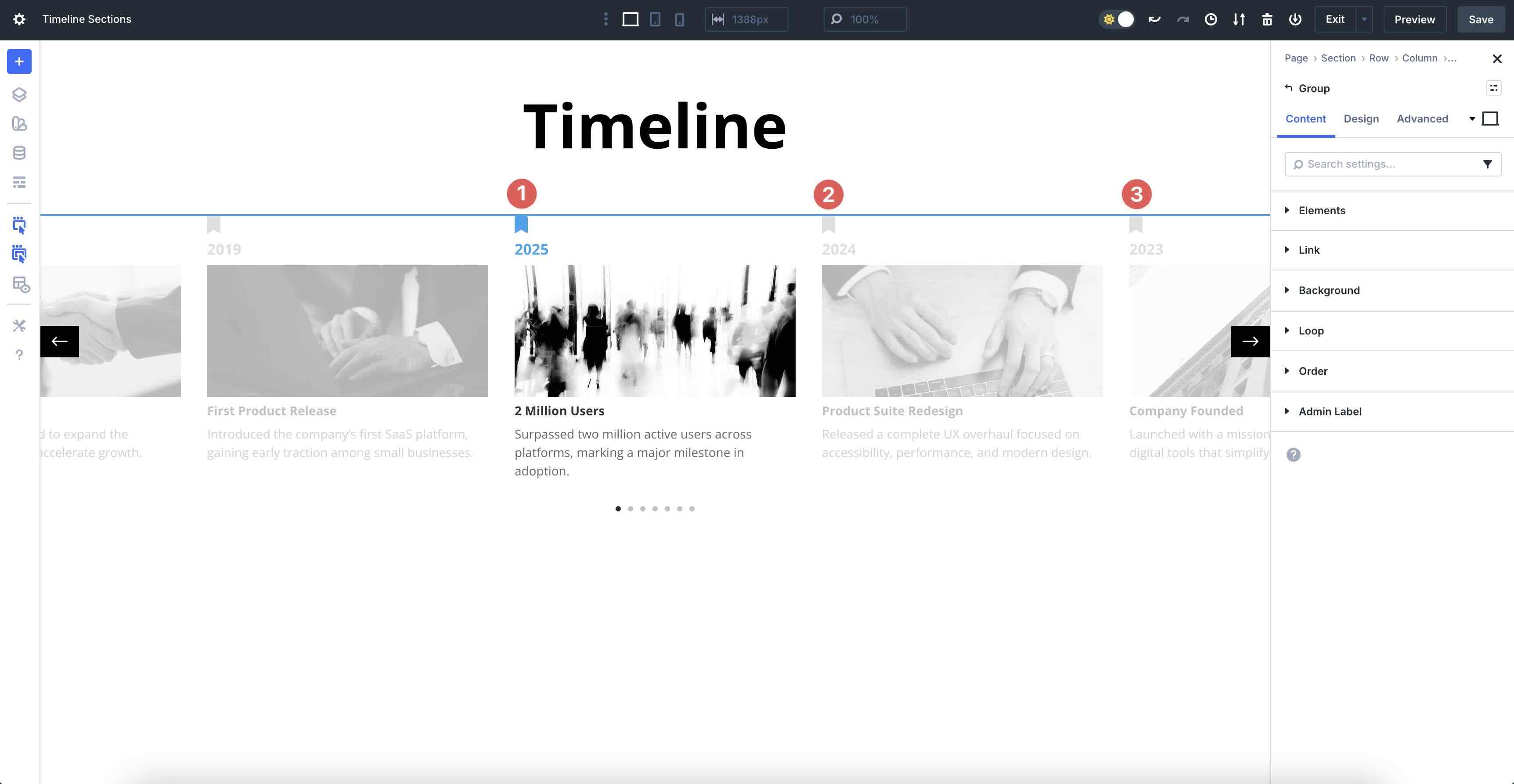
Decide whether your story makes more sense chronologically or in reverse-chronological order. Lead with your most relevant or impressive milestone, such as your latest launch, biggest win, or current phase — and then let users scroll back in time. Use contrasting colors or larger headings to emphasize the key moments.
Motion Lightly
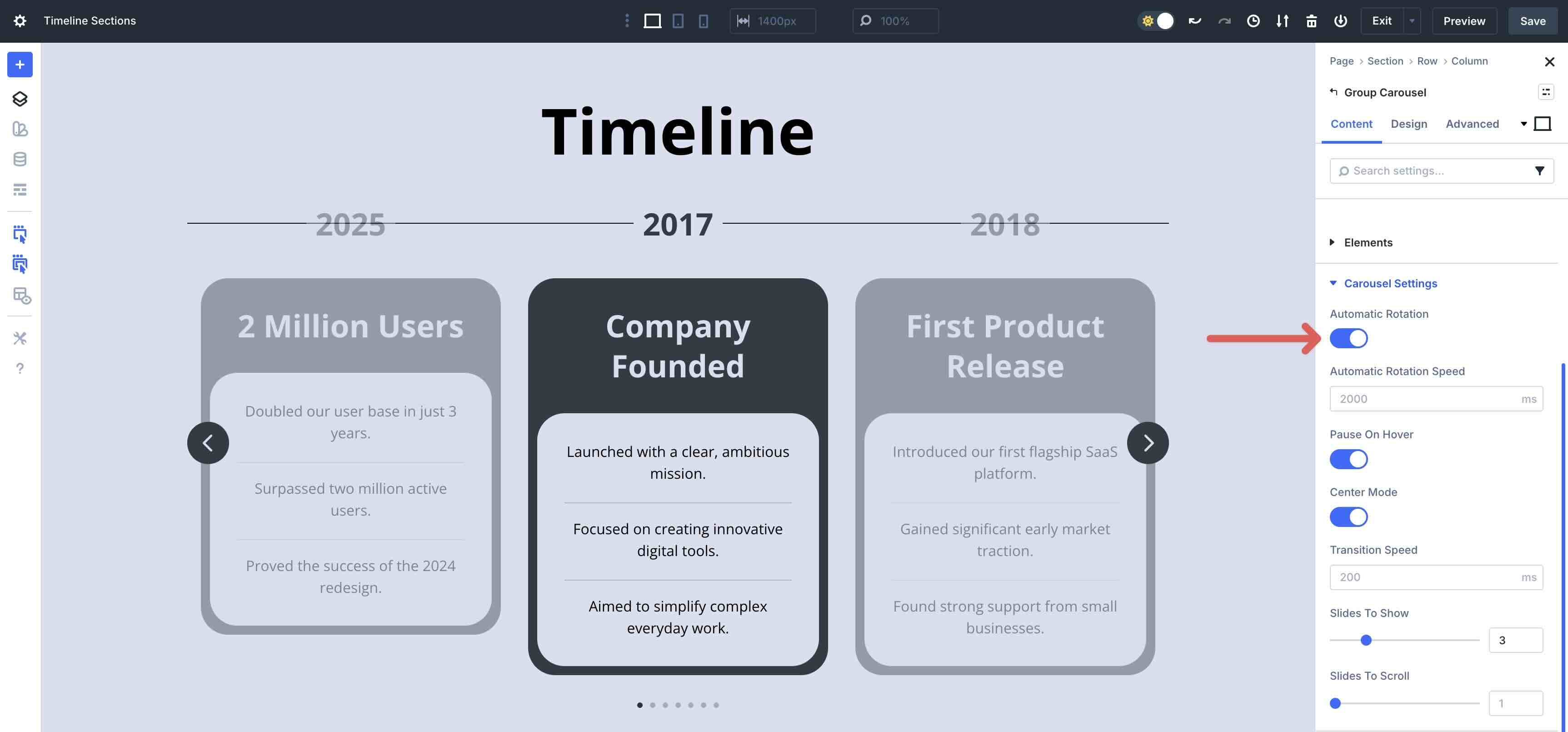
When using motion, subtle hover or reveal effects are enough. Avoid heavy parallax effects behind long blocks of body text. Consider using gentle fades, slide-in effects, or automatic rotation on Carousels as timeline steps come into view, so the motion supports the content rather than distracting from it.
Start Building In Divi 5 Today
These 11 unstyled timeline sections provide flexible, production-ready structures that seamlessly integrate with your existing design system. Use them for launch roadmaps, product histories, service processes, or editorial calendars, and keep iterating with Divi 5‘s modern tools.






Where’s the live demo link?
We didn’t mention one. You can download these from this post and upload it to the Divi Library of a site of yours.
Thanks for this. Just what I needed for a client project. Awesome that I don’t have to install a plugin to design a timeline.
Hi, I have a problem with this. It thoes not work. I import modules but on my divi library they are empty. It does not work. I can’t add it to website. Please help me.
Hi there — sorry you’re running into issue. Please, reach out to our support team via web chat, for a closer look and advice on hot to overcome it. 👍
Can i use these on Divi4?
These use features unique to Divi 5, so no they are not available for Divi 4. Worth exploring a migration/upgrade to Divi 5.
They are Divi-5-specific, I’m afraid – they cannot be used in Divi 4.
Great reason to try Divi 5, we’re certain you’ll find it a great improvment over the previous version! 😊
Timelines would be incredibly powerful if they could leverage the loop builder somehow.
Any Module or Container in Divi is Loopable. Give it a try.