

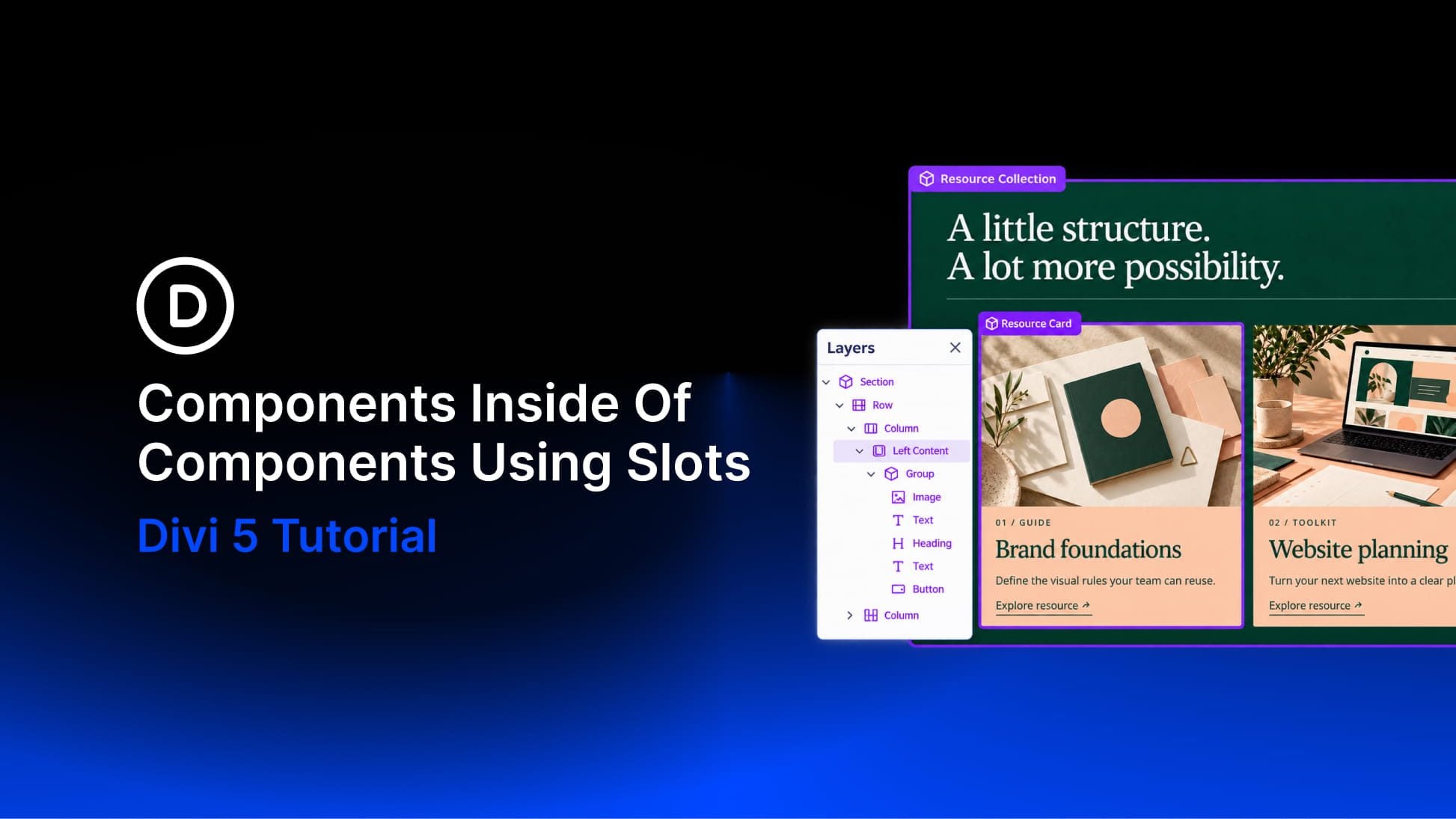
A resource section can share one introduction across several pages while presenting different content beneath it. Reusing both the section and its cards lets you maintain those designs separately.
With Components and Slots in Divi 5, you can combine those two levels of reuse. Put a card Component inside a Slot belonging to a larger section Component. The section controls its shared structure, the card controls its own shared design, and each page instance supplies its content.
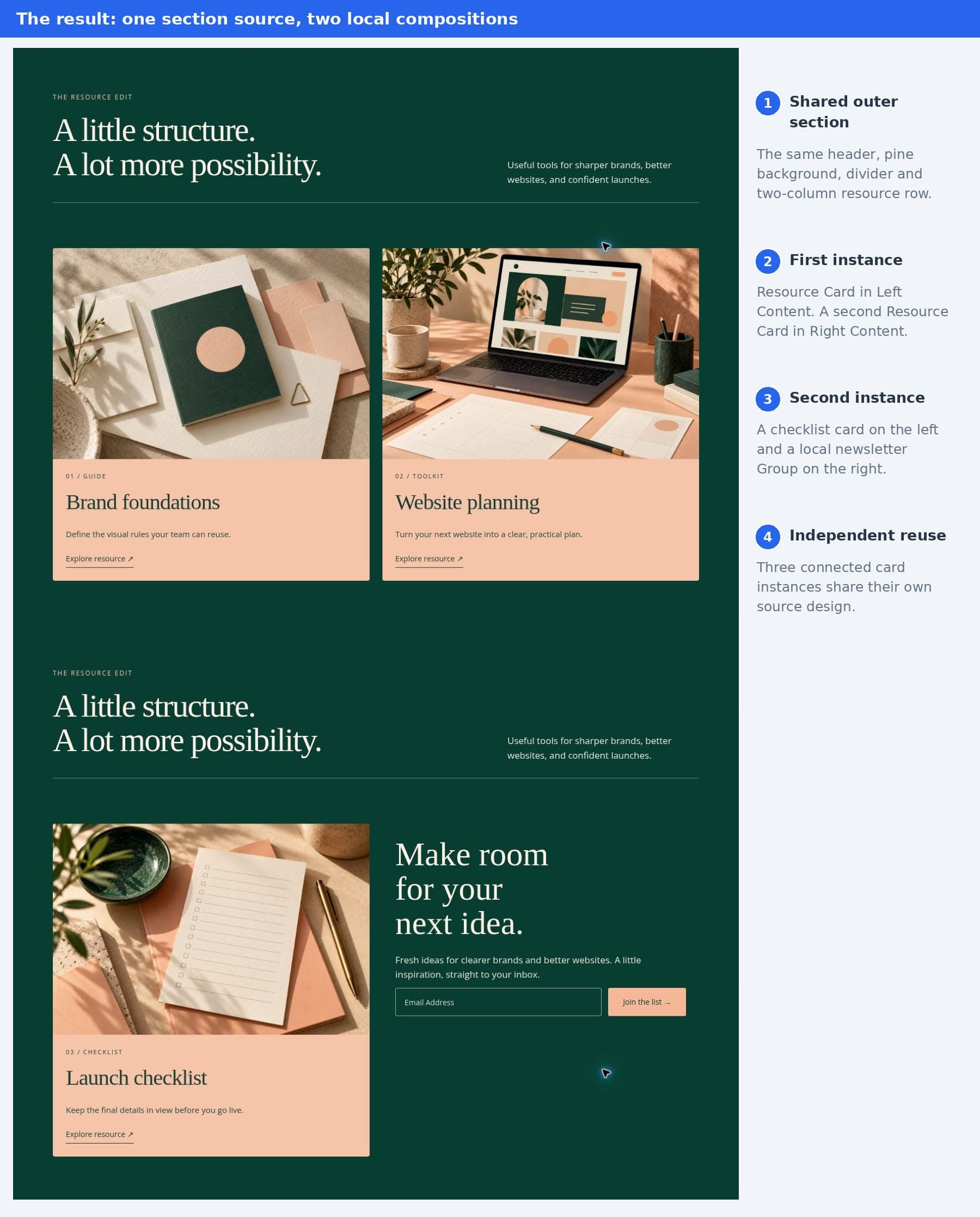
We’ll build a pine-green resource collection with peach cards, oversized serif headings, and editorial images. Its first instance contains two resource cards. Its second contains a checklist card beside a newsletter block. All three cards remain connected to one card source.
- 1 How Components Inside Slots Work
- 2 Download And Import The Starter Layout
- 3 Download For Free
- 4 Prepare The Pine-Green Base Design
- 5 1. Save The Inner Resource Card
- 6 2. Save The Outer Resource Collection
- 7 3. Add Two Slots To The Section Source
- 8 4. Place Connected Cards Inside The Local Slots
- 9 5. Give Each Card Its Own Content
- 10 6. Create A Different Composition In A Second Instance
- 11 7. Update The Shared Card Design
- 12 8. Check The Saved Layout On Smaller Screens
- 13 Build Flexible Layouts With Nested Components
How Components Inside Slots Work
A Component has a saved source and connected instances. The source defines the settings those instances share. A Slot provides a place for an instance’s own child elements within that shared structure. Those children can include another Component, which retains its connection to its own source.
Our example has three editing scopes:
- The outer Resource Collection source controls the pine background, shared introduction, divider, resource Row, and Slot positions.
- The inner Resource Card source controls the image treatment, peach surface, spacing, corners, typography, and button styling.
- The page instance controls what appears inside Left Content and Right Content, including each card’s permitted content overrides.
The two Slots make this distinction visible. A right-hand card can be replaced with an ordinary newsletter Group in one instance without replacing the outer Component.
Download And Import The Starter Layout
Download the files below and unzip the package. It includes a starter layout, a finished layout for comparison, and the three full-size cover images.

Use nested-components-starter.json to follow the tutorial. It contains the styled pine-green Section, its header and two-column resource Row, and one ordinary resource card Group. It contains no saved Components or Slots, so you can create both sources yourself.
- Create a new page and enable the Divi 5 Visual Builder. Use a blank page if you want the example without your site’s header and footer.
- Open Import & Export from the Page Menu, or press Ctrl + Shift + P. Select the Import tab.
- Choose nested-components-starter.json. Enable Replace Existing Content only on this new practice page, then click Import Divi Builder Layout.
- Wait for the imported design to appear and save the page. Expand its Layers to locate the existing card Group in the left resource Column.
For the completed example, import nested-components-finished.json on a separate page with Import Components enabled. This imports the connected section and card sources along with their local Slot content. Use the starter file for the walkthrough below.
Prepare The Pine-Green Base Design
Open your page in the Divi 5 Visual Builder. Use the stacked-layers icon in the left sidebar to open Layers. Expand the arrows beside elements to inspect their children.
The imported starter already has the following base design. If you are building your own version, start with a regular Section containing two Rows. The first Row is the shared header. Use a wider left Column for a small label and a large Heading, and a narrower right Column for the description. Add a thin divider beneath this Row. The second Row contains two equal Columns for the resources.
Add a short introductory label, a prominent Heading, and a brief description suited to your resource collection.
Keep the design finished before turning it into Components. These are the main visual settings used here:
- Section: Pine green #073E31, with generous vertical spacing.
- Rows: 90% width and a 1200px maximum width, with 24px between resource columns.
- Header: Cream text, a large Georgia Heading, and a subtle cream divider.
- Card: Peach #F4B899 initially, with 4px corners and an image flush with its edges.
- Card content: 24px side spacing, about 14px between elements, and dark green text.
- Card image: Full-width landscape artwork with a consistent 3:2 crop.
- Card button: An underlined text link.
At phone widths, stack the header Columns and resource Columns vertically. Let headings scale down and allow descriptions to wrap naturally. Keep the card styling on the card Group and its children; the outer Section should supply the frame around those cards.
1. Save The Inner Resource Card
If you imported the starter, use its existing card Group; do not add a second card. If you are starting from scratch, select the left resource Column and open Content > Elements > Add Element. Choose Group, then use that Group’s own Elements list to add these five modules in order:
- An Image module for the resource artwork.
- A Text module for the category label.
- A Heading module for the resource title.
- A Text module for a short resource description.
- A Button module linking to the resource.
Apply the card design to this Group. Keep its outer padding at zero so the image reaches the edges, then give the text and button their inset spacing. Use full-size artwork rather than a small thumbnail, and give each resource image a suitable text alternative.
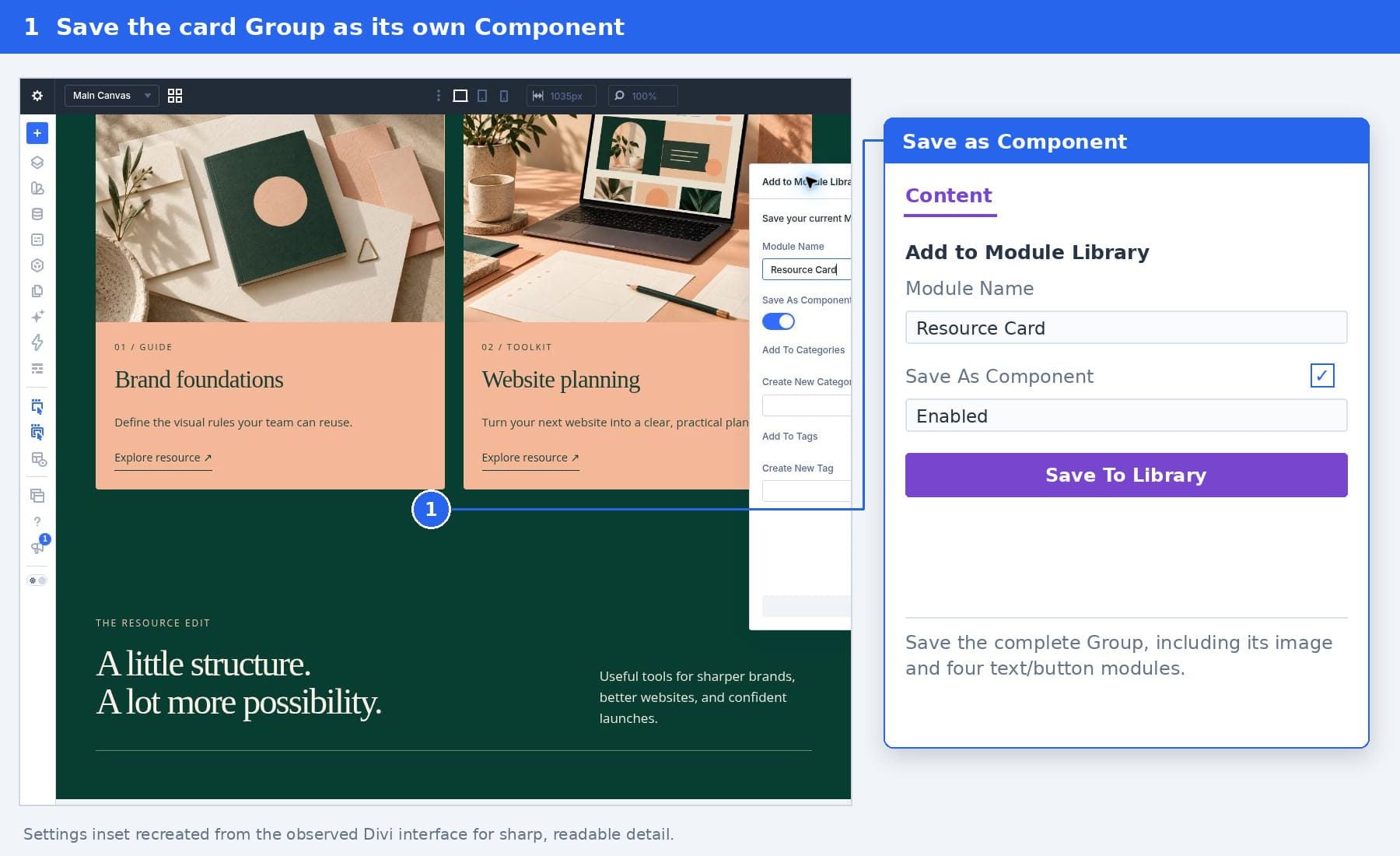
Select the complete Group in Layers. Open the Component menu beside its name and choose Save as Component. Name it Resource Card, keep Save As Component enabled, and click Save To Library.
Expose The Card Content That Can Vary
Open Components from the left sidebar, expand Group, and click the pencil beside Resource Card. This opens its source settings and Component Preview.
In the source Group’s Content > Elements list, use the Image module’s pencil to open its settings. Expand Content > Image and use the field control labeled Make this field editable on component instances.
Return to the Group using the settings breadcrumbs. Open each remaining child with its pencil and expose these fields:
- Category Text: Open Content > Text and make Body editable.
- Heading: Open Content > Text and make Heading editable.
- Description Text: Open Content > Text and make Body editable.
- Button label: Open Content > Text and make Button Text editable.
- Button destination: Open Content > Link and make Button Link URL editable.
Return to the root Group using the settings breadcrumbs before saving. Keep the card’s design settings synchronized. Leave the card Group’s overall child collection shared as well; we want instances to change the content within this fixed five-module structure. Save the source and confirm the site-wide update.
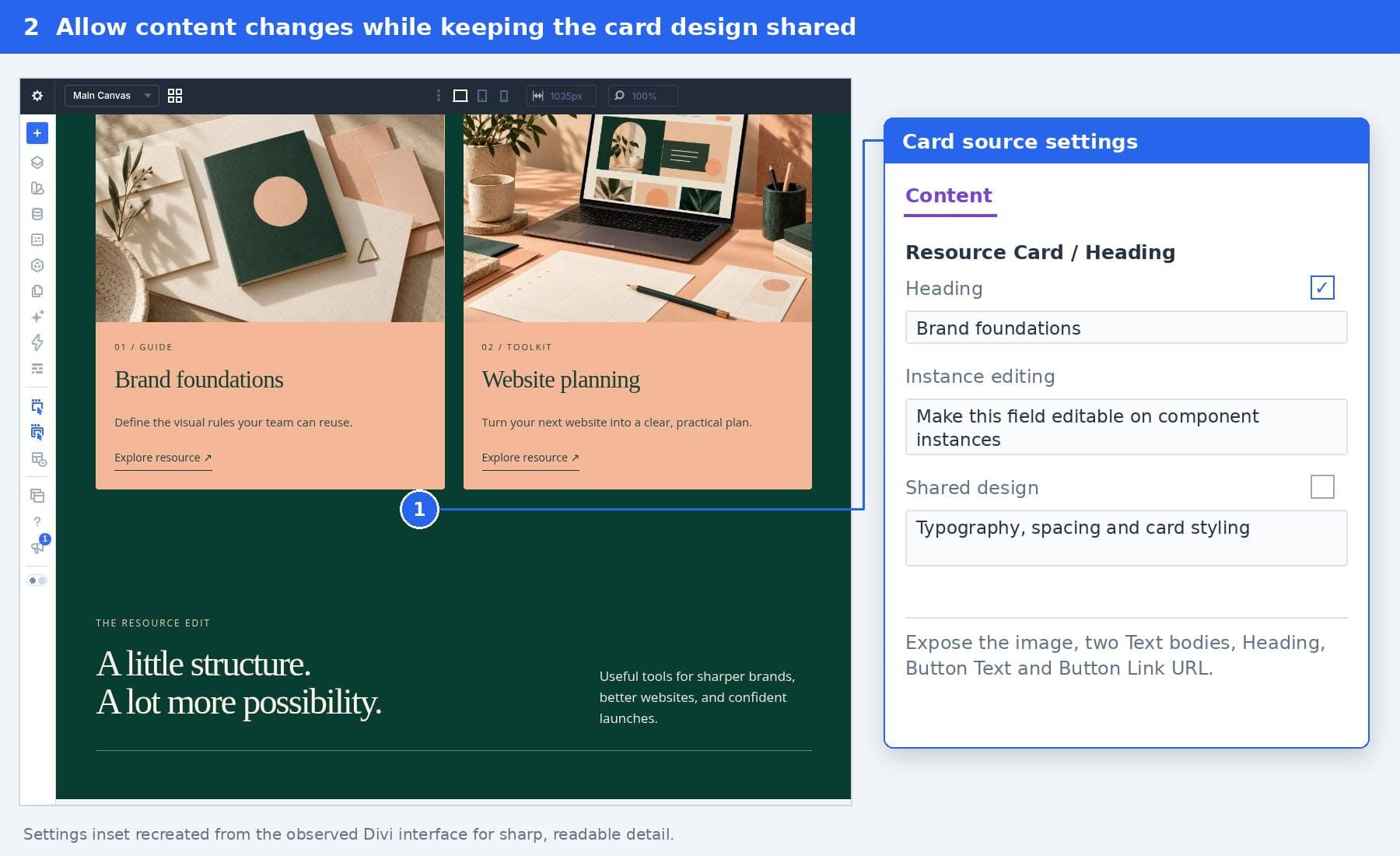
An exposed field can continue inheriting its default until an instance receives a local value. Making the Heading editable allows another card to use its own title while retaining the source Heading’s design.
2. Save The Outer Resource Collection
Close the source editor. Remove the temporary card placement from the resource Column while keeping the saved Resource Card source. If you created a second ordinary card while refining the design, remove that placement too. Keep both resource Columns and the finished header.
Select the outer Section in Layers. Choose Save as Component from its Component menu, name it Resource Collection, keep Save As Component enabled, and click Save To Library.
You now have two separate sources: one for the full section and one for the card. Next, give the section designated places for instance content.
3. Add Two Slots To The Section Source
In the Components sidebar, expand Section and click the pencil beside Resource Collection. In its source Content > Elements list, open the second Row using its pencil. Open that Row’s left Column through its Elements list.
Under the Column’s Content > Elements, click Add Element and choose Slot. The Slot belongs inside the resource Column, beneath the shared header Row.
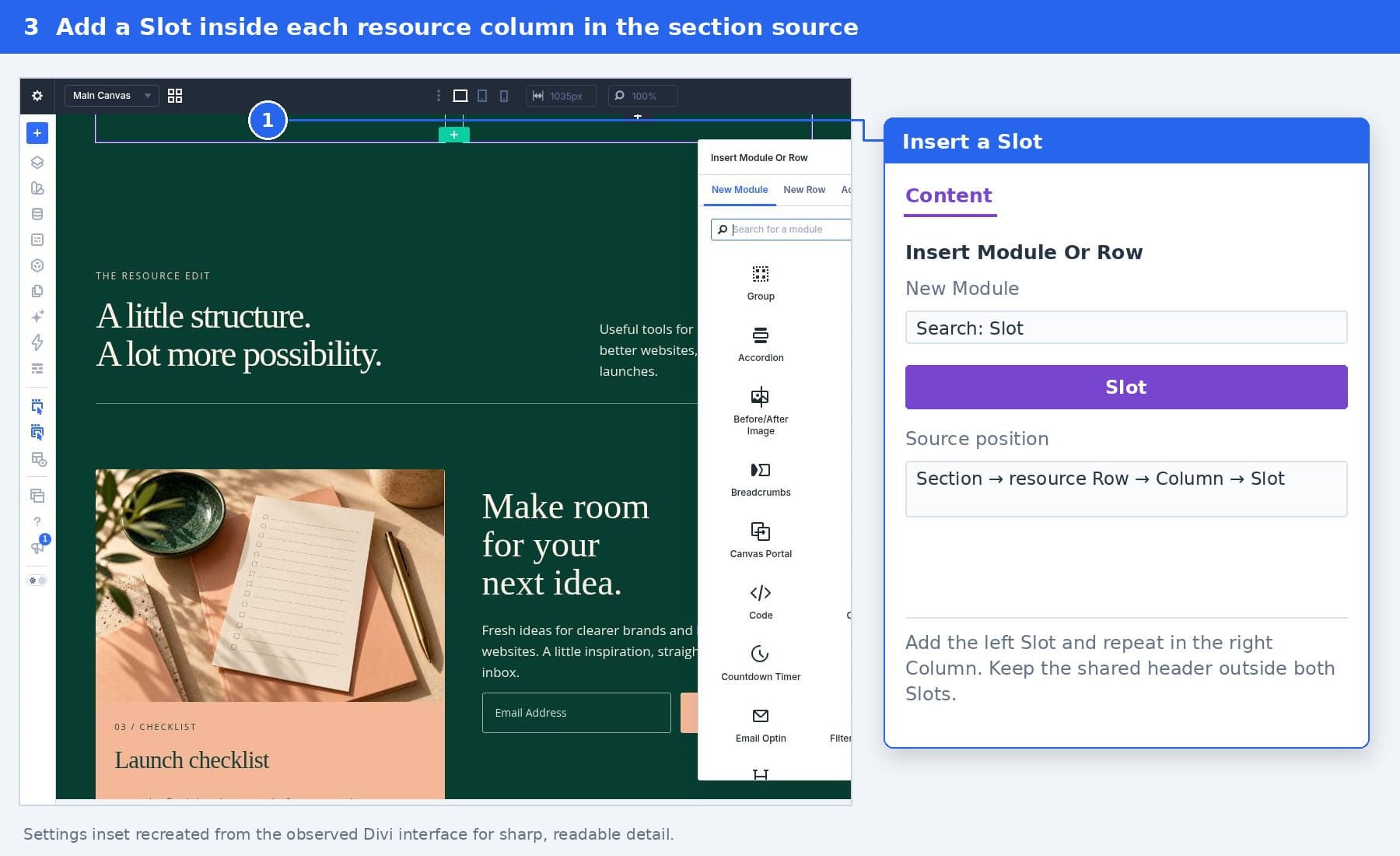
In the Slot’s settings, open Content > Meta > Element Label and enter Left Content. Under Content > Elements, use the synchronization control labeled Make child elements editable on component instances. Leave the source Slot empty.
Return through the breadcrumbs to the resource Row, open its right Column, and repeat. Name this Slot Right Content and enable its child collection for instance editing too. Return to the root Section using the settings breadcrumbs, then save and confirm the source changes.
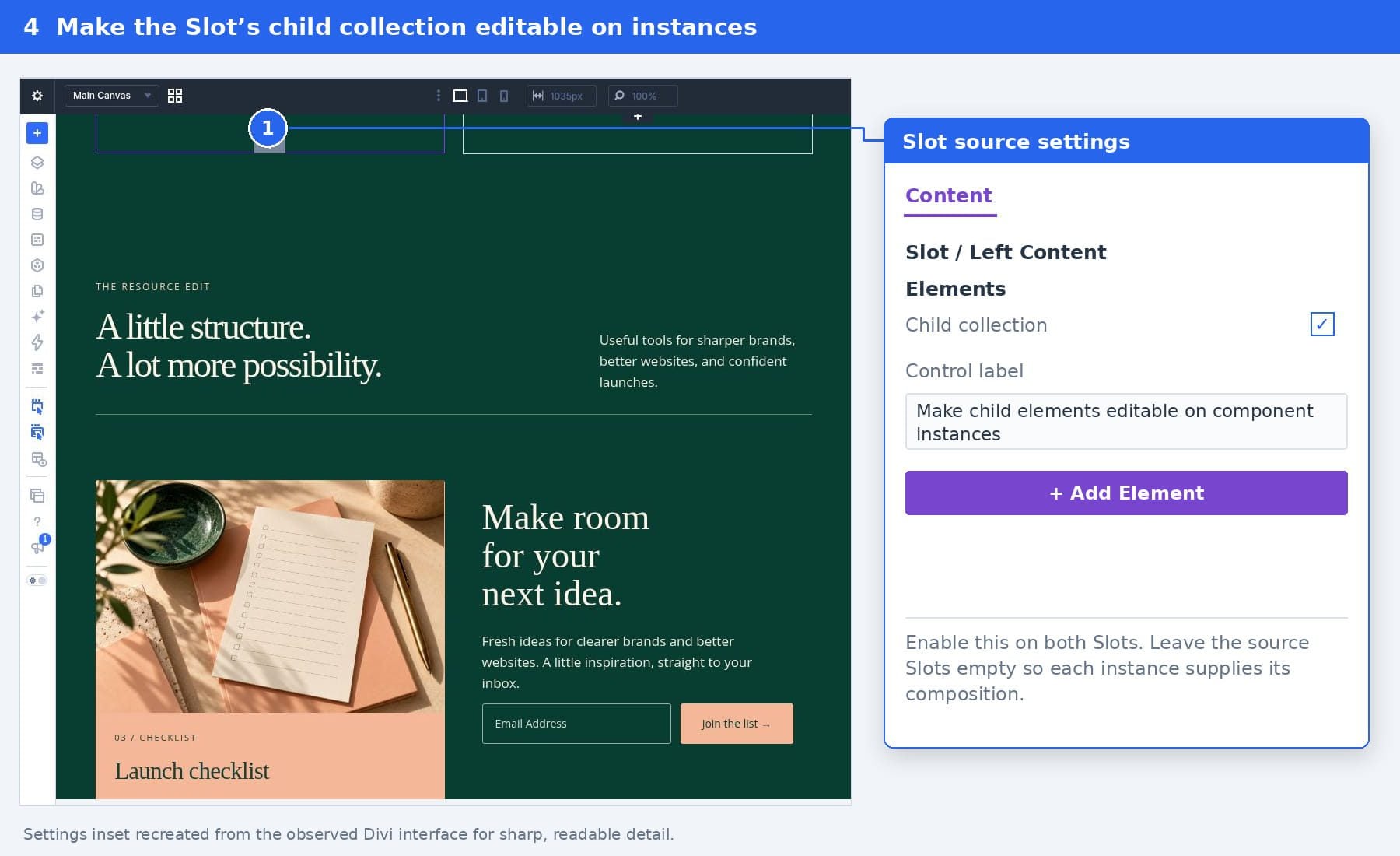
Keep both Slots transparent and free of card-style padding. Their children supply their own surfaces and internal spacing. In the outer source preview, the shared header remains visible while the resource Slots have no local children.
4. Place Connected Cards Inside The Local Slots
Close the source editor and select Left Content beneath the page’s Resource Collection instance in Layers. Open the Slot’s own Content > Elements list and click Add Element.
In New Module, search for the exact name Resource Card and select its saved Component tile. Repeat from the local Right Content Slot to place the second card.
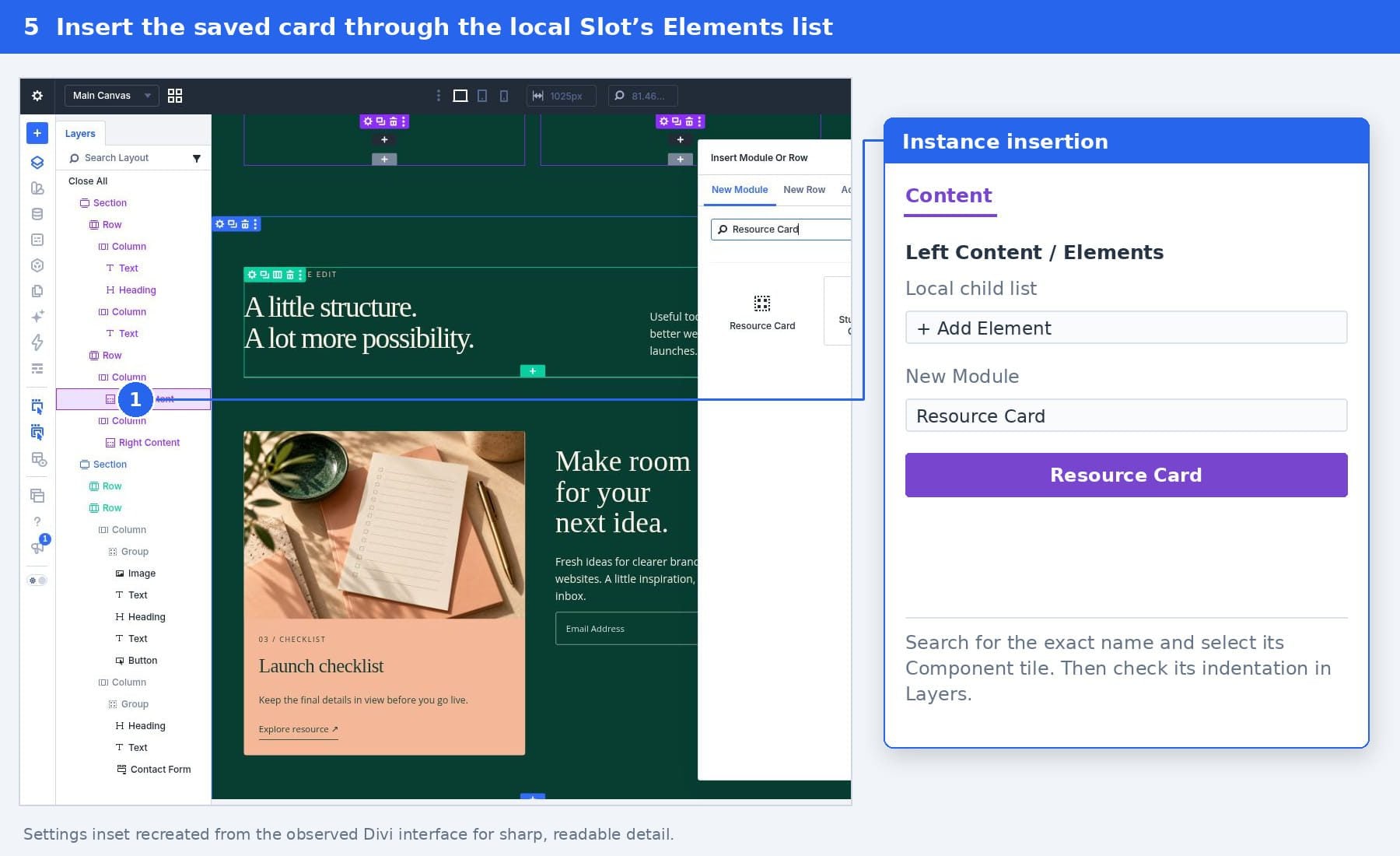
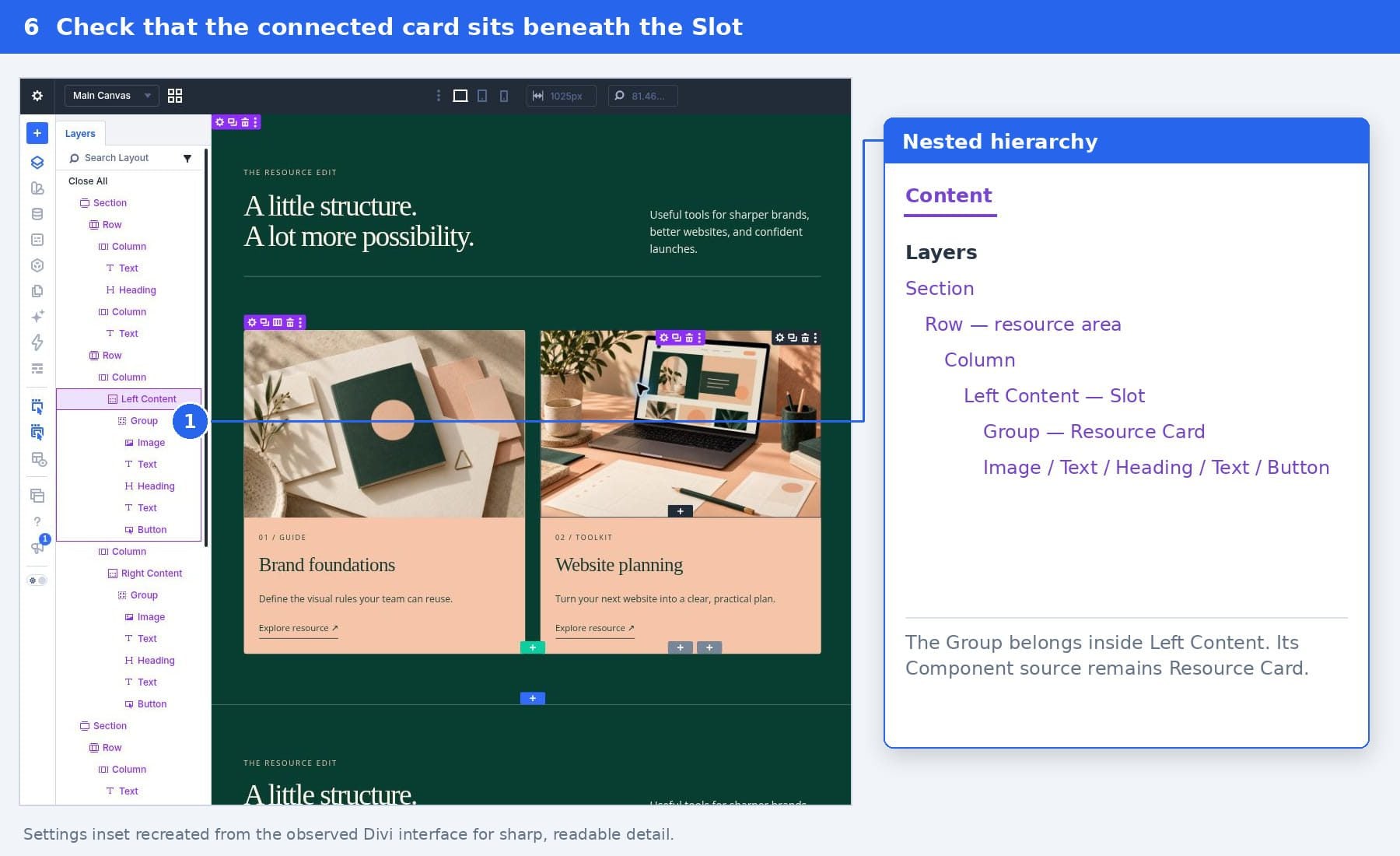
Check the placement before editing. Layers should show Section > resource Row > Column > Left Content > Group, with the card Group indented beneath the Slot. The Group’s Component controls should identify Resource Card as its source.
A Group at the same indentation as the Slot is a sibling, not its child. Using the Slot’s Elements list avoids this ambiguity. If that list is unavailable in instance mode, revisit the Slot in the outer source and enable child editing.
5. Give Each Card Its Own Content
Keep the left card’s source content. For the right card, expand Right Content > Group in Layers. Double-click each child module to open its instance settings and update:
- Image: The website-planning laptop artwork from the included images folder. Upload it to the Media Library and select Full Size.
- Category: Change the category label to match the resource.
- Heading: Change the resource title.
- Description: Add a short description of the resource.
- Button Text: Adjust the call to action as needed.
- Button Link URL: Your website-planning resource destination.
These edits belong to the nested card instance. Do not open the shared source just to change this card’s title or image.
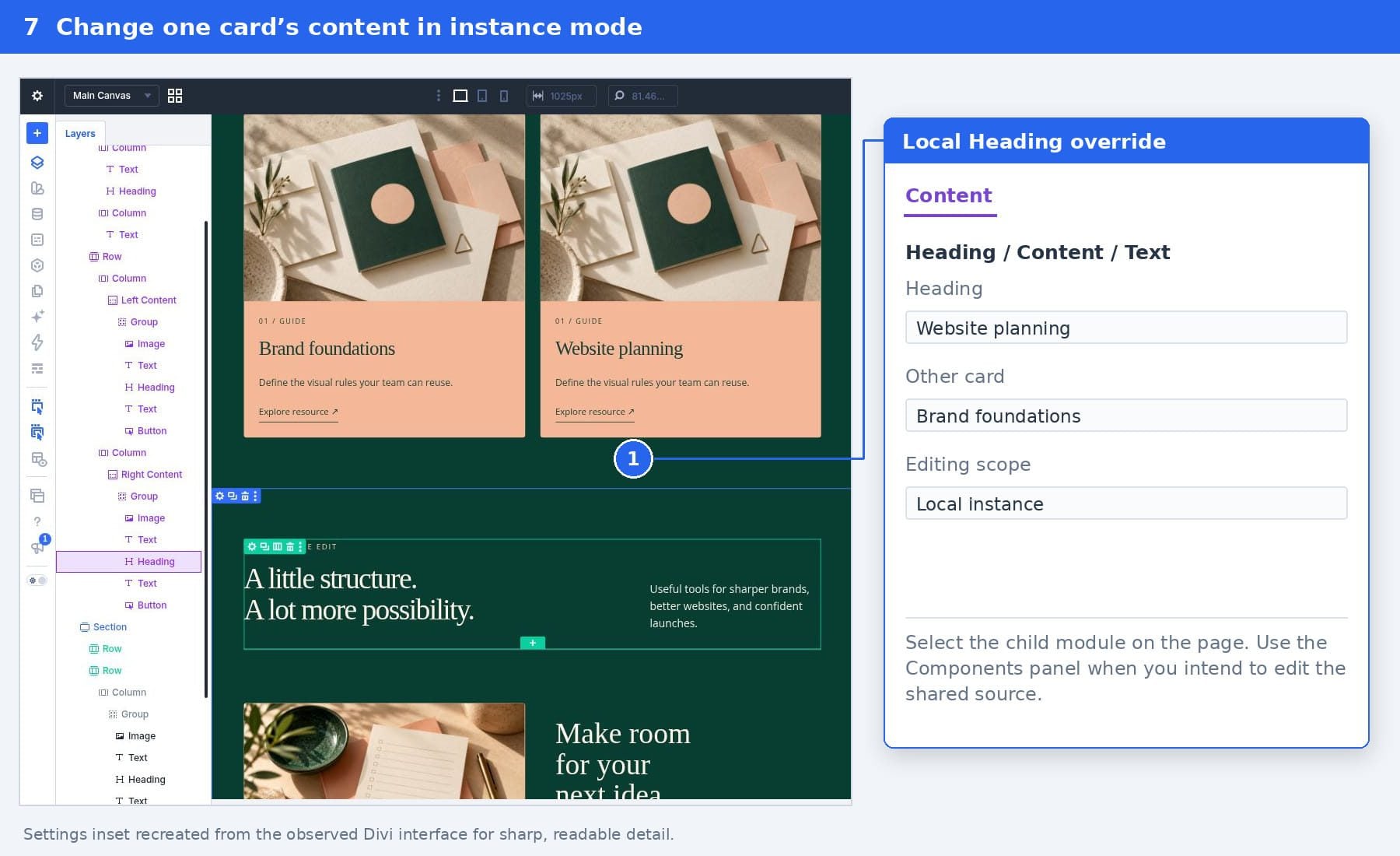
The demonstration uses placeholder anchor links. Replace them with real resource URLs, or create matching anchor targets, before using the page for navigation.
6. Create A Different Composition In A Second Instance
In Layers, right-click the connected Resource Collection Section and choose Duplicate Section to create a second instance. Duplication carries its current local Slot content with it, so review both Slots before changing the composition.
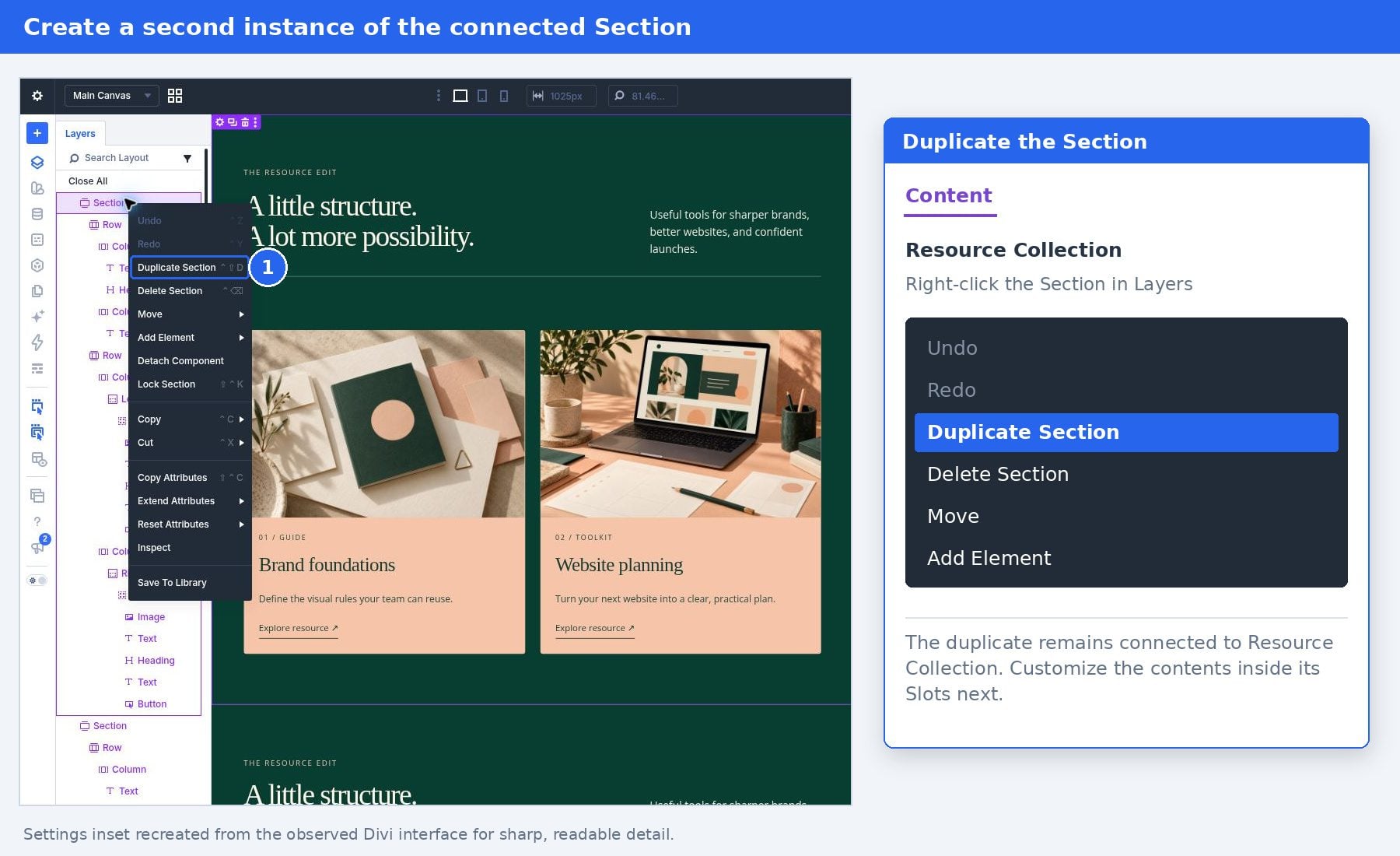
In the second instance’s left card, change the category label, title, and description to introduce a different resource. Replace the image with the full-size checklist artwork and update the resource link.
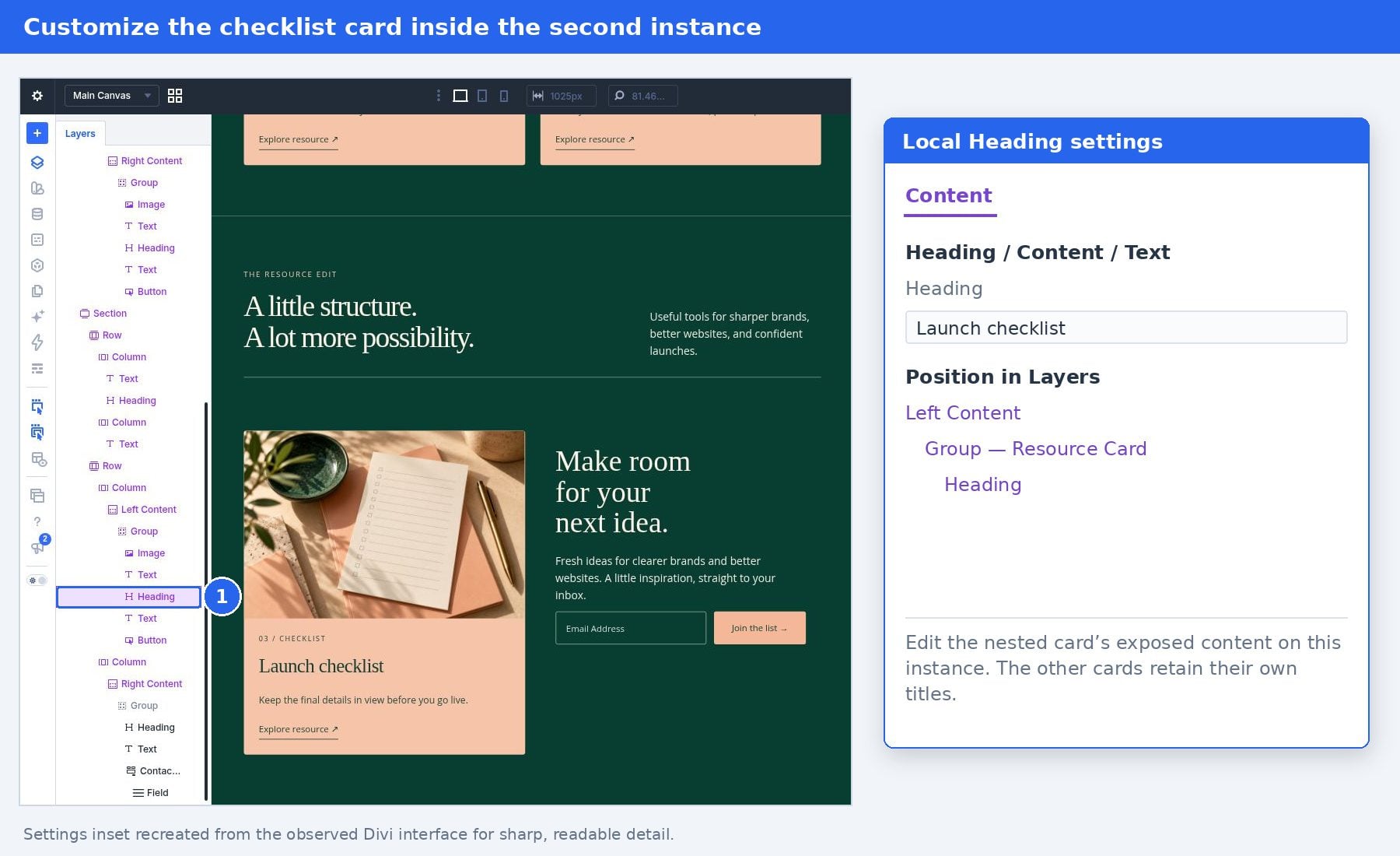
Select the second instance’s Right Content Slot. In its own Elements list, remove the copied card placement. This removes that local child without deleting the saved card source.
Create an ordinary Group for the newsletter content. Add a Heading for the signup title, a Text module with a short description, and your form. Use cream text against the pine background and a peach submit button; keep the Group’s background transparent.
Use Right Content > Content > Elements > Add Element > Group to create the container. Open that Group’s own Elements list to add its Heading, Text, and form. If you reuse an existing newsletter Group, insert it inside this Slot and check that Layers shows Right Content > Group > Heading, Text, Contact Form.
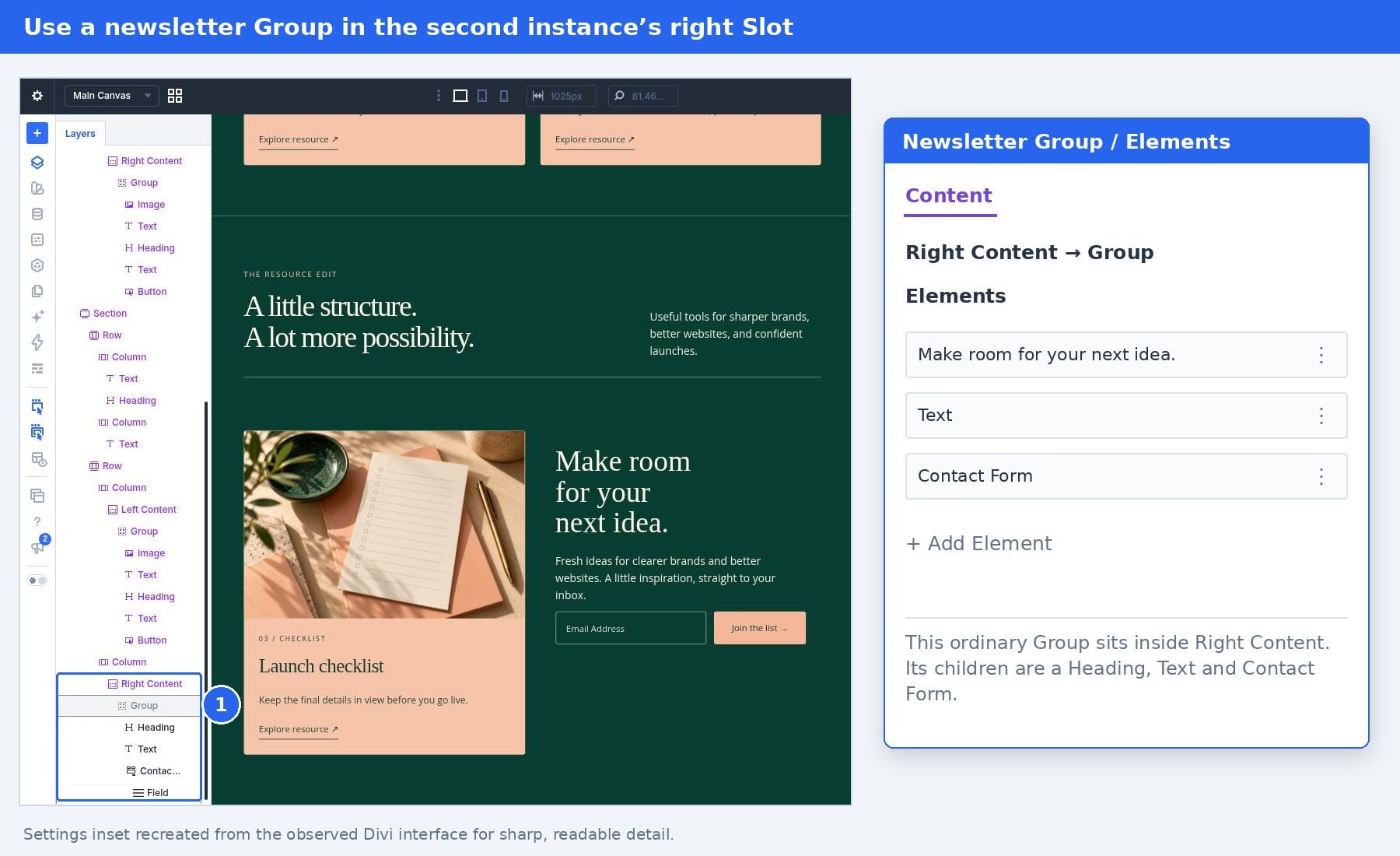
To reproduce the illustrated form, add a Contact Form module inside the newsletter Group. In its Elements list, remove the Name and Message fields and keep one Email field. Set that field’s type to Email, give it a clear email label, and set its width to full width. Choose a suitable signup label for the submit button. Style the field with a transparent background, a subtle cream border, and cream text. Give the button a peach background and dark green text. In Phone settings, make the field and submit button full width so they stack.
The illustrated form uses an email-only Contact Form module to show the layout. It is not connected to a newsletter mailing list. For a working signup, configure an appropriate Email Optin integration and its provider before accepting subscriptions.
The result demonstrates the purpose of the Slots: the first section holds two connected cards, while the second holds one connected card and a local newsletter Group. Both sections retain the same outer source.
Open Components > Group in the sidebar and click the pencil beside Resource Card. Use this source entry point when updating the reusable design.
Under the source Group’s Content > Background, change Background Color from #F4B899 to the lighter peach #F6C4A8. Keep this field shared. Save, then confirm the message that the change will update instances across the site.
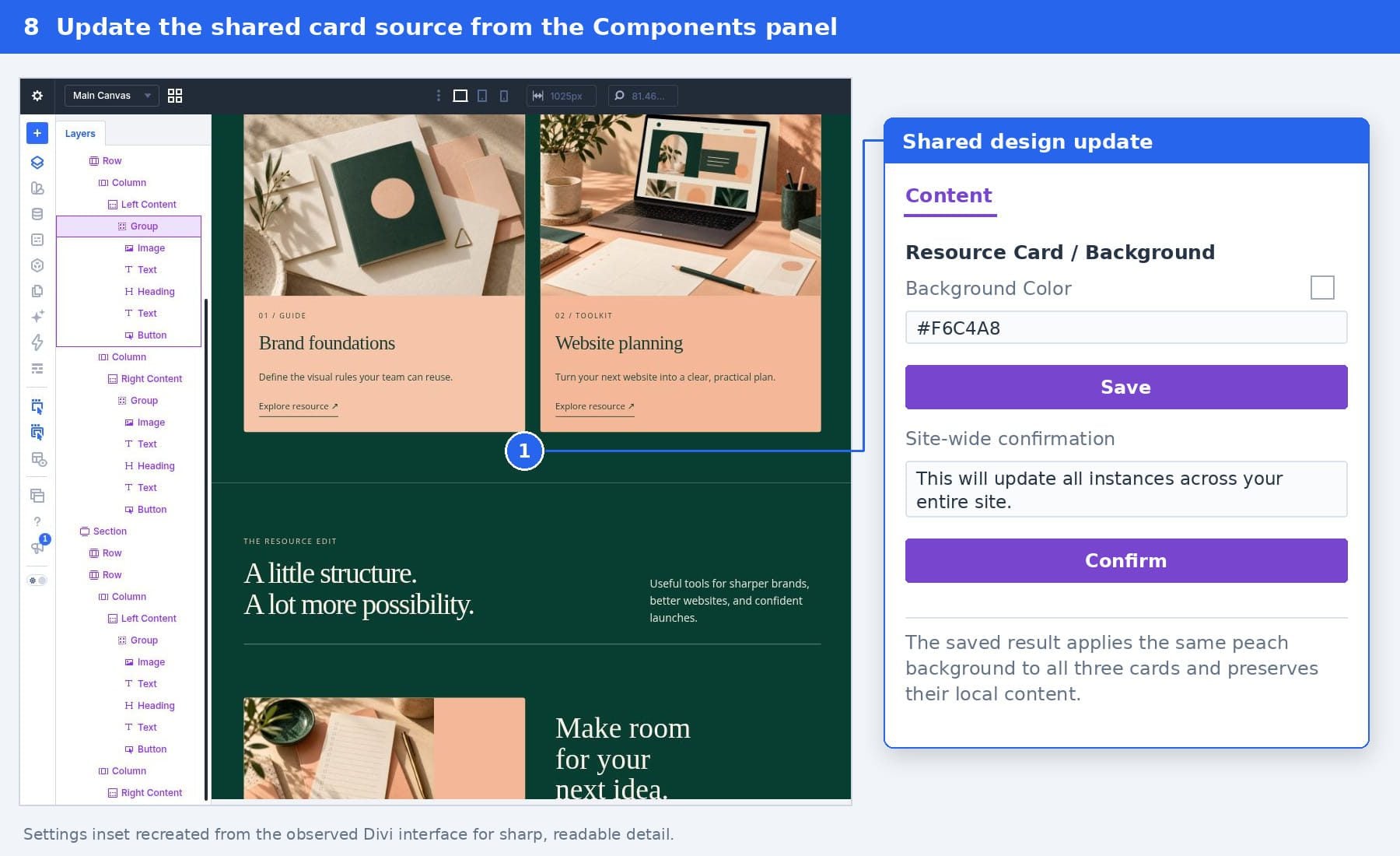
Save the page and reload its front end. All three connected cards should use the new peach surface. Their different images, categories, titles, descriptions, and links should remain intact. The local newsletter Group should retain its own appearance.
The shared section and card remain separate maintenance points. Use Resource Collection for the surrounding structure, Resource Card for the card design, and page instance settings for the local content. Detaching a Component breaks that connection, so keep the instances connected for this example.
Source edits use the bottom Component Save button and its confirmation. Local Slot content and card overrides use the page’s top-right Save button. Save both contexts when your work includes both types of change.
8. Check The Saved Layout On Smaller Screens
Use the builder’s device controls to check both Tablet and Phone previews. Inspect a narrow phone width such as 390px. Check the full layout, not only the first card: the header should stack, resource cards should fill their columns, and the newsletter should follow the checklist card in the second instance.
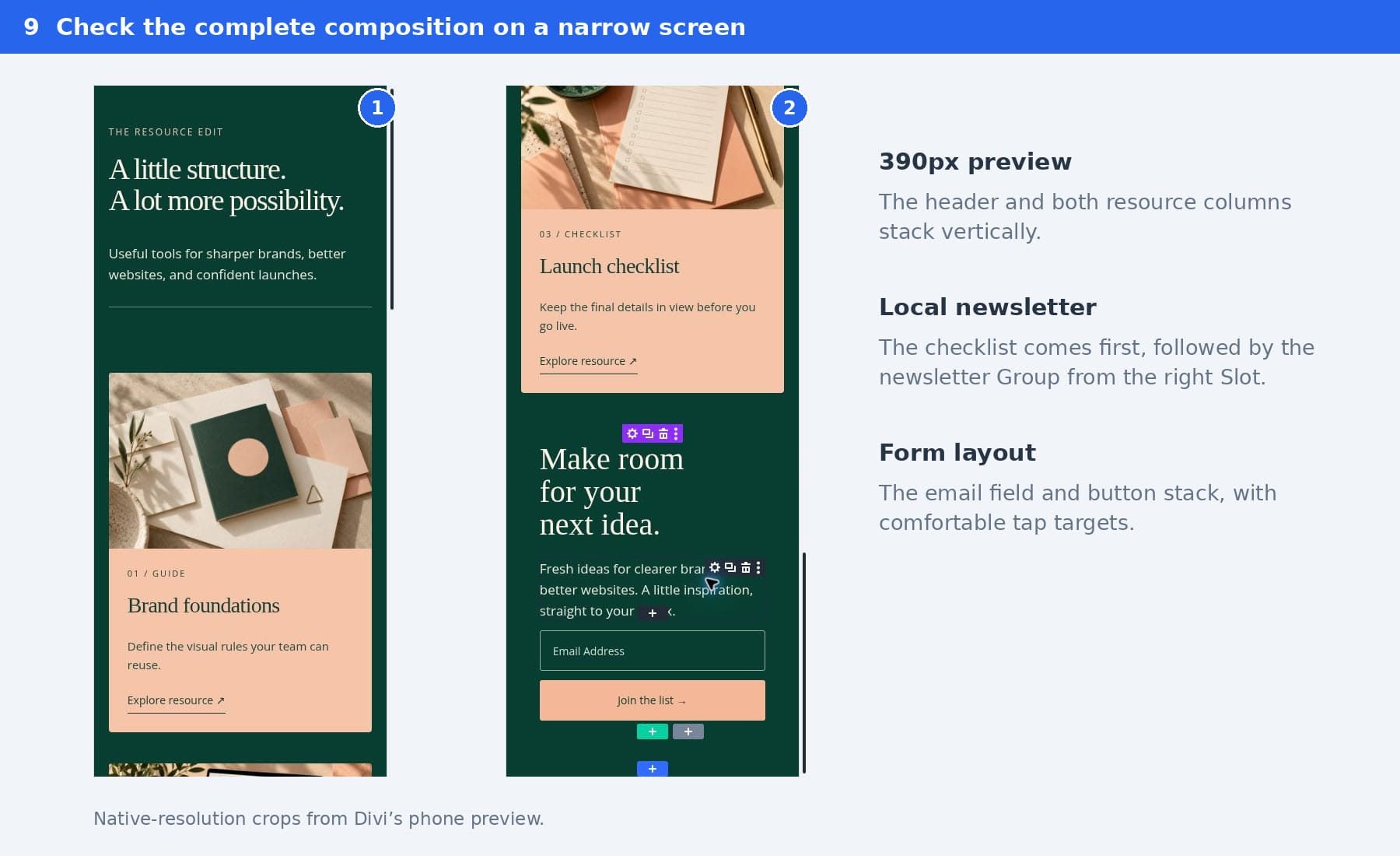
Confirm that headings and descriptions wrap without horizontal overflow, images remain sharp, and the form field and button have comfortable widths. Save the page, reload the front end, and check that both local compositions survive the reload.
Build Flexible Layouts With Nested Components
Our resource collection combines a shared section with reusable cards and local newsletter content. The outer Component maintains the frame, its Slots make room for different compositions, and the nested cards keep their own shared design.
Start with a section you reuse, identify the areas that need different modules, and add named Slots to those areas. Place connected Components inside them when those smaller elements should share future design updates. For more examples, explore our guides to Components and Slots in Divi 5.



Leave A Reply