

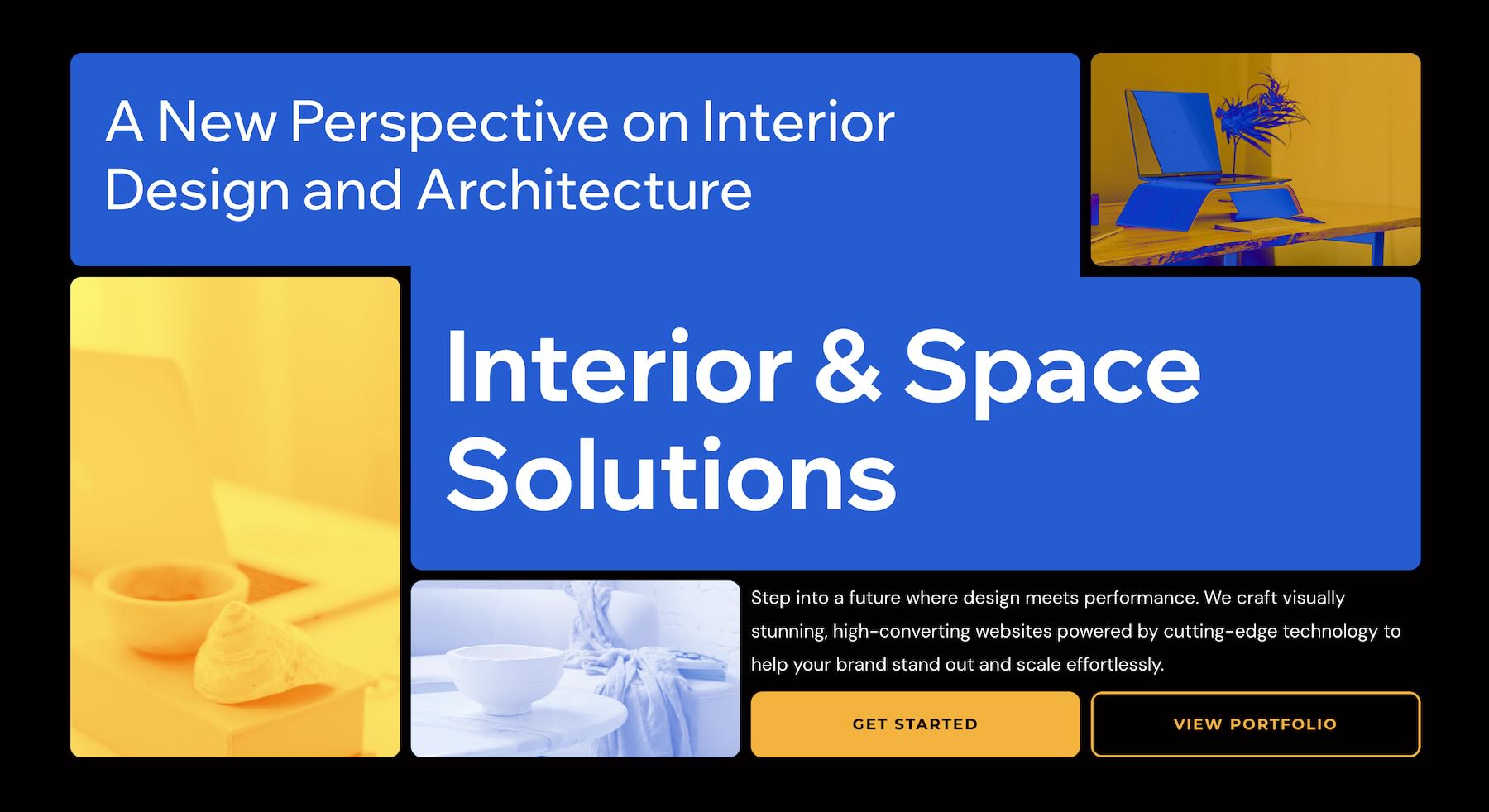
Divi 5 makes it easy to create structured layouts with strong visual rhythm. In this free pack, you’ll get 5 Tetris Designs that are perfect for landing pages, service sections, feature highlights, portfolio sections, product pages, agency websites, content blocks, call-to-action areas, and more.
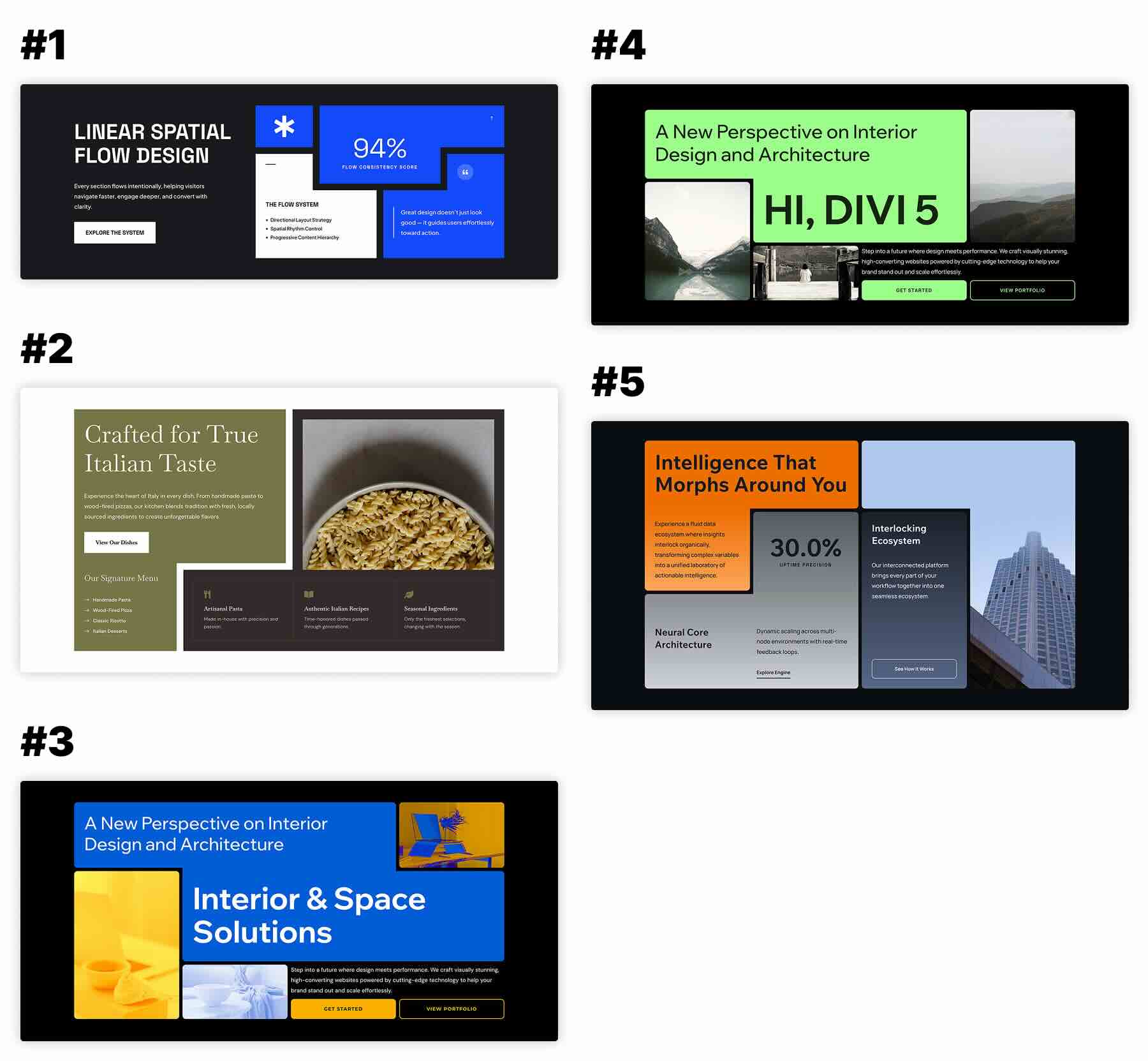
Each design uses modular blocks, offset cards, bold spacing, layered content areas, typography, imagery, buttons, and clean grid relationships to create polished sections with a dynamic, puzzle-like layout style. Import a section, replace the content, update the visuals, and you’re ready to go.
Preview
Here’s a quick look at the 5 Tetris Designs included in the pack. The download is further down the post.
Download 5 Tetris Designs For Divi 5
Get all 5 designs for free. Import them into your Divi Library and add them to any page in the Visual Builder.

What’s Included (6 Exports)
After you download and unzip the file, you’ll find 5 styled Tetris Layout Section exports, plus 1 file containing all layouts.
Styled – Tetris Layout Section 1 to 5 (5) → Five fully styled modular section layouts with offset content blocks, layered cards, bold visual structure, refined typography, buttons, images, and clean spacing that you can use as-is or customize.
Styled – Tetris Layout Sections (All) → Imports all 5 designs into your Divi Library at once.

How To Use The Tetris Designs
Keep your download folder handy. We’ll import the files, add a section to a page, and then replace the content.
1. Import Sections Into The Divi Library
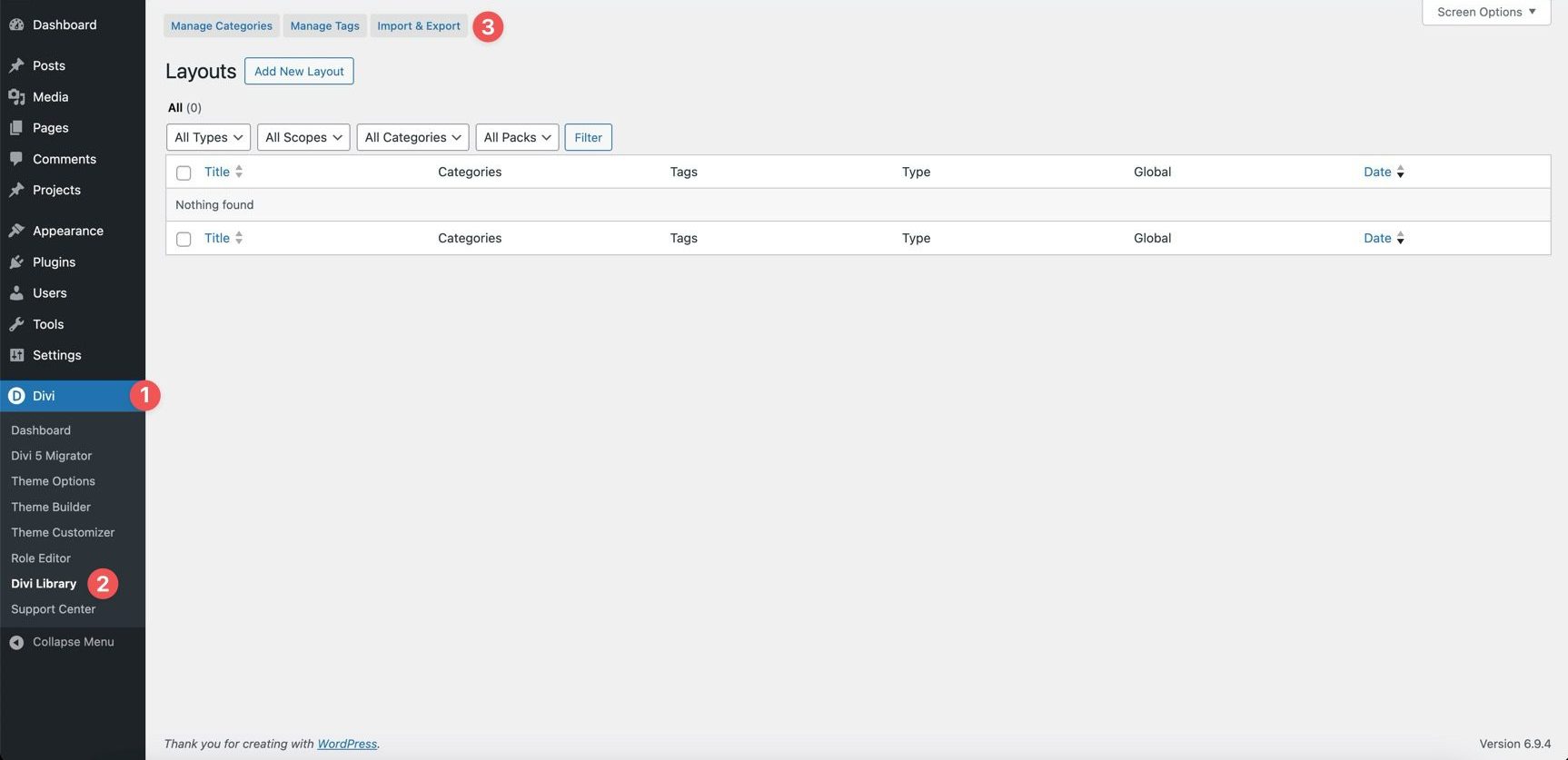
Go to Divi → Divi Library. Click Import & Export at the top of the screen.
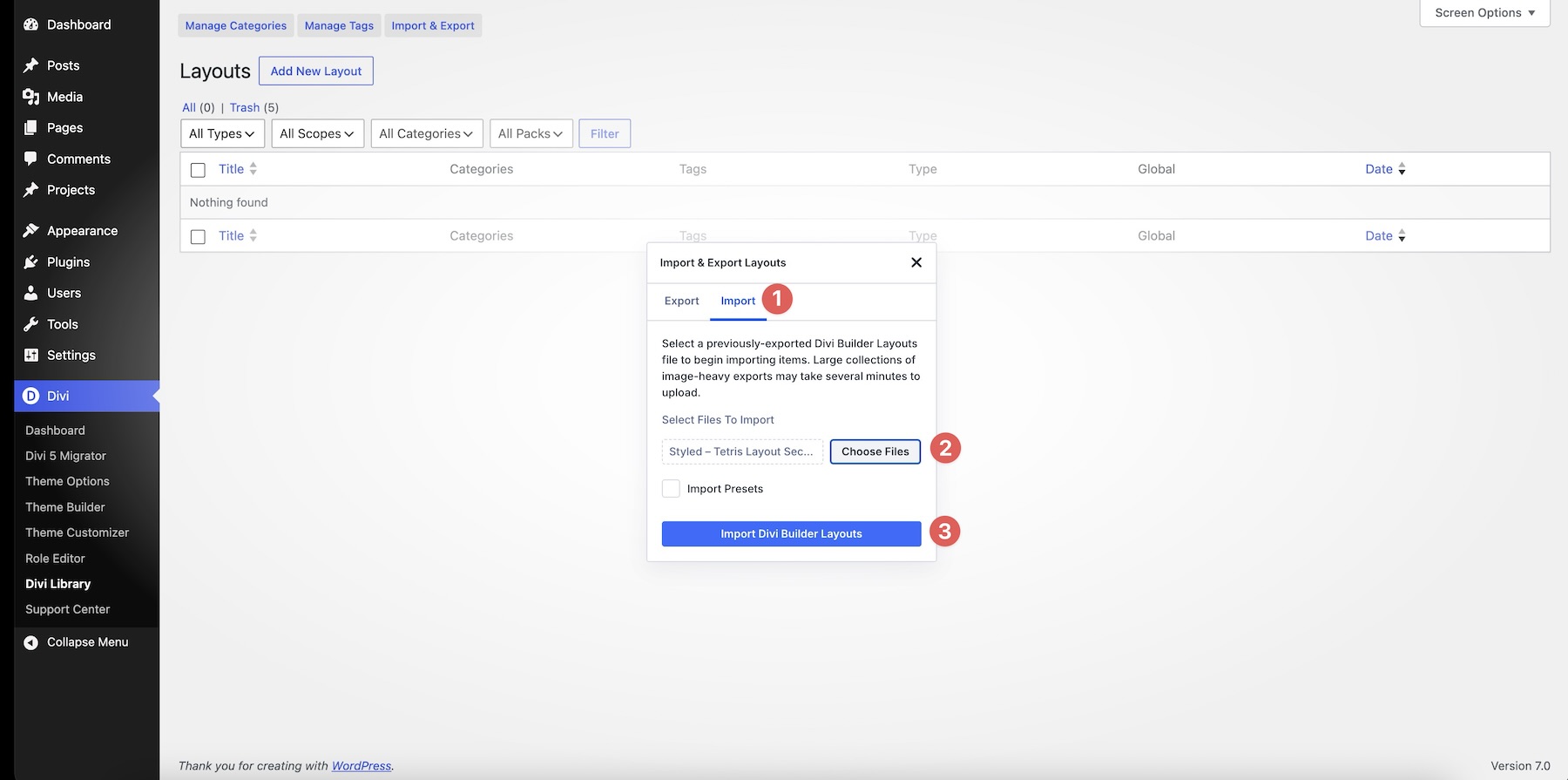
In the Import & Export Layouts modal, switch to the Import tab, then click Choose File and select your JSON file. Choose any Tetris Layout Section JSON you’d like to use, then click Import Divi Builder Layouts.
2. Add A Tetris Section To Any Page
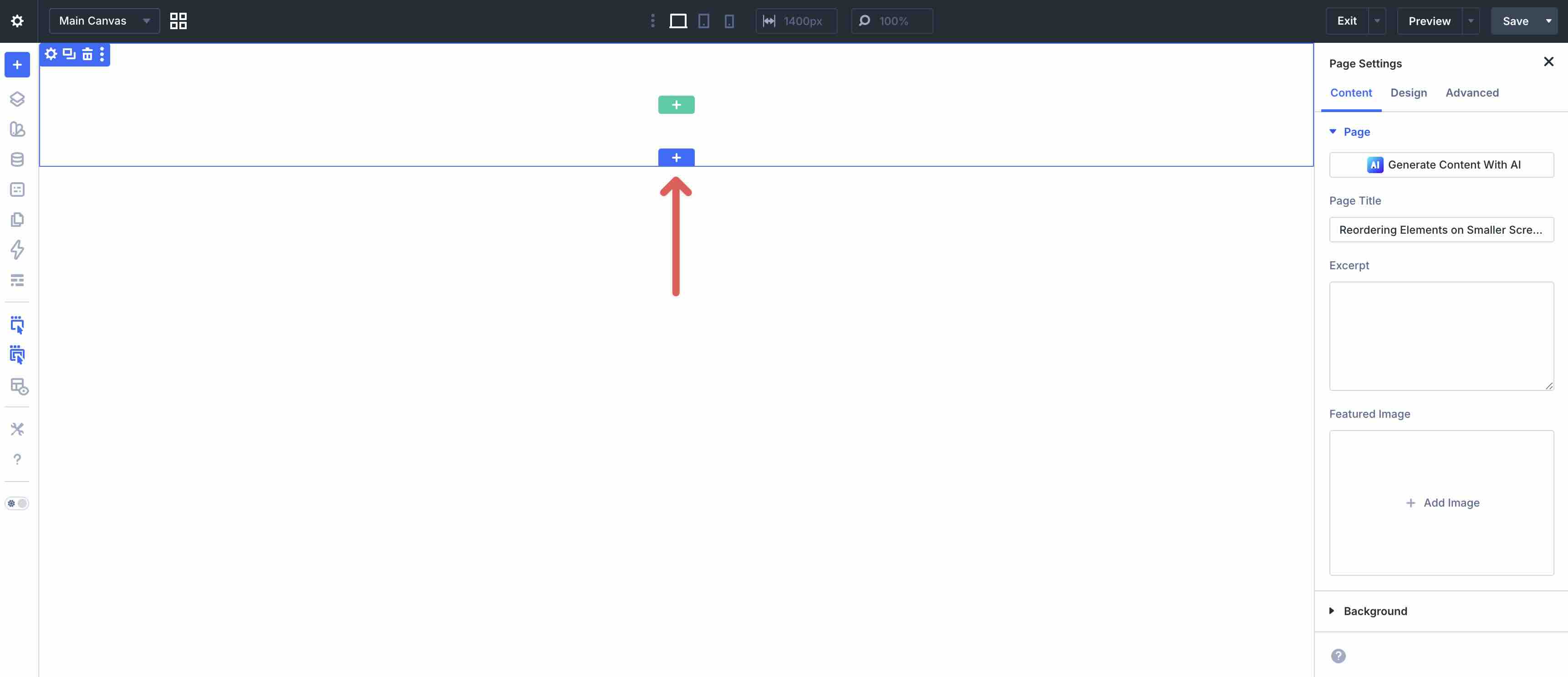
Open a page in the Visual Builder and add a new Section.
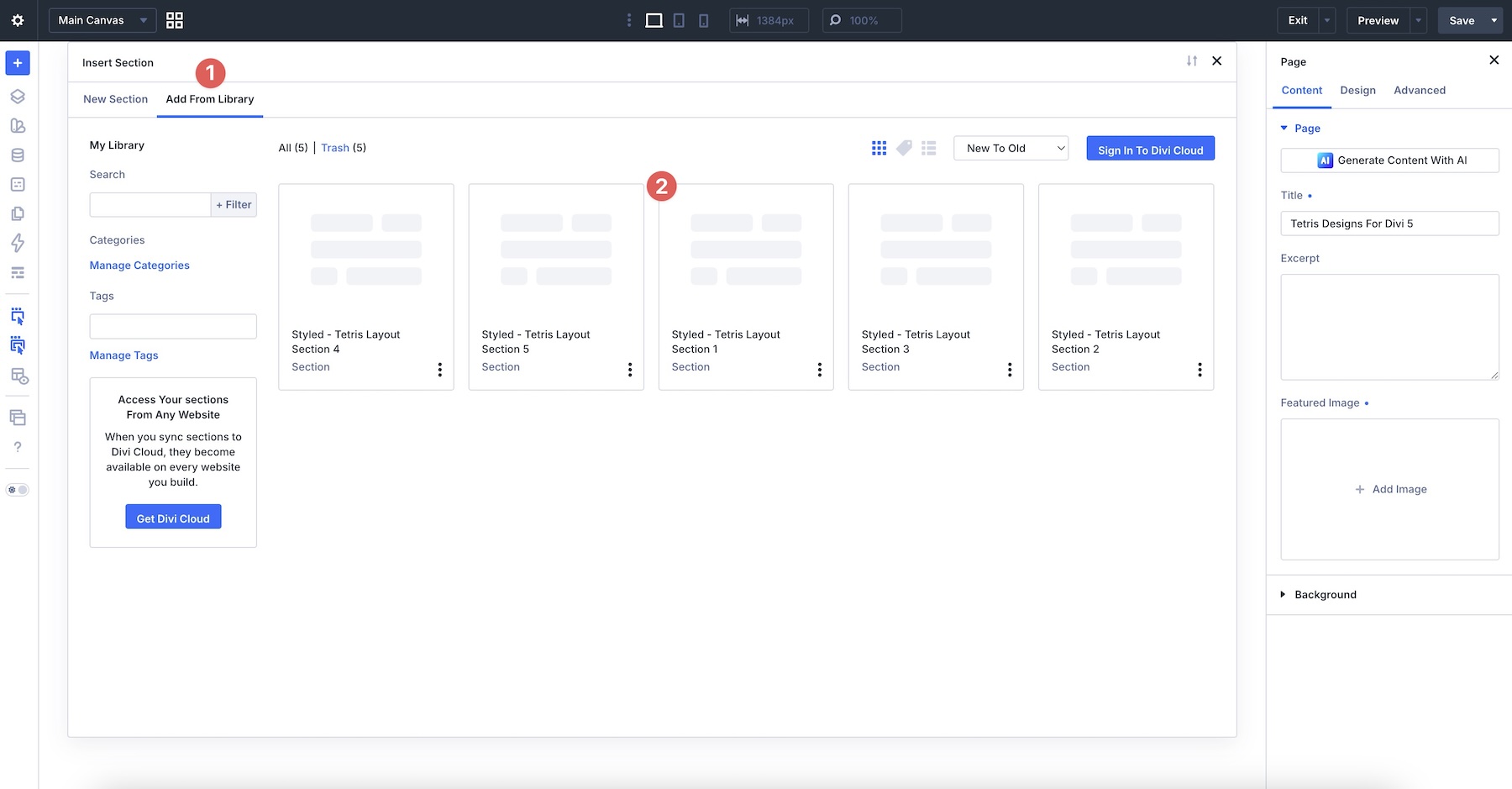
Click Add From Library and select one of your Tetris Layout sections.
3. Swap The Content
Once the section is on the page, replacing the placeholder content only takes a few clicks. Start by updating the heading, body copy, buttons, labels, stats, feature text, service details, captions, links, and calls to action so the section matches your brand and message. Then swap in your own images, icons, screenshots, product visuals, or supporting content as needed.
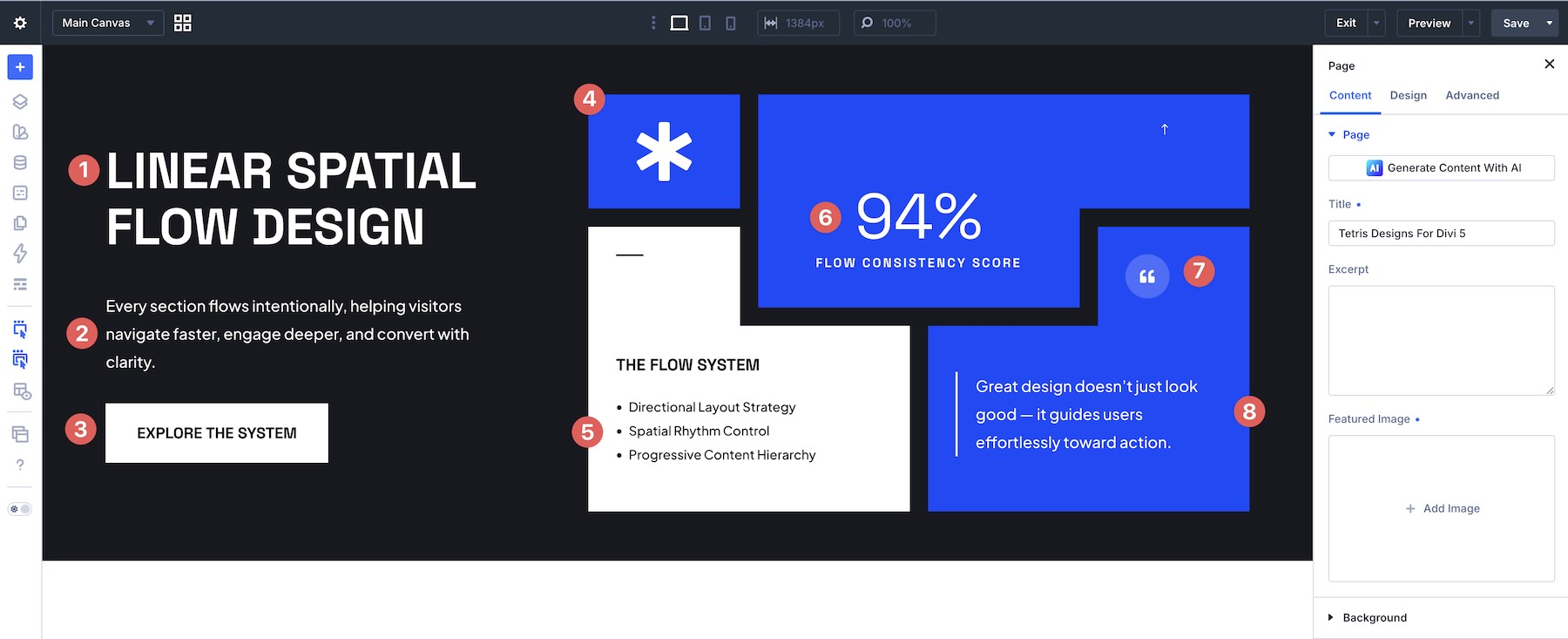
Because Tetris-style layouts rely on modular blocks, offset positioning, and strong spacing relationships, it’s best to replace content one block at a time. This helps preserve the balance between text, imagery, cards, buttons, and negative space as you customize the design.
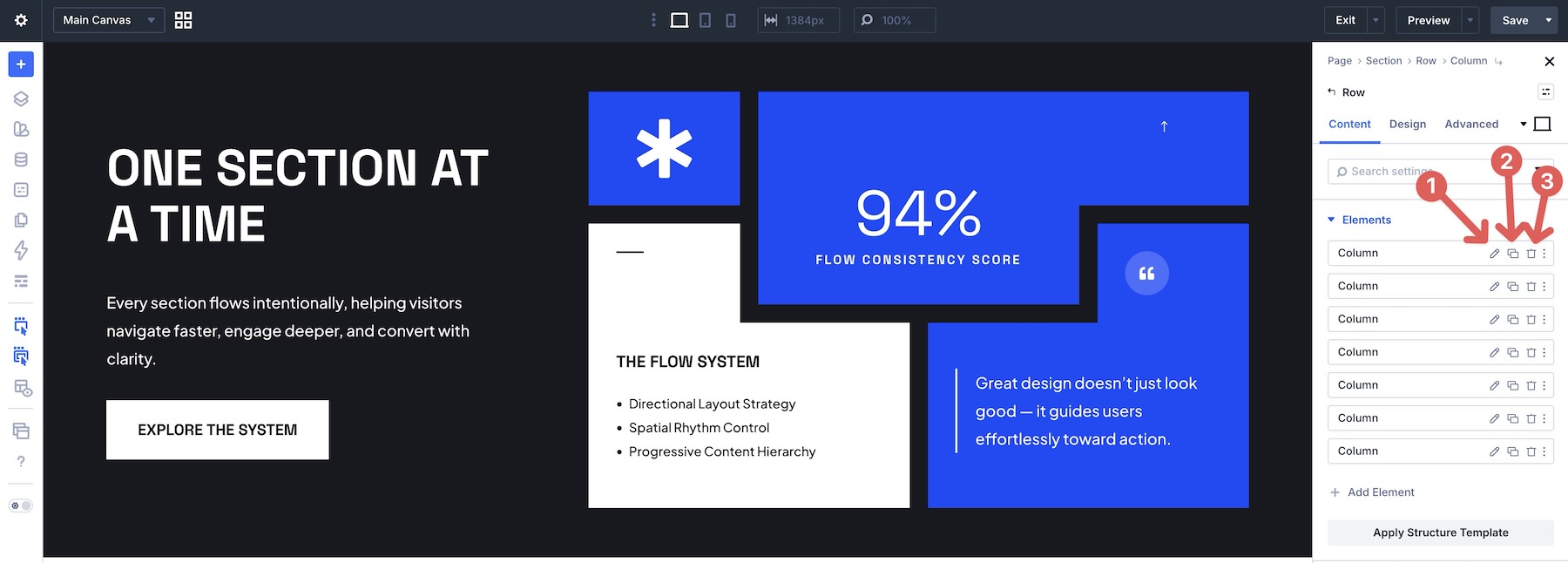
If you want to expand or simplify a section, duplicate or remove existing rows, columns, groups, cards, content blocks, or modules rather than rebuilding the design from scratch. That’s the easiest way to preserve the original structure, spacing, alignment, and visual rhythm of the layout.
4. Adjust Styles (Optional)
These Tetris Designs are already styled, so you can use them right away or refine them to better match your site. Update typography, colors, backgrounds, borders, shadows, spacing, images, buttons, card treatments, and layout sizing as needed using the settings in the Design tab.
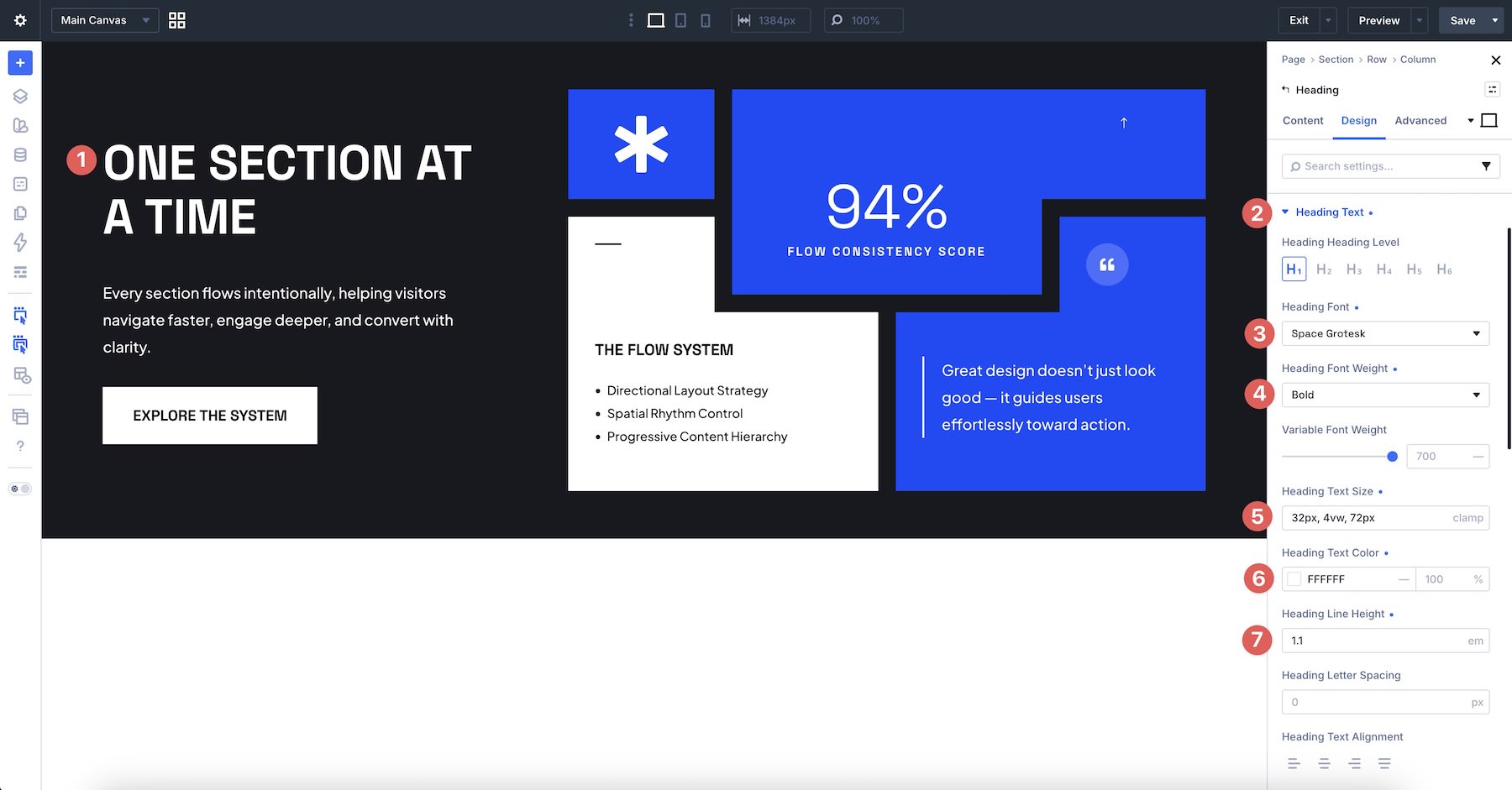
To change typography, open any Text or Heading module and go to the Design tab. Expand the relevant text settings to adjust Font, Font Weight, Text Alignment, Text Color, Text Size, Letter Spacing, Line Height, and more.
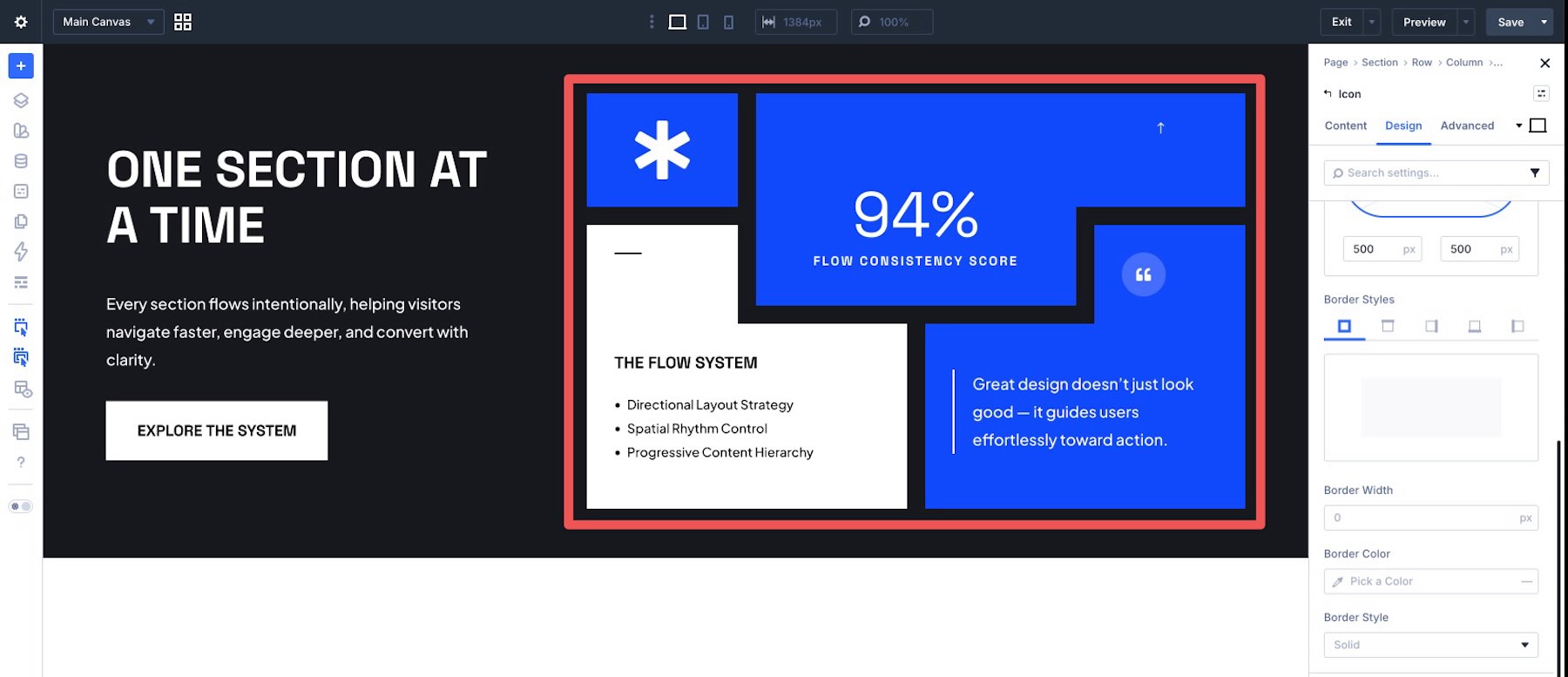
To refine the modular styling, open the row, column, group, card, or module you want to adjust and use the Content and Design tabs to tweak Background, Border Width, Border Color, Border Radius, Box Shadow, Sizing, and Spacing.
If your section uses offset cards, stacked blocks, overlapping content, image tiles, stat boxes, button groups, or asymmetric spacing, keep those relationships in mind as you edit so the layout remains intentional and balanced.
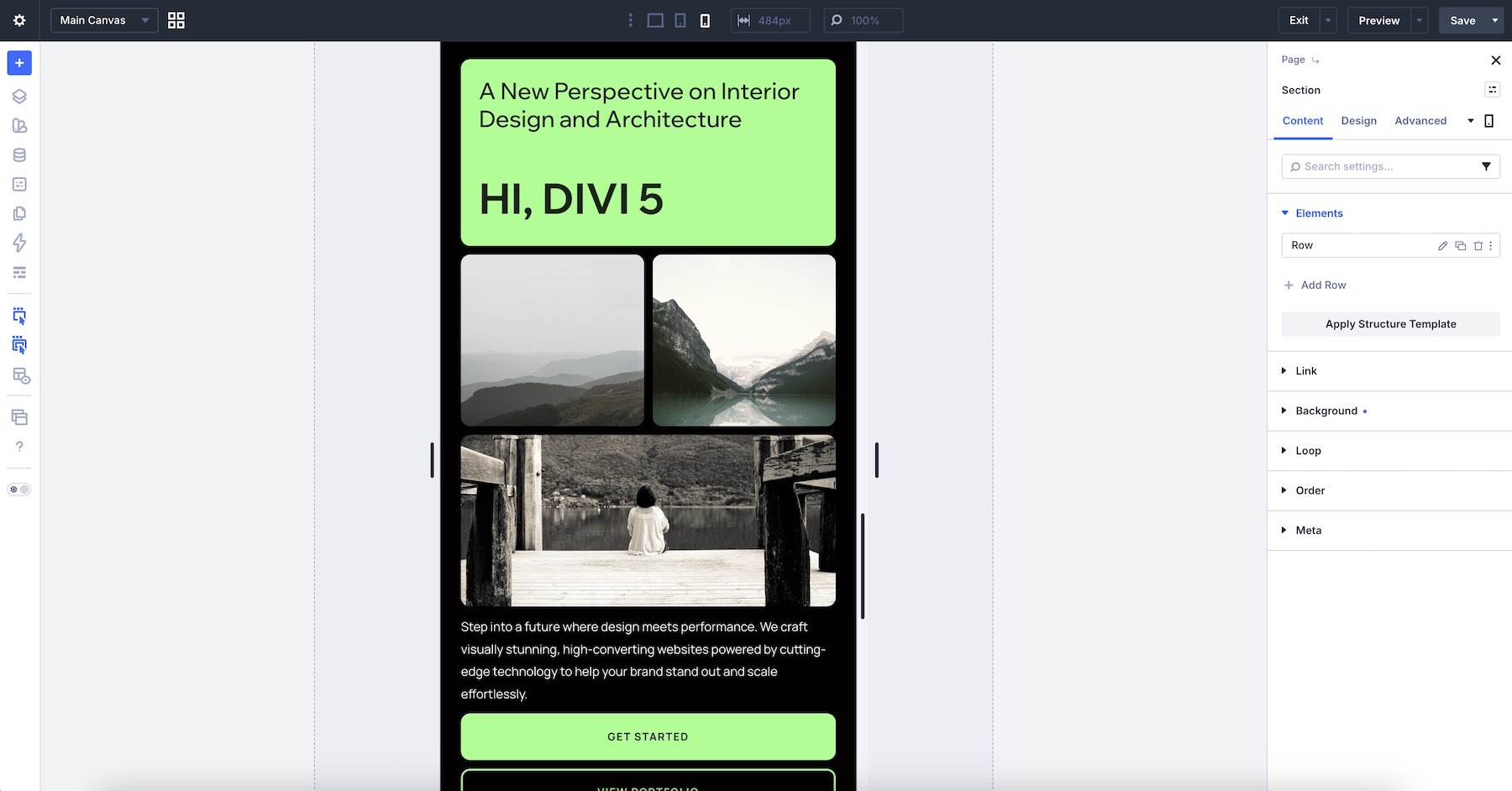
Use Divi’s responsive editing tools to fine-tune spacing, stacking, block order, image size, card width, text alignment, and button placement on smaller screens so the layout stays polished across devices.
Tips For Effective Tetris Layouts
Tetris-style layouts work best when every block feels intentionally placed. Use these quick tips to keep your sections dynamic, organized, and easy to customize.
Give Each Block A Clear Purpose
Every card, image, stat, button, and text area should support the section’s main message. Avoid filling the layout with too many competing elements, and let each block do one clear job.
Use Contrast To Guide The Eye
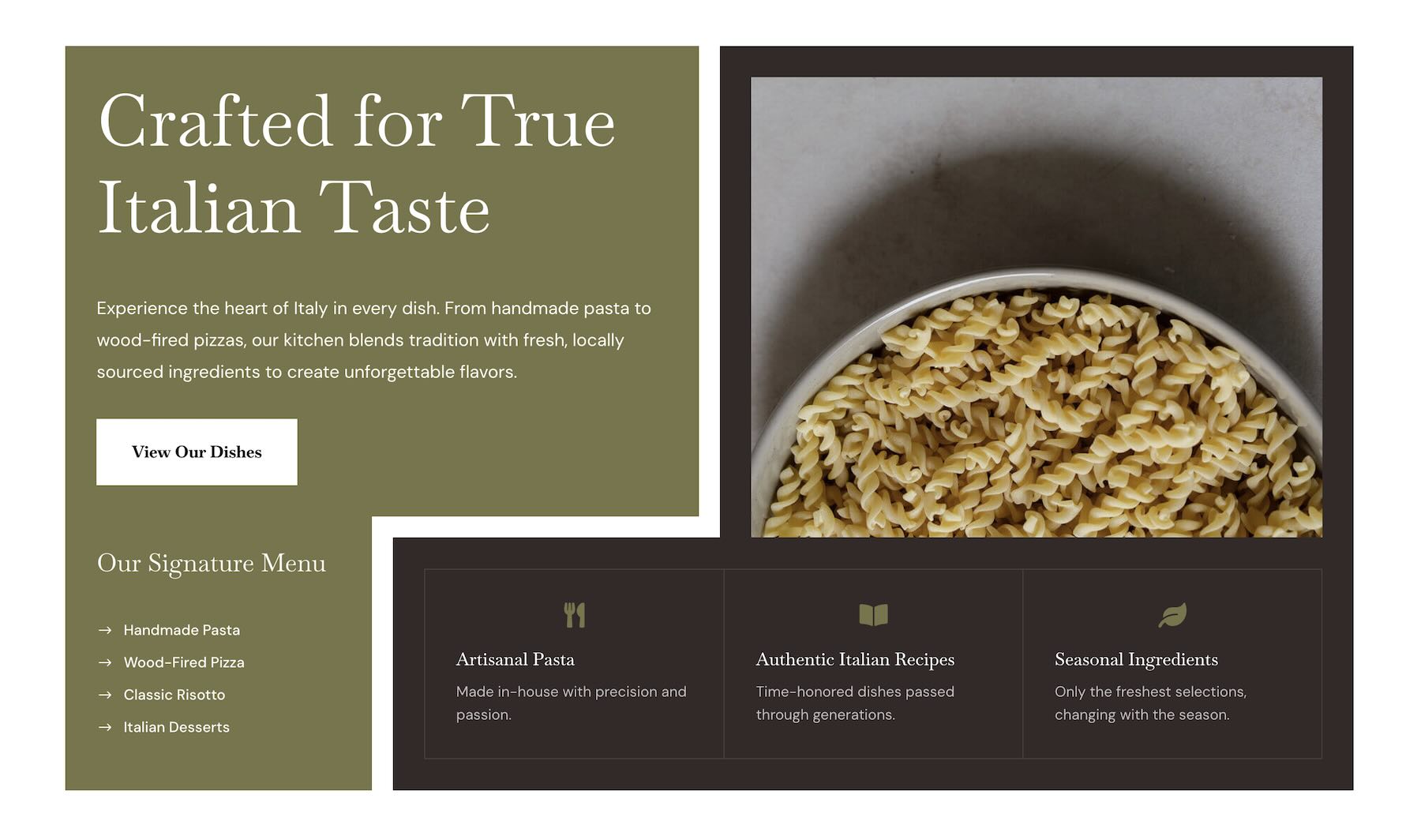
Tetris layouts often include several content blocks in one section. Use contrast, color, scale, and spacing to guide visitors through the layout and highlight the most important content first.

Keep Spacing Consistent
Even when the layout feels playful or offset, spacing should still feel intentional. Keep the gaps between blocks, cards, images, buttons, and text areas consistent so the design feels polished instead of random.
Balance Asymmetry With Structure
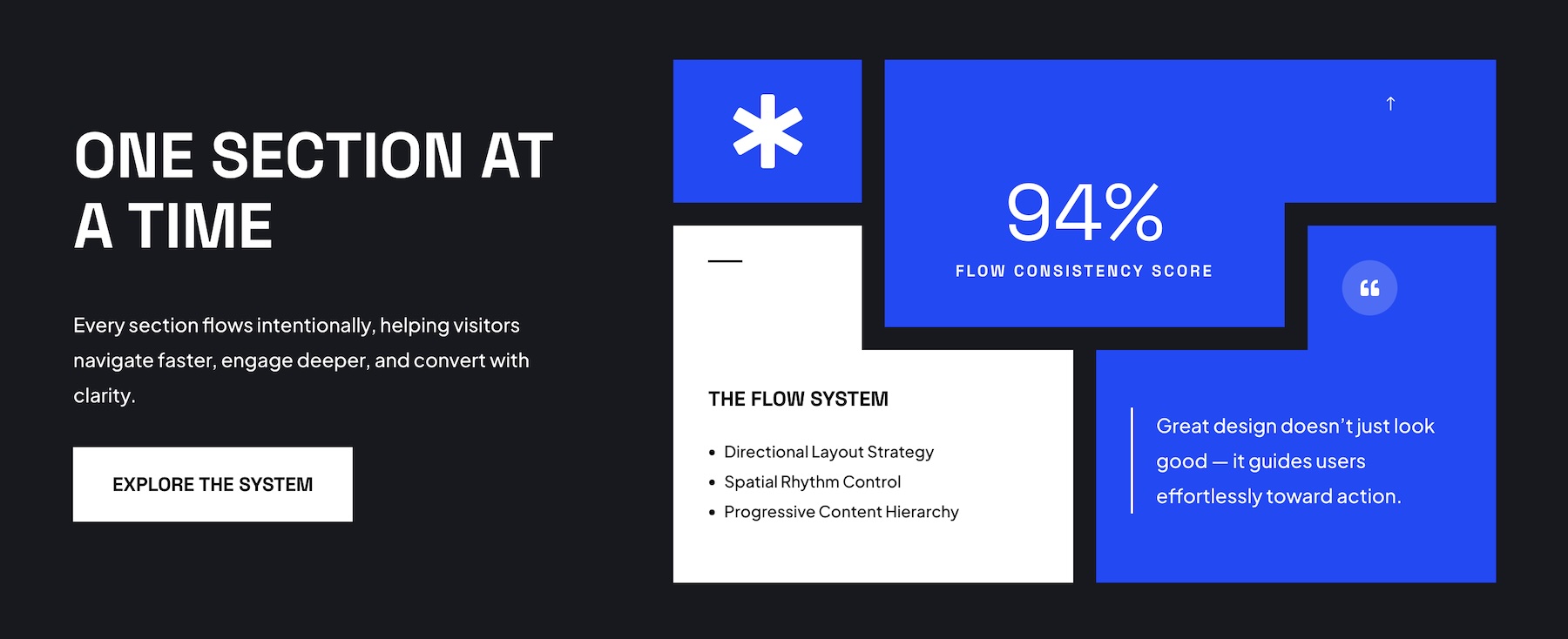
The appeal of a Tetris layout comes from its modular, asymmetric feel. Balance that movement with clean alignment, repeated shapes, consistent spacing, and clear visual hierarchy.
Check The Layout On Mobile
Tetris layouts can change noticeably on tablet and phone screens as blocks stack. Review your layout on smaller devices to make sure content order still makes sense, images crop well, spacing feels balanced, and calls to action remain easy to tap.
Start Building In Divi 5 Today!
These 5 Tetris Designs for Divi 5 give you a fast way to build dynamic, modular sections for landing pages, service sections, feature highlights, product pages, portfolio layouts, agency websites, call-to-action areas, and more. Swap in your content, customize the styling if needed, and you’ll have a polished section ready in minutes with Divi 5’s Visual Builder.




Leave A Reply