

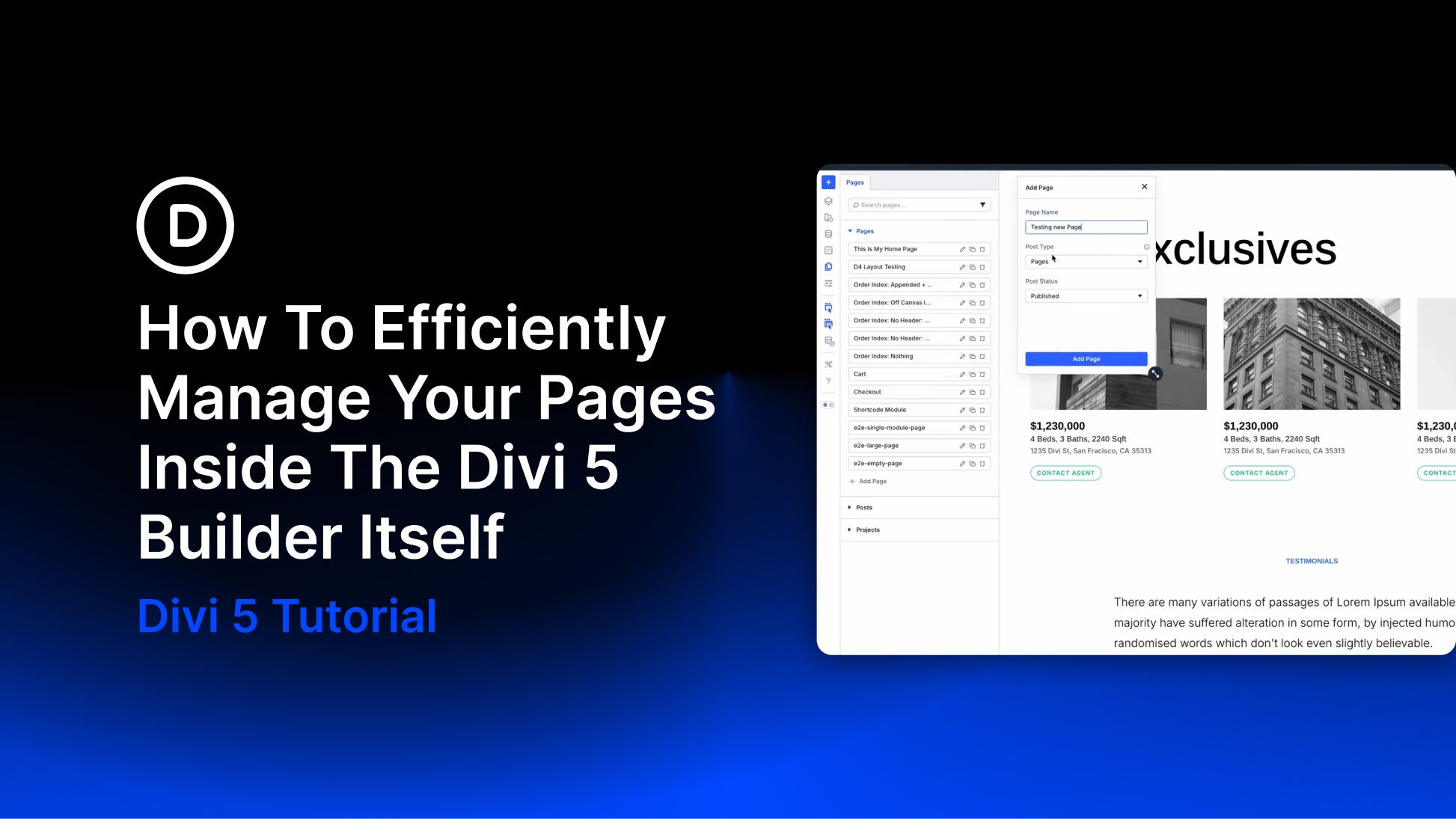
Most of the time you spend in Divi 5, you’re deep inside one page. But site builds rarely involve just one page, and going back to the WordPress dashboard every time you need to manage another one pulls you away from what you were doing.
That’s why we built the Page Manager as a practical addition that slots cleanly into how you already work without leaving the builder. If you’re creating full sites and haven’t tried it yet, let’s break it down.
What Is Divi 5’s Page Manager?
The Page Manager is a panel built right into the Divi 5 Visual Builder. You’ll find your site’s content in a single searchable list in the builder sidebar: pages, posts, and custom post types are all here.
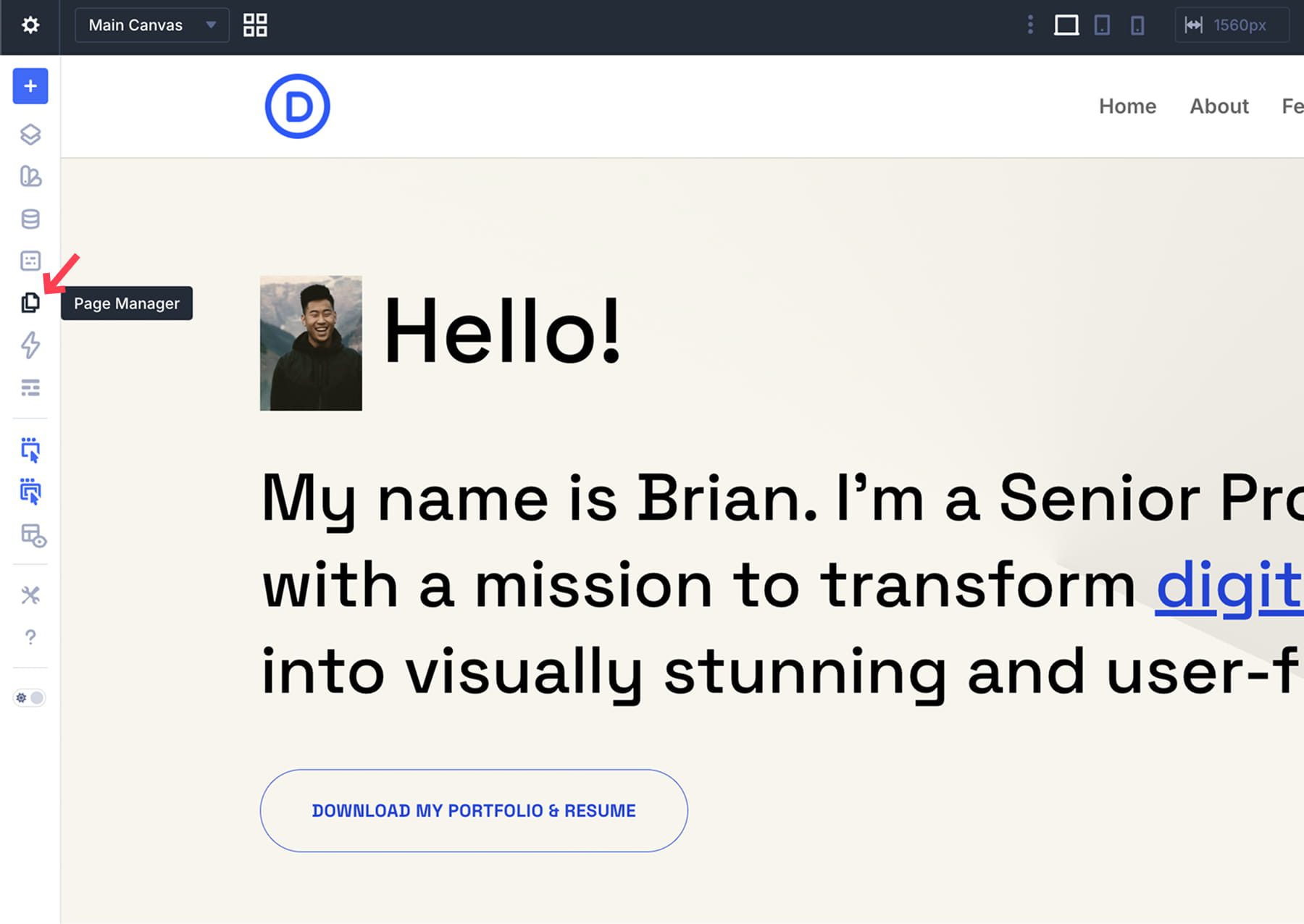
Each item appears by name, and a search bar at the top lets you filter through everything fast. Even on large sites with dozens of entries, finding a specific page or post takes seconds. You can access the panel alongside your other builder tools, like the Layers panel, presets, and design variables.
What sets it apart is location. The WordPress dashboard already has a page list and a post list, but those are outside the builder. The Page Manager provides the same kind of access directly in your design workspace. You never need to close what you’re working on or load a new screen just to check on another piece of content.
Why Use Page Manager Anyway?
Building a full site means working across many pages in a single session. Your homepage, services page, contact page, and a few blog posts all need attention at different stages. Getting to any of them normally means leaving the builder, going back to the WordPress admin, finding the right page, and opening the builder again.
Do that ten or fifteen times during a build, and you’ve spent a good chunk of your session just on loading screens and dashboard clicks. It also interrupts whatever you were focused on, making it harder to pick up where you left off.
The Page Manager removes that step entirely. You stay in the Visual Builder, pick the next page or post from the sidebar, and keep working. Same tools, same environment. Once you get used to moving between content this way, going back to the old method feels sluggish.
Client revision rounds benefit from this, too. Notes usually cover a few pages at once, and being able to work through each one in the builder eliminates all the back-and-forth with the dashboard. You open the Page Manager, jump to the first page in the feedback list, make the changes, then move to the next. The entire round of edits takes place in a single continuous session.
Duplicating pages becomes just as easy. If you need to stage changes before pushing them live, you can duplicate a page straight from the Page Manager. That way, your live content stays untouched while you iterate on the copy. However, using Divi 5 Canvases to stage website changes might be a more efficient way.
The same goes for building a new page with a similar structure to one you’ve already finished: duplicate it, swap the content, and you’ve saved yourself the trouble of starting over.
How To Use Divi 5’s Page Manager
Open the Page Manager from the left sidebar of the Divi 5 Visual Builder. It loads right there, alongside the same toolbar where your Layers panel and design variables are.
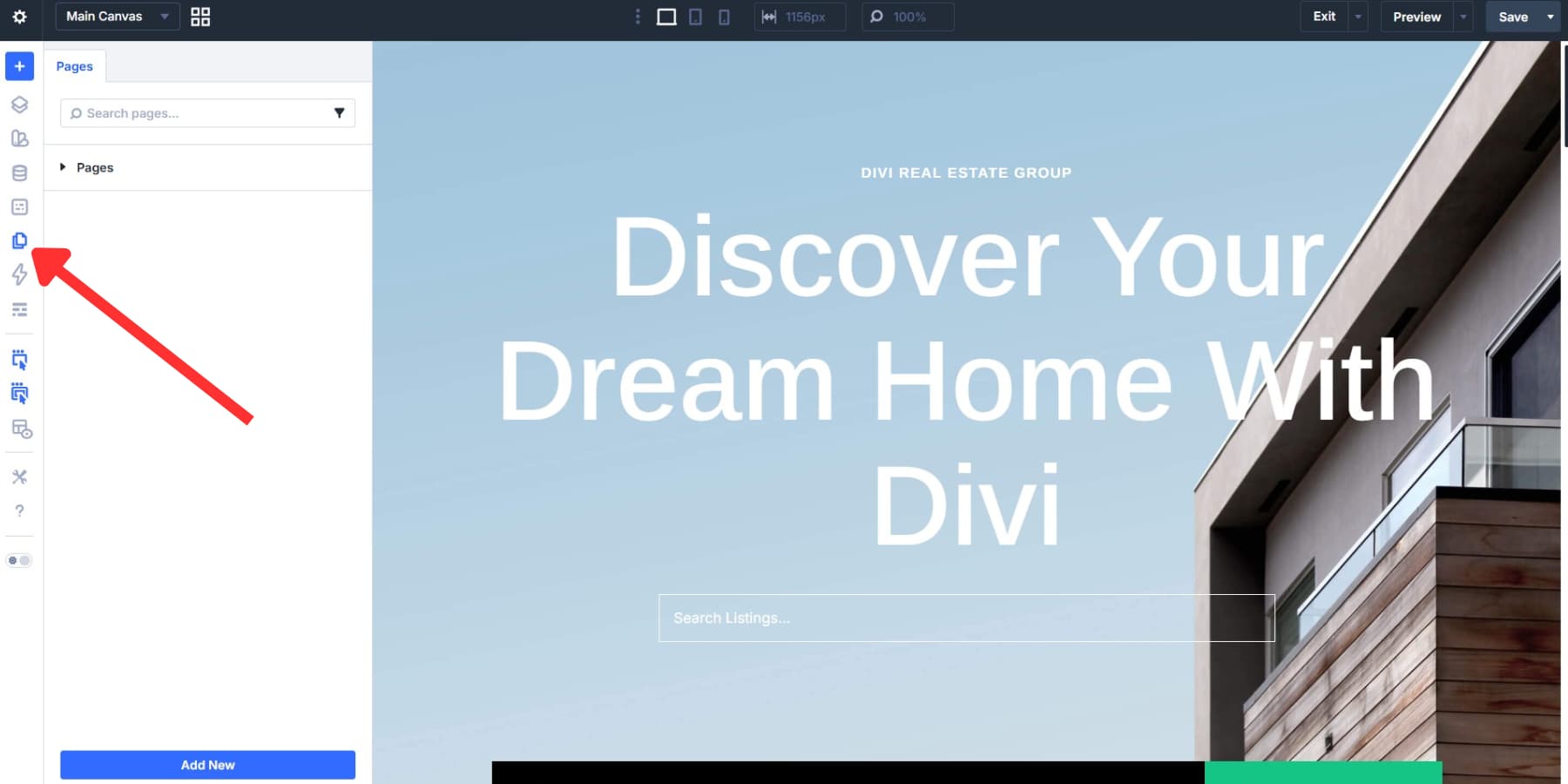
Two things sit at the very top of the panel: a search bar and a filter icon. Typing into the search bar pulls up matching entries on the fly. The filter icon, right next to it, opens a dropdown with its own text field and content type labels, such as Pages and Posts. So if you only want to see posts, click that filter, and the rest disappears unless it matches your search. This is especially handy once your site has grown past a dozen or so entries with similar names.
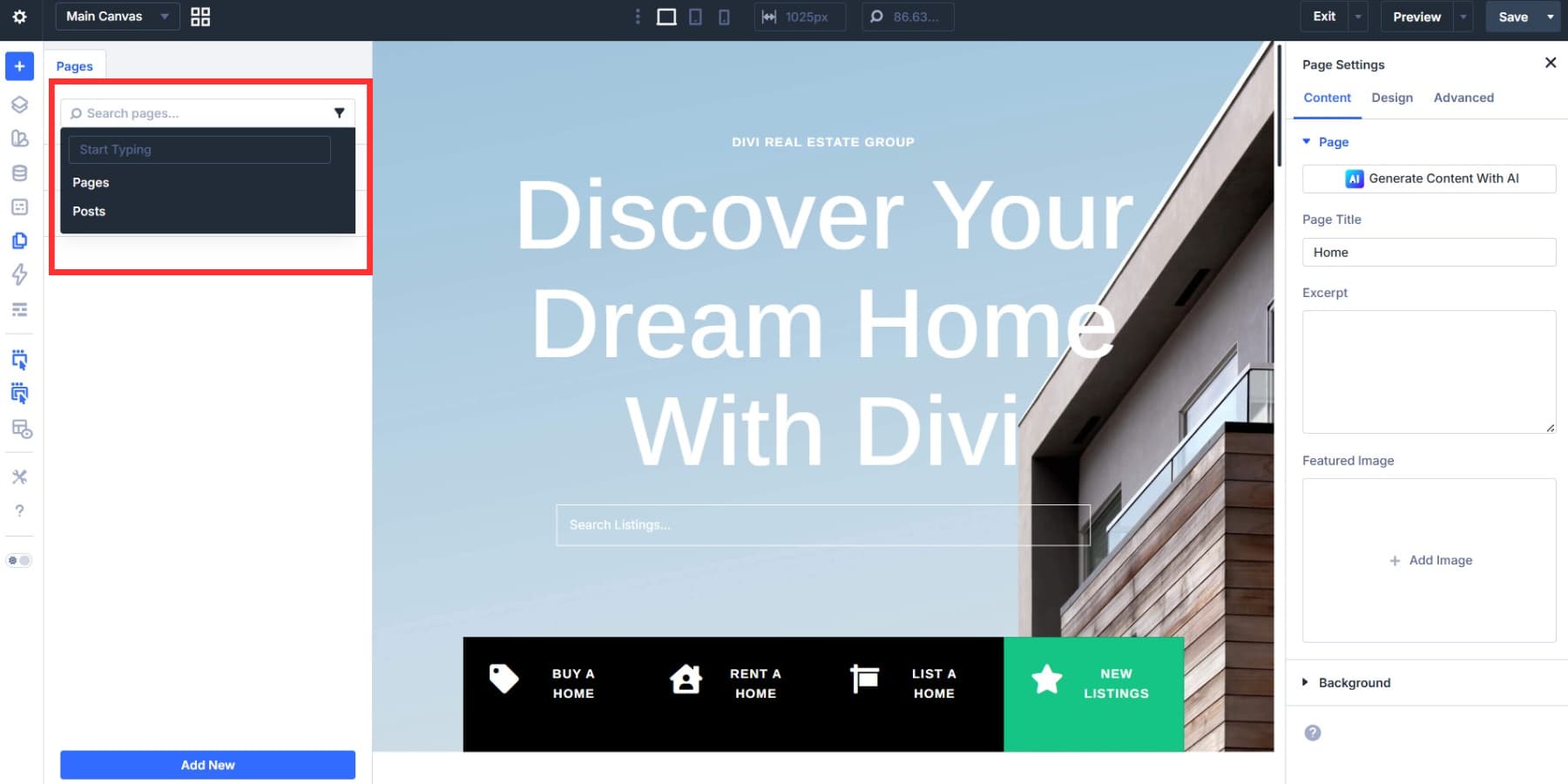
Everything below is sorted into collapsible groups. Pages get their own section, Posts get theirs, and any custom post types on your site show up as their own groups too. Click the arrow next to a group name to collapse it. On bigger sites, collapsing what you don’t need right now keeps the list from getting noisy and makes it easier to focus on the pages you’re actively editing.
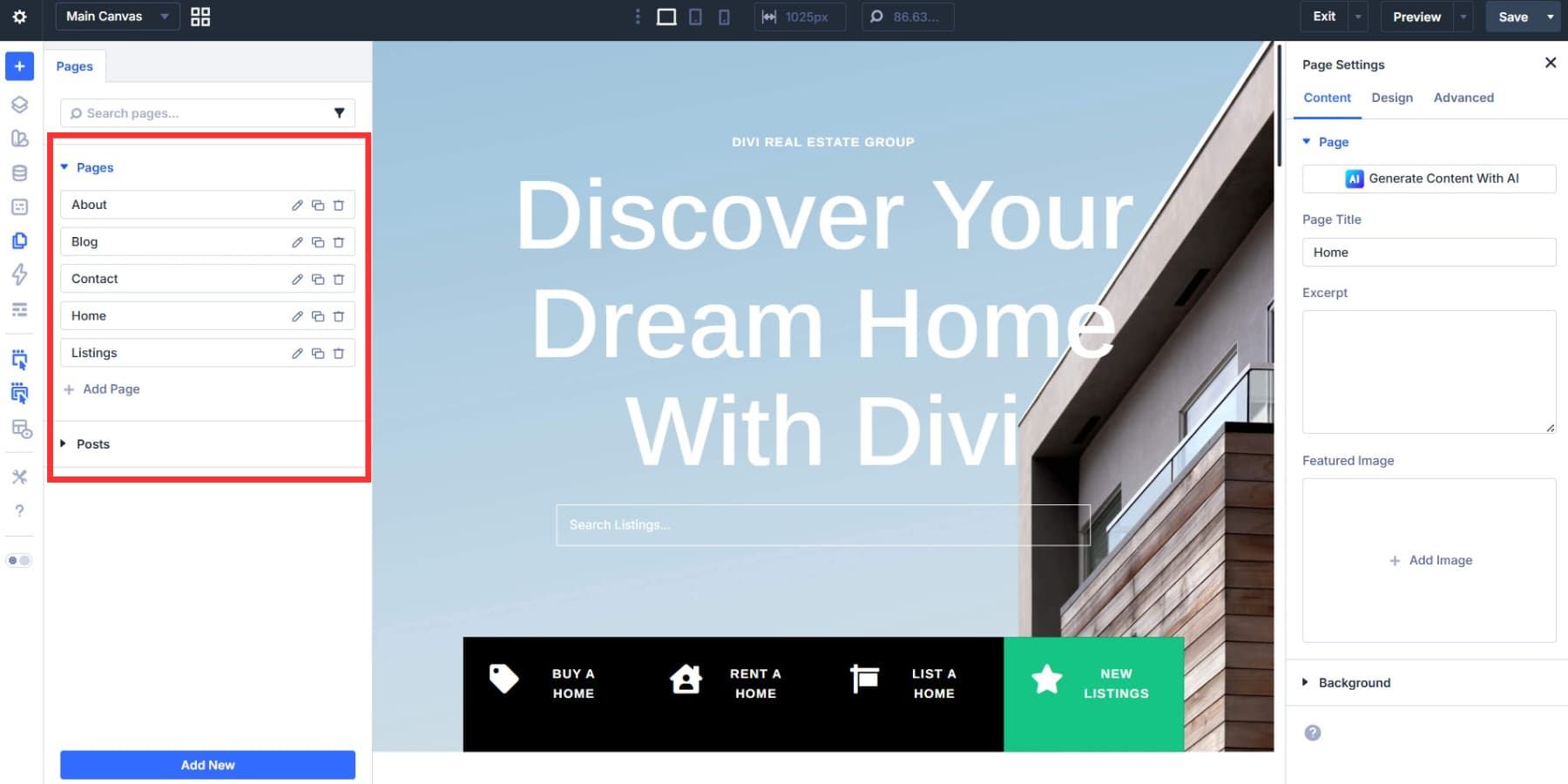
The Page Manager is designed for content that can open directly in the Divi 5 Visual Builder. If you’ve got pages or posts still using the default WordPress editor, they may not appear here, depending on how your site is configured. That’s intentional: every entry in the panel is meant to load you into a consistent builder workflow when you click it.
One more thing worth knowing: the Page Manager can be tabbed with other sidebar panels in Divi 5. Dock it next to your Layers view or presets panel, and you won’t need to keep switching between them. It just becomes part of your workspace.
Adding A New Page
There are two ways to start a new page from the Page Manager. You can click the + Add Page link inside any content group, or hit the Add New button at the bottom of the panel. Both open the same dialog.

That dialog gives you three fields. The first is Page Name, where you type your title. Below it, a Post Type dropdown lets you choose the type of content you’re creating. The default is Pages, but the dropdown can also list other types your site supports, such as Posts and additional custom post types.
The third field is Post Status. You get three options: Published, Draft, and Scheduled. Published pushes the page live right away. Draft keeps it saved but hidden from visitors. Scheduled lets you set it to go live later. For most site builds, Draft makes the most sense while you’re still working on the layout.

Once you’ve filled everything in, click the Add Page button at the bottom. Divi 5 creates the entry and loads it straight into the Visual Builder. You’re already editing it, without extra clicks, dashboard detours, or waiting for a new tab to load.
Managing Pages
Every page and post in the Page Manager comes with a set of actions you can take right from the list. Hover over any entry, and three icons appear to the right: edit, duplicate, and delete.
Clicking edit loads that page into the Visual Builder. The builder switches over to it, so you can start making changes right away. This is the fastest way to jump between pages during a build session, and it’s the action you’ll probably use the most.
Duplicate and delete work immediately from the panel. Hit the duplicate icon, and a copy of that page appears in the list. Hit delete, and that entry is removed. Because delete is permanent, it’s worth using duplicate first if you’re unsure and want a quick backup to compare against.
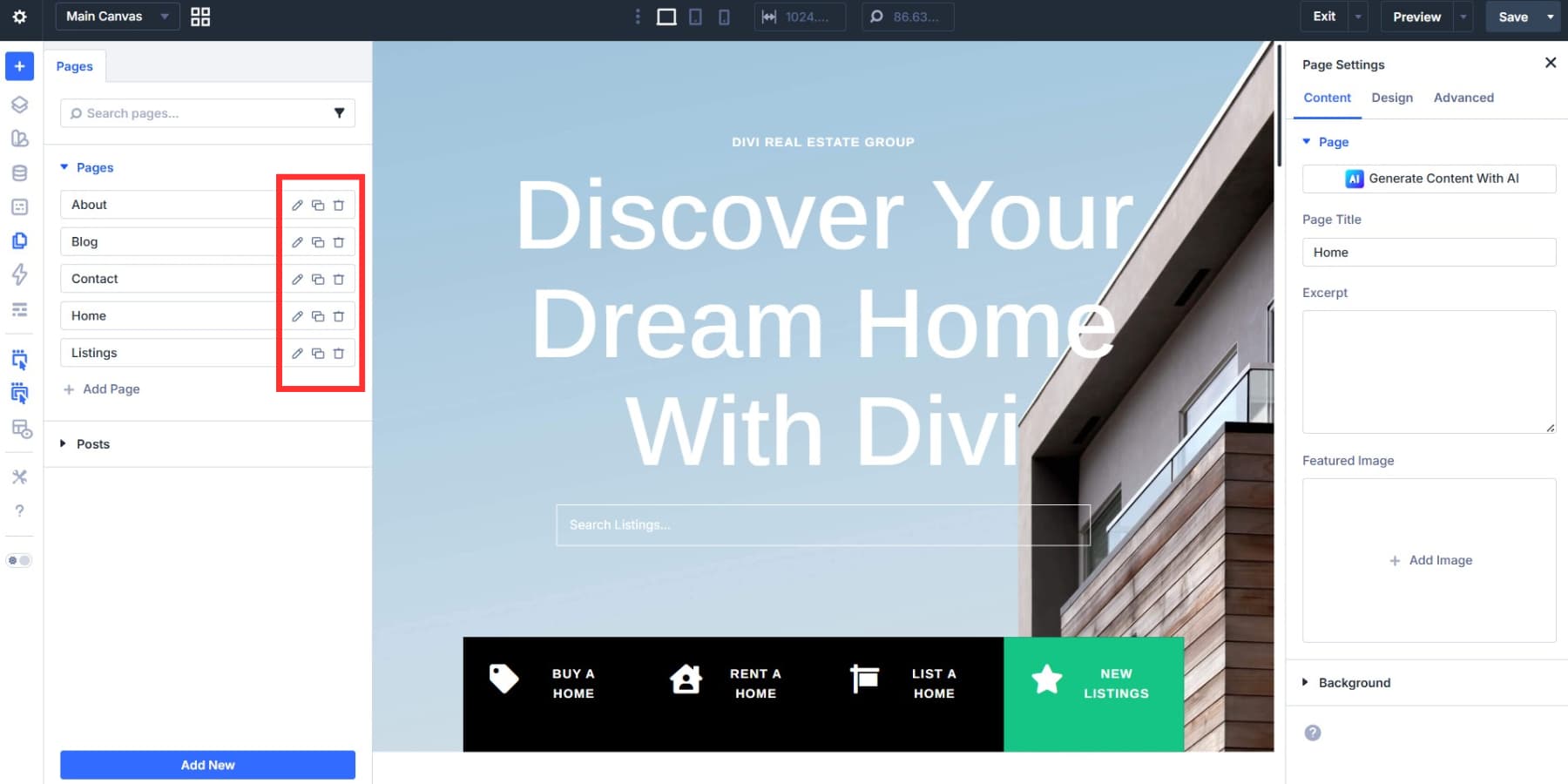
You can also drag entries up and down within each group to rearrange them. This is purely for your own organization inside the Page Manager, so you can order pages in a way that matches how you’re working through a project. Put your homepage at the top, your contact page second, and your blog posts grouped together at the bottom. Whatever makes sense for the build you’re in the middle of.
This is especially useful during revision rounds. If a client gives feedback across five pages, you can drag those pages to the top of the Pages group, work straight down the list, and then move them back when you’re done. It turns a scattered set of notes into a clear, linear workflow.
A Few Tips For Efficiency
The Page Manager works best when you build a few small habits around it:
- Tab it next to Layers when you’re working across pages. Dock the Page Manager next to the Layers panel so page switching and page structure stay one click away for the whole session.
- Create all your pages upfront before designing any of them. Use the Page Manager’s Add Page button to build out your full site map in one go, all set to Draft. Once every page exists in the list, you can move through them in order and design each one without stopping to create new entries mid-flow. It keeps your build session focused on design, not setup.
- Reorder entries to match your revision checklist. Drag your Page Manager list into the same order as your client’s feedback notes. Work top to bottom. You won’t skip pages or double back, and the whole round of changes flows in one direction.
- Copy styles across pages with Quick Actions. Right-click a styled module on one page and copy its styles or design attributes. Then switch to another page through the Page Manager and paste those settings onto a matching module. You just carried a design decision across two pages without touching a preset or reopening the dashboard.
Try The Page Manager In Divi 5 Today!
The less time you spend switching screens, the more time you spend designing. That’s the whole point. Divi 5 was built to keep you in one place, doing real work, with nothing slowing you down between pages.
Tab the Page Manager into your sidebar, set up your site map in one pass, and watch how different a full build feels when the dashboard never pulls you out of flow. The Page Manager is ready to go right now. Download Divi 5 and try it on your next project.










Leave A Reply