

Give one product room to stand out, then let the rest of the collection fill the grid around it. Using Divi 5‘s CSS Grid Editor, you’ll build an outdoor gear layout whose first card spans two columns. Large photos and compact price badges carry the design from four columns on Desktop to two on Tablet and one on Phone.
You’ll design one card and use the Loop Builder to repeat it for 19 WooCommerce products. Each card gets its own image, category, name, price, and product link, so you can change the shared design without rebuilding every card.
Before starting, update Divi 5 and activate WooCommerce. Add published products with names, prices, product categories, and featured images. This example uses 19 products, but you can use a smaller catalog while following along. Include a sale-priced product if you want to check how the current-price field behaves. Payment and shipping setup are not needed to preview the grid.
Set Up The Product Grid
Use one Row for the collection heading and a second Row for the product grid. Only the card Column in the second Row will repeat.
Start With The Section Heading
Create a page and open the Visual Builder. For a standalone section without the theme’s header and footer, choose the Blank Page template in the WordPress page settings first. With the Insert Row chooser open in the empty Builder, choose the one-column layout inside the blank Section. This Column will hold the text above the product grid.
Select the Section and use background #0E1512, then open Design > Spacing for 96px top and bottom padding.
The heading Row needs room above the cards. Set its bottom Margin to 40px, then ensure Flex Wrap is No Wrap in its Layout controls.
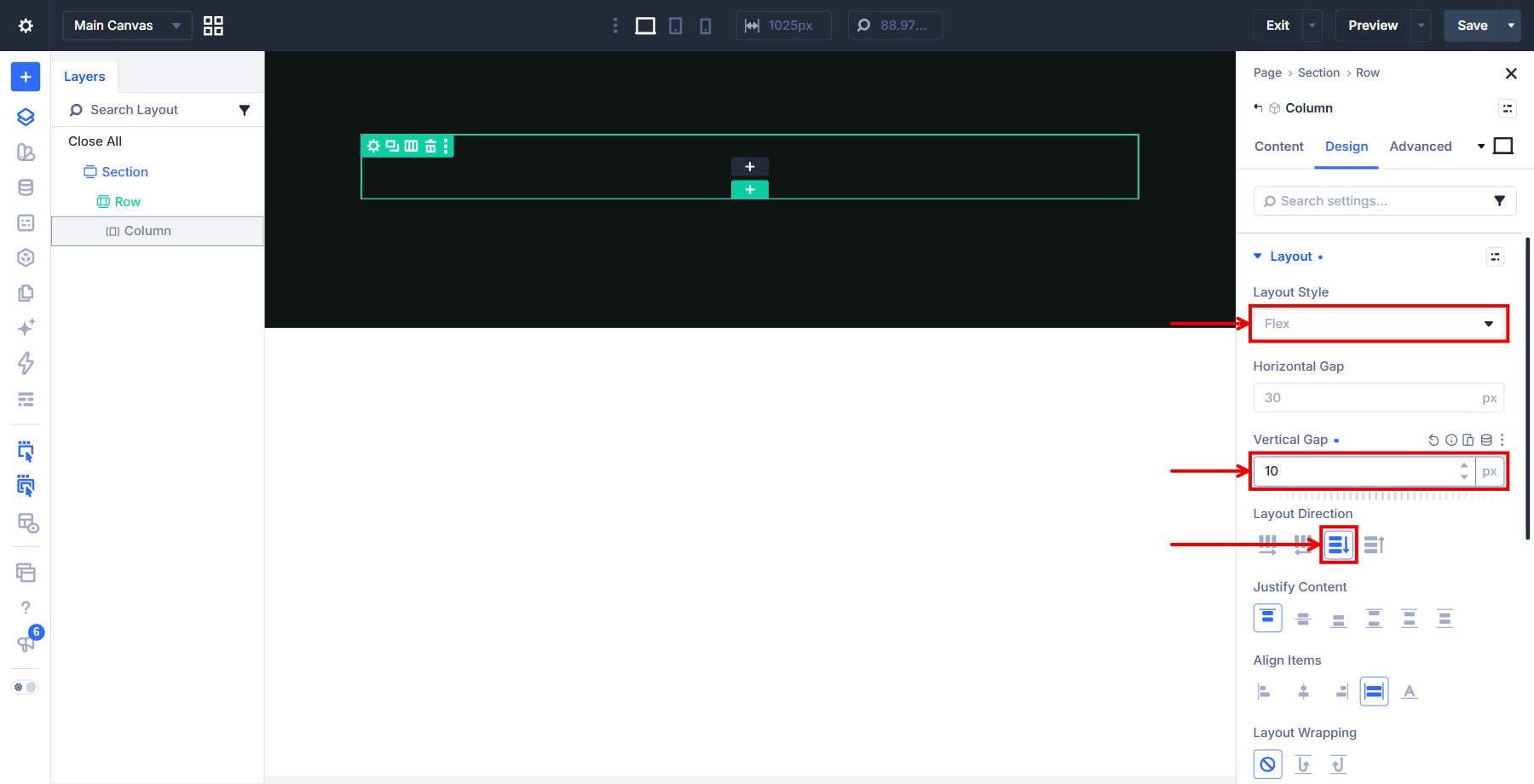
For the header Column choose Display Flex and Direction Column. A Vertical Gap of 10px separates the eyebrow from the title.
Add The Header Text
Inside that Column, insert a Text module with a short collection label, such as Outdoor gear. This short line introduces the collection before the larger heading.
Use 11px text at weight 700. Apply Uppercase with Letter Spacing 0.2em, then set the color to #7F9A8A.
Add a Heading below the Text module in the same Column. Use a heading that introduces your collection; this example uses Built For The Backcountry.
Choose H2 at weight 700, colored #F2F4F1. Set size to clamp(30px, 3.4vw, 46px), Line Height to 1.06em, and Text Wrap to Pretty.
Build The Card Structure
Name the Section Product Grid Section under Meta, then add a second one-column Row below the header Row inside the same Section. In Meta, label the new Row Product Grid and its Column Product Card. The Row controls the grid tracks; the Column is the card that will repeat. Keep a single card Column in this Row. The loop will create the remaining cards from your products.
Inside Product Card, add a Group with a Text child for the price. Check the hierarchy before adding the next Group so the price remains inside its own container.
Add a second Group inside Product Card. Select this Group and insert a category Text module as its first child.
Complete the name Group with a Heading and a Button, in that order. Set Button Text to View product; the Heading will receive each product’s name from the loop.
Set Up The Grid And Loop
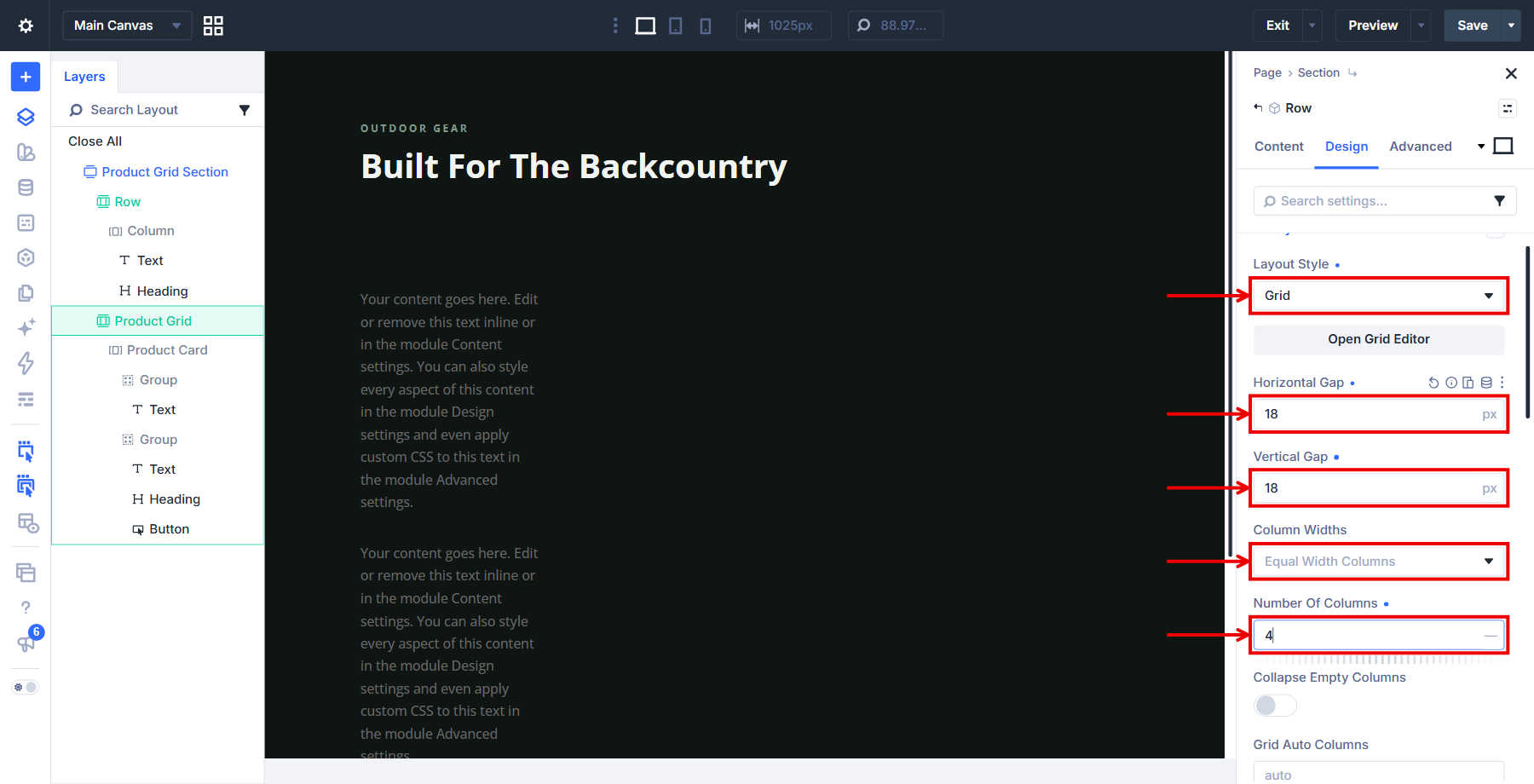
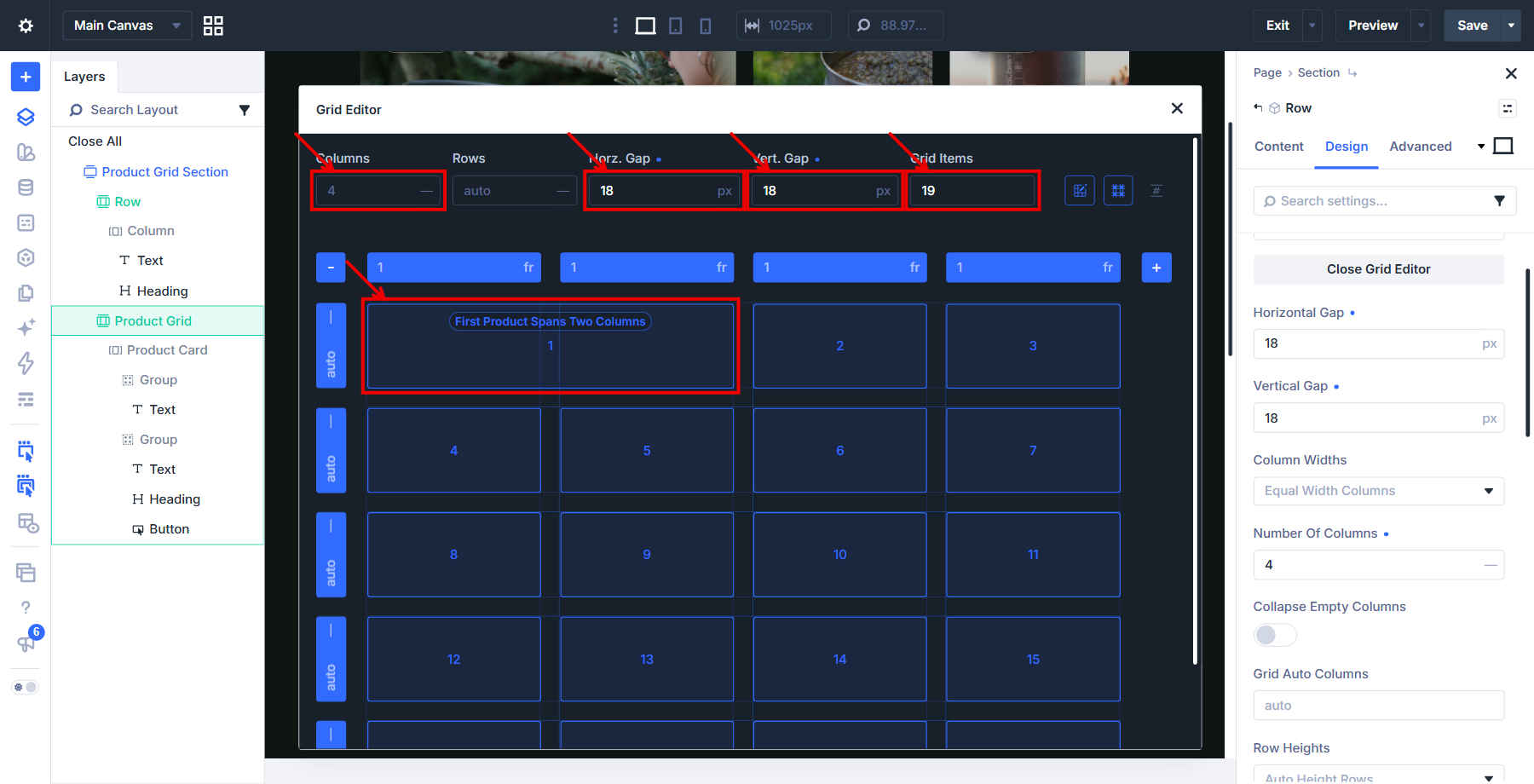
On Product Grid, open Design > Layout and choose Grid. Use 4 equal-width columns with 18px horizontal and vertical gaps.
Open Content > Loop on Product Card and enable Loop Element. Set Query Type to Post Type, then select Products. Scroll within the settings panel to set Posts Per Page to 19, then verify Order By Publish Date and descending order.
The whole card Column now repeats for the query results. With Publish Date descending, the first card is the newest product returned by the query. The wider card we create later does not depend on WooCommerce’s Featured product flag. If the grid is empty, confirm that Products is selected and your products are published.
Design And Connect The Product Cards
Style the shared card and connect its fields to WooCommerce. Each loop repeat will use the same design with its own product data.
Give Each Card Its Photo
In the card Column’s Content > Background controls, use #0E1512 as the fallback color. Bind the image to Loop Featured Image, choose the large thumbnail, and set image size to cover. Use the dynamic-content button beside the image field to select the binding.
Each product needs a featured image; the fallback color only fills the background when one is missing. Cover crops the image to fill the card, so check the crop on the wider first card as well as the regular cards.
Enable a linear Background Gradient directed to bottom, with Place Gradient Above Background Image on. Using #0C120F, set the upper stops to 0% position at 15% opacity and 38% position at 30% opacity.
Click the gradient rail near 50% to add a stop, then drag the new stop to 68% and set #0C120F at 78% opacity. Add another stop near 50%, drag it to 100%, and use the same color at 97% opacity. Replace each new stop’s interpolated color so the lower edge becomes the intended dark overlay.
Style The Card Box
Set card Padding to 20px top, 24px bottom, and 22px on each side. Keep the horizontal pair linked and the vertical pair unlinked. Use 3px linked corners and a desktop Min Height of 380px, giving cards with short names the same minimum space as their neighbors.
The card Column uses Flex, Direction Column, Justify Content Space Between, and a Vertical Gap of 16px. Space Between holds the price near the top and the name Group near the bottom.
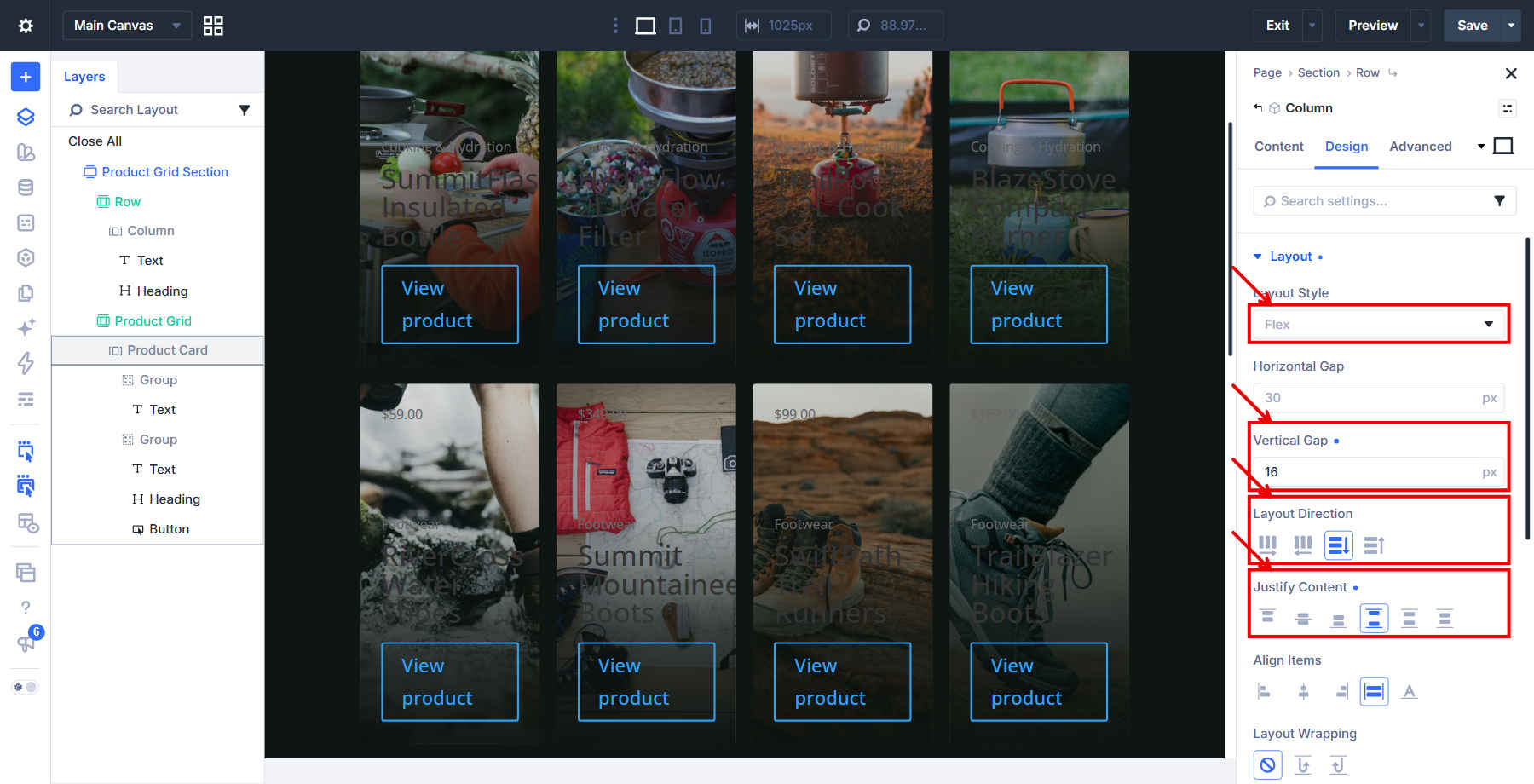
Keep the price Group’s Flex Row layout and explicitly select Justify Content Start and Align Items Start. The name Group uses a Flex Column with a 6px vertical gap to keep the name block stacked.
Bind The Product Data
In the price Text module, use the dynamic-content button beside Body and select Loop Product Current Price. This displays the active sale price when a product is on sale and its regular price otherwise; it does not add a crossed-out regular price. WooCommerce supplies the currency formatting, so do not type a currency symbol into Before.
For the category Text, choose Loop Product Terms and verify Product categories, comma-space separation, and links Off. Leave Before, After, and Loop Position blank for both bindings; check these options in the popup rather than relying on defaults from a previous binding.
Use Loop Product Title for the Heading. Bind the Button URL and the card Column’s Link URL to Loop Product Link URL, leaving Loop Position blank so each repeat links to its own product.
Style The Price Badge
On the price Text module, use background rgba(12,18,15,0.68). Set padding to 7px top and bottom with 15px left and right, using the linked pairs to keep the badge even.
Give the badge 999px linked corners and a 1px solid border in rgba(242,244,241,0.42). With the first Box Shadow preset, use offsets 0px horizontal and 2px vertical. Its blur is 14px with 0px spread; set shadow color to rgba(12,18,15,0.6).
Set Width to fit-content so the badge follows the price, keeping its background and border close to the text on every repeated card. Use 13px white text at weight 700, with Line Height 1.1em and Letter Spacing 0.03em.
Style The Name Block
The category line uses 11px text at weight 700 and color #DCE6DF. Apply Uppercase, Letter Spacing 0.18em, and Line Height 1.2em.
Choose H3 for the product Heading at weight 700 and color #FFFFFF. Its fluid size is clamp(19px, 1.45vw, 25px), with Line Height 1.16em and Text Wrap set to Pretty.
Set the Button background to 0% opacity so it is fully transparent, then remove its border with width 0px and style none. Use 0px linked corners.
Open the Button’s Sizing controls and set width to fit-content; this keeps the clickable link close to its text. In Design > Spacing, clear padding on every side and set top margin to 10px, with both padding links enabled.
Use 11px white text at weight 700, with Uppercase and Letter Spacing 0.16em. Confirm that the link text is left-aligned, then apply Underline with an Underline Offset of 5px.
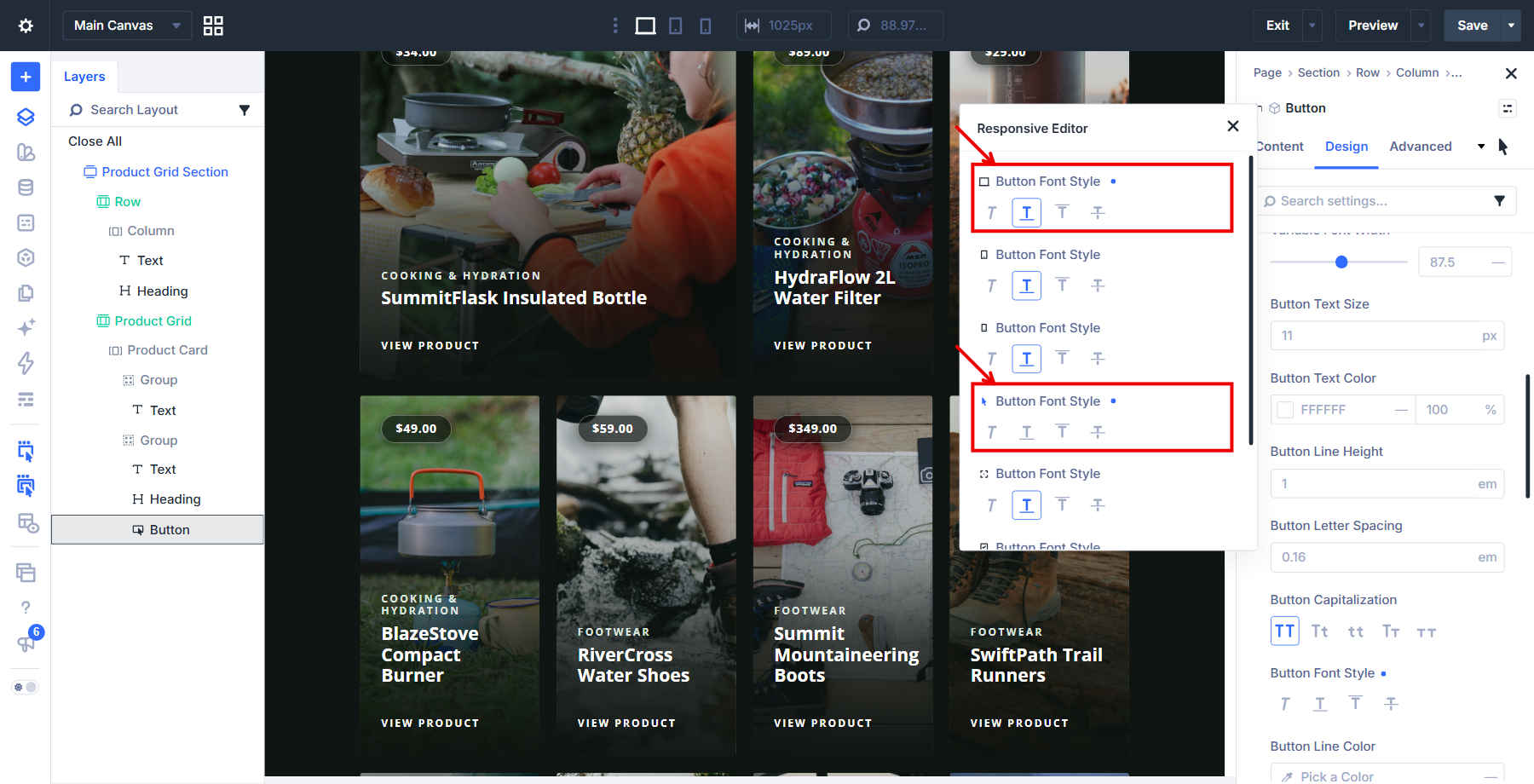
Switch the global editing state to Hover, then clear Underline in the Button’s Font Style controls. The remaining typography stays the same. The Responsive Editor comparison shows the two states; it is not an extra edit.
Make The Link Reachable
The Column link makes the card clickable, while the Button supplies a keyboard-accessible anchor. Keep the Button even when the whole card links to the product.
Add aria-label under Advanced > Attributes. Enlarge the Attribute Editor before opening its dynamic-content popup so Apply stays visible, then bind the value to Loop Product Title. Set Before to View with a trailing space; leave After and Loop Position blank.
Save and verify the labels on the frontend. In testing, the Builder displayed the raw dynamic-content token in the attribute while the saved frontend correctly resolved labels such as “View Outdoor First Aid Kit.”
Shape The Layout With The Grid Editor
Give the first product more space, then adjust the grid and card heights for smaller screens. Make these layout changes on the Product Grid Row and Product Card Column.
Feature The First Product
On Product Grid, open Design > Layout > Grid Editor. Set its preview Grid Items to 19, select the first item, and drag its right edge across the next column. The first item should now span two columns. The editor creates a Grid Offset Rule for that placement, so the wider card remains part of the shared grid. Use either this drag method or the numerical method below; you only need one rule.
To enter the same placement numerically, add a Grid Offset Rule named First Product Spans Two Columns. Choose Custom nth-child Rule, enter 1, and set Column Span to 2. This rule selects the first loop repeat and gives that product two tracks without changing the width of every card.
If you used the drag method, inspect the rule it created and label it First Product Spans Two Columns; do not add a duplicate rule. The video above shows the numerical route. In the Grid Editor, confirm the four equal tracks, 18px gaps, and first item spanning two columns.
Grid Items controls the editor’s preview, while Posts Per Page controls the actual loop query. Changing one does not change the other. With all 19 products returned and only the first card spanning two columns, the grid uses 20 track spaces: five rows on Desktop and ten on Tablet.
Add The Hover Response
On the card Column, open Transform > Translate in the Hover state and set Y to -4px. Under Advanced, set transition duration to 220ms and speed curve to Ease. Keep entrance Animation at None.
Adapt The Grid To Smaller Screens
Switch to Tablet and set the grid to 2 columns. On the card Column, set Min Height to 320px. The featured product retains its two-column span and fills the row.
For Phone, use 1 grid column. Add a phone-specific Grid Offset Rule named First Product Spans One Column, choose Custom nth-child Rule with value 1, and set Column Span to 1.
The inherited desktop rule is shown as read-only at this breakpoint; its styling still applies until you supply the phone-specific override. Resetting the span prevents the first card from creating an extra grid track on a one-column layout. Set card Min Height to 280px so all nineteen products form full single-column rows.
Check The Finished Grid
Save the page and inspect the frontend. Confirm that each card shows its own product name, category, current price, featured image, and link, plus the resolved accessible name. Include a sale-priced product in this check. Open a Button link and a card link to verify their destinations, then use Tab and Enter to check keyboard operation.
Check four columns on Desktop, two on Tablet, and one on Phone. The first card should span two tracks on Desktop and Tablet, then one on Phone. Verify the 380px, 320px, and 280px minimum heights, and inspect long product names and image crops at a narrow phone width. Finally, reload the saved page so you are checking persisted settings.
Take Your Product Grid Further
You now have a product card you can restyle once and repeat across your catalog, with a wider first item and layouts for smaller screens. To give shoppers more control over that catalog, follow our guide to building a filterable WooCommerce product grid. It connects the Loop to search, category, and price controls.
For another design direction, explore 12 Shop Loops For Divi 5. Or build on the clamp() values used here with Advanced Units, making spacing and typography scale smoothly between your device layouts.







Leave A Reply