

Divi AI agents use purpose-built tools to work with your layouts, design settings, and WordPress content. A single request can involve several of them: reading the page structure, locating the right modules, changing their settings, and checking the result.
You do not need to memorize the catalog to use the feature. Understanding its main tool groups, however, helps you write clearer requests and see what the agent is doing. Building on our introduction to Divi AI agents, this guide explores the tools available in Divi 5, their risk labels, and practical ways to use them.
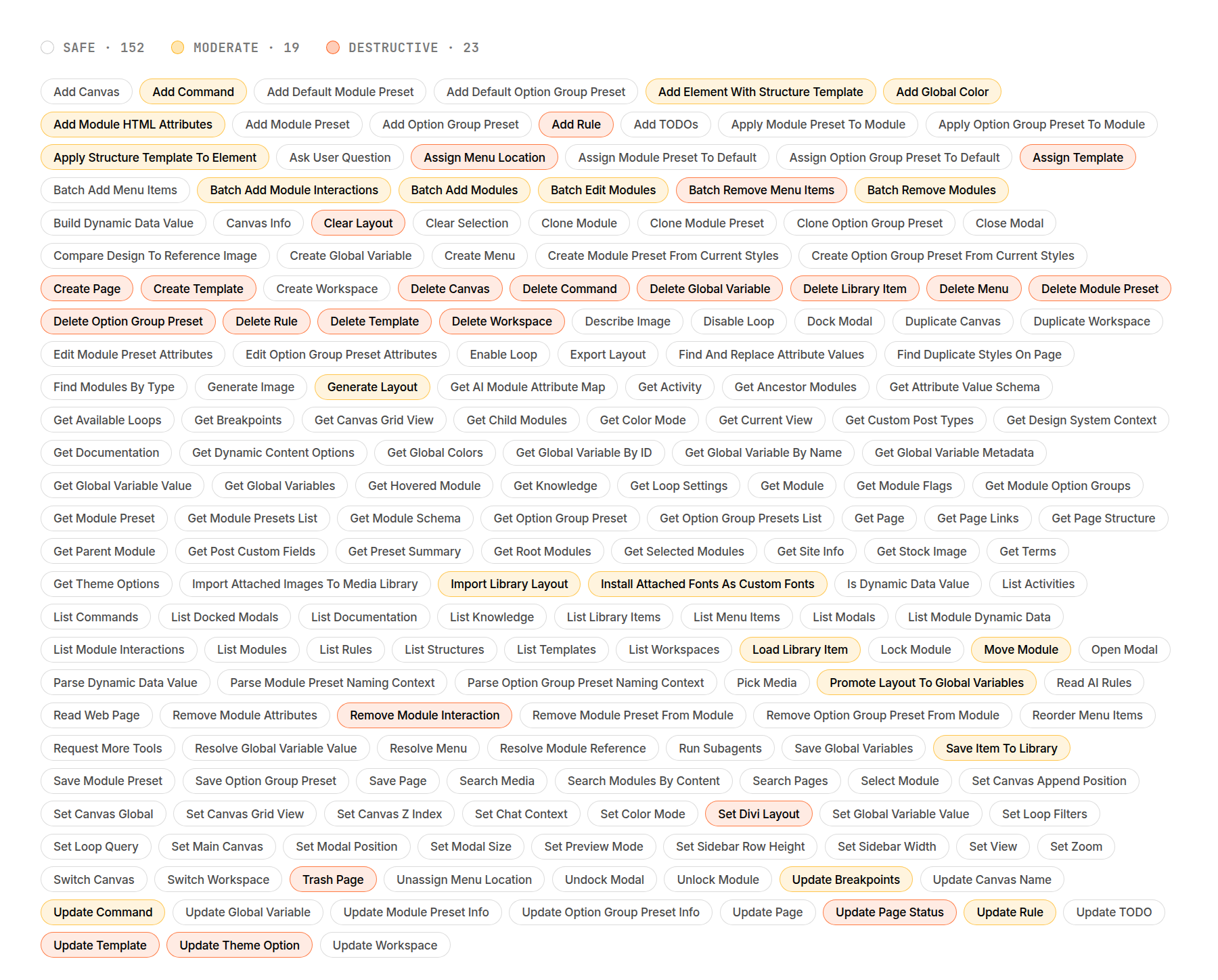
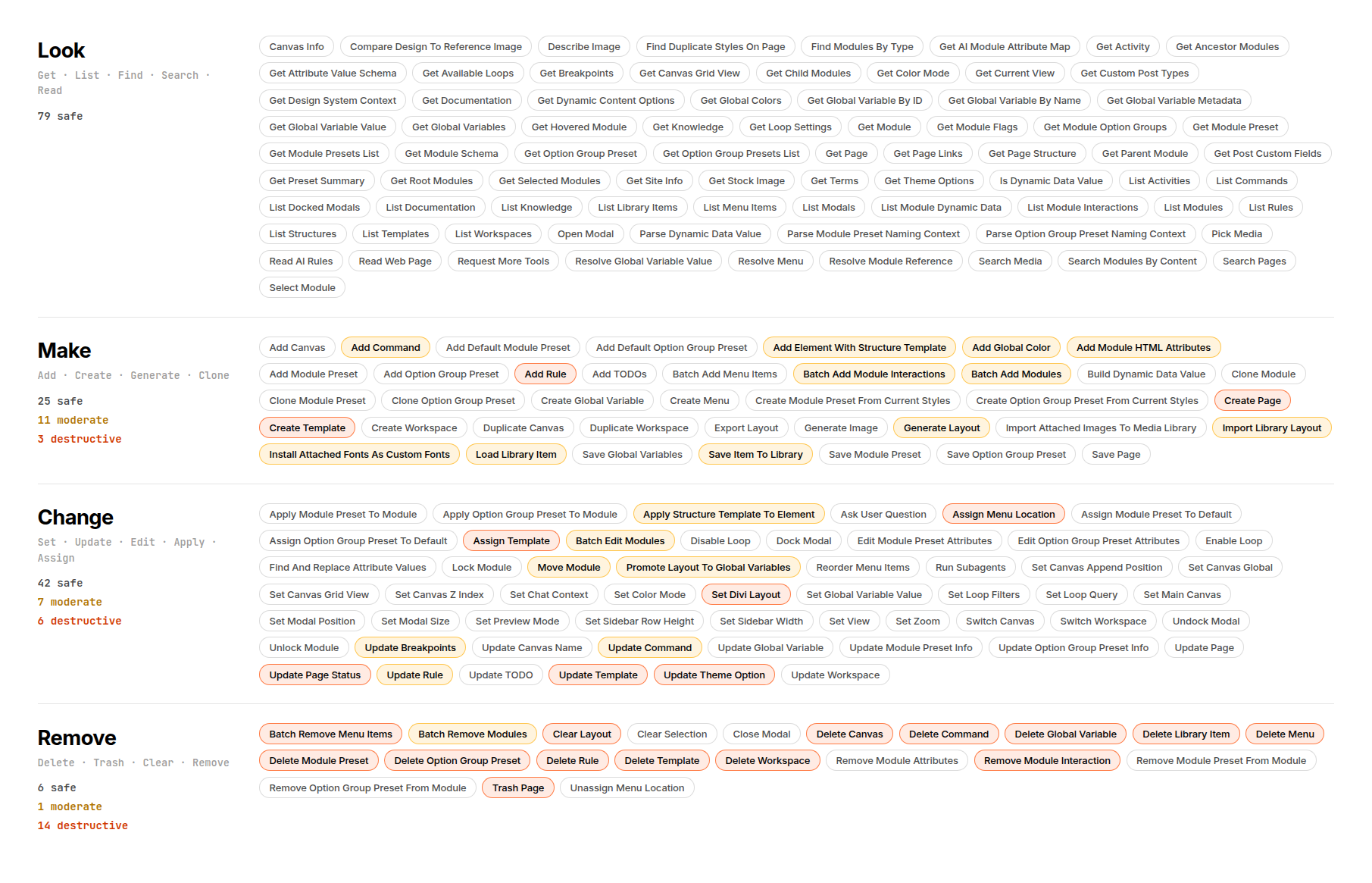
An overview of the tool catalog shown in this post, grouped by risk level.
What Is An Agent Tool?
A tool is a named operation the agent can use, such as reading a module, creating a preset, or moving a page to Trash. Its description and required inputs tell the agent what it does and what information it needs. Open the Tools catalog in the AI chat interface to browse or search the available operations.
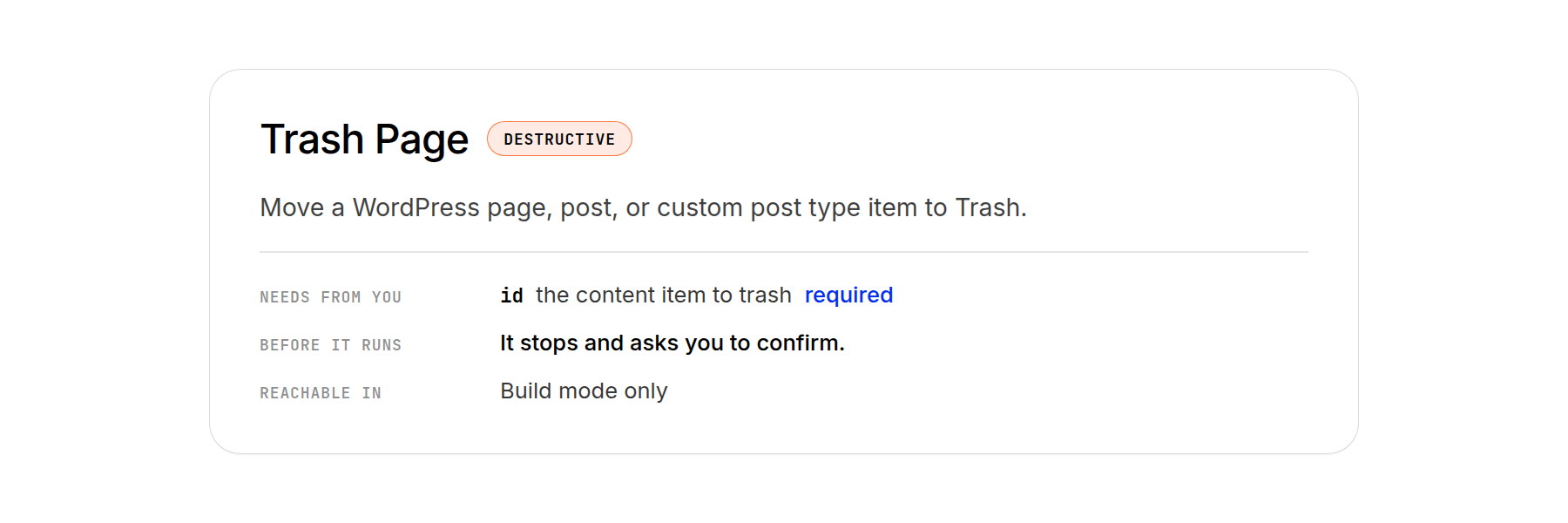
For example, Trash Page moves a specified page to Trash. Find Duplicate Styles On Page identifies repeated styles that could become presets, while Set Loop Query configures the content source and ordering for a Loop.
A tool may need a page ID, a module reference, or a value to apply. The agent can obtain that information from your request or use other tools to find it. Risk labels help distinguish operations that inspect information from those that change or remove it.
Safe, Moderate, And Destructive
Every tool is labeled with one of three tiers:
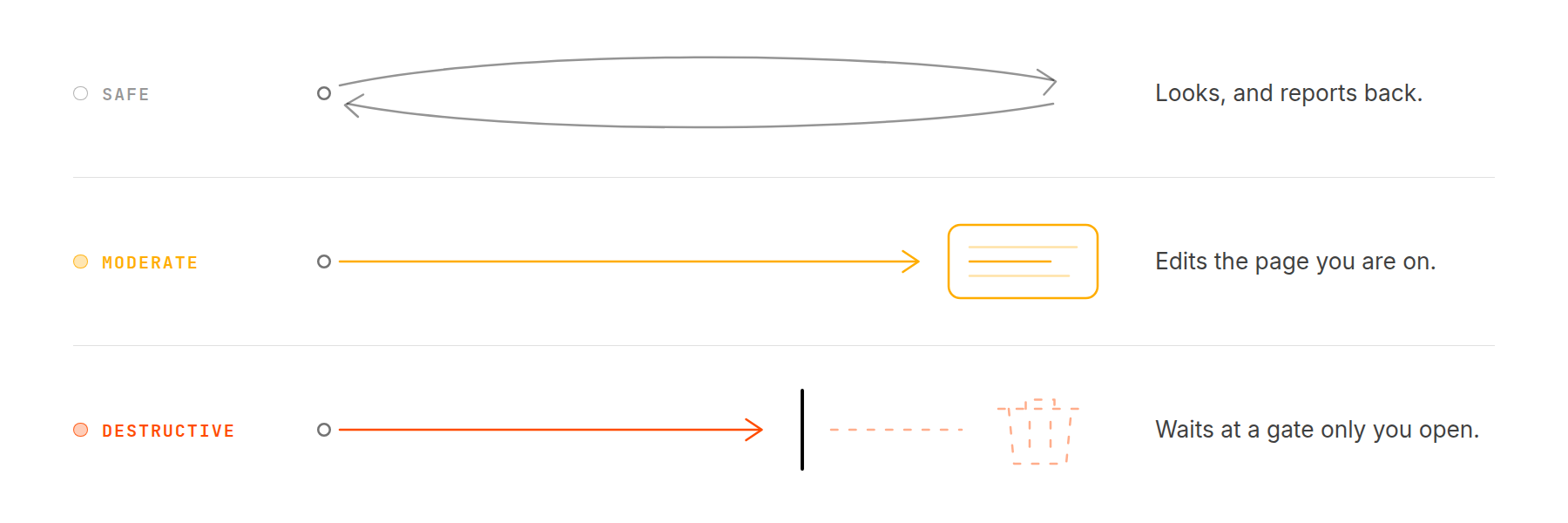
- Safe: Lower-risk operations, including inspecting page structure, settings, presets, and content.
- Moderate: Operations that make changes, such as adding modules, editing attributes, or moving elements.
- Destructive: Higher-impact operations, such as deleting a preset or menu, or moving a page or template to Trash.
Check the tool’s label and description for its classification. Its name can suggest its purpose, but the first word alone does not establish its risk level.
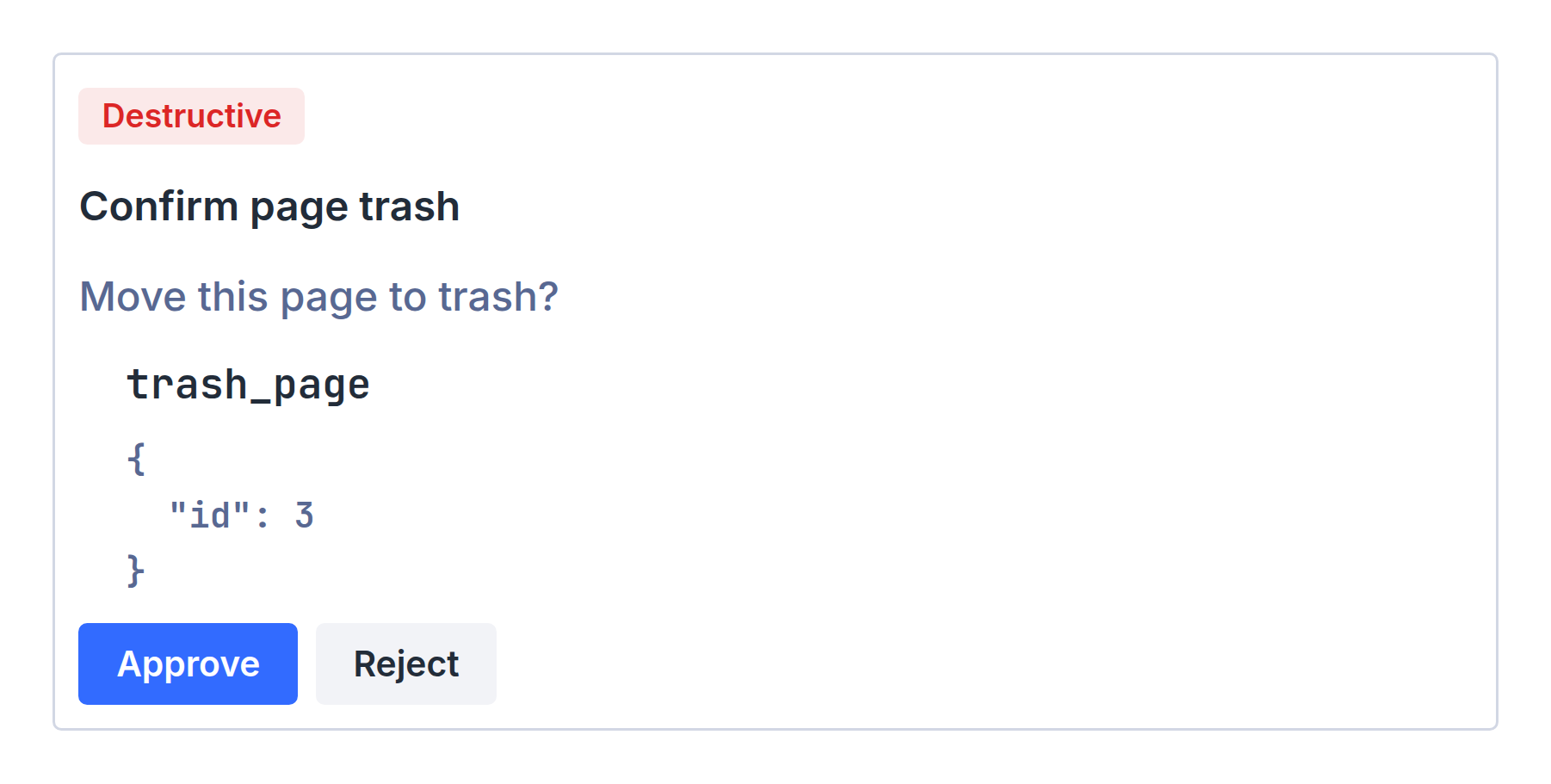
Destructive and high-impact actions require approval. Review what the agent proposes before confirming. This gives you a chance to catch a misunderstood request or an incorrect target before the action runs.
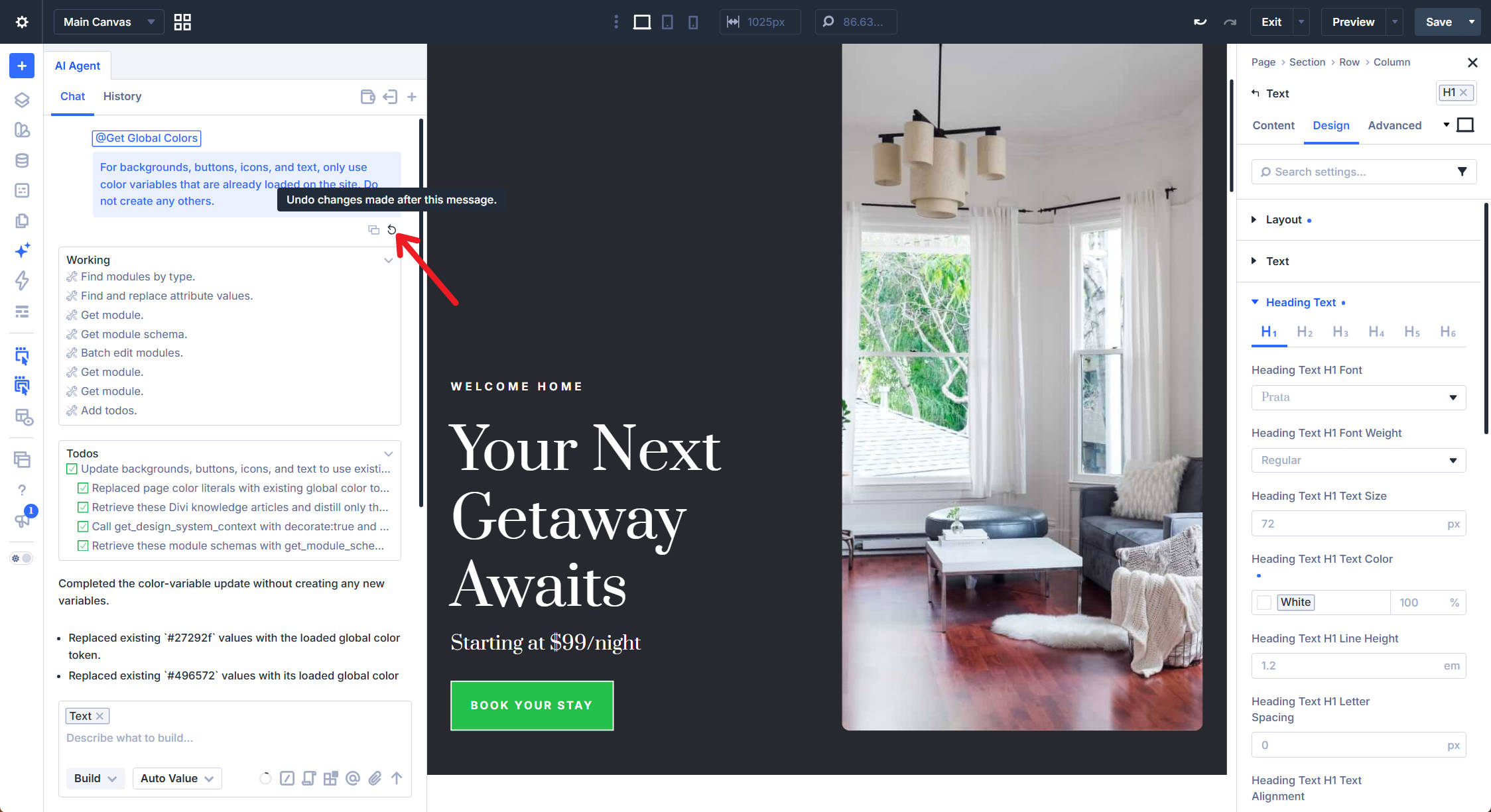
For supported builder changes, use Undo/Redo or the chat’s message-level undo control to return to an earlier state. These controls should not be treated as a universal rollback for site-level actions such as managing pages, menus, or media.
Exploring The Main Tool Types
The catalog is easier to understand by grouping tools around the work they support. Some inspect your content, others build or edit it, and others manage the surrounding site and workspace.
Names such as Get, Find, Create, Update, and Delete provide useful clues about what a tool does. Read its description for the exact scope.
When you find a relevant tool, use its @ control to reference it in your request. This helps direct the agent toward a specific operation while leaving room for any supporting steps.
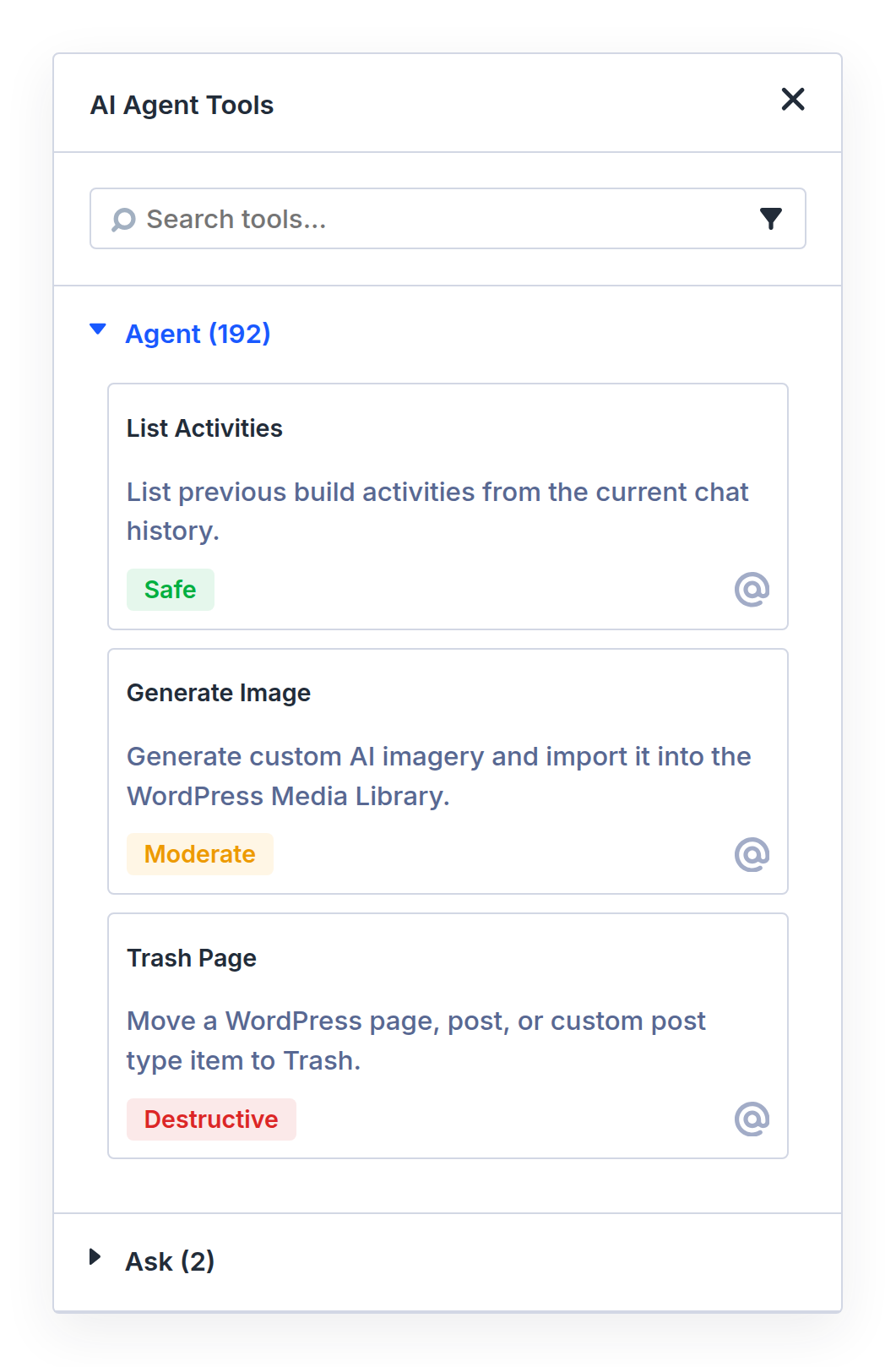
Use the @ control beside a tool to reference it in your chat request.
Reading Your Page And Its Modules
Reading tools help the agent identify the relevant content before making changes. They turn references such as “the first blurb” or “the button under the hero” into specific elements it can work with.
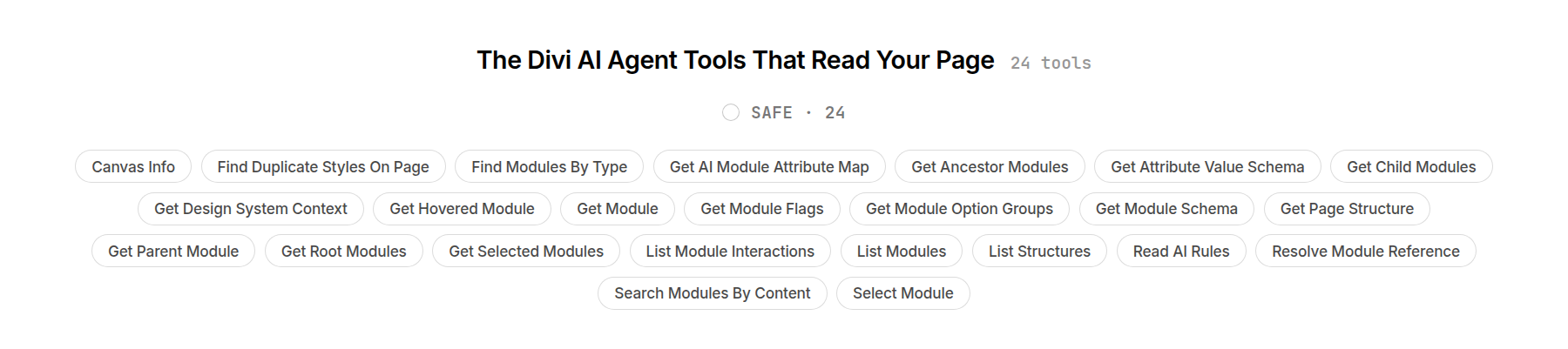
Resolve Module Reference turns “the first blurb” into a specific, named module that the agent can act on. Get Selected Modules identifies your selected modules. Search Modules By Content finds the module containing a specific phrase, while Find Modules By Type gathers all buttons on the page at once. Get Page Structure returns the whole element tree, as if handing over the layers panel. Find Duplicate Styles On Page finds repeated module and option group styles that are candidates for presets.
You do not have to know which of these tools to call. Ask in plain language, and the agent matches the request to the appropriate tools. If the agent isn’t quite doing what you want it to, that’s when you might want to search the Tools list and help guide it with more specifics.
Building And Editing Modules
Batch Add Modules and Batch Edit Modules let the agent add or update multiple elements in one operation. A request such as “Add three feature cards under the hero” may combine structure creation, content, and styling steps.
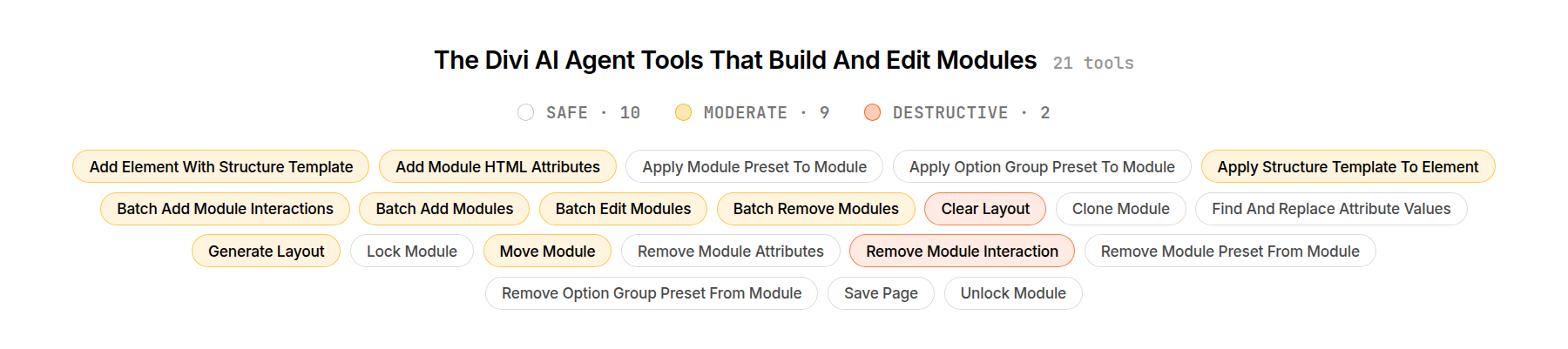
Find And Replace Attribute Values handles repeated value changes, such as replacing a color within a section. Generate Layout creates a layout from a brief, giving you a starting point to review and refine.
Add Module HTML Attributes adds attributes such as a class, ID, or aria-label. Batch Add Module Interactions configures interactions between existing trigger and target modules. Lock Module can protect elements from editing, while a clear instruction about what to preserve helps define the task’s scope.
Presets And Design Variables
Design Variables provide reusable values, while presets group reusable settings. They can work independently or together, and a preset does not need to be the default to be useful.
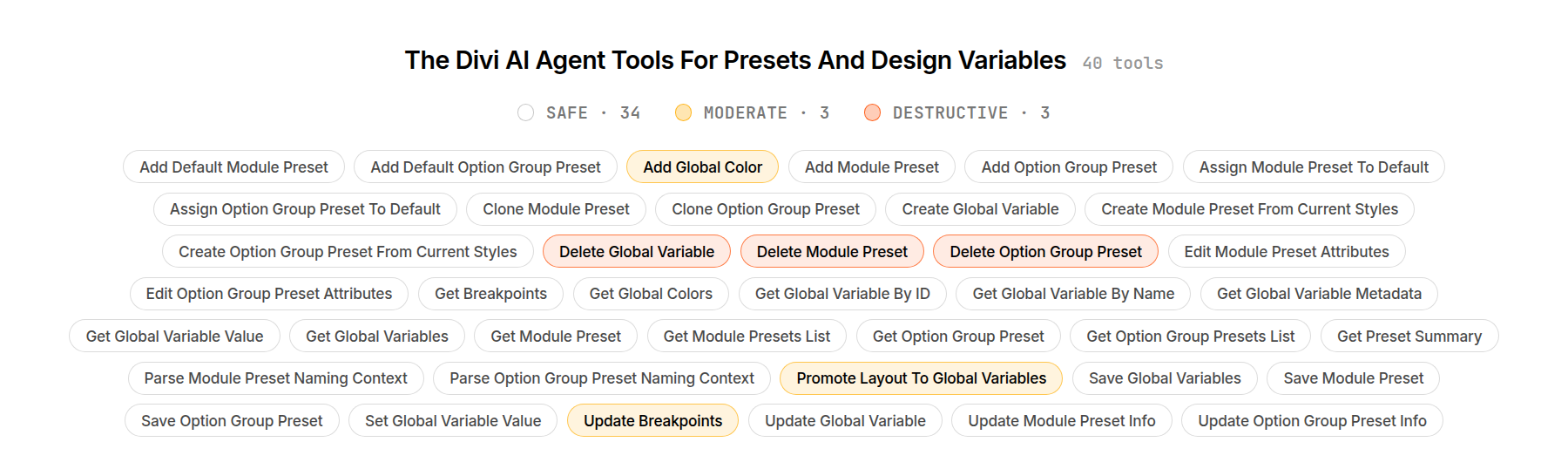
Create Module Preset From Current Styles turns an existing module’s styling into a preset. You can ask the agent to repeat that process for several modules and specify a naming convention. Get Preset Summary helps it inspect existing presets, while Parse Module Preset Naming Context helps suggest a relevant name. Corresponding tools support Option Group Presets.
Create Global Variable and Set Global Variable Value create and update reusable values. Promote Layout To Global Variables examines a section or page for literal styling values and offers conversions for you to review. This can help organize an existing Divi 5 layout, including one migrated from Divi 4, without manually recreating each value.
Dynamic Content And Loops
Dynamic Content and Loop tools help build layouts that draw from changing content, such as blog posts, directory entries, or products.

Enable Loop enables the Loop feature on an element. Set Loop Query and Set Loop Filters configure what it displays. For example, you can ask the agent to repeat a post card for the three most recent posts in a specified category.
Get Post Custom Fields reads existing post fields, Get Dynamic Content Options identifies available dynamic sources, and Build Dynamic Data Value prepares a Dynamic Content value for use in a setting. Together with editing tools, these operations let the agent connect the layout to the relevant content.
Working On The Rest Of Your Site
Of course, there is more to your website than what is accessible in Divi’s Visual Builder. These tools go beyond the current page and let you work on Theme Builder templates, pages/posts, WP menus, and much more.
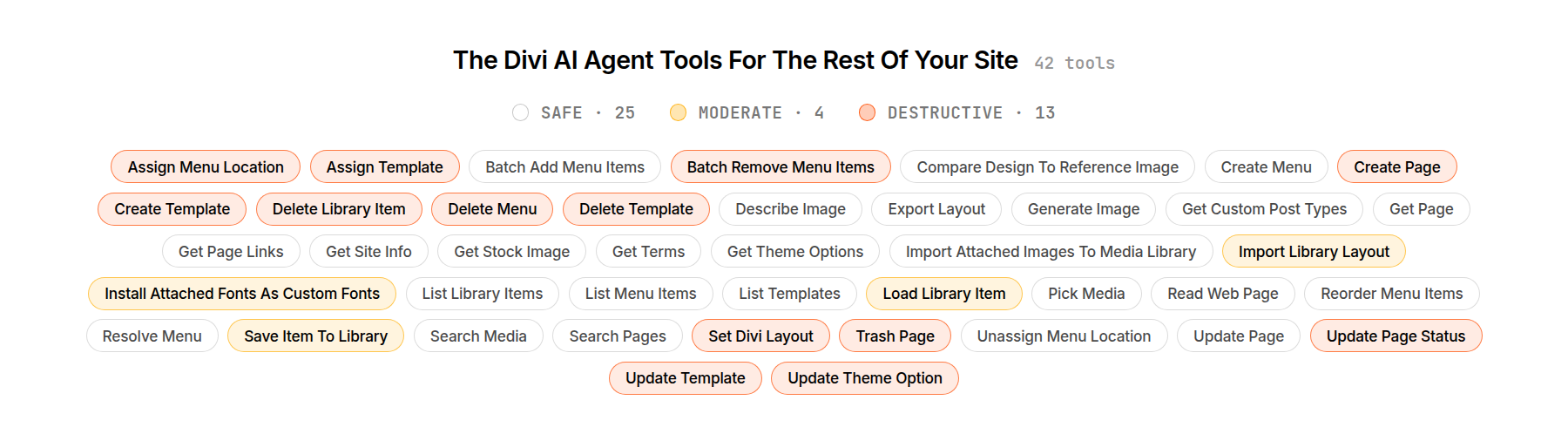
Create Template, Update Template and Assign Template cover the Theme Builder, including the display conditions that decide which posts a template applies to. You can use these tools to manage a shared layout and where it appears.
Create Page, Update Page and Search Pages work across custom post types, not only posts and pages. Create Menu and Batch Add Menu Items build navigation, and Assign Menu Location drops it into the theme slot it belongs in. Save Item To Library and Load Library Item support reusing modules, rows, and sections through the site’s Divi Library.
Read Web Page reads a public URL for text extraction or design analysis. It gives the agent reference material to use alongside your instructions.
Media tools provide another source of context. Describe Image analyzes an image, helping the agent interpret an attached layout reference.
Compare Design To Reference Image compares the current layout with a reference. Its findings can guide another round of adjustments, alongside your own visual review.
Search Media looks through the library you already have before anything new gets made. Generate Image and Get Stock Image fill the holes while you are still waiting on real photography.
Managing The Workspace And Tracking Progress
The agent can set up the builder around you, not just work inside it.
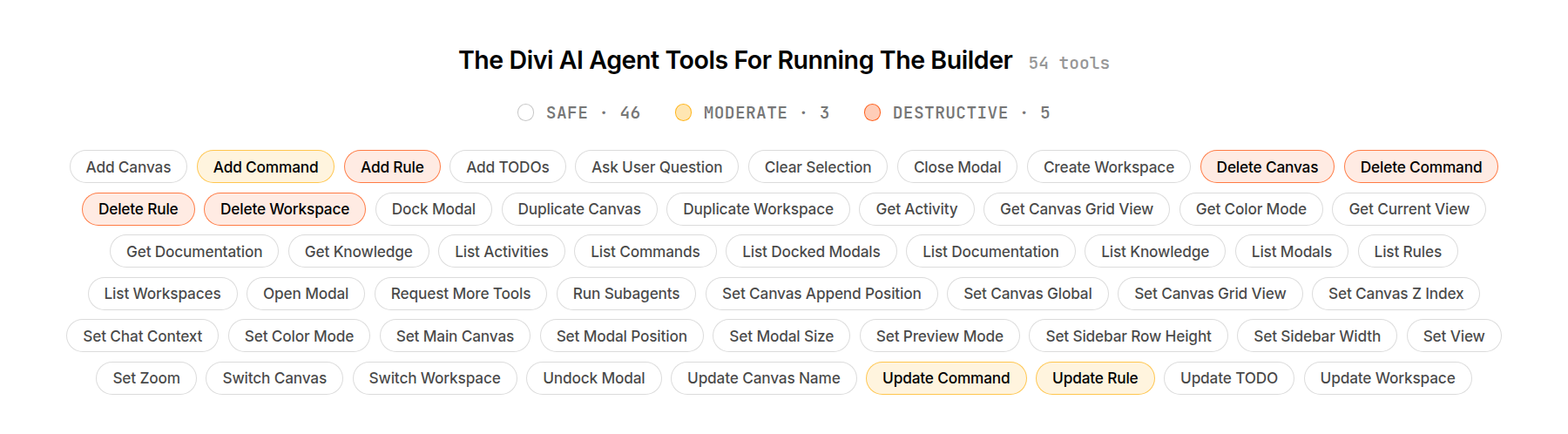
Workspace tools help preserve and switch between editing setups. Create Workspace saves the current interface arrangement, while Switch Workspace activates another workspace. Add Canvas and Switch Canvas manage additional canvases.
Set View switches breakpoint views or Wireframe View, while Set Preview Mode turns preview mode on or off. Set Zoom changes the canvas zoom, and Set Color Mode switches the builder interface between light and dark. Panel tools can dock settings and resize sidebars.
Add TODOs and Update TODO maintain a checklist for larger requests, making progress easier to follow. Ask User Question lets the agent request missing information when it needs clarification to continue.
List Activities and Get Activity retrieve build activities from the current chat, helping the agent review earlier work.
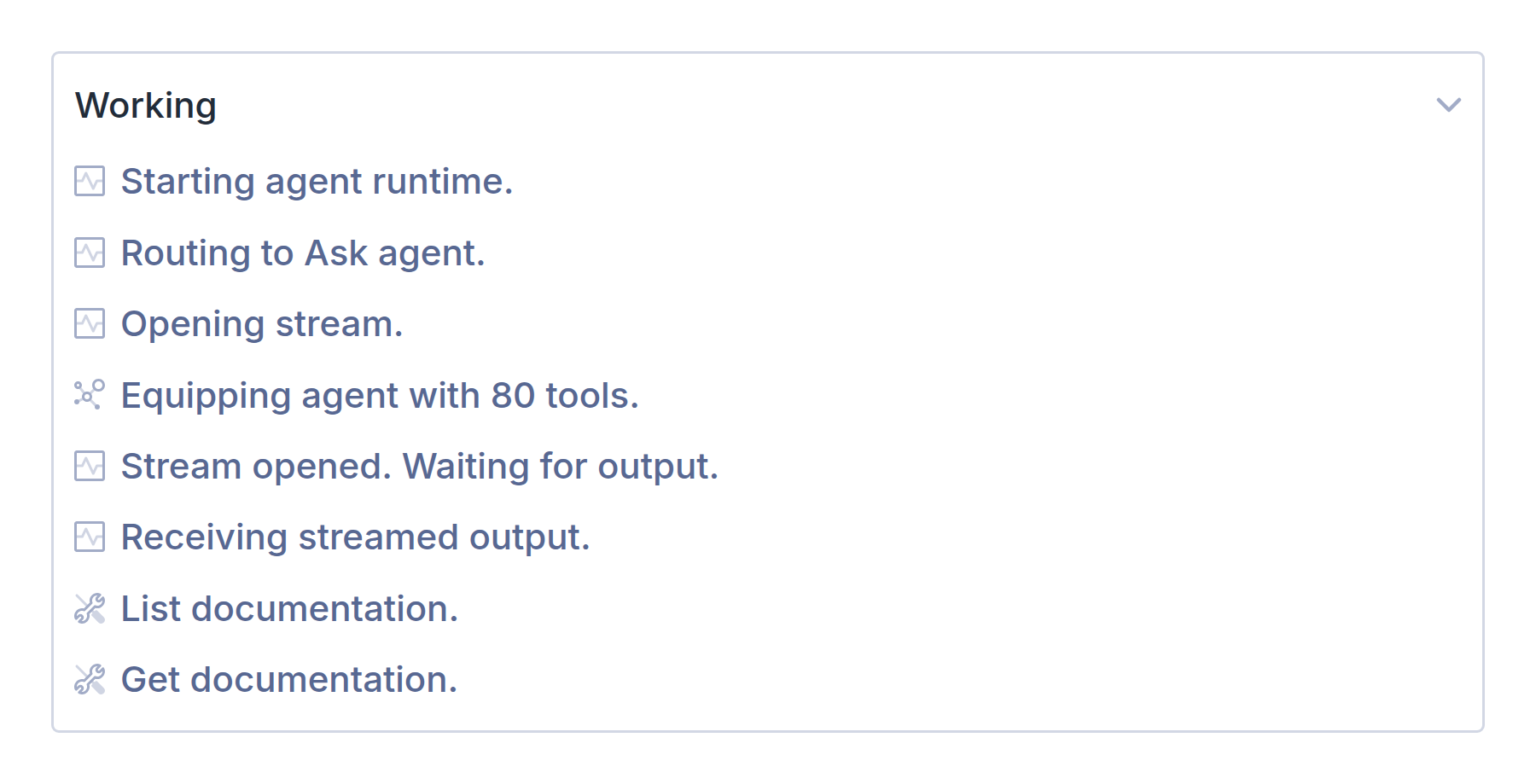
Get Documentation and Get Knowledge give the agent access to Divi documentation and knowledge resources. Run Subagents lets it delegate independent subtasks and bring the results back into the main conversation.
Start With One Real Job
A practical way to learn what these tools in Divi 5 is to open a page you already have and give the agent a specific task to complete. Ask it what is on the page and ask what it can do. Have it find every button and make them match the one in the hero. Point it at a layout you built by hand. Turn those colors into design variables, and one module’s styling into a preset the rest of the site can use. Scroll through the list of tools and search for things you might like to have it do for you.
A request can involve several tools in sequence, with independent work handled in parallel where appropriate. Start with a clear outcome, identify what should stay unchanged, and review the result. The searchable Tools catalog is there when you want to understand or guide a particular step.




Leave A Reply