

The latest feature of Divi 5 enhances its Preset-based system, allowing users to create reusable styles for use across pages and entire websites. Stacked Presets let you layer multiple Element or Option Group Presets, combining their effects for ultimate design flexibility.
Apply a background gradient from one preset, alignment from another, and spacing from a third, all merged seamlessly into one preset. This new addition to Divi 5’s Preset system provides for faster workflows, more creative freedom, and easier site maintenance.
In this post, we’ll provide a deeper understanding of what Stacked Presets are and how to use them. Let’s get started.
What Are Stacked Presets?
Stacked Presets extend Divi 5‘s Preset system by enabling multiple presets to be applied and layered on a single element or group. Each preset contributes its defined styles, and Divi intelligently merges them into a unified design. For example, you could create Stacked Presets that would control the alignment and colors in Blurb Modules.
Subscribe To Our Youtube Channel
While a single preset can define both color and alignment, stacking dedicated presets keeps interactive styles modular and reusable. Apply the same typography, padding, or color shift to Buttons, Blurbs, Images, or any module — then update it once in the Preset for instant, site-wide consistency. No per-element tweaks, no custom CSS classes.
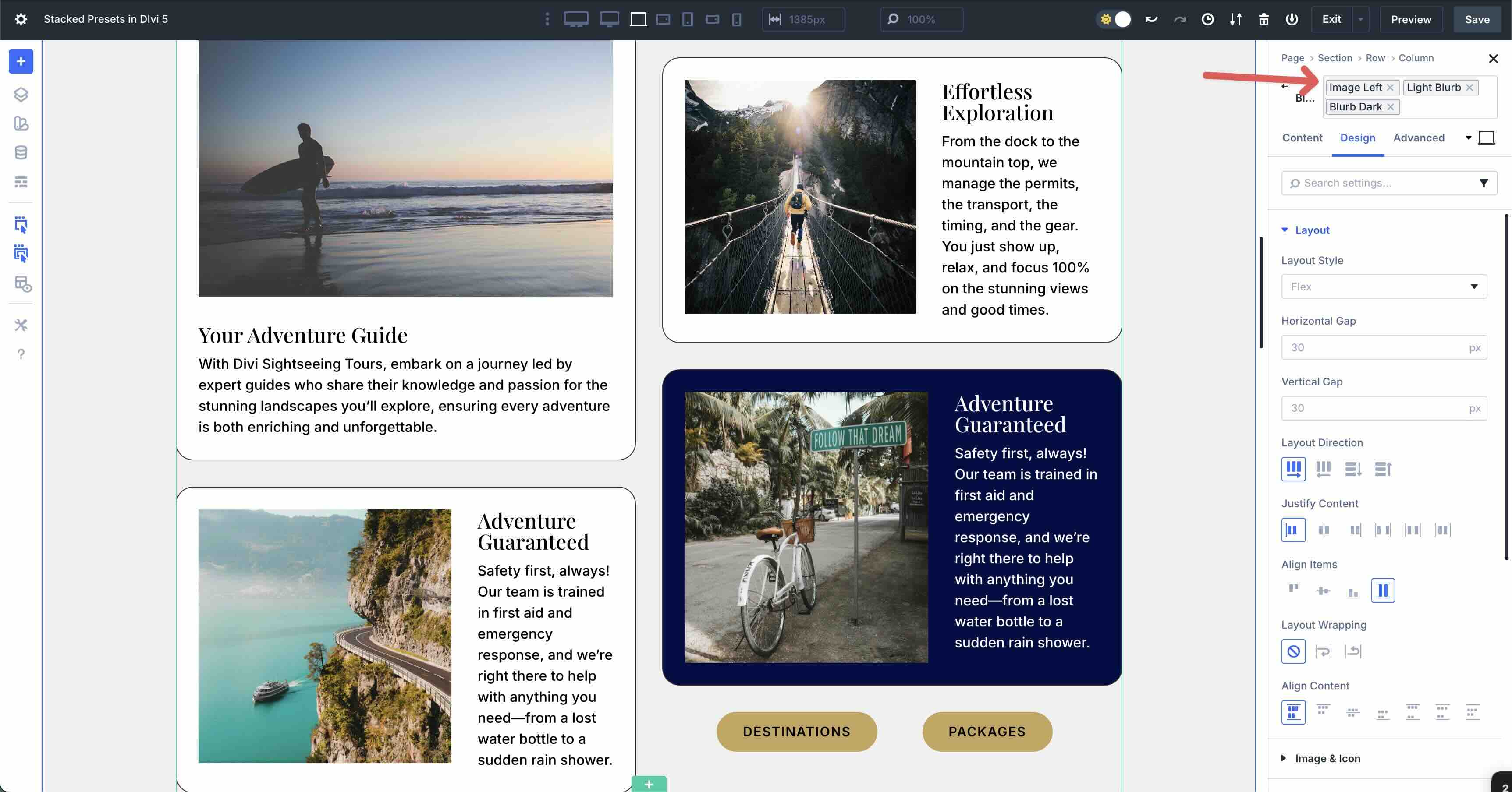
Key Features Of Stacked Presets
- Multi-Layer Application On Elements Or Groups: Apply as many presets as needed to any module. Stacking works everywhere where the preset system is supported.
- Automatic Inheritance And Merging Of Styles: Divi 5 combines settings seamlessly. If Preset A sets the text color to white and Preset B defines the top margin and image float, both settings apply in harmony. Where styles overlap, the last-applied preset wins, providing predictable control.
- Compatibility With Divi 5’s Design Variables: Stacked Presets fully respect global design variables, such as the primary color or base font. Update a variable once, and every Stacked Preset using it updates instantly across your site.
Evolution From Traditional Presets
Before Divi 5, you were limited to one preset per element. Individual presets could bundle multiple settings — such as a button with a 100px border radius and a hover glow. Previously, combining separate presets for modular reuse, such as one for borders and another for hovers, wasn’t possible, making Divi’s new preset system even stronger.
In the past, editing elements was tedious and error-prone for complex, site-wide designs. Stacked Presets eliminate that bottleneck. They let you build modular, reusable design blocks and combine them like LEGO bricks. This allows for complex designs that can be achieved faster, are easier to maintain, and can be scaled effortlessly — all within the Visual Builder.
How To Use Stacked Presets In Divi 5
Below, we’ll walk through creating a few simple presets and stacking them on a Blurb Module.
You may ask yourself why you’d stack presets on a blurb when you could just make one Element Preset for the whole thing — but the difference is this: when you create focused Option Group Presets (like one for borders or box shadows) and stack them on a module, you can reuse and layer those same presets on any other module. That means quick design experiments, site-wide updates with one edit, and no more bloated, one-off presets cluttering your library.
Step 1: Create Individual Presets For Specific Styles
Before stacking, you need the building blocks. Head to the Visual Builder and add a Blurb to the page. Design it as you’d like and create Option Group Presets for the Blurb.
Next, we need to create an Element Preset for the Blurb. This will preserve all styles and will nest the Option Group Presets inside it.
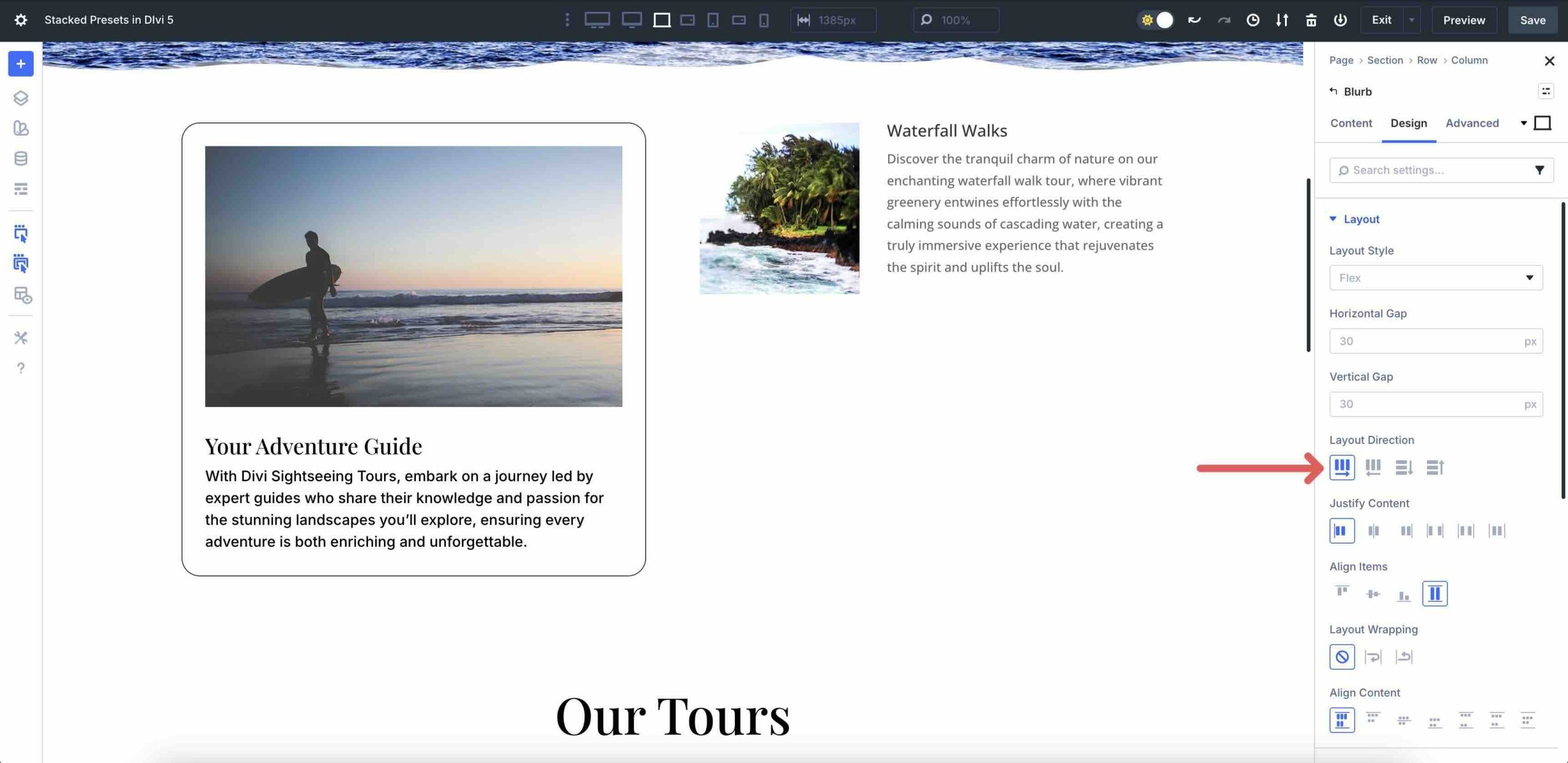
Next, add another Blurb to the page. This time, use Divi 5’s Layout Direction settings to set the direction to Row instead of Column. This will place the image to the left of the text in the Blurb.
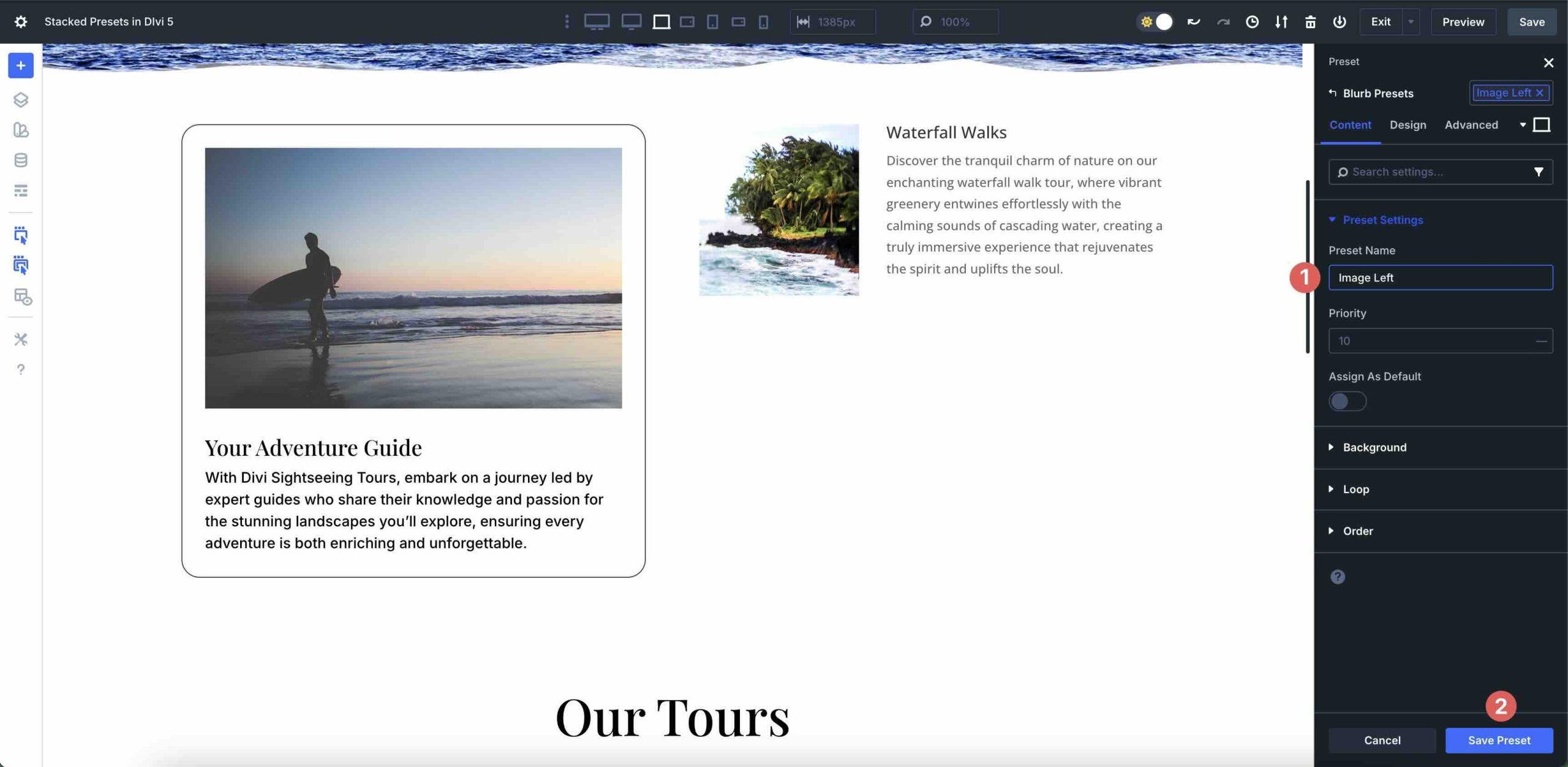
Now, with only the Layout Direction modified, give it a name, like Image Left, and click the Save Preset button. Give it a recognizable name that allows you to apply the preset to any Blurb for left alignment.
Next, you will layer the Image Left preset. Click into the Preset field again. Select the first preset you created. In our case, Light Blurb.
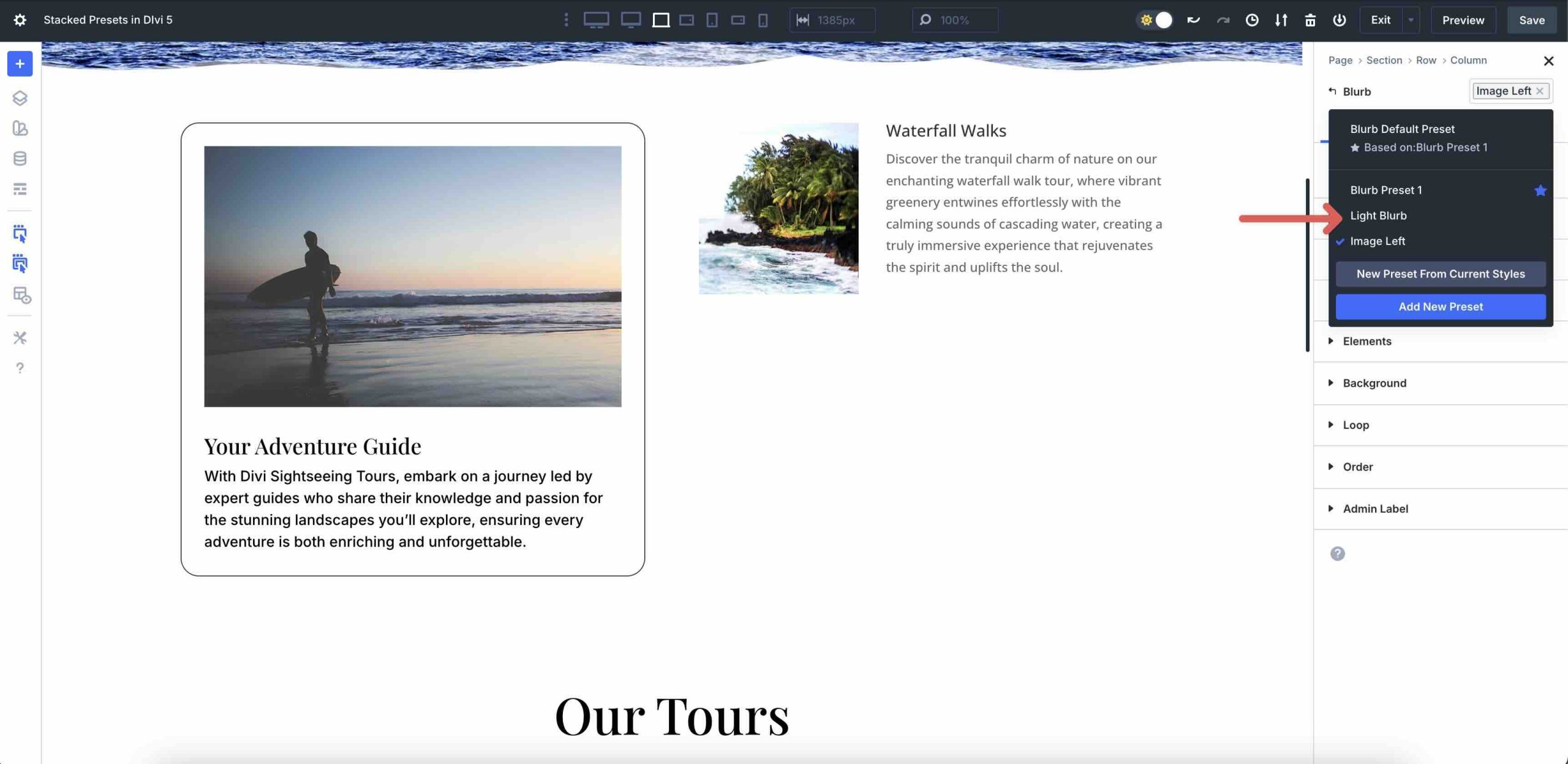
Now, Divi 5 will stack the two Blurb presets together and apply the styles from both to a single module.
You can even create a dark Blurb preset and quickly apply it to change the Blurb’s appearance with just a few clicks.
Benefits Of Using Stacked Presets
Stacked Presets fundamentally change the way you build and maintain designs in Divi 5. By allowing you to layer modular, single-purpose presets onto any element, they create a highly flexible and efficient design system.
This modular approach delivers three key advantages: efficiency by transforming repetitive tasks into one-click actions; creative flexibility through endless mix-and-match combinations; and easier maintenance by centralizing style updates. The result is a faster, more scalable, and more consistent workflow for any website or design team, regardless of size.
They Are Efficient
Stacked Presets turn repetitive design tasks into one-click actions by allowing you to combine multiple single-purpose presets at the module level. This eliminates the need to create a new, single preset for every design variation, as the power is in the stack.
For instance, you can create separate, reusable presets for a Border Radius, a Box Shadow, and a zoom-on-hover effect, and then stack them onto any Button, Blurb, or Pricing Module across your entire site.
Creative Flexibility
Layering unlocks endless combinations without writing code or compromising reusability. Each preset serves as an ingredient in the bigger design picture. Mix and match them freely to build unique looks while keeping every piece globally editable.
You can create cards with gradient background settings from one module and background image settings from another with ease. Want the same hover effect on hero buttons, footer CTAs, and product cards? Easy. If you want to change your mind later, updating one preset causes the setting to ripple site-wide in seconds.
Easier Maintenance & Consistency
Because styles are applied to reusable presets instead of individual elements, maintaining brand consistency across multiple pages becomes effortless. Update a single preset, and all stacked instances update automatically.
No find-and-replace, no global CSS overrides, no missed modules. This is powerful when working with design systems, client sites, or large teams. Developers and designers stay perfectly in sync without meetings or style-guide documents.
Future-Proof Scaling
As your website grows, Stacked Presets maintain performance and organization. There’s no need to manage dozens of Element Presets. Your library stays lean, intentional, and easy to audit, making it perfect for agencies delivering multiple client sites or designers building template packs.
In short, Stacked Presets transforms Divi’s already powerful preset system into a true modular design engine with faster workflows, bolder creativity, and ironclad consistency.
Stacked Presets Take Design Efficiency To The Next Level
Stacked Presets are a leap forward for Divi 5, evolving its preset system from simple Element or Option Group Presets into a powerful, modular design engine. They give you the tools to break down complex designs into reusable pieces — an alignment preset, a hover-effect preset, or a simple background color change that can be applied with a single click. This saves design time and effort for those looking to build consistent, professional websites in a fraction of the time.
We encourage you to dive into the latest Divi 5 Beta right now. Download it, start experimenting with Nested and Stacked Presets, and experience the benefits for yourself. The future of building faster, more creative, and more robust Divi sites is here.
Let us know your thoughts in the comments or on our social media channels. Your thoughts help us shape Divi’s future.










The truth is, this and all the new features incorporated into Divi 5 are fantastic. Without a doubt, it’s the best website builder to date.
For newbies like me, so many features can seem overwhelming, and it’s hard to know how to establish the best design workflow with Divi 5. Variables, presets, group presets, stacked presets, the inspector… This is really where I have the most doubts when it comes to setting up my workflow in the most efficient way.
Given all the incorporated features, what would be the best workflow when designing from scratch?
Thank you and congratulations to the entire Divi 5 team for the great work.