

Divi 5 makes it easy to add bold, eye-catching design details without overcomplicating your layout. In this free pack, you’ll get 7 Inline Element Designs created for hero sections, promo blocks, featured announcements, CTA areas, and other content that benefits from decorative shapes, stylish text treatments, and layered visual accents. Drop one into any page, swap the content, and you’re ready to go.
Preview
Here’s a quick look at the 7 Inline Element Designs included in the pack. The download is further down the post.
Subscribe To Our Youtube Channel
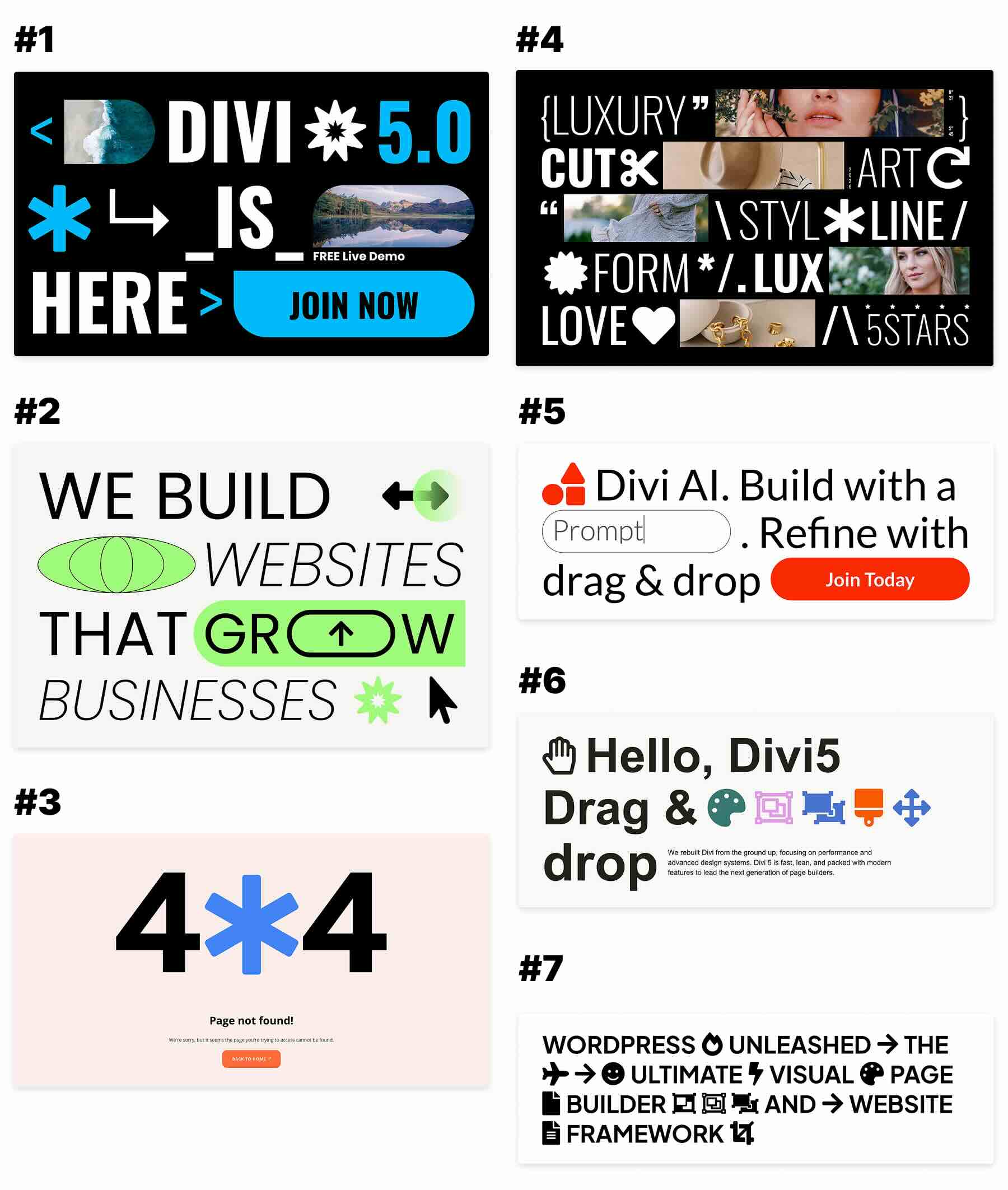
Download 7 Inline Element Designs For Divi 5
Get all 7 designs for free. Import them into your Divi Library and add them to any page in the Visual Builder.

What’s Included (8 Exports)
After you download and unzip the file, you’ll find 7 styled Inline Element Section exports, plus 1 file containing all designs.
Styled – Inline Elements Section 1 to 7 (7) → Seven fully styled inline element section layouts with bold typography, decorative shapes, icons, and accent graphics that you can use as-is or customize.
Styled – Inline Element Sections (All) → Imports all 7 designs into your Divi Library at once.

How To Use The Inline Element Designs
Keep your download folder handy. We’ll import the files, add a section to a page, and then replace the content.
1. Import Sections Into The Divi Library
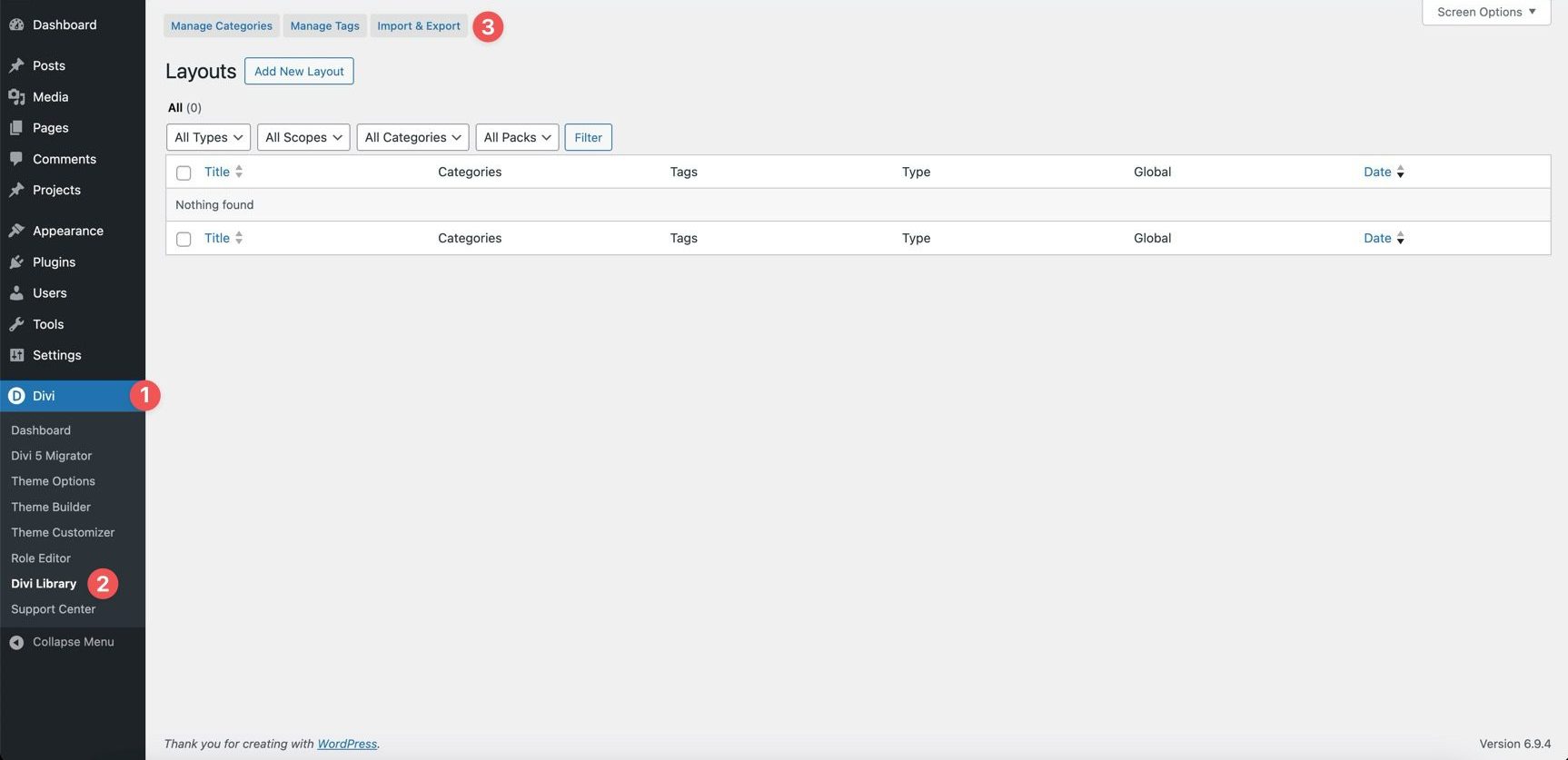
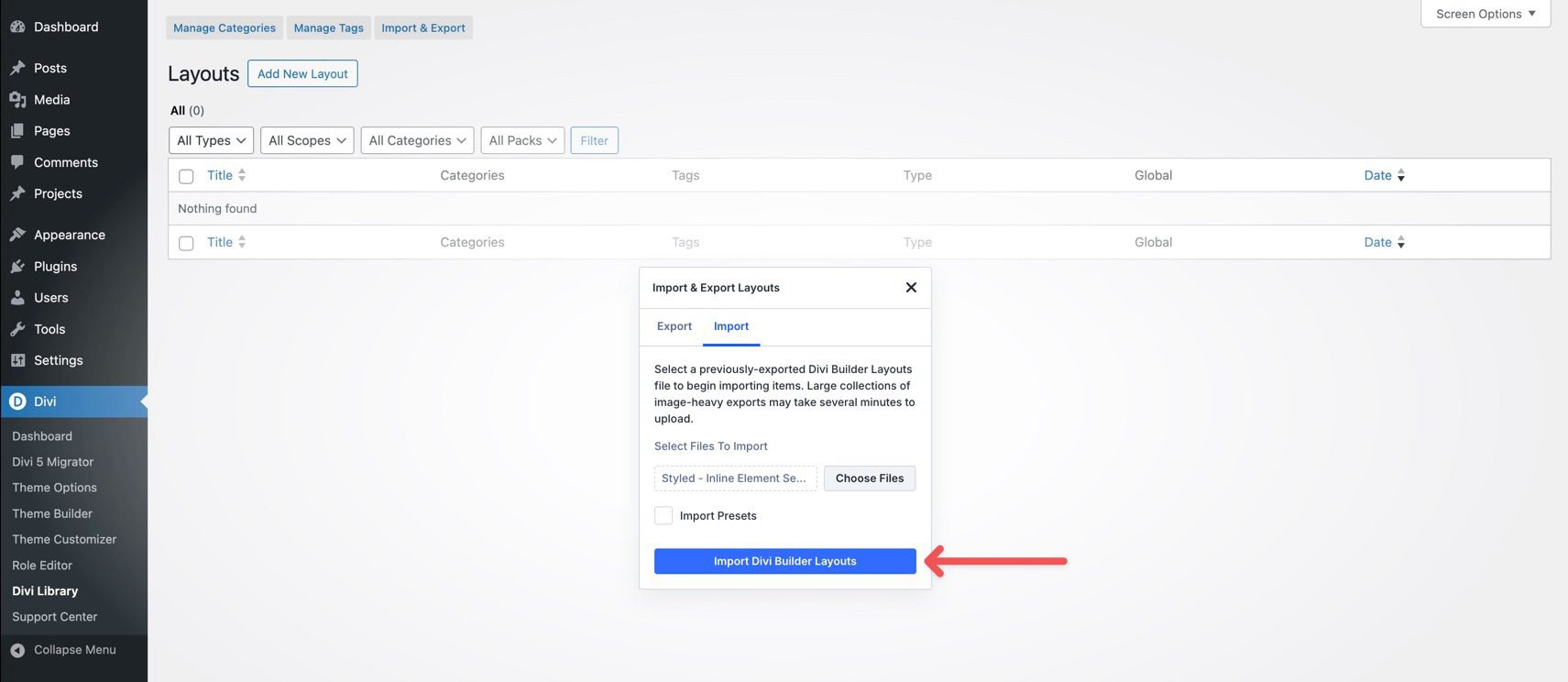
Go to Divi → Divi Library. Click Import & Export at the top of the screen.
In the Import & Export Layouts modal, switch to the Import tab, then click Choose File and select your JSON file.
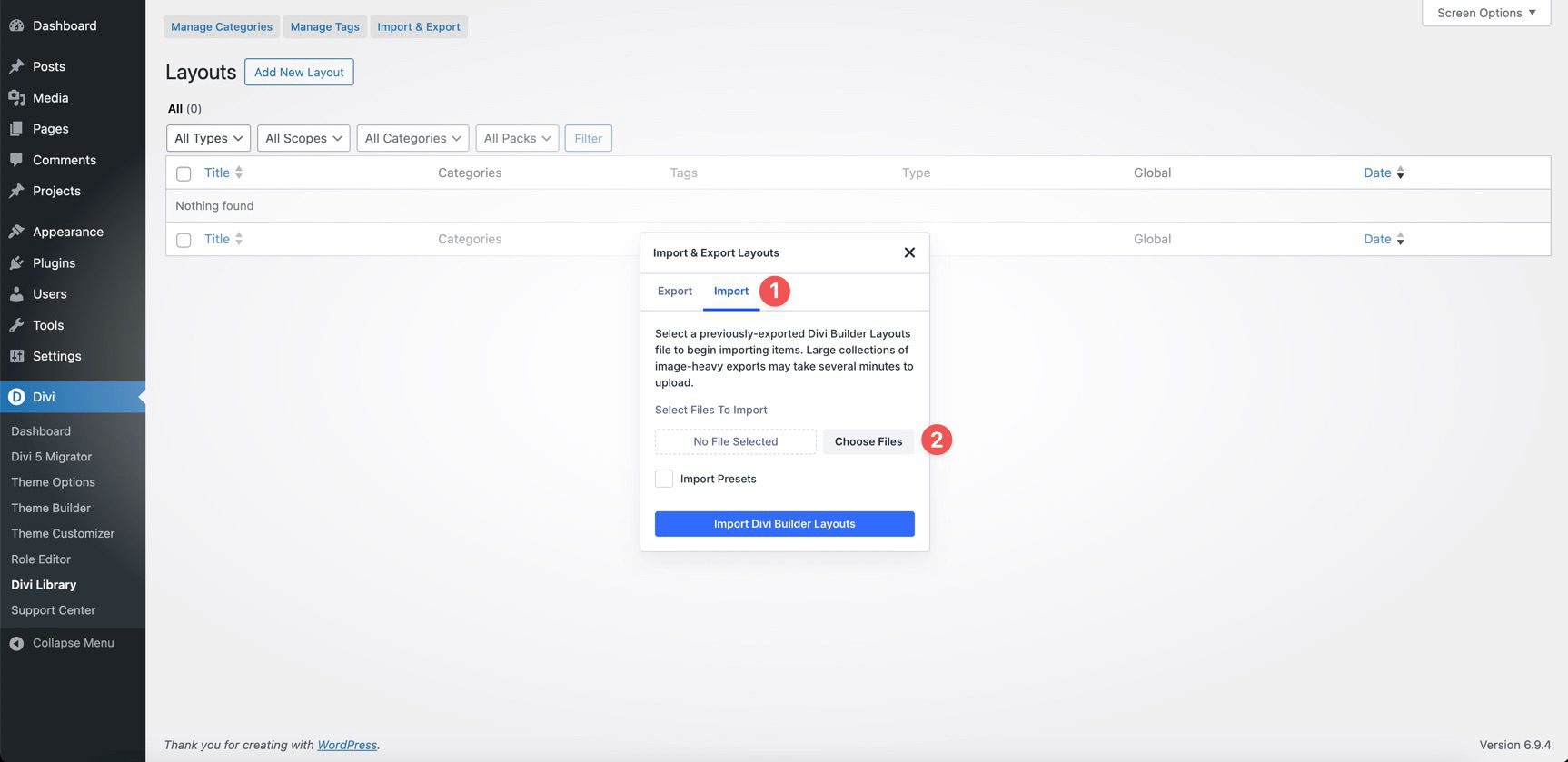
Choose any Inline Element Section JSON you’d like to use, then click Import Divi Builder Layouts.
2. Add An Inline Element Design To Any Page
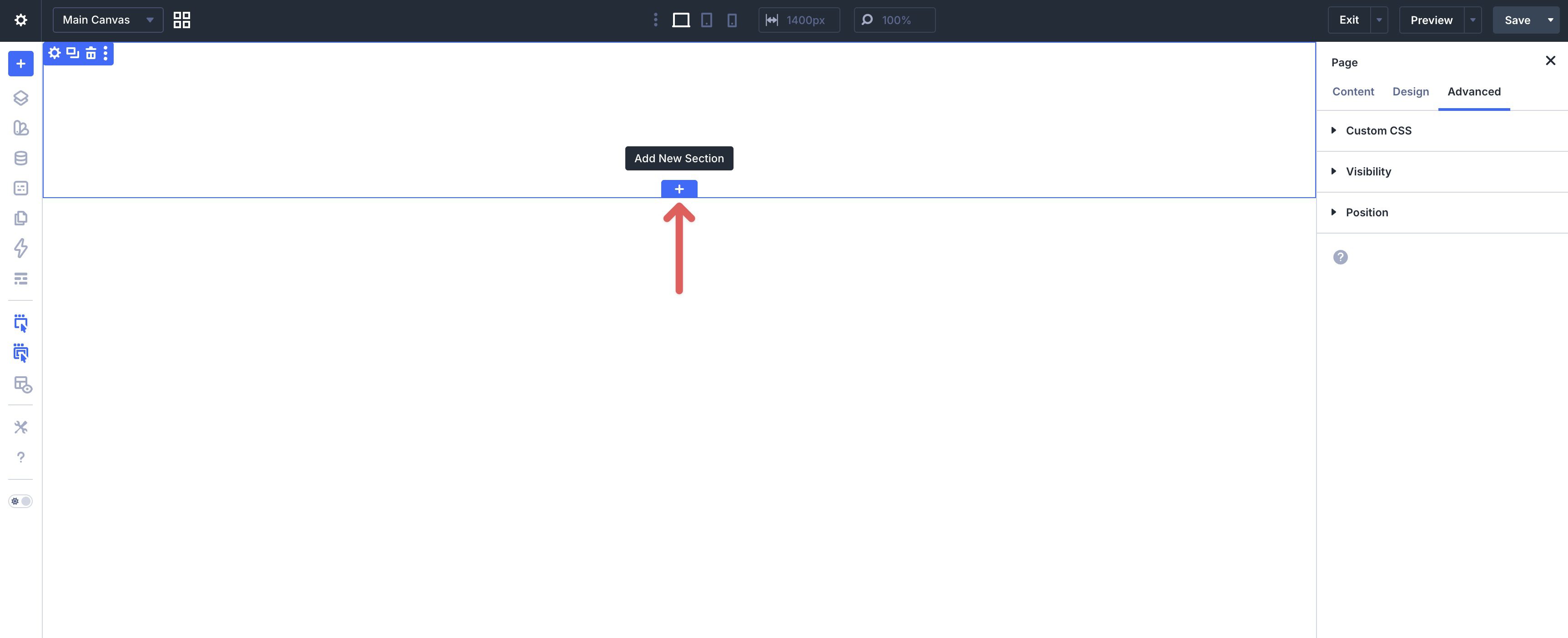
Open a page in the Visual Builder and add a new Section.
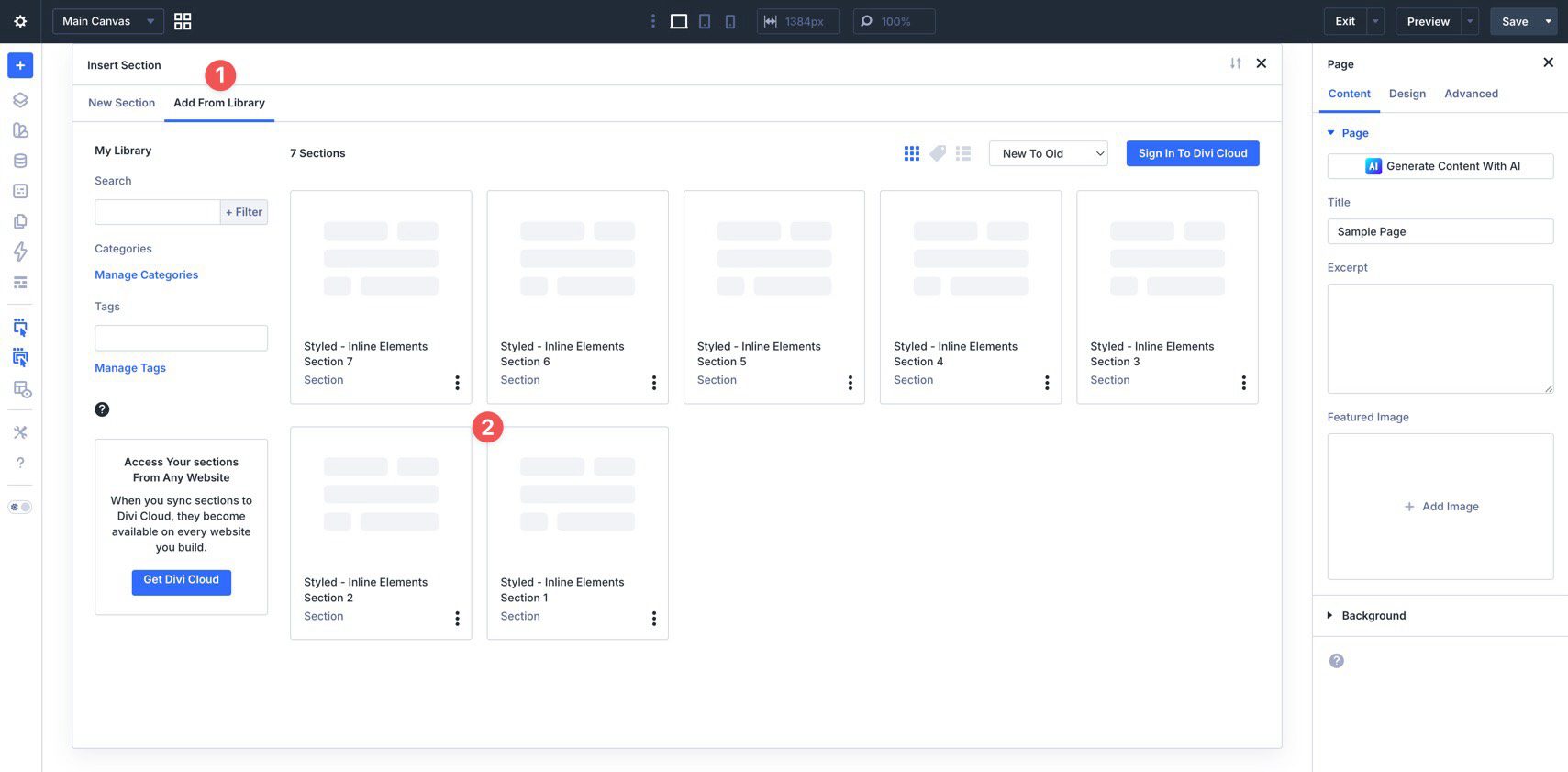
In the Insert Section modal, click Add From Library and select an Inline Element Section layout.
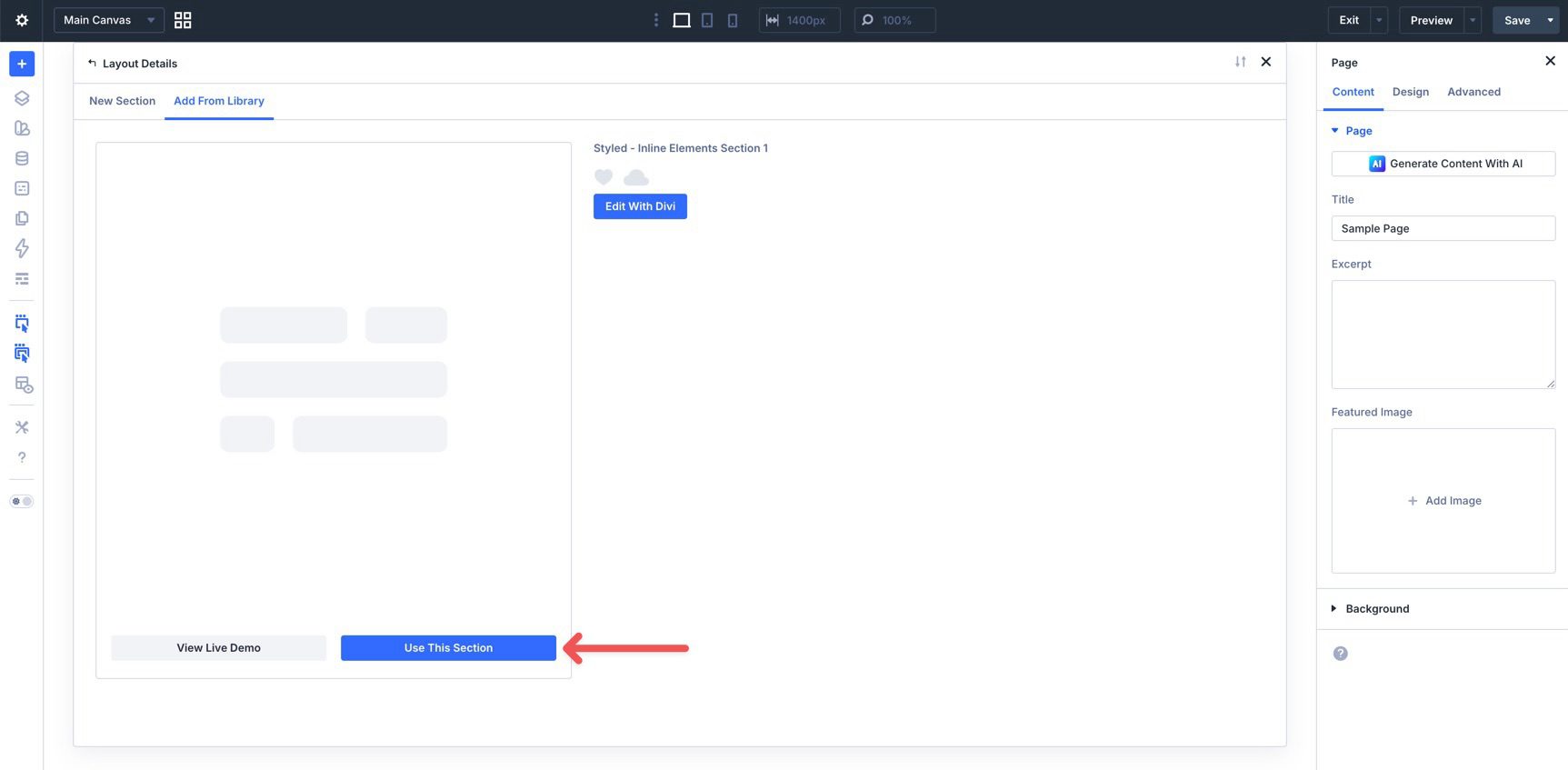
Finally, click Use This Section.
3. Swap The Content
Once the section is on the page, replacing the placeholder content takes only a few clicks. Start by updating the heading, supporting copy, buttons, and links so the section matches your message. Then replace any placeholder icons, shapes, or images with your own assets as needed.
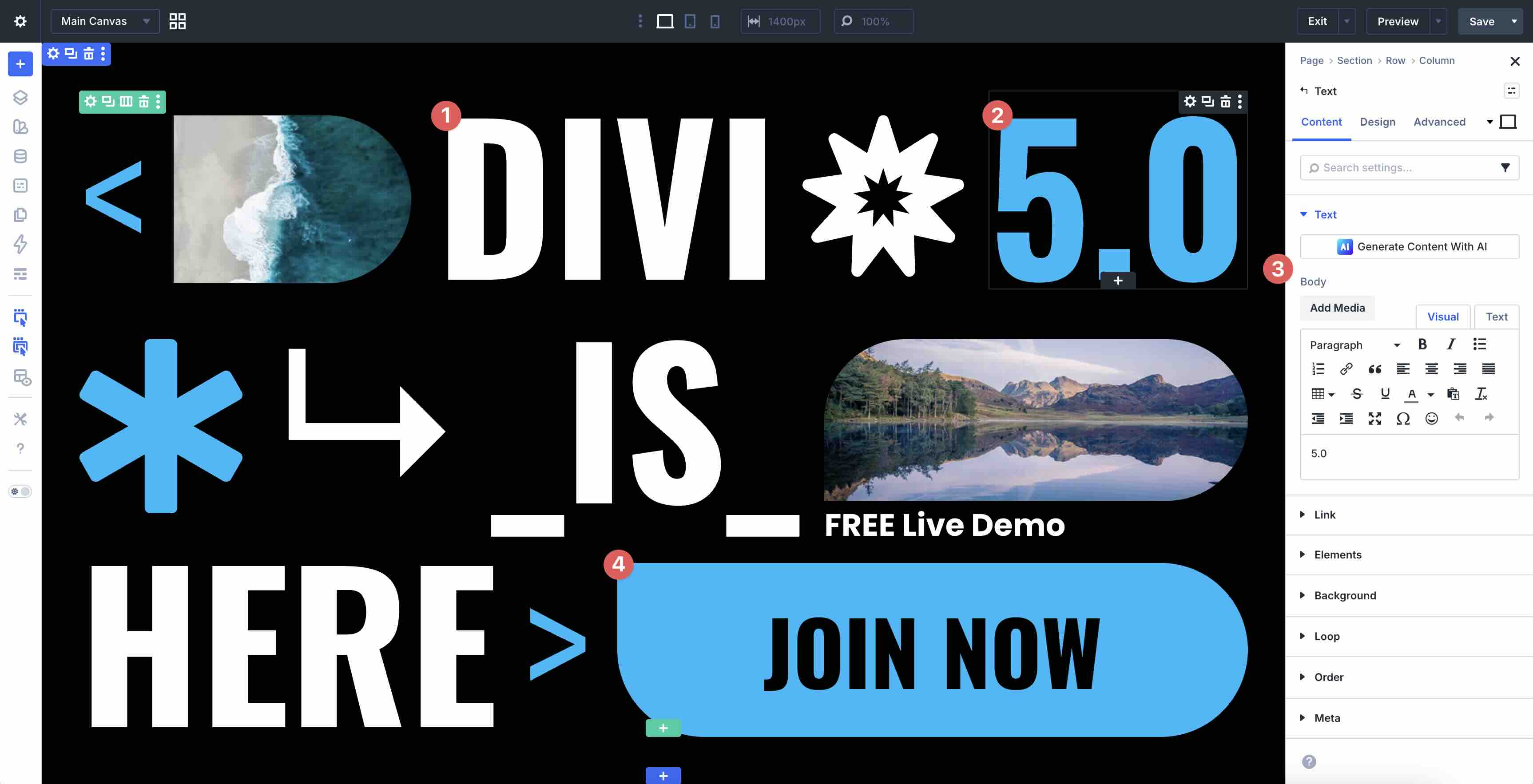
Because these inline element layouts use decorative graphics and text-based accents, it’s best to replace one item at a time and preview the result as you go. This helps preserve the balance between text, spacing, and visual detail.
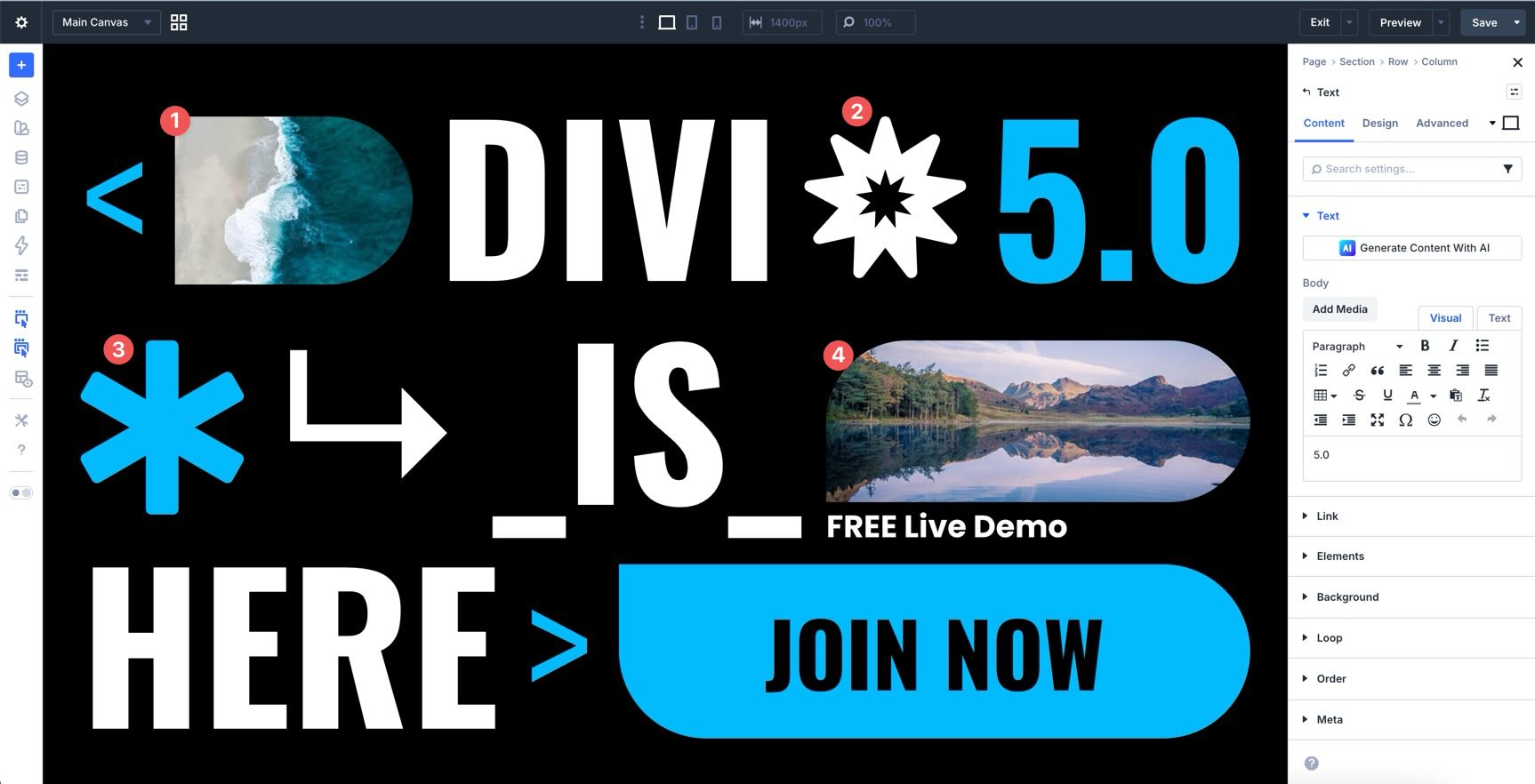
If you’d like to simplify or expand a design, duplicate or remove the existing modules instead of rebuilding the section from scratch. That’s the easiest way to preserve spacing, alignment, and visual rhythm.
4. Adjust Styles (Optional)
These inline element designs are already styled, so you can use them immediately or refine them to better match your brand. Update typography, colors, spacing, borders, shadows, icons, and decorative shapes as needed using the settings in the Design tab.
To change typography, open any Text or Heading module and go to the Design tab. Expand the relevant text settings to adjust Font, Font Weight, Text Alignment, Text Color, and other styling options.
To refine the visual accents, open the row, group, or module that controls the decorative element, and use the Design tab to tweak Background, Border Width, Border Color, Border Radius, Box Shadow, Sizing, and Spacing.
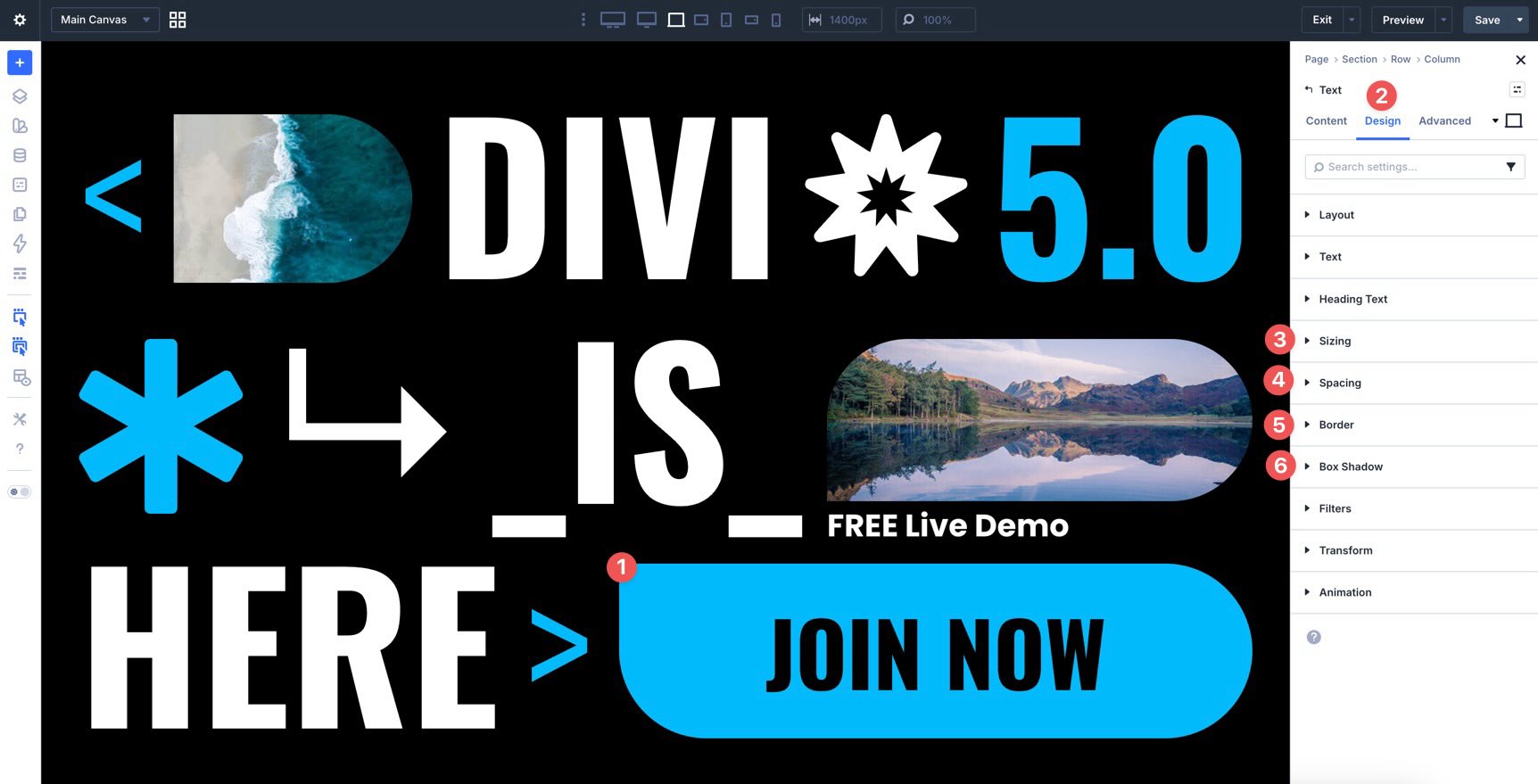
If your version uses arrows, icons, outlines, badges, circles, or other decorative inline graphics, keep those relationships in mind as you resize or replace them so the layout still feels intentional.
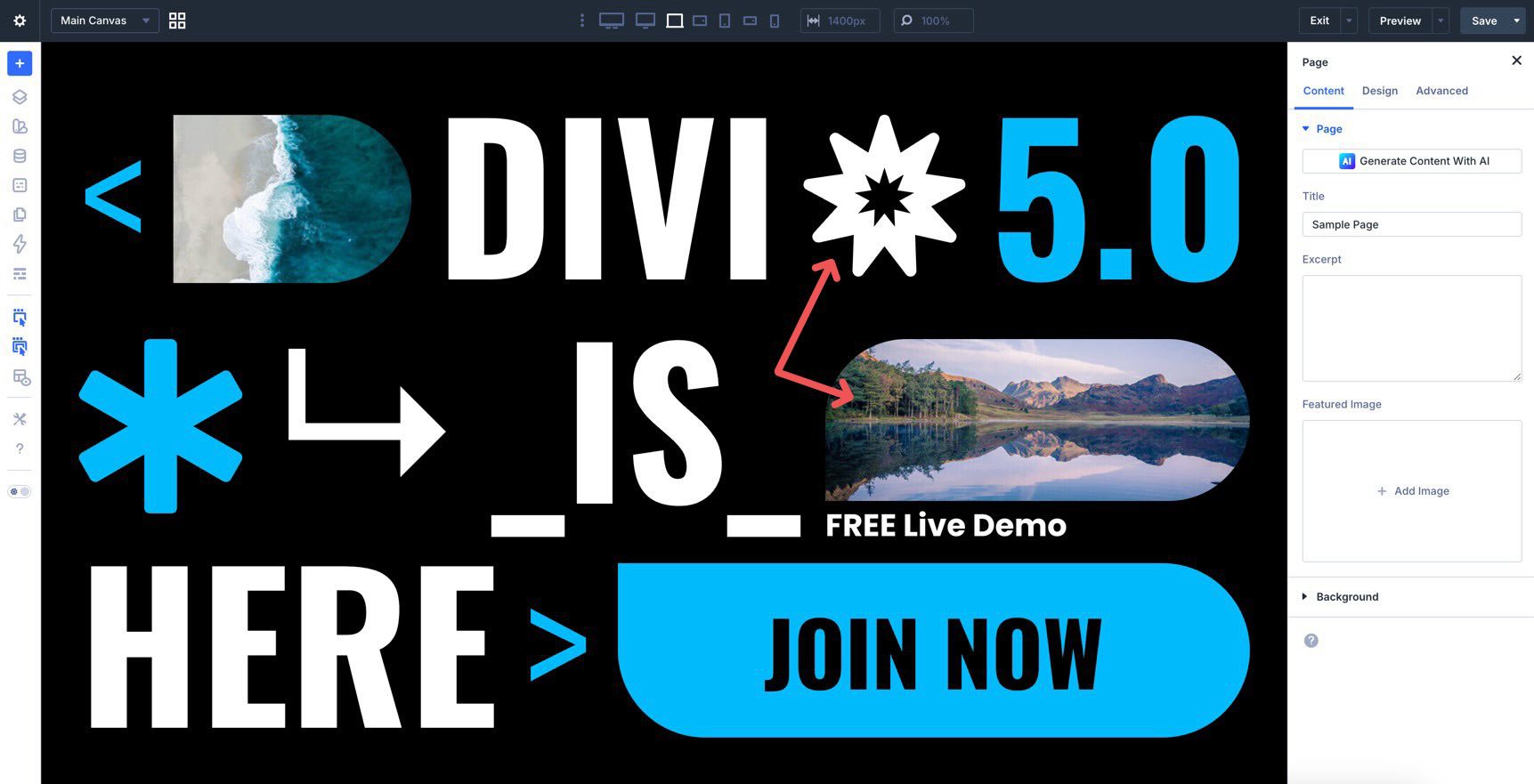
Use Divi’s responsive editing tools to adjust spacing, alignment, and stacking behavior on smaller screens so the composition remains balanced across devices.
Tips For Effective Inline Element Designs
Inline element designs work best when the accents support the content instead of distracting from it. Use these quick tips to keep the sections bold, balanced, and effective.
Use Decorative Elements To Support The Message
Shapes, arrows, badges, and icons should reinforce the headline or call to action, not compete with it. Let the text stay primary while the decorative details guide the eye through the design.
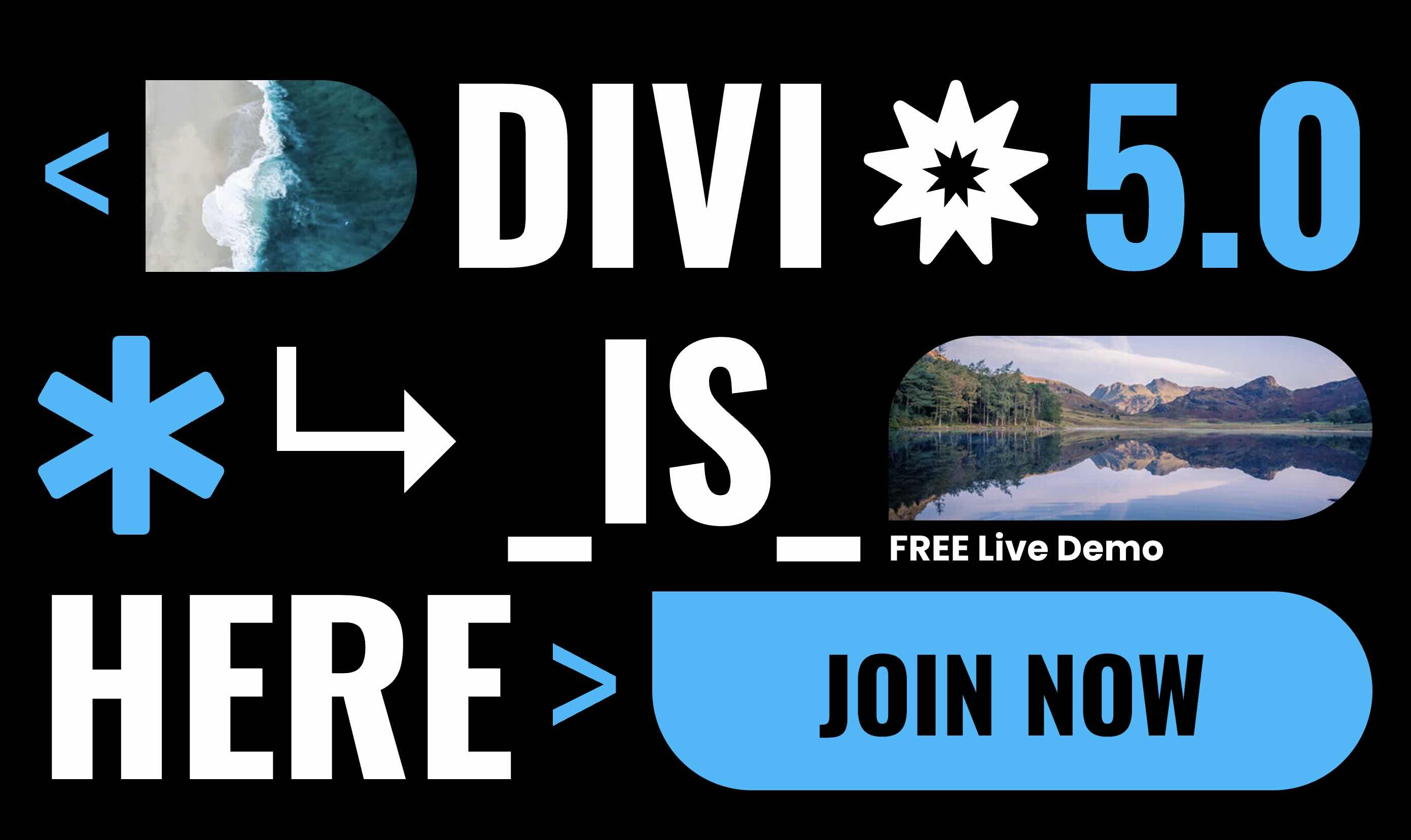
Keep The Visual Language Consistent
If one section uses outlined shapes, bold icons, and bright accent colors, the surrounding elements should feel like part of the same system. Consistency helps the design feel polished and intentional.
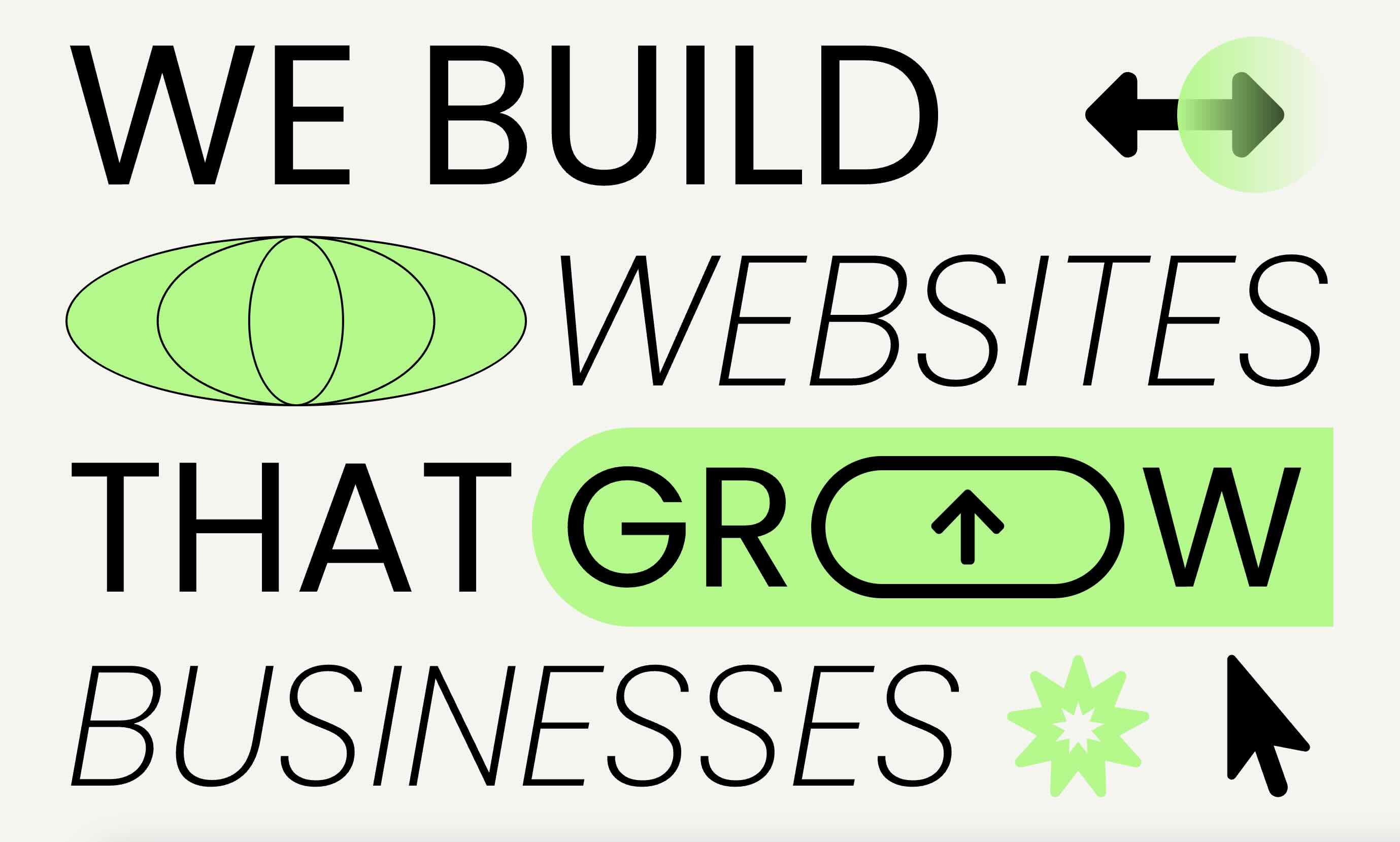
Make The Headline Easy To Scan
These designs often use expressive typography and layered accents, so clarity matters. Keep the heading readable at a glance and make sure decorative pieces don’t overpower the message.
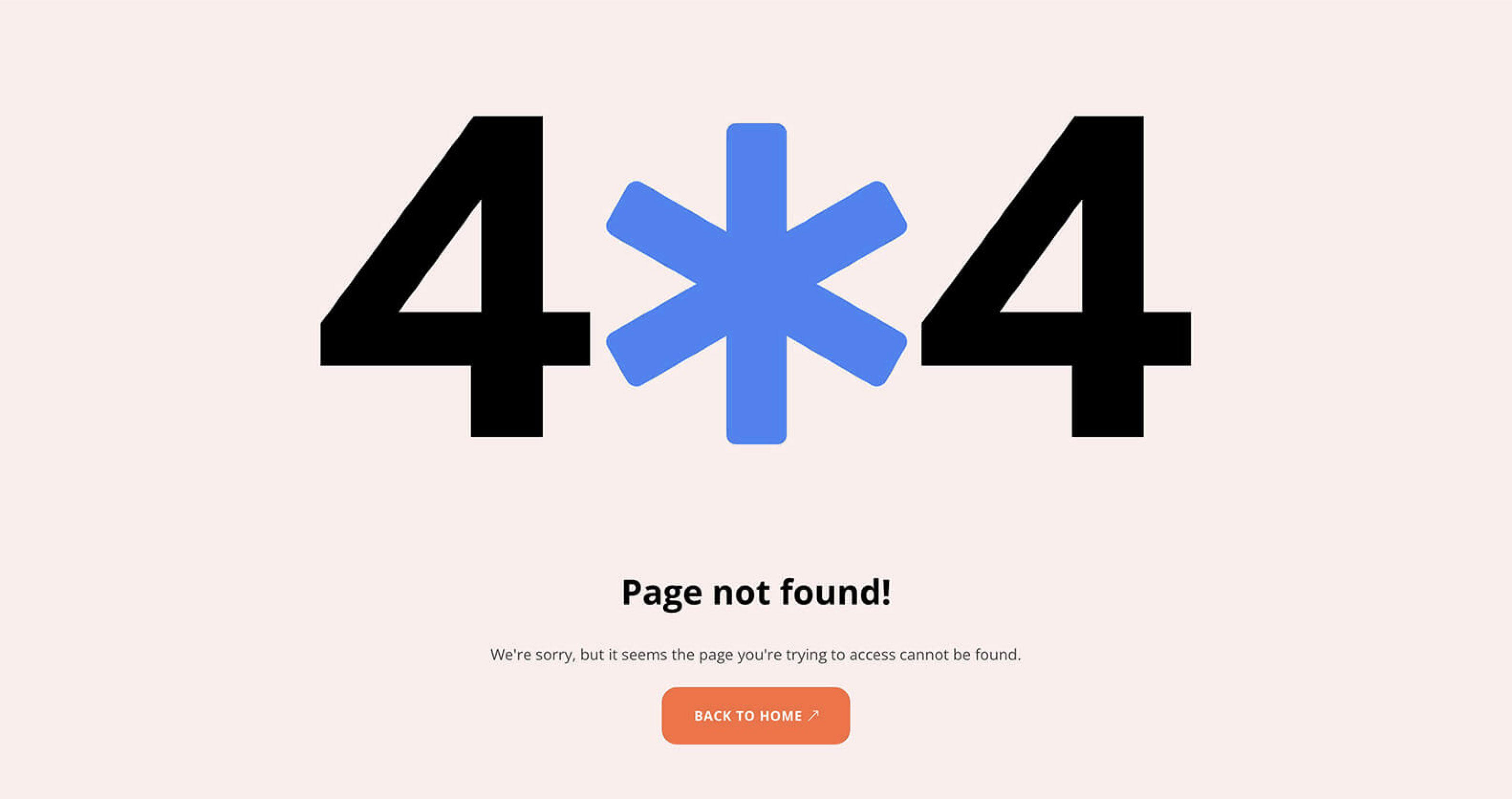
Use Accent Color Strategically
A strong accent color can help key words, shapes, and calls to action stand out. Use it intentionally so the section feels energetic without becoming visually noisy.
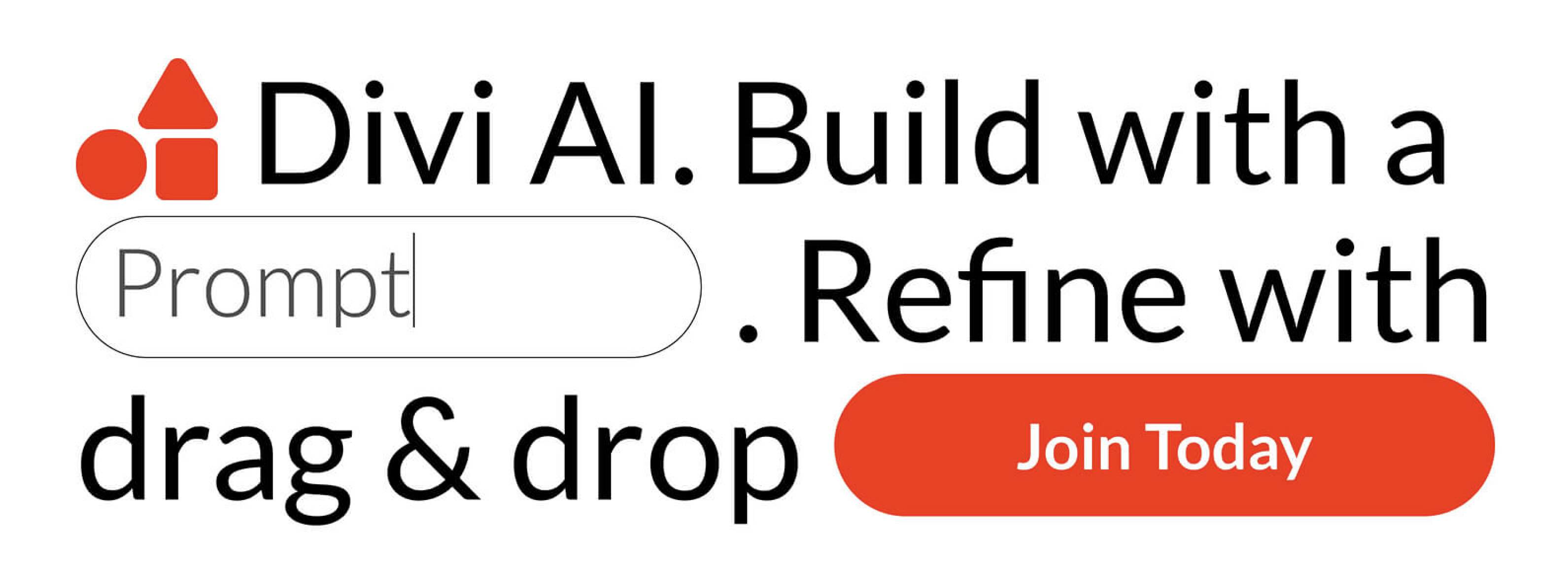
Check The Layout On Mobile
Decorative inline elements can shift noticeably on smaller screens. Review each section on tablet and phone views to make sure the text stays clear and the accents still feel well placed.
Start Building In Divi 5 Today!
These 7 Inline Element Designs give you a fast way to add bold, polished visual interest to hero sections, CTA blocks, promotions, announcements, and more. Swap the content, keep the styling or adapt it to your brand, and you’ll have a standout section ready in minutes with Divi 5‘s Visual Builder.










Leave A Reply