

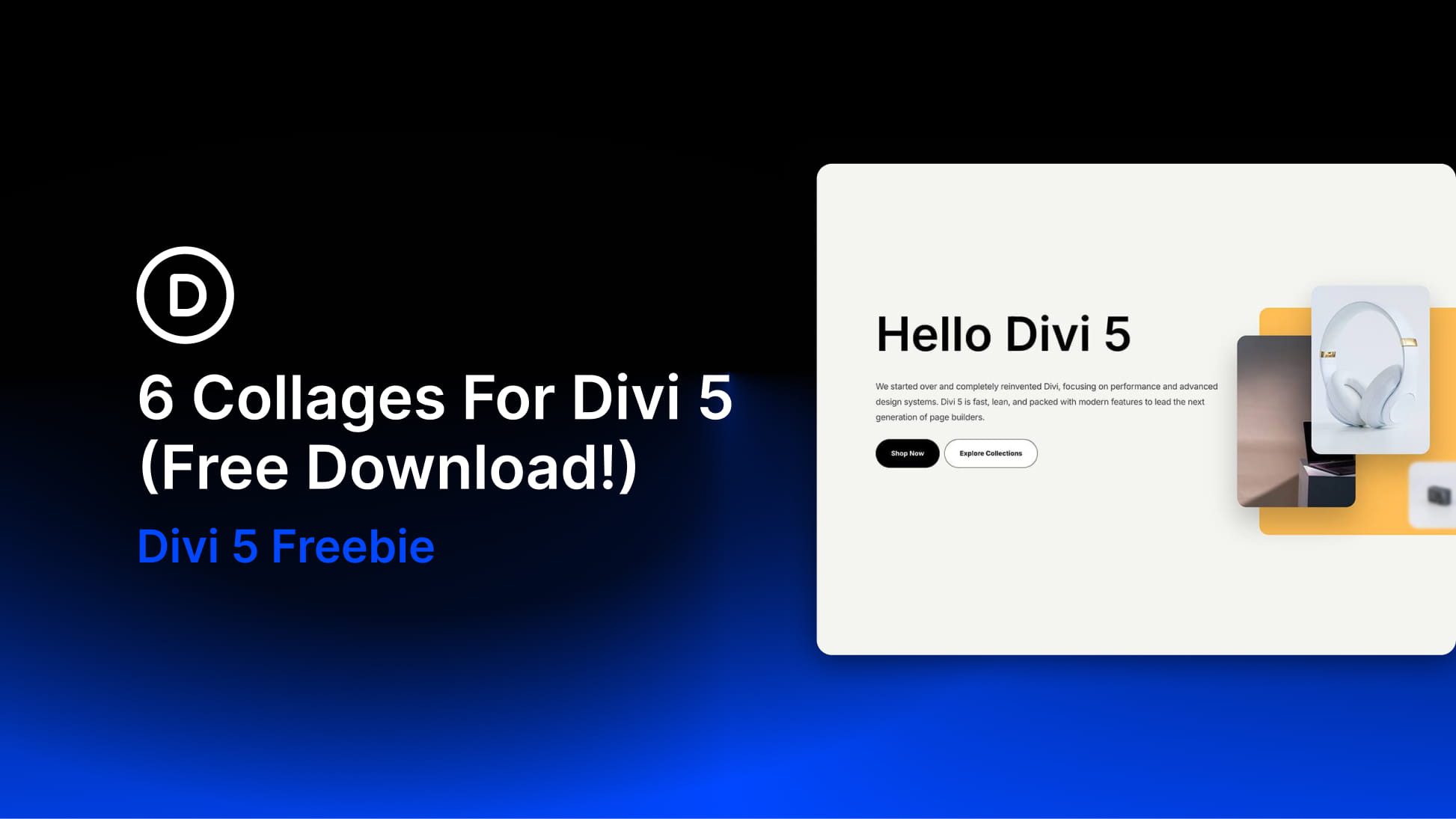
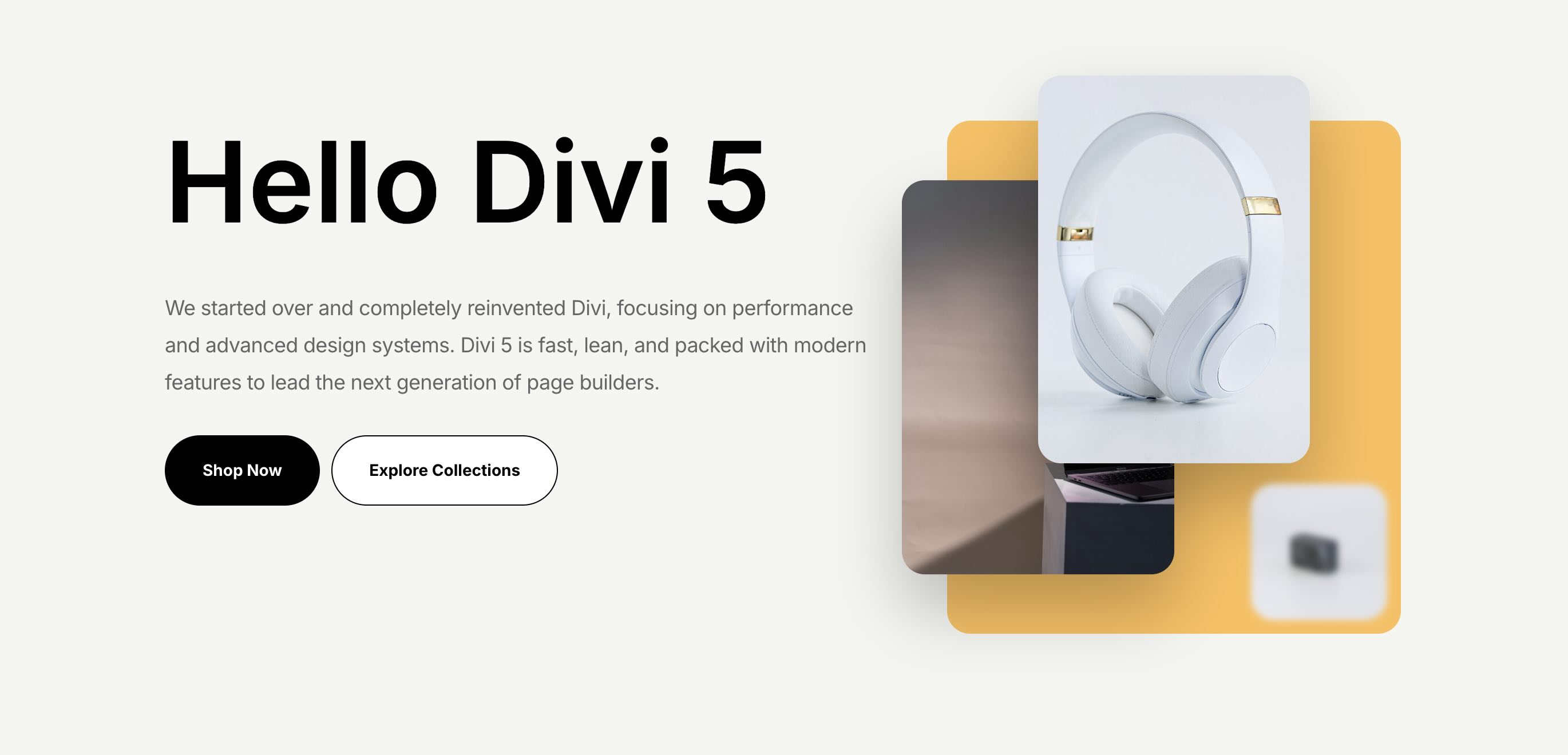
Divi 5 makes it easy to build modern, image-driven layouts that feel polished without adding unnecessary complexity. In this free pack, you’ll get 6 Collage Sections designed for hero areas, product spotlights, portfolio intros, creative landing pages, and other content that benefits from layered visuals and clean typography. Drop one onto any page, swap the content, and you’re ready to go.
Preview
Here’s a quick look at the 6 Collage Sections included in the pack. The download is further down the post.
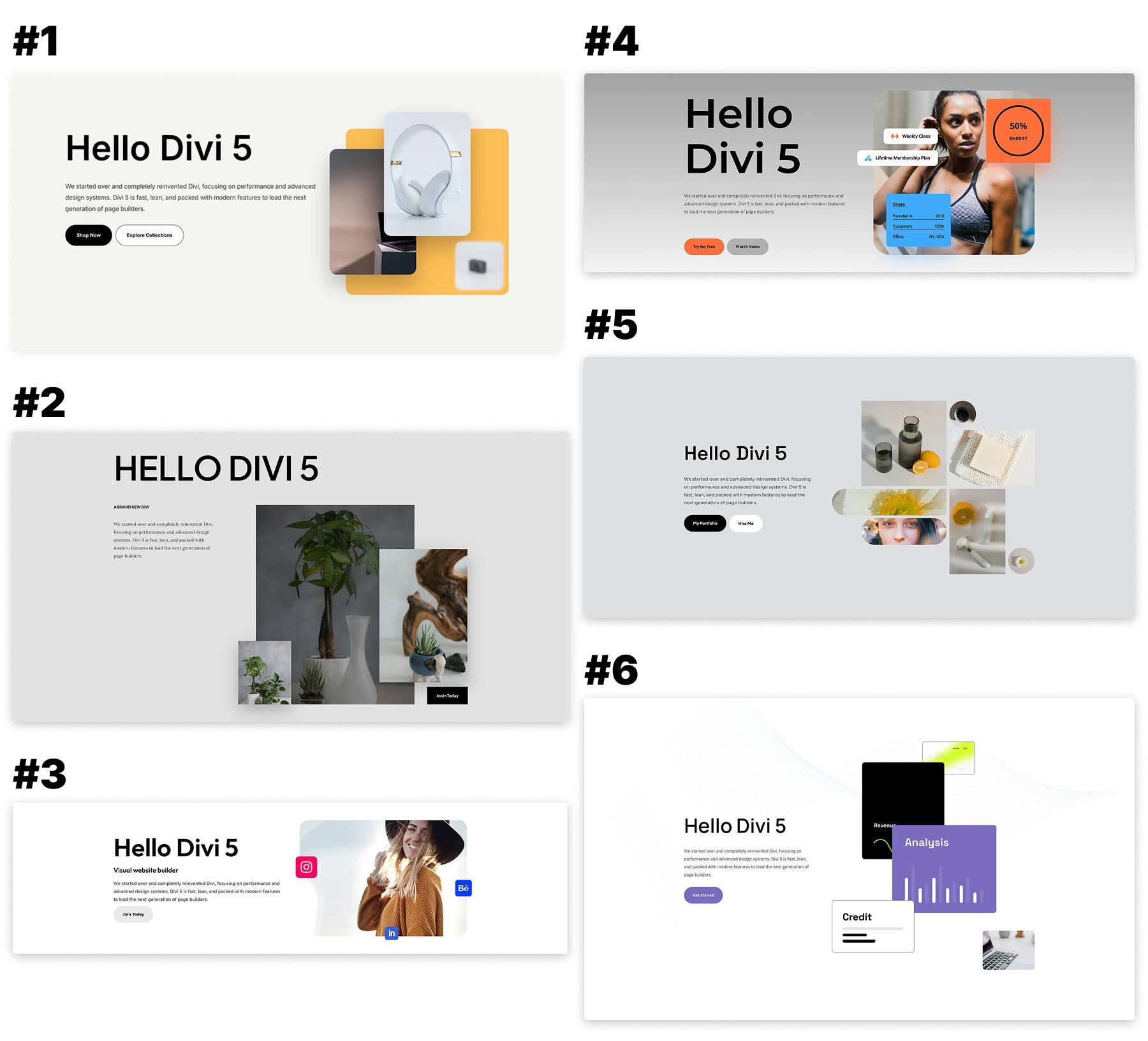
Download 6 Collages For Divi 5
Get all 6 sections for free. Import them into your Divi Library and add them to any page in the Visual Builder.

What’s Included (7 Exports)
After you download and unzip the file, you’ll find 6 styled Collage Section exports, plus 1 file containing all designs.
Styled – Collage Section 1 to 6 (6) → Six fully styled collage section layouts for creative headers, product features, portfolio blocks, and layered content presentation that you can use as-is or customize.
Styled – Collage Sections (All) → Imports all 6 designs into your Divi Library at once.

How To Use The Collage Sections
Keep your download folder handy. We’ll import the files, add a section to a page, and then replace the content.
1. Import Sections Into The Divi Library
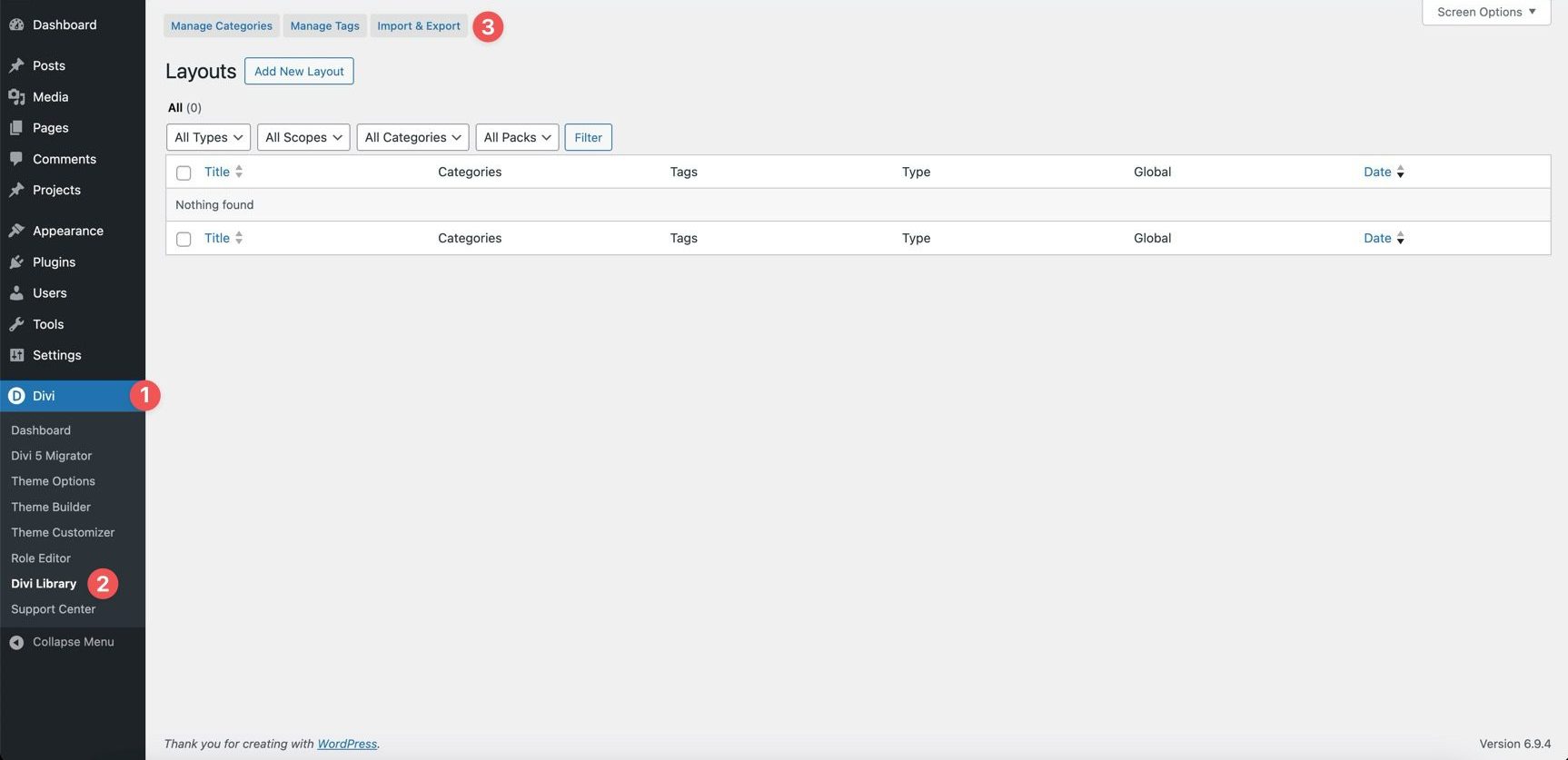
Go to Divi → Divi Library. Click Import & Export at the top of the screen.
In the Import & Export Layouts modal, switch to the Import tab, then click Choose File and select your JSON file.
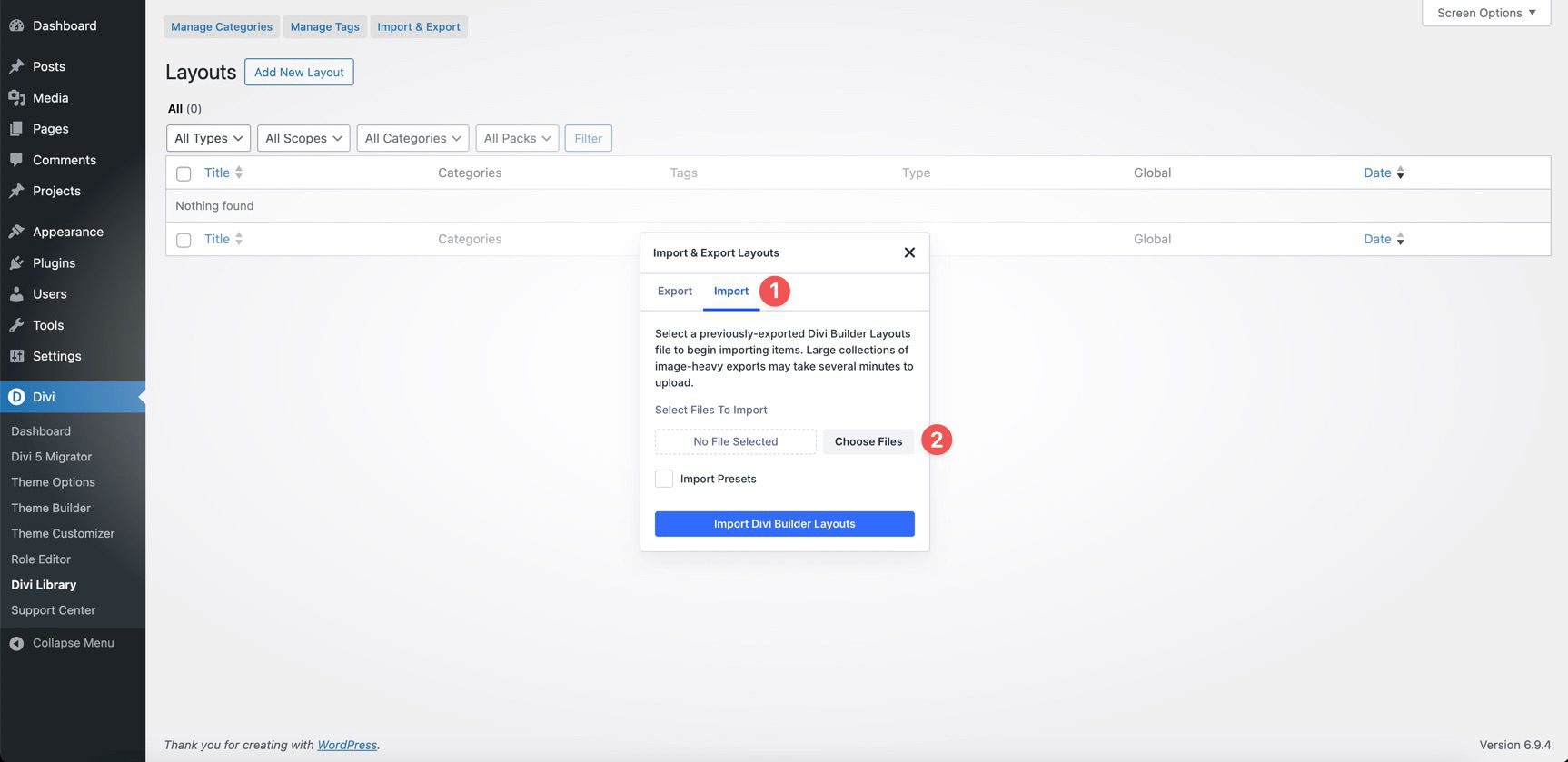
Choose any Collage Section JSON you’d like to use, then click Import Divi Builder Layouts.
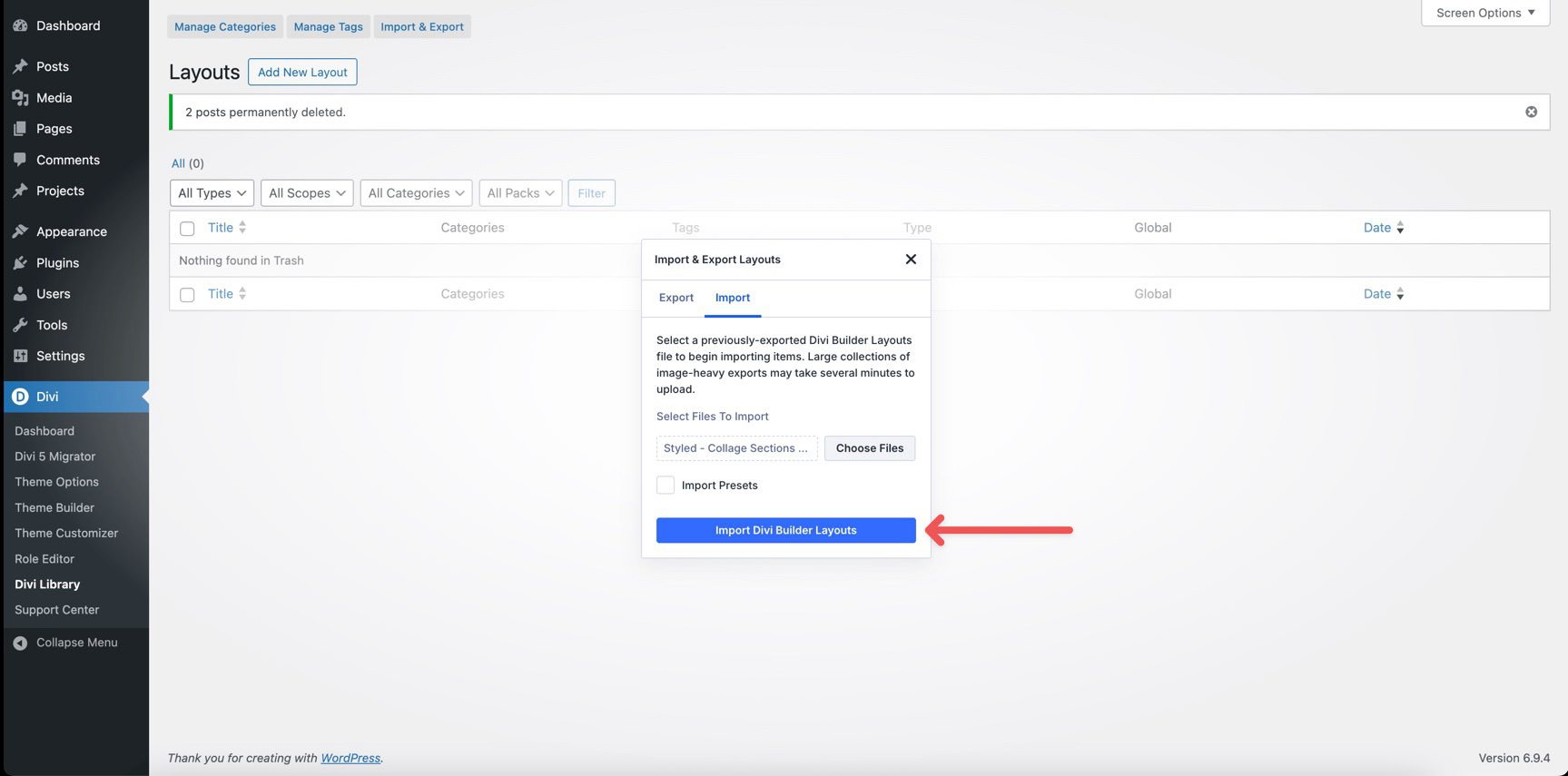
2. Add A Collage Section To Any Page
Open a page in the Visual Builder and add a new Section.
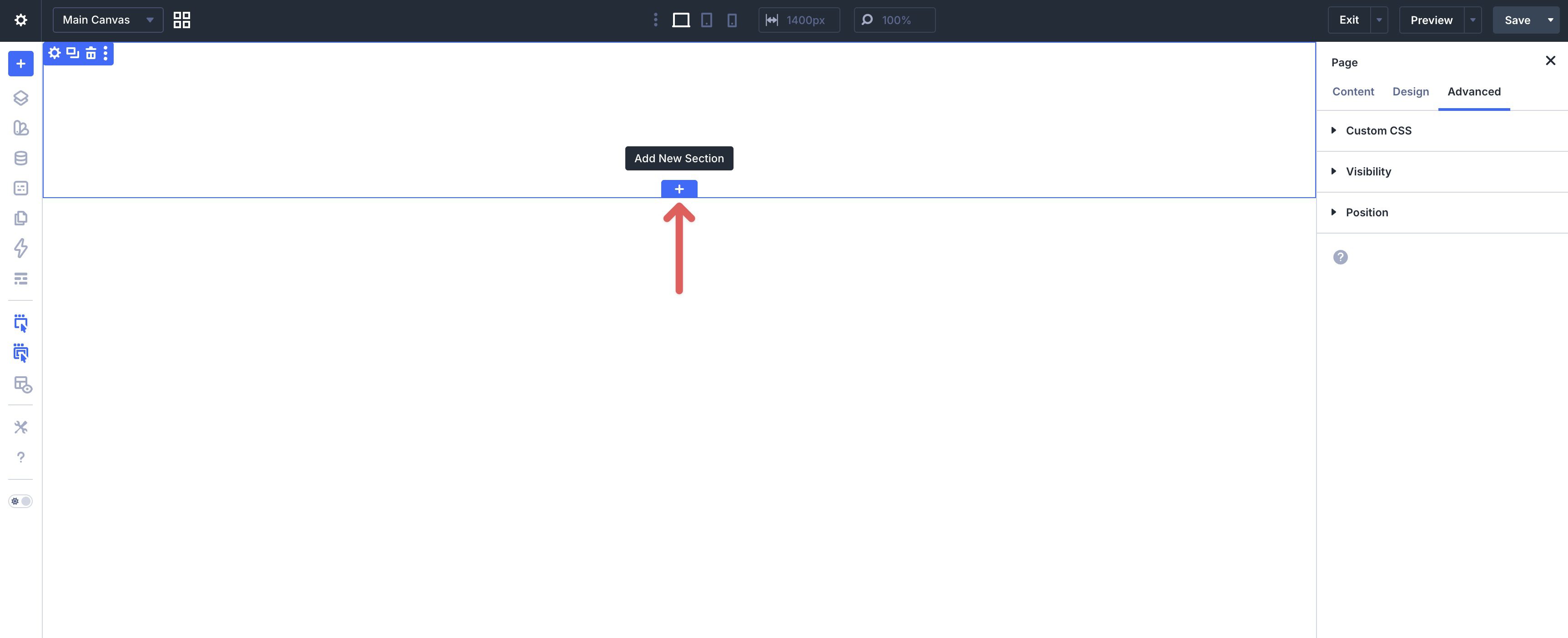
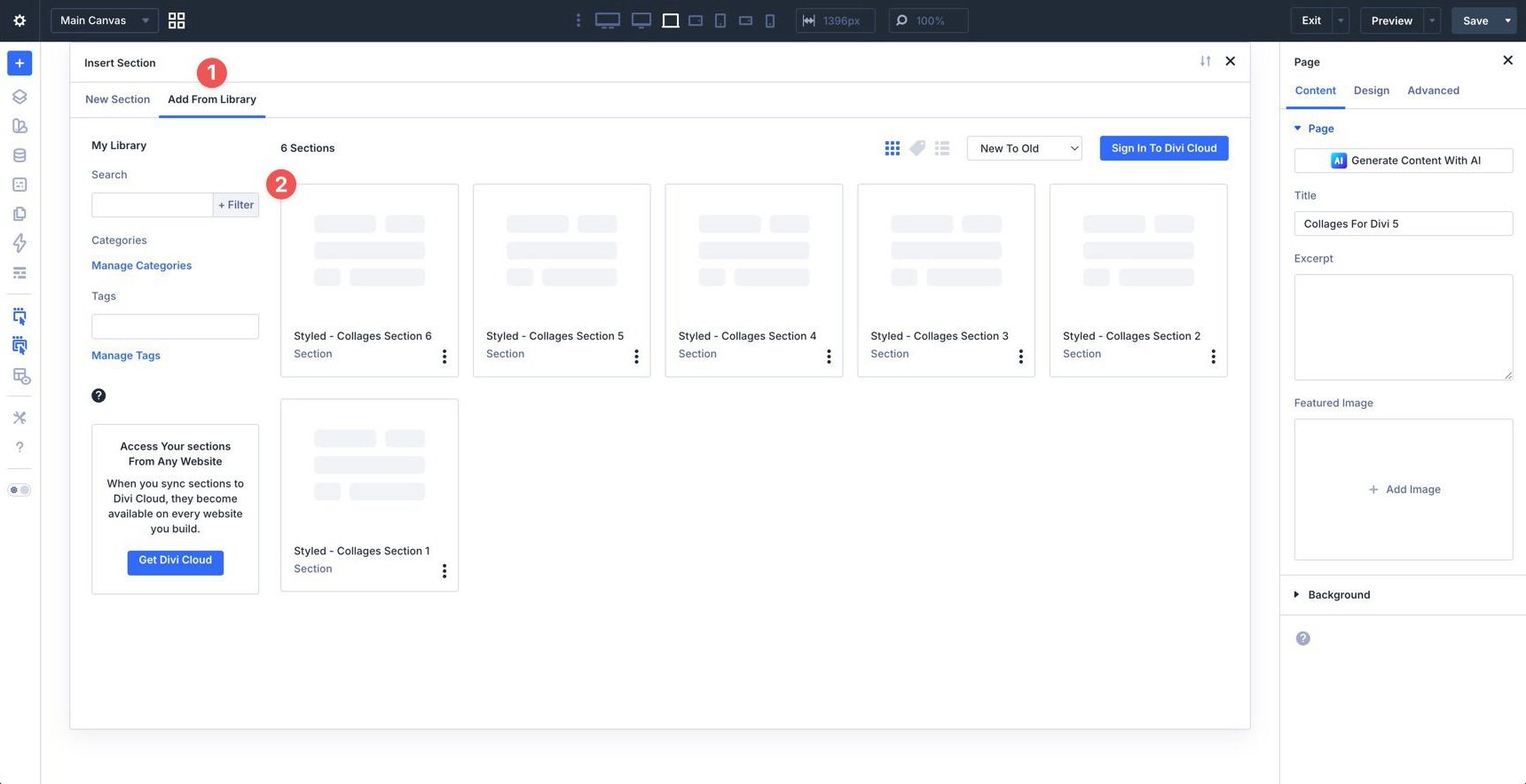
In the Insert Section modal, click Add From Library and select a Collage Section layout.
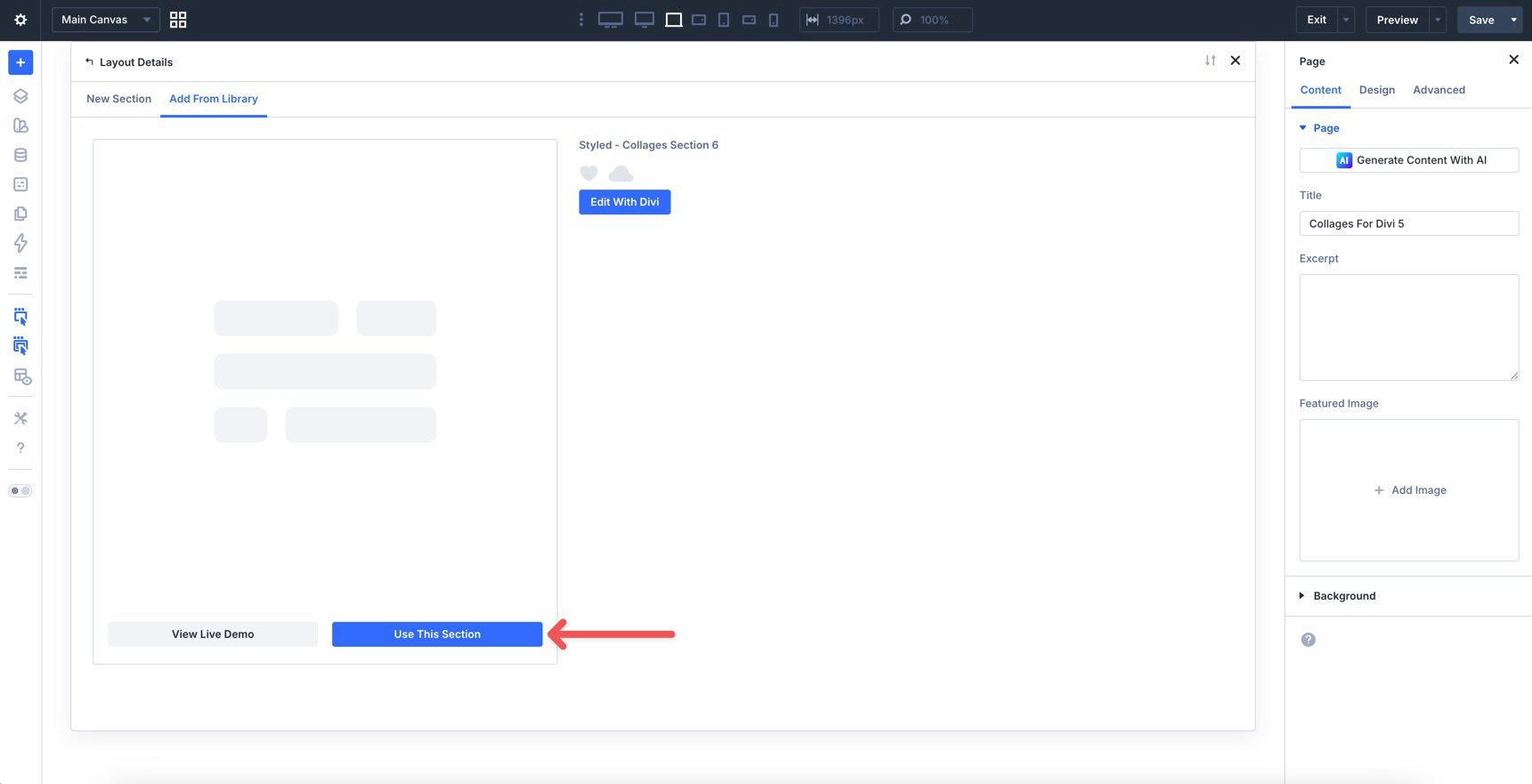
Finally, click Use This Section.
3. Swap The Content
Once the section is on the page, replacing the placeholder content takes only a few clicks. Start by updating the heading, supporting copy, buttons, and links so the section matches your message. Then replace the placeholder images with your own.
Because these collage layouts use multiple overlapping or offset images, it’s best to swap one image at a time and check the composition as you go. This helps preserve the balance between text, whitespace, and imagery.
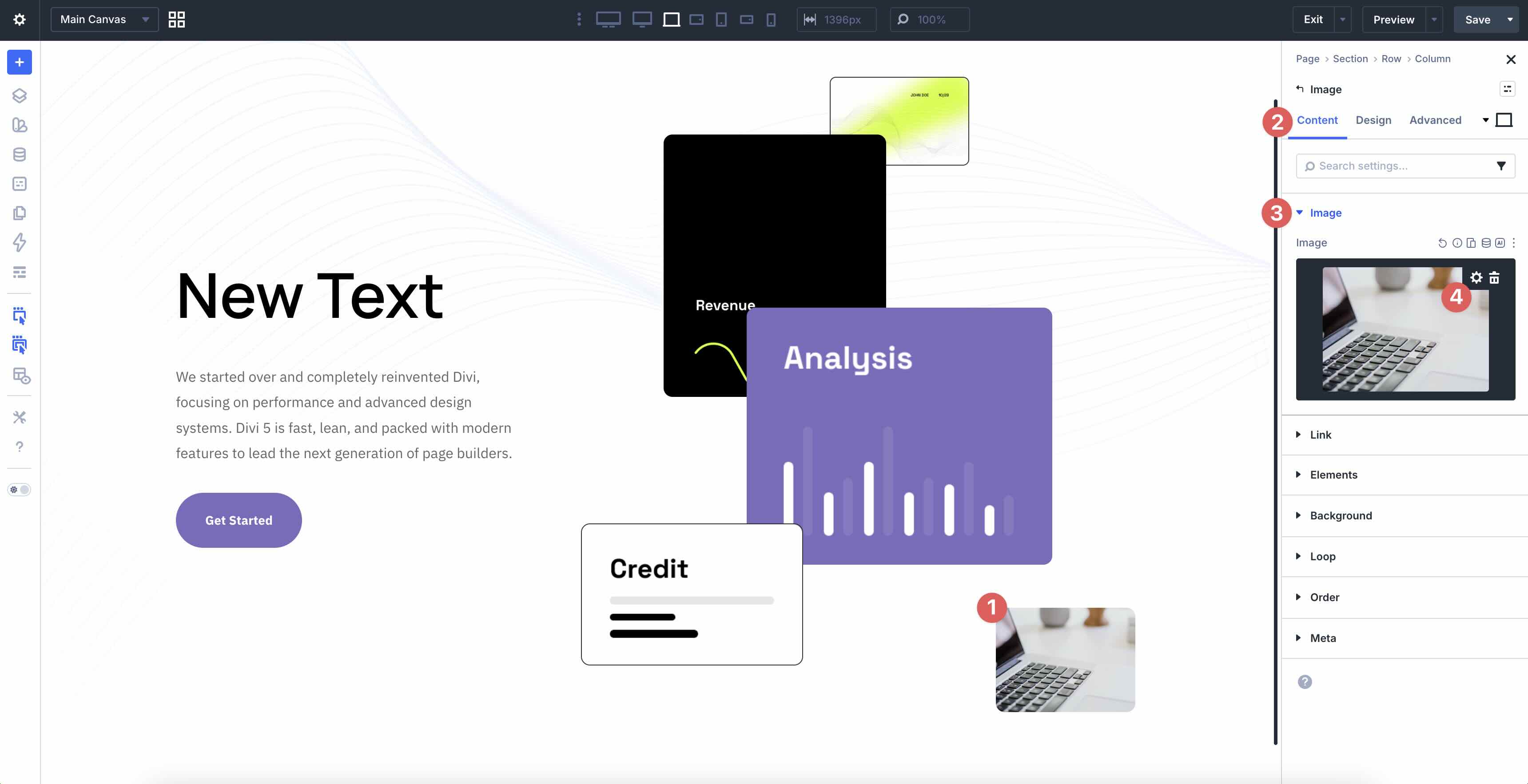
If you’d like to adjust the number of visual elements, duplicate or remove existing image modules rather than rebuilding the layout from scratch. That’s the easiest way to preserve spacing and alignment while expanding or simplifying the collage.
4. Adjust Styles (Optional)
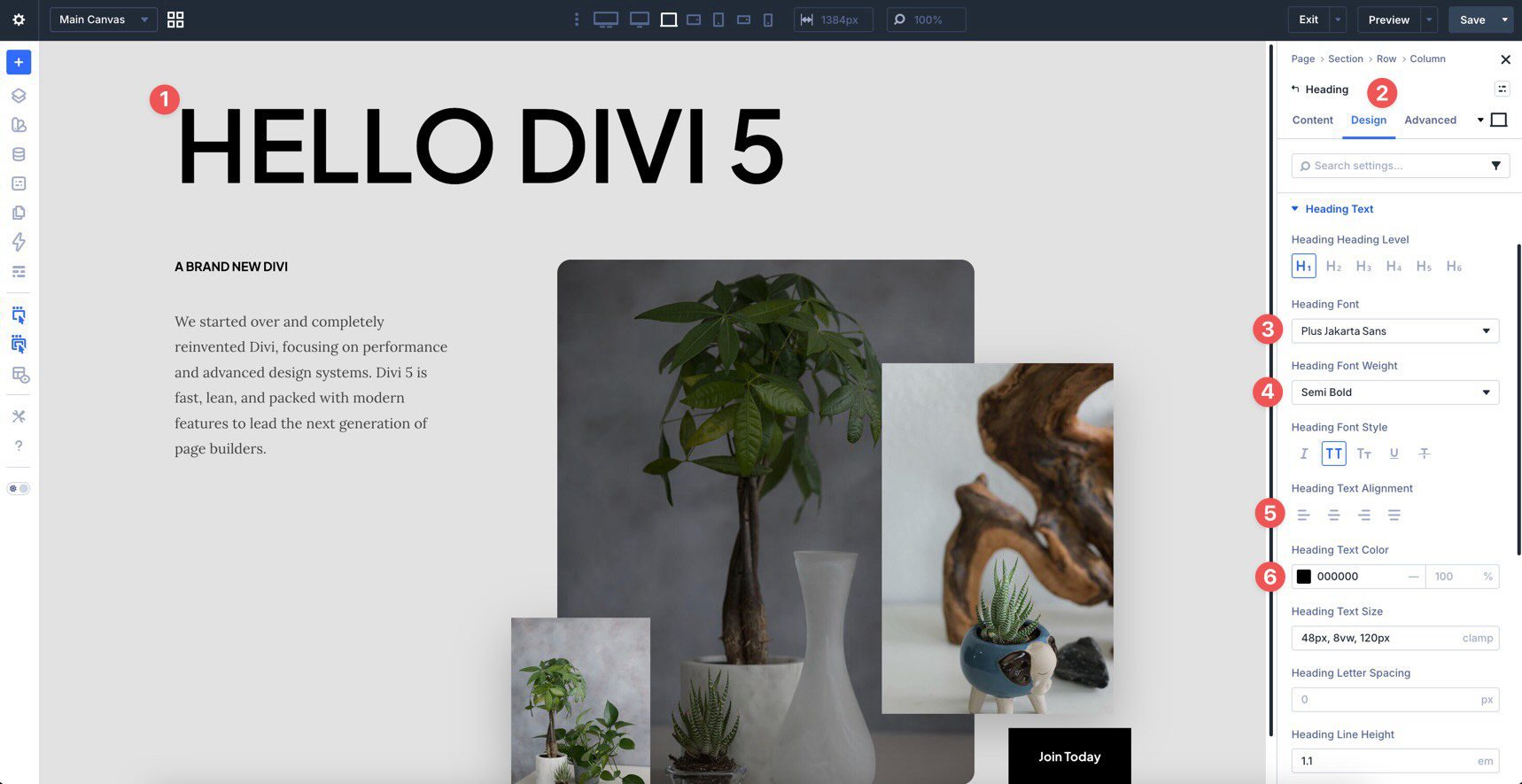
These collage sections are already styled, so you can use them immediately or refine them to better match your brand. Update typography, colors, spacing, border radius, shadows, and image treatment as needed using the settings in the Design tab.
To change typography, open any Text or Heading module and go to the Design tab. Expand the relevant text settings to adjust Font, Font Weight, Text Alignment, and Text Color.
To refine the visual card or image blocks, open the row, group, or module controlling the collage area and use the Design tab to tweak Border Width, Border Color, Border Radius, Box Shadow, and Padding.
If your version uses rounded image masks, soft corners, or overlapping image stacks, keep those relationships in mind as you resize or replace assets so the collage still feels intentional.
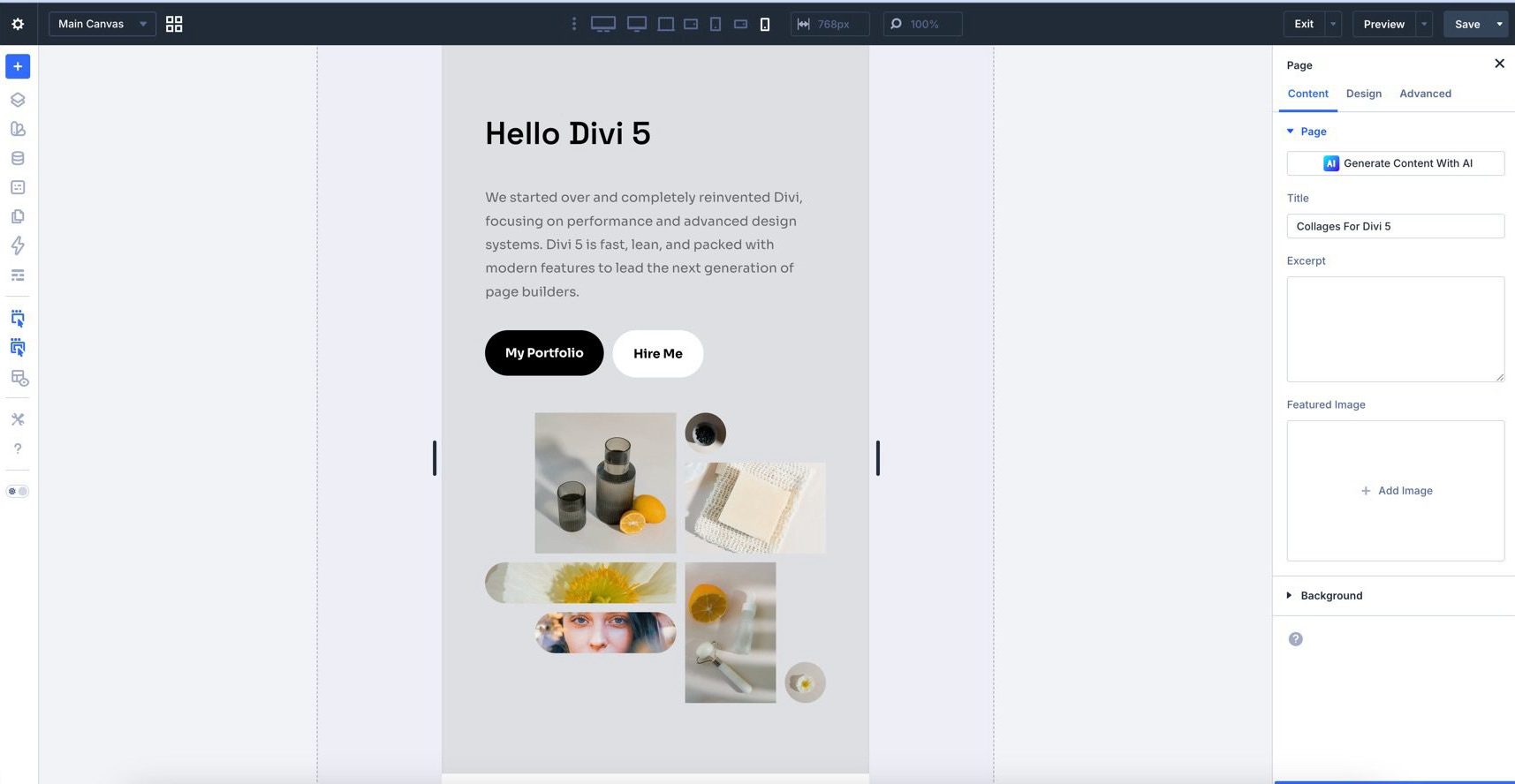
Use Divi’s responsive editing tools to adjust spacing, alignment, and stacking behavior on smaller screens so the composition remains balanced across devices.
Tips For Effective Collage Layouts
Collage sections work best when the arrangement feels deliberate and the content is easy to scan. Use these quick tips to keep the designs clean, balanced, and effective.
Use A Clear Focal Point
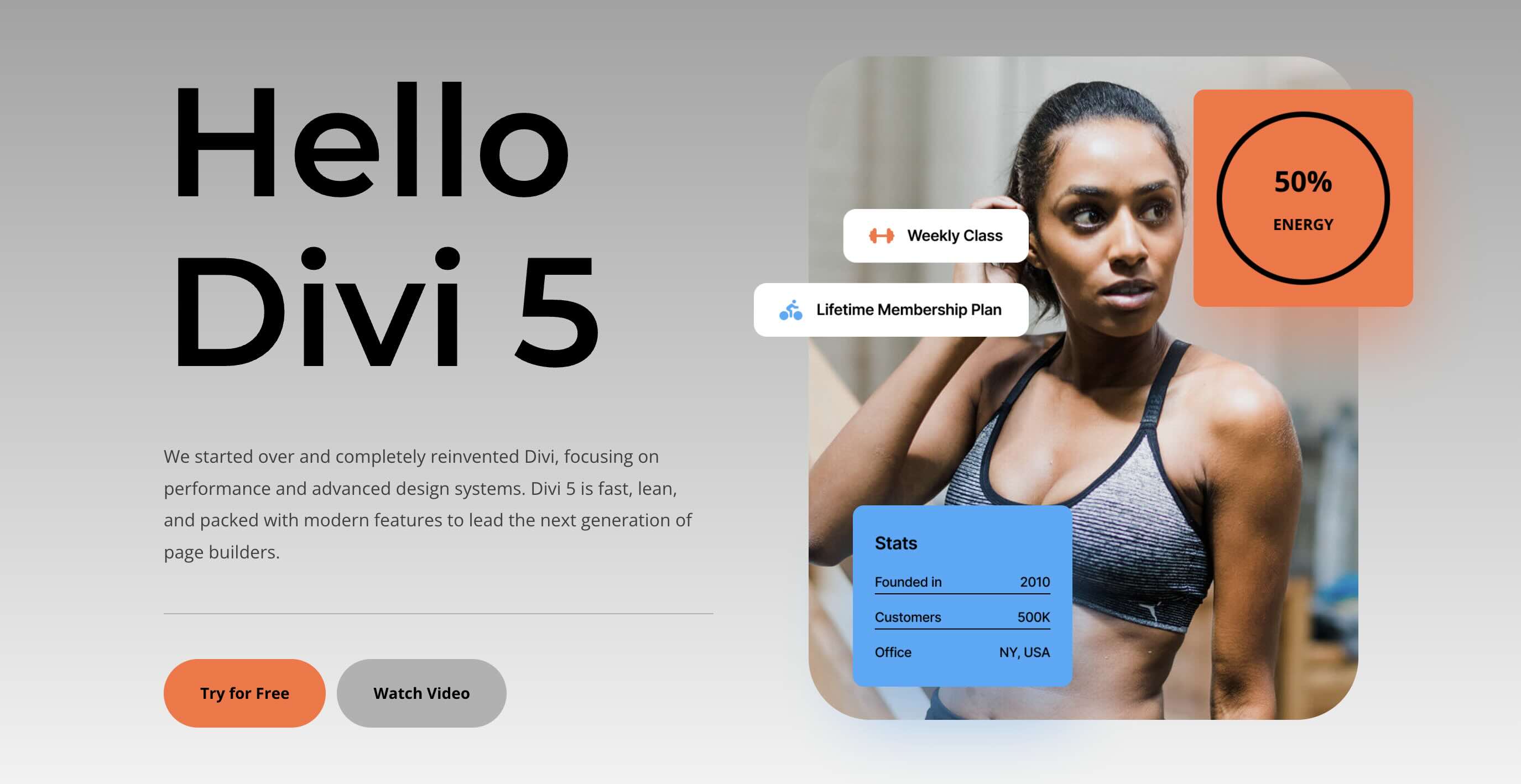
Every collage should have one element that grabs attention first. That might be the headline, a hero image, or a standout product photo. Once the focal point is clear, the supporting images can reinforce it rather than compete with it.
Keep Image Treatment Consistent
If one image uses rounded corners, soft shadows, or muted tones, the surrounding images should feel like part of the same system. Consistency makes the whole section look more intentional.
Balance Text And Visuals
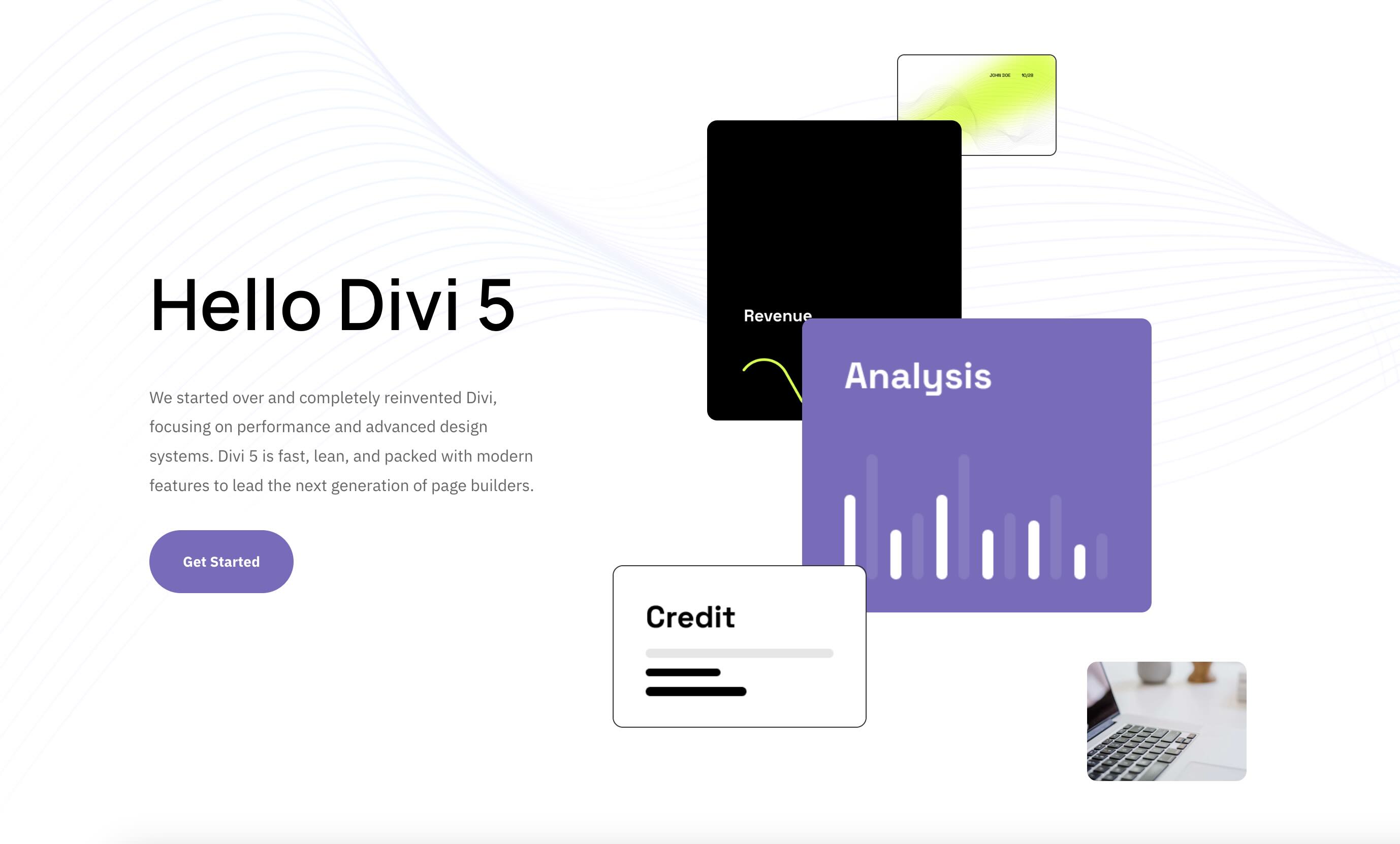
Collages are visual by nature, but they still need clear messaging. Make sure your headline, body copy, and buttons have enough breathing room and don’t get crowded out by the image composition.
Use Whitespace Intentionally
The empty space around a collage is part of the design. Resist the urge to fill every gap. Whitespace helps the overlapping elements feel cleaner and gives the eye room to move through the section.

Check The Composition On Mobile
On smaller screens, overlapping images and layered layouts can stack differently than expected. Review each section on tablet and phone views to make sure the headline stays readable and the collage still feels balanced.
Start Building In Divi 5 Today!
These 6 Collage Sections give you a fast way to add polished, image-forward layouts to creative headers, product features, portfolio intros, landing pages, and more. Swap the content, keep the styling or adapt it to your brand, and you’ll have a refined section ready in minutes with Divi 5‘s Visual Builder.













Leave A Reply