

Divi 5 makes it simple to build bold hero sections and headline areas that feel intentional, balanced, and on brand. In this free pack, you’ll get 5 styled Large Text Sections — each crafted with strong typography, clear hierarchy, and flexible layouts so you can plug in your own content in seconds. Drop one onto any page, swap the text and imagery, and you’re ready to go. No extra setup required.
Preview
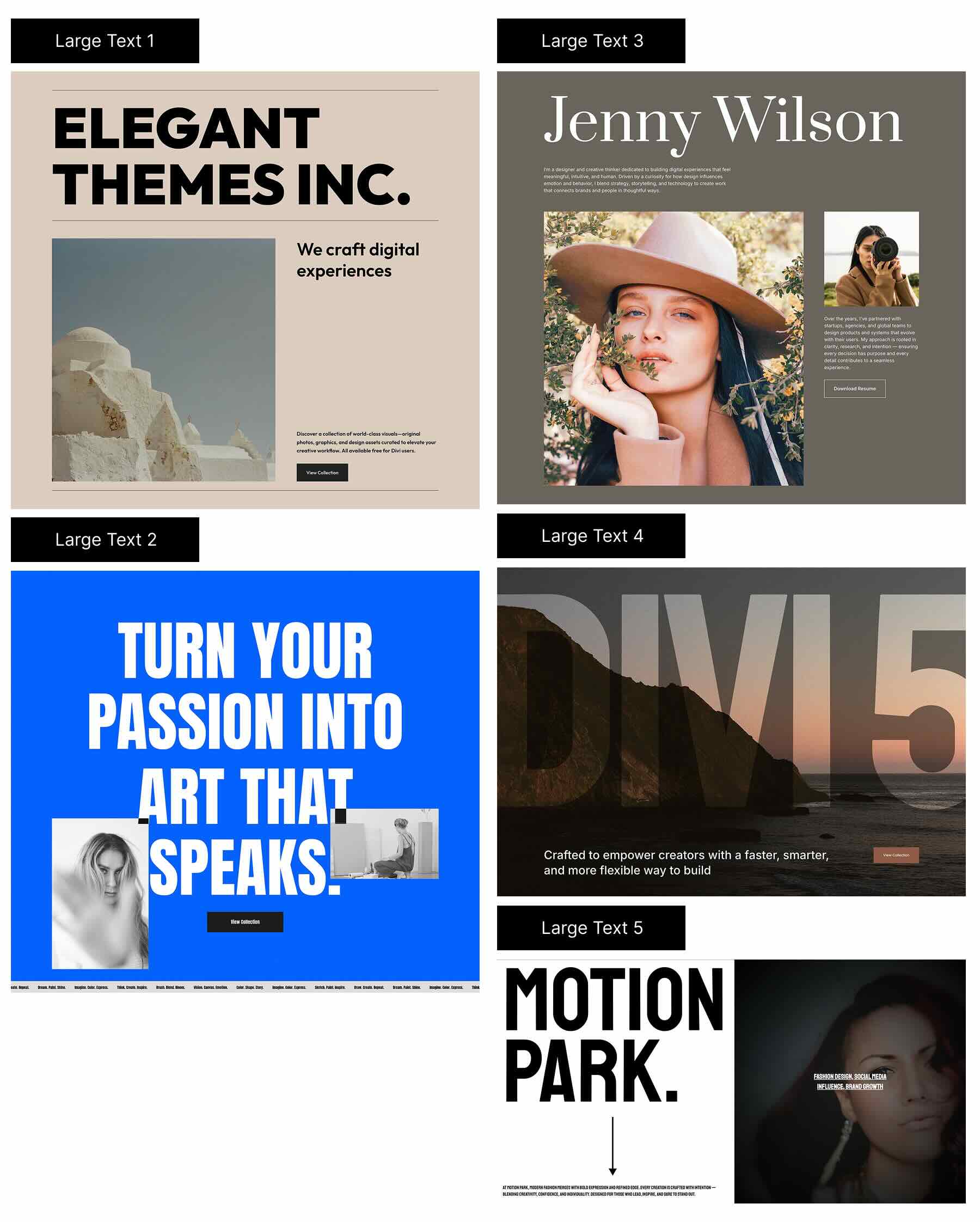
Here’s a quick look at all 5 Large Text Sections included in the pack. The download is further down the post.
Subscribe To Our Youtube Channel
Download 5 Styled Large Text Sections For Divi 5
Get all 5 sections for free. Import them into your Divi Library and add them to any page in the Visual Builder.

What’s Included (6 Exports)
After you download and unzip the file, you’ll find 5 Large Text Section exports + 1 file containing all designs.
Styled — Large Text Sections (5) → Bold hero-style layouts with refined typography, image pairings, and strong contrast, ready to use as-is or adapt with your own presets and Design Variables. Perfect starting points for landing page headers, portfolio intros, feature highlights, testimonials, and editorial-style hero sections.
Styled — Large Text Section (All) → Imports all designs to your Divi Library.

How To Use The Large Text Sections
Keep your download folder handy — we’ll import, then add a section to a page.
1. Import Sections Into The Divi Library
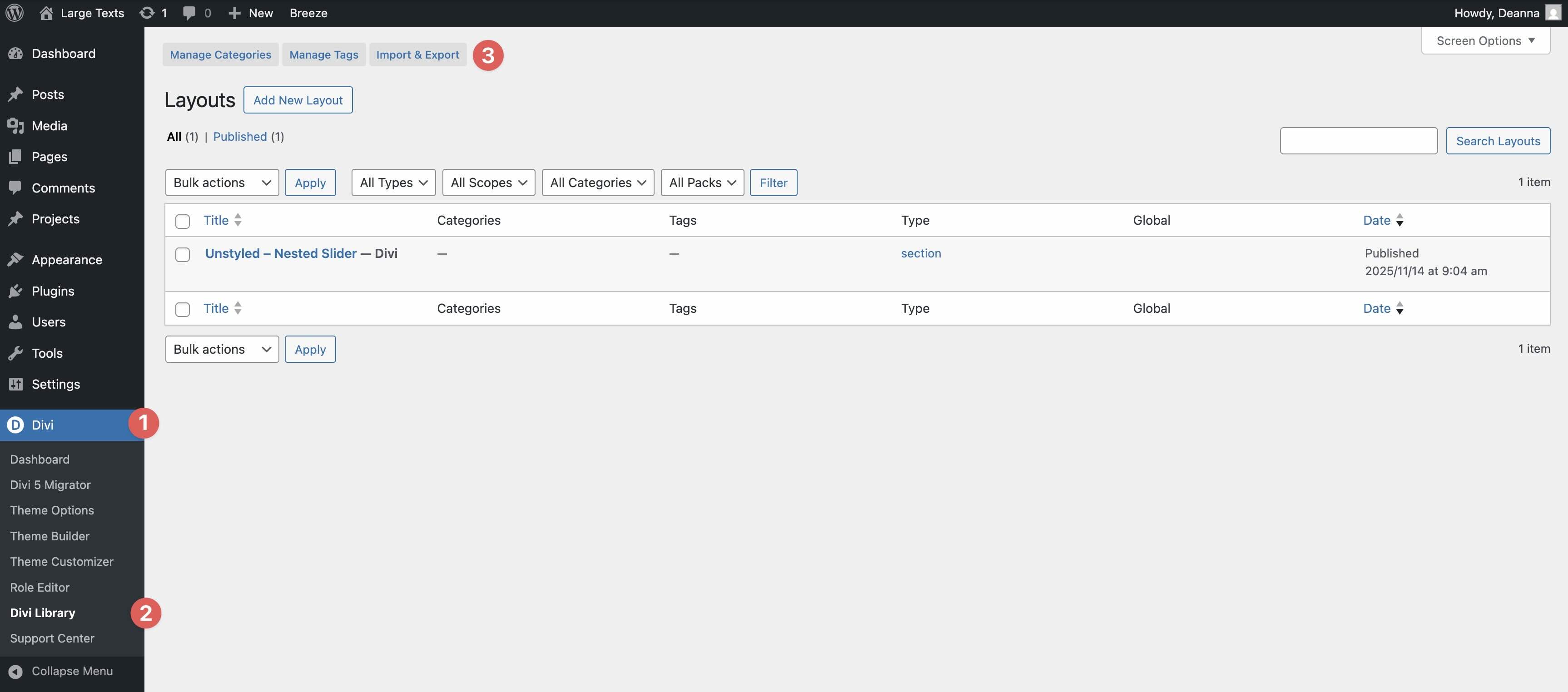
Go to Divi → Divi Library. Click Import & Export at the top of your screen.
In the Import & Export Layouts modal, switch to the Import tab, then click Choose File and select your JSON.
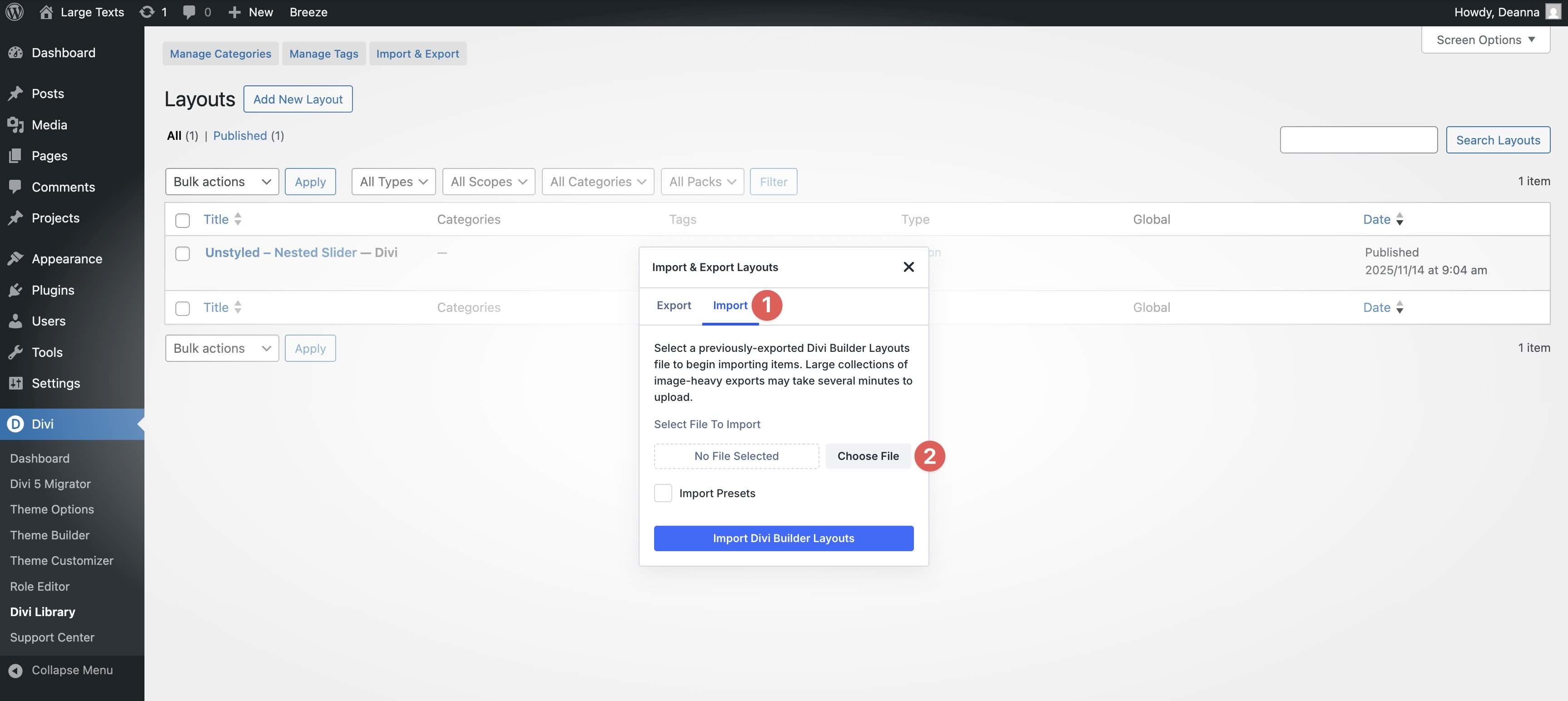
Choose any Large Text layout JSON you want to use, then click Import Divi Builder Layouts.
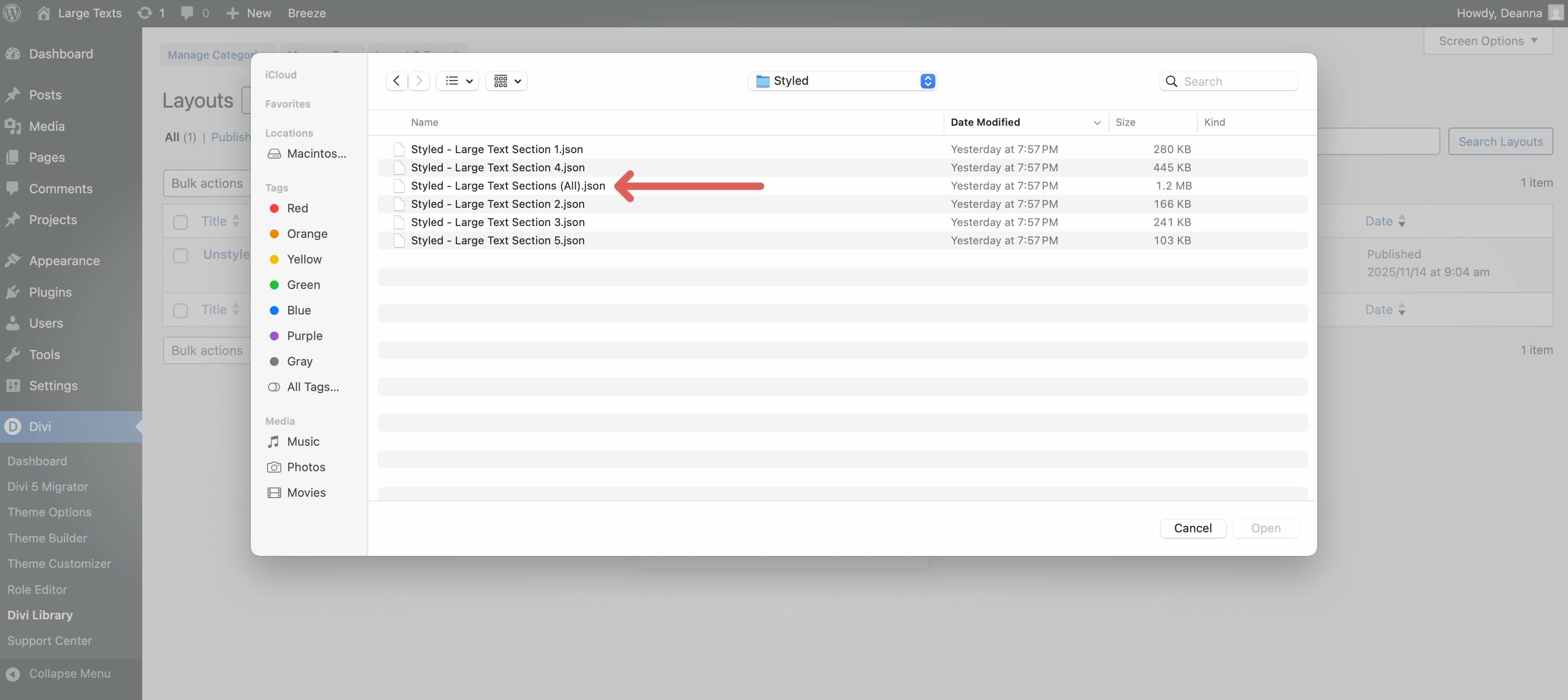
2. Add A Large Text Section To Any Page
Open a page in the Visual Builder and add a new Section.
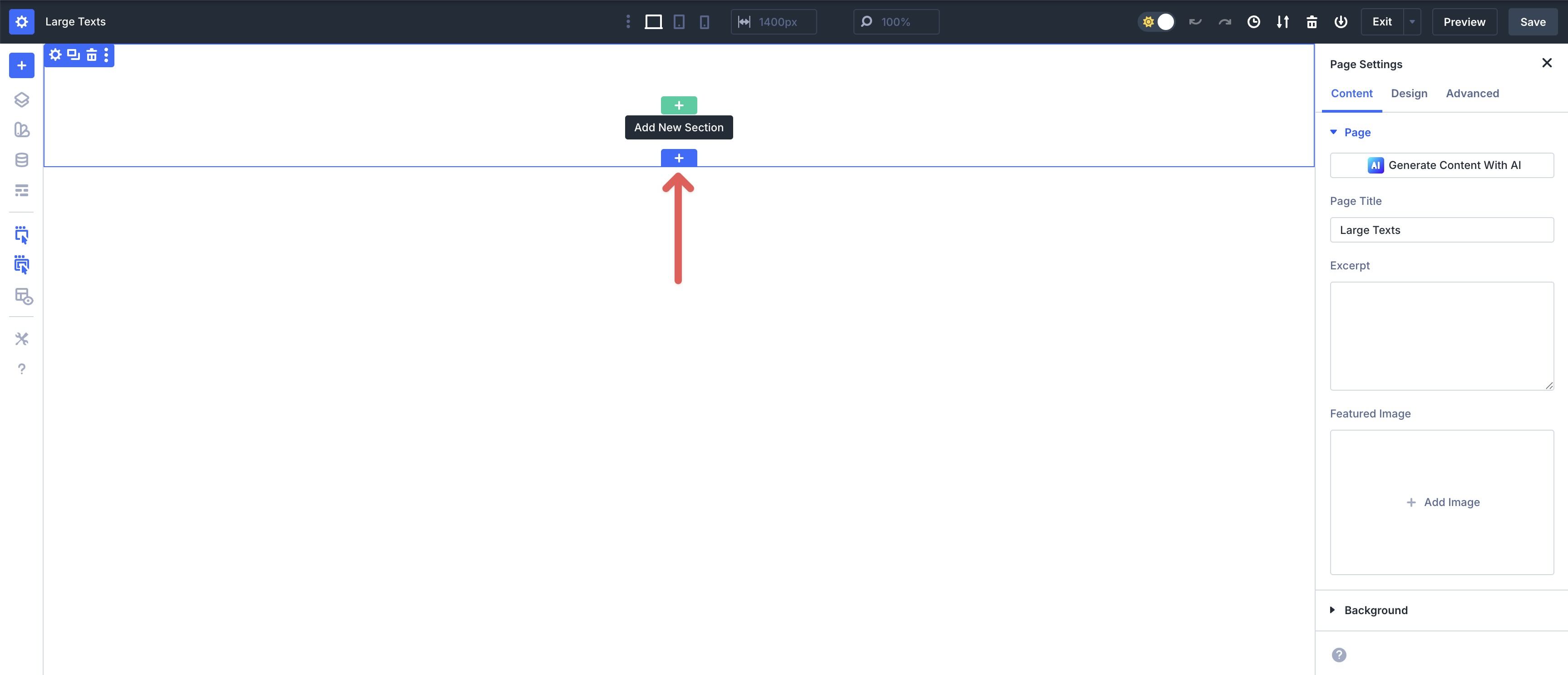
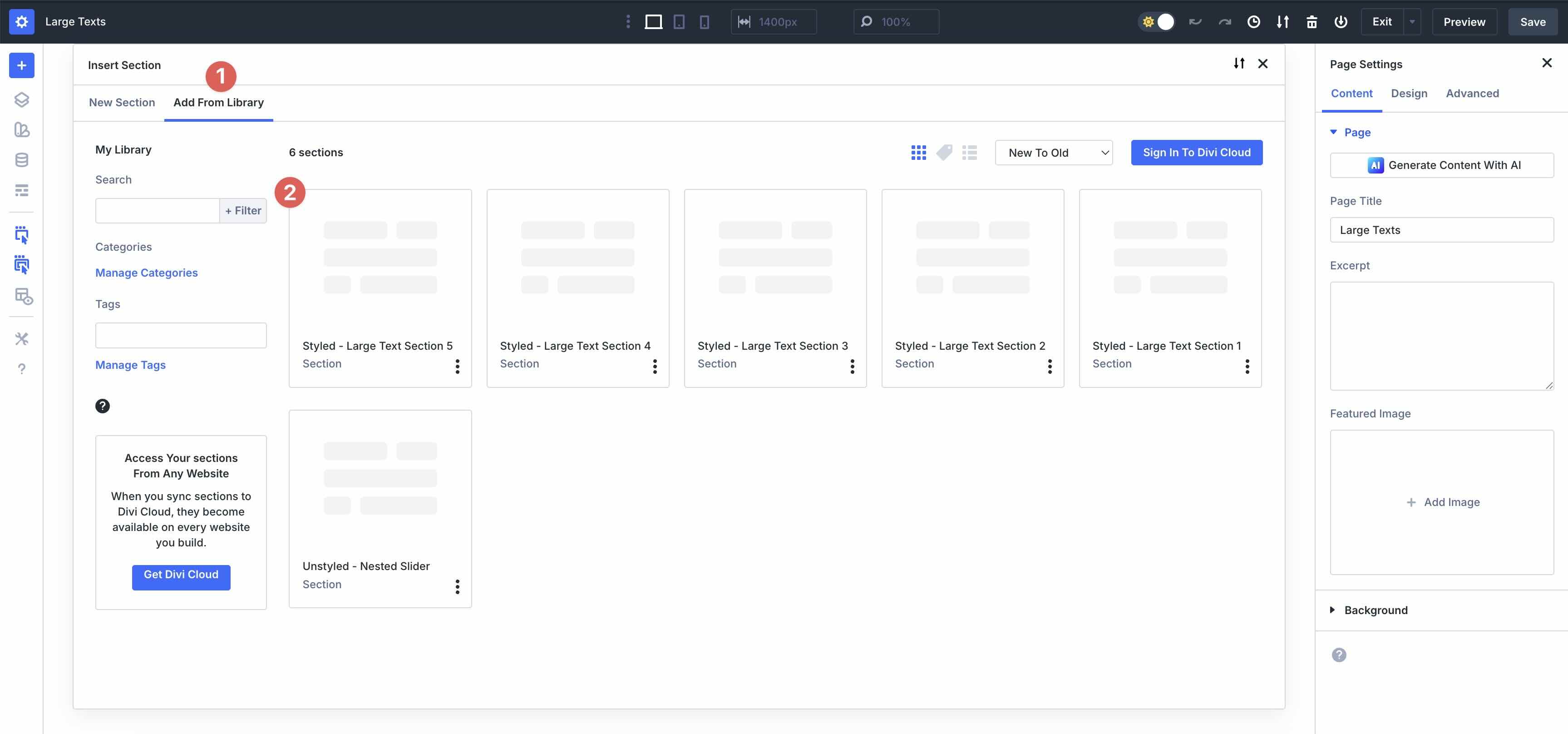
In the Insert Section modal, click Add From Library and select a Large Text layout.
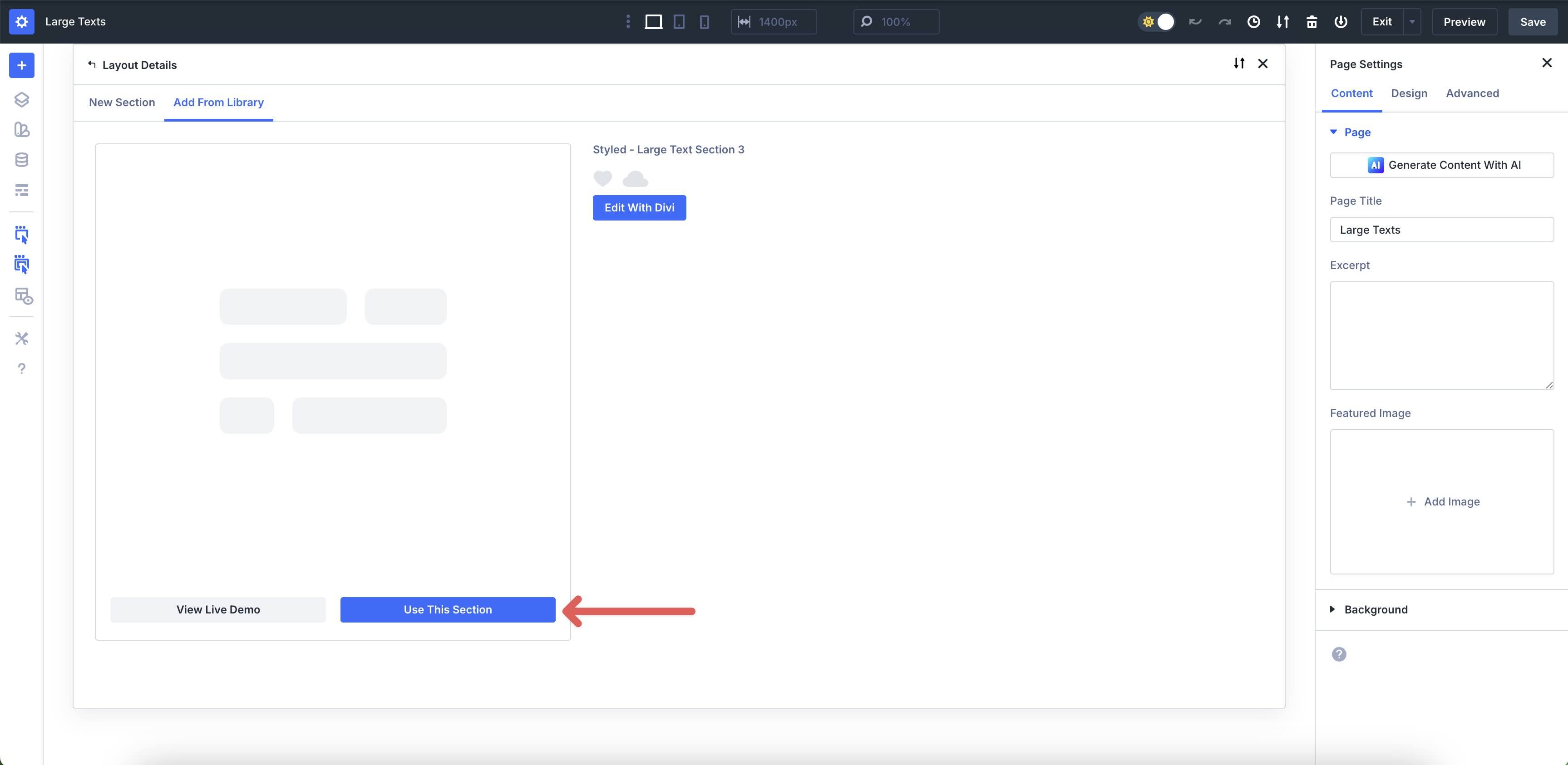
Finally, click Use This Section.
3. Swap The Content
Once the Section is on the page, replacing the placeholder content takes just a few clicks.
Click directly on any Text Module to edit the heading, subheading, body text, or button text in real time.
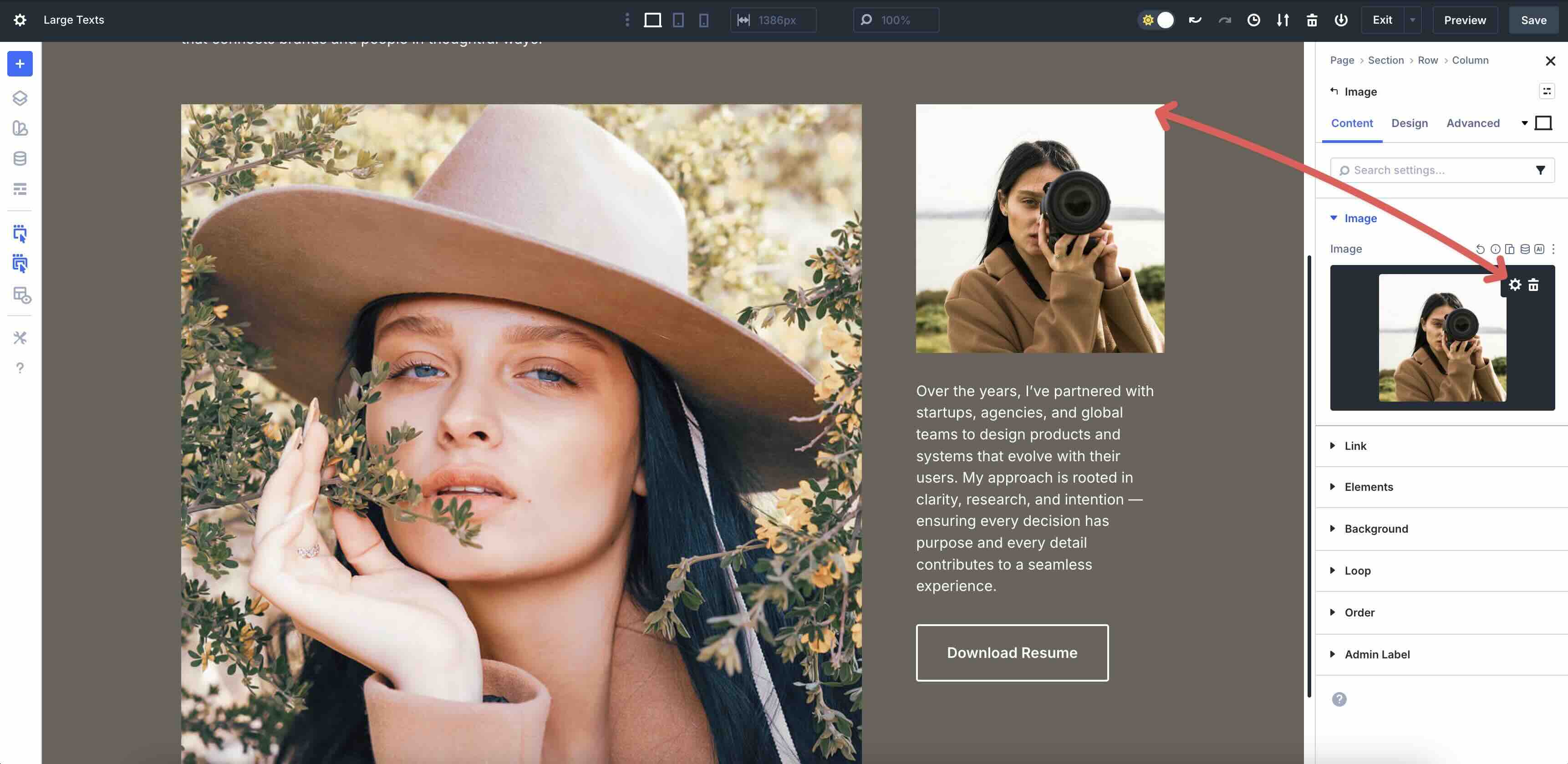
To replace images, open the Image settings by navigating to the Content tab of that module. Click Image → Upload or choose an image from your Media Library.
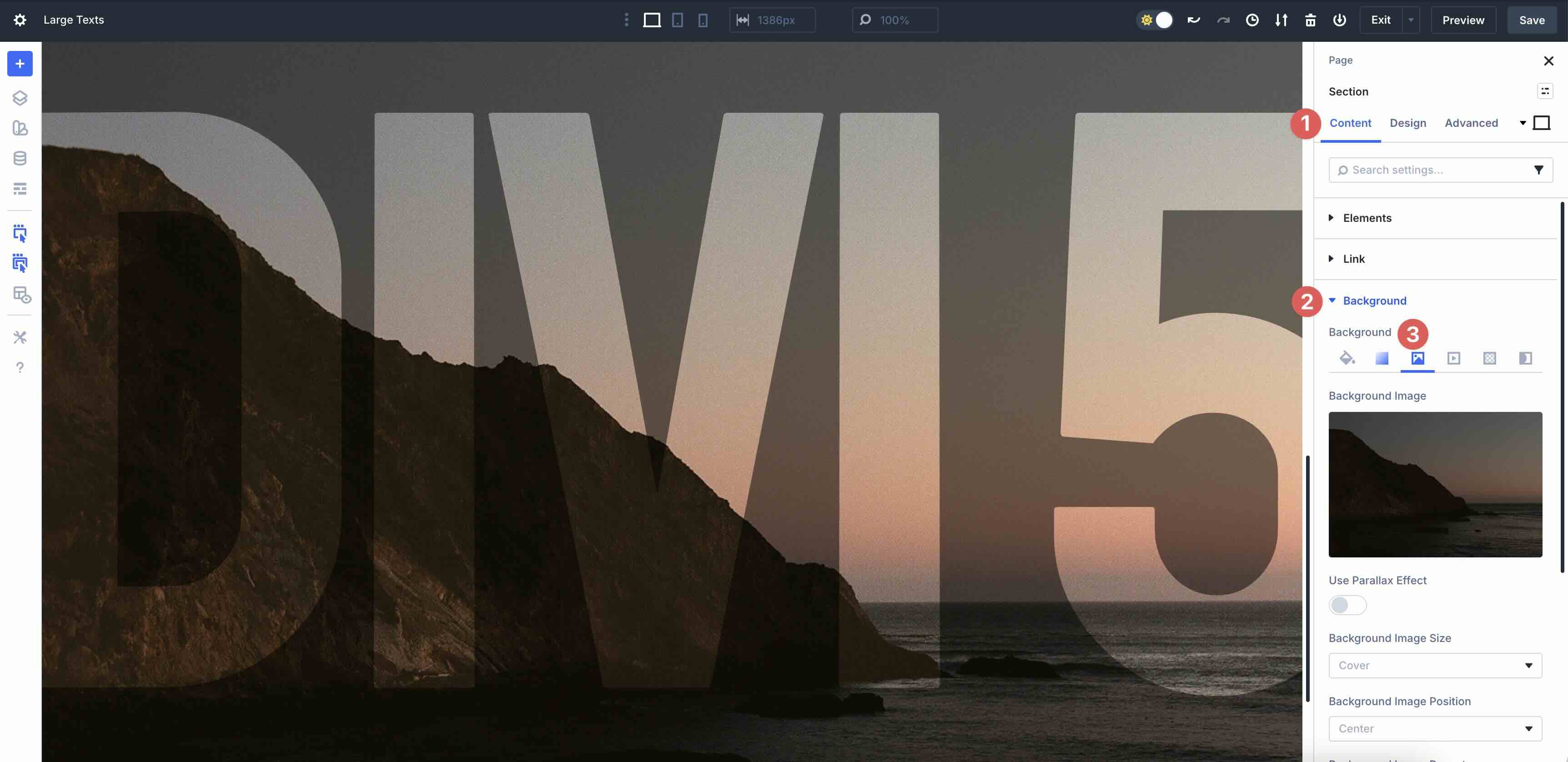
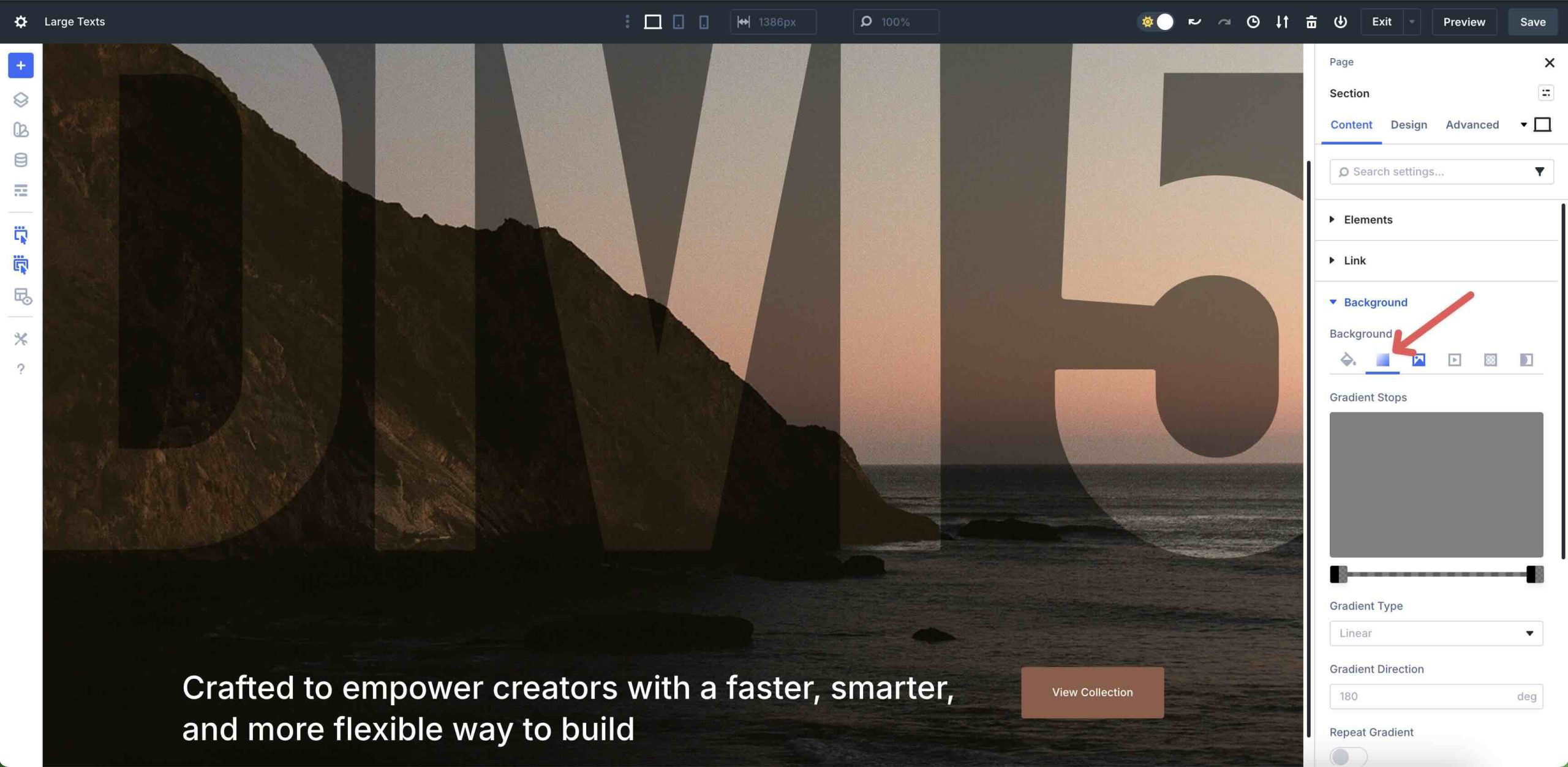
For Background Images or Gradients, go to Section settings → Content tab → Background tab and drop in your own image or change Gradient Stops.
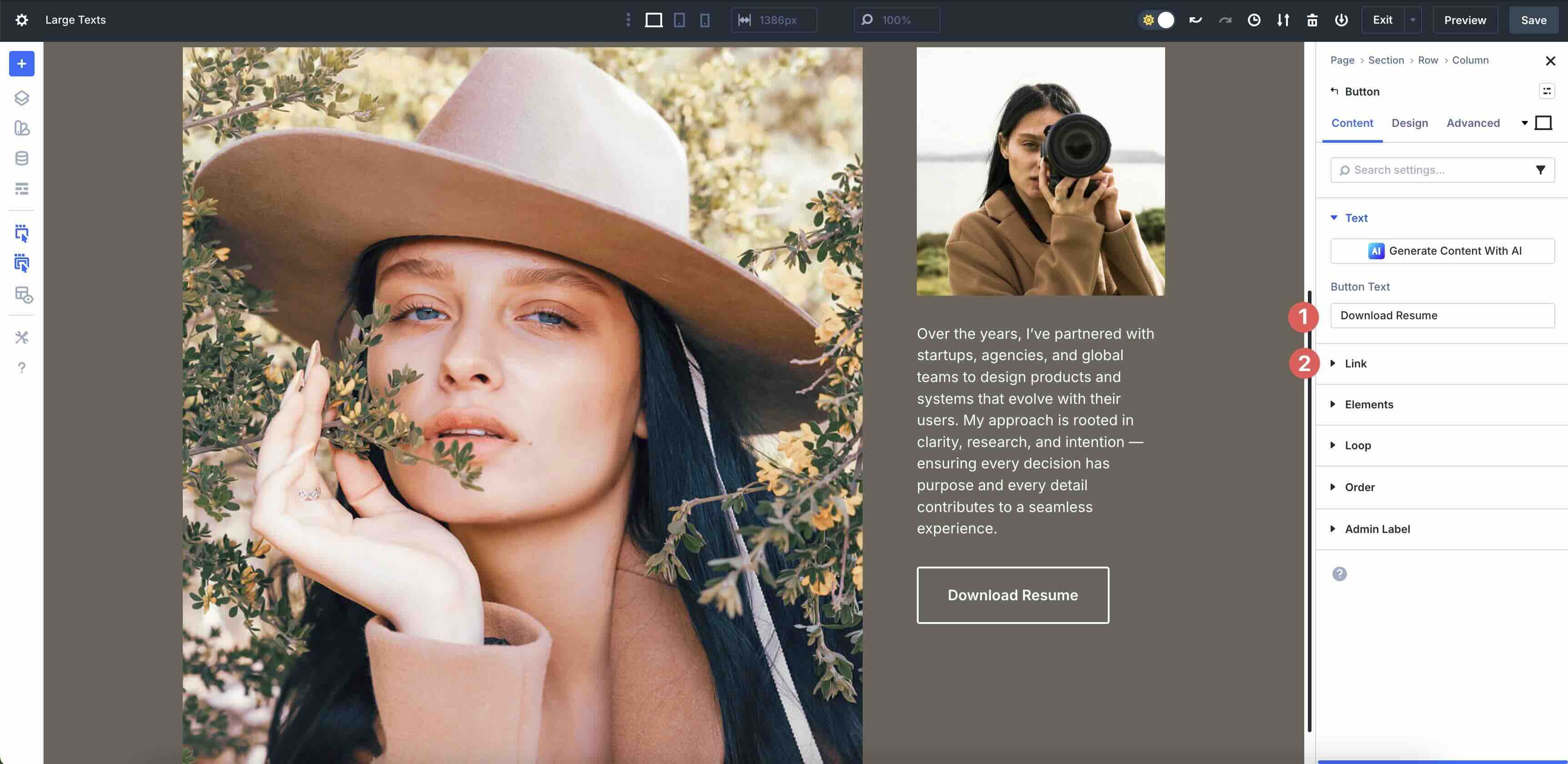
Buttons and CTAs are already styled, just update the link and text.
4. Adjust Styles (Optional)
Although each Section is already styled for you, you can change colors and styles to match your brand. Here are a few quick tips to customize the layout without breaking the design.
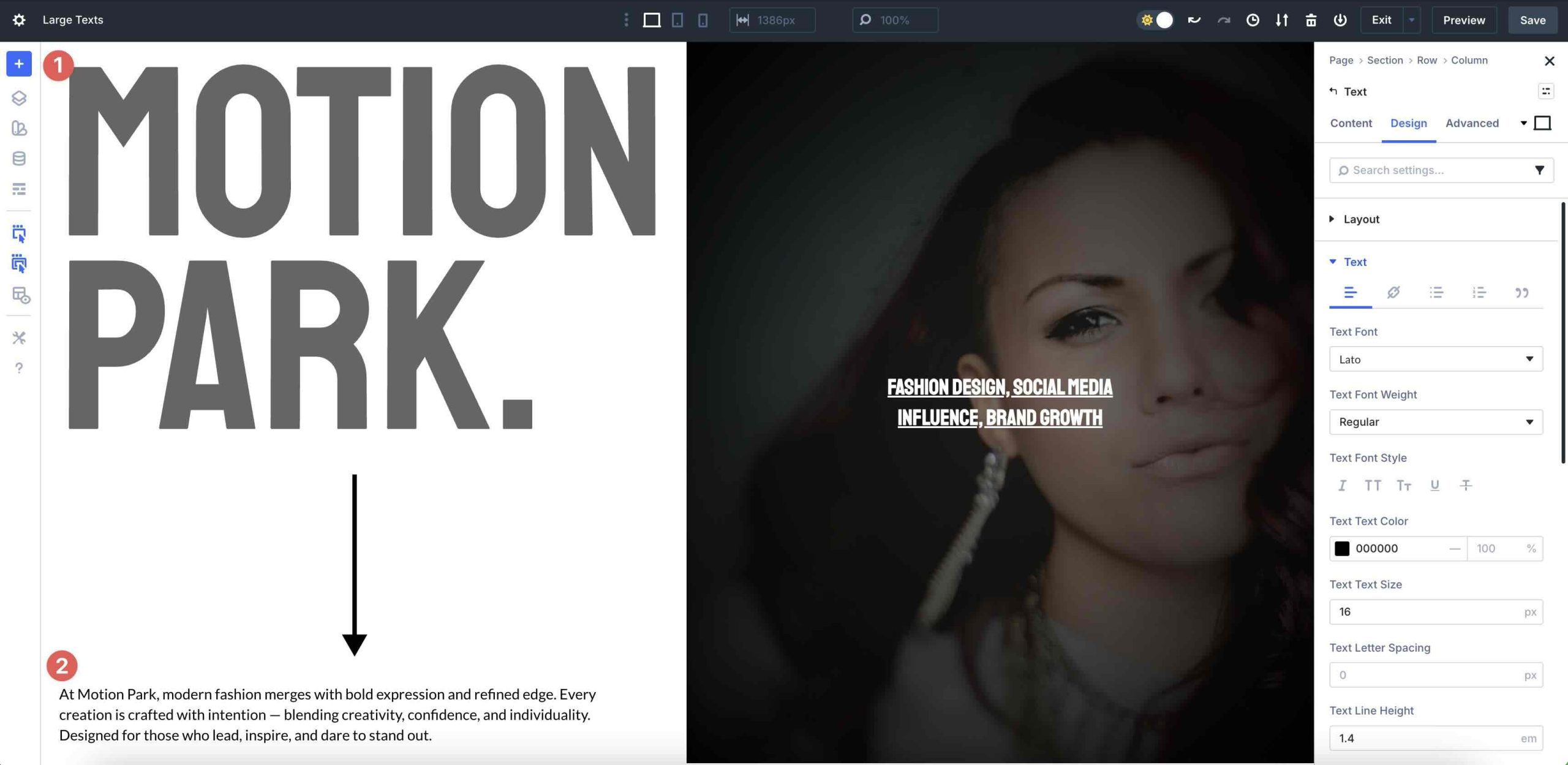
To change fonts, open any of the Text or Heading modules on the Section and go to the Design tab. Expand the Text or Heading dropdown menu to change the Heading Level, Font, Font Style, Text Alignment, or Text Color with a couple of clicks.
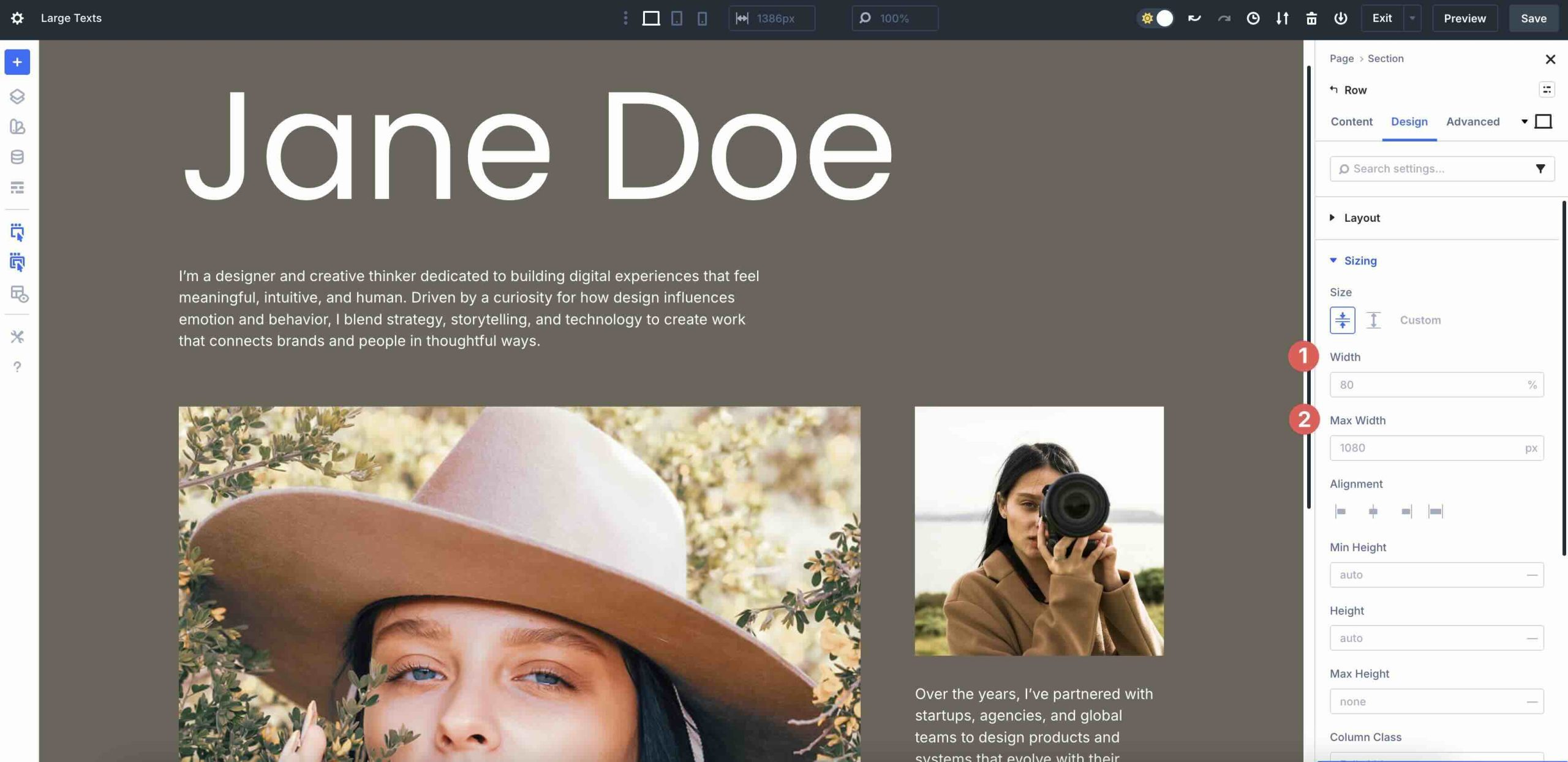
To adjust sizing, modify the width and max-width properties to increase or decrease the content to suit your preferences.
Use Divi’s Layout settings to adjust Flex properties, such as Horizontal and Vertical Gap, Layout Direction, or Layout Wrapping.
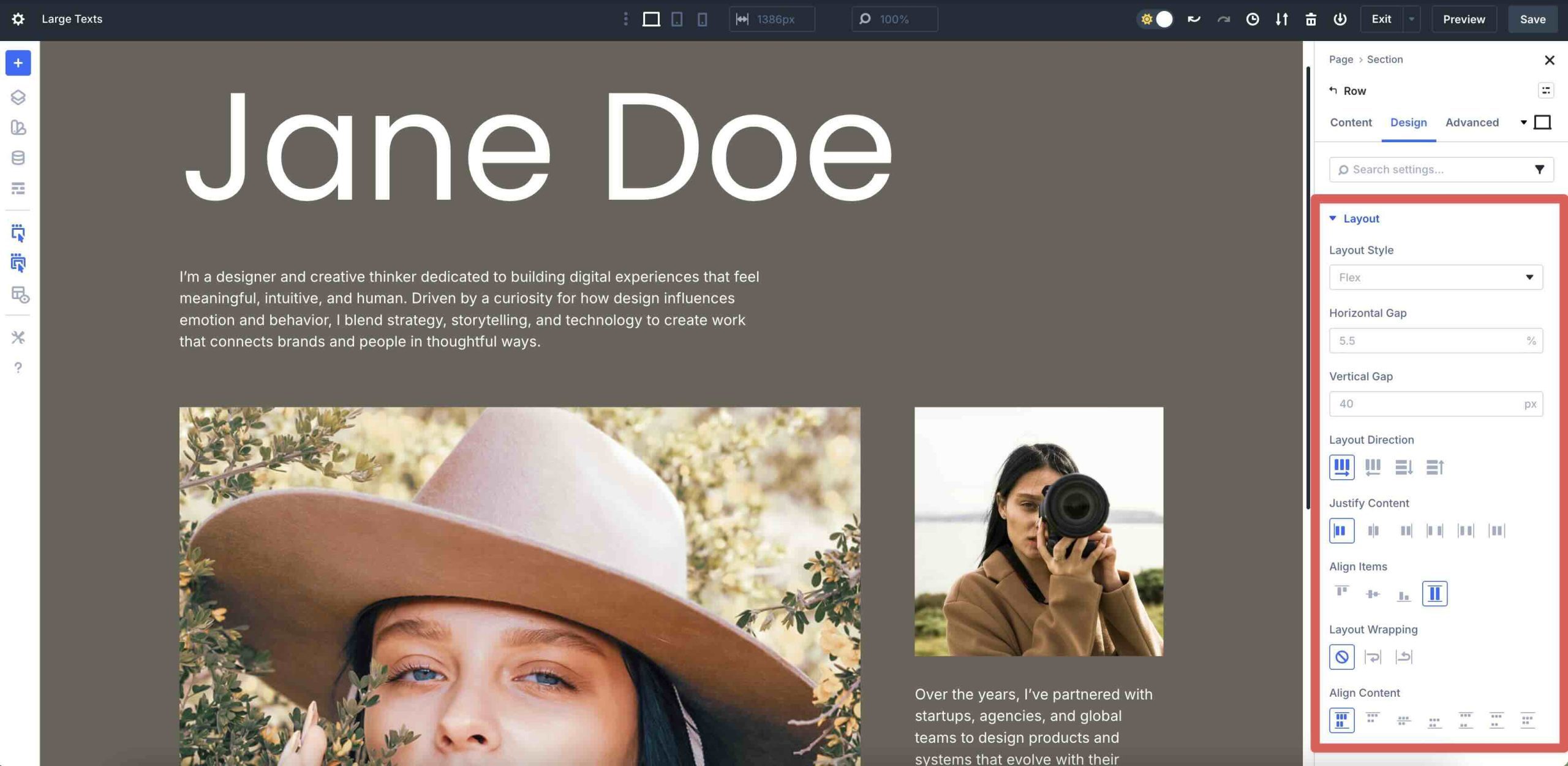
Add effects, such as text shadows, animations, or scroll effects for extra flair.
Tips For Effective Large Text Designs
Small choices add up. Here are quick wins to keep your large text sections clear and impactful.
Prioritize Hierarchy
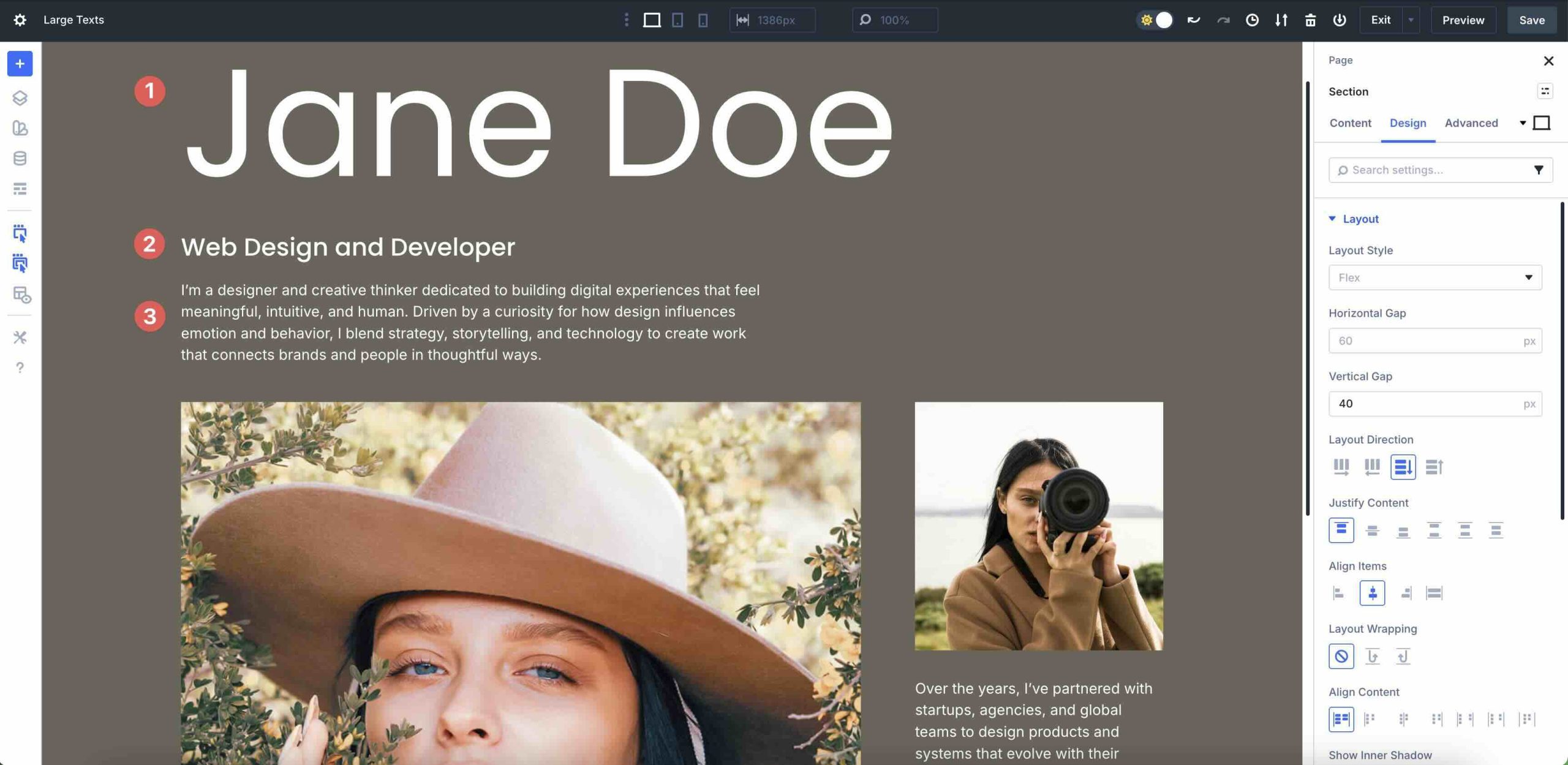
Use size, weight, and spacing to clearly distinguish your main headline from supporting lines. On smaller screens, keep headings concise and move secondary details into smaller text to avoid overwhelming the layout.
Mind Your Contrast
When placing large text over images, gradients, or solid colors, ensure there is enough contrast for readability. Use Divi 5’s Background options to add overlays or gradients behind text, keeping your message legible and accessible.
Use Consistent Typography
Limit yourself to a small set of font families and weights. Mixing too many styles makes the hero feel chaotic. If you’re using Design Variables for fonts, connect your headings and body text to those variables so changes stay consistent across the site.
Balance Text And Imagery
Determine whether your layout is text-first or image-first, and design accordingly. Use imagery to support the message — not compete with it. Align focal points in your images with the direction of your text to guide the eye through the design.
Use Motion Lightly
When using motion, subtle hover or reveal effects are enough. Avoid heavy parallax or frenetic animations behind large blocks of text. Consider gentle fades, slide-ins, or minimal hover states on CTAs so the motion supports the message instead of distracting from it.
Start Building In Divi 5 Today
These 5 styled Large Text Sections provide bold, production-ready hero designs that seamlessly integrate with your existing design system. Use them for landing page headers, portfolio intros, feature highlights, or editorial hero sections — and keep iterating with Divi 5‘s modern tools.






Hi,
I really like these posts where you show some of the power and capability of Divi 5. One of my challenges is sharing these capabilities with my designer.
Can I ask that you make available a web page that showcases the examples so I can show my designer what’s possible?
Thanks
Peter