


As a designer, every moment spent waiting for builder actions to load can break your creative flow. Speed is not just about your site’s visitors. It also matters inside your workflow, especially when you are entering the builder, exiting it, or switching between pages throughout a build session.
For Divi users, the Visual Builder has always been a powerful and intuitive workspace, but navigation still comes with overhead. On fast hosting, those delays may feel minor. On slower hosting, they can become a constant drag on productivity. When that wait repeats over and over during the day, even a few saved seconds per action can make the builder feel dramatically more responsive.
That is exactly what Speculative Prerendering in Divi 5 is designed to improve. Divi 5 predicts where you are navigating next based on your mouse movements and prerenders the destination before you click. By the time you click, the page may already be loaded in the background, making navigation feel instant in supported browsers.
In this post, we will break down what the feature is, how it works, where it helps most, and how to enable or disable it when needed.
What Is Speculative Prerendering?
Think of Speculative Prerendering as a head start for your browser. In Divi 5, it watches for high-intent navigation signals and begins prerendering a likely destination before you click. That means the browser can start preparing the next page in the background so the transition feels much faster when you commit to the action.
Unlike simpler loading optimizations that only fetch files ahead of time, prerendering prepares the destination page itself. In practice, that can make entering the builder, exiting it, and switching pages feel dramatically faster.
Divi 5 uses this as a workflow enhancement, not just a technical trick. It is aimed directly at the repetitive navigation actions that Divi users make all day long while building websites.
Under The Hood: The Speculation Rules API
This feature is powered by the Speculation Rules API, which allows supported browsers to prerender likely next-page navigations in the background. Divi 5 uses that capability to reduce the delay between user intent and the actual page transition.
Divi limits prerendering to destinations on your own domain. That keeps the feature focused and efficient instead of wasting resources on pages you are unlikely to visit. The goal is not to prerender everything. The goal is to make the most likely next action feel faster.
Support currently depends on Chromium-based browsers such as Chrome, Edge, Opera, Brave, and others. Safari and Firefox do not currently support the Speculation Rules API, so users on those browsers will not get the prerendering benefit yet. The site still works normally, but the instant-feeling navigation effect is limited to supported browsers.
Why This Matters For Designers
This matters because builder speed affects momentum. When you are actively designing, the cost of delay is not just measured in seconds. It is measured in interruptions. Every pause between actions breaks focus a little, especially when you are moving between pages, testing edits, opening another layout, or stepping in and out of the builder repeatedly.
For many Divi users, that kind of navigation happens constantly. You enter the builder, check a page, exit to adjust something, open another page, then jump back in again. Even if each action only takes a few seconds, the total overhead adds up over the course of a full workday.
The biggest benefit is often felt on slower websites. On premium hosting, navigation may already be quick enough that the gain feels subtle. On budget hosting or heavier sites, the difference is much easier to notice. Their example is a site that might take 5 seconds to load the builder. If Divi can start prerendering about 1.5 seconds before the click, that still cuts the visible wait by roughly 30%. The total work is not eliminated, but the amount of time you spend staring at a loading screen is reduced.
That is why Speculative Prerendering is more than just a speed feature. It is a workflow feature. It helps the builder feel more reactive, more immediate, and less like you are constantly waiting for the interface to catch up.
Integration With Divi 5
Divi 5 uses Speculative Prerendering in the places where navigation friction matters most. The most noticeable improvements happen when entering the builder, exiting the builder, and switching pages while building. The feature is also integrated into navigation through the Command Center.
- Entering the builder: As your mouse moves toward the Edit With Divi button in the admin bar, Divi can begin prerendering the builder before you click.
- Exiting the builder: Exit destinations can be prerendered too, making it faster to move back to the front end or the WordPress editor.
- Switching pages: When moving from one page to another in the builder, Divi uses the same approach to reduce the delay between navigation steps.
- The Command Center: Press Cmd + K, start typing a destination, and as soon as your navigation command is active, prerendering begins. By the time you press Enter, the destination may already be loaded.
This is what makes the feature practical. It does not live in some obscure edge case. It targets the exact actions that many Divi users repeat all day.
How Speculative Prerendering Works In Divi 5
Speculative Prerendering is not a constant background process that runs against every possible destination. Divi 5 uses it selectively. The browser only begins prerendering when Divi detects behavior that suggests a likely next step.
An example is the short window between moving your cursor toward a target and actually clicking it. Even though that window is brief, it is often enough to start preparing the destination in advance. On a fast site, that may be enough to make the transition feel instant. On a slower site, it can still remove a meaningful portion of the visible wait time.
That is the core idea behind the feature. Divi is not eliminating all processing. It is shifting some of the work earlier, into the time just before navigation happens, so that less work remains after you click.
Because prerendering is preparing a real destination in the background, it does create extra server requests. That is why Divi keeps the feature constrained. It only applies the logic where intent appears strong and only for pages on your own domain. That balance helps preserve the speed benefit without turning the feature into unnecessary background overhead.
How To Enable And Configure Speculative Prerendering
The good news is that Speculative Prerendering is enabled by default in Divi 5. Most users do not need to configure anything to benefit from it. If you are using Divi 5 in a supported Chromium-based browser, the feature is already working behind the scenes.
That said, Divi still gives you control over it. If you want to reduce extra background requests, troubleshoot a specific issue, or compare performance with and without the feature, you can toggle it off manually.
Accessing The Speculative Prerendering Toggle
If you need to disable the feature, open the Builder Settings inside the Visual Builder.

Look for the setting that speeds up the builder with prerendering, then toggle it on or off as needed.

For most users, the best option is to leave it on. It is one of those features that improves everyday use without requiring any special setup.
When To Disable It
For most designers, leaving this enabled is the right move. Still, there are a few cases where turning it off can make sense.
If you are on a restrictive hosting plan with tight CPU or memory limits, you may prefer to reduce additional background requests while working. Each prerender is essentially like an extra page visit to your site, so it does use server resources. If those resources are limited and you would rather avoid that extra load, disabling the feature is a reasonable tradeoff.
You may also want to disable it temporarily while debugging. If you are investigating JavaScript behavior, navigation issues, or unexpected requests, turning off prerendering can make it easier to isolate what is happening during a standard page load.
How To Verify It Is Working
If you are using a Chromium-based browser such as Chrome or Edge, you can verify prerendering in DevTools.
Open DevTools with Cmd + Option + I on Mac or Ctrl + Shift + I on Windows.
Open the Application panel. If it is hidden, click the >> overflow menu first.
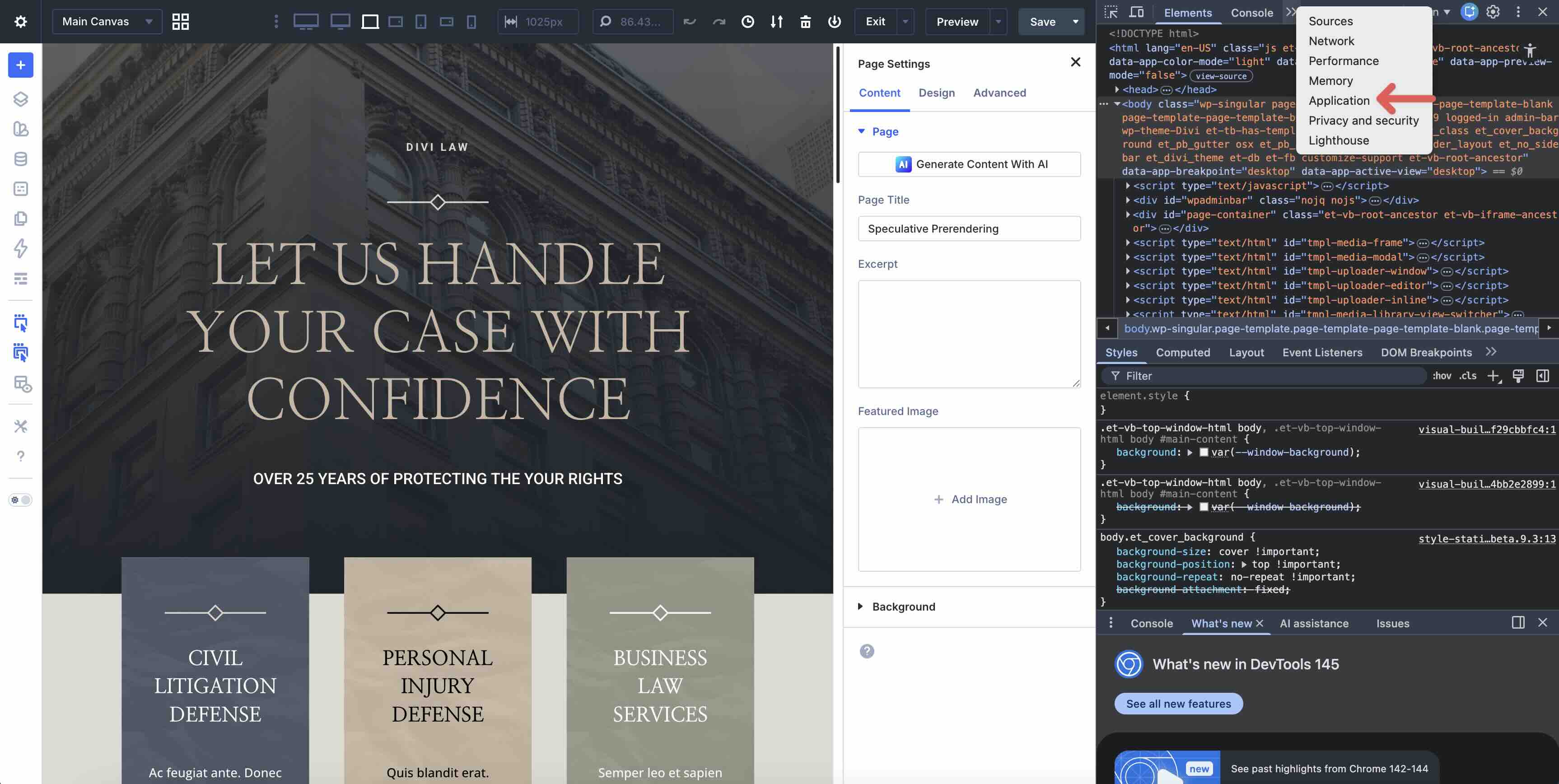
In the left sidebar, go to Background services > Speculative loads.
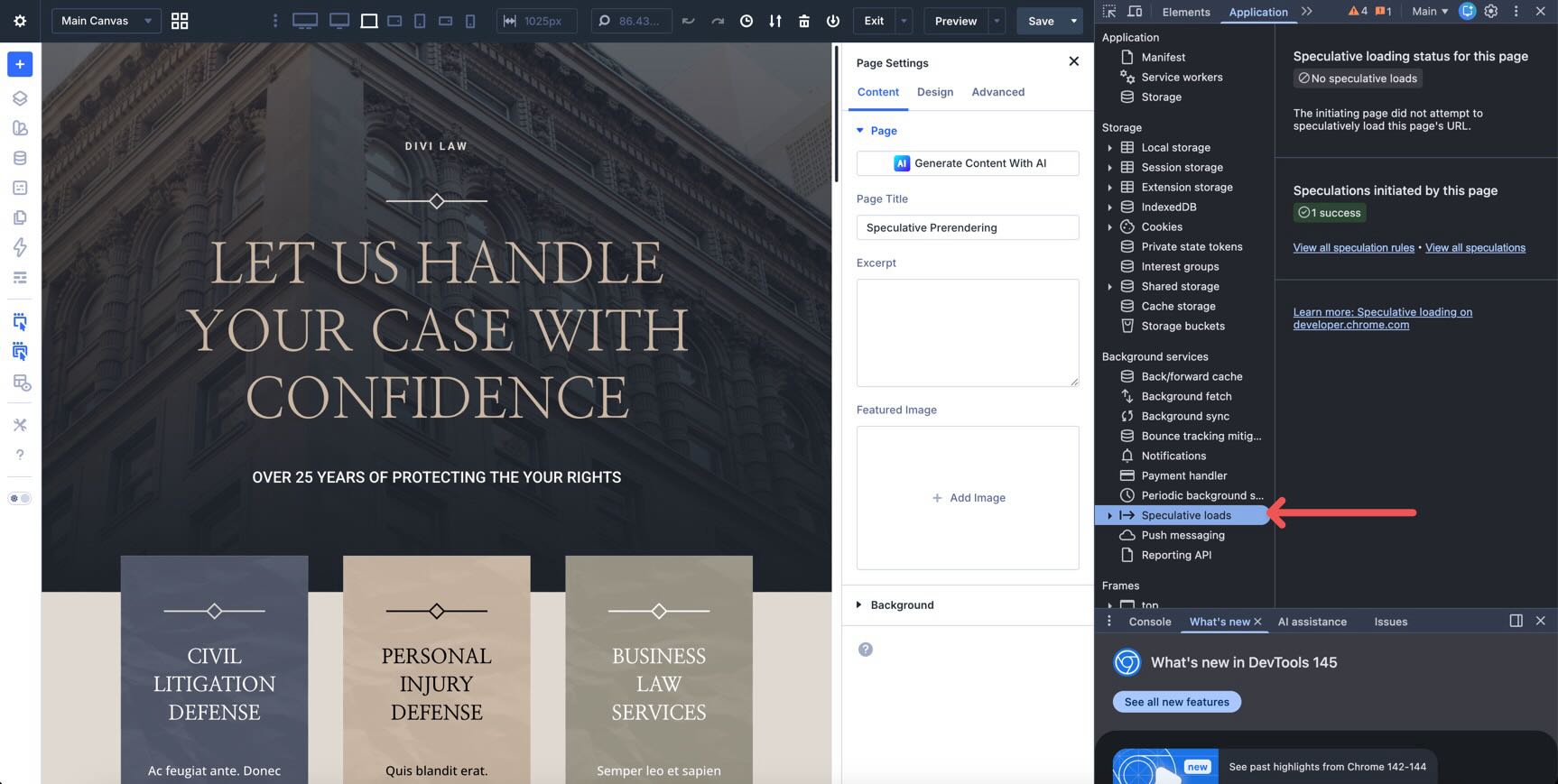
Keep that panel open while you navigate in Divi 5. Try entering the builder, exiting it, switching pages, or using the Command Center to navigate. If Speculative Prerendering is active, you should see speculative loading activity update in real time as the browser prepares eligible destinations in the background.
Start Building In Divi 5 Today!
Speculative Prerendering is a practical speed improvement for Divi 5. By preparing likely destinations before you click, Divi reduces the visible waiting time that normally slows down repeated navigation.
That benefit is especially noticeable for people who are constantly entering and exiting the builder or moving between pages during a design session. On fast hosting, it helps the interface feel more immediate. On slower hosting, it can make the builder feel substantially less sluggish.
Most importantly, it improves the parts of the workflow that users actually notice. You spend less time waiting for the builder to catch up and more time building.
If you have not tested it yet, try Divi 5 in a supported Chromium-based browser and pay attention to how quickly common navigation actions respond. It is one of those features that can quietly improve the entire editing experience once it becomes part of your normal workflow.








It looks really good! I hope it will significantly speed up the sites we have on shared hosting. We’ll start testing it out 😉
It’s a nice addition, this speculative pre rendering functionality… for those using a Chromium-based browser like Chrome or Edge.
However this article does not give a clear answer to all the other Divi5 users, those who are not using a Chromium-based browser.
Should we, none Chromium-based browser users, turn the speculative pre rendering toggle off or does it make no difference?
You can keep it on or turn it off. Keeping it on has no impact since your browser doesn’t support it, meaning it does nothing with it.